

Manage apps connected to your account
When you connect an AI assistant to Releva, it gets its own access to your account: the stores you chose and the permissions you approved on the consent screen. Releva lists every such connection on Account › Connected apps. This guide shows how to read that list and how to disconnect an app.
Before you start
Section titled “Before you start”- You are signed in to the Releva admin. Every member of the account can open the tab and disconnect any app, including apps another person connected. There is no admin-only setting.
- At least one AI assistant is connected. Otherwise the tab shows “No AI assistants are connected to this account yet.”
-
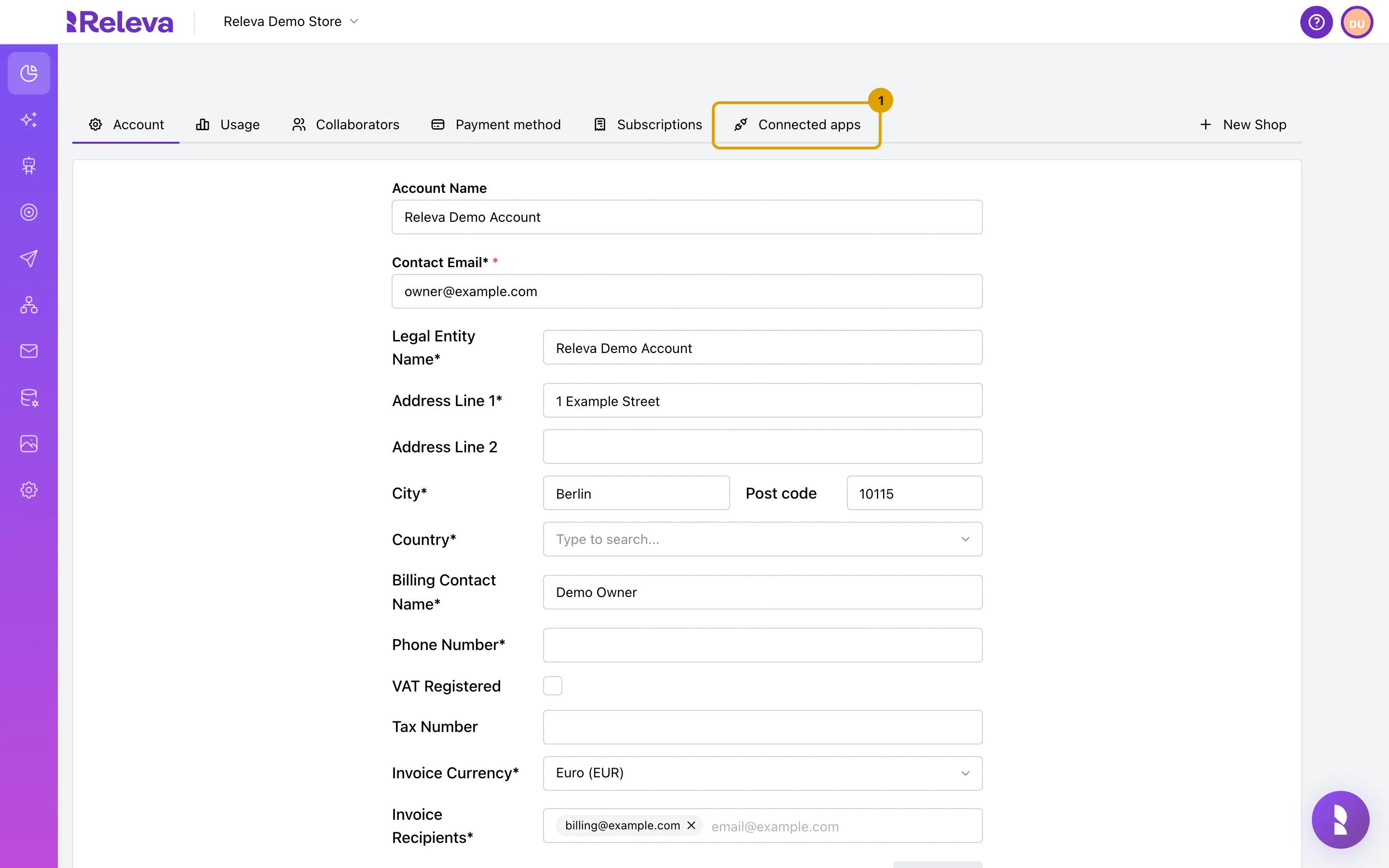
Select your avatar in the top-right corner, select Account and open the Connected apps tab
The account page opens on the Account tab. Connected apps is the last tab, after Subscriptions.
-
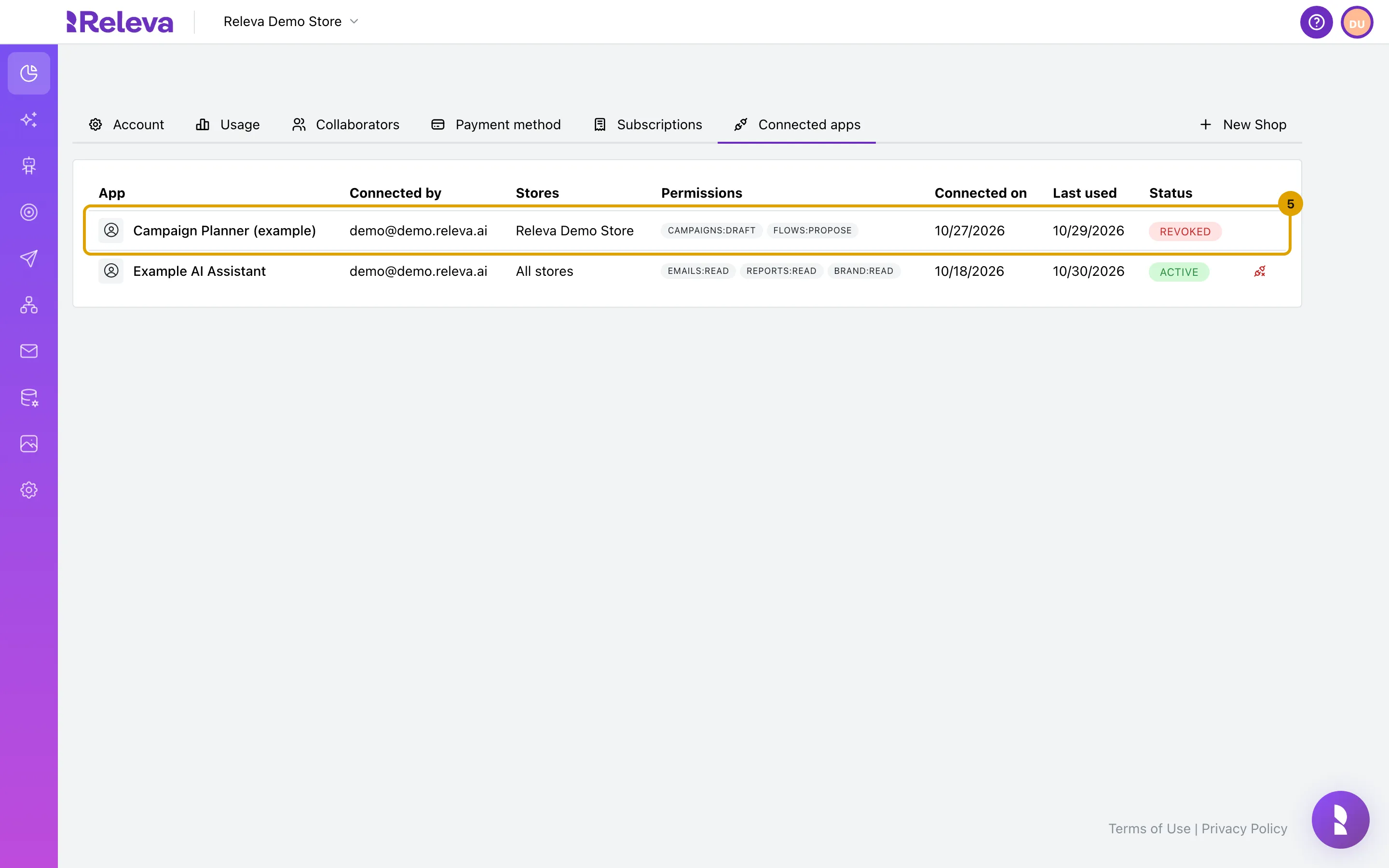
Check the list. Each row is one connection, newest first
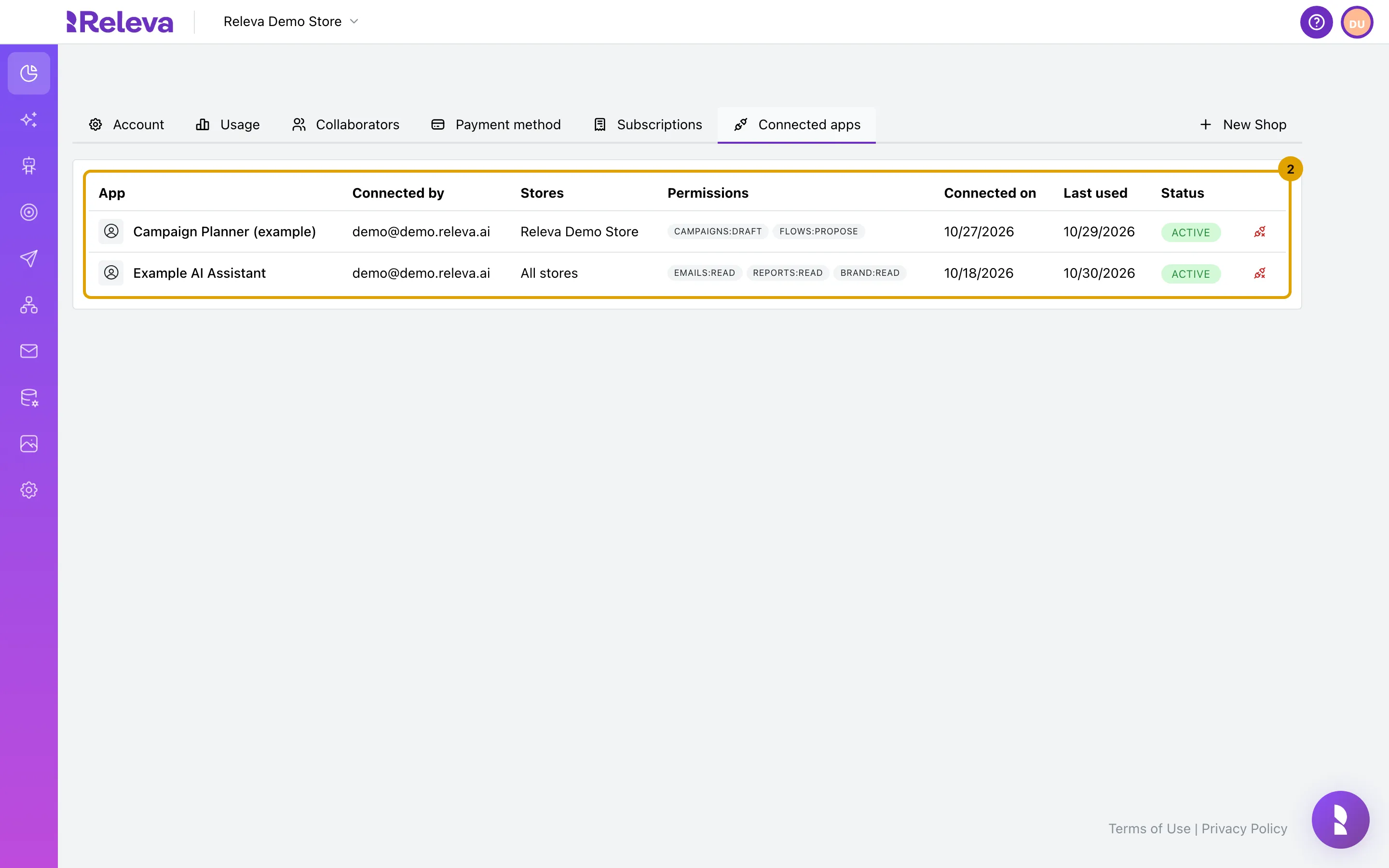
Each column is explained in What the list shows.
-
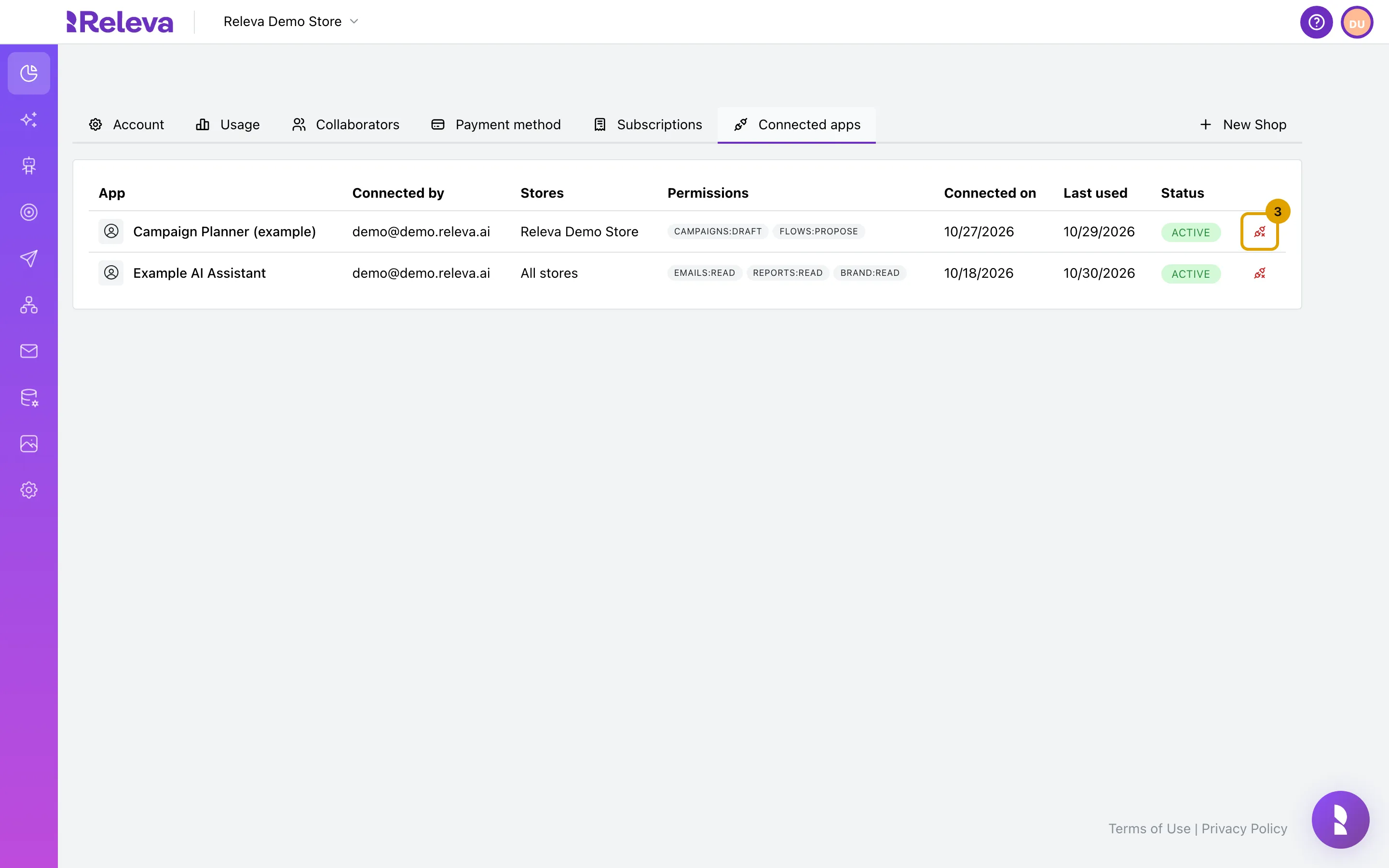
In the app’s row, select Disconnect (the red unplug icon)
The icon shows only on active rows.
-
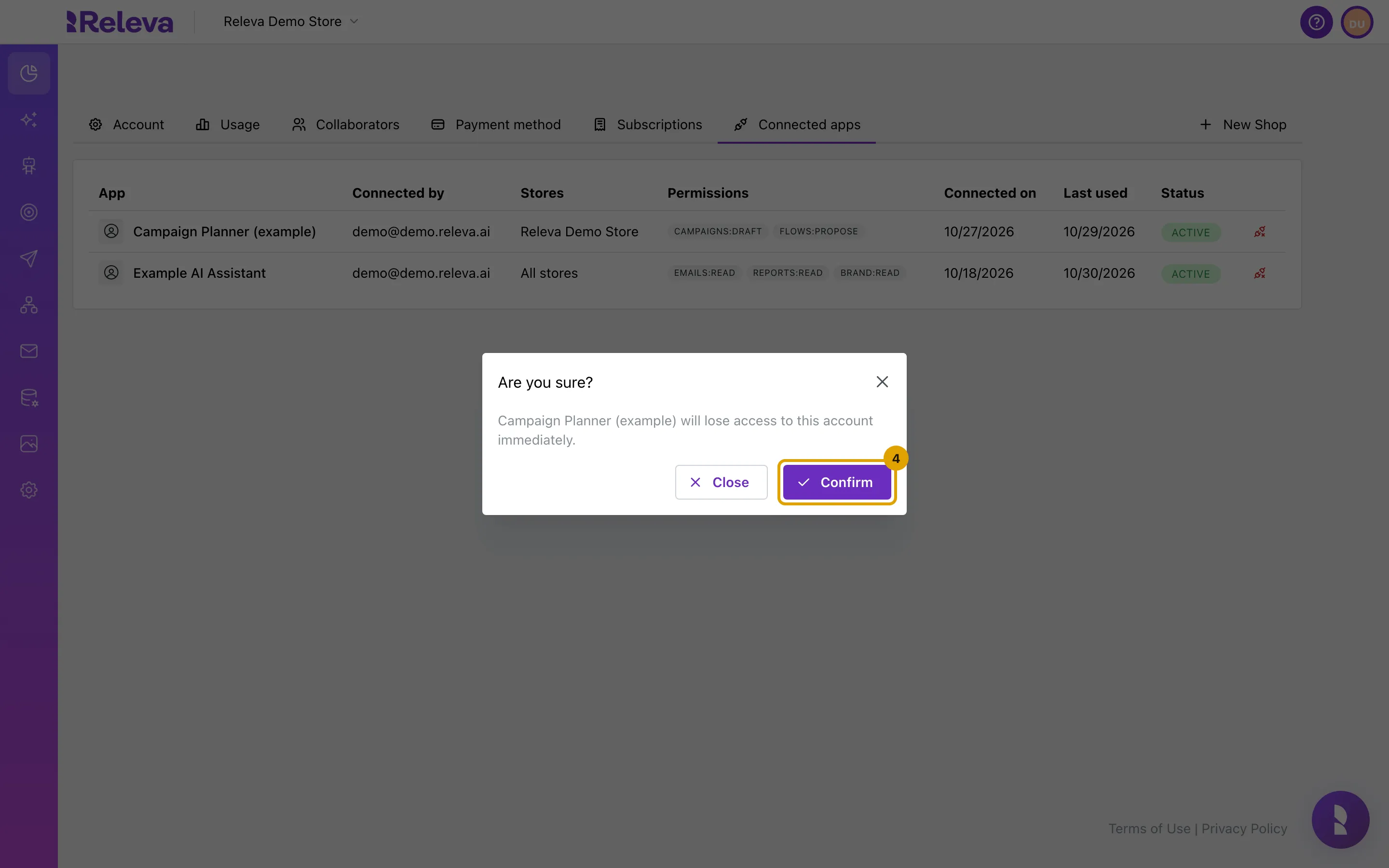
Read the message and select Confirm
The dialog says “Are you sure? App name will lose access to this account immediately.” Select Close to keep the connection.
What the list shows
Section titled “What the list shows”- App: the name the app registered with. An app that registered without a name shows as An unnamed app.
- Connected by: the e-mail of the person who approved the connection.
- Stores: the shops the app can reach, or All stores when it covers every shop on the account.
- Permissions: one badge per permission the app was granted, for example
CAMPAIGNS:DRAFT. The first part is the area: emails, campaigns, segments, feeds, content, reports, flows or brand. The second part is what the app may do there:readsees.writecreates and edits. For campaigns and content it only adds and removes tags.editcreates and edits product blocks, banners, banner blocks and layouts, which start switched off.draftcreates campaign drafts that are not sent until you launch them.proposesuggests automation flows for you to review.
- Connected on: the date the connection was approved.
- Last used: the date the app last signed in to or refreshed its access, or Never. Access is refreshed about once an hour while the app works, so this date can be up to an hour behind the app’s last request.
- Status: Active, or Revoked once the app is disconnected.
Check it worked
Section titled “Check it worked”The app’s status changes to Revoked and the Disconnect icon disappears from its row. The app’s access stops at once: its current sign-in is cancelled, not just its ability to sign in again. The row stays in the list as a record of the connection.
Troubleshooting
Section titled “Troubleshooting”I disconnected an app by mistake. Disconnecting cannot be undone. Connect the app again from the AI assistant: it goes through the consent screen again and appears as a new row with status Active. The revoked row stays.
I want to give an app different stores or permissions. A connection cannot be edited. Disconnect it, then connect again from the assistant and choose the new stores and permissions on the consent screen.
The list shows “An unnamed app” and I do not know what it is. The app registered without a name. If nobody on the account recognises it, disconnect it. The Connected by column tells you who approved it.
The app still answers questions about my account after I disconnected it. The assistant may be showing data it fetched earlier. New requests to Releva fail as soon as the status is Revoked.
The tab shows an error instead of the list. Reload the page. If the error stays, contact support@releva.ai.