

Check that your store data arrives
Every integration ends on the same three screens in the Releva admin: Events, Products and Profiles. This guide walks through them once. The platform pages link here instead of repeating the steps, and keep only what is specific to that platform, such as the catalog address or the page tokens.
Before you start
Section titled “Before you start”- Your shop is connected with its app, plugin, module or snippet: Shopify, WooCommerce, Magento 2, PrestaShop, OpenCart, CloudCart, CS-Cart, GombaShop or Shopiko, MerchantPro, a custom website or a partner platform.
- You have produced some data to look for. In a private browser window, open a few pages of your storefront, open a product page and add the product to the cart. Then log in as a test customer, or register one. Events reach Releva within a minute.
- For products, the first catalog sync has run, or your platform has pushed its products. On most platforms you start it with Sync Now on Settings › Shop & Integration › Catalog Sync: Schedule a full catalog sync.
The screenshots show the demo shop with fictional customers. Your shop shows your own pages, products and people.
-
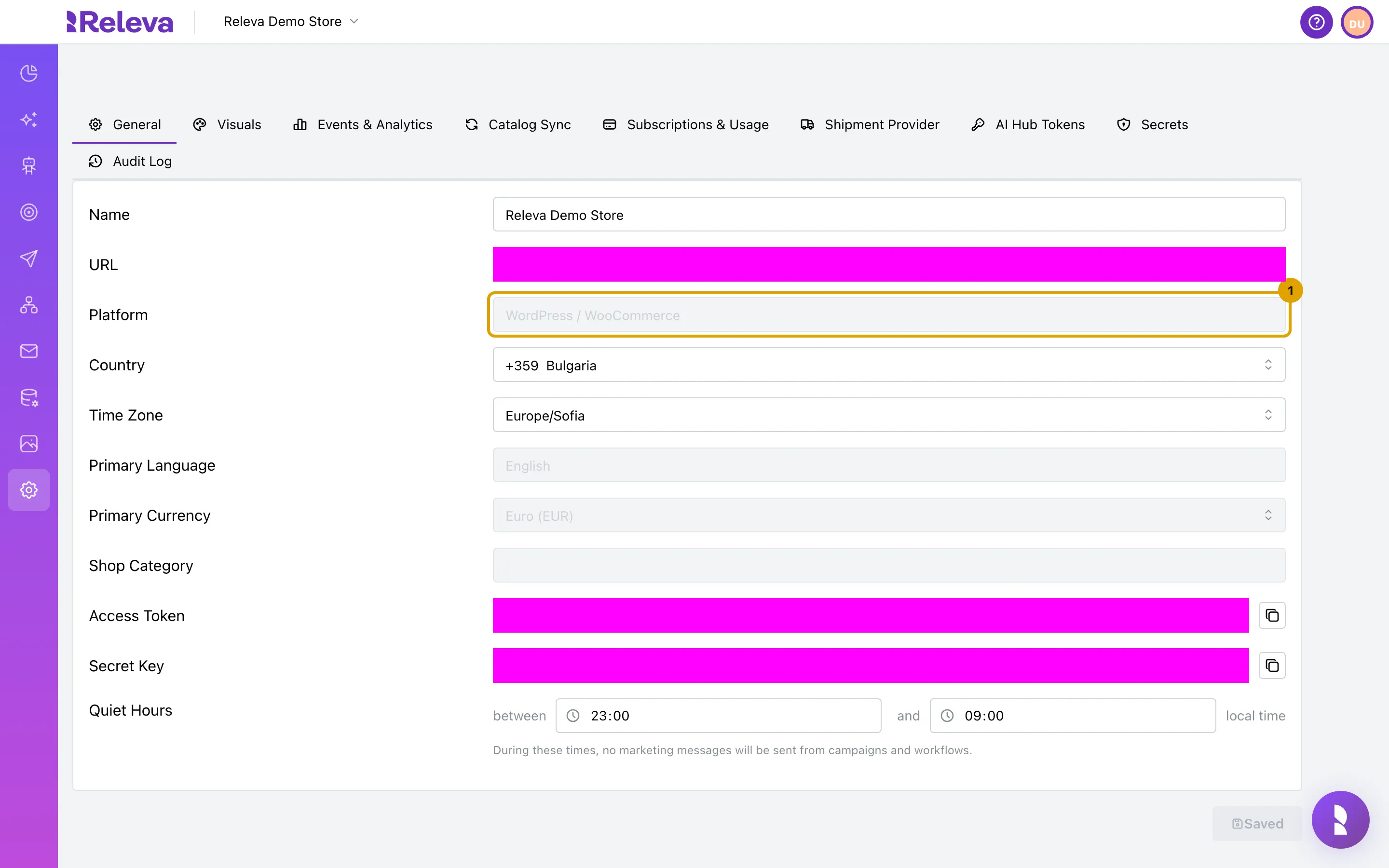
Open Settings › Shop & Integration. On the General tab, Platform shows the platform your shop is connected with, for example WordPress / WooCommerce. You can’t change it here
The field is read-only. A custom website shows Other / Custom. If it shows the wrong platform, contact support before you go on: the platform decides which catalog address and sync defaults your shop gets.
-
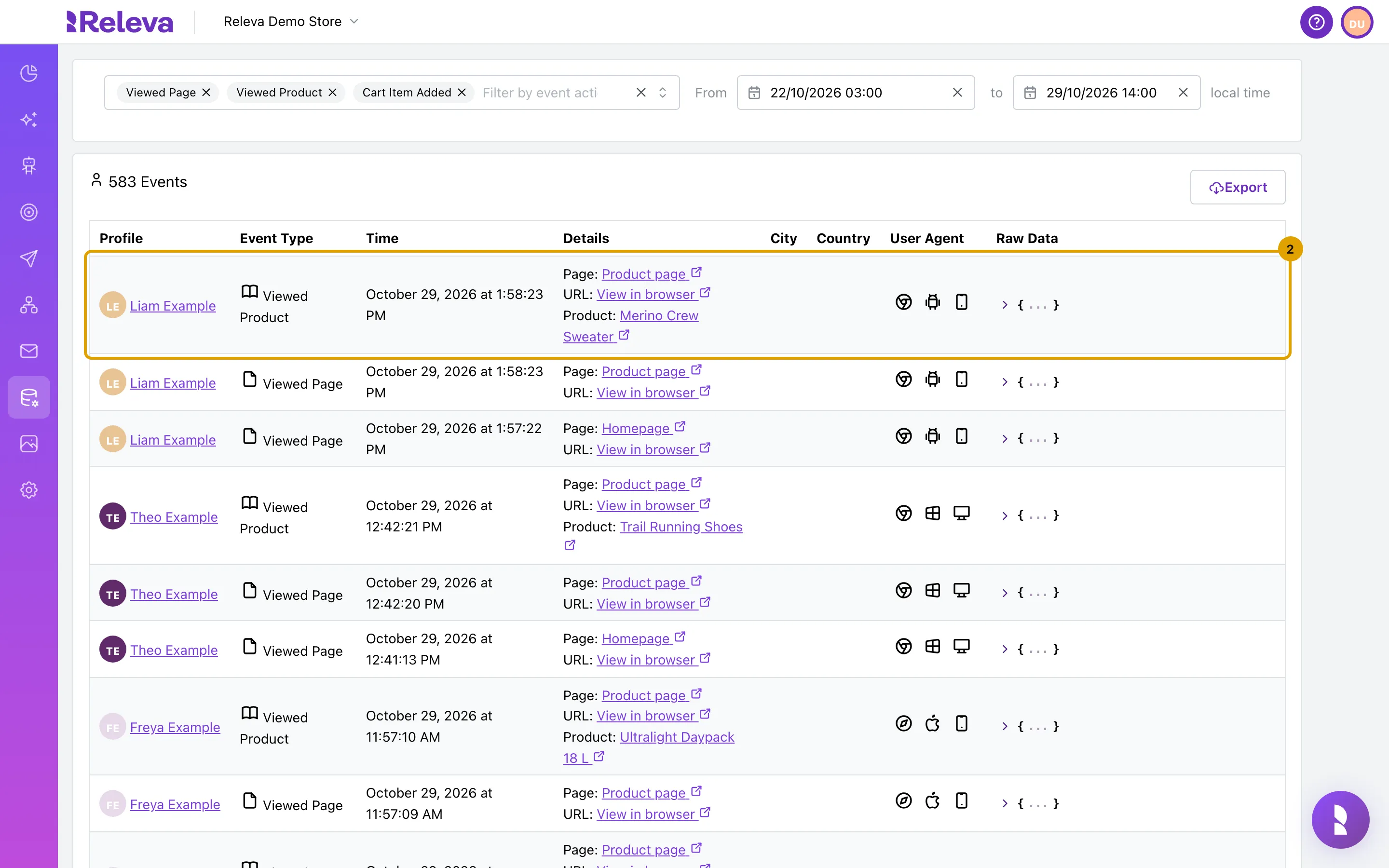
Go to Data Platform › Events. In Filter by event action…, select Viewed Page, Viewed Product and Cart Item Added. The newest events are at the top
From defaults to the last 30 days, in your local time. Each row is one event from your shop. Profile names the visitor, or shows their device id when they are not logged in. Details shows what the event is about: Page: names the Releva page the view was matched to, URL: View in browser opens the page that sent it, and Product: links to the product in Releva. The screenshot shows a seeded date window; on your shop leave the dates as they are.
-
In Raw Data, select the arrow to see everything Releva received with the event
The tree shows the fields exactly as they arrived: action (
pageView,productView,cartAdd), url, timestamp, products and the profile the event was attributed to. When a field you expect is missing here, the storefront did not send it.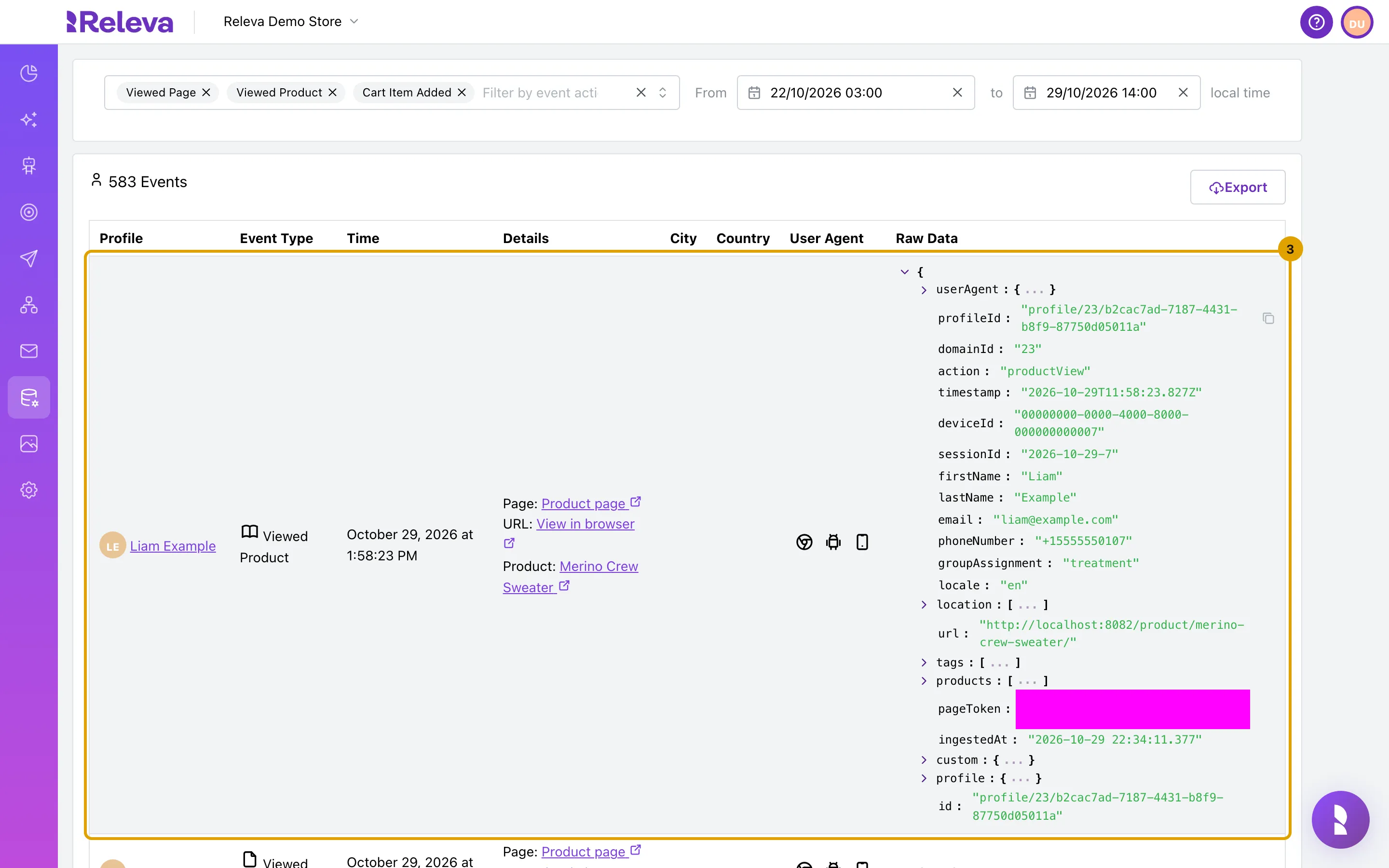
-
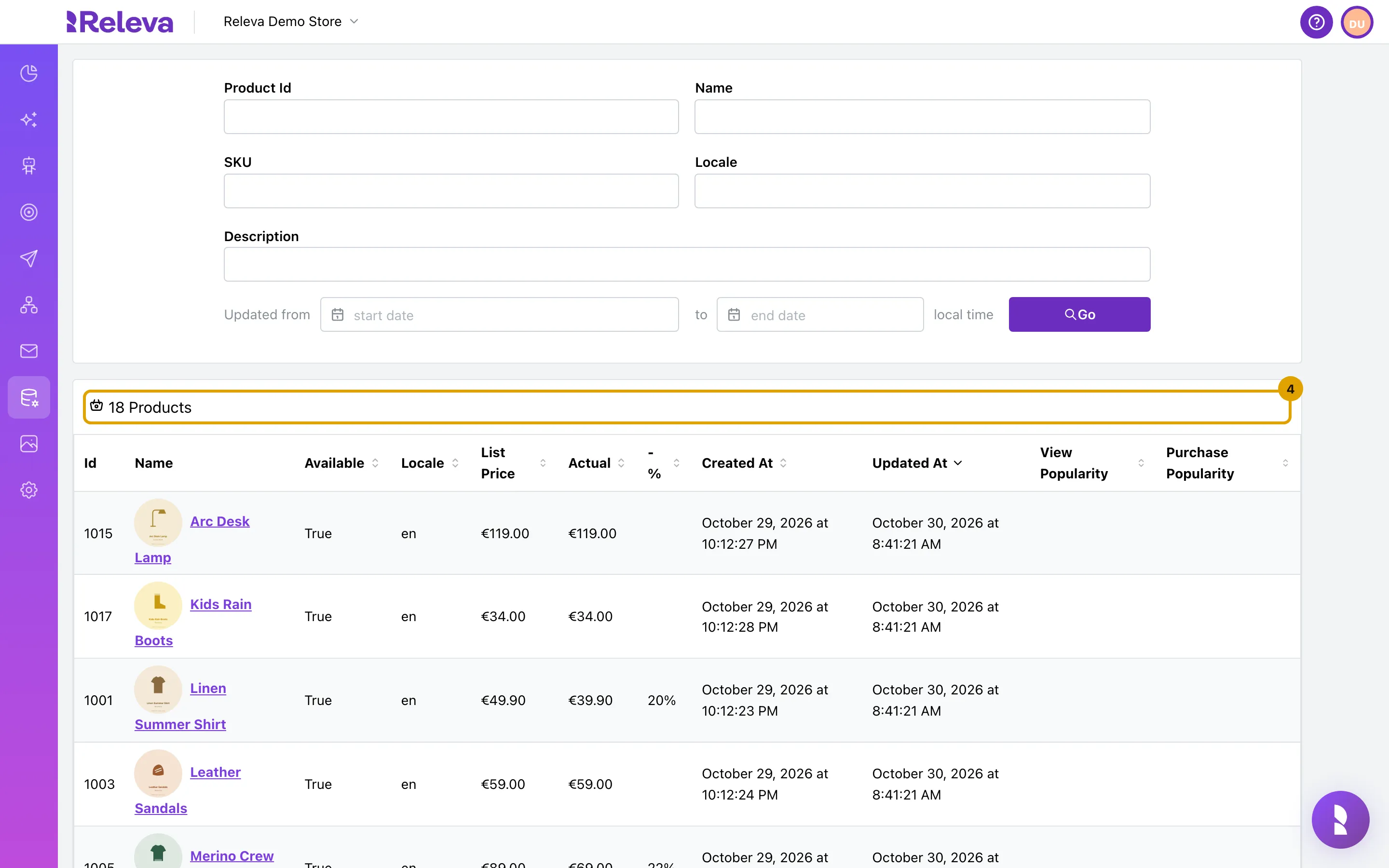
Go to Data Platform › Products. Each product shows its image, name, price and when it was last updated
The header counts the products Releva has for your shop. Updated At tells you when the last sync or push touched each one.
-
Select a product name. Product Details shows every field Releva has for the product
Check Sku, Url, Image Url, Categories, Available, Currency and the price fields. Custom lists the custom fields your platform sent, grouped as
string,numericanddate. A product with two or more variants also has a Variants tab with a count.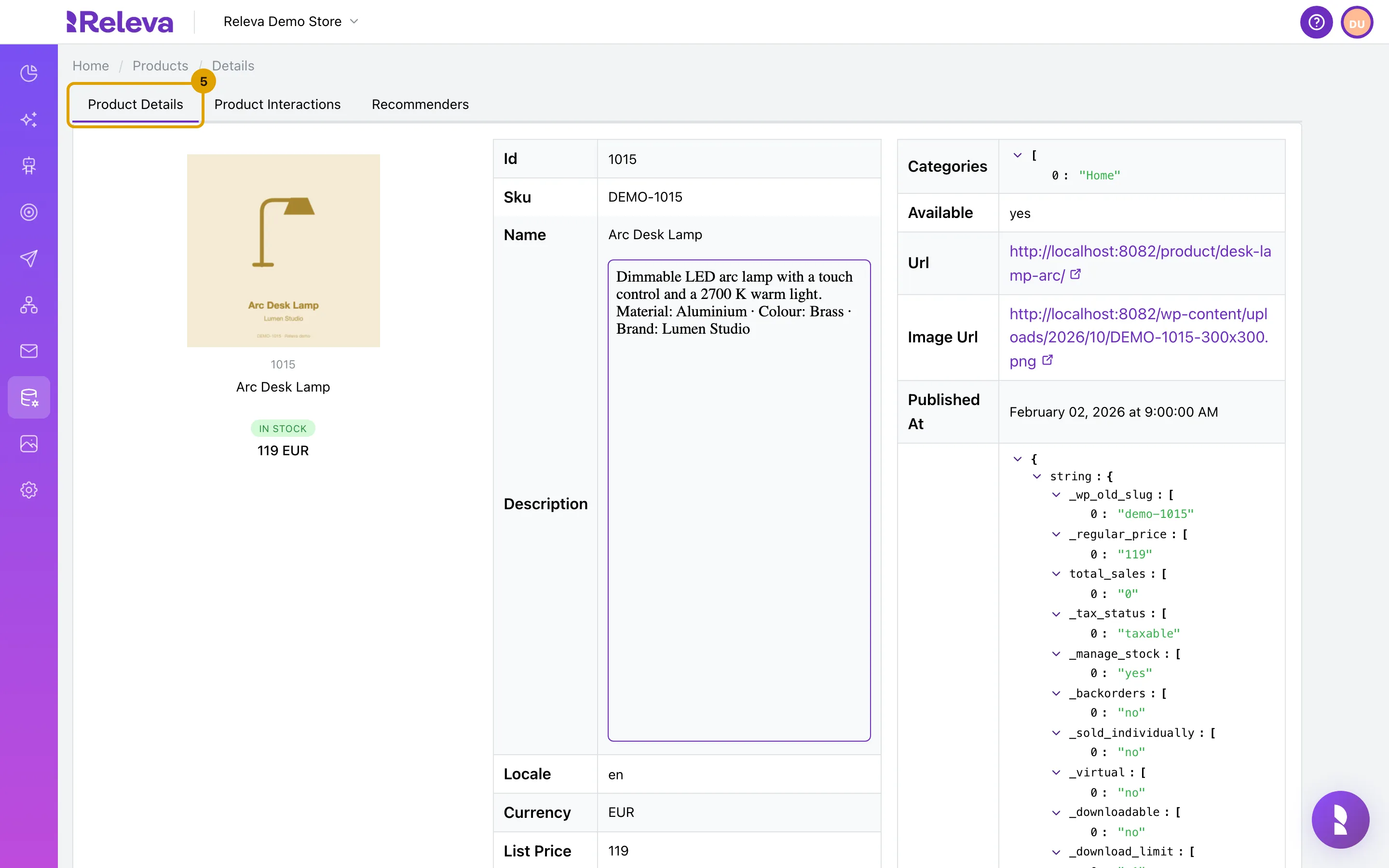
-
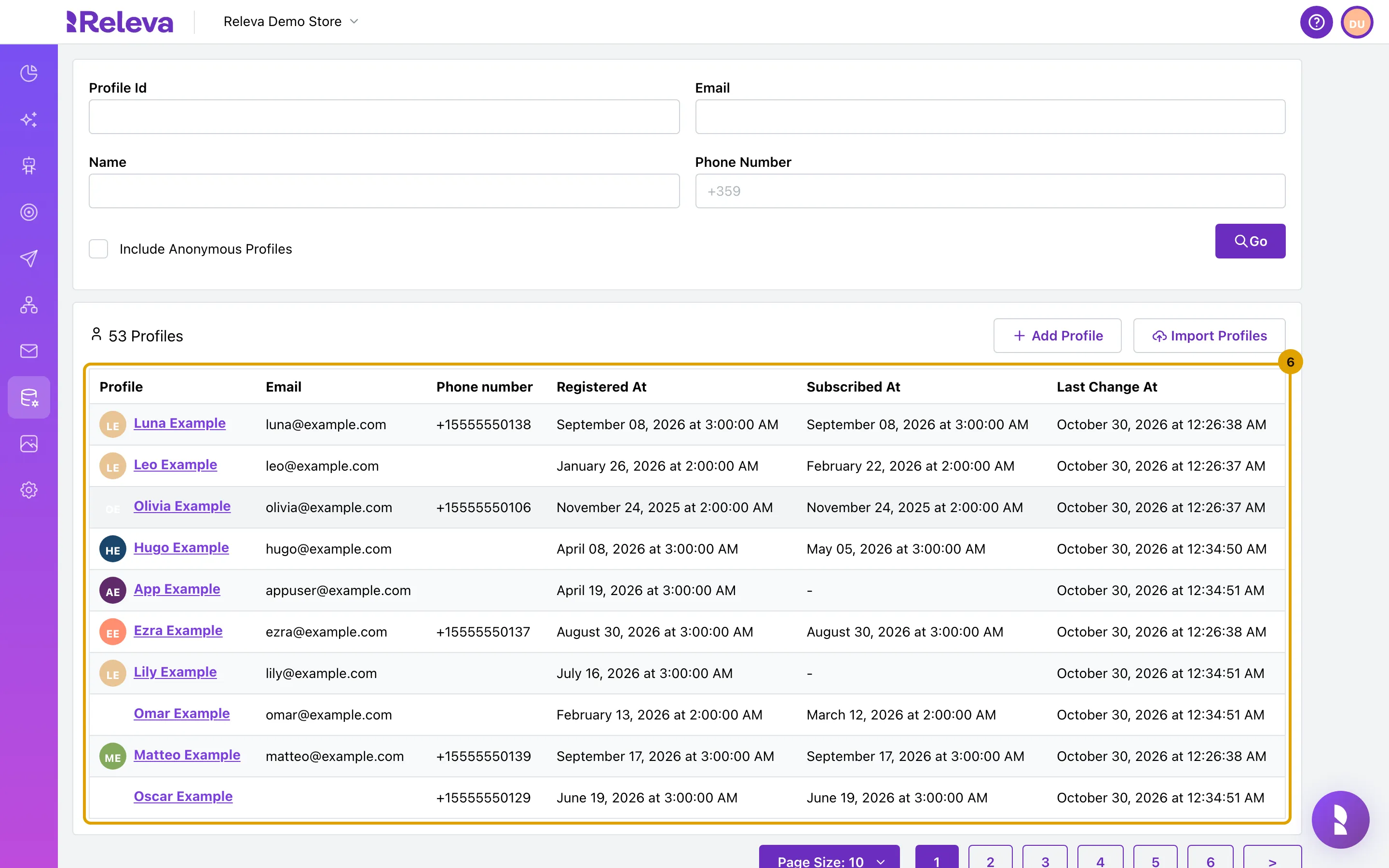
Go to Data Platform › Profiles. Customers appear here once they log in, register, subscribe or order
The list shows only profiles with an email address or phone number. To see visitors Releva knows only by their browser, select Include Anonymous Profiles and then Go.
-
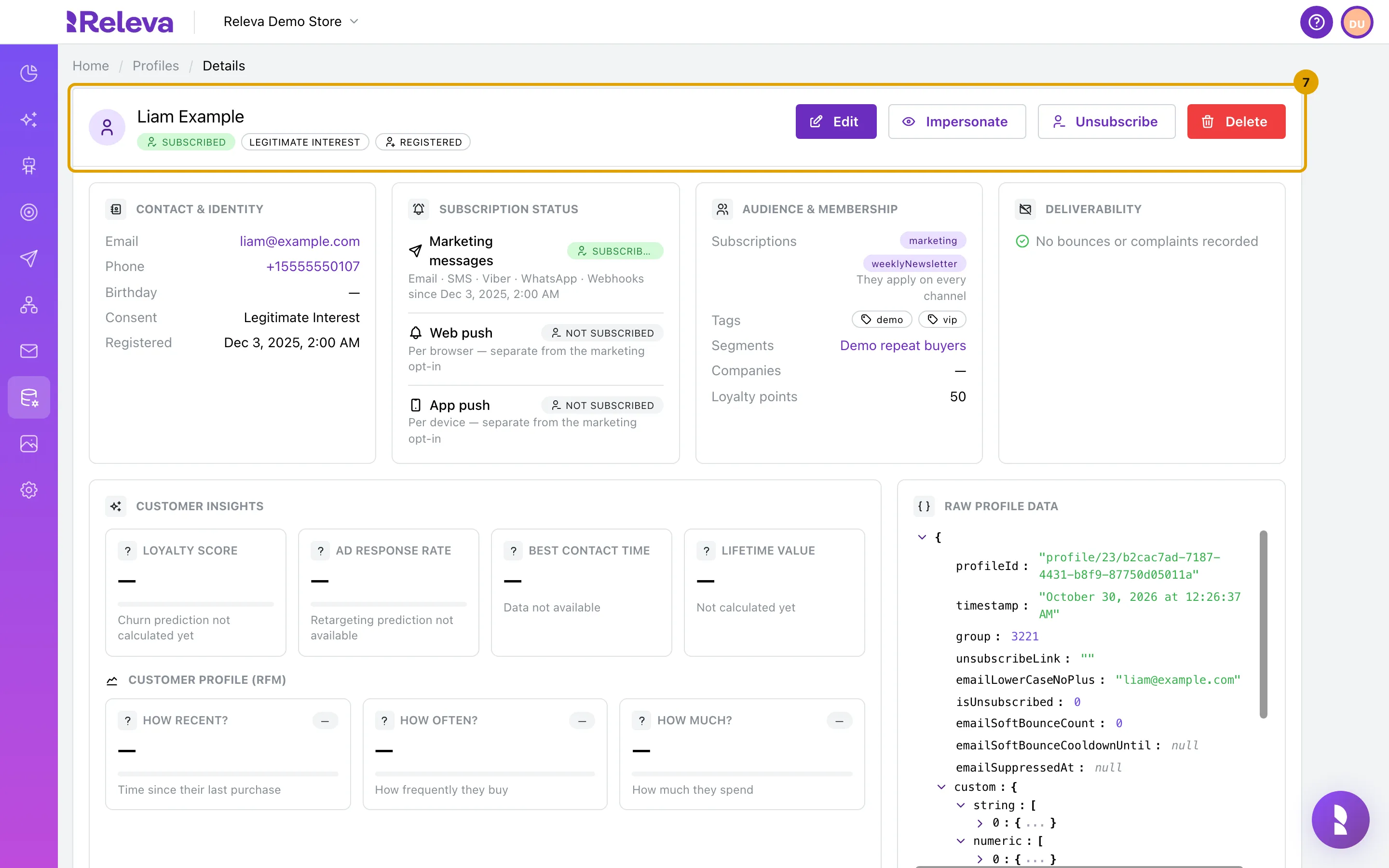
Select a name. The profile shows the customer’s contact details, subscriptions and the segments they belong to
The header carries the marketing status, for example SUBSCRIBED, the consent basis and whether the customer is REGISTERED. The cards below show Contact & Identity, Subscription Status, Audience & Membership and Deliverability.
-
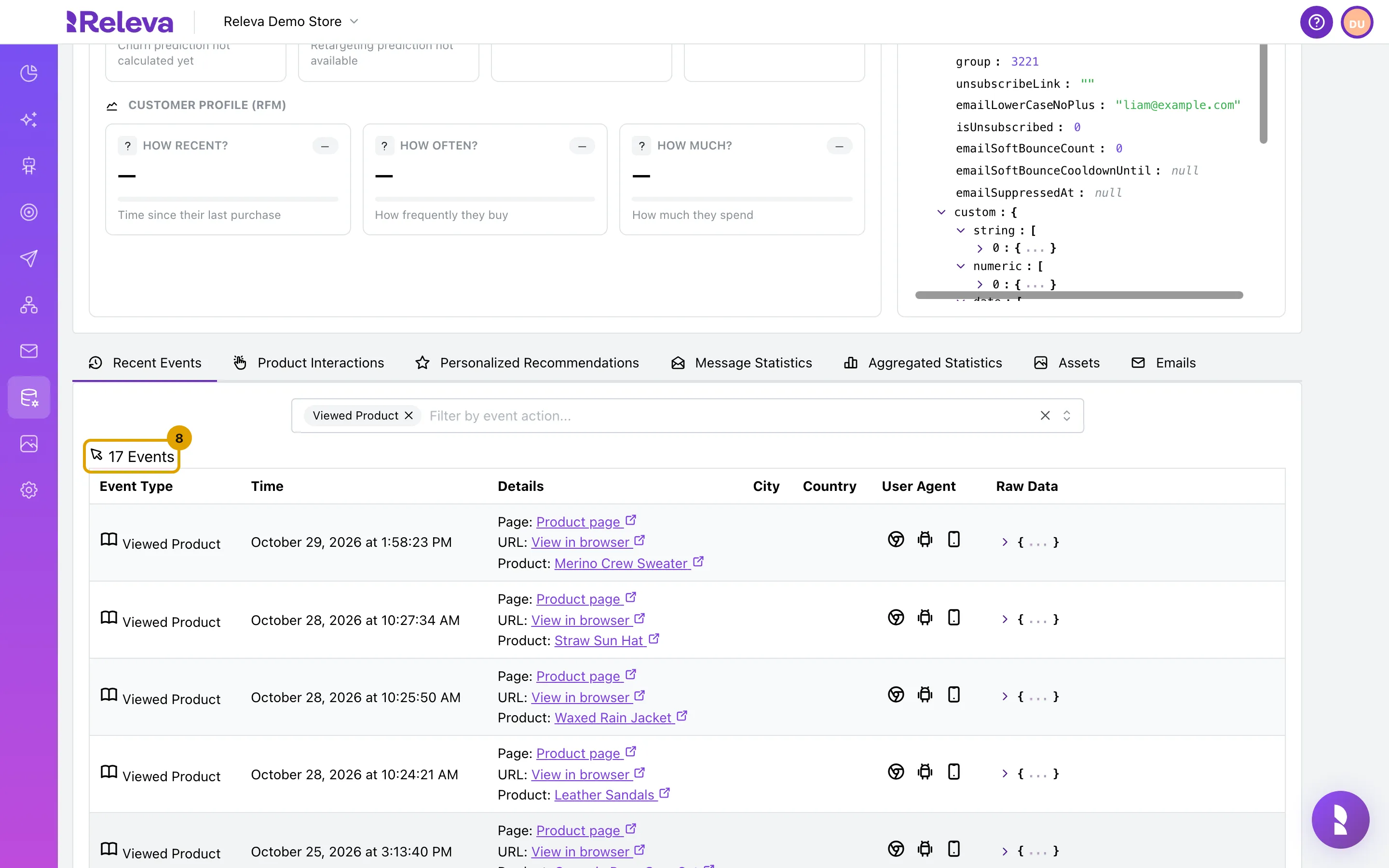
Scroll down to Recent Events. It lists what this customer did in your shop, newest first. In Filter by event action…, select Viewed Product to see which products they looked at
Check it worked
Section titled “Check it worked”- Viewed Page rows whose URL: View in browser opens pages of your shop, with a Page: line that names one of your Releva pages.
- Viewed Product rows with a Product: link, one for each product page you opened.
- A Cart Item Added row from the moment you added a product to the cart.
- Your products on Data Platform › Products, with images and prices, and a product you open shows a Url that points at your shop.
- Your test customer on Data Platform › Profiles, with their page and product views under Recent Events.
Troubleshooting
Section titled “Troubleshooting”No events at all. The tracking code is not loading, or it runs with the wrong key. View the page source of your storefront and look for releva-sdk-js. Check that the key in your platform’s settings is the Access Token from Settings › Shop & Integration, not the Secret Key: Find your Access Token and Secret Key. On a custom website, open a page with ?rlv_mode=debug and read the SDK’s console log: Connect your custom website. Clear the cache of any optimisation plugin, and check that a consent banner is not blocking the script.
Events arrive, but without a Page: line. The storefront sent no page token for that page type, or the token belongs to another page or shop. A page view is matched by page.token or by the URL Path of a Releva page; without a match there is no Page: line and no product blocks. Fill in the token field for that page type in your platform’s settings, or set URL Path in Page Settings on Personalization › Product Blocks.
Every Profile is a device id. Your visitors are not logged in, or the integration does not pass the logged-in customer to Releva. Log in as a test customer and open a page. If the profile is still anonymous, check how your platform sends profile with the push and whether consent allows it: How consent works in Releva.
No products. The catalog sync has not run. Open Settings › Shop & Integration › Catalog Sync, select Test next to the address, then Sync Now, and set a schedule: Schedule a full catalog sync. Sync History shows each run with its status and product count.
A product has no image. The feed sent no imageUrl for it, or the address is not reachable from the internet. Open the product and check Image Url.
A customer is missing from Profiles. Customers appear only after they log in, register, subscribe or order, and the list hides profiles without an email address or phone number. Tick Include Anonymous Profiles and select Go, or search by Email: Find a profile.
An event shows as Custom Event: … The storefront sent an action that is not one of Releva’s standard events. It is stored like any other event and is not a sign of a broken integration.