

Connect your PrestaShop store
The Releva module for PrestaShop (technical name releva, shown as Releva Integration in the module manager) puts the Releva tracking snippet on your storefront pages and serves the endpoint Releva reads your product catalog from. You upload it in the PrestaShop admin and configure it with the Secret Key of your Releva shop. Nothing about the module is configured inside Releva: there you create the shop with platform PrestaShop, copy the key, and later check that data arrives.
Before you start
Section titled “Before you start”- A shop in Releva with Platform set to PrestaShop. The platform is chosen on Create Shop and is read-only afterwards on Settings › Shop & Integration › General. Choosing it fills in the catalog sync URL for you (see In Releva: check the sync settings). If your shop was created as Other / Custom, ask your account manager for a PrestaShop shop. See How accounts, shops and billing work.
- The module
.zipfrom your Releva account manager. - A PrestaShop admin user who may upload modules. The module runs on PrestaShop 1.7; for other versions, ask your account manager.
- Your shop runs on HTTPS and can reach
https://releva.aifrom its server. Releva calls your shop’s catalog endpoint over HTTPS, and your server calls the Releva API. - If your shop has several languages or stores, read Languages and multistore first.
Install
Section titled “Install”If you have shell access, php bin/console prestashop:module install releva installs the same module.
-
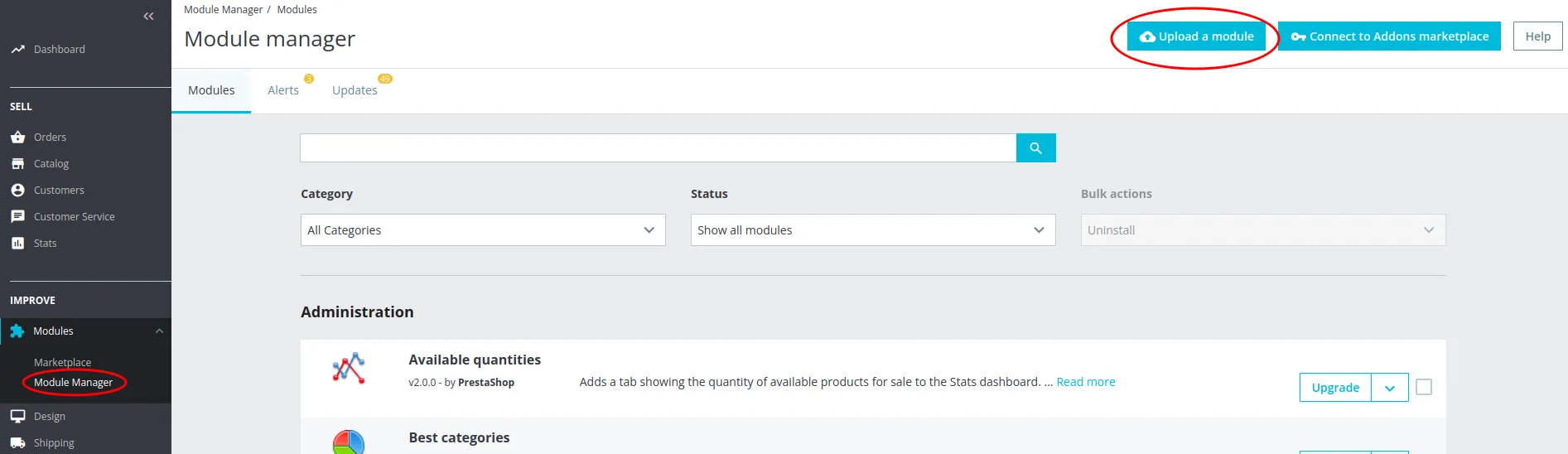
In the PrestaShop admin, go to Modules › Module Manager and select Upload a module in the top right corner.
-
Drag the module
.zipinto the dialog. Wait for Module installed!, then select Configure.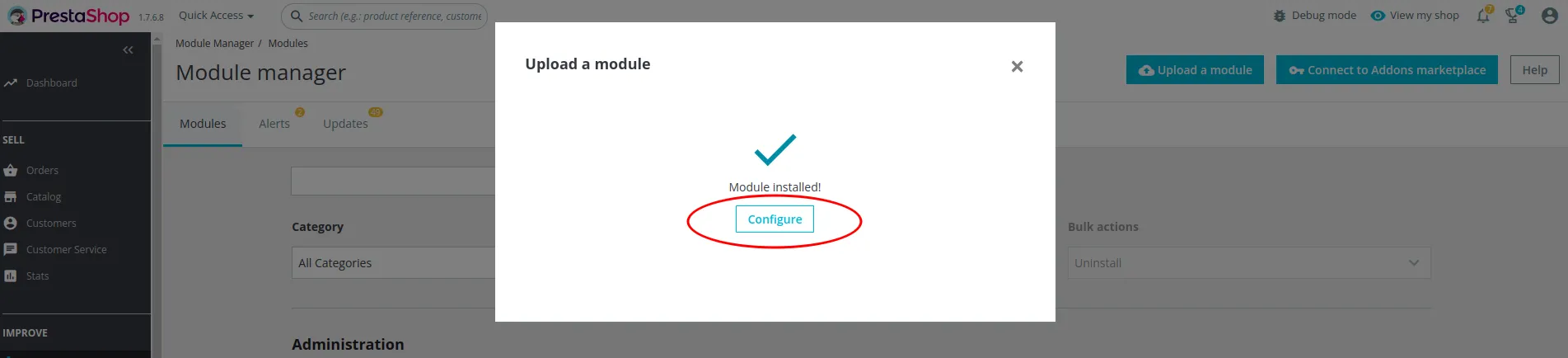
You can open the same screen later from Modules › Module Manager: find Releva Integration and select Configure.
Configure
Section titled “Configure”In Releva: copy the Secret Key
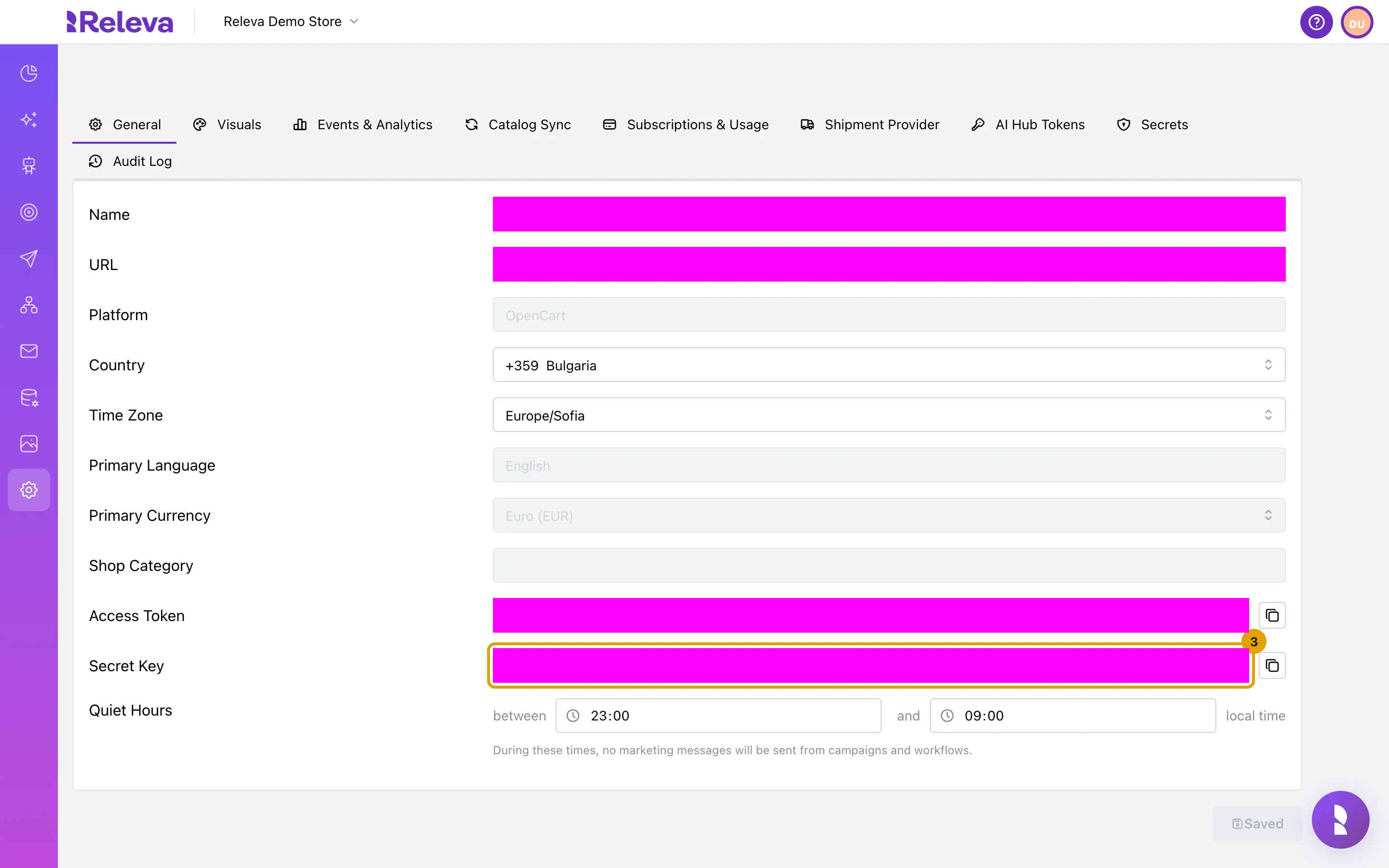
Section titled “In Releva: copy the Secret Key”- Open Settings › Shop & Integration. On the General tab, Platform shows PrestaShop. If your account has several shops, pick the right one in the shop switcher first.
- Scroll to Secret Key and select the copy icon next to it. The module asks only for this key; the Access Token is not typed into PrestaShop.
The screenshots of these two steps are in Verify. Both keys are explained in Find your Access Token and Secret Key.
In PrestaShop: fill in the module settings
Section titled “In PrestaShop: fill in the module settings”On the module’s Configure screen, under SETTINGS:
| Field | Value |
|---|---|
| Secret key (required) | The Secret Key you copied from Releva. |
| Collect permissions for push notifications | YES only if you send web push notifications from Releva. See Create a web push notification. |
| Name of cookie which stores consent (leave blank if not collecting cookie consent) | The name of the cookie your consent banner sets when a visitor accepts analytics and marketing cookies, for example cookielaw. |
| Value of cookie which stores consent (leave black to check for cookie presence only) | The value that means consent was given, for example 1. Leave it empty to check only that the cookie exists. The label’s “black” is a typo in the module. |
Select Save (bottom right).
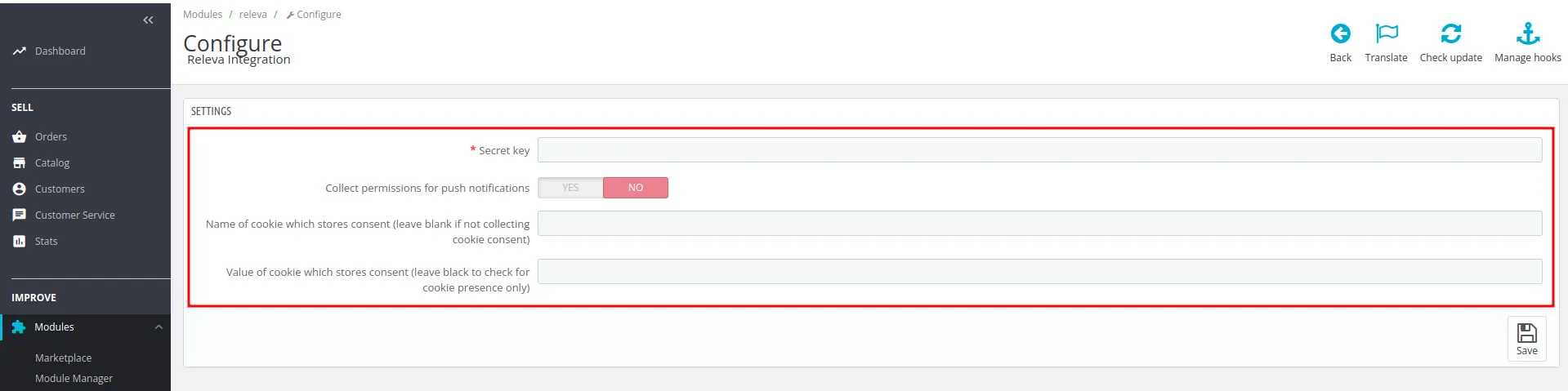
If your store is subject to data protection laws such as GDPR or CCPA, fill in the consent cookie before you save. A wrong consent configuration is your responsibility, not Releva’s. What the Releva SDK does with the result is described in How consent works in Releva: on every push it sends profile.consent as cookiesPolicy when the check passes and mandatoryCookies otherwise.
In Releva: check the sync settings
Section titled “In Releva: check the sync settings”When the shop was created with platform PrestaShop, Releva filled in one address from the shop URL:
| Setting | Where in Releva | Default |
|---|---|---|
| Catalog sync URL (Catalog Sync Type API) | Settings › Shop & Integration › Catalog Sync | https://your-shop.example.com/index.php?fc=module&module=releva&controller=products&id_lang=1&ajax=true |
Three things are not set for you:
- Catalog Sync Schedule is empty. Releva presets a nightly schedule for Shopify shops only. Without a cron expression Releva never pulls your full catalog on its own; Sync Now starts one by hand. Follow Schedule a full catalog sync.
- Subscriber Sync API and Email Unsubscribe URL on Settings › Messaging stay empty for PrestaShop shops (the OpenCart and Magento platforms get defaults, PrestaShop does not). Keep Subscription Management on Internal unless your account manager tells you otherwise: Choose how Releva manages subscriptions.
- The URL pins
id_lang=1, the id of your first PrestaShop language. See the next section.
If your shop lives in a subfolder or uses friendly URLs that rewrite index.php, edit the address so that it still reaches the module’s products controller.
Languages and multistore
Section titled “Languages and multistore”The default catalog URL returns one language: id_lang=1. For a shop whose main catalog language has another id, change id_lang in the URL. To sync several languages, ask your account manager how to set up your shops.
On Releva’s own test store, catalog sync only worked after multistore was enabled and a shop URL was added whose domain matches the host in the catalog sync URL. If Test on the Catalog Sync tab answers with a redirect or an empty page, check that the domain in the URL is exactly the domain PrestaShop knows for the shop (Shop Parameters › Traffic & SEO › Set shop URL, or Advanced Parameters › Multistore when multistore is on).
Verify
Section titled “Verify”Check that Releva sees your PrestaShop shop
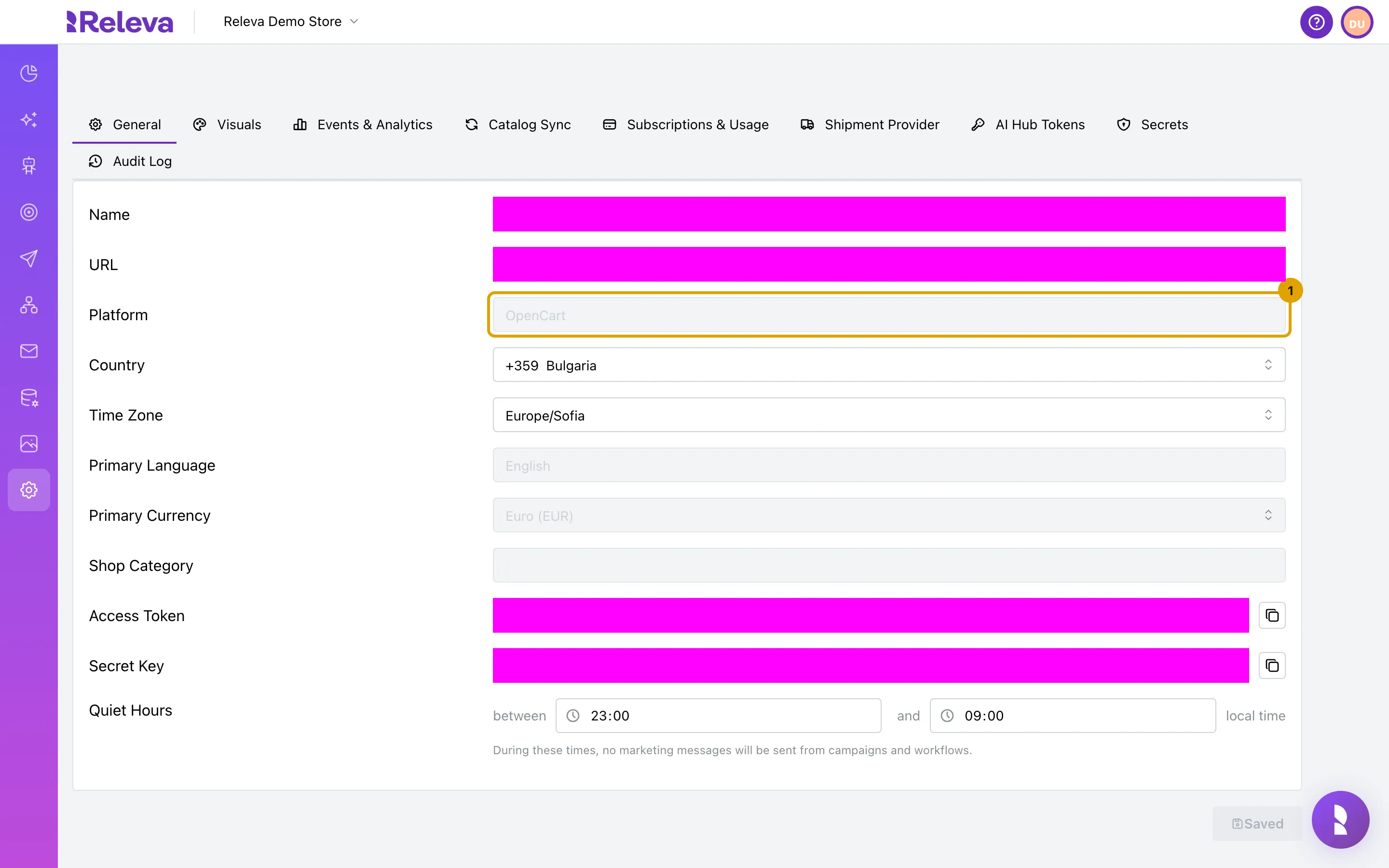
Section titled “Check that Releva sees your PrestaShop shop”Recorded in the Releva admin on a demo shop, signed in as a regular user. Nothing is typed or saved. The shop name, URL and keys are masked. The demo shop was recorded as an OpenCart shop, so the catalog URL in step 3 ends in the OpenCart route; on your shop the PrestaShop URL above is shown instead.
-
Open Settings › Shop & Integration. On the General tab, Platform shows OpenCart or PrestaShop
-
Secret Key is the private key both modules ask for. Select the copy icon next to it to copy it, and keep it out of public pages
-
Select the Catalog Sync tab. With API selected, this is the address Releva reads your catalog from. For OpenCart it ends in
index.php?route=extension/module/releva_products, for PrestaShop inindex.php?fc=module&module=releva&controller=products&id_lang=1&ajax=true. Releva fills it in when your shop is created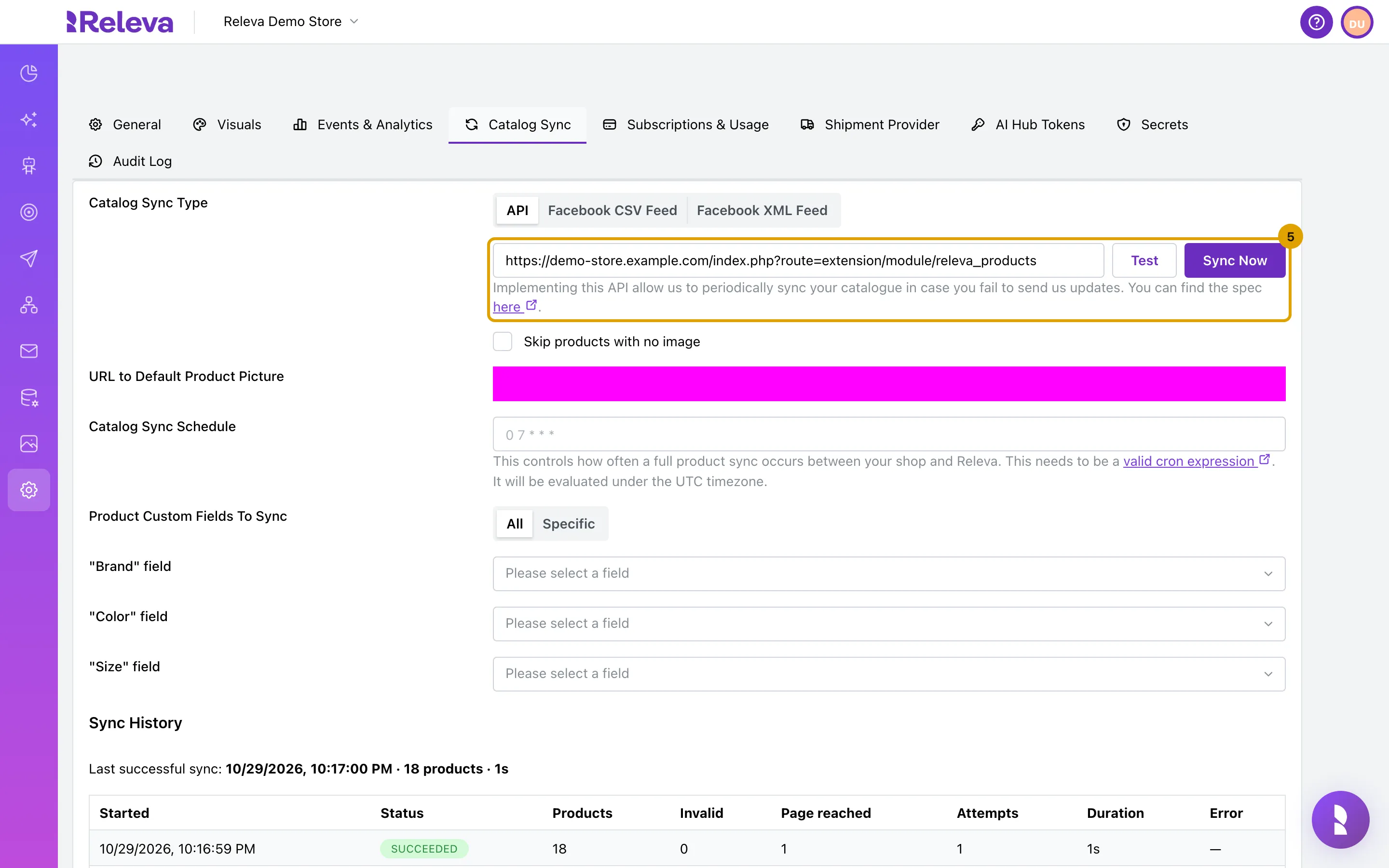
-
Sync History lists each catalog sync with its status and product count. Last successful sync: Never means Releva has not read your catalog yet
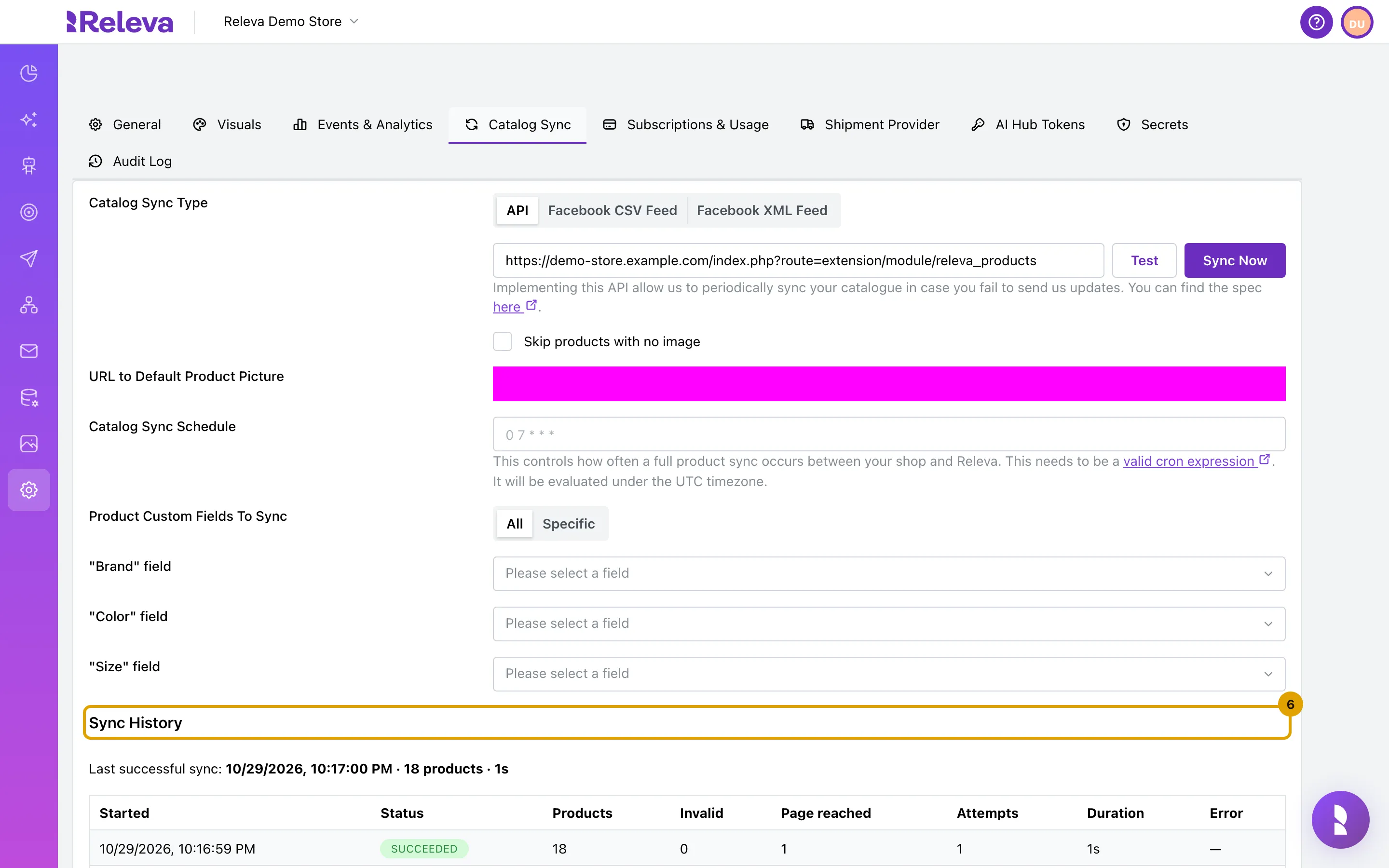
Select Test next to the address to make Releva request page 1 of your catalog endpoint with your secret key; the response, or the error, appears under the field. Select Sync Now to start a full sync; it appears in Sync History once it has run.
Check that your shop’s data reaches Releva
Section titled “Check that your shop’s data reaches Releva”Open your shop in a browser and visit a few pages, view a product and add it to the cart. Then check Data Platform › Events, Data Platform › Products and Data Platform › Profiles in Releva. The screens are the same for every integration: Check that your store data arrives.
On Data Platform › Products you see one row per product and locale. Other event types to look for once the module runs: Viewed Product, Cart Item Added, Cart Checkout Completed and Registered.
Troubleshooting
Section titled “Troubleshooting”Nothing appears on Data Platform › Events. Open the page source of your storefront and look for releva-sdk-js. If it is missing, check that the module is installed and Secret key is saved; clear the PrestaShop cache (Advanced Parameters › Performance › Clear cache). If the snippet is there but no events arrive, and your consent cookie is configured, accept your cookie banner first. Use the tracking-snippet check to confirm the shop’s Access Token works.
Test on the Catalog Sync tab fails. Releva calls GET <url>&page=1 with user-agent: Releva/0.0.1 and the secret key in both authorization and x-rlv-authorization: Bearer <secretKey>, and expects JSON with products and pageCount or nextCursor. A 404 or an HTML page means the URL does not reach the module: check the domain (see Languages and multistore), a subfolder, or URL rewriting that drops index.php?fc=module. An authentication error means the key in the module differs from the Secret Key in Releva. The contract is in the catalog pull-sync reference.
Test fails with a 403 from your hosting. Some hosts and security modules block unknown user agents or query-string routes. Releva’s requests identify as Releva/0.0.1 (the agent was renamed from RelevaBot in 2024 because hosts blocked it). Allow-list Releva/ and the catalog URL.
Products show up in one language only. The default URL pulls id_lang=1. See Languages and multistore.
Products disappear from Releva after a full sync. About 120 seconds after a complete pass, Releva deletes every product the endpoint did not return. Disabled or out-of-stock products should still be returned with available: false. See Full syncs delete what they do not see.
Sync History stays at Last successful sync: Never. No schedule is preset for PrestaShop shops. Enter a cron expression under Catalog Sync Schedule or select Sync Now.
Subscriber Sync API Test is disabled. In the current admin that button depends on the catalog sync URL, not on the subscriber URL. PrestaShop shops have no subscriber URL by default anyway; see In Releva: check the sync settings.
The help link under the catalog URL opens an old documentation page. The Catalog Sync tab links to /documentation/sync-apis/periodical-product-sync/; its content is now in the catalog pull-sync reference.
What syncs
Section titled “What syncs”What a module sends can change between module versions. If you depend on one of these calls, ask your account manager whether your module version makes it.
| Data | Direction and endpoint | When |
|---|---|---|
| Catalog, full | Releva pulls GET https://your-shop/index.php?fc=module&module=releva&controller=products&id_lang=1&ajax=true&page=&cursor= with authorization and x-rlv-authorization: Bearer <secretKey>; the module serves this controller |
Catalog Sync Schedule, Sync Now, or POST /api/v0/products/sync |
| Product deletes | DELETE /api/v0/products/{id}, secret key |
On product delete |
| Catalog, incremental | POST /api/v0/products, POST /api/v0/products/availability |
On product save or stock change |
| Page views, product views, cart, the logged-in customer | Browser. The module renders the Releva SDK snippet; the SDK posts the page context to POST /api/v0/push/{accessToken} and receives the product blocks and banners for the page |
Every storefront page |
| Tracking consent | The module checks the configured consent cookie; the SDK sends profile.consent as cookiesPolicy or mandatoryCookies |
Every push |
| Web push subscriptions | The SDK registers a service worker and posts the subscription to POST /api/v0/pushSubscriptions/{accessToken} |
When Collect permissions for push notifications is YES and the visitor accepts |
| Customers (registration) | POST /api/v0/register or POST /api/v0/profiles, secret key |
On registration |
| Newsletter consent | POST /api/v0/subscribe, POST /api/v0/unsubscribe, secret key (Releva calls these “the merchant plugins’ route”) |
On newsletter opt-in or opt-out |
| Subscriber list | Releva pulls Subscriber Sync API | Not set by default for PrestaShop |
| Orders | SDK push with a paid cart on the order confirmation page, or POST /api/v0/carts with cartPaid and orderId |
On order placement |
| Order status changes | not sent | |
| Refunds | POST /api/v0/refunds |
|
| Personal data erasure | DELETE /api/v0/profiles, secret key (Releva calls it the merchant-plugin erasure endpoint) |
Pushing changes keeps Releva current between syncs; the full sync is the safety net. See How Releva connects to your shop.