

Schedule a full catalog sync
A catalog sync lets Releva pull your whole product catalog from your shop on a schedule, as a safety net behind the updates you push through the API. You configure it on the Catalog Sync tab of Settings › Shop & Integration.
Shops on a supported platform (Shopify, WooCommerce, Magento and others) get the sync URL filled in when the shop is created and usually do not need this page. Custom shops build the endpoint first: see How Releva connects to your shop.
Before you start
Section titled “Before you start”- For the API type: your shop serves the paged JSON endpoint described in the pull-sync contract. It must return the complete catalog. About two minutes after a full pass, Releva deletes every product it did not see.
- For Facebook CSV Feed or Facebook XML Feed: you have the public URL of the feed.
- You know when the sync should run. The schedule is a cron expression evaluated in UTC.
-
Open Settings › Shop & Integration.
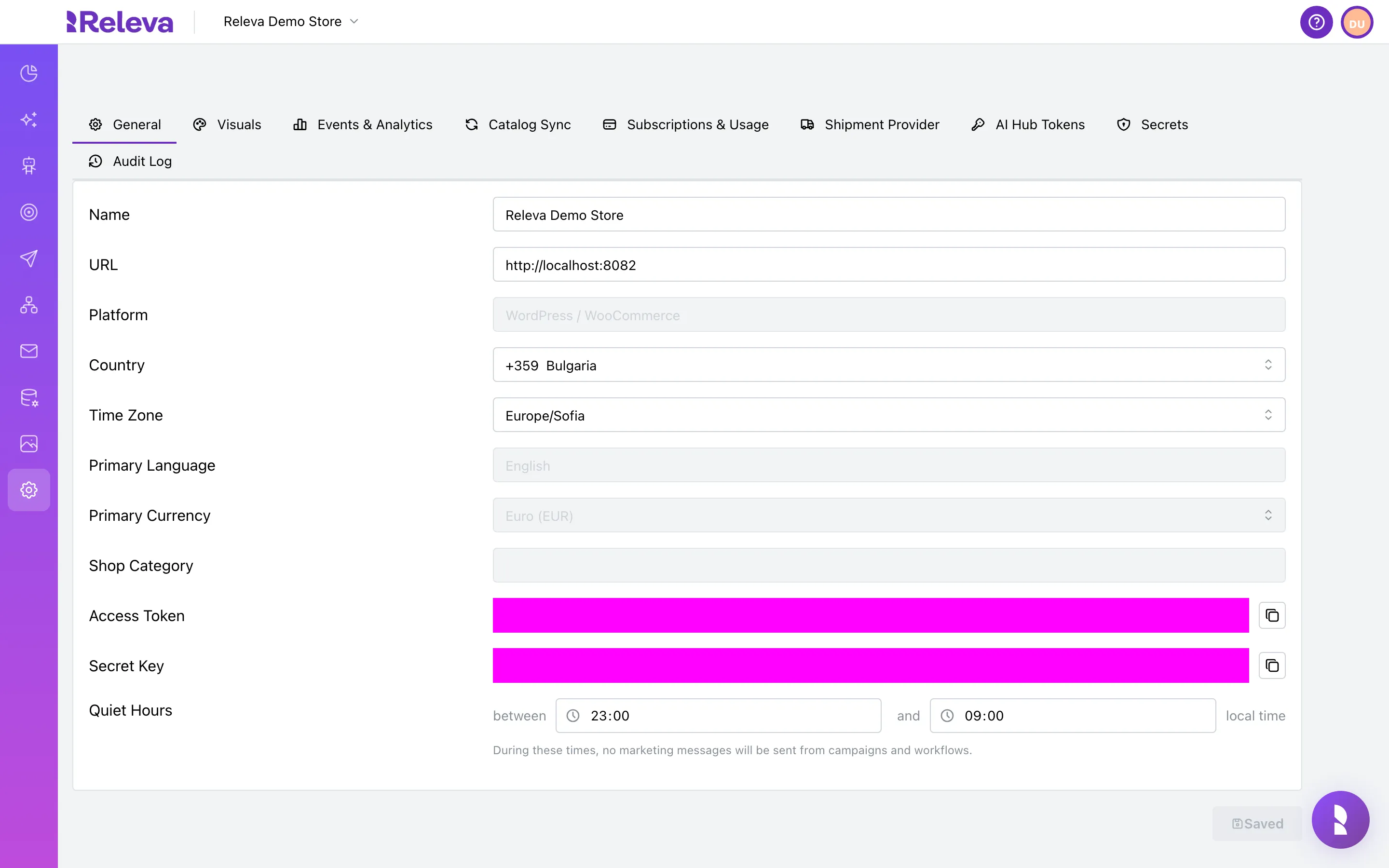
-
Select the Catalog Sync tab.
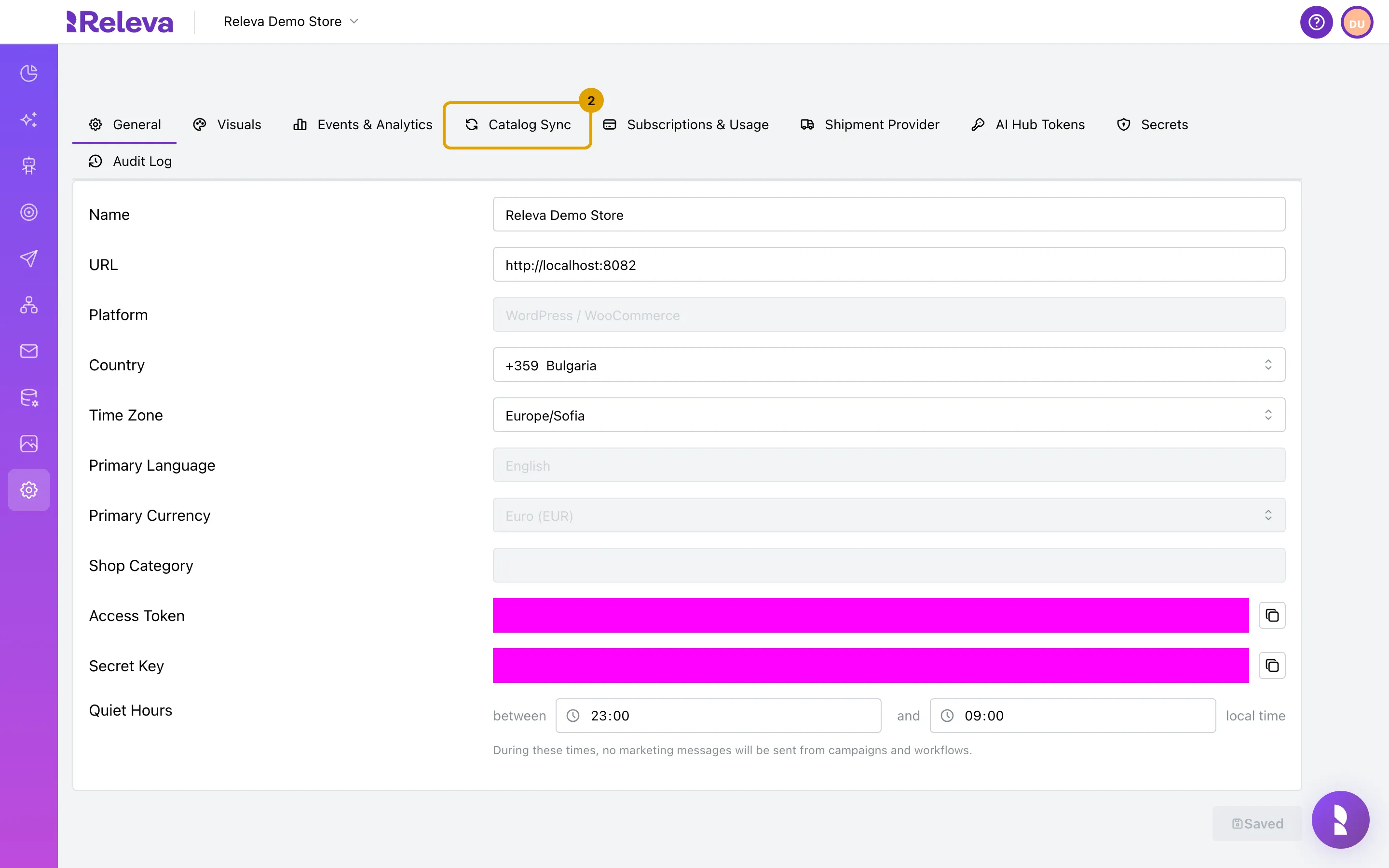
-
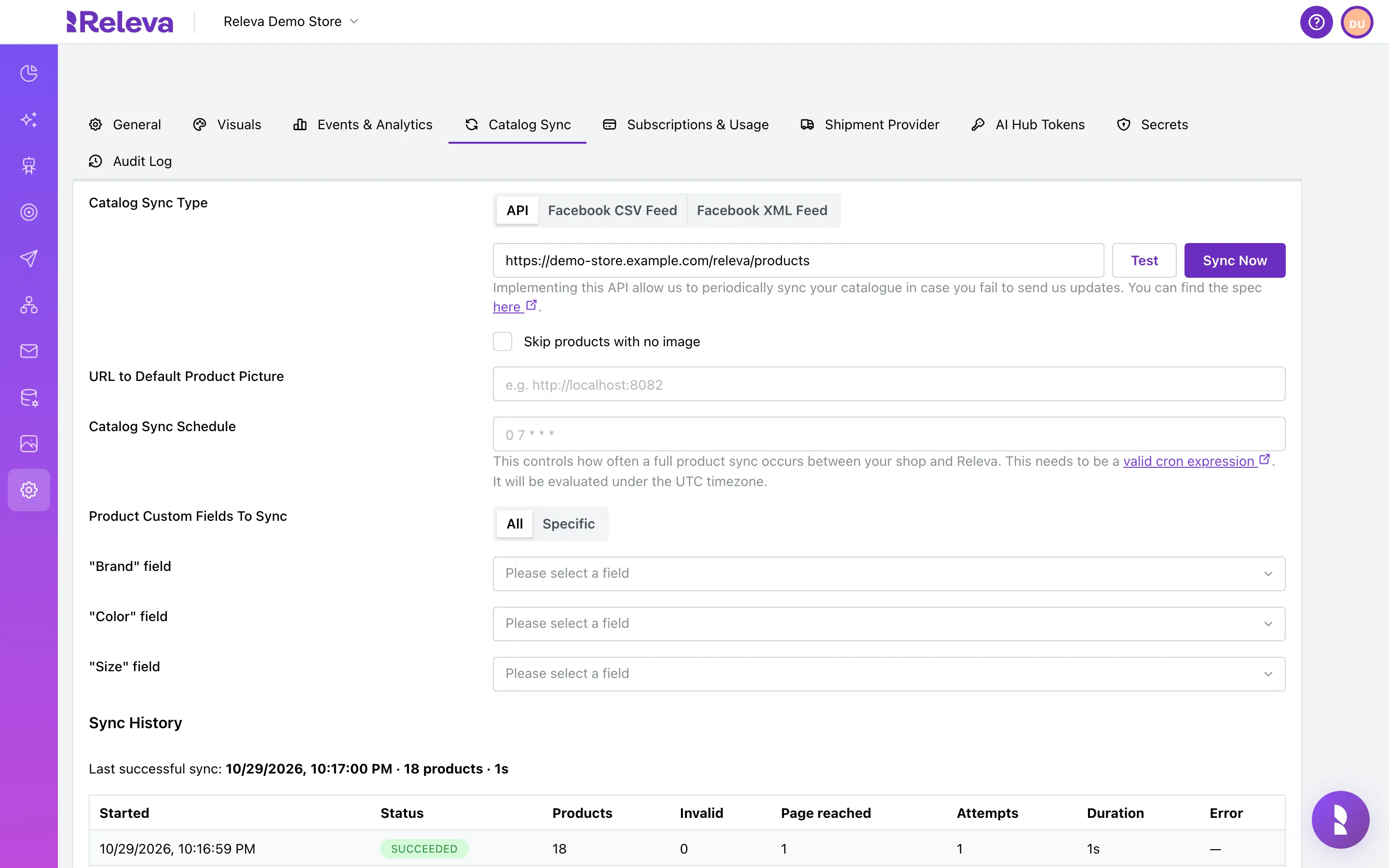
Under Catalog Sync Type, choose API if your shop serves its catalog from an endpoint you built, or Facebook CSV Feed / Facebook XML Feed if you already have a product feed.
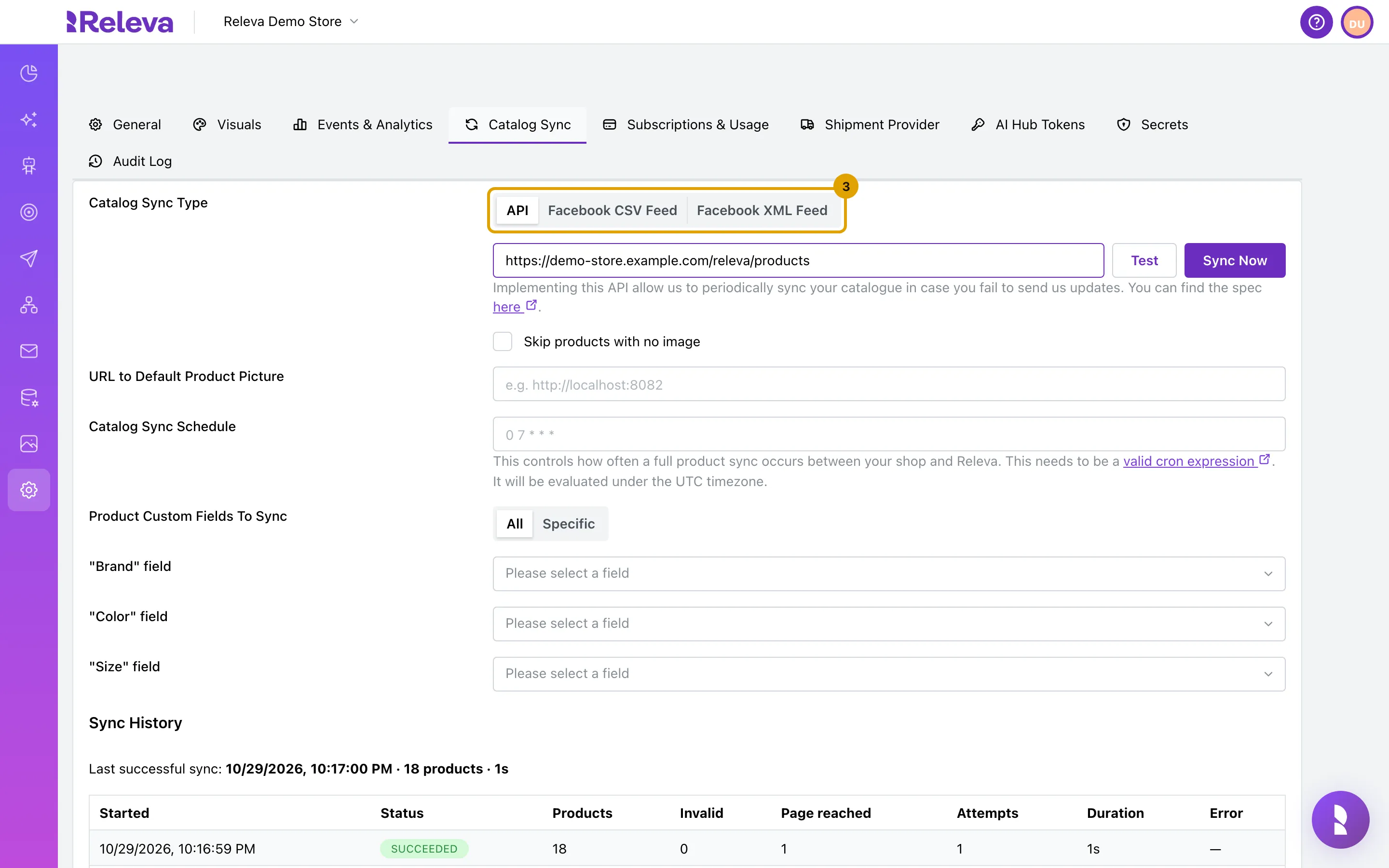
-
Enter the address of your catalog endpoint or feed.
The field has no label; it sits directly under Catalog Sync Type. Include the protocol, for example
https://demo-store.example.com/releva/products.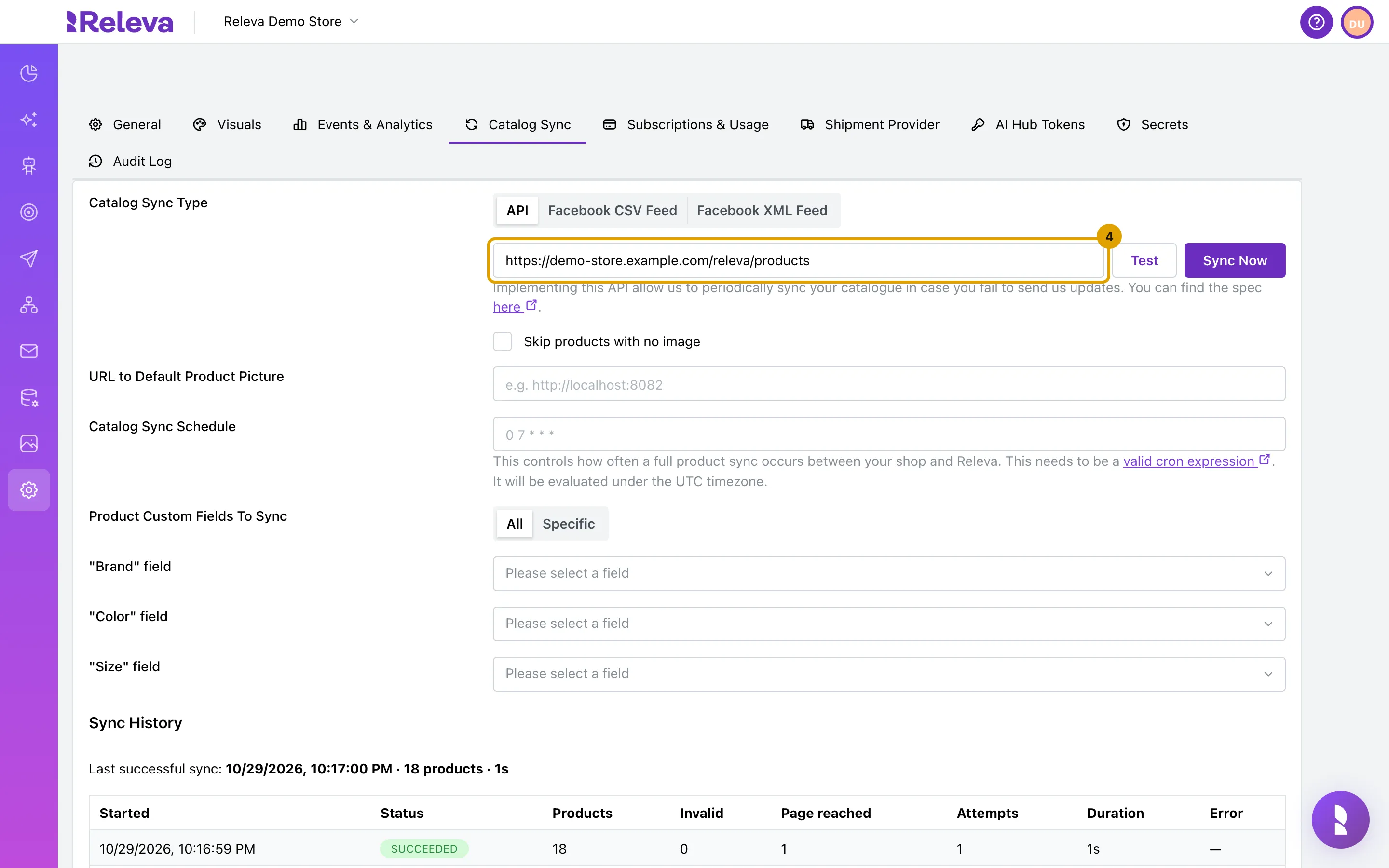
-
For an API sync, Test asks your endpoint for page 1 and shows the response under the field. Sync Now starts a full sync straight away.
Both buttons are disabled while the URL field is empty. For the feed types, Test opens the feed URL in a new tab instead. Sync Now sends the type you selected, but the sync itself reads the URL that is saved on the shop, so save first if you changed the URL.
-
In Catalog Sync Schedule, enter a cron expression. Releva evaluates it in UTC.
0 3 * * *runs every day at 03:00 UTC. Once the expression is valid, Next sync: shows the next run, in your browser’s local time. Leave the field empty to sync only on demand.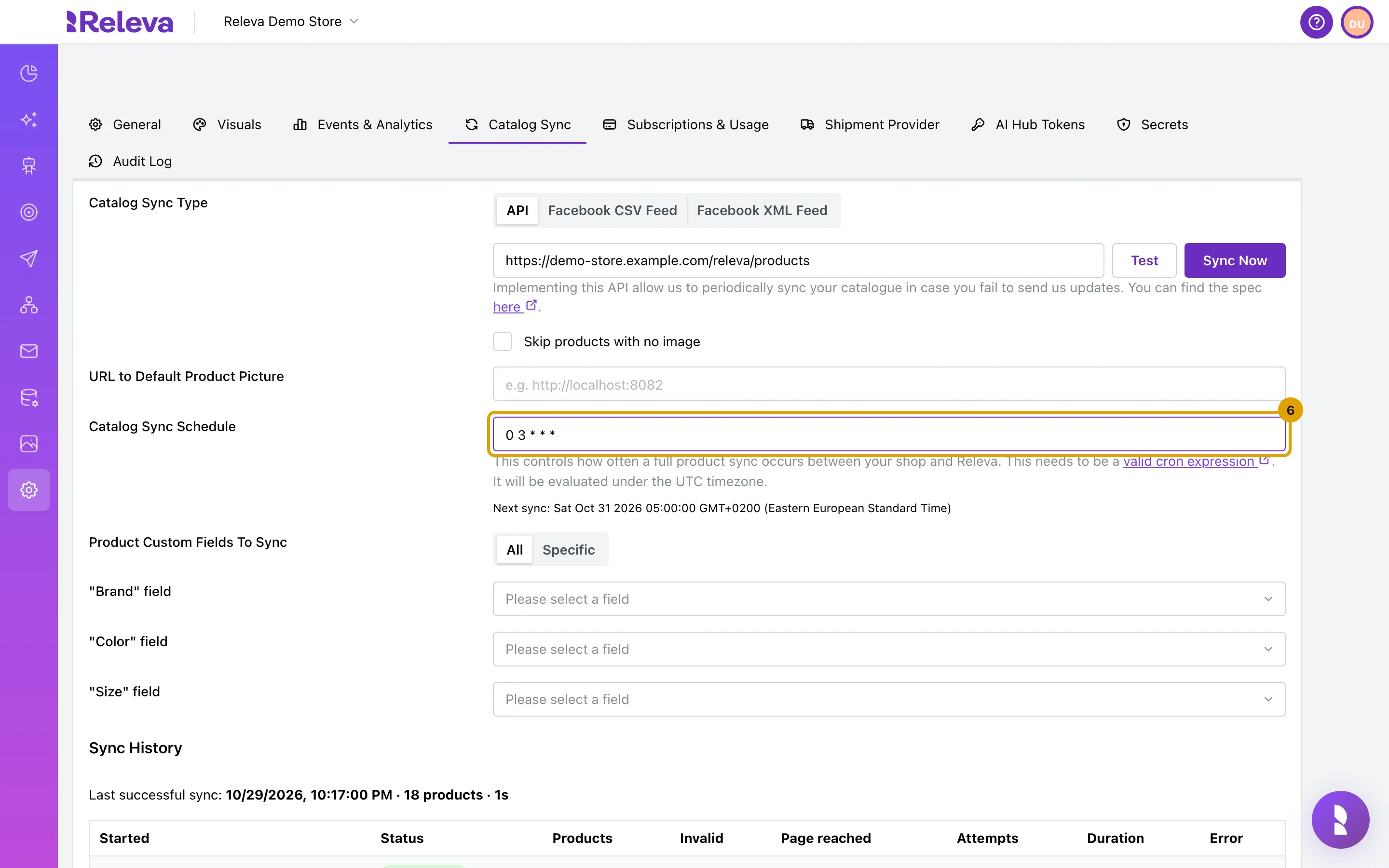
-
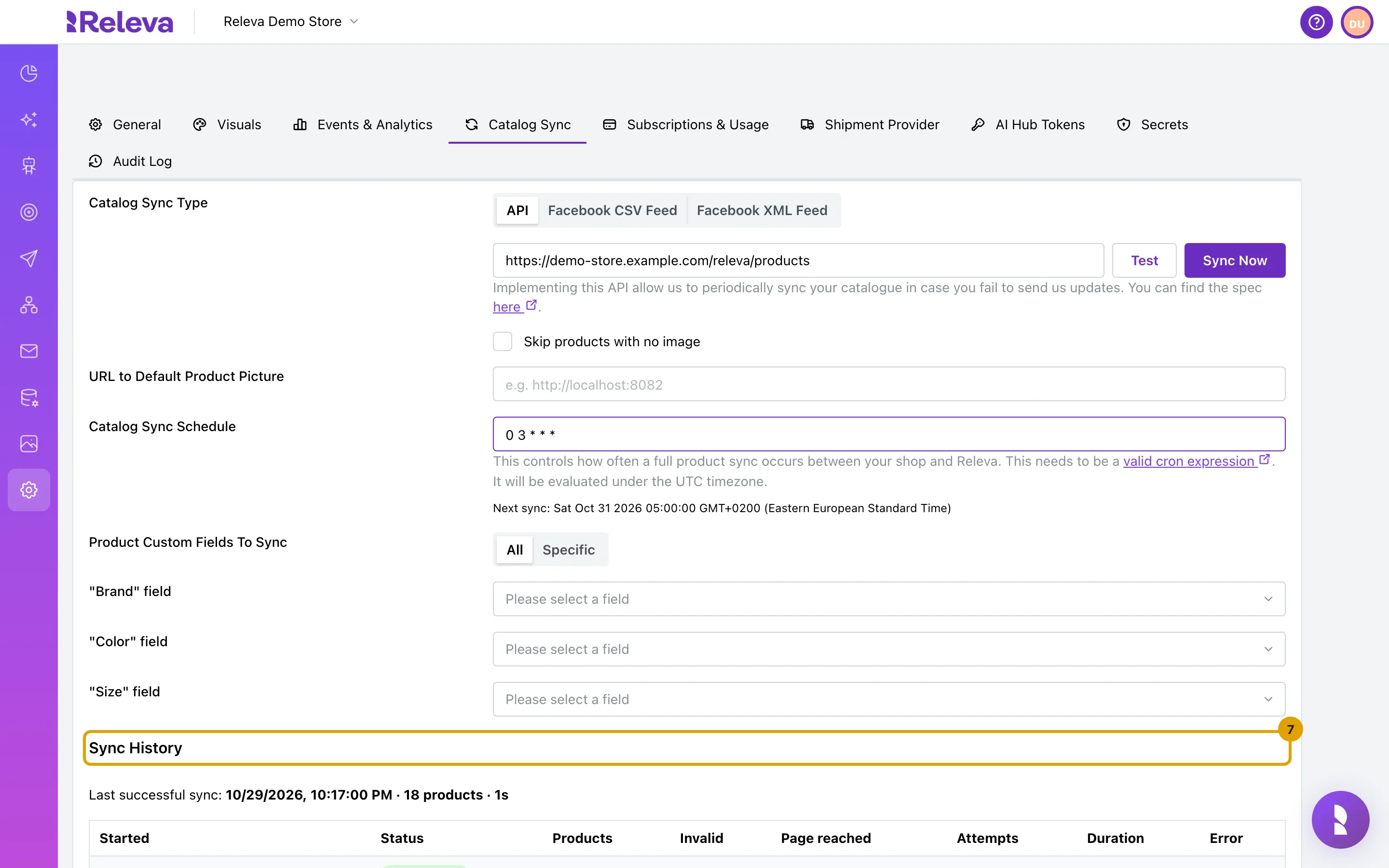
Sync History lists the last syncs with their status, product count and any error.
-
Select Save.
Save saves every tab of Shop & Integration at once. It stays disabled until something changed and the schedule is a valid cron expression.
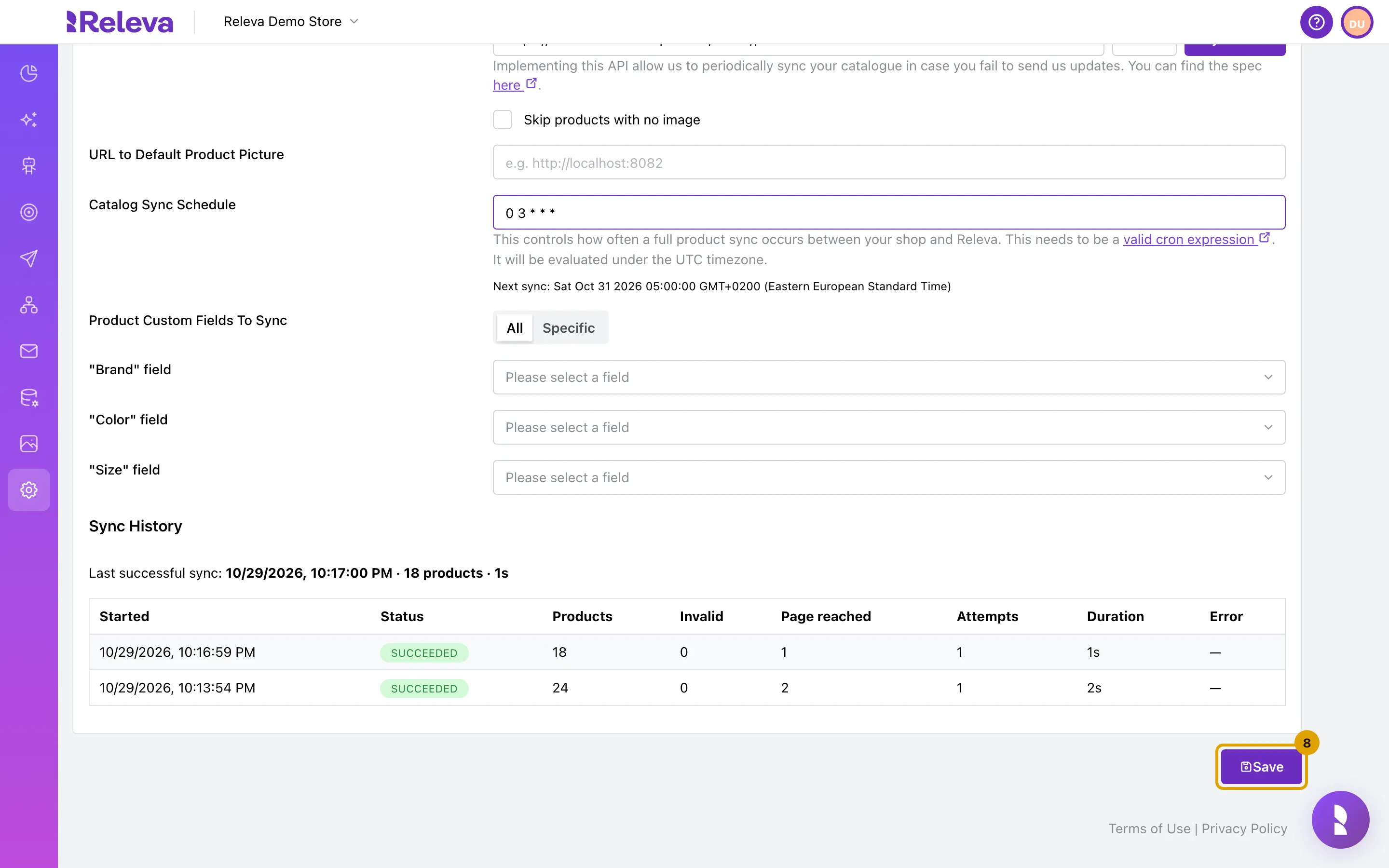
If your account has more than one shop, a red Delete Shop button also appears next to Save. The screenshots show an account with one shop, so it is not there.
Other settings on the same tab:
| Setting | What it does |
|---|---|
| Skip products with no image | Products without an image are not imported. When checked, URL to Default Product Picture is hidden. |
| URL to Default Product Picture | Image used for products that have none. Must be a valid URL or empty. |
| Product Custom Fields To Sync | All keeps every custom field your endpoint sends. Specific keeps only the fields you add with Add New Custom Field. |
| “Brand” field, “Color” field, “Size” field | Which of your custom fields Releva reads as the product’s brand, colour and size. |
Check it worked
Section titled “Check it worked”- After Test on an API sync, the text API Response: followed by your endpoint’s JSON appears under the URL field.
- After Sync Now, a Sync Scheduled notification reads “Sync has been scheduled successfully.” and a new row with status running appears in Sync History within a few seconds. The table refreshes every 5 seconds while a run is active.
- When the run finishes, Last successful sync: shows the finish time, the product count and the duration. The Error column of the row is empty.
- The button reads Saved after saving.
Troubleshooting
Section titled “Troubleshooting”Test shows an error under the URL field. Releva could not fetch page 1 from your endpoint, or your endpoint answered with a non-2xx status. Check that the URL is reachable from the internet, that it accepts the authorization: Bearer <secretKey> (or x-rlv-authorization) header, and that it returns JSON with a products array.
Sync Now shows a Catalog Sync Error notification. The message reads “We were unable to schedule the catalog sync due to the following error: …” followed by the server’s message. The server rejects a sync type that is not API, Facebook CSV Feed or Facebook XML Feed with Invalid productSyncType. Must be one of: api, fbCsvFeed, fbXmlFeed.; any other message comes from the queue. Save the tab and try again.
The schedule field shows “This is not a valid cron expression.” Use five fields: minute, hour, day of month, month, day of week. 0 3 * * * is valid; 3am daily is not. Save stays disabled until the expression is valid or the field is empty.
A run in Sync History has status failed and an Error. Common messages: Invalid response "<url>": ... means the page had no products array; Either nextCursor or pageCount is required in the response so we know how to iterate over results! means the page had neither field. Fix the endpoint and select Sync Now again. Nothing is deleted after a failed run.
Products disappeared after a sync. The sync removes every product your endpoint did not return. Return the full catalog and mark unavailable items with available: false instead of leaving them out.
Sync History shows “No sync attempts recorded yet.” No sync has run since the history was introduced. Select Sync Now or wait for the schedule.