

Create a one-off email campaign
A one-off campaign sends one message to one segment, once. You build it, save it as a draft and launch it when you are ready. This guide creates a draft email campaign for everyone who bought in the last 30 days. It does not launch it. For what the three campaign modes do and what happens at launch, read How campaigns work.
Before you start
Section titled “Before you start”- You have a saved email under Marketing Channels › Emails. A campaign does not build the email; it only picks one. See How emails work.
- You have a Behavior segment with the people who should receive it. See Create a segment.
- Your sender domain has its click-tracking and DKIM DNS records in place. Launch stays disabled until the click-tracking record is verified, and emails are not sent until DKIM is verified. The values to add are under Settings › Messaging.
- Your plan includes one-off campaigns. If New Campaign shows a lock, ask your account owner to unlock it.
-
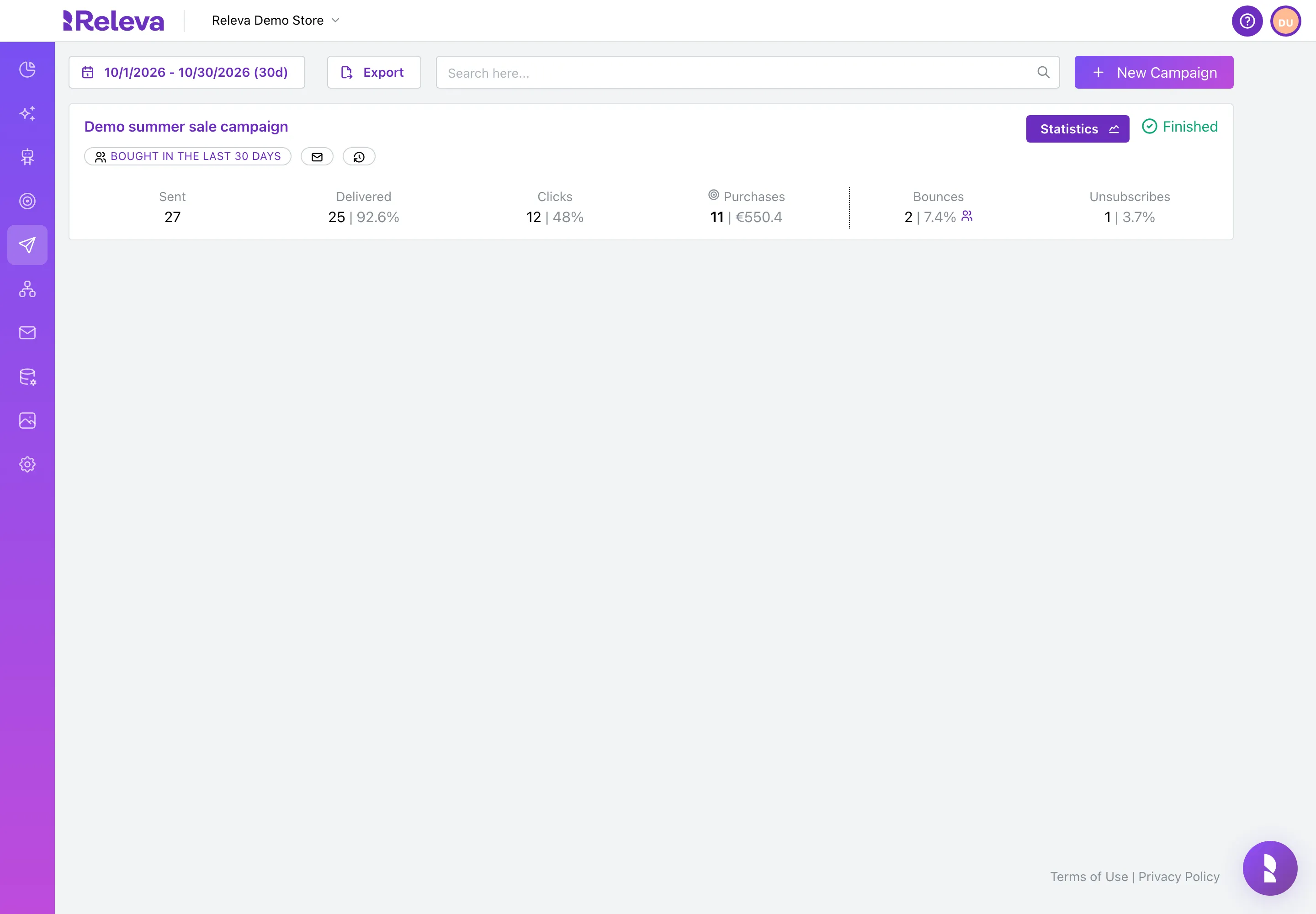
Go to Campaigns › One Off.
-
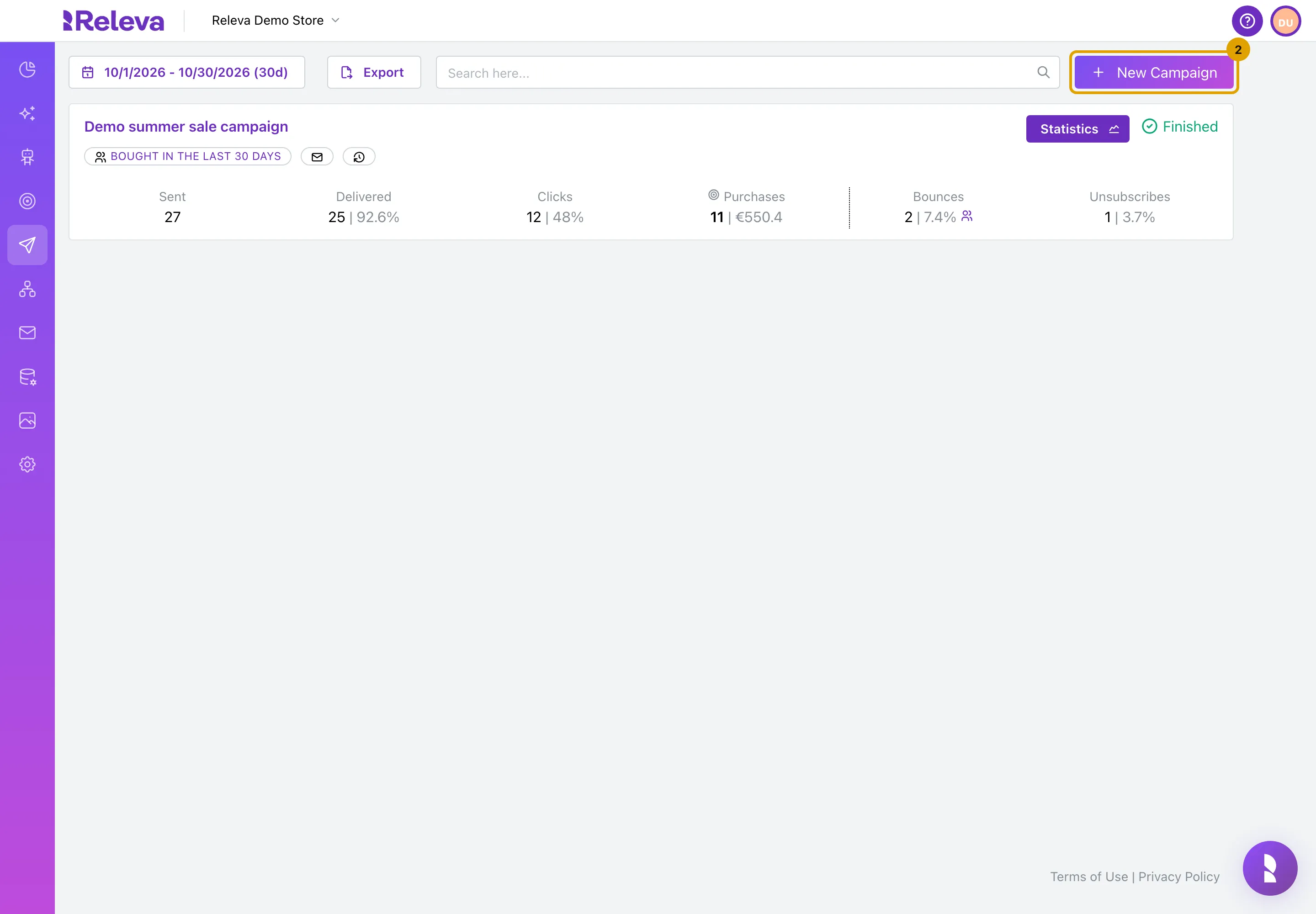
Select New Campaign.
The form opens on its Content tab with a generated name and the goal Purchases already set.
-
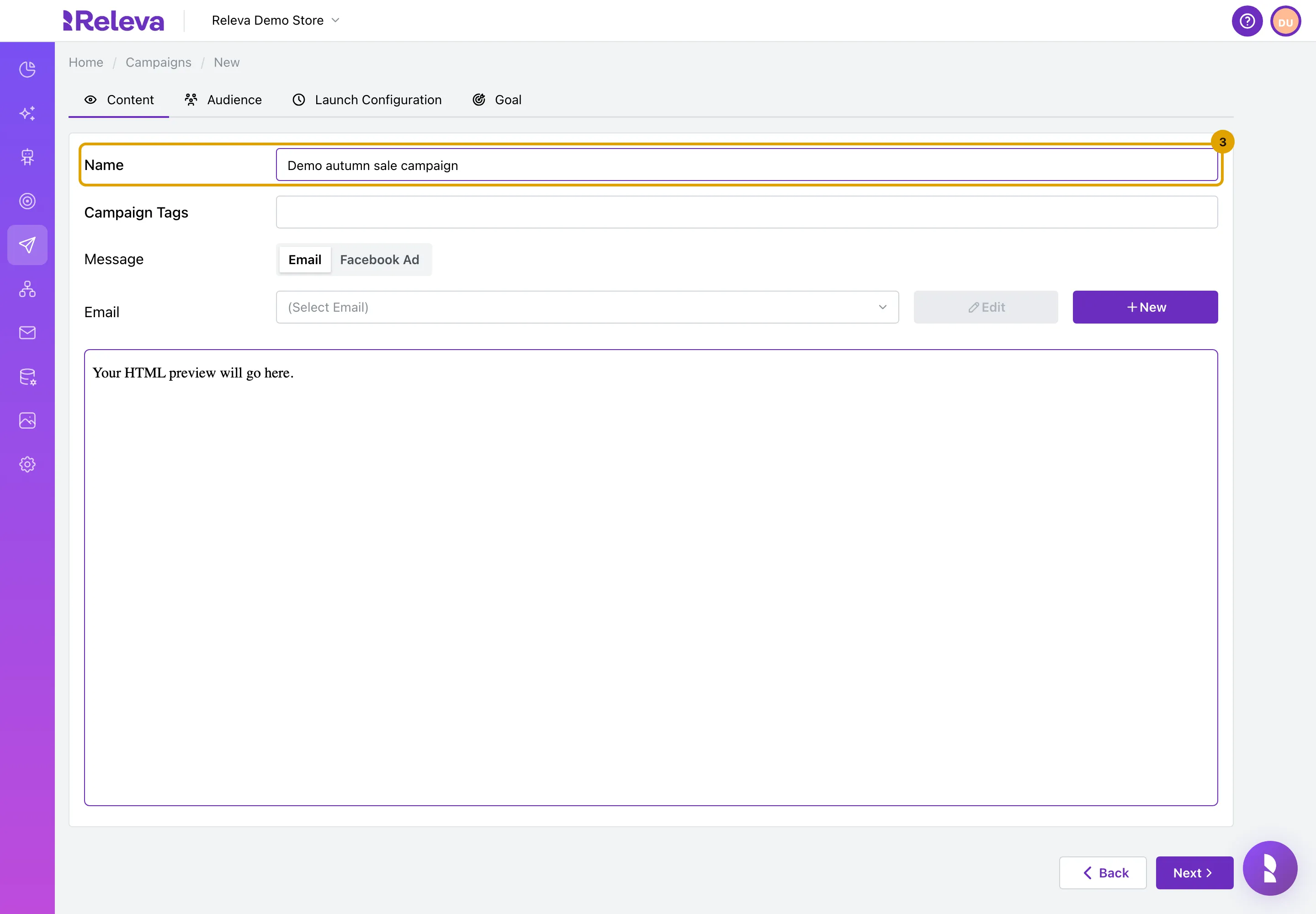
In Name, replace the generated name with one you will recognise in the campaign list.
Names must be unique in the shop. Save & close stays disabled while the name is empty.
-
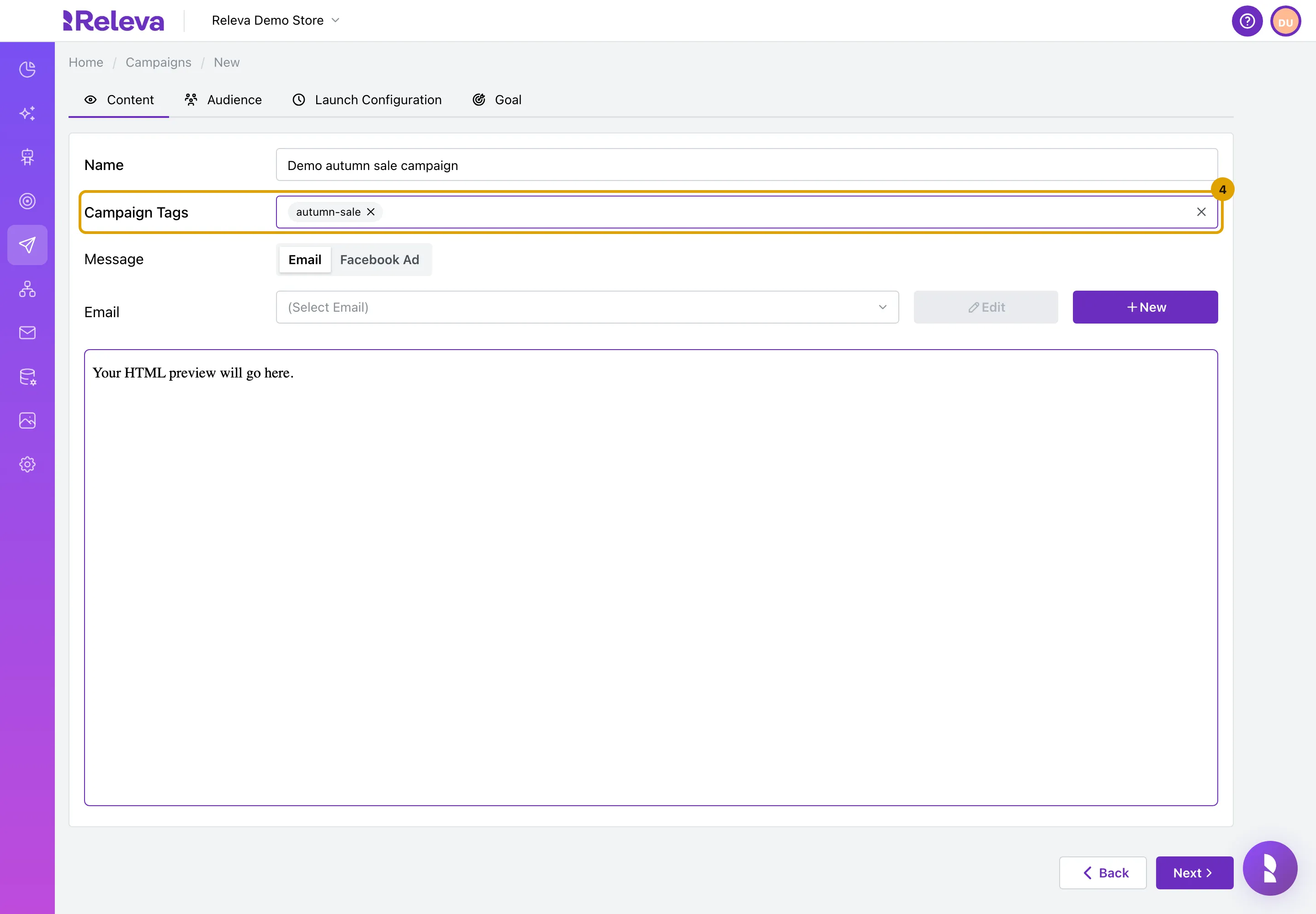
Optional. In Campaign Tags, type a tag and press Enter. Tags help you group and find campaigns later.
A tag you type for the first time is added to the shop’s tag list.
-
Under Message, keep Email, then choose the email to send from the Email list. Its preview appears below.
Each entry reads
<name> (subject: <subject>). Before you pick an email, the button next to Edit reads New and creates a new email. Once you have picked one, Edit opens it in the editor and Duplicate & Edit makes a copy to change for this campaign only. A one-off can send a Facebook Ad instead of an email: see Create a Facebook ad.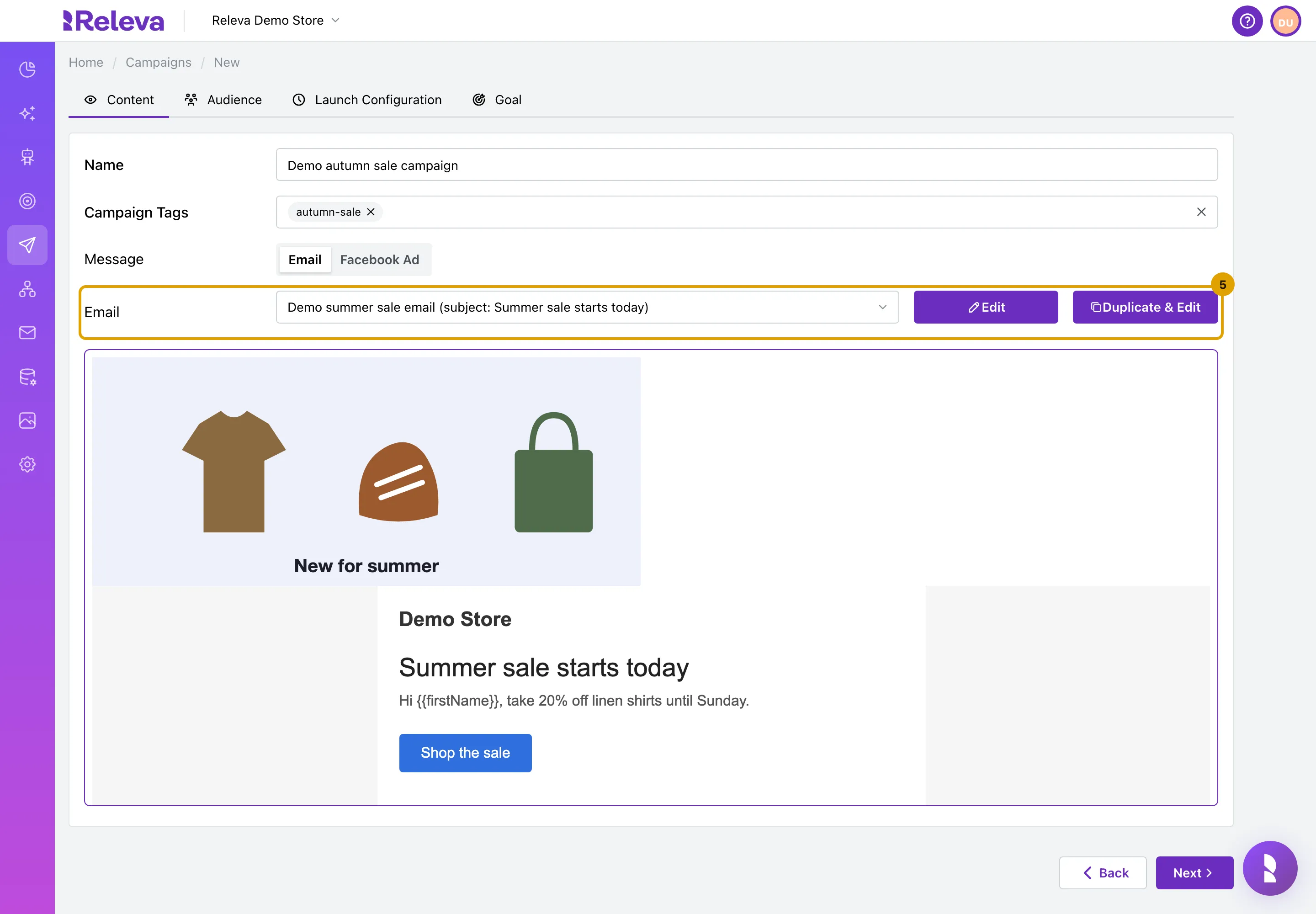
-
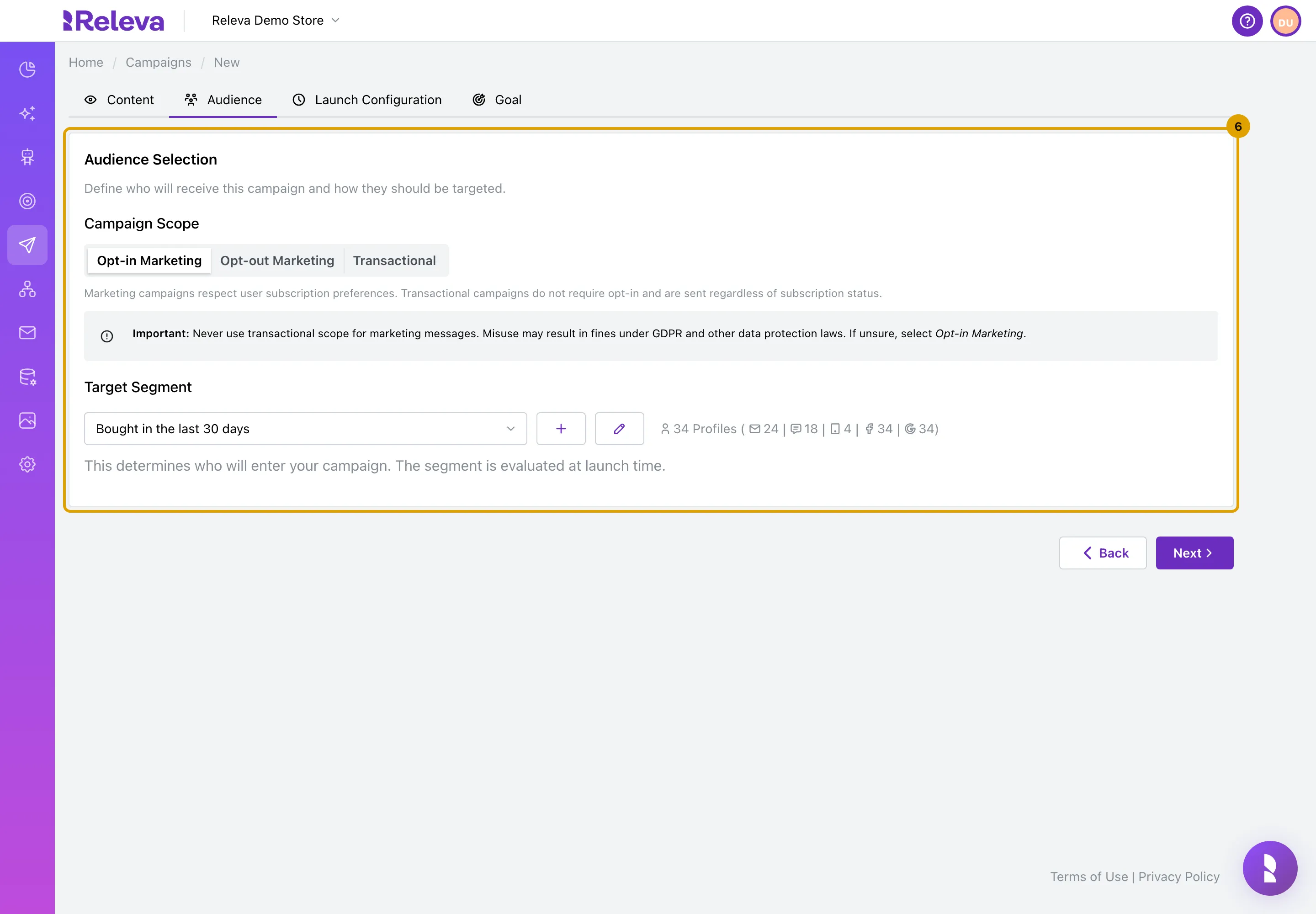
On Audience, keep Campaign Scope on Opt-in Marketing for a marketing message, and choose the Target Segment that should receive it.
Opt-in Marketing sends only to subscribed profiles. Opt-out Marketing sends to everyone who has not unsubscribed. Transactional ignores subscription status and is for order and account messages only. Next to the segment you see how many profiles it holds and how many of them can get email, SMS, push, Facebook and Google messages. The segment is evaluated again when you launch.
-
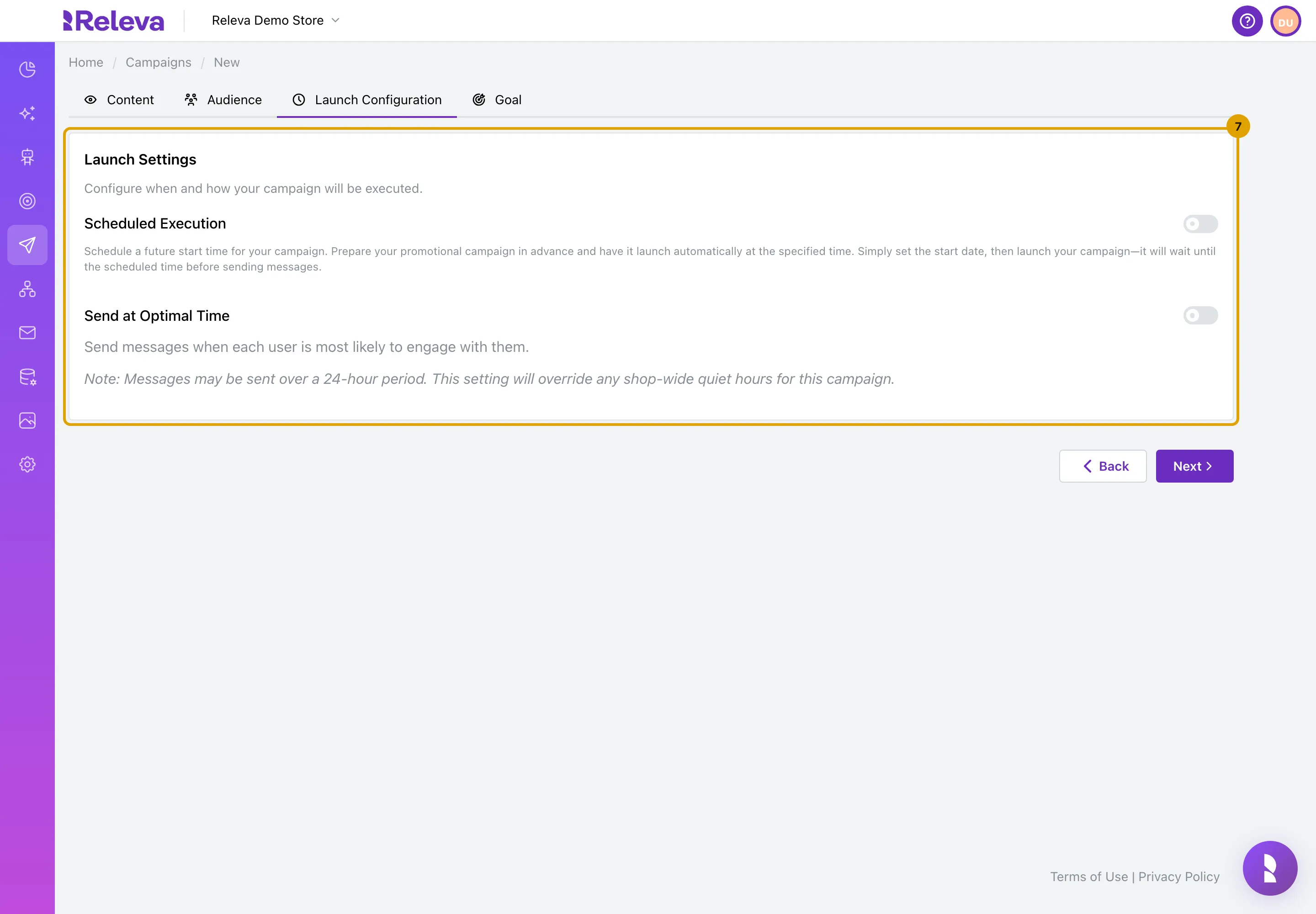
On Launch Configuration, turn on Scheduled Execution to start at a set date and time, or leave it off to start when you launch. Turn on Send at Optimal Time to send to each person when they are most likely to engage.
With Scheduled Execution on, you still have to select Launch on the list; the campaign then waits for the date. Send at Optimal Time spreads sending over up to 24 hours and overrides the shop’s quiet hours for this campaign.
-
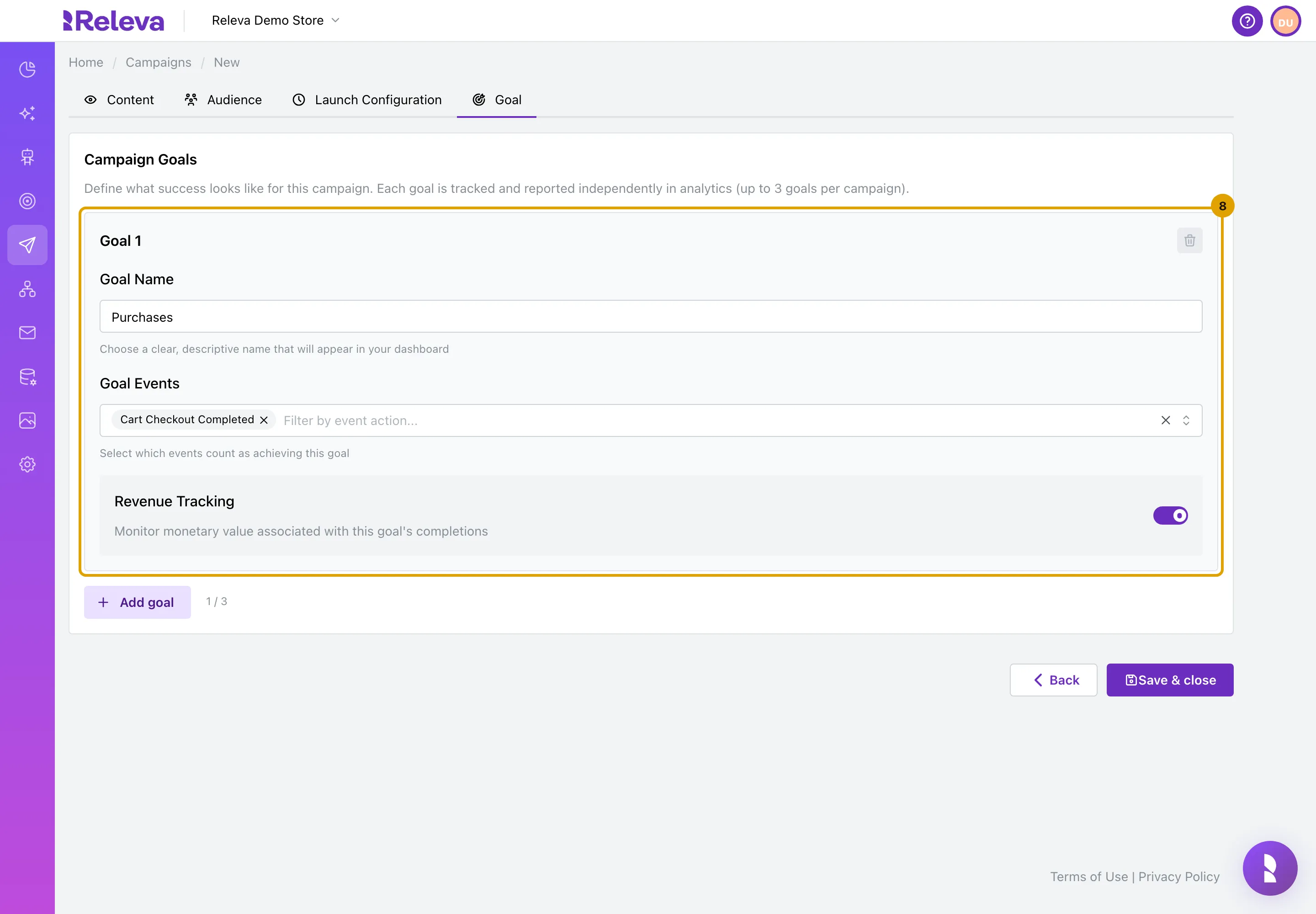
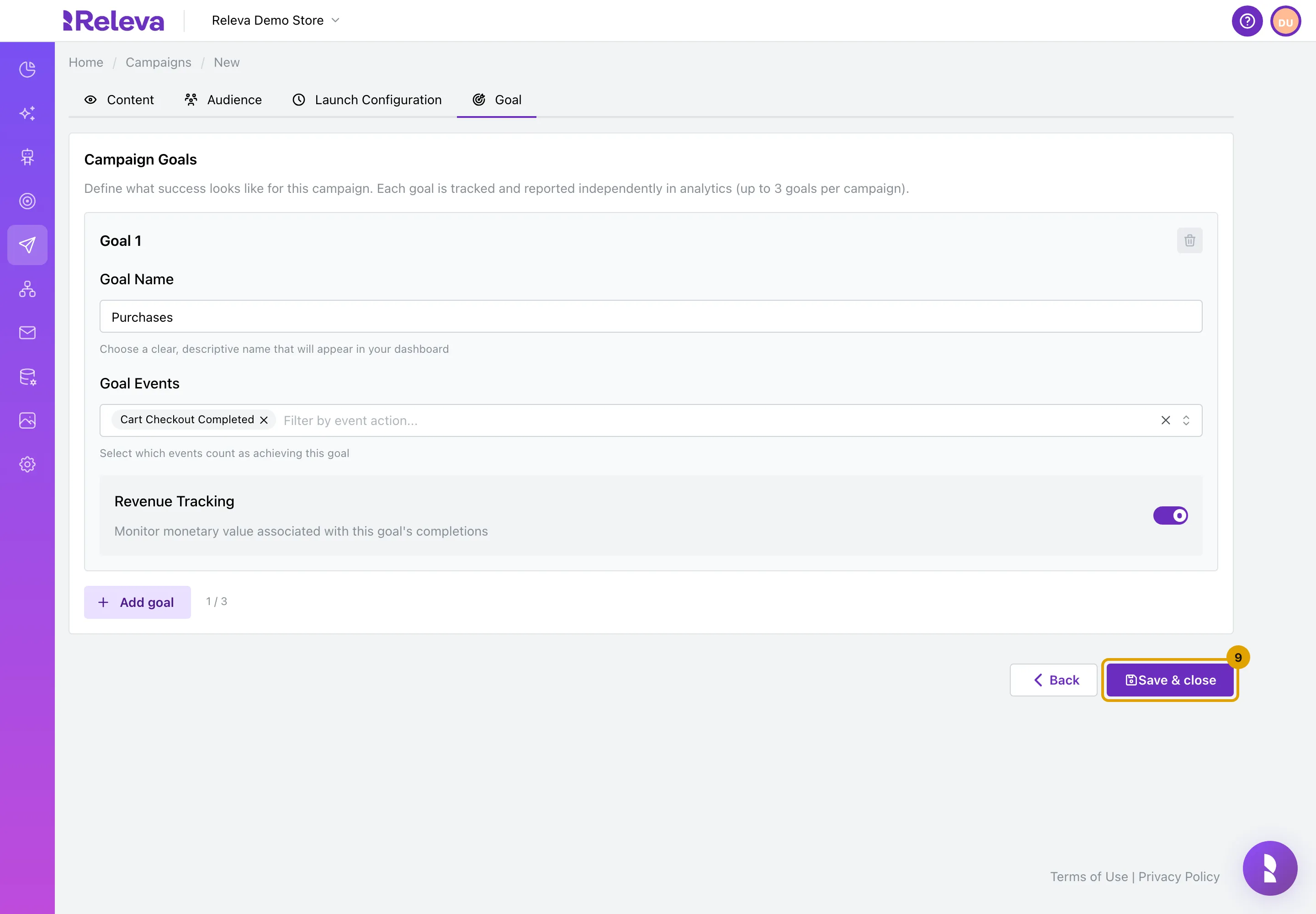
On Goal, check the goal Releva reports for this campaign. Purchases with Revenue Tracking is set for you. Select Add goal to track up to three.
A goal is a name plus the events that count as reaching it. Purchases counts the shop’s checkout event (Cart Checkout Completed). Goal names must be filled in and unique.
-
Select Save & close.
-
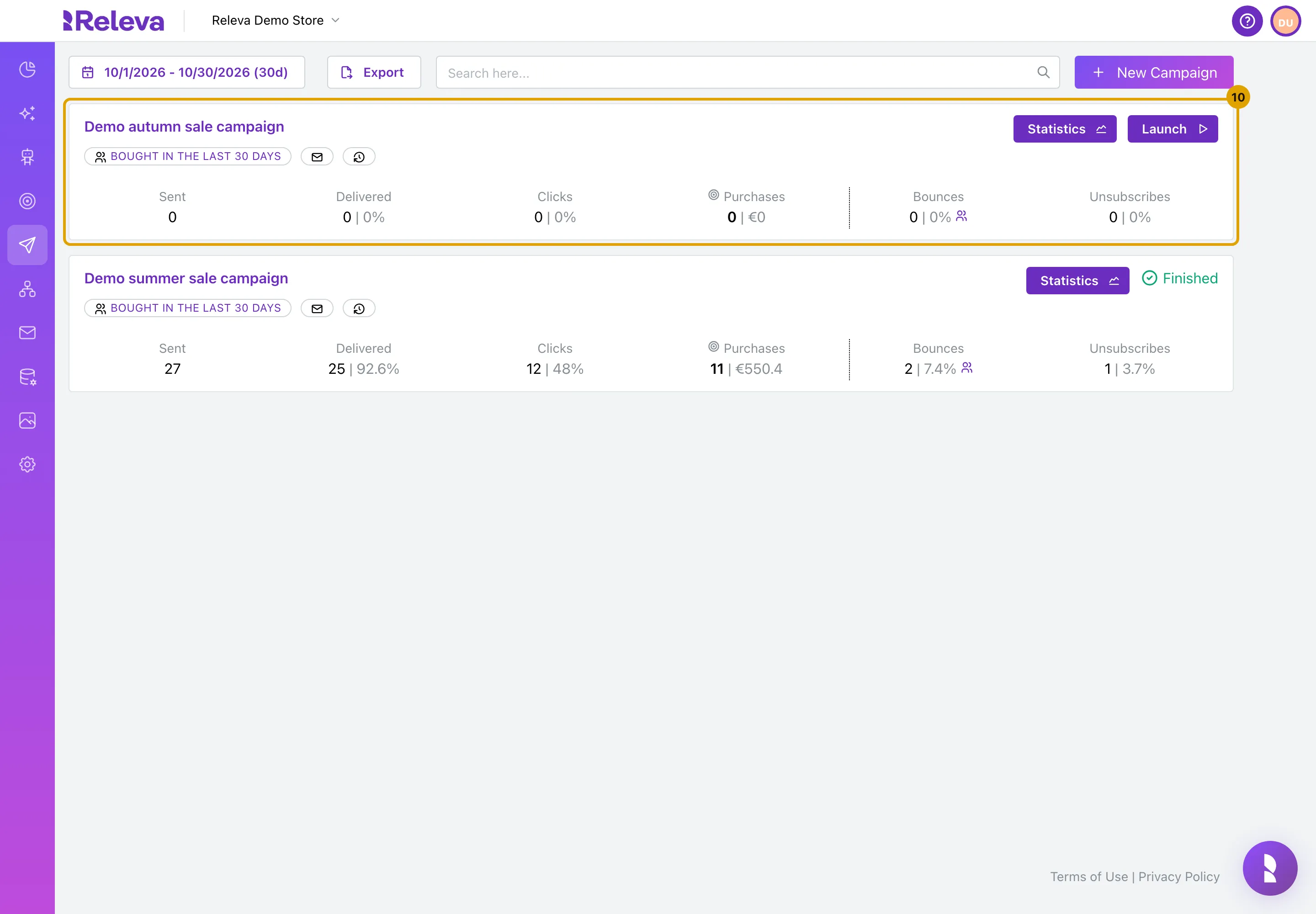
Your campaign is saved as a draft at the top of the list. Nothing is sent until you select Launch.
Check it worked
Section titled “Check it worked”- The new campaign is the first card on the One Off list, with the segment’s name as a badge, an email icon and a Launch button on the right.
- The card’s counters (Sent, Delivered, Clicks, Purchases, Bounces, Unsubscribes) are all 0: the draft has not run.
- Open the card by its name: every tab still shows what you chose, and the footer has Delete, Make a copy, Save and Save & close.
When you are ready, select Launch on the card. The status changes to Scheduled (waiting for the date) or Running, and to Finished when every message is out. A running one-off can be stopped with Abort; it cannot be resumed afterwards.
Troubleshooting
Section titled “Troubleshooting”Save & close is disabled. The name is empty, no email is chosen, no segment is chosen, or a goal name is empty or repeated. Fill in the missing part.
Saving fails with “Name must be unique!”. Another campaign in this shop already has that name. Change the name and save again.
Launch is greyed out and the card says “Click tracking not ready - check Click Tracking settings”. The click-tracking DNS record for your sender domain is not verified yet. The list shows an alert with a Shop Settings link that opens Settings › Messaging. Add the record shown there and wait for the check to pass.
The Email list is empty or shows “No emails found”. Create the email first under Marketing Channels › Emails, then come back; the list only offers saved emails.
A Calculate Segment button shows instead of the profile count. The count could not be loaded, or the segment holds no profiles. Select Calculate Segment to try again. It does not affect what is saved; the segment is evaluated again at launch.
I cannot change a campaign that was launched. Once a one-off has been launched, finished or aborted, its fields are locked. Select Make a copy to start a new draft with the same settings.