

Create a Facebook ad
A Facebook ad in Releva holds the text, objective, product set, budget and duration of an ad campaign in your Meta ad account. When you save the ad, Releva creates a campaign with the same name in Meta. The campaign has no ad sets and no ads yet, so nothing runs and nothing is spent. People see the ad only after a Releva campaign or workflow sends it. This guide creates a Products Carousel ad with the Sales objective. For how the connection, product sets, campaigns and ad sets fit together, read How Facebook ads work.
Before you start
Section titled “Before you start”- Connect your Meta account and choose a business, an ad account, a page and a pixel. Follow Connect your Meta account to Releva. Until you do, New Facebook Ad is disabled.
- Create at least one Facebook product set under Data Platform › Facebook Product Sets (Create a Facebook product set) and wait for it to synchronise. A carousel ad needs one. Promoted Products lists only the product sets that are synchronised (they show the Synchronised badge).
- Your plan includes Facebook ads. If Save shows a lock, ask your account owner.
- Decide the objective, the daily budget and how many days the ad should run. Objective, Optimization Goal, Call to Action Button, Ad placement, Promoted Visual, Promoted Products and Attribution cannot change after the first save.
-
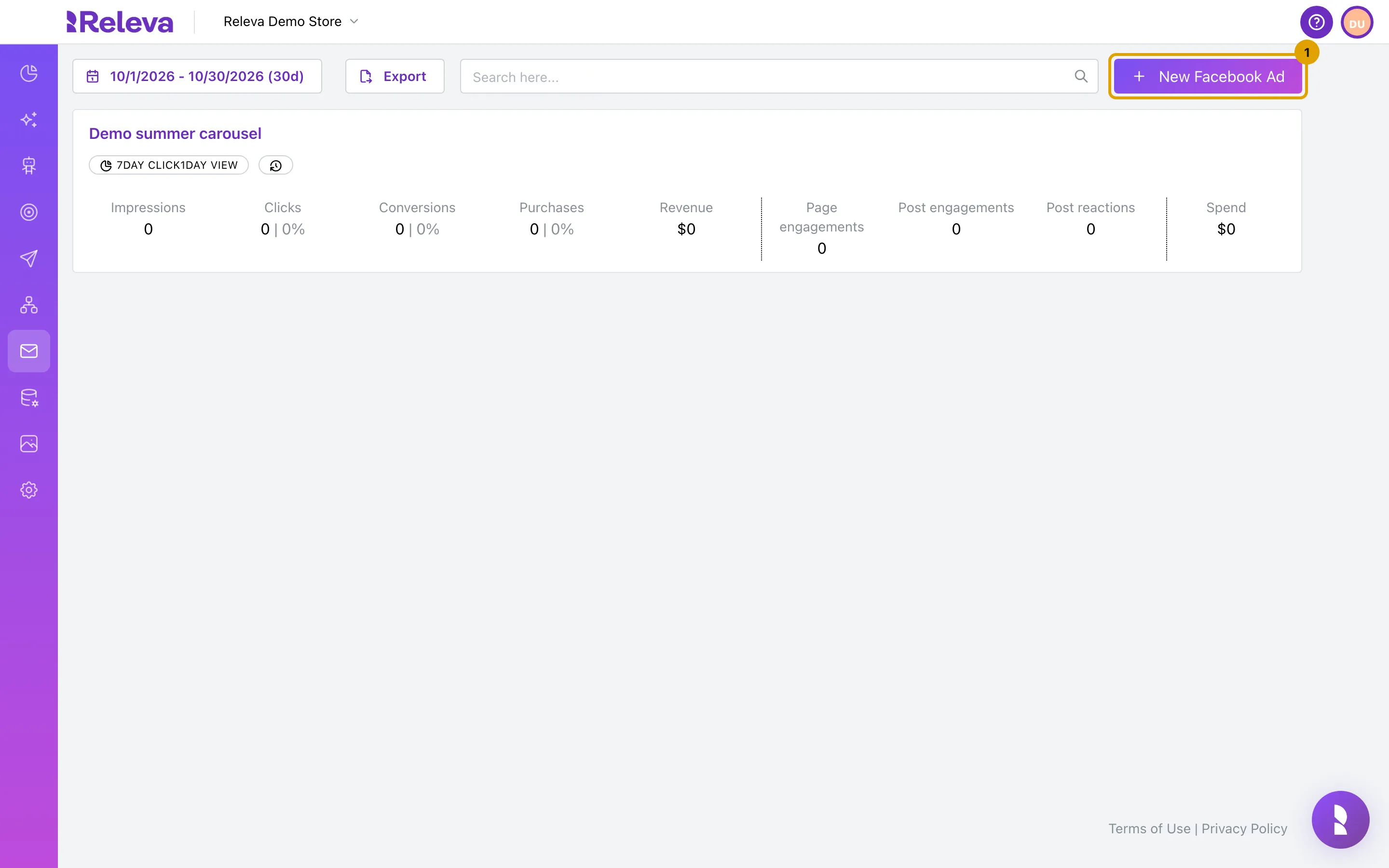
Go to Marketing Channels › Facebook Ads and select New Facebook Ad
The list shows the Facebook ads you already have. The form opens with the name New facebook campaign, Objective set to Sales, Ad placement on Advantage+, Promoted Visual on Products Carousel, all three product details ticked, Attribution on 7-day click or 1-day view and a duration of 7 days.
-
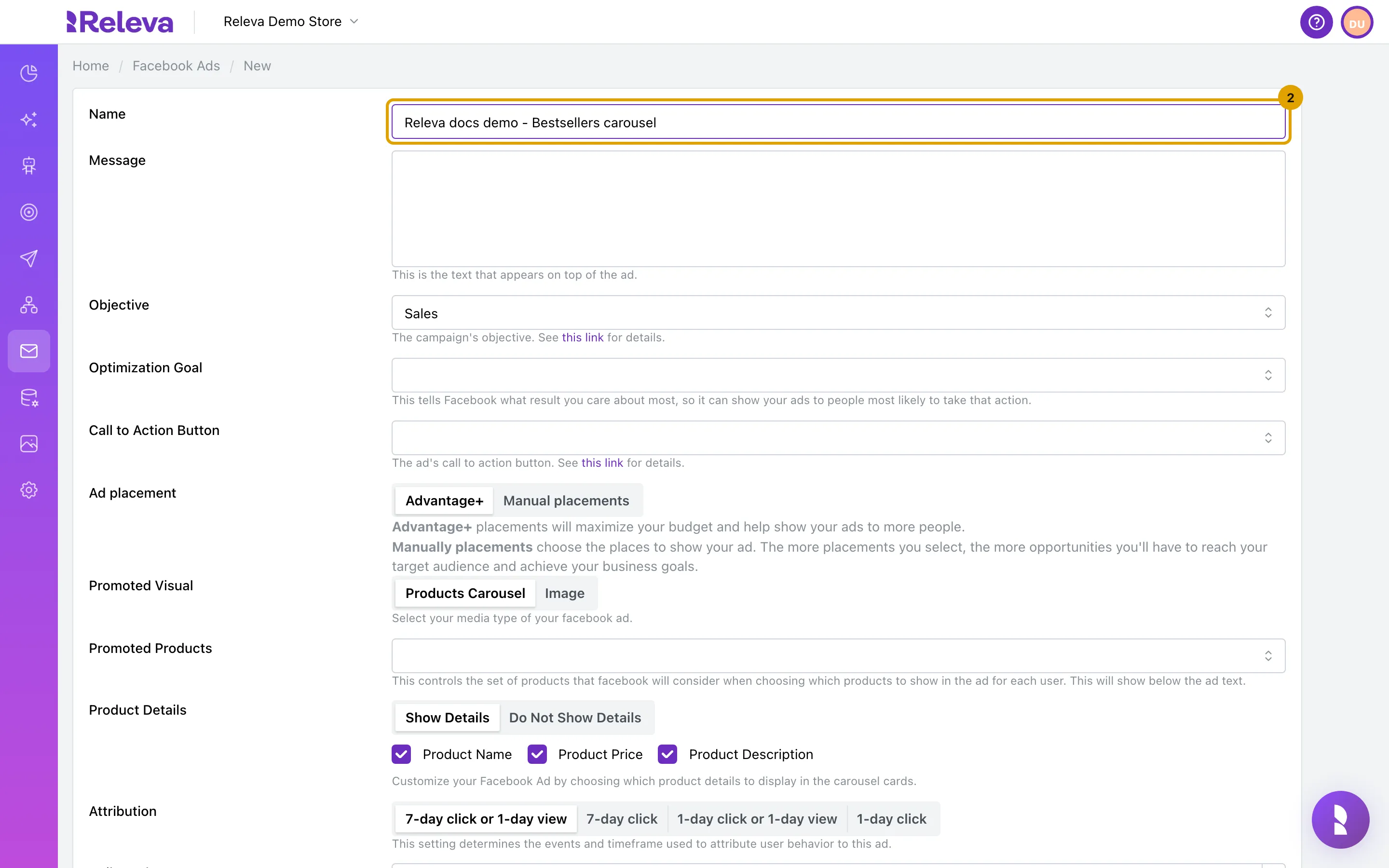
In Name, replace “New facebook campaign” with a unique name
The name must be unique in your shop. Meta uses it as the campaign name in Ads Manager, so choose a name you will recognise there.
-
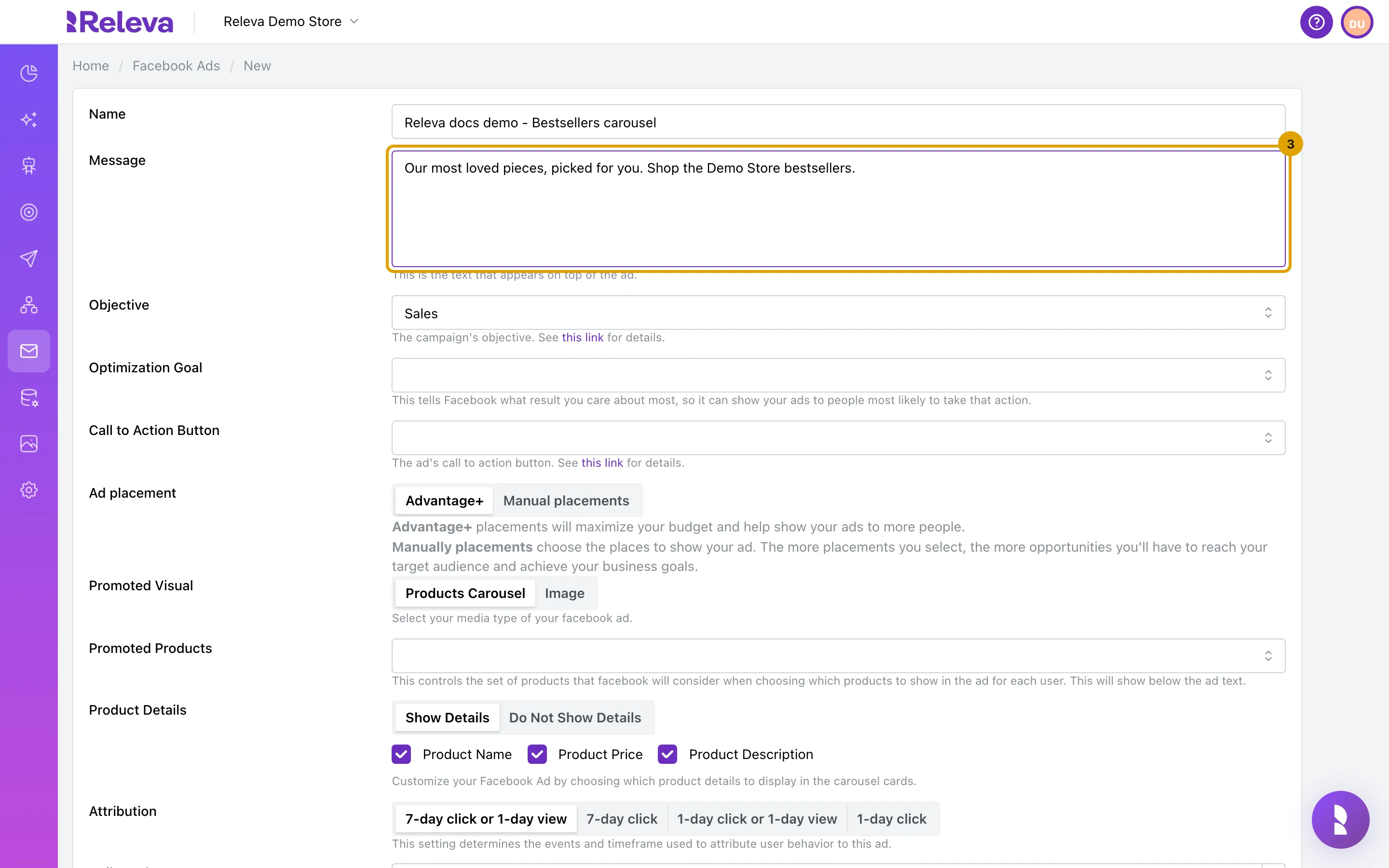
In Message, type the text that appears above the ad
The message is a Handlebars template, like an email or SMS. Do not leave it empty: Releva rejects an empty message or a broken merge tag when you save.
-
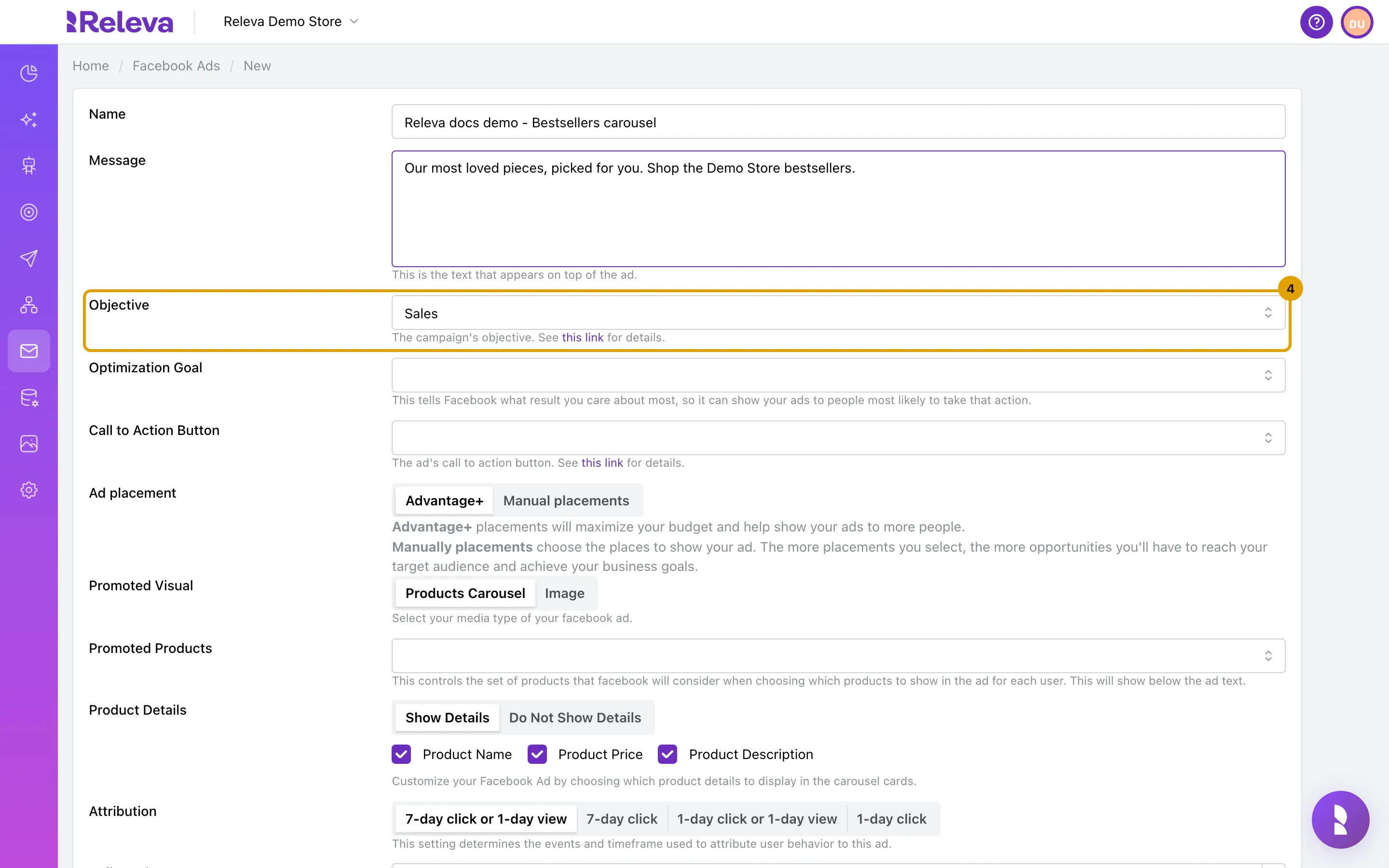
In Objective, choose what the campaign should achieve. Keep Sales to sell products from your catalog
The options are Sales, Traffic, Leads, Engagement, Awareness and App Promotion. For Sales, Optimization Goal offers Default, Conversions and Value. The other objectives only have Default. Changing the objective resets the optimization goal. Do not select the option that is already chosen: the form clears the field.
-
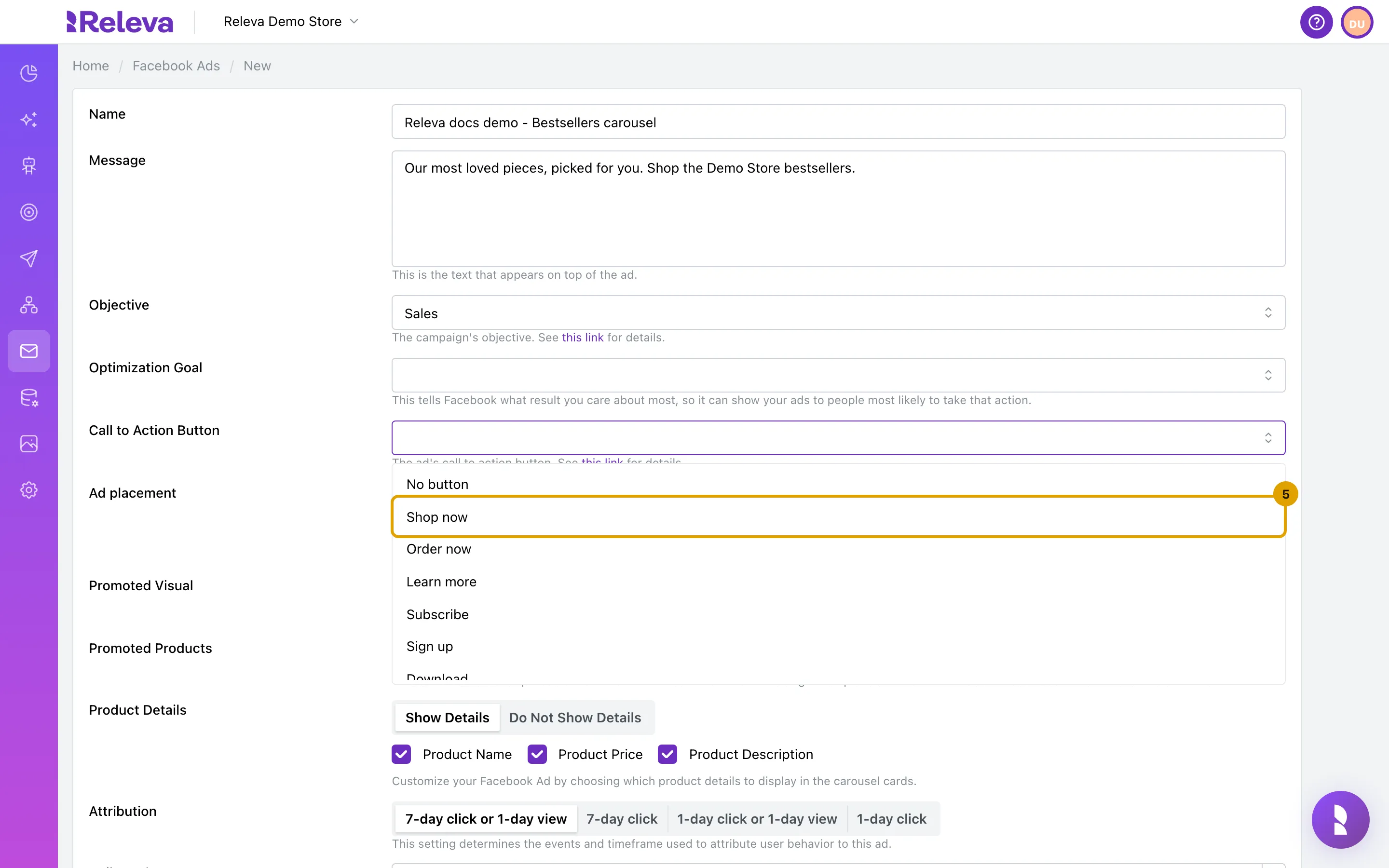
In Call to Action Button, select Shop now
You can also choose No button, Order now, Learn more, Subscribe, Sign up, Download, Get showtimes or Listen now. The Engagement objective has no button.
-
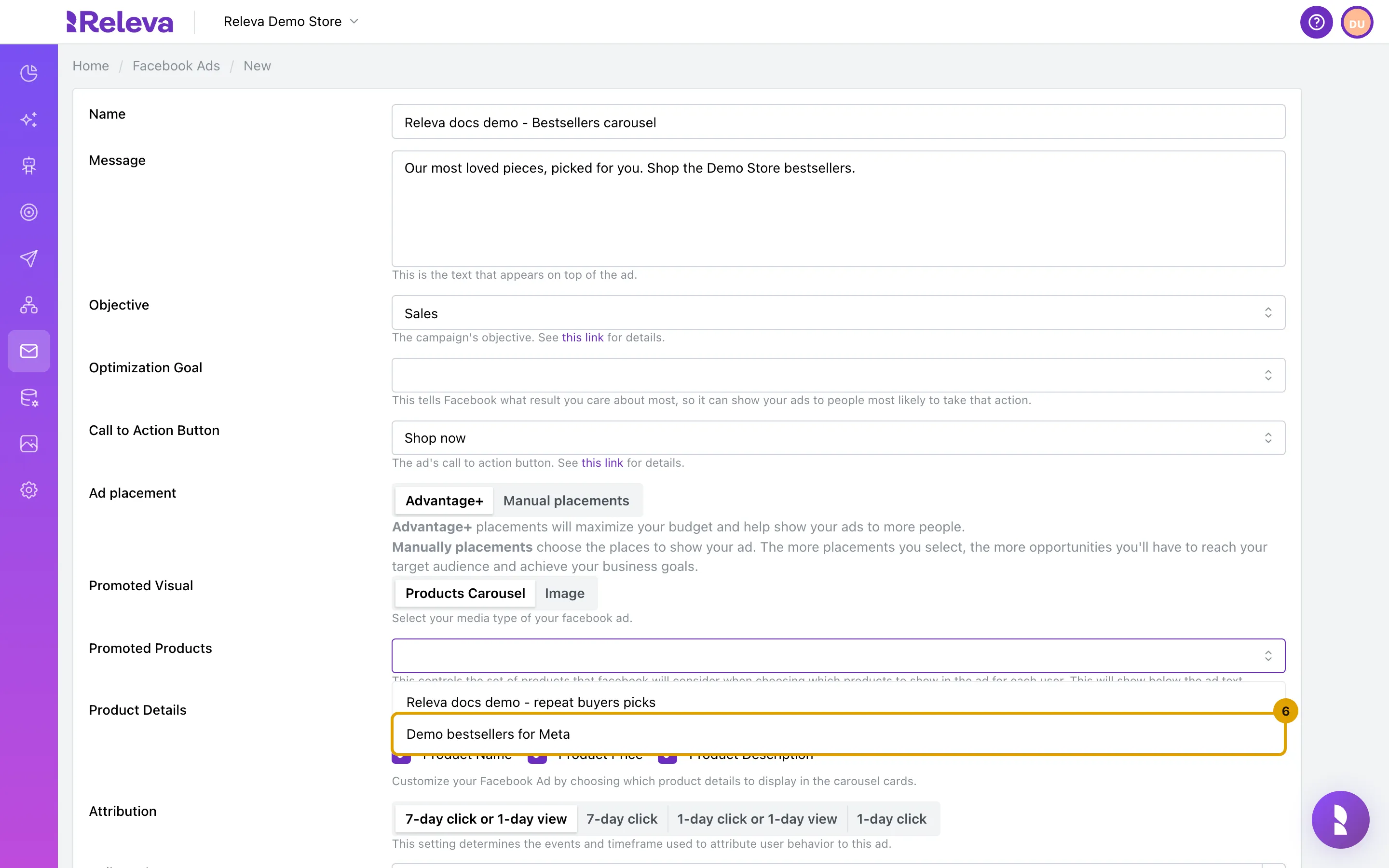
Leave Promoted Visual on Products Carousel and open Promoted Products
The list shows your Facebook product sets. Image instead of Products Carousel turns the ad into a single-image ad with an Image URL and an Image Hyperlink.
-
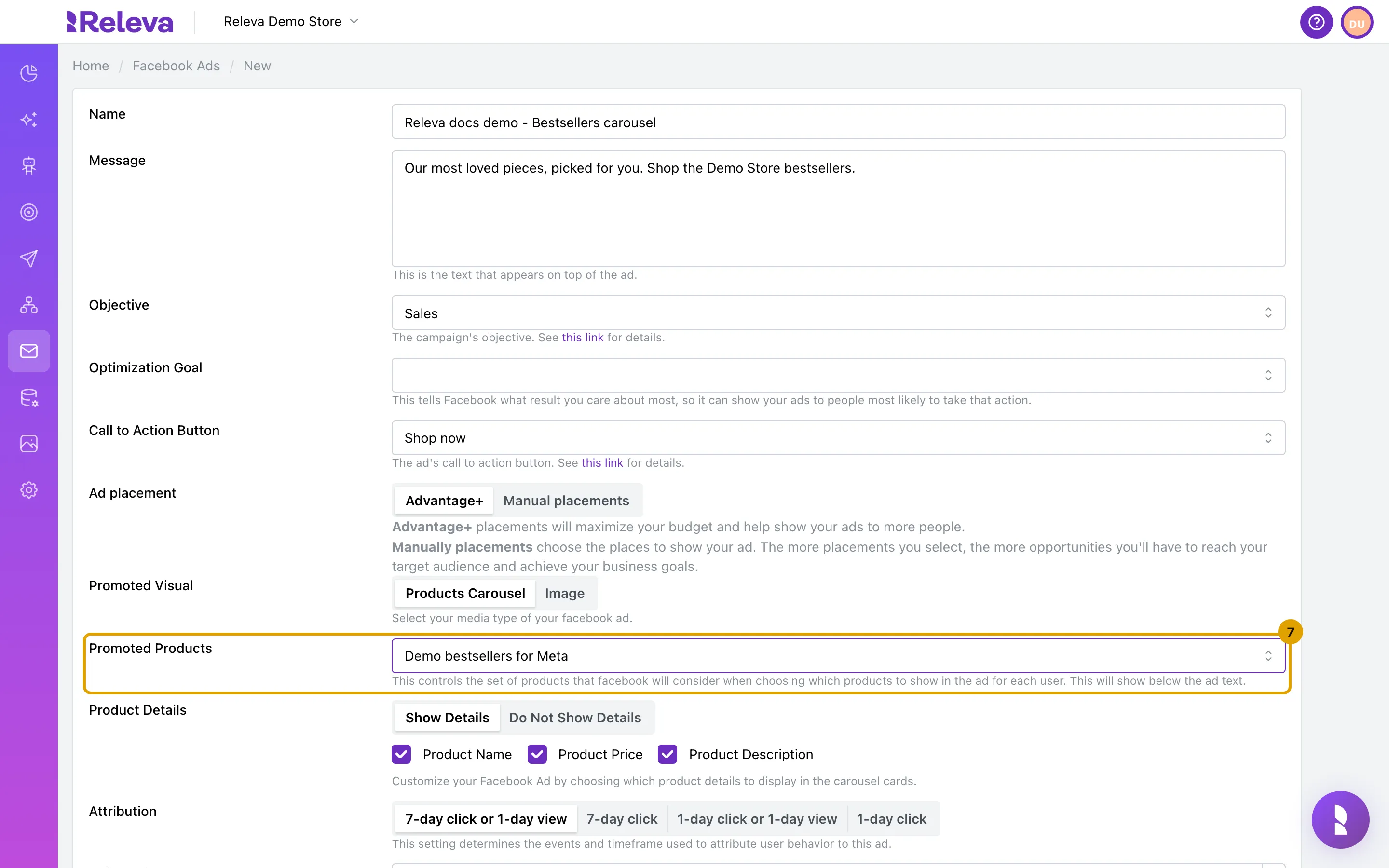
Select the product set to advertise
Meta picks the products for each person from this set. Under Product Details, untick Product Name, Product Price or Product Description to hide them on the carousel cards, or select Do Not Show Details.
-
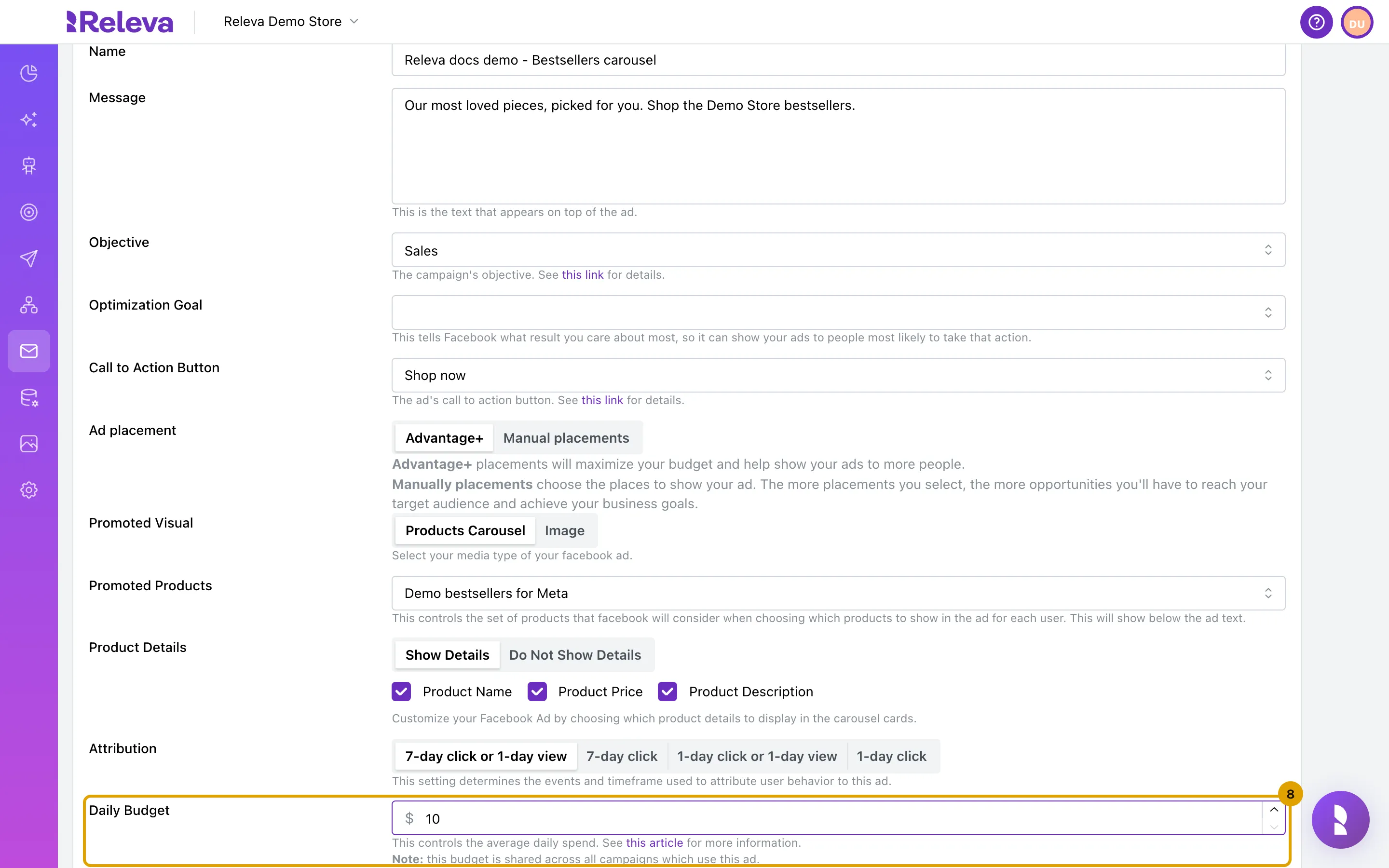
In Daily Budget, enter the average amount to spend per day
The amount is in your ad account’s currency, shown before the field. The form accepts 10 or more, and Meta requires at least 5 USD a day, converted to your currency. The budget is shared across all campaigns and workflows that use this ad.
-
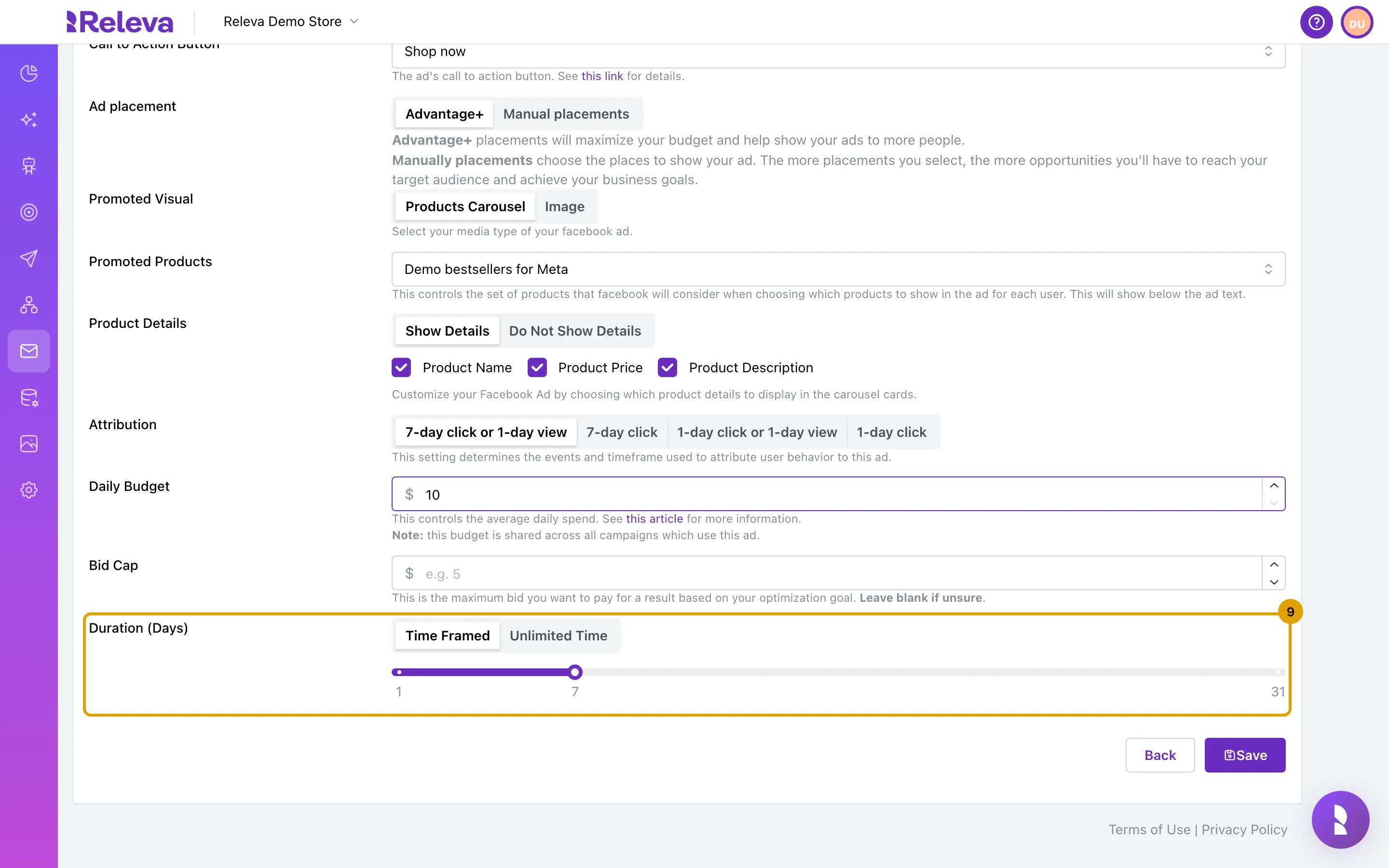
Leave Bid Cap empty if you are unsure, and set Duration (Days) with the slider or select Unlimited Time
An empty bid cap lets Meta bid at the lowest cost with no cap. Time Framed runs from 1 to 31 days, counted from the moment a campaign or workflow sends the ad. Unlimited Time runs the ad with no end date.
-
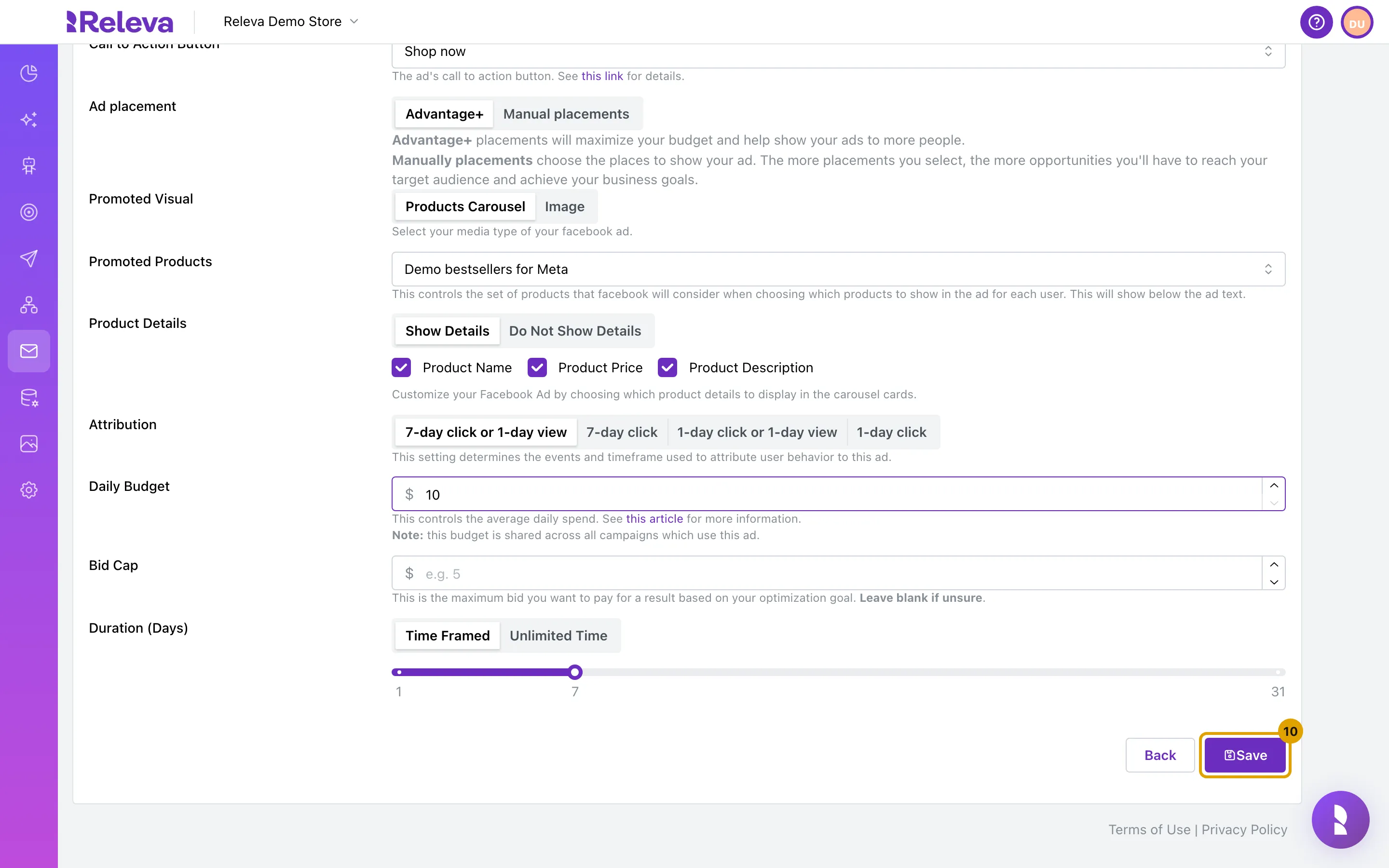
Select Save
Save stays disabled until the name, objective, daily budget, product set and duration are set. When you save, Releva creates a campaign with the ad’s name, objective and daily budget in your Meta ad account. It creates the ad set and the ad later, when a campaign or workflow sends the ad.
-
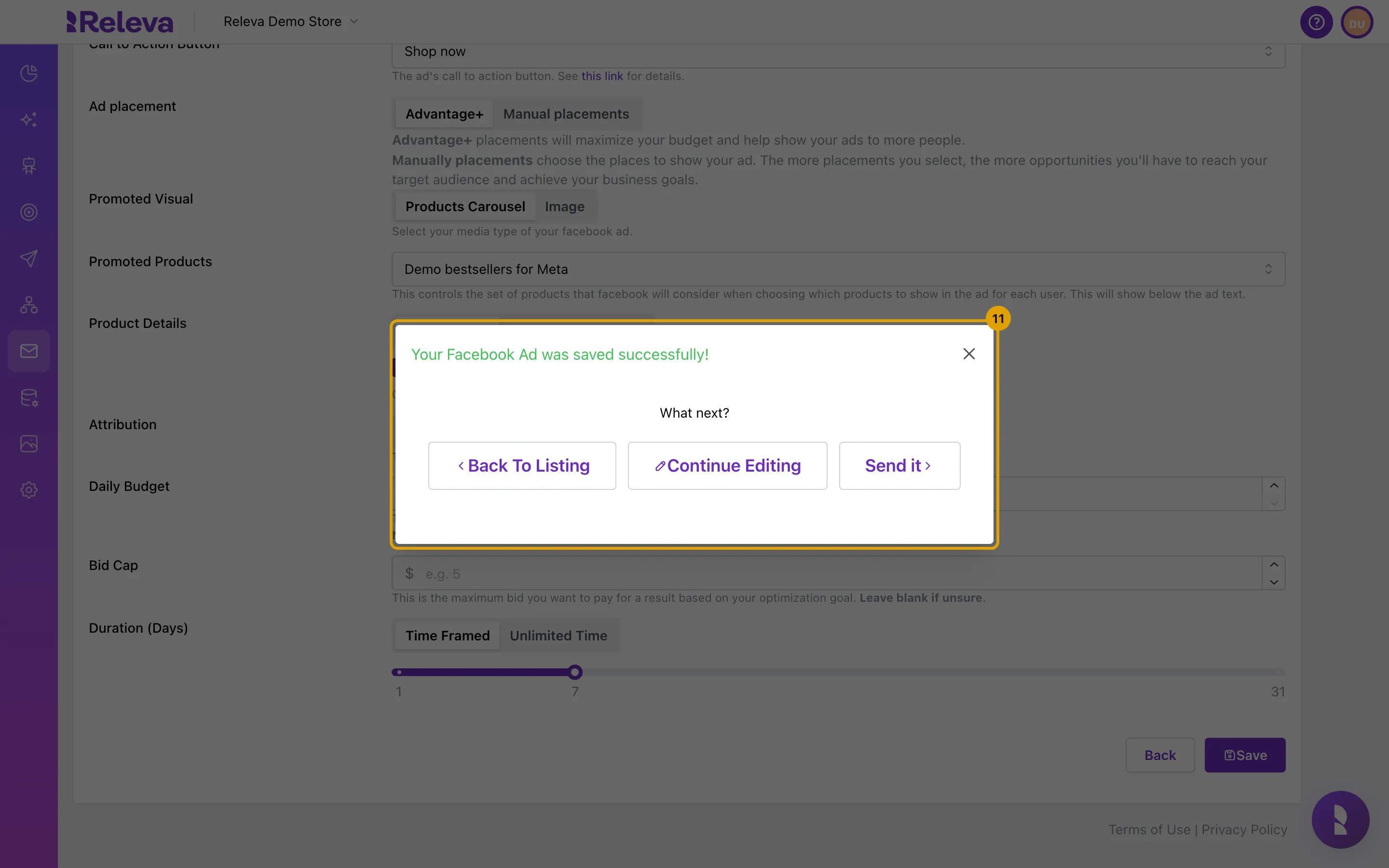
In the What next? dialog, select Send it to use the ad now, or Back To Listing to send it later
The dialog opens with Your Facebook Ad was saved successfully! Continue Editing keeps the form open. Send it asks How would you like to send your Facebook Ad? Choose the Campaign or Workflow tab. Then select Use Existing Campaign (or Use Existing Workflow) to add the ad to one you have, or Create New Campaign (or Create New Workflow) to start one. For how campaigns and workflows work, see Create a one-off email campaign and Create a one-off workflow.
Check it worked
Section titled “Check it worked”- Go to Marketing Channels › Facebook Ads and type the ad’s name in the search box. The ad has its own card with the attribution badge (it reads 7DAY CLICK1DAY VIEW for the default attribution) and a history badge. Impressions, Clicks, Conversions, Purchases, Revenue, Page engagements, Post engagements, Post reactions and Spend stay at 0 until a campaign or workflow sends the ad.
- Open the card: Objective, Optimization Goal, Call to Action Button, Ad placement, Promoted Visual, Promoted Products and Attribution are greyed out.
- Open Meta Ads Manager yourself (Releva has no link to it) and select the ad account you connected. A campaign with the ad’s name is in the list. It has no ad sets or ads until you send the ad from Releva.
Troubleshooting
Section titled “Troubleshooting”New Facebook Ad is disabled, or the list asks you to upgrade. No Meta account is connected. The upgrade message appears in that state too; the missing connection is the real cause. Follow Connect your Meta account to Releva.
Promoted Products is empty. No Facebook product set is synchronised yet. Follow Create a Facebook product set and wait for it to synchronise.
Save is disabled. A required field is empty: name, objective, daily budget, duration, a product set (carousel) or an image URL (image). An App Promotion ad also needs an App Store URL and a Facebook App.
“Facebook ad name must be unique!” after Save. Another ad in this shop already has this name. Change the name and save again.
“Daily budget must be at least … (Facebook’s $5 USD minimum).” after Save. Meta requires at least 5 USD per day, converted to your ad account’s currency. Raise Daily Budget and save again.
“Message body is not a valid Handlebars template: …” after Save. The message is empty or contains a broken merge tag, such as {{#if}} without a condition. Fix the message and save again.
Objective is suddenly empty. You selected the option that was already chosen, which clears the field. Select Sales (or your objective) again.
The card shows a grey circle with “No Facebook Ad Set Details Found in Meta Ads Manager”. This is expected for an ad that no campaign or workflow has sent yet: Meta has the campaign but no ad set.
The campaign in Ads Manager shows as active. Releva creates the campaign as active, but it has no ad sets or ads, so it cannot deliver or spend. If you delete the ad in Releva, Releva deletes the campaign in Meta too.
I need a different objective, placement, visual or product set. These settings are fixed after the first save. Create a new ad, or copy the ad and change the copy before you save it.