

Create a transactional Viber message
A Transactional Viber message notifies a customer about something that concerns them, such as an order on its way. Since 15 July 2026 Viber requires an approved template for transactional messages; without one the message is still sent, as plain text, but Viber bills it as promotional. This guide creates the message and prepares the template with the Mobica provider, where you create the template in the Mobica portal from text Releva generates and then link its ID. With Routee or Link Mobility the form submits the template for you (see the note after the steps). For the rules a template must follow, read How Viber messages work.
Before you start
Section titled “Before you start”- A Viber provider is set up under Settings › Messaging, tab Viber Messages. The Viber template row appears only for Mobica, Routee and Link Mobility.
- You know the notification text. It must start and end with plain text (not a merge tag), use at most 8 merge tags, stay under 1000 characters, and contain no unsubscribe, subscribe, subscription-management or loyalty link.
- For Mobica: access to the Mobica portal, where the template is created and approved.
-
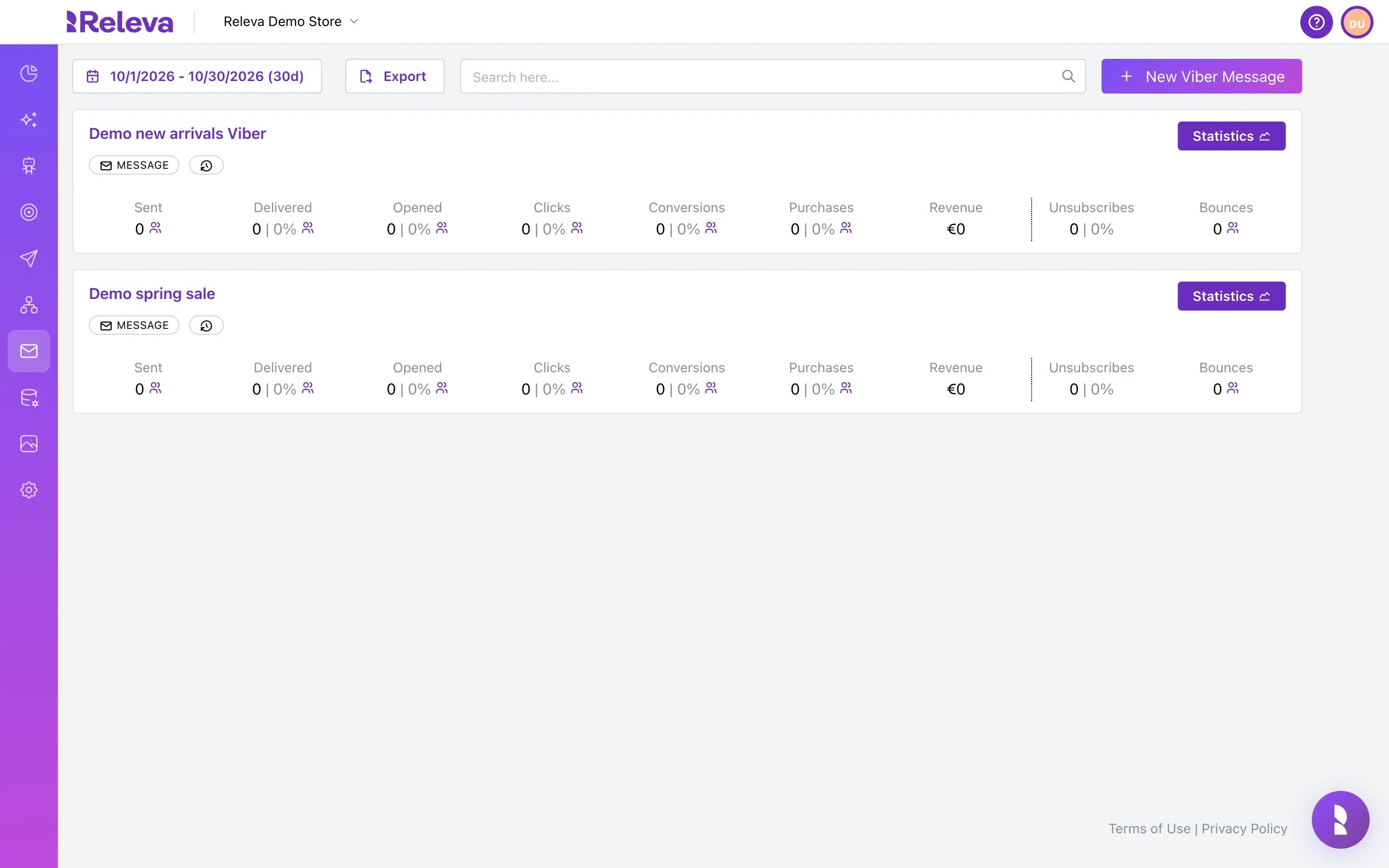
Go to Marketing Channels › Viber Messages and select New Viber Message.
-
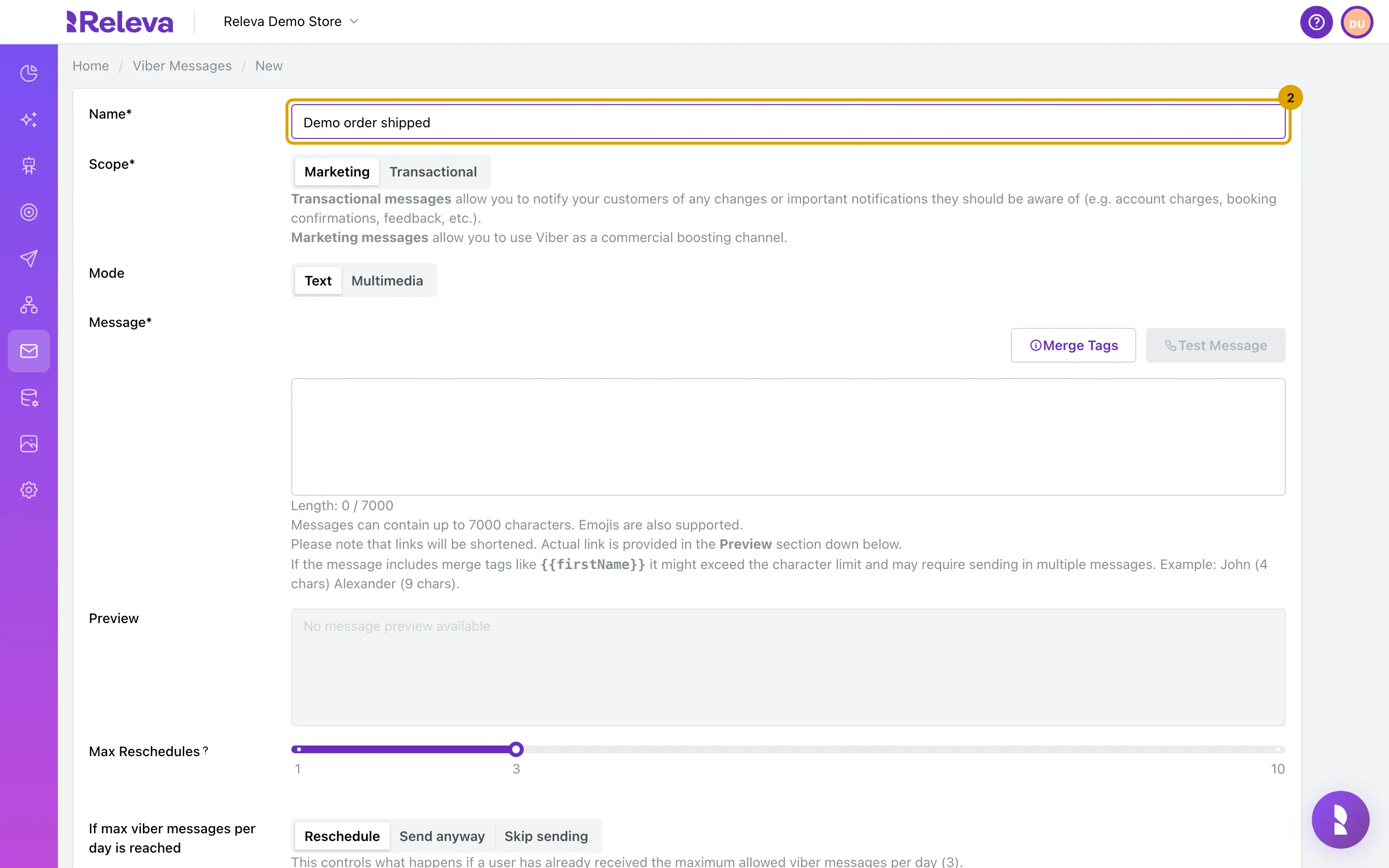
In Name, enter a name for the message.
-
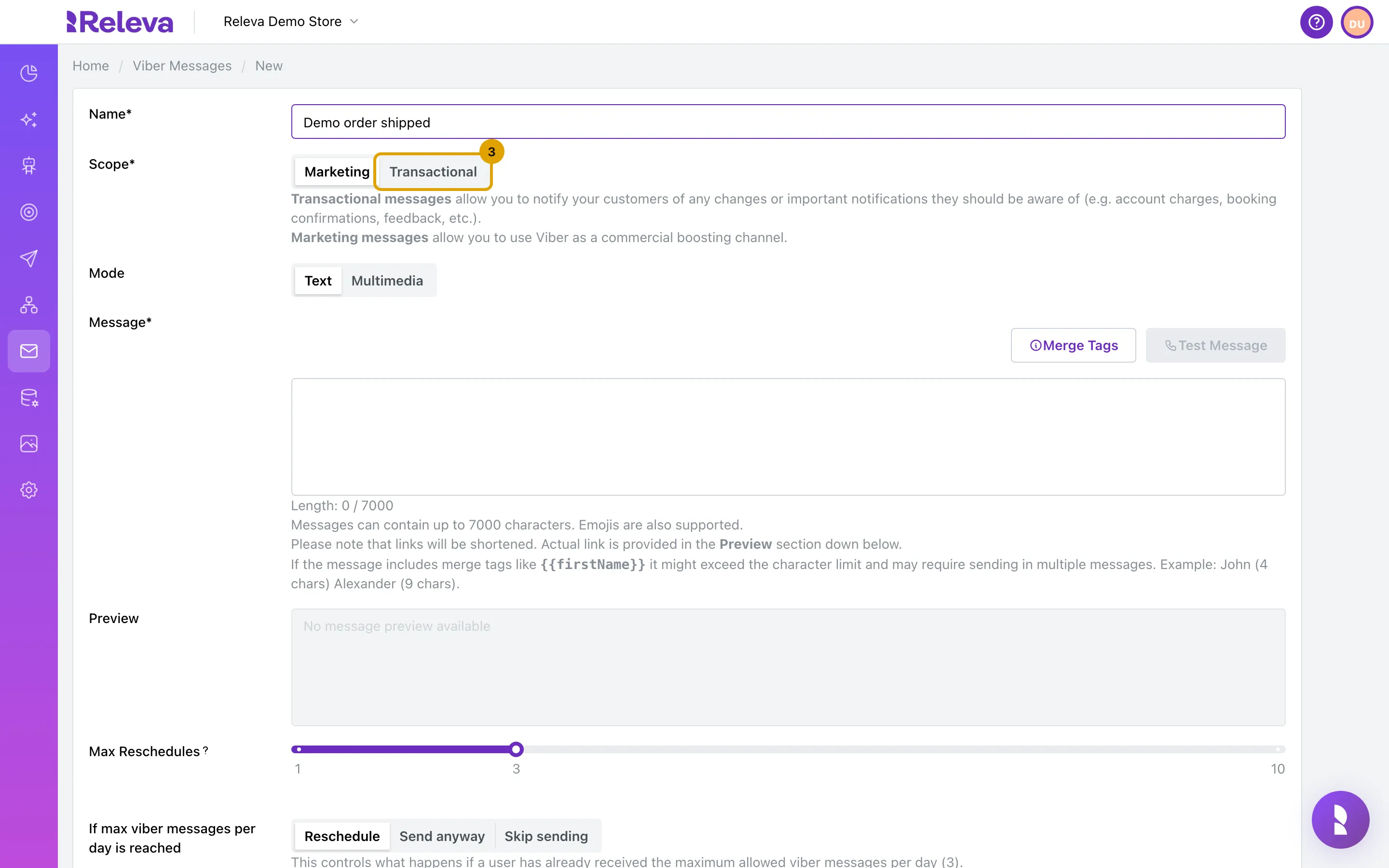
Under Scope, select Transactional.
The scope is fixed after the first save. If you later need a Marketing version, select Make a copy and change the scope on the copy.
-
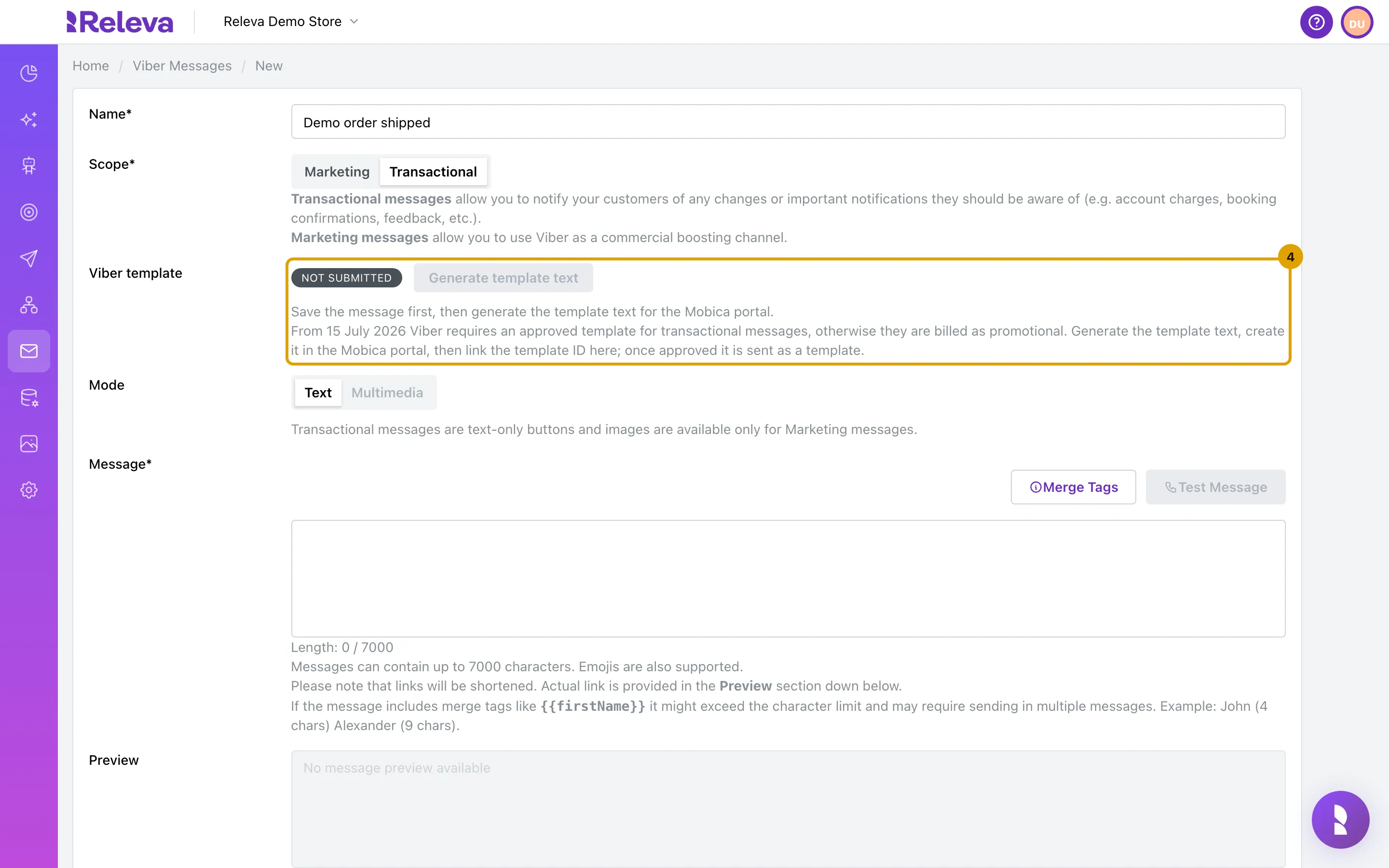
The Viber template row appears with the status Not submitted. Transactional messages are text only, so Mode stays on Text.
Multimedia is disabled, with the note Transactional messages are text-only buttons and images are available only for Marketing messages. Generate template text is disabled until the message is saved, and the row says Save the message first, then generate the template text for the Mobica portal.
-
In Message, type the notification. Start and end it with plain text, not a merge tag.
Use Merge Tags for personal details, for example
Hi {{firstName}}, your order {{custom.orderId}} is on its way. Thank you!. Each merge tag becomes a template variable; a link in the text becomes a tracked short link variable and cannot be the last element.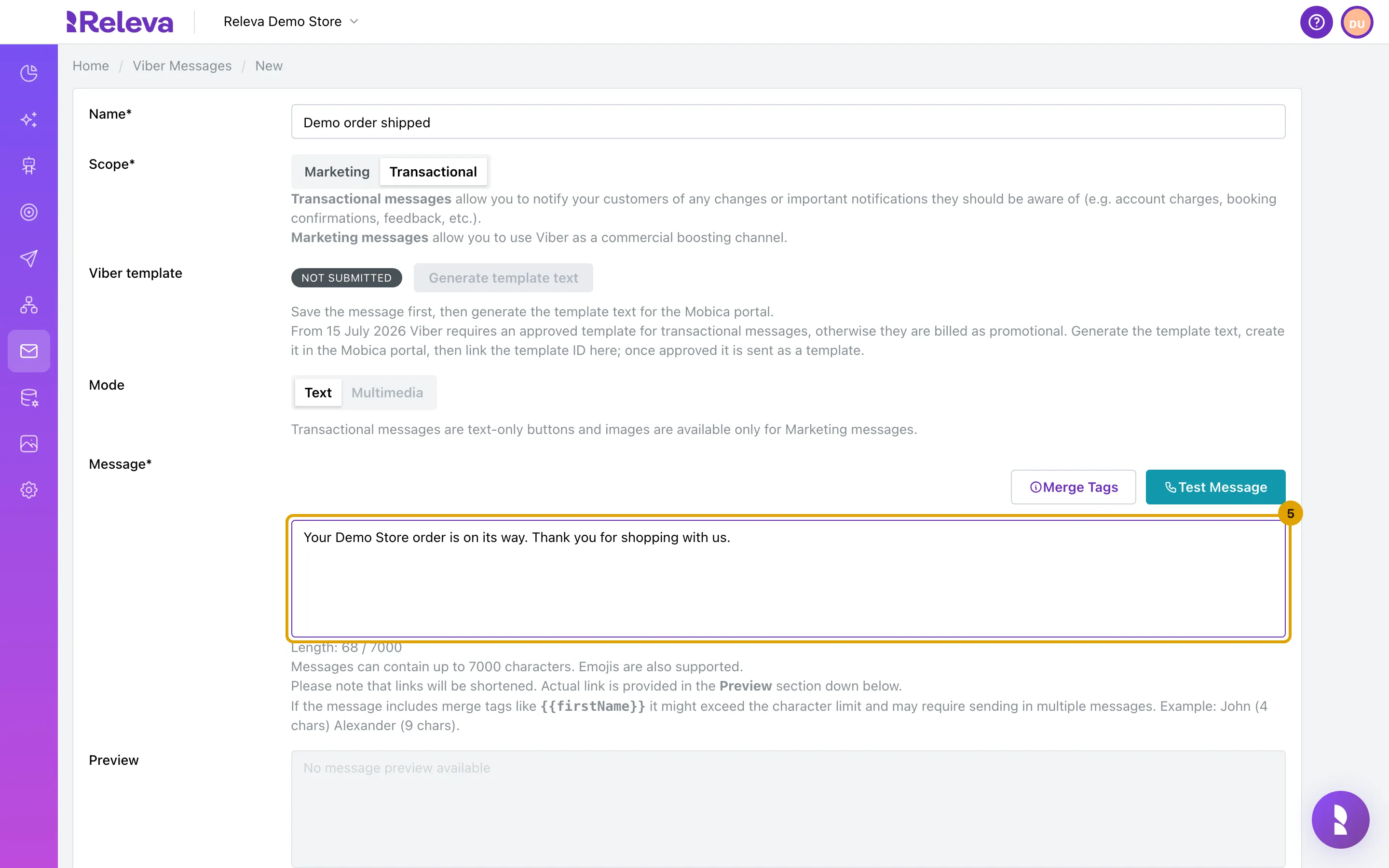
-
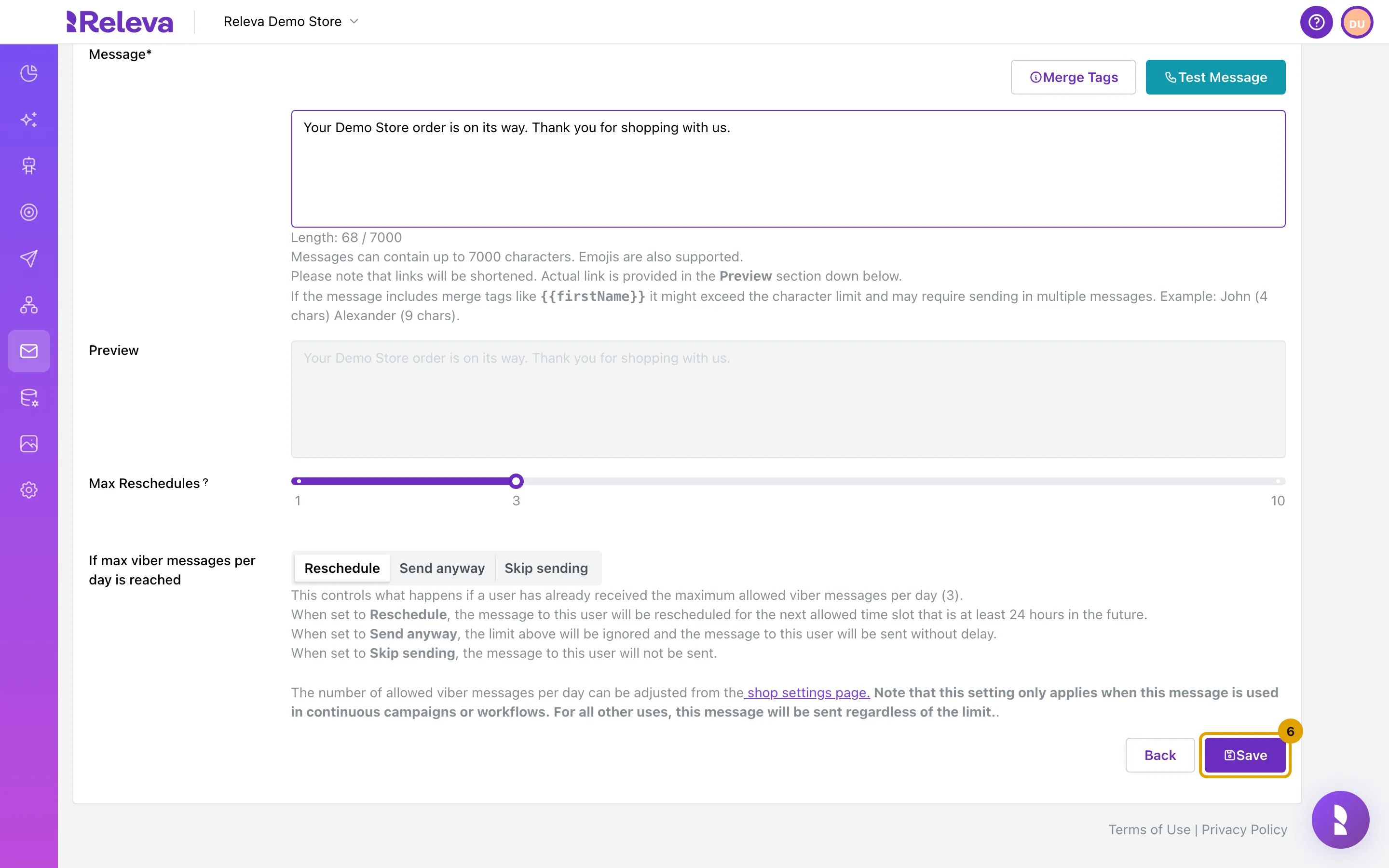
Select Save.
-
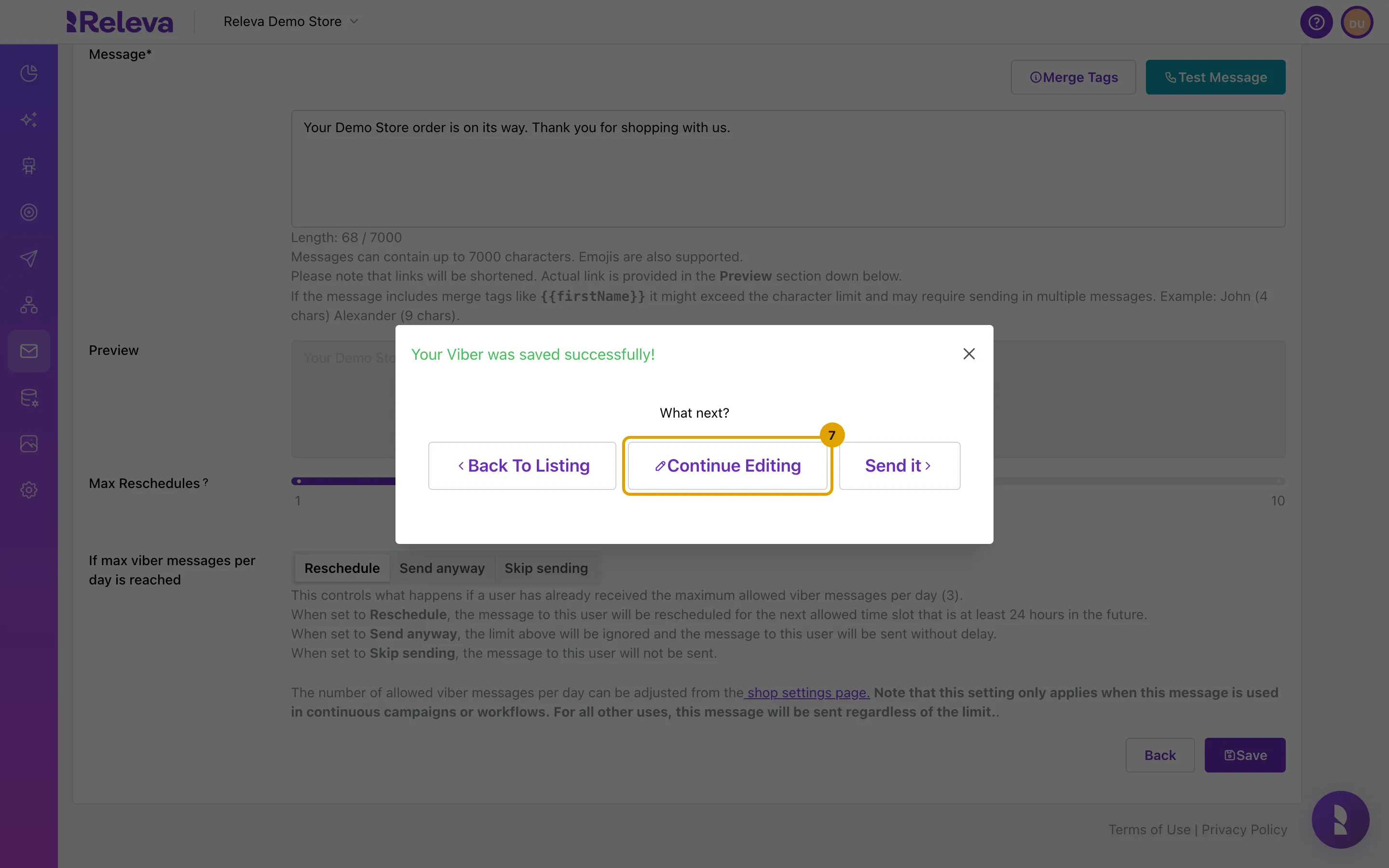
In the confirmation, select Continue Editing.
The edit page of the new message opens, with the breadcrumb Home / Viber Messages / <name> / Edit.
-
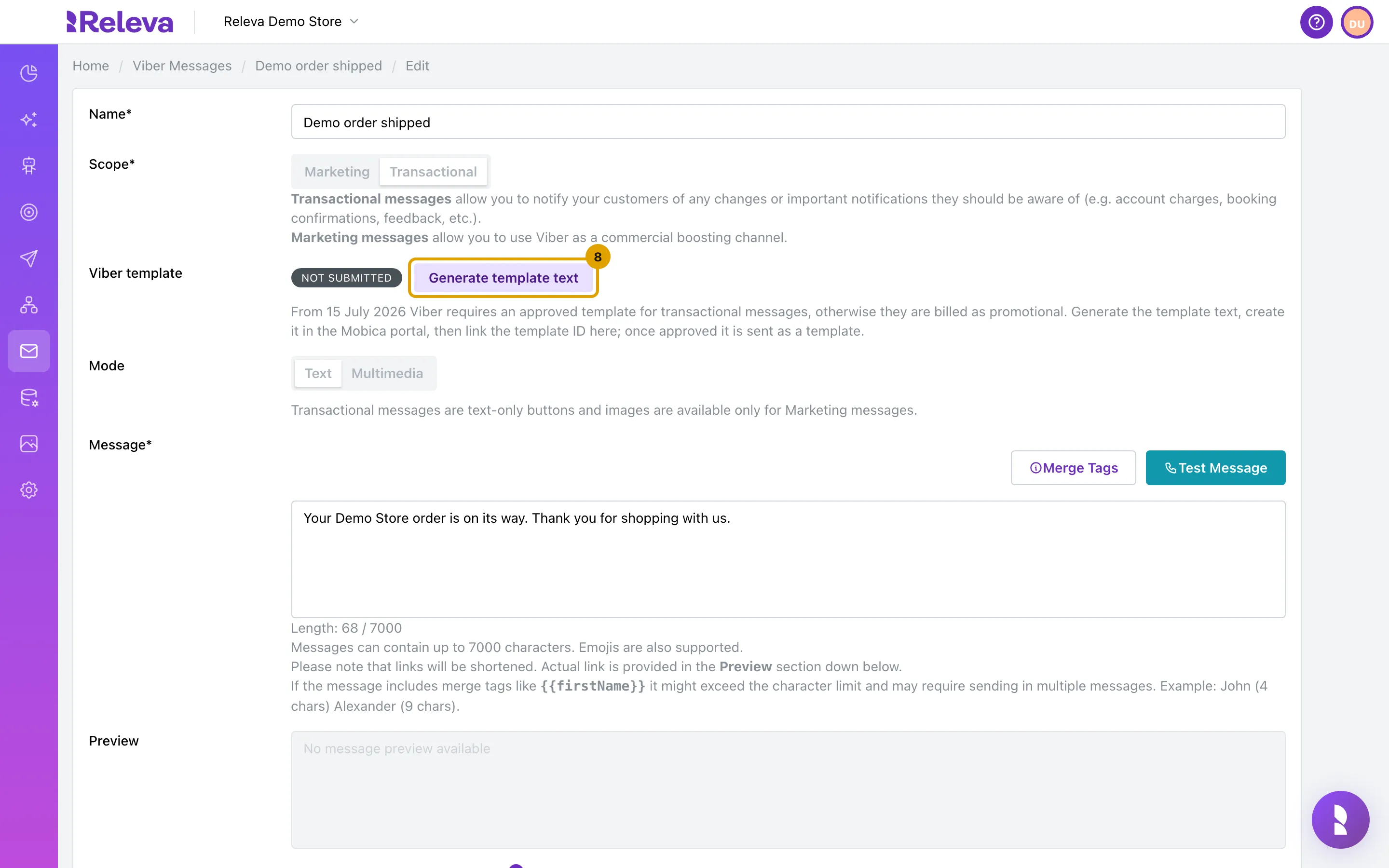
Next to Not submitted, select Generate template text.
Releva checks the text against the template rules and builds the template. If a rule fails, the reason appears under the row, for example The message must start with static text, not a variable.
-
Select Copy text and create a template with exactly this text in the Mobica portal.
The generated text uses Mobica’s
{variable}syntax:{{firstName}}becomes{firstName}and{{custom.orderId}}becomes{custom_orderId}. The button reads Copied once the text is on your clipboard. Create the template in the Mobica portal word for word.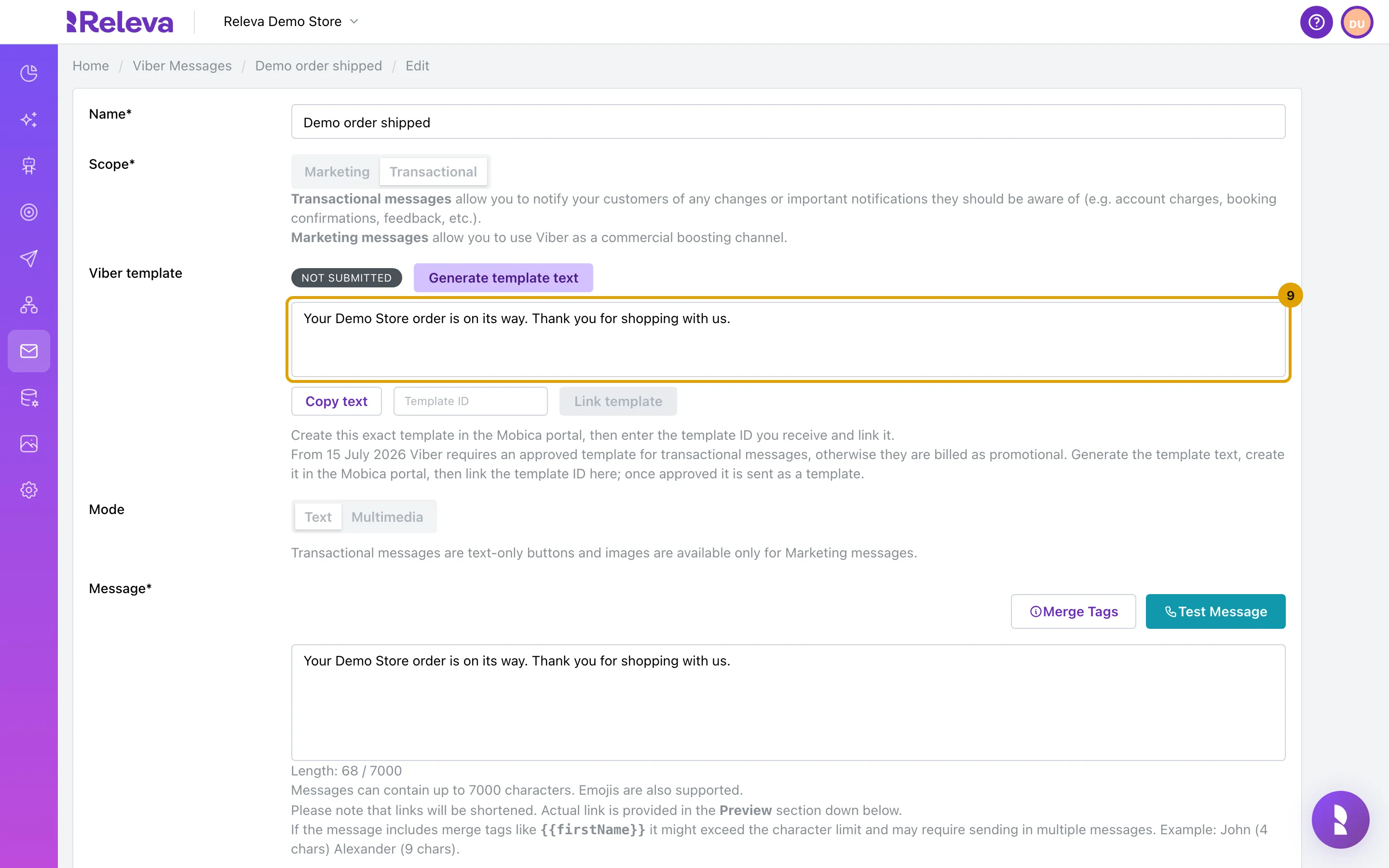
-
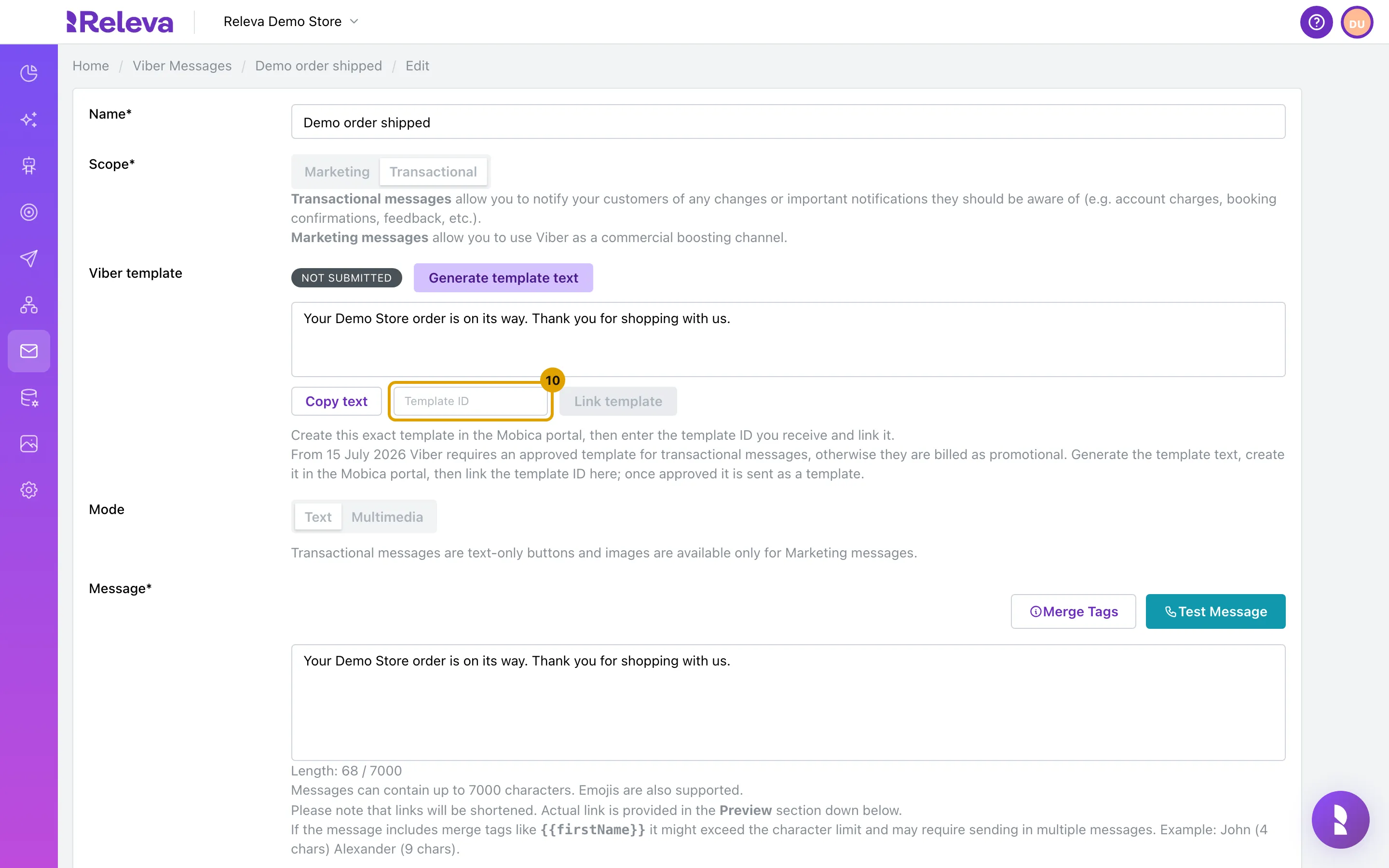
Enter the ID the Mobica portal gives you in Template ID and select Link template.
Template ID accepts digits only. Link template asks Mobica for the template’s status and stores it; the badge changes from Not submitted to PENDING, APPROVED or REJECTED. This guide stops here: linking was not performed when the screenshots were recorded.
With Routee or Link Mobility
Section titled “With Routee or Link Mobility”Instead of Generate template text, the Viber template row shows a language picker (default English) and the save button reads Save & submit for approval. One click saves the message and submits the template to the provider; the badge turns PENDING. Use Refresh status to fetch the moderation result; Releva also receives it through the provider’s status callback.
Check it worked
Section titled “Check it worked”- On the Viber Messages list the card has both a MESSAGE badge and a template status badge (Not submitted, PENDING, APPROVED or REJECTED).
- Once a template is linked or submitted and is not REJECTED (PENDING or APPROVED), the Message field is locked with the note This message has been submitted as a Viber template and can no longer be edited. Once it is APPROVED, sends use the template and Viber bills them as transactional.
Troubleshooting
Section titled “Troubleshooting”Generate template text is disabled. The message is not saved yet. Select Save, then Continue Editing.
“The message must start with static text, not a variable.” or “… must end with static text …” The text begins or ends with a merge tag or a link. Add a word before the first tag or a closing sentence after the last one, save, and generate again.
A merge tag is rejected as a link. {{unsubscribeLink}}, {{unsubscribeLinkOneClick}}, {{subscribeLink}}, {{subscriptionManagementLink}} and {{loyaltyLink}} resolve to URLs, which Viber does not allow as template values, so the template check refuses them. Remove the tag.
“Please provide the numeric template id from the Mobica portal.” Template ID must contain only digits.
“Generate the template text first, create it in the Mobica portal, then link its id here.” You selected Link template on a message whose template text was never generated.
The status went back to Not submitted after I edited the text. Changing the message text or the template language clears the template, because the approved text no longer matches. Generate (or submit) it again.
The template was REJECTED. The rejection reason is shown in red under the row as Rejected: …. Fix the text, save, and generate or submit it again.
I see no Viber template row. The scope is Marketing, or the provider is not Mobica, Routee or Link Mobility.