

Choose who sees a banner
A banner holds the content a visitor sees and the audience that sees it. Where and how it appears is decided by the banner blocks that use it (Show a banner on your site). This guide changes the audience of an existing banner: it limits it to one behavioral segment and stops showing it to a visitor for three days after they click it. For the rules behind these settings, read How banners work.
Before you start
Section titled “Before you start”- You have a banner under Marketing Channels › Banners. Every banner needs a Behavioral segment; without one Save stays disabled.
- You have the Behavior segment you want to target (Create a segment). The + button next to the selector creates one in place, and the pencil edits the chosen one.
- Your plan includes editing banners. A locked Save means it does not; ask your account owner.
- Changes apply as soon as you save, on every running banner block that uses the banner. There is no on/off switch on a banner itself.
-
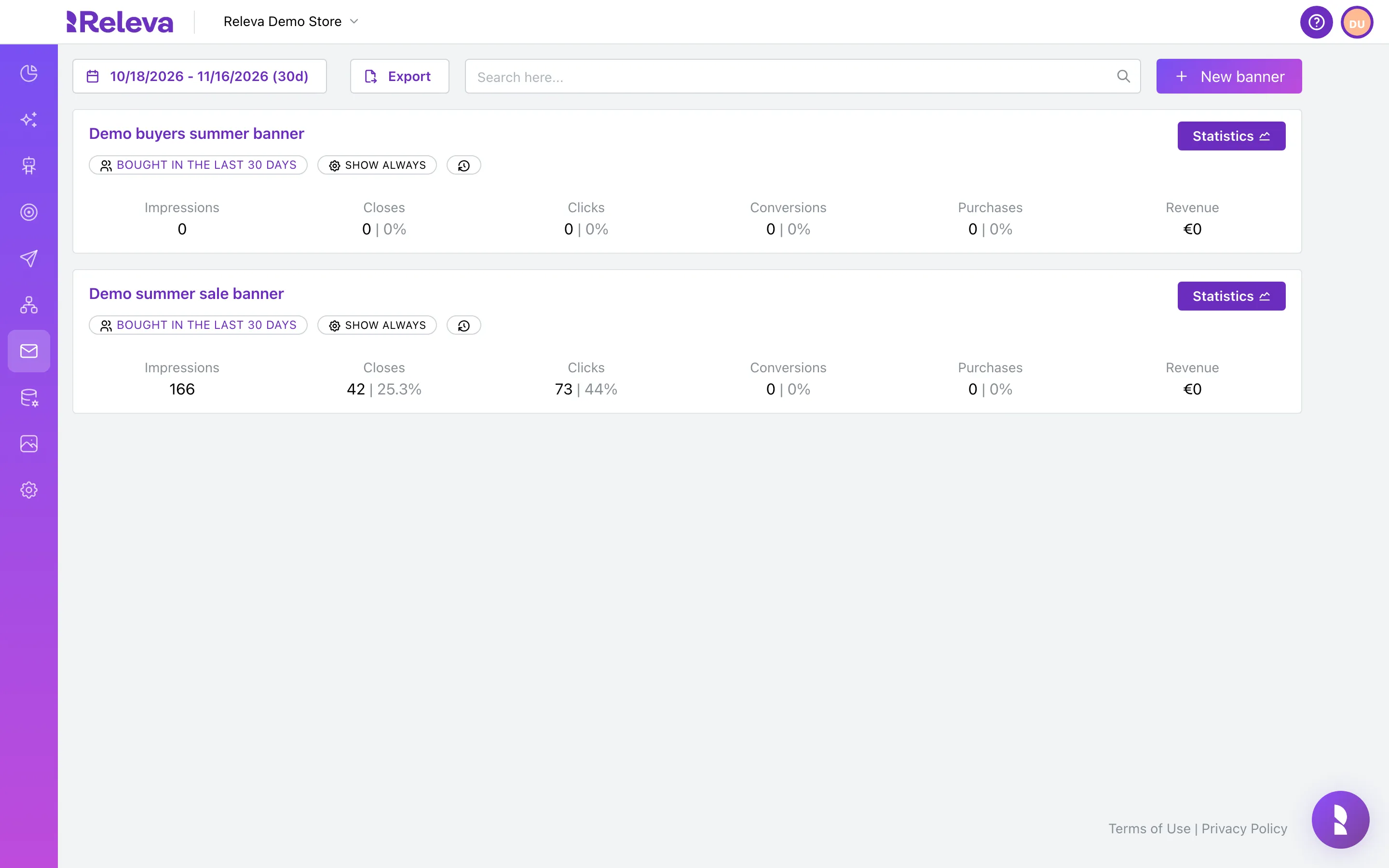
Go to Marketing Channels › Banners.
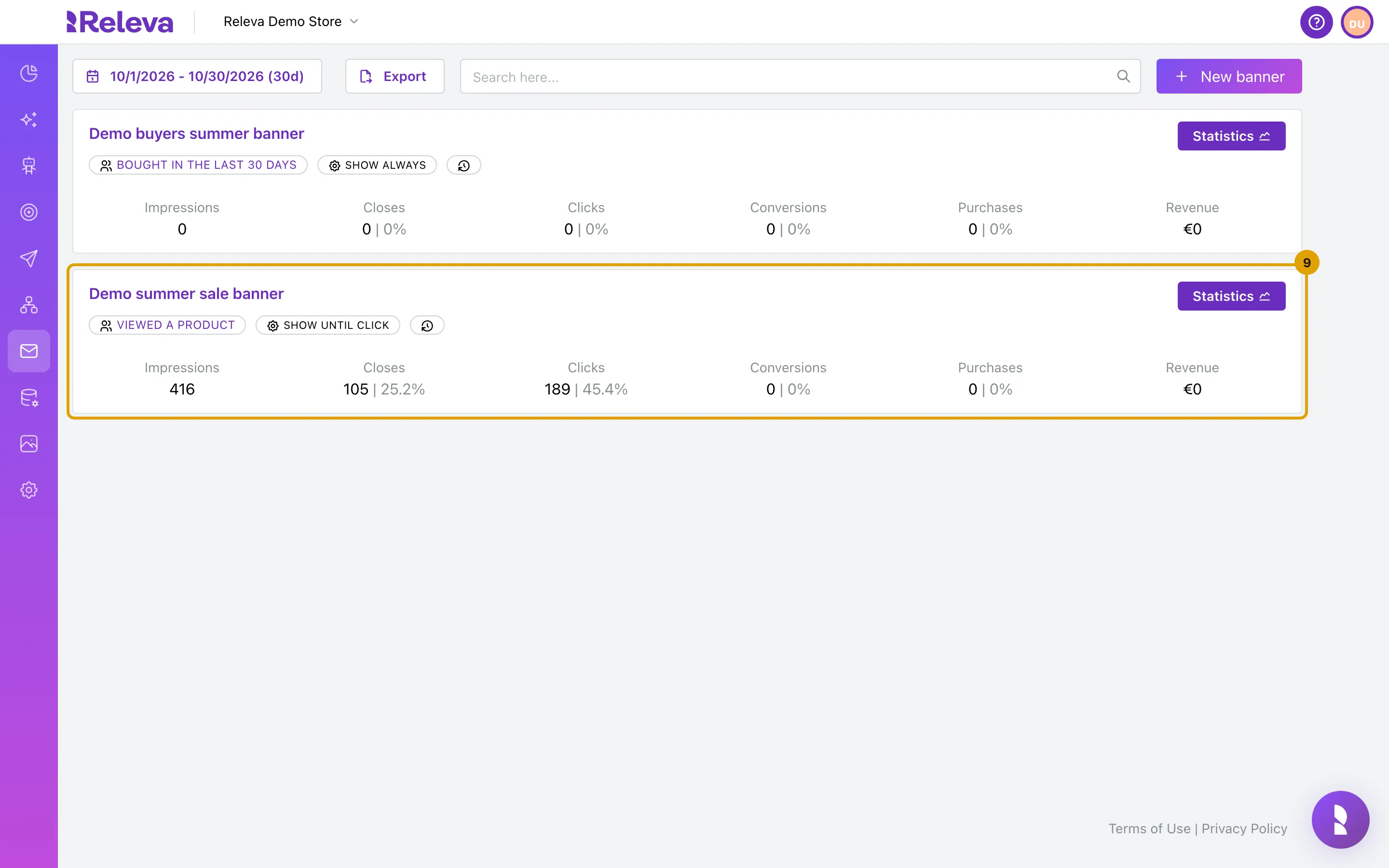
Each card shows the banner’s segment, SHOW ALWAYS or SHOW UNTIL CLICK, and its numbers for the period (last 30 days by default). Use Search here… to find a banner by the start of a word in its name.
-
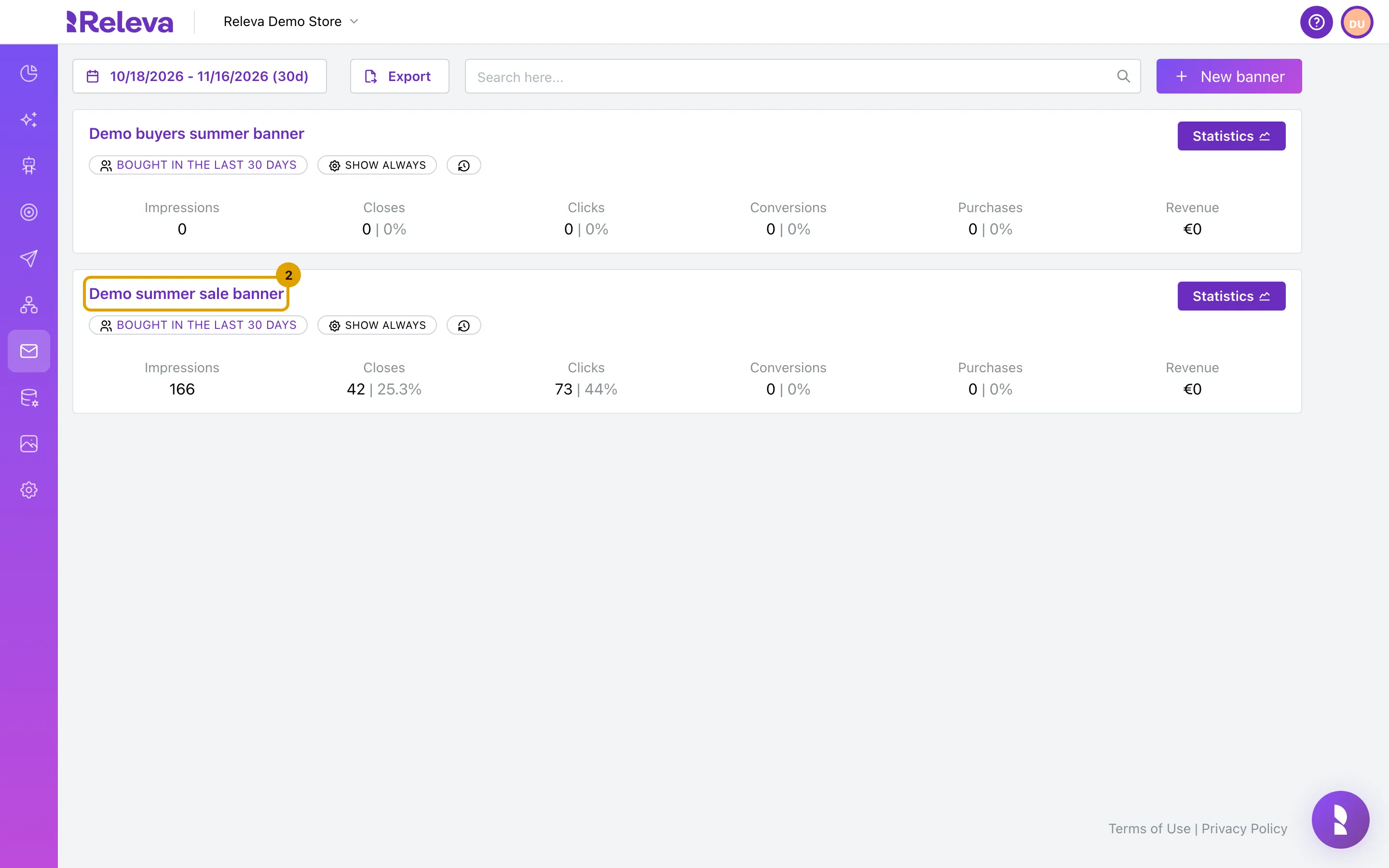
Select the name of the banner to open it, here Demo summer sale banner.
-
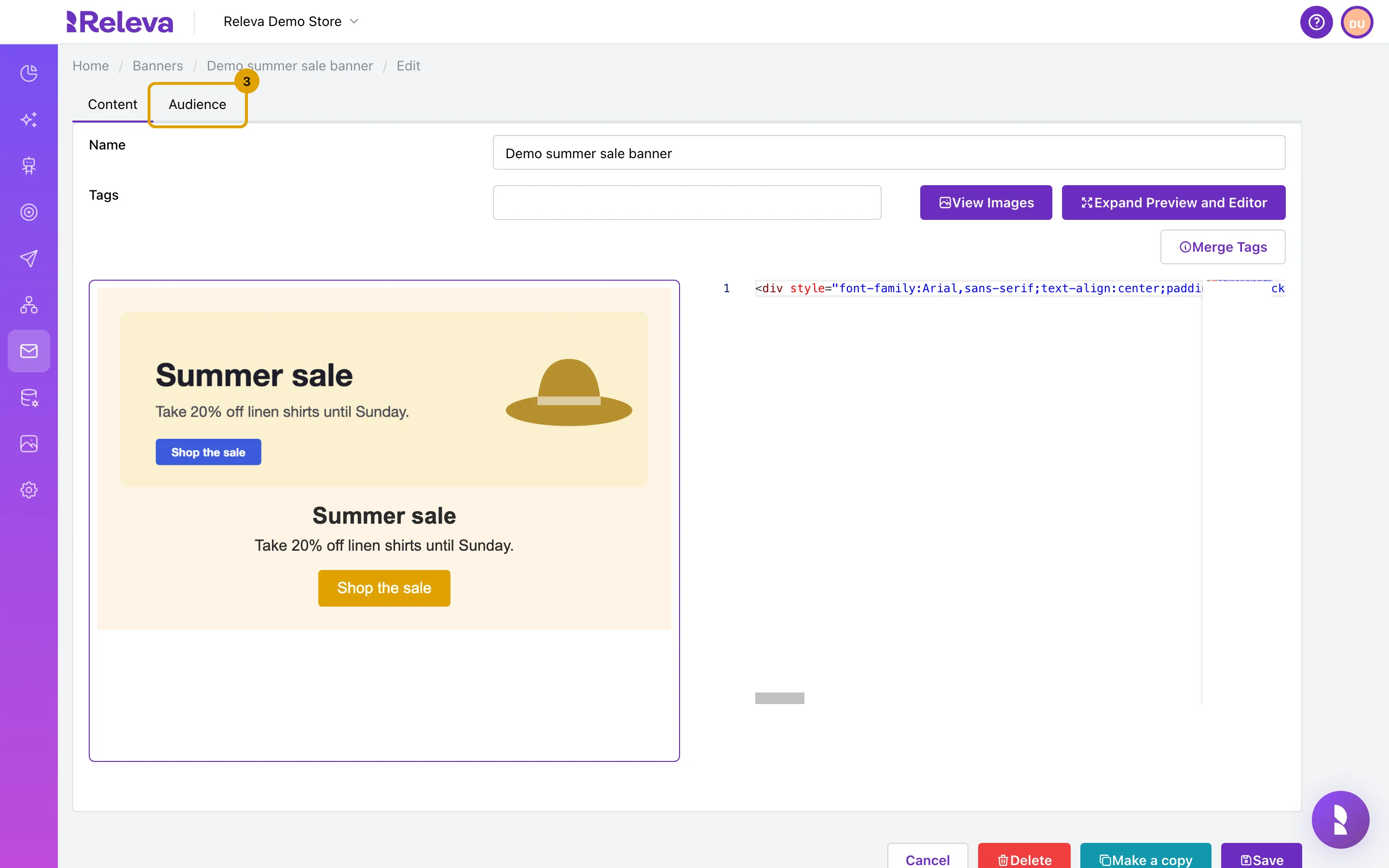
The Content tab holds the banner itself. Select the Audience tab.
Content has the Name, Tags, Merge Tags for personalisation, and the editor: the Releva builder for a new banner, or the HTML editor with a live preview for a banner in HTML, like this one.
-
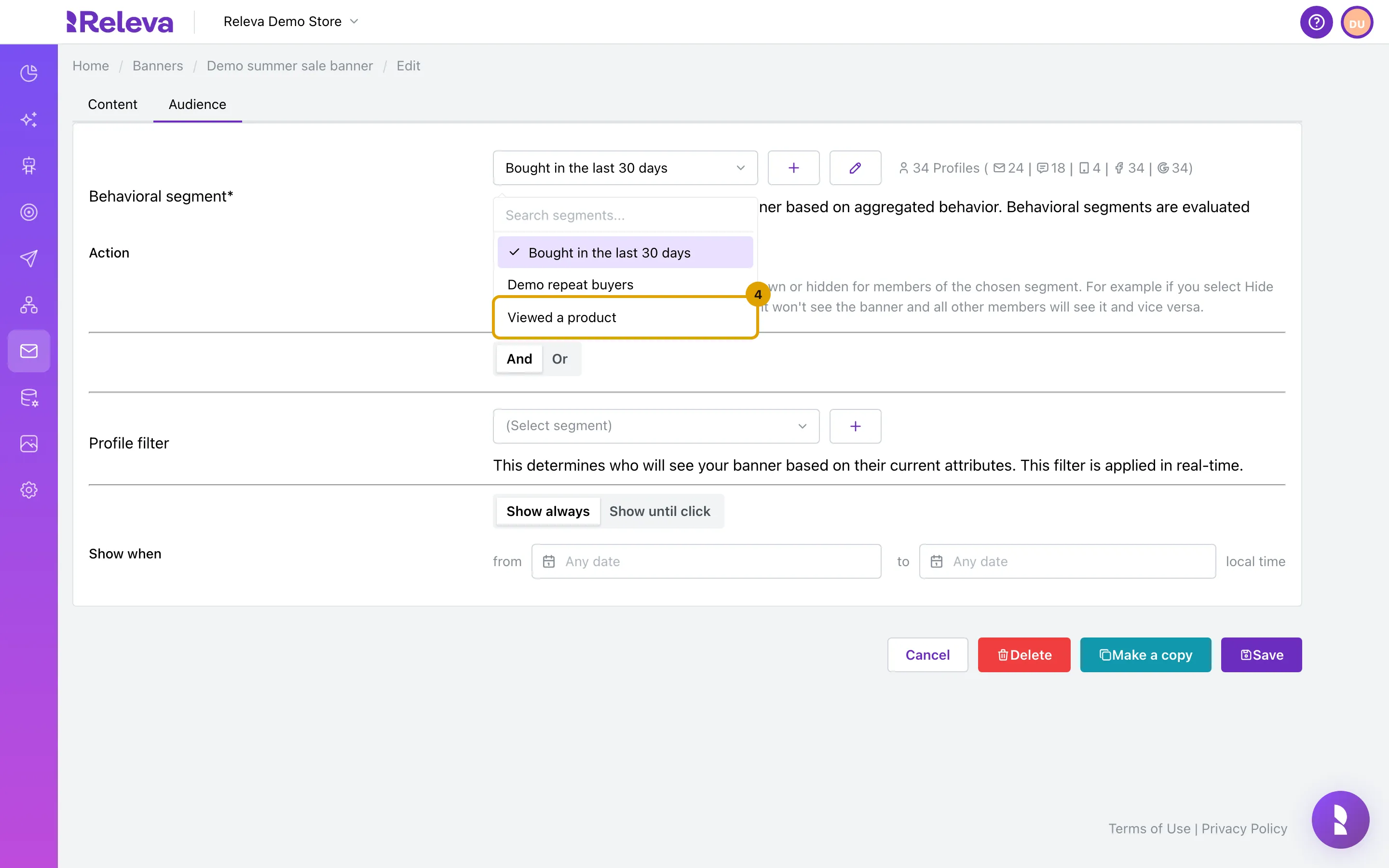
Under Behavioral segment, choose who sees the banner, here Viewed a product. Leave Action on Show.
Next to the segment, Releva estimates its size: the number of profiles, then how many of them you can reach by e-mail, SMS, push, Facebook and Google. Show shows the banner to the segment’s members; Hide shows it to everyone except them. Behavioral segments are recalculated continuously, not in real time. The optional Profile filter is a second segment evaluated in real time from the profile’s current attributes; And / Or says whether a visitor must match both or either.
-
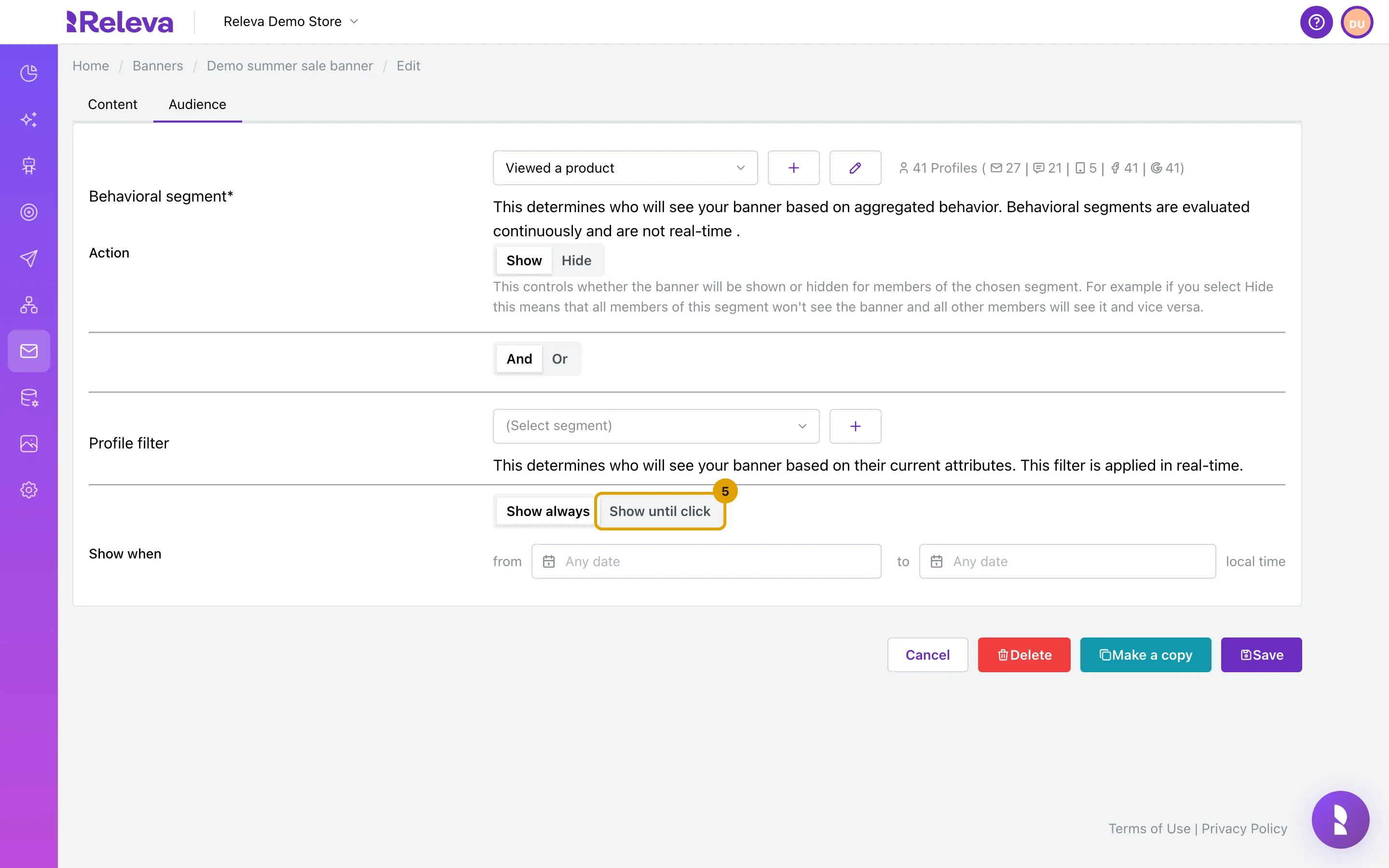
Select Show until click so that a visitor who clicks the banner stops seeing it.
With Show always the banner is offered on every qualifying page load. Closing the banner counts the same as clicking it for this rule.
-
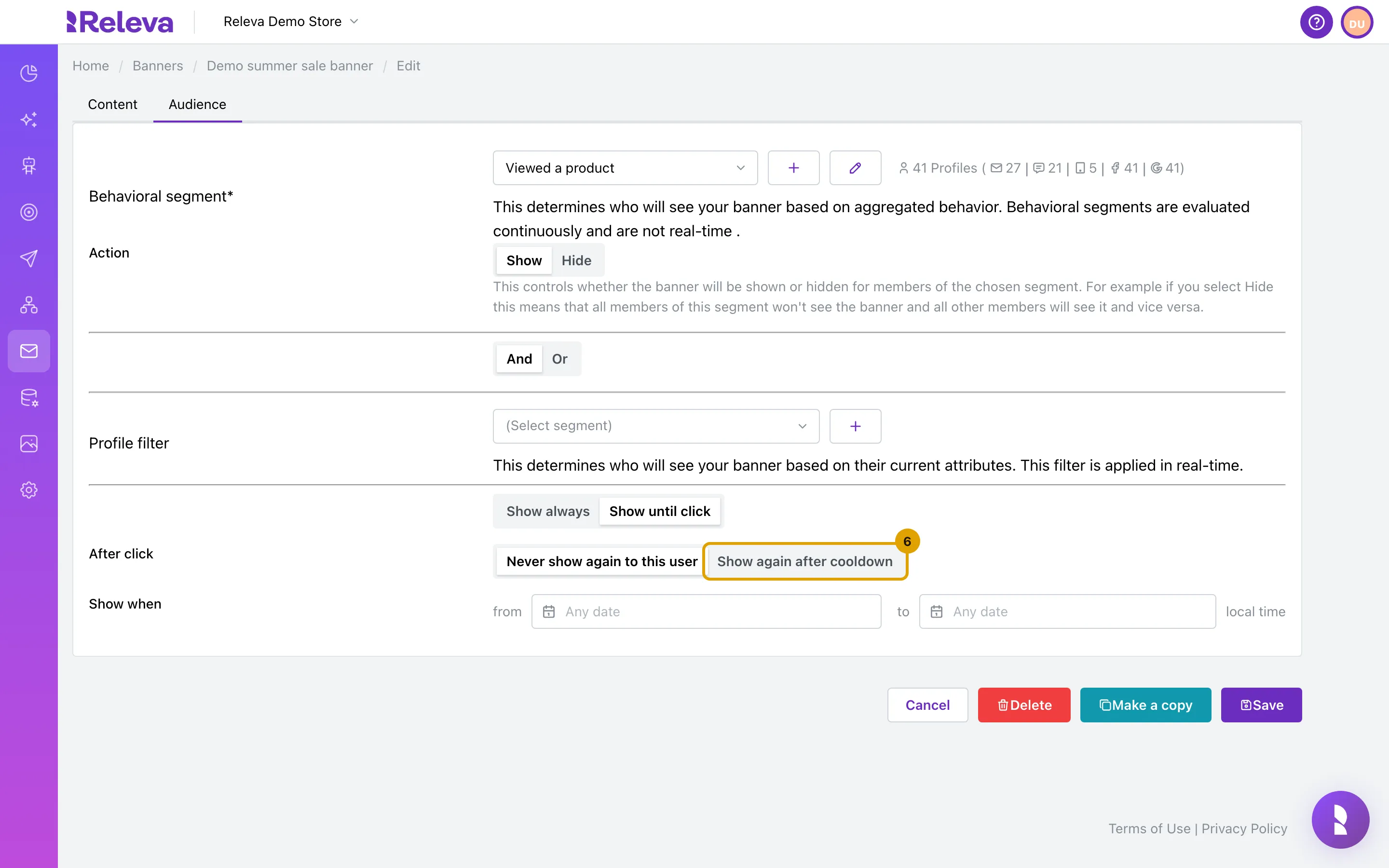
Under After click, select Show again after cooldown to bring it back later instead of hiding it for good.
Never show again to this user keeps the banner away from that device for 365 days.
-
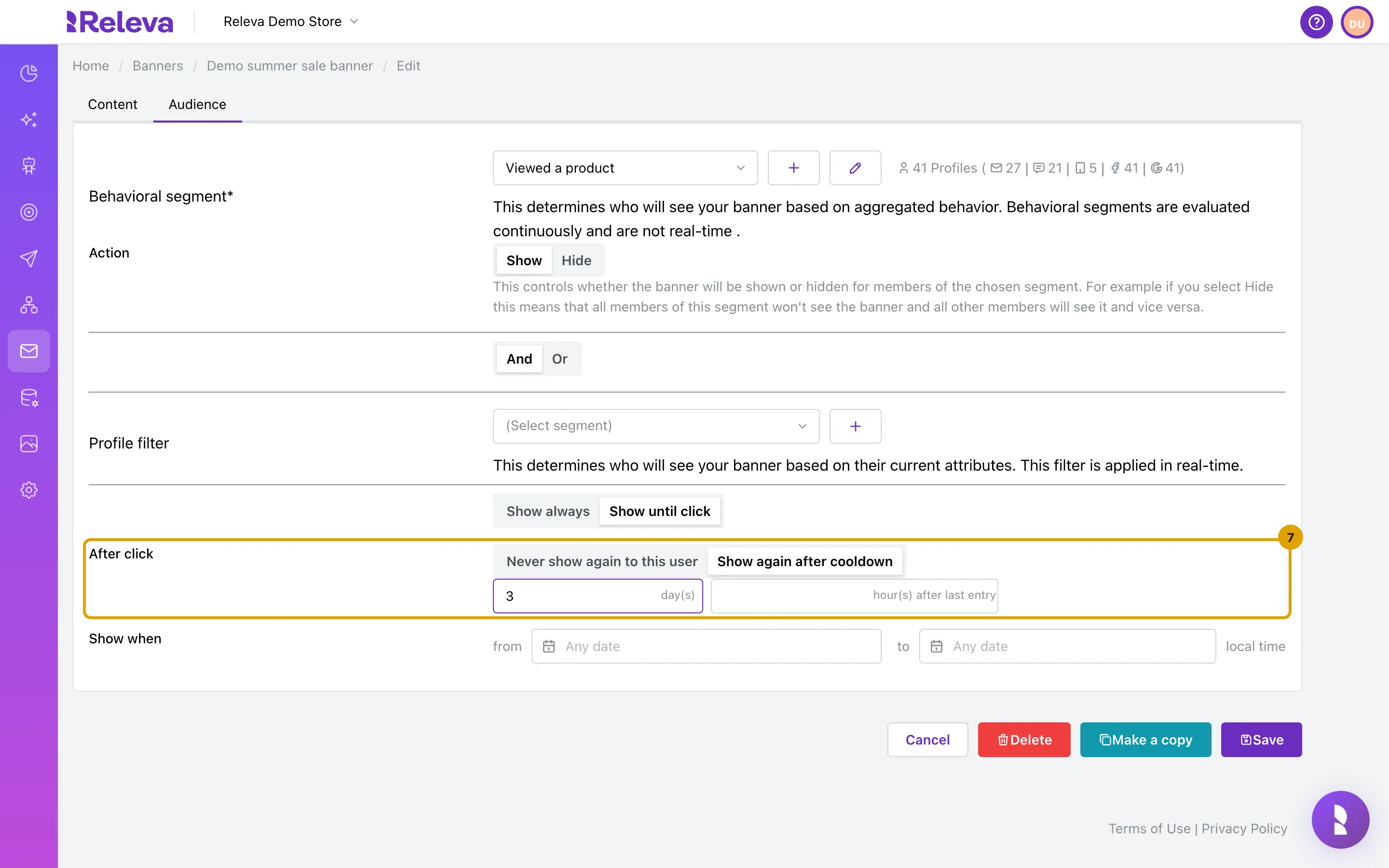
Enter the cooldown in day(s) and hour(s) after last entry.
The two add up: 3 days and 12 hours is a cooldown of 3.5 days from the click or close. Show when below limits the banner to a start and end date and time in your local time; leave Any date for no limit.
-
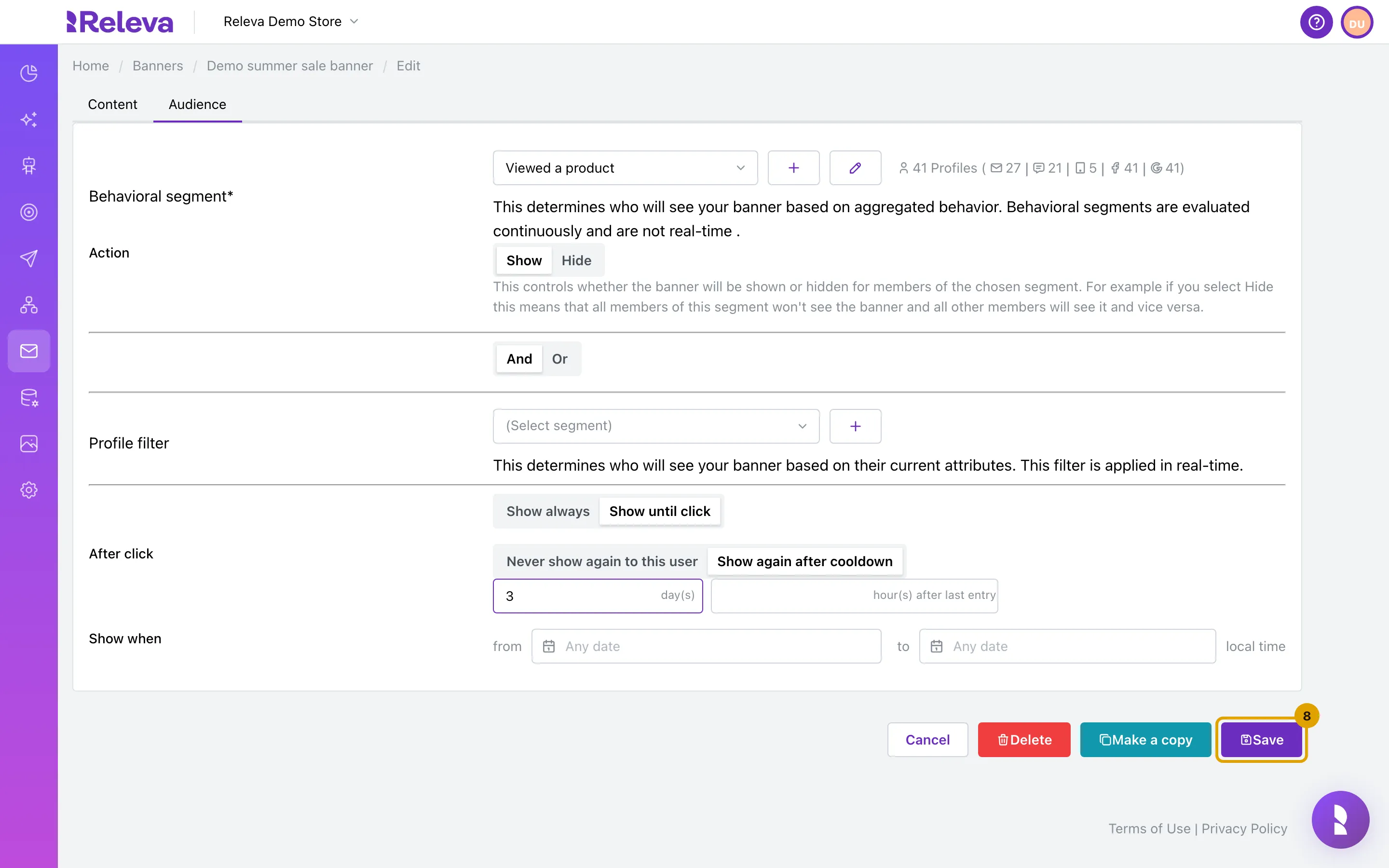
Select Save.
-
Back in the list, the banner card shows its segment and Show until click.
Check it worked
Section titled “Check it worked”- The card under Marketing Channels › Banners carries the badges VIEWED A PRODUCT and SHOW UNTIL CLICK.
- Open the banner again: Audience shows the segment, Show until click, Show again after cooldown and 3 in day(s).
- On a page with a running block that uses the banner, a visitor from the segment sees it; after they click or close it, it stays away for three days on that device.
See the banner as a customer
Section titled “See the banner as a customer”The surest check is to browse your shop as a real customer, once with a member of the segment and once with somebody outside it. The pictures below use a banner aimed at Bought in the last 30 days; the steps above use Viewed a product, which in the demo shop includes every customer, so it has nobody to show the banner to. Full guide: Preview your site as a customer.
-
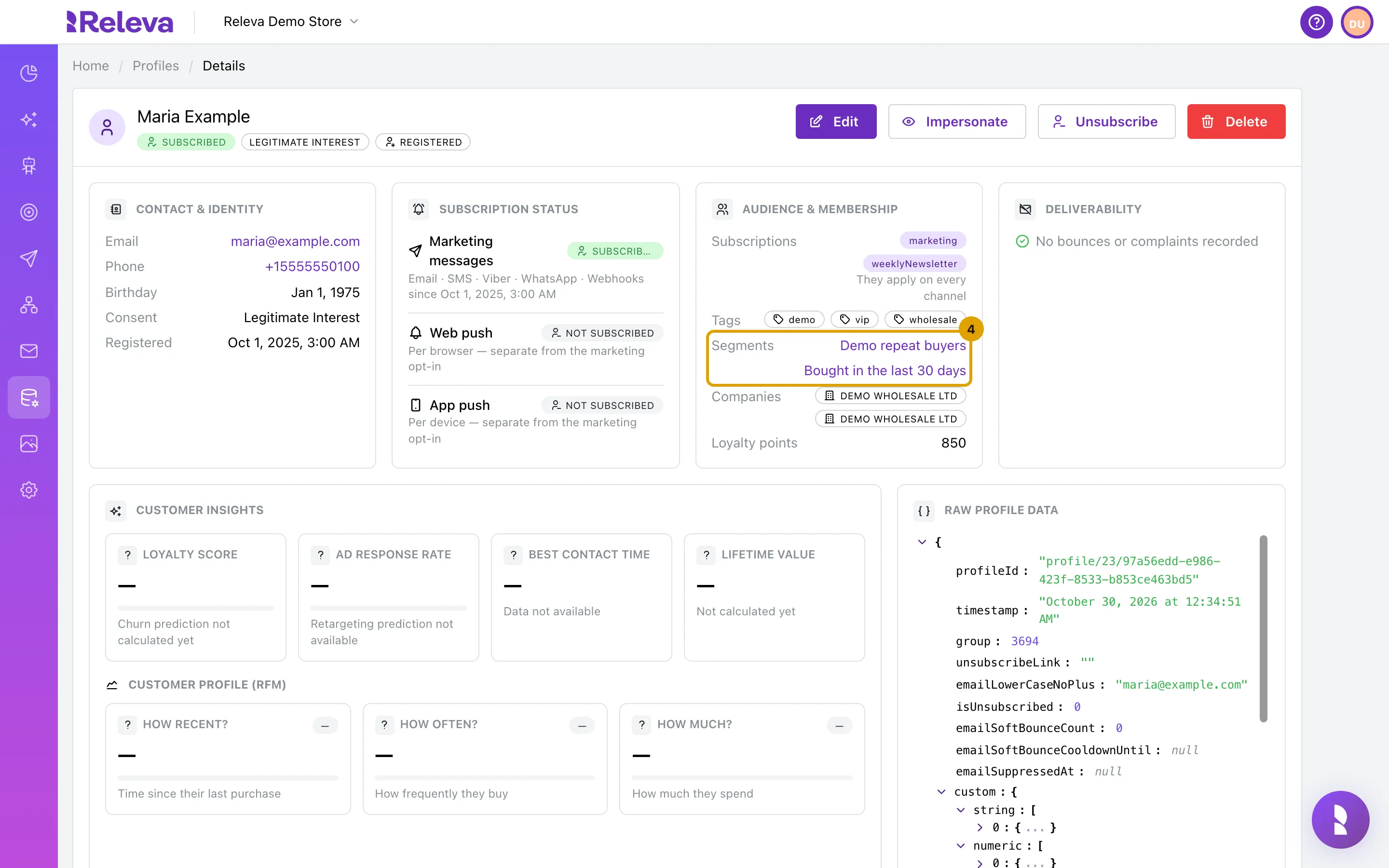
Go to Data Platform › Profiles, open a customer and check under Segments that the banner’s segment is listed
-
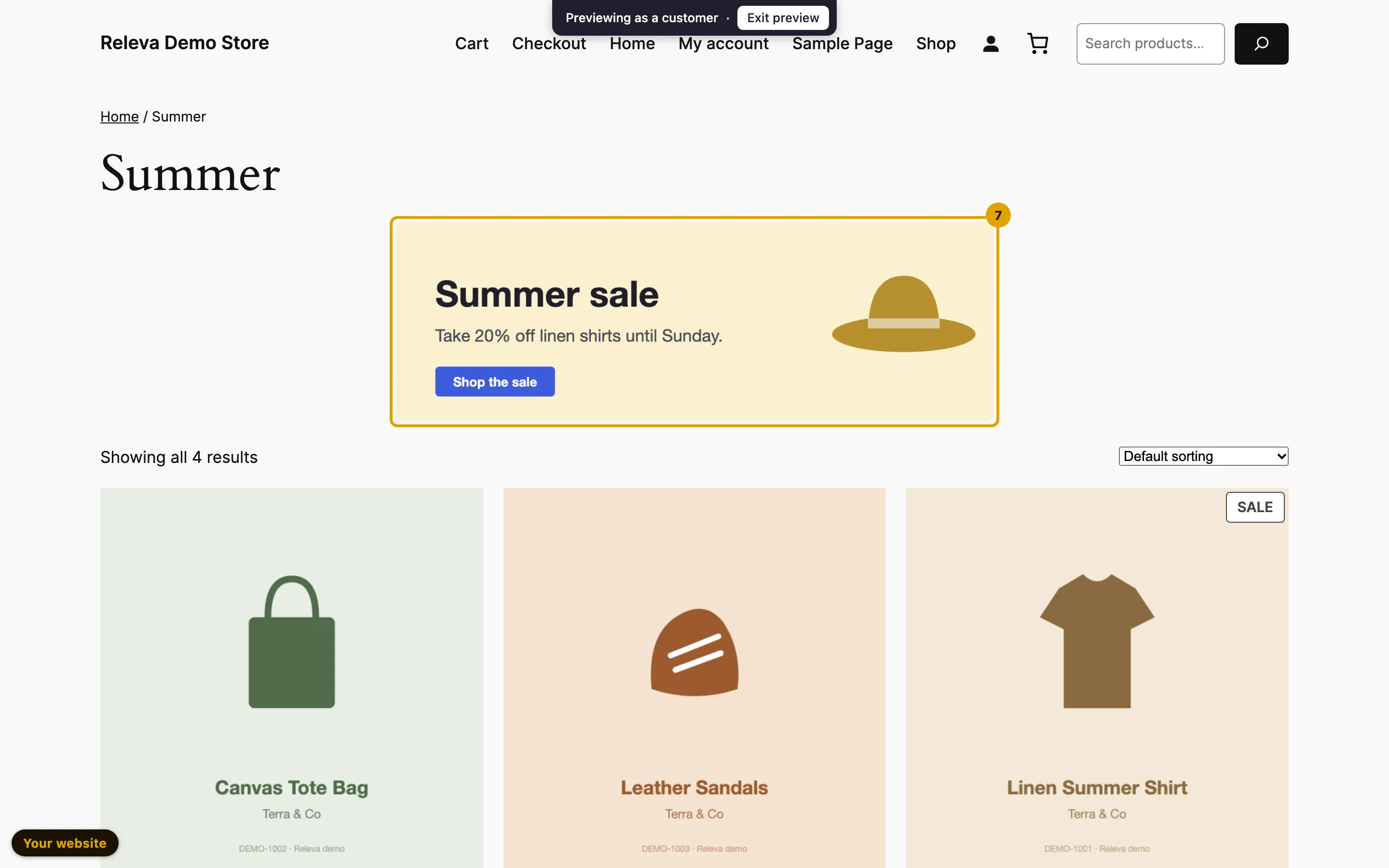
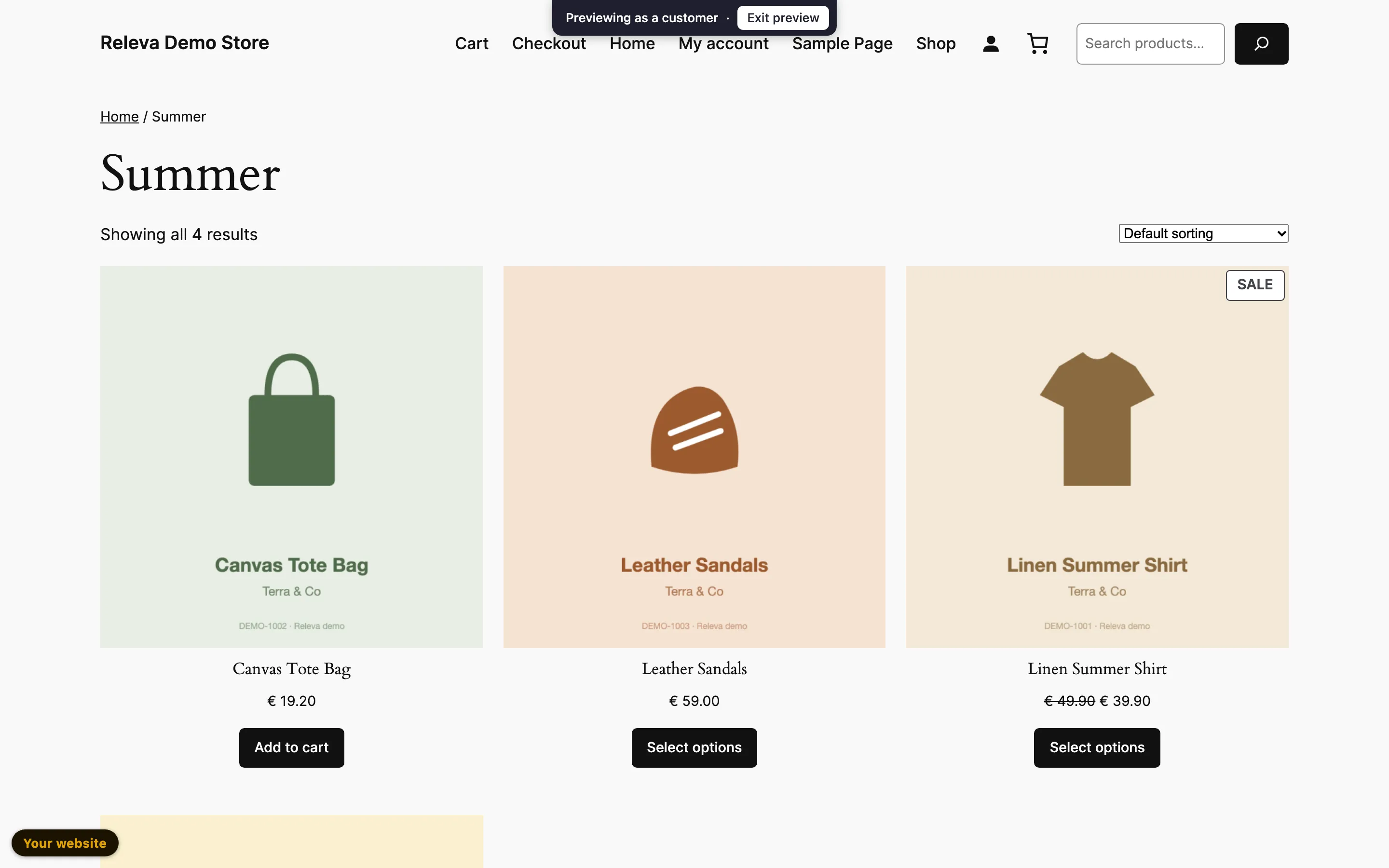
Select Impersonate. Your shop opens in a new tab with the bar Previewing as a customer at the top. Go to a page where a running block shows the banner: it is there
-
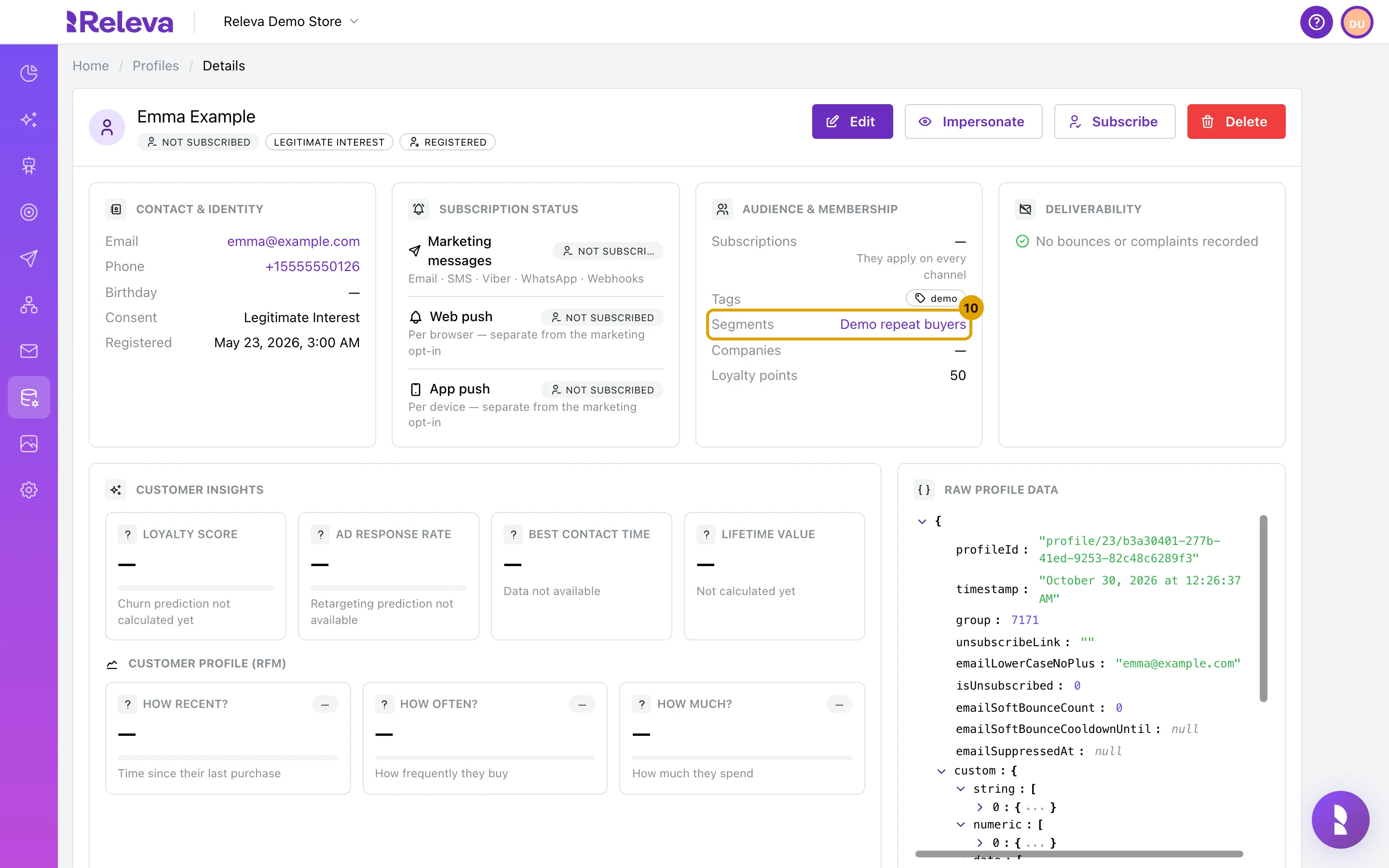
Select Exit preview, then repeat with a customer whose Segments row does not list the segment
-
The same page shows no banner for this customer. Select Exit preview when you are done
Do not use debug mode for this check: a page opened with ?rlv_mode=debug shows every banner, whatever its audience and whether its block is on or off, so it cannot tell you who sees a banner (Check Releva on your site with debug mode).
Troubleshooting
Section titled “Troubleshooting”Save is disabled. The Name is empty, or no Behavioral segment is chosen. For an older banner still in the previous visual editor, the editor must also have finished loading in your browser.
The segment I need is not in the list. Only Behavior segments appear under Behavioral segment, and only profile-filter segments under Profile filter. Select + to create a segment of the right scope without leaving the banner.
A Calculate Segment button or Could not estimate shows instead of the segment size. The estimate could not be loaded. It does not affect what is saved: save the banner, or select Calculate Segment to try again. If the estimate itself fails, the row shows Could not estimate with a Retry button; point at Could not estimate to see why, then select Retry.
The banner still shows after a click. The memory is per device and per banner, so the same person on another browser or device sees it again. If the banner shows again right away on the same device, the shop’s page is not sending the click back to Releva; see Banner and story events.
Nobody sees the banner. A banner is live only through banner blocks that are switched on. Check the blocks under Personalization › Banner Blocks and the dates under Show when. A banner past its end date shows Expired on its card.
The banner is listed as Post-purchase. A banner with an Order status block is saved as a post-purchase banner. There is no scope to choose: remove the Order status block and save to make it a standard banner again.
A segment member does not see the banner in the preview. The segment’s members are recalculated about every 30 minutes, and only while a running block or campaign uses the segment. Right after you save a new audience, the profile’s Segments row may not list it yet. Wait and try the preview again.