

Send an SMS with a workflow
A saved SMS does not go anywhere by itself. It is sent by a workflow that decides who receives it and when. This guide starts from the SMS and opens the workflow editor with the SMS already in it. It stops where the workflow editor begins: nothing is sent until you set the audience and launch the workflow there. For what happens at send time, read How SMS work.
Before you start
Section titled “Before you start”- A saved SMS. See Create an SMS.
- An SMS provider under Settings › Messaging, tab Text Messages. A workflow can be built without one, but no SMS is sent until it is set up.
- Profiles with a phone number who are subscribed. SMS go only to subscribed profiles with a phone number; see How consent works in Releva.
- You know which kind of workflow you need: one send to an audience (One Off), a send to everyone who enters an audience over time (Continuous), or a send in reaction to an event such as an order (Triggered).
-
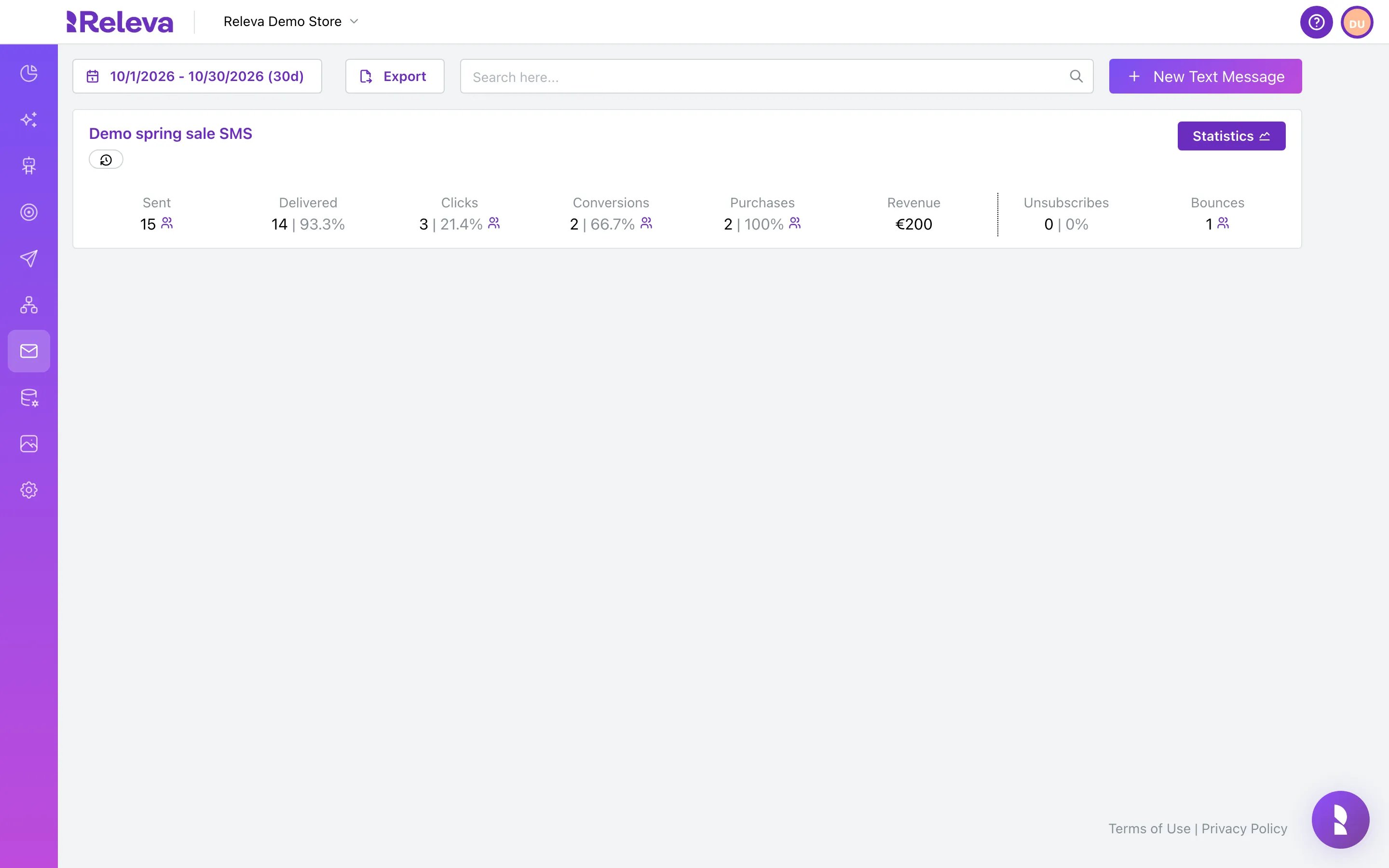
Go to Marketing Channels › SMS / Text Messages.
Each saved SMS has a card with its results for the selected period: Sent, Delivered, Clicks, Conversions, Purchases, Revenue, Unsubscribes and Bounces.
-
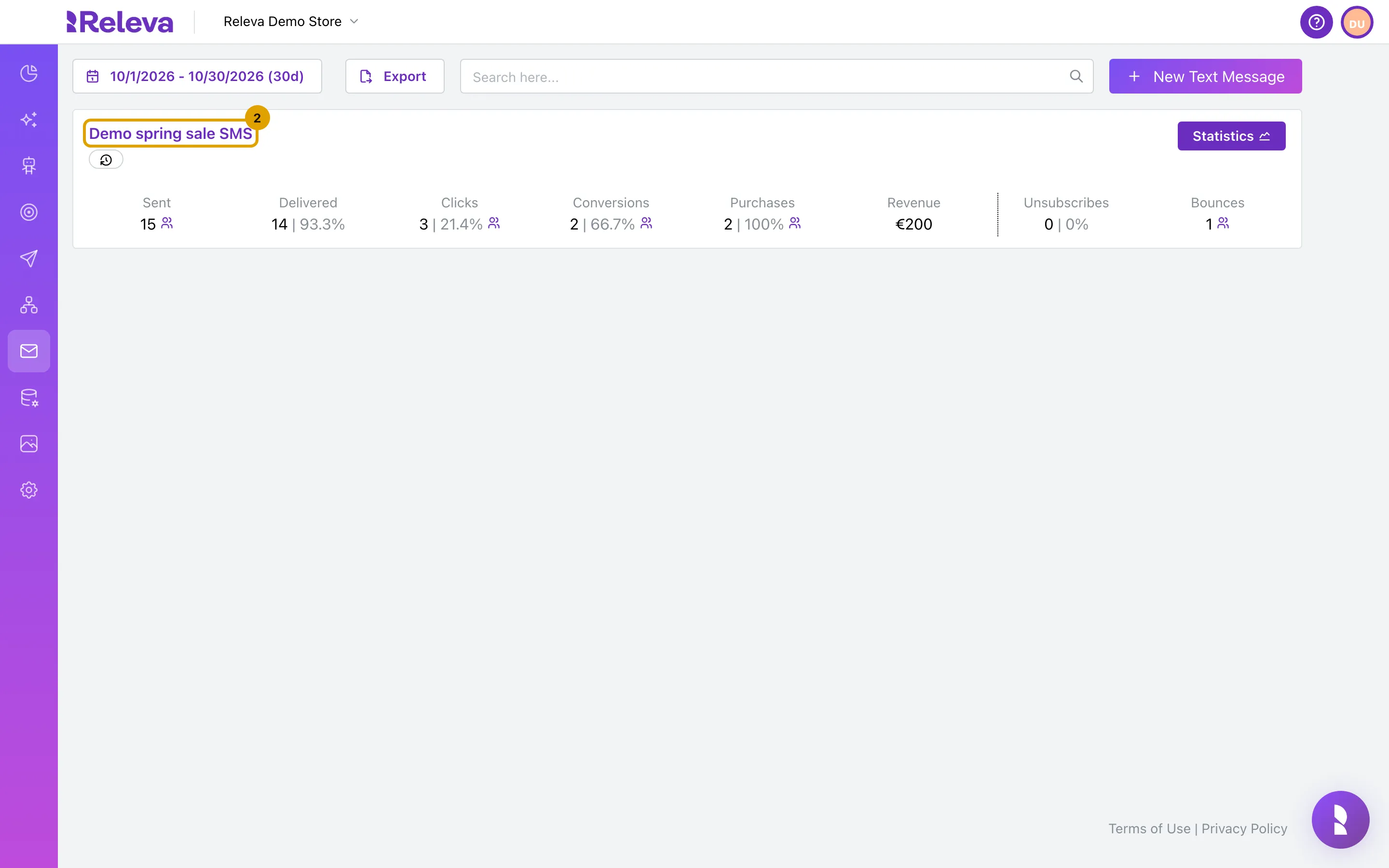
Select the name of the SMS you want to send, for example Demo spring sale SMS.
The edit page opens with the breadcrumb Home / Text Messages / <name> / Edit.
-
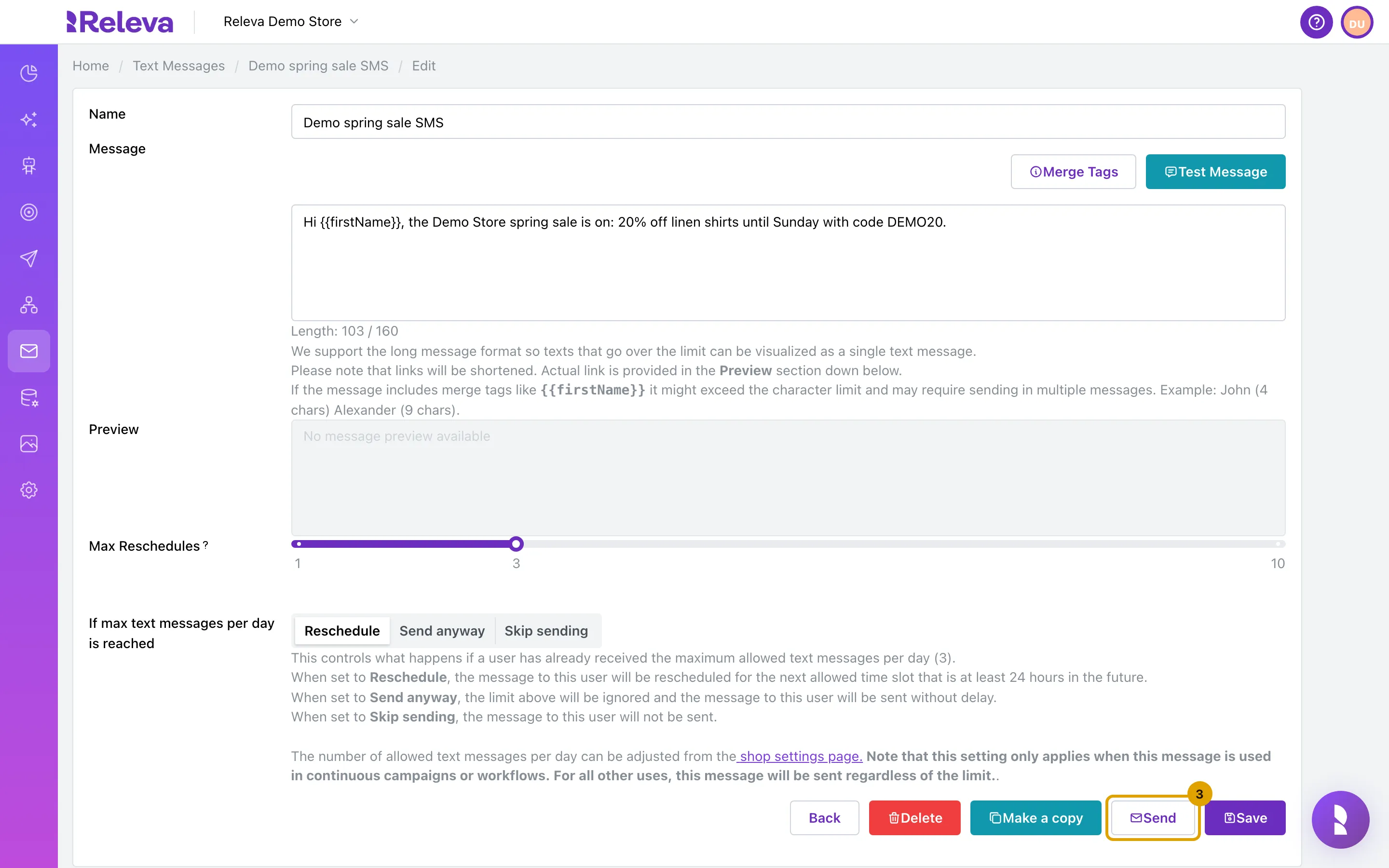
Select Send.
Send is next to Save at the bottom of the form. It does not send anything by itself: it opens a window where you choose a workflow.
-
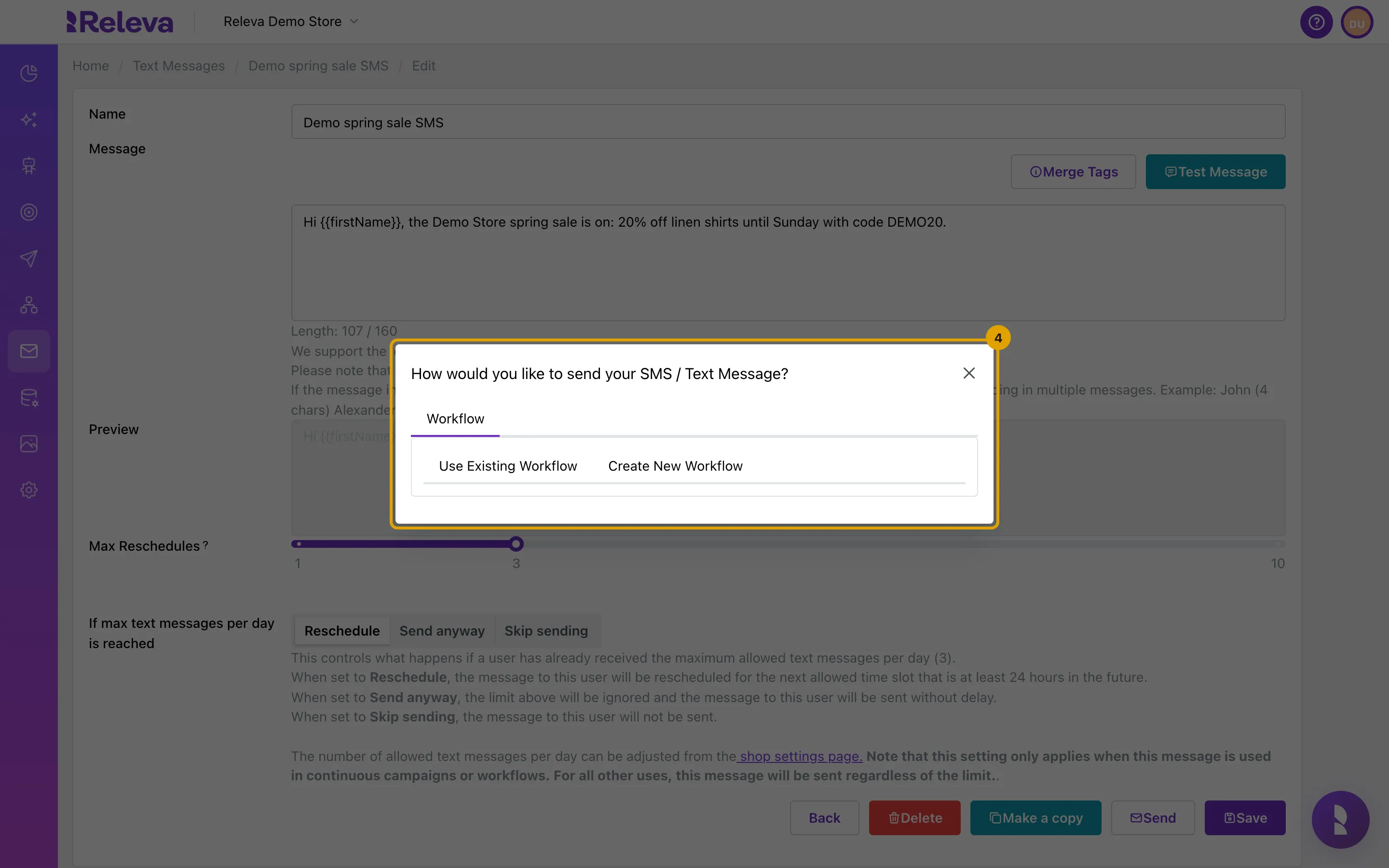
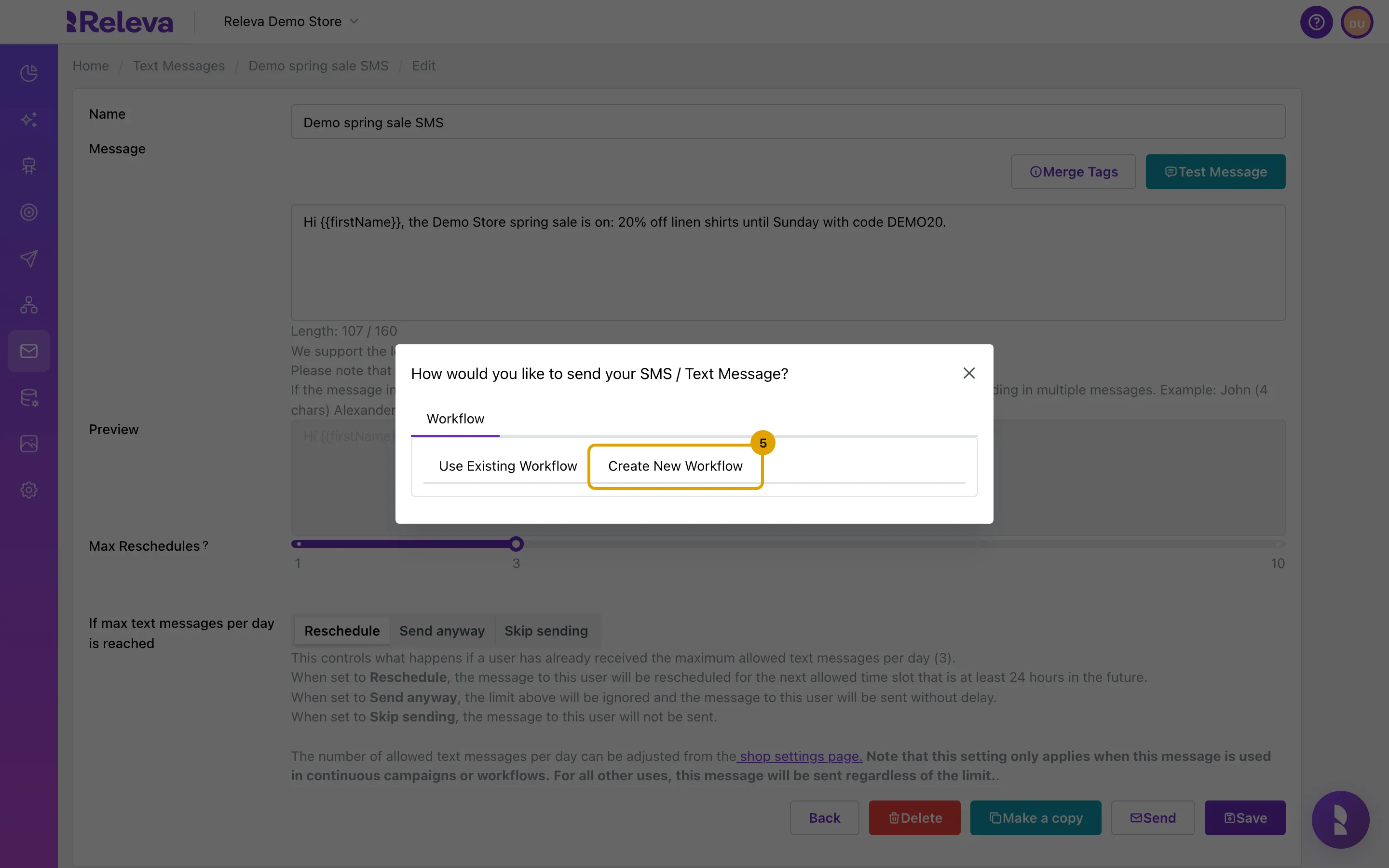
The How would you like to send your SMS / Text Message? window opens. SMS are sent through workflows.
The window has one tab, Workflow. Unlike emails, an SMS cannot be put into a campaign from here.
-
Select Create New Workflow. To add the SMS to a workflow you already have, select Use Existing Workflow instead.
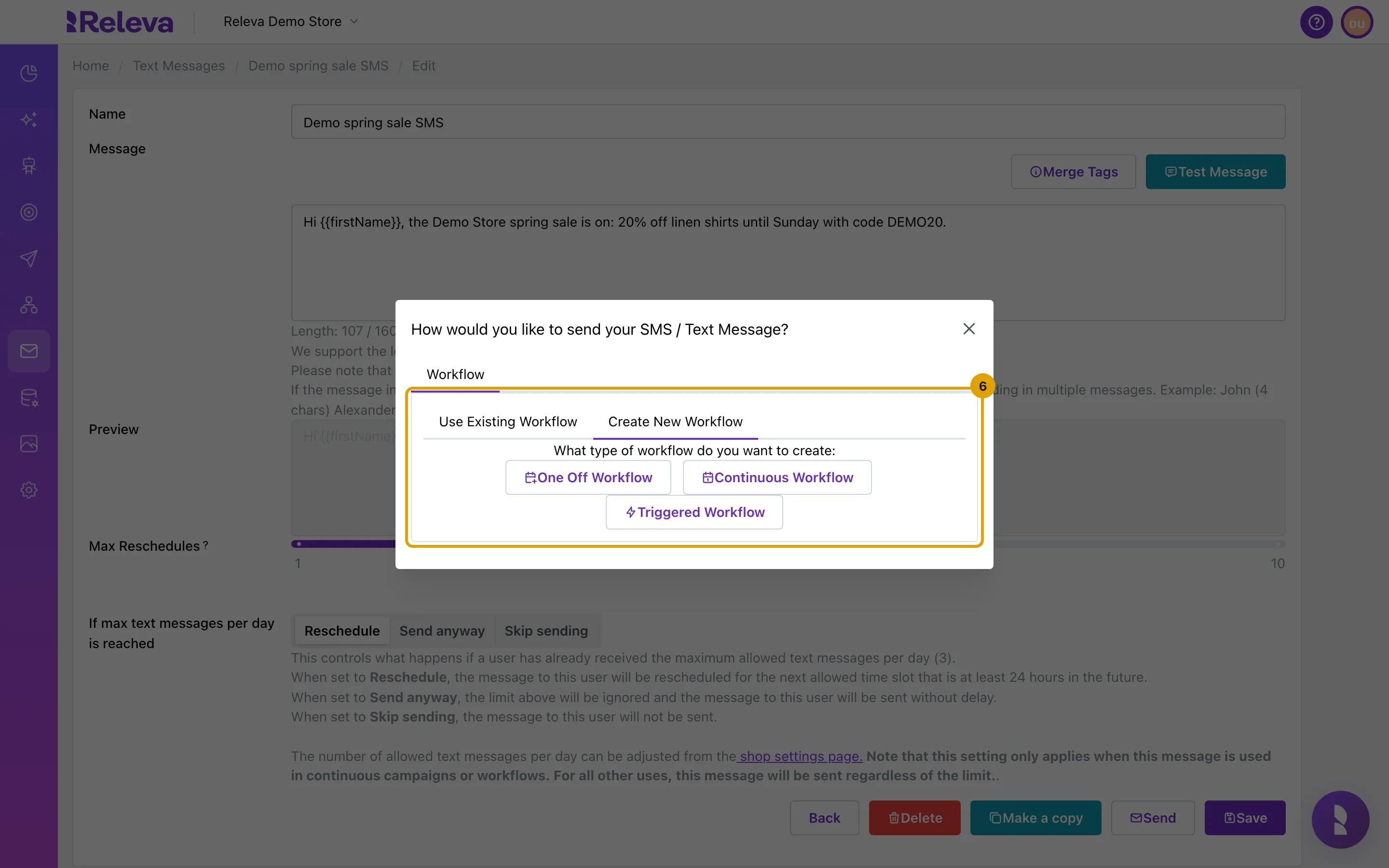
Use Existing Workflow lists your workflows with a Filter workflows… box. Create New Workflow asks What type of workflow do you want to create:.
-
Choose One Off Workflow, Continuous Workflow or Triggered Workflow. The workflow editor opens with your SMS already connected to Start.
The editor opens as a new workflow named New workflow, with tabs Content, Audience, Launch Configuration and Goal. Set the audience and the launch settings there, then save and launch the workflow. Until you launch it, no SMS is sent.
Check it worked
Section titled “Check it worked”- The workflow editor shows your SMS as a step connected to Start, and the page title reads New workflow.
- After you launch the workflow and the first send runs, the SMS card on Marketing Channels › SMS / Text Messages shows Sent greater than 0 for the selected period, and Statistics on the card opens a daily chart.
Troubleshooting
Section titled “Troubleshooting”Send is missing on the form. You are on a new, unsaved SMS. Select Save first; the confirmation then offers Send it, and Send appears on the edit page.
The window shows only “Workflow”. That is expected: SMS are sent through workflows only.
Sent stays at 0 after the workflow ran. Check that the shop has an SMS provider (Settings › Messaging, tab Text Messages), that the audience contains subscribed profiles with a phone number, and that the workflow is launched, not just saved, and that the click-tracking DNS record for your sender domain is in place (Settings › Messaging, tab General, section Click Tracking). The workflow editor warns Campaign sending is disabled until the click-tracking DNS record is in place for your sender domain while it is missing, and Releva then refuses to send the SMS at all, because every link in it goes through that host. Profiles whose number bounced before are left out, and profiles over the daily limit are rescheduled or skipped according to the setting on the SMS. See How SMS work.
The workflow editor shows an error instead of the canvas. The editor loads settings for every channel, so a broken integration on another channel (for example an expired Facebook token) can block it. Fix or disconnect that integration under Settings and open the workflow again.
Other channels in a workflow
Section titled “Other channels in a workflow”The workflow that sends your SMS can also send other channels. Each one is a step in the left panel of the workflow editor:
- Email: Sends a saved email. See Edit an HTML email.
- Push: Sends a saved web or app push notification. See Send a push notification with a workflow.
- Viber: Sends a saved Viber message. See Create a Viber message.
- WhatsApp: Sends a saved WhatsApp template. See Send a WhatsApp template with a workflow.
- Text: Sends a saved SMS.
- Facebook: Adds the profiles to a Facebook ad audience. See Create a Facebook ad.
- Google: Adds the profiles to a Google asset group for the membership duration you set. Continuous workflows only.
- Webhook: Calls a saved webhook for each profile. See Create a webhook.