

Create a web push notification
A push notification is a reusable message that Releva delivers to browsers (Web) and, with Firebase credentials, to Android and iOS apps and the App Inbox. Saving one sends nothing: it is a draft until a workflow or campaign uses it. This guide creates a Web notification of type Message. For how delivery, expiry and the daily limit work, read How push notifications work.
Before you start
Section titled “Before you start”-
Your shop runs the Releva web SDK with the push subscription script and hosts the service worker, so visitors can allow notifications. Without that nobody can receive a web push. See Push notifications API overview.
-
Your plan includes creating push notifications. If New push Notification shows a lock, ask your account owner to unlock it.
-
You have the subject, the text and the page the notification should open.
-
Optional: the icon and the image are uploaded to your files, or you have a public image URL for each. See Upload a file and use it in your messages.
-
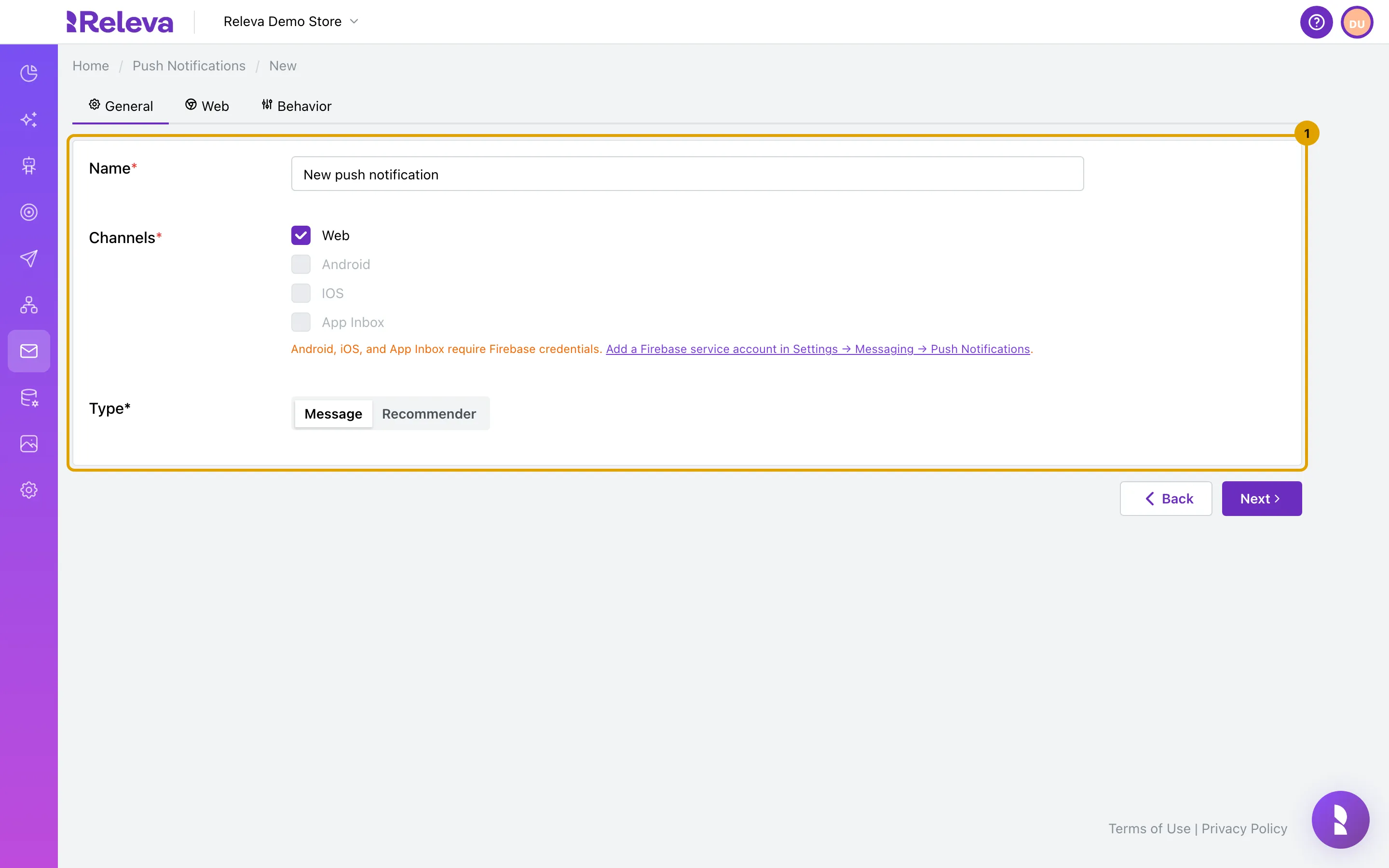
This guide covers Web only. To send to Android, iOS or the App Inbox, a developer first adds a Firebase service account; see Add your Firebase credentials for app push. Until then Android, IOS and App Inbox are greyed out and an orange note links to the settings page:
-
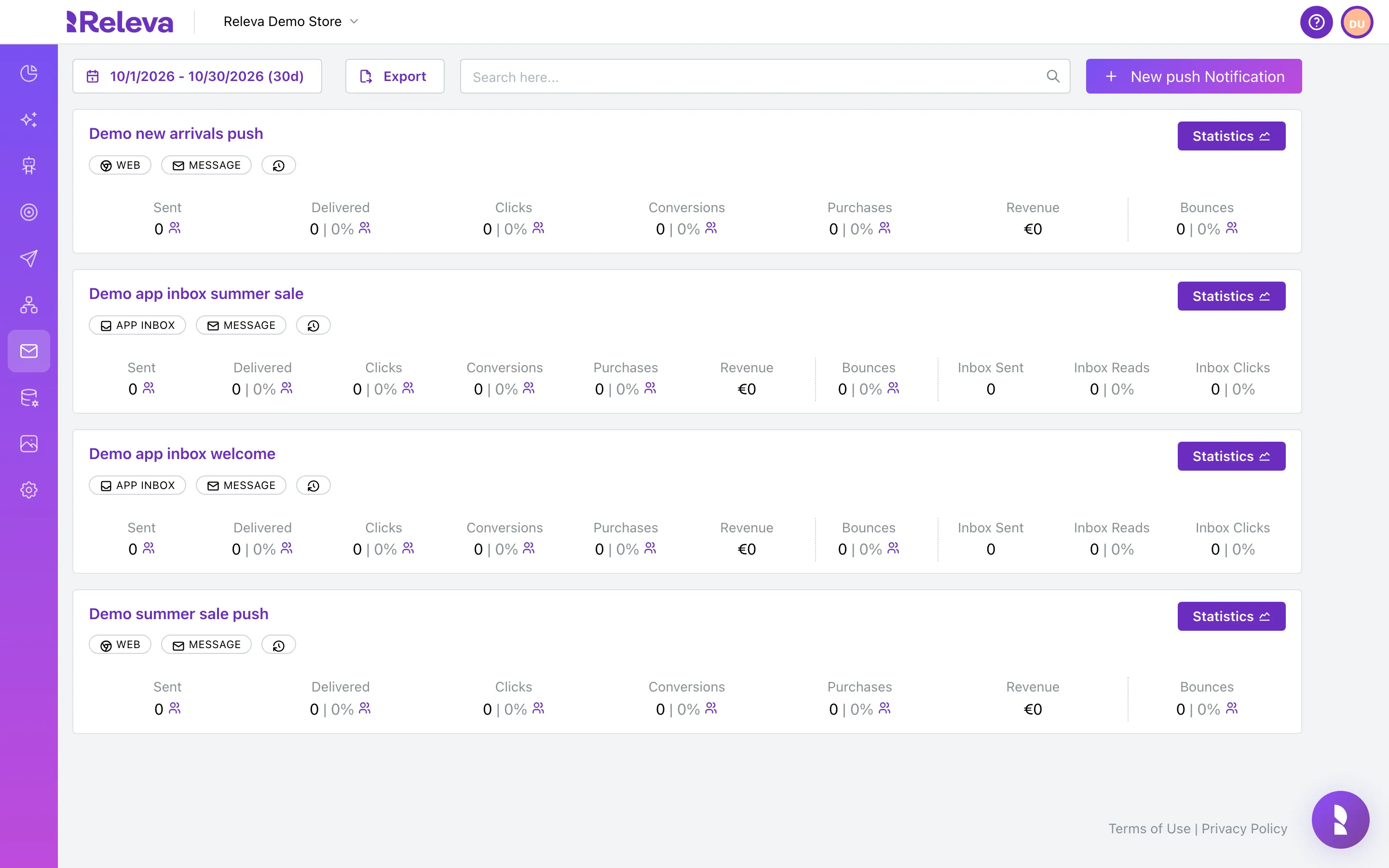
Go to Marketing Channels › Push Notifications
-
Select New push Notification
-
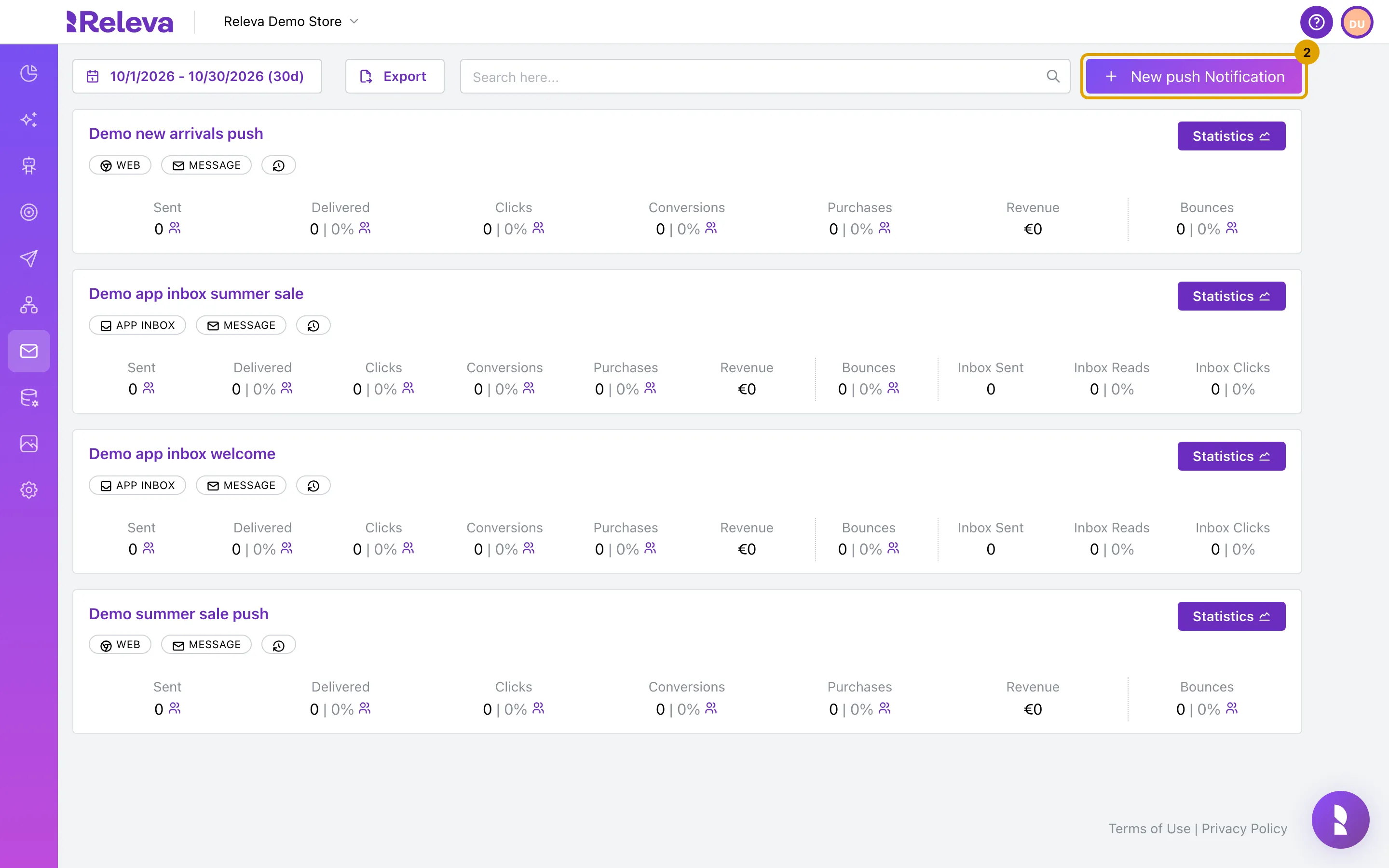
In Name, replace “New push notification” with a name you will recognise in lists
The name is only shown in Releva. It must be unique among the push notifications in the shop.
-
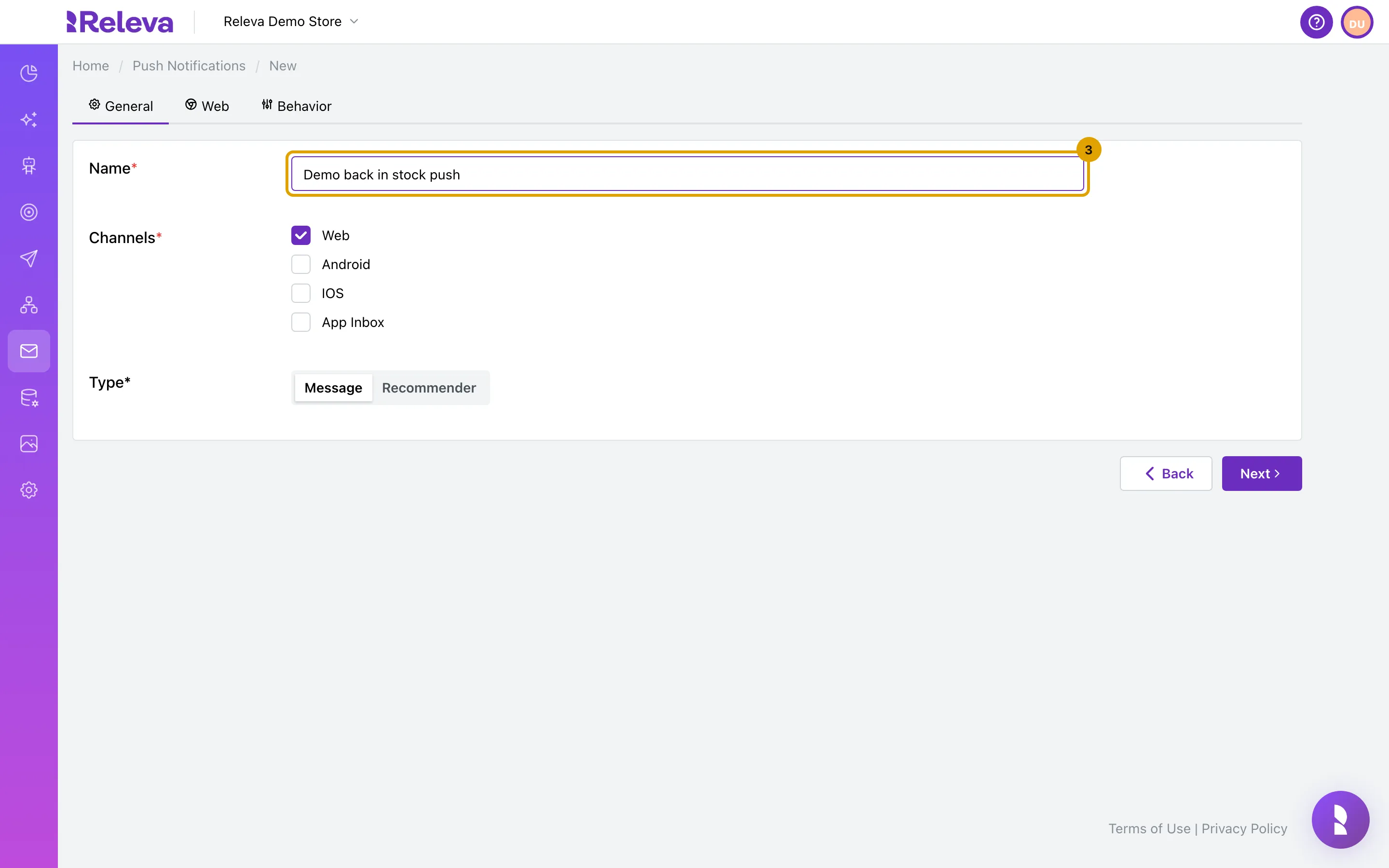
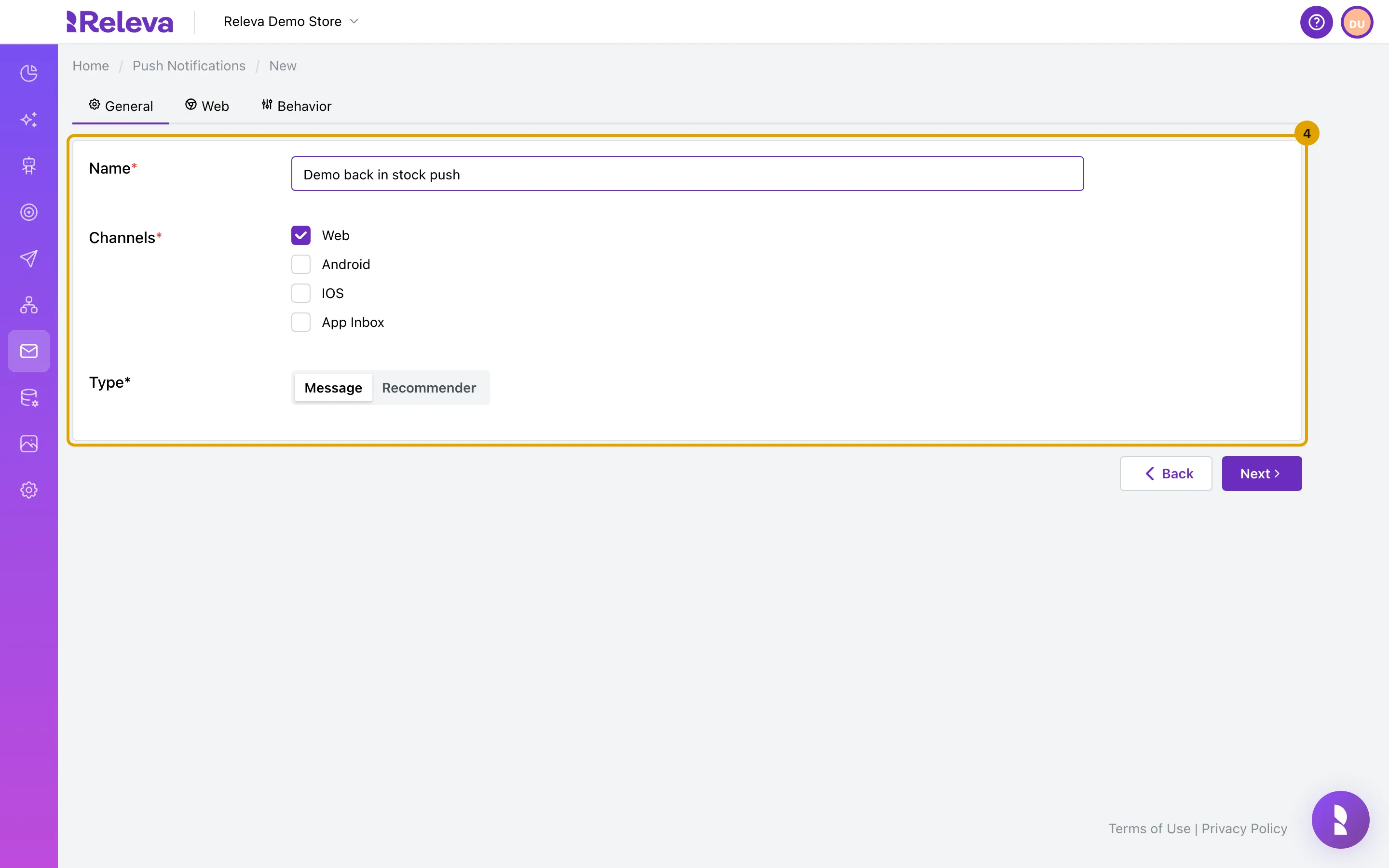
Leave only Web checked under Channels and Message selected under Type, then select Next
Recommender sends one product from a product feed instead of a fixed text and needs a Product Feed. You cannot change the type after the first save. For app channels, see Create a mobile app push notification.
-
Enter the Subject and the Body of the notification. The preview on the right shows how it looks
Subject is the title. Button Text adds one action button that opens the same link as the notification; leave it empty for no button. Merge Tags lists the profile fields you can insert, such as
{{firstName}}. To give each recipient their own coupon code, open Merge Tags, find the Dynamic coupon: … entry of your coupon list and copy its pattern, for example{{dynamicCoupons.welcome_10}}, into the Body. See How dynamic coupons work.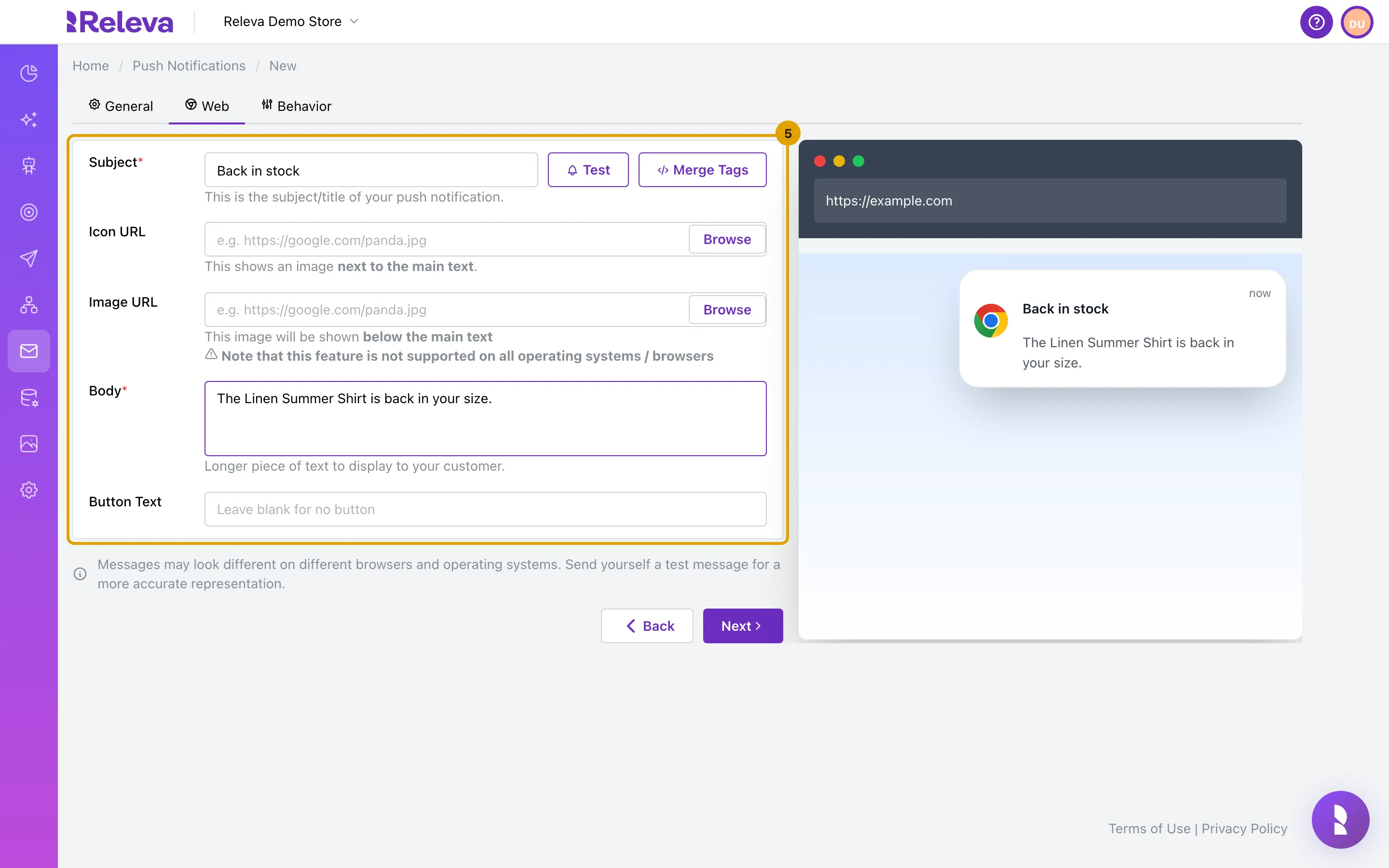
-
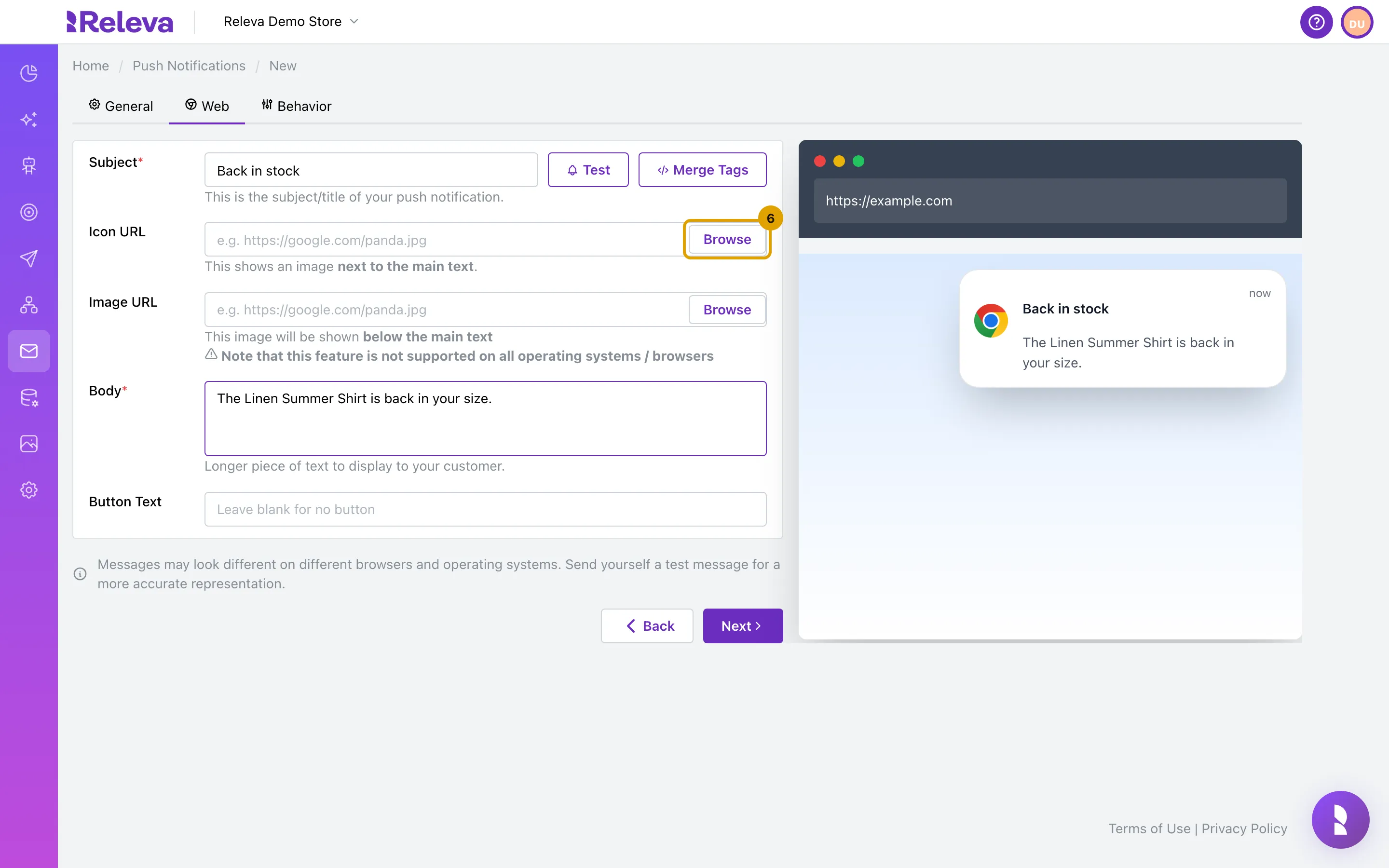
Next to Icon URL, select Browse to pick an image from your files
The icon is a small image next to the text. You can also paste an image URL into the field instead.
-
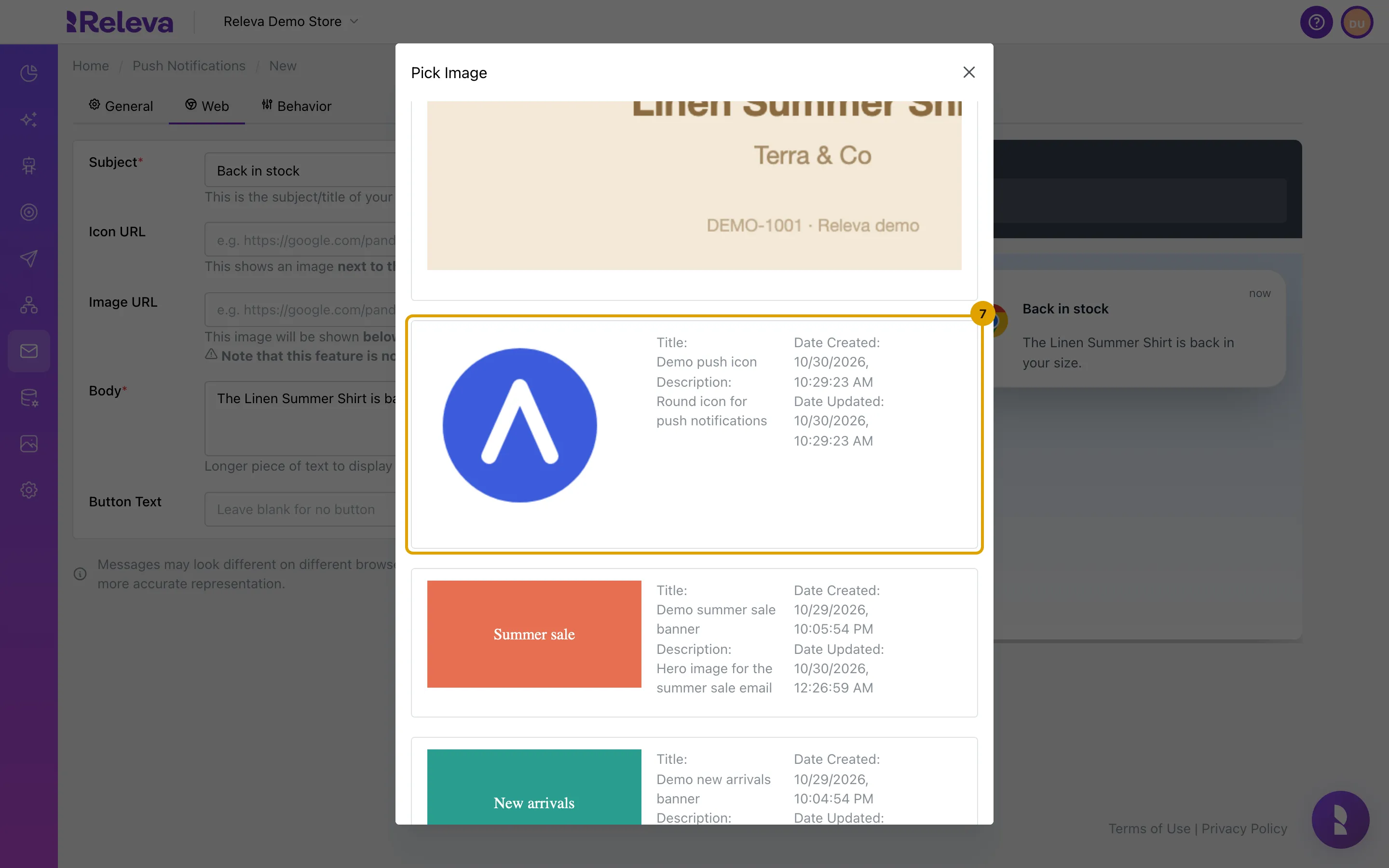
In the Pick Image window, select the image, for example Demo push icon
Type in the search box at the top to find a file by name. The window closes and the image’s link goes into Icon URL.
-
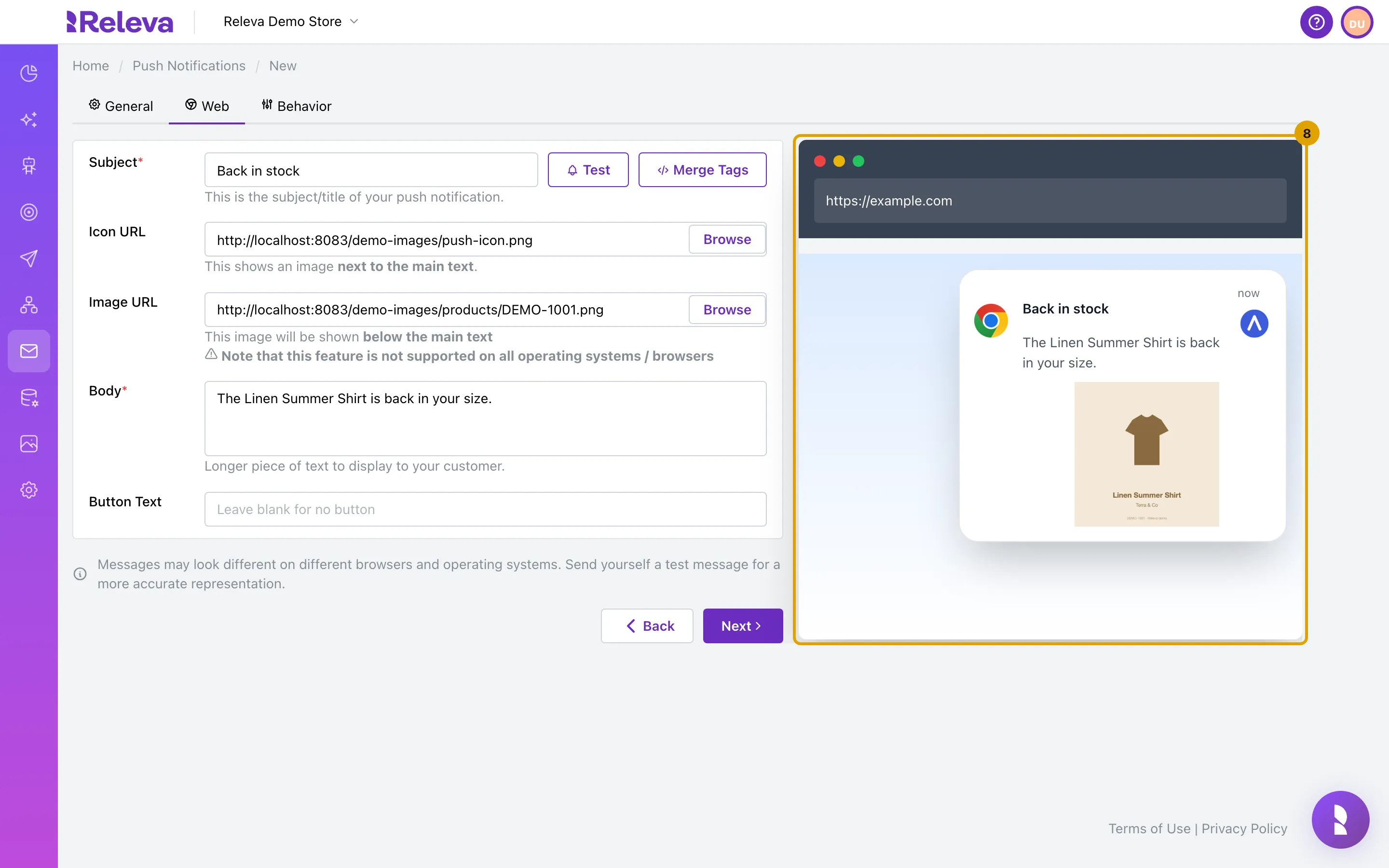
Do the same next to Image URL. The preview shows the icon next to the text and the image below it
The large image is optional. “Note that this feature is not supported on all operating systems / browsers”: some browsers show only the text and the icon.
-
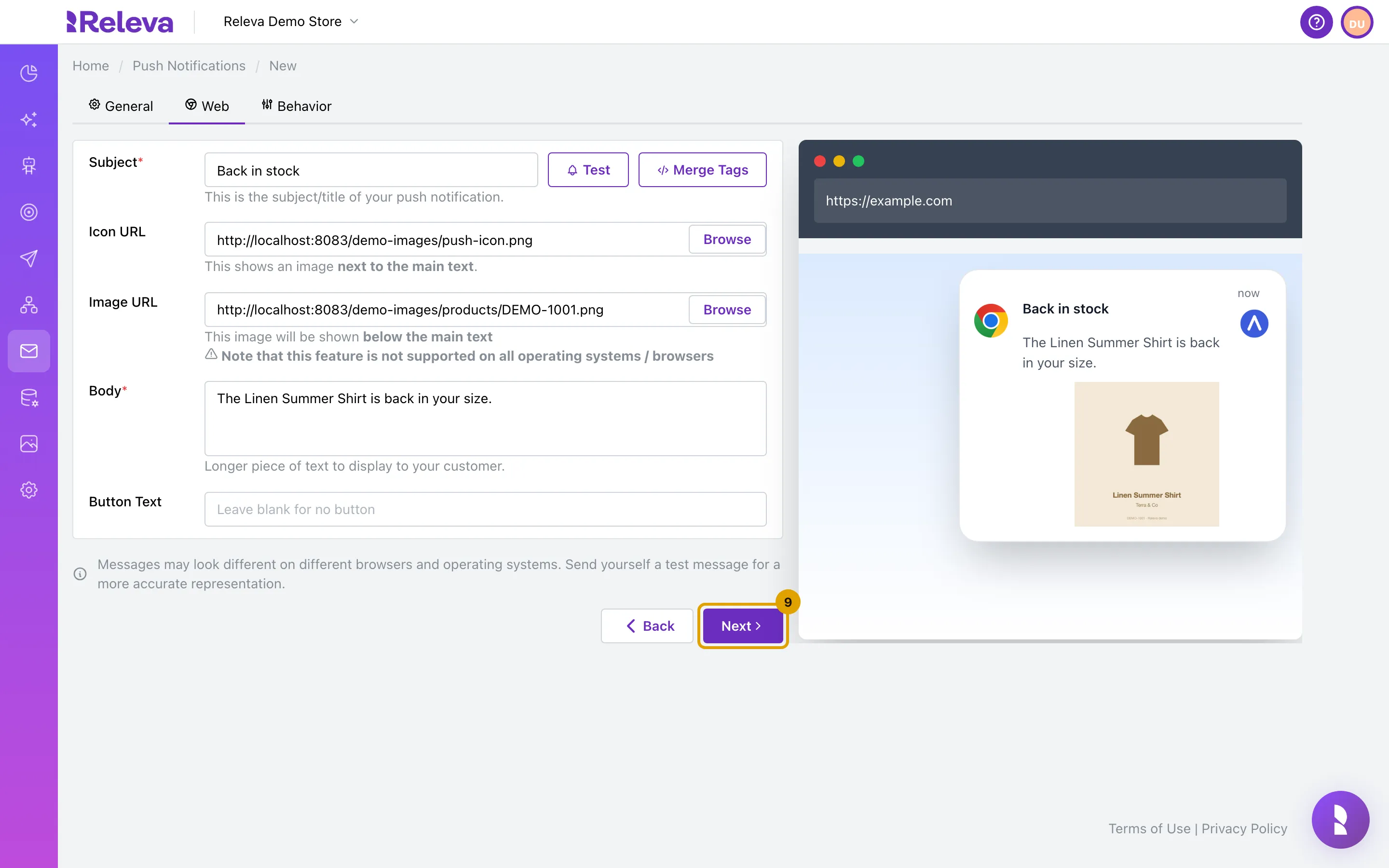
Select Next
-
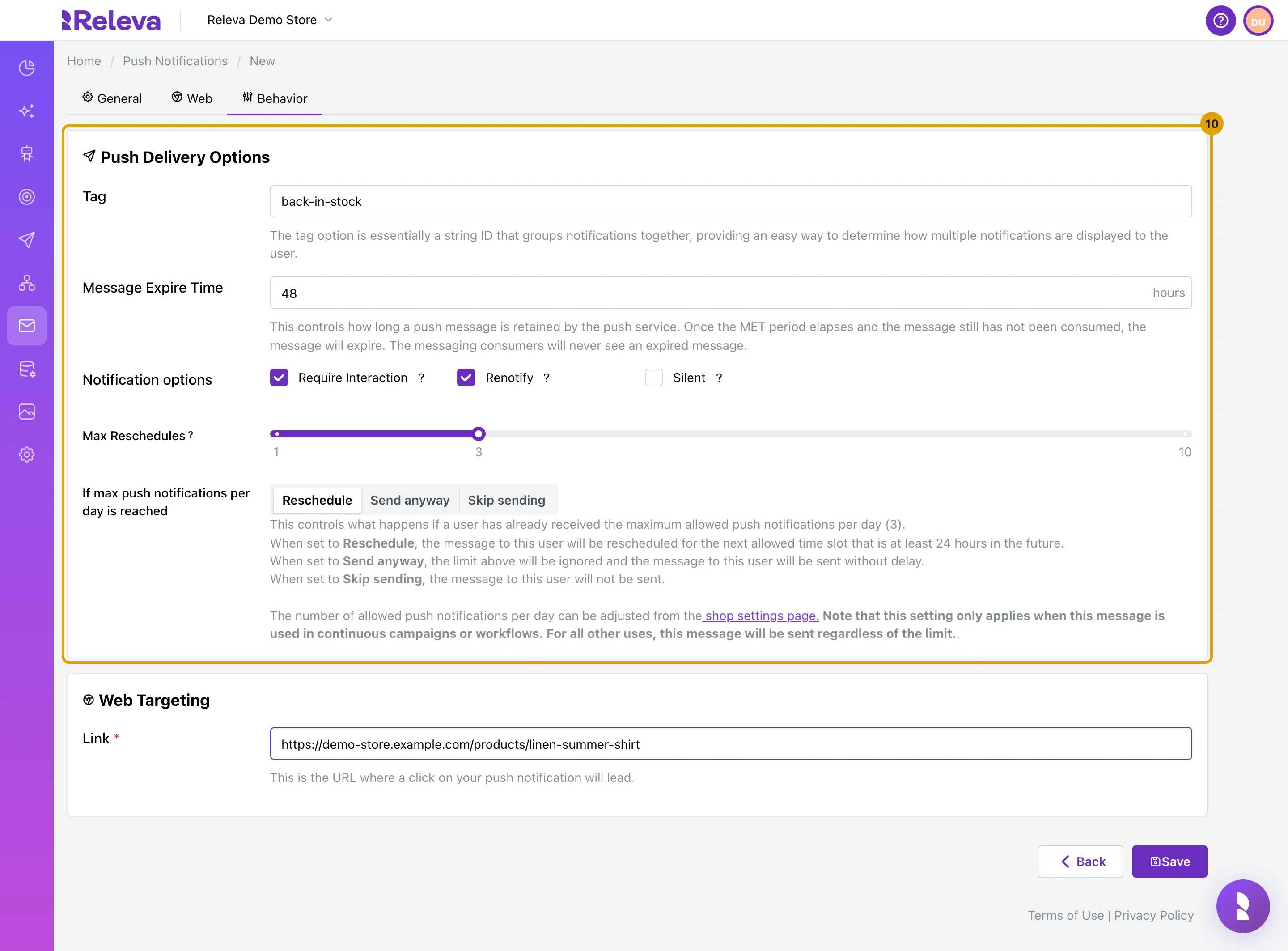
Under Push Delivery Options, enter a Tag and set Message Expire Time in hours. Under Web Targeting, enter the Link that opens when someone clicks the notification
The tag groups notifications: a new notification with the same tag replaces the one still on screen. Message Expire Time is how long the push service keeps the message for a device that is offline; the default is 168 hours (one week) and the minimum is 1. Link must be a full URL and defaults to your shop’s address. Leave Require Interaction, Renotify, Silent and the daily-limit options as they are unless you need them; they are explained in How push notifications work.
-
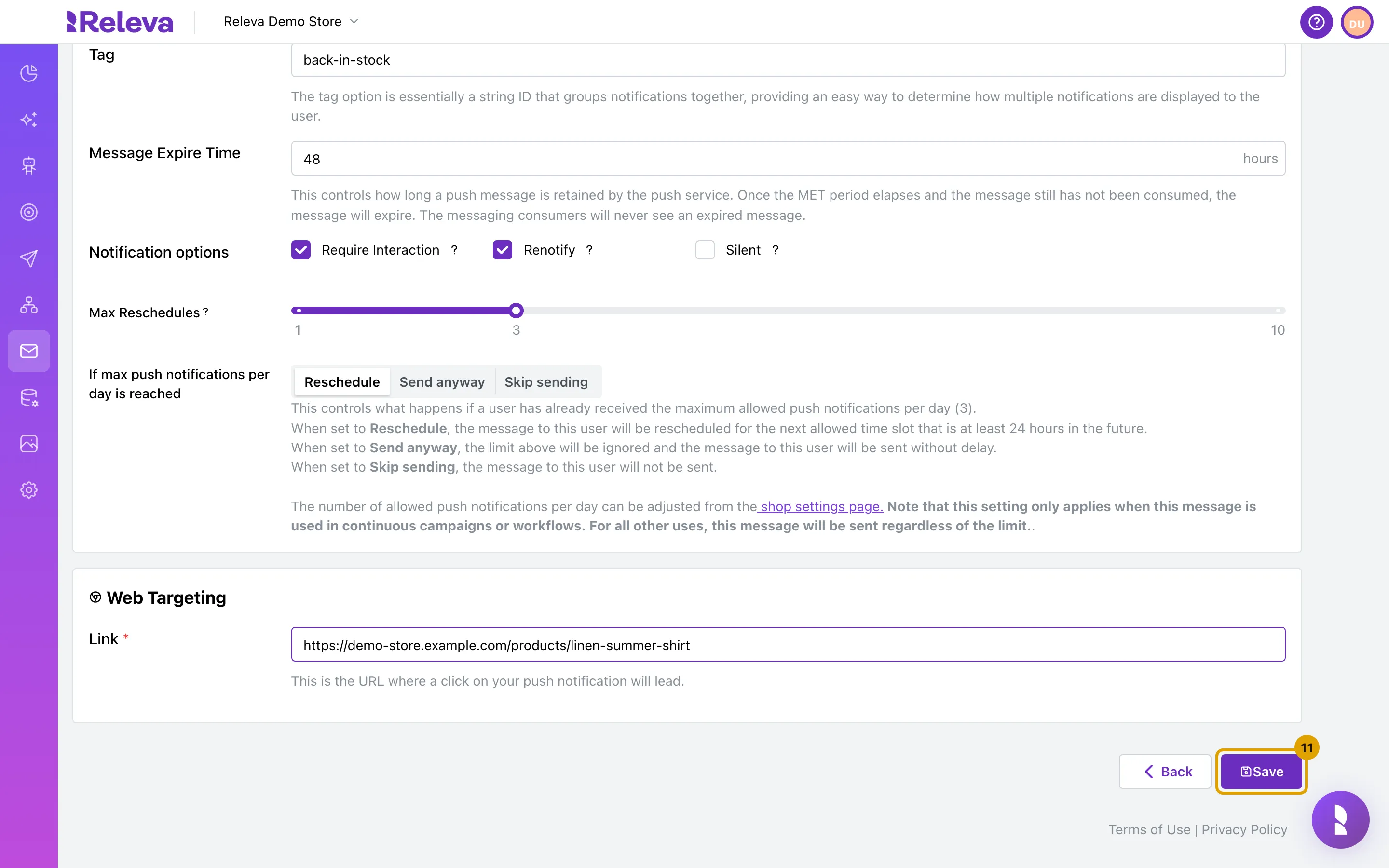
Select Save
Save stays disabled until Name, Subject, Body, Tag, Message Expire Time and a valid Link are filled and no merge tag is broken.
-
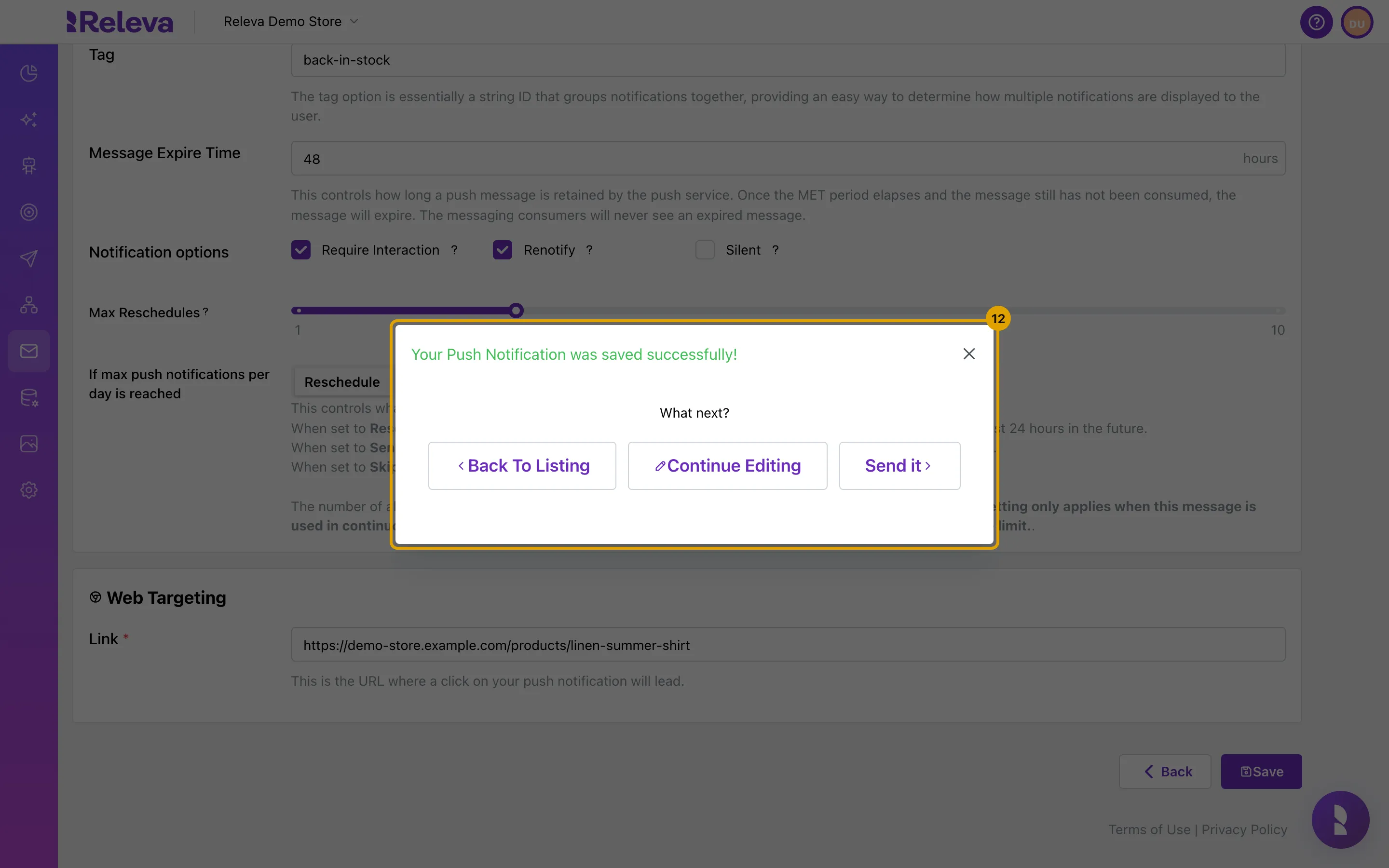
Releva confirms that the push notification was saved. It is a draft until you send it with a workflow
Choose Back To Listing, Continue Editing or Send it. Send it opens the same workflow options as the Send button; see Send a push notification with a workflow.
Check it worked
Section titled “Check it worked”- The notification is the first card on the Push Notifications list with the badges WEB and MESSAGE. New notifications are listed first.
- Its Sent, Delivered and Clicks counters are all 0: nothing has been sent yet.
- Open the card: the Web tab shows your subject, body, icon and image in the preview, and Type is greyed out.
Troubleshooting
Section titled “Troubleshooting”Save or Next is disabled. A required field is empty. Every checked channel needs a Subject and a Body; a push channel also needs a Tag and a Message Expire Time; Web needs a valid Link; Recommender needs a Product Feed.
Invalid merge tag: Parse error on line 1. A merge tag is not closed, for example {{firstName without }}. Fix it or pick the tag from Merge Tags. The server checks again on save and answers Message body is not a valid Handlebars template.
Please enter a valid URL. Link must be a complete URL with a scheme, such as https://demo-store.example.com/sale, and at most 2000 characters. A value that contains a merge tag such as {{product.url}} is always accepted.
You may use any string as tag, but this field can not be empty. Type any short word in Tag; the default is tag1.
The preview does not show my icon or image. The field must hold a link that opens an image directly, starting with https://. Pick the file with Browse, or copy the link from your files. Links that contain spaces, quotes or brackets, such as data: links, may not show in the preview.
Android, iOS and App Inbox are greyed out. The shop has no Firebase credentials for that platform. A developer adds the Firebase service account file under Settings › Messaging › Push Notifications and chooses Unified or Separate apps; see Add your Firebase credentials for app push.
The preview shows “Hi ,” instead of a name. The preview resolves merge tags with sample data only. Use Test › Send to a Real User to see the notification with a real profile.
Push Notification Name must be unique! Another push notification in the shop already has this name. Give the notification a different Name.
New push Notification shows a lock. Your plan does not include push notifications. Ask your account owner.