

Create a webhook
A webhook is a saved request that a workflow sends to a URL you own, with the profiles that reached that step. Releva does not call the URL when you save the webhook: only a launched workflow or Test Webhook does. This guide creates a Standard webhook, the type that sends Releva’s own payload. For the payload, retries and tracking, read How webhooks work.
Before you start
Section titled “Before you start”- An HTTPS endpoint that accepts
POSTrequests with a JSON body, and its full URL. The form accepts an address that starts withhttp://,https://orwww.and has a host name with a dot, for examplehttps://hooks.demo-store.example.com/releva. - Your plan includes creating webhooks. If New webhook shows a lock, ask your account owner to unlock it.
- Decide whether your endpoint reads Releva’s payload (Standard) or needs its own fields (Custom). For a Custom webhook, follow Send data in your receiver’s format after this guide.
- Optional: a domain secret under Settings › Shop & Integration if your endpoint checks an
Authorizationheader. Without one, Releva sends noAuthorizationheader.
-
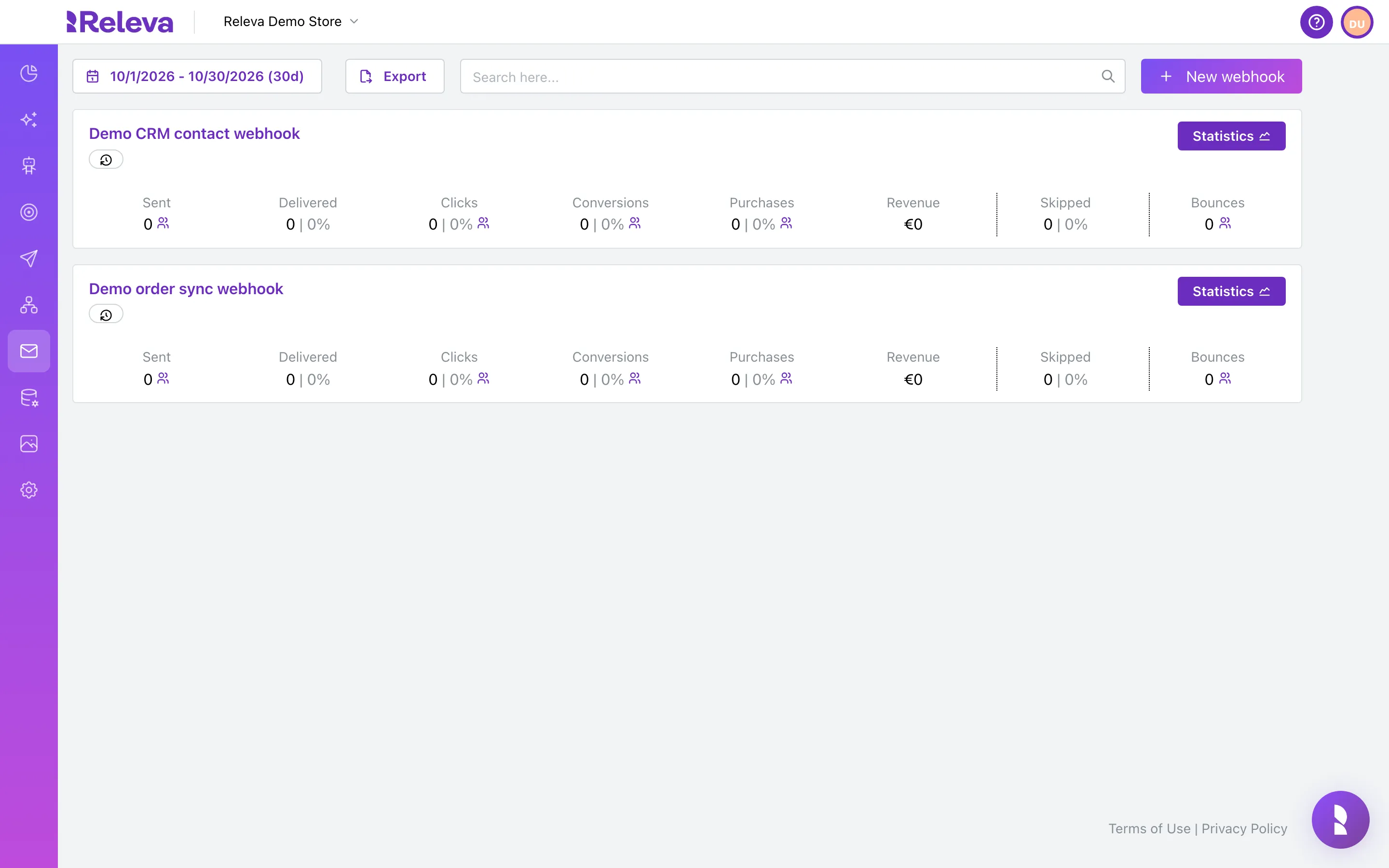
Go to Marketing Channels › Webhooks.
The list shows one card per webhook with its Sent, Delivered, Clicks, Conversions, Purchases, Revenue, Skipped and Bounces for the selected period.
-
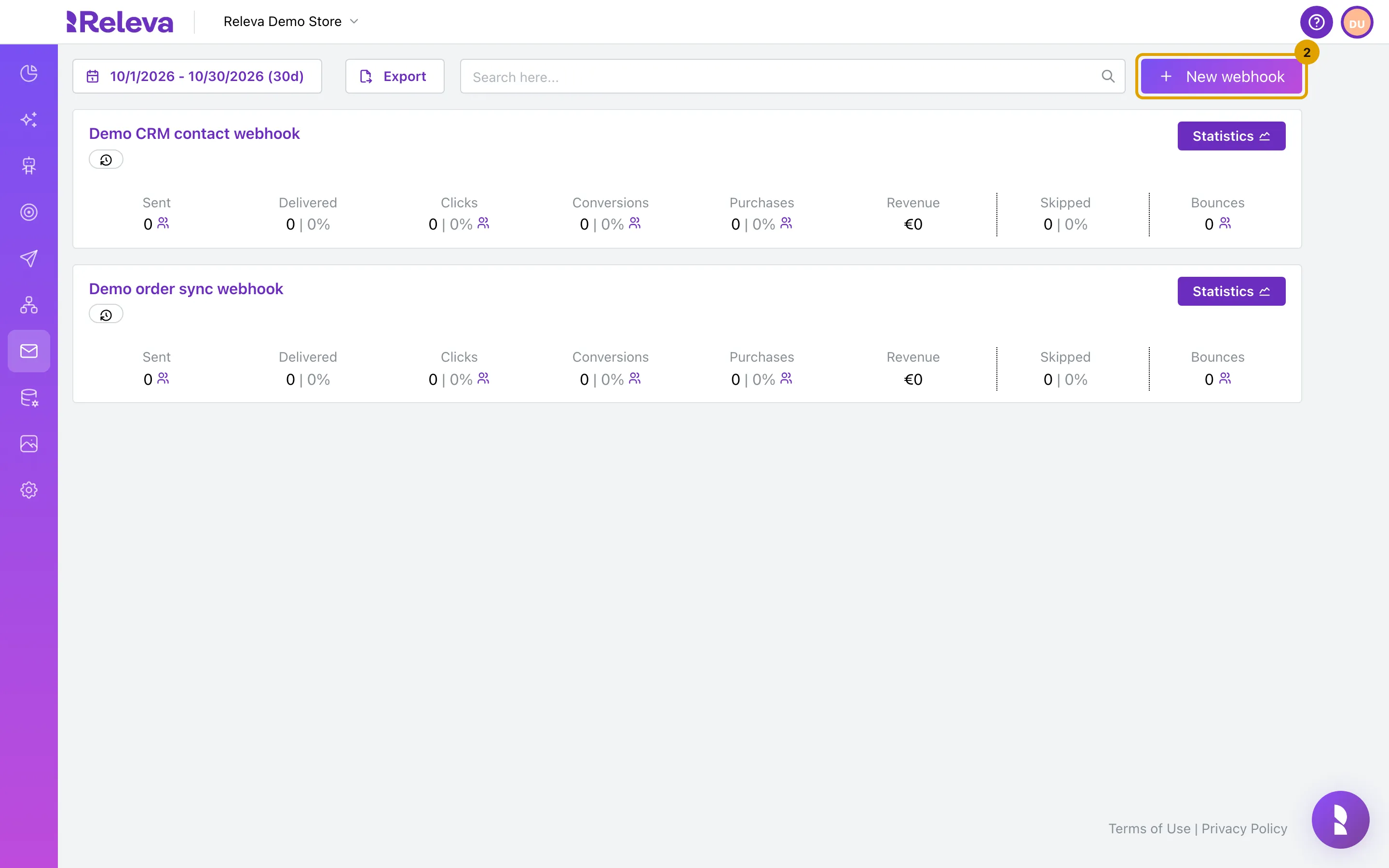
Select New webhook.
-
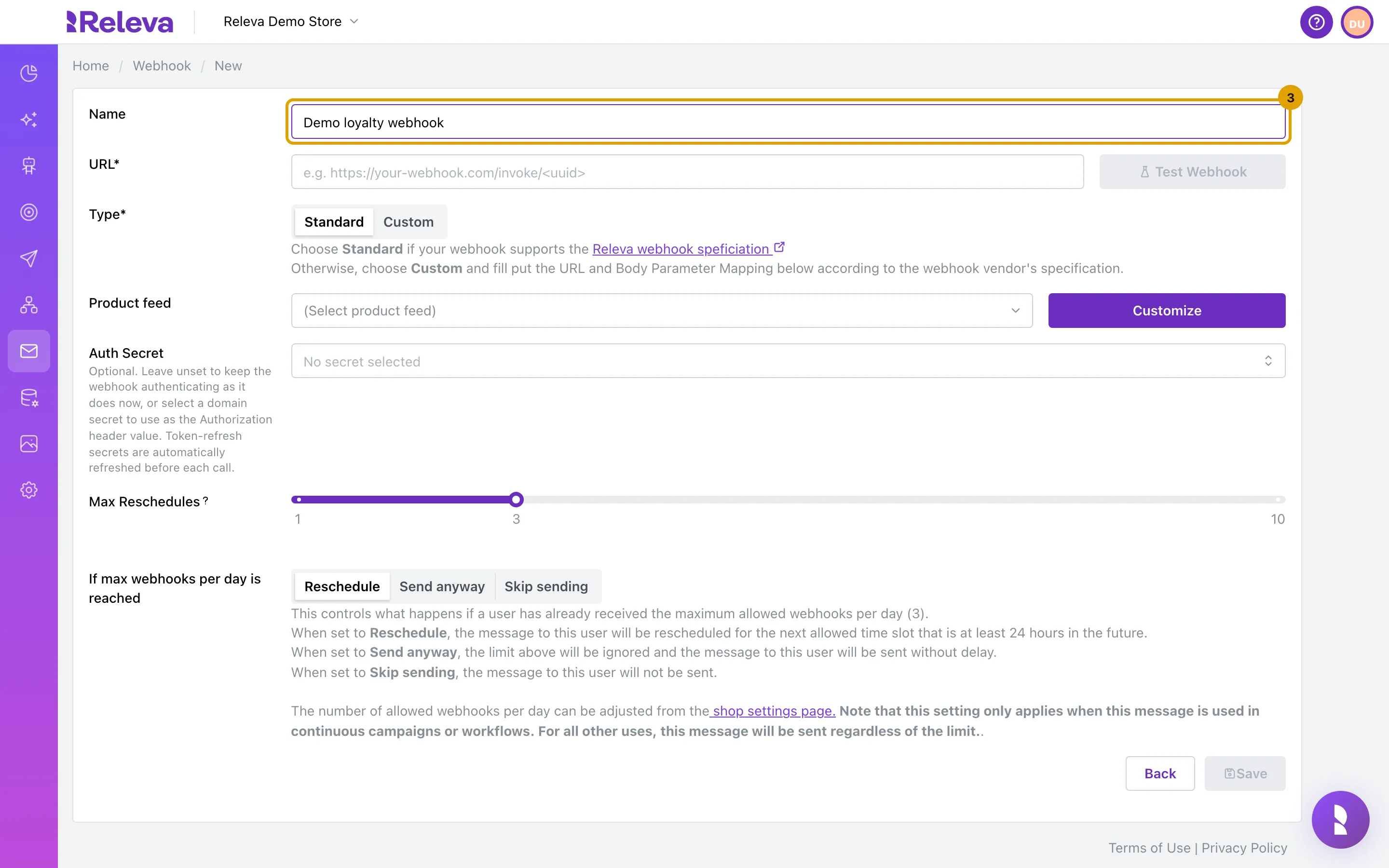
In Name, replace the generated name with one that says where the data goes.
Names must be unique in your shop. Save stays disabled while the name is empty.
-
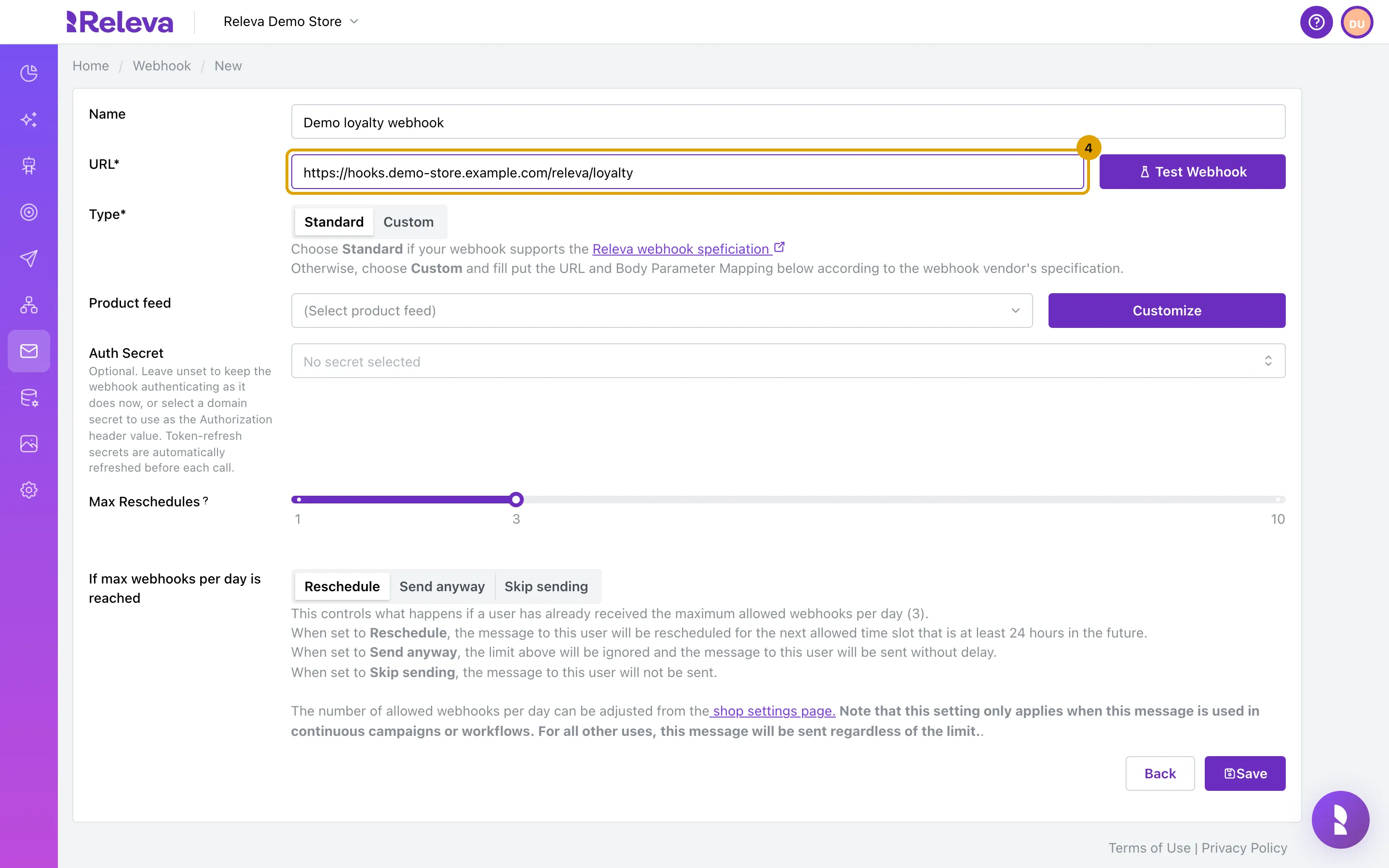
In URL, enter the full address of the endpoint that receives the data.
An address that is not a URL shows Invalid URL under the field and keeps Save and Test Webhook disabled.
-
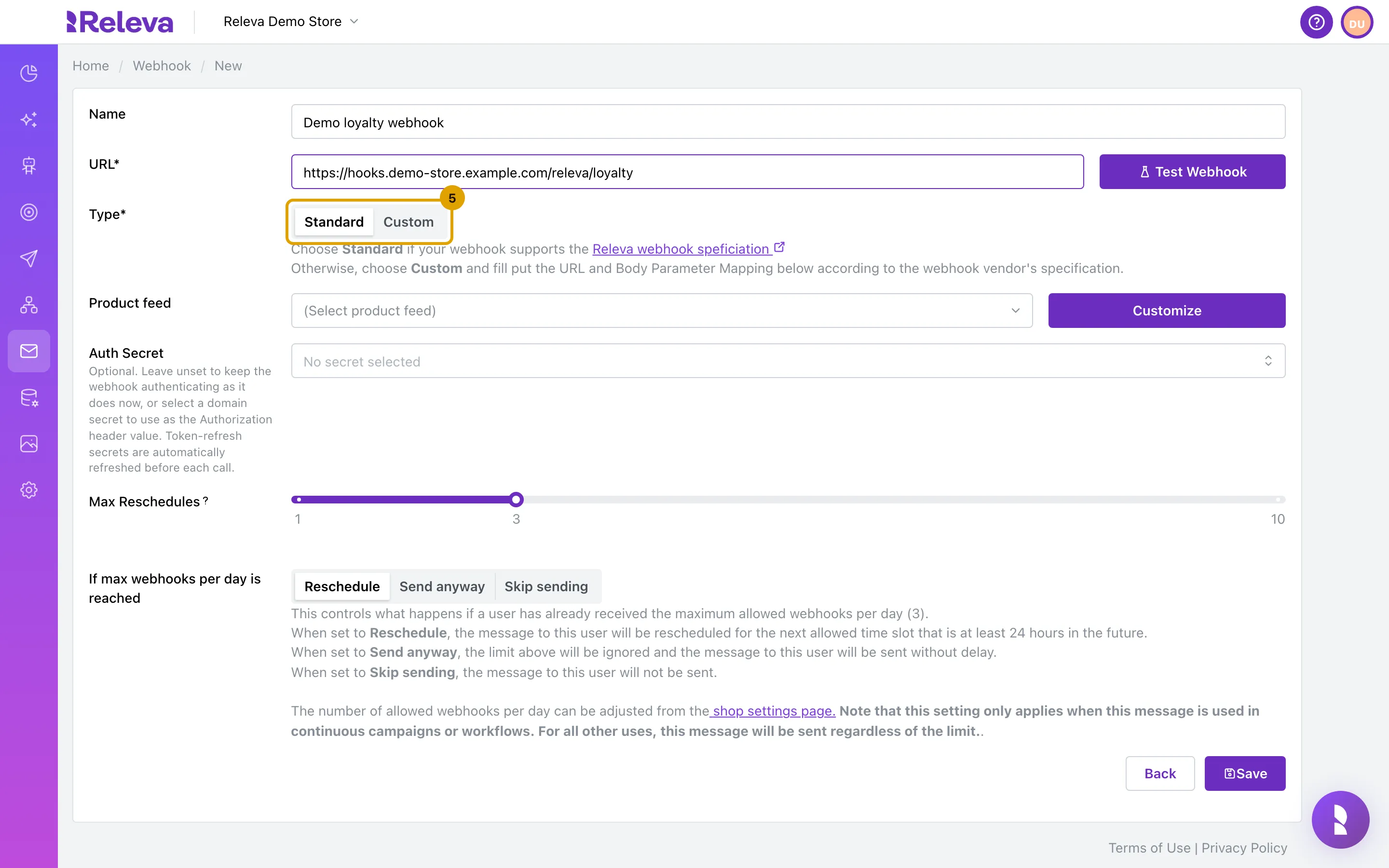
Leave Type on Standard if your endpoint accepts the Releva webhook format.
Standard sends a fixed JSON body with up to 20 profiles per request. Custom adds Request Method, Format, Request Headers, Request URL Parameters and Request Body Parameters, so you build the request yourself. Product feed and Auth Secret are optional for both types.
-
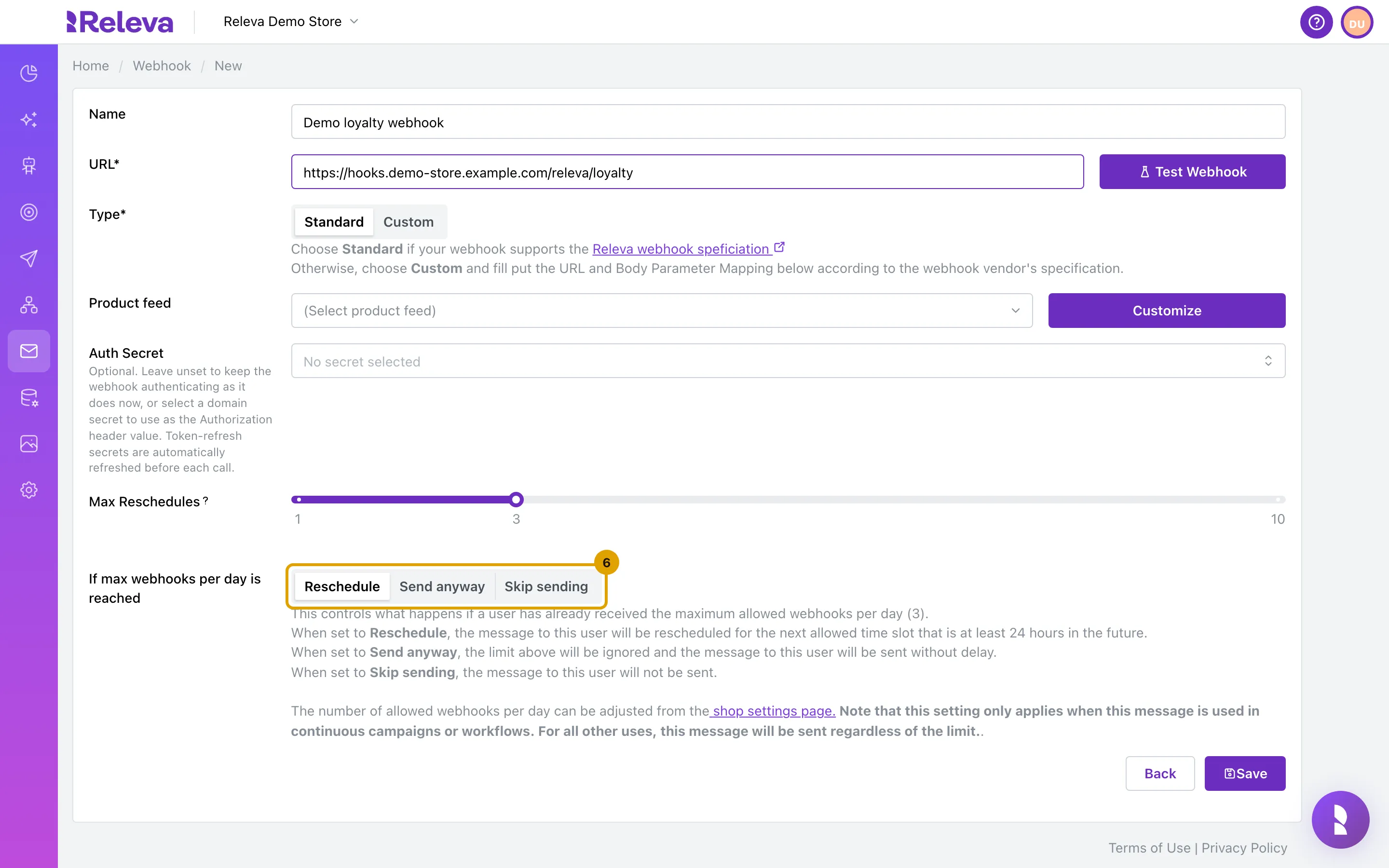
Under If max webhooks per day is reached, keep Reschedule or choose Send anyway or Skip sending.
The number in brackets is your shop’s limit of webhooks per profile per day (3 by default). With Reschedule, Max Reschedules sets how many days Releva retries a profile over the limit. Triggered workflows ignore the setting; the note under it says it applies to continuous workflows. See The daily limit.
-
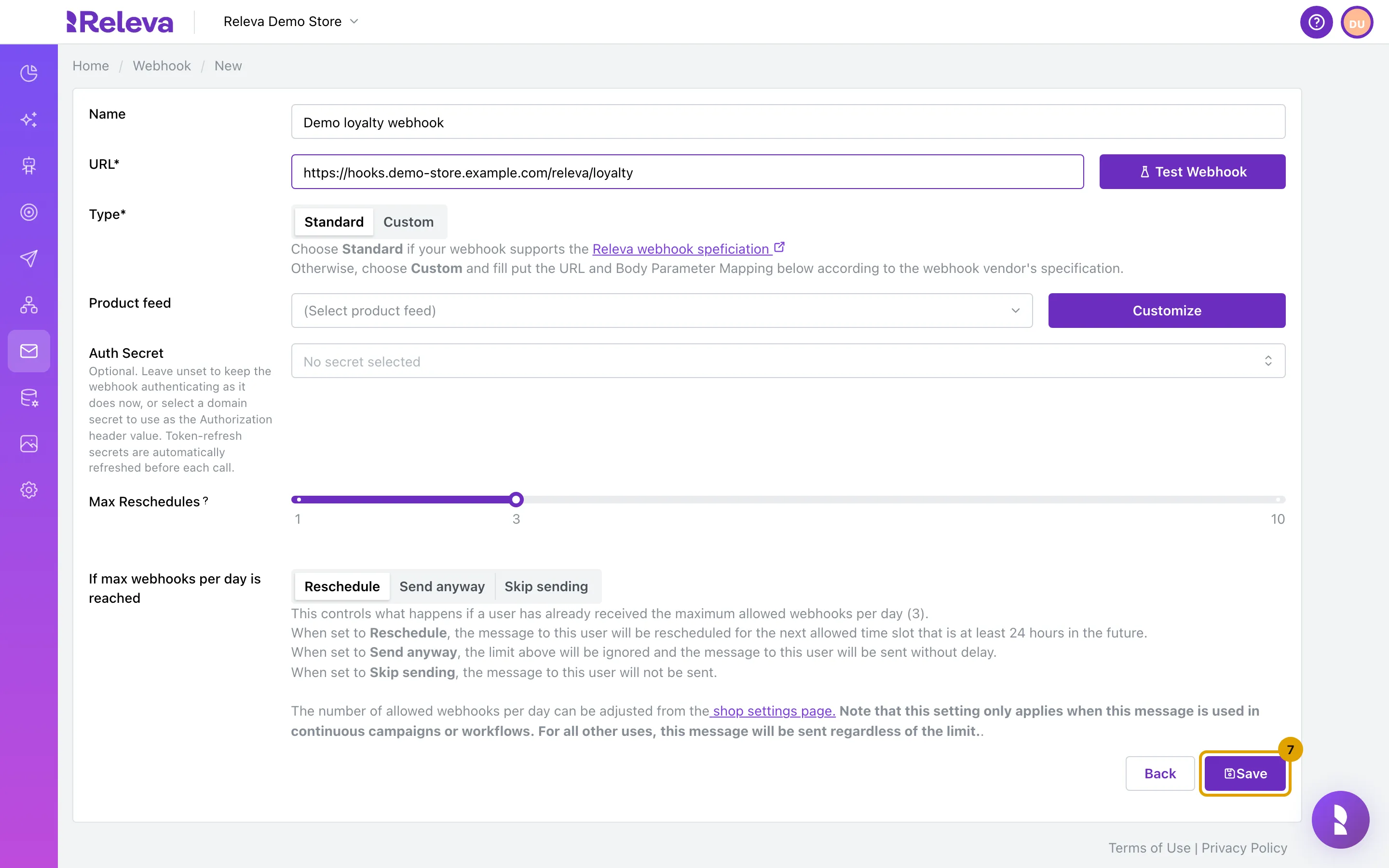
Select Save.
Saving makes no request to your endpoint.
-
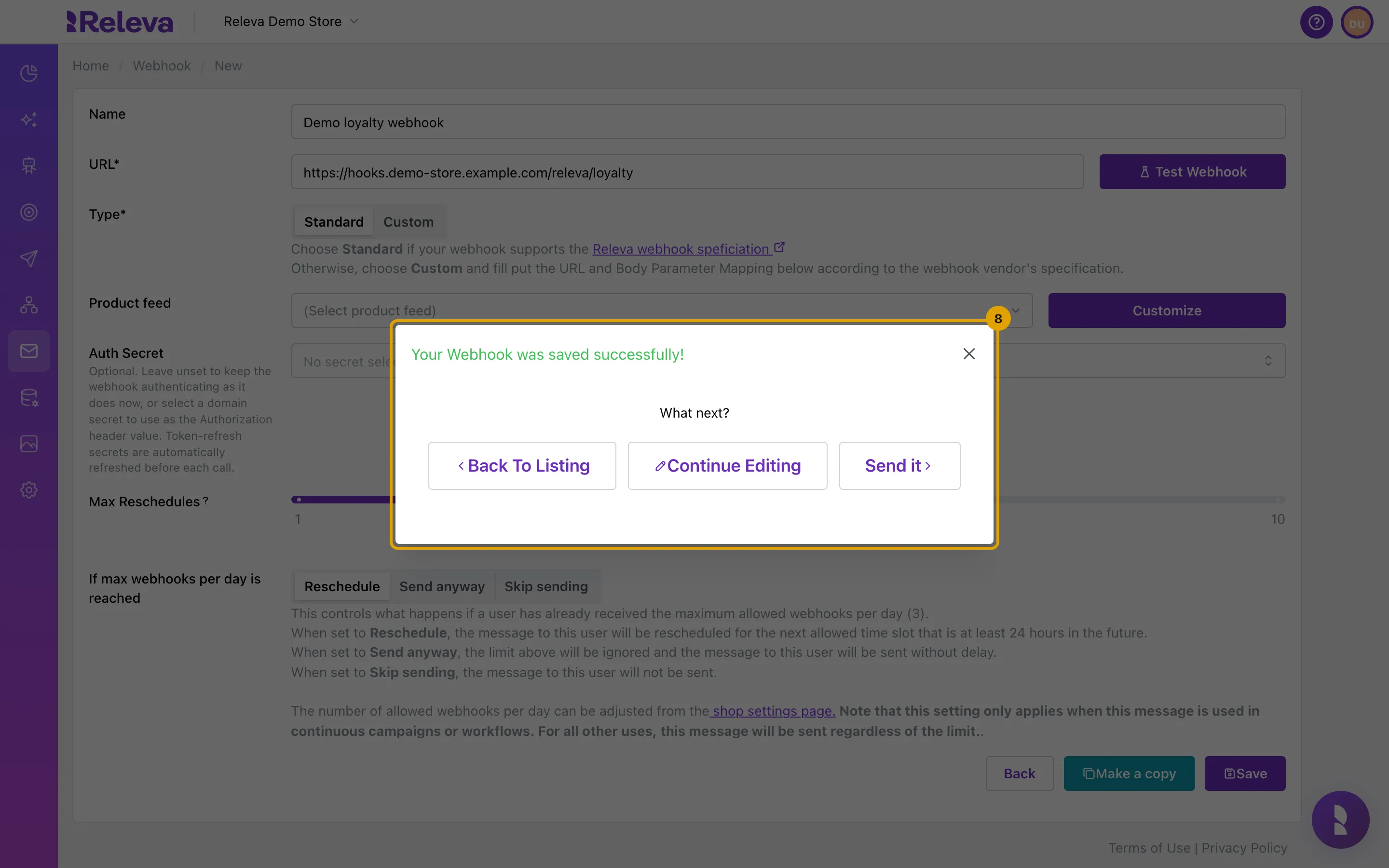
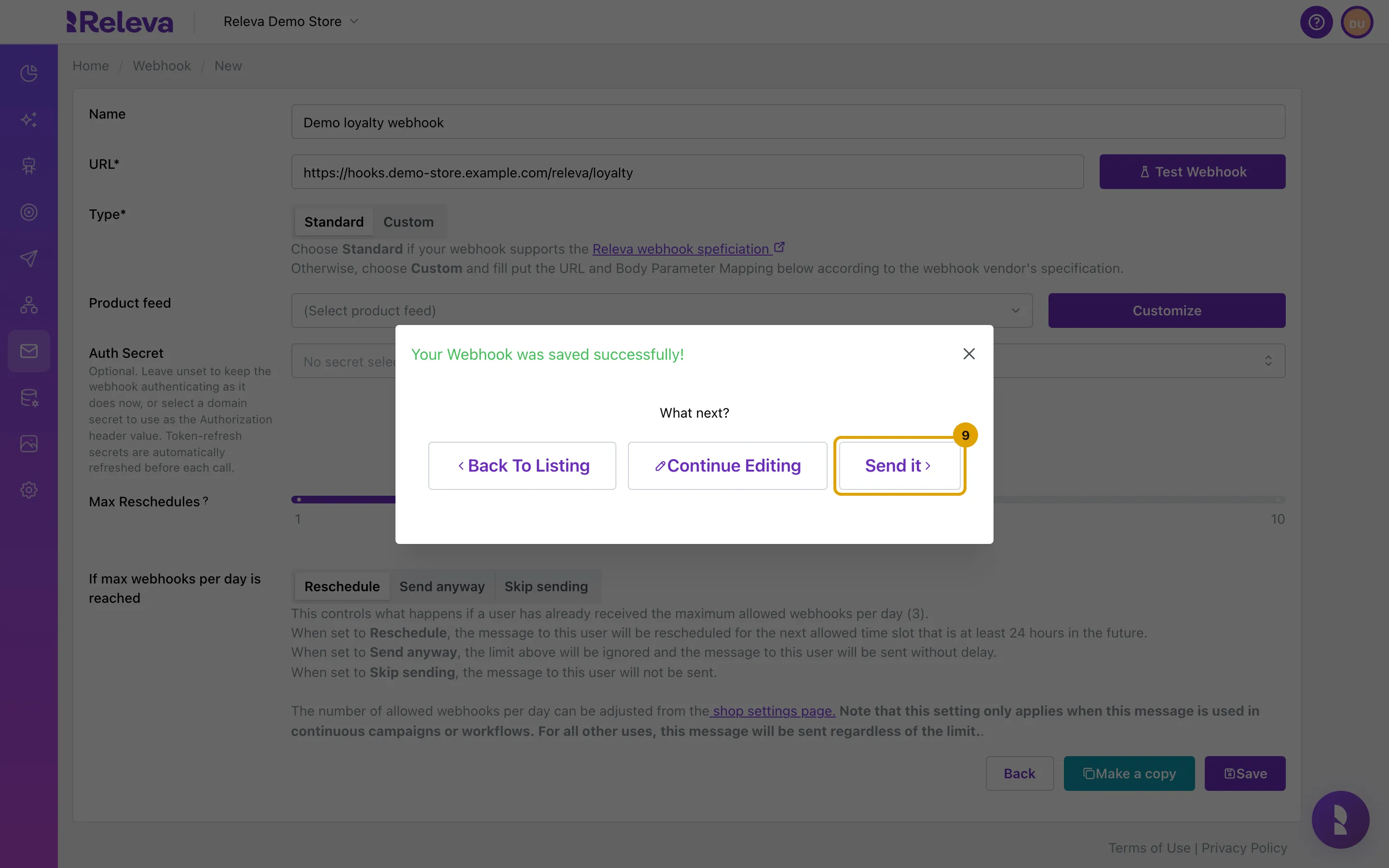
Releva confirms that the webhook was saved.
The Your Webhook was saved successfully! window offers Back To Listing, Continue Editing and Send it. Closing it opens the saved webhook’s edit page, where Delete, Make a copy and Send appear next to Save.
-
Select Send it to use the webhook in a workflow.
-
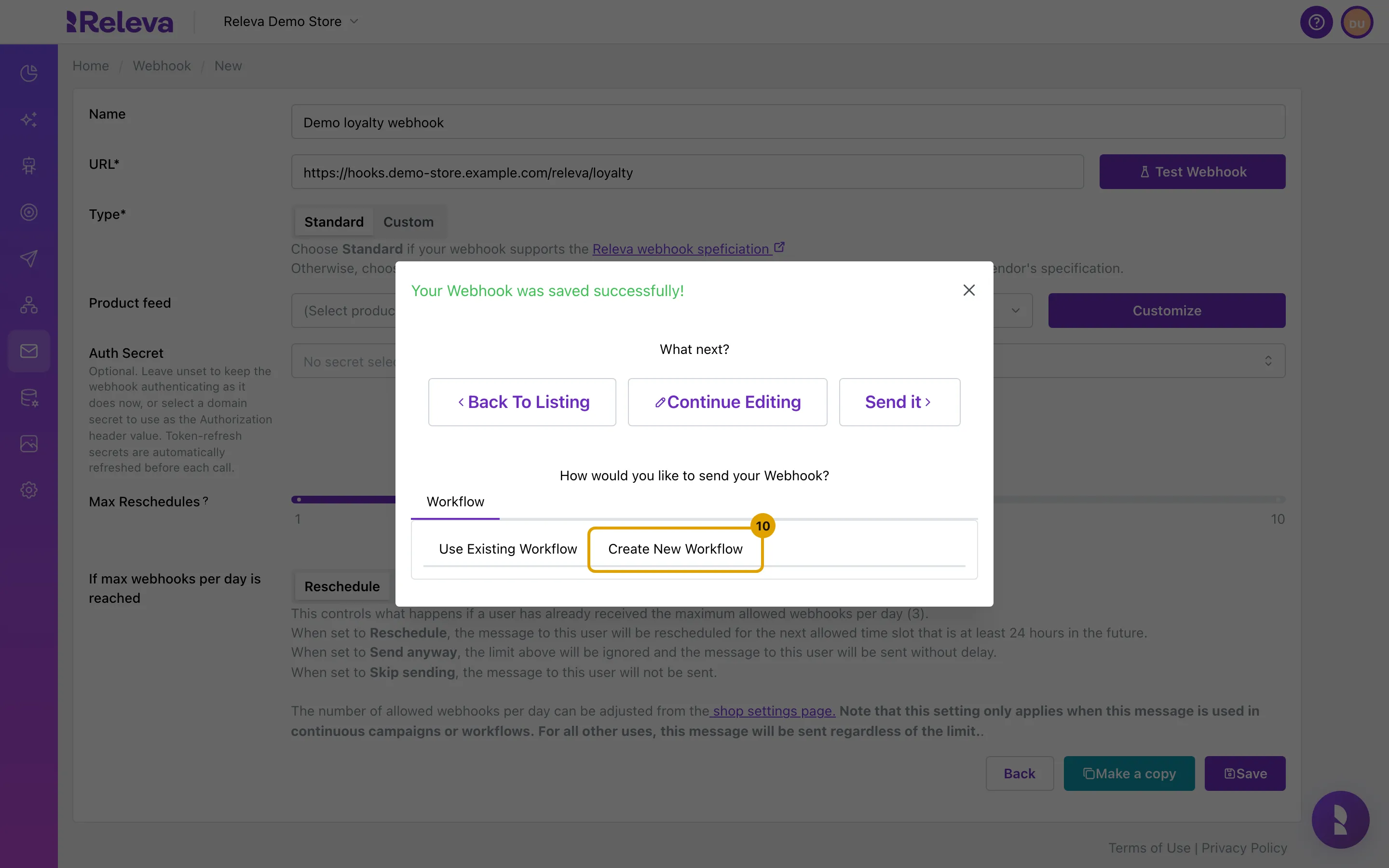
Choose Use Existing Workflow to add it to a workflow you have, or Create New Workflow to start one.
Webhooks are sent through workflows only, so the window has one tab, Workflow. Create New Workflow asks for One Off Workflow, Continuous Workflow or Triggered Workflow and opens the workflow editor. Nothing is sent until you set the audience and launch the workflow there.
Check it worked
Section titled “Check it worked”- The new webhook is the first card on Marketing Channels › Webhooks, with all counters at 0.
- Open the card: the breadcrumb reads Home / Webhook / <name> / Edit, and the URL and Type are what you entered.
- After the workflow that uses it runs, the card shows Sent and Delivered greater than 0 for the selected period.
Troubleshooting
Section titled “Troubleshooting”Save is disabled. The name or the URL is empty, or the URL is not an address. On a Custom webhook, a value in a mapping table that is not a valid template also disables Save and shows Invalid template: … under it.
“Webhook Name must be unique!” after Save. Another webhook in this shop has that name. Change the name and save again.
Test Webhook is disabled. Same reasons as Save. When it is enabled, it makes a real request to your URL for one profile, so use a test endpoint.
My endpoint receives no Authorization header. That is expected unless an Auth Secret is selected on the webhook. Create a secret under Settings › Shop & Integration and select it in Auth Secret.
Sent stays at 0 after the workflow ran. Check that the workflow is launched, not just saved, and that profiles entered the step. Profiles over the daily limit are rescheduled or skipped according to If max webhooks per day is reached; skipped ones count as Skipped on the card.