

Connect WhatsApp through a Business Solution Provider
Before Releva can create WhatsApp templates or send WhatsApp messages, your shop needs a connected WhatsApp Business Account (WABA). There are two ways to connect it: WhatsApp Manager (Releva connects to Meta directly through an embedded sign-up) and Business Solution Provider (you paste the credentials a BSP gave you). This guide covers the BSP route; for the other one, read Connect WhatsApp with WhatsApp Manager. For how the two methods differ, read How WhatsApp messages work.
Before you start
Section titled “Before you start”- You have a WhatsApp Business Account with a Business Solution Provider, and the provider gave you an API token, your WhatsApp Business Account ID and your WhatsApp Phone Number ID. Both ids are 15 or 16 digits.
- If you also use Facebook ads, product sets or audiences, connect Facebook as well, under the Facebook tab; see Connect your Meta account to Releva. The BSP connection does not need it.
- Your shop has no WhatsApp account connected yet. The Connection Method control is shown only while nothing is connected. To switch methods, select Disconnect WhatsApp first (see Troubleshooting).
- The daily limit for WhatsApp messages per customer is set separately, under Settings › Messaging.
-
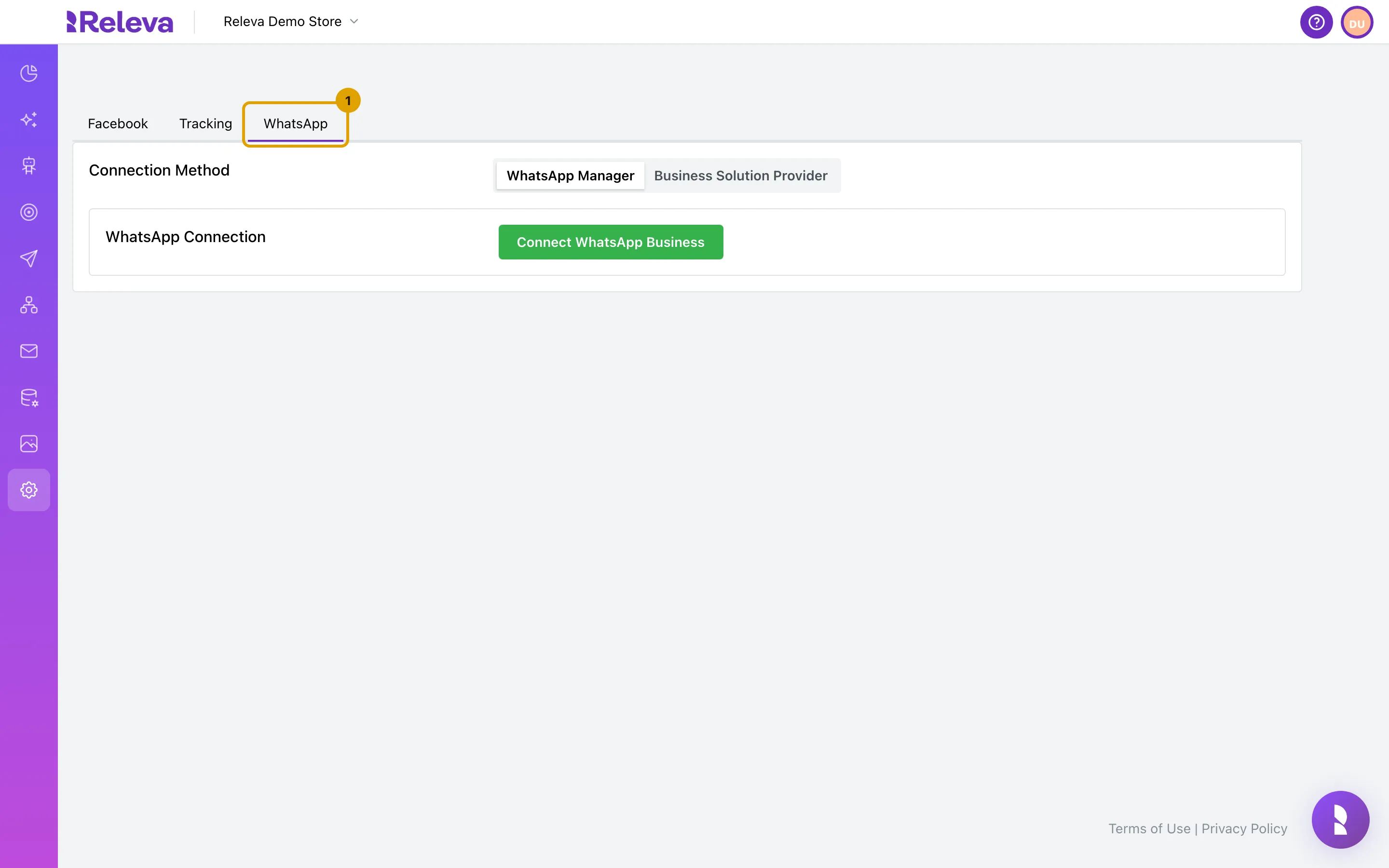
Go to Settings › Facebook & Whatsapp and select the WhatsApp tab.
The page opens on the Facebook tab. A Tracking tab sits between the two once Facebook is connected with an ad account. The WhatsApp tab has its own Save button; the page-level buttons apply to the Facebook settings only.
-
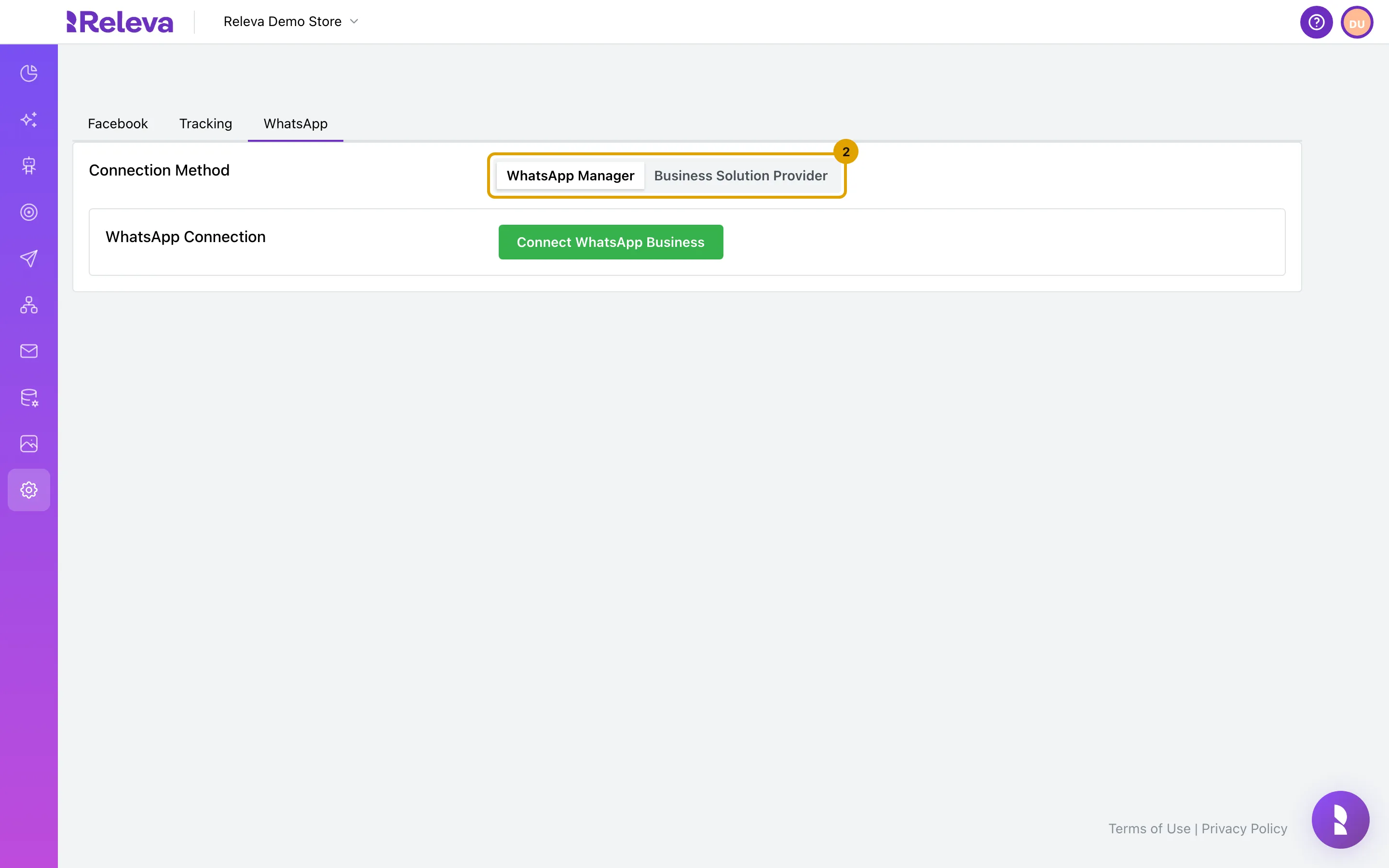
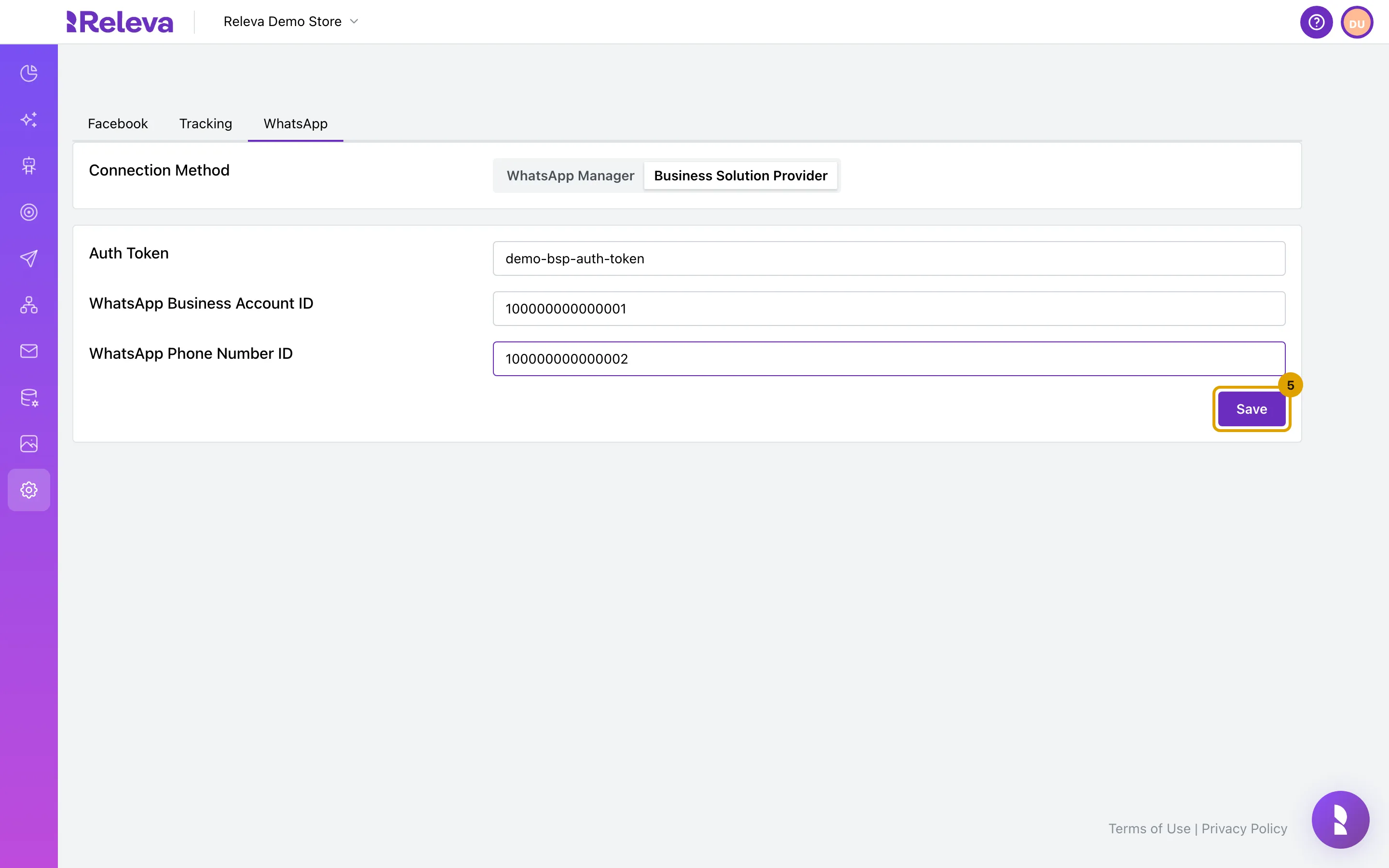
In Connection Method, select Business Solution Provider.
WhatsApp Manager is selected by default and shows a green Connect WhatsApp Business button instead of a form.
-
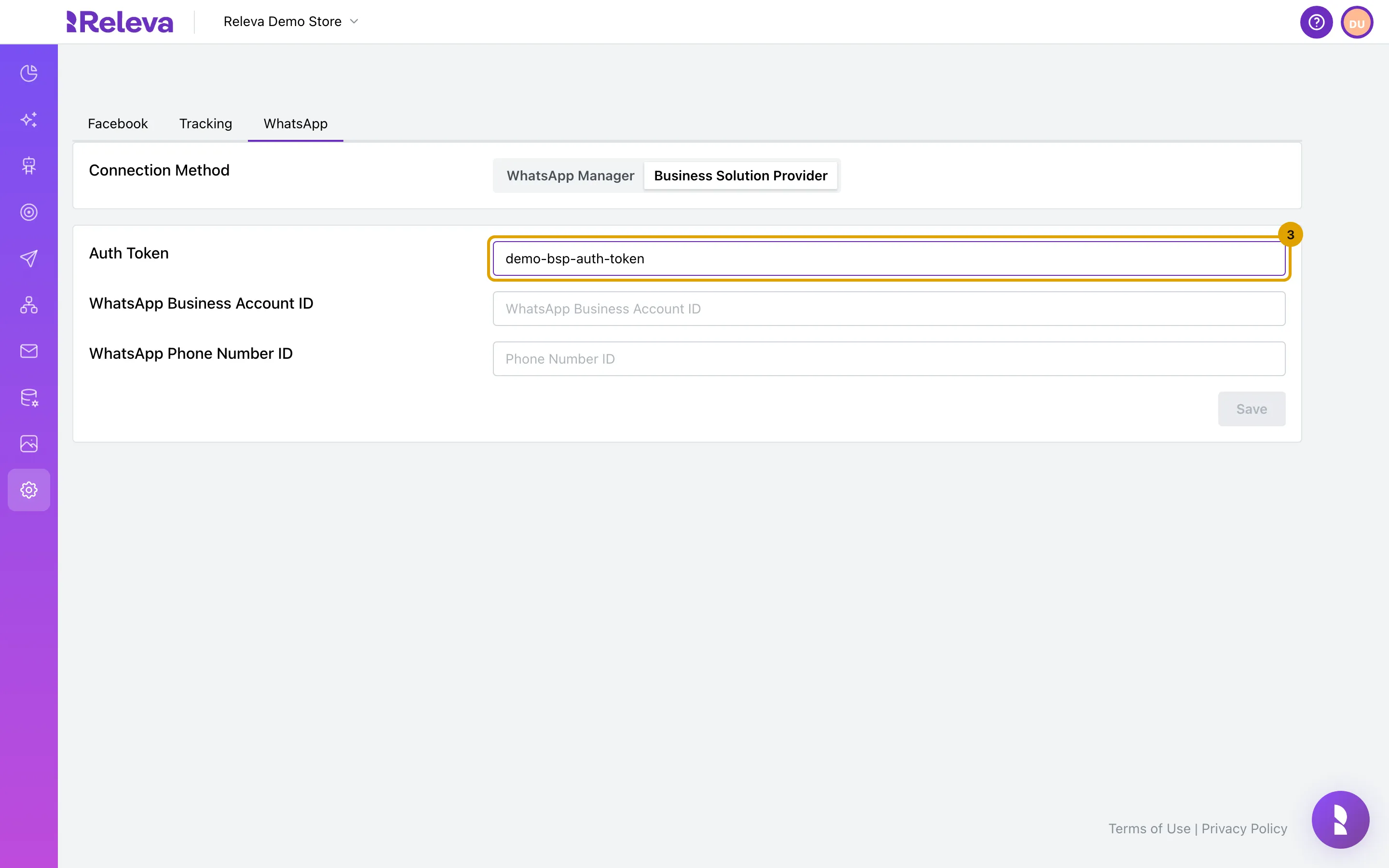
In Auth Token, paste the API token your provider gave you.
The token is stored by Releva and shown in clear text on this page afterwards. Anyone with access to your shop’s settings can read it.
-
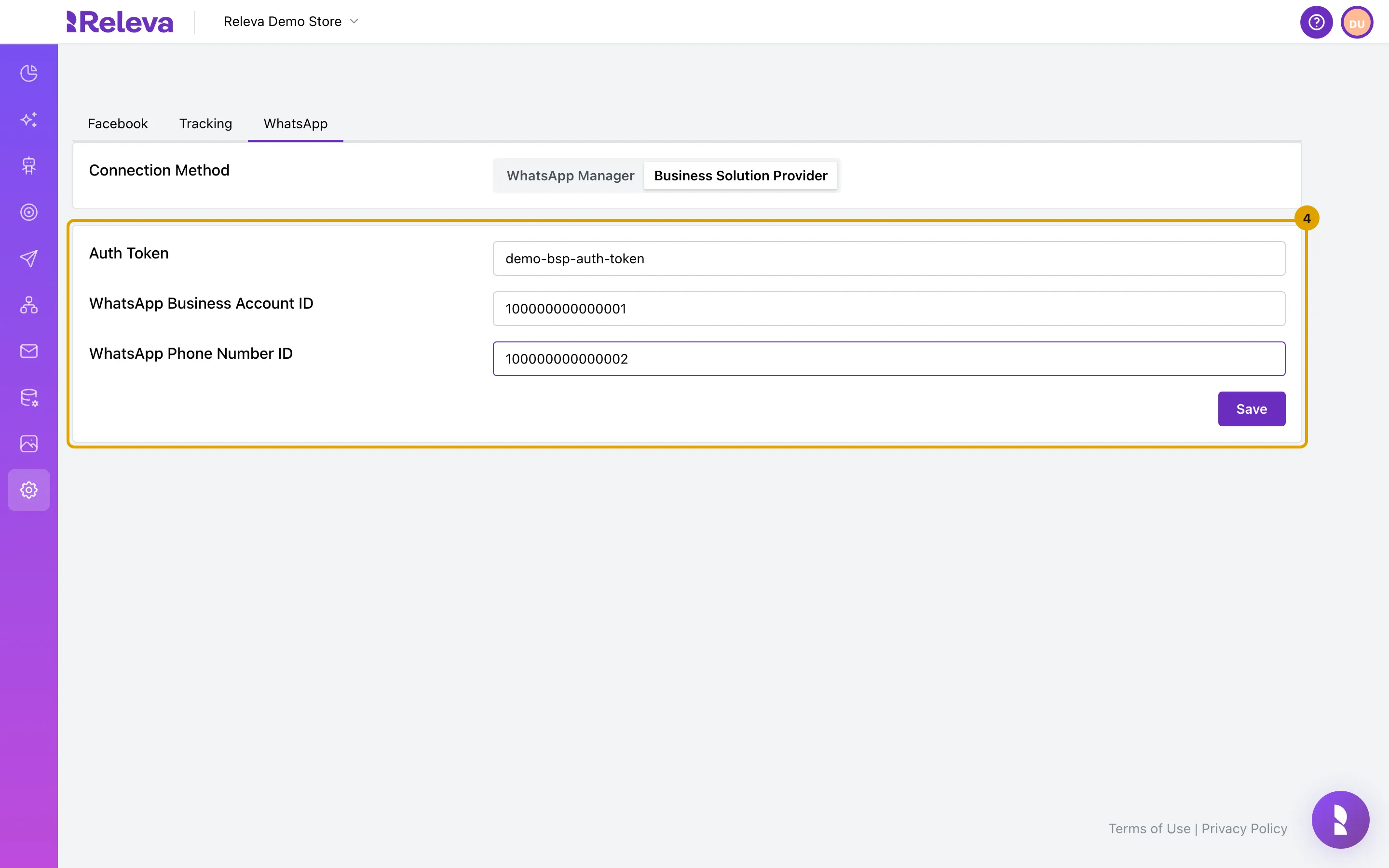
Enter your WhatsApp Business Account ID and WhatsApp Phone Number ID. Both are 15 or 16 digits.
Save stays disabled until all three fields are filled in and both ids are valid.
-
Select Save.
Releva stores the credentials. It does not contact Meta or your provider at this point, so a typo in the token is not detected here.
-
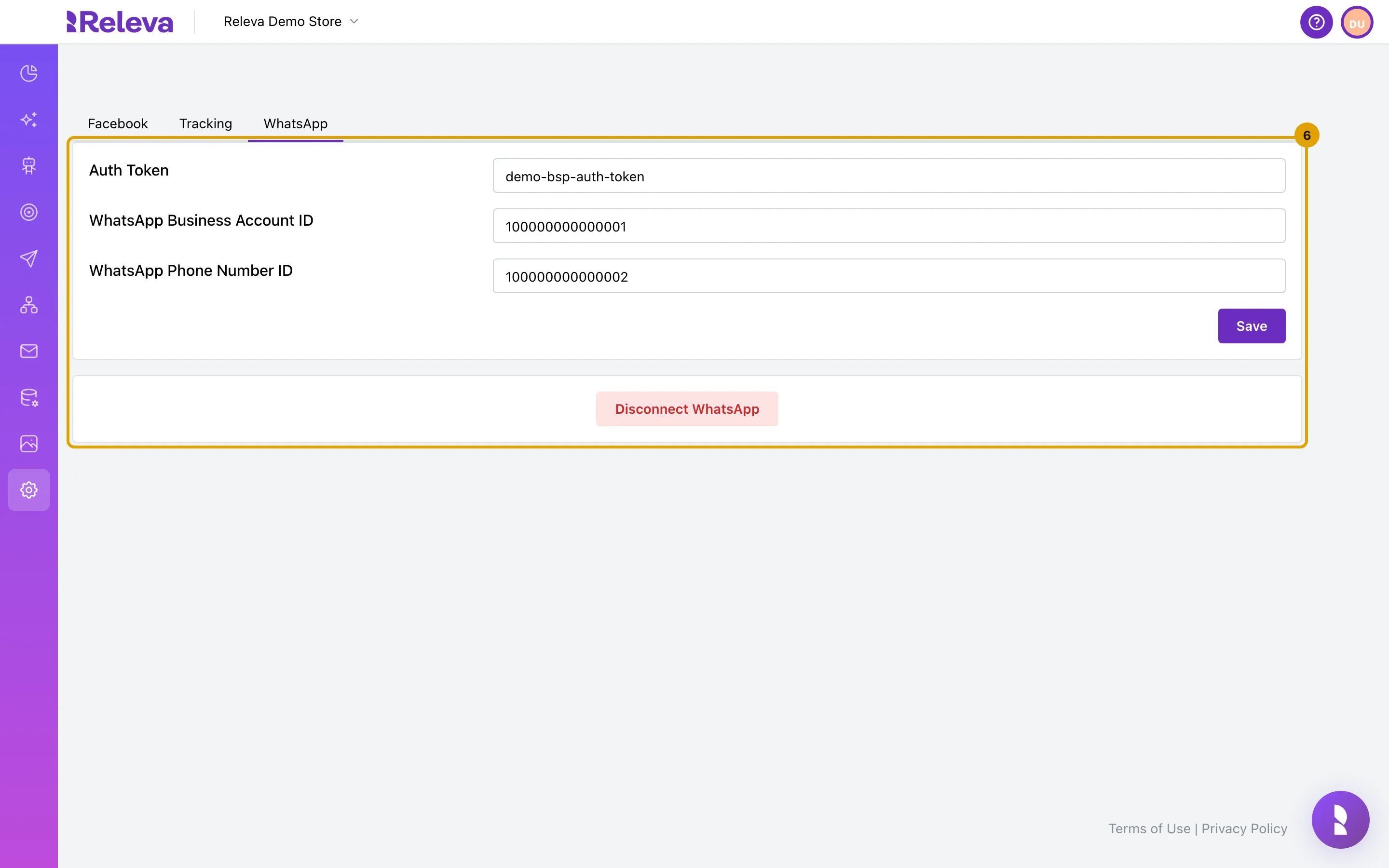
The connection is saved. The form keeps your values and Disconnect WhatsApp appears below it.
-
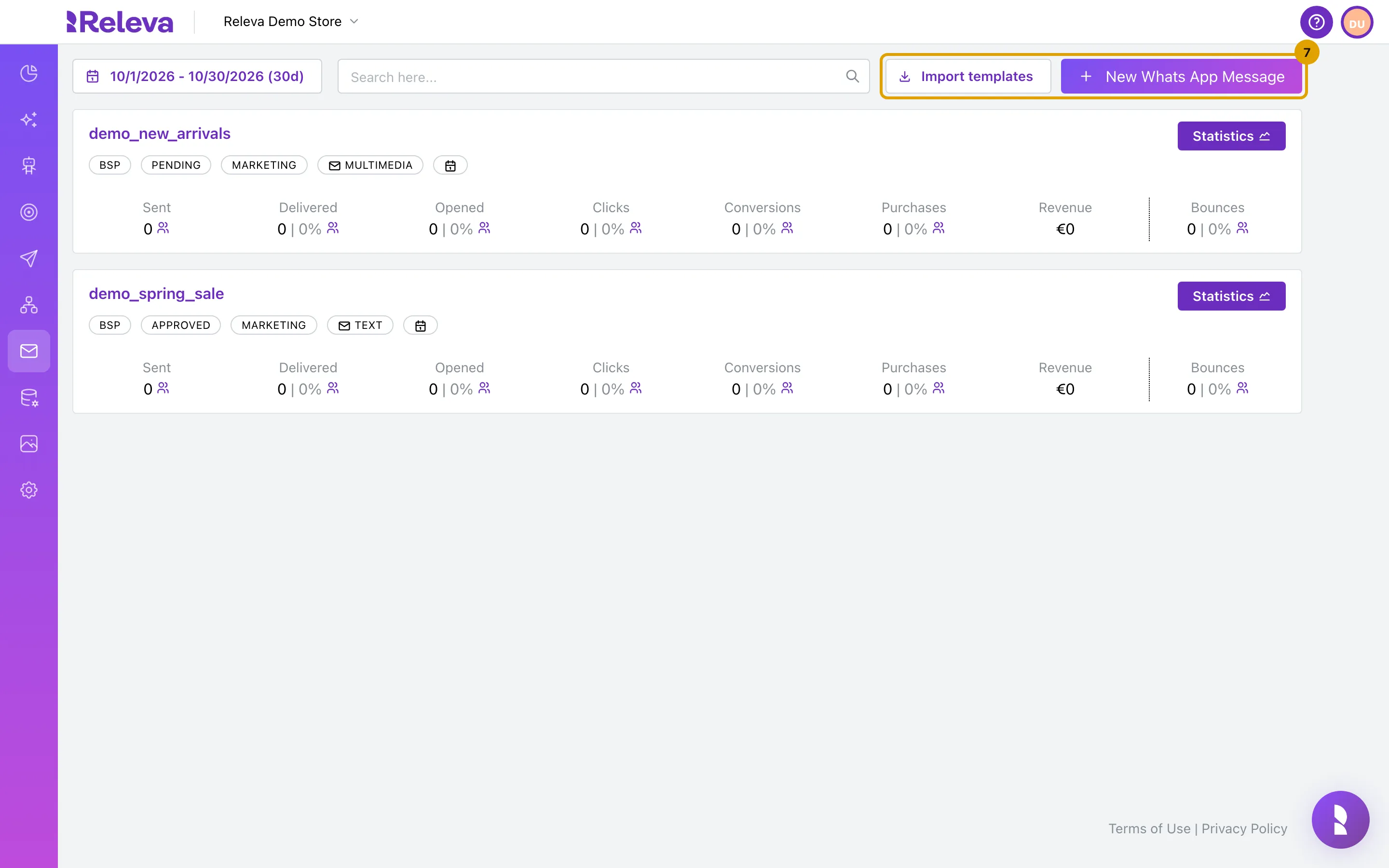
In Marketing Channels › WhatsApp Messages, Import templates and New Whats App Message are now available.
Both buttons are disabled until a WhatsApp account is connected.
Check it worked
Section titled “Check it worked”- On the WhatsApp tab, the Connection Method control is gone, your values are still in the form and a red Disconnect WhatsApp button is shown below it.
- On Marketing Channels › WhatsApp Messages, the blue alert Connect your WhatsApp Business Account (WABA) to enable the creation of template messages. is gone and New Whats App Message is enabled.
- Templates you create from now on carry a BSP badge on the list.
Troubleshooting
Section titled “Troubleshooting”Save is disabled. One of the three fields is empty, or an id is not 15 or 16 digits. The id fields show Please enter a valid WhatsApp Business Account ID (15-16 numeric digits). or Please enter a valid WhatsApp Phone Number ID (15-16 numeric digits).
“Failed to save BSP configuration” appears. The request to Releva failed. Reload the page and try again; if it keeps failing, contact support.
I want to use WhatsApp Manager instead. Select Disconnect WhatsApp and confirm Are you sure you want to disconnect WhatsApp? This will remove all WhatsApp configuration. The Connection Method control comes back; then follow Connect WhatsApp with WhatsApp Manager. Templates created under the old sender keep their badge and cannot be test-sent through the other sender.
New Whats App Message is still disabled. Reload the admin: the WhatsApp account is loaded once when the shop opens. If it stays disabled and the WABA alert is gone, your plan does not include WhatsApp messages; ask your account owner.