

Find a product in your catalog
The Products page shows every product Releva holds for your shop. Use it to check that a product has synced, that its price and stock are right, and how customers interact with it.
The page is read-only. You cannot create, edit or delete products here. Products come in through your platform connector, a catalog sync or the API. See How your catalog gets into Releva.
Before you start
Section titled “Before you start”- Your catalog has synced at least once. An empty catalog shows 0 Products.
- Your plan includes the Products page. If the Products menu item is greyed out, ask your account owner to unlock it.
- You know the product name, or a word from it.
-
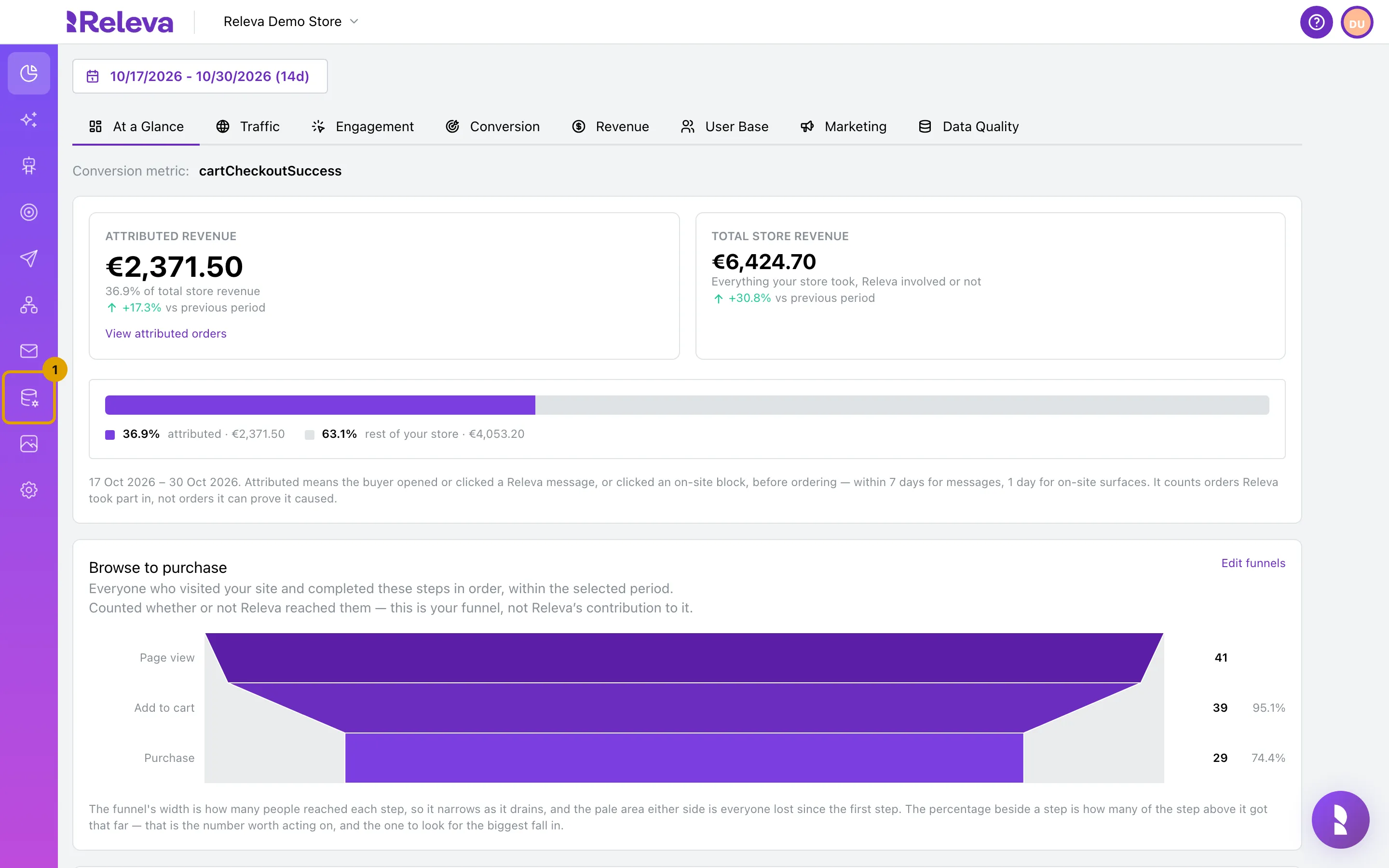
In the left menu, select Data Platform.
-
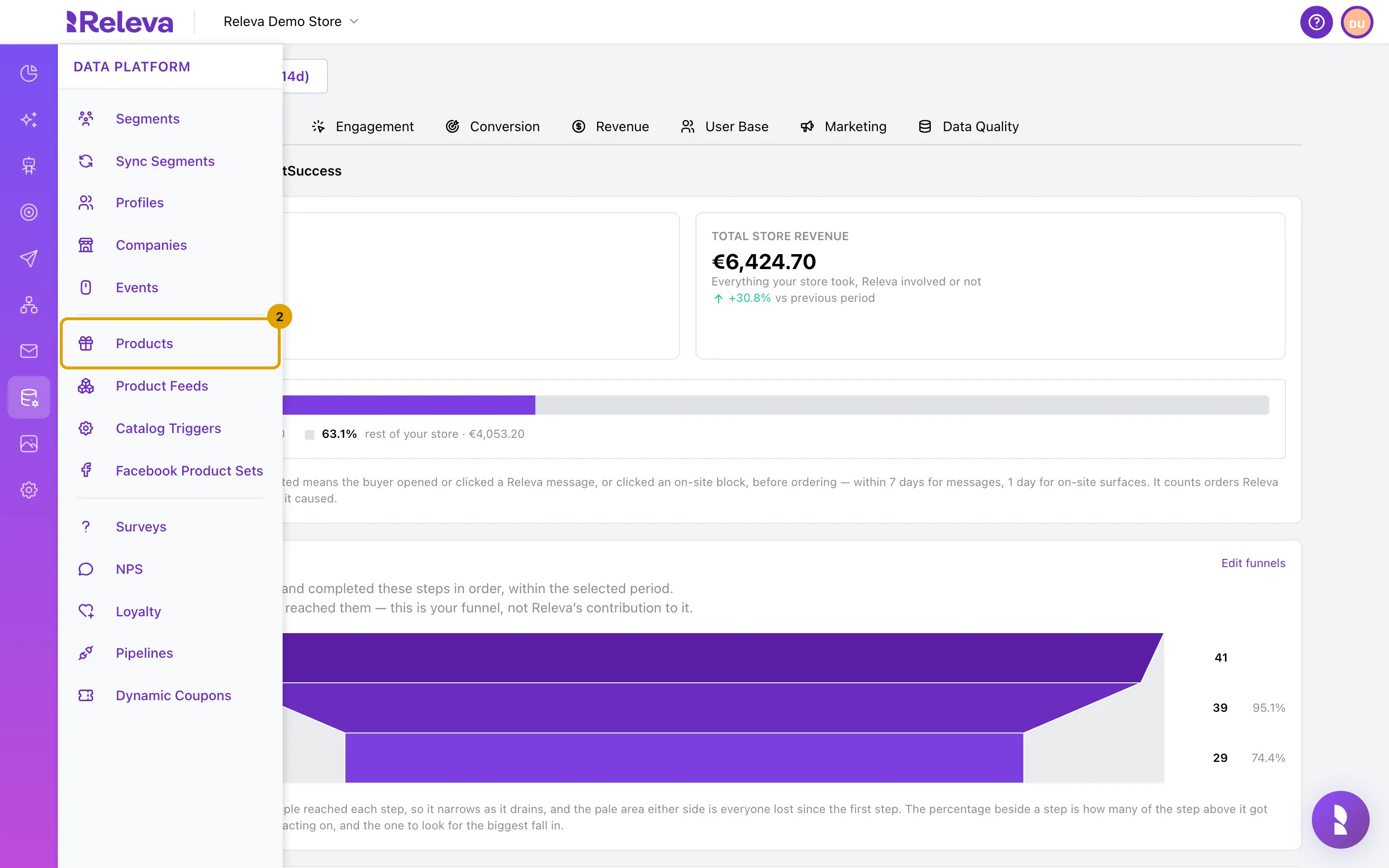
Select Products.
-
In Name, enter the product name or a word from it.
Name matches whole words anywhere in the name, in order. The last word can be partial.
linenandSummer Shboth find “Linen Summer Shirt”.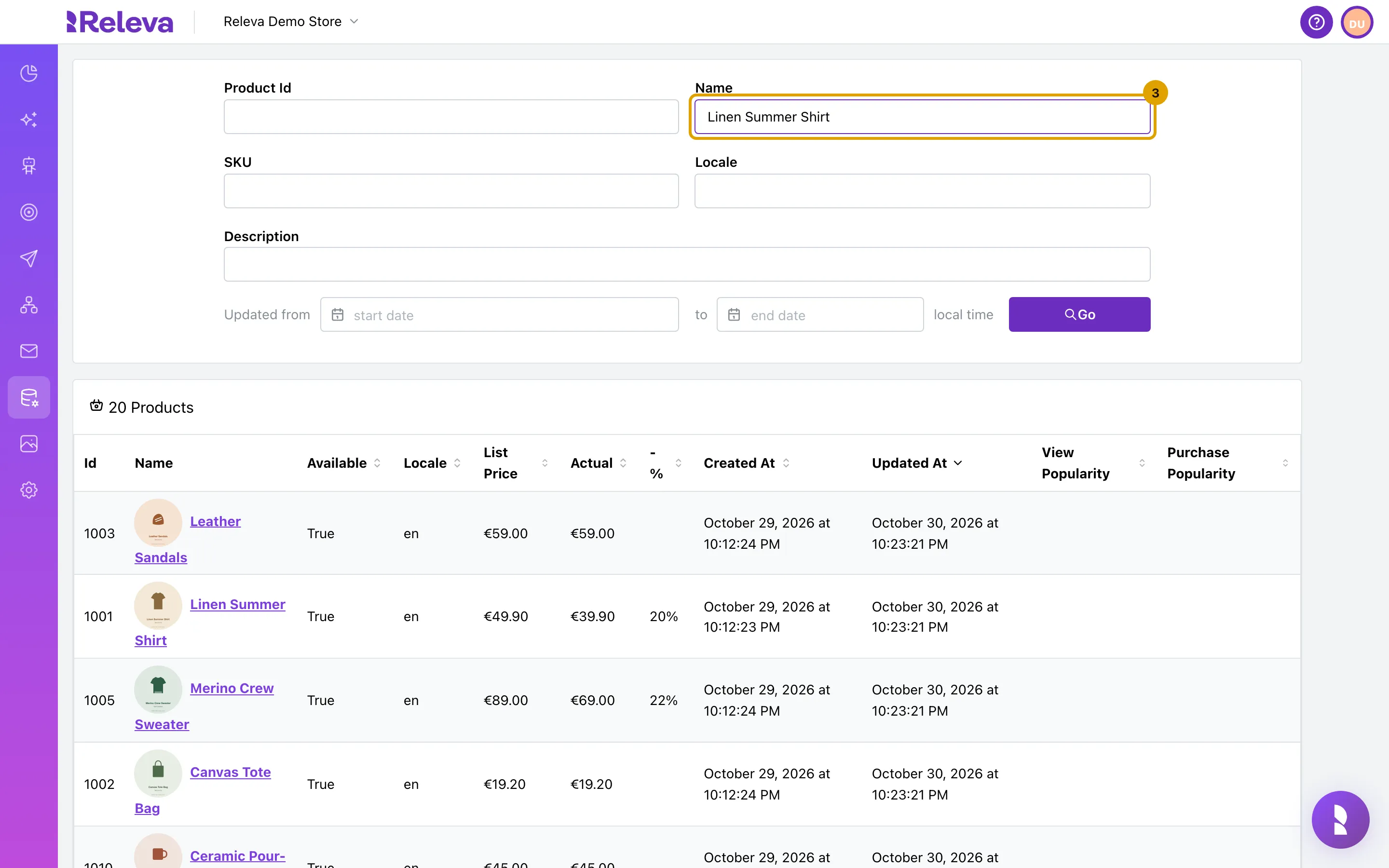
-
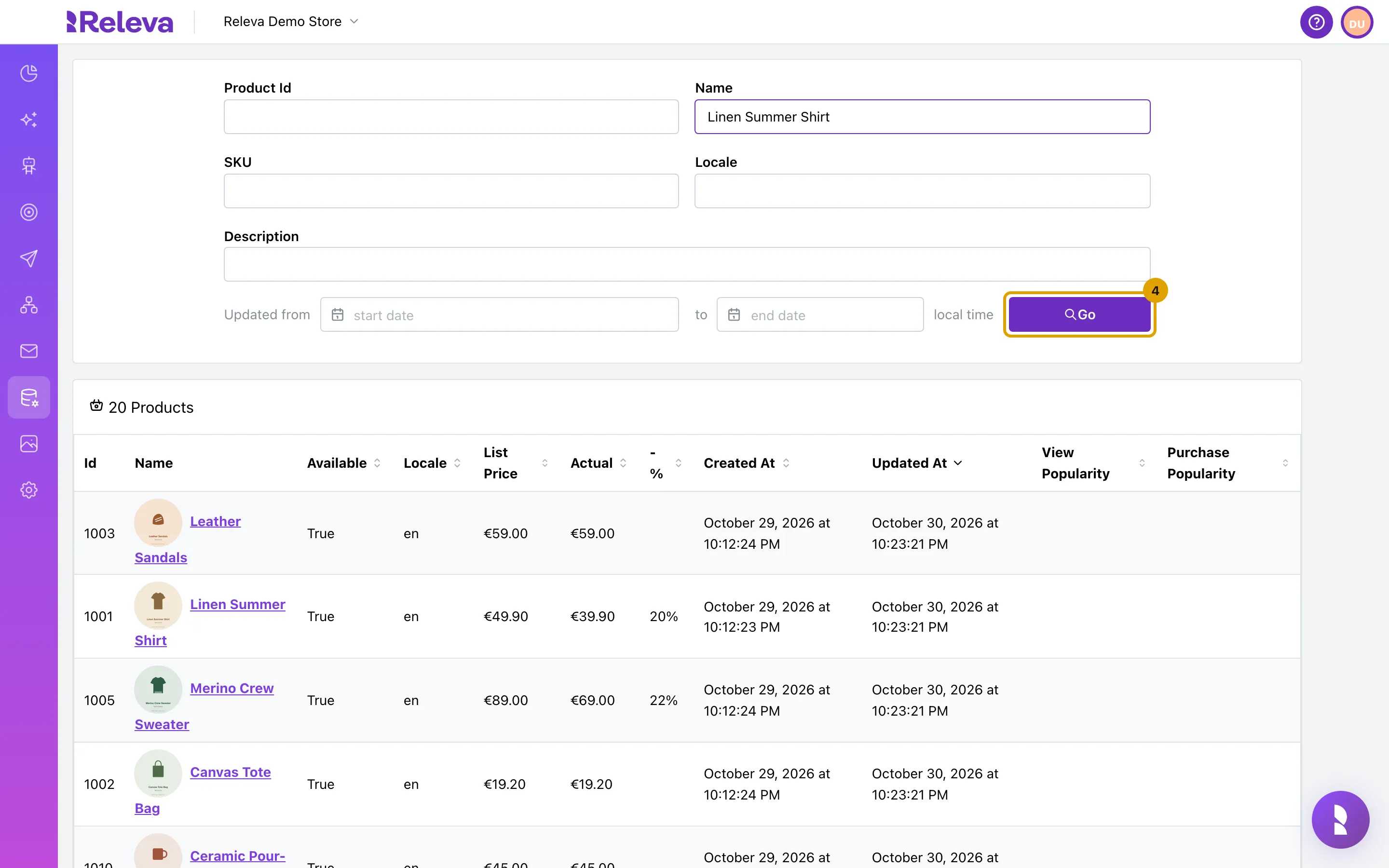
Select Go.
Typing alone does not search. Select Go or press Enter.
-
The list shows the matching products.
The card title shows how many products match. Each row shows the id, name, availability, locale, list price, actual price, discount, created and updated time, and popularity scores.
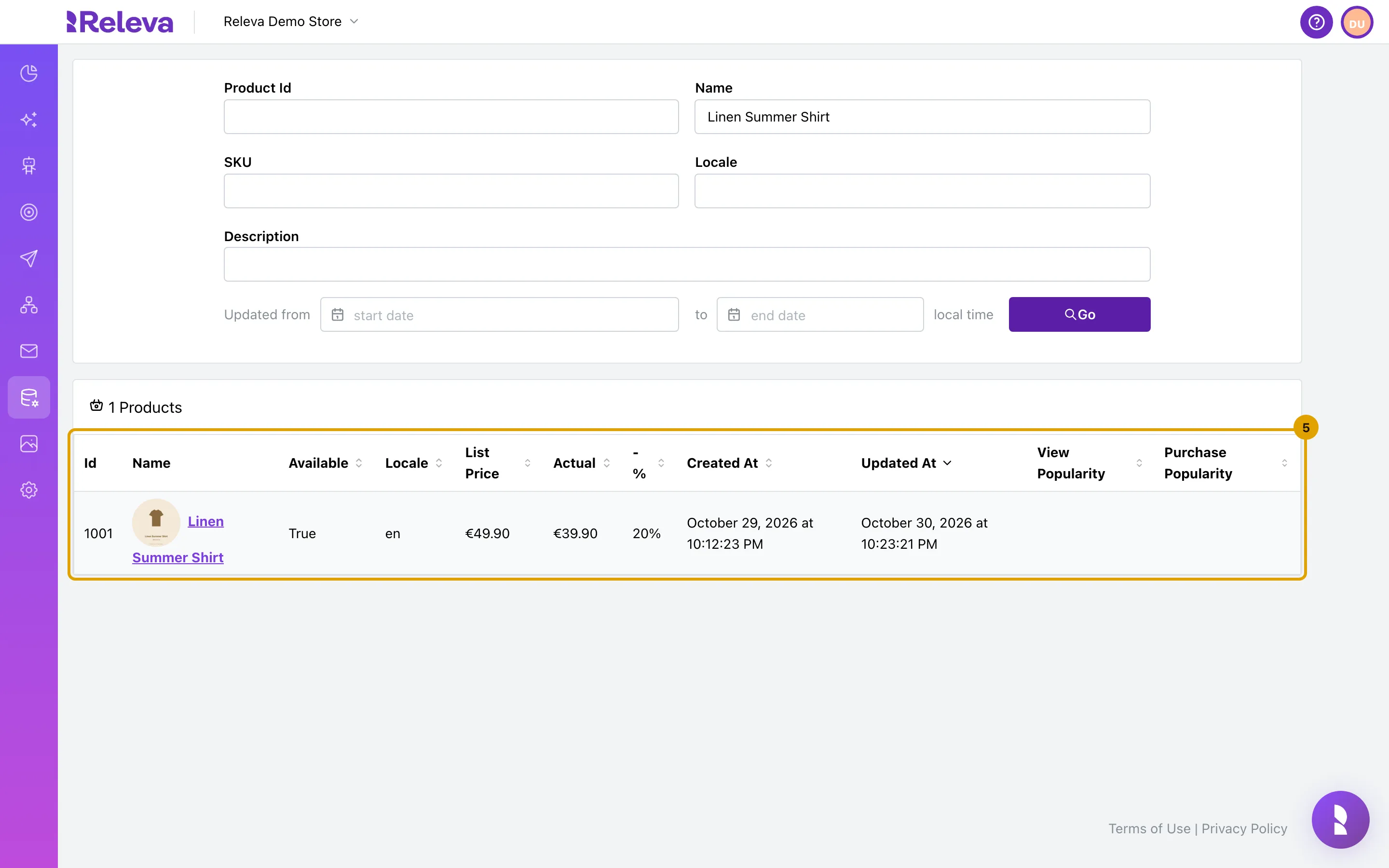
-
Select the product name to open it.
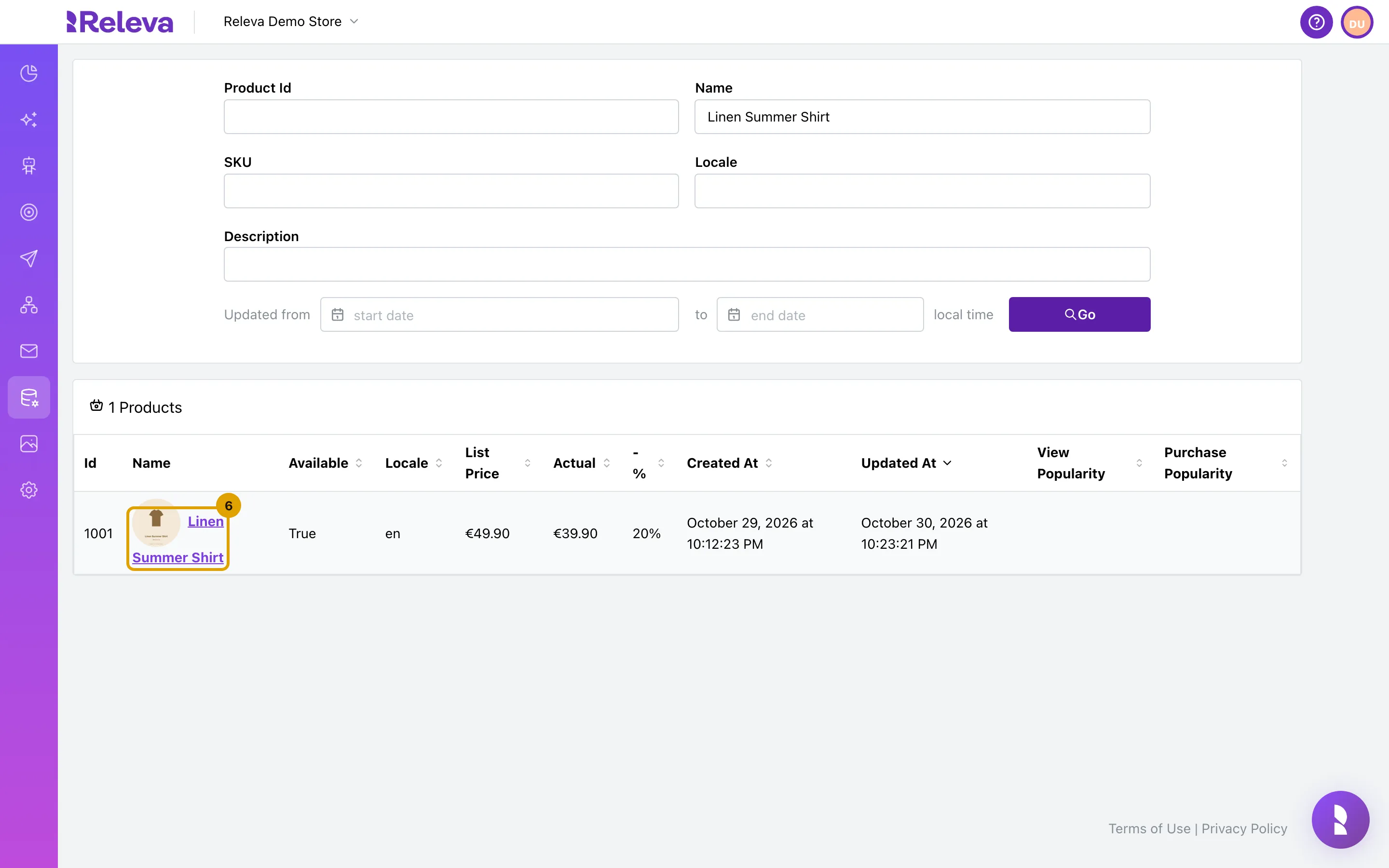
-
The Product Details tab shows everything Releva knows about the product.
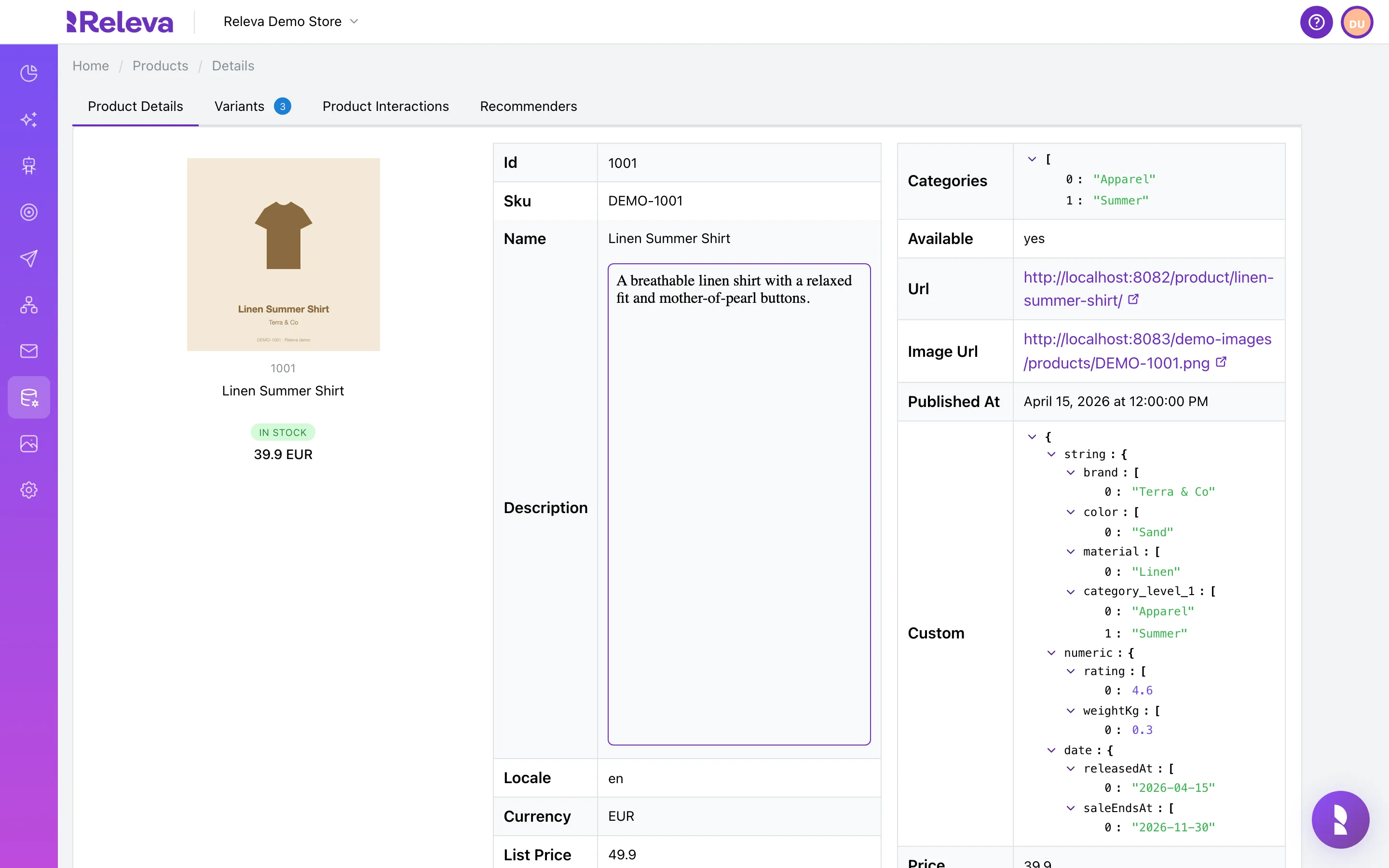
Check it worked
Section titled “Check it worked”- The card above the table reads 1 Products (or the number you expect), and the product you searched for is in the list.
- The detail page shows the product’s Id, Name, List Price and Available values as they are in your shop.
- The browser tab title reads Releva | Products | <product name> | Details.
Troubleshooting
Section titled “Troubleshooting”The list shows 0 Products and the catalog is new. Products have not synced yet. Check Settings › Shop & Integration › Catalog Sync, or send products through the API. Products appear a few seconds after a successful sync.
The list shows 0 Products for a product you know exists. Check the spelling. Name matches whole words in order, so Shirt Linen does not match “Linen Summer Shirt”. Clear the other fields: all filters combine, so a value left in Product Id or Locale also has to match.
The product image is missing. The admin loads images from the Image Url your shop sent. If that URL is not reachable from the browser, the thumbnail shows the product name instead. Fix the URL in your shop and resync.
The Products menu item is disabled. Your plan does not include the Products page. Users who manage the subscription see an unlock button next to the item.
Sorting disappeared after selecting Updated At. The list sorts by Updated At descending by default. Selecting that header once removes the sort. Select it again to sort ascending, and once more for descending.