

Customize your loyalty page
Shoppers see their points and the rewards on a page Releva hosts for you. The Display Settings tab sets its layout, colours, fonts and texts, in every language you need, with a live preview next to the form. This guide moves the logo to the left, sets a primary colour and changes the heading above the rewards.
Before you start
Section titled “Before you start”- The logo itself comes from Settings › Shop & Integration › Visuals › Logo. Upload it there first; Display Settings only chooses its position.
- Your plan includes changing loyalty settings. If Save shows a lock, ask your account owner to unlock it.
- Colours must be 6-digit hex values such as
#7048E8. Names and RGB values are not accepted.
-
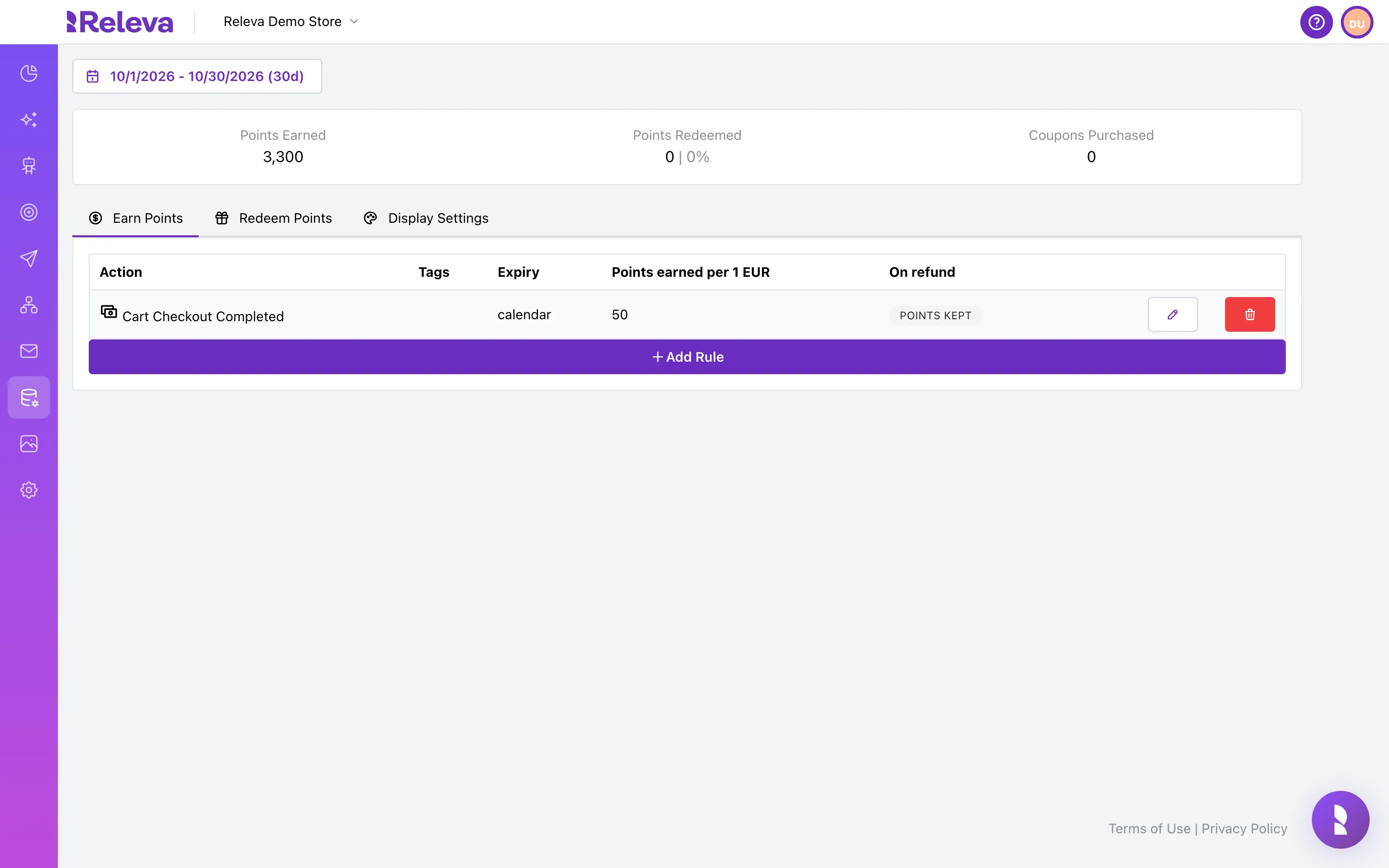
Go to Data Platform › Loyalty.
-
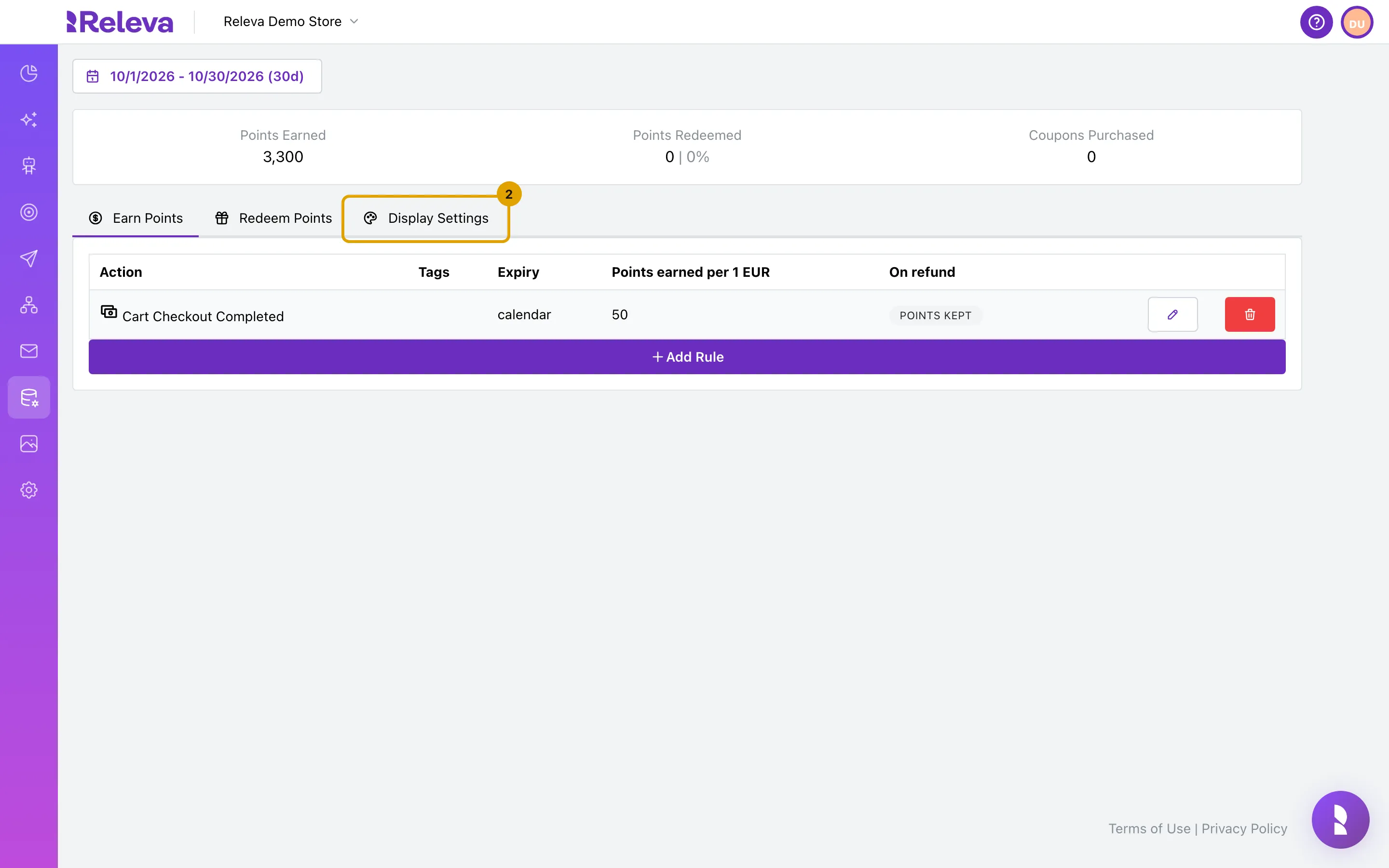
Select the Display Settings tab.
-
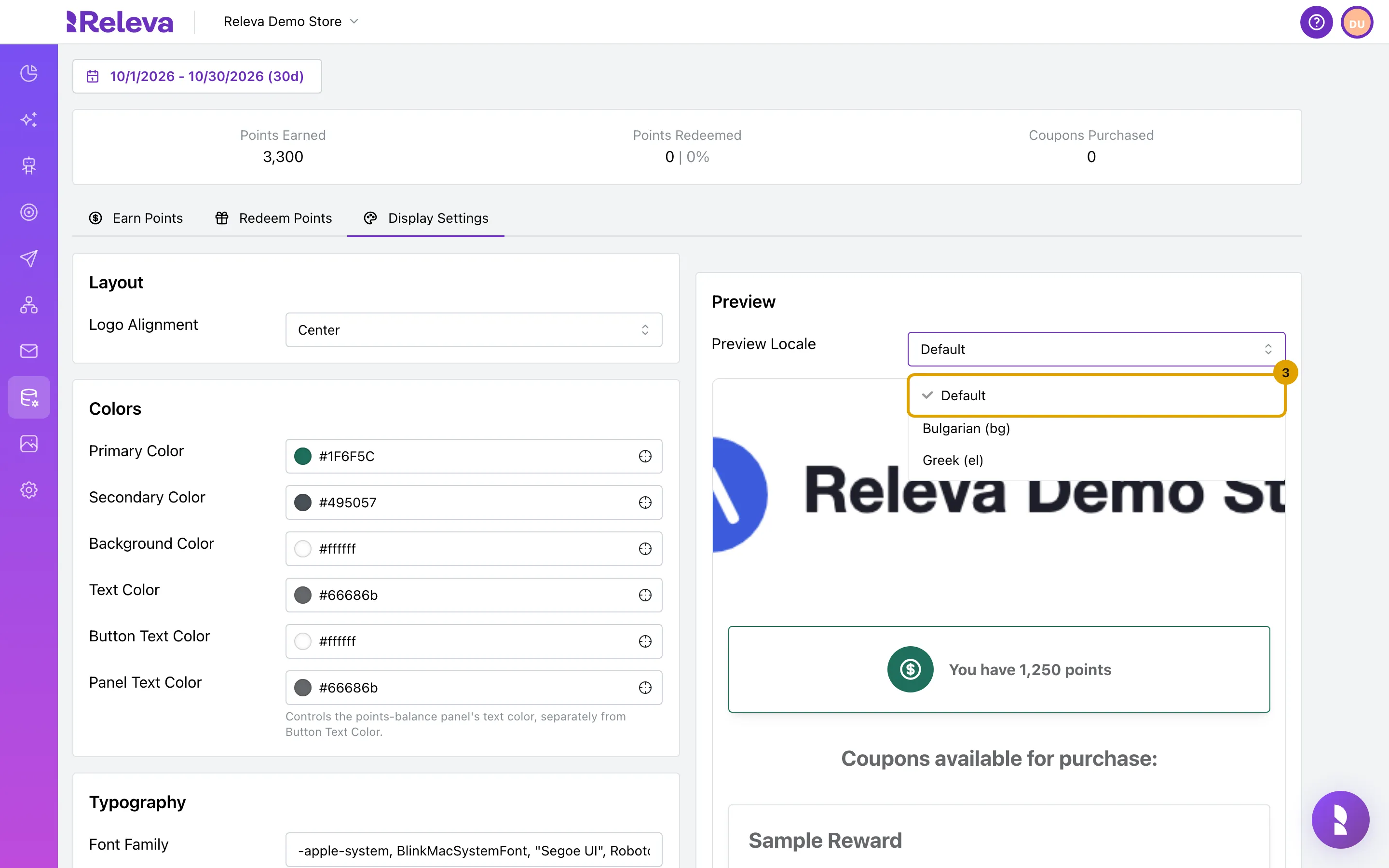
Under Preview, choose a Preview Locale to see the page in that language. Default shows the texts used when a shopper’s language has no translation.
The preview opens in your shop’s language when that language has a row under Text. It shows sample data (1,250 points and a Sample Reward), not a real shopper.
-
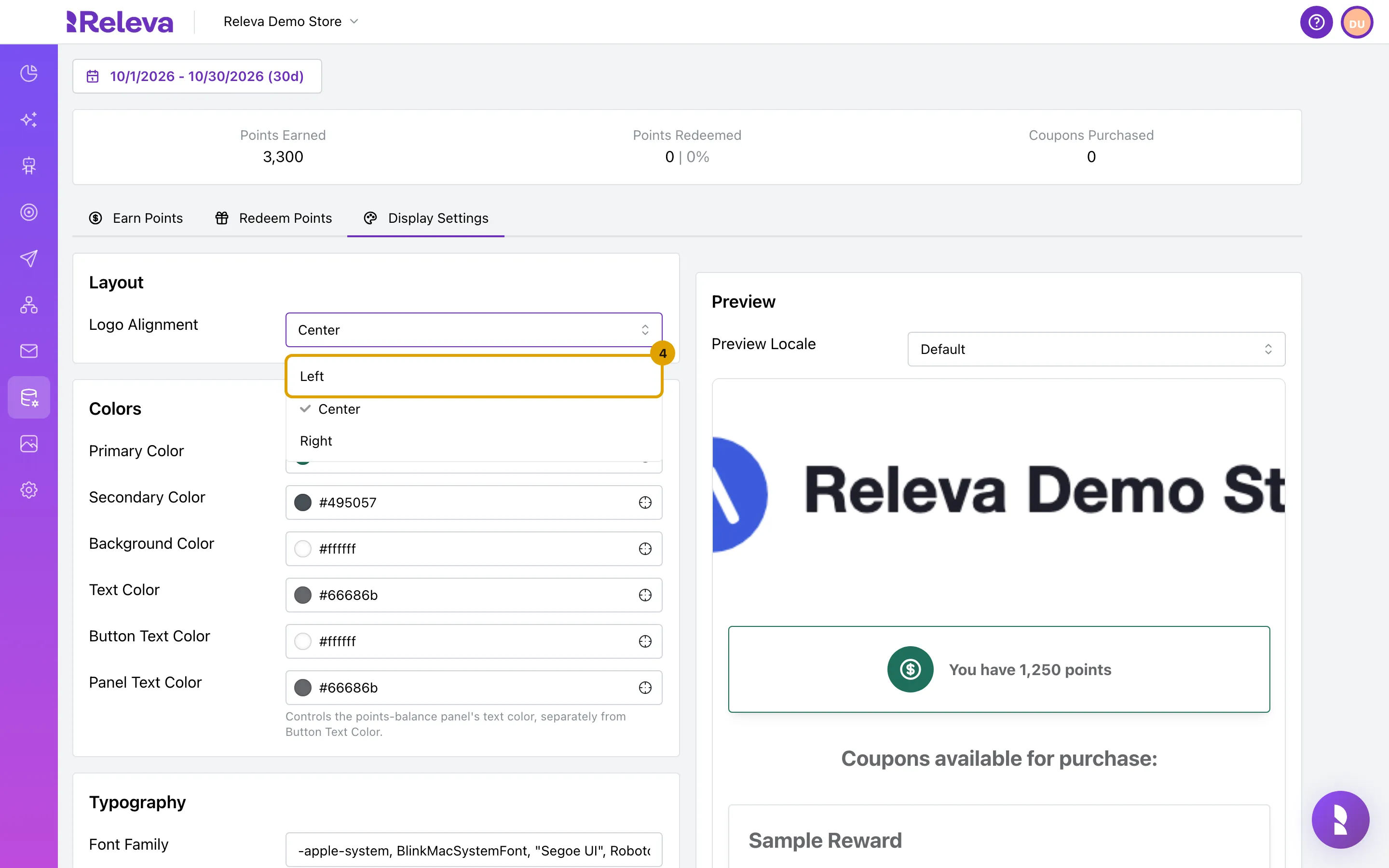
In Layout, choose the Logo Alignment.
Left, Center or Right.
-
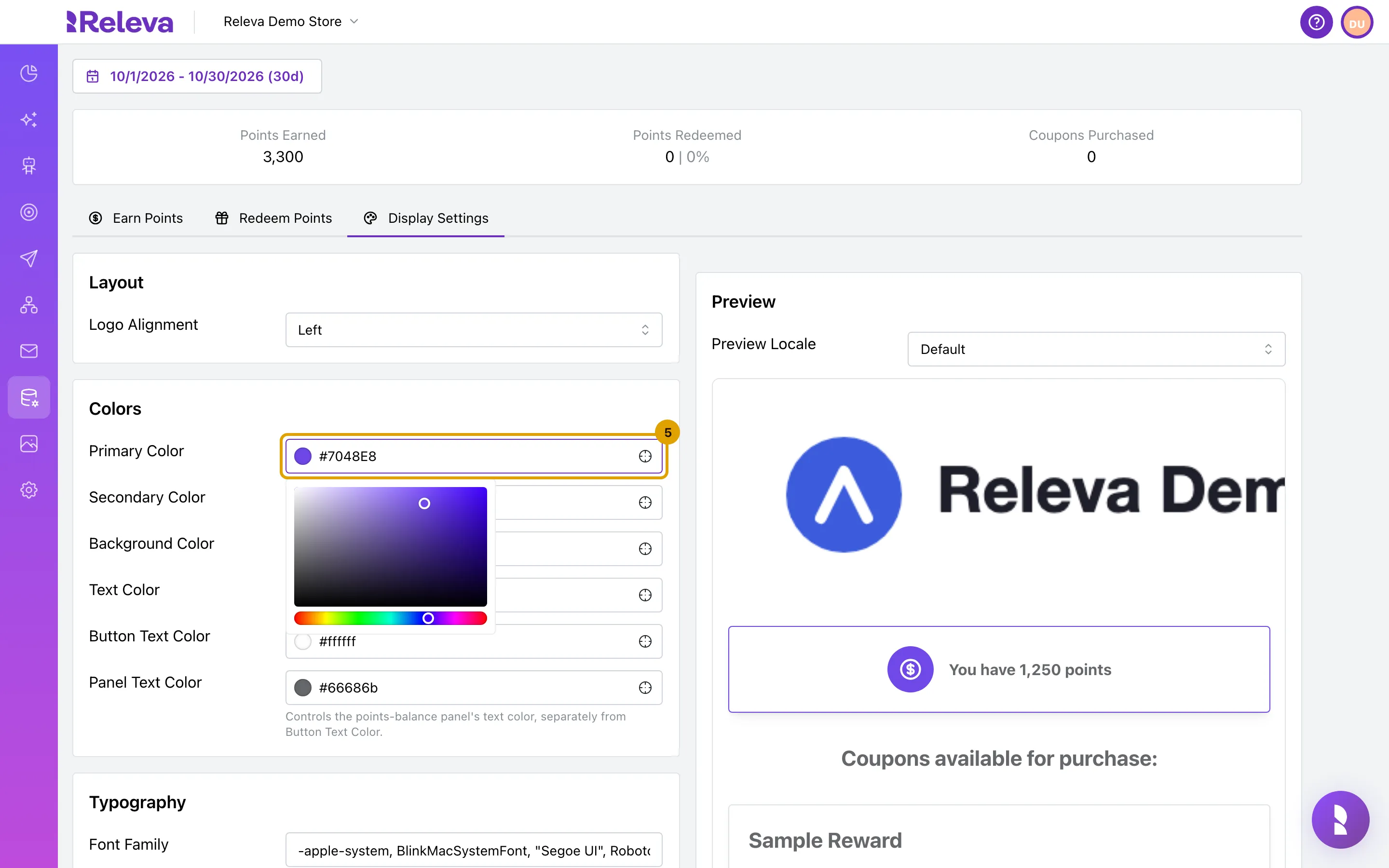
In Colors, enter a Primary Color as a hex value. The preview updates as you type.
Primary Color colours the points panel and the buttons. Secondary Color, Background Color, Text Color, Button Text Color and Panel Text Color work the same way. Until you set a primary colour here, the page uses the Primary Color from Settings › Shop & Integration › Visuals.
-
Under Text, change the wording in the Default row. Balance Text must keep the points placeholder and Redeem Button Text the cost placeholder.
The placeholders are
{{points}}in Balance Text and{{cost}}in Redeem Button Text; the page replaces them with the balance and the reward’s point cost. A field without its placeholder showsMust include {{points}} placeholderorMust include {{cost}} placeholder. To translate the texts, pick a language in Select a language, select Add Locale and fill in its row; an empty cell in a language row falls back to Default. Typography sets the font family, the font sizes and the border radius.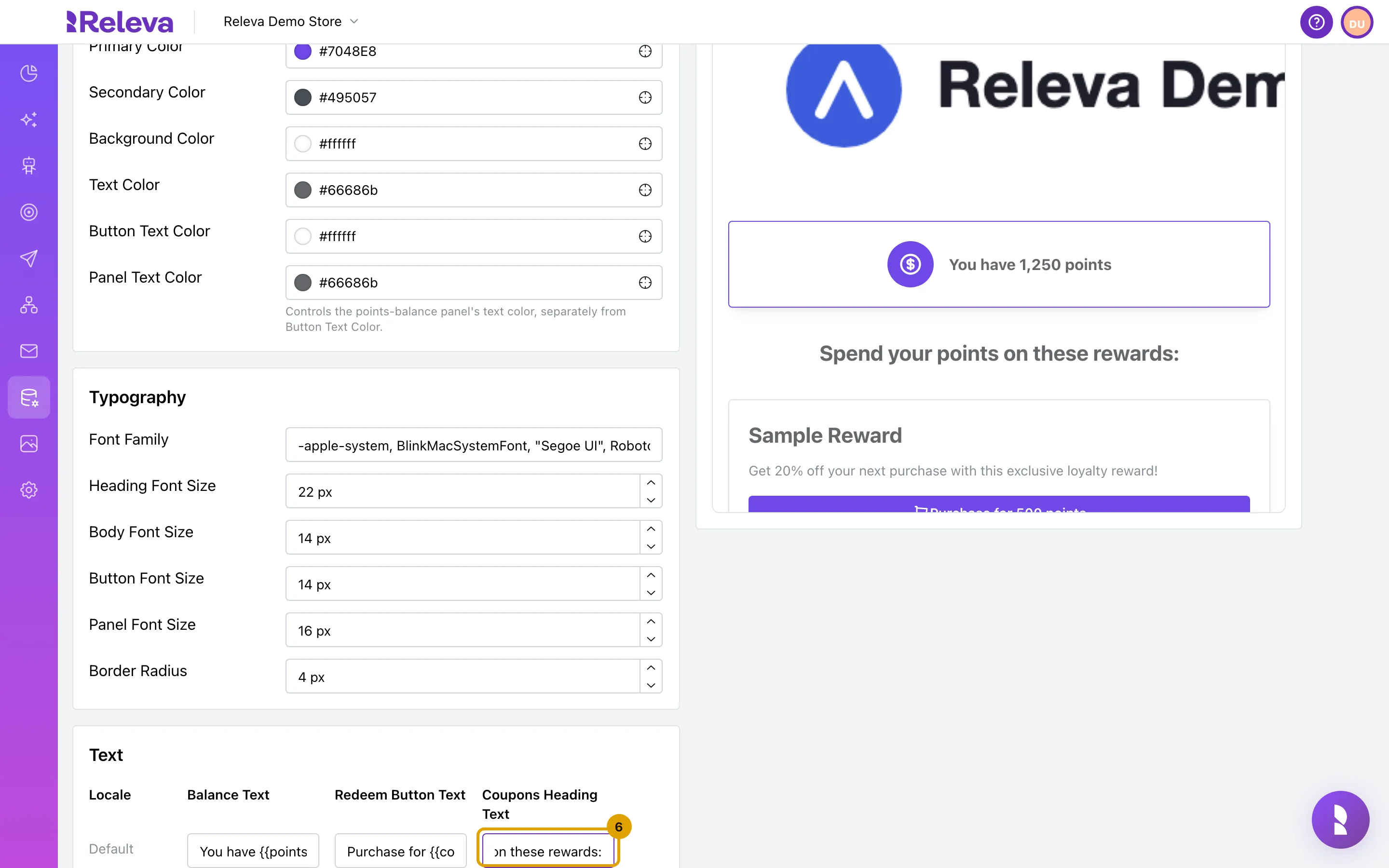
-
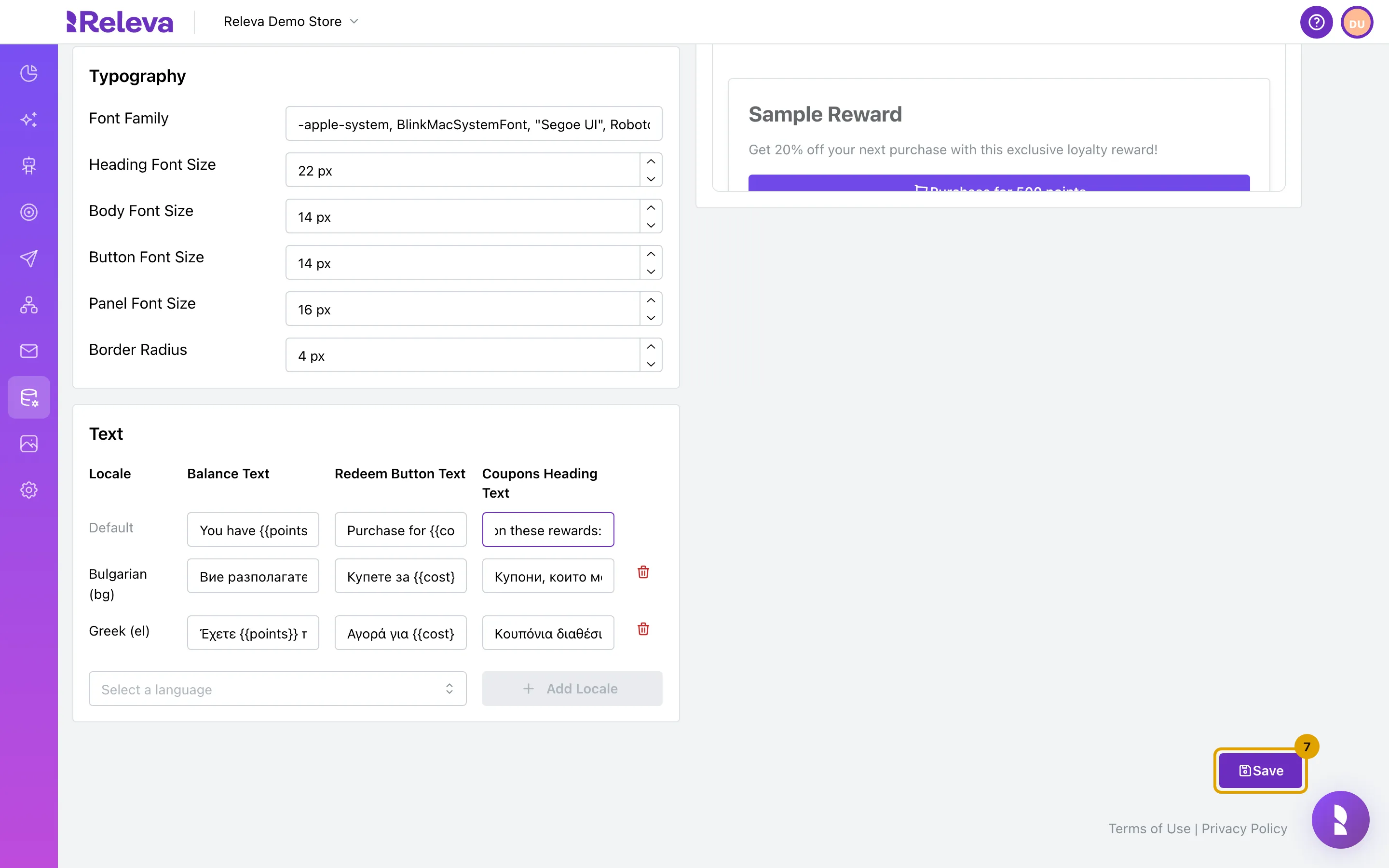
Select Save.
-
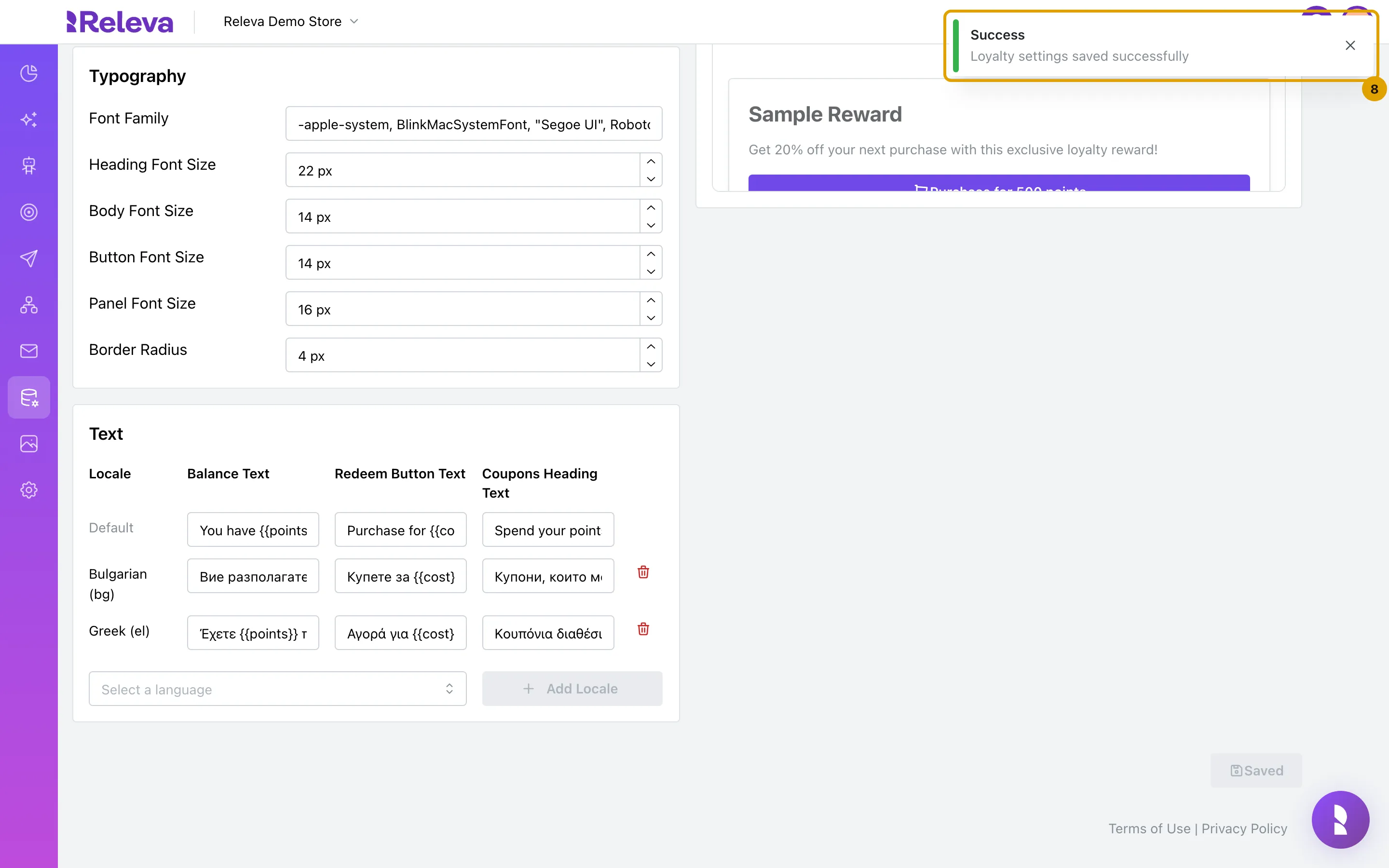
Check that the message Loyalty settings saved successfully appears and the button reads Saved.
Check it worked
Section titled “Check it worked”- The preview shows the logo on the left, the points panel and the Purchase for 500 points button in the new colour, and the new heading above Sample Reward.
- Open a real loyalty link (from a test message with
{{loyaltyLink}}, or fromGET /api/v0/loyalty-link): the page uses the same settings. Shoppers see the change the next time they open the page.
Troubleshooting
Section titled “Troubleshooting”Save shows “Validation Error”. The notification “Please fix the highlighted text fields before saving - each one must include its required placeholder.” means a Balance Text cell lacks {{points}} or a Redeem Button Text cell lacks {{cost}}. Nothing is saved until you fix the red fields.
A colour is rejected. Colours must be hex values like #ffffff. The server answers palette.primaryColor must be a hex color string (e.g., "#ffffff") for anything else.
The preview says “Live preview isn’t available in this environment.” The hosted loyalty page is not reachable from the admin. Save anyway; the settings still apply to the shopper’s page.
Shoppers see the page in the wrong language. The page uses the language of the site that embeds it when it is on the same domain, otherwise the browser language, then the shop language from the link. A language without a row under Text falls back to Default.
The logo is missing or wrong. Change it under Settings › Shop & Integration › Visuals › Logo.
The logo is cut off in the preview. The page shows the logo 240 px high and keeps its proportions, so a wide logo runs past the edge of the page. Upload a more compact logo, for example the icon without the shop name, under Settings › Shop & Integration › Visuals › Logo.