

Upload a list of coupon codes
A dynamic coupon list holds one-time discount codes. When a message uses the list’s merge tag, every recipient gets a different code from it. This guide uploads a list of codes you created in your shop. For how lists work, read How dynamic coupons work.
Before you start
Section titled “Before you start”- The codes exist in your shop and give the discount you want. Releva only stores and distributes them; it does not create them in your shop.
- The codes are in a plain text file with the
.txtextension, one code per line. Empty lines are ignored. Spaces at the start or end of a line become part of the code, so remove them. - The file is saved as UTF-8, ASCII or ISO-8859-1. A file that contains binary data is rejected.
- You have chosen a name. Names use only letters, numbers and underscores, must be unique in your shop, and become part of the merge tag: a list named
DEMO_BIRTHDAY_15is used as{{dynamicCoupons.DEMO_BIRTHDAY_15}}. - Your plan includes creating coupons. If New coupon shows a lock icon, ask your account owner to unlock it.
-
Go to Data Platform › Dynamic Coupons.
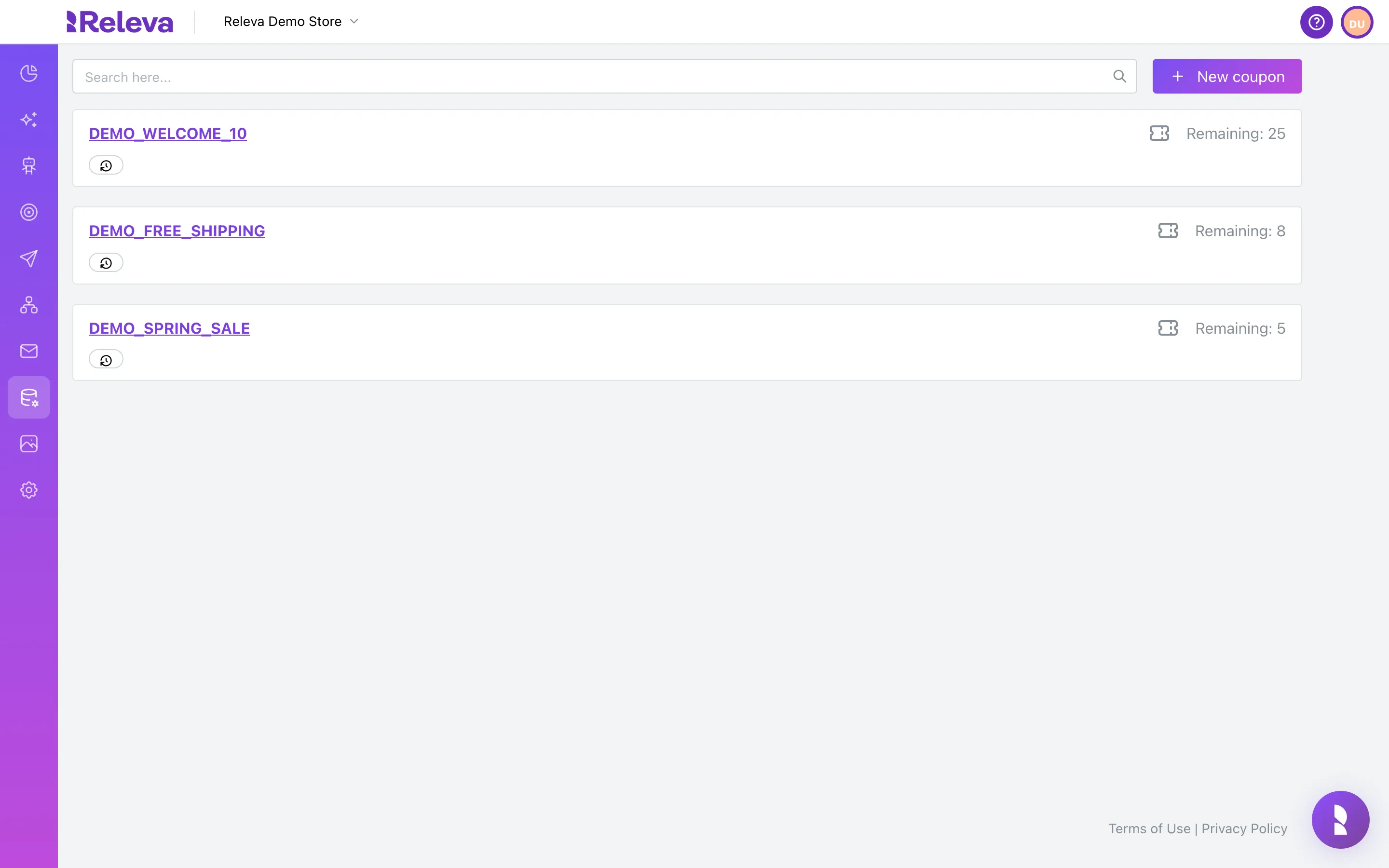
-
Select New coupon.
On a Shopify shop, the page has tabs instead. Open Uploaded Coupons and select Upload Coupons. If the shop has no coupons yet, select or upload a list of codes under No coupons yet.
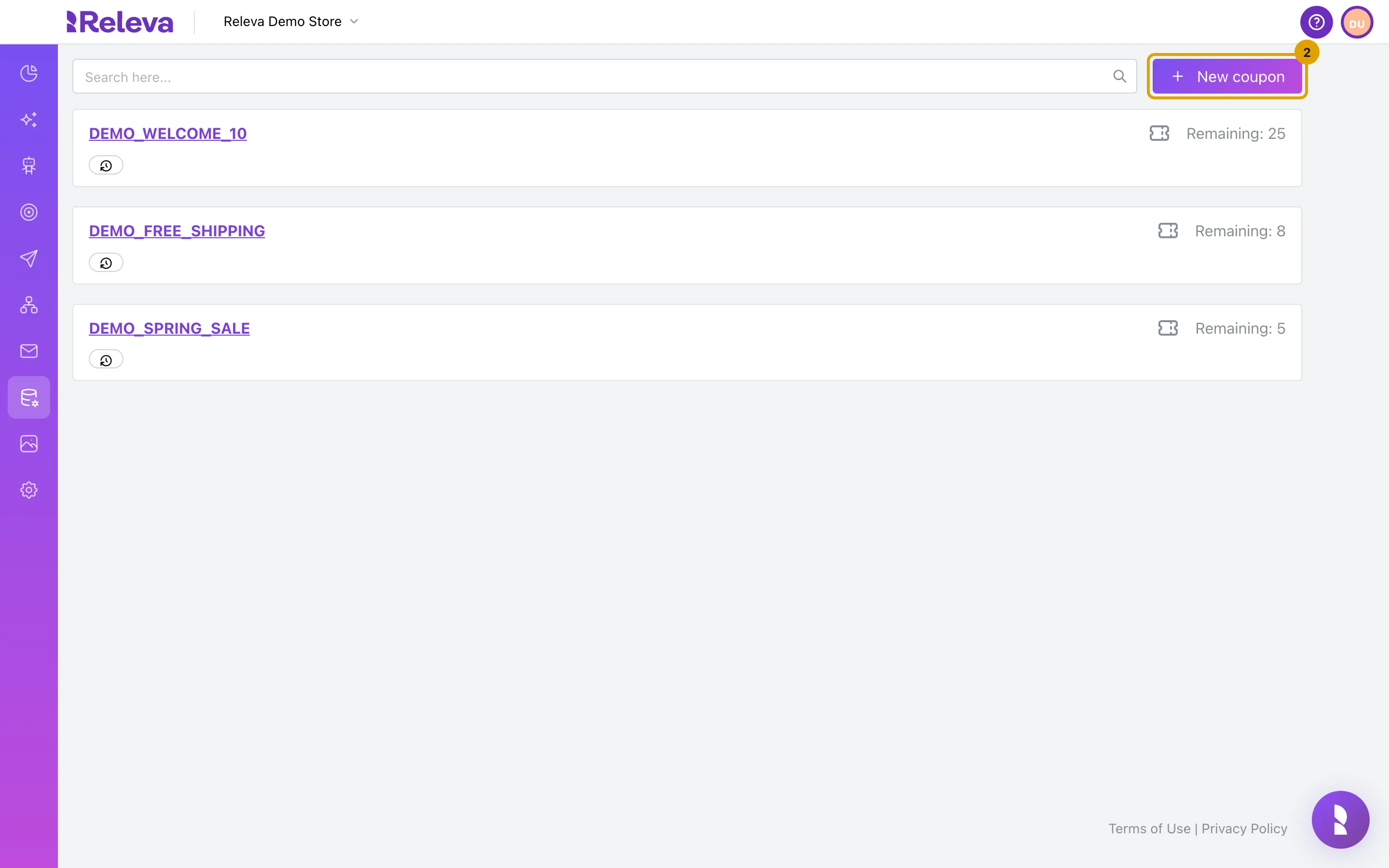
-
In Name, enter a name with only letters, numbers and underscores. You use this name in the merge tag.
The field is prefilled with
New_dynamic_coupons_list. Replace it, for example withDEMO_BIRTHDAY_15. A name with a space or another character shows Please use only letters, numbers, or underscores ( _ ) and Save stays disabled.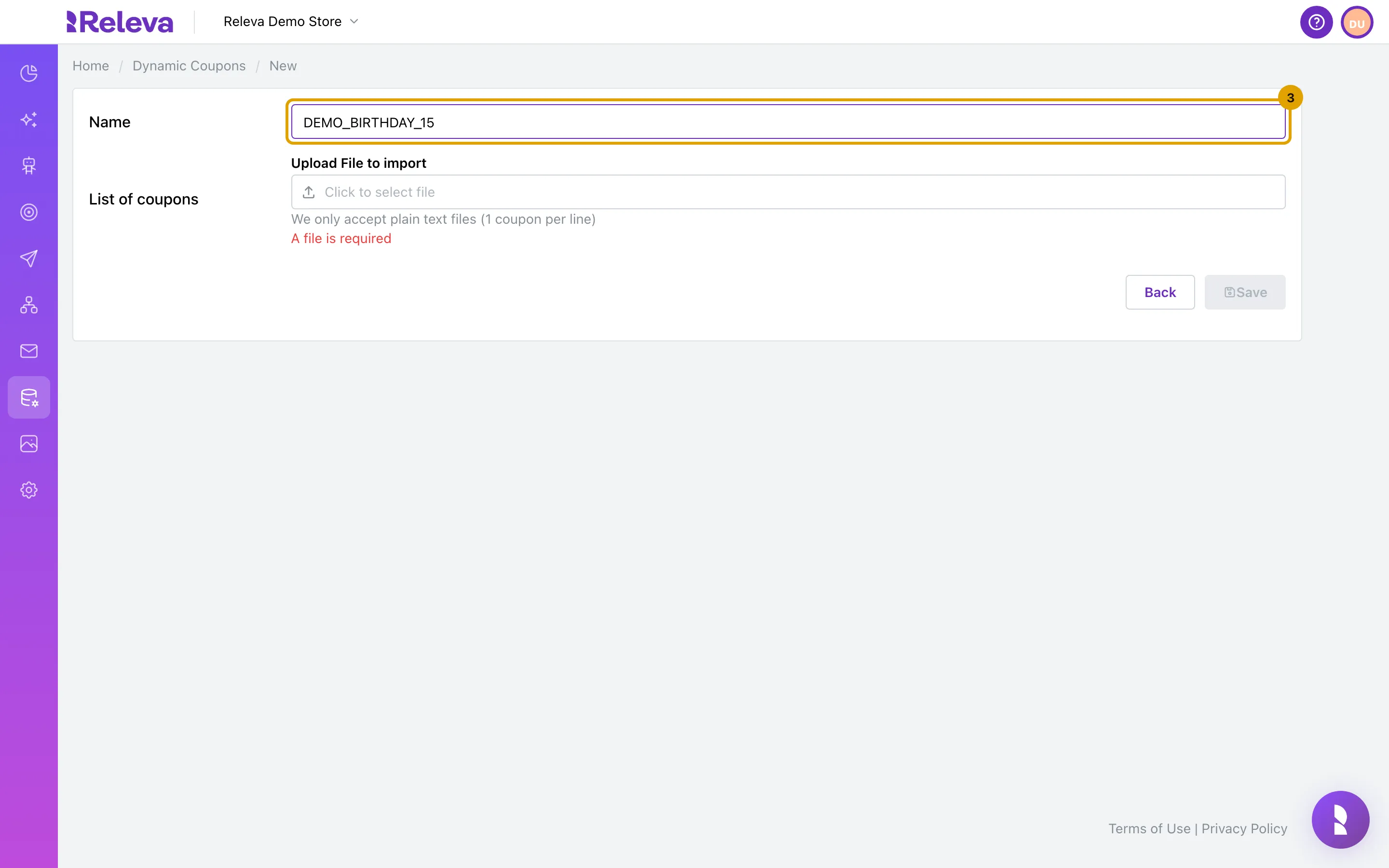
-
Under List of coupons, select Click to select file and choose your .txt file with one code per line. Save stays disabled until you choose a .txt file.
The field is labelled Upload File to import and notes We only accept plain text files (1 coupon per line). Until you choose a file, it shows A file is required.
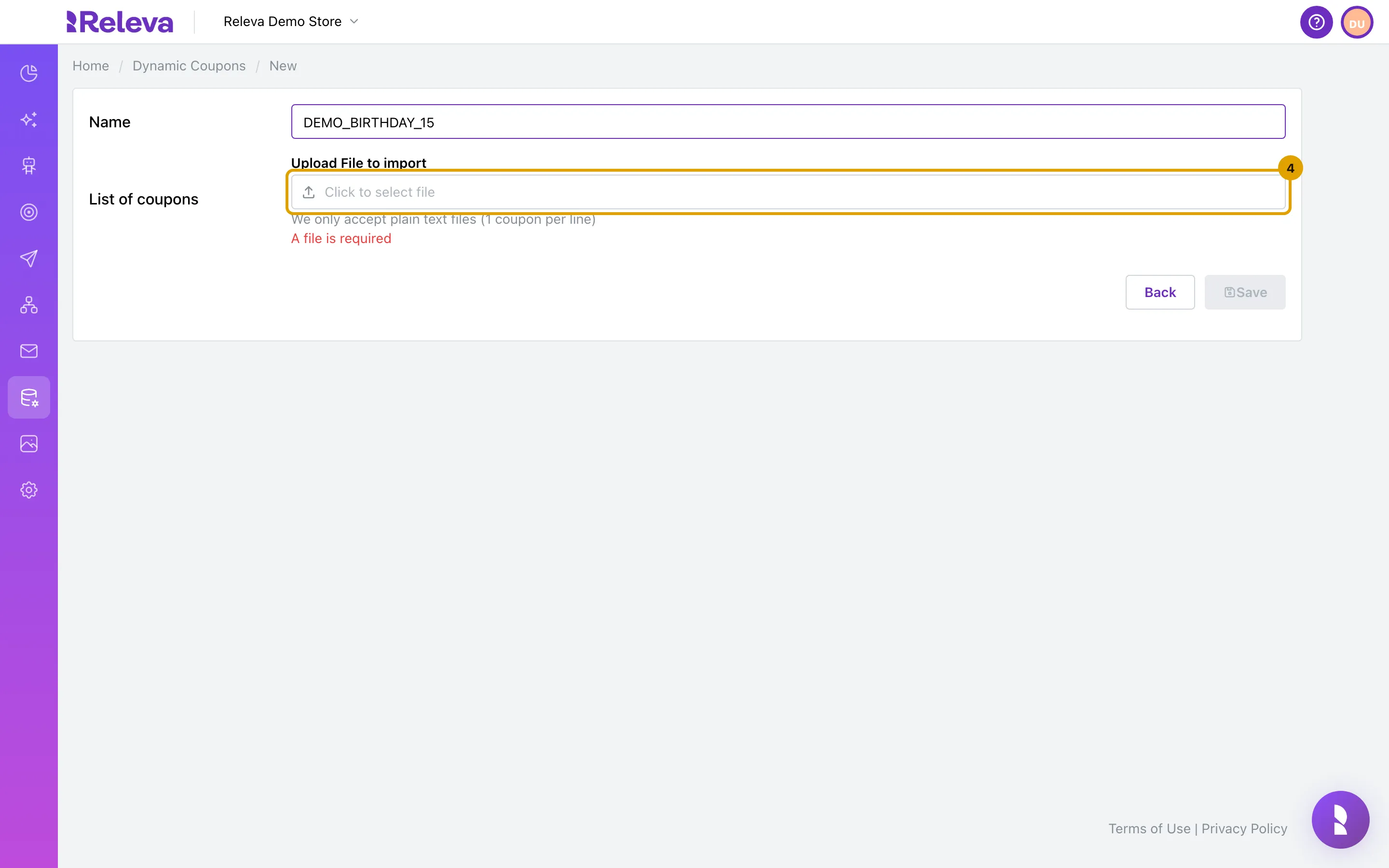
-
Check the preview, then select Save.
After you choose the file, a card titled Preview - First N coupon code(s) from uploaded file lists the first 10 codes, with the total count and how many more there are. If the codes look wrong, choose another file before you save. Save shows Saving… and then takes you back to the list.
Check it worked
Section titled “Check it worked”- The new list is at the top of Dynamic Coupons. Its card first shows Remaining: 0: the file is still being processed. The count updates once the import finishes.
- You receive an e-mail with the subject Your dynamic coupons import has been processed successfully! and the text “Your coupons list “<name>” is fully uploaded and N unique coupons are currently available.” The number N is the count of unused codes in the list. Duplicate lines in the file count once.
- The list appears in the Merge Tags picker of the message editors as Dynamic coupon: followed by the list name written as words, only after the import has finished and at least one code is available.
Troubleshooting
Section titled “Troubleshooting”Save is disabled. The name is empty or contains a character other than a letter, number or underscore, or no .txt file is selected. Under the file field you see A file is required or A .txt file is required.
“File is not a .txt file.” The file name does not end in .txt, or the browser did not send it as plain text. Save the codes as a plain text file, not as .csv, .rtf or a Word document.
“File is not a valid text file. Use UTF-8, ASCII or ISO-8859-1 encoding.” The file contains binary data. Export the codes again as plain text.
“Coupon name must be unique!” A list with that name already exists in your shop. Choose another name, or add the codes to the existing list instead: Add codes to a coupon list.
“The file appears to be empty. Please upload a file with coupon codes.” The file has no non-empty lines. Save is still enabled, but the list would have no codes. Choose a file with codes.
Remaining stays at 0. The import has not finished, or the file had no usable lines. Wait for the confirmation e-mail. If it does not arrive, open the list: the Sample card shows the codes that were imported.