

Edit a customer profile and add tags
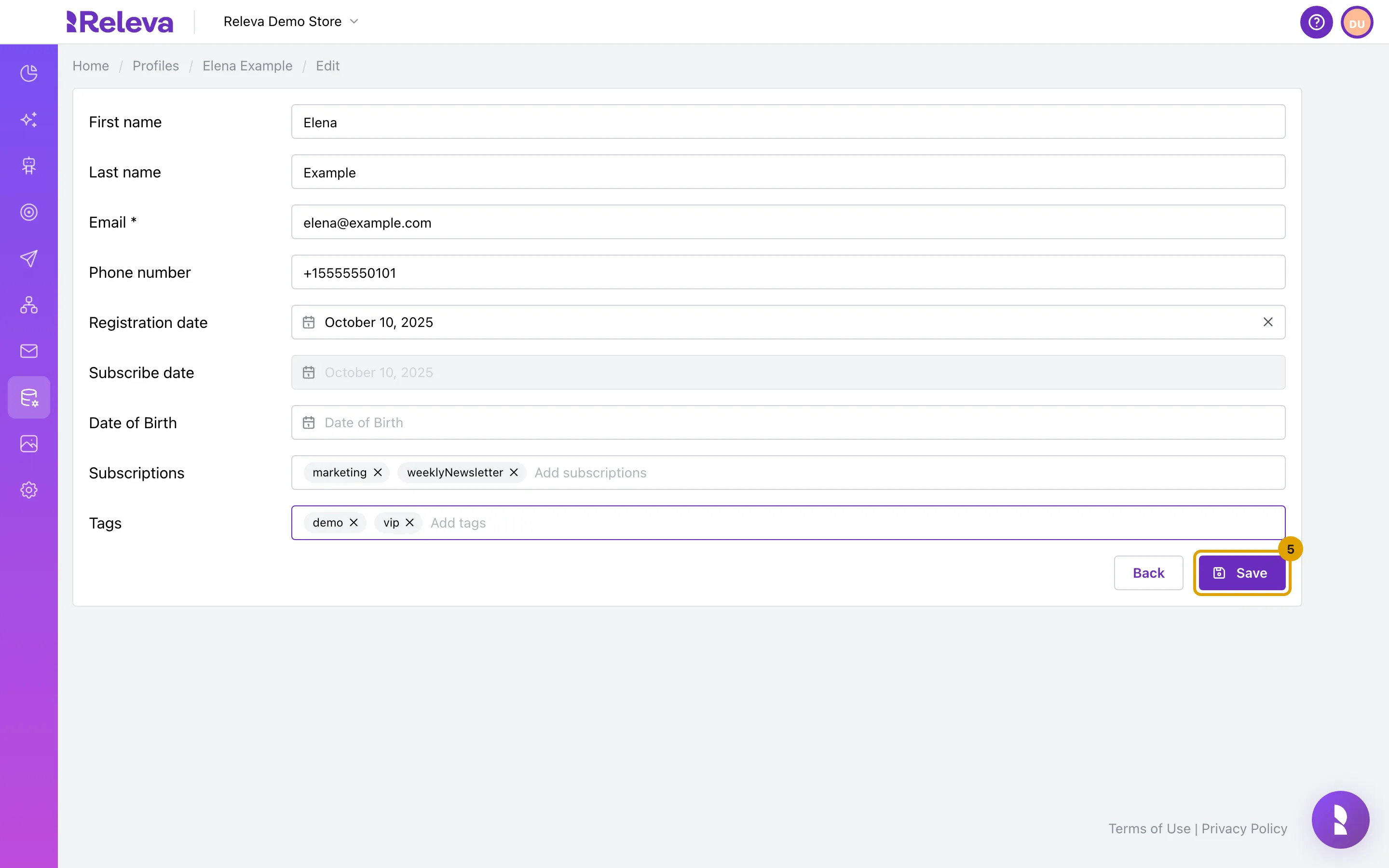
Edit a profile to correct a name or phone number, set a registration date or birthday, or add tags that you then use in segments. The edit form is the same as the Add Profile form, filled with the stored values.
Before you start
Section titled “Before you start”- You can find the profile. See Find a customer profile.
- Tags are free text. To reuse a tag you already use in a segment, type it with the same spelling and case.
- You cannot change the marketing consent here. Subscribe date is disabled on the edit form; use Subscribe or Unsubscribe on the profile page instead.
-
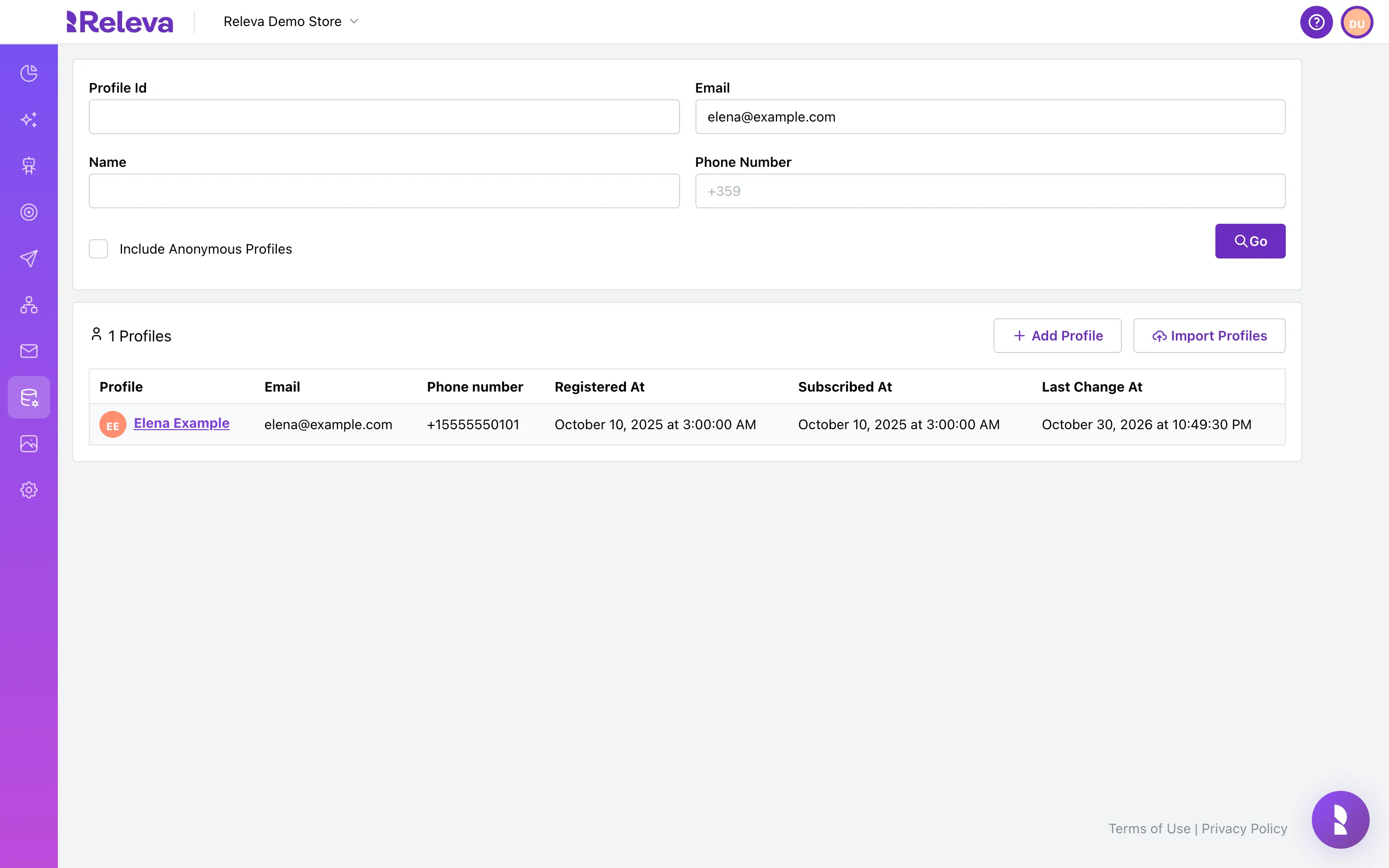
In Data Platform › Profiles, search for the customer.
-
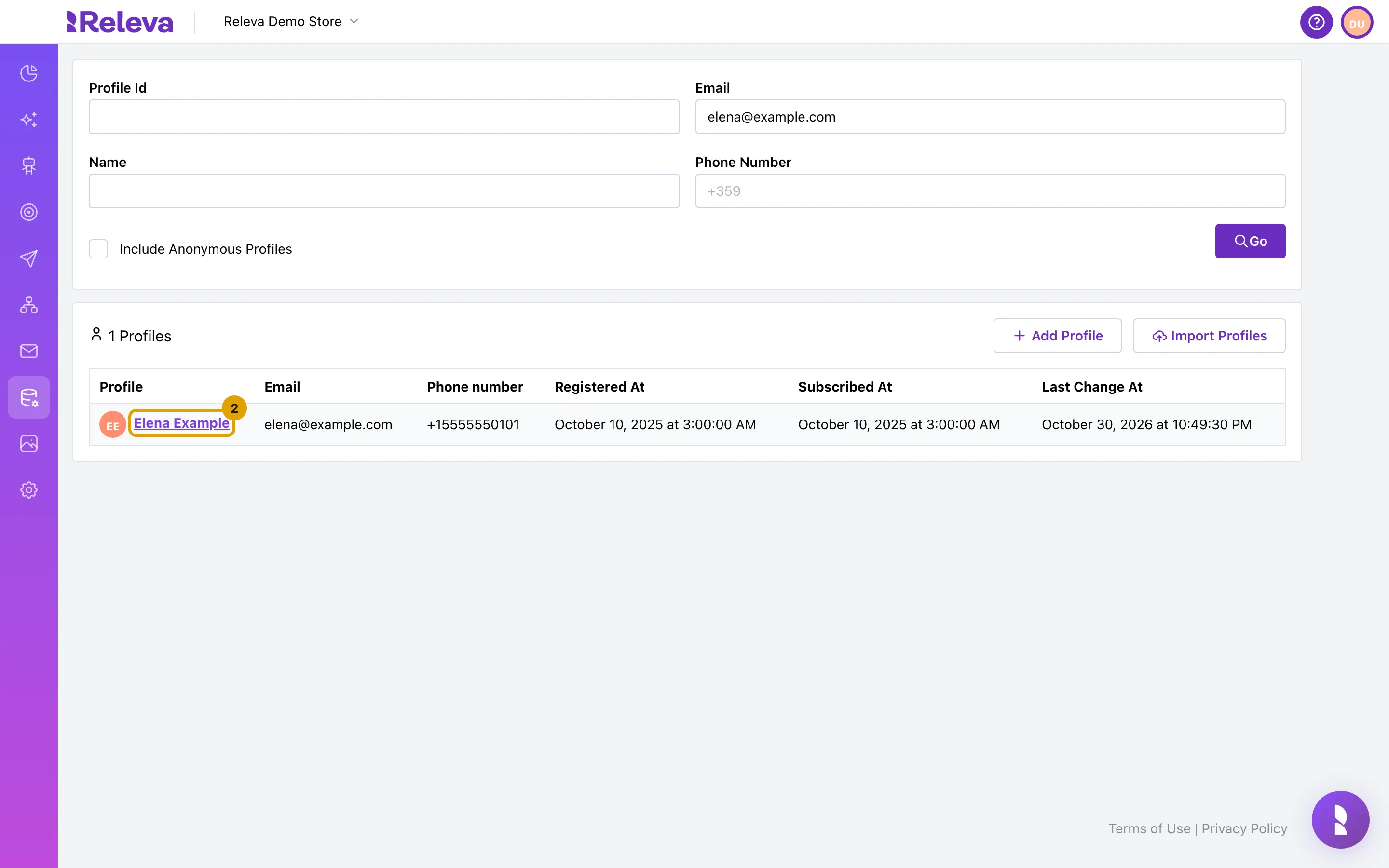
Select the profile name to open it.
-
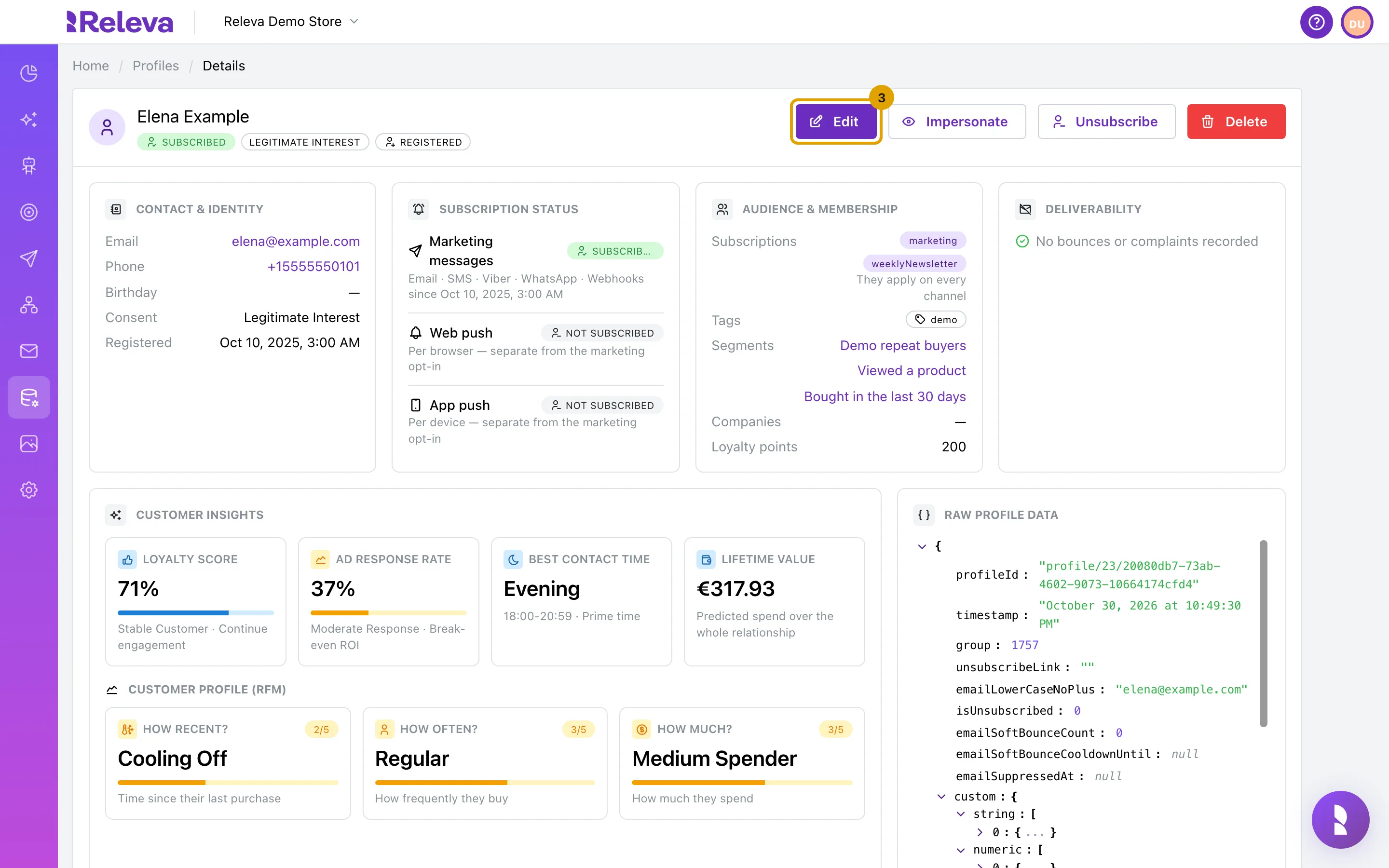
Select Edit.
-
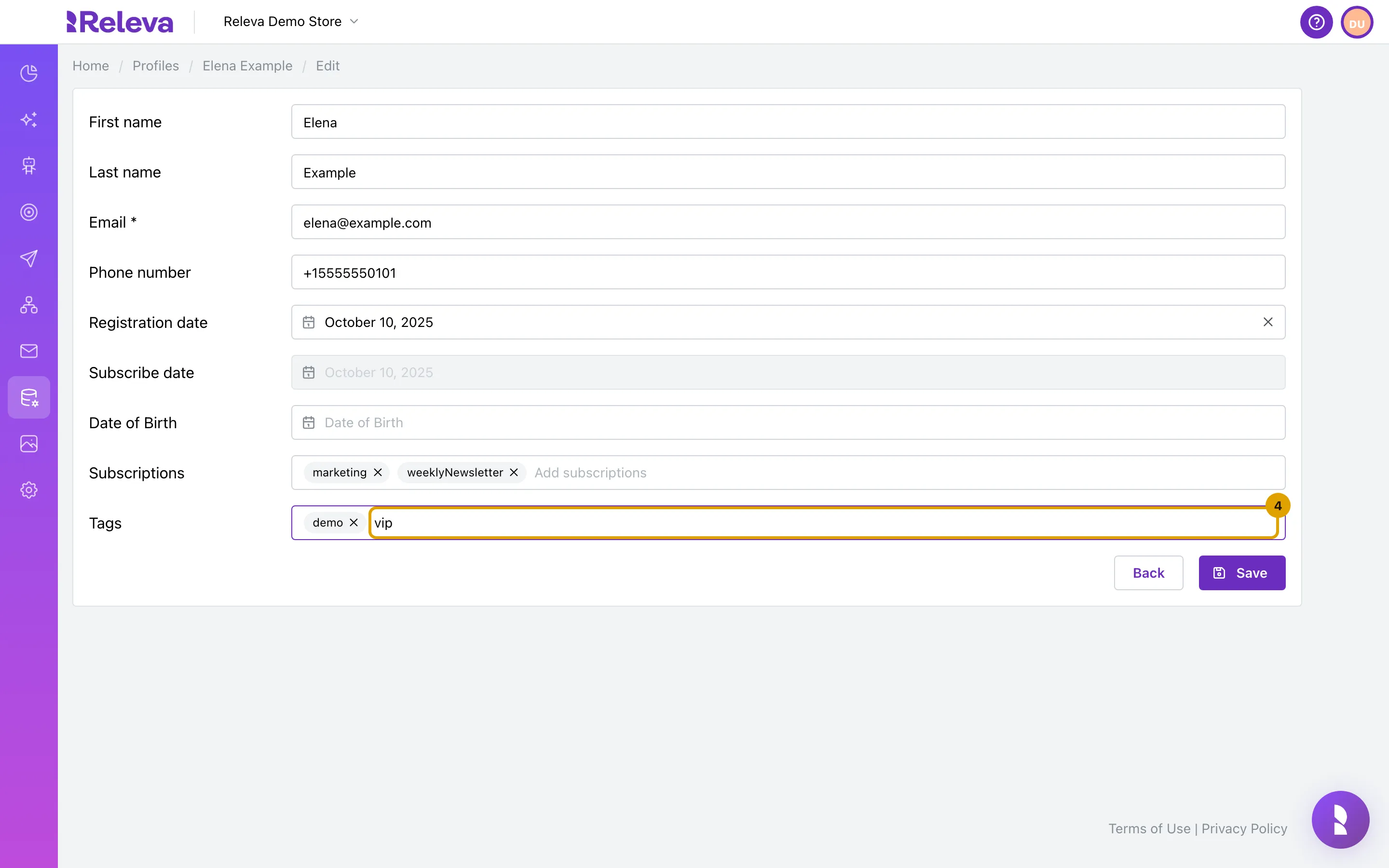
In Tags, type the new tag and press Enter. Change any other field the same way.
Existing tags show as chips; select the × on a chip to remove it. Email stays required. Changing Email or Phone number to a value that another profile uses is refused (see Troubleshooting).
-
Select Save.
Releva saves the profile and opens its page on the Recent Events tab.
-
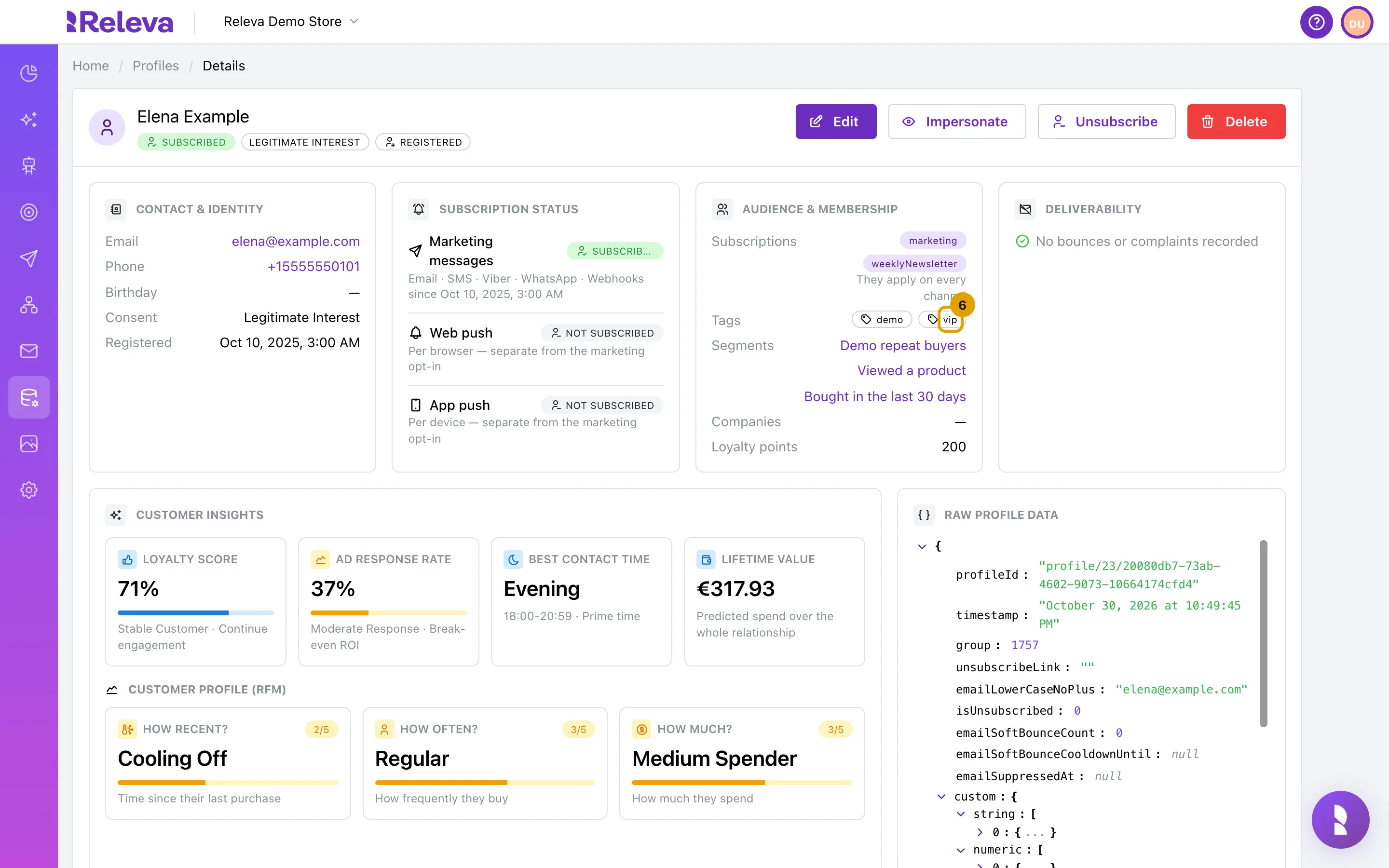
The new tag appears under Tags. If it is not there yet, reload the page after a few seconds.
Check it worked
Section titled “Check it worked”- After Save, the profile page opens with the breadcrumb Home / Profiles / Details.
- Tags in Audience & membership shows the new tag next to the existing ones.
- Segments that filter on the tag include the profile the next time they are evaluated.
Delete a profile
Section titled “Delete a profile”Deleting removes the profile, its events and everything merged into it. It cannot be undone.
- Open the profile and select Delete.
- In the Are you sure? dialog (“This action cannot be undone!”), select Confirm.
- The page shows Profile has been scheduled for deletion. and the Delete button disappears.
The deletion is done at once; opening the profile afterwards shows Profile with this id cannot be found!. If the customer keeps browsing your shop with the same cookies, Releva creates a new anonymous profile for them. To delete many profiles, call DELETE /api/v0/profiles from a script; see the Profiles API overview.
Troubleshooting
Section titled “Troubleshooting”Email already exists in another profile. You changed the address to one that another profile uses. The field reads Already used by another profile and the message links to View that profile. Keep the original address, or delete the other profile first if it is a duplicate.
Phone number already exists in another profile. Same rule for the phone number: it can belong to only one profile. The check runs only when you change the number.
Subscribe date is greyed out. This is by design on the edit form. Use Subscribe / Unsubscribe on the profile page; those buttons appear when your shop manages subscriptions in Releva.
The tag is missing after Save. The profile page reads from a store that catches up a few seconds after the save. Reload the page. The tag is already stored and visible through GET /api/v0/profiles.
Please provide valid date for Date of Birth or leave it empty! Pick the date from the calendar again or clear the field.