

Create a Facebook product set
A Facebook product set is a list of products from your catalog that Releva keeps in sync with a product set in your Meta catalog. A Products Carousel Facebook ad promotes one product set. This guide creates a Ranked subset: the products of a product feed, ranked for the people in one segment. For how product sets fit with the Meta connection and your ads, read How Facebook ads work.
Before you start
Section titled “Before you start”- Your Meta account is connected and a Business is selected under Settings › Facebook & Whatsapp. Follow Connect your Meta account to Releva.
- Releva has switched on the Facebook integration for your shop, and your catalog has synced to Meta at least once. Without this, the product set saves but never reaches Meta.
- For a Ranked subset, you have a product feed with the Marketing Channels or Ads scope (Create a product feed) and a Behavior segment (Create a segment).
-
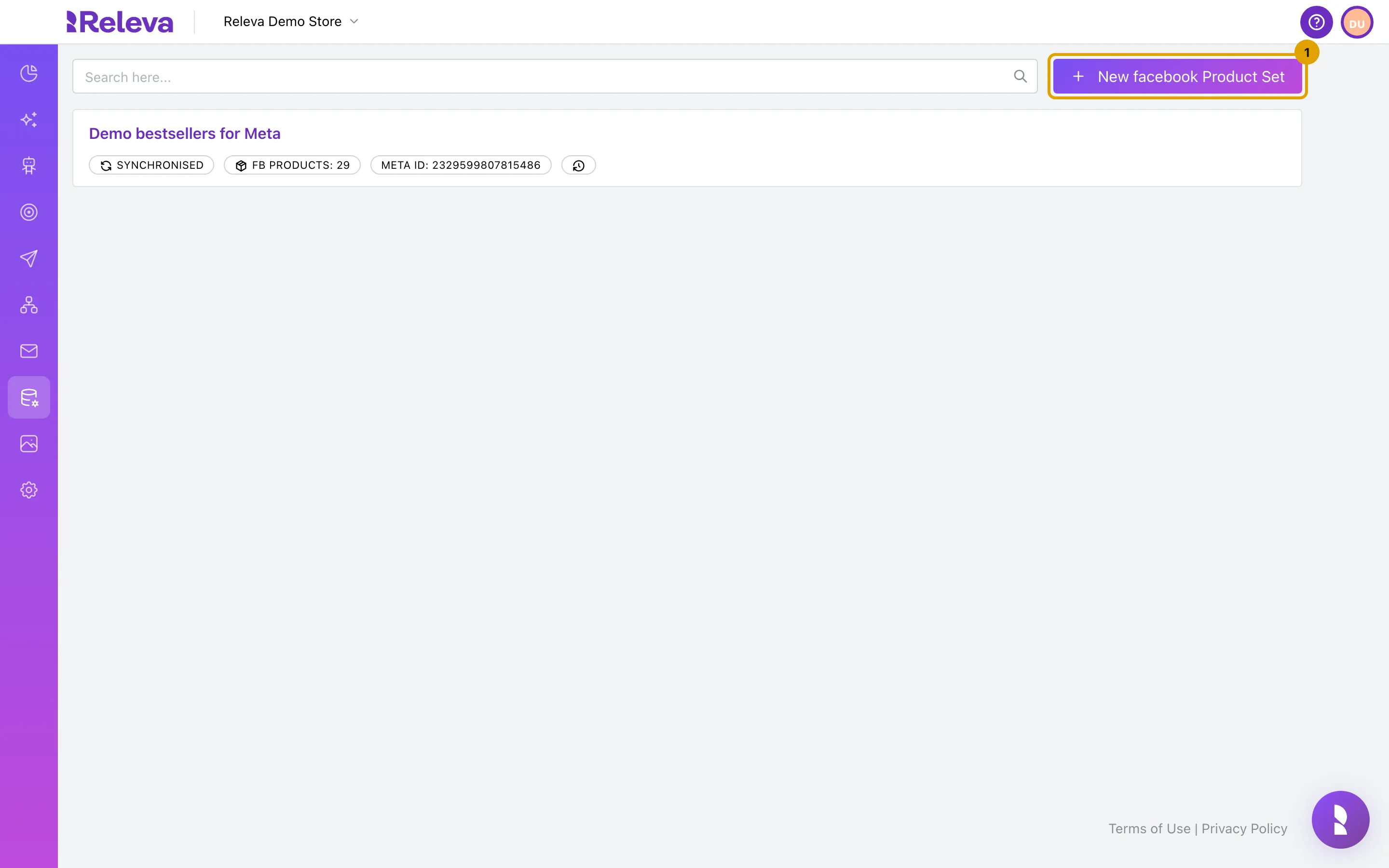
Go to Data Platform › Facebook Product Sets and select New facebook Product Set
The list shows your existing product sets. If the button is missing, see Troubleshooting.
-
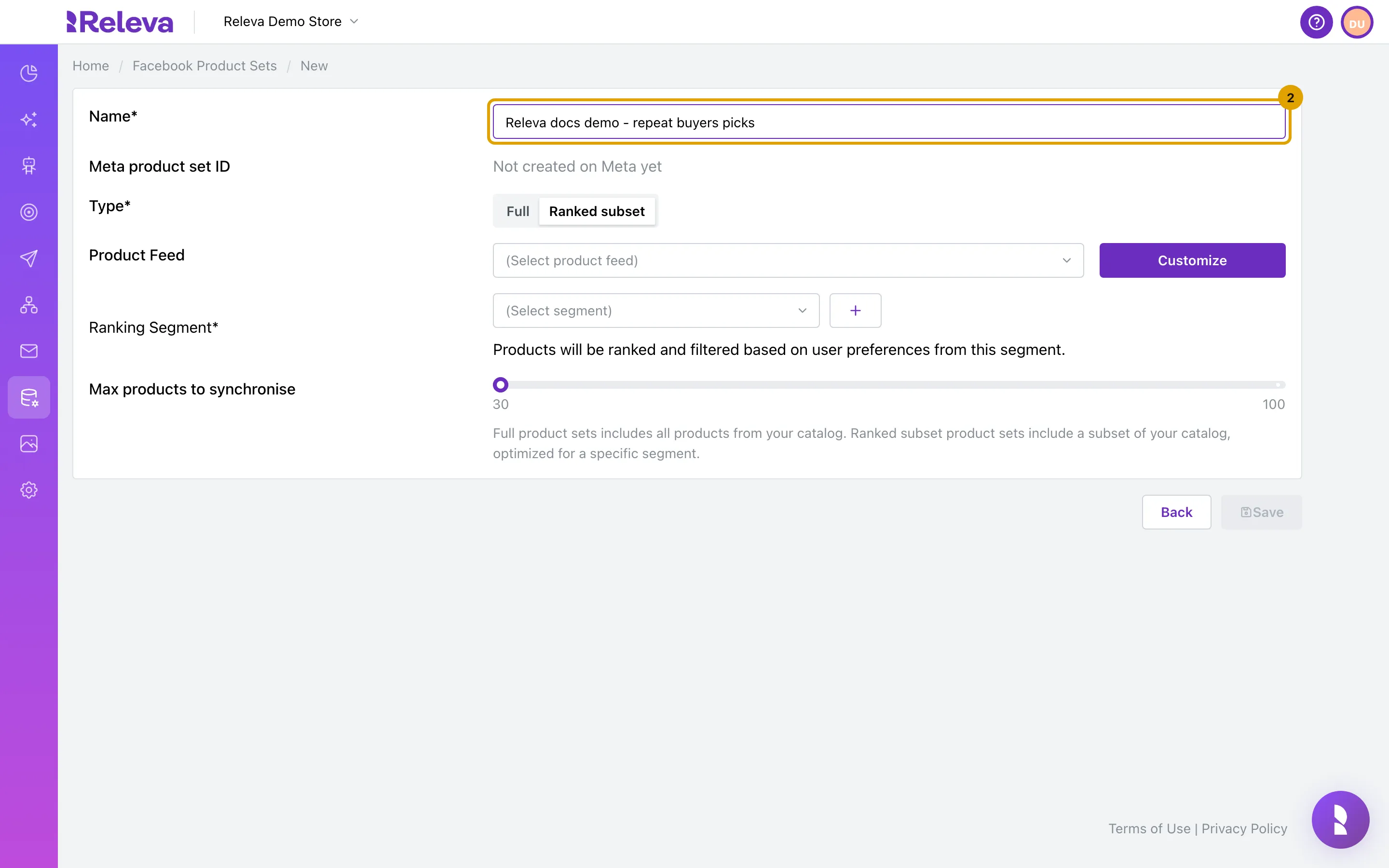
In Name, replace “New facebook product set” with a unique name
Meta shows the product set under this name, so pick one you will recognise in Meta Commerce Manager and in the ad form. Meta product set ID reads Not created on Meta yet until the first sync.
-
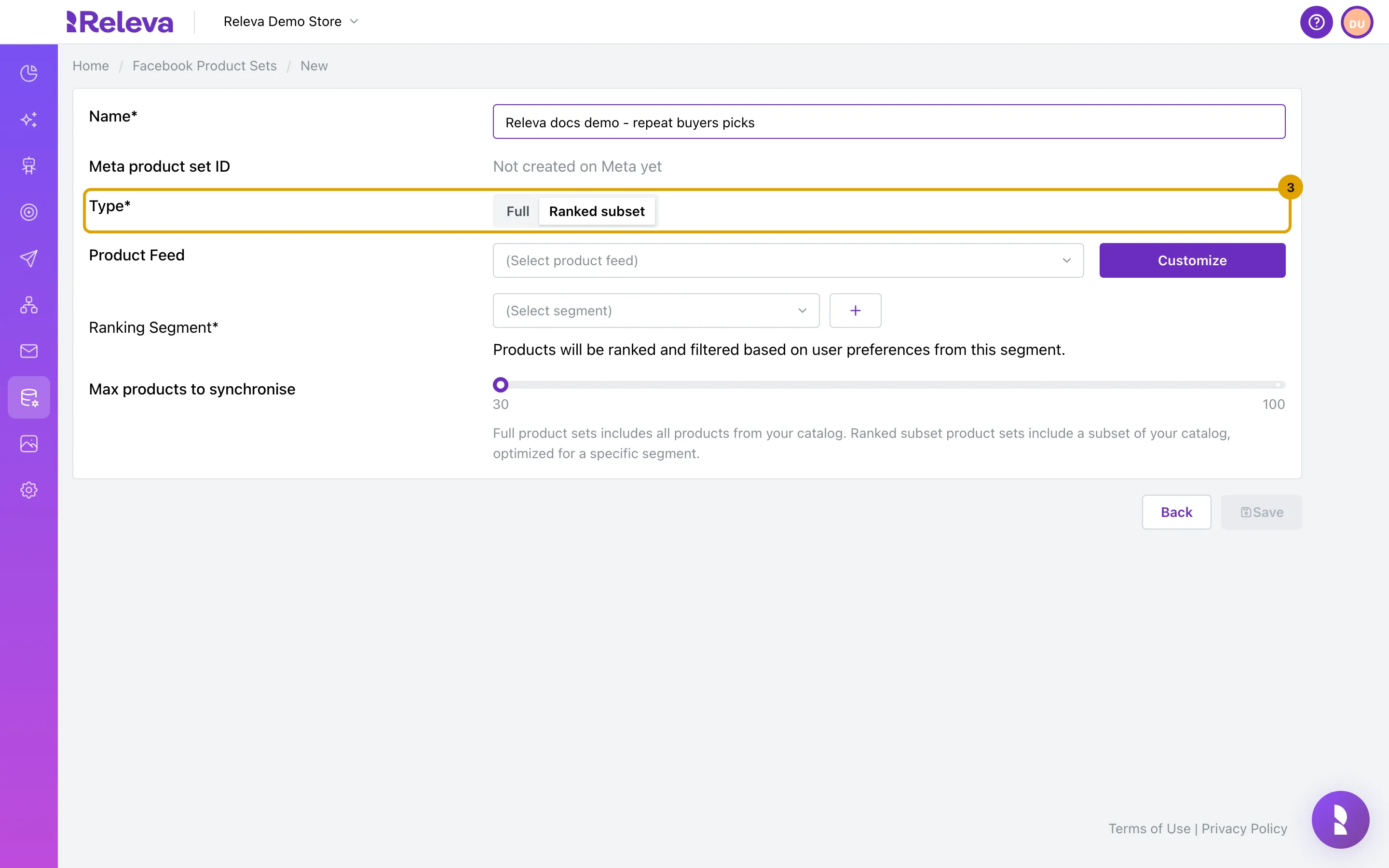
In Type, keep Ranked subset
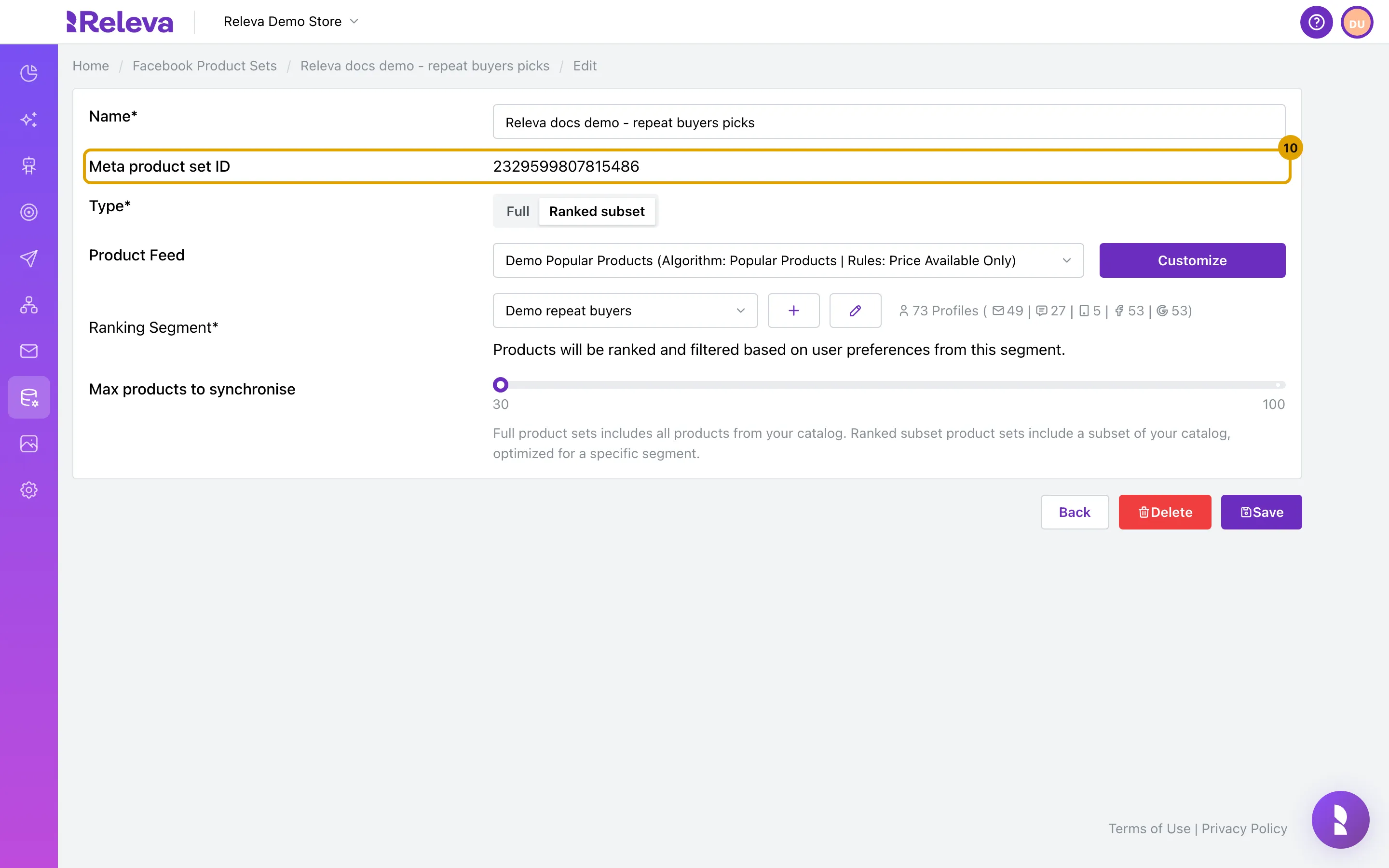
Ranked subset sends the products that suit one segment best. Full sends your whole catalog and hides the other settings below. The form explains: Full product sets includes all products from your catalog. Ranked subset product sets include a subset of your catalog, optimized for a specific segment.
-
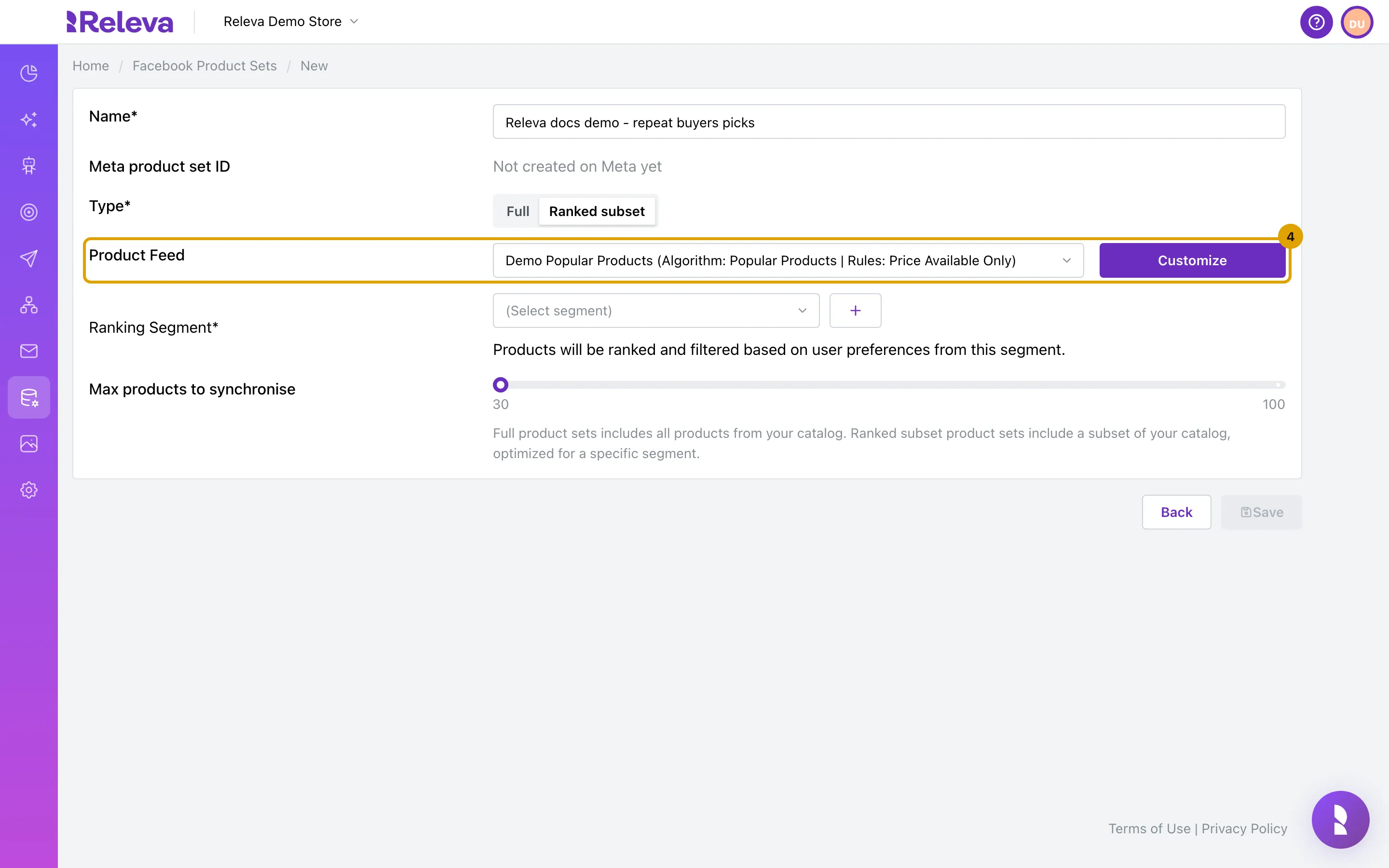
In Product Feed, select the product feed that picks and filters the products
Each feed is listed as <name> (Algorithm: <algorithm> | Rules: <rules>). Only feeds with the Marketing Channels or Ads scope are offered. Customize lets you change the feed’s settings and save them as a new feed.
-
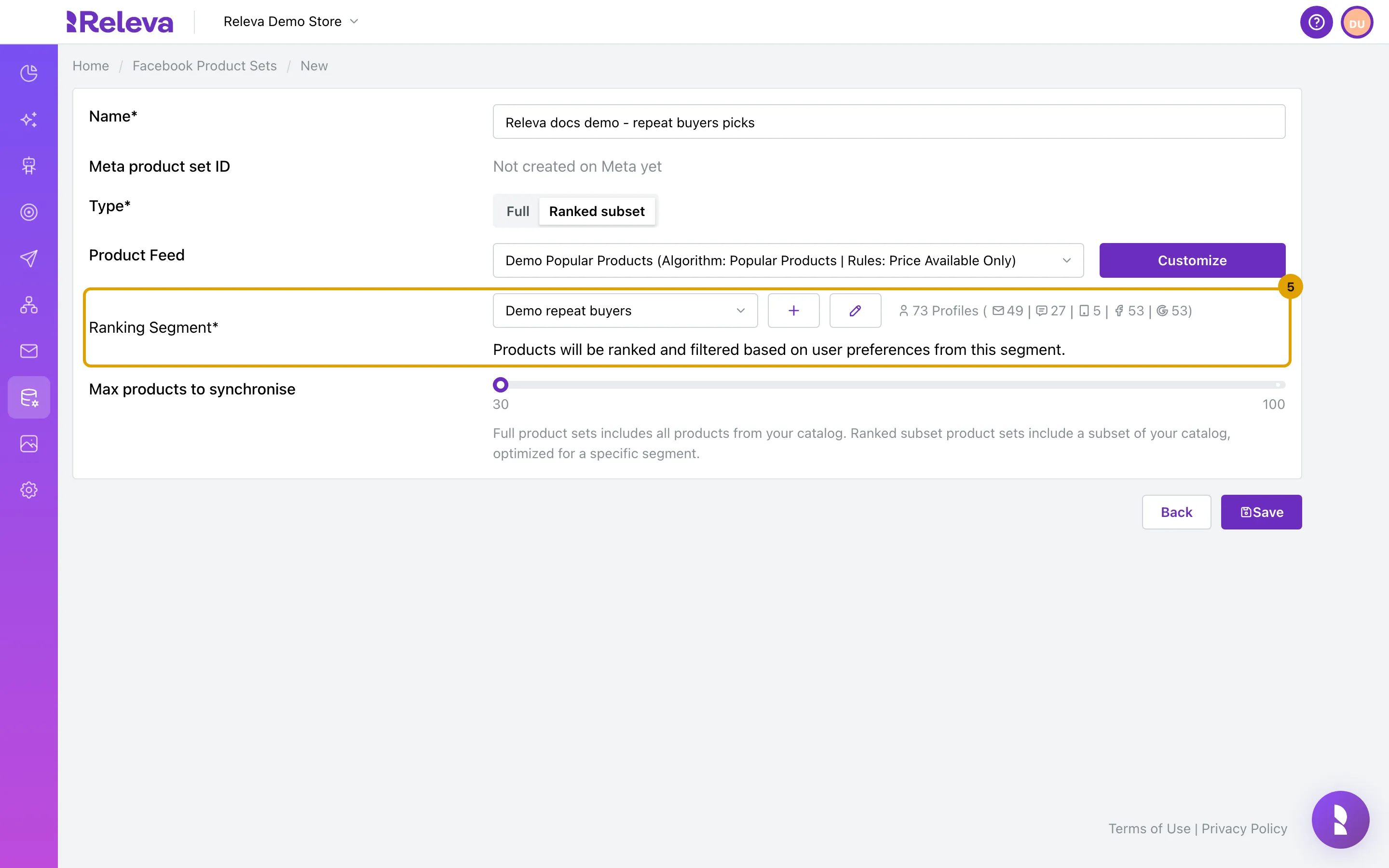
In Ranking Segment, select the segment whose preferences rank the products
Products will be ranked and filtered based on user preferences from this segment. The number of people in the segment shows next to it, per channel. Select + to create a segment, or the pencil to edit the selected one. With a feed of the Ads scope, Ranking Segment is hidden: the feed’s algorithm alone ranks the products.
-
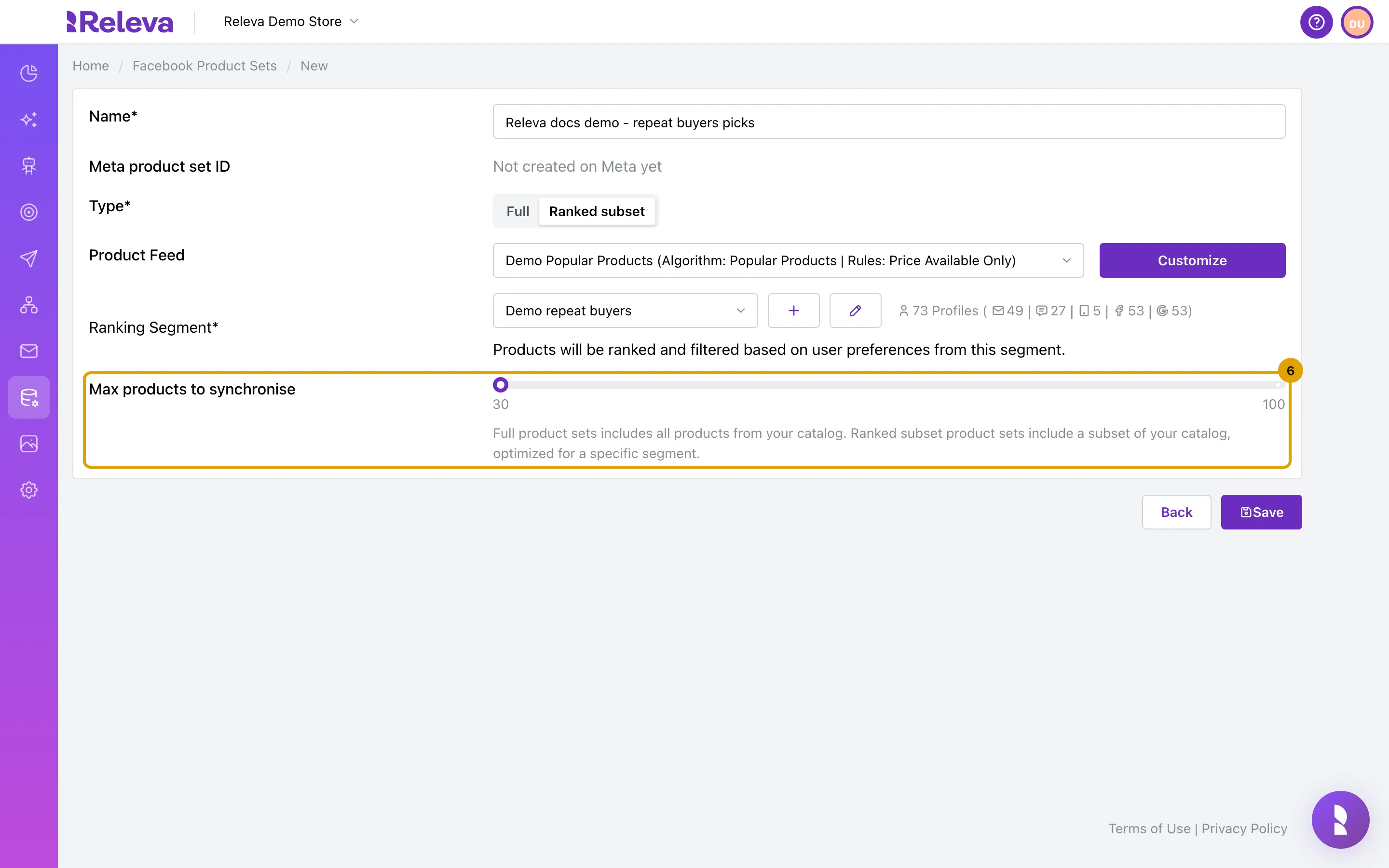
In Max products to synchronise, drag the slider to the number of products to send
The range is 30 to 1000. (The label at the right end of the slider currently shows 100; the maximum is 1000.) If your feed returns fewer products, Releva sends all of them.
-
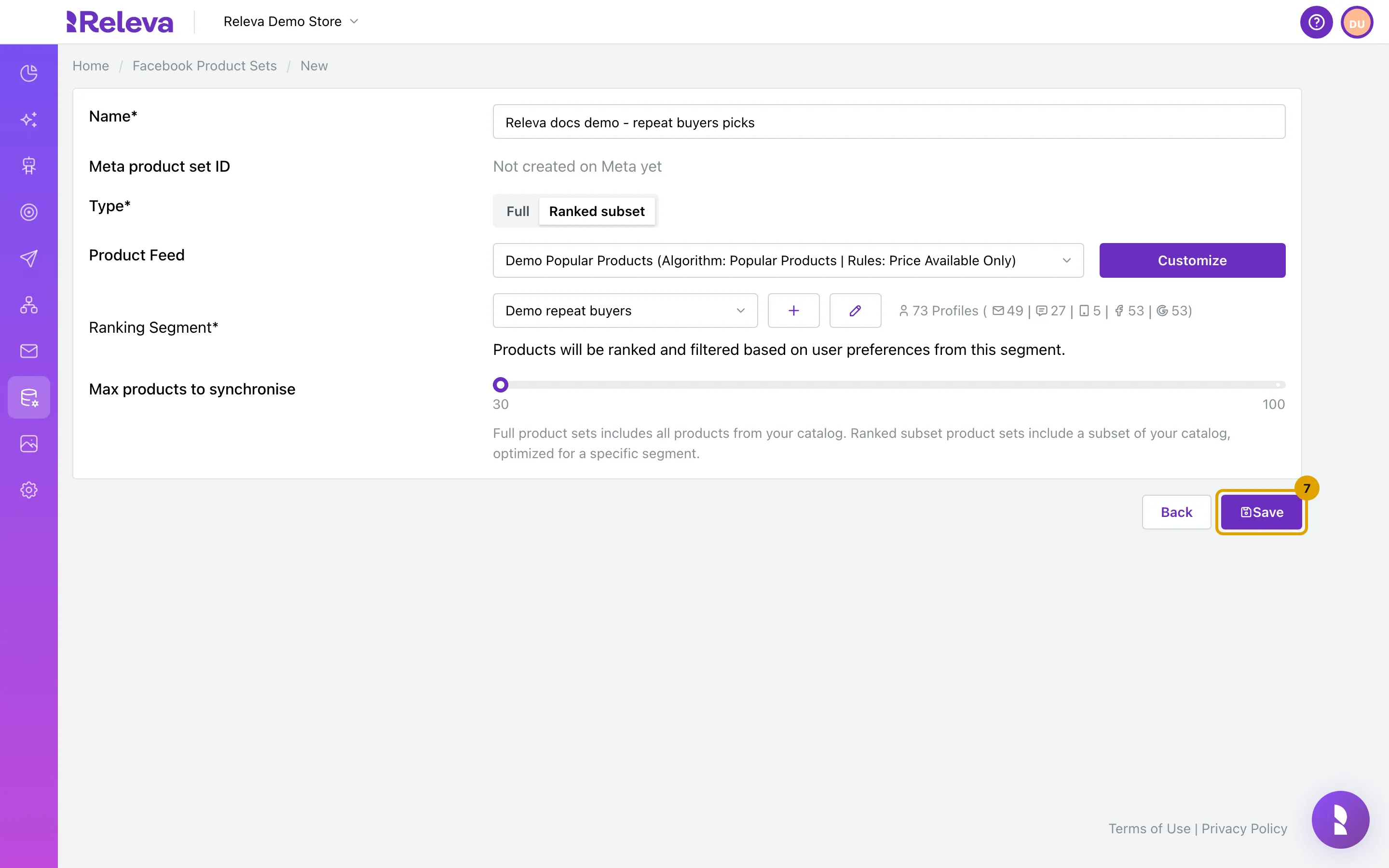
Select Save
Save stays disabled until a product feed and, unless the feed has the Ads scope, a ranking segment are selected.
-
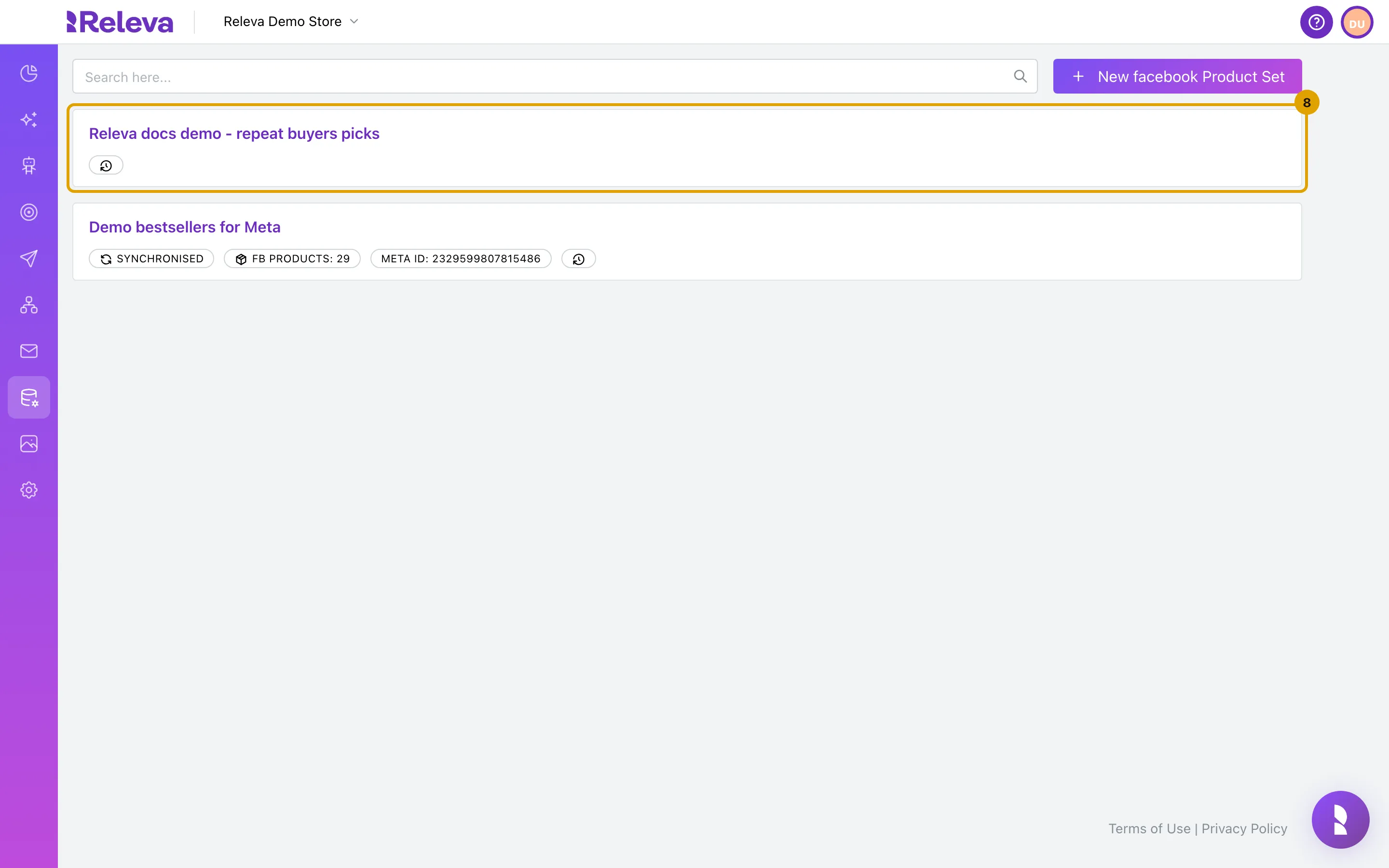
Releva saves the product set and returns to the list
The new card shows only the history icon at first. Releva sends the products to Meta in the background; this usually takes a few seconds.
Check it worked
Section titled “Check it worked”-
Reload the list after a minute. The list does not refresh on its own. The card now shows Synchronised, FB Products (how many products Meta holds in the set) and Meta ID (the id of the product set in your Meta catalog). Select Meta ID to copy it.
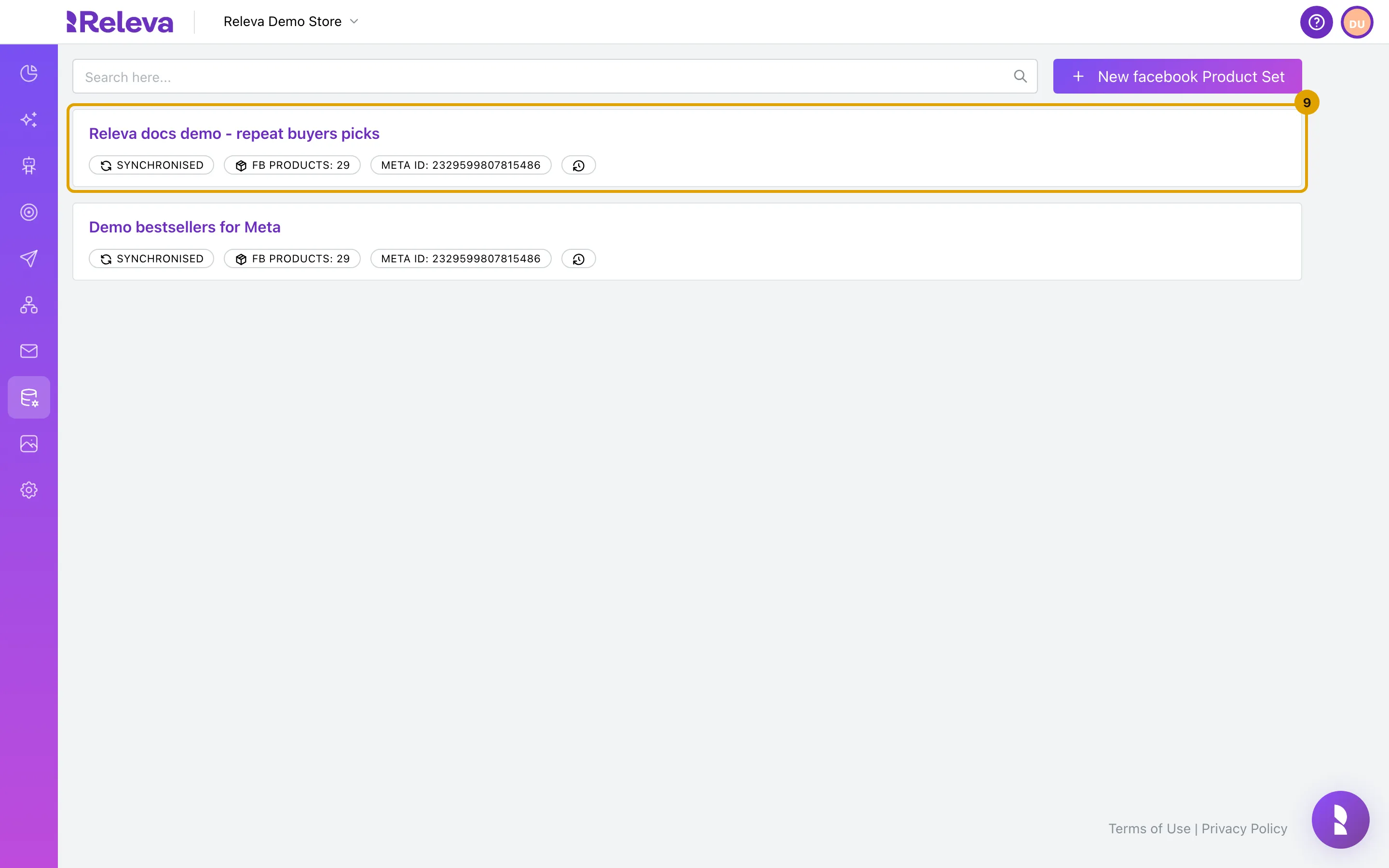
In this screenshot both cards show the same Meta ID. Both sets resolve to the same products (the demo catalog is small), so Releva reuses the existing Meta product set instead of creating a second one. See Troubleshooting.
-
Select the product set’s name. Meta product set ID now shows the id instead of Not created on Meta yet.
-
On the Facebook ad form, the product set is now offered under Promoted Products. Only synchronised sets appear there. Continue with Create a Facebook ad.
Releva refreshes every product set after each catalog sync to Meta (on the Catalog Sync Schedule or with Sync Now), and again when you change its type, feed, segment or size. Renaming the set in Releva also renames it in Meta.
Troubleshooting
Section titled “Troubleshooting”The list shows “Your Facebook account is not connected to Releva or you have not selected a business in which you want to sync the products.” and there is no New button. Select You can configure these things from here first. to open Settings › Facebook & Whatsapp, connect Facebook and select a Business. See Connect your Meta account to Releva.
The New page keeps loading. No Facebook account is connected to the shop. Connect it first, as above.
Save is disabled. Type is Ranked subset and Product Feed or Ranking Segment is empty. If no feed is offered, create a product feed with the Marketing Channels or Ads scope. If no segment is offered, create a Behavior segment.
“Facebook product set name must be unique!” after Save. Another product set in your shop has this name. Change the name and save again.
The card never shows Synchronised. Reload the page first. If it still shows only the history icon: Releva has not switched on the Facebook integration for your shop, your catalog has not synced to Meta yet, or the feed returned no products for the segment. Check the Last catalog upload card under Settings › Facebook & Whatsapp, and check that the feed returns products.
Two product sets show the same Meta ID. When a new set contains exactly the same products as a product set already in your Meta catalog, Releva reuses that Meta product set and gives it the newest name. The two Releva sets then share one Meta set, and its name in Meta follows whichever set saved last. To get a separate Meta set, choose a feed or segment that picks different products. Before you delete one of the two sets, read the next item.
Deleting a product set. Open the set and select Delete, then confirm This action cannot be undone! Deleting in Releva also deletes the product set in Meta. A carousel ad that promotes it stops working, and so does any other Releva set that shares the same Meta ID.