

Set up your loyalty program
A loyalty program has two kinds of rules. Earn rules give points for orders. Redeem rules let a shopper spend points on a coupon code from one of your Dynamic Coupons lists. This guide creates one of each: 1 point per EUR for orders of 20 EUR or more, valid for a year, and a 10% coupon for 500 points. For how points are granted, expire and are reversed, read How loyalty points work.
Before you start
Section titled “Before you start”- Your shop sends orders to Releva (a platform connector, the JavaScript snippet or
POST /api/v0/carts). Points are only granted for events that carry an order value, so a shop without orders earns nothing. See How events get into Releva. - You have at least one Dynamic Coupons list with unused codes. The Redeem Points tab cannot add a rule without one: Upload a list of coupon codes.
- Your plan includes loyalty. If Add Rule on the Earn Points tab shows a lock, ask your account owner to unlock it.
- Decide what a point is worth. Points per EUR on the earn side and the point cost on the redeem side together set the discount a shopper effectively gets.
-
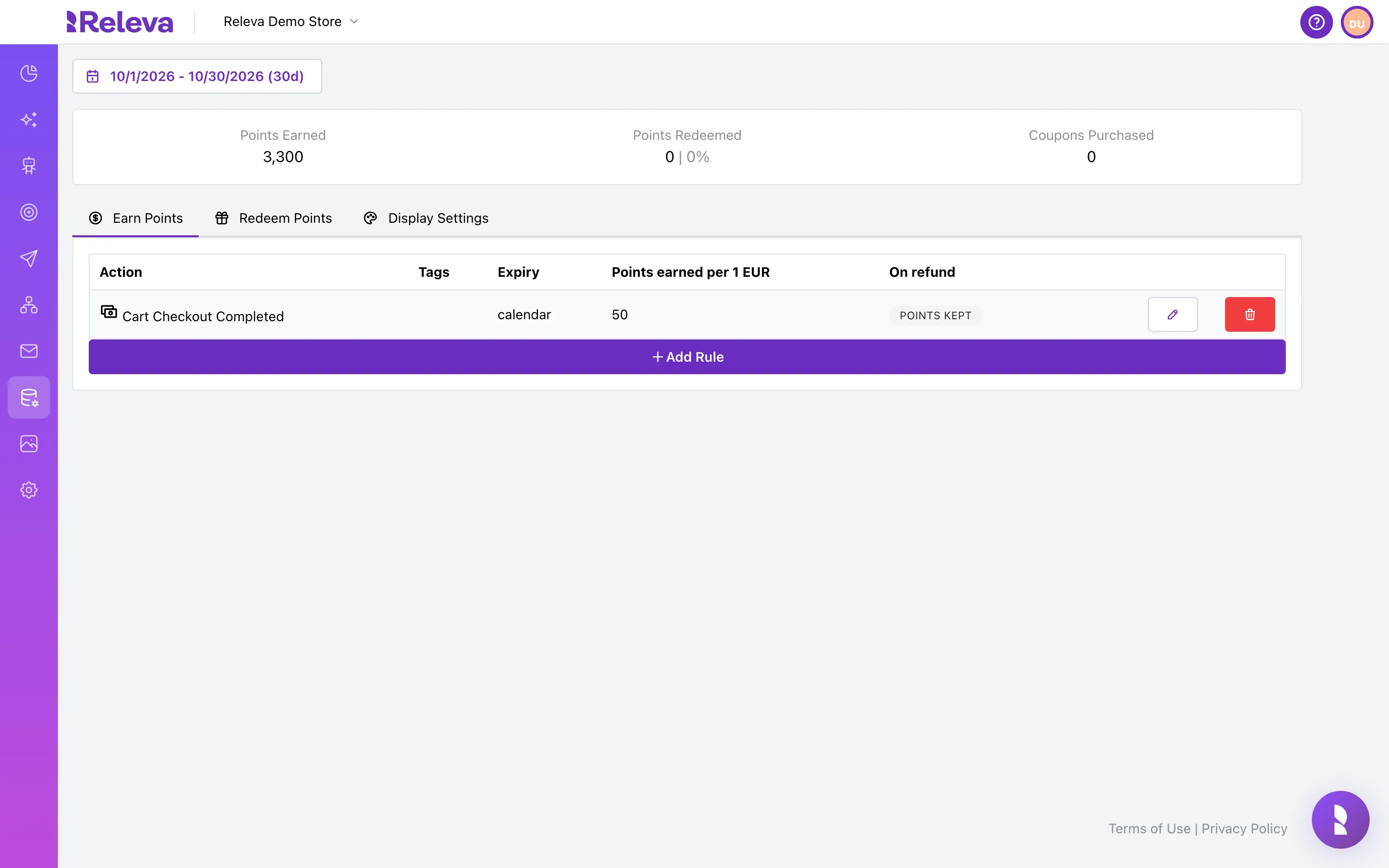
Go to Data Platform › Loyalty.
The three numbers at the top (Points Earned, Points Redeemed, Coupons Purchased) cover the selected period, by default the last 30 days. In a new program they stay at 0 until shoppers earn and spend points.
-
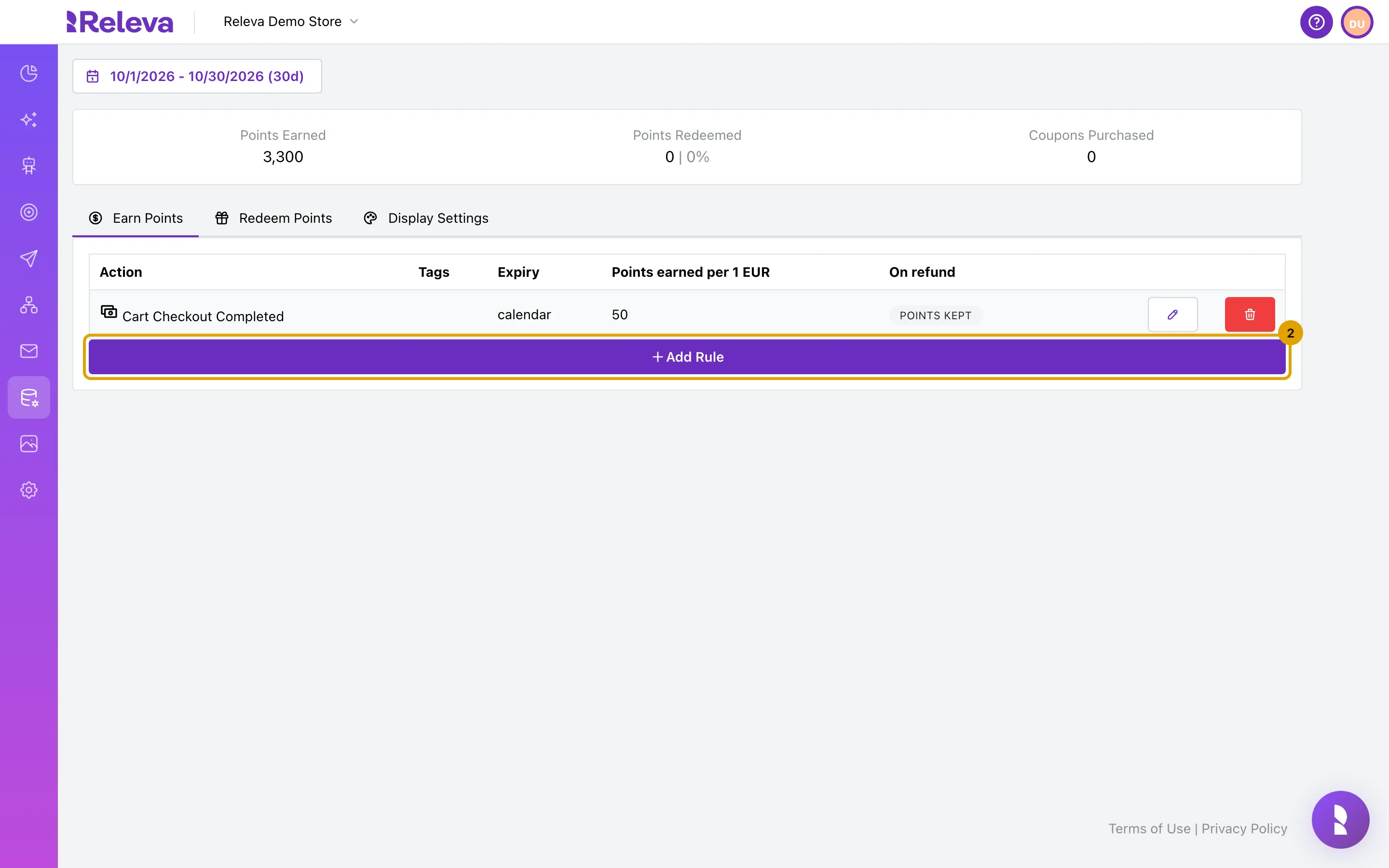
On the Earn Points tab, select Add Rule.
-
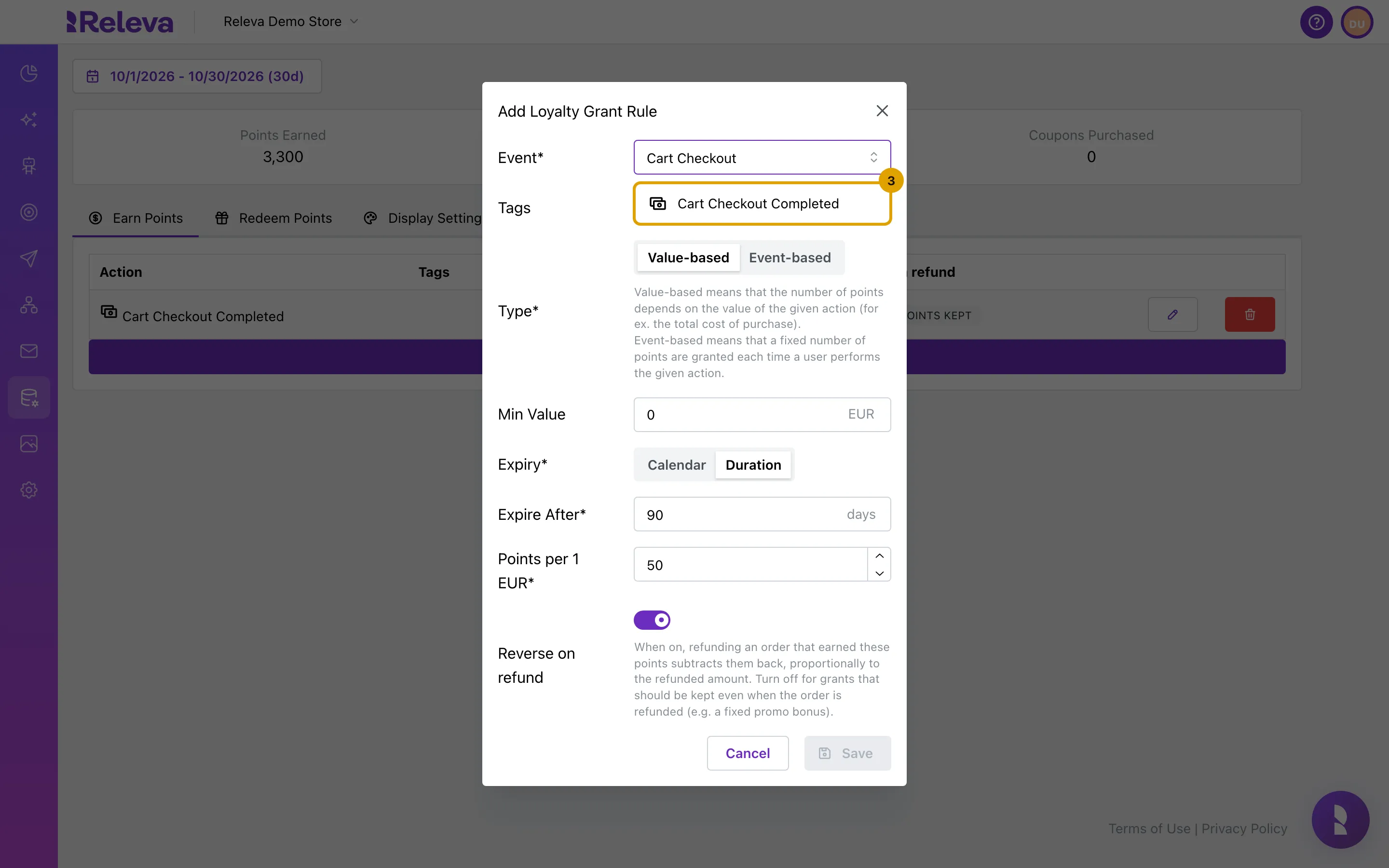
In Event, start typing and choose the action that earns points, for example Cart Checkout Completed.
The list contains every tracked action, including custom events your shop has sent. Use Cart Checkout Completed for orders. Actions without an order value, such as Registered or Subscribed, never grant points today (see How loyalty points work).
-
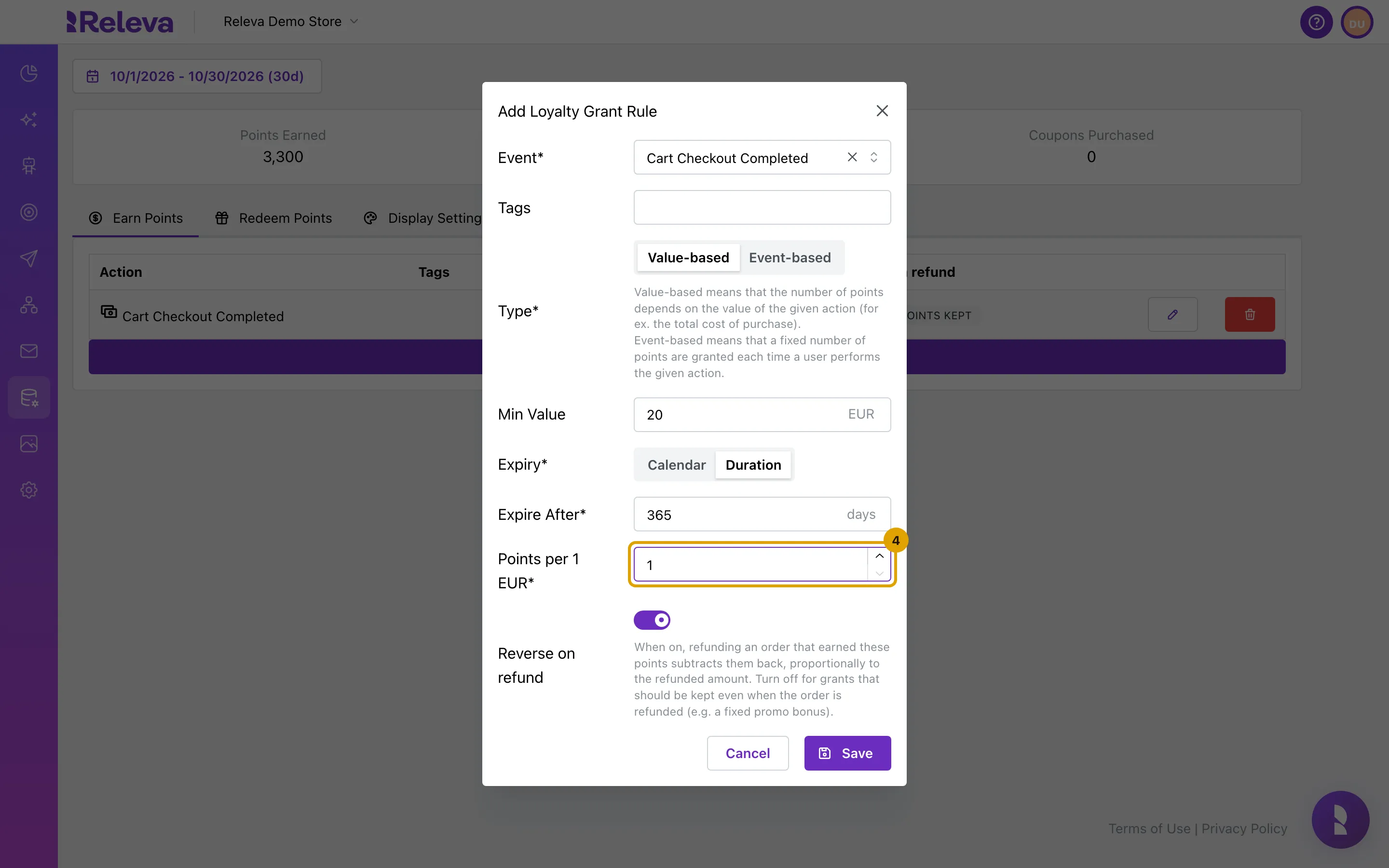
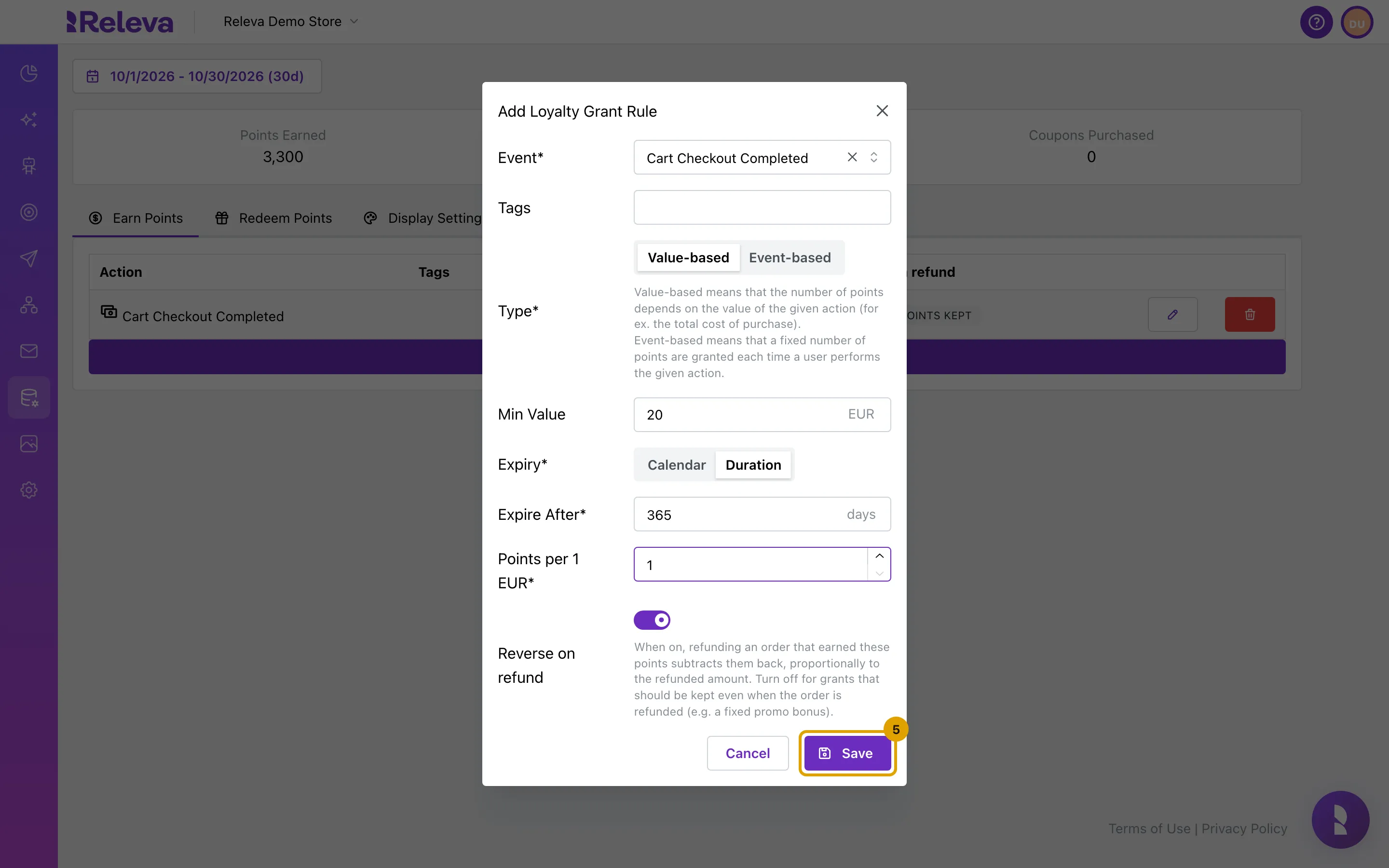
Leave Type on Value-based and Expiry on Duration. Enter the smallest order total that earns points in Min Value, how many days the points stay valid in Expire After, and the points for every 1 EUR in Points per 1 EUR.
Value-based multiplies the points by the order total in your shop currency; Event-based grants a fixed number of points per event and hides Min Value. Calendar expiry ends the points on 1 January of the next year instead of after a number of days. Tags is optional: with tags, the rule only matches events that carry one of them.
-
Keep Reverse on refund on to take points back when an order is refunded, then select Save.
Save stays disabled until Event, Expiry and the points are filled in.
-
Check that the new rule is in the list.
The Points earned per 1 EUR column shows the points per EUR for Value-based rules and the points per event for Event-based rules. Expiry shows the number of days, or
calendar. On refund shows POINTS KEPT for rules with Reverse on refund off.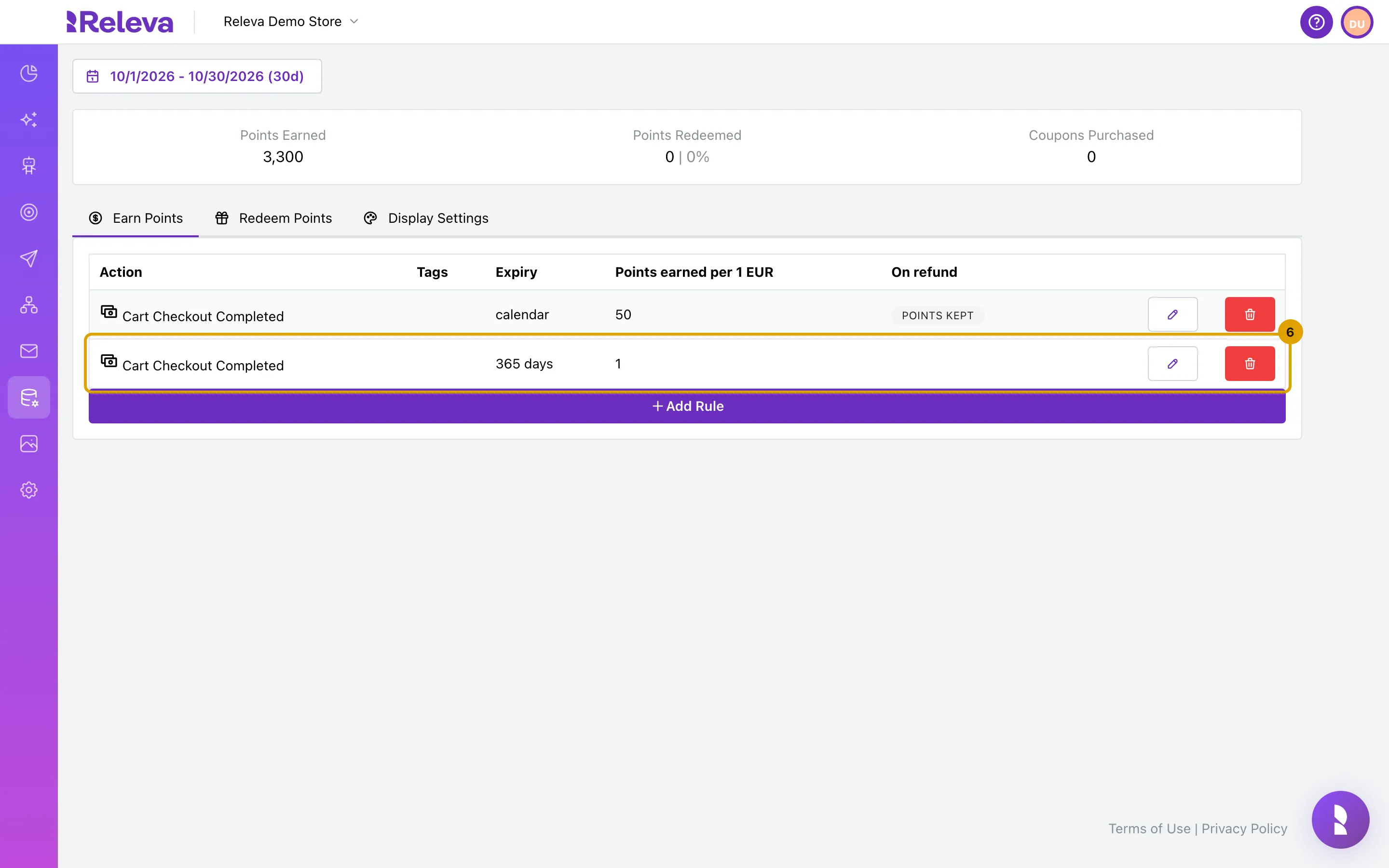
-
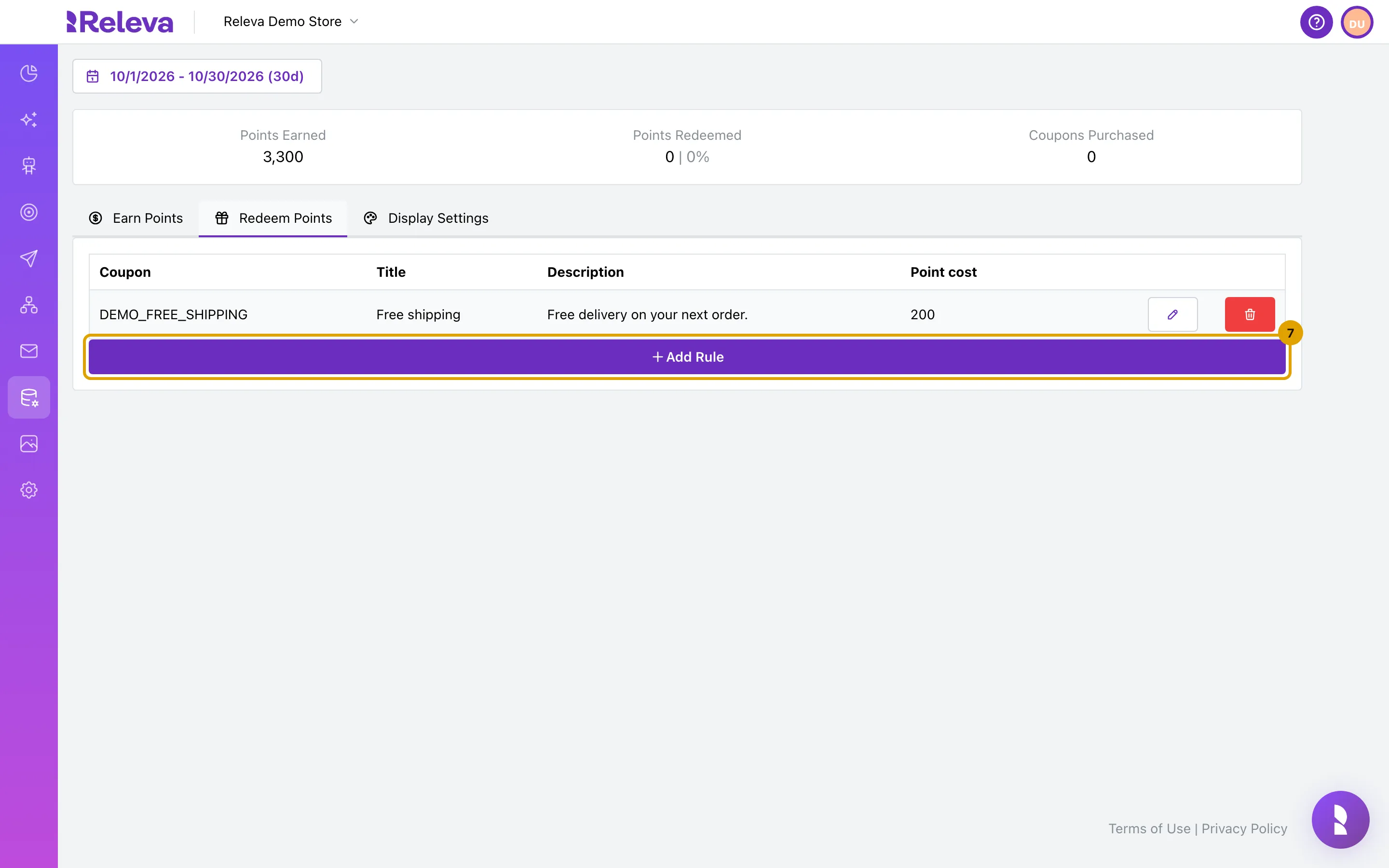
On the Redeem Points tab, select Add Rule.
If every coupon list is already used by a rule, the tab shows “All dynamic coupon lists are currently assigned. To add new rules, please add a new list of coupons first.” and Add Rule is disabled.
-
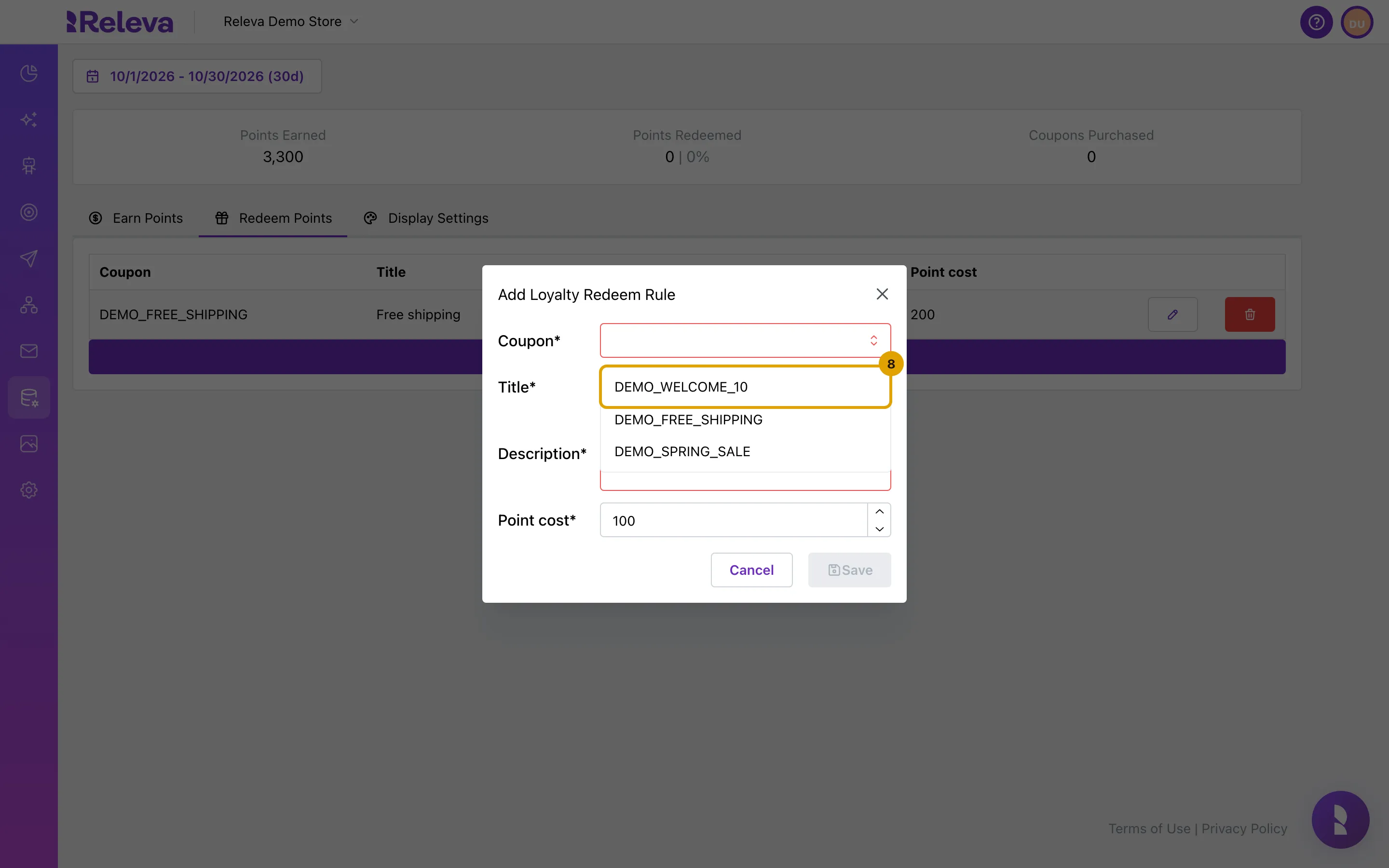
In Coupon, choose the Dynamic Coupons list that hands out the codes.
The list also shows lists that another redeem rule already uses; choose one that is not in the table yet. Each redemption claims one unused code from this list. The reward disappears from the shopper’s page when the list runs out.
-
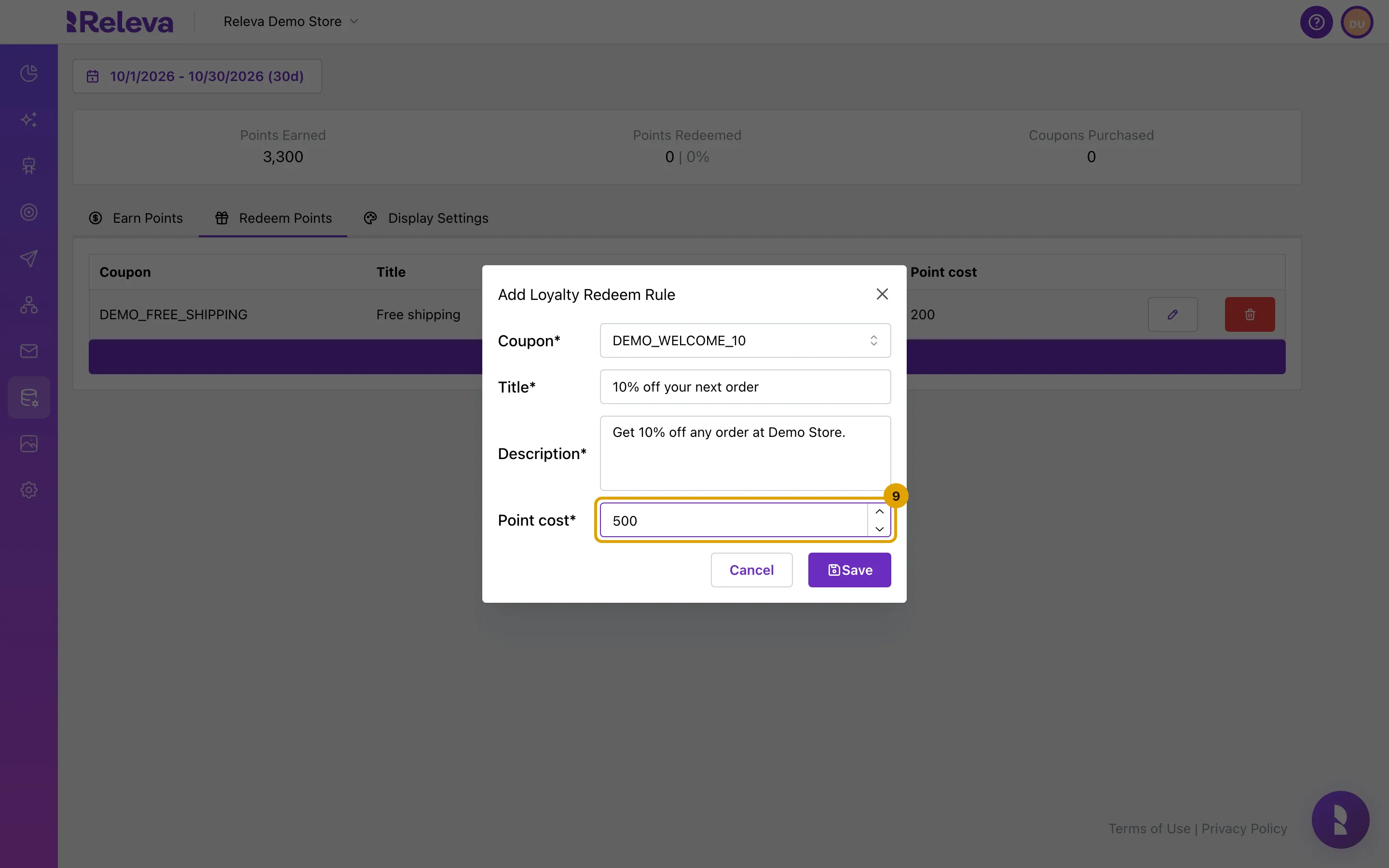
Enter the Title and Description shoppers see on the loyalty page, and the Point cost of one coupon.
-
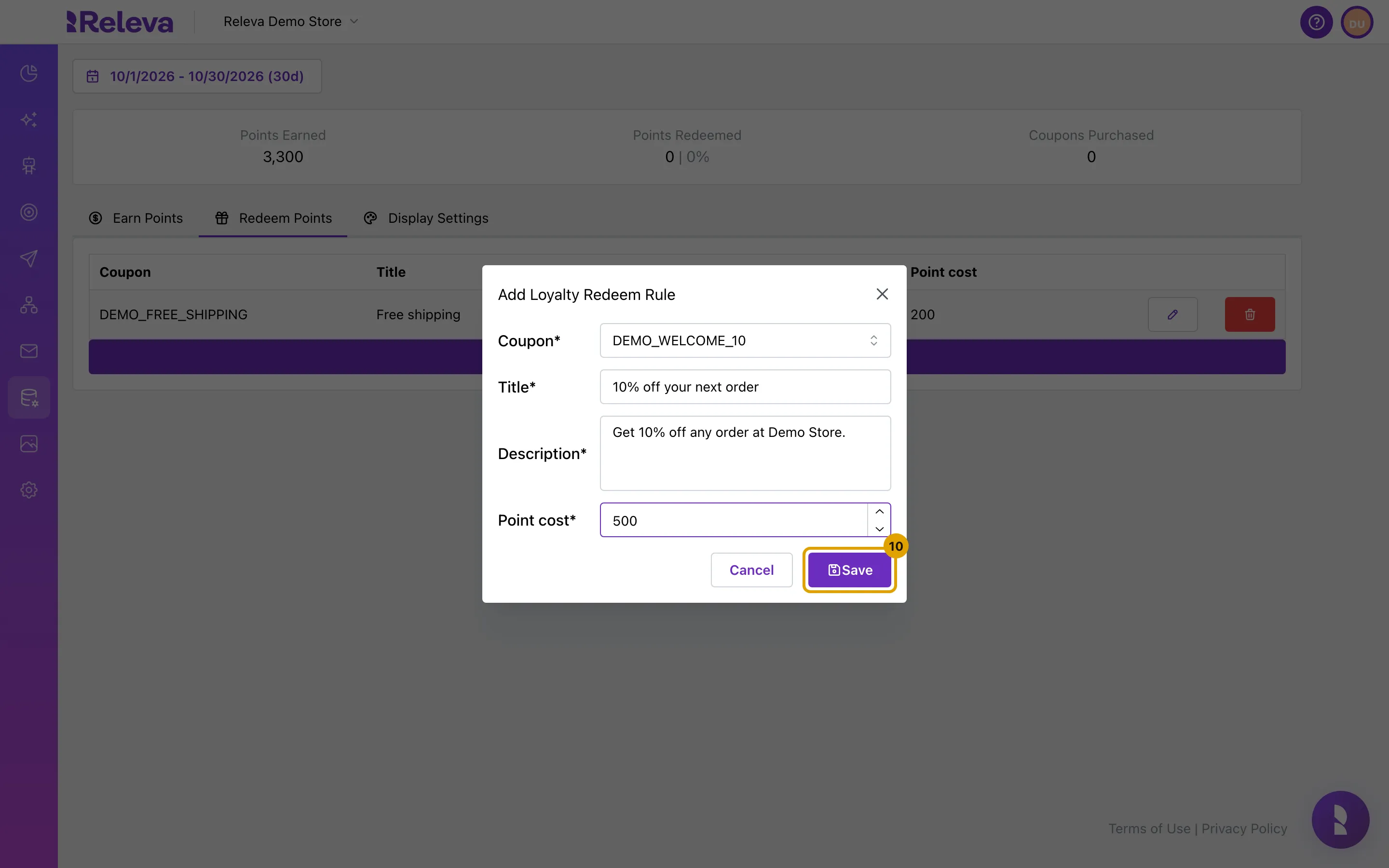
Select Save.
Check it worked
Section titled “Check it worked”- The Earn Points tab lists the rule with Cart Checkout Completed, 365 days and 1.
- The Redeem Points tab lists the coupon list name, the title, the description and 500.
- After the next order of 20 EUR or more, Points Earned at the top of the page goes up, and the order’s profile shows the balance in the Loyalty points row of its overview (Data Platform › Profiles). Points are granted a few seconds after the order arrives; a new rule applies to orders from about 10 seconds after you save it, not to earlier orders.
- Open the shopper’s loyalty page (the
{{loyaltyLink}}merge tag in a message, or a link your developers get with Get a loyalty link): it shows the balance and the reward with its point cost.
Troubleshooting
Section titled “Troubleshooting”Add Rule on Earn Points shows a lock. Your plan does not include creating loyalty rules. The pencil and trash buttons and the Display Settings Save button are locked the same way.
Add Rule on Redeem Points is disabled. Every Dynamic Coupons list is already used by a redeem rule, or there is none. Upload a new list first.
Points Earned stays at 0. Points come only from events with an order value. Check that orders reach Releva (Check that an event reached Releva), that the order total is at least Min Value, and that the order arrived after you saved the rule. Orders that are refunded in full also take their points back when Reverse on refund is on.
The reward is not on the shopper’s page. The coupon list has no unused codes left. Add codes to the list: Add codes to a coupon list.
I deleted a coupon list and the redeem rule disappeared. Deleting a list deletes the redeem rules that use it. Create the rule again with another list.
I want to delete a rule. Select the trash button, then select Confirm in the Are you sure? dialog (“This action cannot be undone!”). Points already granted by the rule stay on the profiles.