

Change a segment's rules
You can change the name and the rules of a segment at any time. This guide adds a Days ago filter to a rule of an existing segment and checks the new size before saving. The same form is used to remove rules, change a rule’s Mode, delete the segment or copy it.
Before you start
Section titled “Before you start”- You know which segment to change. Use the search box on the Segments list to find it by name.
- Your plan includes editing segments. If Save shows a lock on the segment page, ask your account owner to unlock it.
- A rule change affects everything that targets the segment: continuous campaigns, workflows, product blocks, banners and segment syncs pick up the new rules on their next run.
-
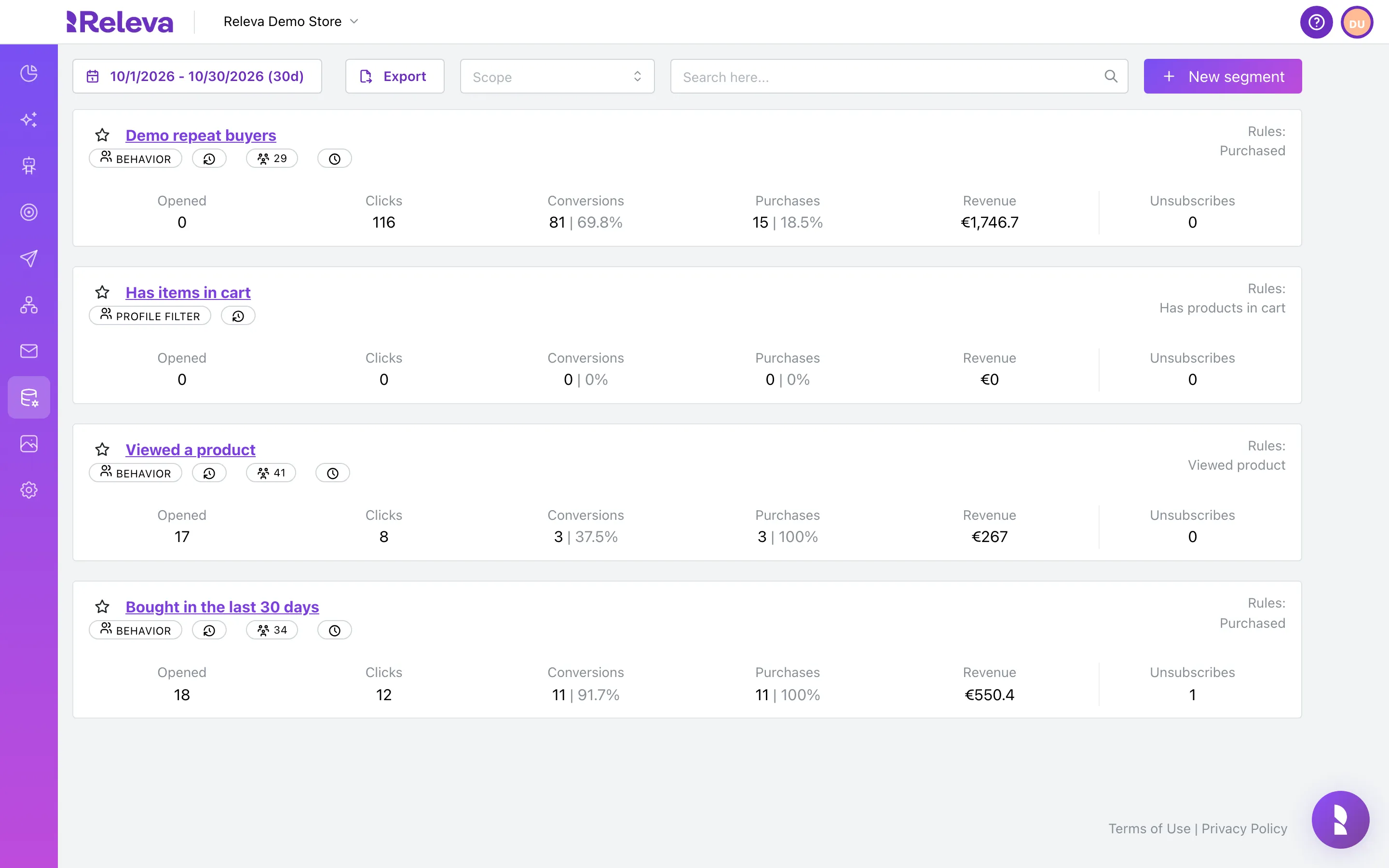
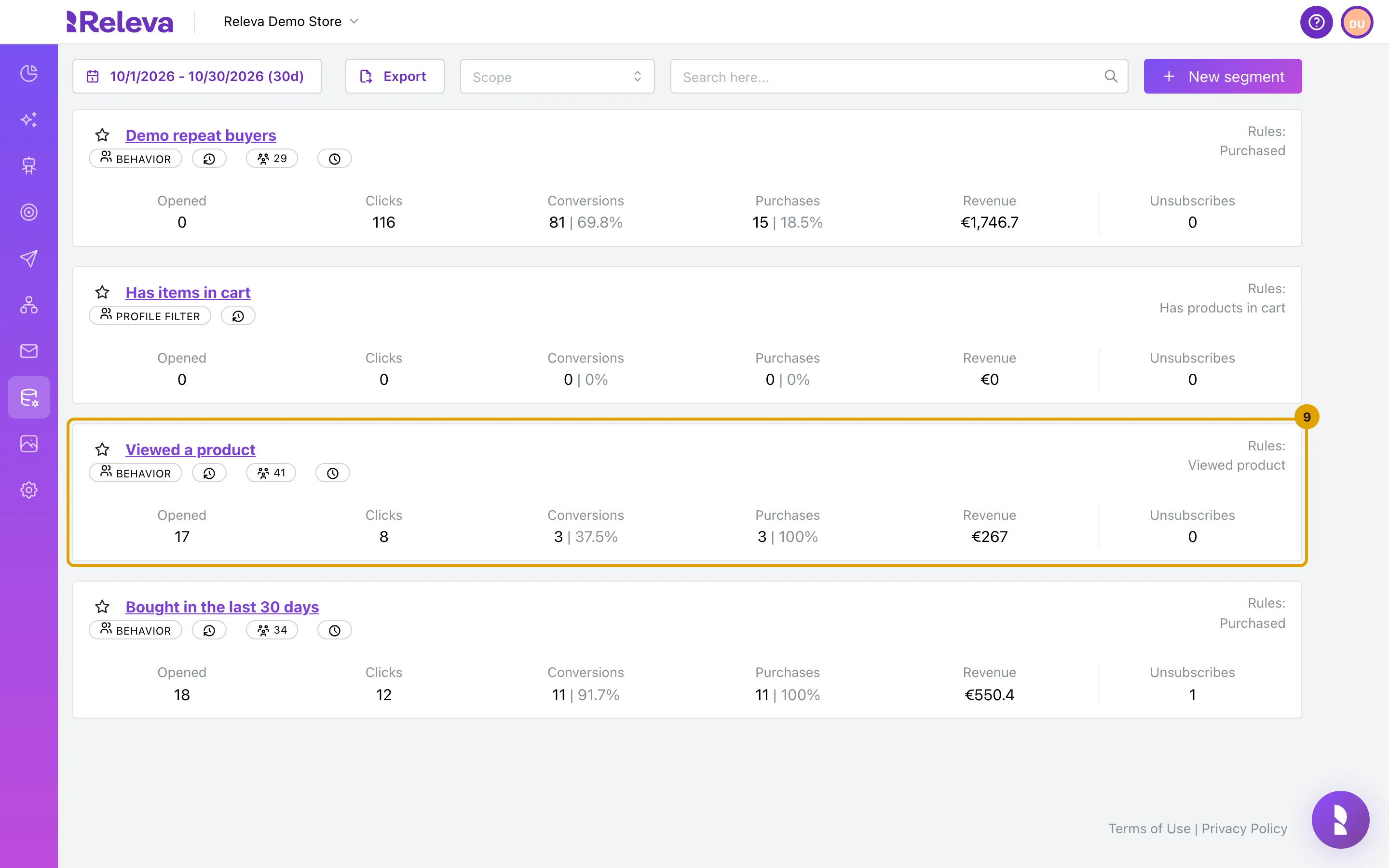
Go to Data Platform › Segments.
-
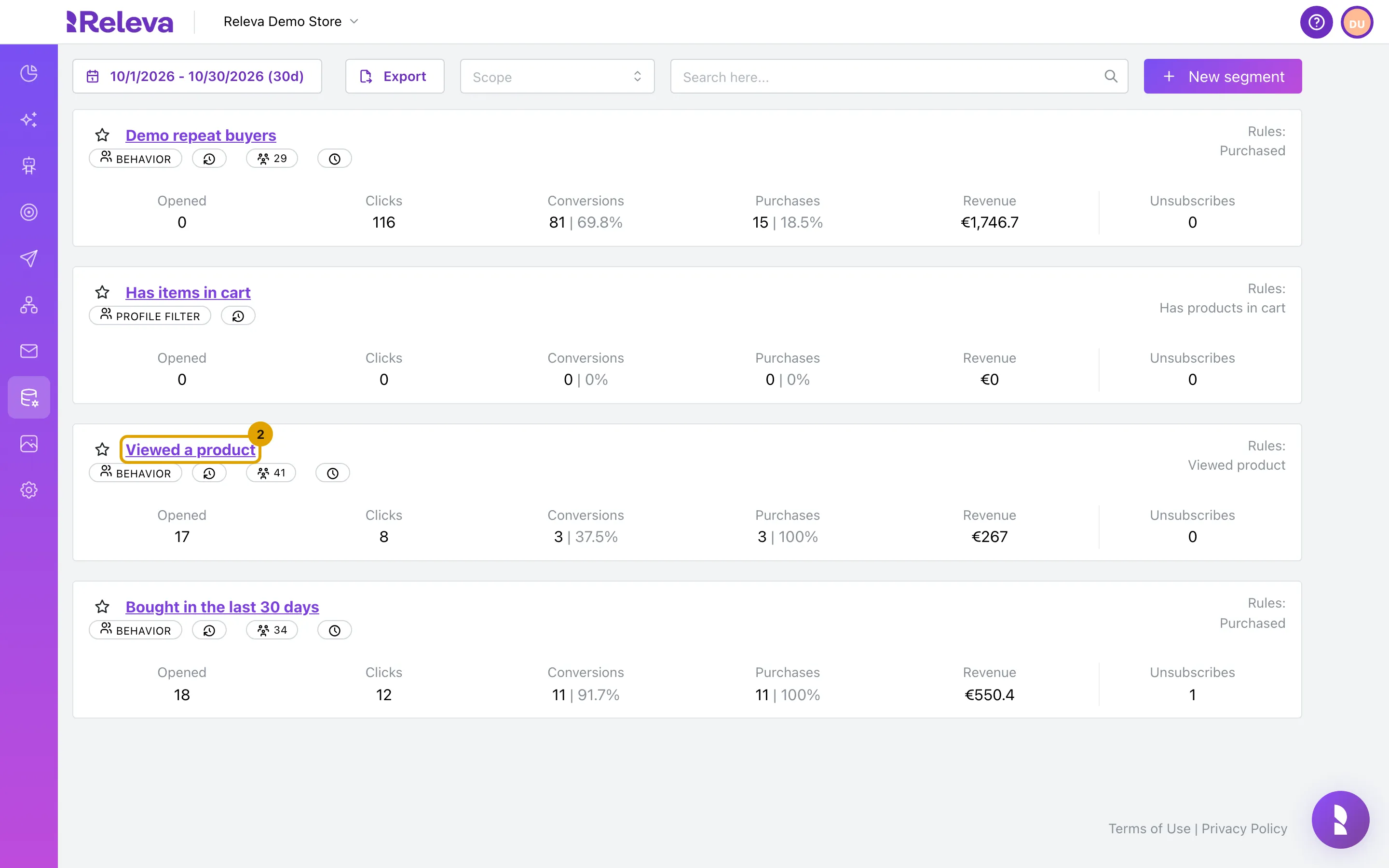
Select the name of the segment you want to change.
-
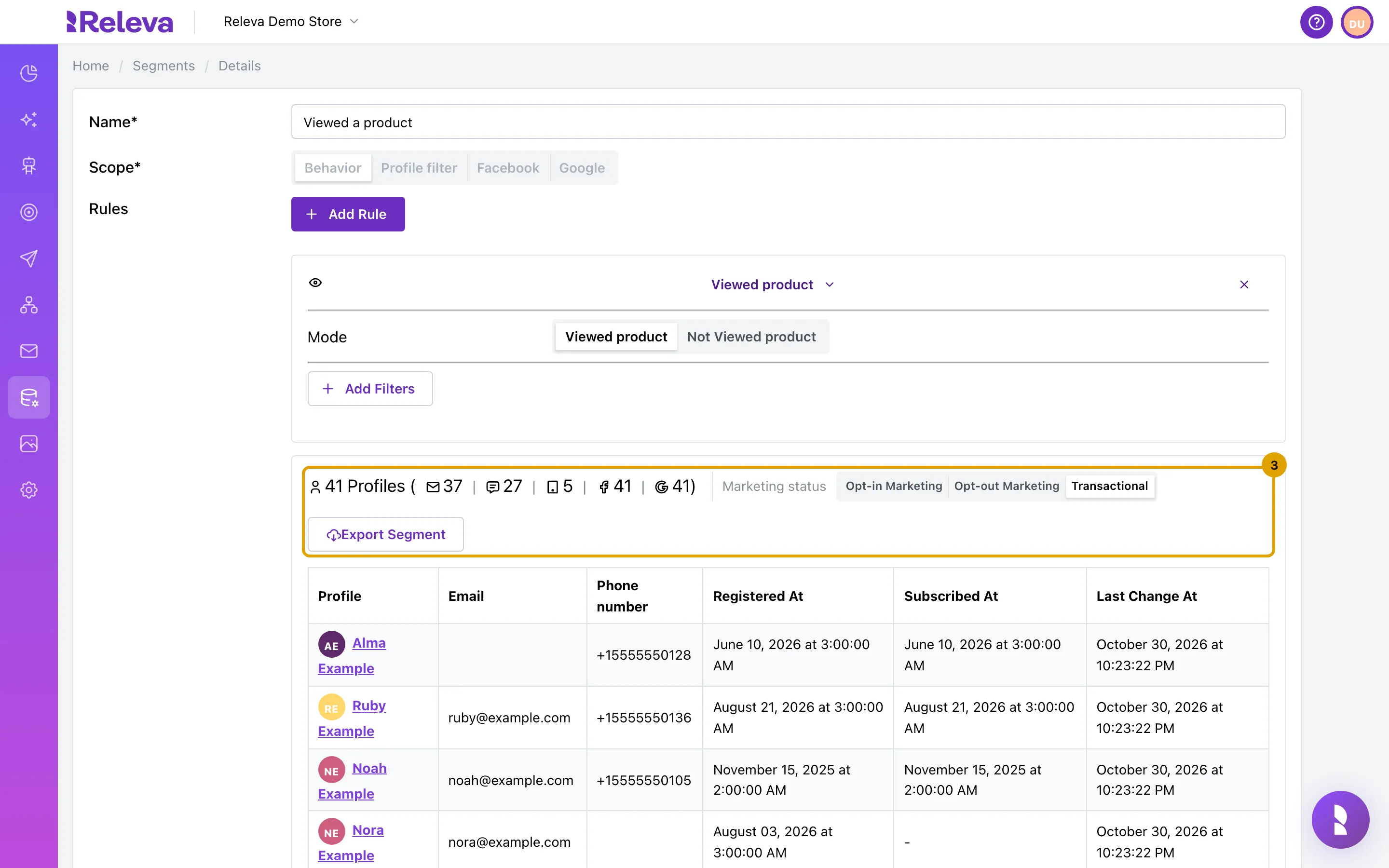
The segment opens with its current size in the count line.
The line shows the number of profiles, then how many of them you can reach by e-mail, SMS, push, Facebook and Google.
-
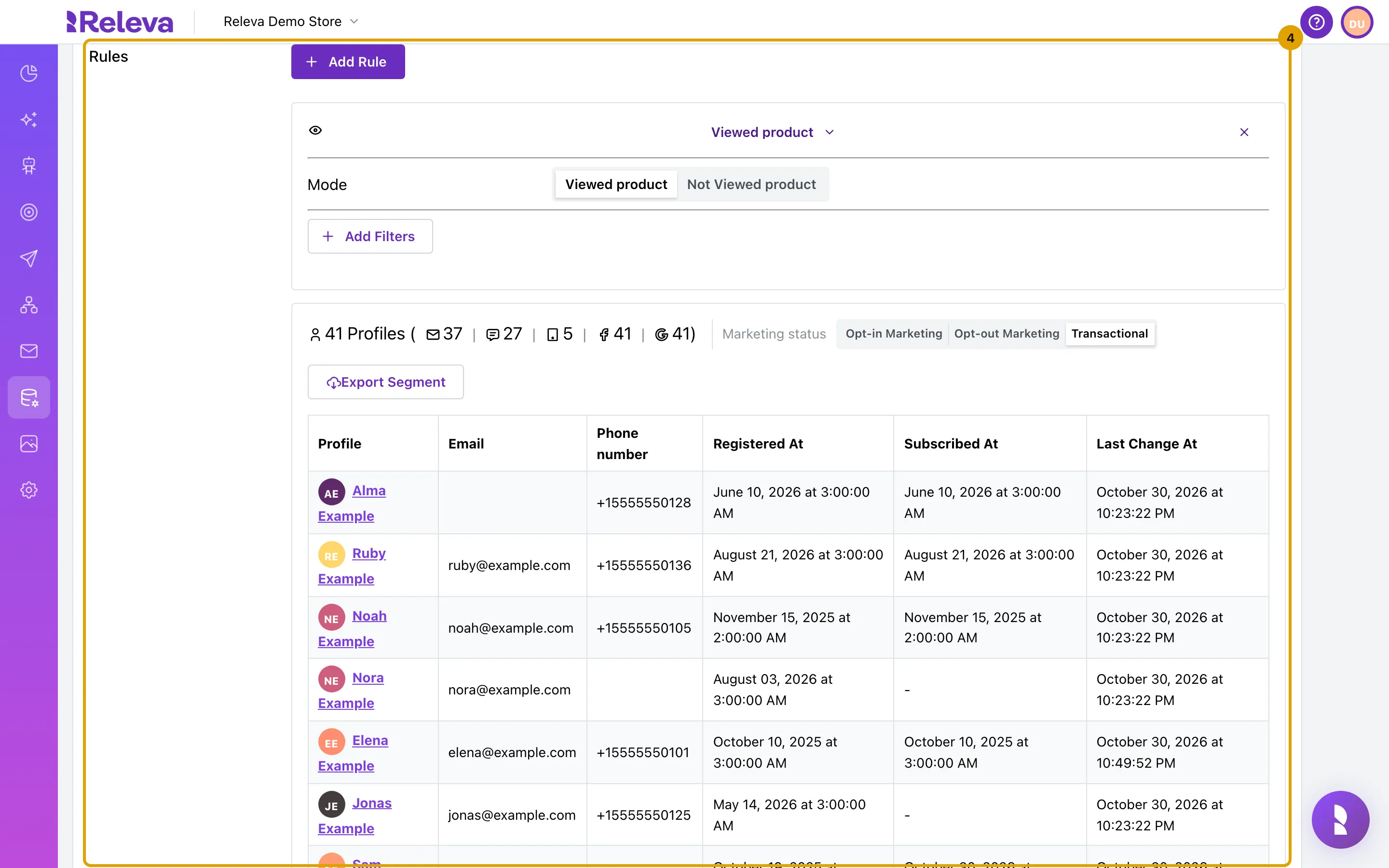
Find the rule to change. Select the rule name to open it if it is closed, then select Add Filters.
Only the last rule opens by default. × on the right of a rule removes it; × next to a filter removes just that filter.
-
Search for Days ago and select it.
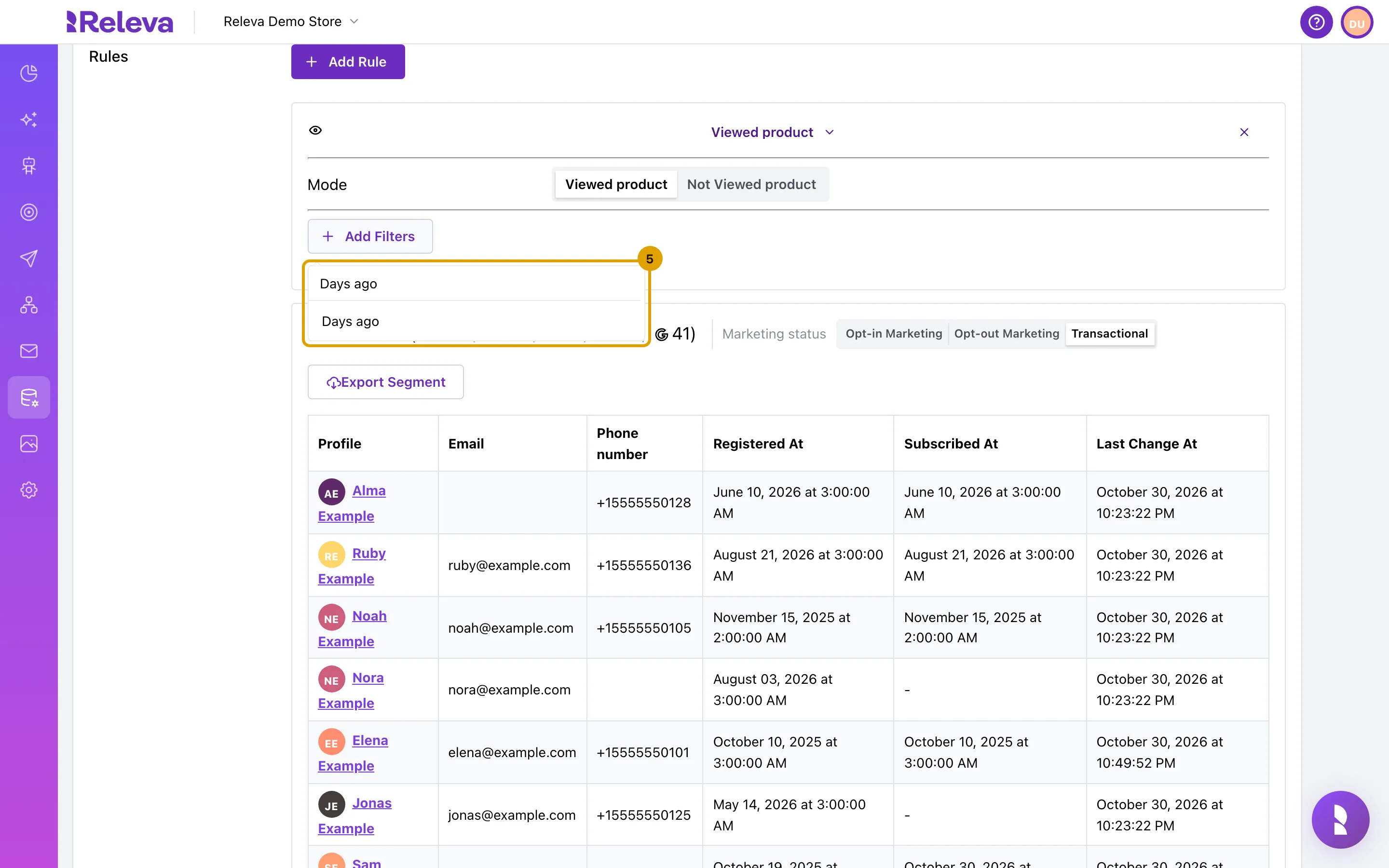
-
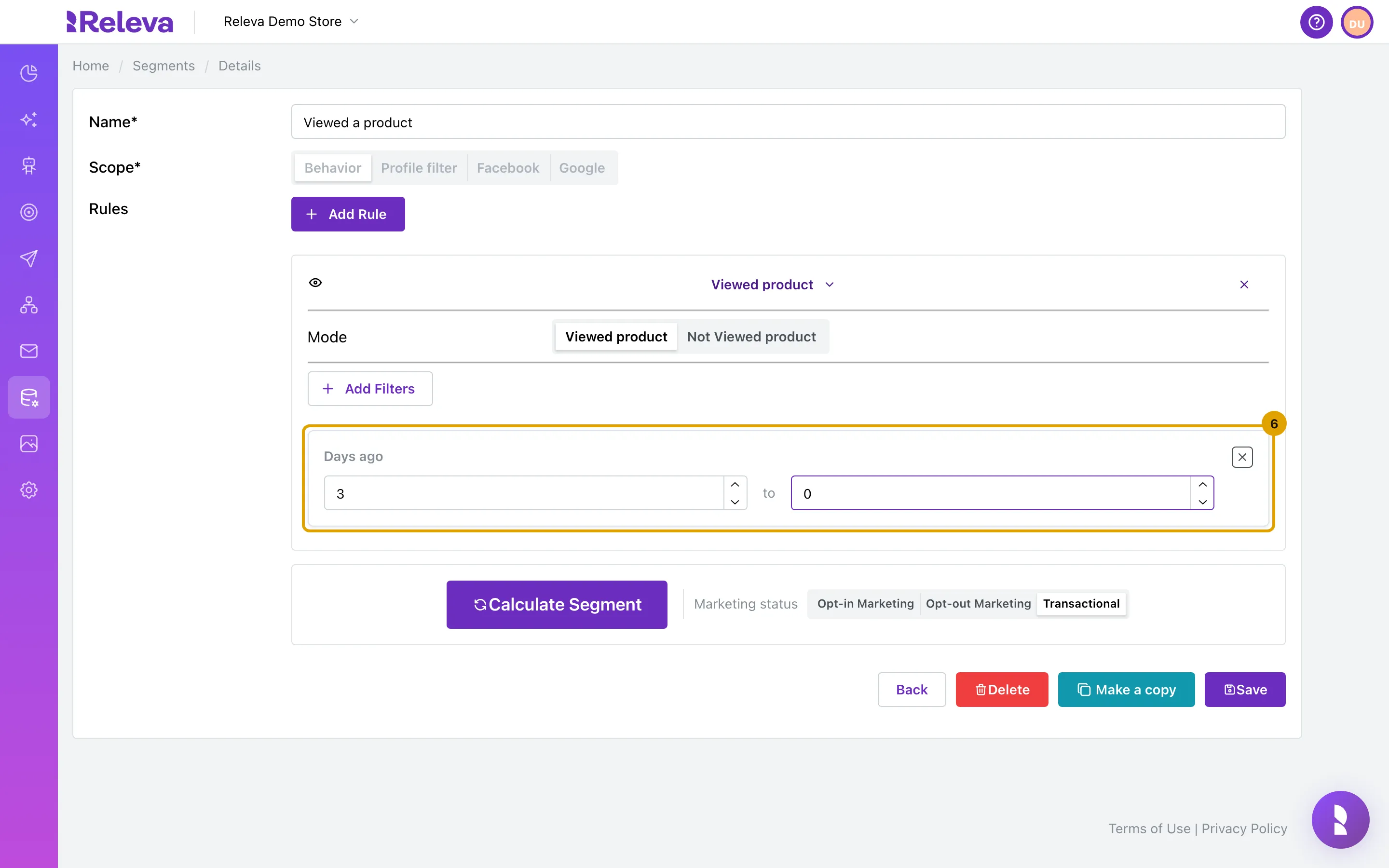
In Days ago, enter 3 and 0.
The rule now keeps only people who viewed a product in the last 3 days. The count line changes to Calculate Segment because the rules changed.
-
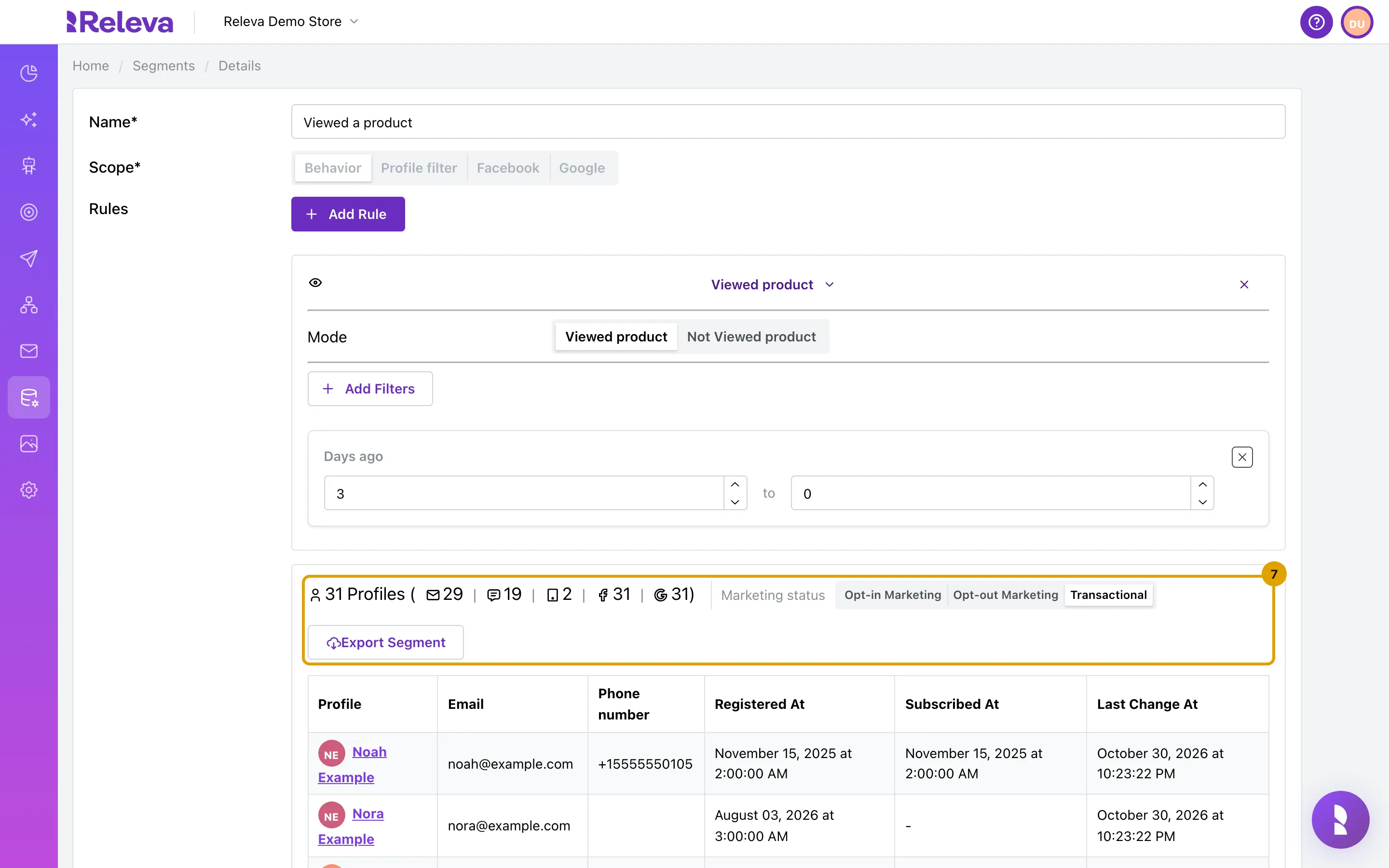
Select Calculate Segment. The new count shows how many profiles the changed rule keeps.
In this example the segment drops from 41 to 31 profiles. Calculating is optional; it does not save anything.
-
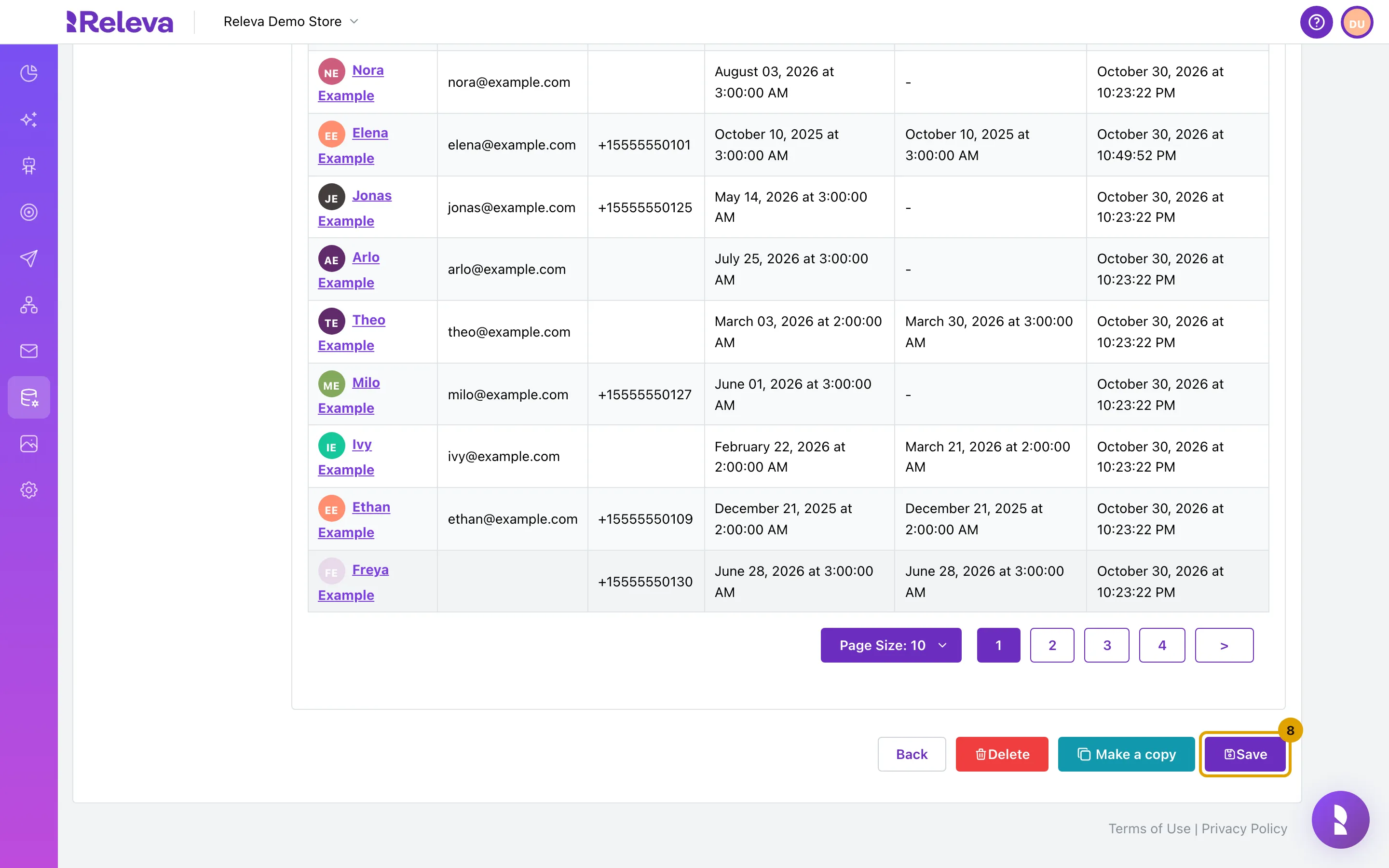
Select Save.
-
You are back on the segment list. Open the segment again to check that the filter is there.
Check it worked
Section titled “Check it worked”- The segment’s card still shows the same rule names under Rules:. Filters are not listed on the card.
- The profile count on the card is the last stored count. It changes when the segment is calculated again, for example on the next run of a campaign that uses it.
- Open the segment: the rule shows the Days ago filter with 3 in the first box. The second box shows 0 or is empty; both mean “until today”.
- The history badge next to the scope badge shows the new Updated time when you hover over it.
Troubleshooting
Section titled “Troubleshooting”I cannot select another scope. The scope is fixed after the first save. Select Make a copy to create a new segment from these rules, then set the scope on the copy before you add rules.
The rule I want to change is collapsed. Select the rule name to expand it. Only the last rule in the list starts expanded.
I need to copy the segment to another shop. Select Make a copy. With access to one shop it opens a new segment named Copy of <name> in the same shop. With several shops it opens Copy Segment with the current shop selected as Target Domain. A copy into the same shop is named Copy of <name>; a copy into another shop keeps the original name.
Delete asks about campaigns and workflows. Deleting a segment also deletes every campaign, workflow, product block, banner and Facebook product set that targets it. Select Close to keep the segment, or Confirm to delete all of them.
The rules of a Facebook or Google segment are read-only. Audience rules for those scopes cannot be edited after the first save. Create a new segment instead.