

See who is in a segment
A segment’s rules decide who is in it, but the list of people changes as your customers act. This guide opens a saved Behavior segment to see how many profiles match right now, how many of them you can reach on each channel, which profiles they are, and how to get the complete list as a file. To build a segment first, read Create a segment.
Before you start
Section titled “Before you start”- You have a segment with the Behavior scope. The live count and the list of profiles are shown only for Behavior segments; Profile filter, Facebook and Google segments do not have them.
- You can receive e-mail at the address you sign in with. The export file is sent to that address.
-
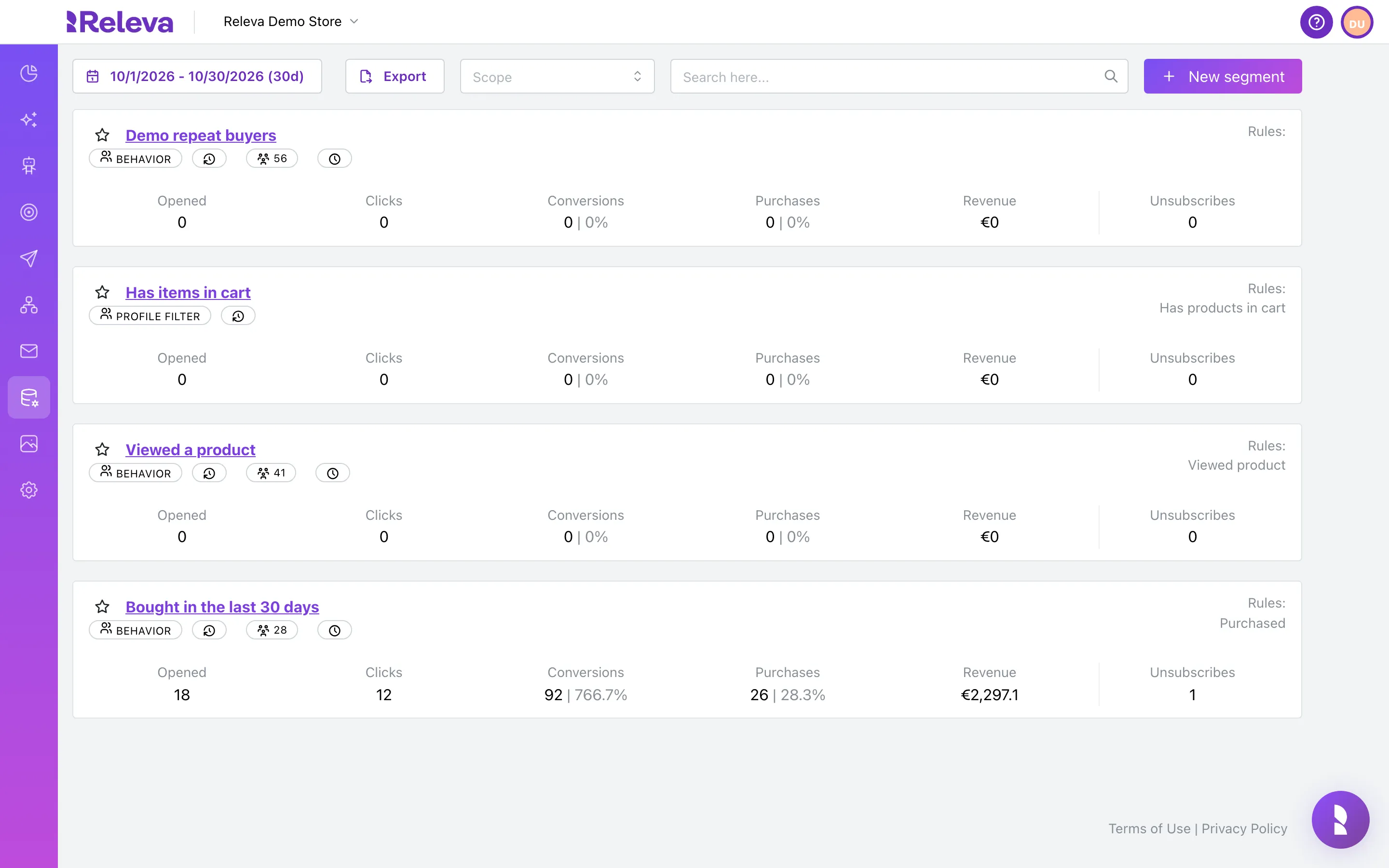
Go to Data Platform › Segments
Each card shows the segment’s scope and, when Releva has already run the segment, a badge with the number of people in it. That number comes from the last scheduled run, so it can be missing or older than the count inside the segment.
-
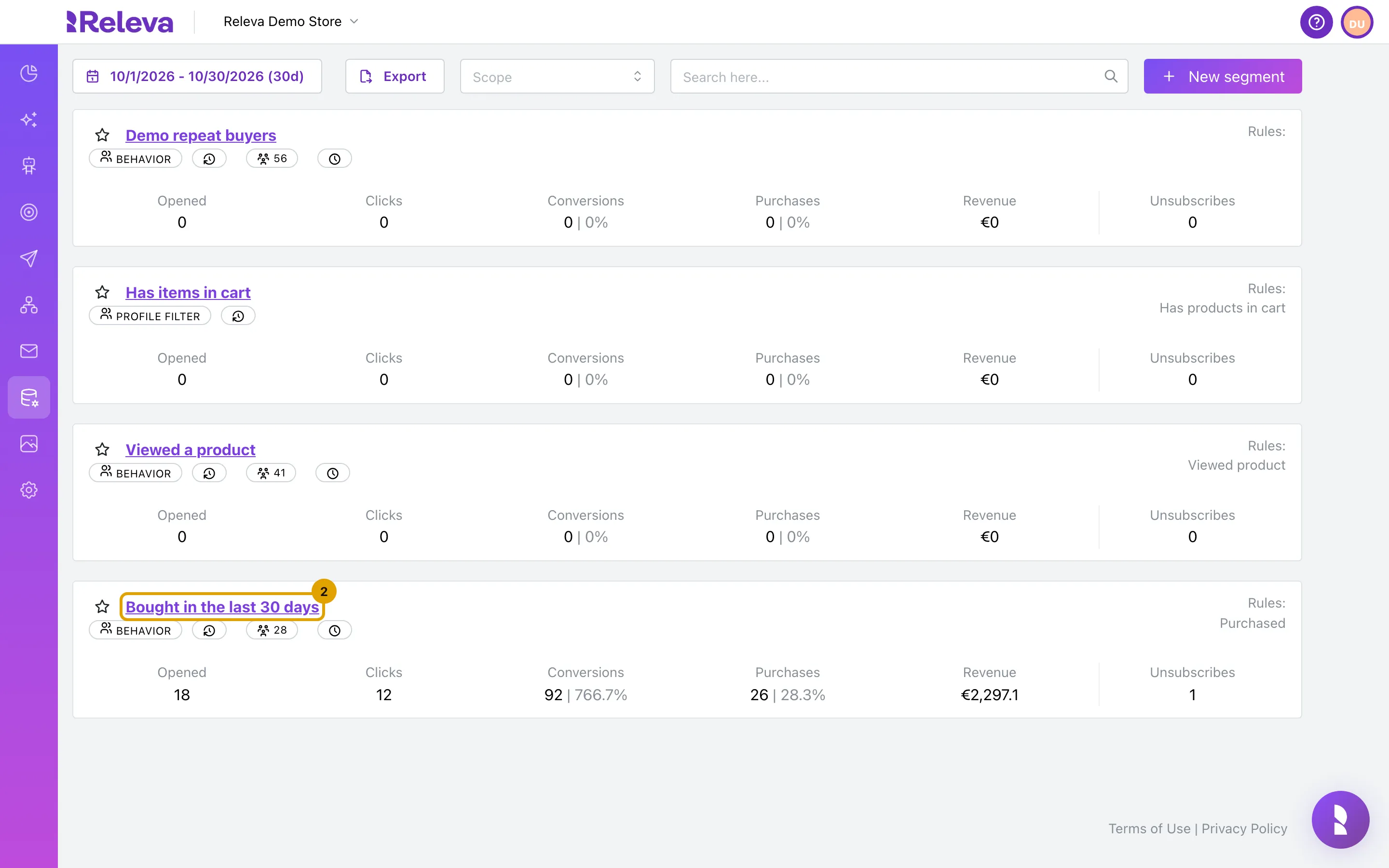
Select the name of the segment
-
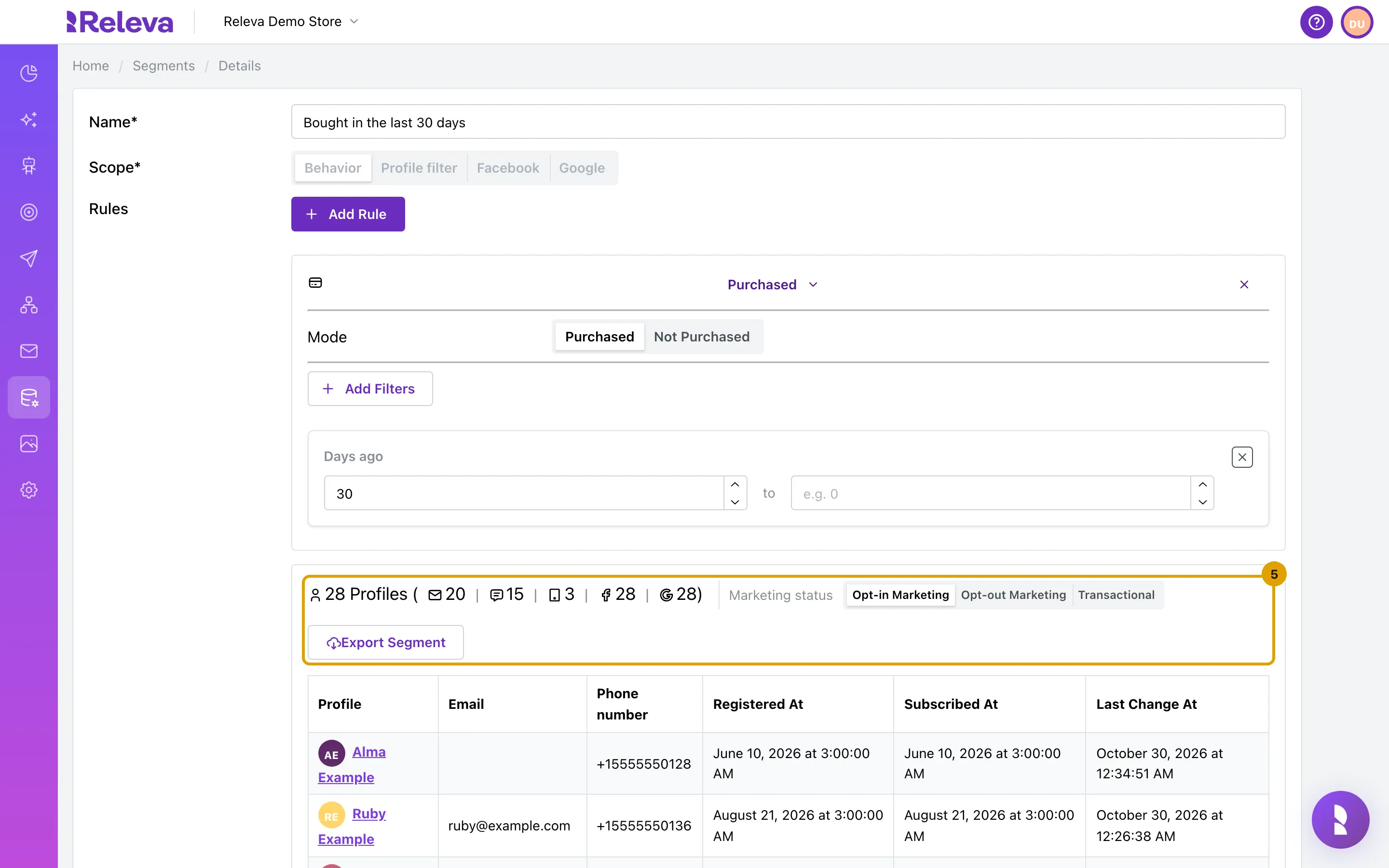
Read the number of profiles and how many of them you can reach by email, SMS, push, Facebook and Google
The count loads on its own when you open the segment; while it runs, the line reads Calculating…. The first number is every profile that matches the rules. The numbers in brackets show how many of those profiles each channel can reach, from left to right. The icons have no labels, so use this table:
Icon Channel Counted when the profile Envelope Email has an email address that is not bouncing, complaining or suppressed Speech bubble SMS has a phone number Tablet Push has a web push subscription or an app push token Facebook logo Facebook has an email address or a phone number Google logo Google has an email address, a phone number or a Google Analytics device 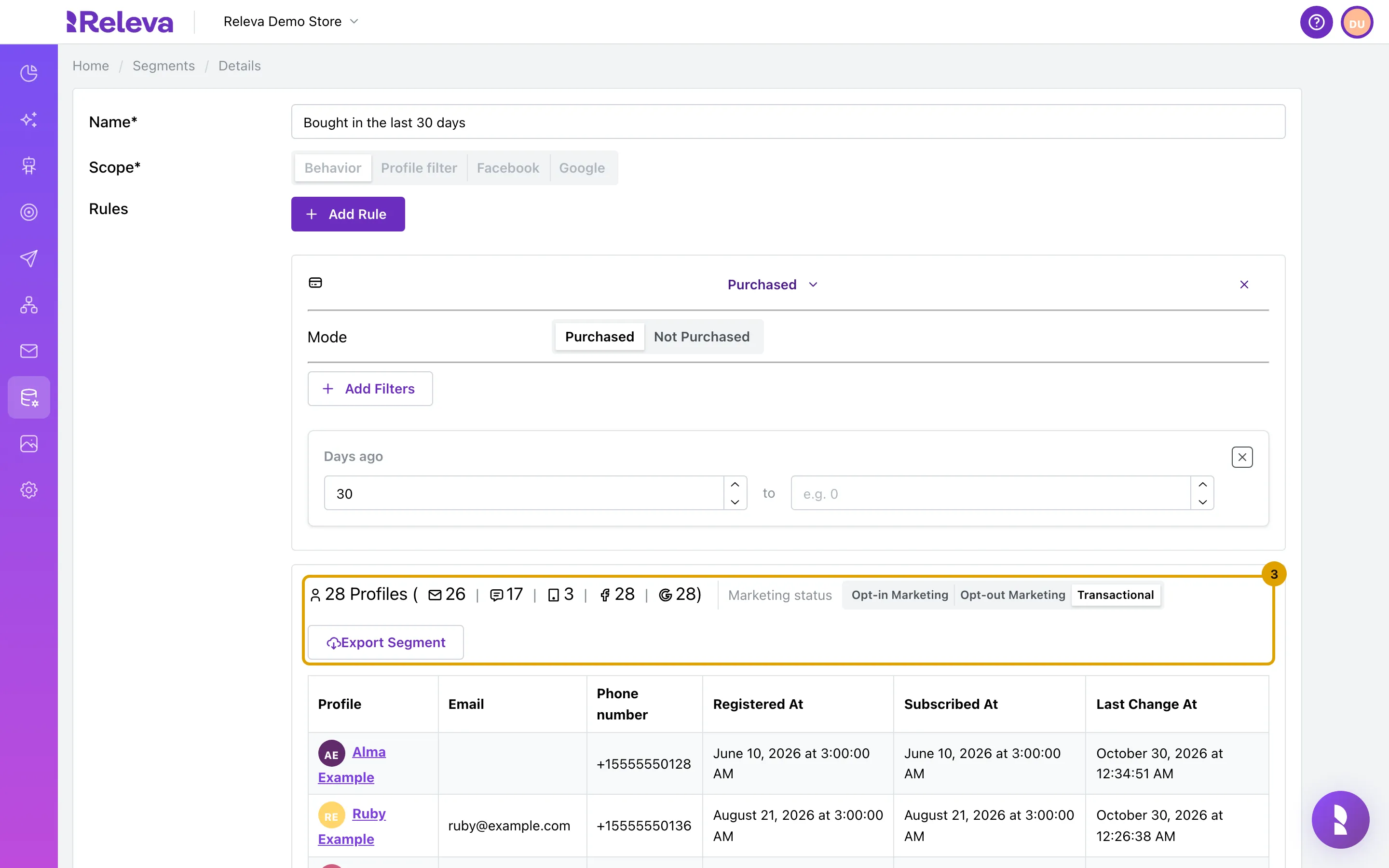
-
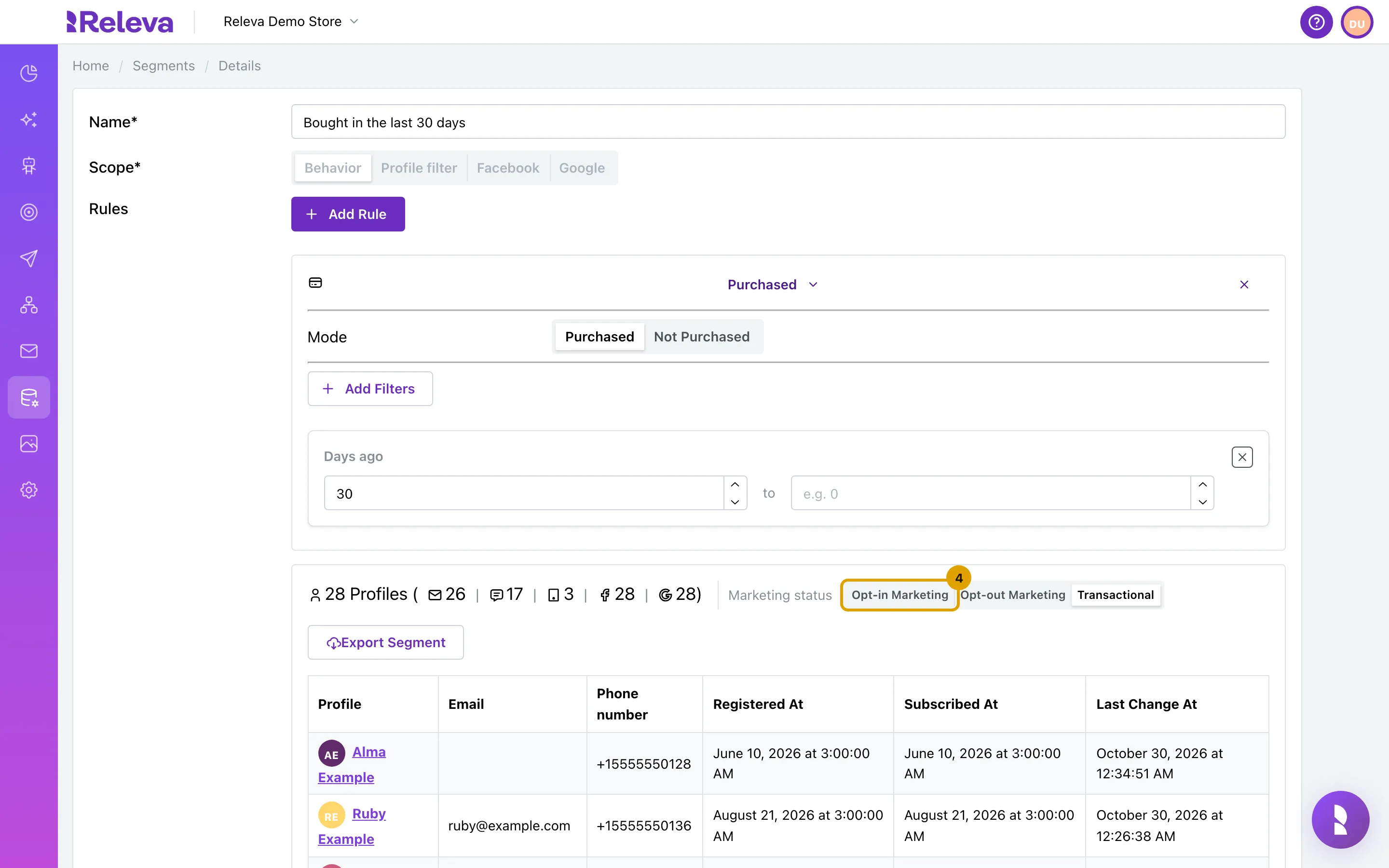
Under Marketing status, select Opt-in Marketing
The control decides which consent the email and SMS numbers count. Transactional, the default, applies no consent filter. Opt-in Marketing counts only profiles that subscribed to marketing messages. Opt-out Marketing counts everyone who has not unsubscribed. Switching does not change the segment or save anything; it only recalculates the preview.
-
The email and SMS counts now include only profiles that agreed to receive marketing messages. The total stays the same
The push, Facebook and Google numbers and the table below do not change either. Use Opt-in Marketing to see how many people a marketing email or SMS to this segment can reach.
-
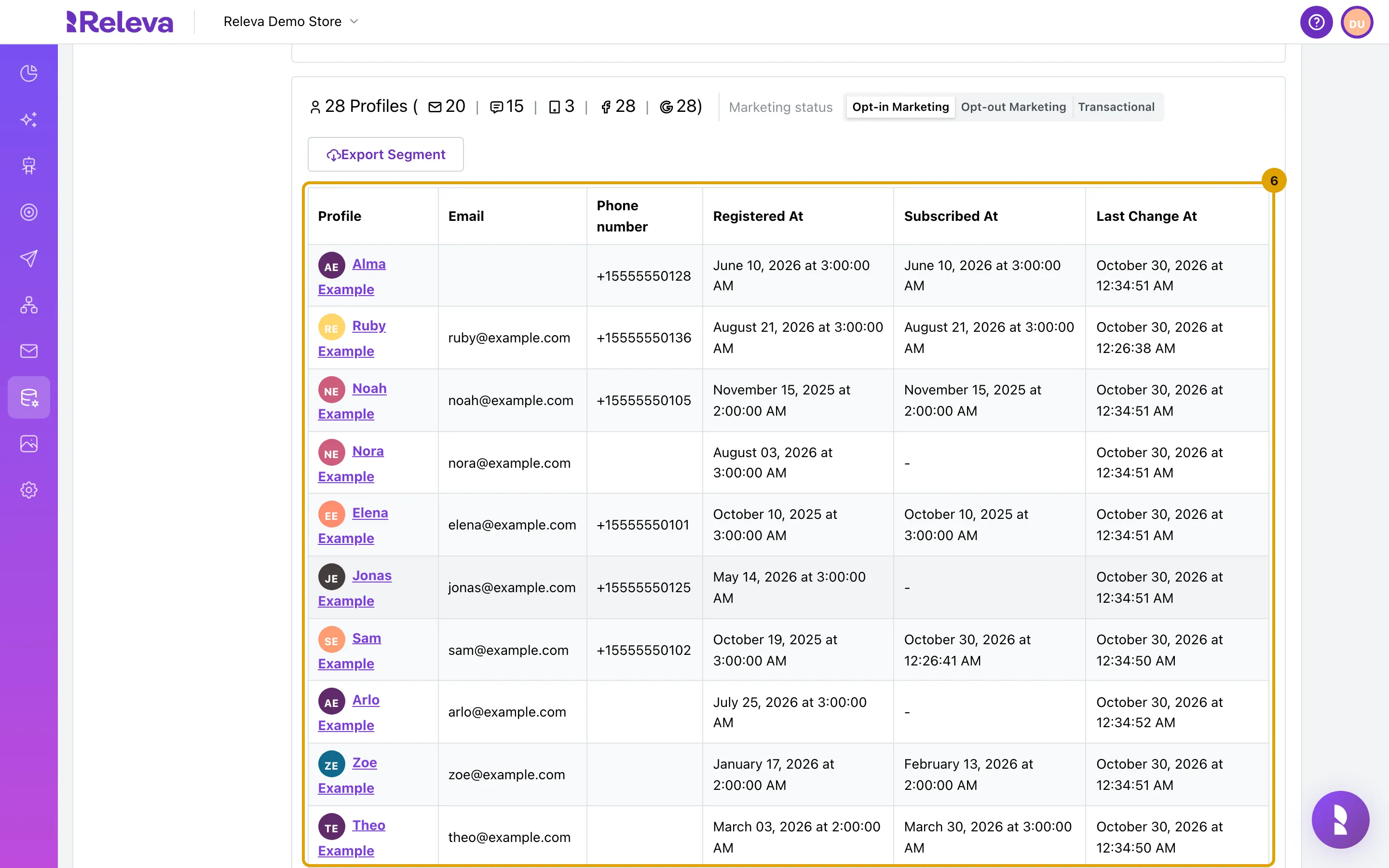
Below the counts, the table lists the profiles in the segment, 10 per page
The columns are Profile, Email, Phone number, Registered At, Subscribed At and Last Change At. Select a name to open that profile. A profile without a name shows its profile id instead. A dash means the field is empty.
-
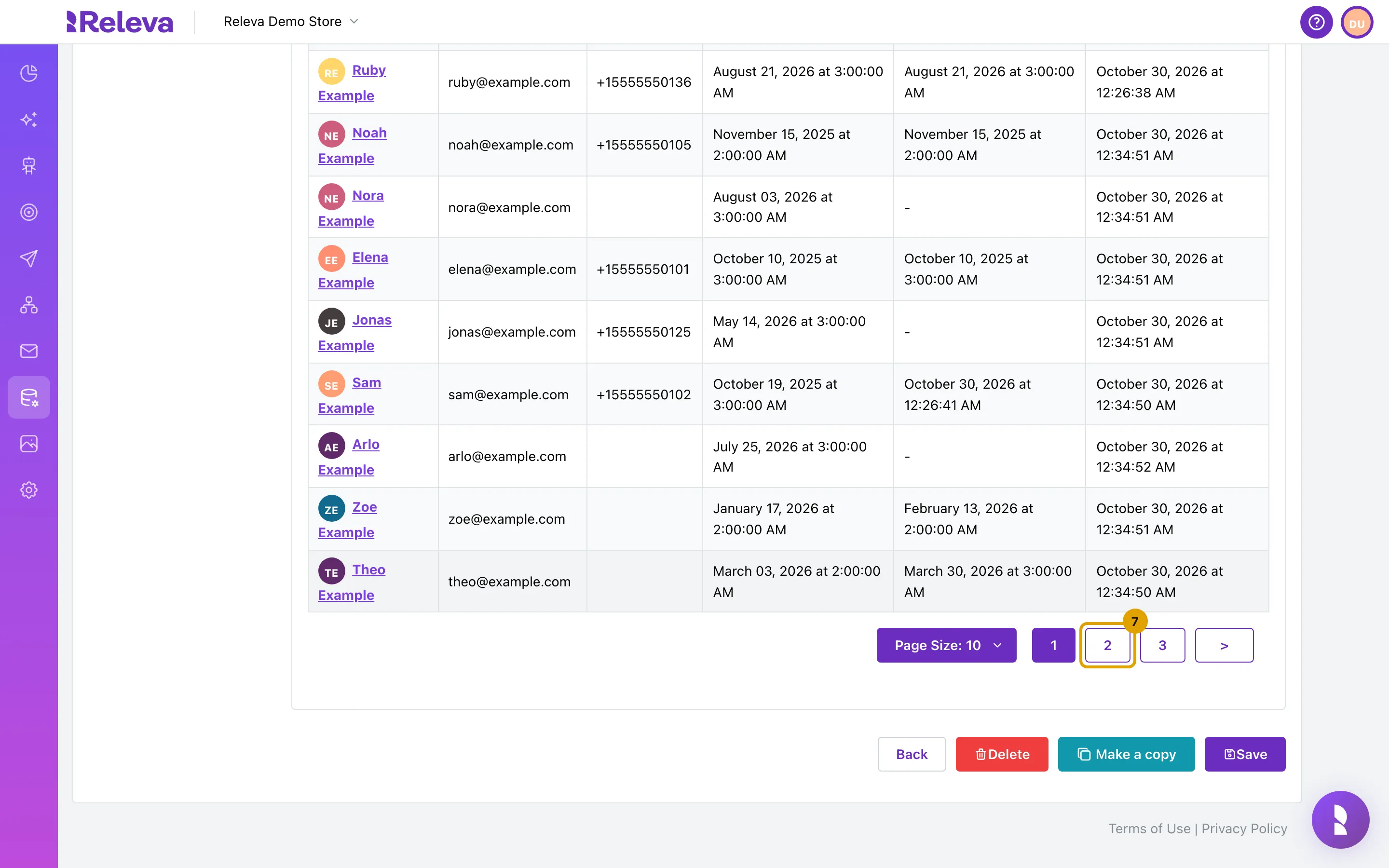
Select a page number to see more profiles
The pager under the table has numbered pages, < and >. Open Page Size: 10 to show 20, 30, 50 or 100 profiles per page. The pager is hidden when all profiles fit on one page.
-
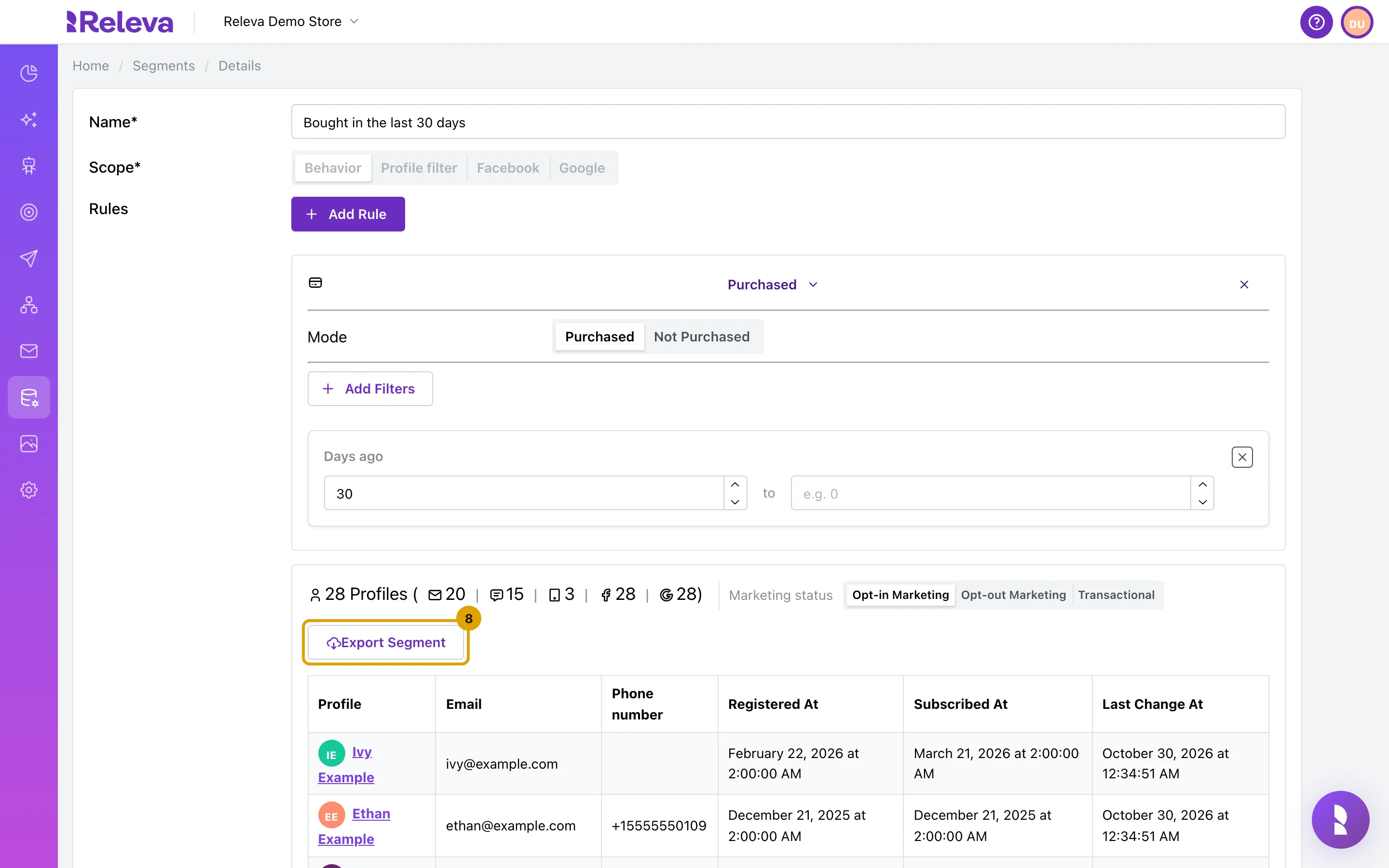
To get the complete list as a file, select Export Segment
The export covers every profile in the segment, not only the page you are looking at. Anonymous visitors in the segment are exported too: their rows have empty Email* and Phone number columns, because they have no e-mail address or phone number. The button shows only when the table has at least one profile.
-
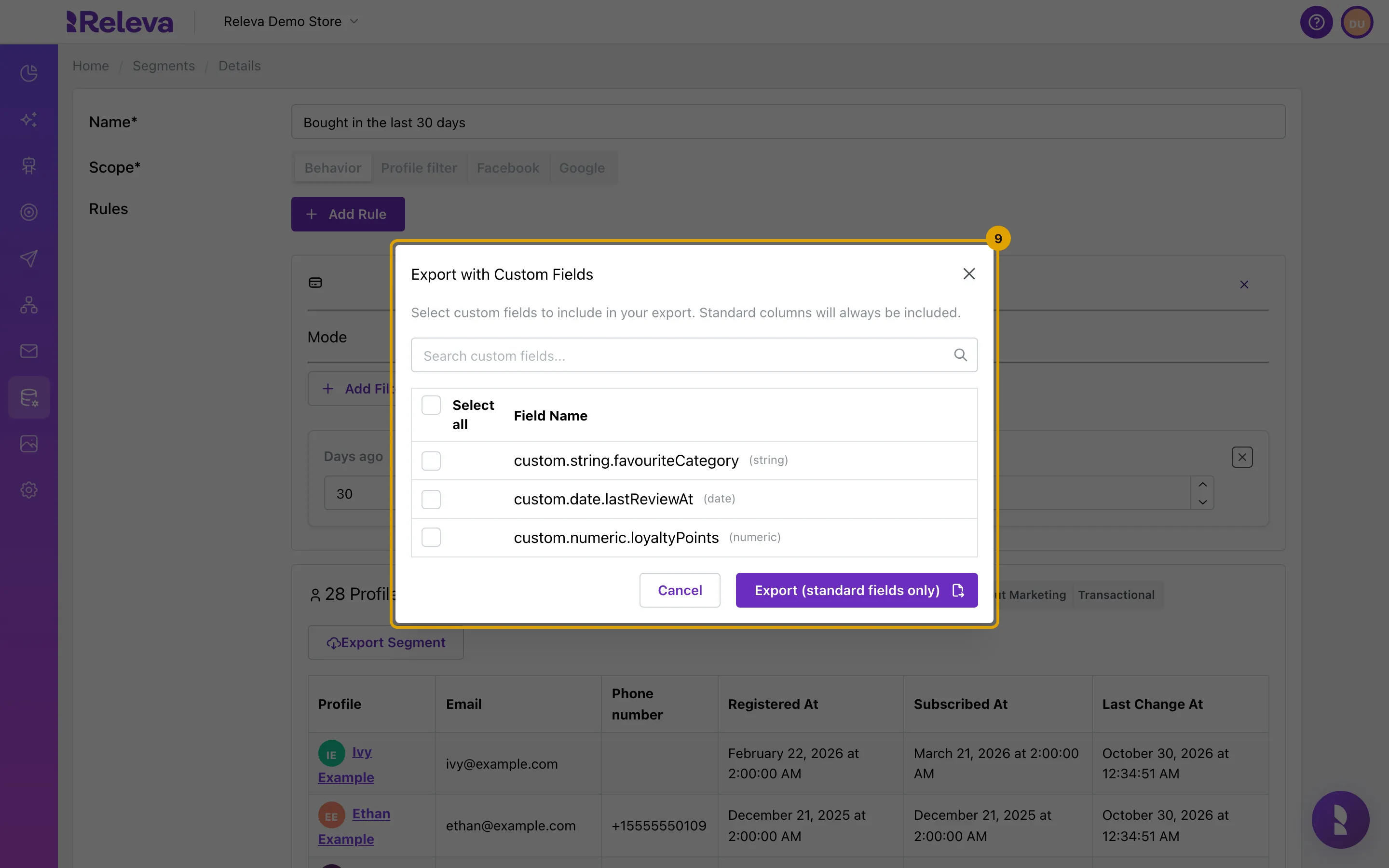
In Export with Custom Fields, select the custom fields to add to the file, or leave them all clear to export the standard columns only
The standard columns are always included. Use Search custom fields… to find a field, or Select all to add every custom field. If your profiles have no custom fields, the window says so and the export has the standard columns only.
-
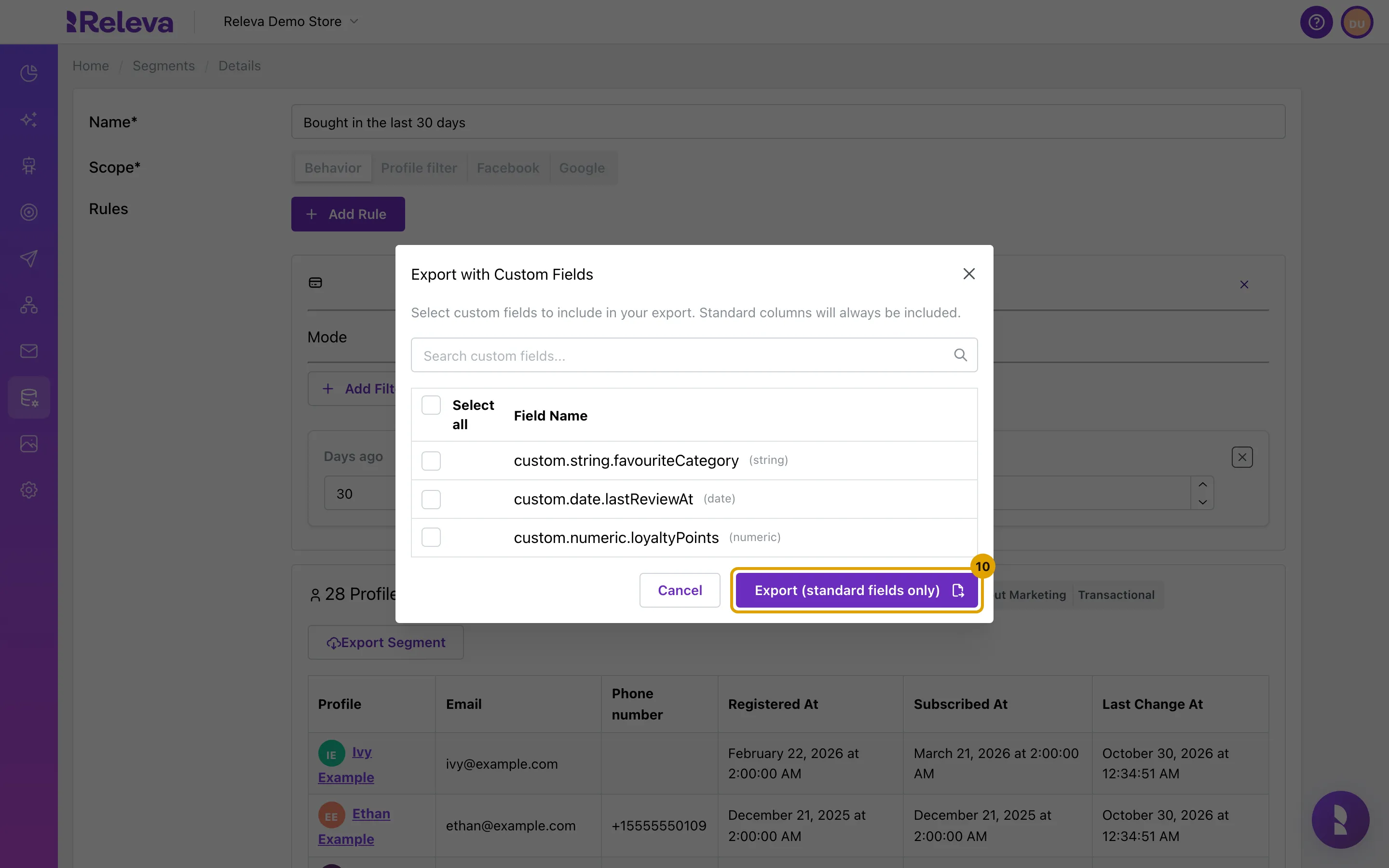
Select Export (standard fields only)
When you selected custom fields, the button reads Export with N custom fields instead.
-
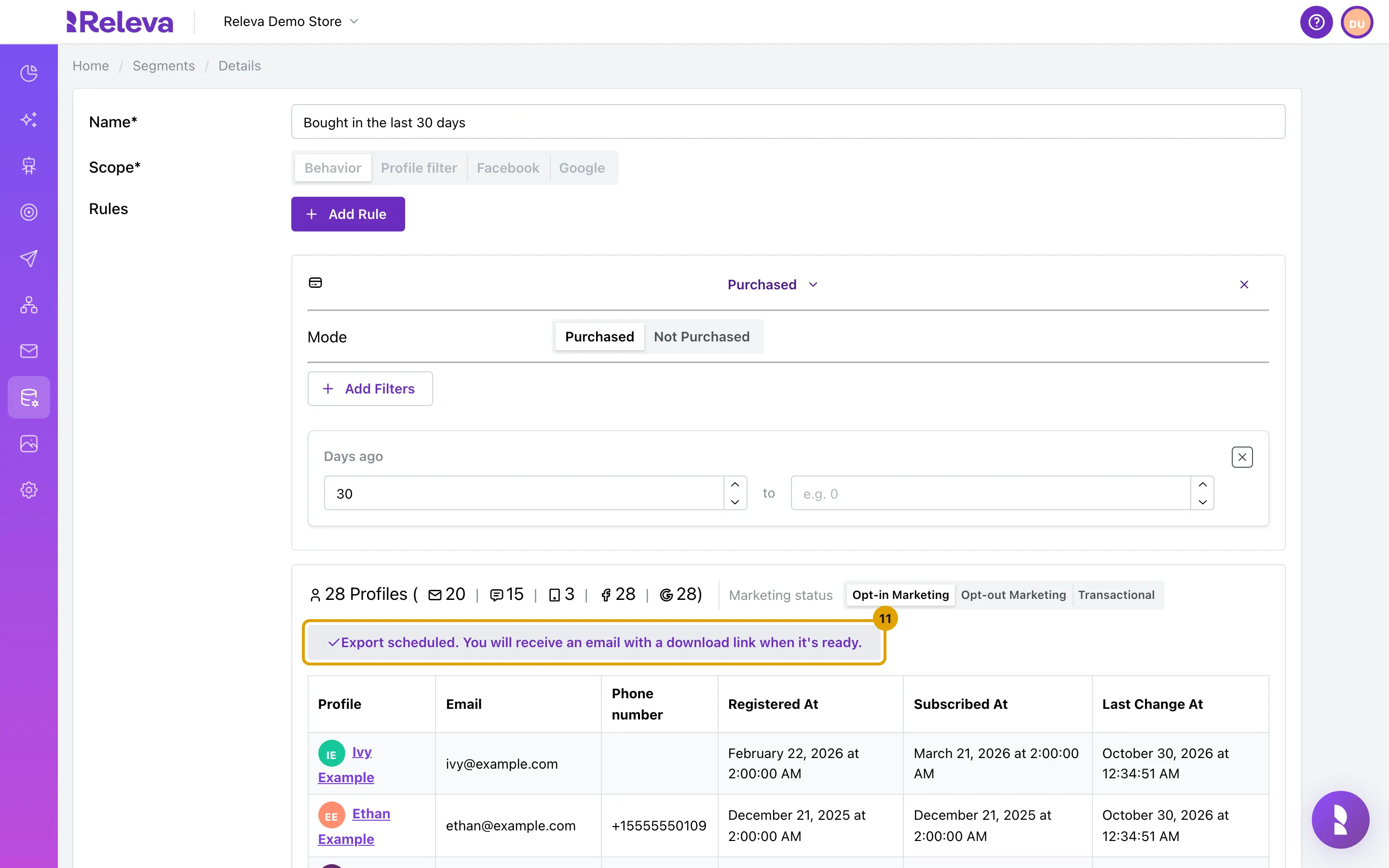
Releva schedules the export and emails you a download link when the file is ready
The window closes and the button is replaced by the greyed-out message Export scheduled. You will receive an email with a download link when it’s ready.
Check it worked
Section titled “Check it worked”- The place of Export Segment reads Export scheduled. You will receive an email with a download link when it’s ready.
- The export appears under Analytics › Exports with a profile badge, named “Profiles in segment name evaluated at date”, with your e-mail address as the recipient. See How exports work.
- An e-mail from Releva with a Download Export button arrives when the file is ready. Download the file within 30 days.
Troubleshooting
Section titled “Troubleshooting”I see a Calculate Segment button instead of a number. The count clears whenever a rule or filter changes, so you have edited the segment. Select Calculate Segment to count again. Nothing is saved until you select Save; select Back to leave without keeping the change.
There is no count and no table. The segment is not a Behavior segment, or no profile matches its rules. Only Behavior segments show the live count and the list, and Export Segment appears only when at least one profile matches.
The count differs from the badge on the card. The badge shows the last count stored by Releva’s scheduled segment run, which exists only for segments that a running campaign or web personalisation uses. The number inside the segment is calculated when you open it.
A profile appears twice, or is missing, when I page through the table. The table has no fixed order, so a profile can move between pages when you load the next one. For the complete list, use Export Segment.
The export button turned red with “An error occurred while scheduling export.” The export could not be scheduled. Reload the page and select Export Segment again.
The email and SMS numbers are lower than I expected. Marketing status is set to Opt-in Marketing or Opt-out Marketing, which removes profiles without the matching consent from those two numbers. Select Transactional to see everyone you can reach.