

Find a customer profile
The Profiles page lists every customer Releva knows for your shop: people who registered, subscribed, placed an order or were imported. Use it to check a customer’s consent, tags, segments and recent activity.
Profiles come from your shop integration, from imports, from the API and from the Add Profile form. See How customer profiles work.
Before you start
Section titled “Before you start”- Your plan includes the Profiles page. If the Profiles menu item is greyed out, ask your account owner to unlock it.
- You know the customer’s email address, name, phone number or profile id.
-
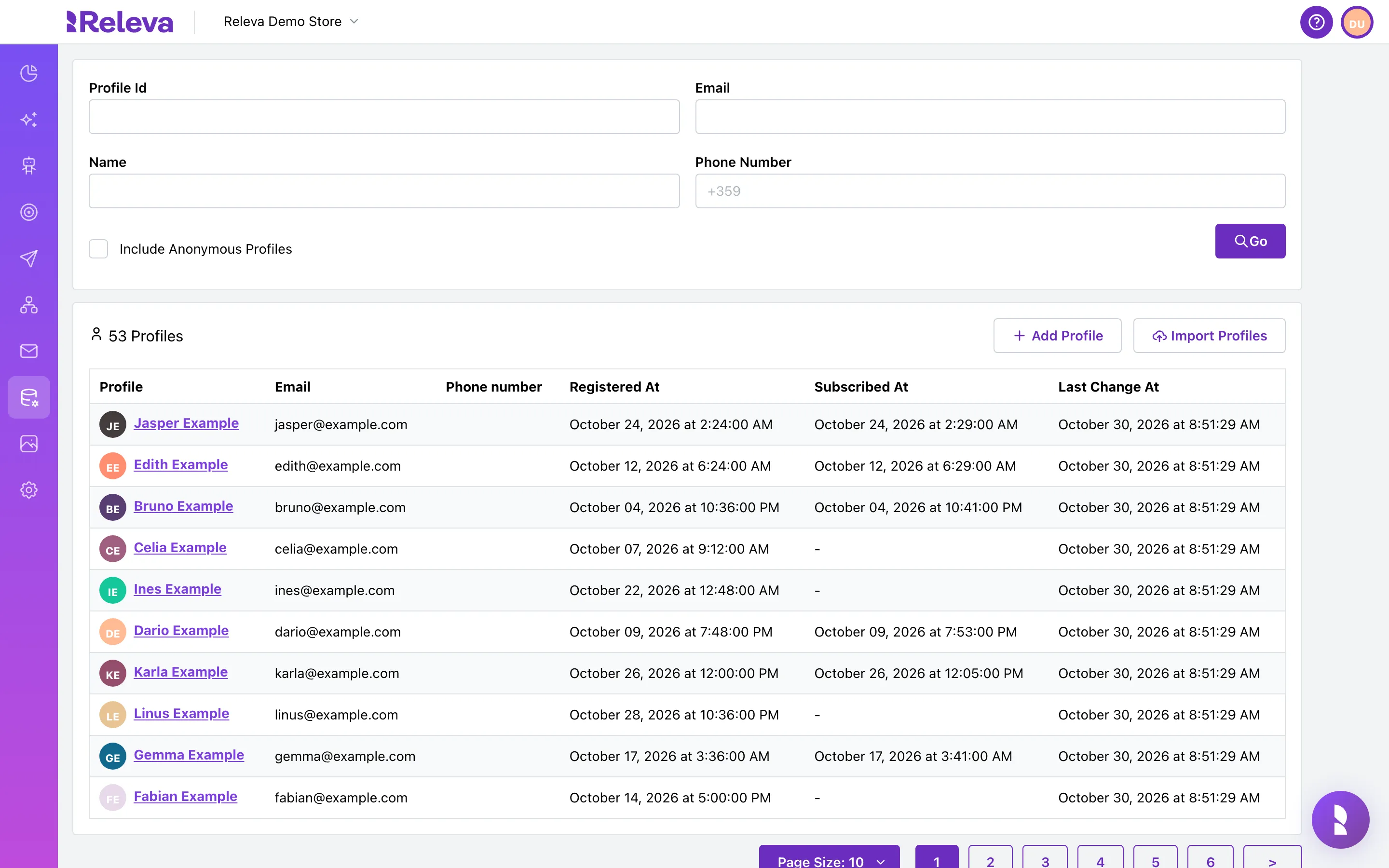
Go to Data Platform › Profiles.
The first list shows all profiles, anonymous ones included, although Include Anonymous Profiles is off. The filter applies once you select Go.
-
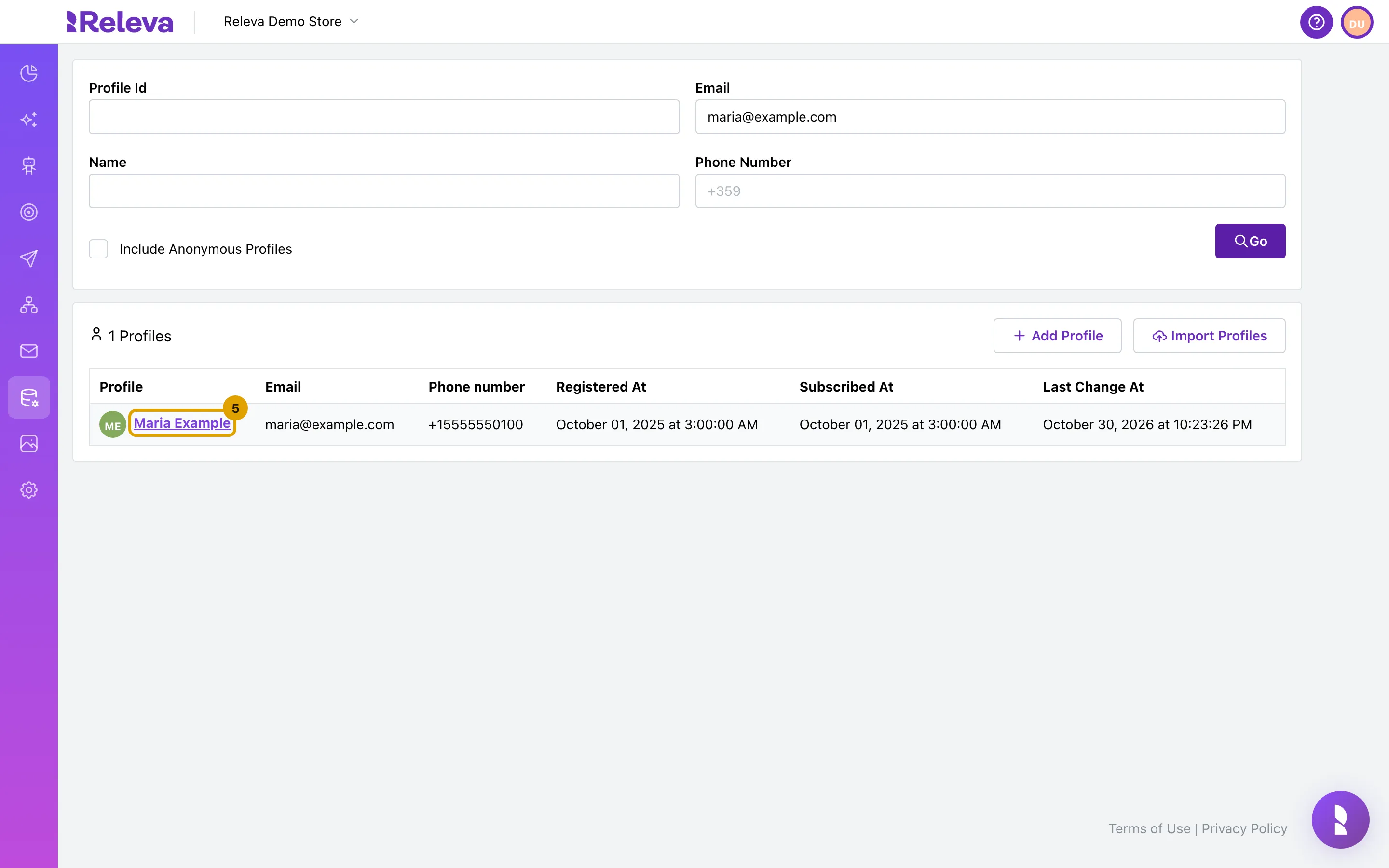
In Email, enter the customer’s email address.
Email matches the whole address, ignoring case. A
+suffixbefore the@is ignored, somaria+shop@example.comfindsmaria@example.com. You can search by Name, Phone Number or Profile Id instead; see the table below.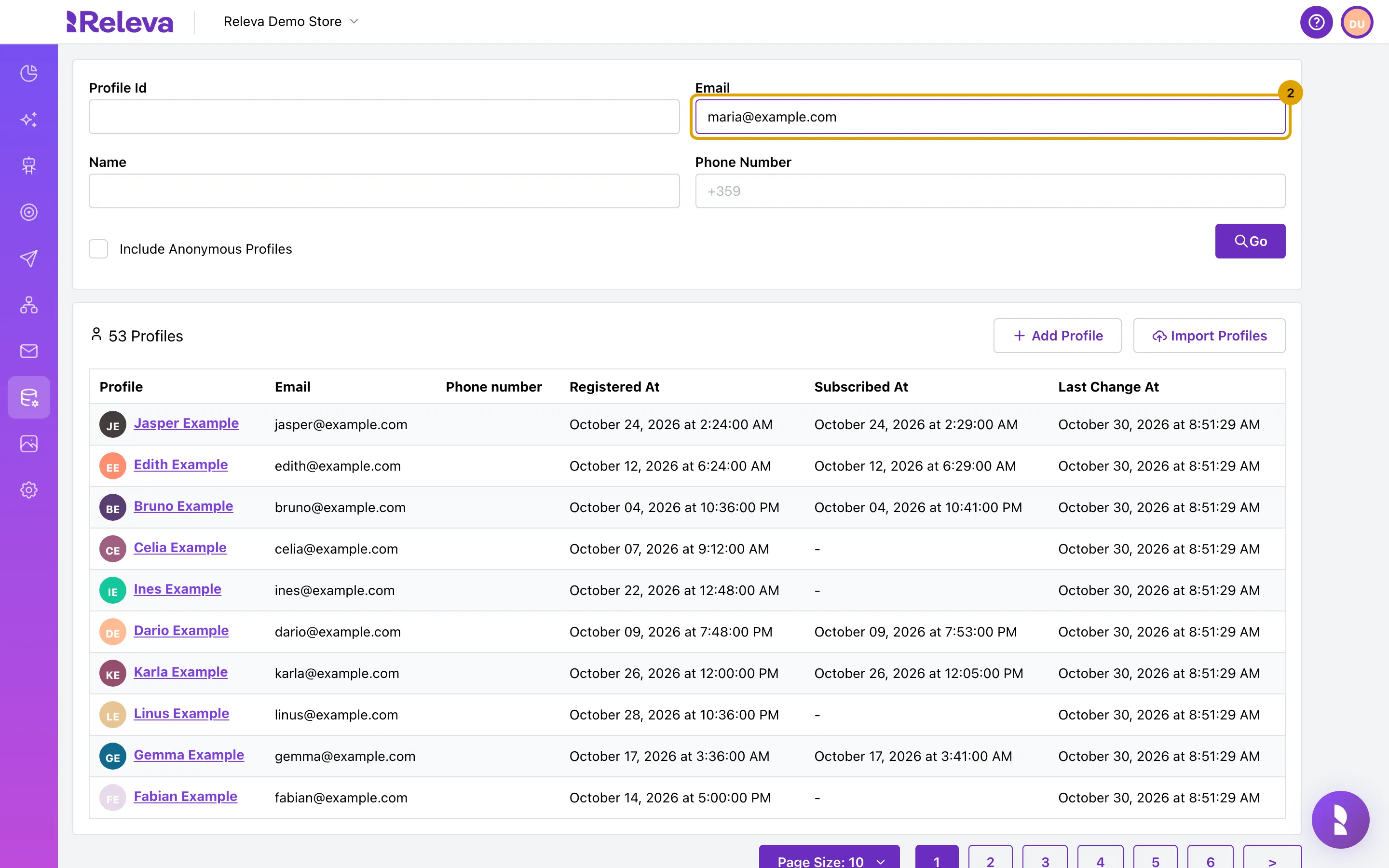
-
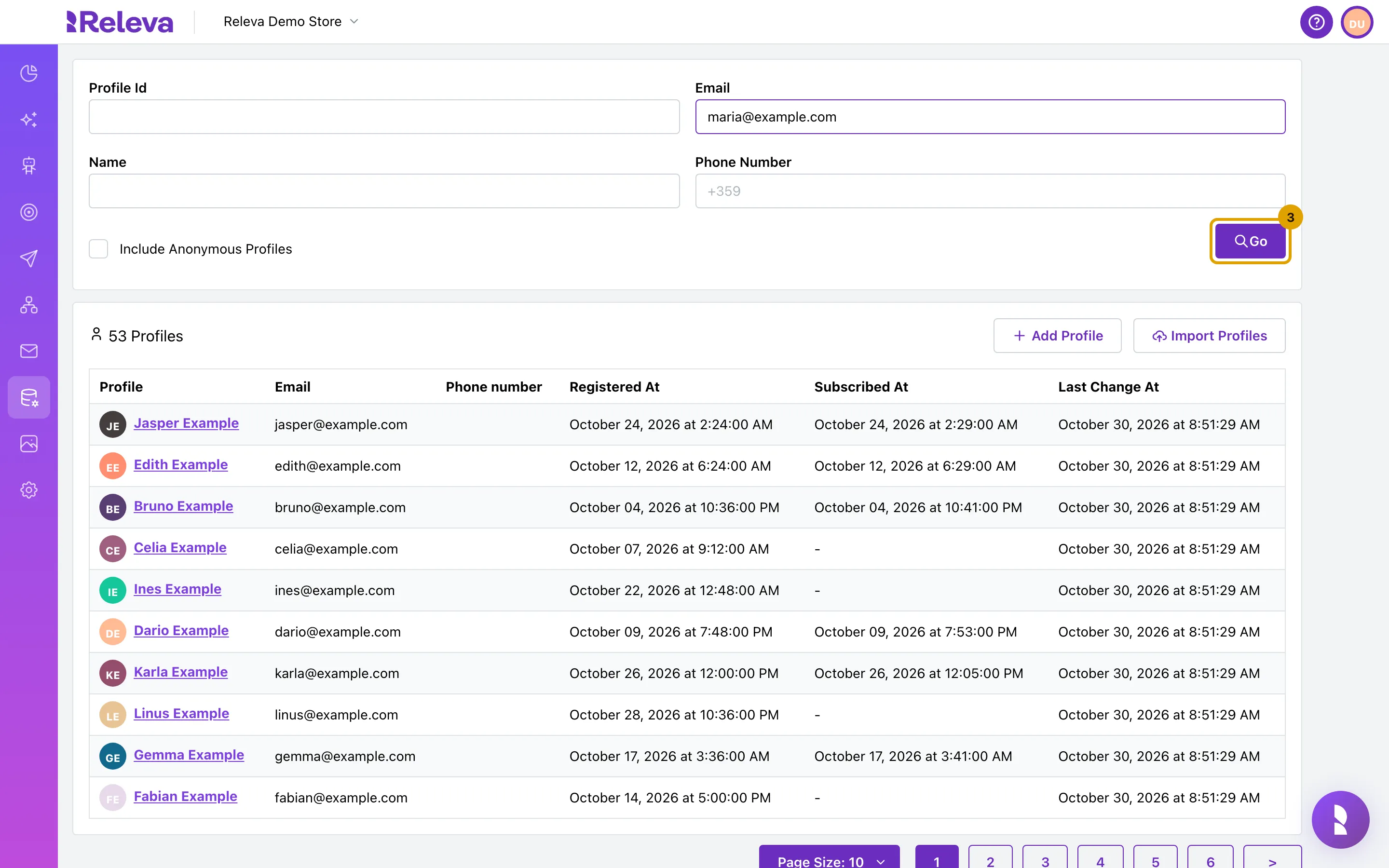
Select Go.
Typing alone does not search. The filter goes into the page URL, so you can bookmark a search.
-
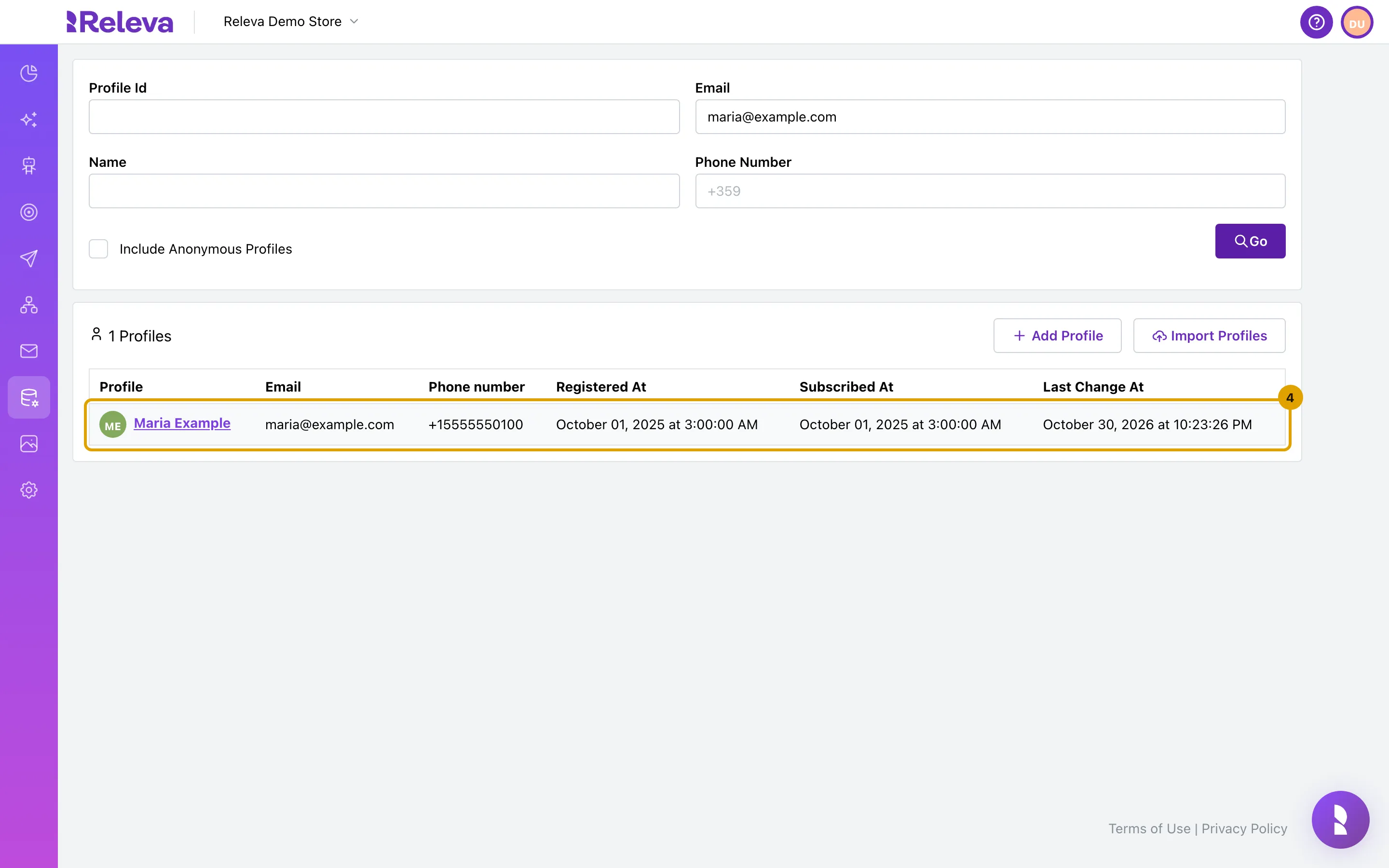
The list shows the matching profile.
The card title shows how many profiles match. Each row shows the profile name, Email, Phone number, Registered At, Subscribed At and Last Change At. An empty date shows as
-.
-
Select the profile name to open it.
-
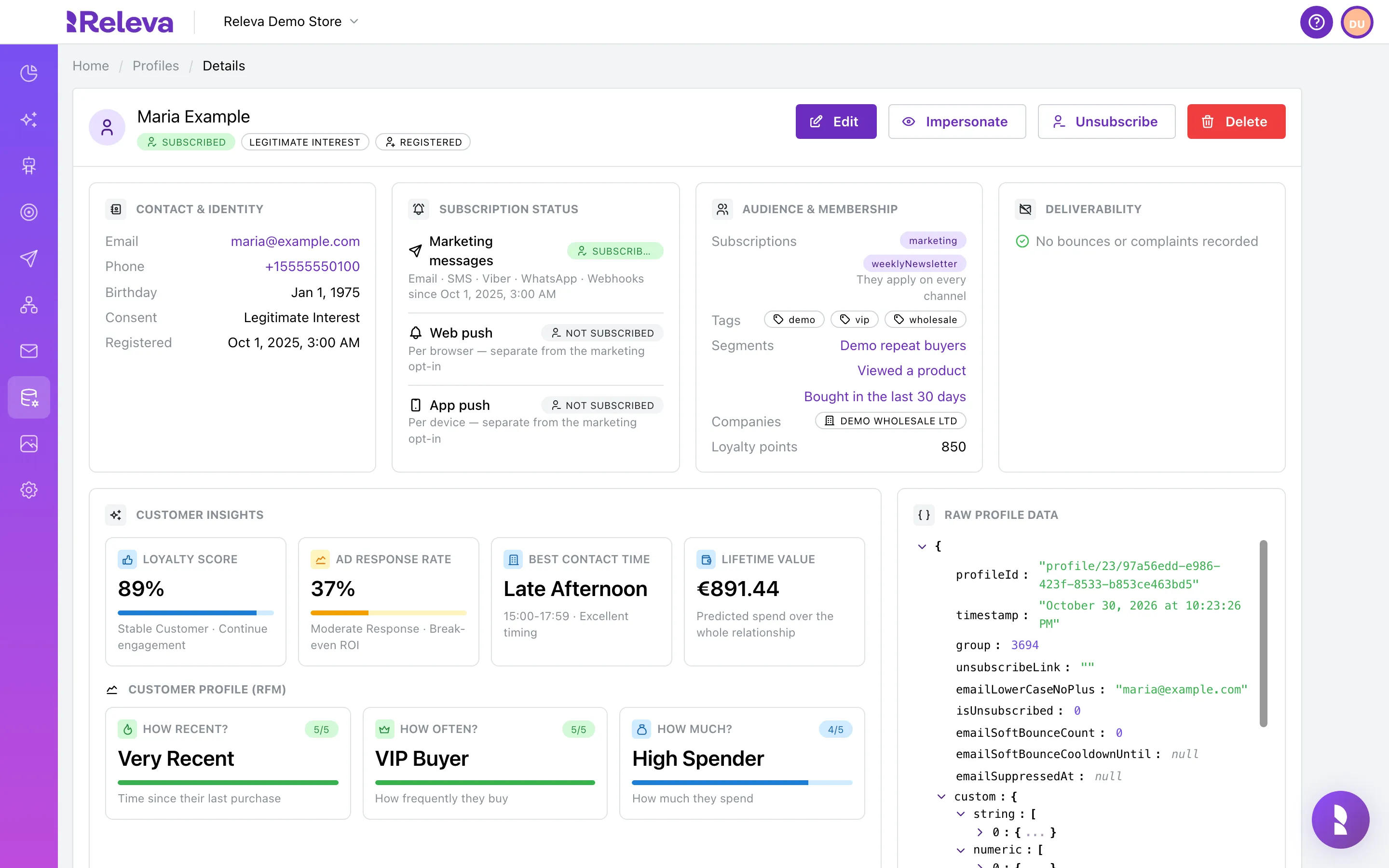
The profile page shows contact details, subscription status, tags, segments and companies.
Under the name, badges show the marketing status (Subscribed, Unsubscribed or Not subscribed), the consent level and Registered or Guest. The panels show Contact & identity, Subscription status, Audience & membership (subscriptions, tags, segments, companies, loyalty points), Deliverability, Customer insights and Raw profile data.
-
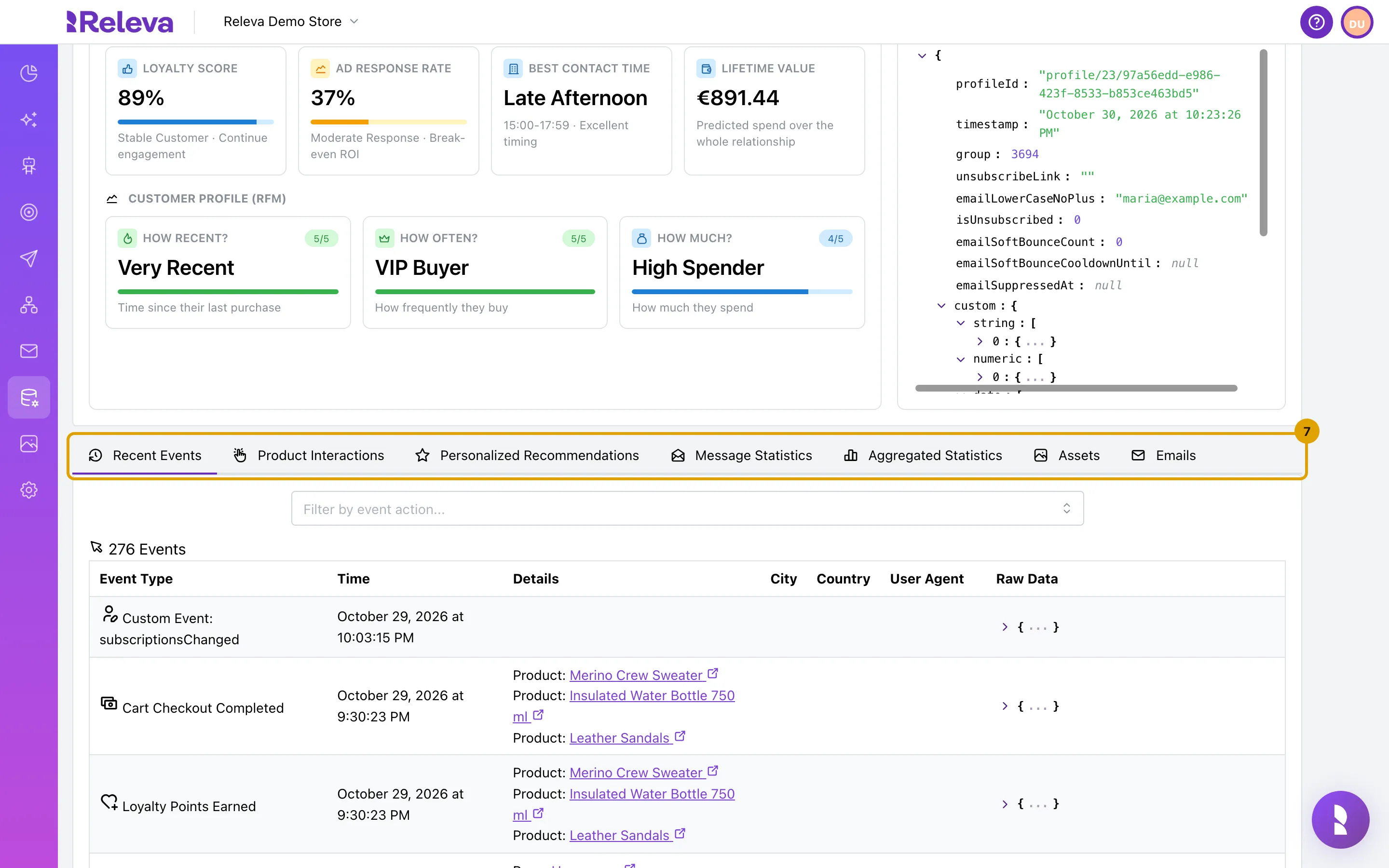
Use the tabs to see recent events, product interactions, personalized recommendations, message statistics, aggregated statistics, assets and emails.
How the filters match
Section titled “How the filters match”All filters you fill in combine. Spaces in the phone number are removed before the search.
| Filter | Matches |
|---|---|
| Profile Id | Exactly the customer id your shop sent (the id in the API). |
The whole address, ignoring case and any +suffix. |
|
| Name | The start of the first name or the last name, ignoring case. Mar finds Maria; aria does not. |
| Phone Number | The whole number in international form. It must start with + and the country code. |
| Include Anonymous Profiles | When on, the list also shows visitors Releva tracked without an email or phone number. |
The list is ordered by the hour of the last change. Rows changed within the same hour appear in no fixed order. Change Page Size (10, 20, 30, 50 or 100) below the table to see more rows per page.
Check it worked
Section titled “Check it worked”- The card above the table reads 1 Profiles (or the number you expect) and the customer is in the list.
- The profile page shows the customer’s name, with their Email under Contact & identity.
- The browser tab title reads Releva | Profiles | <first name> <last name> | Details.
Troubleshooting
Section titled “Troubleshooting”The list shows 0 Profiles for a customer you know exists. Check the spelling. Email and Profile Id match the whole value, Name matches only the start of a first or last name. Clear the other fields: a value left in another filter also has to match. If the customer never gave an email or phone number, turn on Include Anonymous Profiles.
Phone number should start with + followed by a country phone code! Example: +359. The Phone Number filter accepts only the international form. Add + and the country code, for example +359888000101.
The page shows “Profile with this id cannot be found!” The link you opened points at a profile that was deleted or belongs to another shop. Search for the customer again from Data Platform › Profiles.
The Profiles menu item is disabled. Your plan does not include the Profiles page. Users who manage the subscription see an unlock button next to the item.
A change you just made is not on the profile page. The profile page and the list catch up a few seconds after a save. Reload the page.