

Import profiles from a CSV file
Import Profiles loads many customer profiles from one CSV file: names, e-mail addresses, phone numbers, registration and consent dates, subscriptions and tags. The file is processed in the background and Releva e-mails you the result. For one or two profiles use Add a customer profile; for an integration use POST /api/v0/profiles.
Before you start
Section titled “Before you start”- Prepare the file in the format below, or start from the CSV template (the same file the download a sample CSV file link in the Profile Import window opens). The columns are read by position, not by their header, so keep the order exactly.
- Decide what should happen to customers that Releva already knows (matched by e-mail or phone number): skip them, or update them with the values in the file.
- Tag every row with the import name and date (for example
import_2026_10), so you can build a segment of this import later.
File format
Section titled “File format”The file is comma-separated, UTF-8, with one header row that is skipped. Every row must have the same number of columns as the header: 8, 9 or 10. A row with a different number of columns, or a blank line, makes the whole import fail before any row is written: nothing is imported (see Troubleshooting). Quote a cell that contains a comma, such as "newsletter,promotions".
First name,Last name,Email,Phone number,Registration Date,Subscribe Date,Subscriptions,Tags,Accept Privacy Policy,Unsubscribe linkMaria,Ivanova,maria@example.com,+359888000001,2026-01-15,2026-01-15,"newsletter,promotions","import_2026_10,vip",Yes,Peter,Smith,peter@example.com,,2026-03-02,,newsletter,import_2026_10,Yes,Ana,Lopez,,+34600000002,,2026-05-20,sms,import_2026_10,,| # | Column | Rules |
|---|---|---|
| 1 | First name | Optional. Blank leaves an existing name unchanged. |
| 2 | Last name | Optional. Blank leaves an existing name unchanged. |
| 3 | E-mail or phone number is required. An invalid e-mail skips the row, even when the phone number is valid. | |
| 4 | Phone number | +, country code and digits with no spaces: +359888000001. |
| 5 | Registration Date | When the customer registered. 2026-01-15, 2026-01-15 10:00:00, 2026-01-15 10:00:00.000 or ISO 8601 with a timezone (2026-01-15T10:00:00Z). An ISO value without a timezone and formats such as 15.01.2026 are rejected. Blank for guests. |
| 6 | Subscribe Date | When the customer consented to marketing messages. Same formats. A date marks the profile as subscribed; blank means no consent. |
| 7 | Subscriptions | Comma-separated topics inside one cell, for example "newsletter,promotions". Blank means no topics. |
| 8 | Tags | Comma-separated tags inside one cell. Tags are case-sensitive and spaces are kept, so write a,b, not a, b. |
| 9 | Accept Privacy Policy | Exactly Yes records privacy-policy consent. Anything else leaves the consent level as it is. |
| 10 | Unsubscribe link | The customer’s own unsubscribe URL. Read only on shops that manage subscriptions outside Releva and have no shop-level unsubscribe link, and only when the header has at most 10 columns. On such shops a row with an e-mail or phone number and no link is rejected. |
Rows are matched to existing profiles by e-mail or phone number. If the same e-mail or phone number appears on several rows, only the last row is imported and the e-mail warns you. Imported dates do not trigger workflows or campaigns.
-
Go to Data Platform › Profiles.
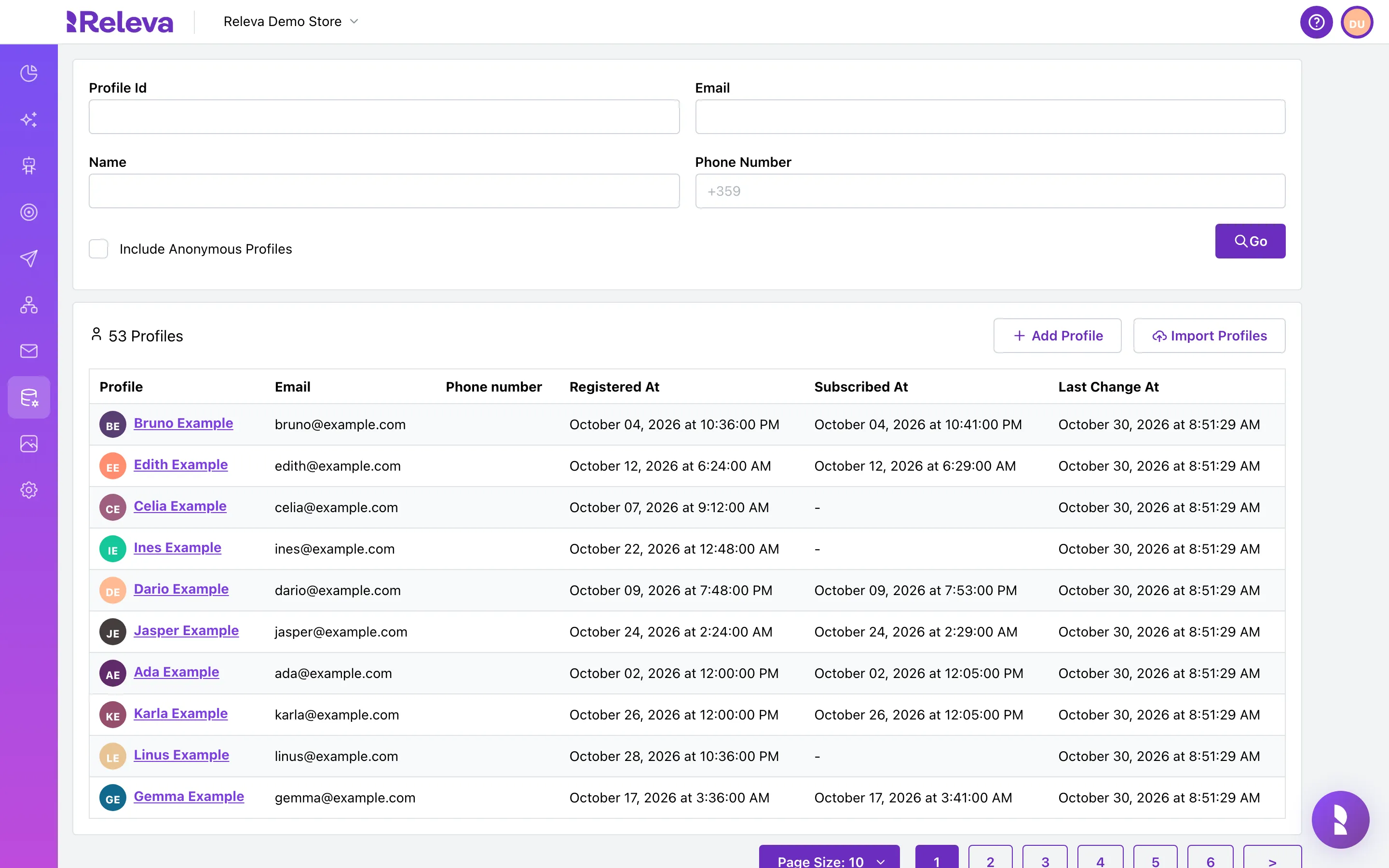
-
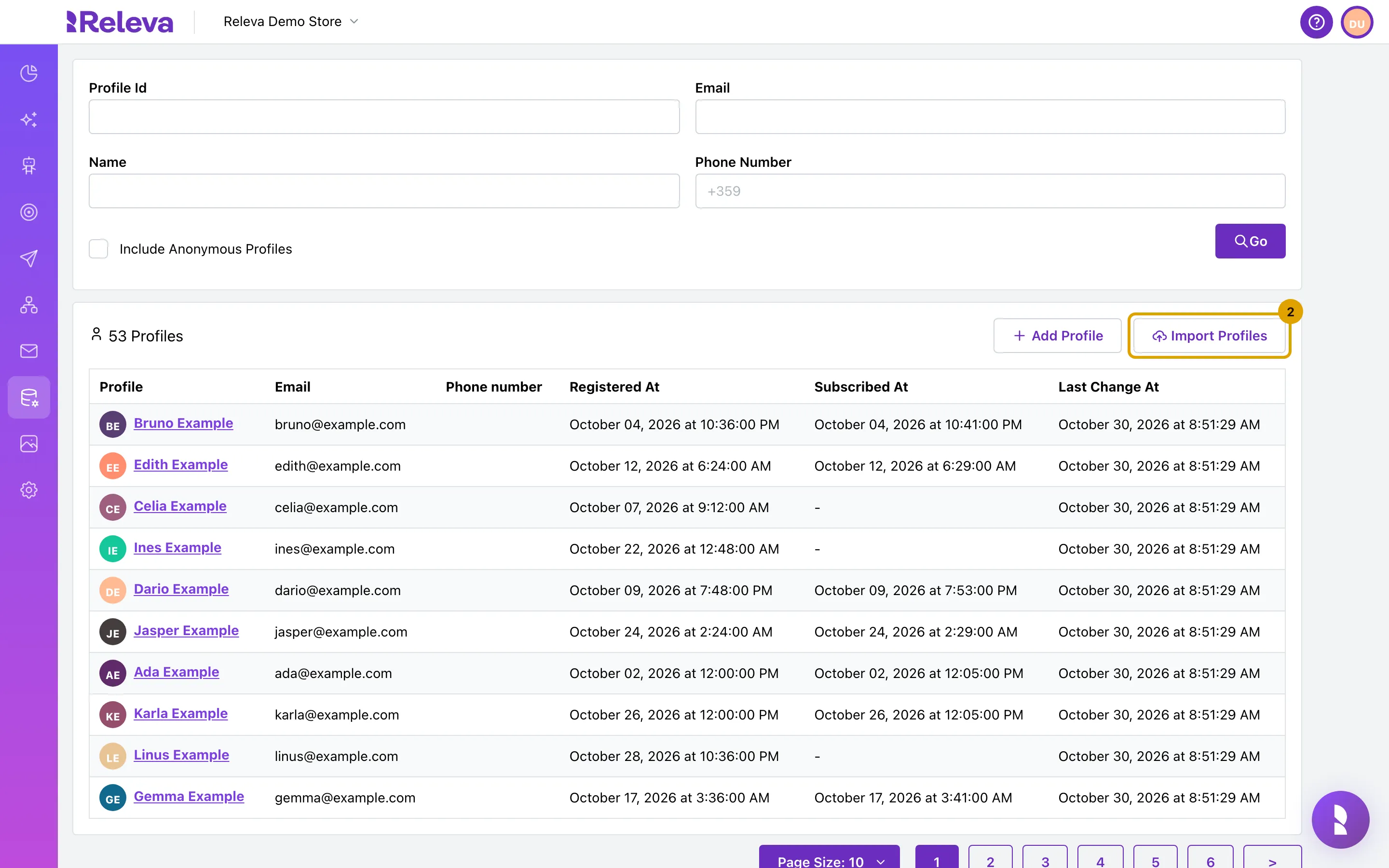
Select Import Profiles.
The Profile Import window opens.
-
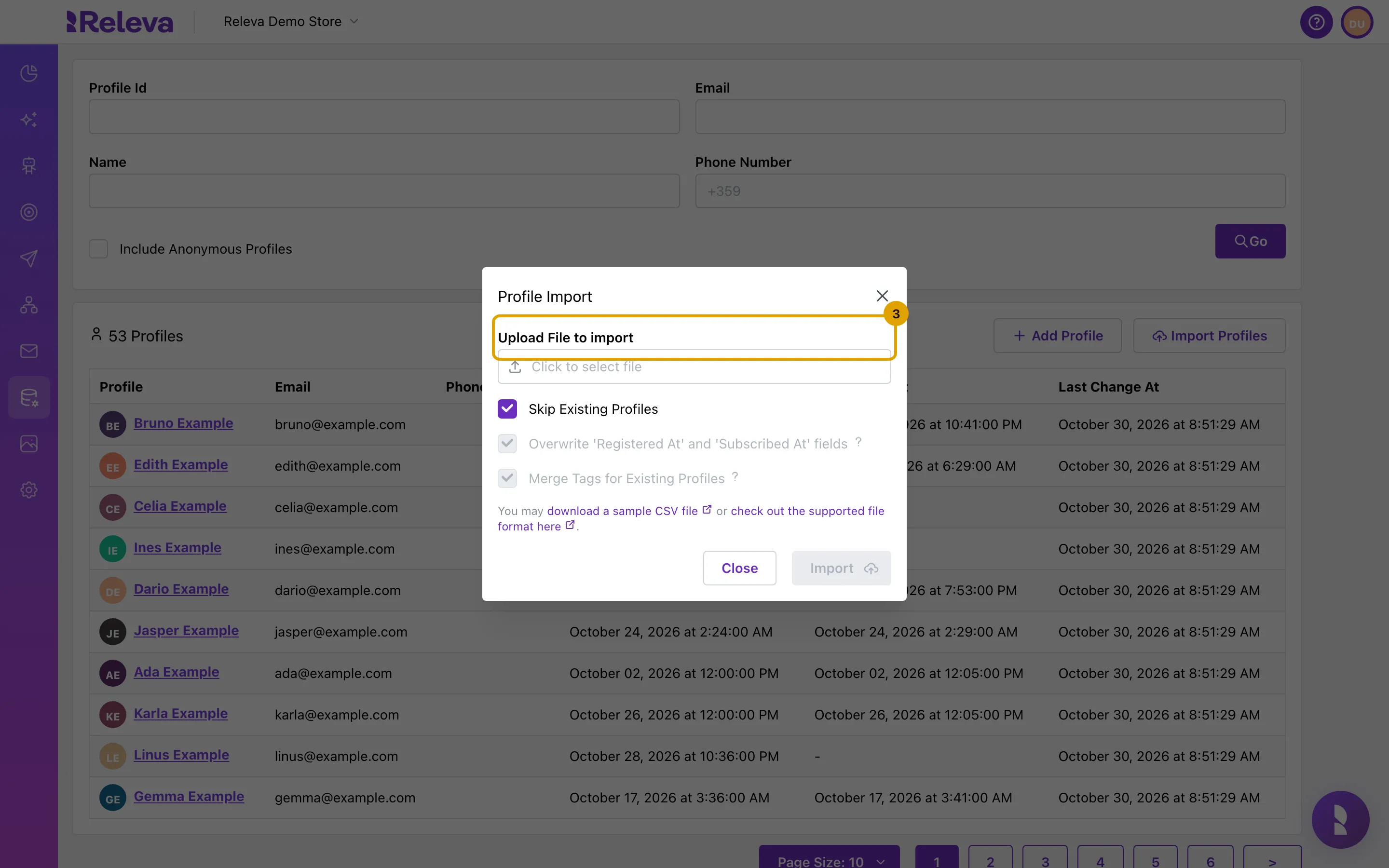
Under Upload File to import, select Click to select file and choose your .csv file.
The file name replaces Click to select file once it is chosen. Import stays disabled until then.
-
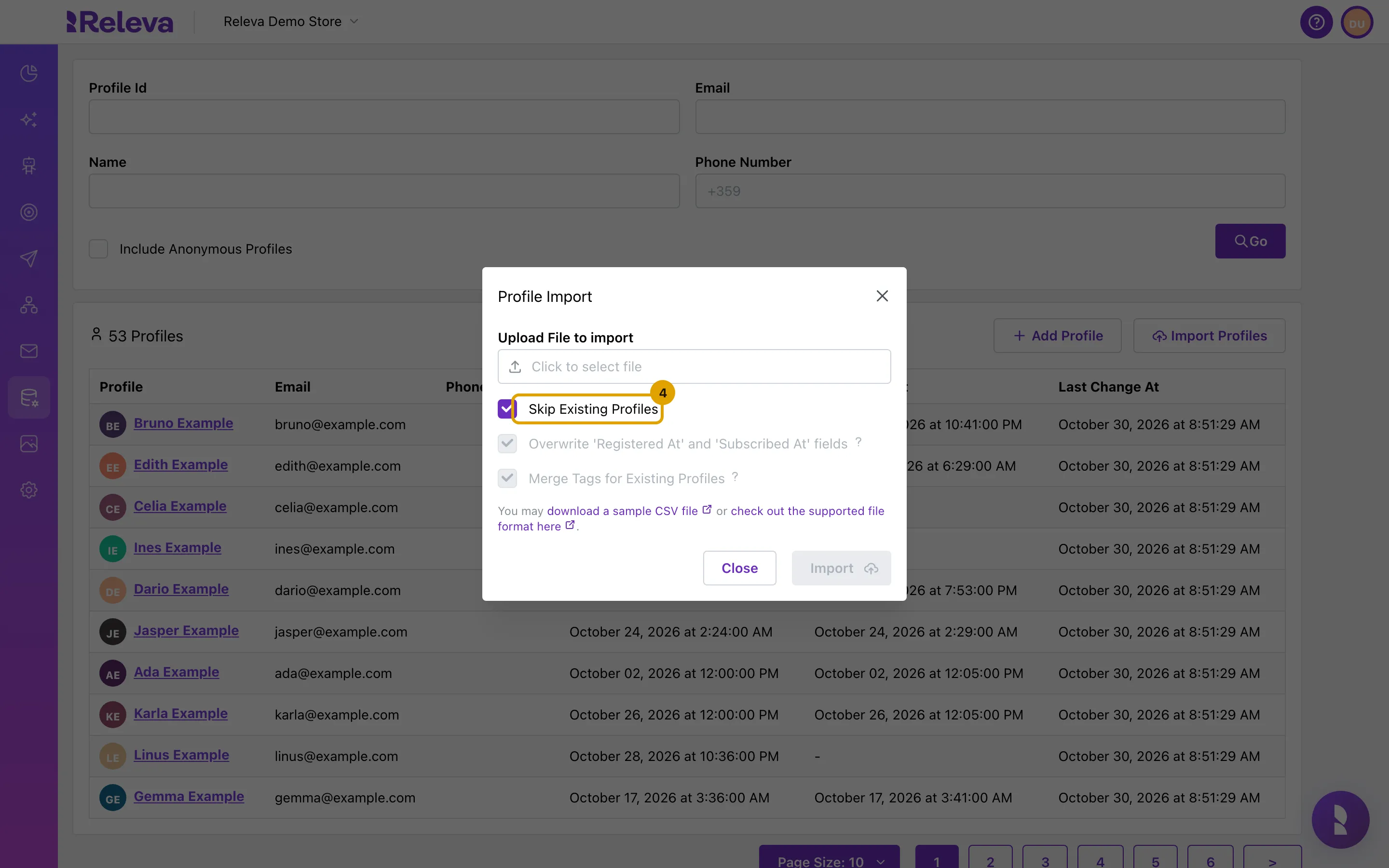
To update profiles that already exist, clear Skip Existing Profiles. Leave it selected to add only new profiles.
With Skip Existing Profiles selected (the default), rows that match a known e-mail or phone number are left untouched and the two options below are greyed out.
-
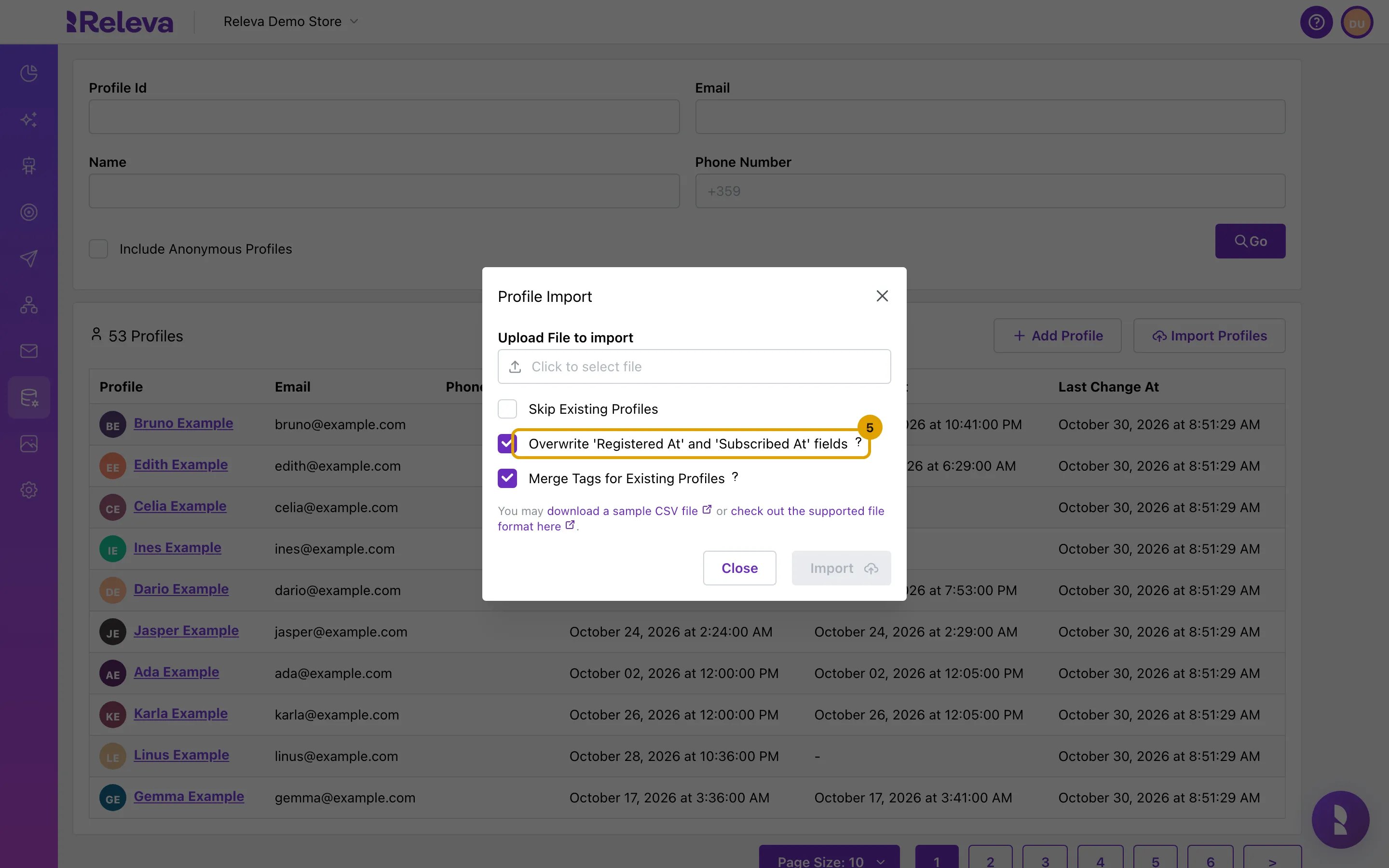
Choose whether to Overwrite ‘Registered At’ and ‘Subscribed At’ fields of existing profiles with the values in the file.
Selected: a date in the file replaces the stored date, and a blank cell clears it. A cleared Subscribe Date unsubscribes the profile, which makes this option a way to unsubscribe many customers at once. Cleared: blank cells leave the stored dates unchanged; filled cells still replace them.
-
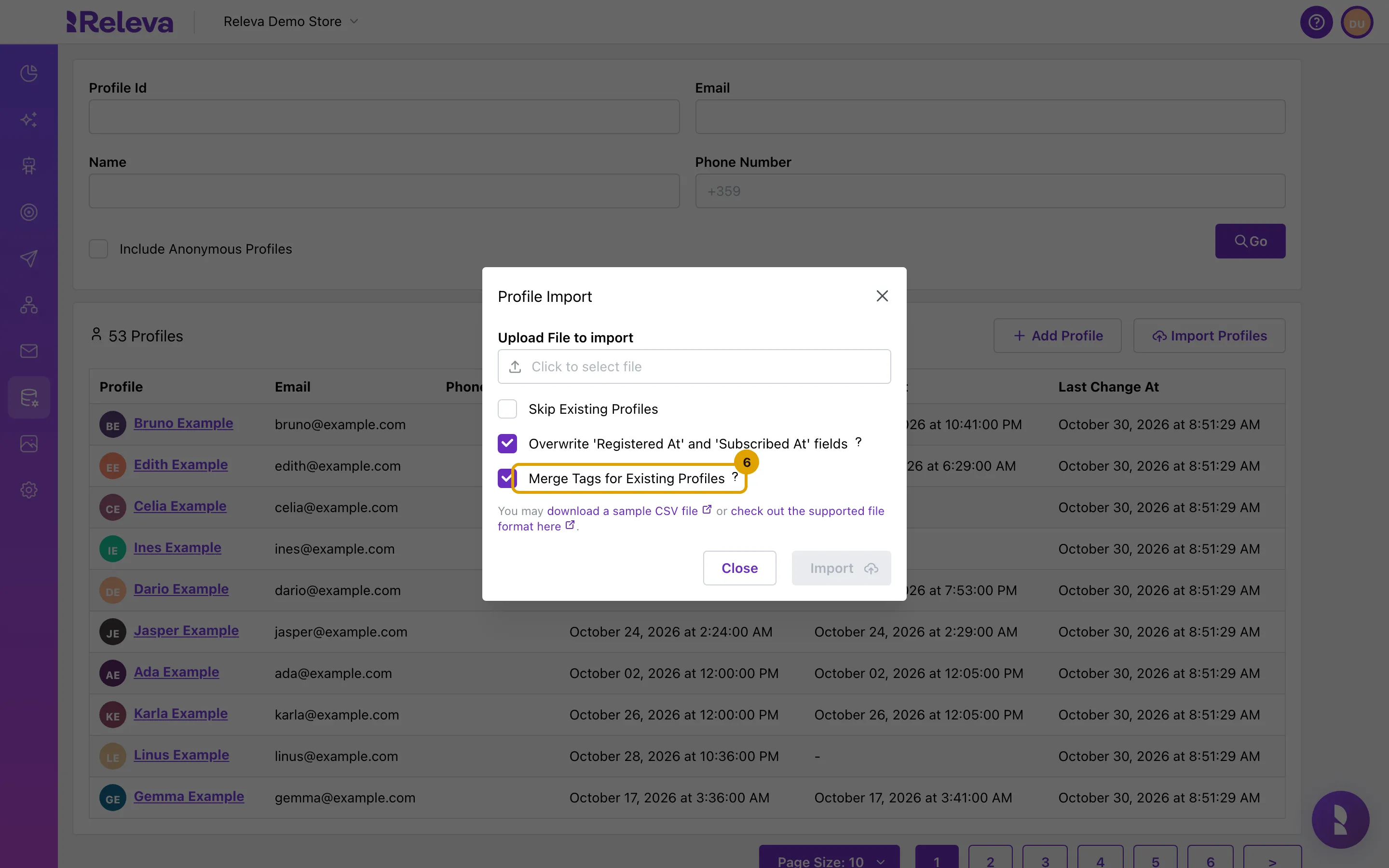
Choose whether to Merge Tags for Existing Profiles (add the file’s tags) or replace their tags.
Selected: the file’s tags are added to the profile’s existing tags. Cleared: the file’s tags replace them, and a blank cell removes all tags.
-
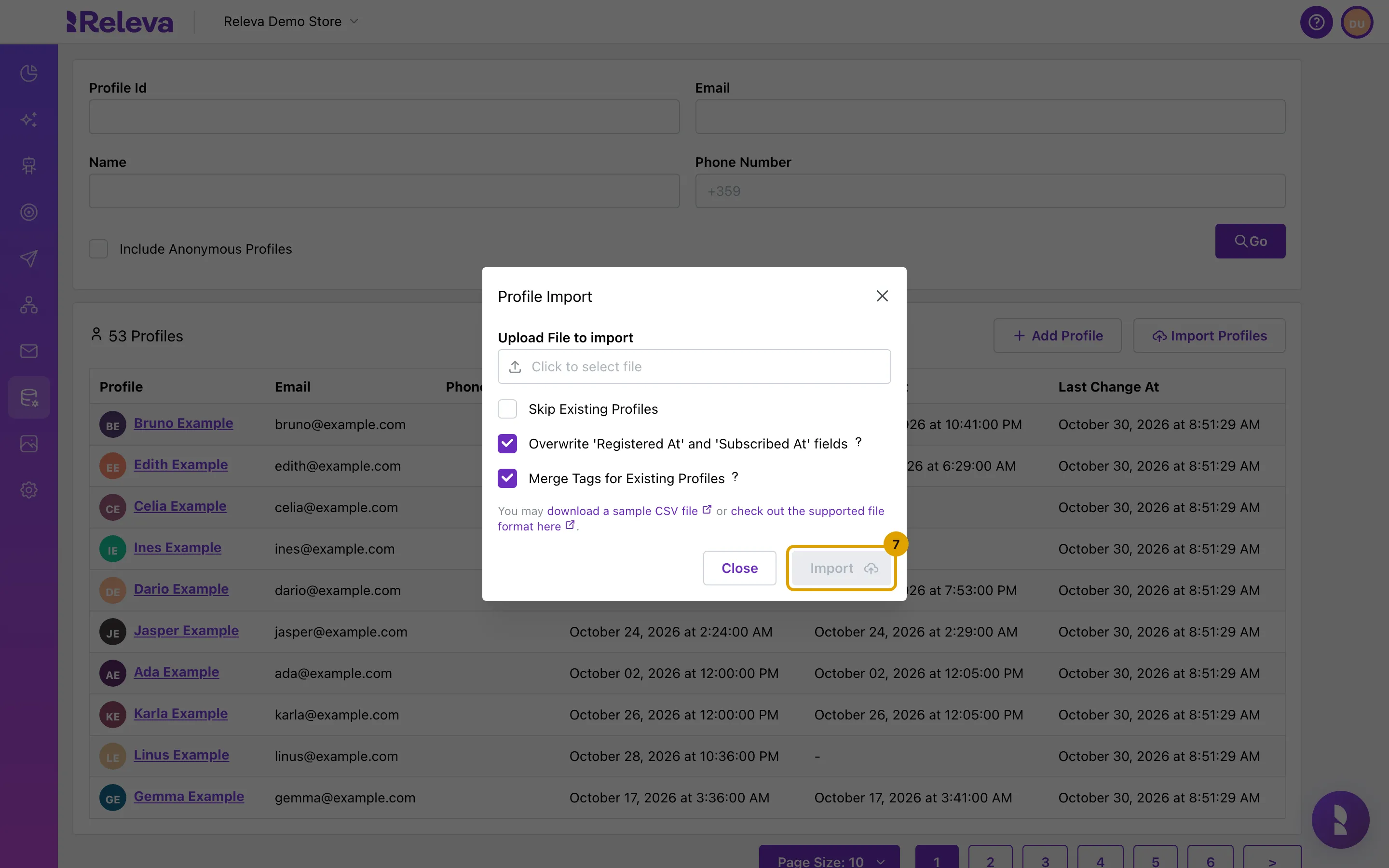
Select Import. Releva e-mails you when the import has finished.
The window closes and the notification Import Scheduled confirms that the file is queued. You can leave the page. The picture shows Import greyed out because no file is chosen yet.
How existing profiles are updated
Section titled “How existing profiles are updated”These rules apply when Skip Existing Profiles is cleared:
| Field | Cell filled | Cell blank |
|---|---|---|
| First name, Last name, Email, Phone number, Unsubscribe link | Replaced | Unchanged |
| Registration Date, Subscribe Date | Replaced | Cleared with Overwrite on, unchanged otherwise |
| Subscriptions | Replaced by the file’s list | Set to no subscriptions |
| Tags | Added with Merge Tags on, replaced otherwise | Unchanged with Merge Tags on, cleared otherwise |
| Accept Privacy Policy | Yes sets privacy-policy consent |
Unchanged |
Check it worked
Section titled “Check it worked”- You receive an e-mail with the subject Your profile import has been processed successfully! and a Go to Profiles button. The subject Your import has been processed but N lines were skipped. means some rows had errors; the body lists each one as
Line <n>: <reason>. - On Data Platform › Profiles, search for an e-mail address from the file. The profile shows the imported name, dates and tags.
- Create a segment on the tag you used (see Create a segment) to see the whole import in one place.
Troubleshooting
Section titled “Troubleshooting”Import is disabled. No file is chosen yet. Select Click to select file first.
The e-mail says the import terminated early. Either more than 10 rows had errors, or the file could not be parsed. If more than 10 rows had errors, the rows written before the stop are already imported; profiles are written in batches of 25 as the file is read. If the file could not be parsed, nothing is imported. Fix the listed lines and import the file again with Skip Existing Profiles selected to add only the missing rows.
Line 0: Invalid Record Length: expect 8, got 1 on line 3. Line 3 has a different number of columns than the header, most often a blank line. Remove it and import the file again: Releva checks the whole file before it writes any row, so nothing was imported. The same error appears for a row with too many or too few commas.
Every row reports “At least one of (email, phoneNumber) is required but both were blank.” The file is semicolon-separated, so each row is read as one column. Export it again as comma-separated values.
“The ‘email’ field must be a valid e-mail.” Fix the address or leave the cell empty and rely on the phone number.
“phoneNumber must be a valid telephone number starting with + and international code, e.g. +1.” Remove spaces and add the country code: +359888000001. Spreadsheet programs often drop the leading + or add spaces; check the cell’s real value, not how it is displayed.
“registeredAt must be a valid date such as 2020-01-01 …” Use one of the accepted date formats from the table above. The same applies to subscribedAt.
“This domain requires a per-profile unsubscribe link for profiles with an email address or a phone number.” Your shop manages subscriptions outside Releva. Fill column 10 with each customer’s unsubscribe URL, and make sure the header has no more than 10 columns.
A customer appears once although the file had them twice. Only the last row per e-mail or phone number is imported. Merge the duplicate rows before importing.
Existing customers were not updated. Skip Existing Profiles was selected. Clear it and import again.
A subscribed customer lost their subscription topics. Column 7 was blank for that row and Skip Existing Profiles was cleared. The Subscriptions column always replaces the stored list, whatever the Overwrite setting. Fill it with the topics the customer should keep.