

Add a customer profile
Use Add Profile when you need one or two profiles and a CSV import or an API call would be more work than it is worth: a customer who asked to be added by phone, or a test profile for a campaign.
For many profiles at once, use Import Profiles on the same page or POST /api/v0/profiles. See How customer profiles work.
Before you start
Section titled “Before you start”- You have the customer’s email address. The form requires it.
- If you add a phone number, write it in international form with the country code, for example
+359888000101. - An email address or phone number can belong to only one profile per shop. If it is already in use, the form refuses to save and links to the existing profile.
-
Go to Data Platform › Profiles.
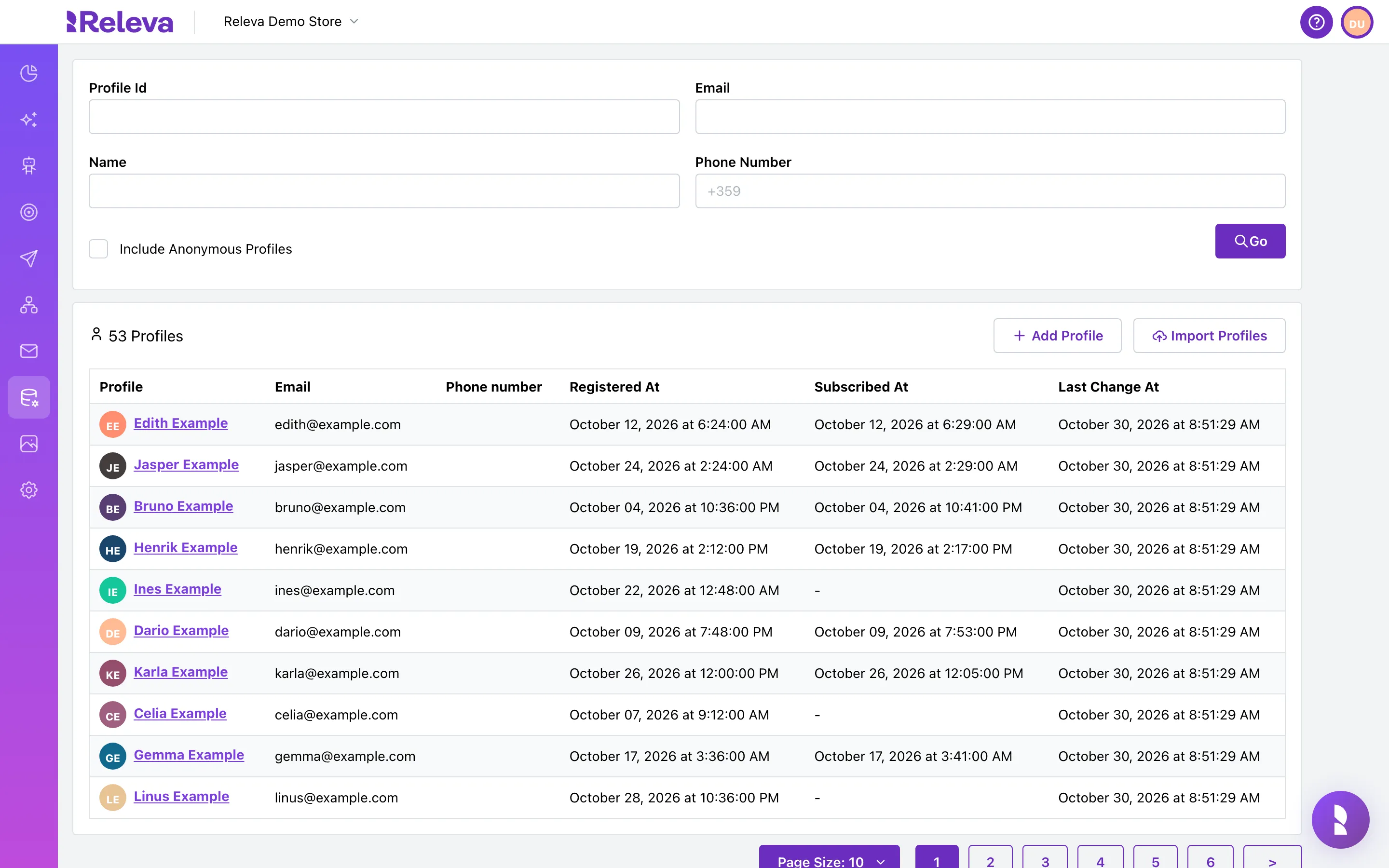
-
Select Add Profile.
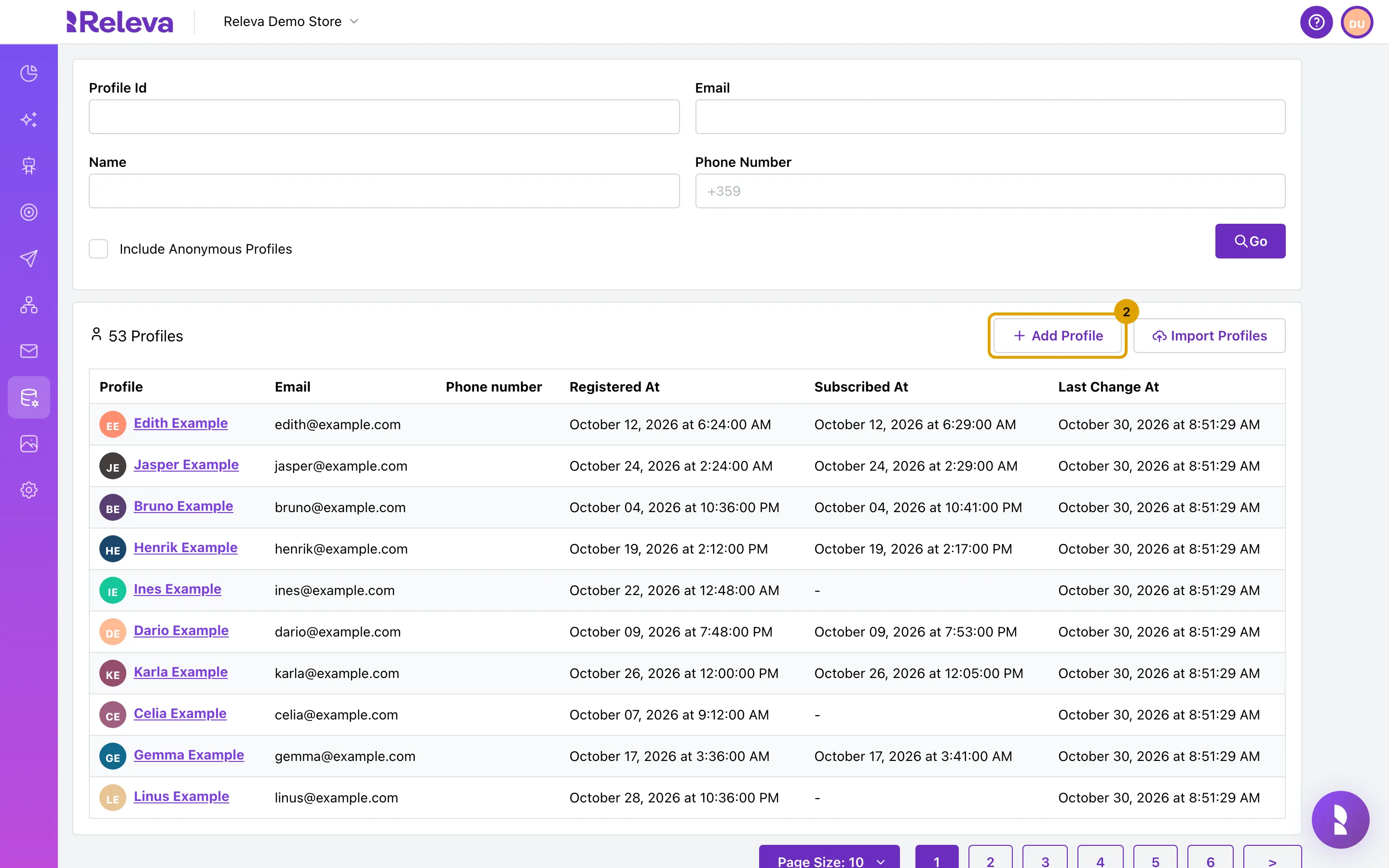
-
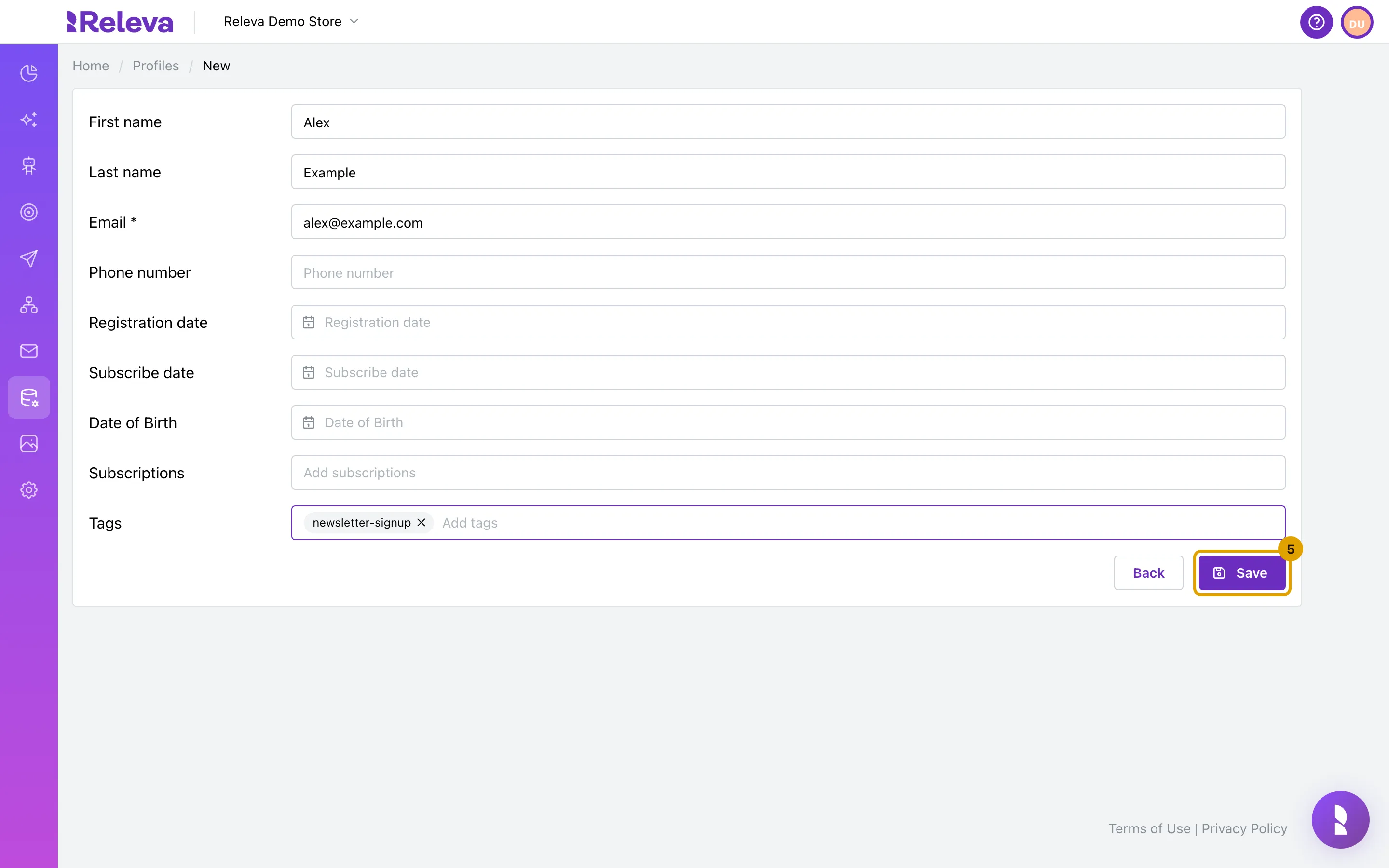
Enter the first name, last name and email address. Email is required.
The other fields are optional:
Field What to enter First name, Last name The customer’s names, shown in the list and on the profile page. Email Required. The browser blocks Save while it is empty or not an email address. Phone number International form with +and the country code.Registration date The day the customer registered in your shop. Future dates cannot be picked. Leave empty for a guest. Subscribe date The day the customer agreed to marketing messages. Setting it subscribes the profile. If you set it and leave Subscriptions empty, the profile gets your shop’s default subscriptions. Leave empty if the customer did not consent. Date of Birth Used for birthday campaigns and segments. Subscriptions The subscription keys the customer opted in to, for example marketing. Type one and press Enter.Tags Free-text labels you can build segments from. Type one and press Enter. 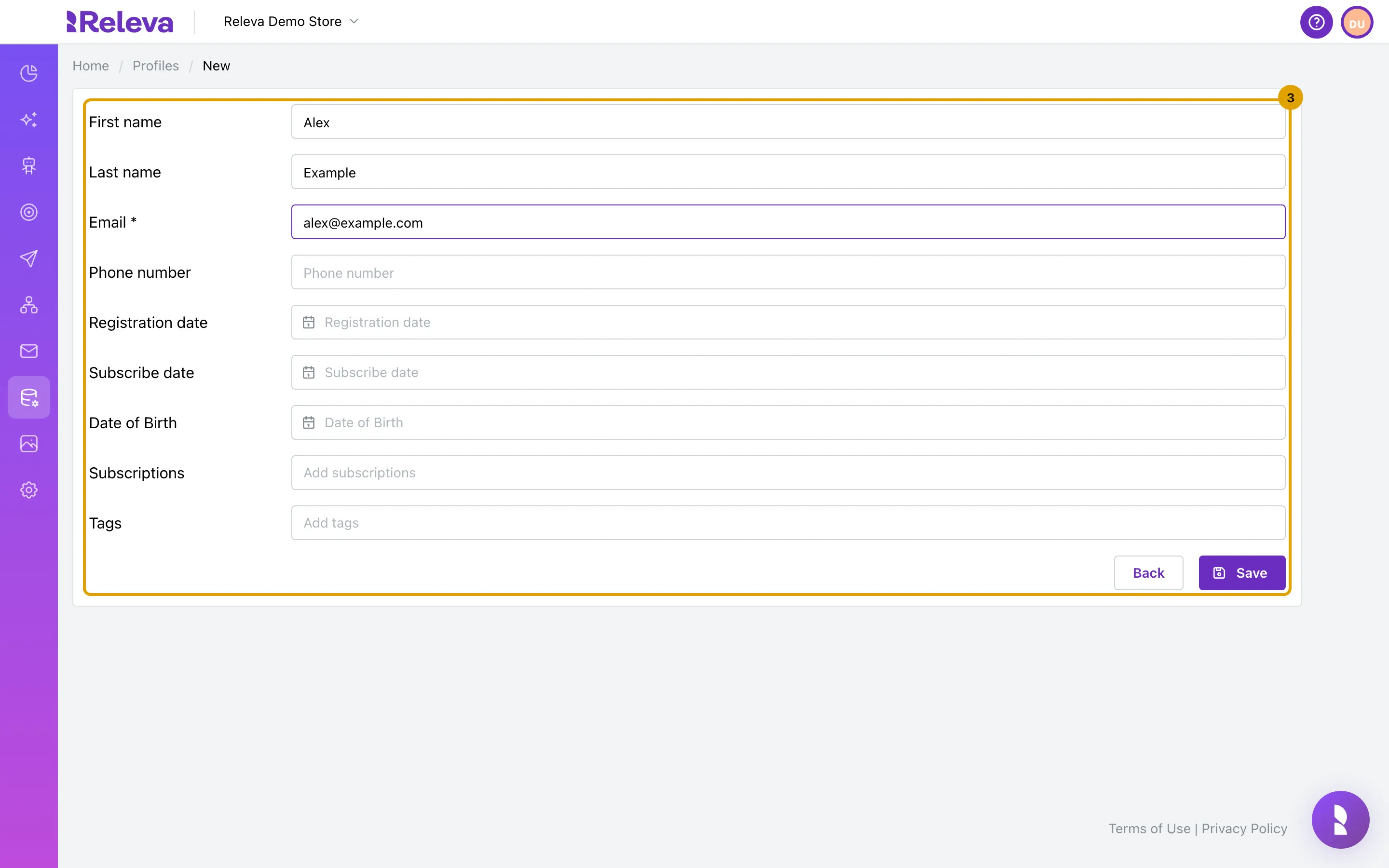
-
In Tags, type a tag and press Enter.
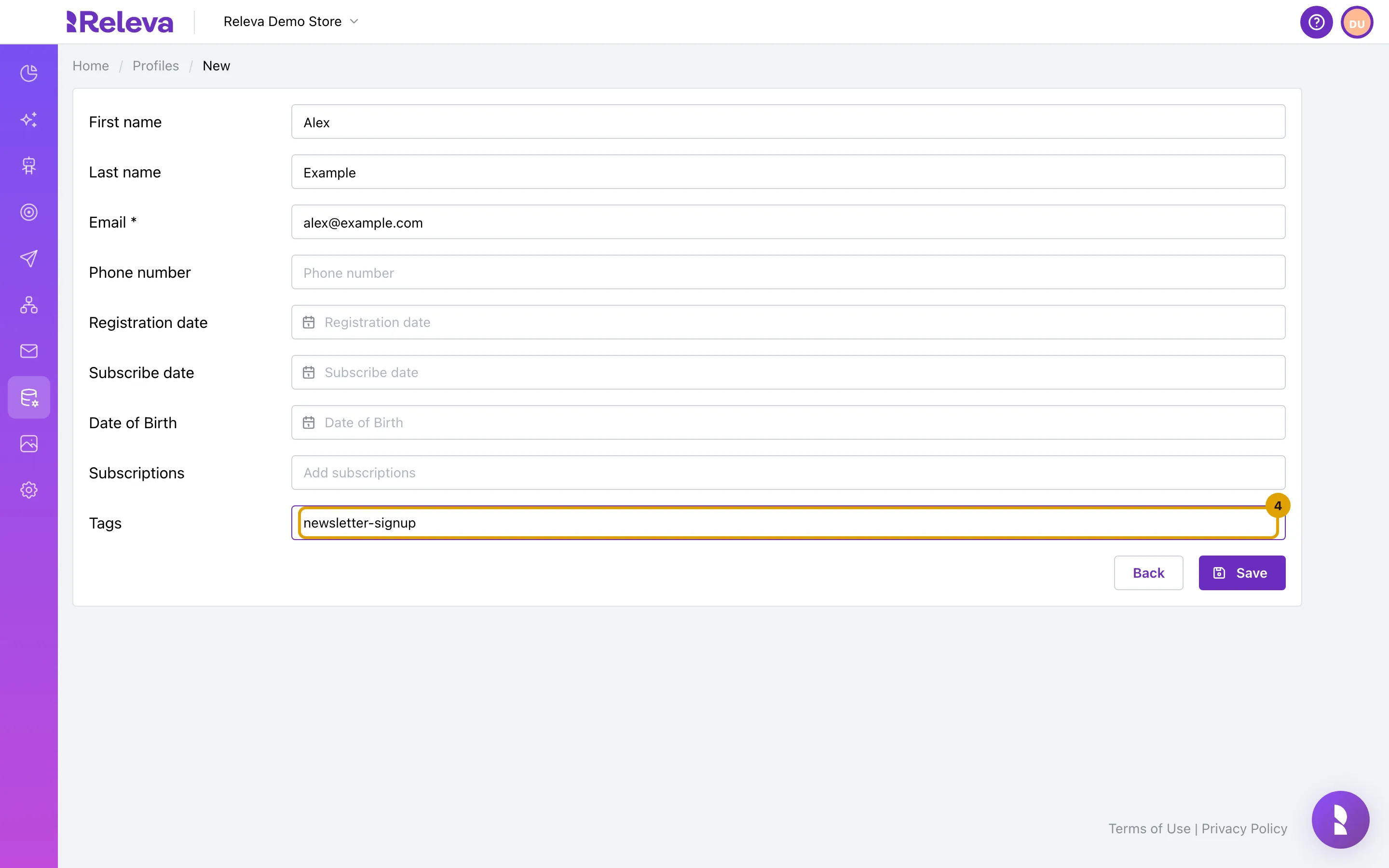
-
Select Save.
Releva creates the profile and returns you to the list.
-
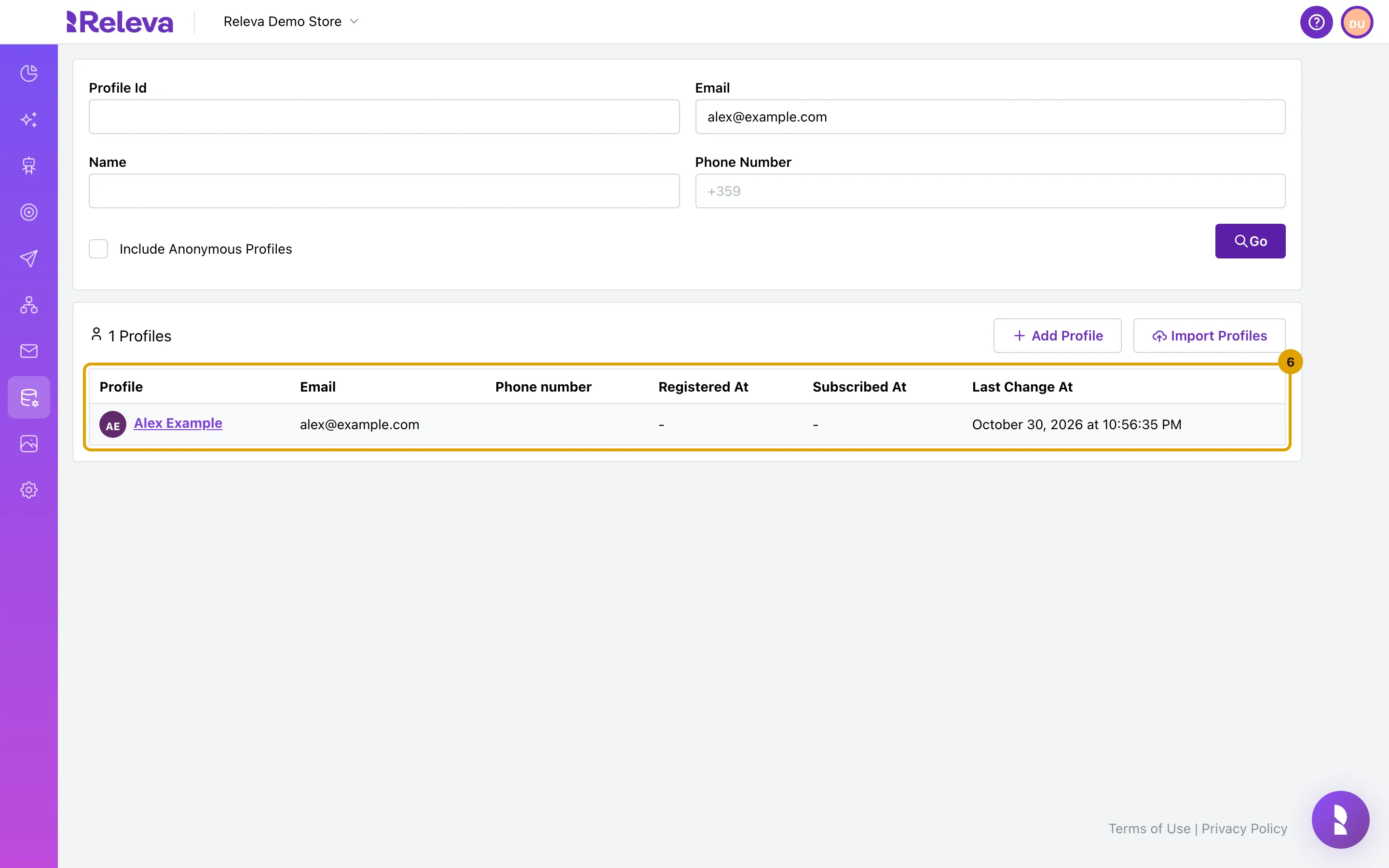
Search for the email address to check that the profile is in the list.
Check it worked
Section titled “Check it worked”- After Save, the Profiles list opens again.
- Searching the list by Email and selecting Go shows the new profile with the name you entered and
-under Registered At and Subscribed At unless you set those dates. - Opening the profile shows the tag under Tags in Audience & membership.
Troubleshooting
Section titled “Troubleshooting”Email already exists in another profile. The address already belongs to a profile in this shop; the Email field also reads Already used by another profile. Select View that profile to open the existing one in a new tab and edit it instead. Changing the address in the form clears the error.
Phone number already exists in another profile. Same cause for the phone number. A phone number can be on only one profile. Open the existing profile from the link, or save without the phone number.
Please provide valid date for Registered At or leave it empty! A date field holds a value the form cannot read. The message names the field by its internal name: Registered At for Registration date, Subscribed At for Subscribe date, Birthday for Date of Birth. Pick the date again from the calendar or clear the field.
Save does nothing. The browser is holding the form because Email is empty or not a valid address. Look for the message next to the field.
The profile is not in the list straight after saving. Search by Email rather than scrolling: the list is ordered by the hour of the last change, not by creation time. If it is still missing, reload after a few seconds.