

Check that an event reached Releva
The Events page is a log of every event Releva stored for your shop, newest first: page views, carts, purchases, subscriptions, searches and the custom events you send from your site or your backend. Use it to confirm that an integration works and that the custom fields you sent arrived.
The page is read-only. You cannot create, edit or delete events here. Events come in through the JavaScript SDK, the platform connector or the events API. See How events get into Releva.
Before you start
Section titled “Before you start”- At least one event was sent in the last 30 days. The page shows the last 30 days by default.
- You know the event’s action name, for example
giftCardRedeemed. Action names are case-sensitive. - Your plan includes the Events page. If the Events menu item is greyed out, ask your account owner to unlock it.
-
Go to Data Platform › Events.
The list opens with every event of the last 30 days. The title shows how many events match the current filter.
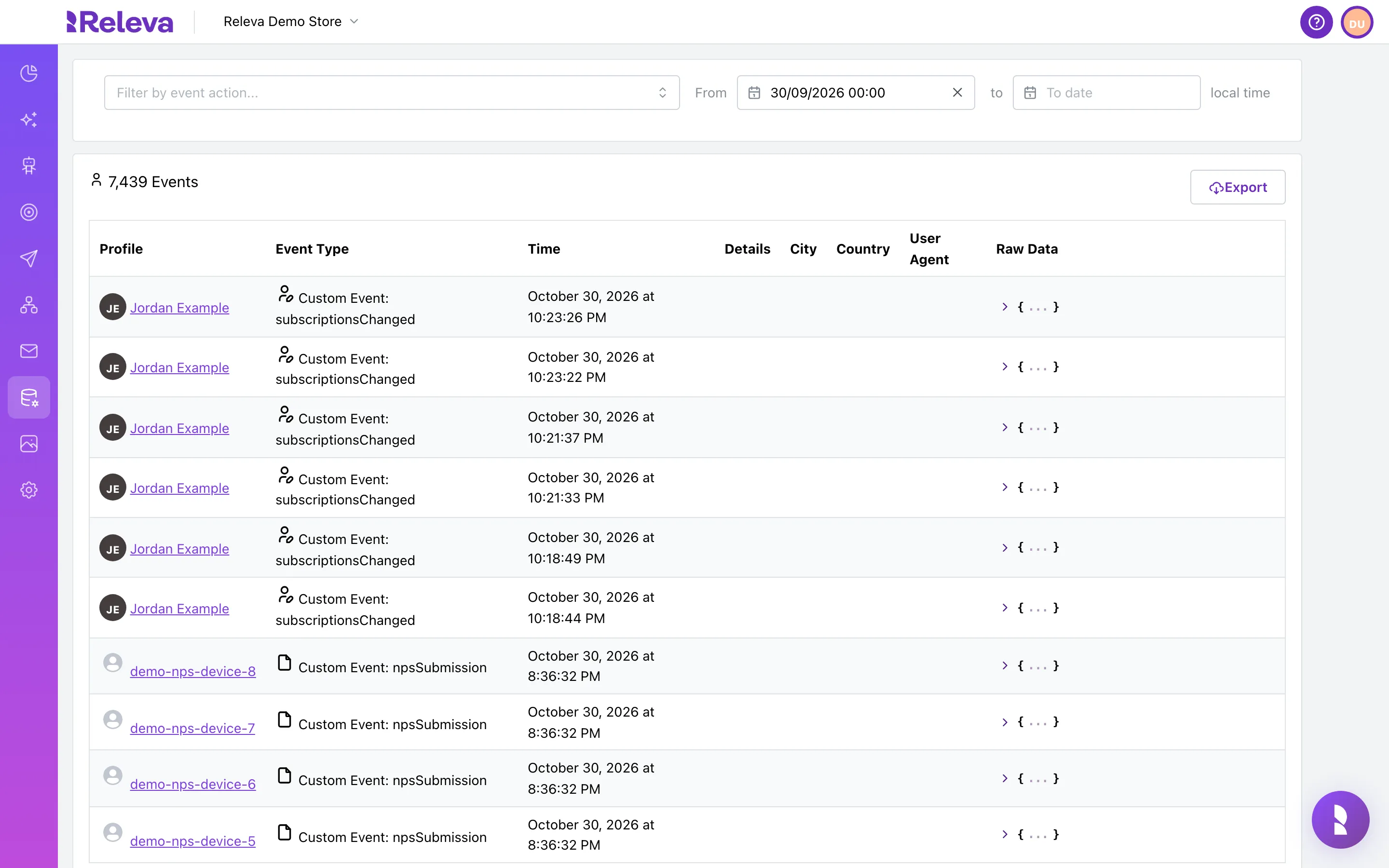
-
Select Filter by event action….
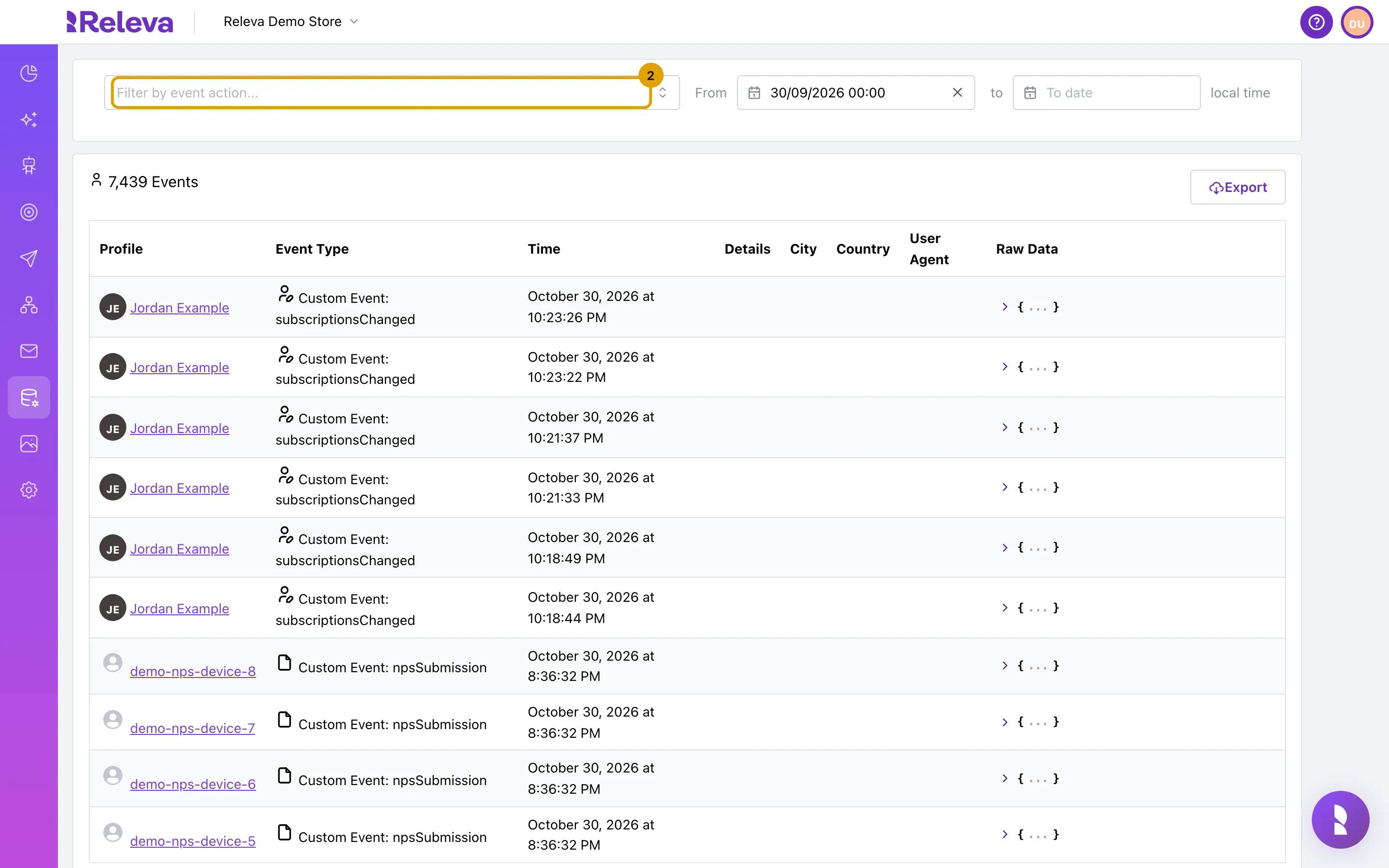
-
Type the name of the event you sent.
The search is case-insensitive and matches both the label and the raw action name.
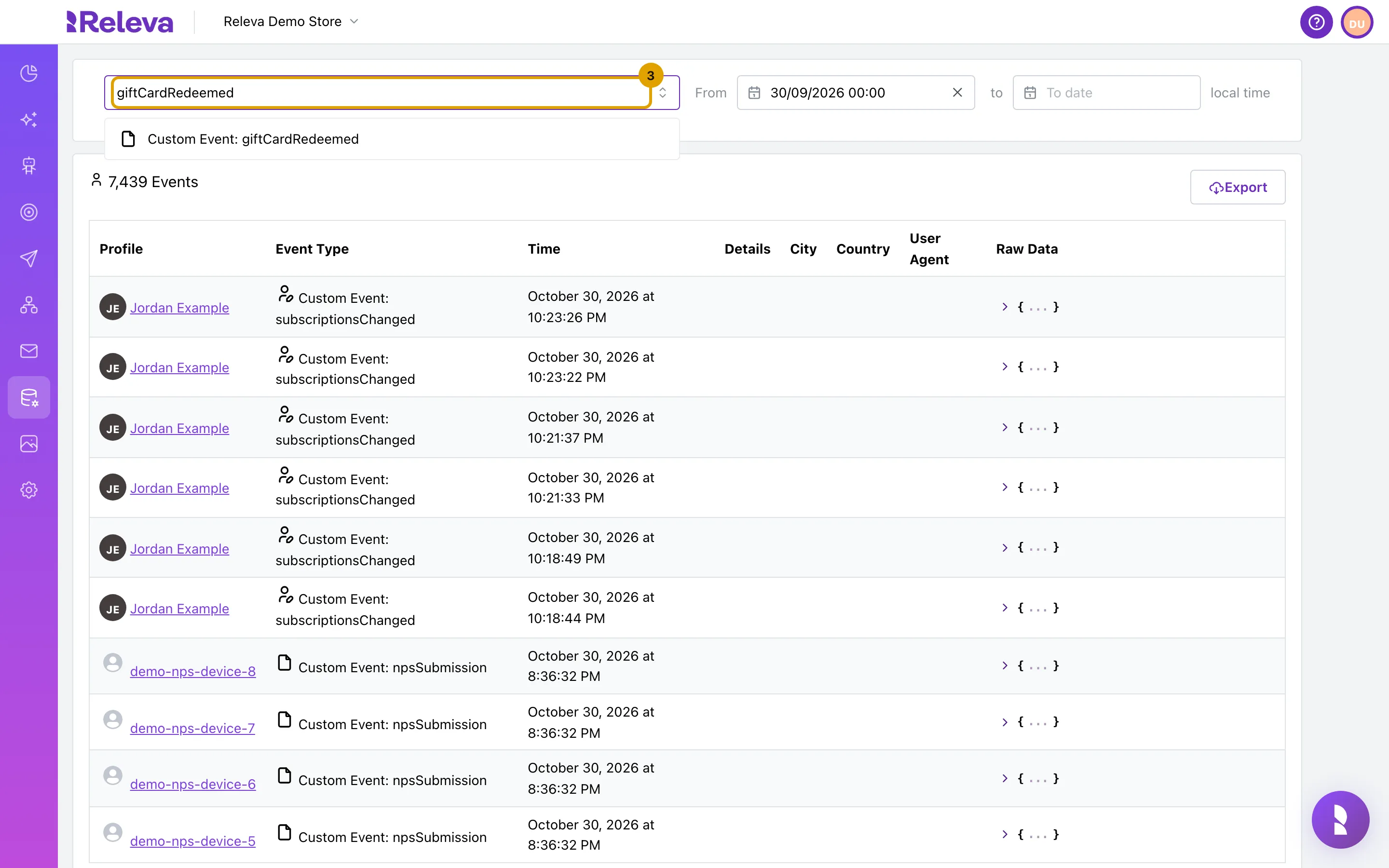
-
Select Custom Event: giftCardRedeemed. Custom events are listed as Custom Event: followed by the event name.
A custom event is only listed after Releva has stored the first event with that name. Standard events such as Viewed Product or Cart Checkout Completed are always listed.
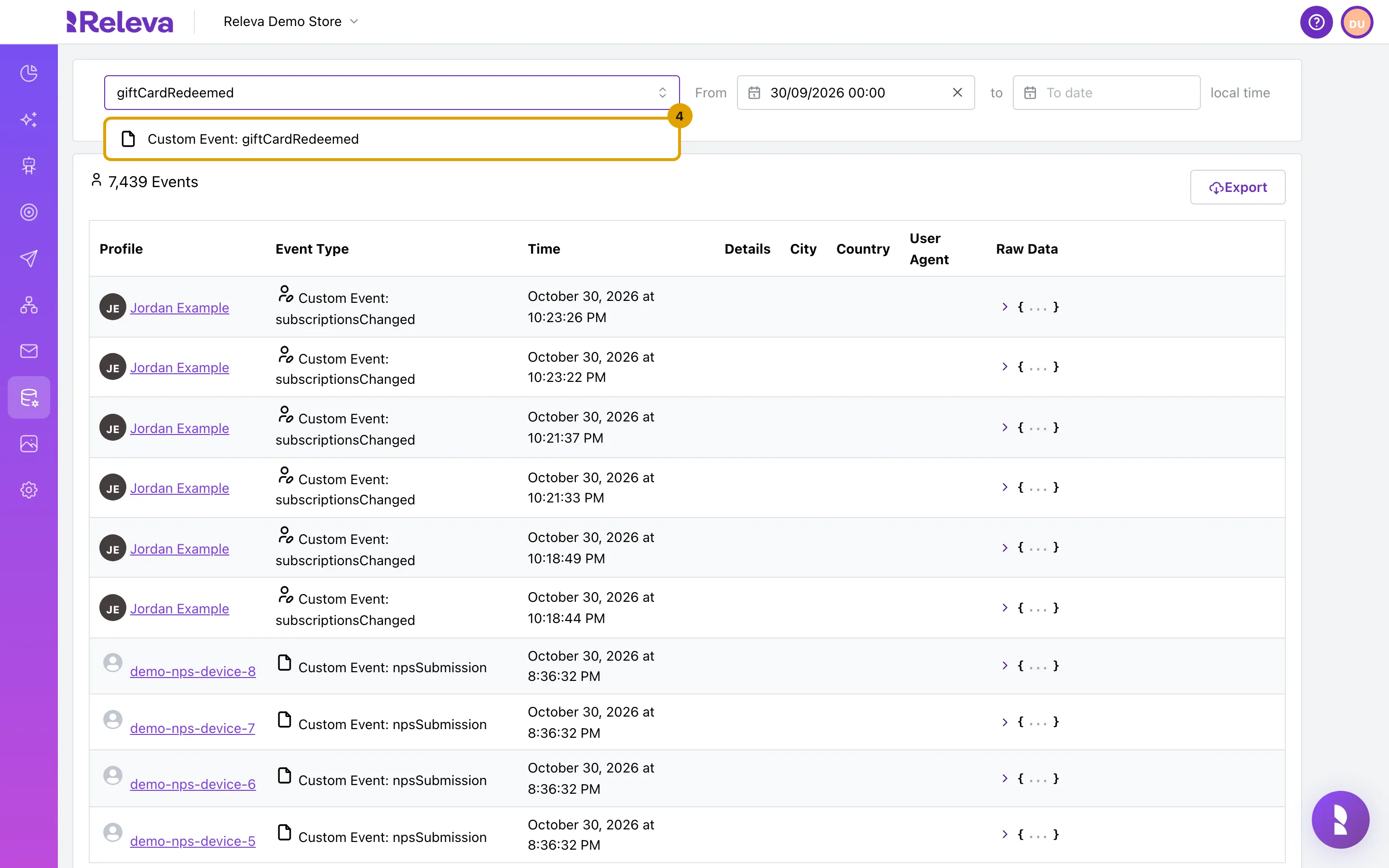
-
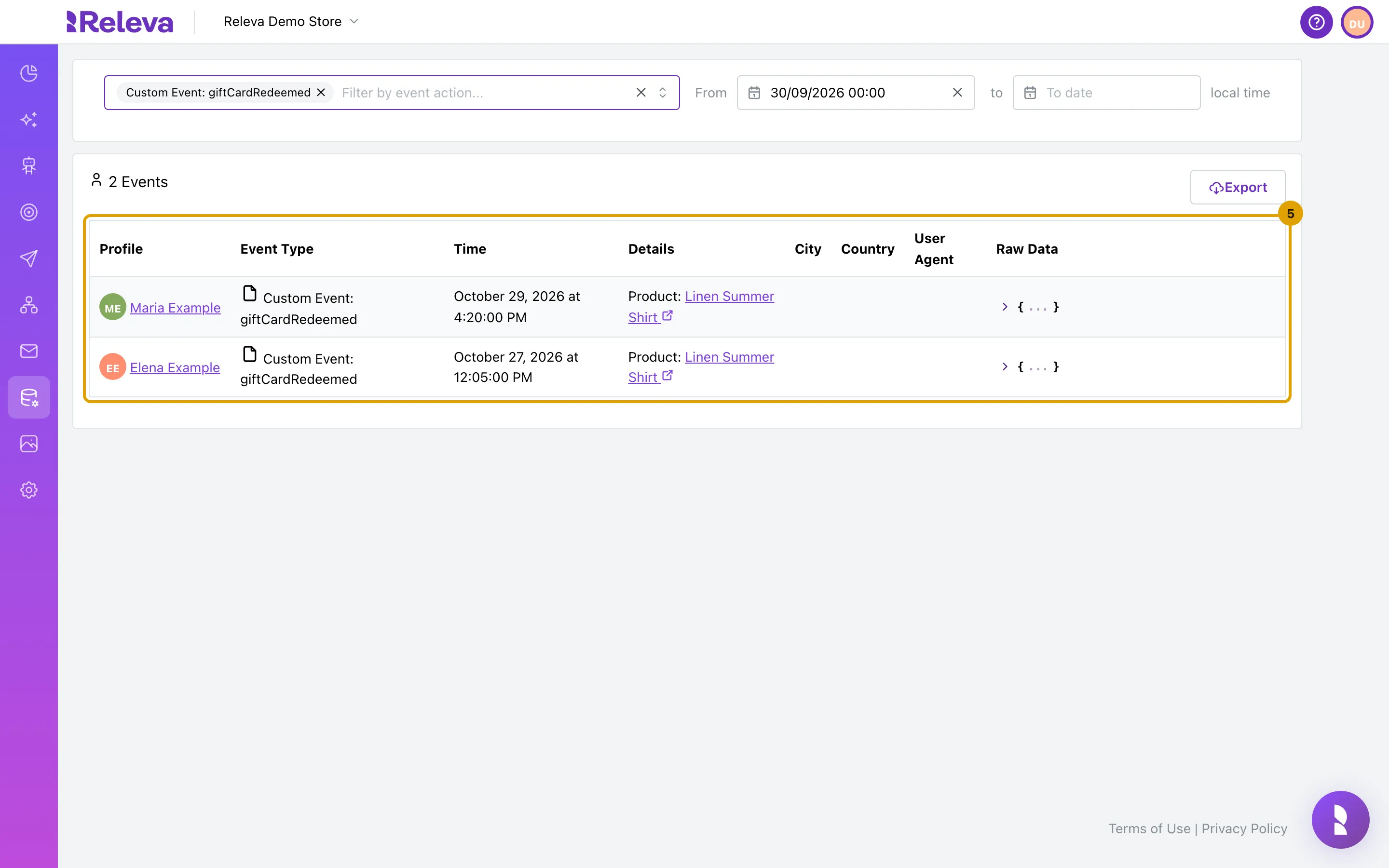
The list shows only events of that type, newest first.
The filter applies as soon as you select it; there is no Go button. Press Escape to close the list of actions. The title now counts only the matching events, for example 2 Events, and Details names the product sent with each event.
-
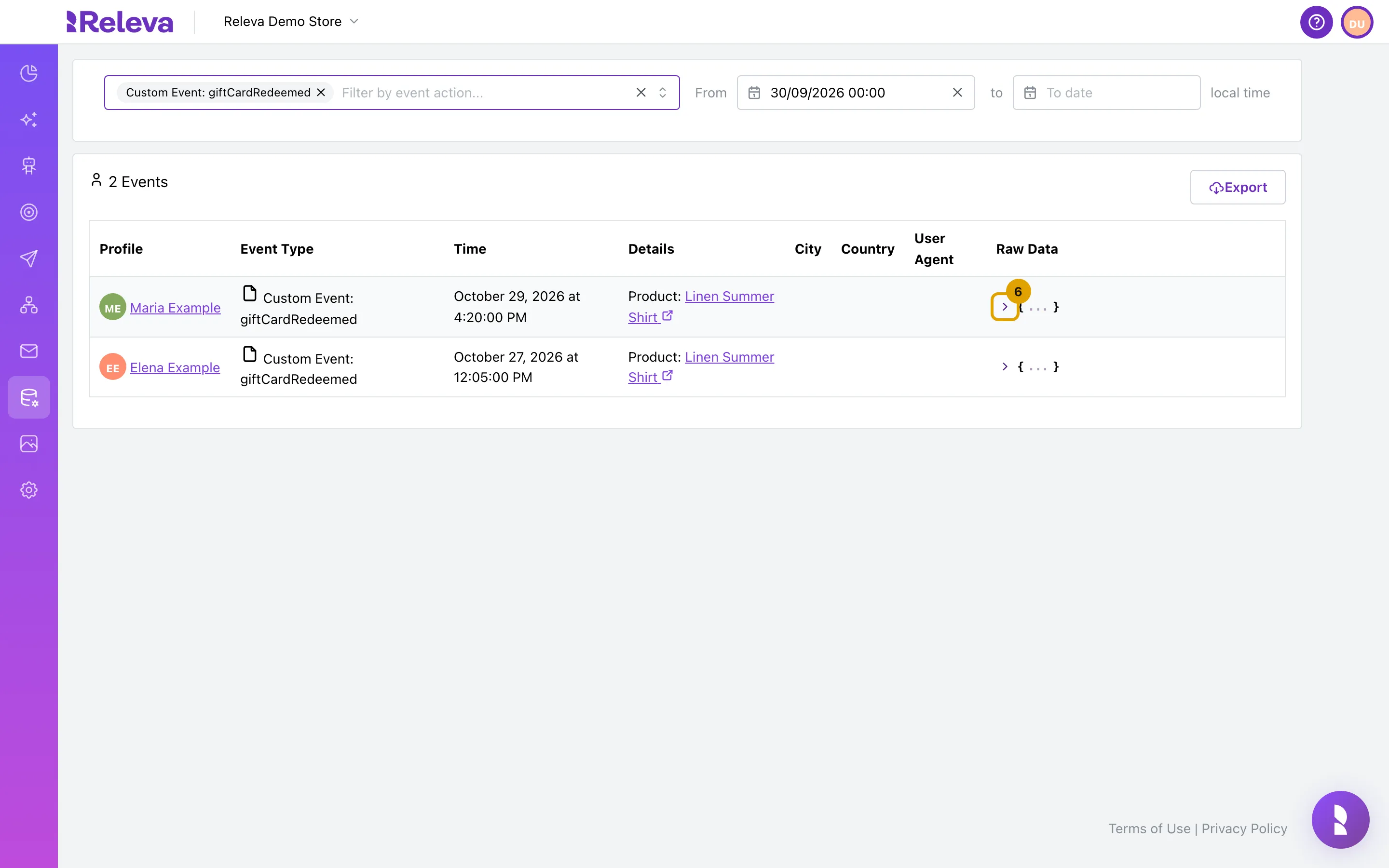
In Raw Data, select the arrow to expand the event.
-
Expand custom to check the custom fields that arrived with the event.
customholds three lists:string,numericanddate. Each entry has akeyand itsvalues, for example the keycardTypewith the valuedigital.productsshows the products you sent, filled in with their name, price and categories from your catalog.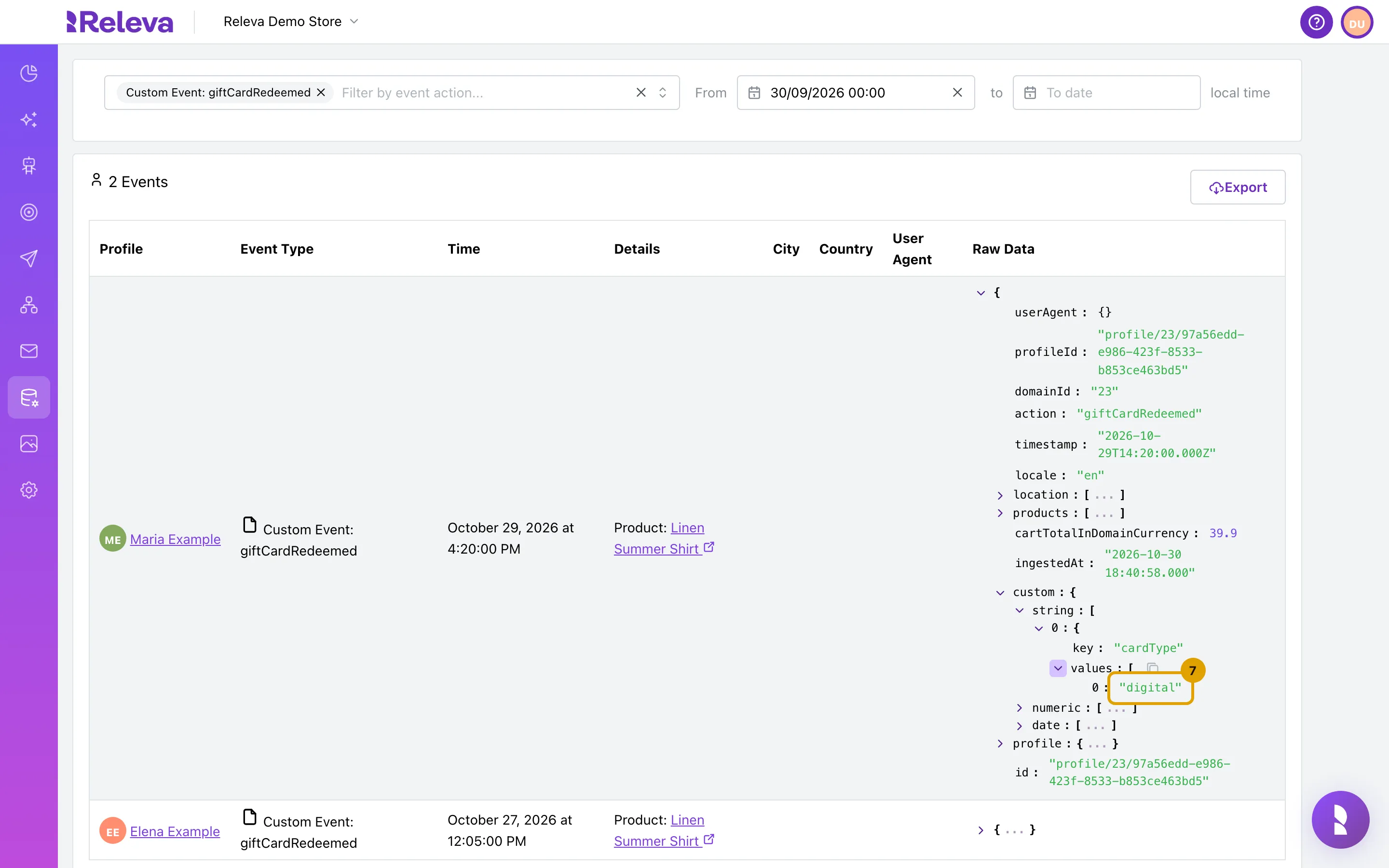
Check it worked
Section titled “Check it worked”- The title reads N Events with the number you expect, and every row’s Event Type is the action you selected.
- Time matches the
timestampyou sent, shown in your browser’s time zone. - Under Raw Data,
actionis your action name andcustomcontains the keys and values you sent. - Details names the product you sent. A product that is not in your catalog shows its product id instead of a name.
Troubleshooting
Section titled “Troubleshooting”The action is not in the filter list. No event with that name has been stored yet. Send one and reload the page. Check the spelling and the case: giftcardredeemed and giftCardRedeemed are two different actions.
The list shows 0 Events for an action you know was sent. The default From date is 30 days ago. Clear the From field with its × to see all history, or set an earlier date. Also check to: events at or after the to time are not shown.
The event is missing right after you sent it. Events are written a few seconds after the API answers. Reload the page after a few seconds.
The event was sent with a url, firstName or address but they are not in Raw Data. The events API forwards those fields to connected ad platforms only. They are not stored on the event. See the Events API overview.
The Profile column shows a name without a link and an info icon. The profile was deleted or merged into another one. The event stays in the log.
The Events menu item is disabled. Your plan does not include the Events page. Users who manage the subscription see an unlock button next to the item.