

Create an NPS survey
An NPS survey asks one question, “How likely are you to recommend us?”, on a 0-10 scale. Releva shows it as an overlay on your site or in your app through the Releva SDK, with an optional follow-up question per score group, and turns the answers into a Net Promoter Score. This guide creates an NPS survey, activates it and shows where the results are. For how a visitor is picked and how often the survey repeats, read How surveys and NPS work.
Before you start
Section titled “Before you start”- The Releva JavaScript snippet (or a mobile SDK) runs on your site. The NPS overlay is part of it; nothing else needs installing. See How Releva connects to your shop.
- You know when the survey should appear: on which pages, after how many sessions, or after an event your site reports.
- NPS survey names must be unique within the store.
-
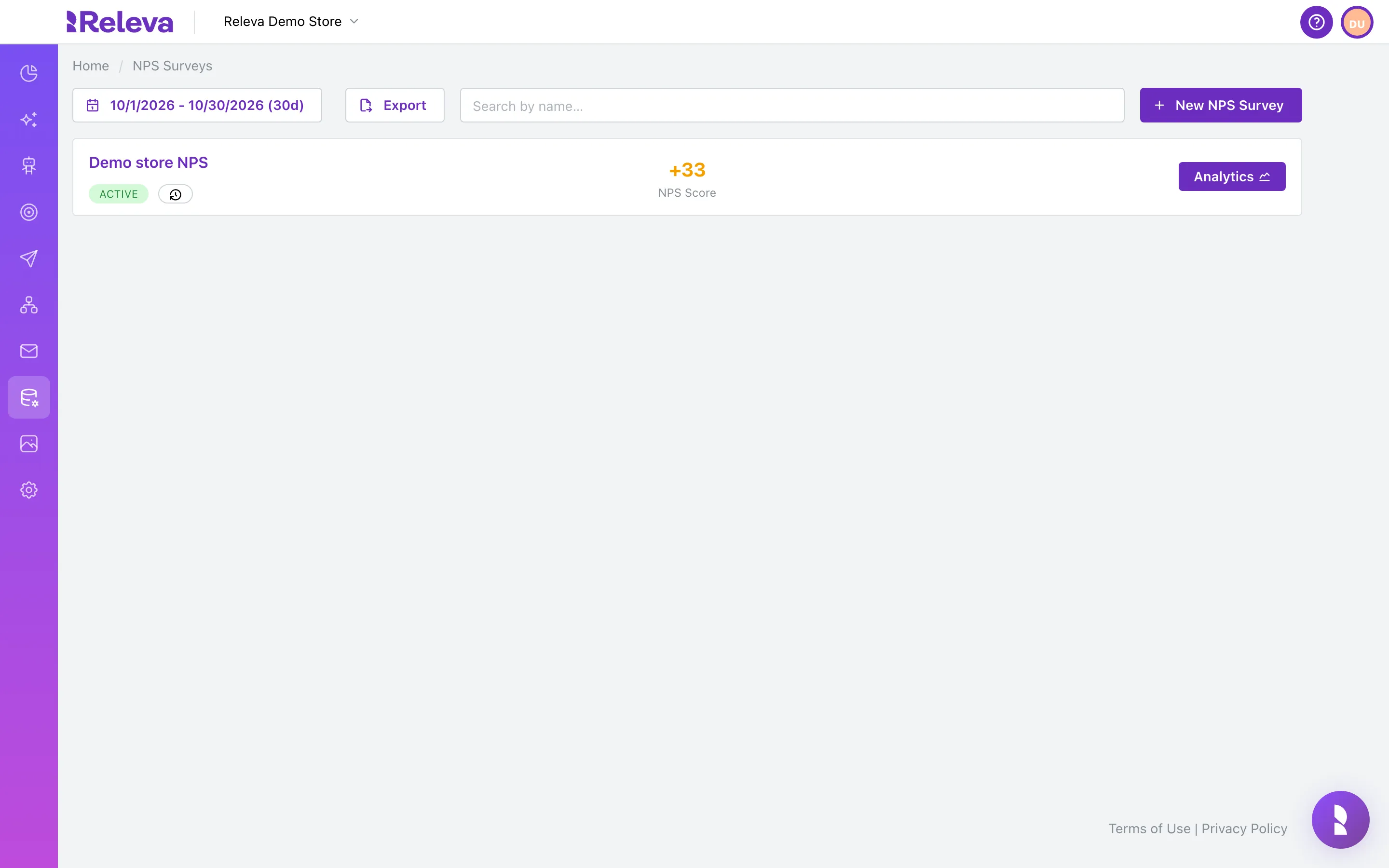
Go to Data Platform › NPS.
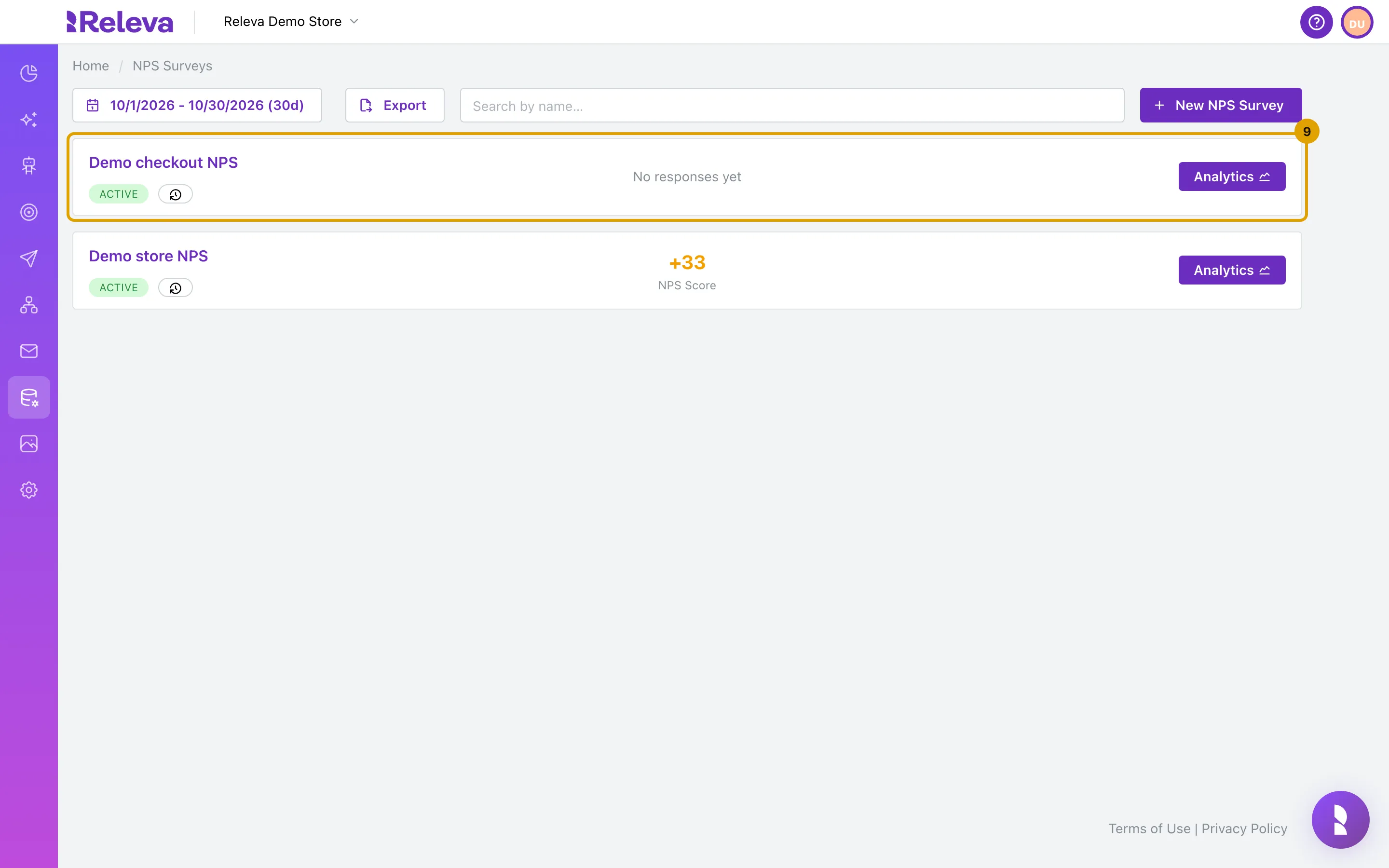
A store without NPS surveys shows No NPS surveys yet and a single New NPS Survey button. Otherwise the list shows every survey with its status, its NPS Score for the selected period (the last 30 days by default) and an Analytics button.
-
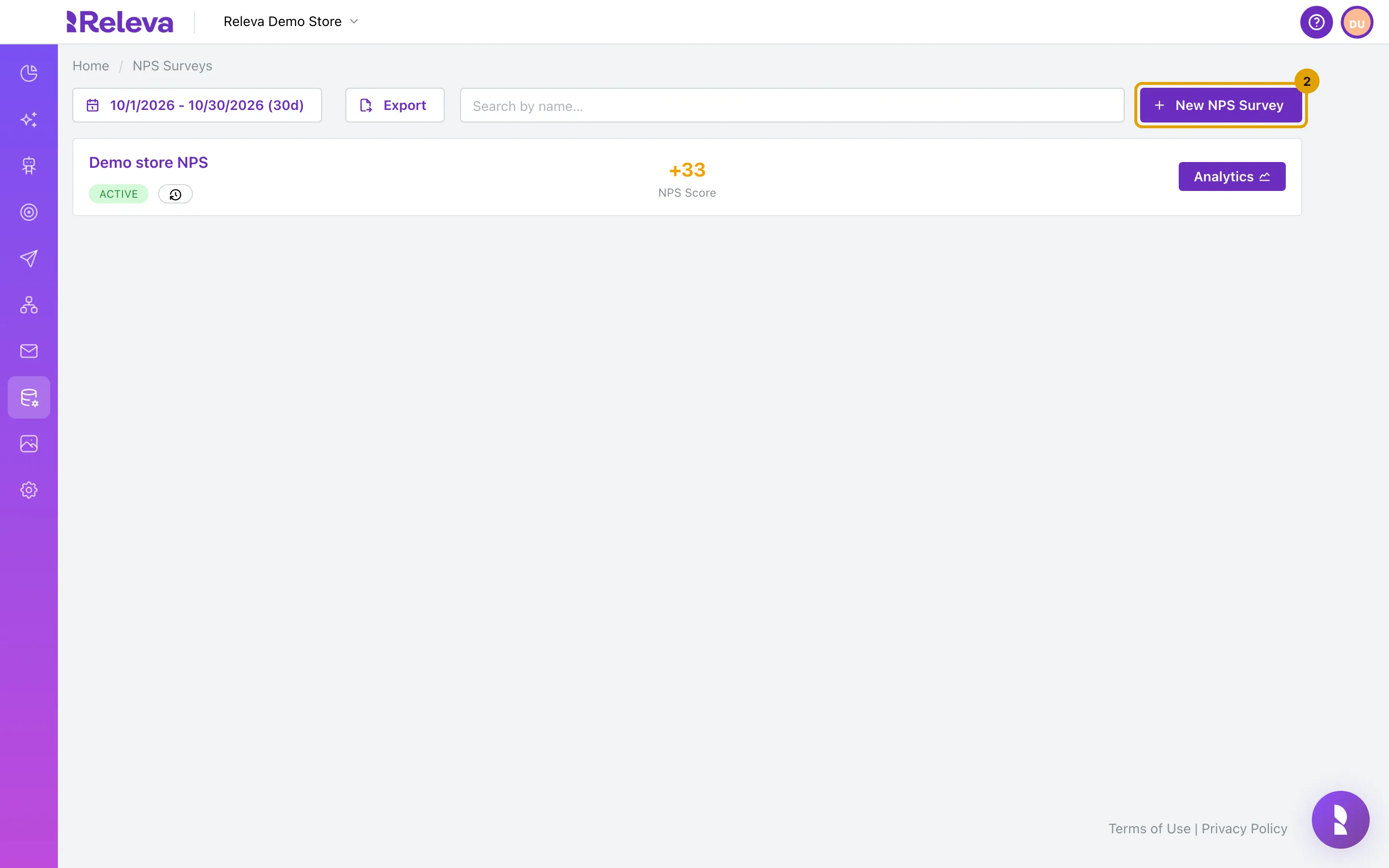
Select New NPS Survey.
-
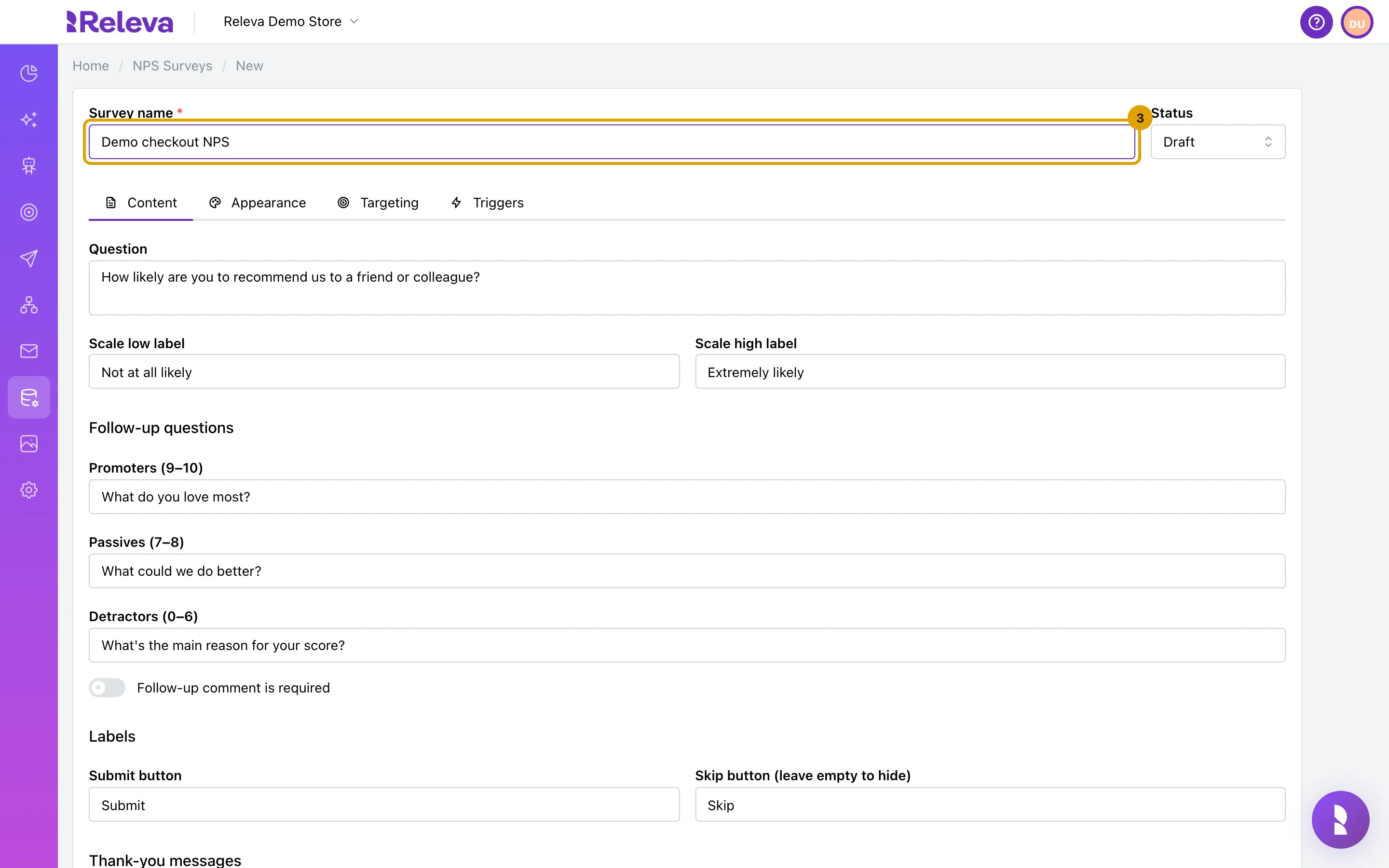
Enter a Survey name. It must be unique for the store.
Visitors never see the name.
-
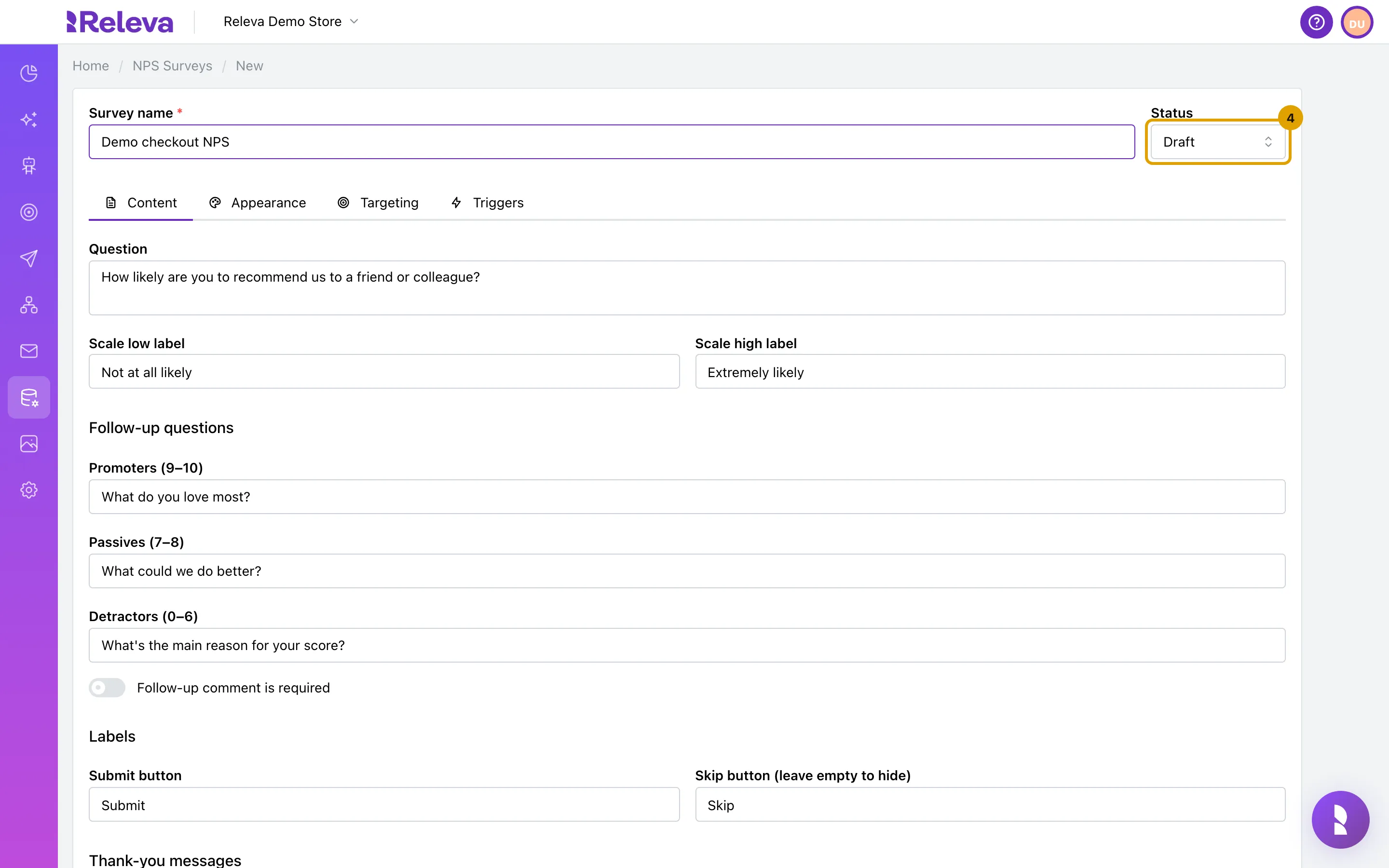
Open Status and choose Active when the survey should start showing. Draft and Inactive keep it hidden.
You can save as Draft now and switch to Active later. Only active surveys are offered to visitors.
-
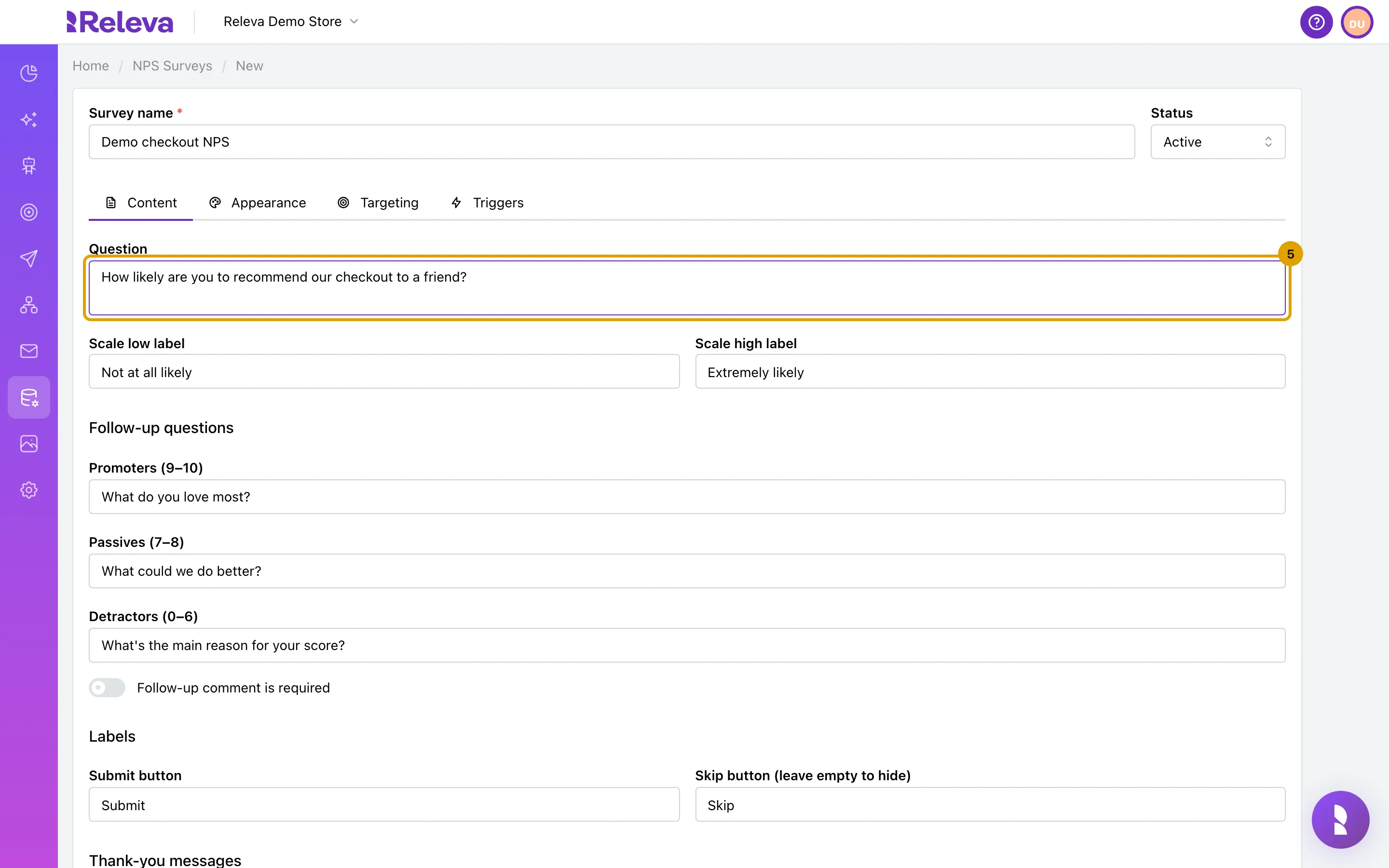
On the Content tab, edit the Question. Below it you can change the scale labels, the follow-up question and thank-you message for each group, and the button labels.
The groups are Promoters (9–10), Passives (7–8) and Detractors (0–6). Each has its own follow-up question and thank-you message, so you can ask promoters what they love and detractors what to fix. Switch on Follow-up comment is required to keep the Submit button disabled until the visitor types a comment. Leave Skip button (leave empty to hide) empty to remove the skip button.
-
On the Appearance tab, set the colours, the Button style, the Position (Bottom Sheet or Modal) and an optional logo.
Primary color, Background color and Text color take hex values; type one or pick it in the colour picker that opens under the field. Button style is Pill, Rounded or Square. Logo URL (optional) must start with
https://. Enable dark mode colors adds a second set of colours for visitors in dark mode.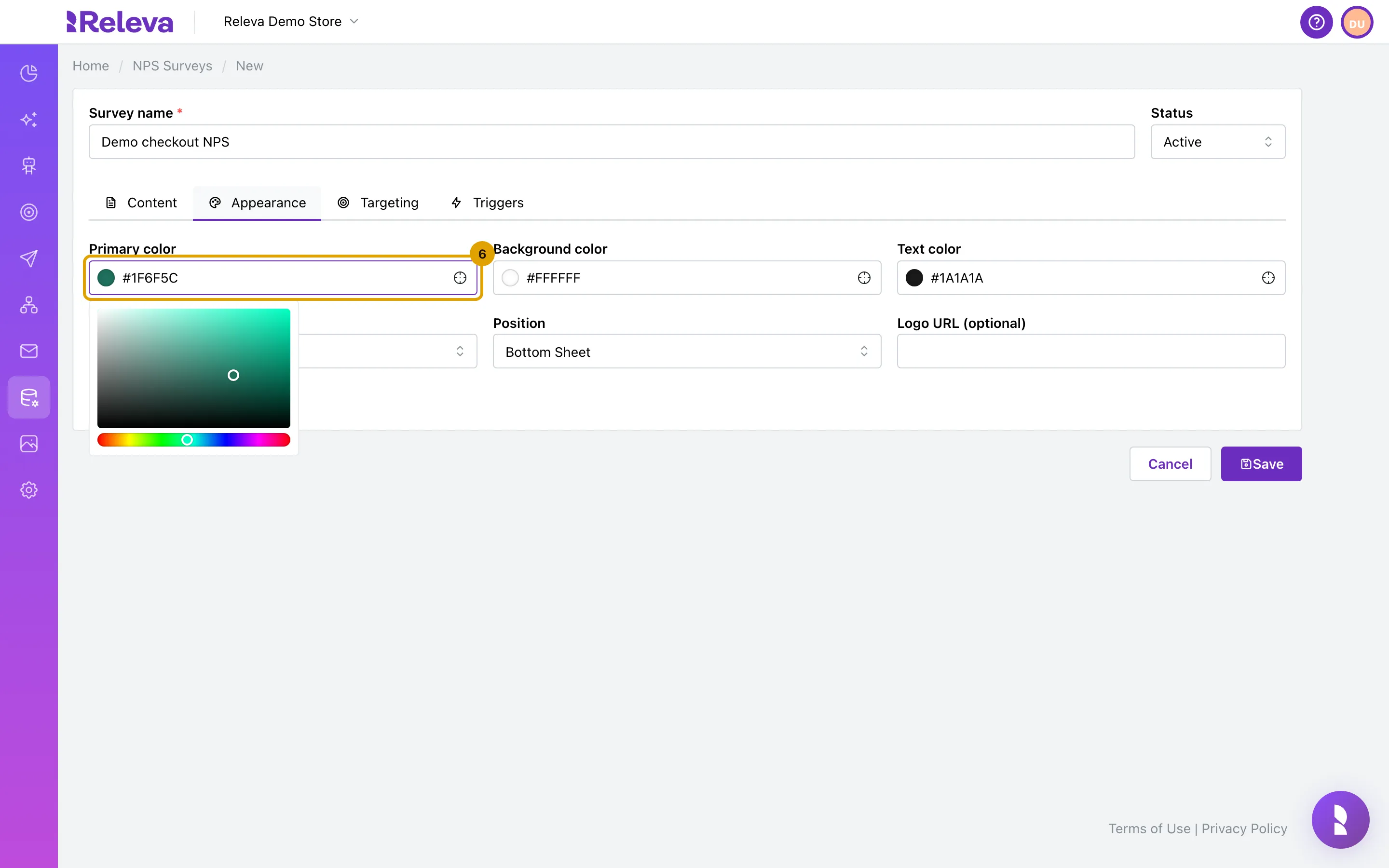
-
On the Triggers tab, choose when the survey shows: the triggers, the Trigger delay (seconds), the Show policy and the Cooldown days. Use the Targeting tab to limit dates, platforms and app versions.
A new survey has one Screen / Page View trigger for all screens, a delay of 2 seconds, show policy Until Answered and a cooldown of 90 days. Trigger type can also be Custom Event (an event name your site reports with
Releva.trackEvent) or Session Count (Min sessions). The survey shows when any trigger fires. Cancel on events hides a pending survey when one of the selected events happens first.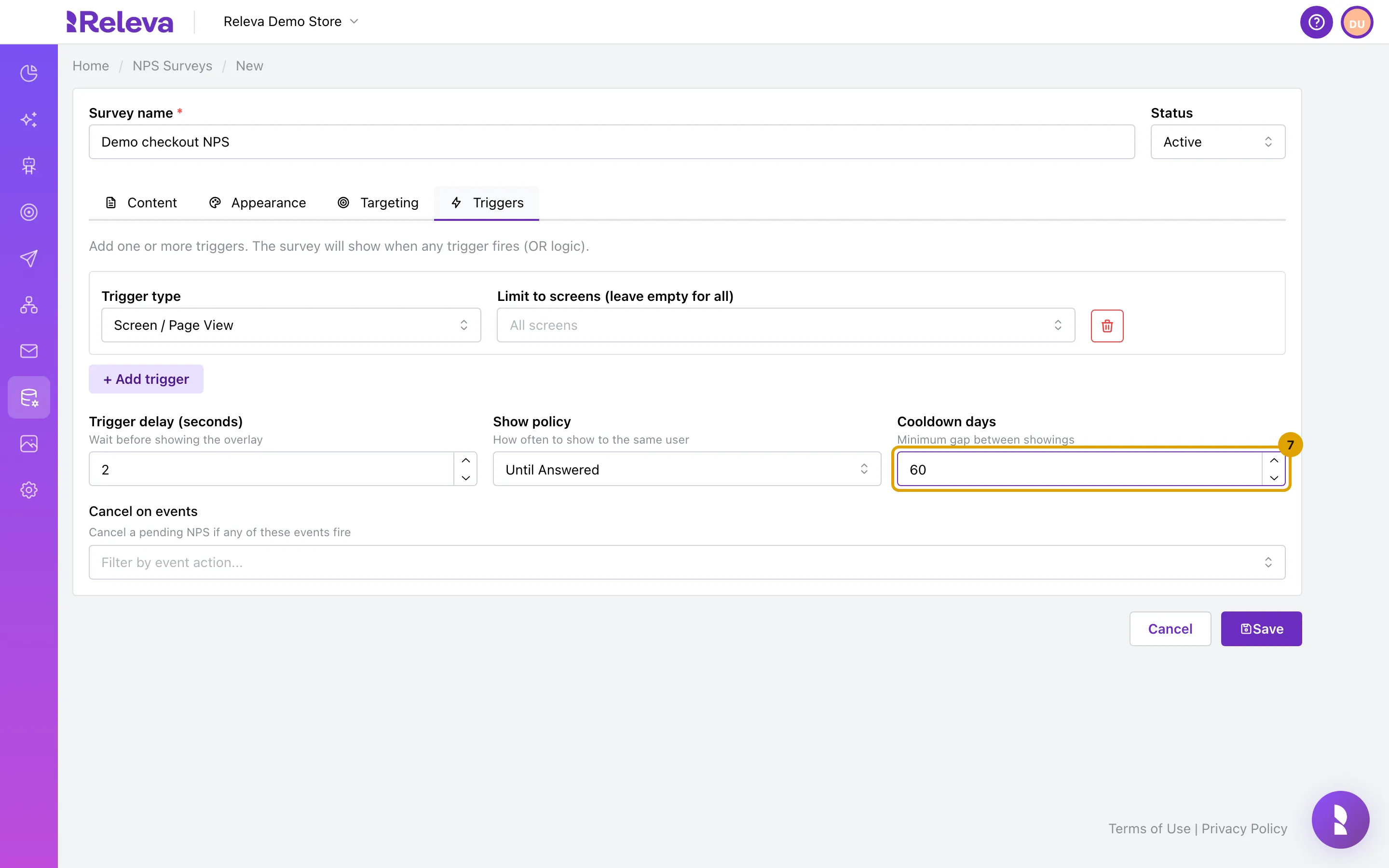
-
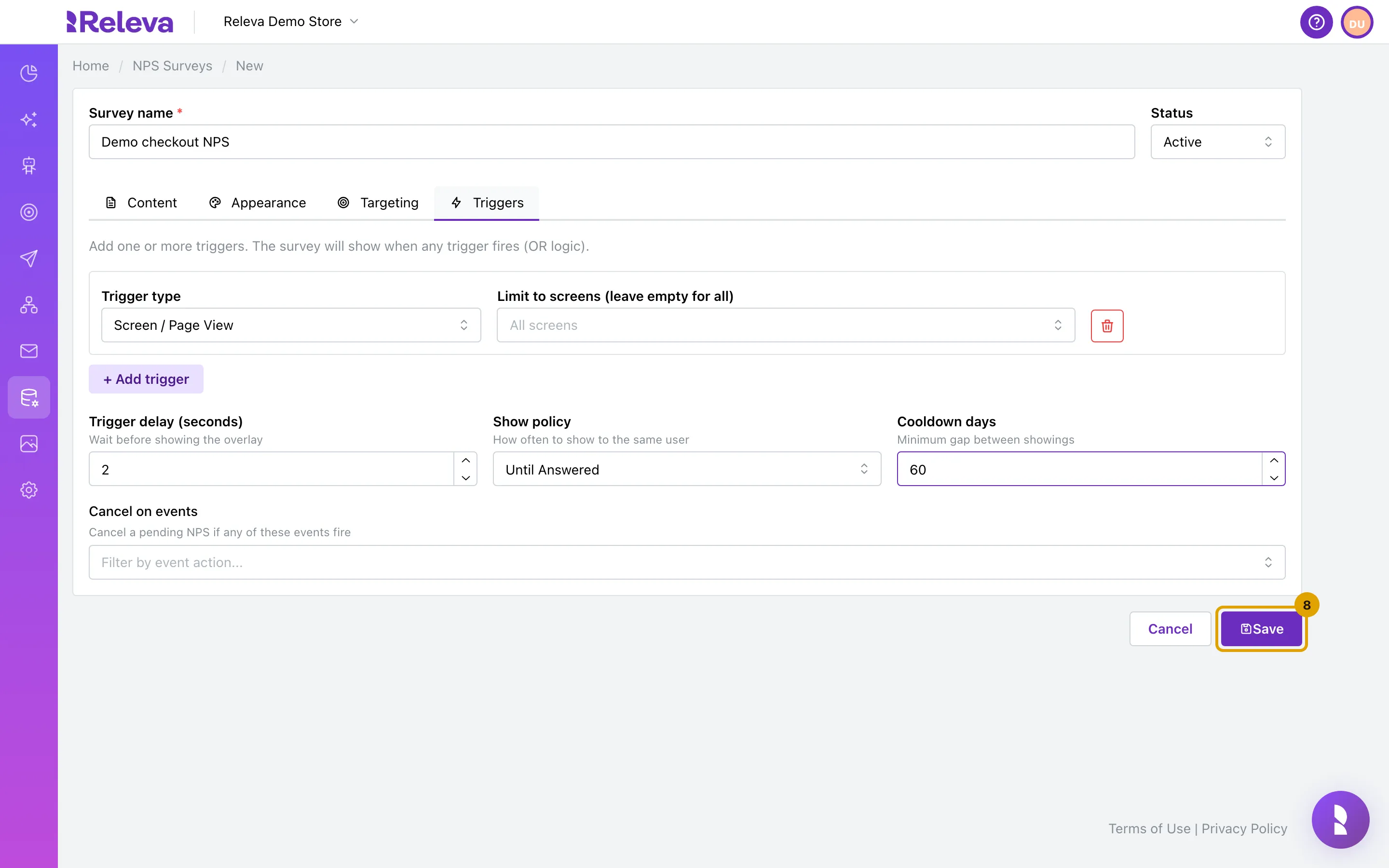
Select Save.
-
The survey appears in the list with its status. It shows “No responses yet” until the first answer arrives.
-
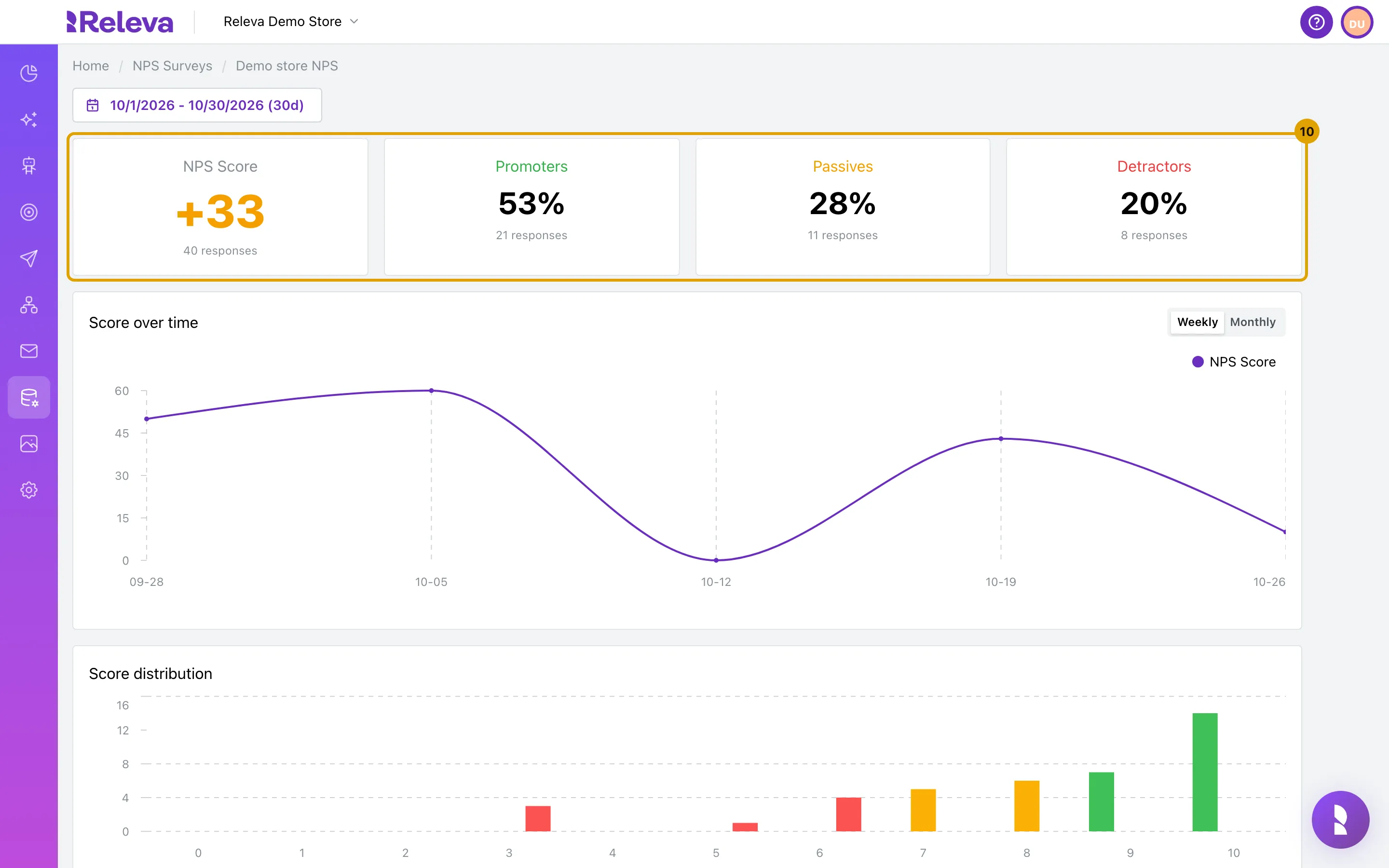
To see the results, select Analytics on a survey’s card. NPS Score is the share of promoters (9–10) minus the share of detractors (0–6), for the period selected at the top (the last 30 days by default). Below it are the score over time, the score distribution and the written responses.
The screenshot shows the analytics of another survey that already has answers. Score over time switches between Weekly and Monthly. Responses lists every answer with its Score, Comment and Date, filtered by All, Promoters, Passives or Detractors, 50 per page.
Check it worked
Section titled “Check it worked”- The new survey is on the NPS Surveys list with an ACTIVE badge and “No responses yet”.
- Open your shop in a fresh private browser window and wait for the trigger delay: the overlay appears at the bottom of the page (Bottom Sheet) or in the middle (Modal) with your question and the 0-10 scale. A visitor who already answered does not see it again, so use a window without Releva cookies.
- After the first answer, the card shows an NPS Score and Analytics lists the response. With one answer the score is +100, 0 or -100; it becomes meaningful with more answers.
Troubleshooting
Section titled “Troubleshooting”“Survey name is required.” The name is empty. Save needs a name.
“NPS Survey name must be unique!” Another NPS survey in this store has the same name. Change it and save again.
“URL must start with https://” The Logo URL (optional) is not an HTTPS address. The form switches to the Appearance tab to show the field. Clear it or enter a full https:// URL.
“End date must be after start date.” On the Targeting tab the End date is on or before the Start date. Clear the end date or move it later.
The survey does not show on my site. Check, in this order: Status is Active; today is between the Start date and End date; the page you are on matches Limit to screens; you have not answered this survey before (Until Answered and Once Ever hide it for anyone who answered, and every policy waits out the Cooldown days after an answer); the survey was not already shown in this browser session (one survey per session); if Platforms are ticked, Web is among them. Releva shows the first active survey that passes all checks, so an older active survey can take the slot. To preview a draft or an already-answered survey, open your shop with ?rlv_mode=debug in the address: debug mode ignores status, dates and frequency but keeps the targeting rules.
Two surveys are active and the wrong one shows. Releva offers one NPS survey per page view, the oldest active survey that passes its checks. Set the other survey to Inactive, or narrow its Targeting and Triggers.
“No responses in this period.” The Analytics date range has no answers. Widen the range at the top of the page; it defaults to the last 30 days.
“Not found” The survey in the link was deleted or belongs to another store. Go back to Data Platform › NPS and open it from the list.