

Track a segment in Audience Performance
Audience Performance is a report under Analytics › Customer Insights that compares the segments you care about: how many members they have and what they convert. It reports only the segments you have starred, up to 25 per shop. This guide stars a segment and checks that it appears in the report.
Before you start
Section titled “Before you start”- The segment exists. Starring works for every scope.
- Fewer than 25 segments are already starred in this shop.
- To see conversions for a segment, something must target it: a running campaign, workflow, product block, banner or story. A starred segment that nothing uses shows Not tracked.
-
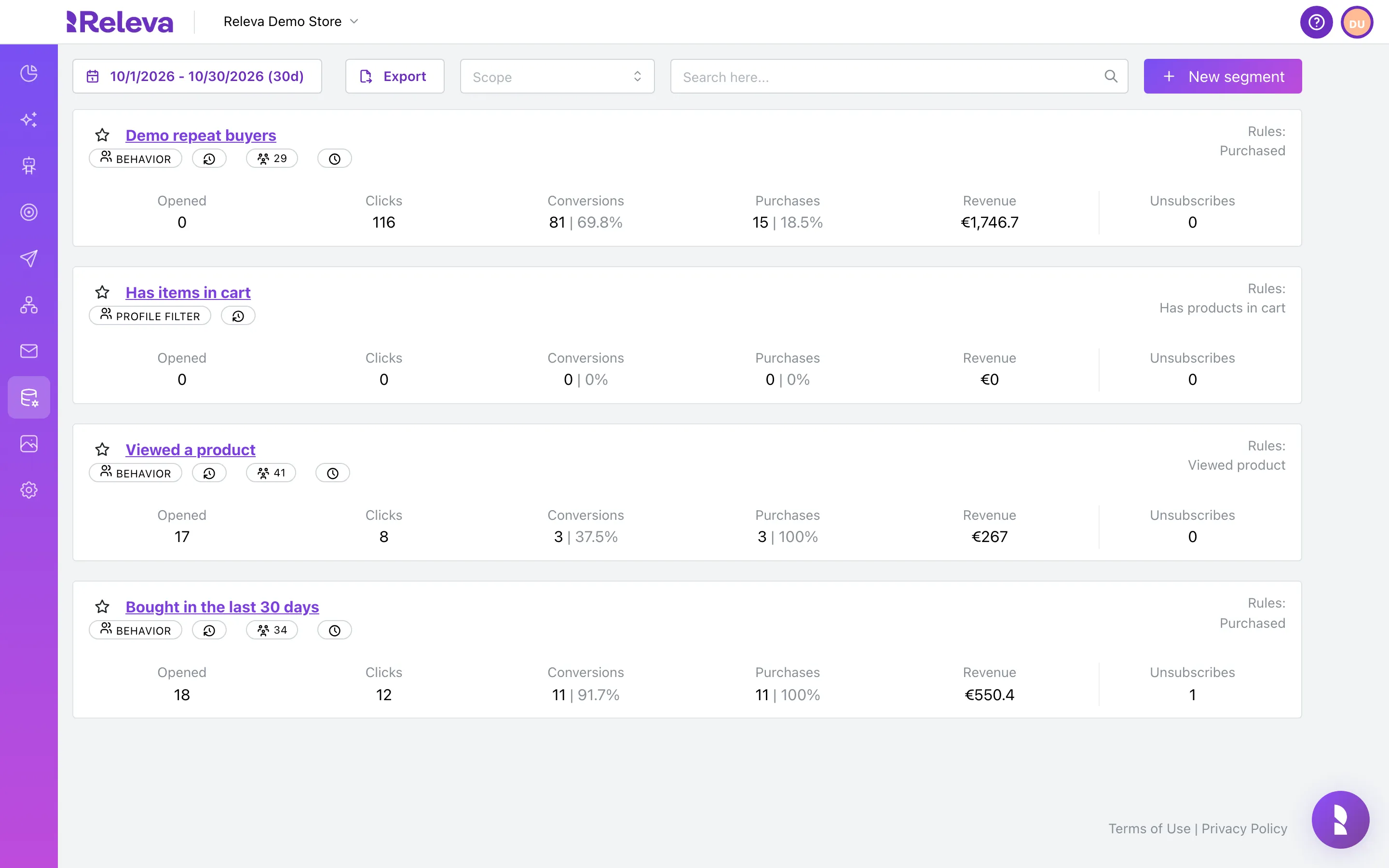
Go to Data Platform › Segments.
-
In the search box, type part of the segment name.
Search is not case-sensitive and matches the start of words, so
boughtandlast 30both find “Bought in the last 30 days”. The list filters as you type.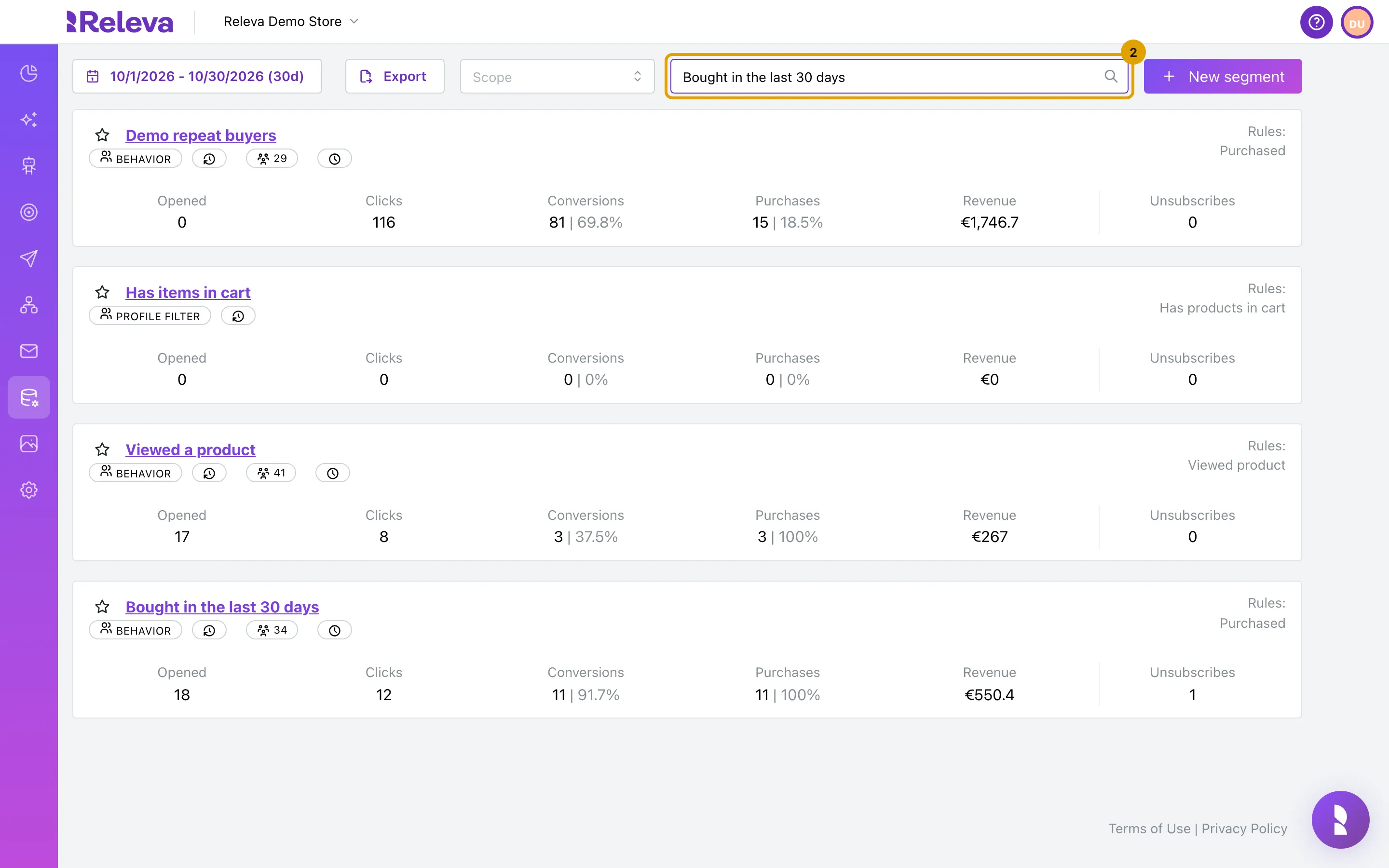
-
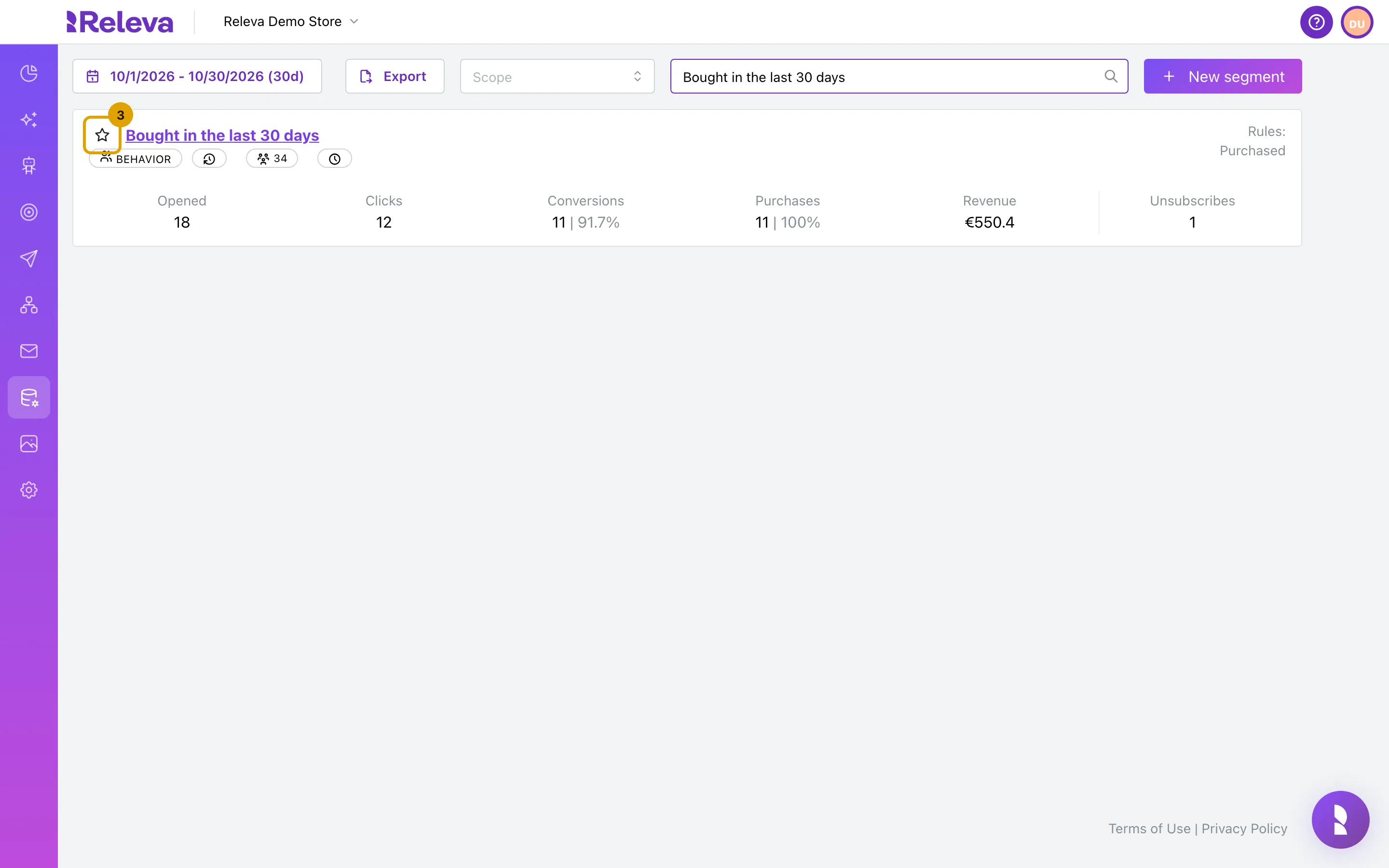
Select the star next to the segment name.
The tooltip on the star reads Track in Audience Performance.
-
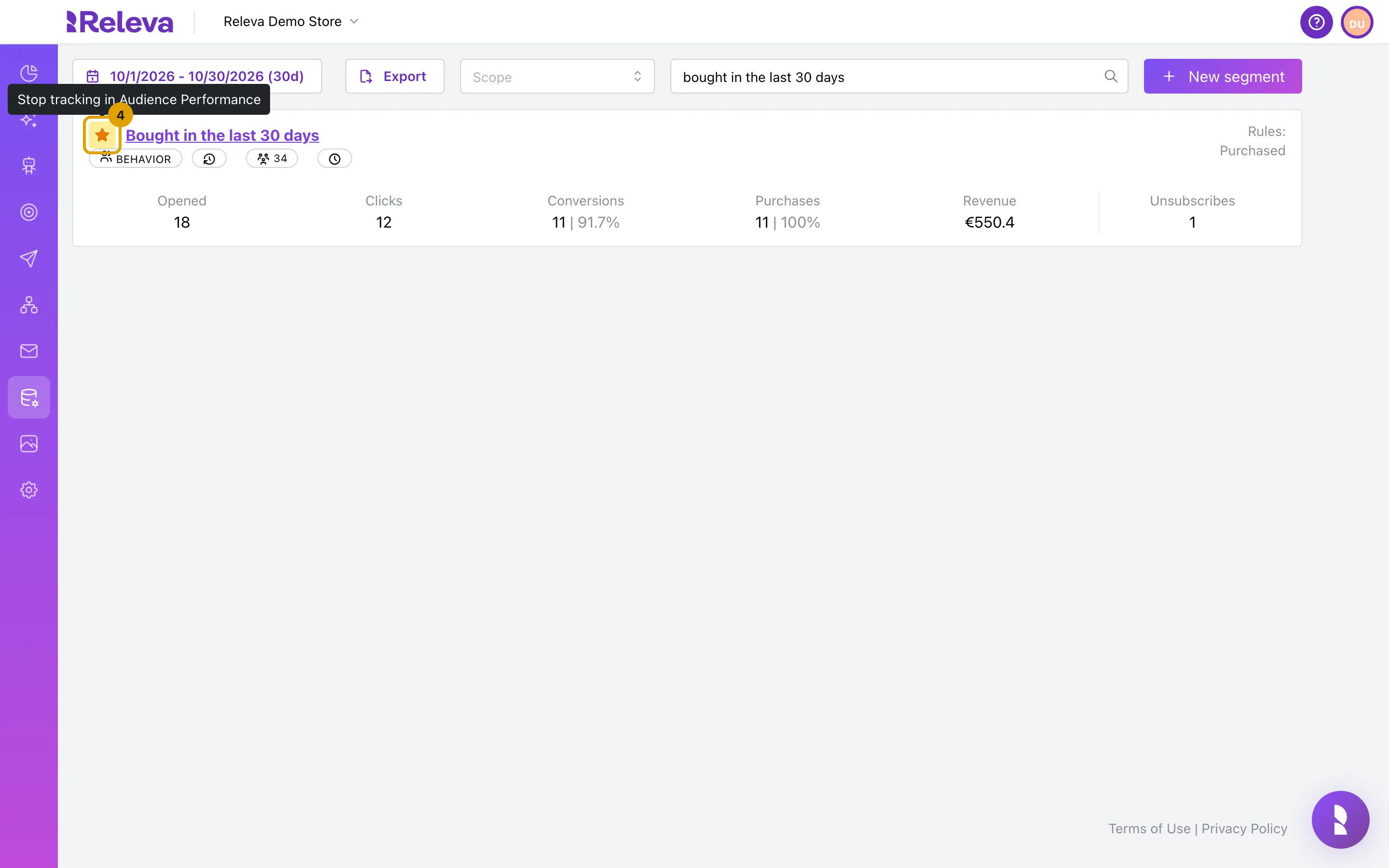
The star turns yellow. Releva now tracks the segment in Audience Performance.
The star is saved immediately; there is no Save button on the list. Its tooltip now reads Stop tracking in Audience Performance.
-
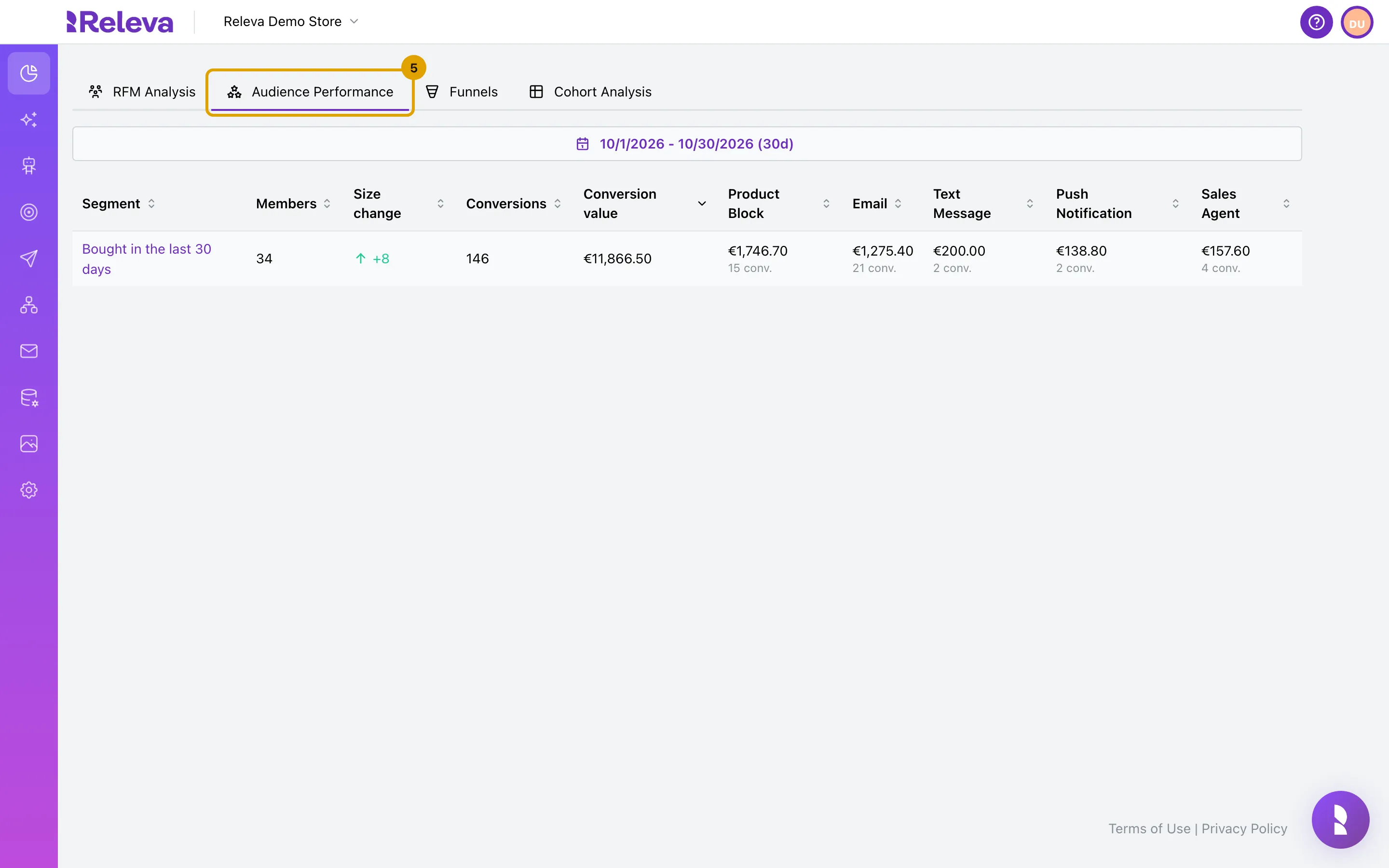
Go to Analytics › Customer Insights and select the Audience Performance tab.
-
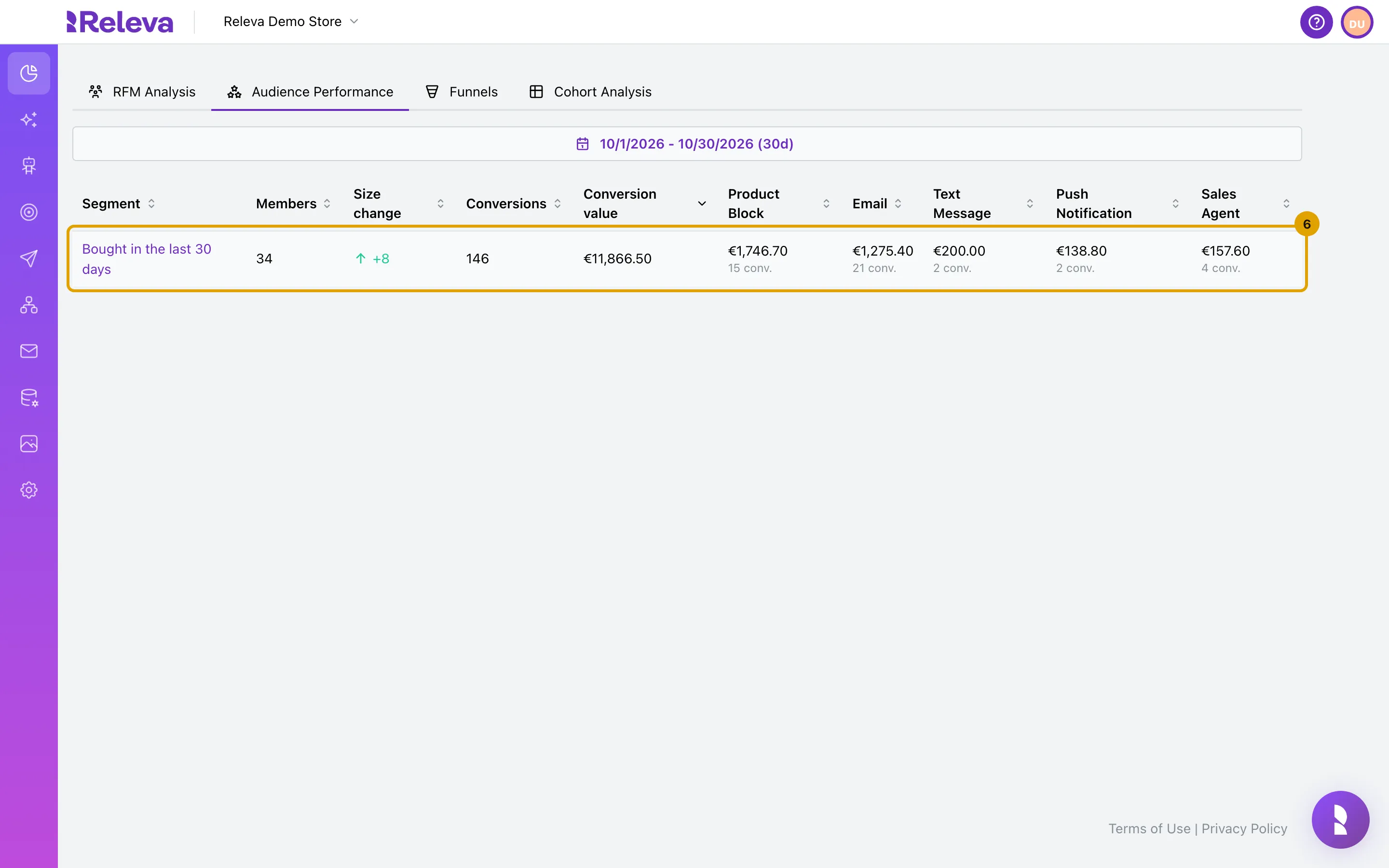
Check that the segment is listed in the table.
The row shows Members, Size change, Conversions and Conversion value, then one column for each channel that brought conversions, such as Product Block or Email. The report covers the last 30 days; change the dates in the date picker above the table.
Check it worked
Section titled “Check it worked”- The star on the segment’s card is filled yellow and stays that way after you reload the page.
- The Audience Performance table has a row for the segment, with columns Members, Size change, Conversions and Conversion value. The segment name links back to the segment.
- A segment that nothing targets yet shows Not tracked under Conversions and Conversion value. Hover over it to read why.
Troubleshooting
Section titled “Troubleshooting”The star jumps back and a red notification says Could not star segment. The star could not be saved. The notification shows the reason from the server. With 25 segments already starred, the reason is A domain can star at most 25 segments: unstar a segment you no longer follow and try again.
The report says No starred segments yet. No segment in this shop is starred. Go back to Data Platform › Segments and select the star on a segment card.
Size change shows a dash. Releva needs a size snapshot of the segment at both ends of the date range. The report tells you so above the table: Segment size history started on date. Size change is blank for any segment without a snapshot at both ends of the selected range. Pick a range that starts on or after that date, or wait a day after you create the segment. If no snapshot exists yet in your shop, the message reads Segment size history is not being recorded yet, so size change is unavailable for every segment.
I want to stop tracking a segment. Select the yellow star again. The segment leaves the report; the segment itself is not changed.