

Create a catalog trigger
A catalog trigger turns a change in your product catalog into an event for the people who care about that product. This guide creates a trigger for products that come back in stock, aimed at the profiles that viewed them. For what the rules mean, when Releva checks them and how a workflow uses the result, read How catalog triggers work.
Before you start
Section titled “Before you start”- Your catalog is in Releva and gets updated when prices or stock change. A trigger only sees changes that reach Releva; see How your catalog gets into Releva.
- Your shop tracks product events such as product views, cart additions or wishlist additions. The audience is built from them.
- Your plan includes catalog triggers. If New catalog Trigger shows a lock, ask your account owner to unlock it.
- You know which change and which audience you want: for example products that Became in stock, for people who Viewed product.
-
Go to Data Platform › Catalog Triggers.
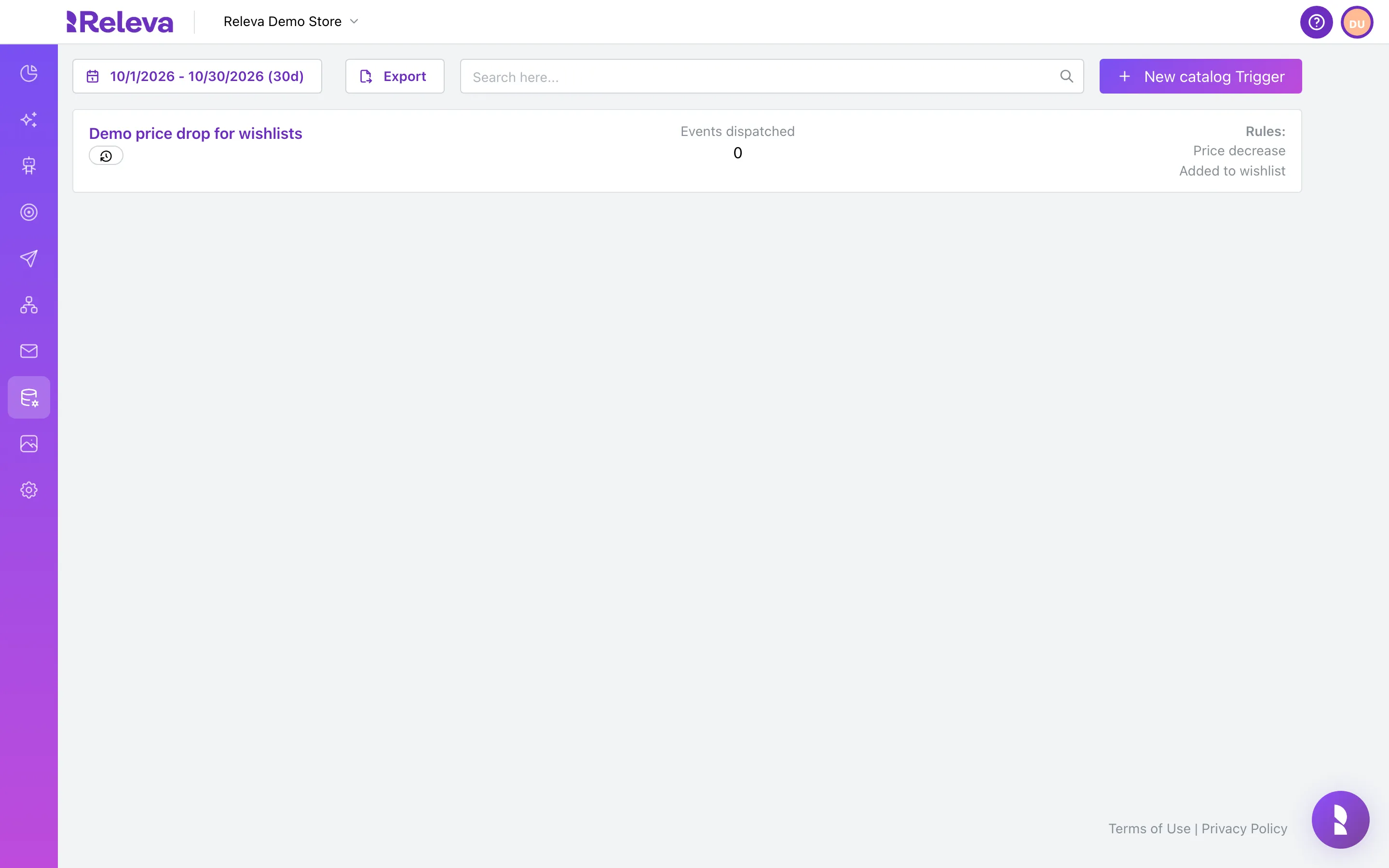
-
Select New catalog Trigger.
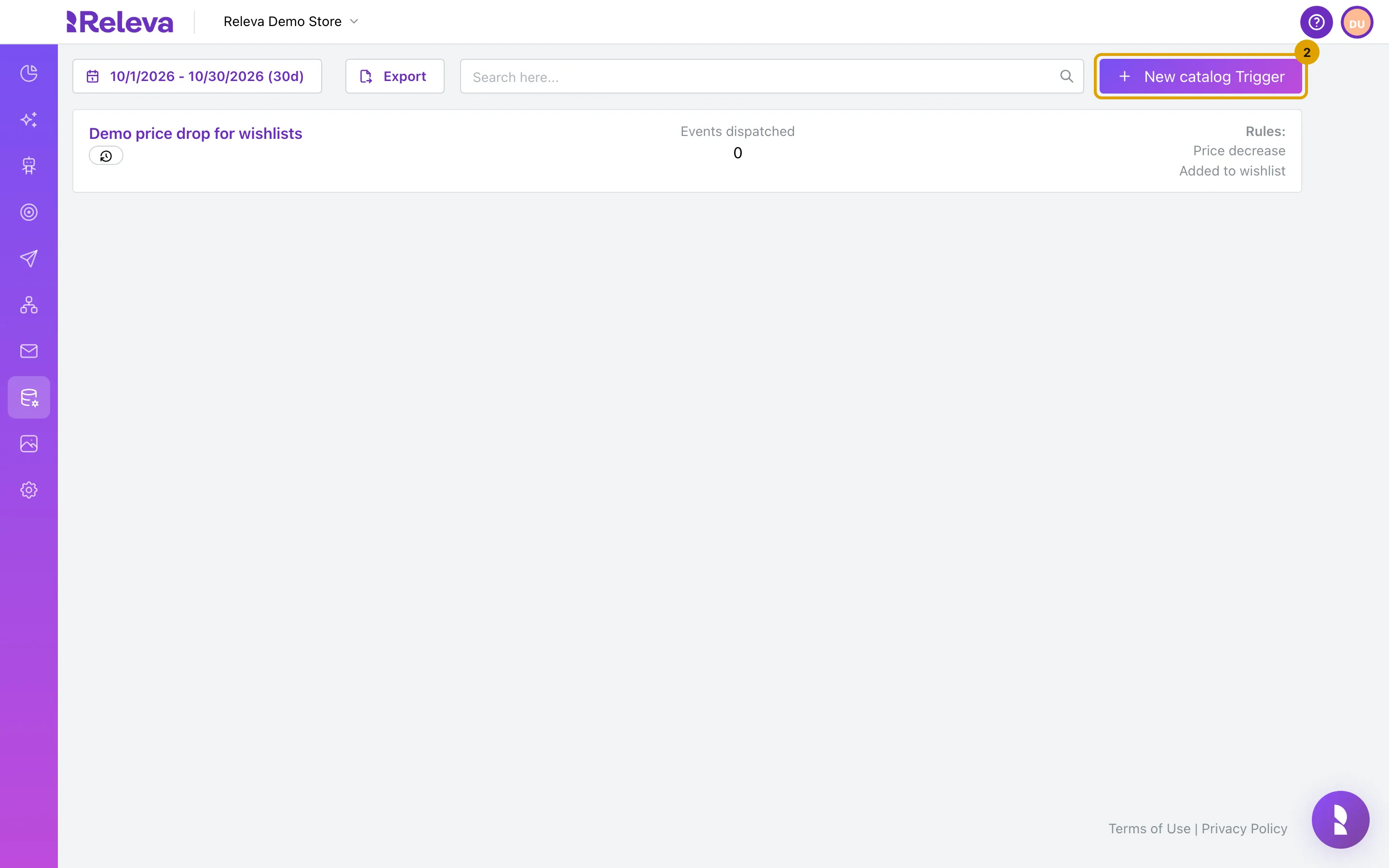
-
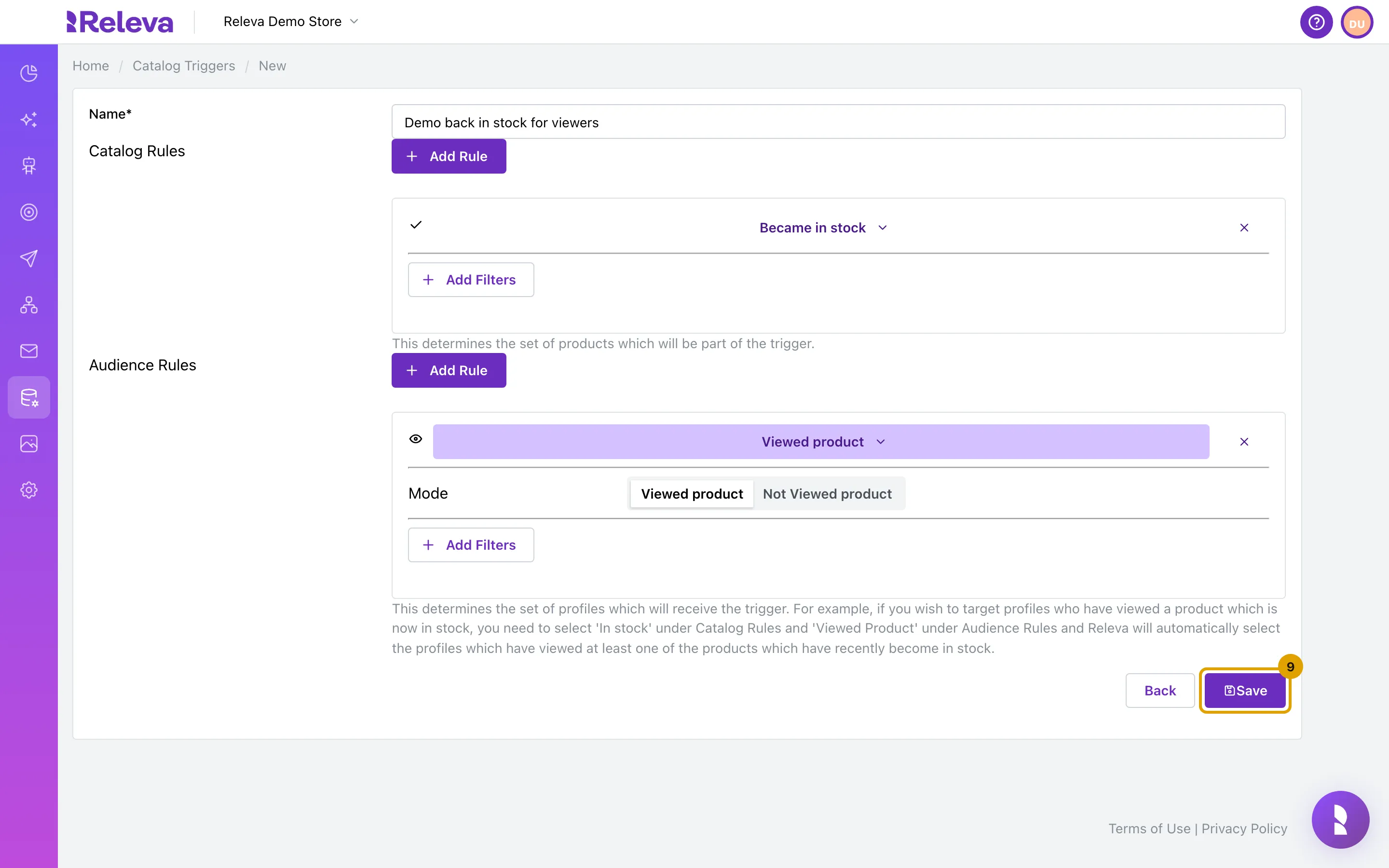
In Name, replace “New catalog trigger” with a name you will recognise when you pick the trigger in a workflow.
The name must be unique within the shop. It also becomes the name of the event the trigger produces: Catalog trigger - <name>.
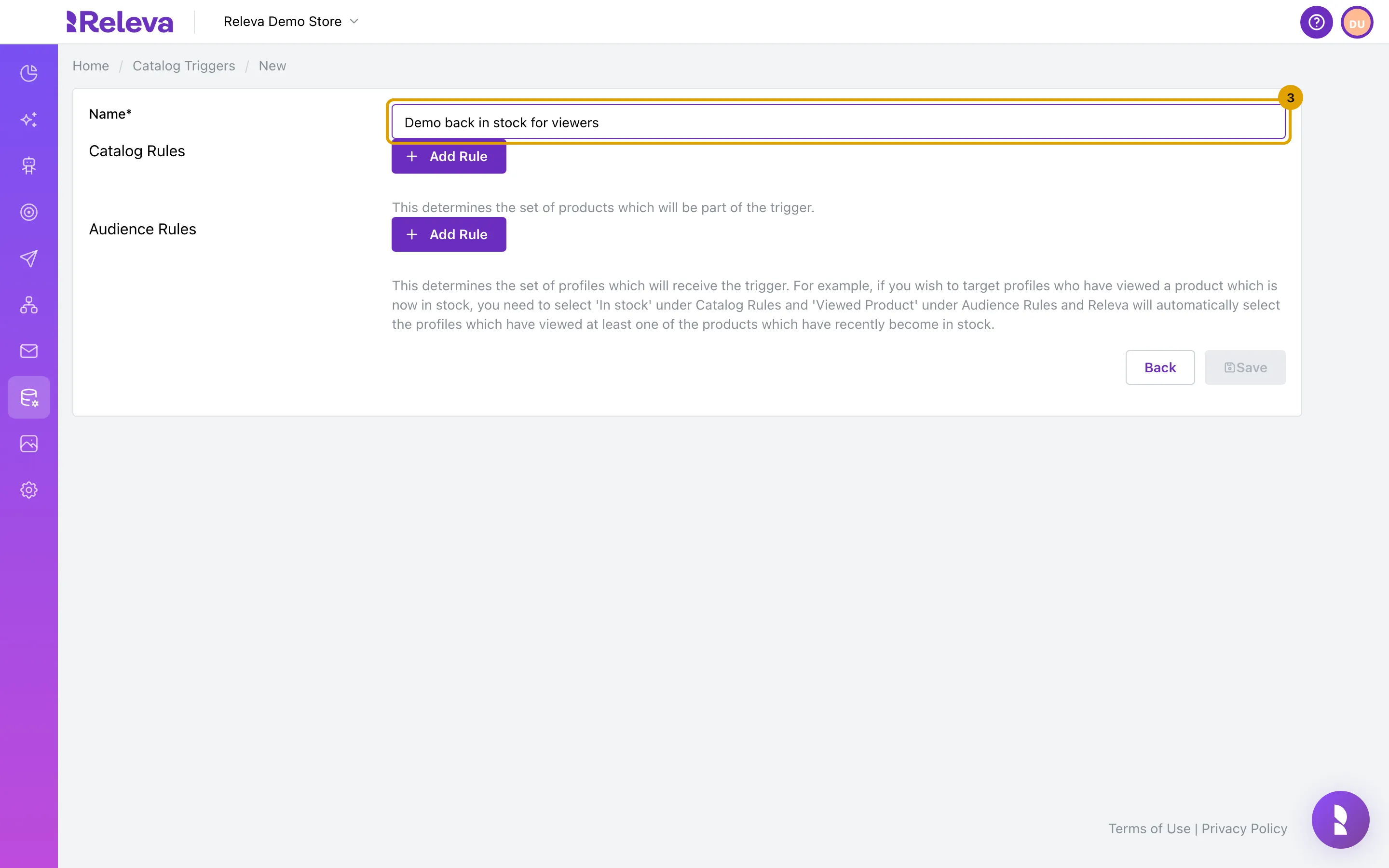
-
Under Catalog Rules, select Add Rule.
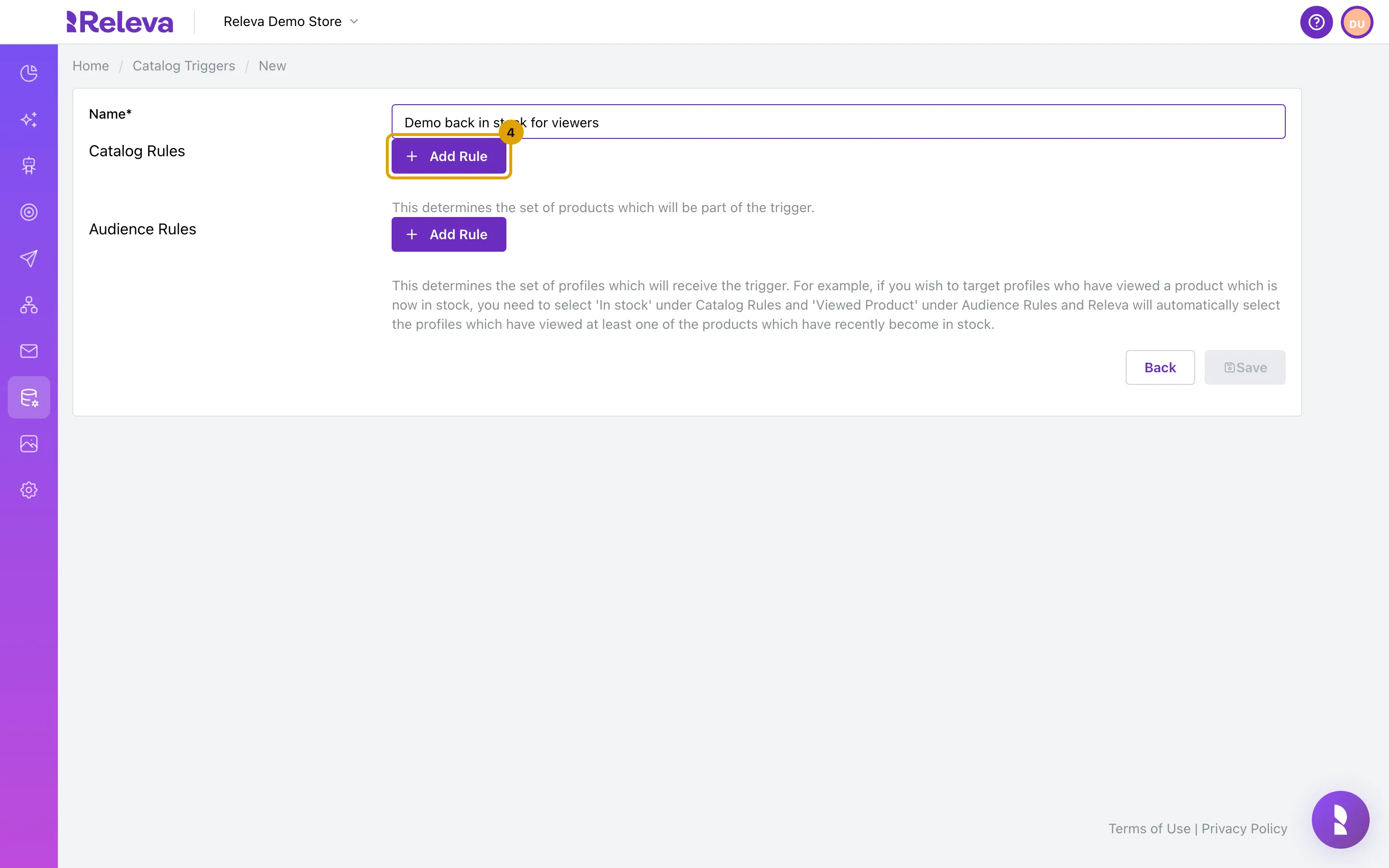
-
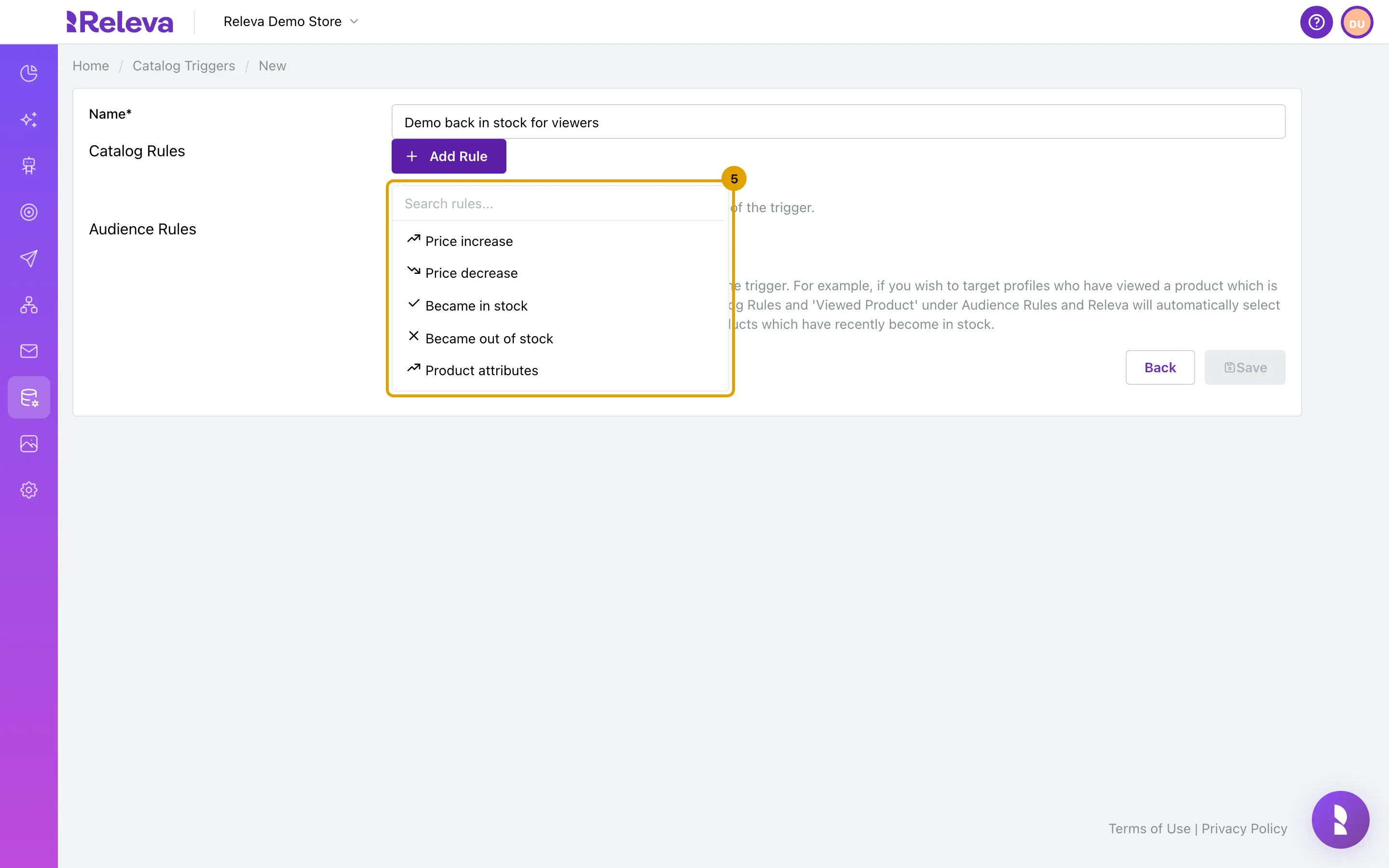
Select the product change that starts the trigger, for example Became in stock.
The list has five rules: Price increase, Price decrease, Became in stock, Became out of stock and Product attributes. Catalog rules have no Mode switch; you cannot invert them. If you add several, a product must match all of them.
-
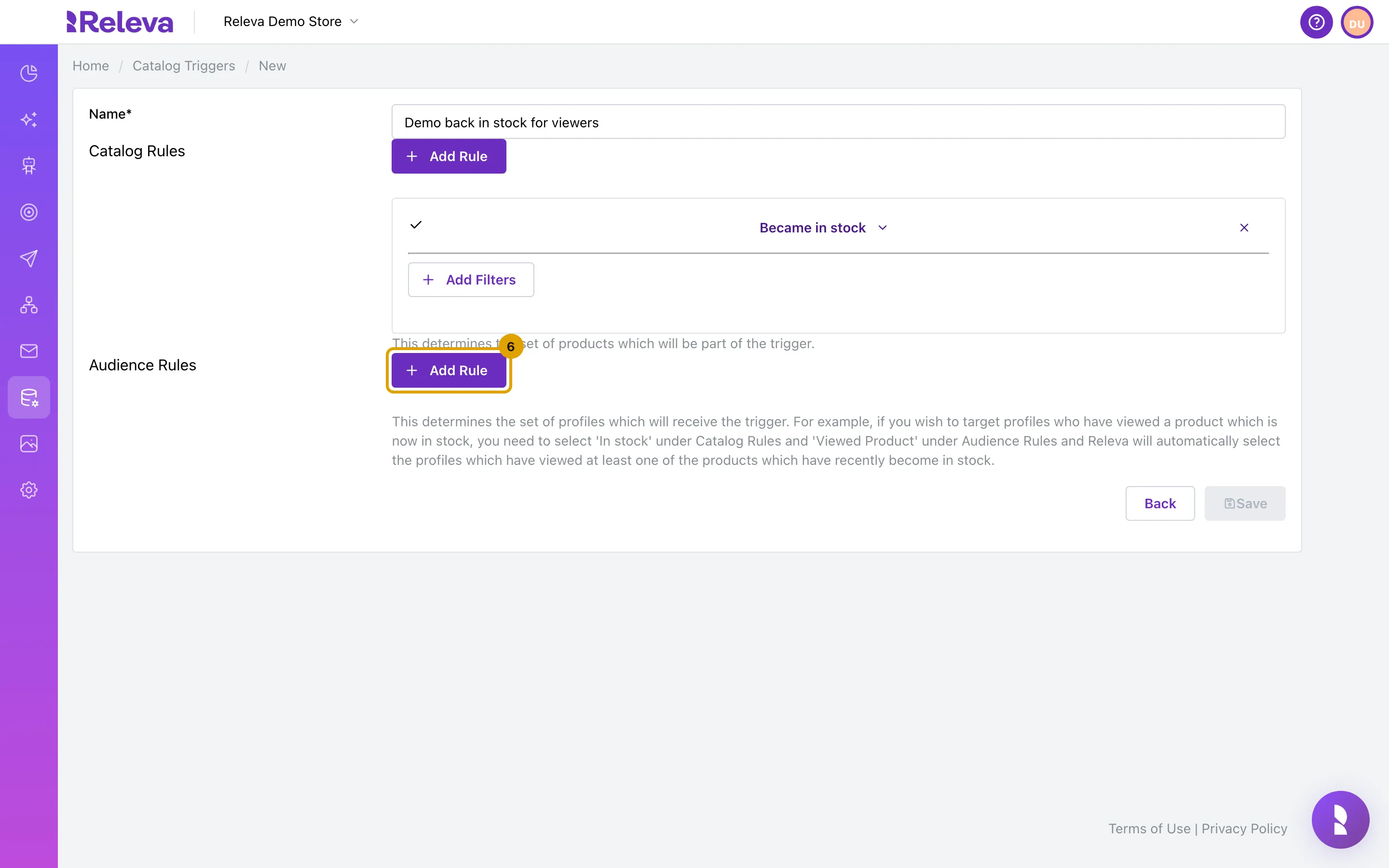
Under Audience Rules, select Add Rule.
-
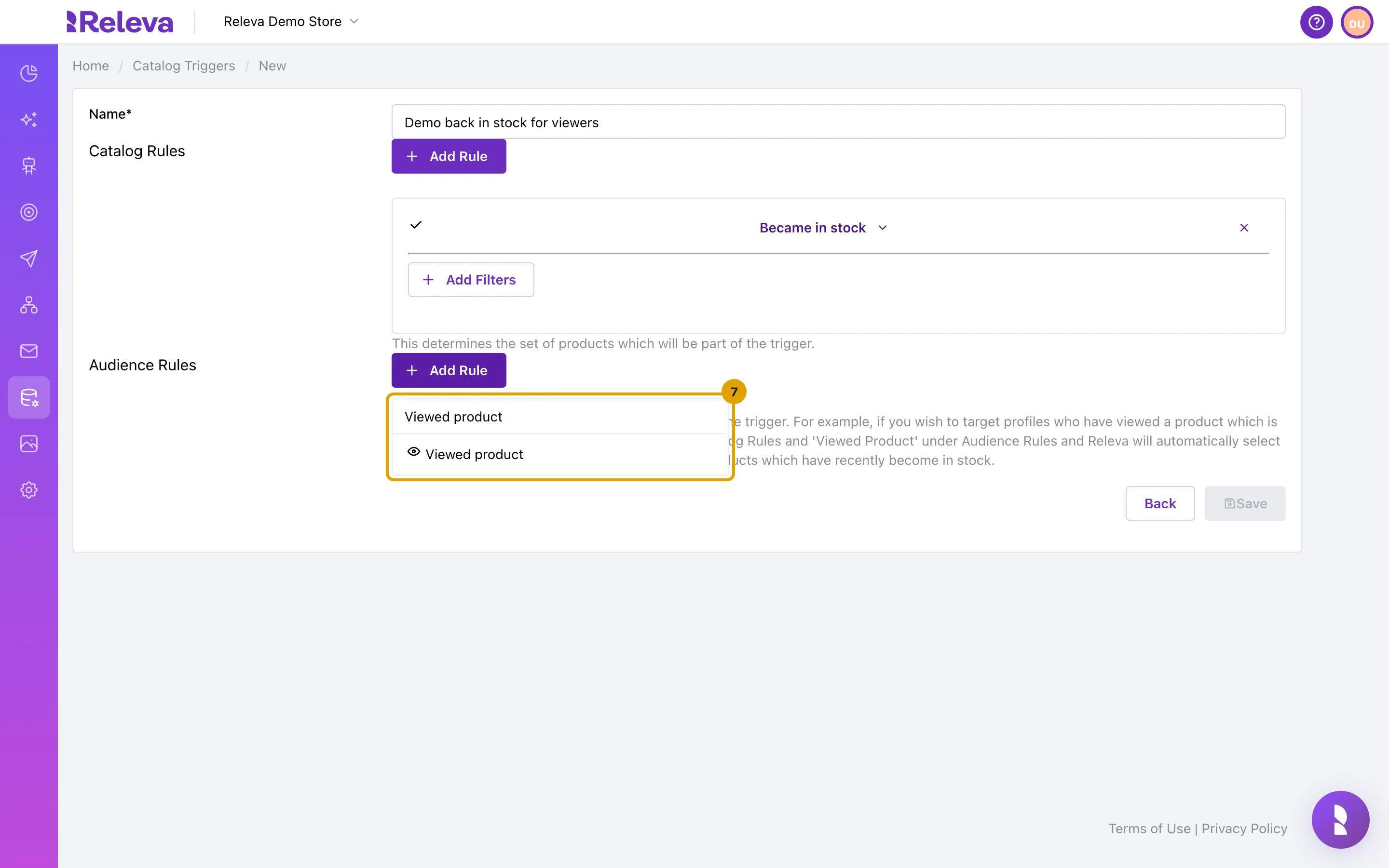
Search for what the profile did with the product, for example Viewed product, and select it.
The list is the same as for segments: tracked actions such as Viewed product, Added to cart, Added to wishlist and Purchased, plus Profile Attributes, Belongs to Segment and one Performed action: … rule per custom event.
-
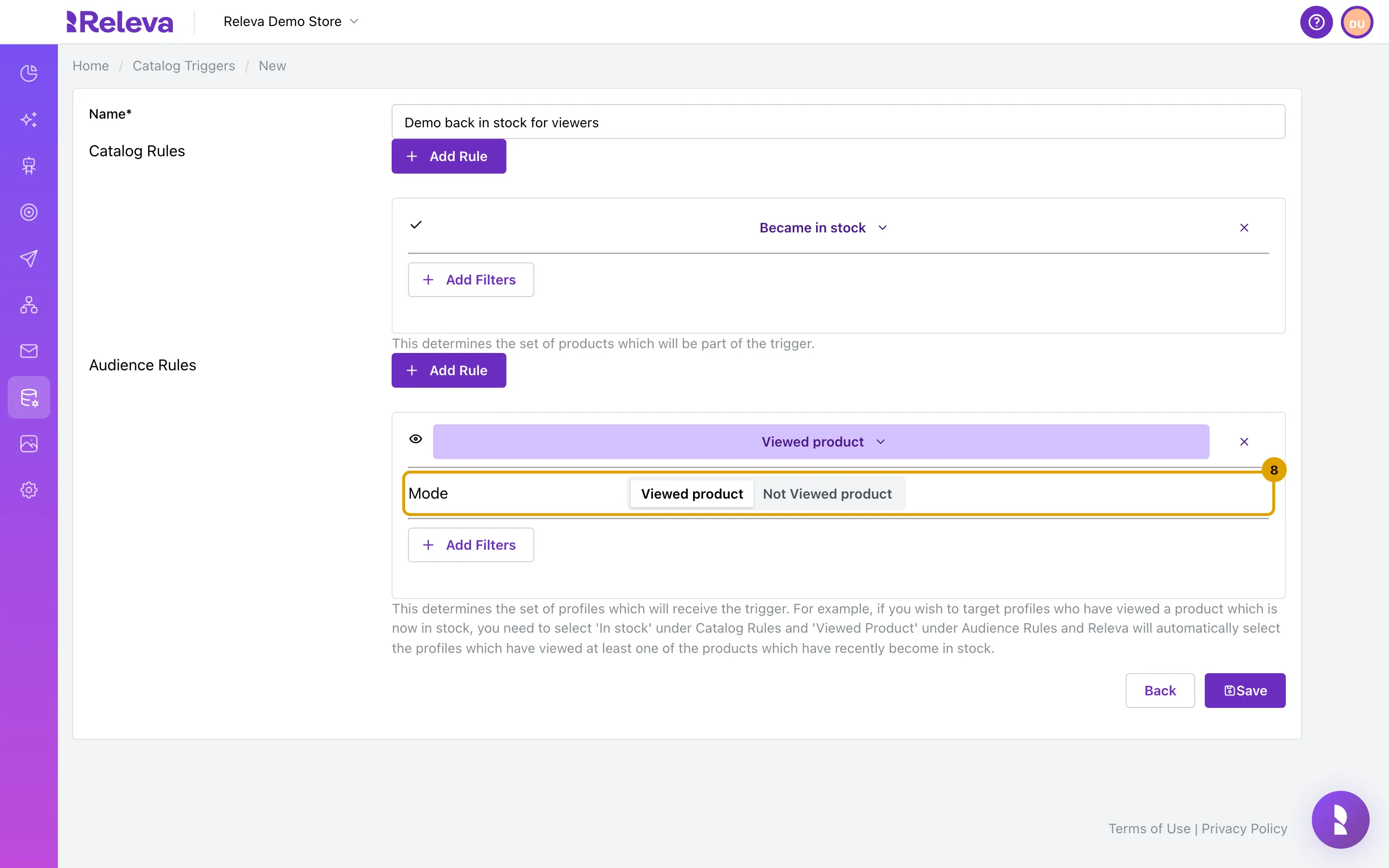
Leave Mode on Viewed product. A trigger needs at least one audience rule that is an action and is not set to Not.
This first action rule is the one Releva matches against the changed products: a profile qualifies only for the products it viewed. Add more audience rules to narrow the audience; Add Filters on a rule limits it further, for example to the last few days.
-
Select Save.
Save stays disabled until the trigger has a name, at least one catalog rule and at least one audience rule.
-
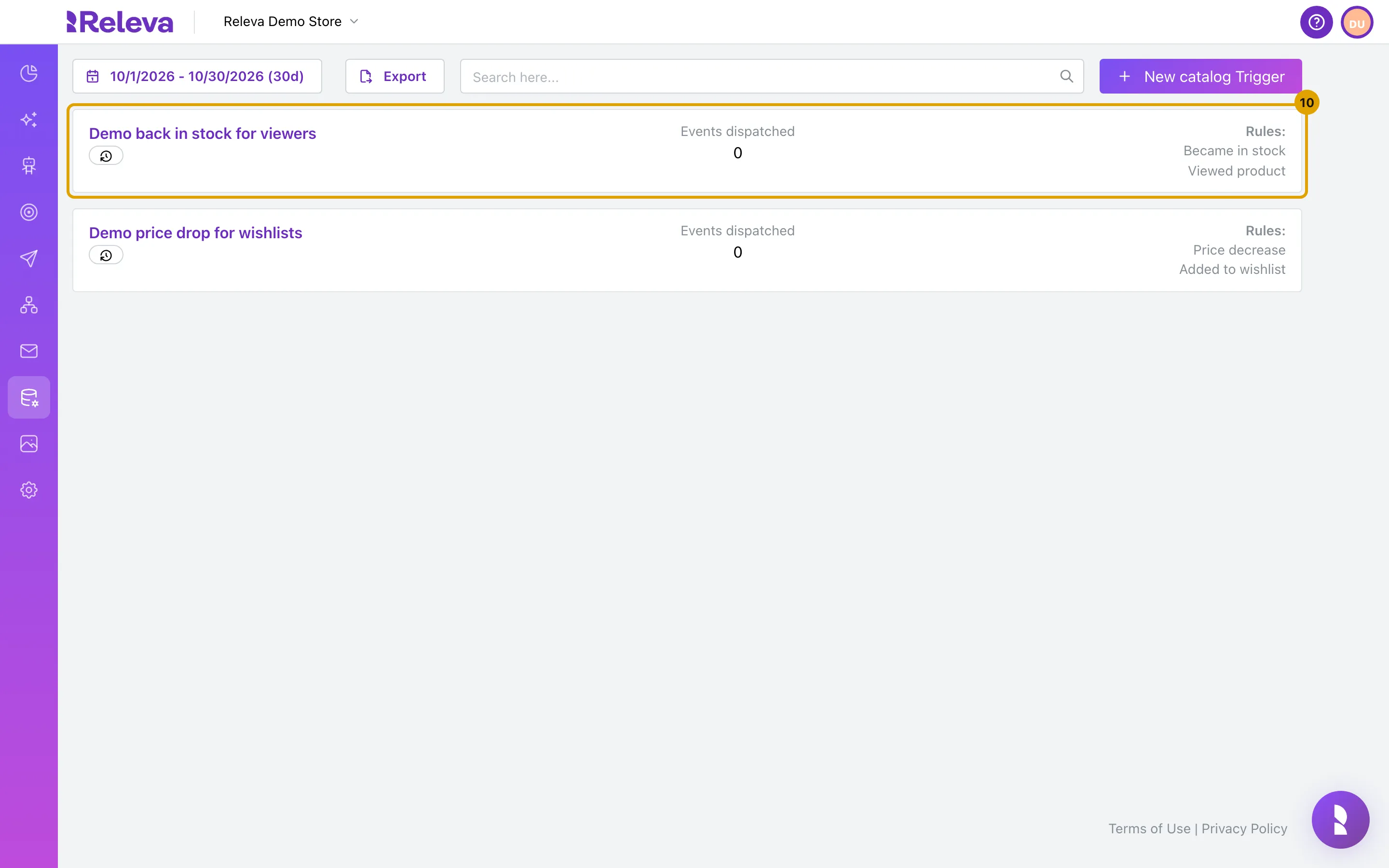
You are back on Catalog Triggers and the new trigger has its own card with its rules.
Check it worked
Section titled “Check it worked”- The new trigger is the first card on the Catalog Triggers list, with Rules: Became in stock and Viewed product on the right and Events dispatched at 0.
- In Workflows › Triggered, the Event picker of a workflow now lists Catalog trigger - <your name>. The trigger does nothing until a running triggered workflow picks that event; see How catalog triggers work.
Troubleshooting
Section titled “Troubleshooting”Save is disabled. The name is empty, or one of the two rule lists is empty. A trigger needs both a catalog rule and an audience rule.
Save fails with “Name must be unique!”. Another catalog trigger in this shop already has that name. Change the name and save again.
Save fails with “An internal error occurred.” Every audience rule is either set to Not … or is not an action (for example only Profile Attributes). Releva needs at least one action rule in its normal mode to know which products each profile interacted with. Add one, for example Viewed product, and save again.
I cannot set a catalog rule to Not. Catalog rules cannot be inverted. Pick the opposite change instead, for example Became out of stock rather than “not in stock”.
Events dispatched stays at 0. The trigger is checked three times a day and only when a running triggered workflow uses its event. Until then nothing is counted.