

Edit or delete a company
Open a company from Data Platform › Companies to change its name, email, phone number and tags, or to delete it. The Company Id cannot be changed.
Before you start
Section titled “Before you start”- You can find the company. See Find a company and see its activity.
- The company has no custom fields that you want to keep, or you update it through the API.
-
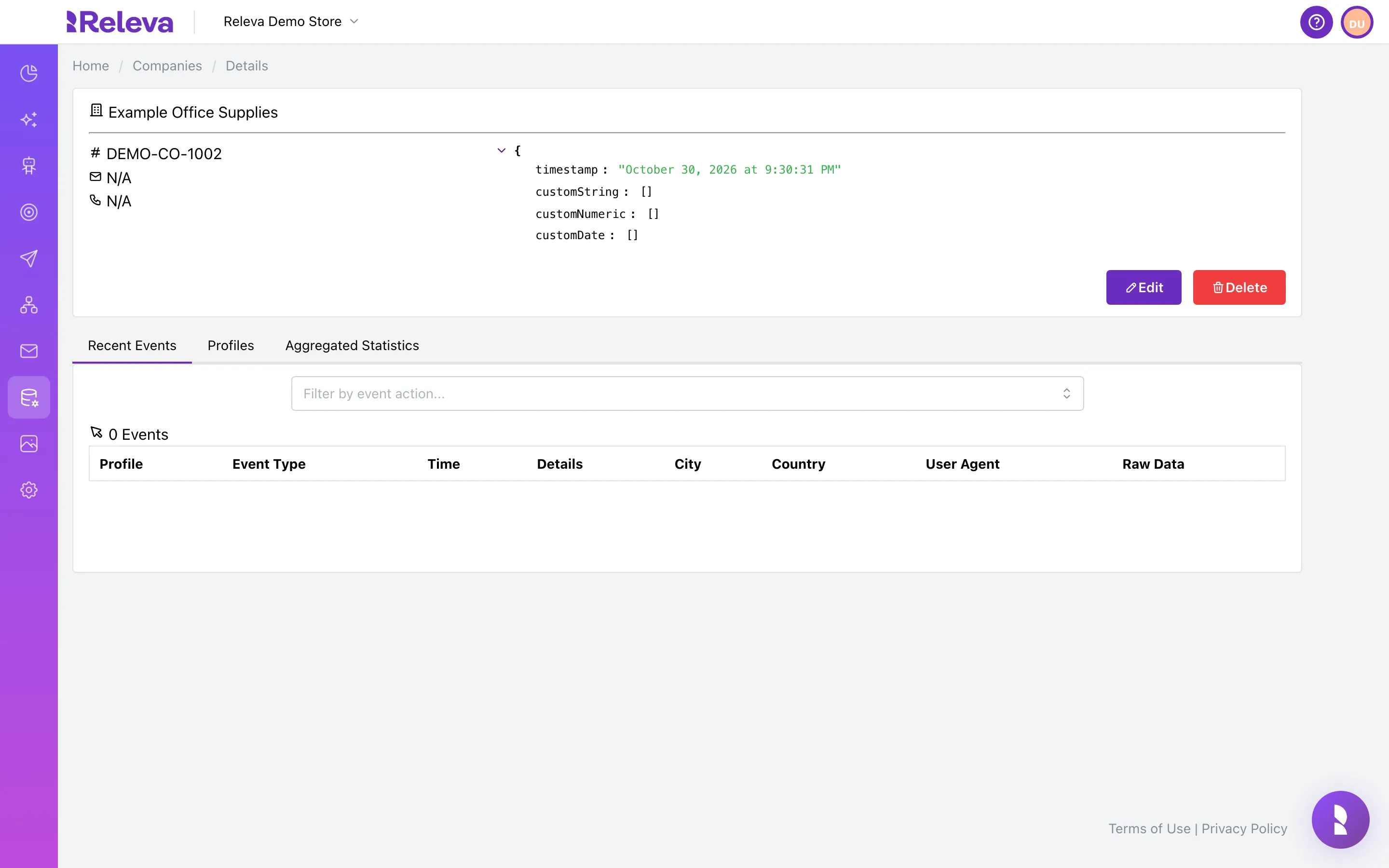
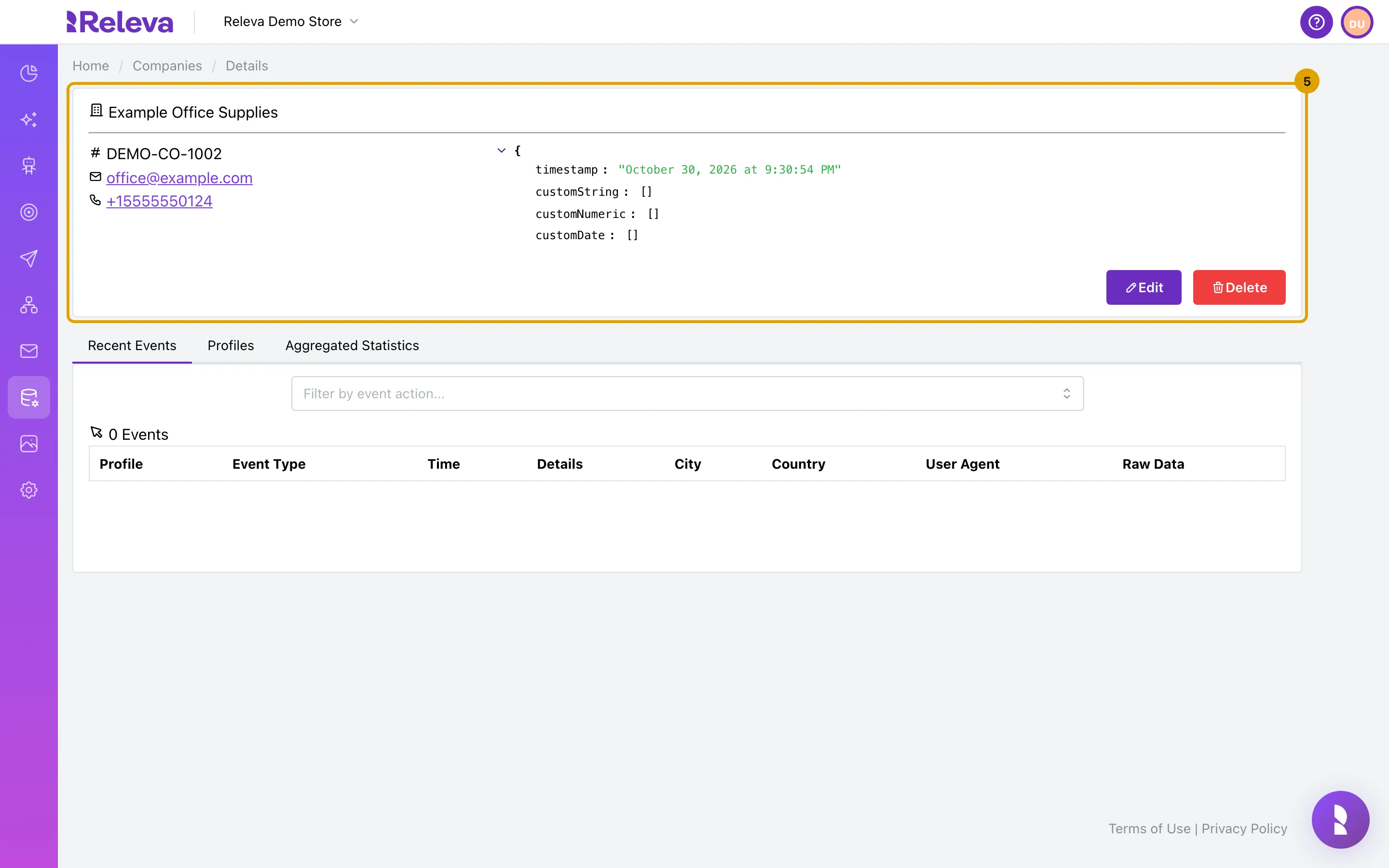
Open the company from Data Platform › Companies.
The card shows the email only when the company also has a phone number, so a company without one shows N/A twice.
-
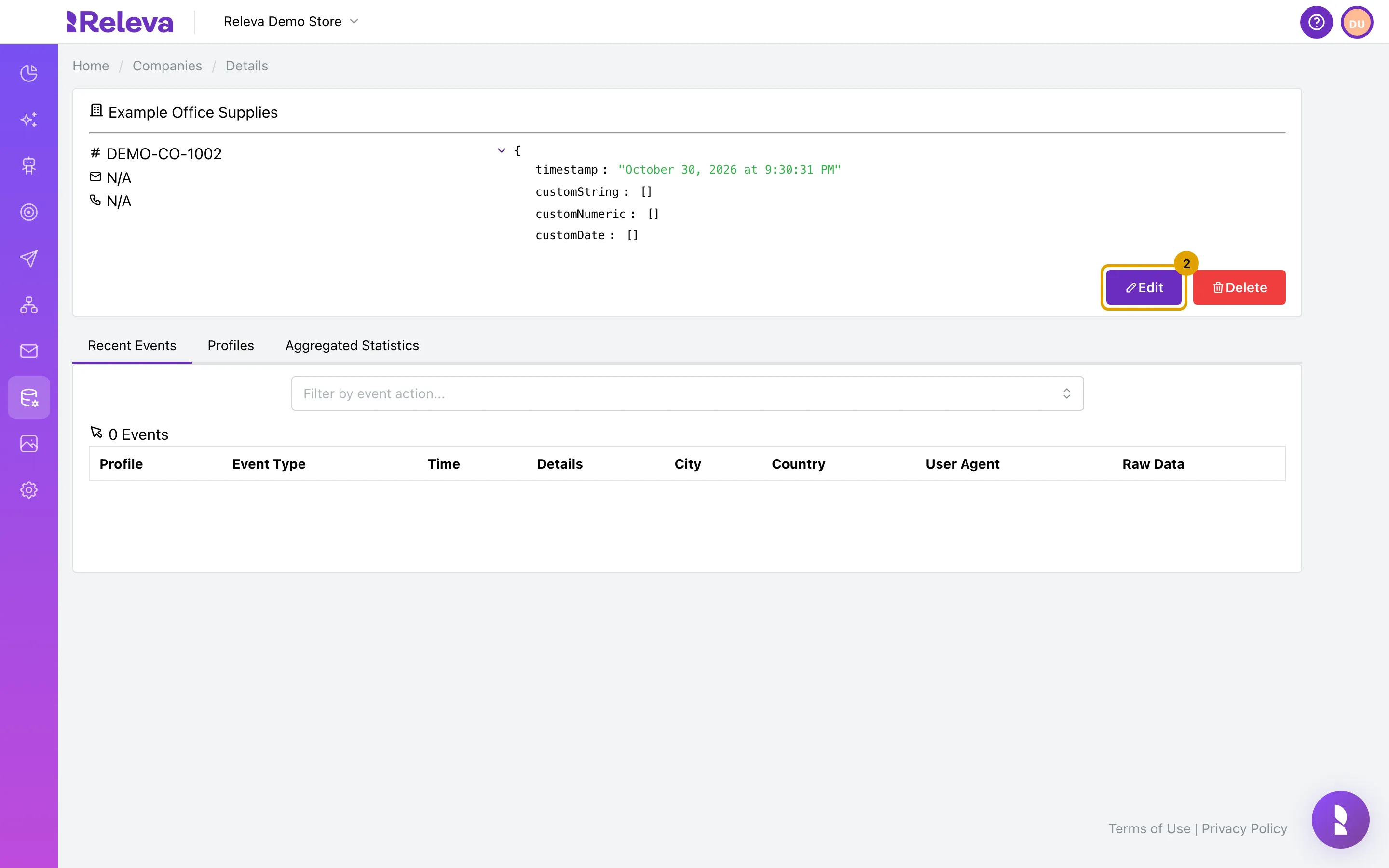
Select Edit.
-
Change the fields you need. Company Id cannot be changed.
Wait until the form shows the saved values before you type. The form fills from the server after it opens, and anything typed earlier is overwritten. Tags are shown here only: type a tag and press Enter to add one, or select its
×to remove it.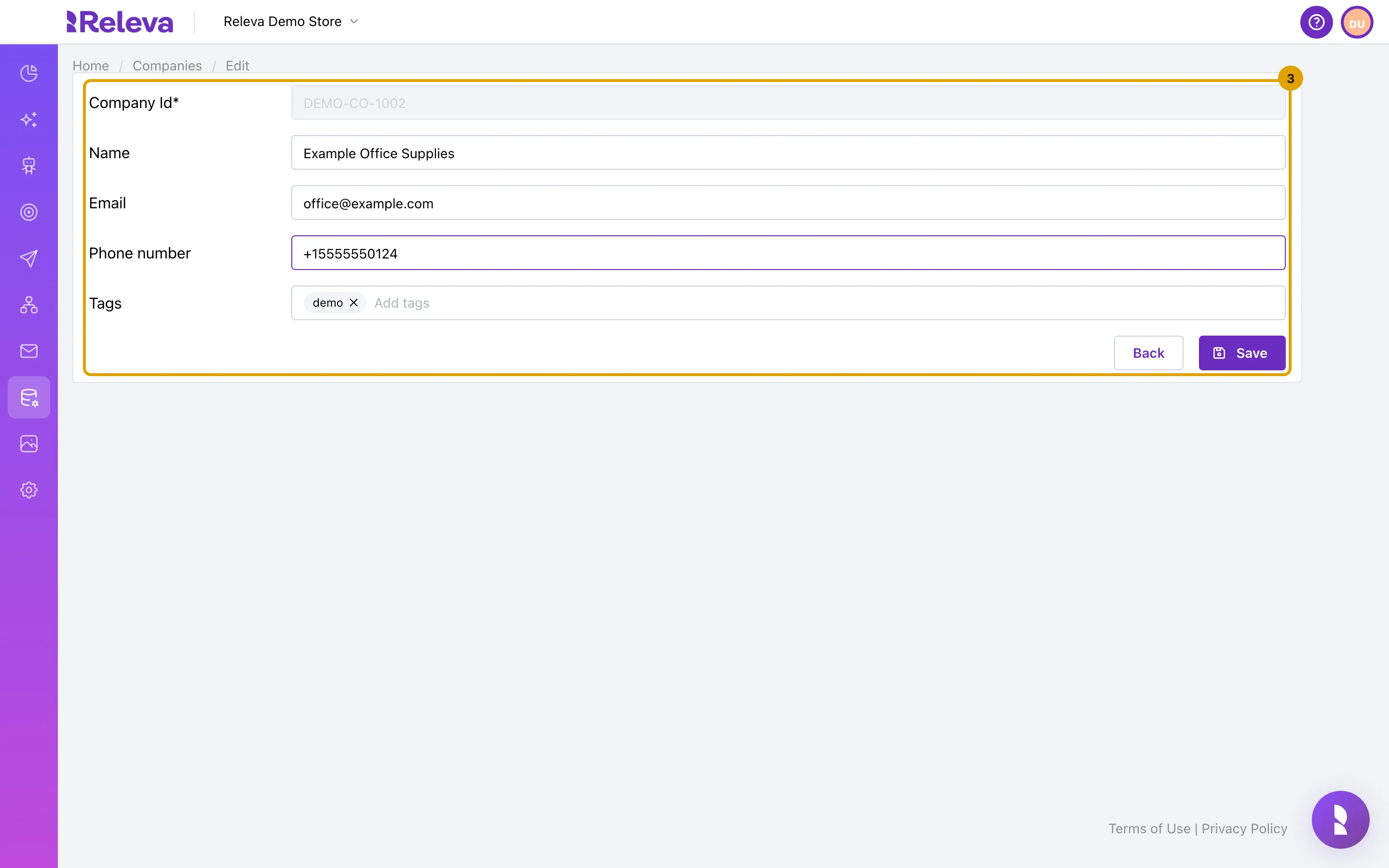
-
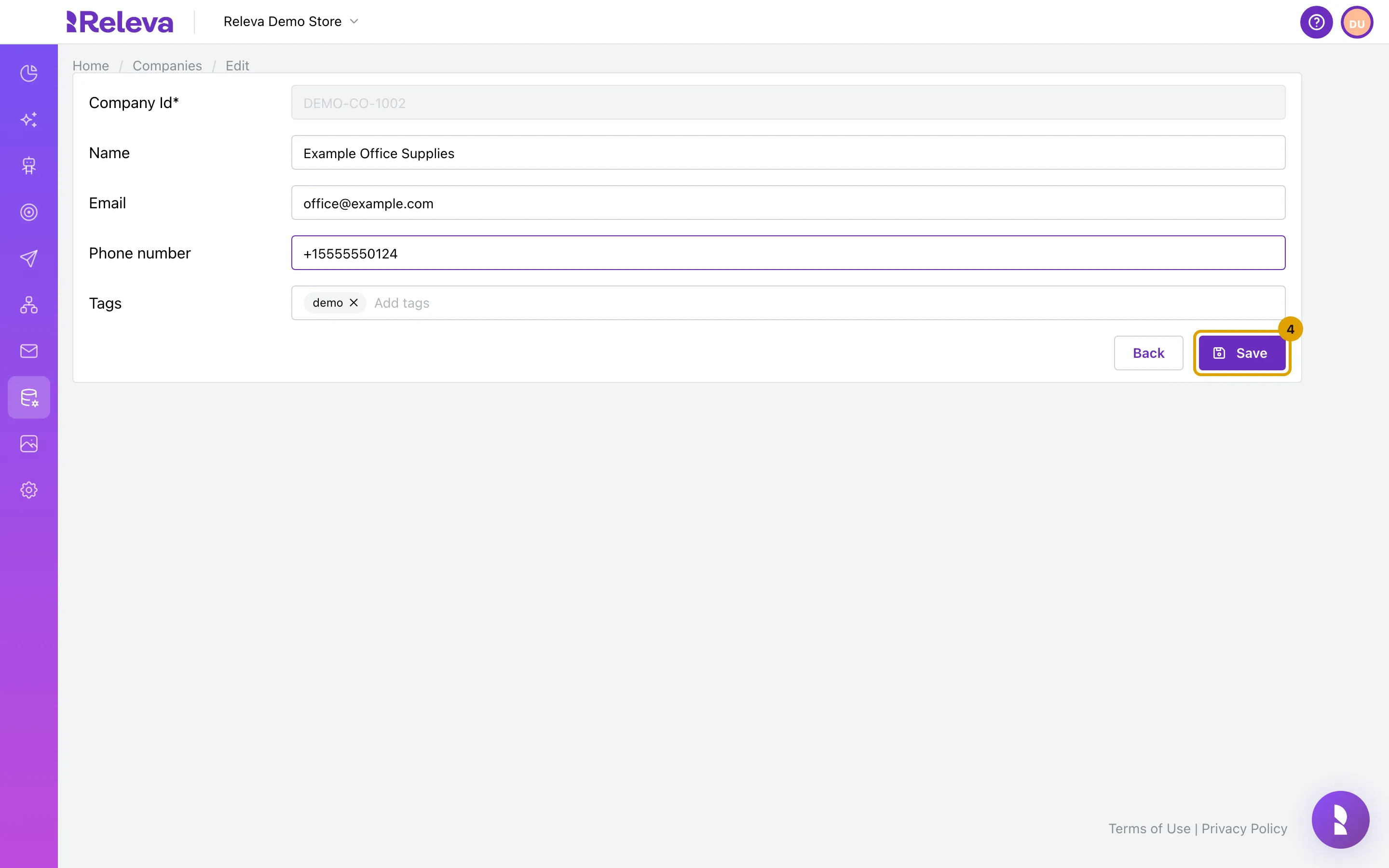
Select Save.
-
Releva opens the company again. Reload the page if the new details do not show yet.
The change takes a few seconds to arrive, so the page that opens right after Save can still show the old values.
Delete a company
Section titled “Delete a company”- Open the company and select Delete.
- In the Are you sure? dialog, select Confirm. Close cancels.
- The card shows Company has been scheduled for deletion. The company disappears from the list a few seconds later. Opening its page again shows Company with this id cannot be found!
Deleting a company does not remove the roles that link people to it, nor the events sent with its id. Sending the same Company Id again, through the form or the API, brings the company back.
Check it worked
Section titled “Check it worked”- After step 5 the company card shows the new name, email or phone number.
- Select Edit again: the Tags field shows the tags you saved.
- After a delete, a search for the Company Id shows no rows.
Troubleshooting
Section titled “Troubleshooting”My change disappeared while I was typing. The form was still loading the saved values. Open Edit again, wait for the fields to fill, then make the change.
The custom fields are gone after saving. The Edit form saves only the Company Id, name, email, phone number and tags, and the saved record replaces the old one. Send the company again through the API with its custom object to restore the fields.
The company page still shows the old values after Save. The change takes a few seconds to arrive. Reload the page.
The card shows N/A for the email after saving. The card shows the email only when the company also has a phone number. The email is still stored; the list and the Edit form show it.
The count above the list did not drop after a delete. The count still includes deleted companies. It is a known issue; the deleted company is not in the rows.
The browser tab reads “Ediit”. That is a typo in the current admin; the form works normally.