

Send a push notification with a workflow
A saved push notification is delivered only when a workflow or campaign uses it. This guide opens a saved notification, shows the two test options, and hands the notification to a workflow. Building and activating the workflow is covered by the workflow guides; nothing is delivered until the workflow runs.
Before you start
Section titled “Before you start”- You have a saved push notification. See Create a web push notification.
- To test with Send to a Real User you need a profile that allowed notifications on your site (or registered an app token), identified by its e-mail, phone number or profile id.
- Decide how the notification should go out: once to a segment (One Off), on a schedule (Continuous) or when a customer does something (Triggered).
-
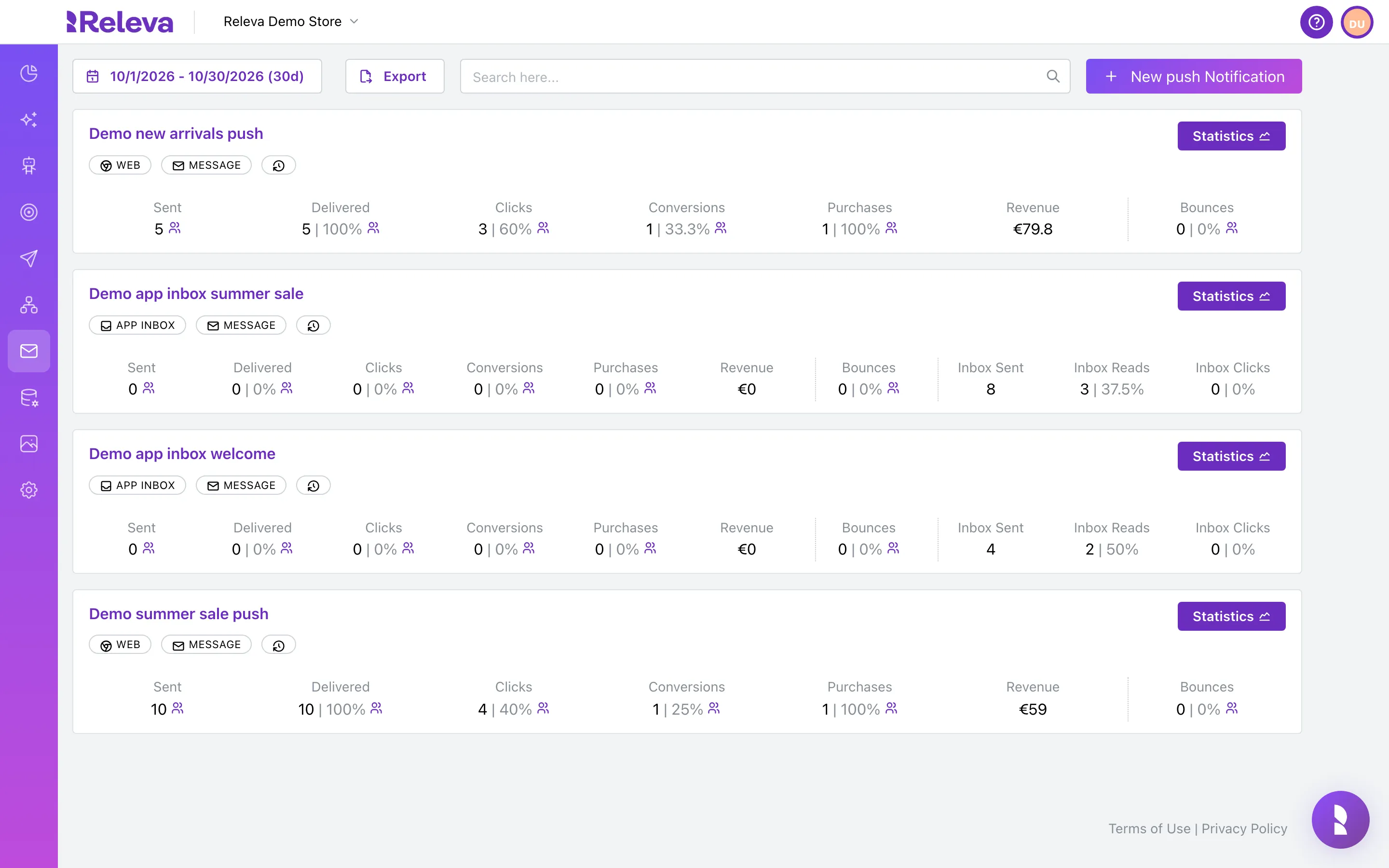
Go to Marketing Channels › Push Notifications
-
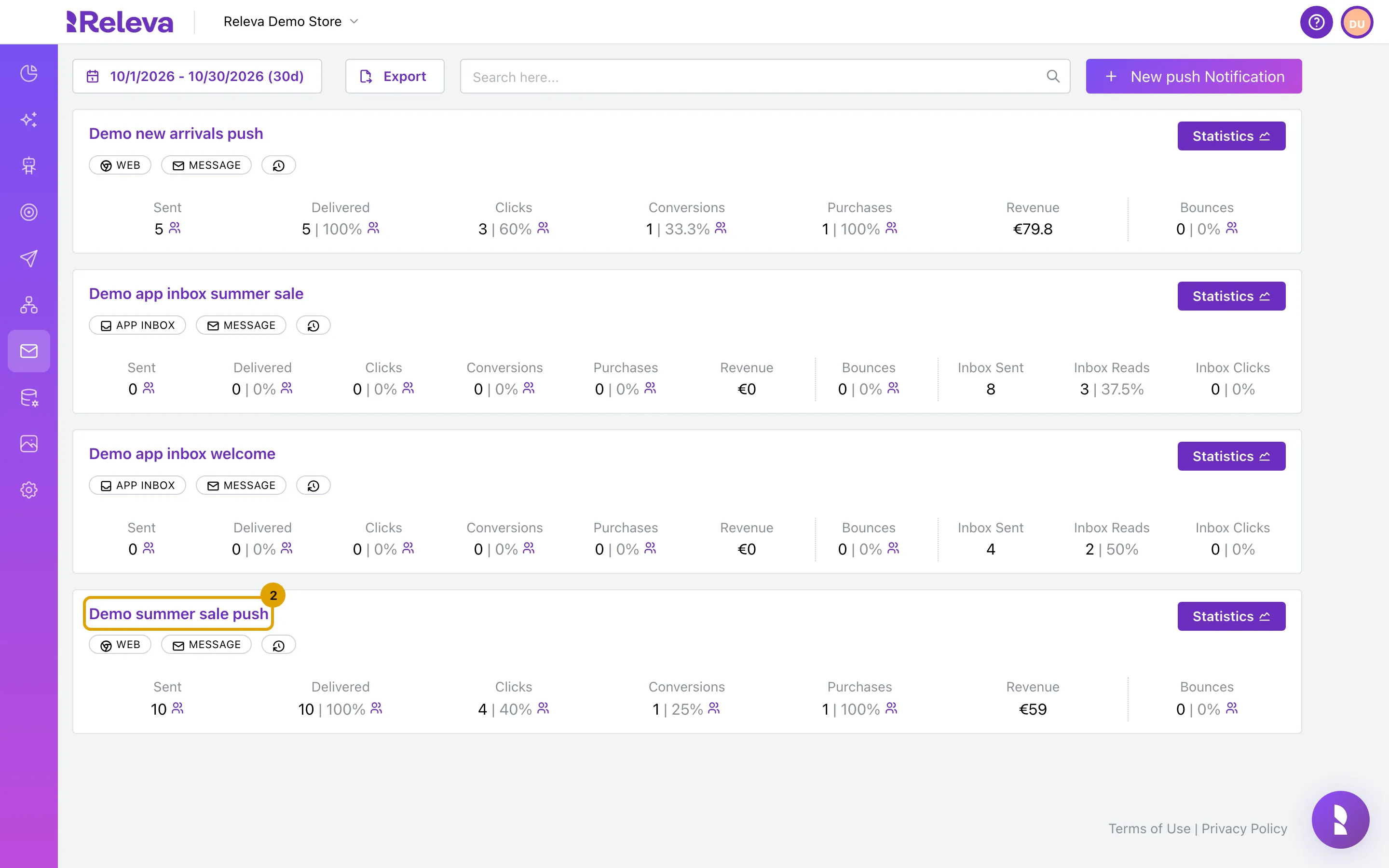
Select the name of the push notification you want to send
The card’s Statistics button opens the analytics page instead; the name opens the editor.
-
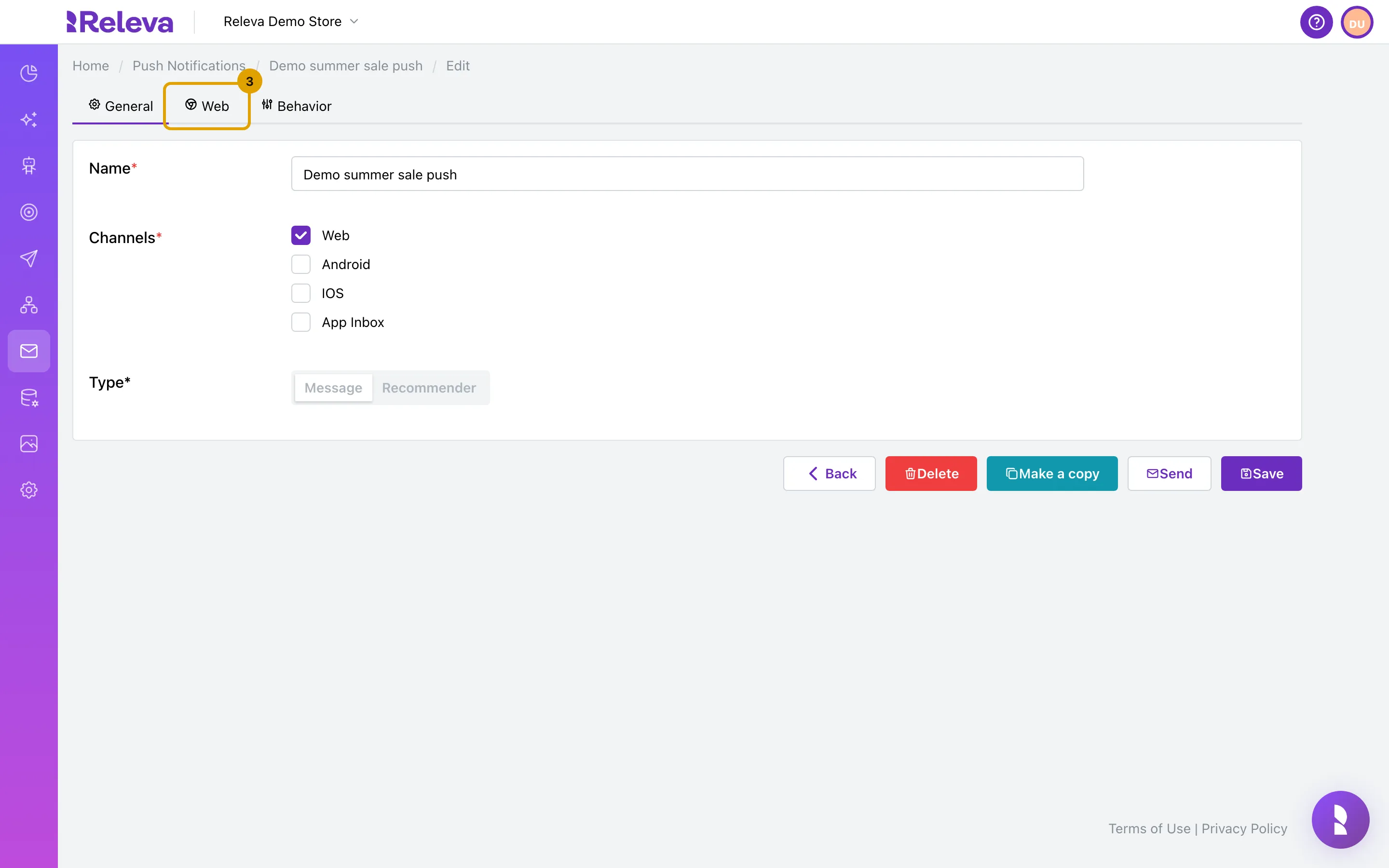
Select the Web tab to check the content
On a saved notification the buttons Delete, Make a copy, Send and Save are on every tab. Type is locked.
-
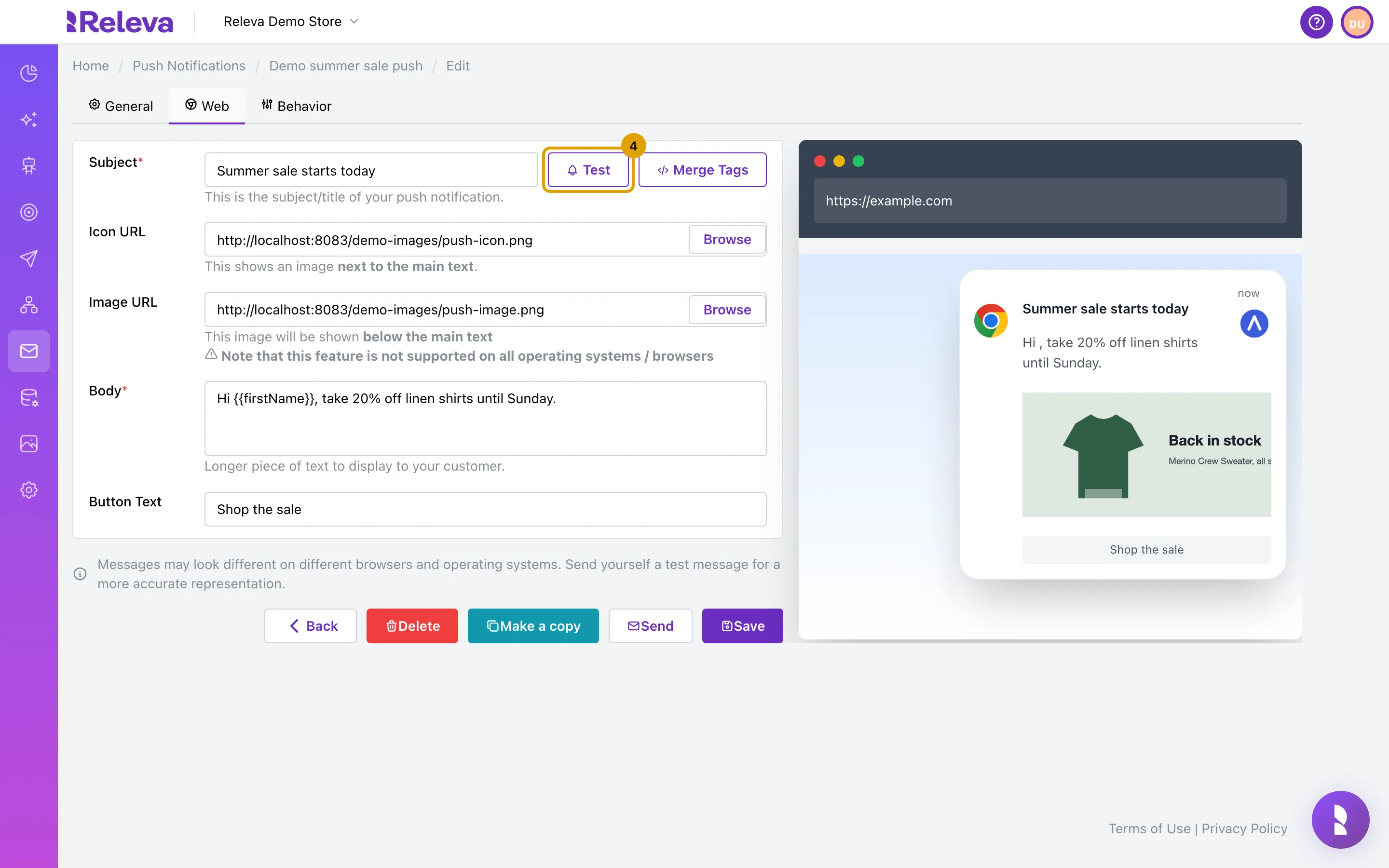
To try the notification first, select Test
The preview on the right is a mock-up. Real notifications look different on each browser and operating system.
-
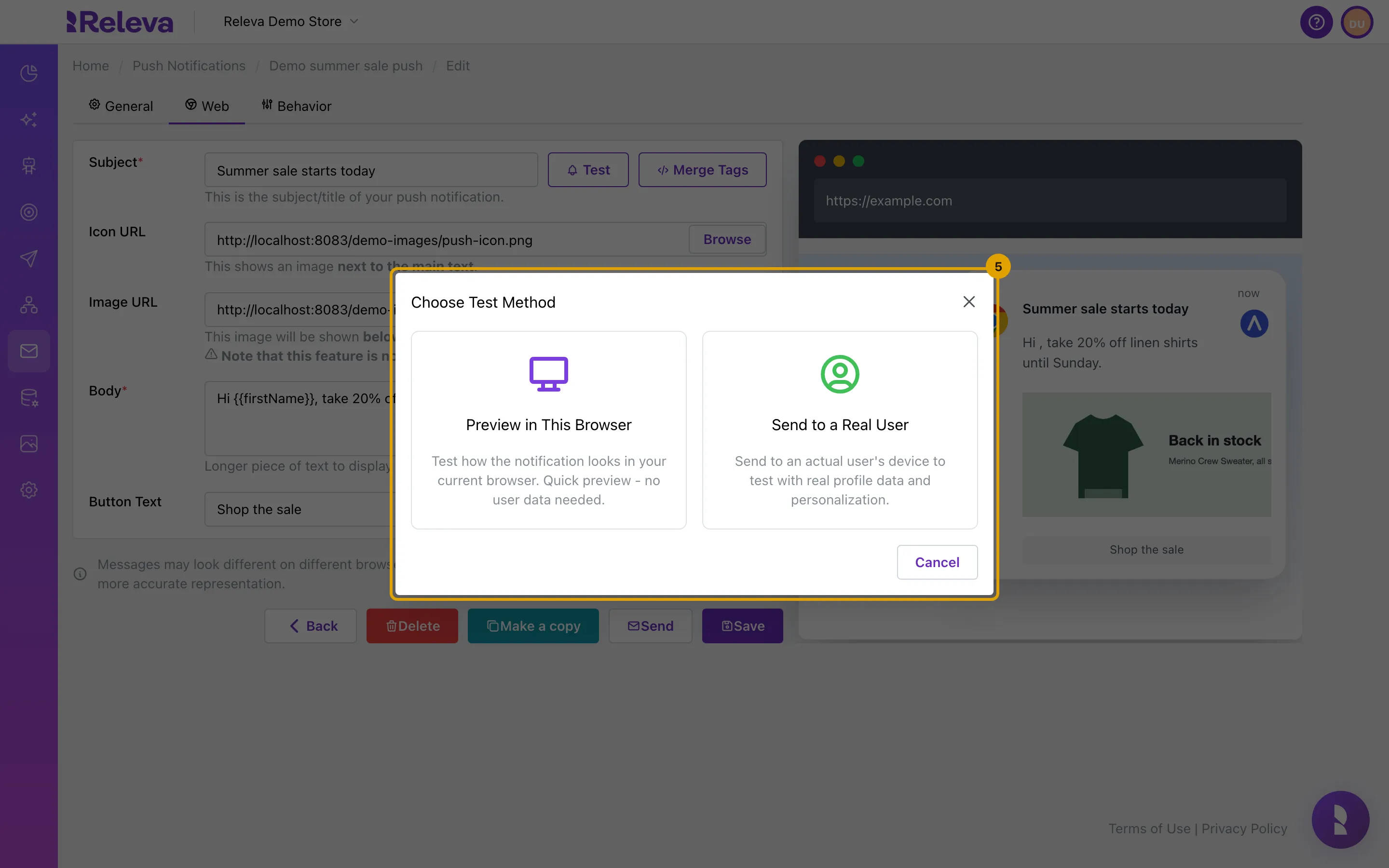
Choose Preview in This Browser for a quick look, or Send to a Real User to send it to the devices of a profile that allowed notifications
Preview in This Browser shows the notification through your own browser for a few seconds and asks for notification permission if needed; no customer data is used. Send to a Real User asks for an e-mail, phone number or profile id in Send to, and a Profile to impersonate for the merge tags, then delivers a real push to every device of that profile. Select Cancel to close the dialog without testing.
-
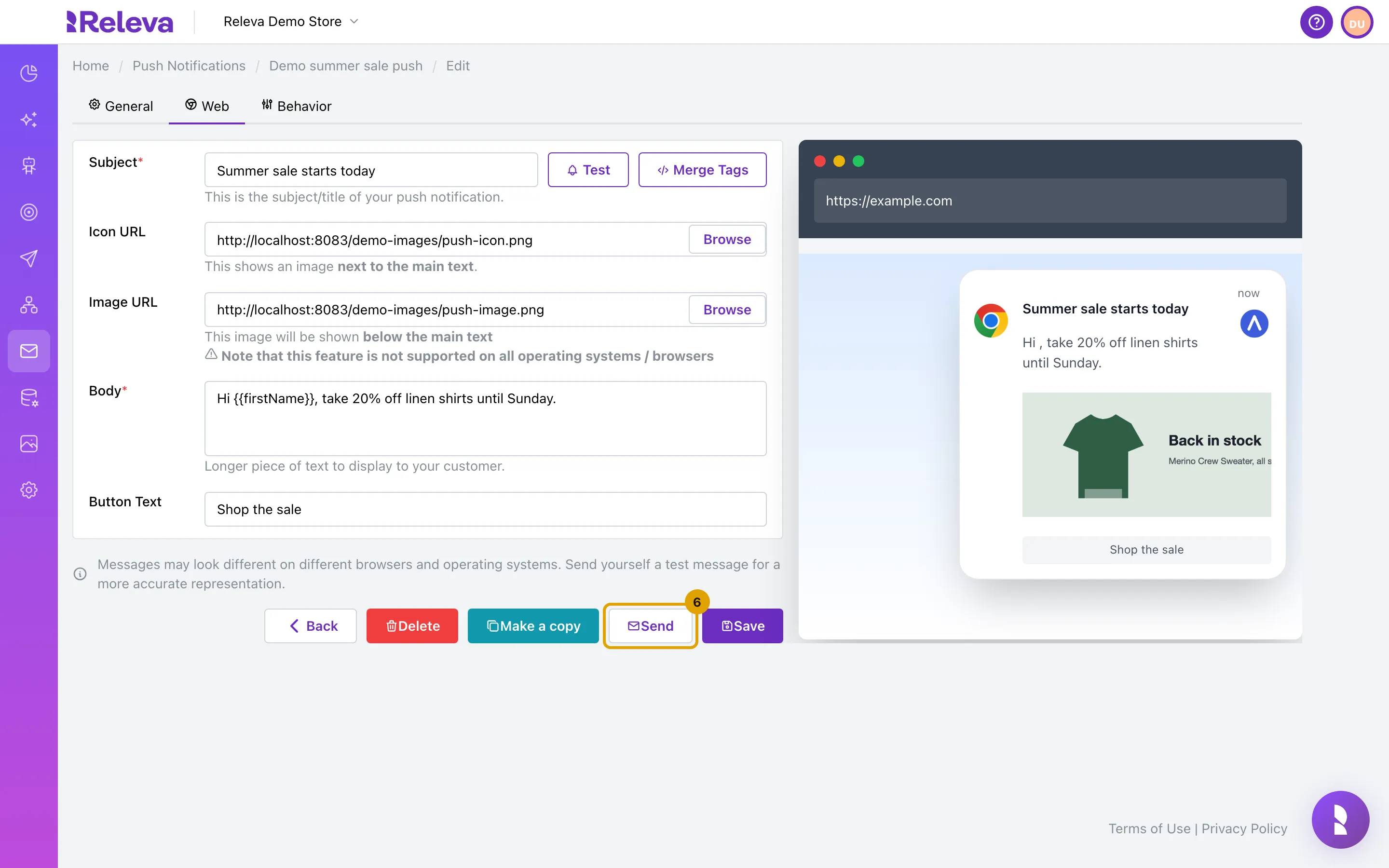
When the content is ready, select Send
If you changed anything on the form, select Save first.
-
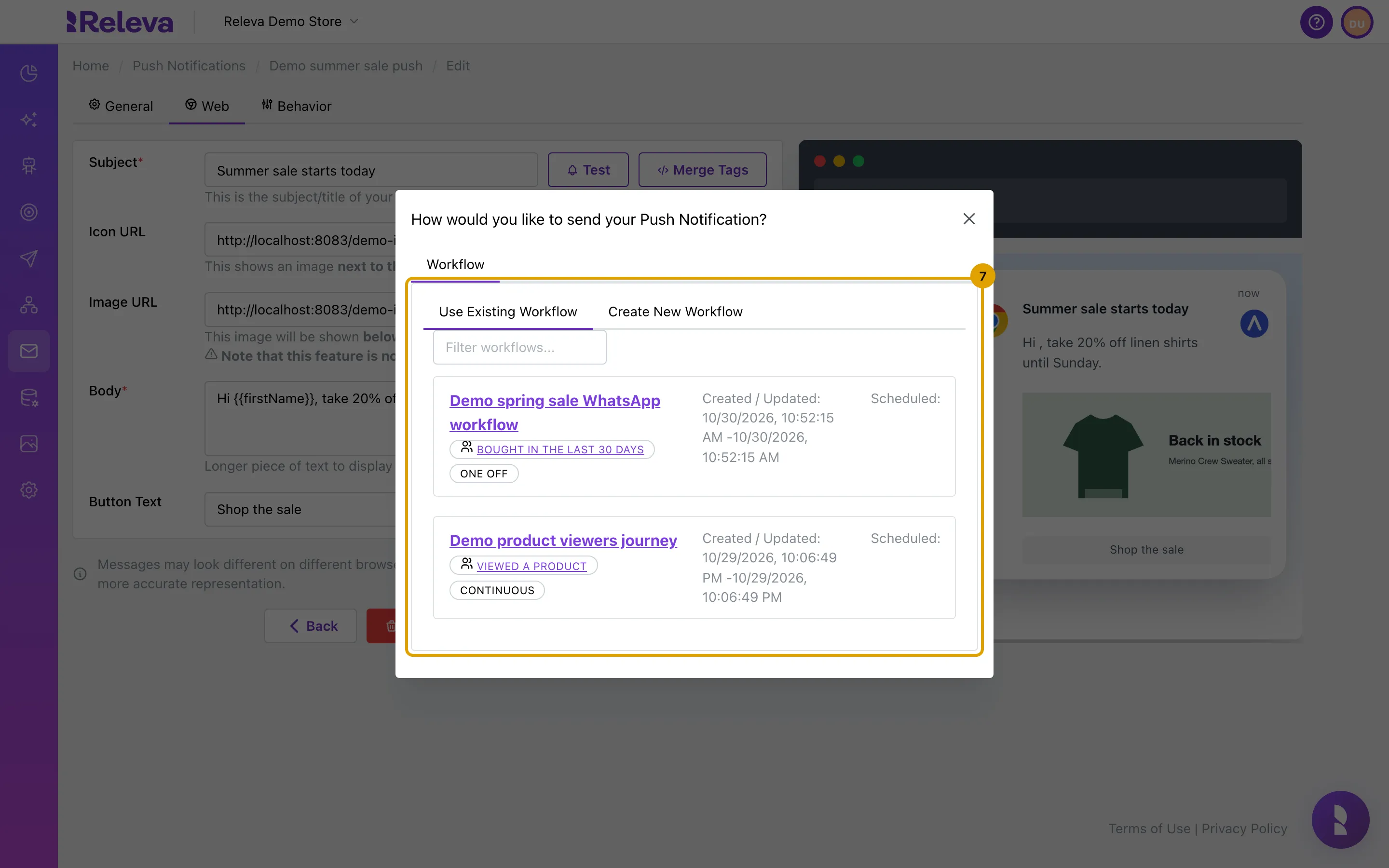
To add the notification to a workflow you already have, select Use Existing Workflow and pick the workflow
The list shows each workflow with its segment and type. Type in Filter workflows… to narrow it. Picking a workflow opens it with a push node for this notification added; connect the node and save the workflow there.
-
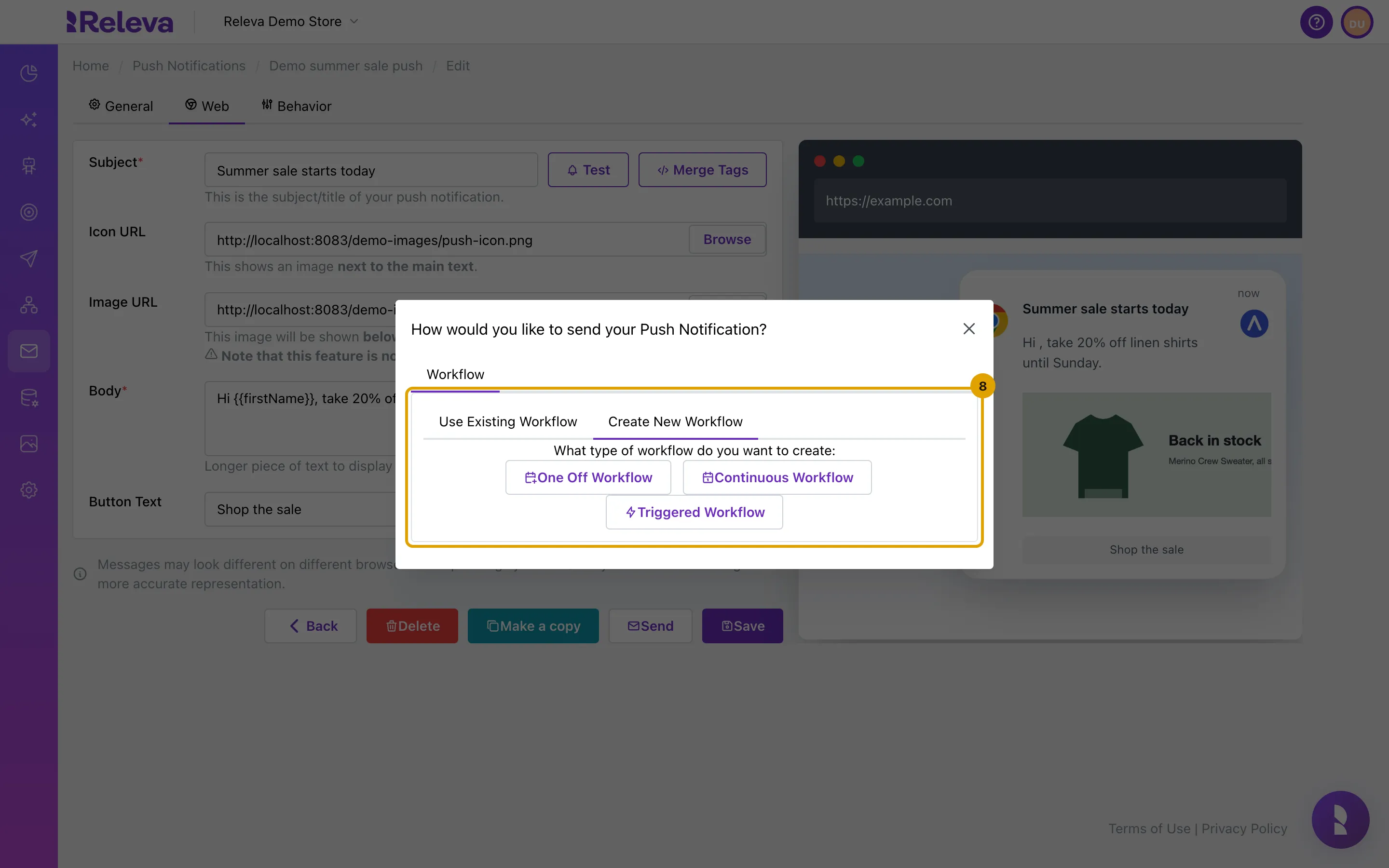
To start a new workflow instead, select Create New Workflow, then One Off Workflow, Continuous Workflow or Triggered Workflow
The new workflow opens with this push notification already connected to its start. Finish the workflow in the editor: pick the audience or trigger, set the schedule and activate it. Until then nothing is sent.
Check it worked
Section titled “Check it worked”- A new workflow opens with a Push Notification node named after your notification, connected to Start.
- After the workflow has run, the card on the Push Notifications list shows Sent, Delivered and Clicks for the selected period, and Statistics shows the chart of unique profiles per event.
Troubleshooting
Section titled “Troubleshooting”Profile not found. Please check the email, phone number or profile ID. The value in Send to matches no profile of this shop. Check the spelling, use the international phone format with +, or use the profile id.
Value is invalid! The Send to value is not an e-mail, a phone number with country code, or a profile id.
The browser preview does not appear. Your browser blocked notifications for the Releva admin site, or does not support system notifications. Allow notifications for the site in the browser settings and try again.
Web push notification could not be sent. The profile to impersonate has no web push subscription, or (for Recommender) the product feed has no products for that profile. Test with a profile that allowed notifications on your site.
App push notification could not be sent. The profile has no app token for that platform, or Firebase rejected the request because the shop’s Firebase credentials are invalid. Check Settings › Messaging › Push Notifications.
Use Existing Workflow shows no workflows. The shop has no workflows yet. Choose Create New Workflow.
The customer got the notification later than the workflow ran. The shop’s daily push limit was reached and the notification is set to Reschedule. See How push notifications work.
Other channels in a workflow
Section titled “Other channels in a workflow”The workflow that sends your push notification can also send other channels. Each one is a step in the left panel of the workflow editor:
- Email: Sends a saved email. See Edit an HTML email.
- Push: Sends a saved web or app push notification.
- Viber: Sends a saved Viber message. See Create a Viber message.
- WhatsApp: Sends a saved WhatsApp template. See Send a WhatsApp template with a workflow.
- Text: Sends a saved SMS. See Send an SMS with a workflow.
- Facebook: Adds the profiles to a Facebook ad audience. See Create a Facebook ad.
- Google: Adds the profiles to a Google asset group for the membership duration you set. Continuous workflows only.
- Webhook: Calls a saved webhook for each profile. See Create a webhook.