

Copy a Facebook ad to change its objective
When you save a Facebook ad, Releva creates a campaign for it in your Meta ad account. From then on, Objective, Optimization Goal, Call to Action Button, Ad placement, Promoted Visual, Promoted Products and Attribution are fixed. To run the same ad with a different objective, make a copy, change the copy and save it as a new ad. This guide copies a Sales ad and saves it as a Traffic ad. For what each setting does, read Create a Facebook ad.
Before you start
Section titled “Before you start”- Your shop is connected to Meta, with a Meta business, ad account and page selected. See Connect your Meta account to Releva.
- Your plan includes creating Facebook ads: Make a copy uses the same permission as New Facebook Ad.
- The ad you want to reuse is saved and shows on the Facebook Ads list.
- If the ad shows products, its product set under Promoted Products is still synchronised to Meta.
- You know the new name. Names must be unique in your shop.
-
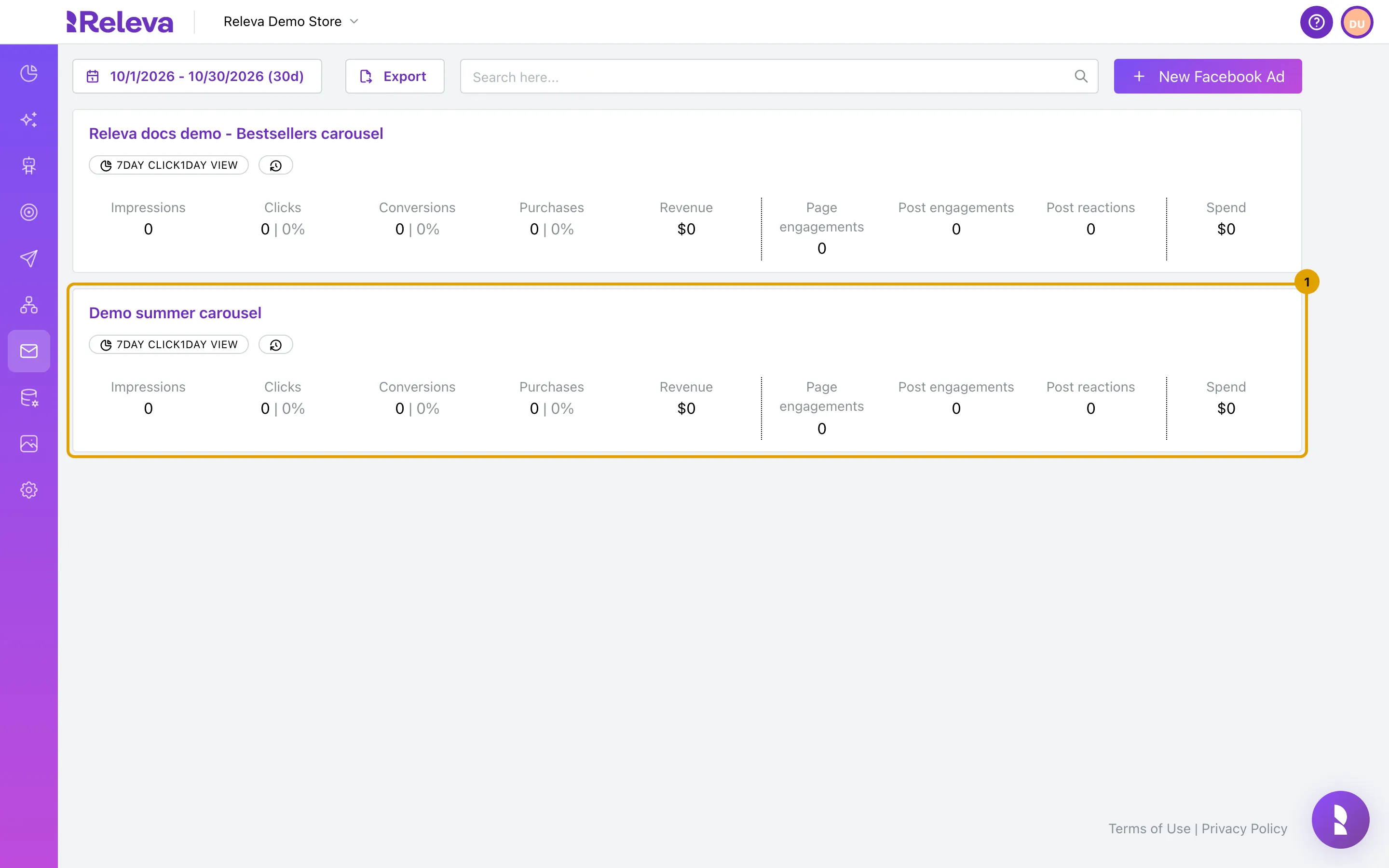
Go to Marketing Channels › Facebook Ads
Each saved ad shows as a card with its statistics for the selected dates.
-
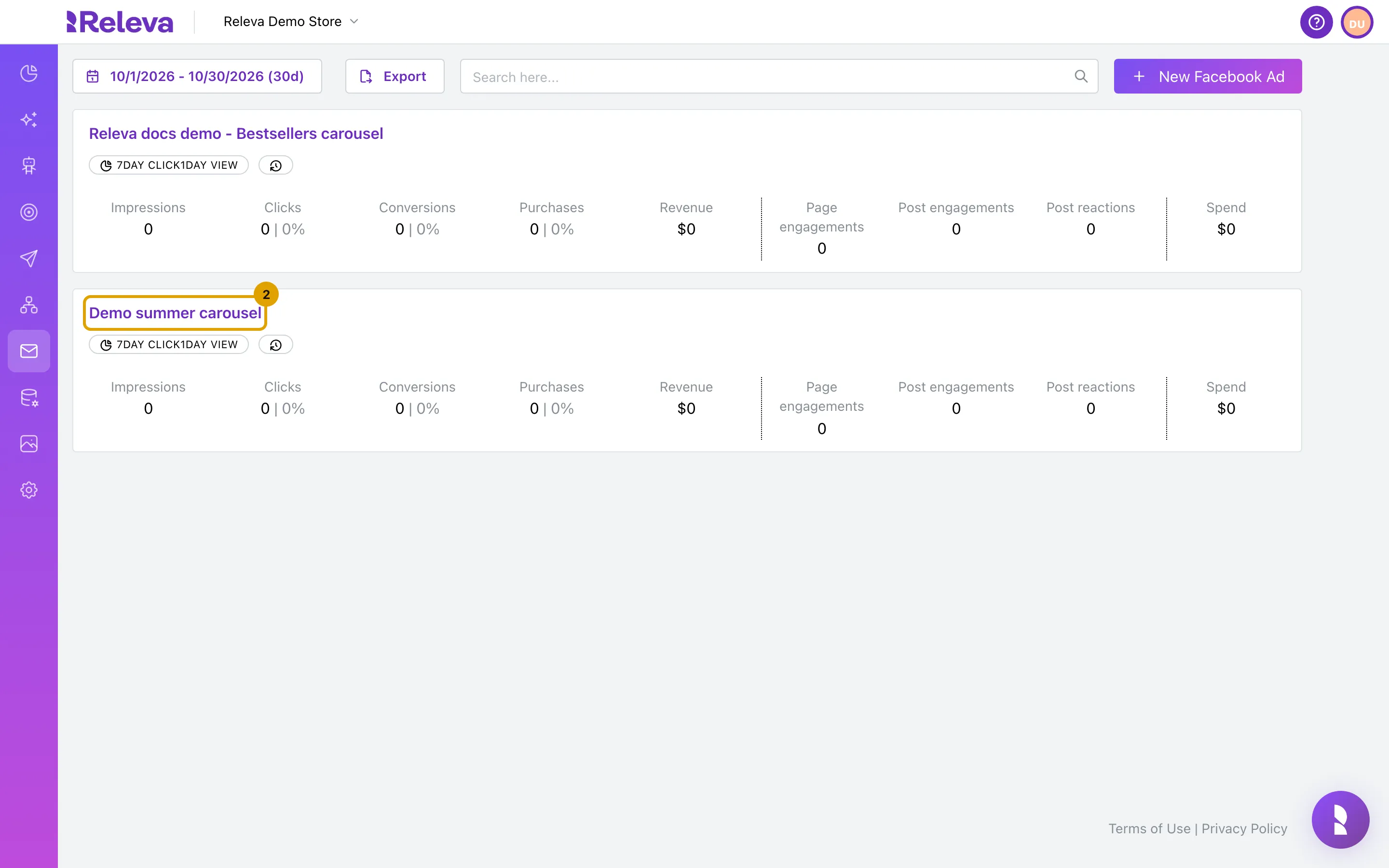
Select the name of the ad you want to reuse
-
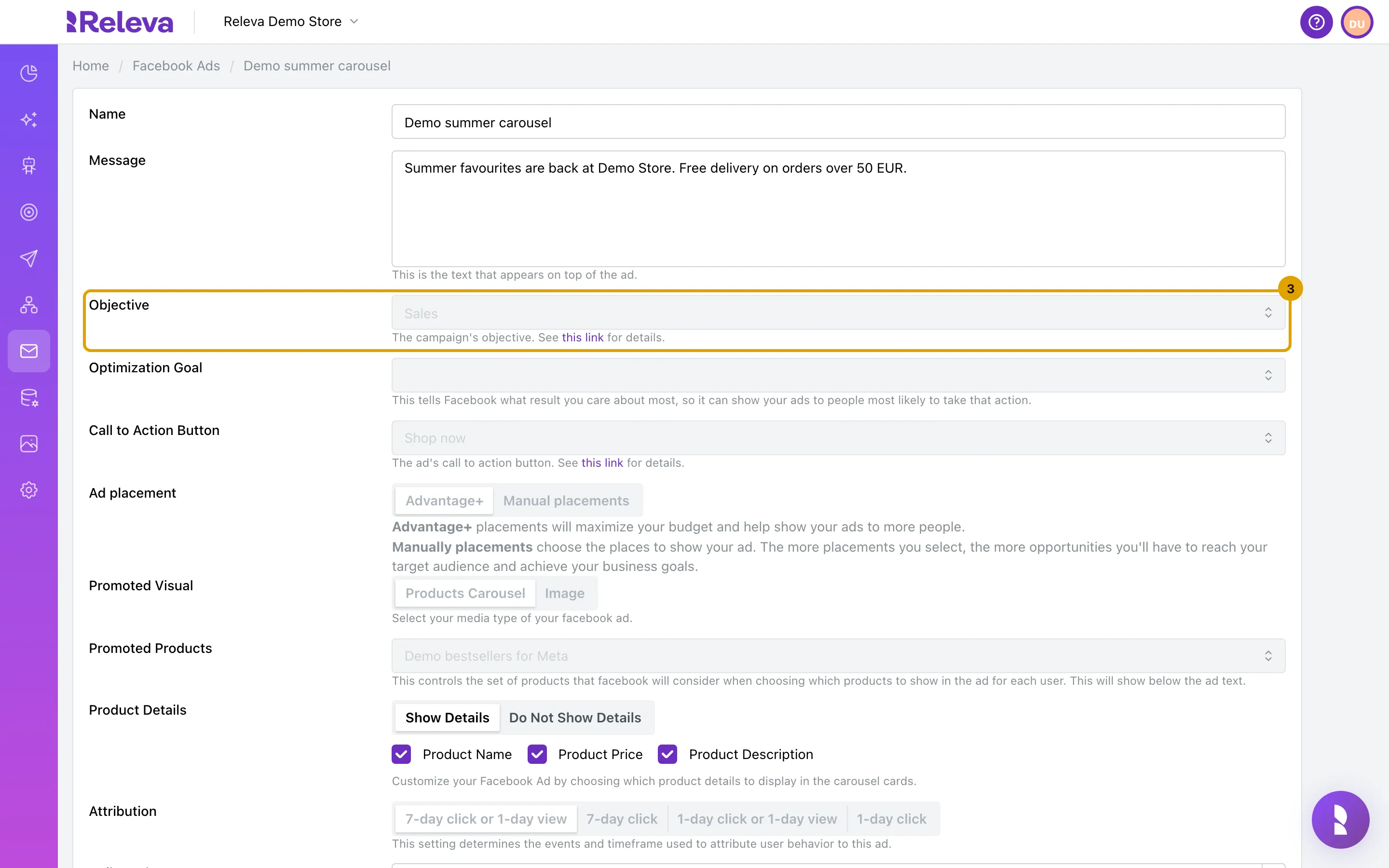
Check the greyed-out fields
The ad opens with the breadcrumb Home / Facebook Ads / <ad name>. Objective, Optimization Goal, Call to Action Button, Ad placement, Promoted Visual, Promoted Products and Attribution cannot change on a saved ad. Name, Message, Product Details, Daily Budget, Bid Cap and Duration (Days) stay editable.
-
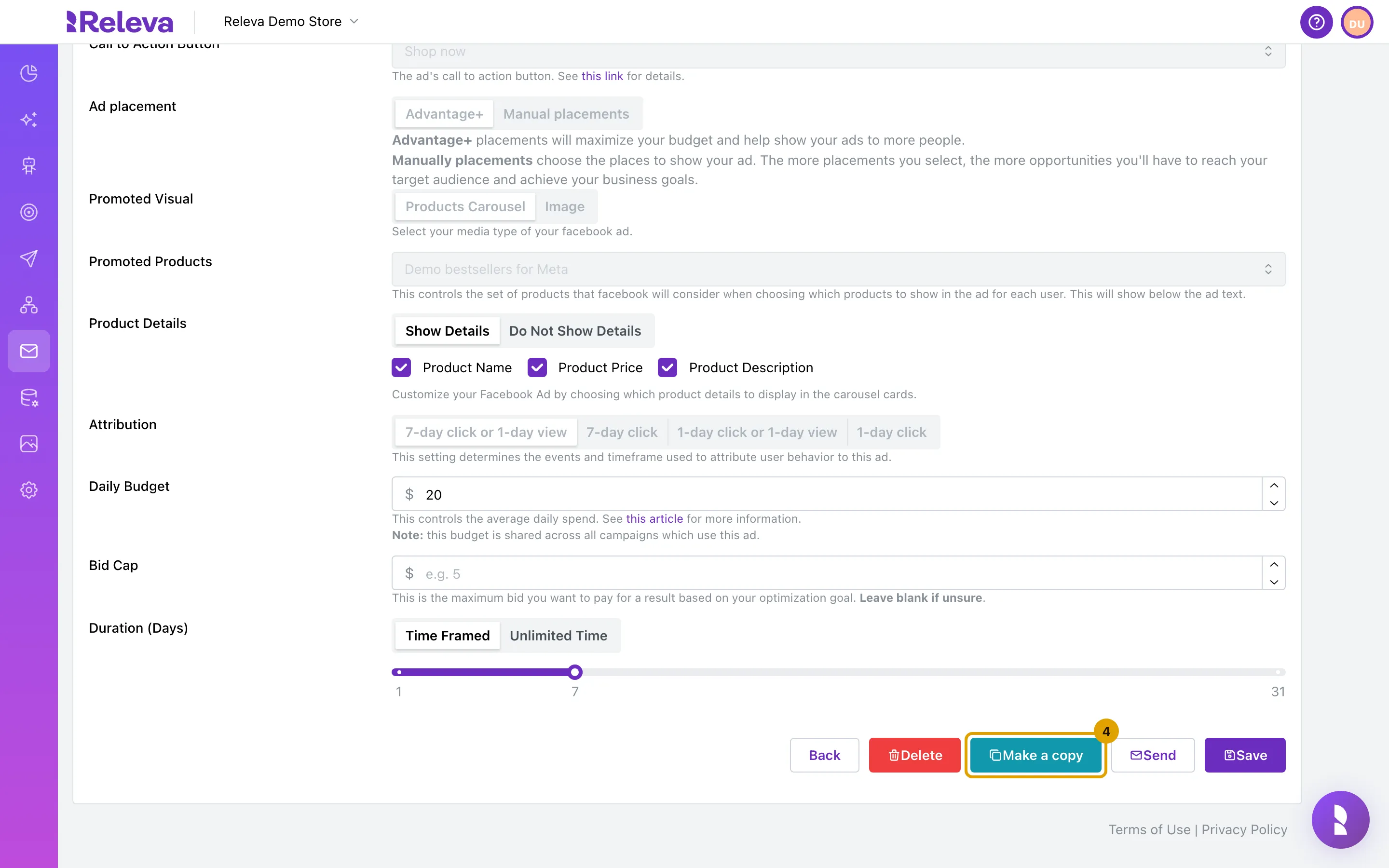
Scroll to the bottom and select Make a copy
Do not select Save here: saving the original updates its campaign in Meta.
-
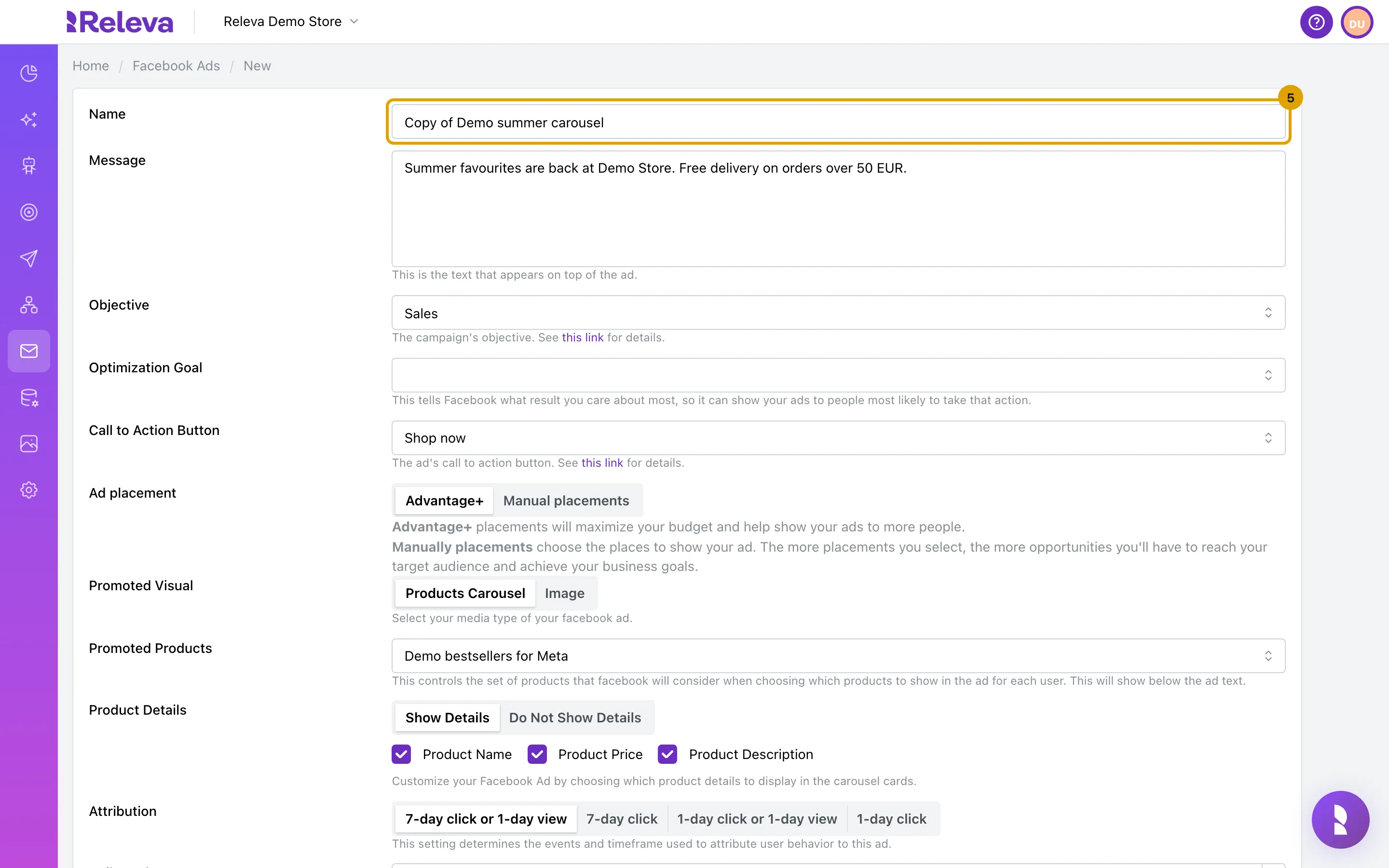
Check the copy
Releva opens a new ad with the same settings, named Copy of <original name>. The breadcrumb reads Home / Facebook Ads / New. The copy has no Meta campaign yet, so every field is editable again.
-
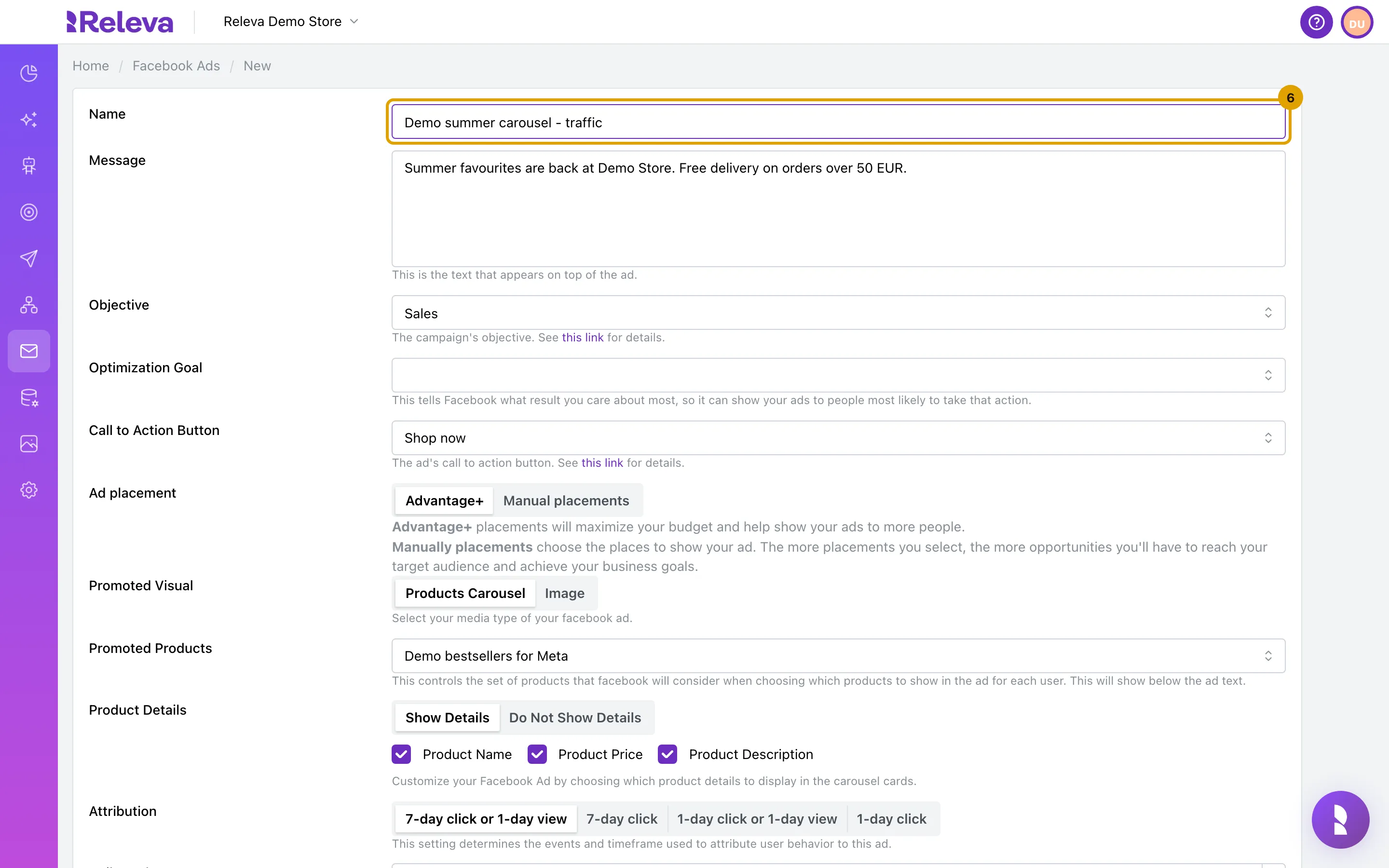
In Name, enter a unique name for the copy, for example Demo summer carousel - traffic
-
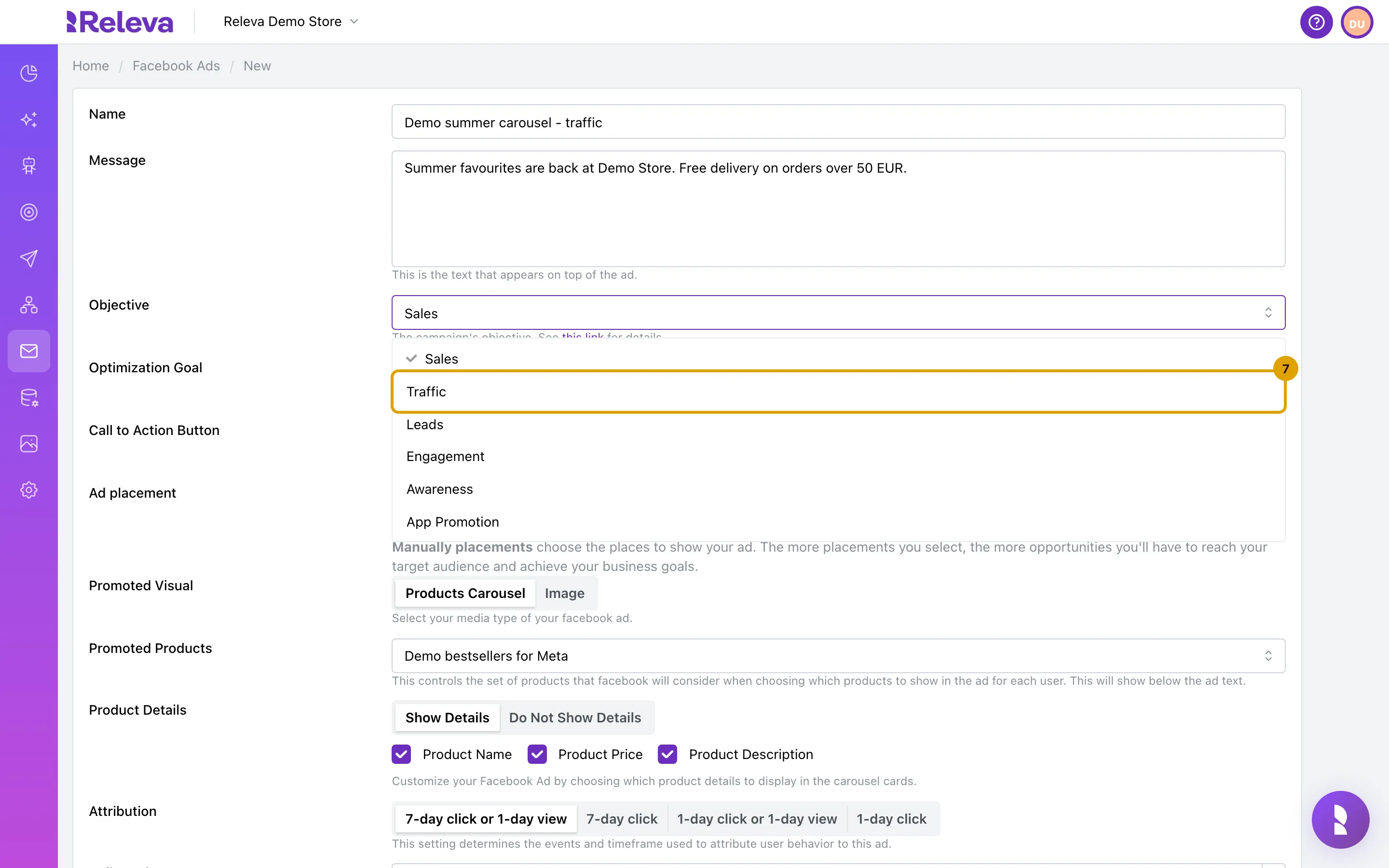
In Objective, select Traffic
Changing the objective clears Optimization Goal. Only Sales, Leads and Engagement support attribution. For the other objectives, Attribution shows You will not be able to use attribution for the objective you have selected. Engagement also clears Call to Action Button. Change any other setting you need.
-
Check Daily Budget, then select Save
The copy shows only Back and Save. The daily budget must be at least Meta’s 5 USD minimum, converted to your ad account currency.
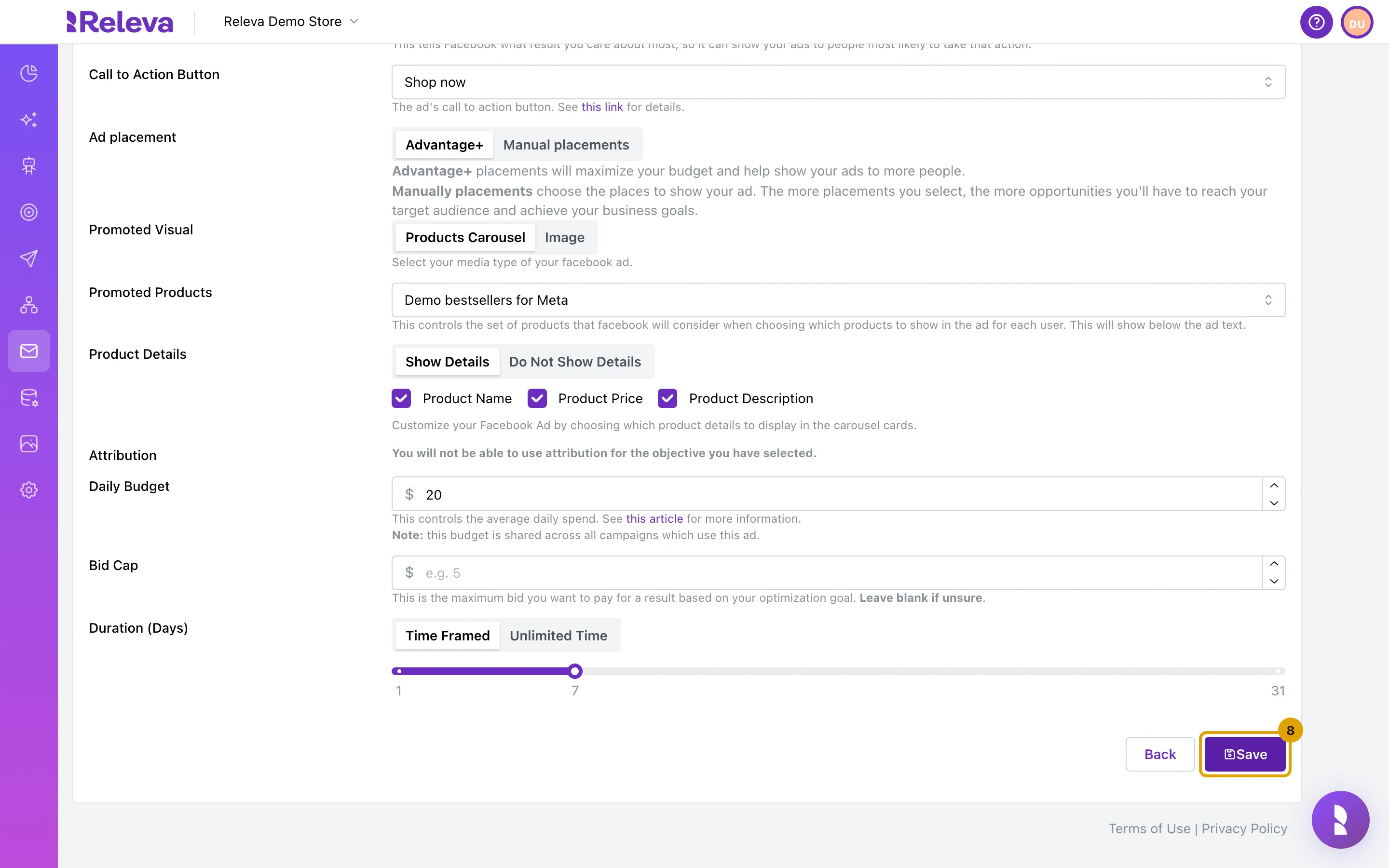
When you select Save, Releva saves the copy as a new ad and creates a new campaign for it in your Meta ad account, with the copy’s name, objective and daily budget. The original ad and its campaign stay as they were. Meta shows nothing to anyone yet: Releva creates the ad sets and ads only when you use the copy in a Releva campaign or workflow.
A window opens: Your Facebook Ad was saved successfully! Select Back To Listing to return to the list, Continue Editing to stay on the ad, or Send it to use it in a campaign or workflow.
Check it worked
Section titled “Check it worked”- The Facebook Ads list shows the copy as a new card next to the original. Each ad has its own statistics.
- Open the copy: Objective shows Traffic and is greyed out, because the copy is now a saved ad with its own Meta campaign.
- In Meta Ads Manager, find the campaign with the copy’s name. Releva has no direct link to it.
- Campaigns and workflows that used the original ad still use the original. Add the copy where you want the new objective.
Troubleshooting
Section titled “Troubleshooting”Make a copy is missing. The button appears only on a saved ad, not on the New form or on a copy. Save the ad first, or open it from the list.
Make a copy shows a lock. Your plan does not include creating Facebook ads. Ask your account owner.
New Facebook Ad is greyed out. Your shop is not connected to Meta. See Connect your Meta account to Releva.
“Facebook ad name must be unique!” after Save. The name already exists, for example a Copy of … left from an earlier copy. Change the name and save again.
“Daily budget must be at least …” after Save. The budget is below Meta’s 5 USD minimum in your ad account currency. Raise Daily Budget and save again.
Promoted Products is empty on the copy. The copy keeps the original product set only while it is synchronised. If the product set is no longer synchronised or was deleted, select another one in Promoted Products.
I only need to change the budget, bid cap, duration or message. You do not need a copy. Open the ad, change the field and select Save. Releva updates the campaign in Meta and, for a new bid cap, every ad set in it.