

Create an SMS
An SMS in Releva is a saved text that workflows send to the phone numbers of your profiles. Saving one sends nothing: the SMS is a draft until you add it to a workflow. This guide writes a short welcome message and saves it. For how sending, length and the daily limit work, read How SMS work.
Before you start
Section titled “Before you start”- An SMS provider is set up for your shop under Settings › Messaging, tab Text Messages. Without one, the SMS / Text Messages list shows Please fill in your Text Message credentials because we cannot send messages without them! and New Text Message is disabled. (The list may also show Upgrade your subscription to access this feature. in that case; the missing provider is the real cause.)
- Your plan includes SMS. If New Text Message shows a lock and the provider is set up, ask your account owner.
- You know what the message should say. Keep it short: a plain-text SMS holds 160 characters, and links are replaced by short links at send time.
- Do not paste a link you do not want shortened: every
http://orhttps://link in the text is shortened automatically.
-
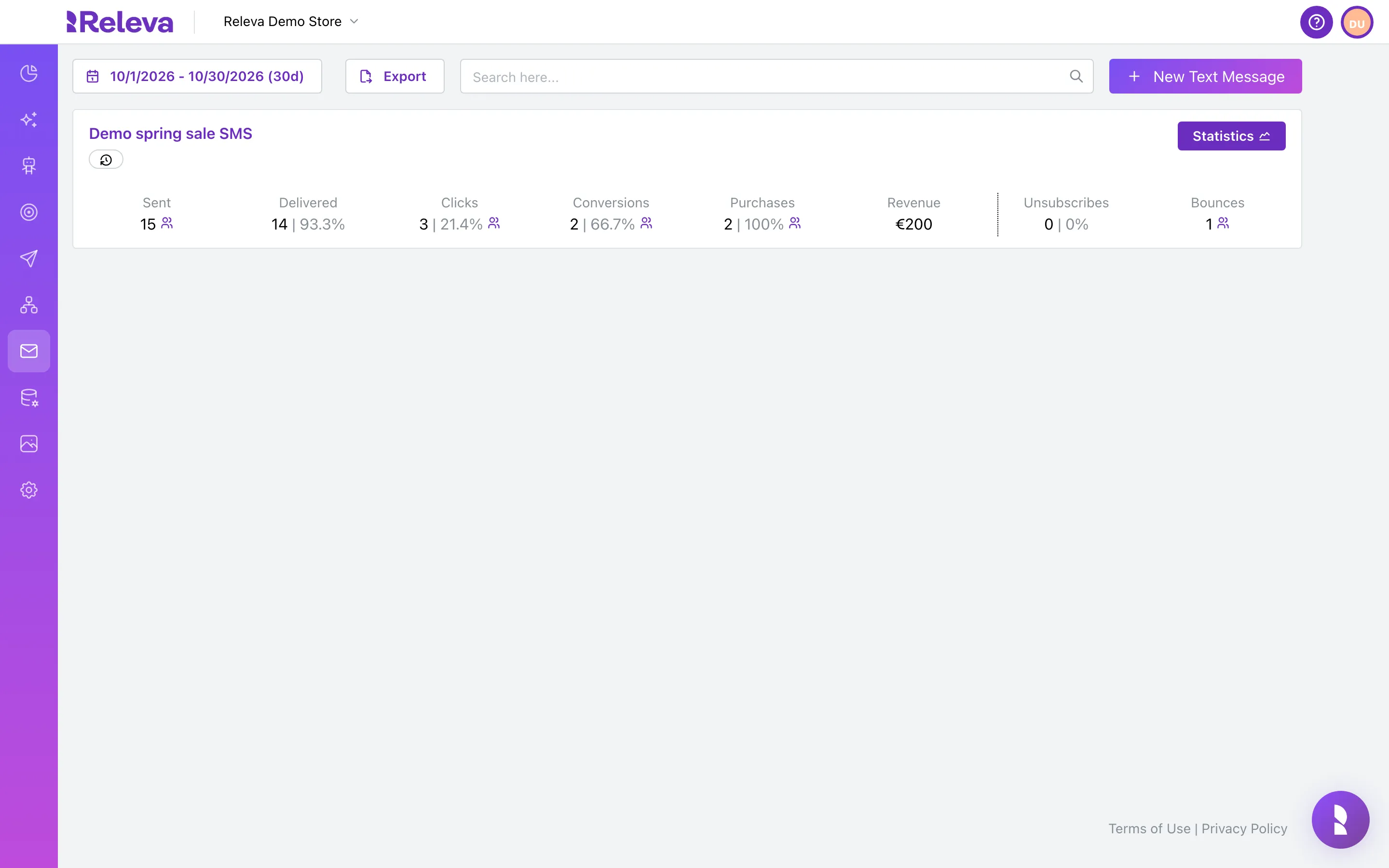
Go to Marketing Channels › SMS / Text Messages.
-
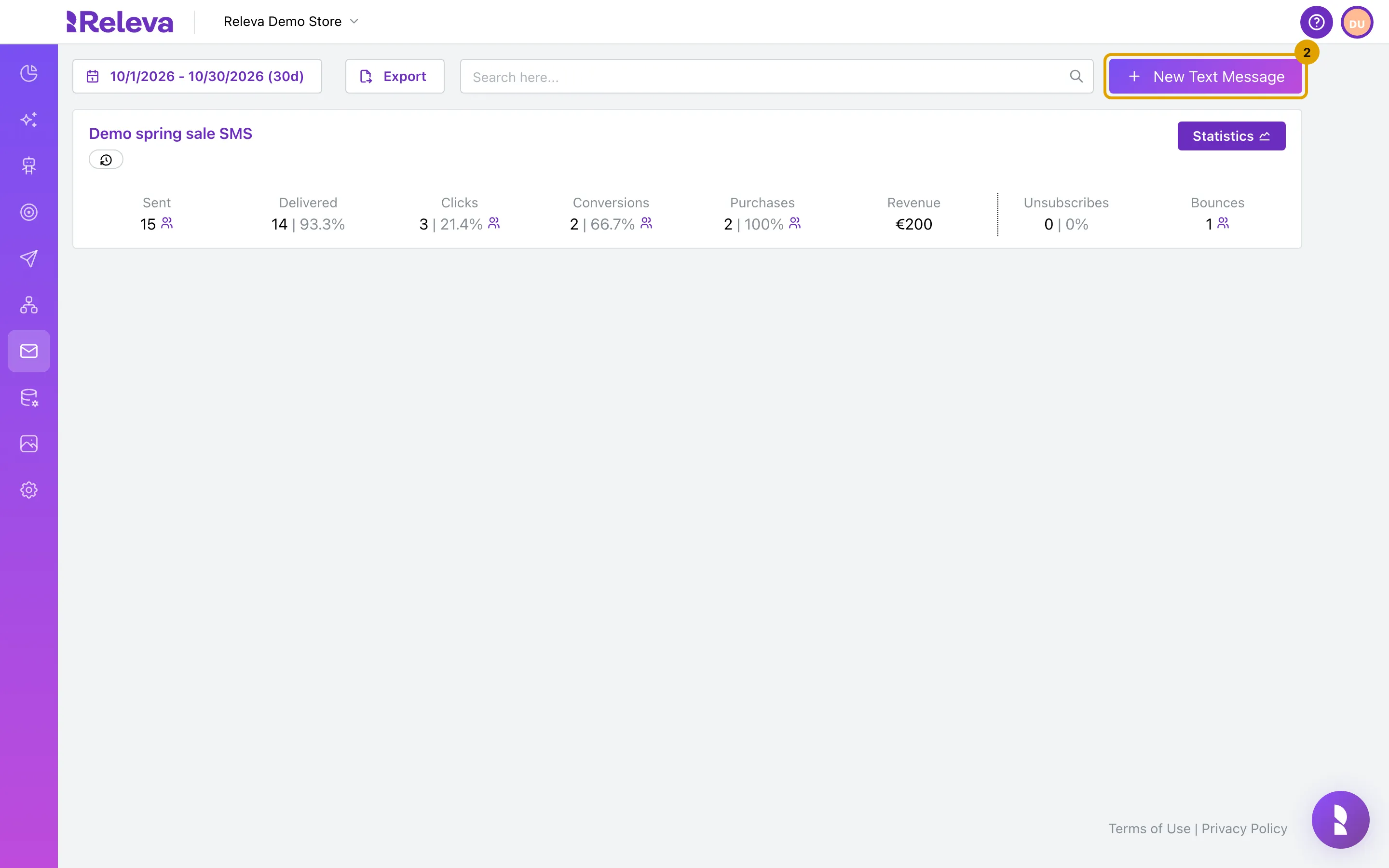
Select New Text Message.
The form opens with the name New text message, an empty message, Max Reschedules at 3 and Reschedule selected. Test Message and Save stay disabled until you type a message.
-
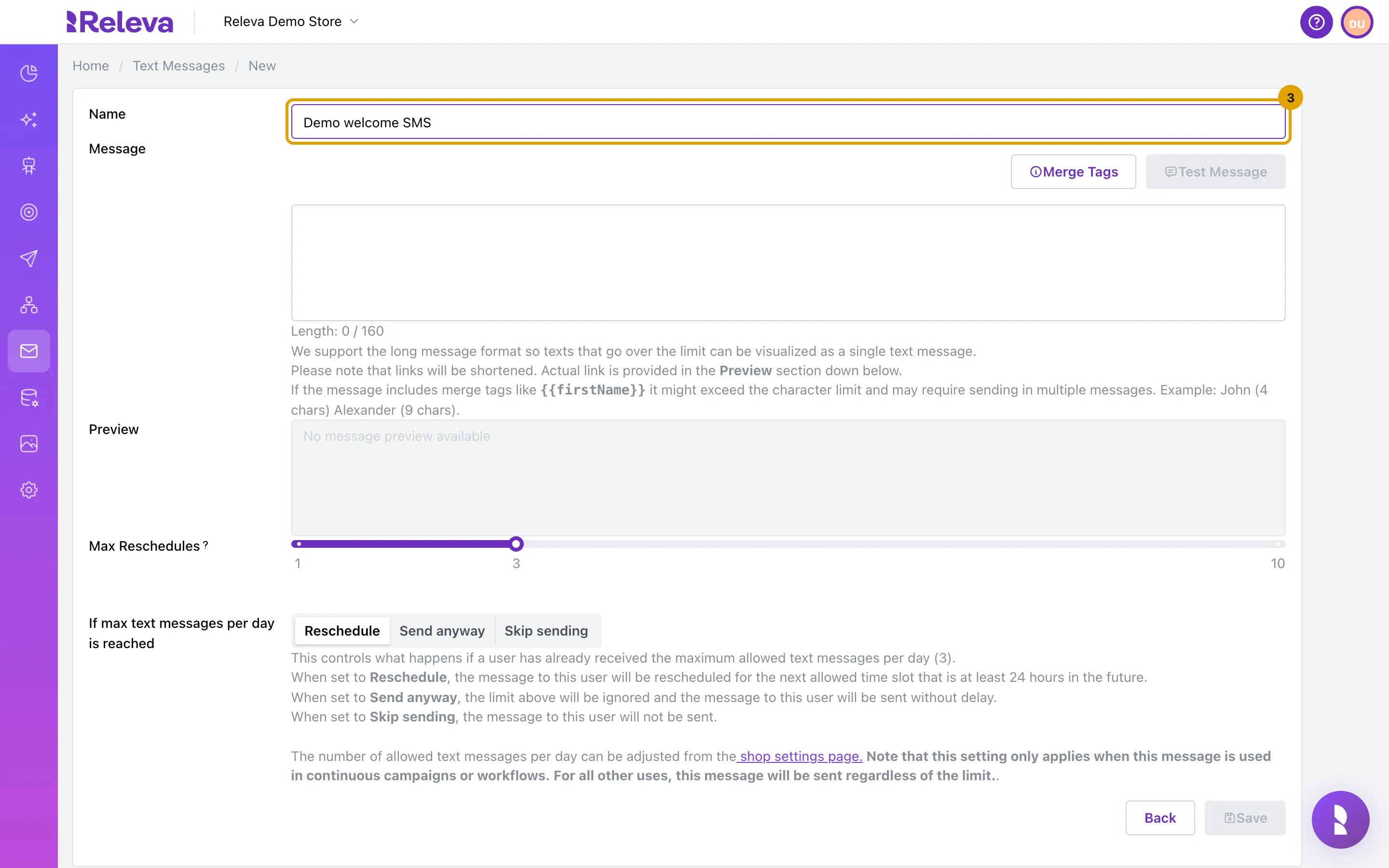
In Name, replace “New text message” with a name you will recognise when you add the SMS to a workflow.
The name must be unique in your shop. Customers never see it.
-
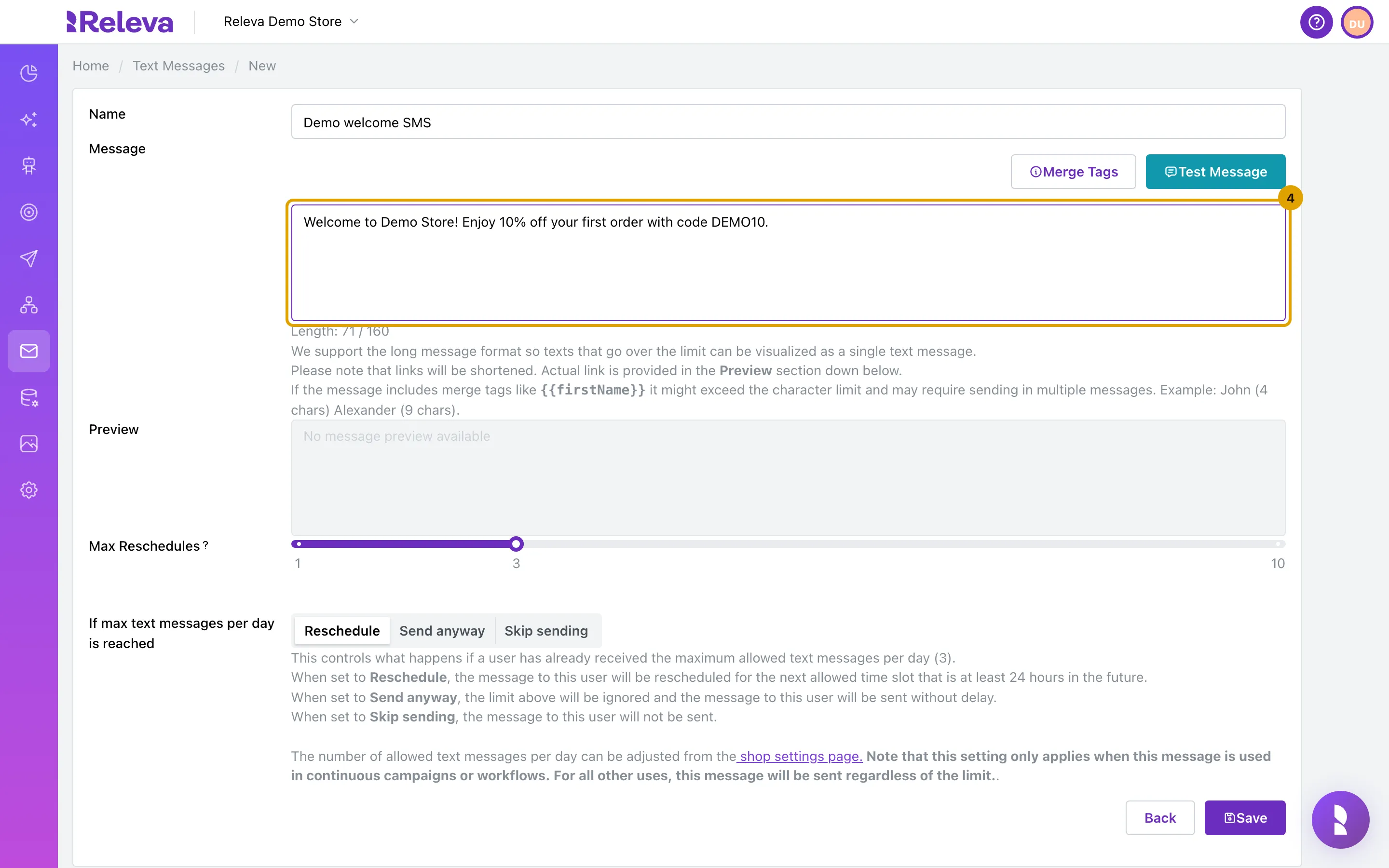
In Message, type the text of your SMS. Below the box, Length shows how many characters it uses out of 160.
While you type, Releva checks the message for merge-tag errors and asks the server for the preview and the exact SMS length. Length shows your raw character count first and the counted length a moment later, so it can change by a few characters after you stop typing.
-
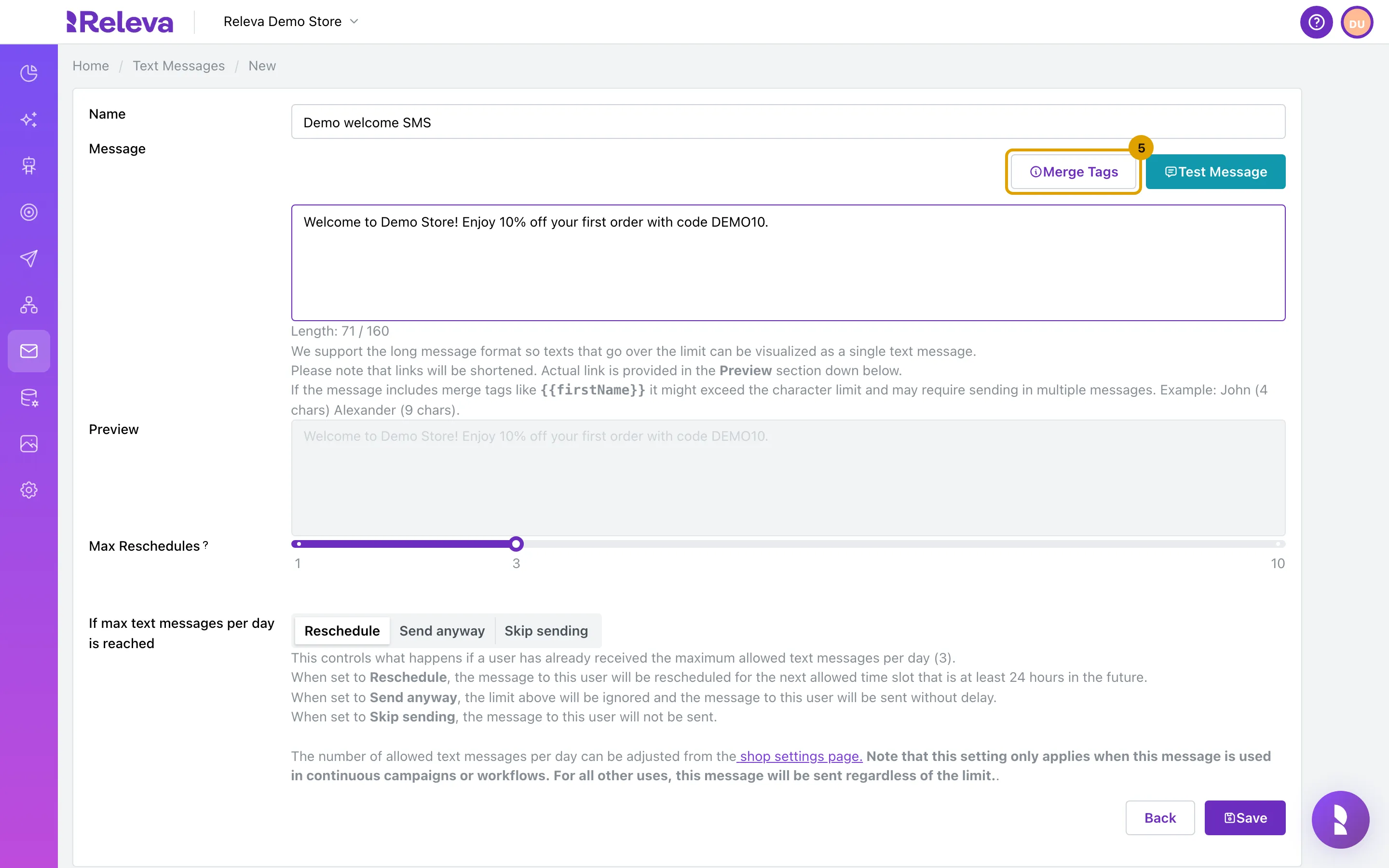
To personalise the text, select Merge Tags and copy a pattern such as the first name into the message.
-
The list shows each merge tag’s Pattern and Label. Search it to find a tag quickly.
The patterns are Handlebars tags such as
{{firstName}},{{lastName}},{{unsubscribeLink}}, your custom profile fields, your dynamic coupon lists (Dynamic coupon: …) and, in triggered workflows, the fields of the trigger event. Select Merge Tags again to close the list.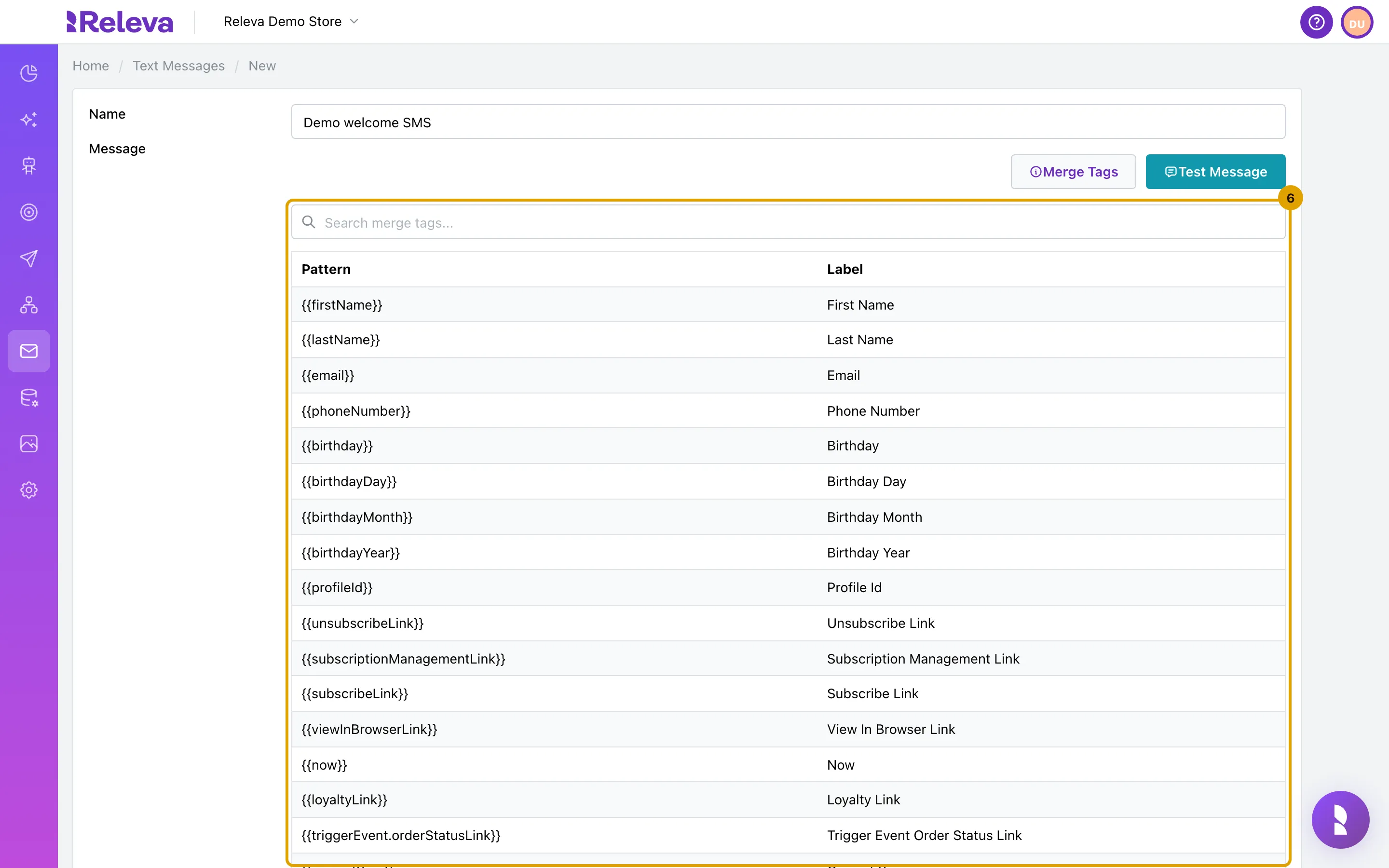
-
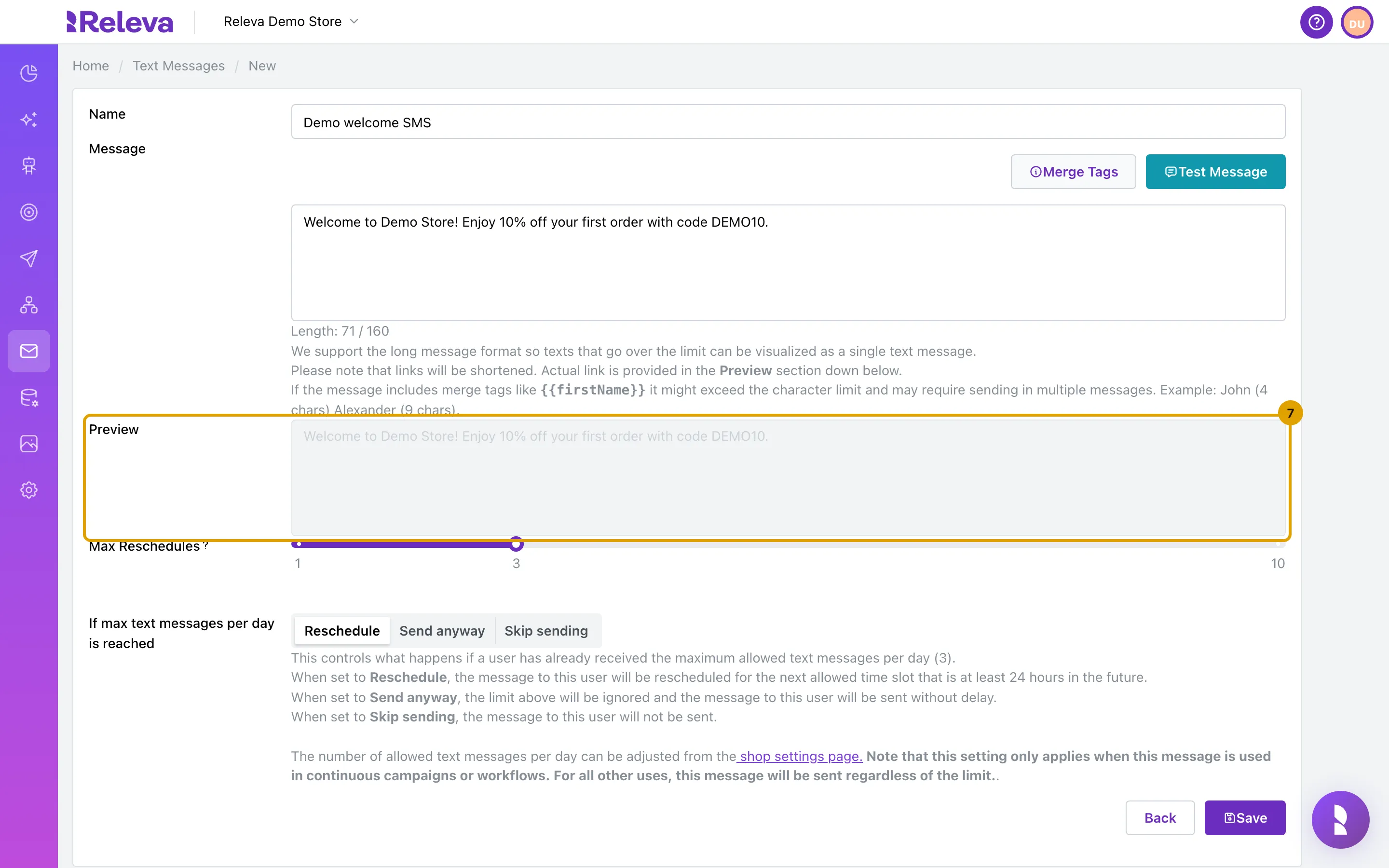
Check Preview. It shows the message as it will be sent, with links shortened.
Merge tags stay as tags in the preview; they are filled in per recipient at send time. To see a real rendering, use Test Message (see How SMS work).
-
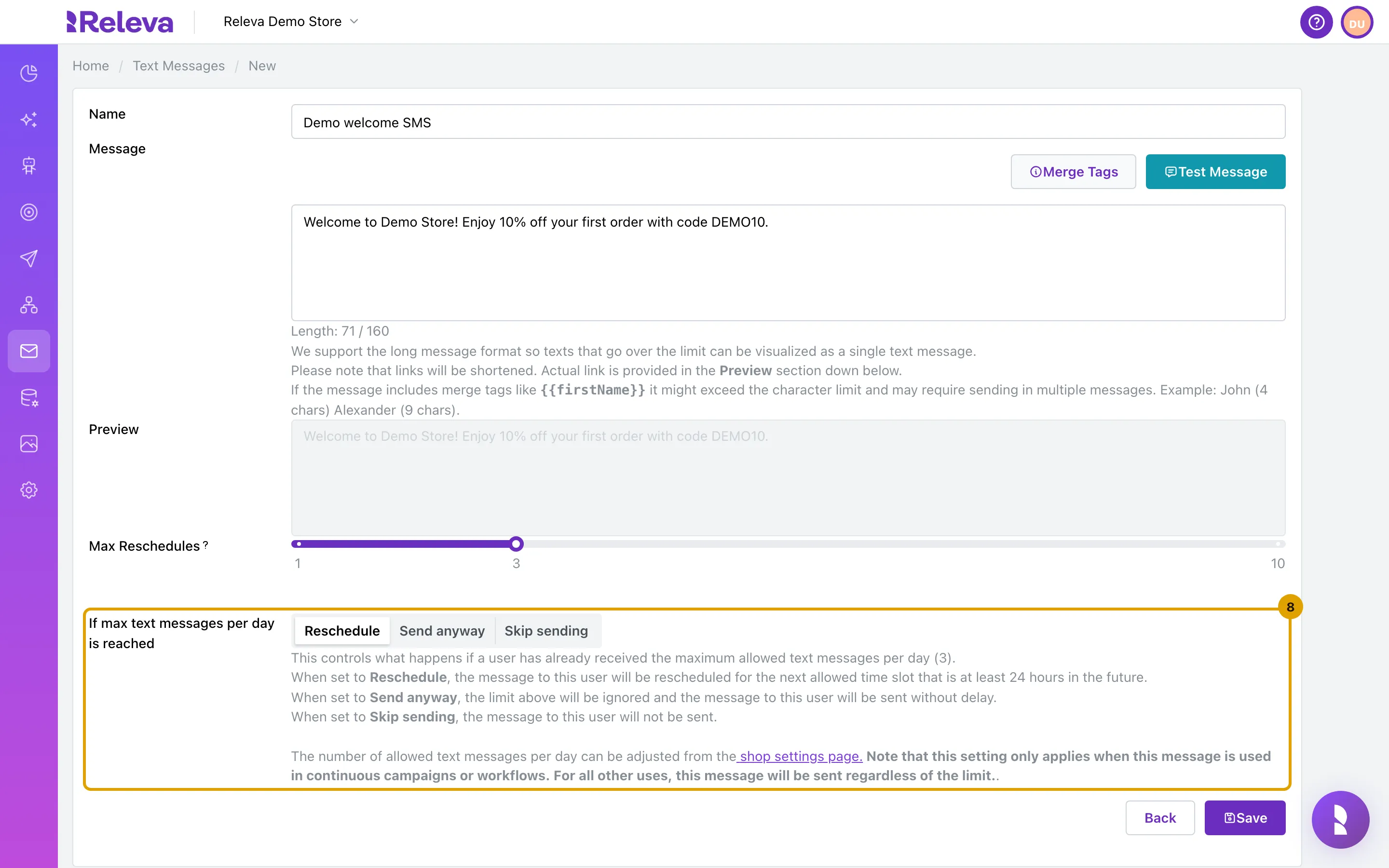
Under If max text messages per day is reached, choose Reschedule, Send anyway or Skip sending.
This decides what happens to a customer who already received the maximum number of text messages for the day (3 by default; the number is set on the shop settings page link). With Reschedule, the Max Reschedules slider (1 to 10) limits how many days in a row Releva retries. The setting applies to one-off and continuous sends, not to triggered workflows.
-
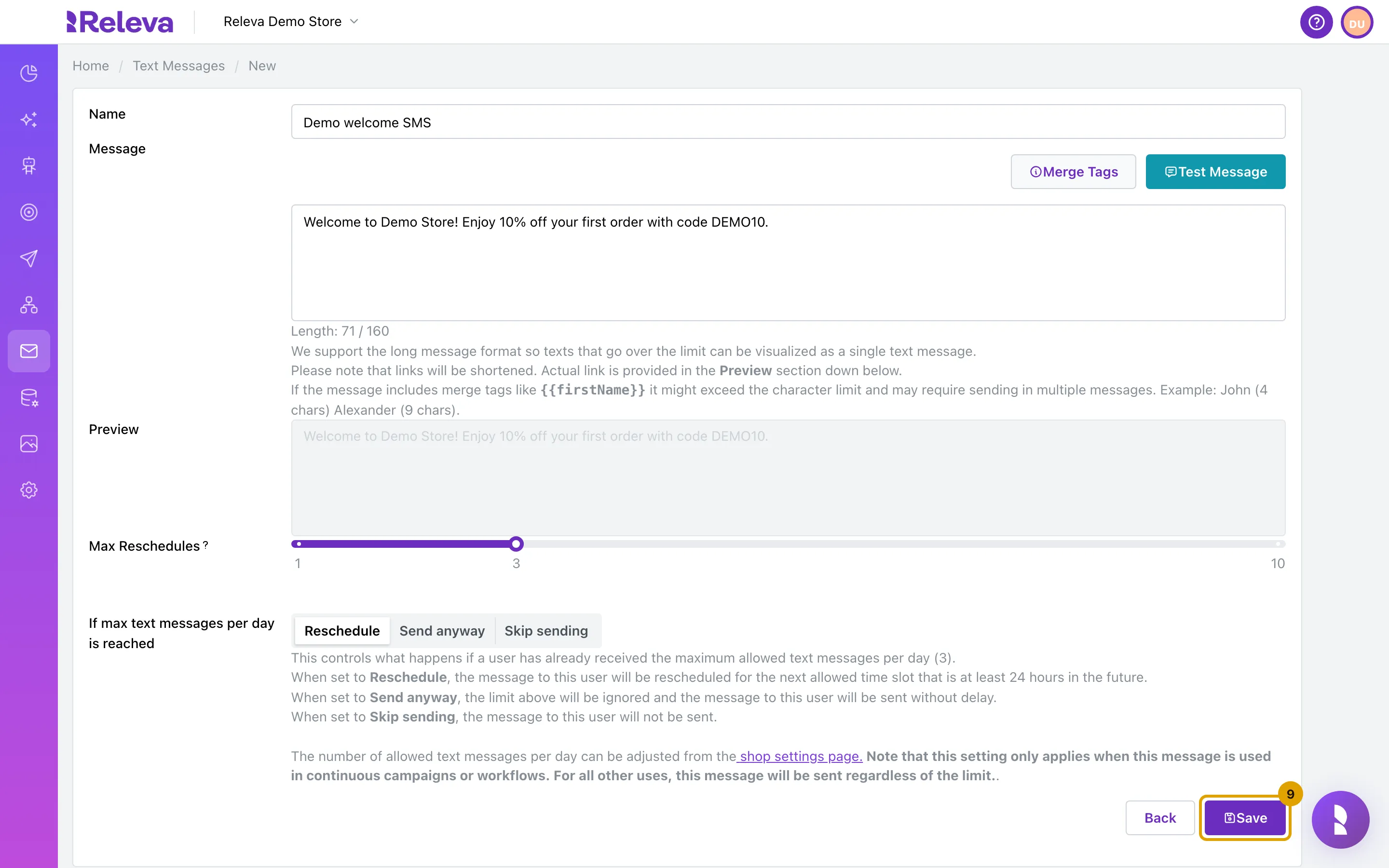
Select Save.
Save stays disabled while the name or the message is empty, or while the message has a merge-tag error.
-
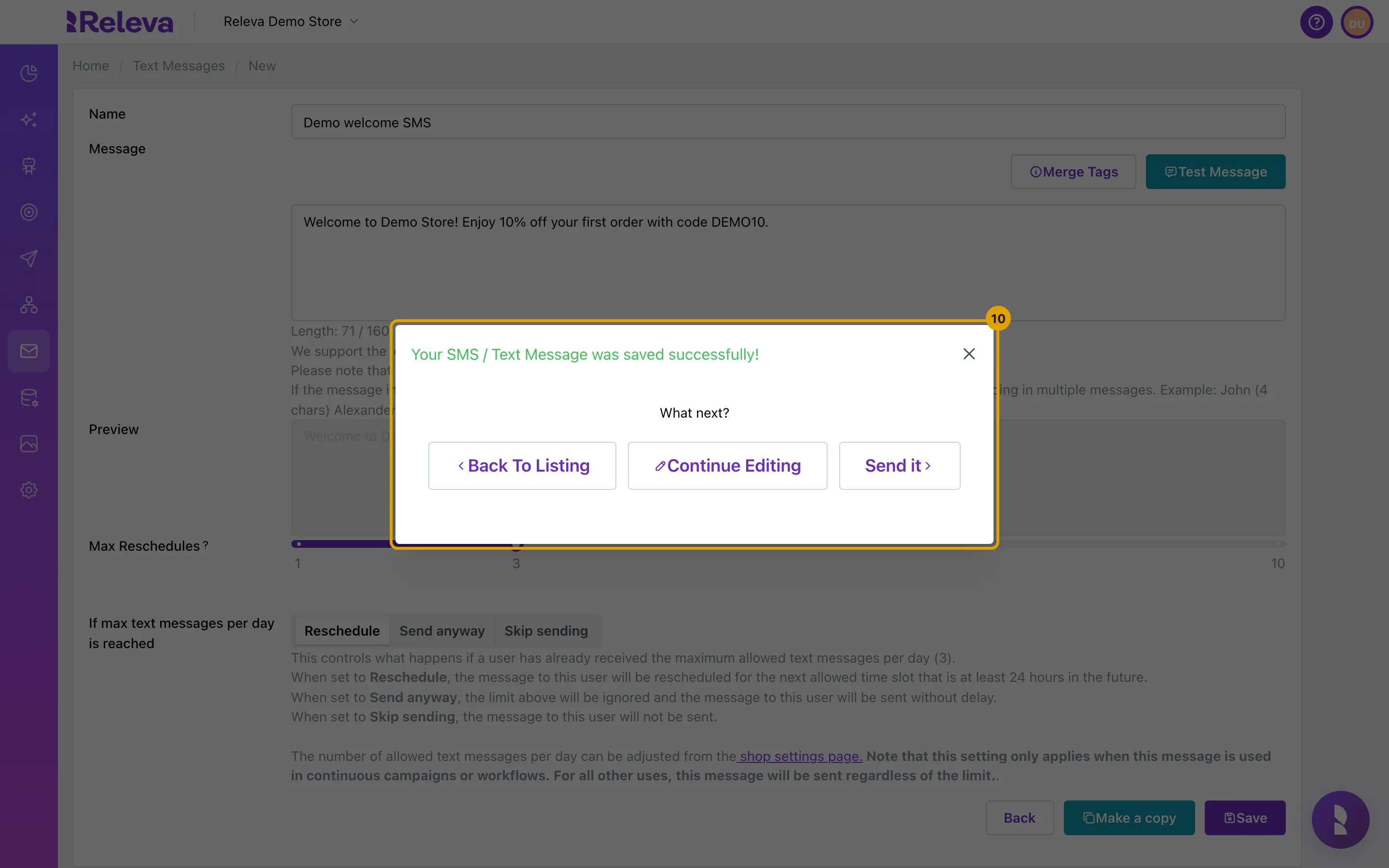
Your SMS is saved as a draft. In the confirmation, select Back To Listing, Continue Editing or Send it.
Send it opens the same window as Send on the edit page: see Send an SMS with a workflow. Closing the window keeps you on the saved SMS, where Delete, Make a copy and Send are now available.
Check it worked
Section titled “Check it worked”- The window Your SMS / Text Message was saved successfully! appeared.
- On Marketing Channels › SMS / Text Messages the new SMS is the first card, with Sent, Delivered, Clicks, Conversions, Purchases, Revenue, Unsubscribes and Bounces all at 0. Nothing was sent.
- Open the card: the breadcrumb reads Home / Text Messages / <name> / Edit and the message text is there.
Troubleshooting
Section titled “Troubleshooting”New Text Message is disabled or shows a lock. Your shop has no SMS provider. Set one up under Settings › Messaging, tab Text Messages (the link You can fill your credentials here. in the alert takes you there). The Upgrade your subscription to access this feature. line shown in that case is misleading; it goes away once a provider is set up. If the provider is set up and the lock stays, your plan does not include creating SMS.
Save is disabled. The name or the message is empty, or the message shows an error under the box.
“Invalid merge tag: Parse error on line 1: …” under the message. A merge tag is not closed or not valid, for example {{#if firstName}} without {{/if}}. Fix the tag; Save and Test Message stay disabled until the text parses.
“Text Message Name must be unique!” after Save. Another SMS in this shop already has this name. Change the name and save again.
Length is higher than the number of characters I typed. The count is the SMS length, not the character count. Curly braces, [, ], ^, ~, |, \ and the euro sign count double, and a message with any character outside the GSM alphabet (for example Cyrillic) is sent in Unicode, where one SMS holds 70 characters. The UI always shows “/ 160”; see How SMS work.
The preview shows my link unchanged. The preview is still loading; it shows a spinner while the server shortens the links. If it stays unchanged, the message was not sent to the server yet; type another character.