

Send data in your receiver's format
A Standard webhook sends Releva’s own payload. When the receiver, for example a CRM or an automation tool, expects its own field names, switch the webhook to Custom and map each field to a merge tag. A Custom webhook sends one request per profile. This guide changes an existing webhook; to create one first, read Create a webhook.
Before you start
Section titled “Before you start”- A saved webhook and the receiver’s specification: method, content type, required headers and the field names it expects.
- The profile data you want to send. Merge Tags on the form lists every tag you can use.
- If the receiver needs an
Authorizationheader, prefer a domain secret in Auth Secret over a header row: a header namedAuthorizationis dropped when a secret is selected.
-
Go to Marketing Channels › Webhooks.
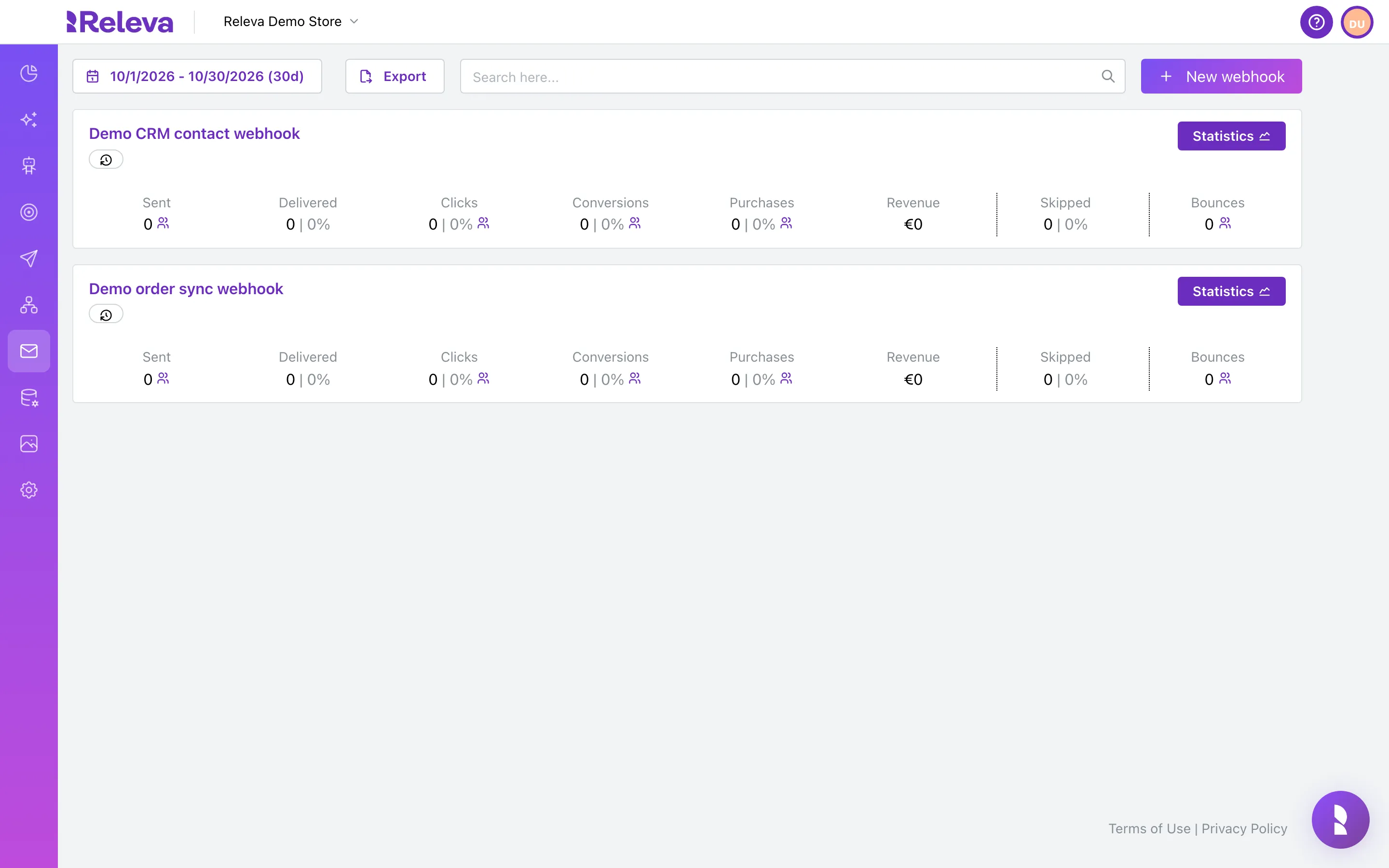
-
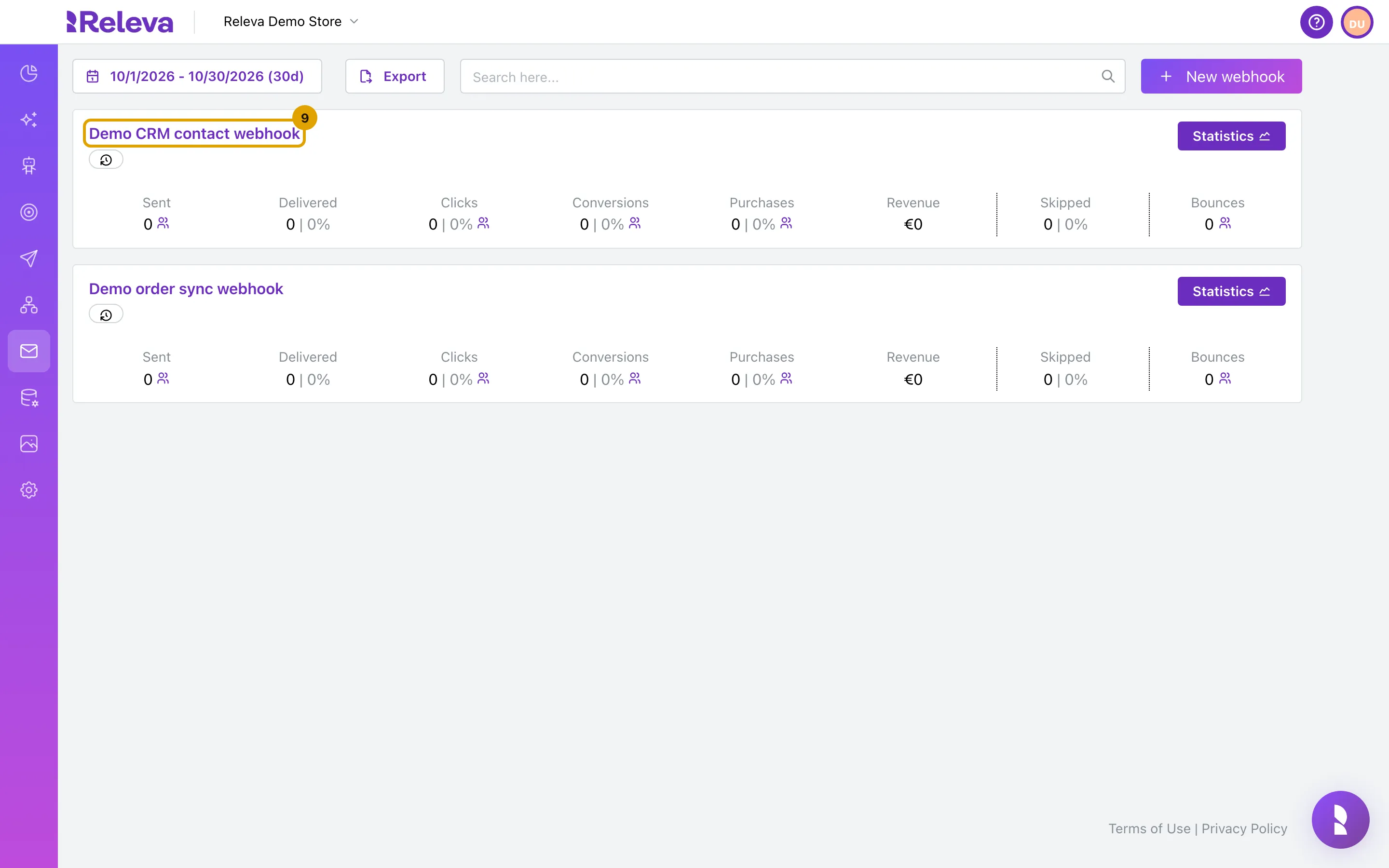
Select the name of the webhook you want to change.
The edit page opens with the breadcrumb Home / Webhook / <name> / Edit.
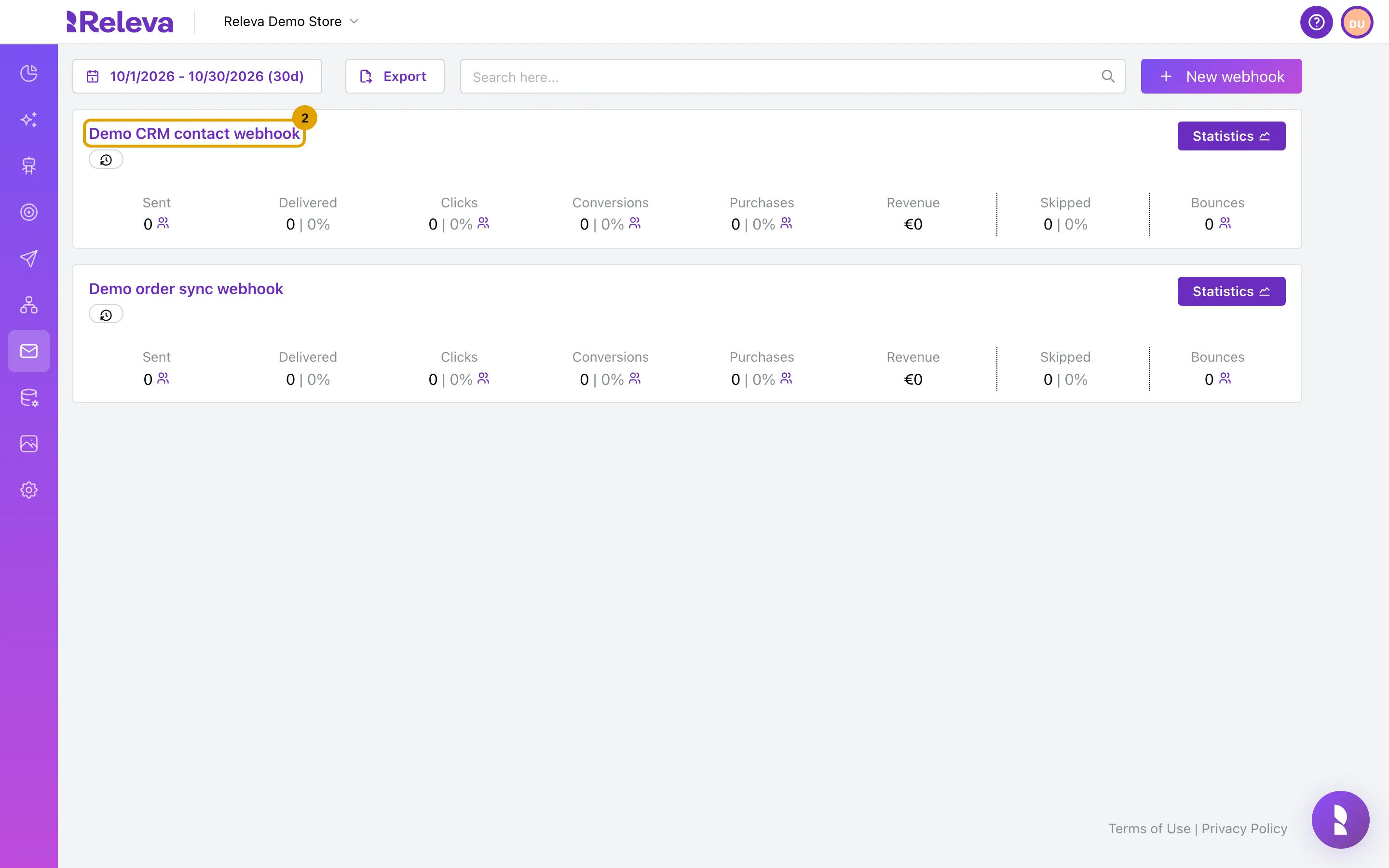
-
In Type, select Custom.
Request Method, Format, Request Headers, Request URL Parameters and Request Body Parameters appear below Auth Secret.
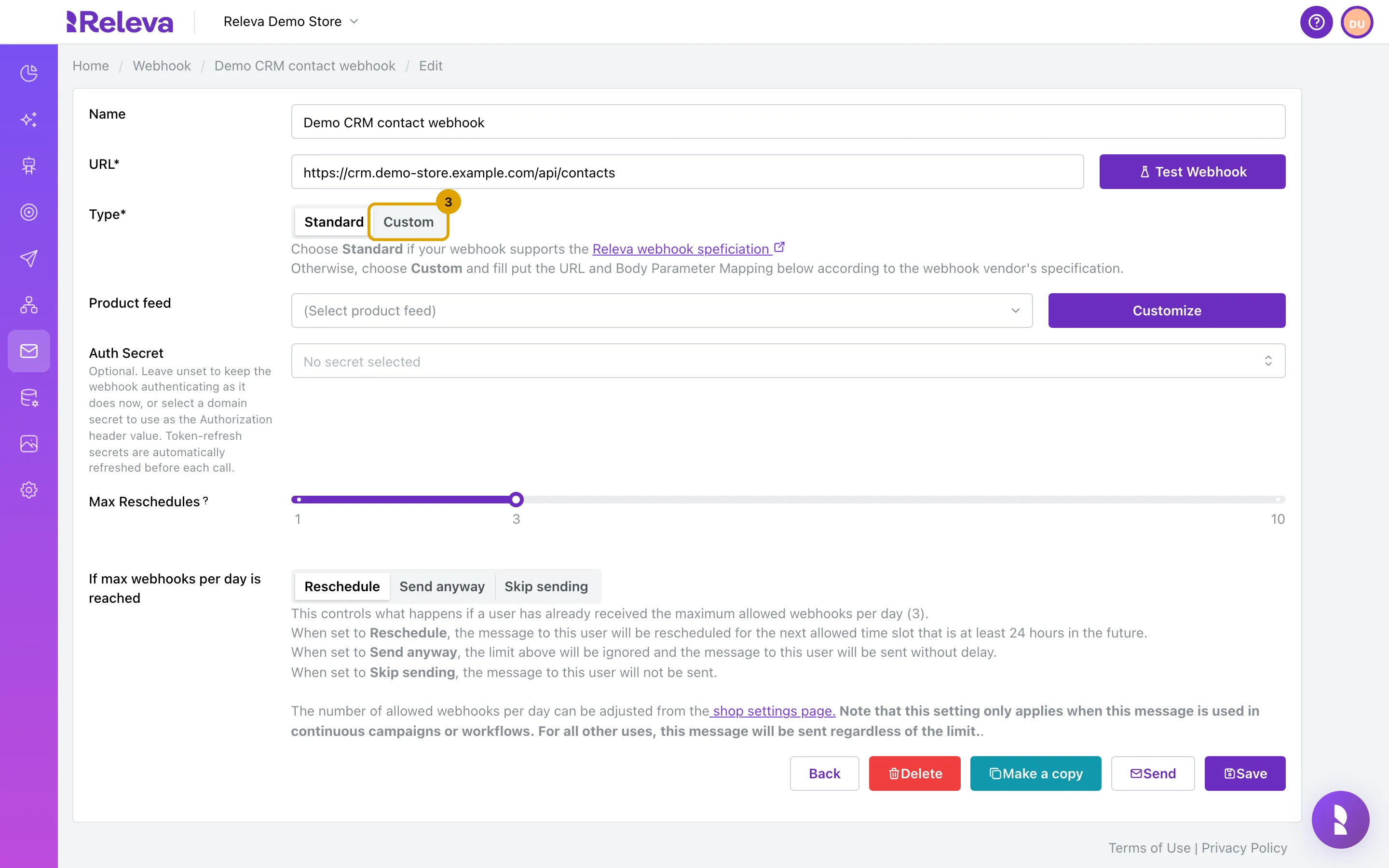
-
In Request Method, select the method your receiver expects, for example POST. Leave Format on JSON unless the receiver needs URL-encoded form.
Request Body Parameters is shown for POST and PUT only. With GET or DELETE, send data through Request URL Parameters instead.
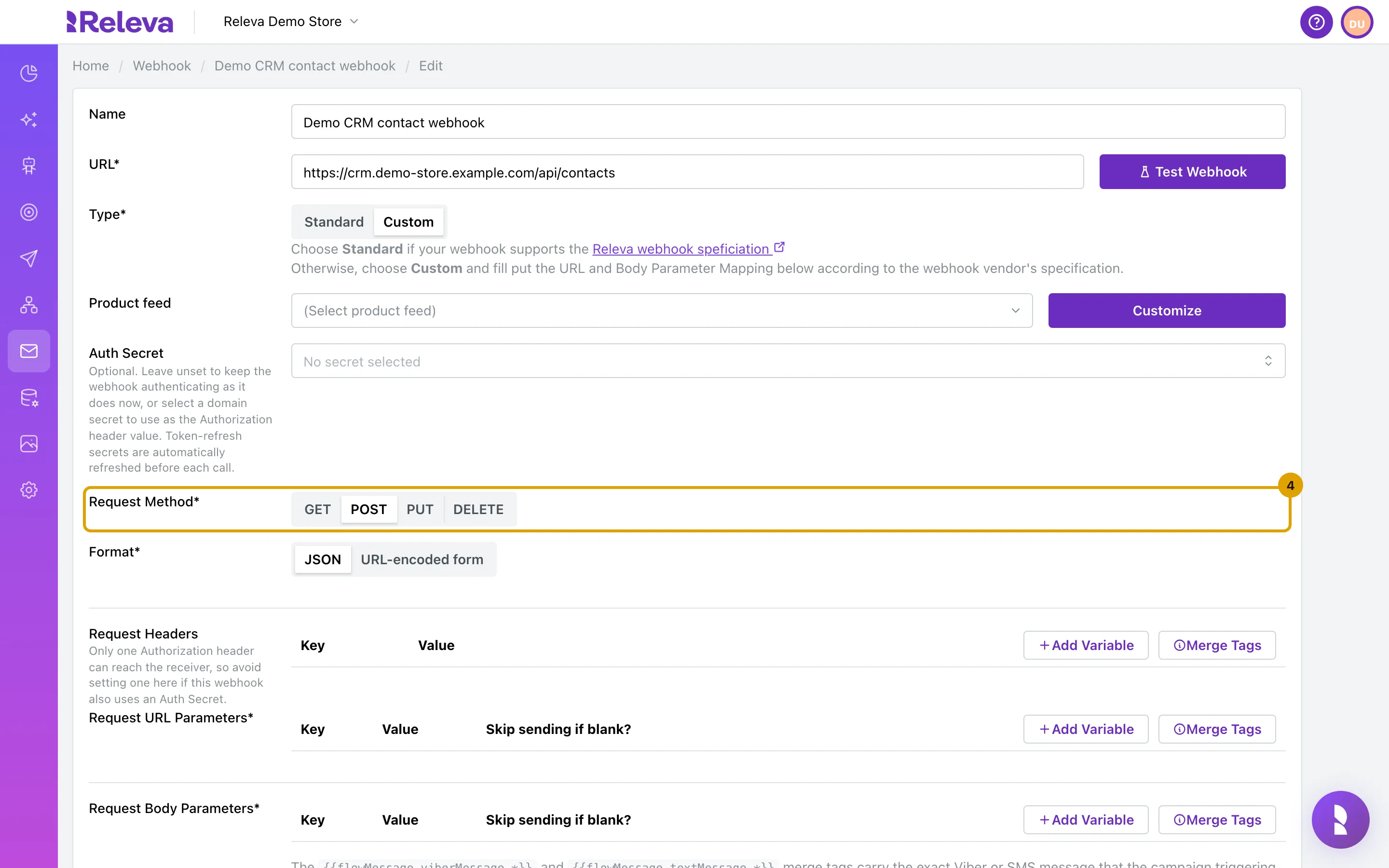
-
Under Request Headers, select Add Variable and enter a header your receiver needs in Key and Value.
Header values can also contain merge tags. Releva adds
content-typeitself from Format.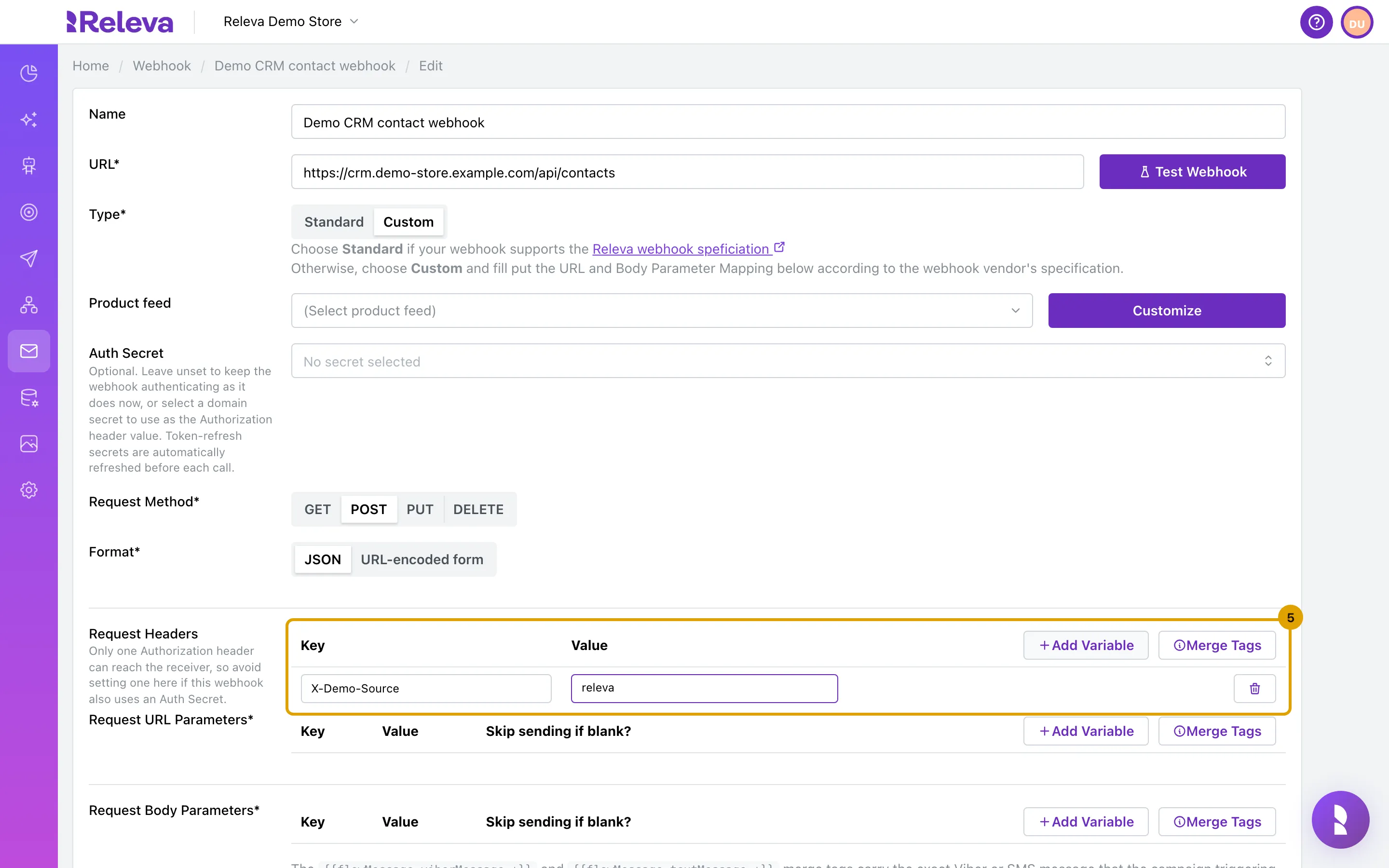
-
Under Request Body Parameters, select Add Variable. In Key, enter the field name your receiver expects. In Value, enter a merge tag for the profile data to send, for example the email merge tag.
The value is a Handlebars template:
{{email}}becomes the profile’s email, and you can mix tags with fixed text. Tick Skip sending if blank? to skip profiles for which the value is empty instead of sending an empty field.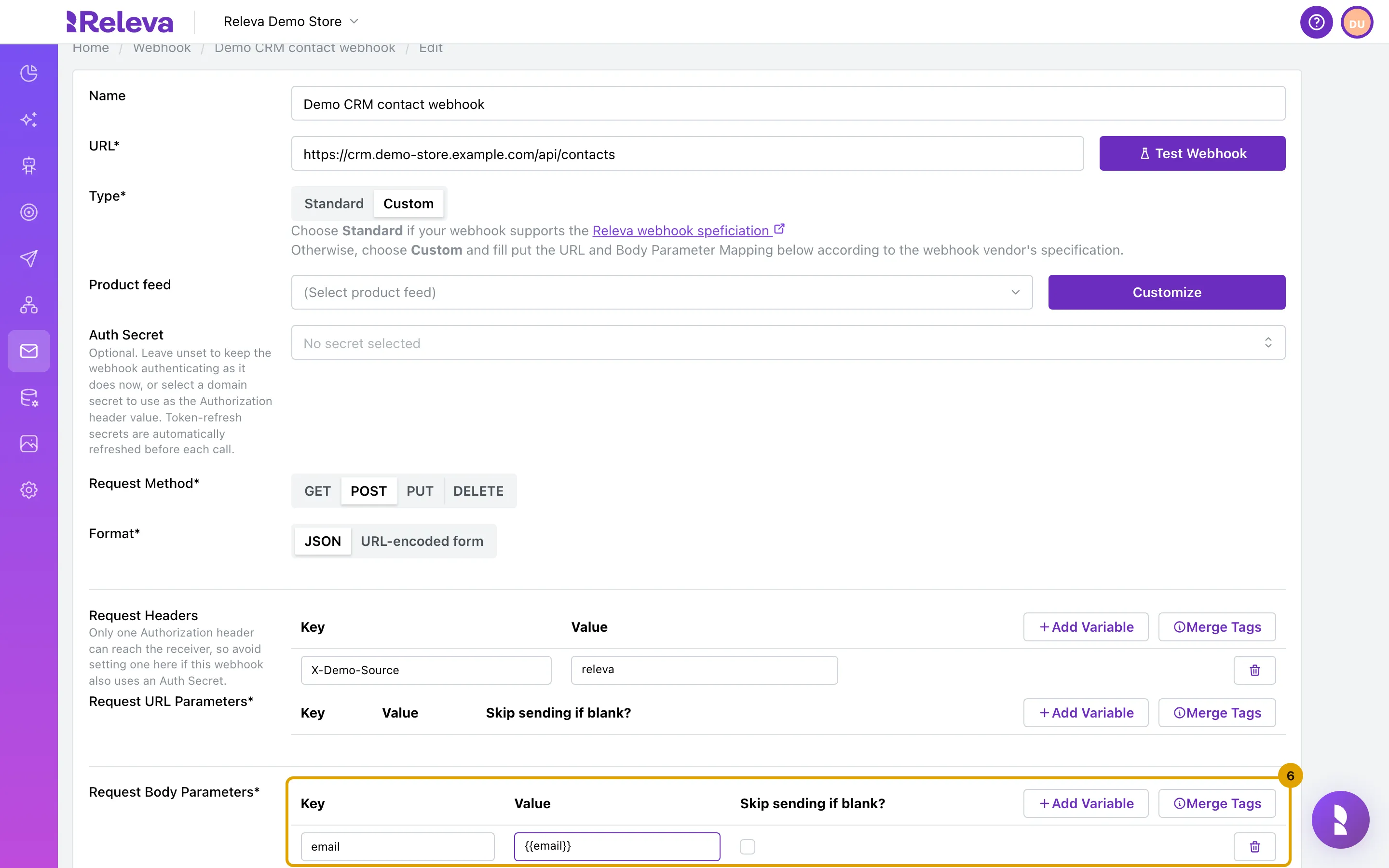
-
Select Merge Tags to look up the pattern for each profile field, custom field and trigger event field.
Available Merge Tags lists each tag’s Pattern and Label, with a Search merge tags… box. Custom profile fields appear as
{{custom.string.<field>}}; selecting a Product feed adds{{product.*}}tags. Select Close to return to the form.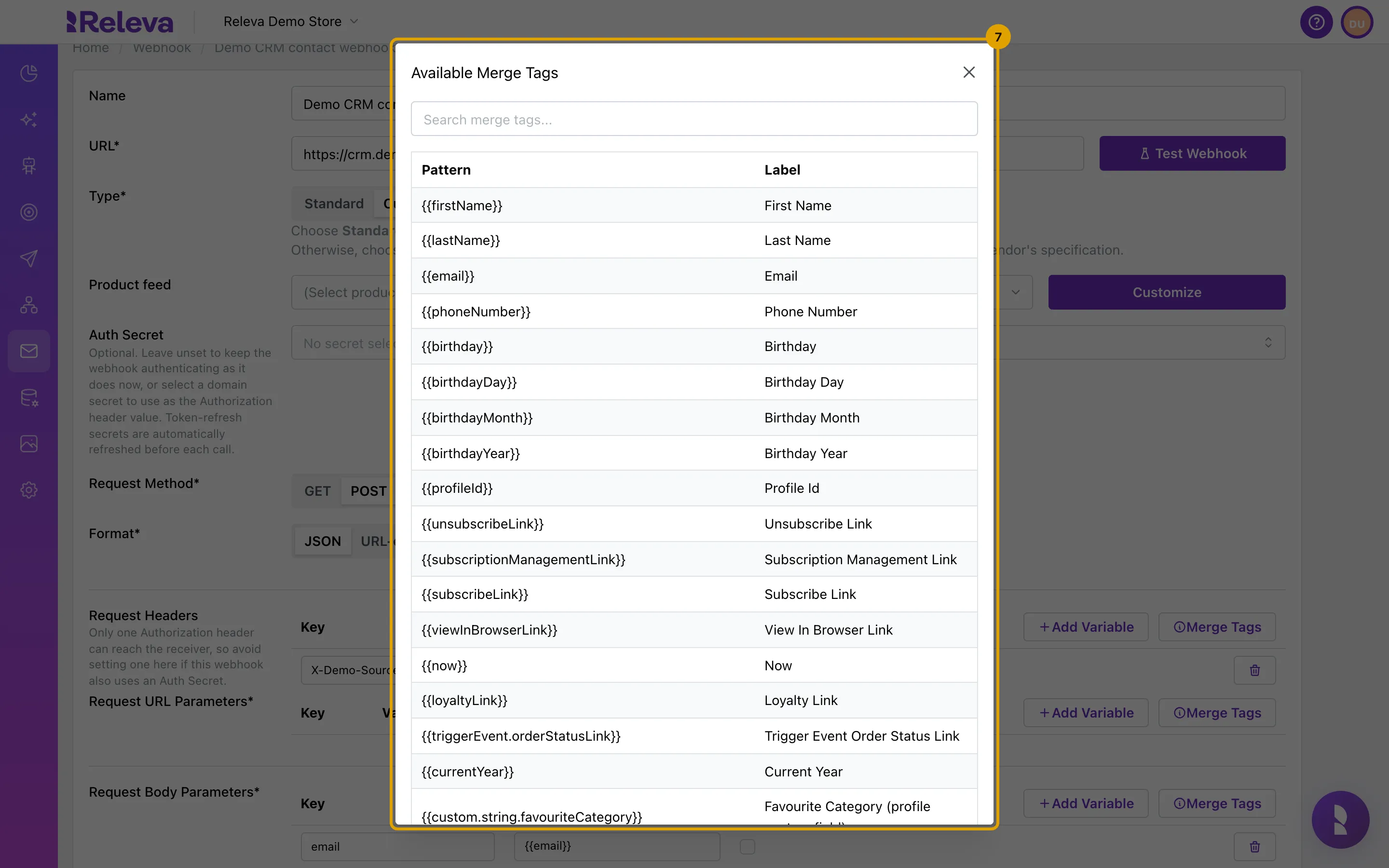
-
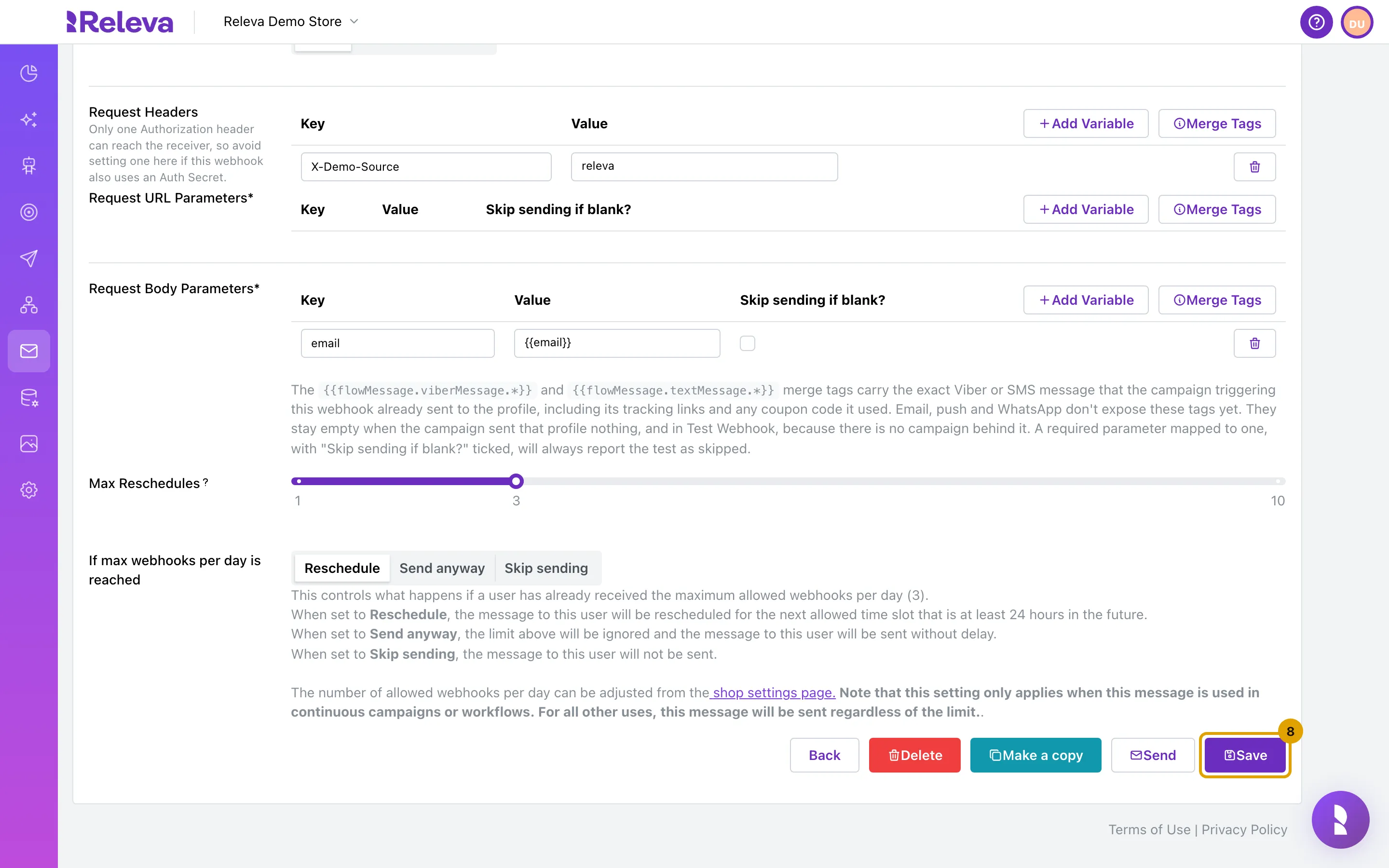
Select Save.
The server checks every template again and rejects the webhook with Message body is not a valid Handlebars template: … if one does not parse.
-
You are back on the webhook list.
The webhook keeps its card; its type does not show on the list.
Check it worked
Section titled “Check it worked”- Open the webhook again: Type is Custom, and the header and body rows are still there.
- Select Test Webhook only if your URL is a test endpoint: it sends one real request for the profile you pick, and shows the response, or a notice that the webhook was skipped because a required parameter compiled to a blank value.
Troubleshooting
Section titled “Troubleshooting”Invalid template: Parse error on line 1: … under a value. The merge tag is not closed or uses a character Handlebars does not accept. Copy the pattern from Merge Tags. Save and Test Webhook stay disabled until every value parses.
Request Body Parameters is missing. The method is GET or DELETE. Those requests have no body; use Request URL Parameters, or switch to POST or PUT.
The receiver gets an empty value. The profile has no data for that tag. Tick Skip sending if blank? on the row to leave such profiles out; they count as Skipped on the card.
The receiver gets the wrong Authorization header. An Auth Secret replaces any Authorization row in Request Headers. Keep one of the two.
{{flowMessage.…}} tags are empty. They carry the Viber or SMS message that the same workflow already sent to the profile. They are empty in Test Webhook and when the workflow sent that profile nothing.