

Send a WhatsApp template with a workflow
A WhatsApp template is sent only by a workflow. You cannot put it into a campaign. The workflow decides who receives the template and when. Only templates that Meta has APPROVED are sent. This guide starts from the template, builds a one-off workflow around it and saves the workflow switched off. Nothing is sent until you select Launch. To learn what happens at send time, read How WhatsApp messages work.
Before you start
Section titled “Before you start”- Your shop has a connected WhatsApp Business Account under Settings › Facebook & Whatsapp, tab WhatsApp. See Connect WhatsApp with WhatsApp Manager or Connect WhatsApp through a Business Solution Provider.
- If you also run Facebook ads with Releva, connect Facebook too: see Connect your Meta account to Releva.
- You have a saved template with the status APPROVED that was last changed more than an hour ago. The workflow editor hides templates changed in the last hour. See Create a WhatsApp template message.
- You have a Behavior segment with profiles that have a phone number and agreed to receive WhatsApp messages. Releva sends only to profiles it can reach on WhatsApp. See Create a segment and How consent works in Releva.
- The click-tracking DNS record for your sender domain is in place under Settings › Messaging, tab General. Template buttons use Releva’s click-tracking link, so without the record no WhatsApp message is sent. See How sender verification and click tracking work.
-
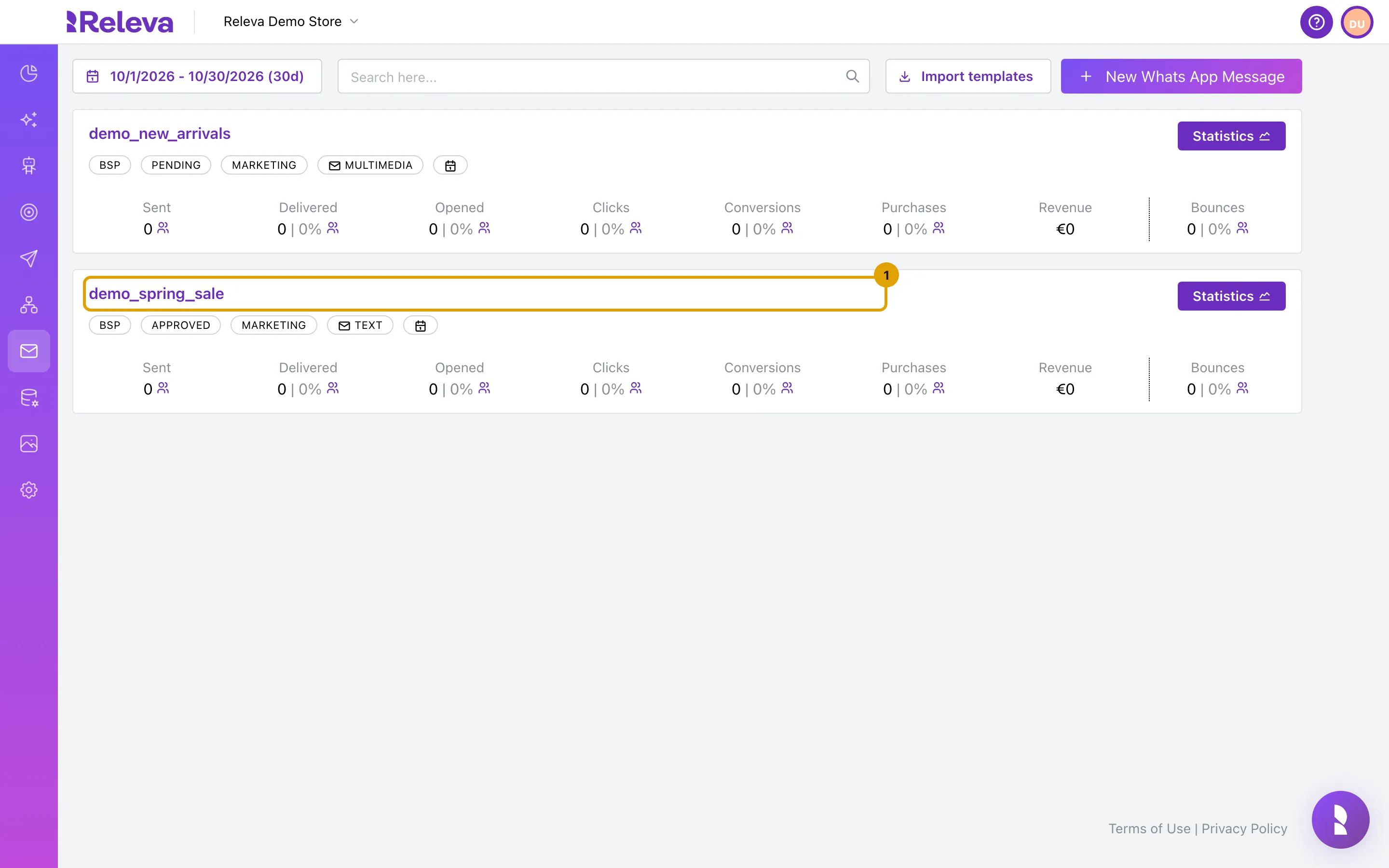
Go to Marketing Channels › WhatsApp Messages and select the name of a template with the status APPROVED, for example demo_spring_sale
Each card shows the sender (BSP or WhatsApp Manager), the status, the category and the type. Templates that are still PENDING or were REJECTED can be added to a workflow, but they are never sent.
-
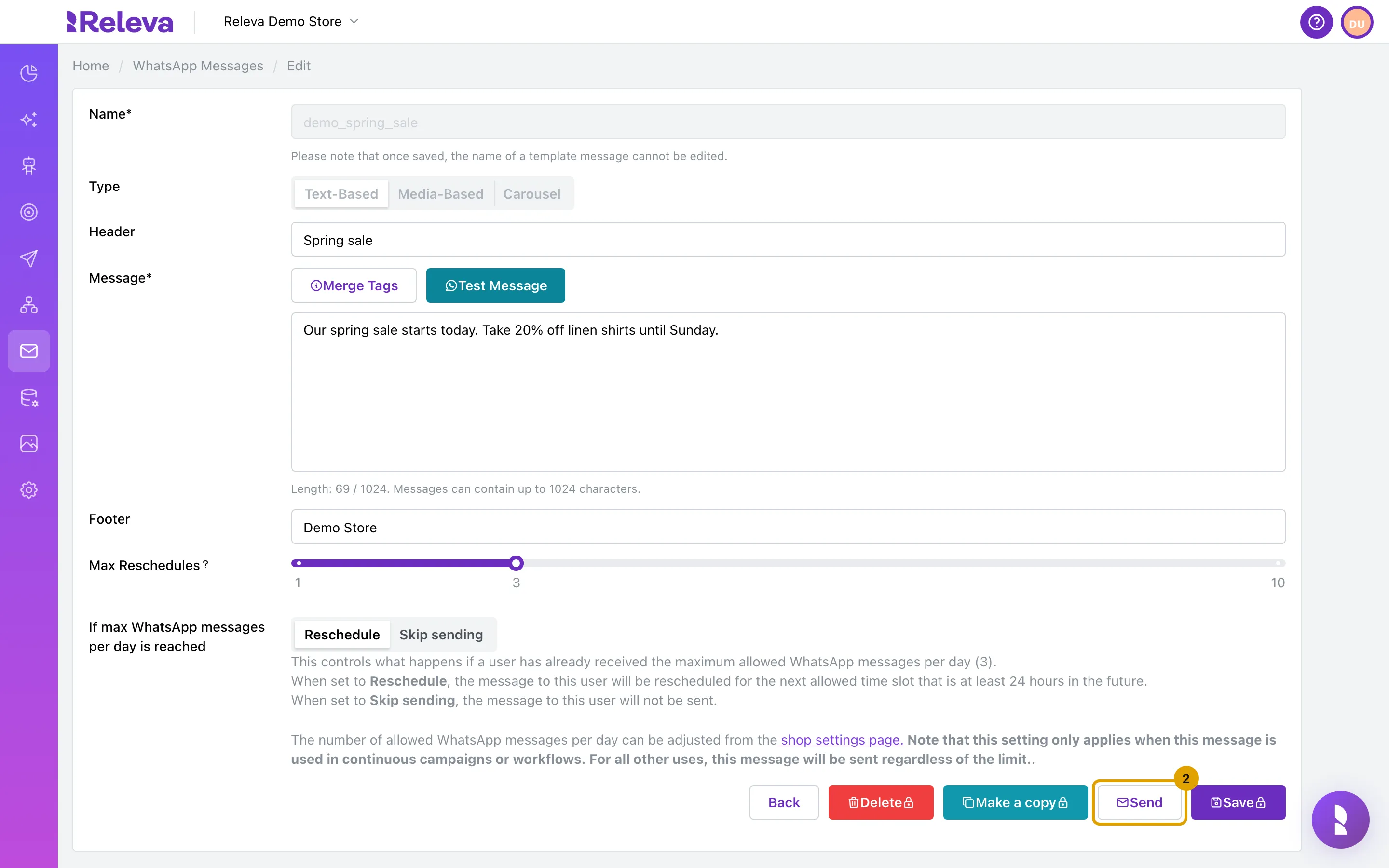
Select Send
Send is at the bottom of the edit page, next to Save. It sends nothing by itself. It opens a window where you choose a workflow. Send appears only on a saved template. Do not select Test Message here: it sends the template to real phone numbers.
-
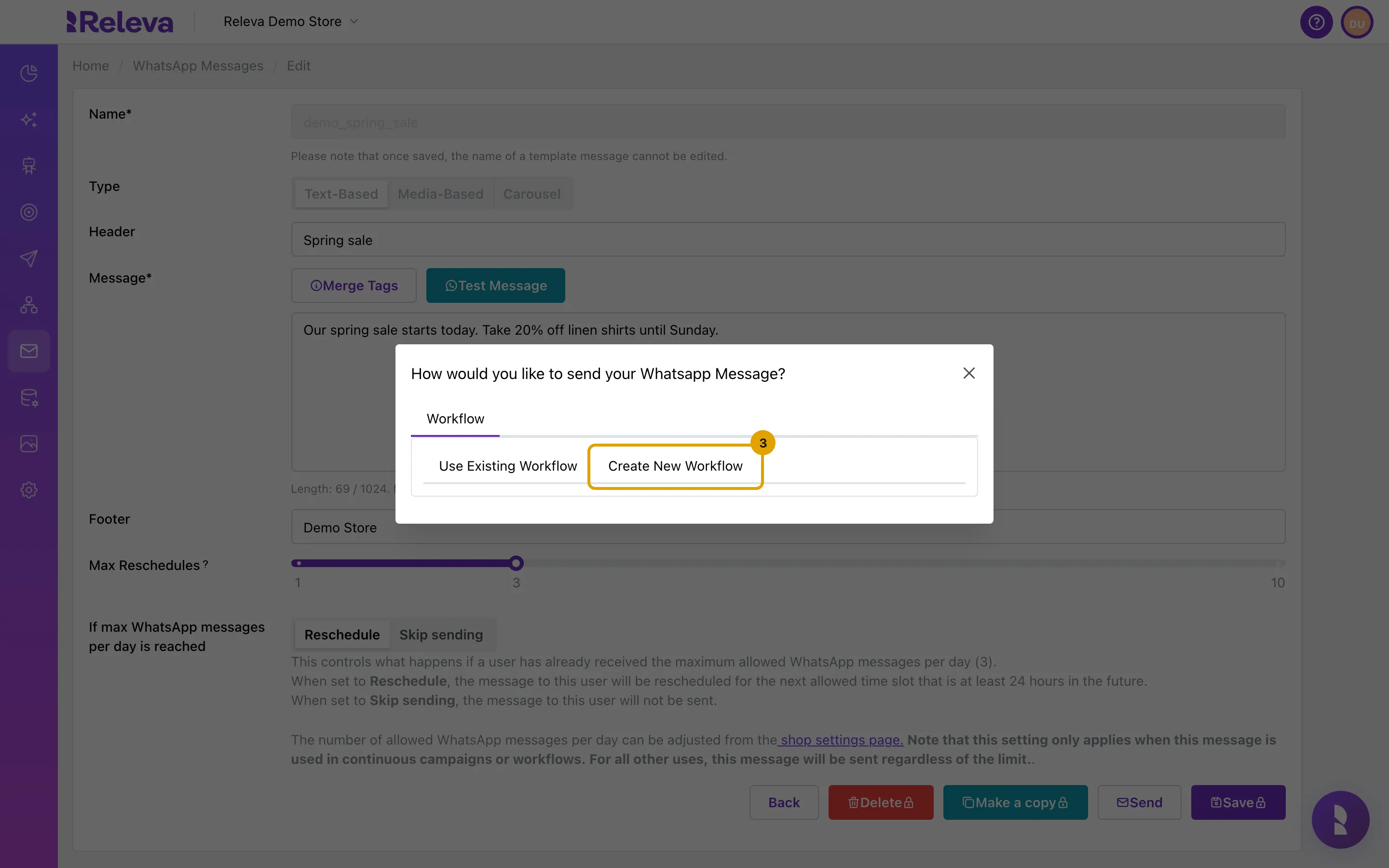
In the How would you like to send your Whatsapp Message? window, select Create New Workflow
The window has one tab, Workflow. To add the template to a workflow you already have, select Use Existing Workflow instead and pick the workflow from the list. Use the Filter workflows… box to find it. Releva adds the template as a new step after the last step of that workflow.
-
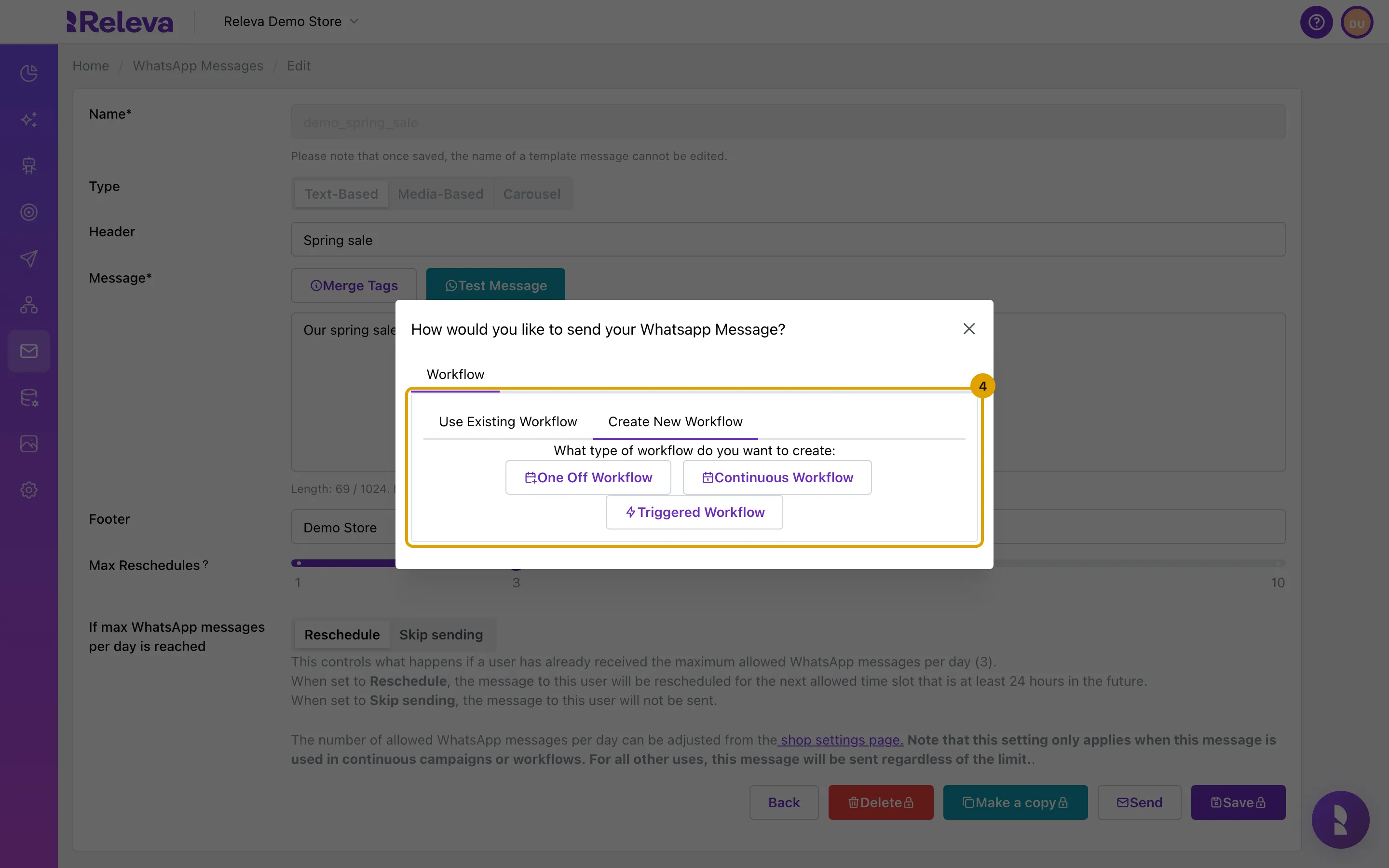
Under What type of workflow do you want to create:, choose the kind of workflow, for example One Off Workflow
- One Off Workflow sends once to everyone in a segment when you launch it.
- Continuous Workflow also sends to everyone who joins the segment later.
- Triggered Workflow sends in reaction to an event, such as an order.
-
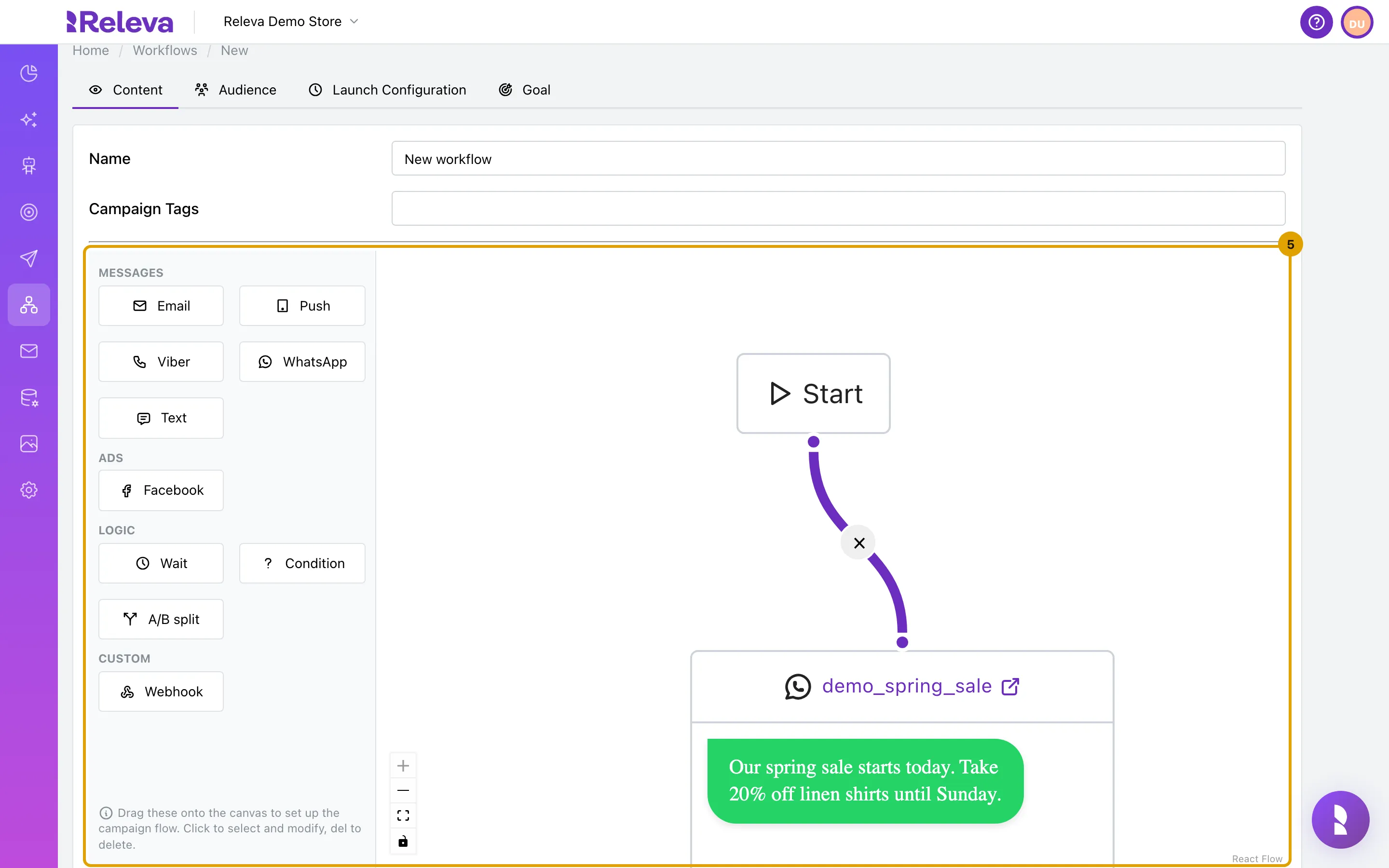
The workflow editor opens. Your template is a step connected to Start
The editor opens as New workflow, with the tabs Content, Audience, Launch Configuration and Goal. The step shows the template name and a preview of the message.
-
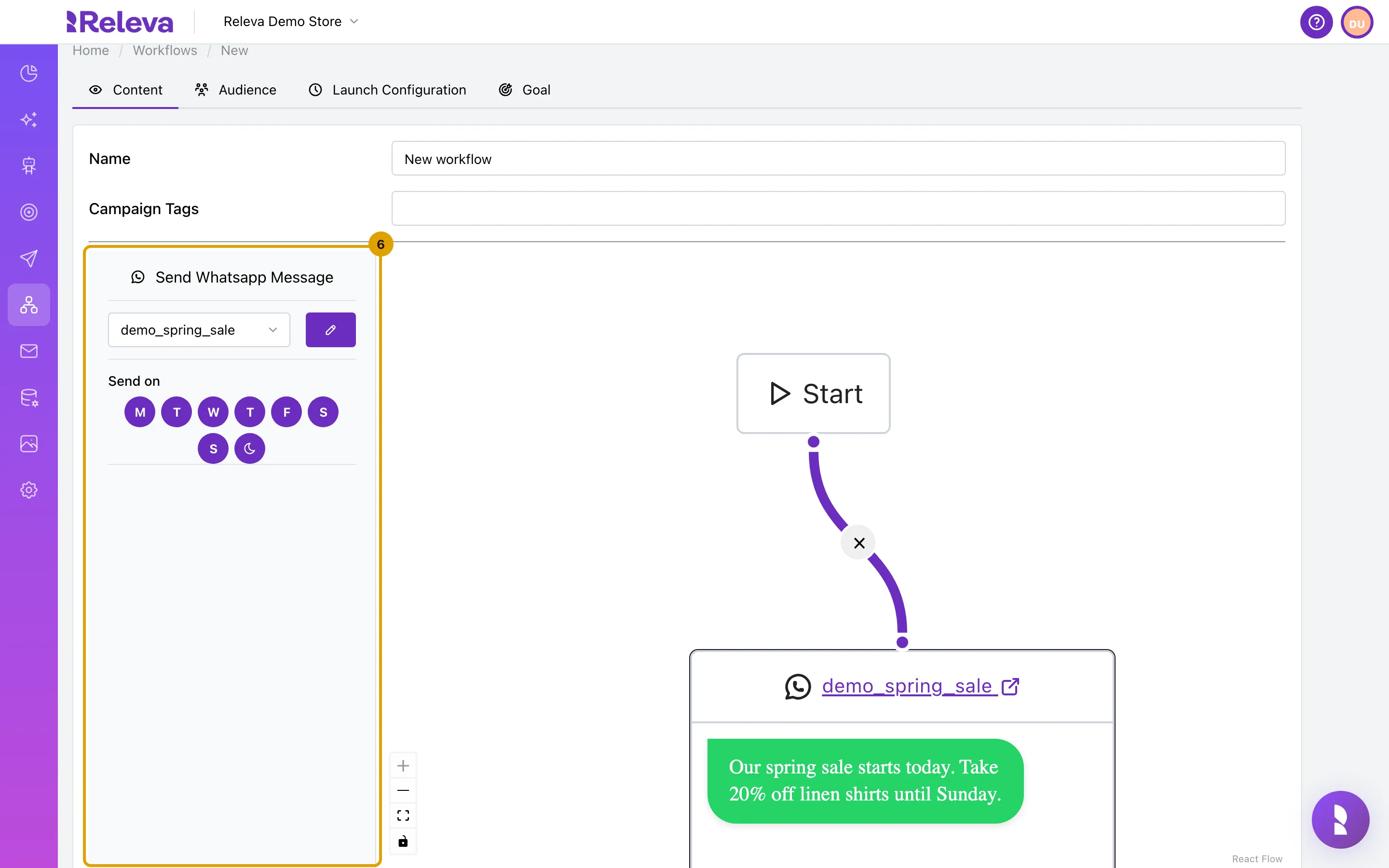
Select the step to check its settings in the left panel
The panel is headed Send Whatsapp Message. The list shows the template. The pencil button opens the template for editing. Under Send on, the highlighted days are the days the step may send. The moon button is Observe quiet hours: while it is on, Releva does not send during the shop’s quiet hours. All days and quiet hours are on by default.
-
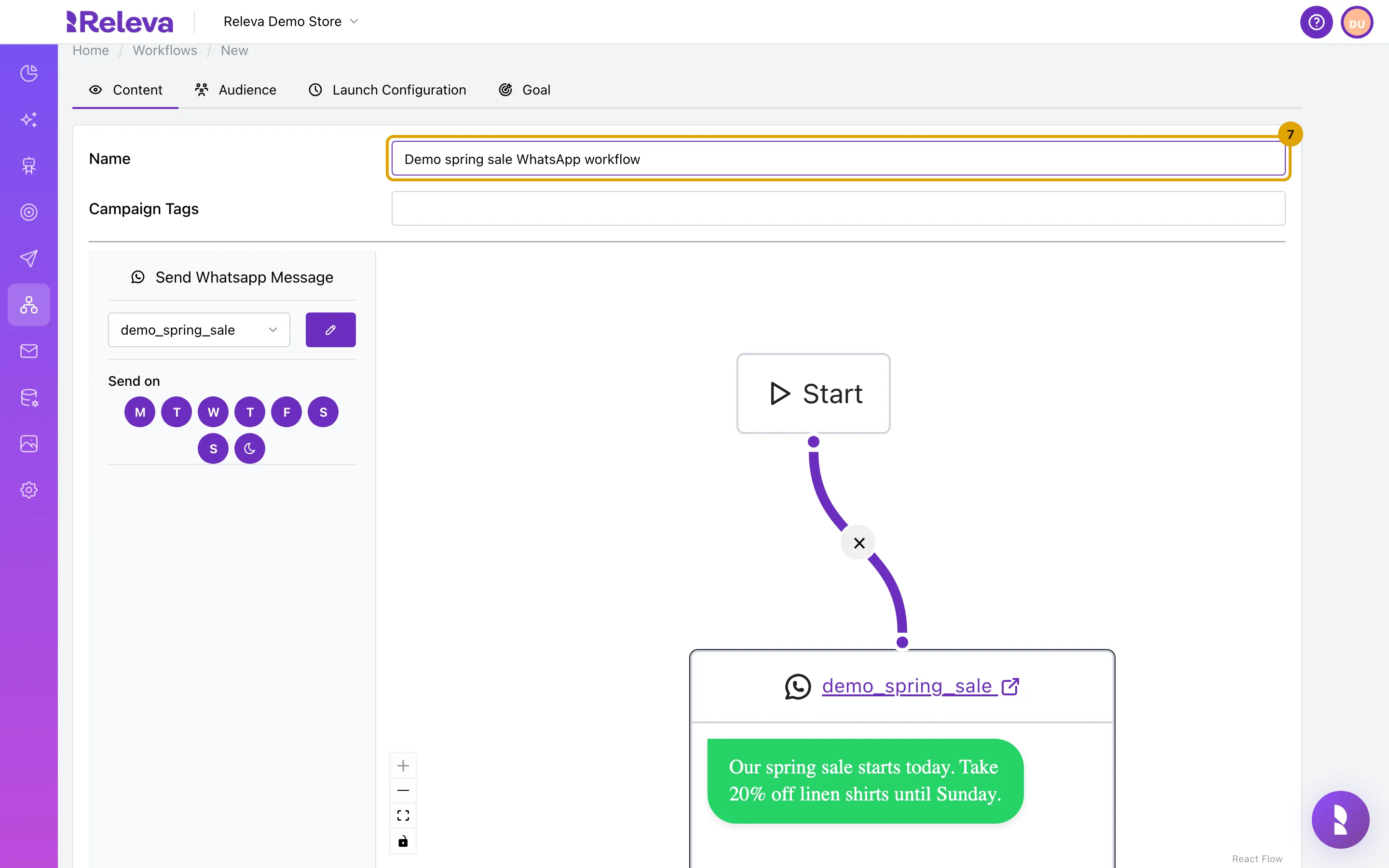
In Name, replace “New workflow” with a name your team will recognise, for example Demo spring sale WhatsApp workflow
Names must be unique in the shop. Campaign Tags are optional.
-
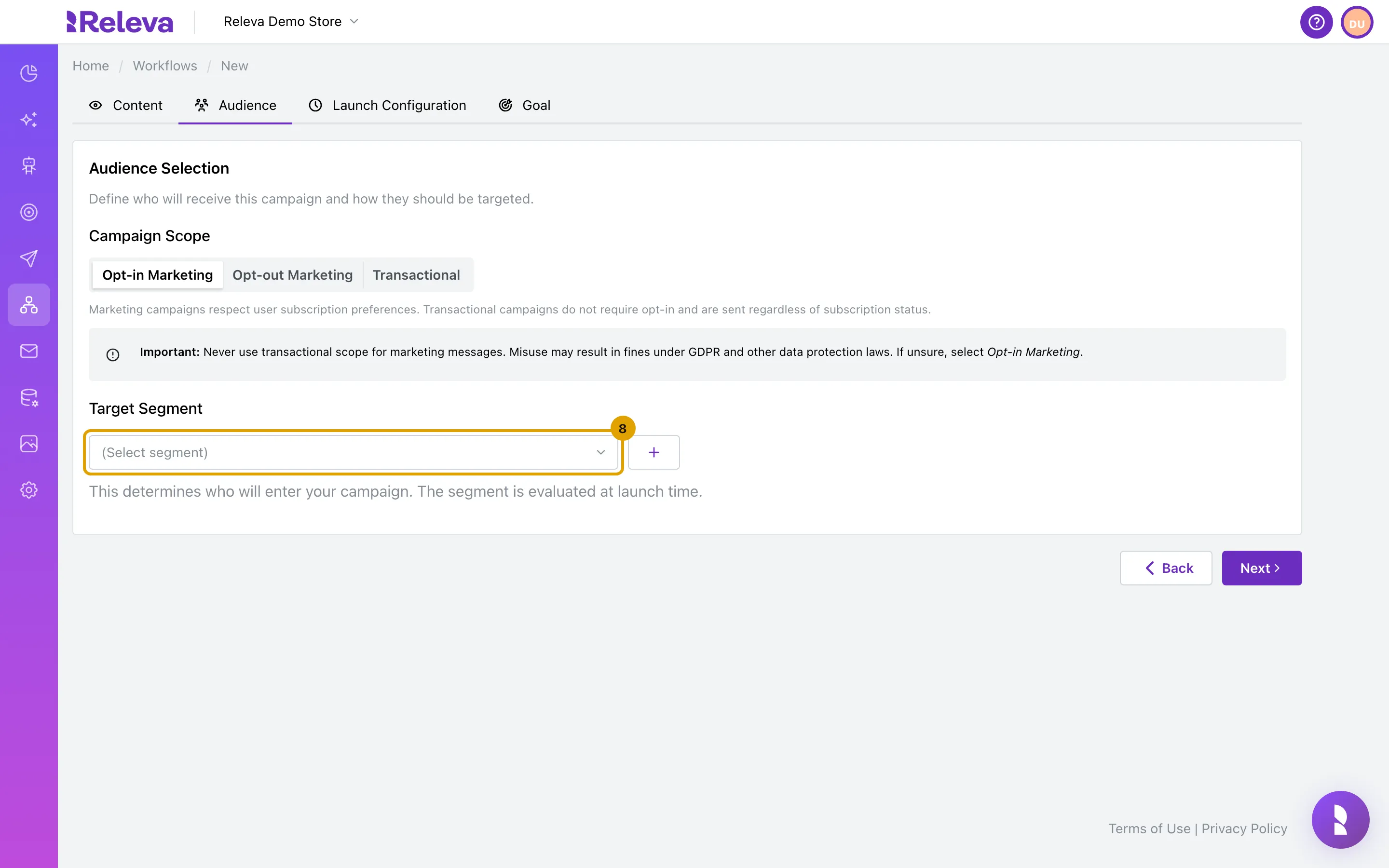
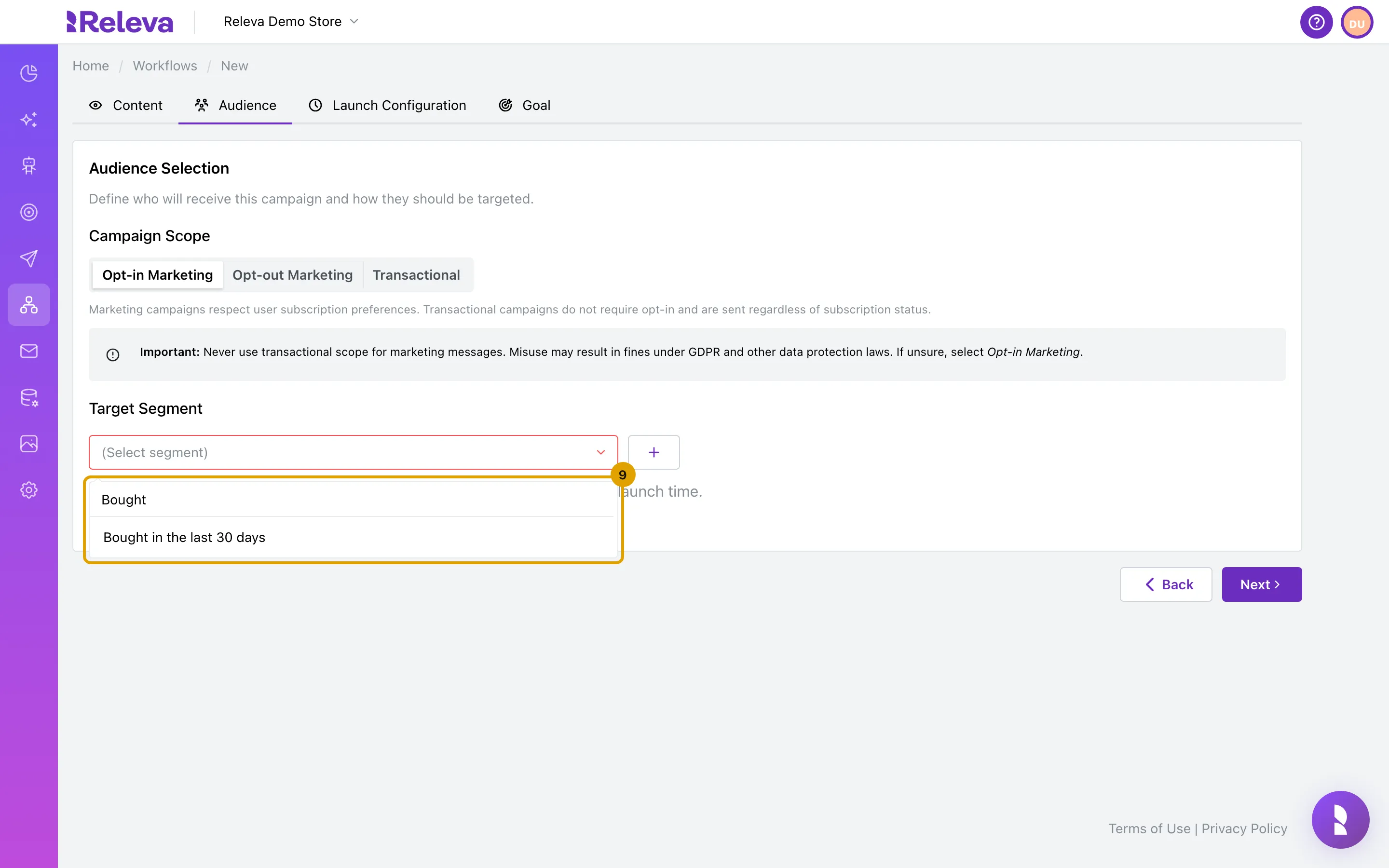
Select Next. On the Audience tab, leave Campaign Scope on Opt-in Marketing and open Target Segment
Opt-in Marketing sends only to profiles that agreed to marketing. Never use Transactional for marketing messages.
-
Search for the segment that should receive the message, for example Bought in the last 30 days, and select it
A one-off workflow evaluates the segment once, at launch.
-
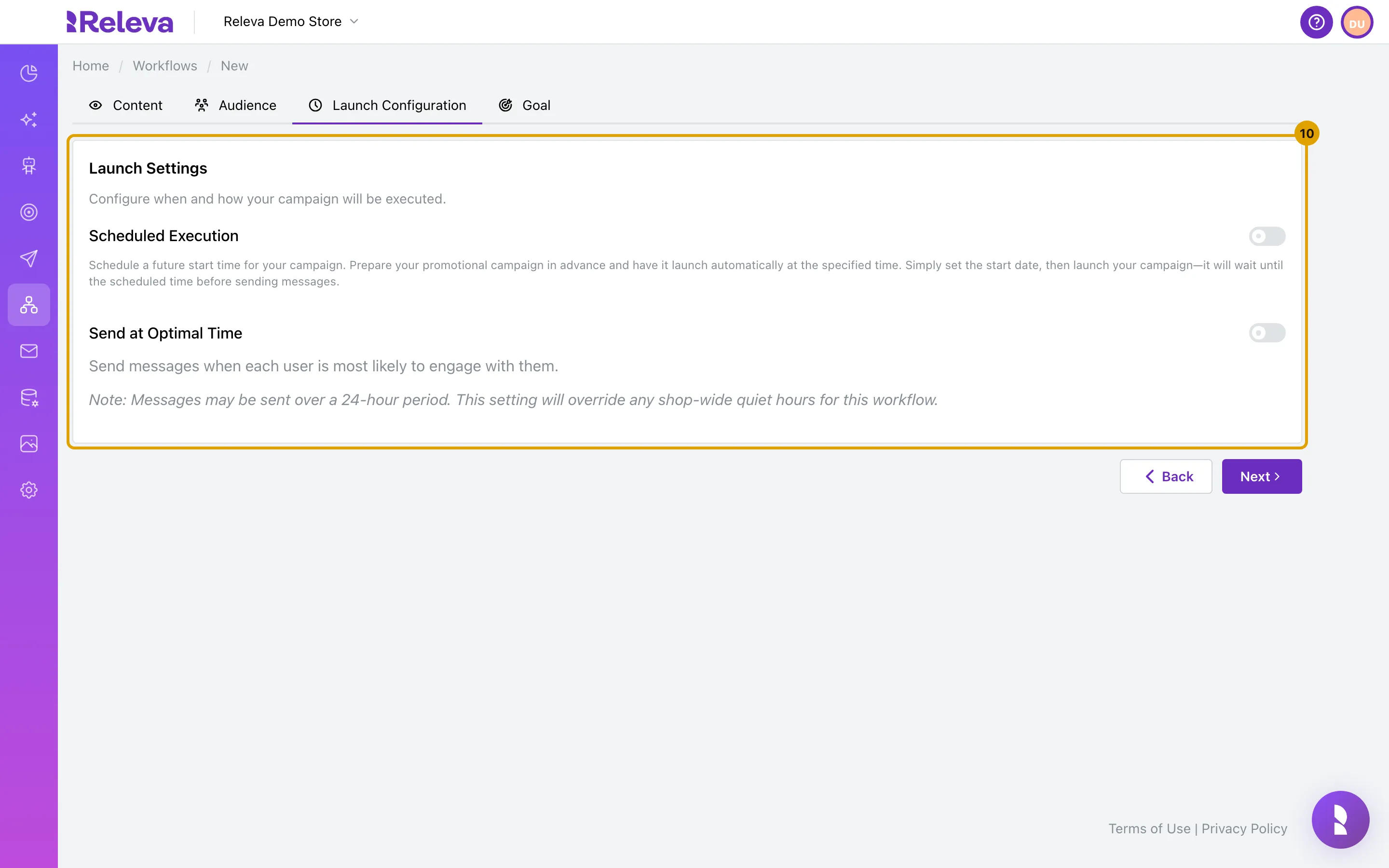
Select Next. On Launch Configuration, leave Scheduled Execution off to send when you select Launch, or turn it on and set a date and time
With Send at Optimal Time on, each person gets the message when they usually engage. Messages may then go out over 24 hours, and the shop’s quiet hours do not apply.
-
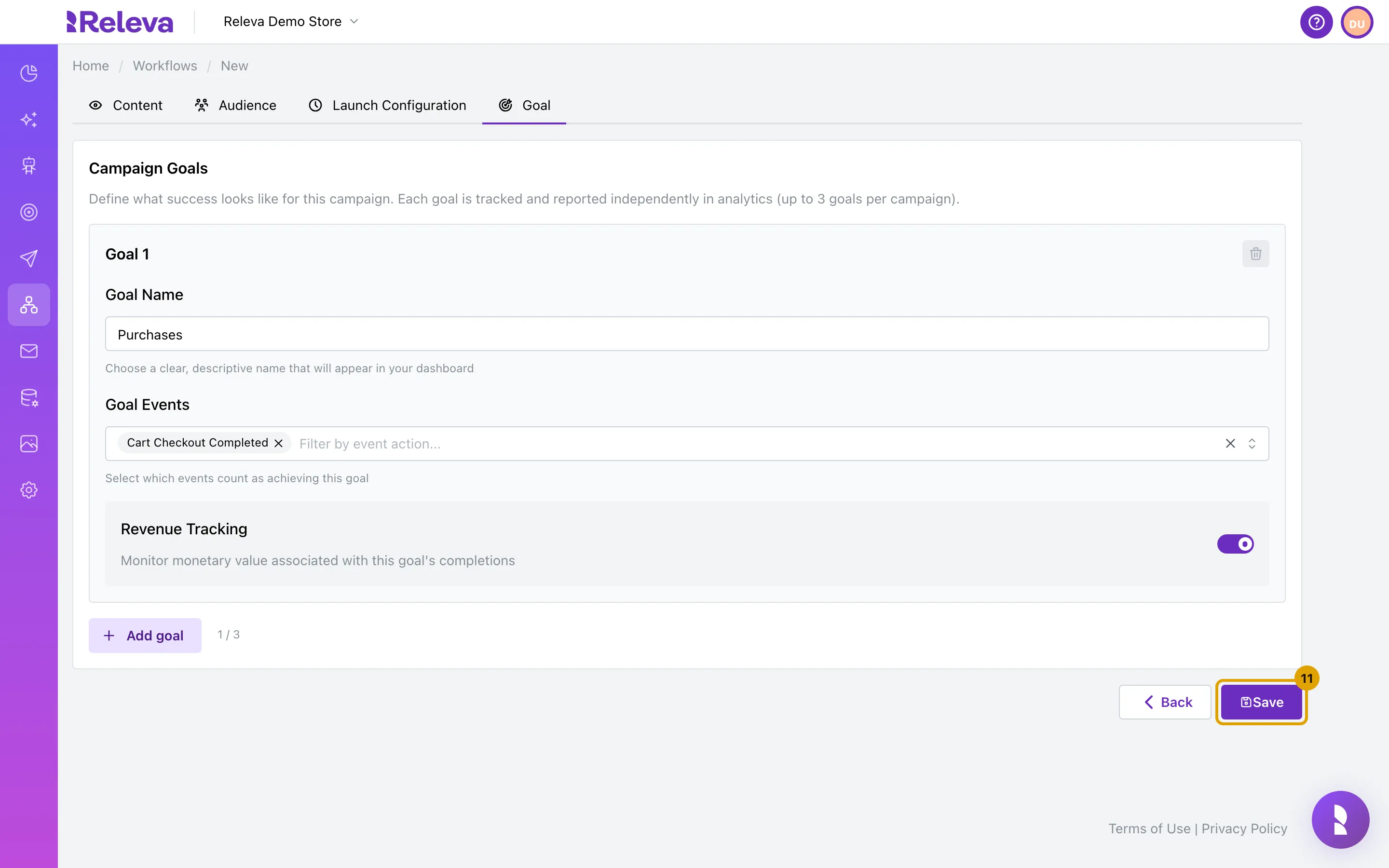
Select Next. On Goal, keep the default Purchases goal and select Save
The default goal counts Cart Checkout Completed events and tracks their revenue.
-
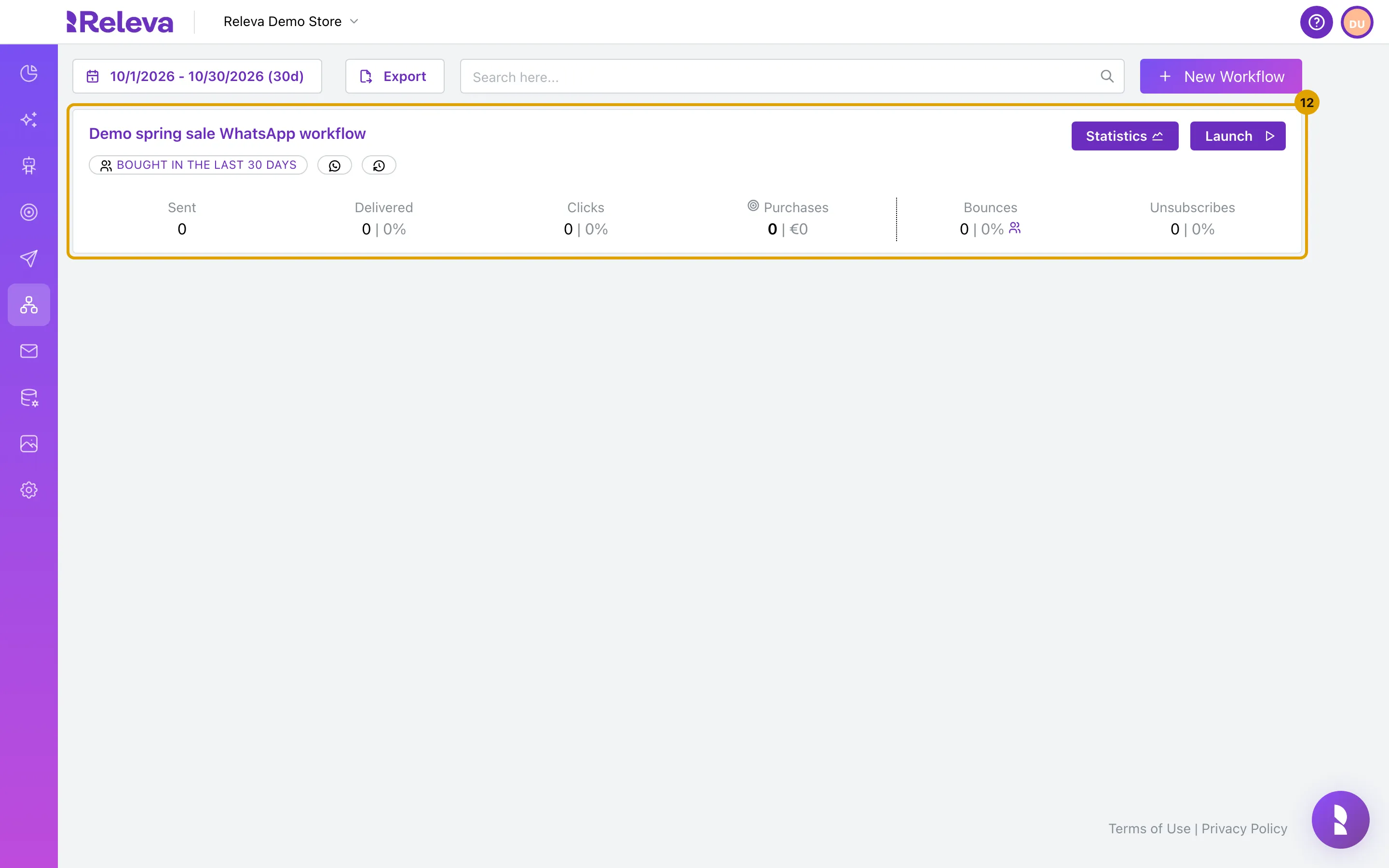
The workflow is saved in the One Off list. Select Launch when you are ready to send
The card shows the segment as a badge, the WhatsApp icon, Statistics and Launch. Saving sends nothing. In this guide the workflow was saved but not launched.
Add the template to a workflow from the editor
Section titled “Add the template to a workflow from the editor”You can also start in the workflow editor. In any workflow, drag WhatsApp from the MESSAGES group of the left panel onto the canvas. Connect it to the step before it, then pick the template in the panel. The panel notes: Please note that messages created during the last hour are not visible/selectable due to WhatsApp API limitations! See Change the steps of a workflow.
Check it worked
Section titled “Check it worked”- The workflow is a card on Workflows › One Off with the segment badge, the WhatsApp icon and a Launch button.
- Open the card’s name: the canvas shows the template as a step connected to Start.
- After you launch the workflow and the first send runs, Sent on the workflow card and on the template card under Marketing Channels › WhatsApp Messages is greater than 0. Statistics on either card opens a daily chart.
Troubleshooting
Section titled “Troubleshooting”The template is missing from the list in the step panel. The list hides templates changed in the last hour, and templates created for the other sender type (WhatsApp Manager or BSP) than the account now connected. Wait an hour, or create the template again with the connected sender.
The template is greyed out in the list. It was imported and still contains Meta placeholders. The tooltip says This template still contains unmapped placeholders ({{var1}}, {{var_h1}}, …). Edit the template and replace them with Releva merge tags before using it in a workflow. Open the template, replace the placeholders with merge tags and save it.
Sent stays at 0 after the workflow ran. Check, in this order:
- The template is APPROVED. Releva skips PENDING, REJECTED and PAUSED templates without showing an error.
- The workflow is launched, not only saved.
- The click-tracking DNS record is in place under Settings › Messaging, tab General.
- The segment contains profiles with a phone number who agreed to WhatsApp messages.
- The profiles have not reached the daily WhatsApp limit. The template’s If max WhatsApp messages per day is reached setting decides whether they are rescheduled or skipped.
- WhatsApp sending was not switched off for your shop after an error from Meta. Ask Releva support.
The workflow editor shows “An error has occurred” instead of the canvas. The editor asks your WhatsApp provider how many messages you can still send today. If the WhatsApp connection is broken, that request fails and blocks the editor, even for workflows without a WhatsApp step. Reconnect WhatsApp under Settings › Facebook & Whatsapp, tab WhatsApp, and open the workflow again.
Delete, Make a copy and Save on the template show a lock. Your plan does not include changing WhatsApp templates. Send still works. To change the template, ask your account owner.
Other channels in a workflow
Section titled “Other channels in a workflow”The workflow that sends your template can also send other channels. Each one is a step in the left panel of the workflow editor:
- Email: Sends a saved email. See Edit an HTML email.
- Push: Sends a saved web or app push notification. See Send a push notification with a workflow.
- Viber: Sends a saved Viber message. See Create a Viber message.
- WhatsApp: Sends a saved WhatsApp template.
- Text: Sends a saved SMS. See Send an SMS with a workflow.
- Facebook: Adds the profiles to a Facebook ad audience. See Create a Facebook ad.
- Google: Adds the profiles to a Google asset group for the membership duration you set. Continuous workflows only.
- Webhook: Calls a saved webhook for each profile. See Create a webhook.