

Change the steps of a workflow
Every step on a workflow canvas has settings in the left panel: the message to send and the days it may go out, the length of a wait, the rules of a condition. This guide opens a saved continuous workflow (Start › Email › Wait › Push), changes the wait from 24 to 48 hours, looks at the push step, sets the cooldown between two entries of the same person and saves. The workflow stays switched off, so nothing is sent. For what each step type does, read How workflows work.
Before you start
Section titled “Before you start”- The workflow is not running. Steps of a running workflow are read-only; the canvas then shows Modifying the steps of running workflows is not allowed. If you wish to make changes to this workflow, please abort it and then make a copy.
- You know which step to change and the new value. Wait durations are in hours.
-
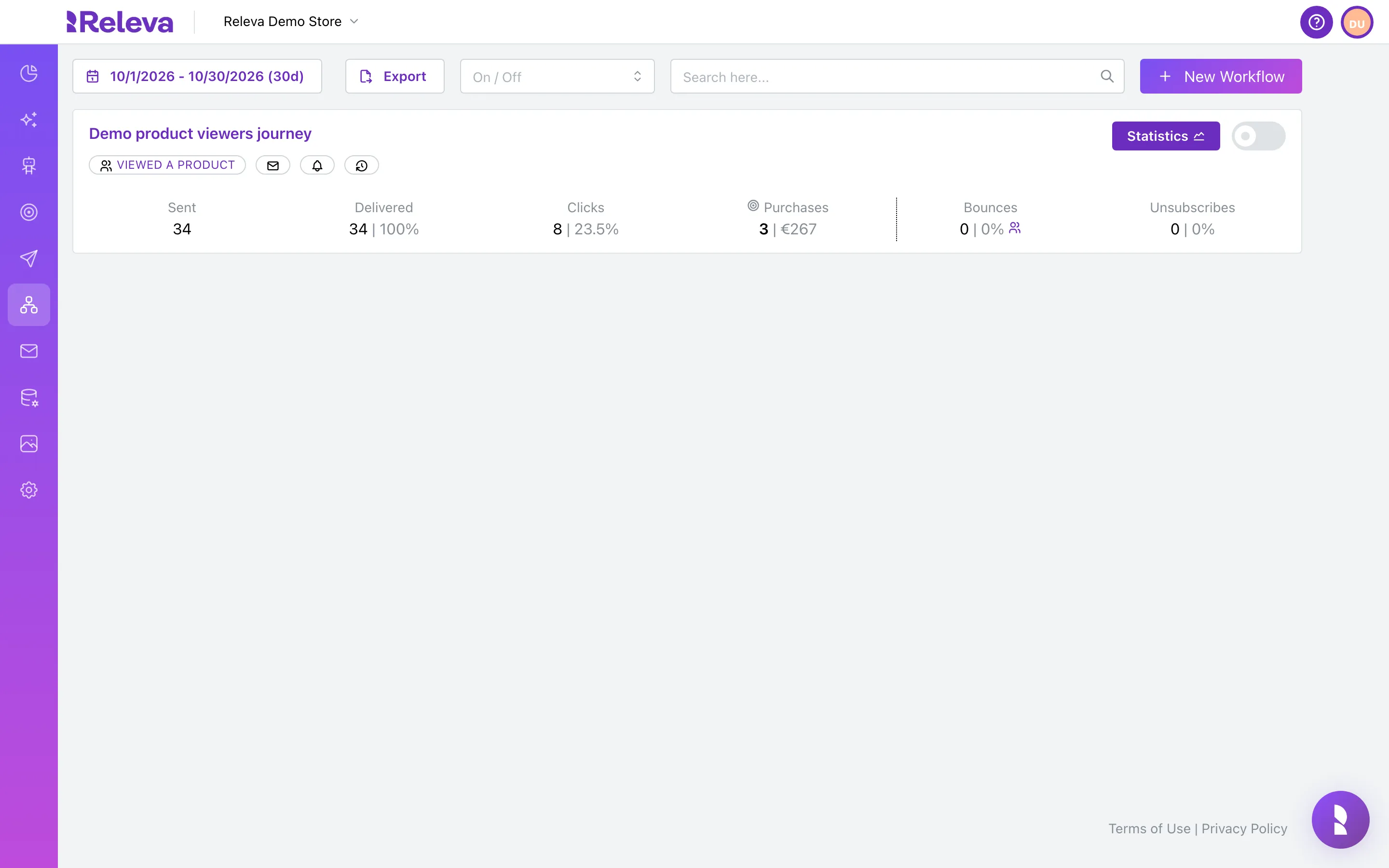
Go to Workflows › Continuous.
Use Search here… to find a workflow by the start of its name, or filter by On / Off. One-off workflows are under One Off, event- and webhook-triggered ones under Triggered.
-
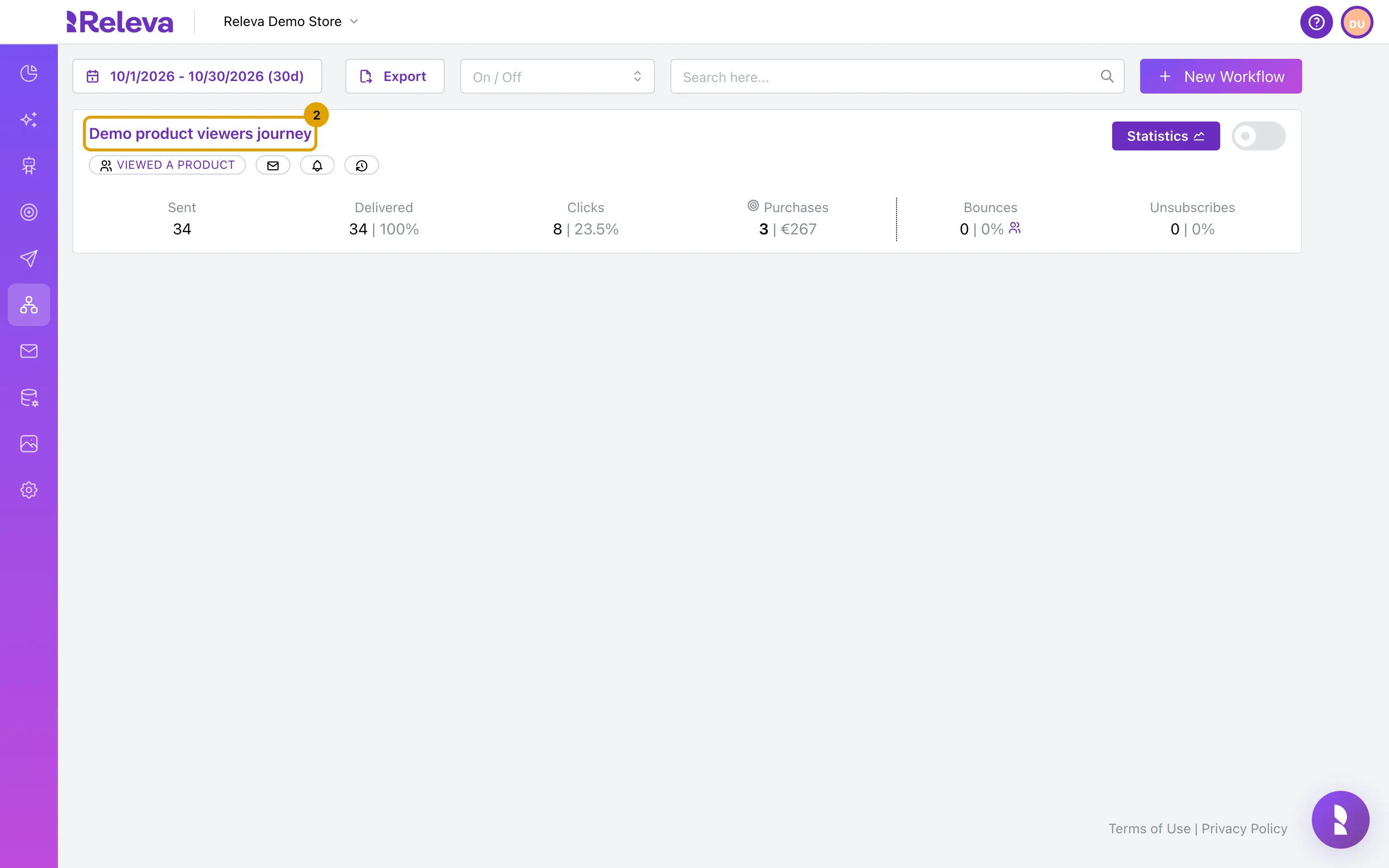
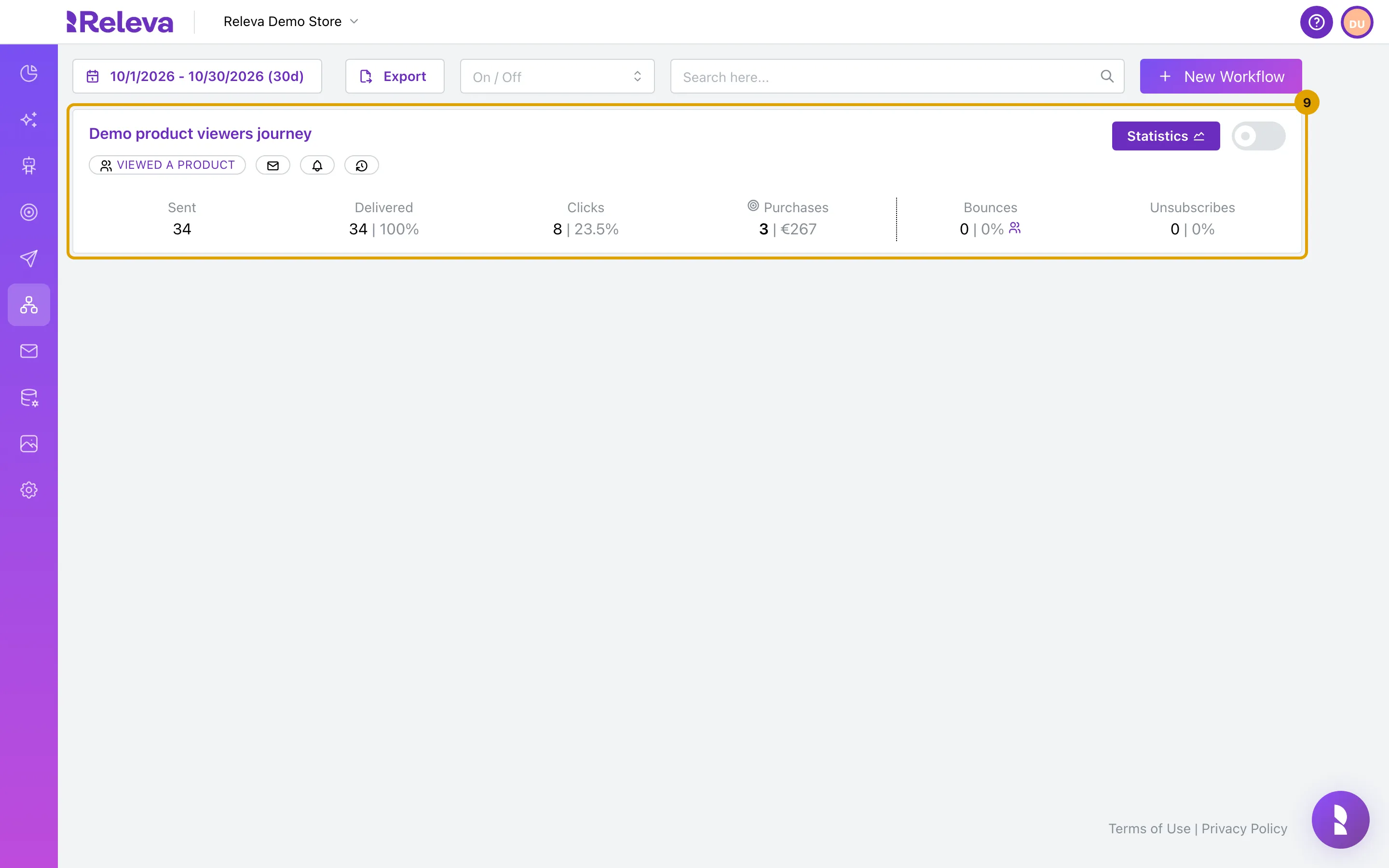
Select the name of the workflow, for example Demo product viewers journey.
The name opens the editor. Statistics opens the results page instead.
-
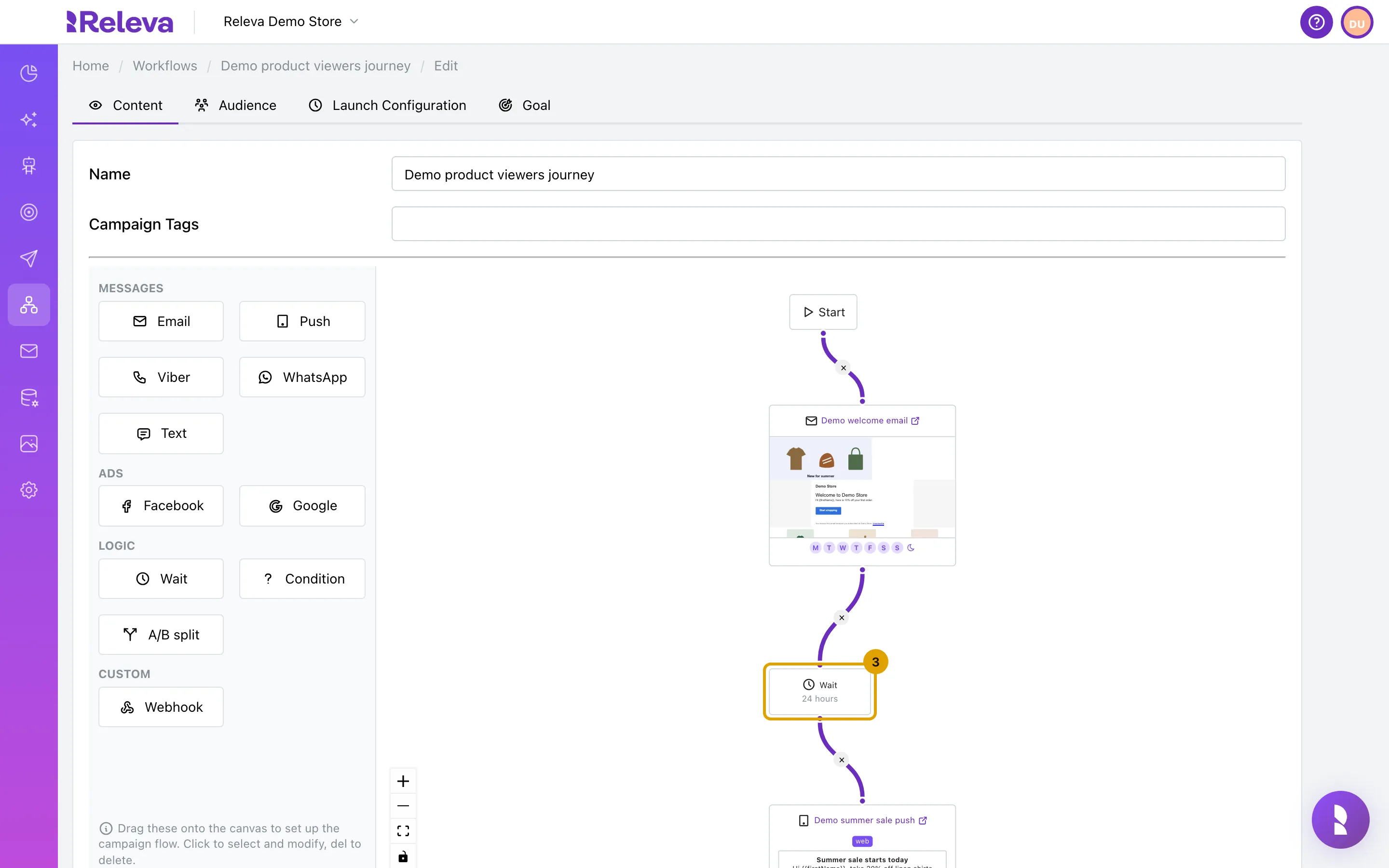
On the canvas, select the step you want to change. Its settings open in the left panel.
The canvas opens on the Content tab. Use the +, − and fit-view controls in the bottom-left corner to see the whole flow.
-
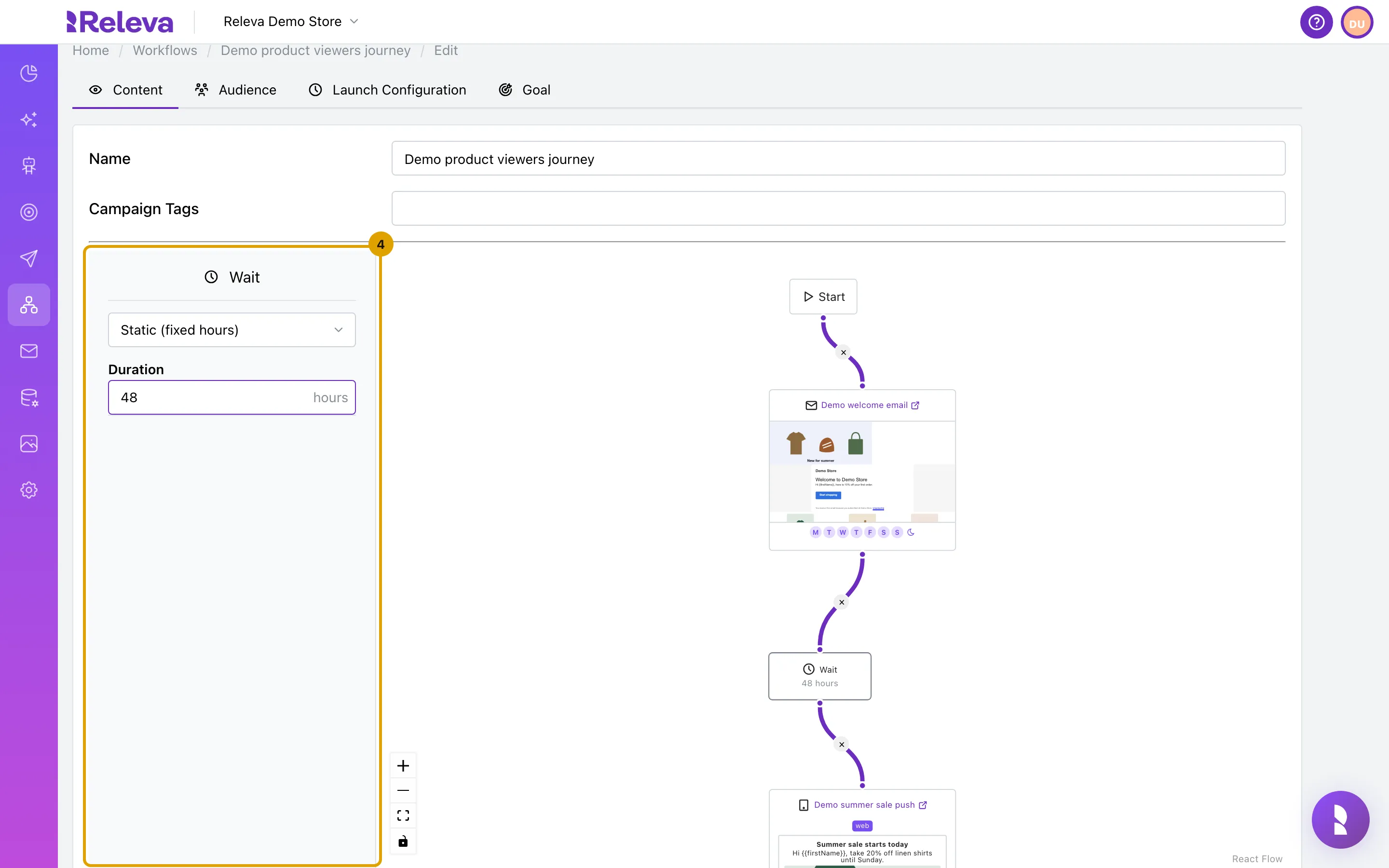
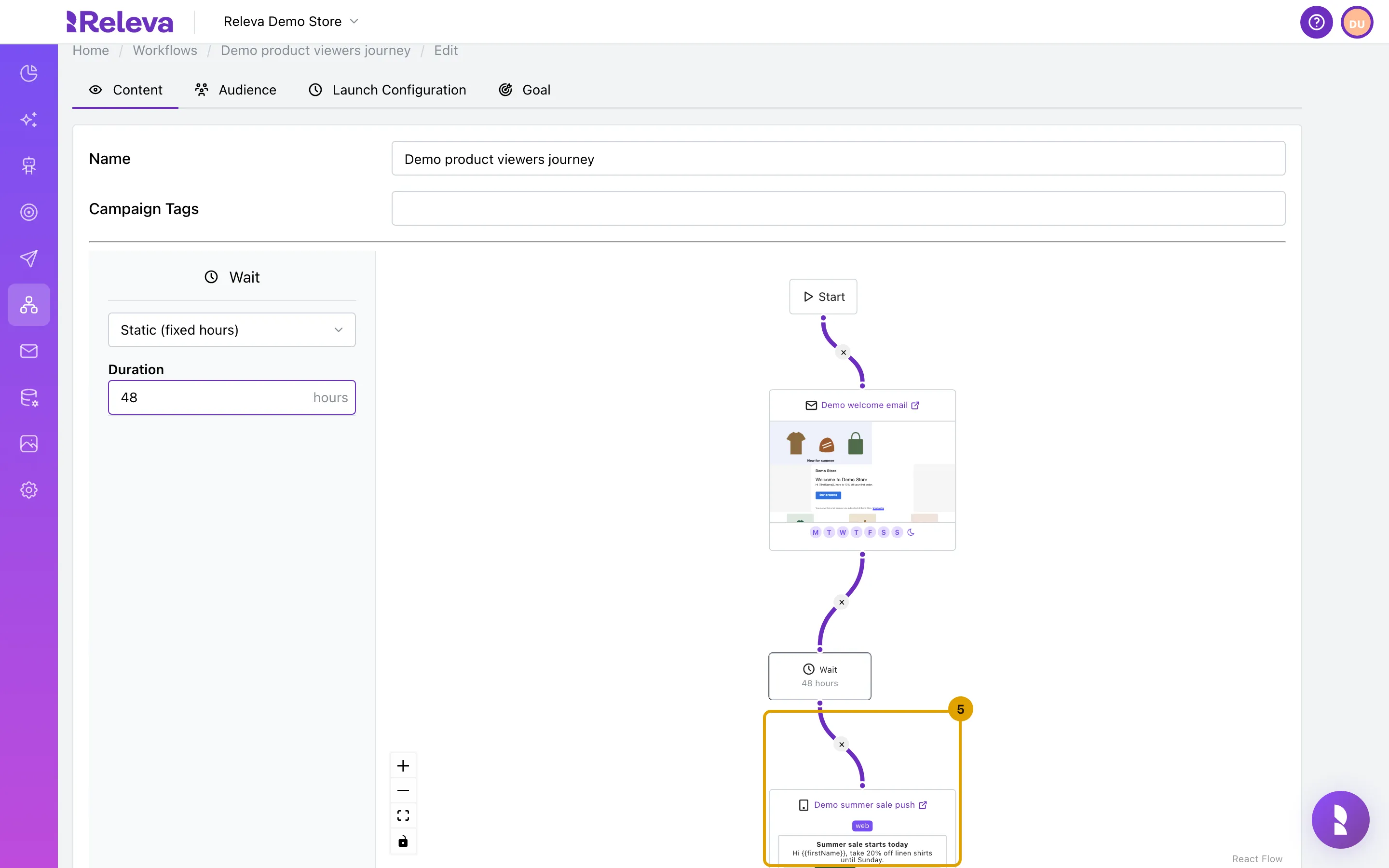
For a Wait step, enter the Duration in hours, for example 48.
The step on the canvas updates immediately. The mode stays Static (fixed hours); triggered workflows also offer Dynamic (event date), which waits until a date taken from the triggering event.
-
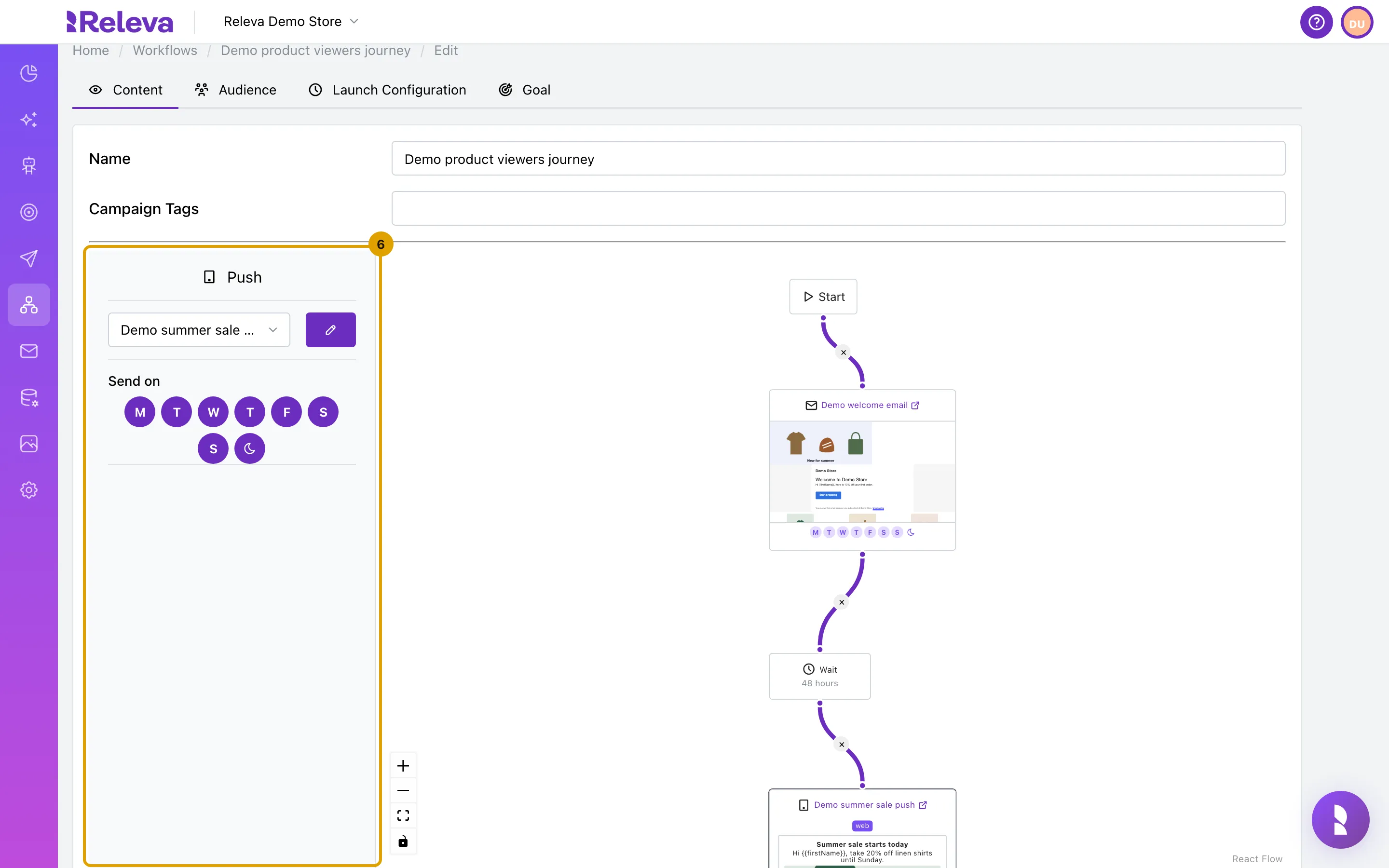
Select a message step to choose the message and the days it can be sent on.
The step shows a preview of the selected message.
-
Pick the message in the list. Under Send on, the highlighted days are the days the step may send; the moon keeps messages for after quiet hours.
The pencil opens the selected message in a full-screen editor. All seven days are on by default. A step with no day on cannot be saved. With the moon on, a message that falls inside the shop’s quiet hours waits until they end.
-
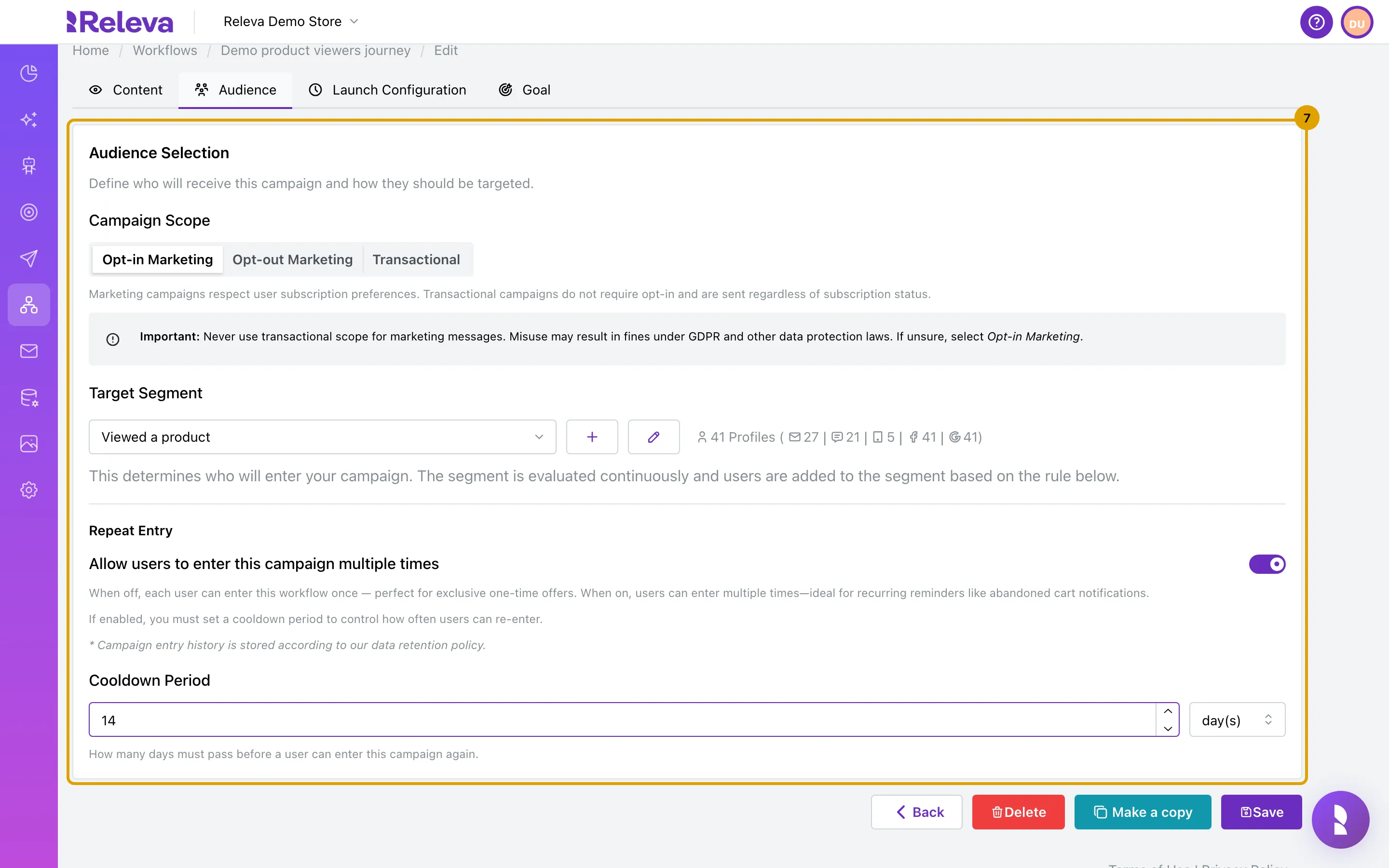
On Audience, under Repeat Entry, set the Cooldown Period, for example 14 days between two entries of the same person.
The cooldown is shown only while Allow users to enter this campaign multiple times is on. A continuous workflow needs a cooldown in days, from 1 to 365. With hour(s), Save stays disabled.
-
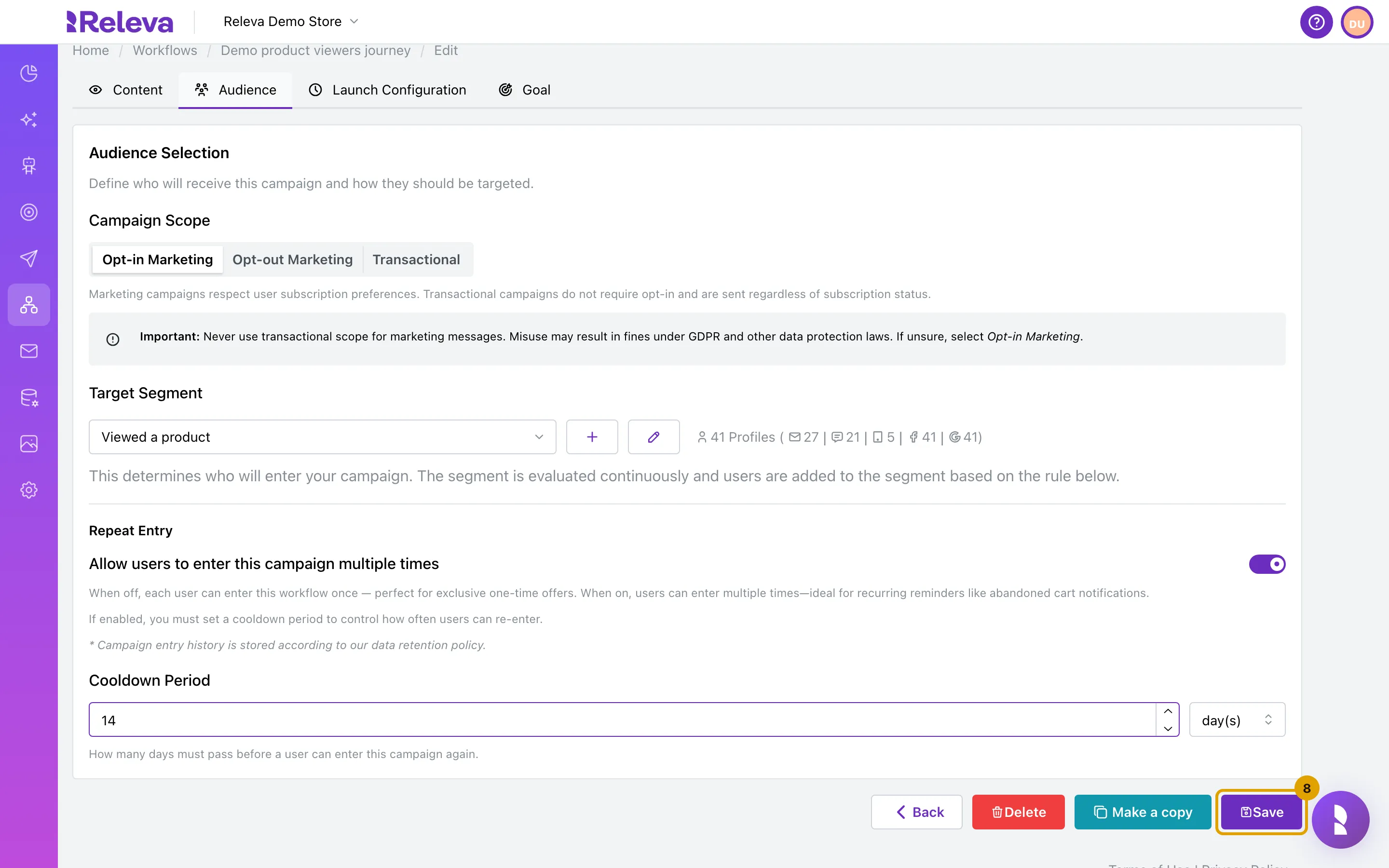
Select Save.
On a saved workflow the buttons Back, Delete, Make a copy and Save are on every tab.
-
You are back on the Continuous list. The workflow keeps its On/Off state; switch it on only when you want it to start.
The card shows the workflow’s sends, deliveries, clicks and purchases for the selected date range. Saving changed steps does not reset them.
Check it worked
Section titled “Check it worked”- Open the workflow again: the Wait step on the canvas reads 48 hours, and Cooldown Period on the Audience tab shows 14 day(s).
- The card on the list still shows the switch in the same position as before you started.
Troubleshooting
Section titled “Troubleshooting”The step settings do not open. Select the step itself, not the connection. If the panel still shows the palette, the workflow is running and its steps are read-only: abort it and select Make a copy to edit a copy.
The cooldown period must be between 1 and 365 days. or The cooldown period must be between 3 and 24 hours. The value is outside the allowed range for the selected unit. Correct it; Save stays disabled for a continuous workflow with a cooldown under 1 day.
Step “sendPushNotification” has day-of-week configuration but no days are enabled. Every day under Send on is off for that step. Turn at least one on.
Save is disabled. The name is empty, no segment is selected, or a Condition step has no rules.
The switch is disabled and the card shows “Click tracking not ready - check Click Tracking settings”. The shop’s click-tracking DNS record is not verified yet. Add it under Settings › Messaging before you switch the workflow on.
I want to replace a step. Select it, press Delete, drag the new step from the panel and connect it to the steps before and after it. A step that is not connected never runs.
Message was sent later than the wait says. The step’s Send on days, the shop’s quiet hours or a daily sending limit moved it to the next allowed time. See How workflows work.