

Create a triggered workflow
A triggered workflow runs for one profile at a time, each time something happens: the customer performs an event, such as completing a checkout or subscribing, or your own system calls the workflow’s webhook. This guide builds a thank-you email that starts on Cart Checkout Completed, saves it switched off, and shows how to switch it on. For the three workflow types, read How workflows work.
Before you start
Section titled “Before you start”- You have saved the messages the workflow sends, for example an email. See Build an email in the visual editor.
- Your shop has already received the event you want to trigger on. The Event list offers only events Releva has received from your shop, without high-frequency events such as page and product views. To trigger on another event, contact support@releva.ai.
- Your plan includes triggered workflows. If New Workflow shows a lock, ask your account owner.
- To switch on a workflow that sends messages with links, your sender domain’s click-tracking DNS record must be verified. See Set up your email sender and DNS records.
-
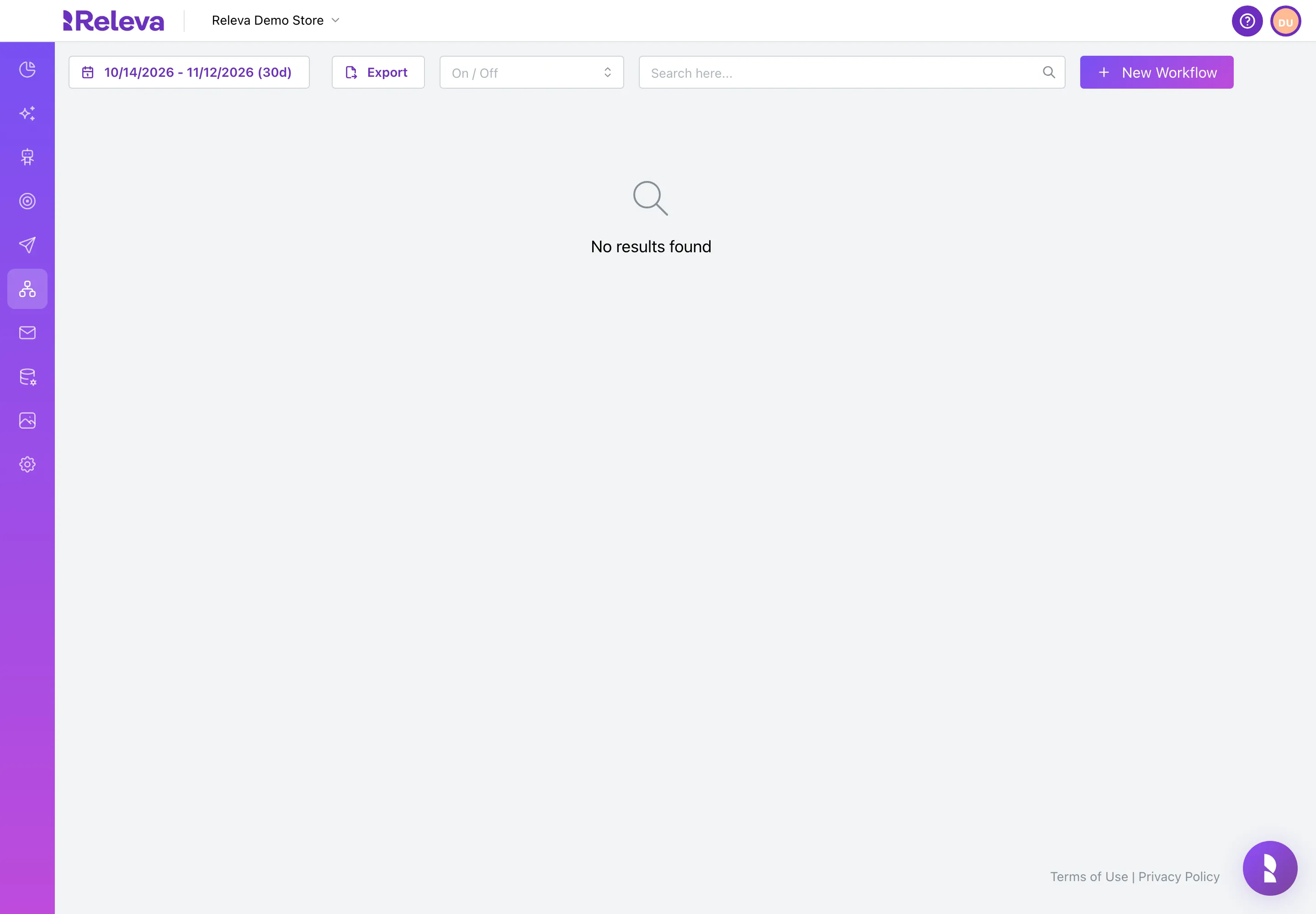
Go to Workflows › Triggered.
-
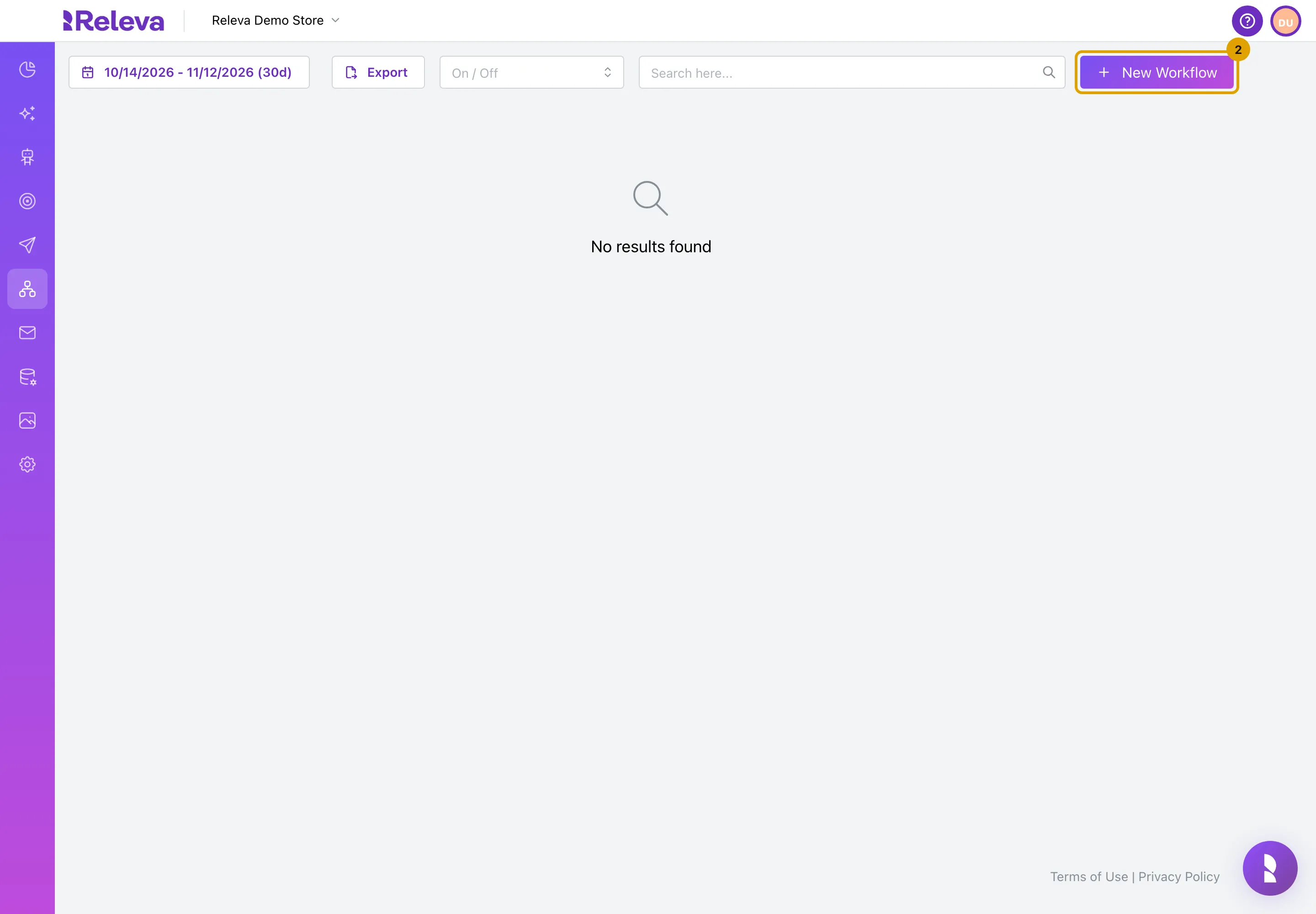
Select New Workflow.
-
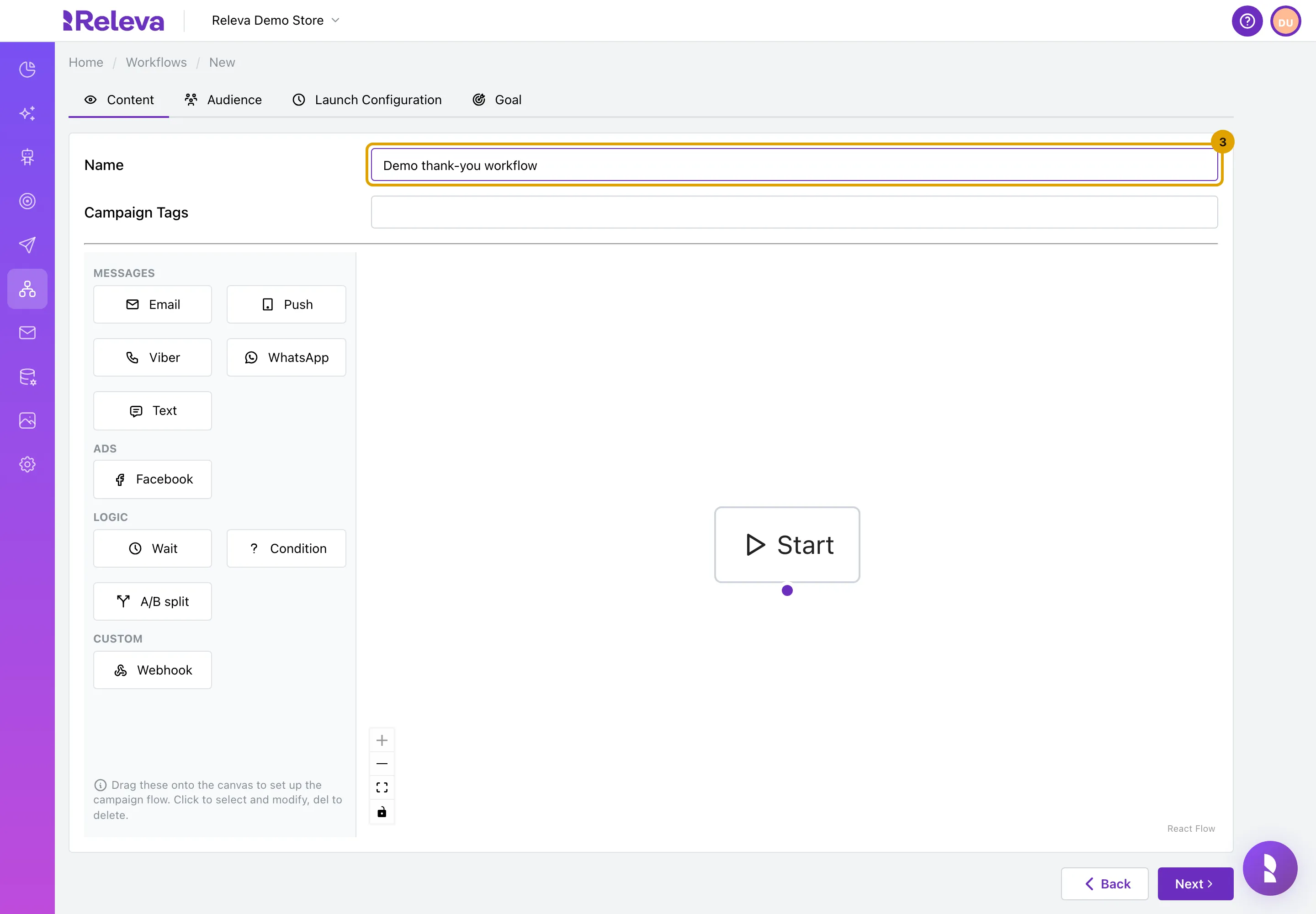
In Name, enter a name your team will recognise, for example Demo thank-you workflow.
-
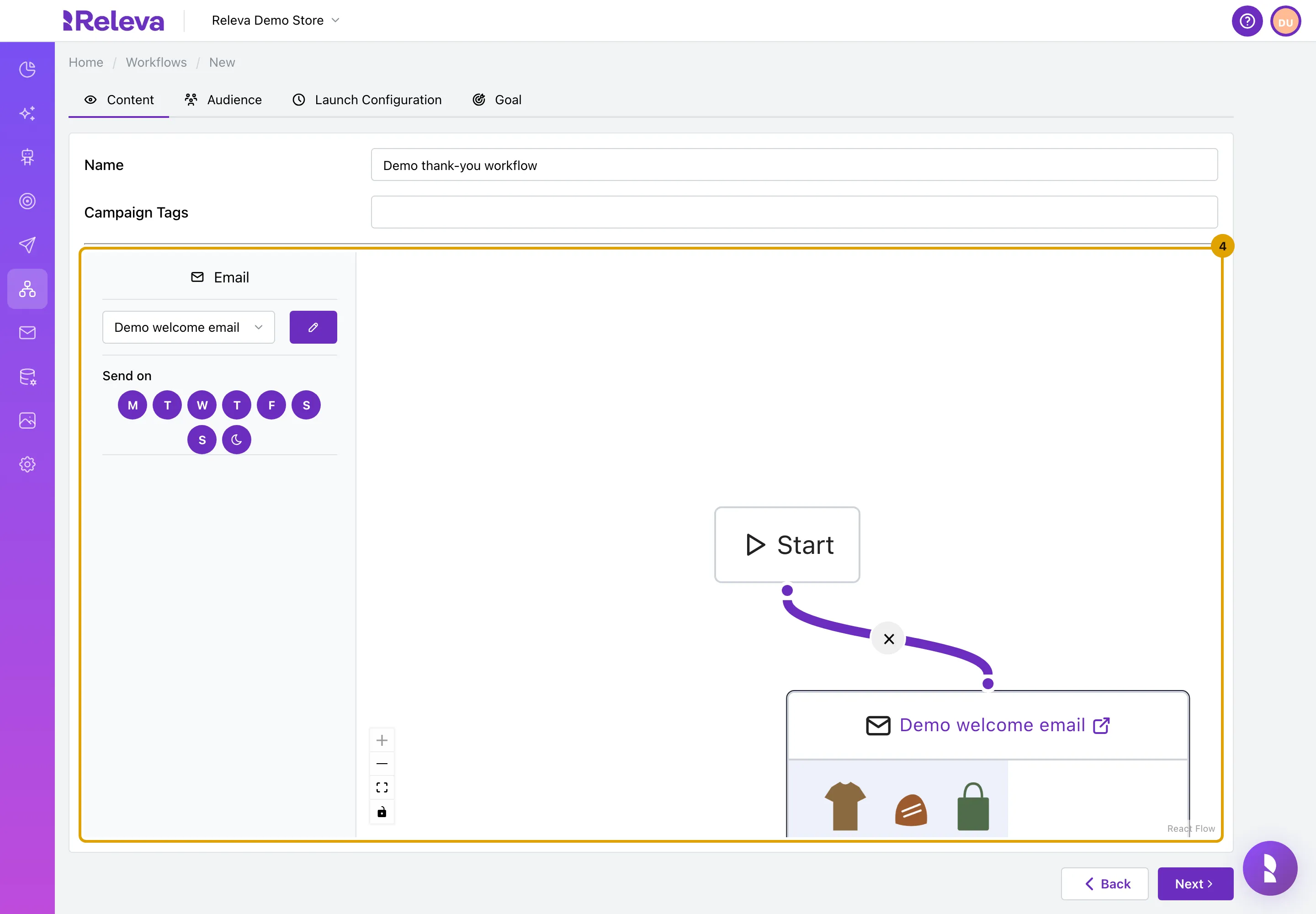
Drag the steps onto the canvas and connect them to Start, as in any workflow. Here an Email step sends a saved email.
Drag Email from the left panel, then drag from the dot under Start to the dot on top of the step. Select the step to pick the email. Create a continuous workflow shows these clicks one by one.
-
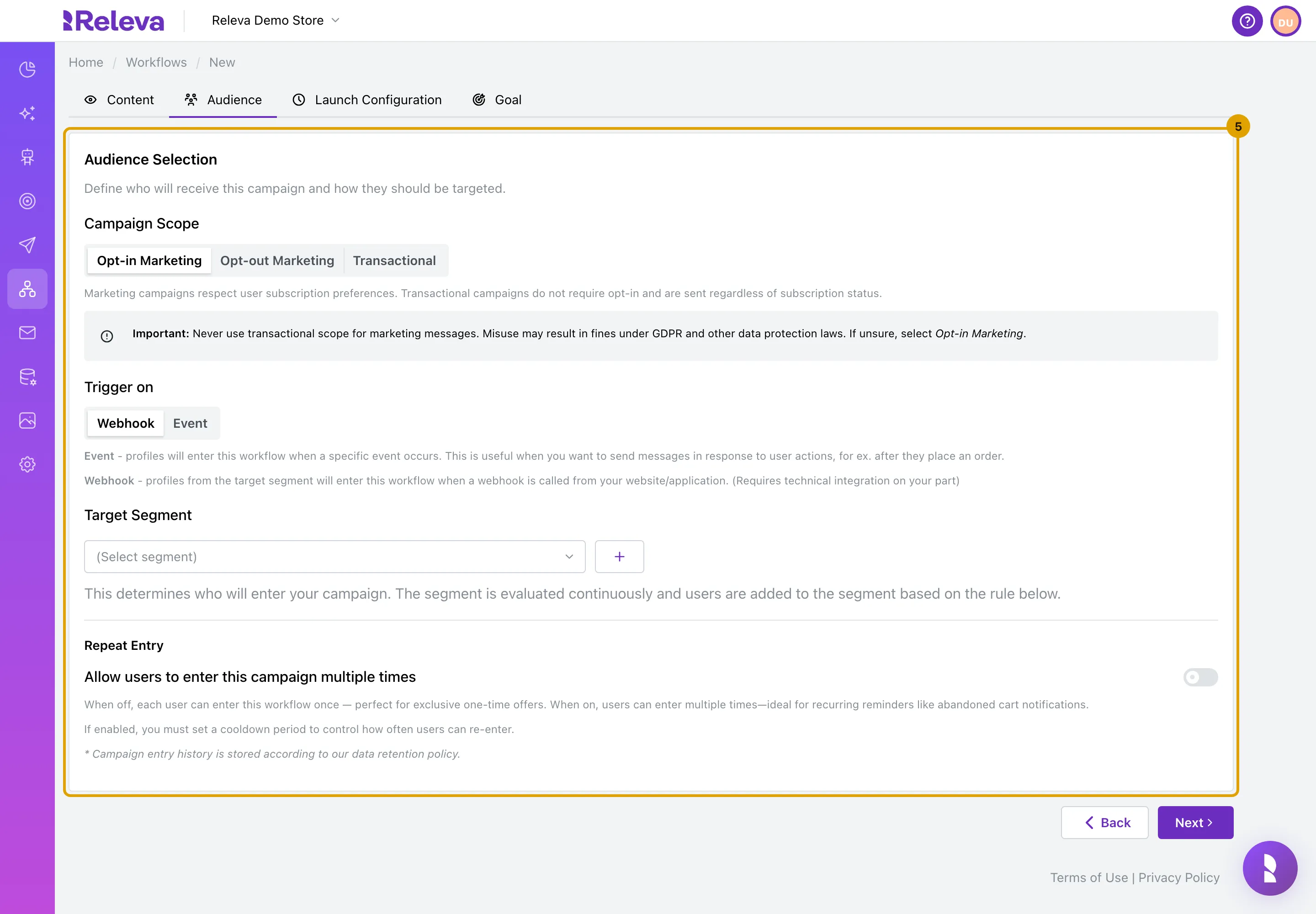
Select Next. On Audience, under Trigger on, choose what starts the workflow.
- Event (the default): a profile enters each time it performs the event you choose on Launch Configuration.
- Webhook: your website or app calls the workflow, and the profiles of the Target Segment enter. This needs work from your developer; see Campaigns API overview.
-
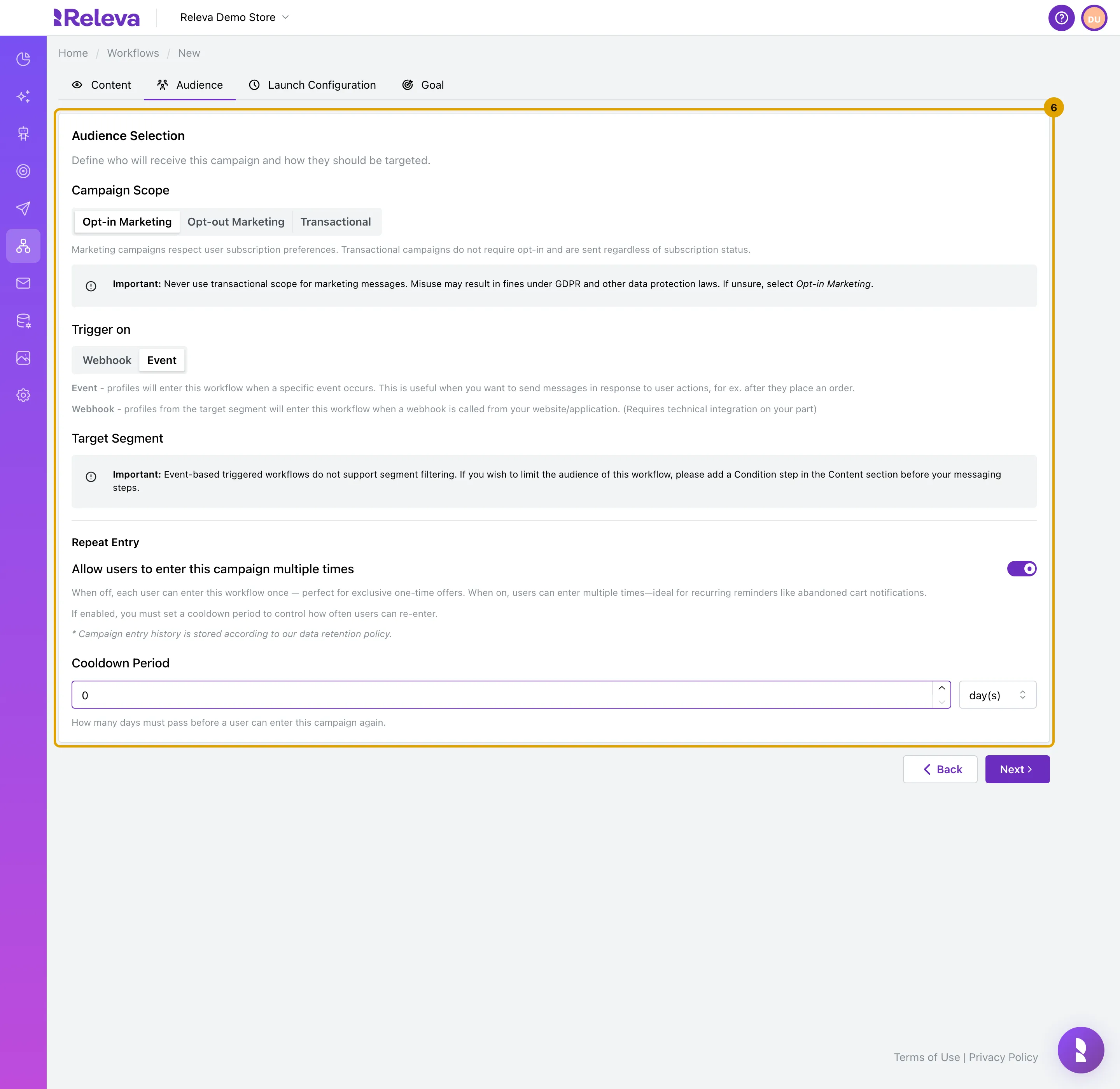
Keep Event, and set Repeat Entry.
An event-triggered workflow has no segment. To limit who gets the messages, add a Condition step before the first message. Turn on Allow users to enter this campaign multiple times to send on every event, for example on every order, and set the Cooldown Period: 0 to 365 day(s), or 3 to 24 hour(s). With it off, each profile goes through the workflow once. Use Transactional scope only for messages the customer expects, such as an order confirmation.
-
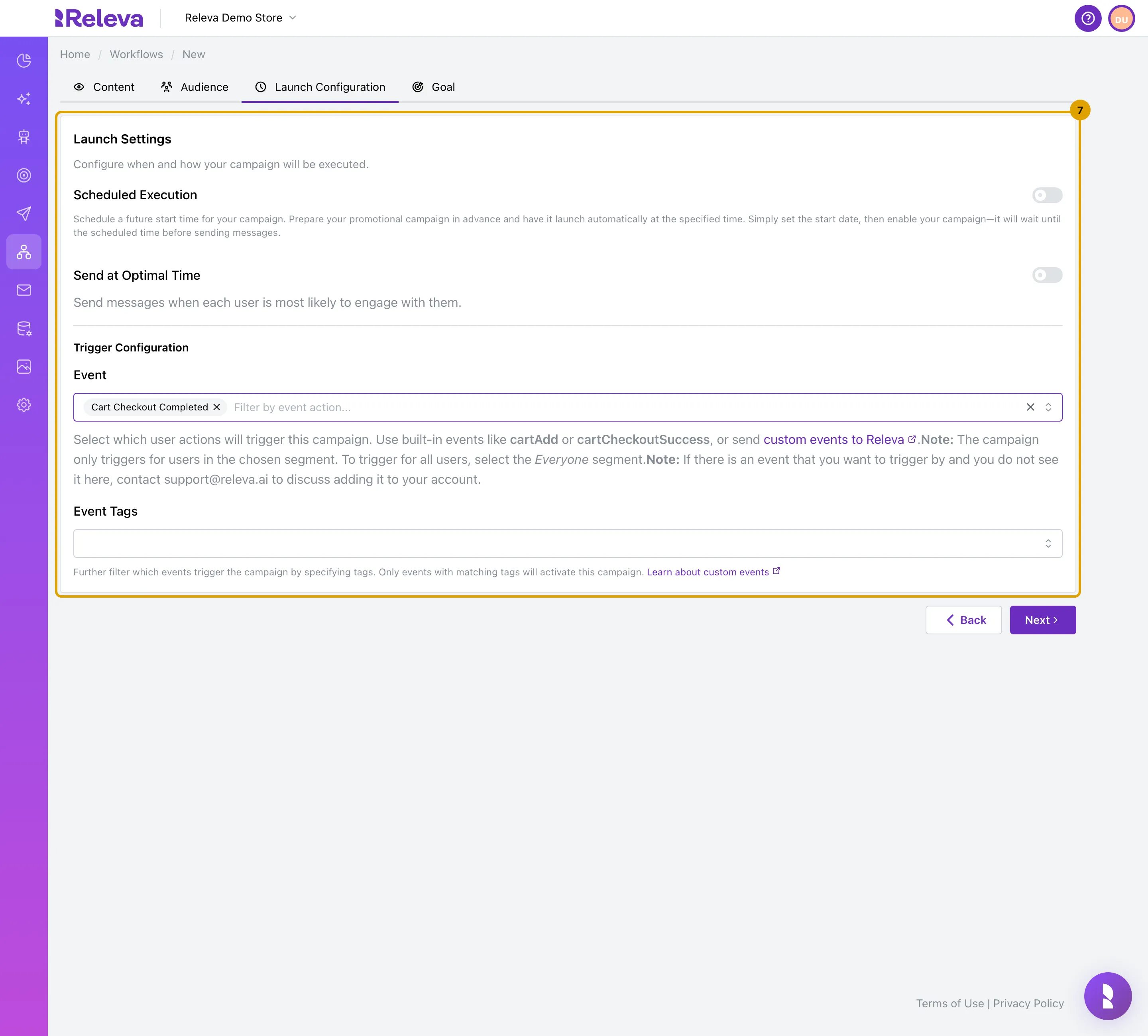
Select Next. On Launch Configuration, under Trigger Configuration, choose the Event that starts the workflow, for example Cart Checkout Completed.
You can pick several events. Custom events your developer sends appear as Custom Event: followed by their name. Event Tags limit the trigger to events that carry those tags. Scheduled Execution sets a future date and time: once you switch the workflow on, it waits until then. Send at Optimal Time sends to each person when they are most likely to engage.
-
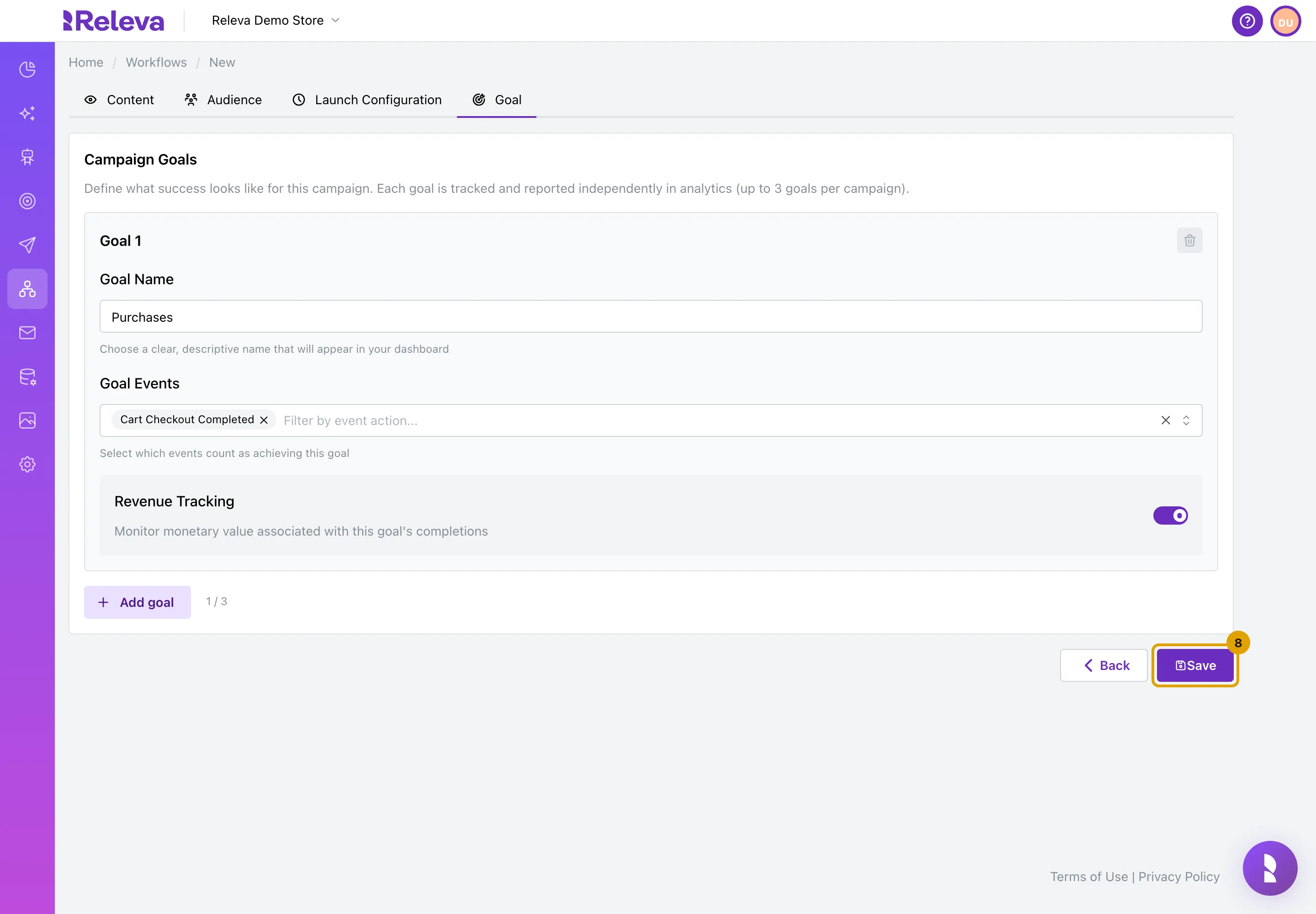
Select Next. On Goal, keep or change the goal, then select Save.
Save stays disabled while the name is empty, a Webhook workflow has no segment, or a Condition step has no rules.
-
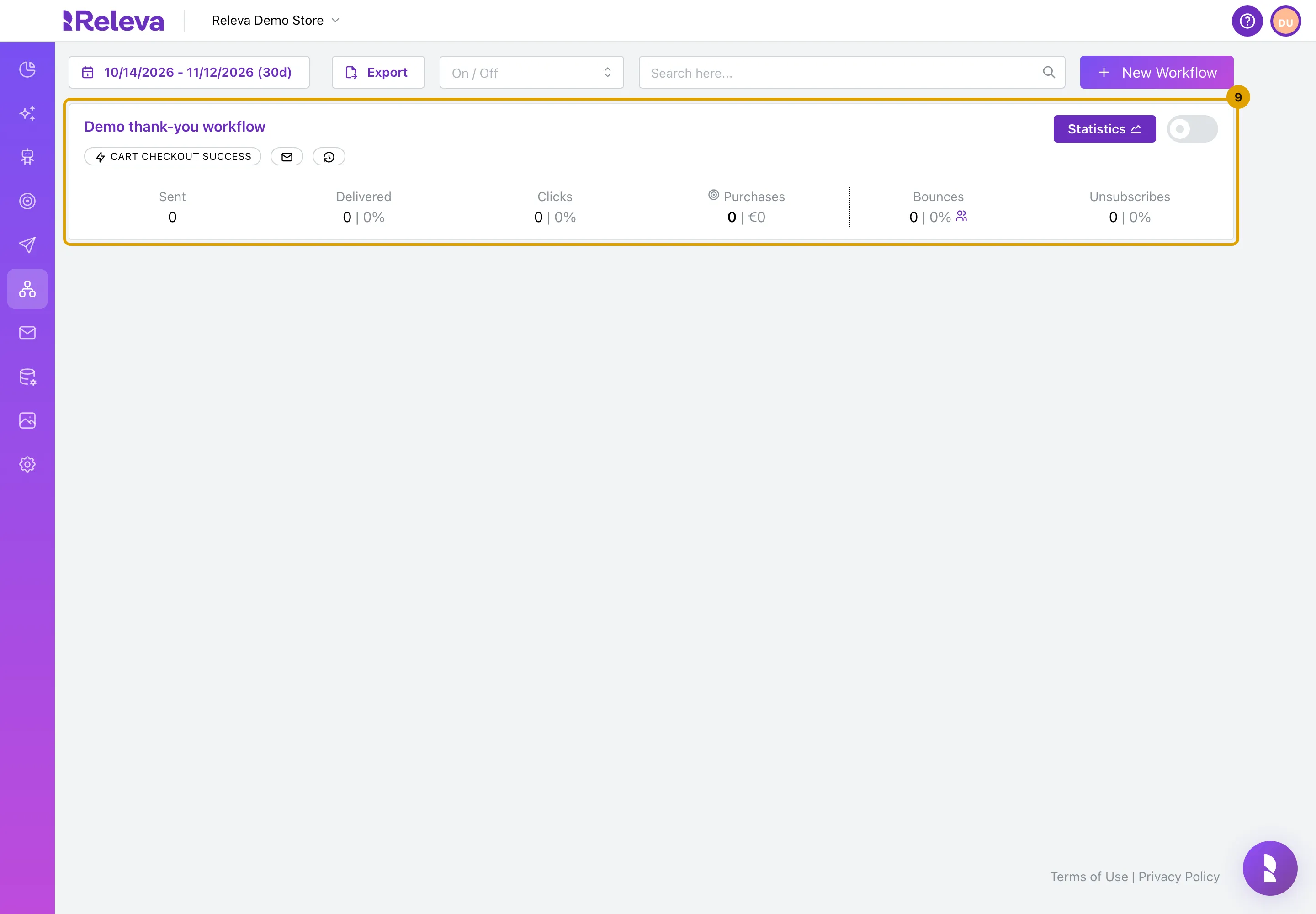
The workflow is saved in the Triggered list, switched off. Turn on its switch to start reacting to the event.
Saving never sends anything.
Check it worked
Section titled “Check it worked”- The workflow is a card on Workflows › Triggered with an icon for each channel, Statistics and an on/off switch. A webhook workflow also shows webhook instructions and a Webhook badge.
- After you switch it on, perform the event on your site with a test profile, then open Statistics to see the send.
Troubleshooting
Section titled “Troubleshooting”The event I want is not in the Event list. Releva has not received that event from your shop yet, or it is a high-frequency event. Send the event once (for example place a test order), reload the page and look again, or contact support@releva.ai.
Save is disabled. The name is empty, a Webhook workflow has no Target Segment, or a Condition step has no rules yet.
My message uses trigger event fields and saving fails. Merge tags with trigger event fields work only in triggered workflows. Remove the message from any one-off or continuous campaign or workflow that also uses it.
The webhook call is accepted but nobody receives a message. The workflow is switched off, the profiles are not in the Target Segment, or their cooldown has not passed yet.
The switch is disabled and “Click tracking not ready - check Click Tracking settings” shows next to it. The click-tracking DNS record for your sender domain is not verified. Add it under Settings › Messaging and try again.