

Create a one-off workflow
A one-off workflow runs once for everyone in a segment when you select Launch. Unlike a one-off campaign, which sends a single e-mail or ad, a workflow can chain several channels with waits, conditions and A/B splits. This guide creates a one-off workflow and saves it switched off, so nothing is sent until you launch it. For the three workflow types and how a workflow runs, read How workflows work.
Before you start
Section titled “Before you start”- You have saved the messages the workflow should send: an e-mail, a push notification, an SMS, a Viber or WhatsApp message, a webhook or a Facebook ad. The editor only picks existing ones. See for example Create a web push notification or Create a webhook.
- You have a Behavior segment of the profiles that should enter the workflow. Only Behavior segments are offered. See Create a segment.
- Your plan includes workflows. If New Workflow shows a lock, ask your account owner to unlock the feature.
- Sending needs the shop’s click-tracking DNS record and, for e-mail, the DKIM record. Launch is blocked for workflows with message steps until the click-tracking record is verified. Email steps do not send until DKIM is verified. The records are listed under Settings › Messaging: click tracking on the General tab, DKIM on the Emails tab. See Set up your email sender and DNS records.
-
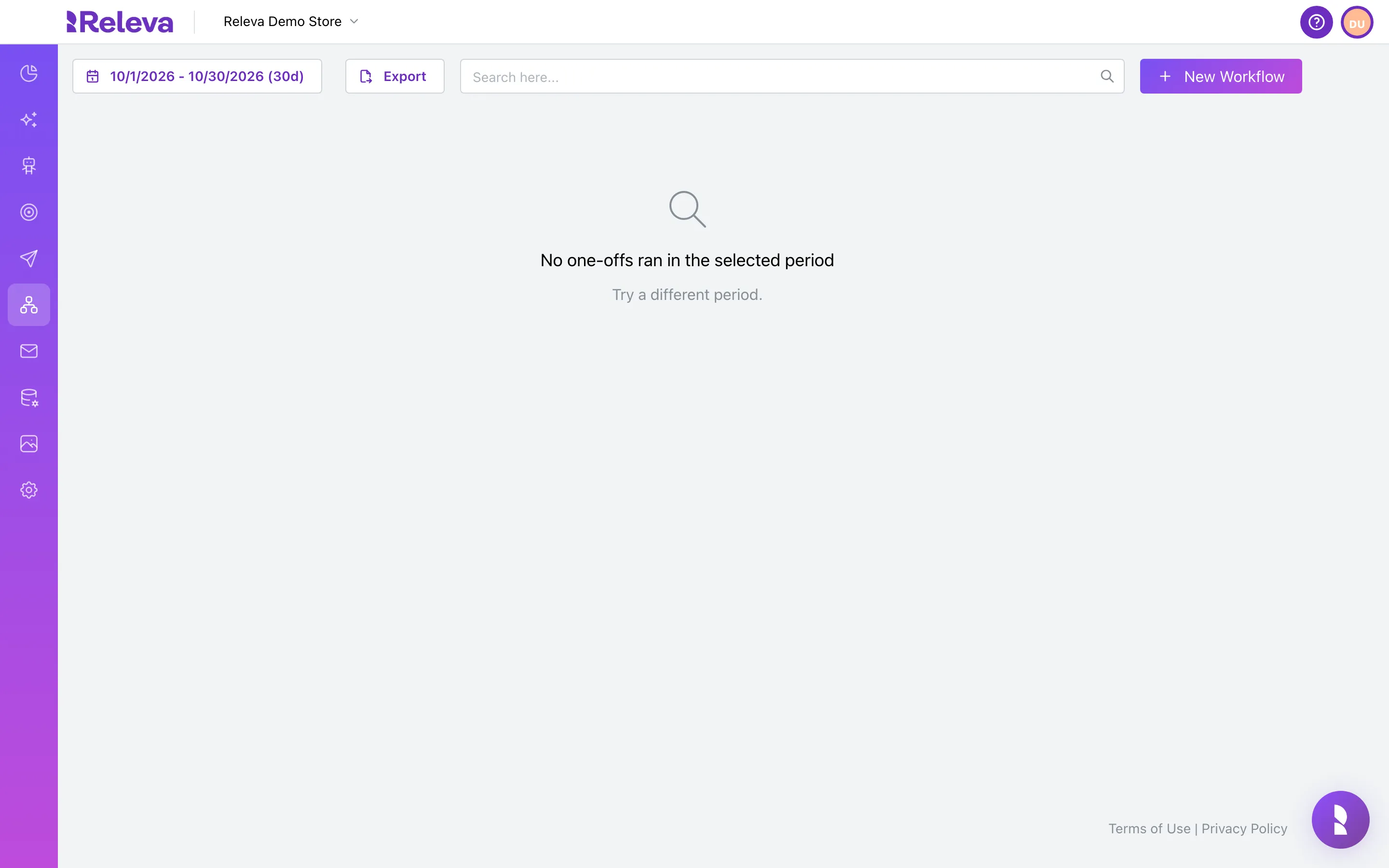
Go to Workflows › One Off
The list shows the one-offs that ran in the selected period plus every draft and scheduled one-off. The default period is the last 30 days.
-
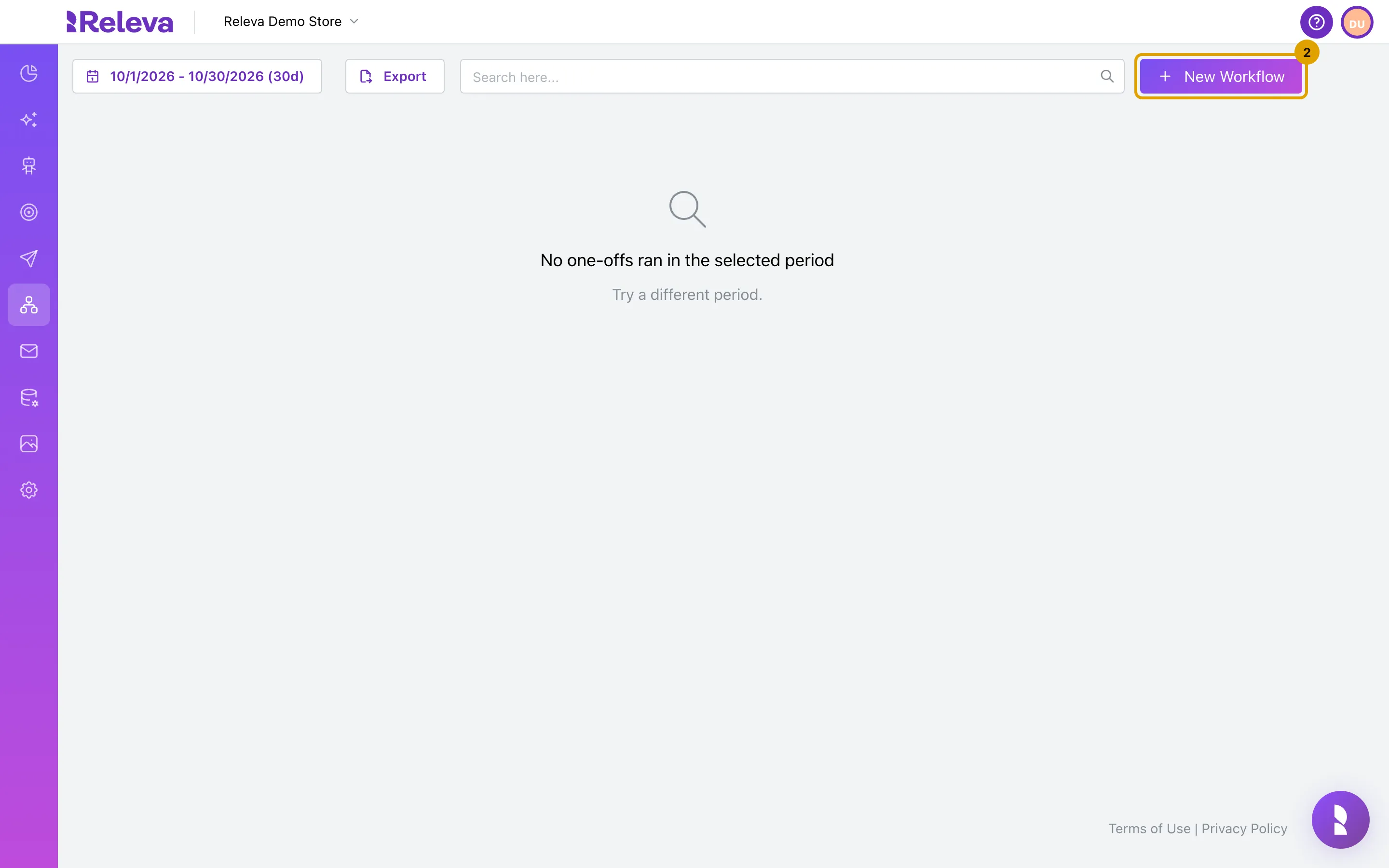
Select New Workflow
-
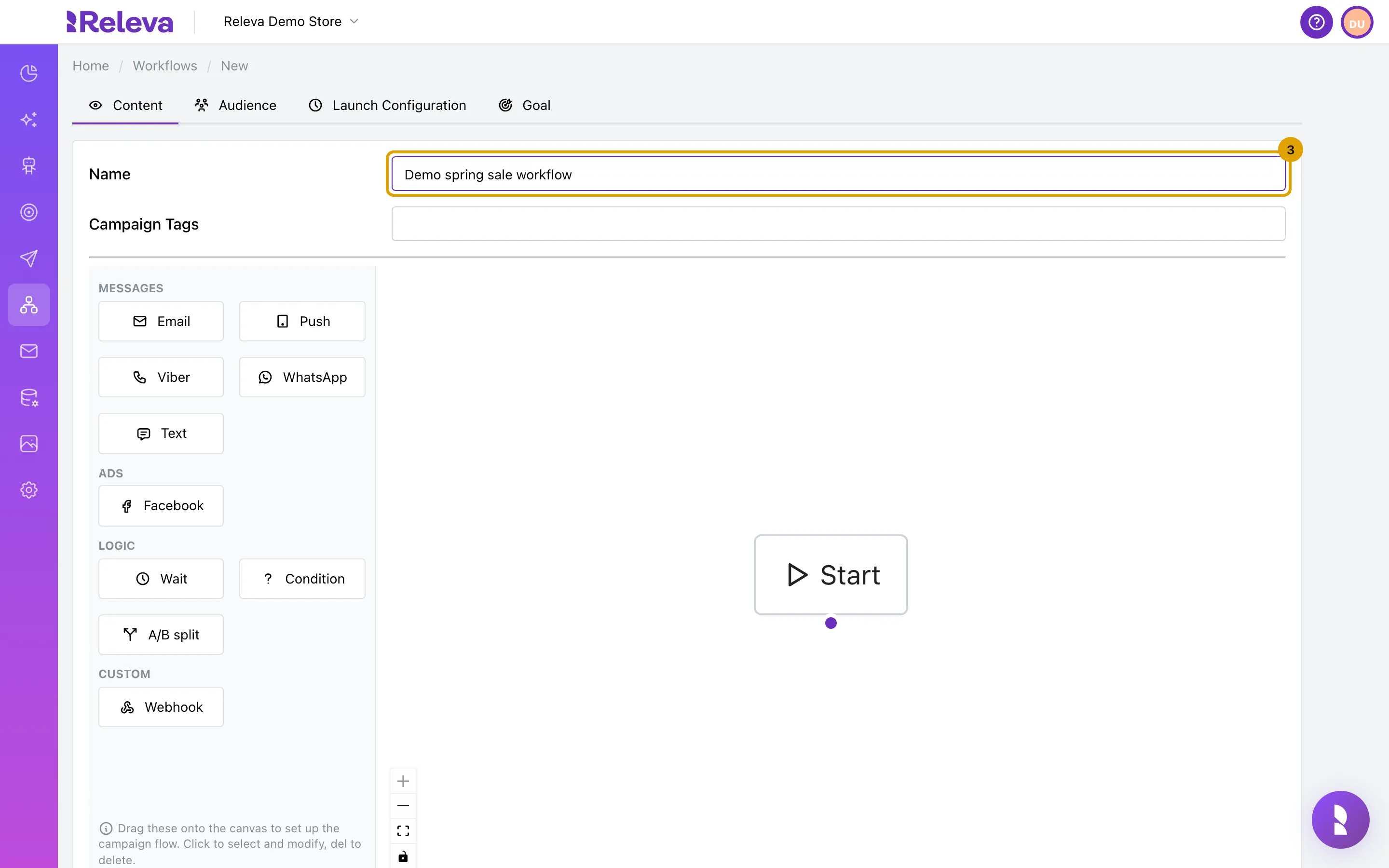
In Name, replace “New workflow” with a name your team will recognise, for example Demo spring sale workflow
Names must be unique in the shop. Campaign Tags are optional labels for your own reporting.
-
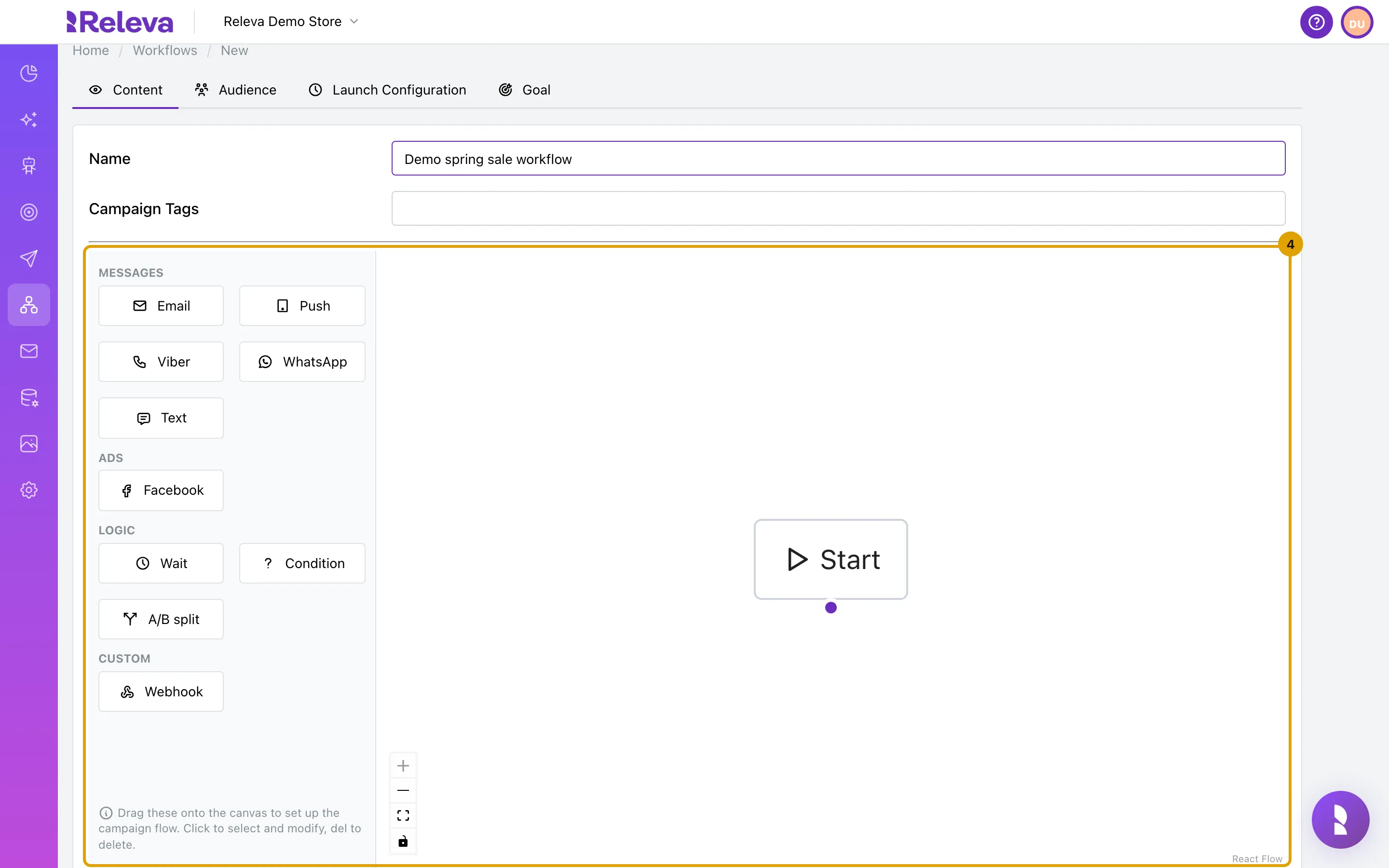
Drag the steps you need from the left panel onto the canvas, then drag from the dot under Start to the top of the first step, and from each step to the next. A step that is not connected never runs
The panel offers MESSAGES (Email, Push, Viber, WhatsApp, Text), ADS (Facebook), LOGIC (Wait, Condition, A/B split) and CUSTOM (Webhook). Select a step on the canvas to pick its message and its Send on days in the panel; press Delete to remove it. The × on a connection removes that connection. This recording leaves the canvas with Start only; Change the steps of a workflow shows a finished canvas.
-
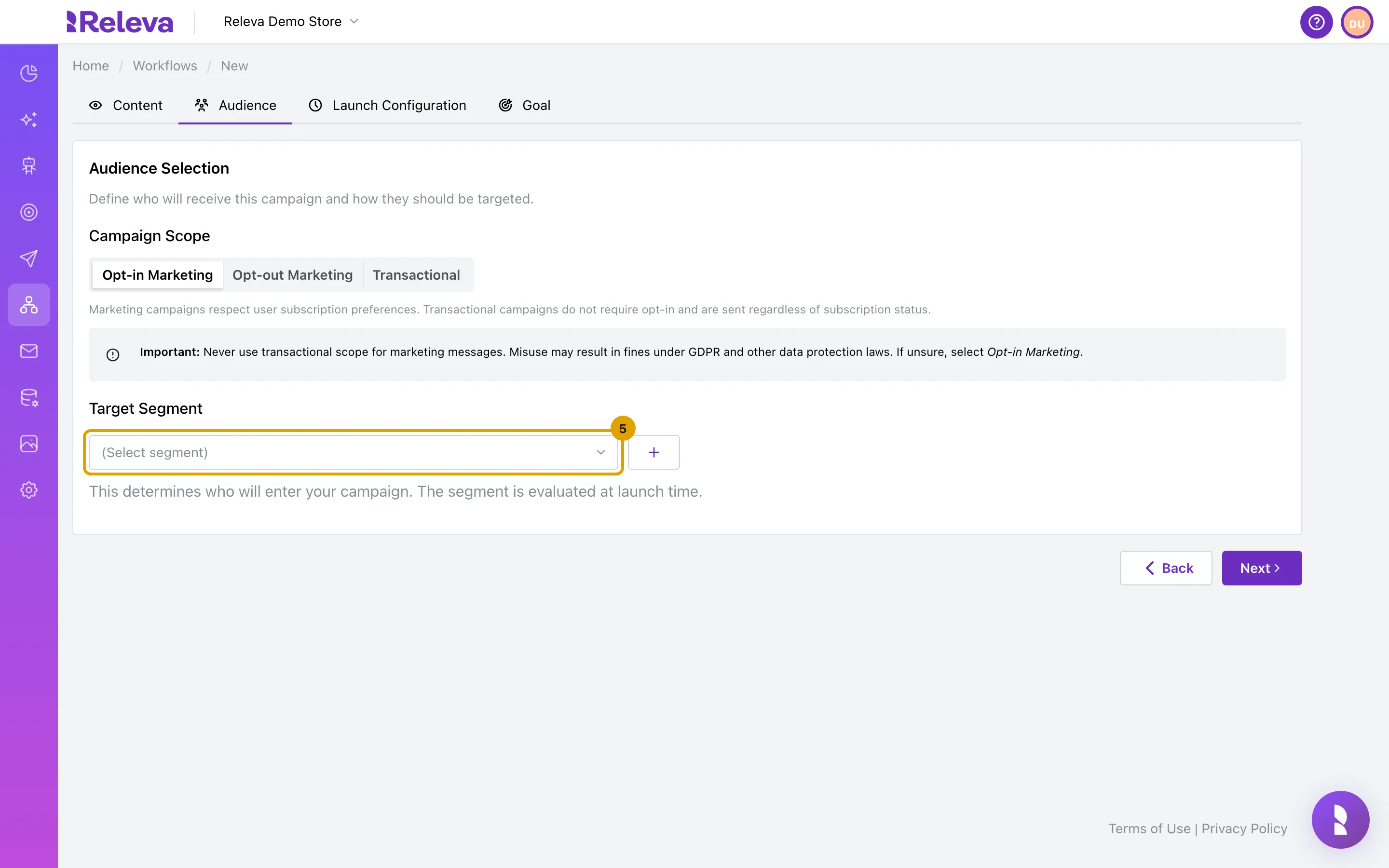
On the Audience tab, leave Campaign Scope on Opt-in Marketing and open Target Segment
Select Next to move between tabs. Opt-in Marketing sends only to profiles that agreed to marketing; Opt-out Marketing sends to everyone who has not unsubscribed; Transactional ignores consent and is only for messages a customer expects, such as order updates. The form repeats the warning: never use transactional scope for marketing messages.
-
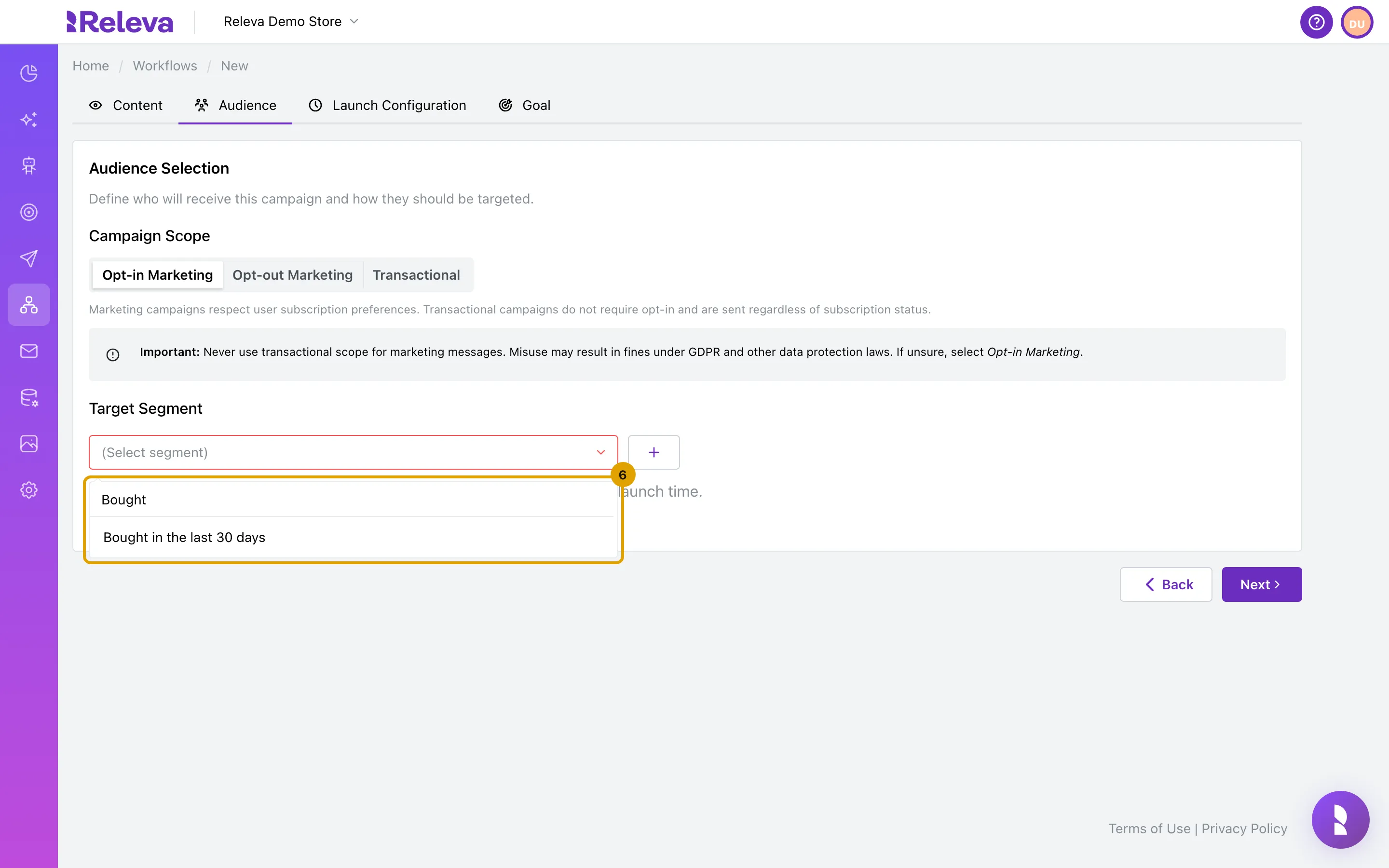
Search for the segment that should receive the workflow, for example Bought in the last 30 days, and select it
A one-off evaluates the segment once, at launch. + creates a new segment without leaving the page; the pencil opens the selected one.
-
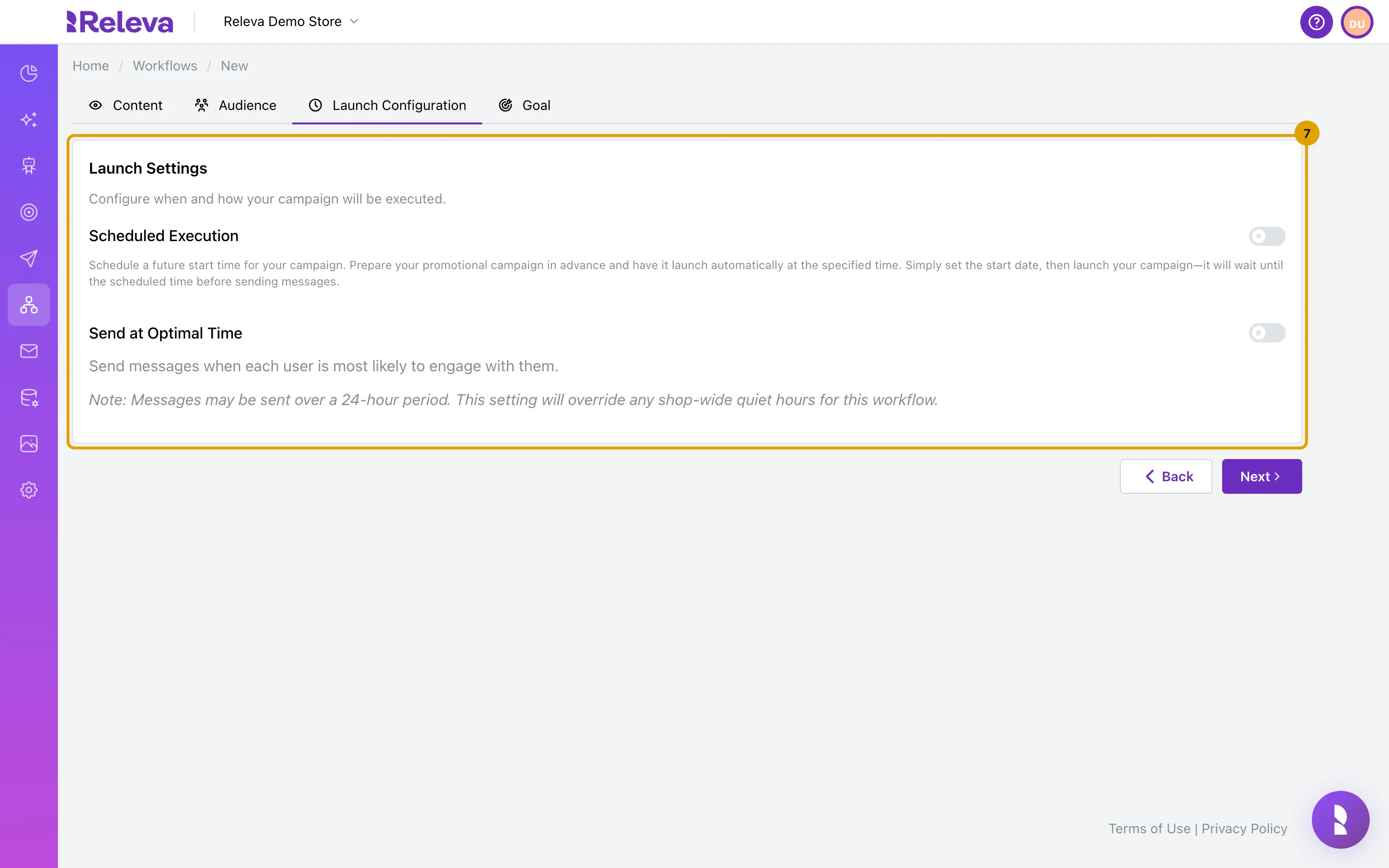
On Launch Configuration, leave Scheduled Execution off to start when you select Launch, or turn it on and set a date and time. Turn on Send at Optimal Time to send to each person when they usually engage
With Send at Optimal Time on, messages may go out over a 24-hour period and the shop’s quiet hours do not apply to this workflow.
-
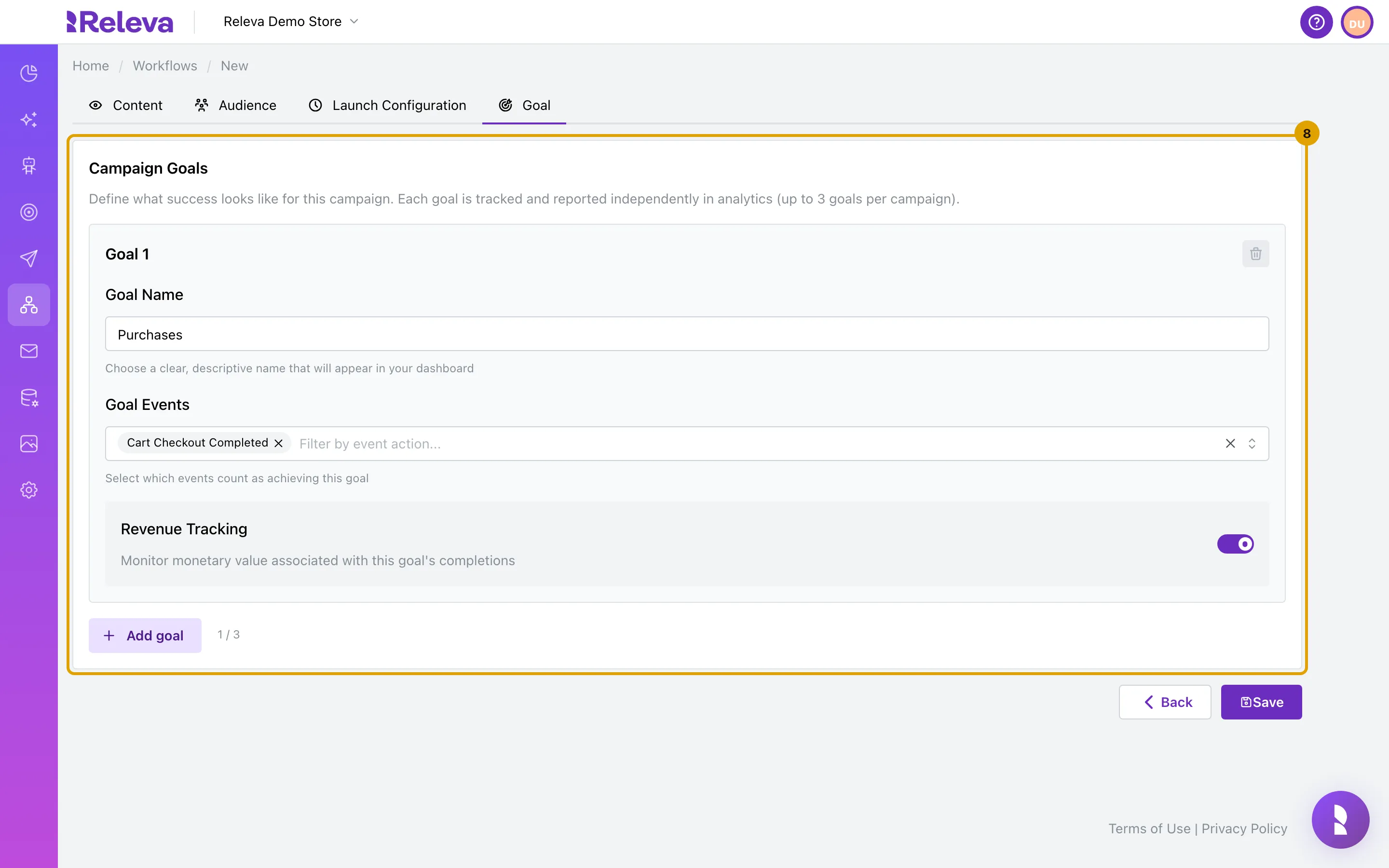
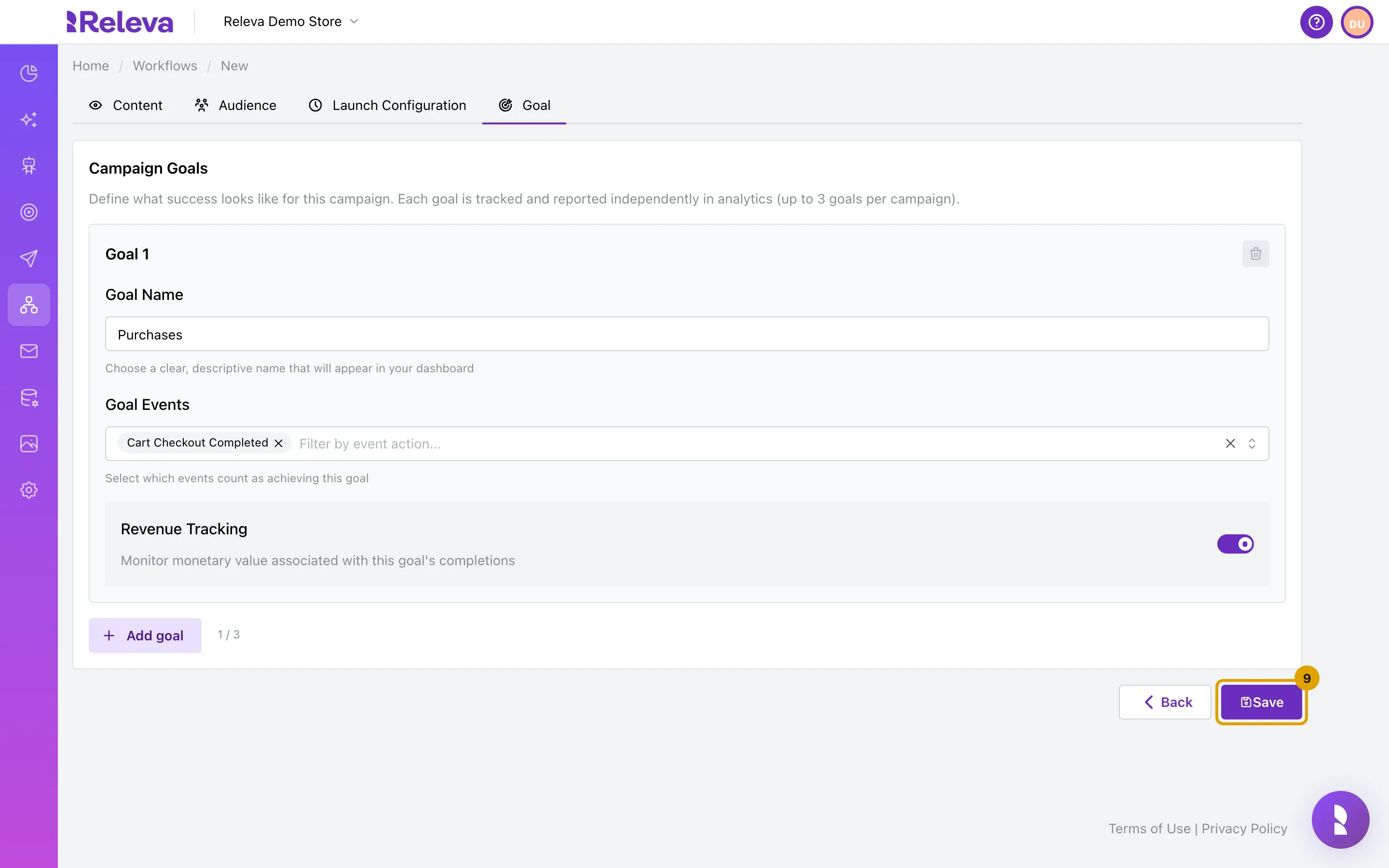
On Goal, keep the Purchases goal or change which events count as success
Each workflow has up to 3 goals. The default goal counts Cart Checkout Completed events and tracks their revenue. Goal names must be unique within the workflow.
-
Select Save
Save stays disabled while the name is empty, no segment is selected or a Condition step has no rules.
-
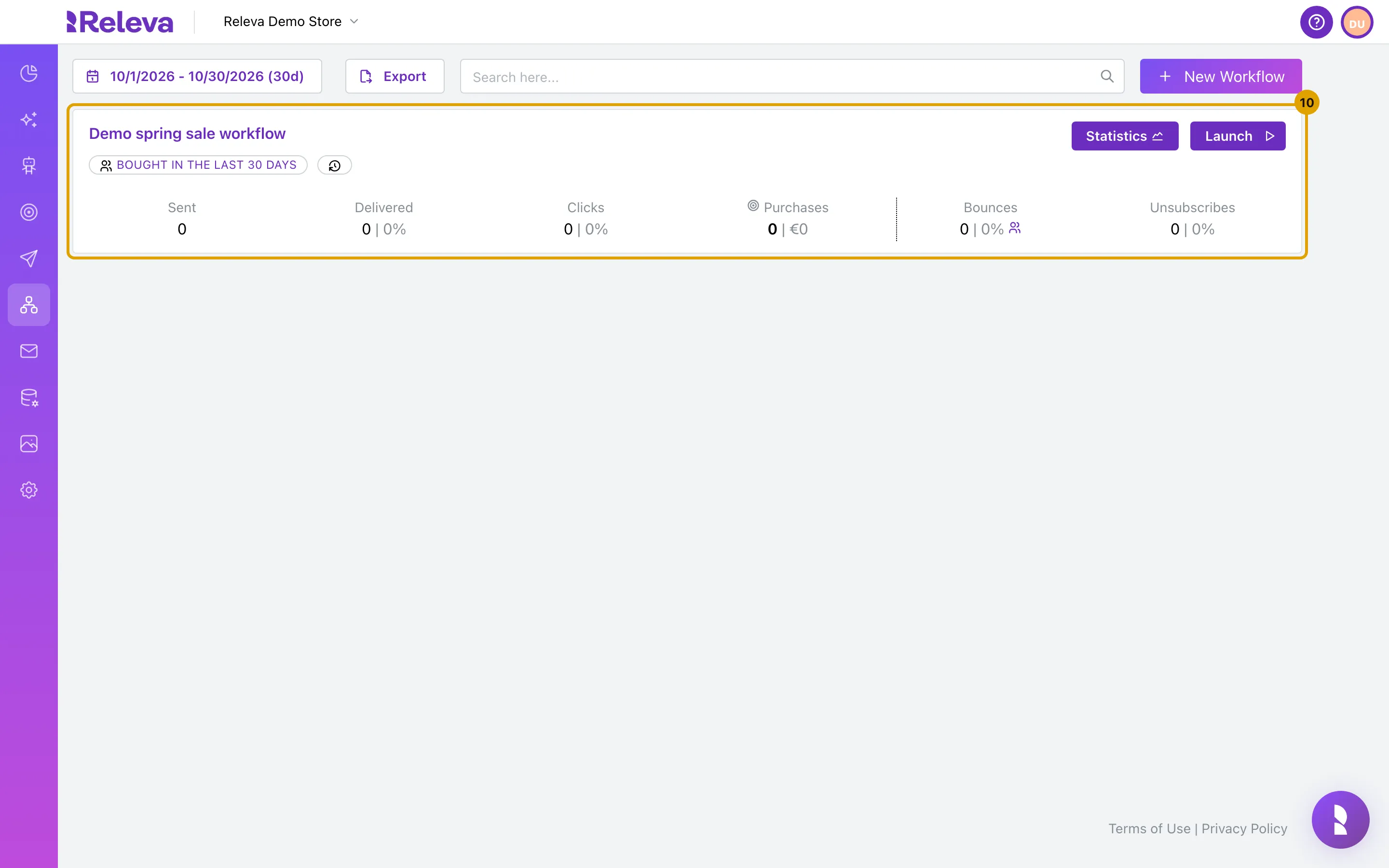
The workflow is saved in the One Off list with a Launch button. Nothing is sent until you select Launch
Check it worked
Section titled “Check it worked”- The new workflow is a card on the Workflows › One Off list with its segment as an upper-case badge, a Statistics button and a Launch button.
- Open the card’s name: the four tabs show the name, canvas, scope, segment, launch options and goal you set.
- Select Launch only when the workflow is ready. Releva then calculates the segment (one hour before the start for a scheduled workflow) and starts the first step for every matching profile; the card changes to Scheduled or Running with an Abort button.
Troubleshooting
Section titled “Troubleshooting”Name must be unique! Another campaign or workflow in this shop already has this name. Change it.
Save is disabled. The name is empty, no Target Segment is selected, or a Condition step on the canvas has no rules yet (select it and use Edit Rules).
We found a problem in your workflow. Some of your steps create a never-ending loop… Two or more steps connect back to an earlier step. Follow each path from Start and remove the connection that closes the circle.
Step “sendEmail” has day-of-week configuration but no days are enabled. A message step has every day under Send on turned off. Select the step and turn at least one day on.
An internal error occurred. when saving a one-off without a segment. Select a segment on the Audience tab and save again.
Launch is replaced by “Click tracking not ready - check Click Tracking settings”. The click-tracking DNS record for your sender domain is not verified and the workflow has a message step with links. Add the record under Settings › Messaging and retry.
A red notice says “Campaign sending is disabled until the click-tracking DNS record is in place for your sender domain” or “Email sending is disabled until the DKIM DNS record is in place for your sender domain”. The record is missing or not verified yet. Add the record shown under Settings › Messaging, then reload the page.
Calculate Segment shows no number. The estimate failed. It does not affect the saved workflow; try again later.
A step did not send. It is not connected to the step before it. Only steps reachable from Start run.