

Create a segment
A segment is a saved set of rules that picks profiles. Campaigns, workflows, product blocks, banners and segment syncs target segments. This guide creates a Behavior segment of everyone who added a product to their cart in the last 7 days. For what the four scopes mean and how rules combine, read How segments work.
Before you start
Section titled “Before you start”- Your shop tracks events. A Behavior segment is built from tracked actions such as page views, cart additions and purchases, so a shop with no events gives an empty segment.
- Your plan includes creating segments. If New segment or Save shows a lock, ask your account owner to unlock it.
- You know who should be in the segment: which action, and in which period.
Pick a segment type
Section titled “Pick a segment type”The Scope you choose decides what the rules can describe and where you can use the segment. You cannot change it after you save.
| Scope | Rules you build | Use it for |
|---|---|---|
| Behavior | Actions over time from your tracked events and profiles, such as Added to cart or Purchased, with filters such as Days ago. | Campaigns, workflows, segment syncs, Facebook product sets, and the audience of product blocks, banners and stories. Only this scope shows a profile count and a sample while you build it. This guide uses it. |
| Profile filter | A short list of rules about one visitor, such as Has products in cart, Registered, Subscribed, Clicked product block and Profile Attributes. | The Profile filter of product blocks, banners and stories. |
| An audience in your Meta ad account, from Audience Rules, Segment Lookalikes or Page Fans Lookalikes. | Facebook ad campaigns. | |
| A user list in your Google Ads account, from Audience Rules for Web Page Visitors or Conversion Actions. | Google ad campaigns. |
A Facebook or Google segment needs at least one rule before you can save it, and its rules cannot be changed after the first save. For more on each scope, read How segments work.
-
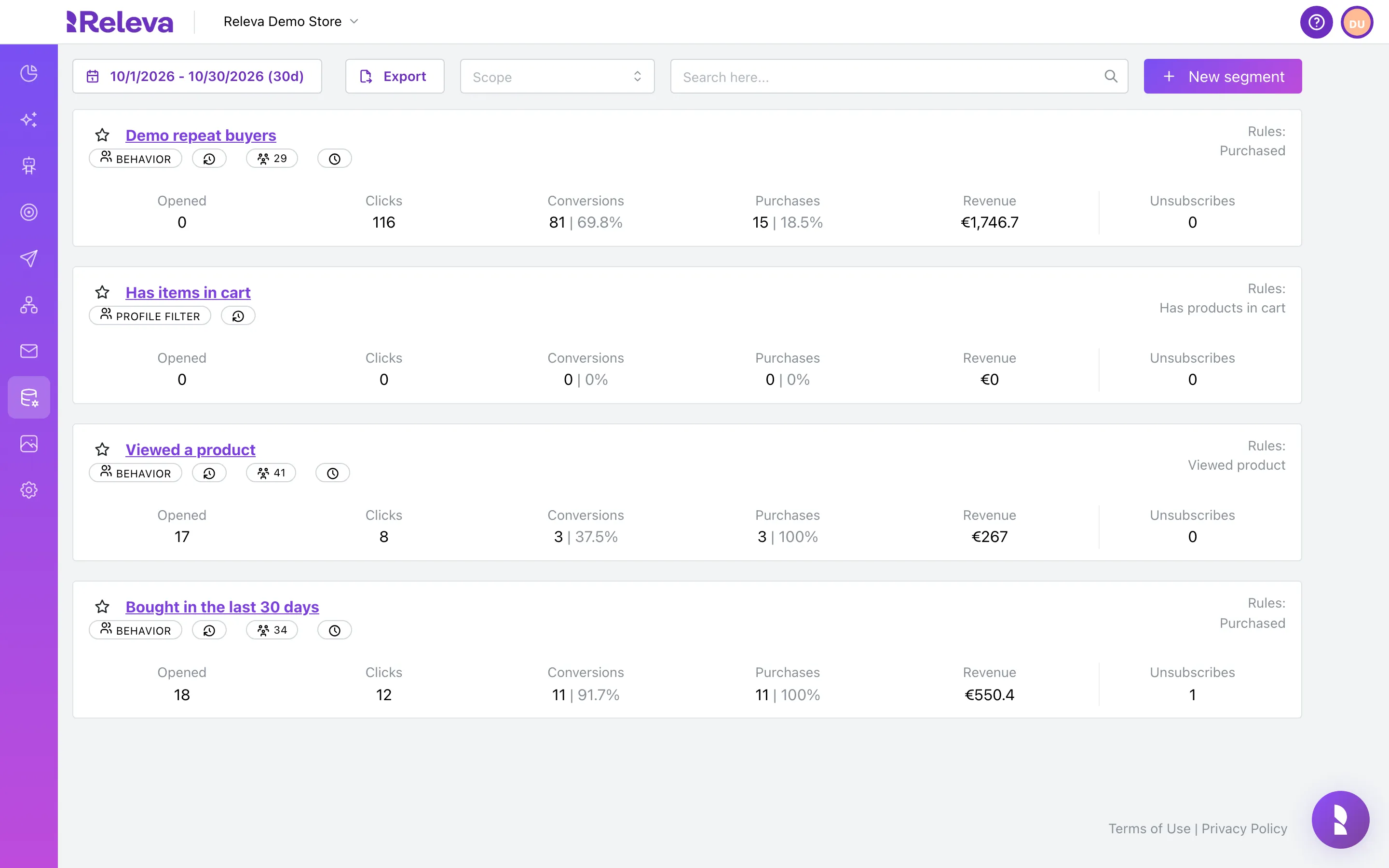
Go to Data Platform › Segments.
-
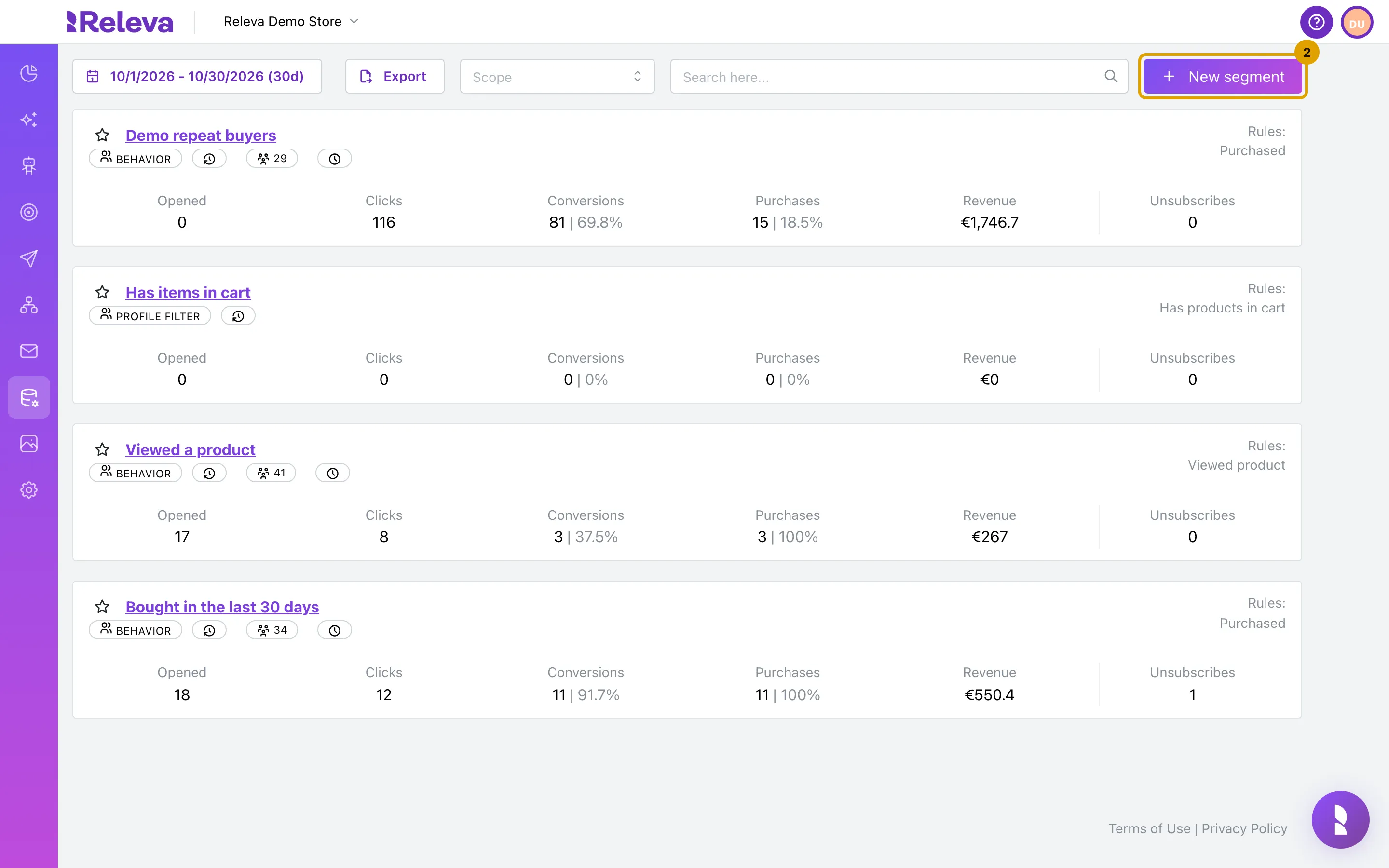
Select New segment.
-
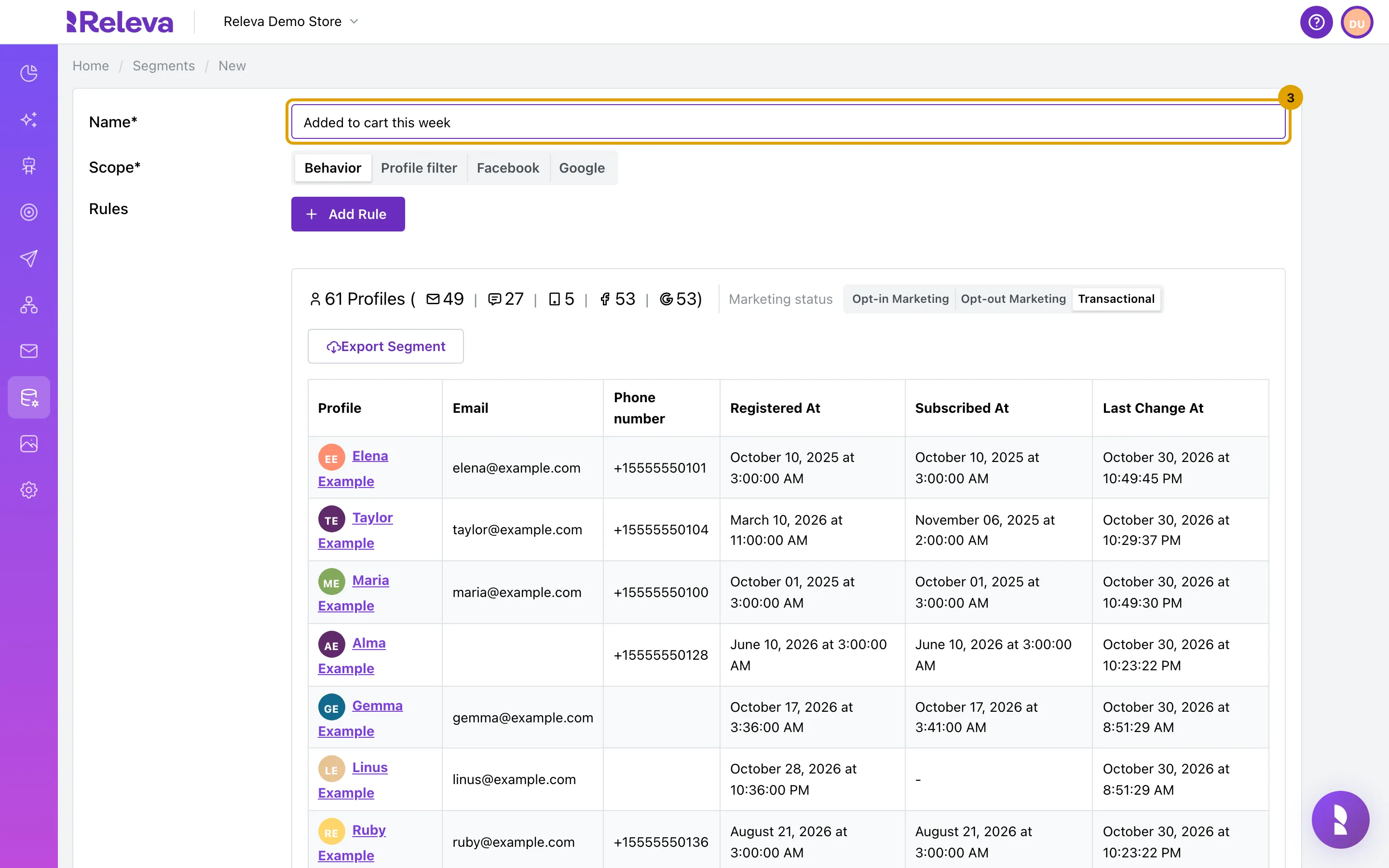
In Name, replace “New segment” with a name that says who is in the segment.
Names do not have to be unique, so pick one you can find again. Save stays disabled while the name is empty.
The counter below the form already shows a count and a sample. A segment with no rules matches every profile, so ignore these numbers until you have added your rules.
-
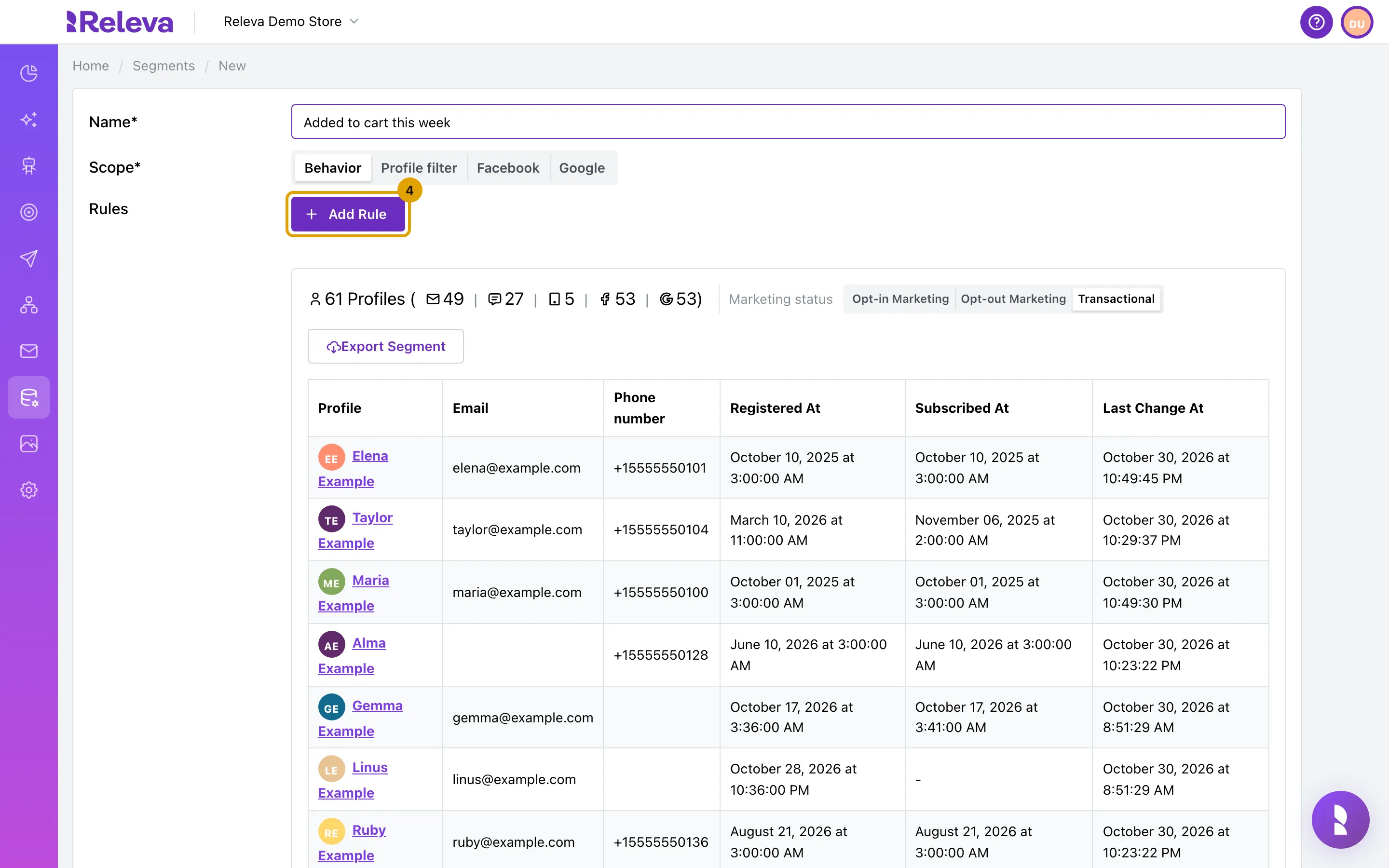
Leave Scope on Behavior and select Add Rule.
Choose the scope before you add rules: switching scope removes every rule, and you cannot change the scope once the segment is saved.
-
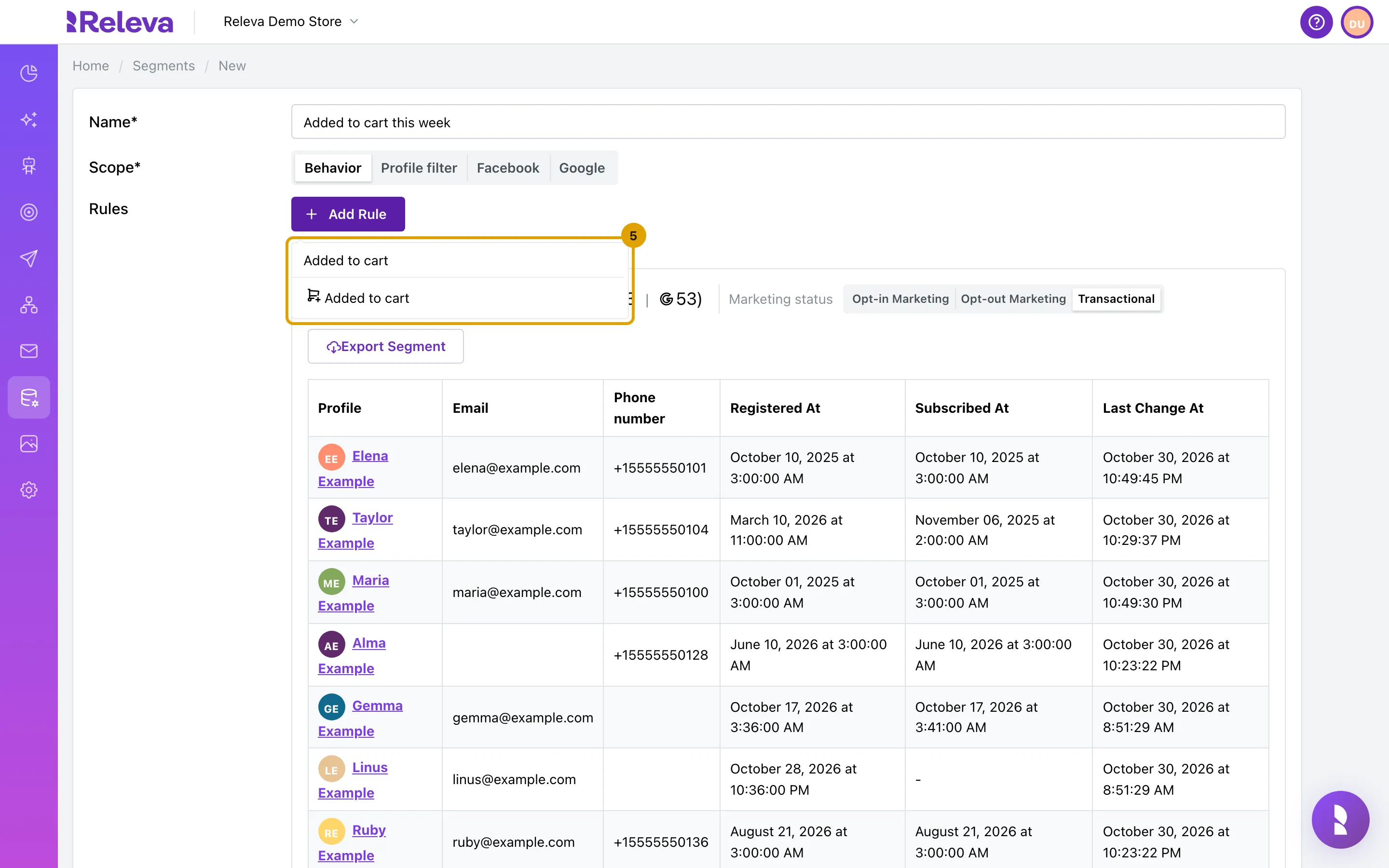
Type the action to search for, for example Added to cart, and select it in the list.
The list shows every tracked action and profile property Releva can segment on. A new rule is added above the existing ones and opens expanded.
-
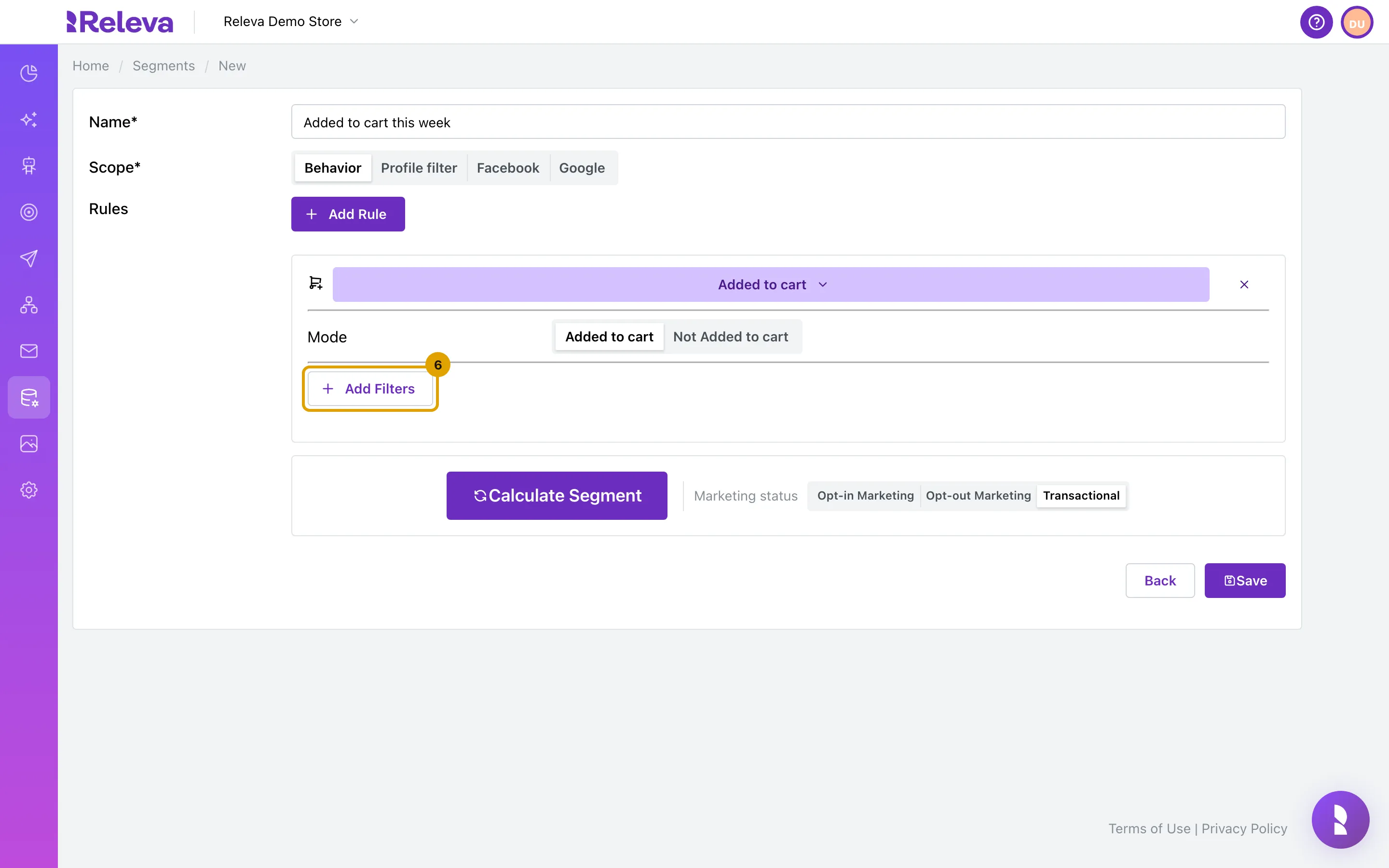
In the rule, select Add Filters.
Mode is set to the action itself. Choose Not Added to cart instead to pick the profiles that did not perform it.
-
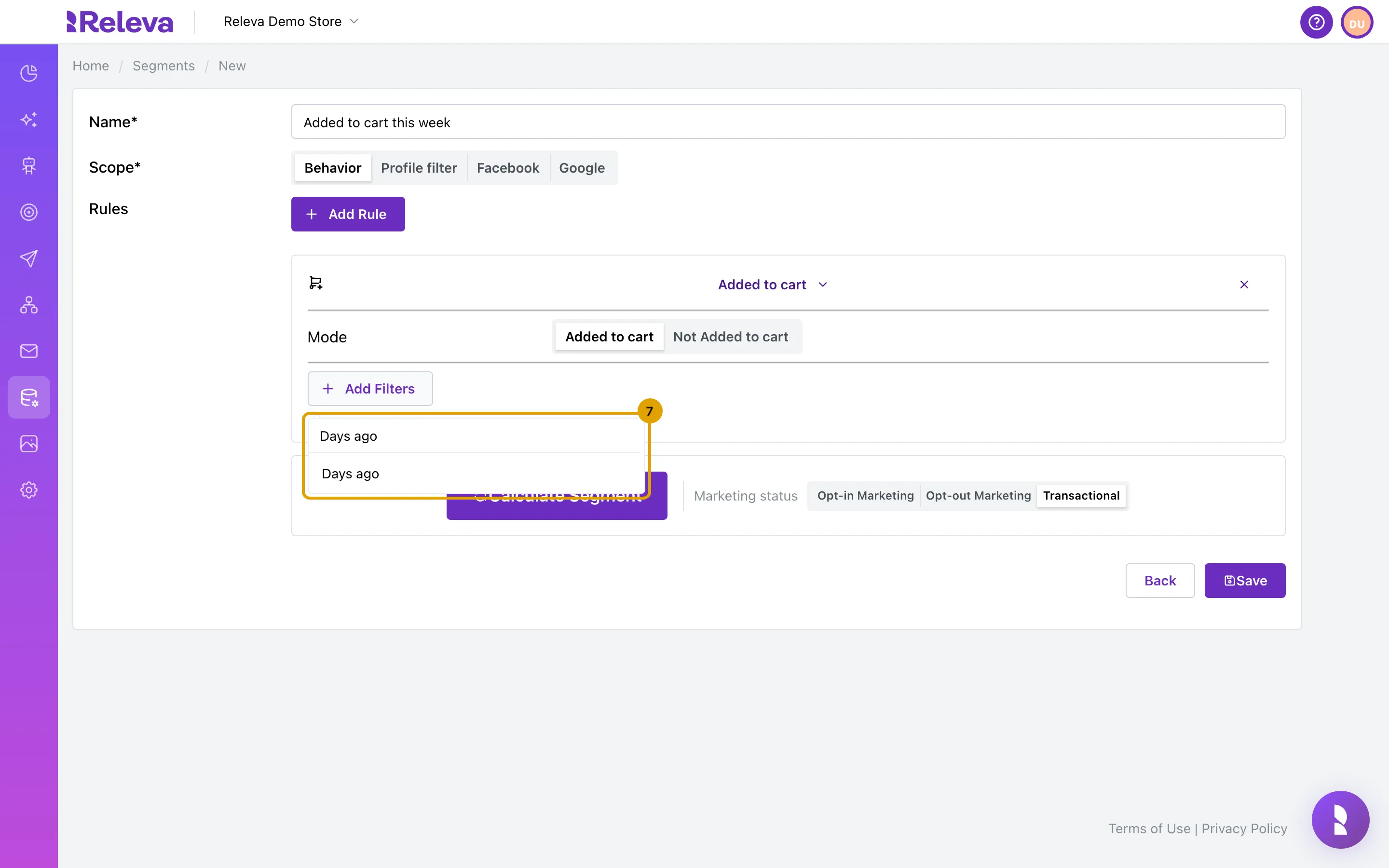
Search for Days ago and select it.
Each rule has its own filters, such as Count, Days ago, Hours ago, Categories or Product Id. A rule without filters matches the action at any time.
-
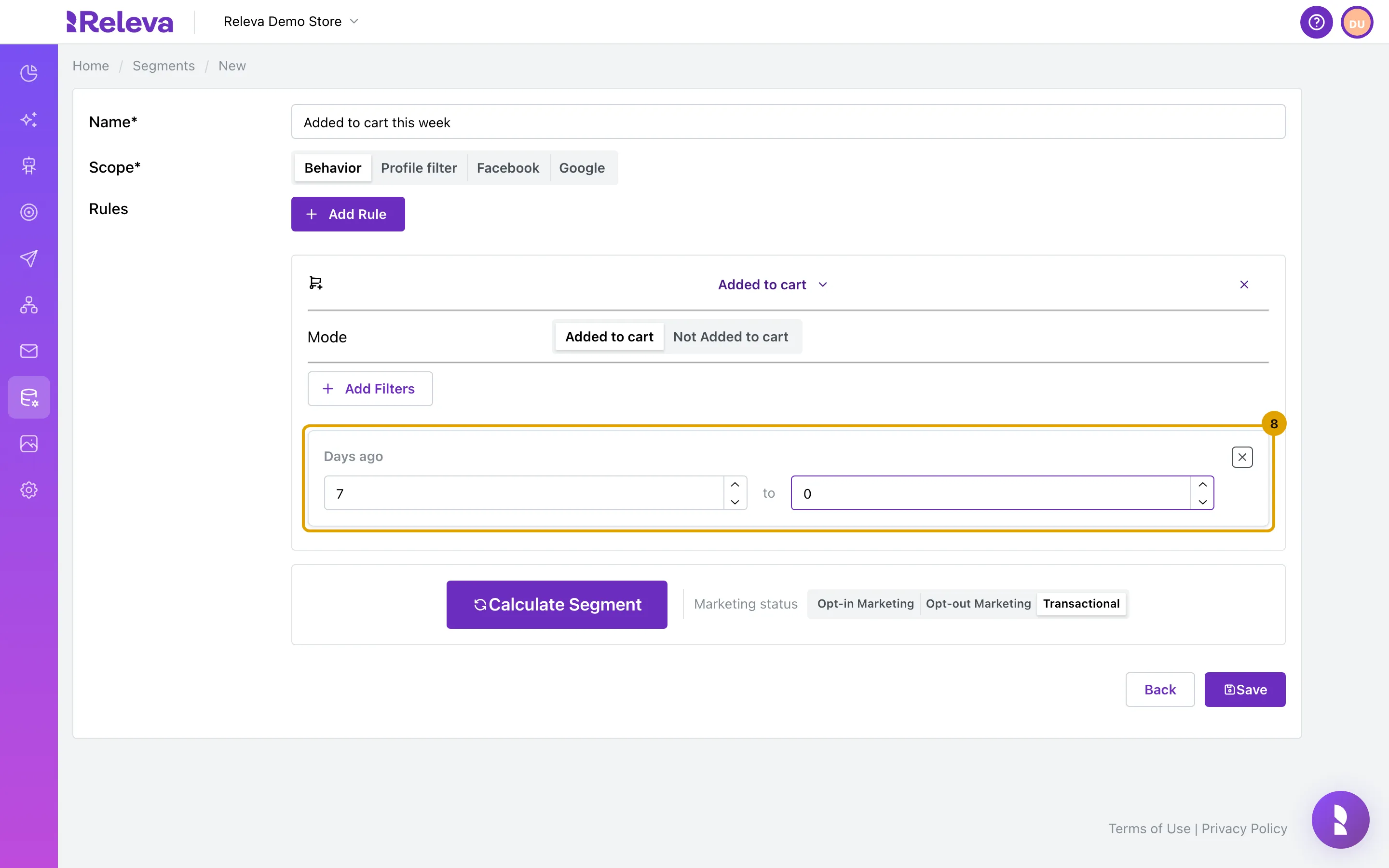
In Days ago, enter 7 and 0 to keep only the last 7 days.
The first box is the older end of the period and the second is the newer one; 0 means today.
-
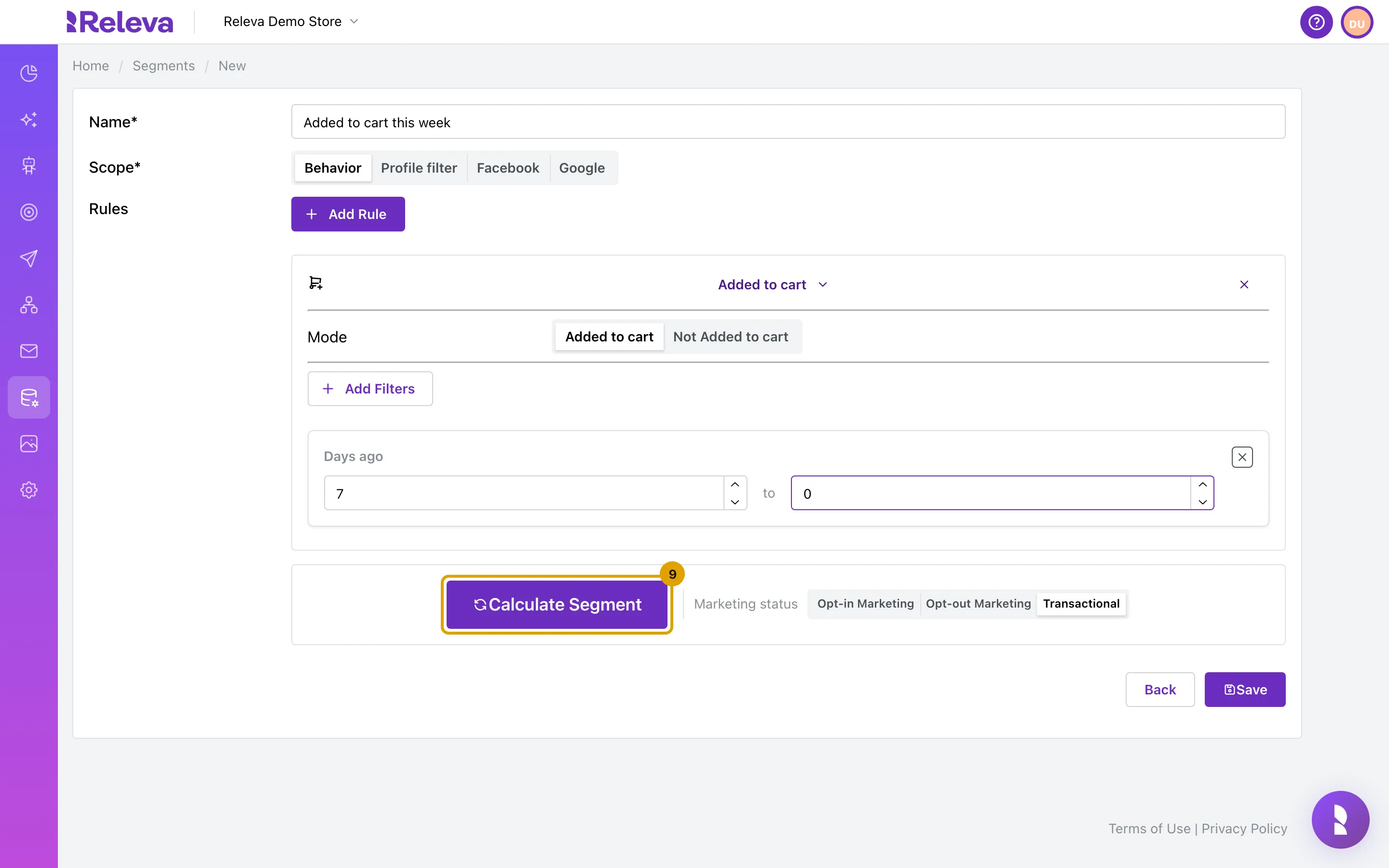
Select Calculate Segment.
The count clears whenever you change a rule or a filter. Select Calculate Segment again to see the result for the new rules. While it runs, the button reads Calculating…. The estimate is optional and does not change what is saved.
-
Read the count line.
The first number is every profile that matches the rules. The numbers in brackets show how many of those profiles you can reach on each channel, from left to right:
Icon Channel Counted when the profile Envelope Email has an email address that is not bouncing, complaining or suppressed Speech bubble SMS has a phone number Tablet Push has a web push subscription or an app push token Facebook logo Facebook has an email address or a phone number Google logo Google has an email address, a phone number or a Google Analytics device 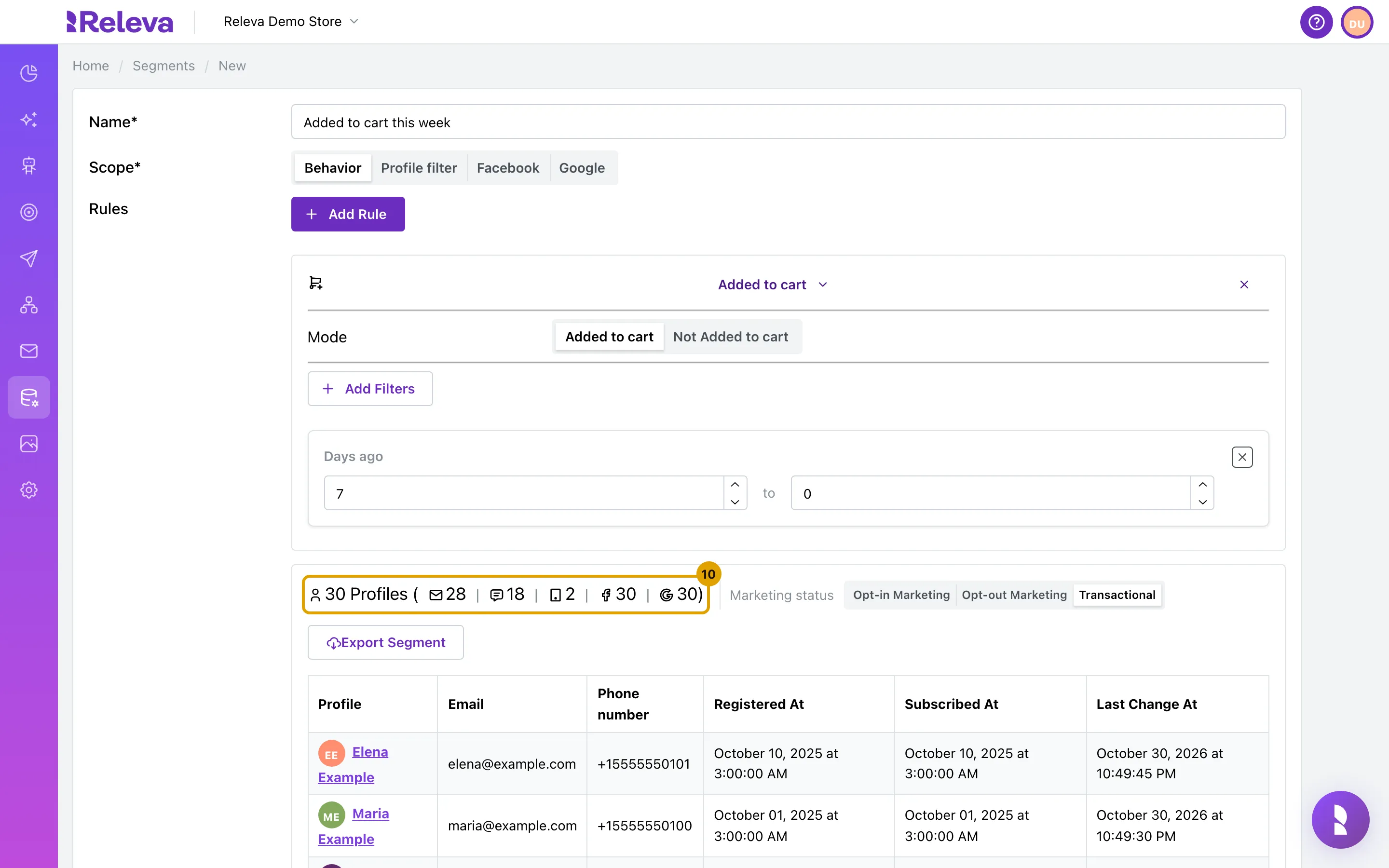
-
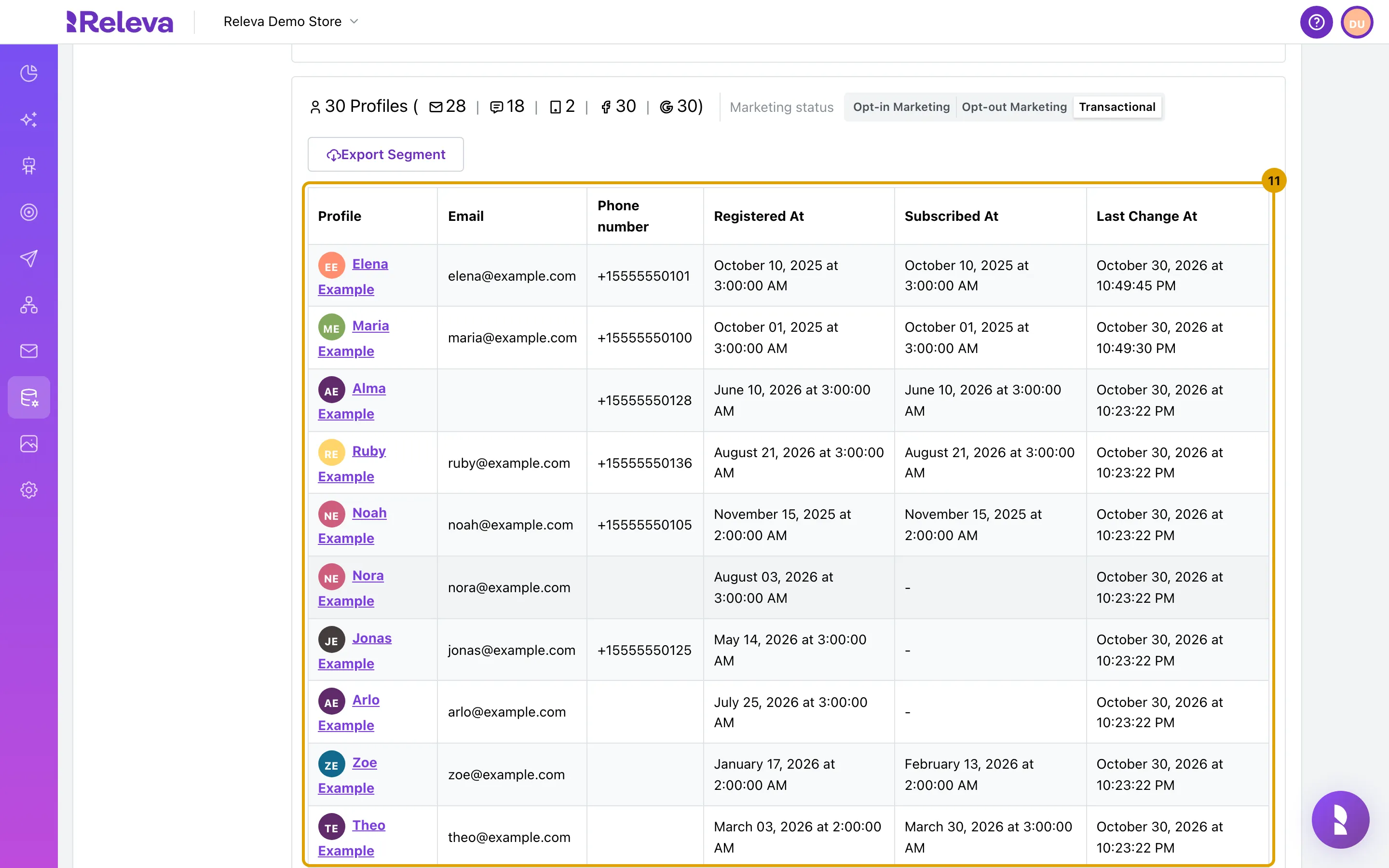
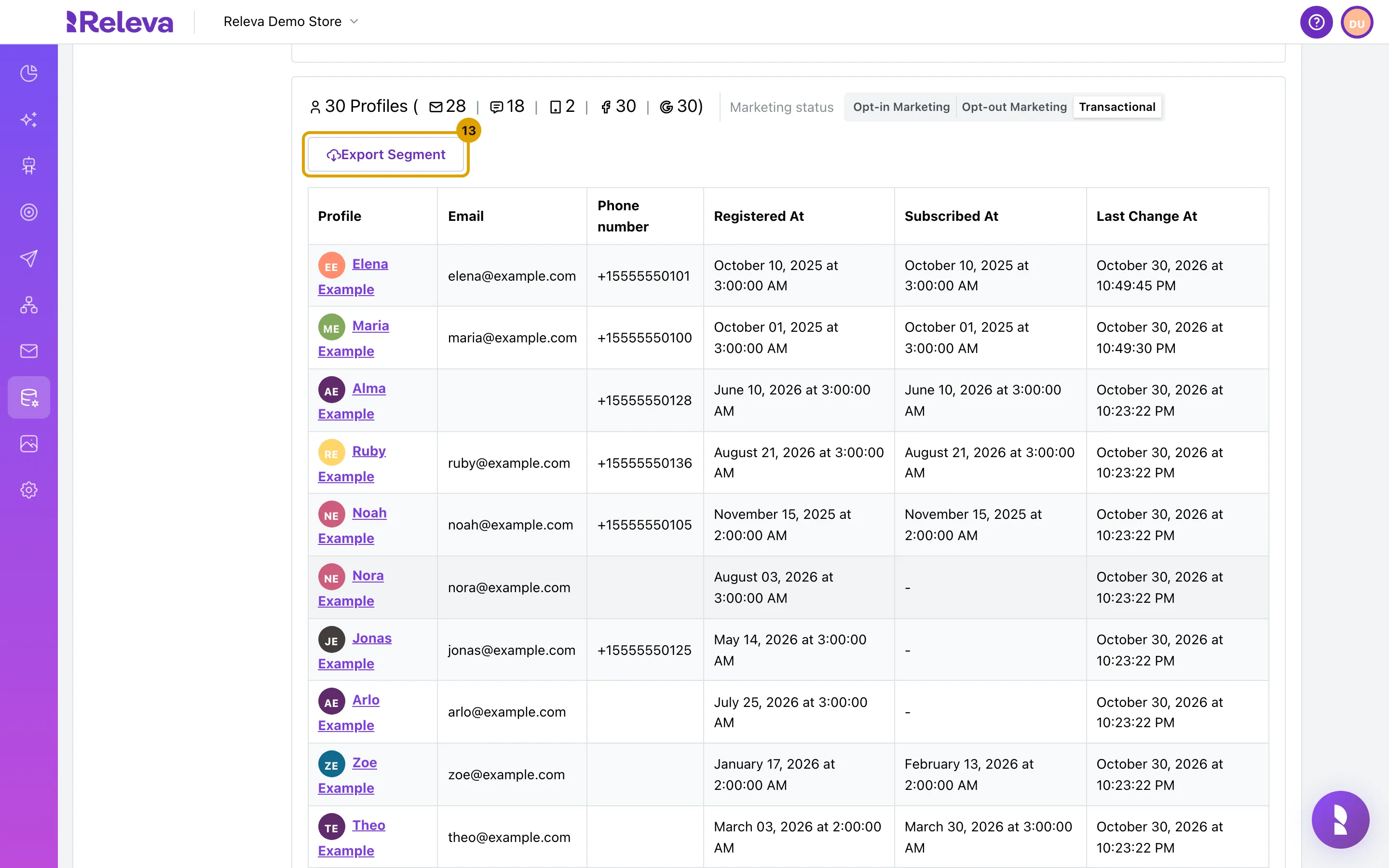
Check the sample of matching profiles under the count.
The table shows Profile, Email, Phone number, Registered At, Subscribed At and Last Change At for 10 profiles per page; use the pager under the table to see more. Select a name to open that profile. The sample is there to check that the rules pick the profiles you meant; the count above it is the full result.
-
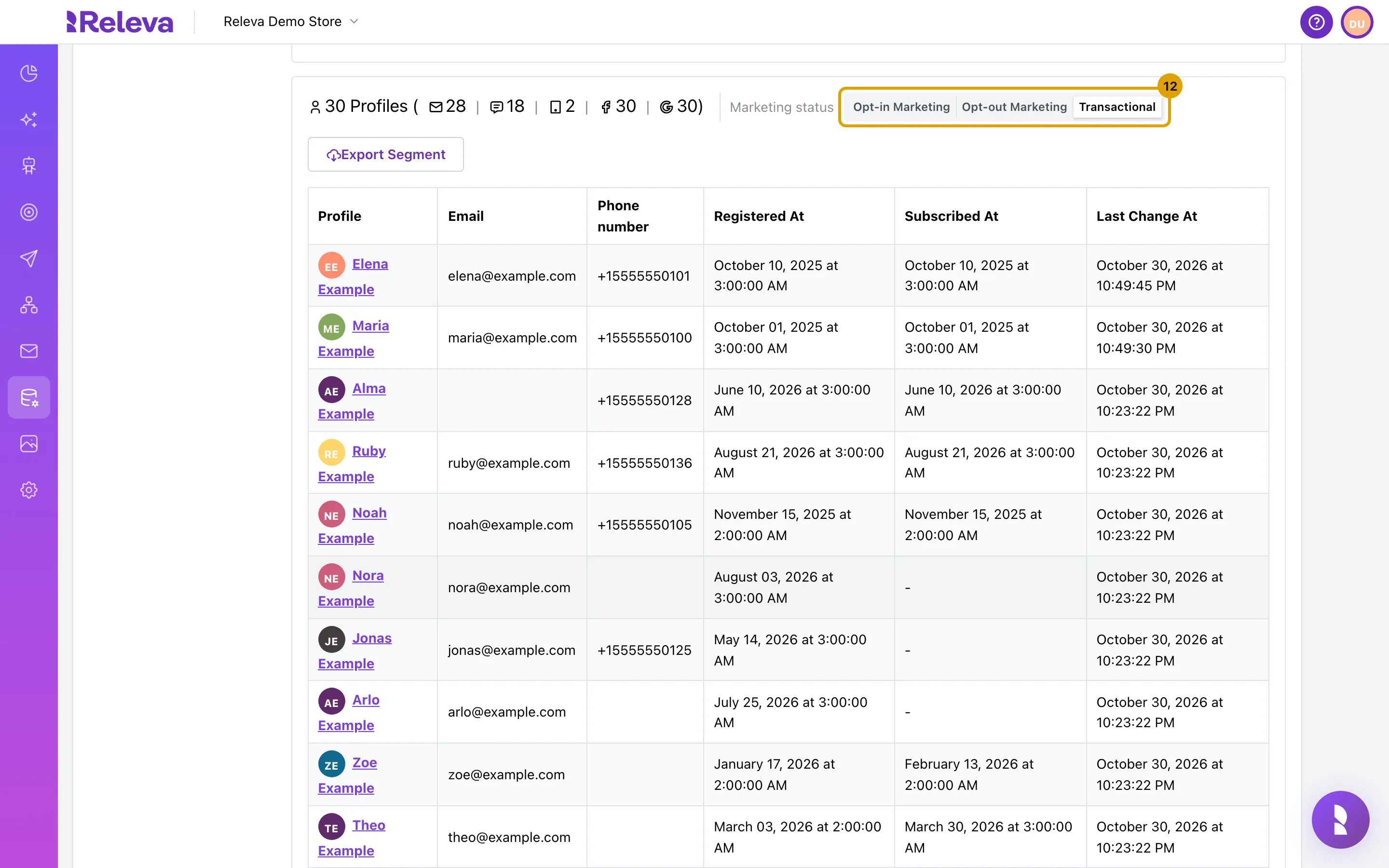
Under Marketing status, choose which consent the email and SMS numbers count.
Transactional (the default) counts everyone you can reach, with no consent filter. Opt-in Marketing counts only subscribed profiles. Opt-out Marketing counts everyone who has not unsubscribed. Only the email and SMS numbers change; the segment is recalculated when you switch. Use Opt-in Marketing when you plan a marketing campaign for this segment.
-
To download every matching profile as a file, select Export Segment.
This step is optional. Export Segment opens Export with Custom Fields, where you can add custom fields to the standard columns; then select Export. Releva sends you an email with a download link when the file is ready. For details, read See who is in a segment.
-
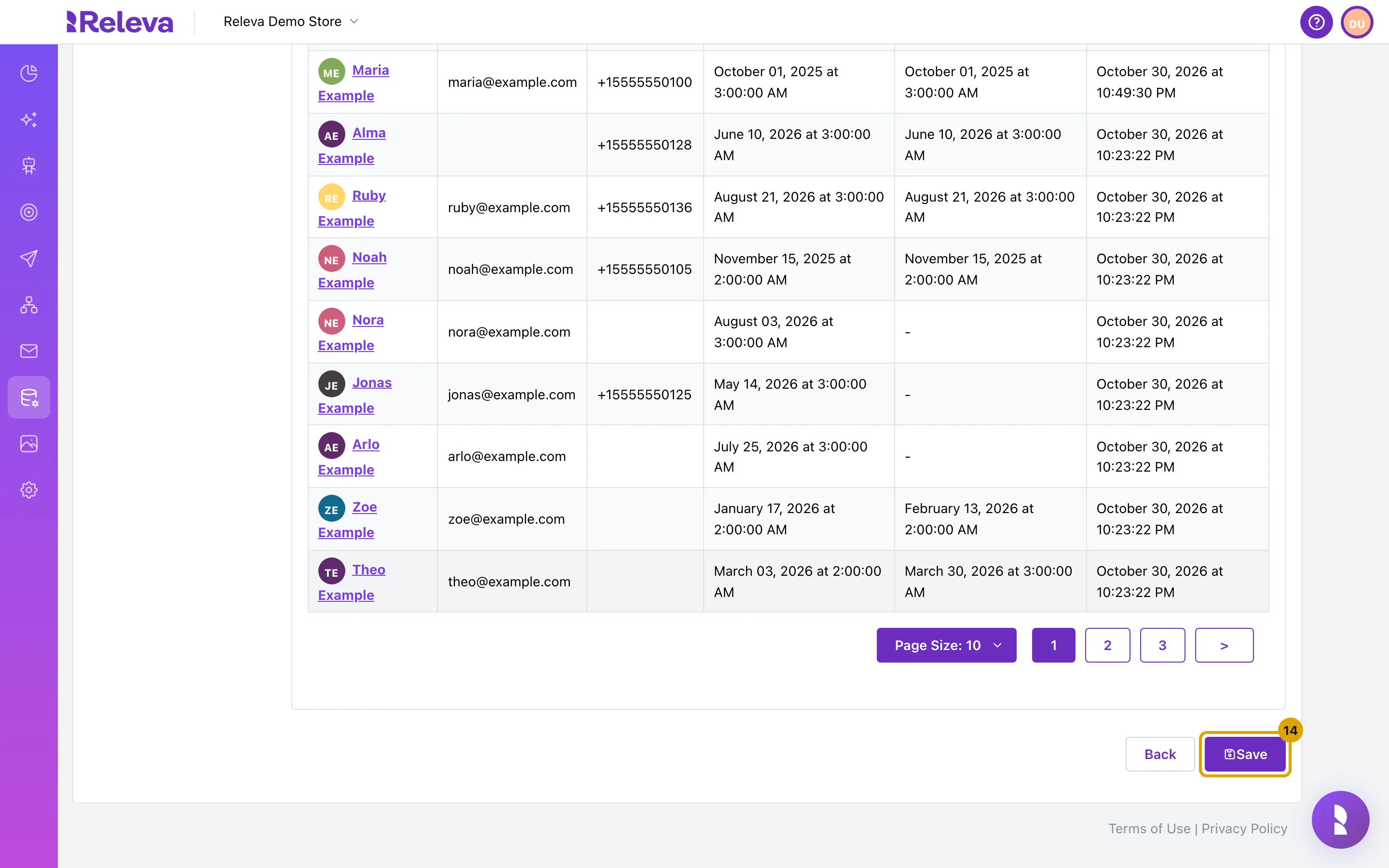
Select Save.
-
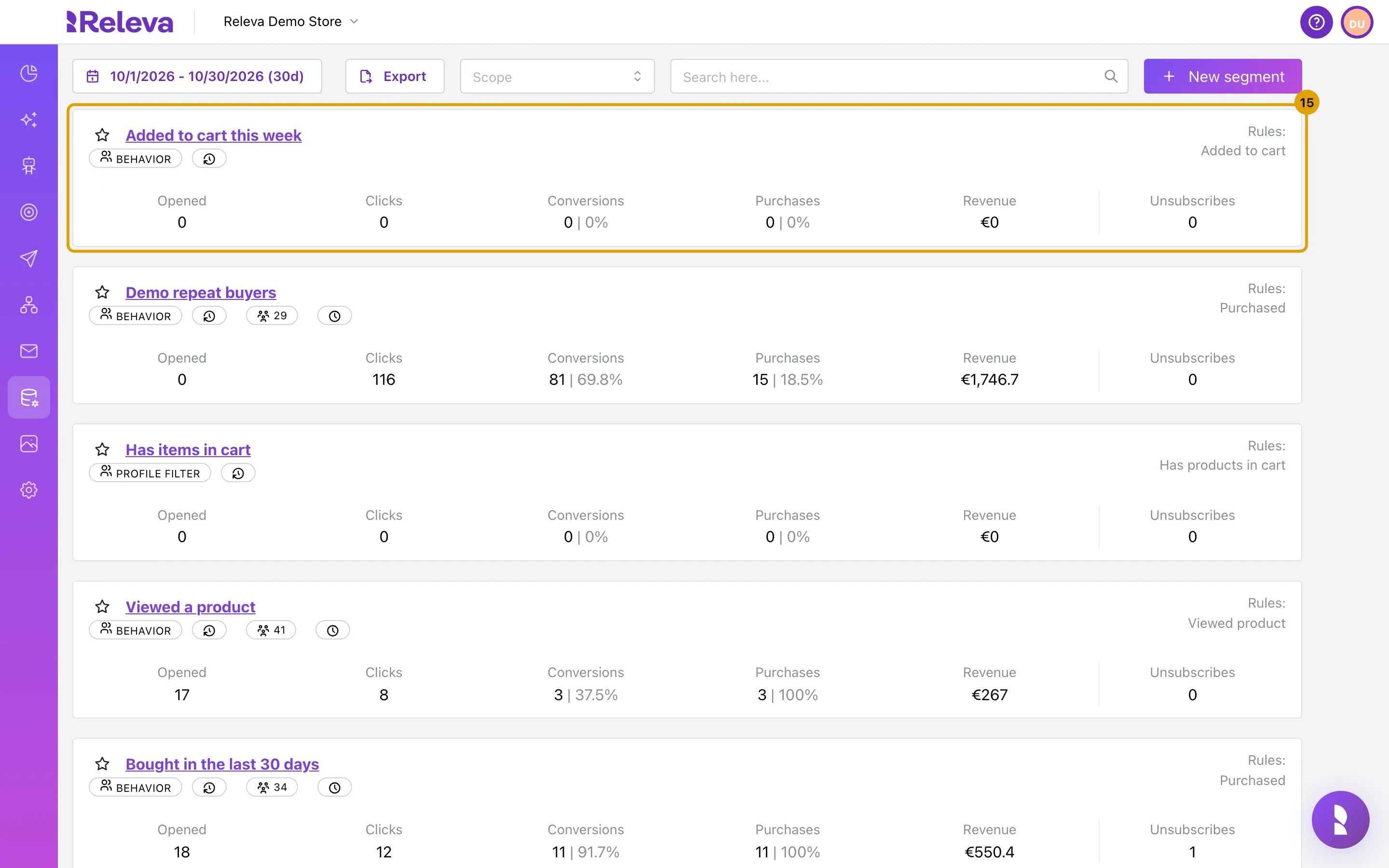
You are back on the segment list and the new segment has its own card.
Check it worked
Section titled “Check it worked”- The new segment is the first card on the Segments list, with a BEHAVIOR badge and Rules: Added to cart on the right.
- Open the card: the Added to cart rule is there with its Days ago filter set to 7 to 0, the Scope control is greyed out, and the count loads on its own.
Troubleshooting
Section titled “Troubleshooting”Save is disabled. The name is empty. A Facebook or Google segment also needs at least one rule before you can save it.
Scope cannot be changed. The scope is fixed after the first save. Create a new segment with the scope you need, or open the segment and select Make a copy to start from its rules.
My rules disappeared when I selected another scope. Switching scope clears the rules, because each scope has its own rule set. Switch back and add them again.
Calculate Segment comes back without a number. The estimate failed and the form shows no message. This usually happens when too many segments are being estimated at the same time. Wait a moment and select Calculate Segment again. Your rules are not affected, and you can save the segment without an estimate.
The second Days ago box looks empty when I reopen the segment. A saved 0 is shown as an empty box. The filter still ends today; leave it as it is or type 0 again.
I expected to see a profile count on the card. The count badge on a card comes from Releva’s scheduled segment run, not from Calculate Segment or Save. Open the segment to see its current count.
Export Segment is missing. The button shows only when the sample has at least one profile. Check your rules and select Calculate Segment again.