

Create a survey
A survey is a form with one or more questions that customers answer on a page hosted by Releva. You reach them with a personal link in an e-mail, push notification, SMS, Viber or WhatsApp message, or, when the public link is on, with a link or QR code anyone can open. This guide creates a survey with one rating question and a public link. For how respondents are identified and where the answers go, read How surveys and NPS work.
Before you start
Section titled “Before you start”- Your plan includes surveys. If New survey shows a lock, ask your account owner to unlock it.
- You know who should answer: customers you message (keep Public link (QR code) on No) or anyone who holds the link, for example in your store (set it to Yes).
- Survey names must be unique within the store.
-
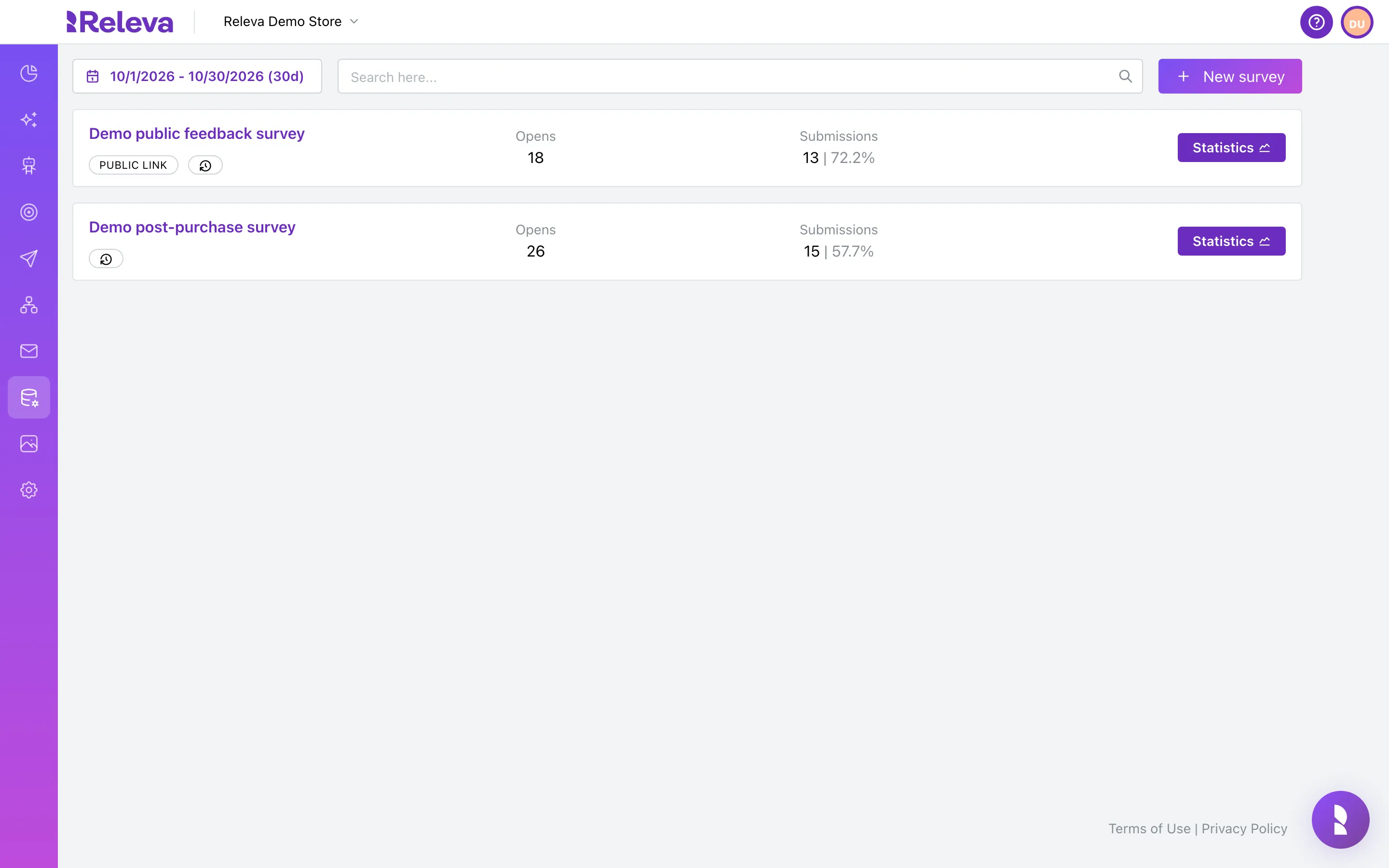
Go to Data Platform › Surveys.
The list shows every survey with its Opens and Submissions for the selected period (the last 30 days by default). There is no dedicated empty state: a store without surveys shows No results found.
-
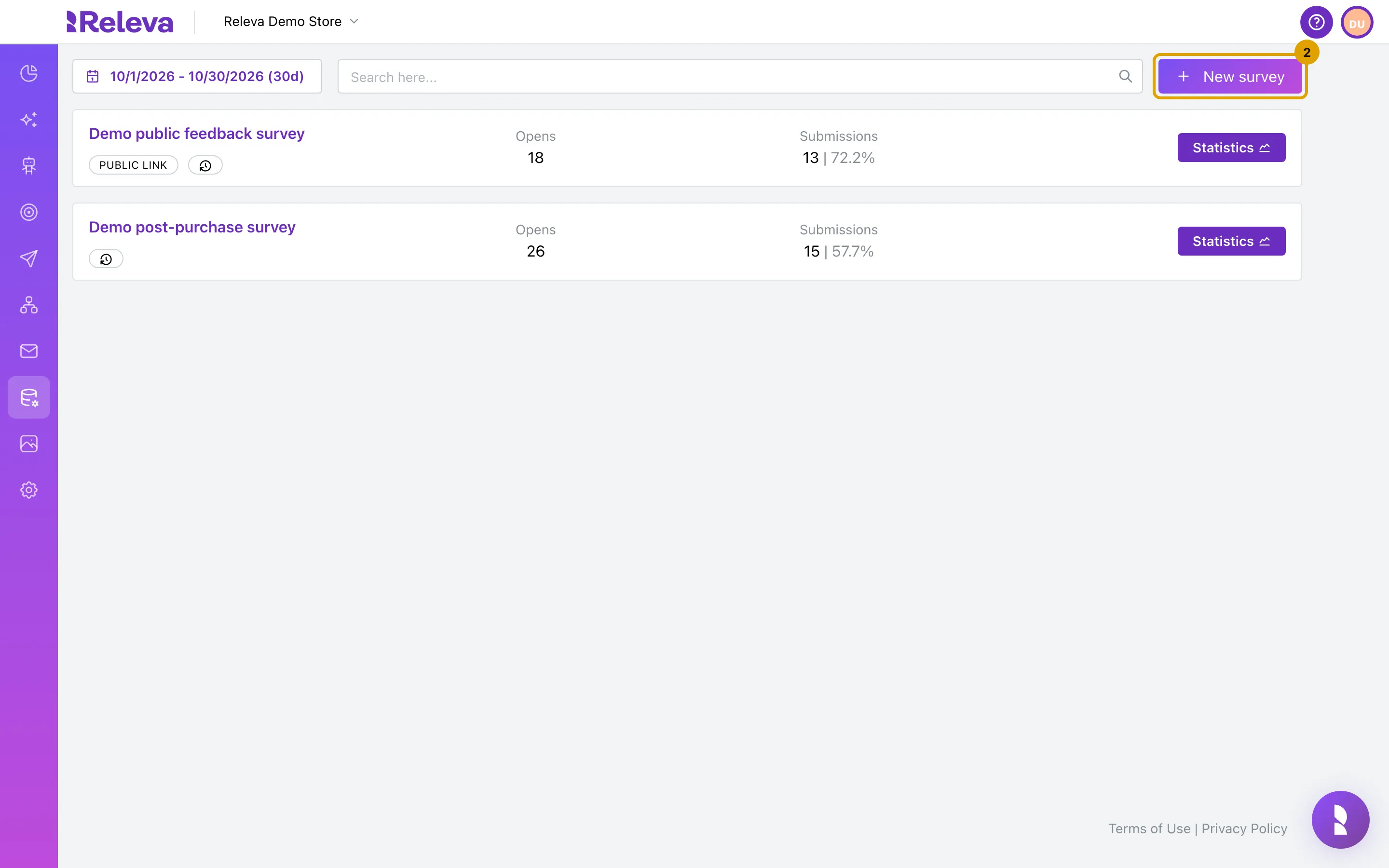
Select New survey.
-
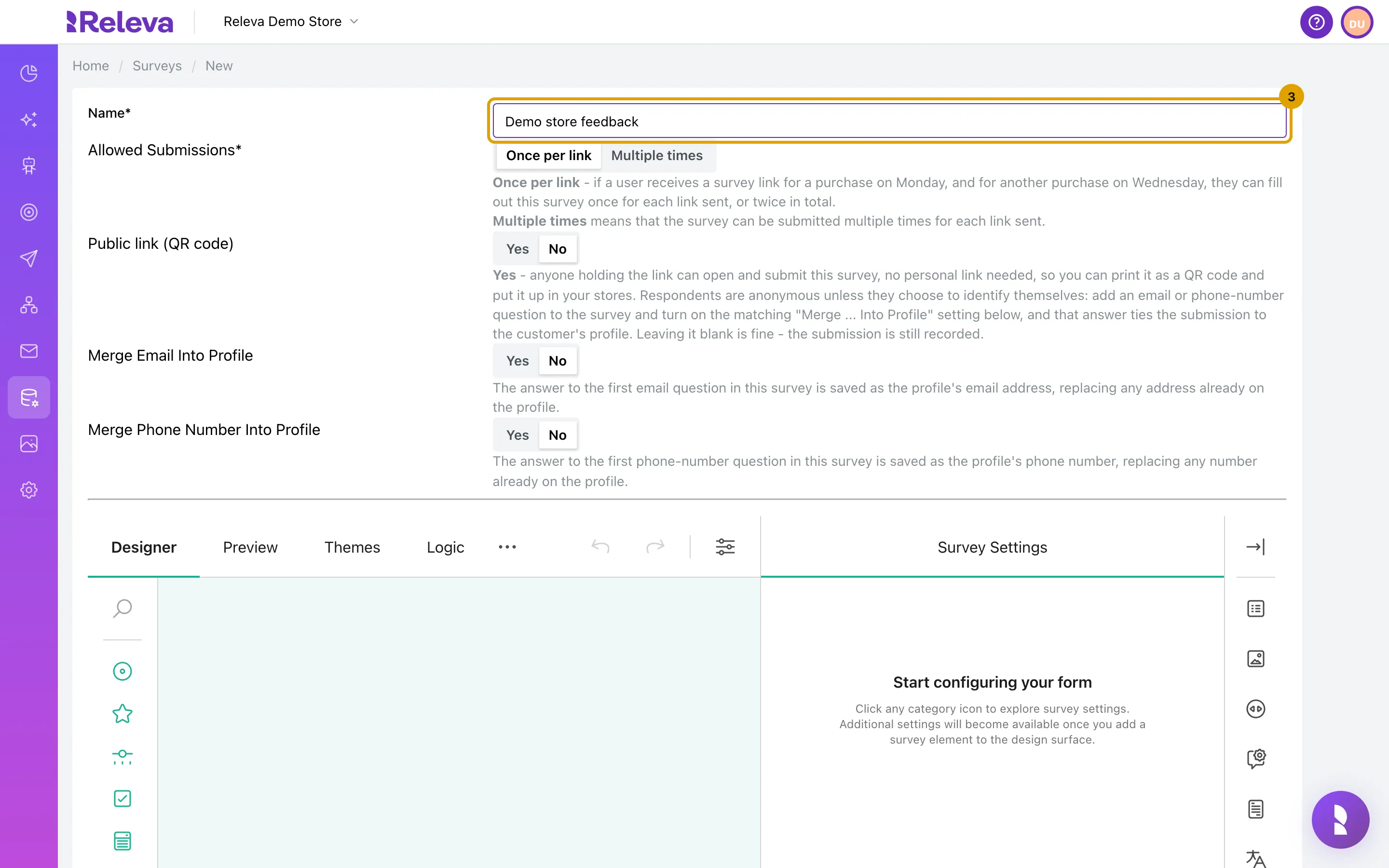
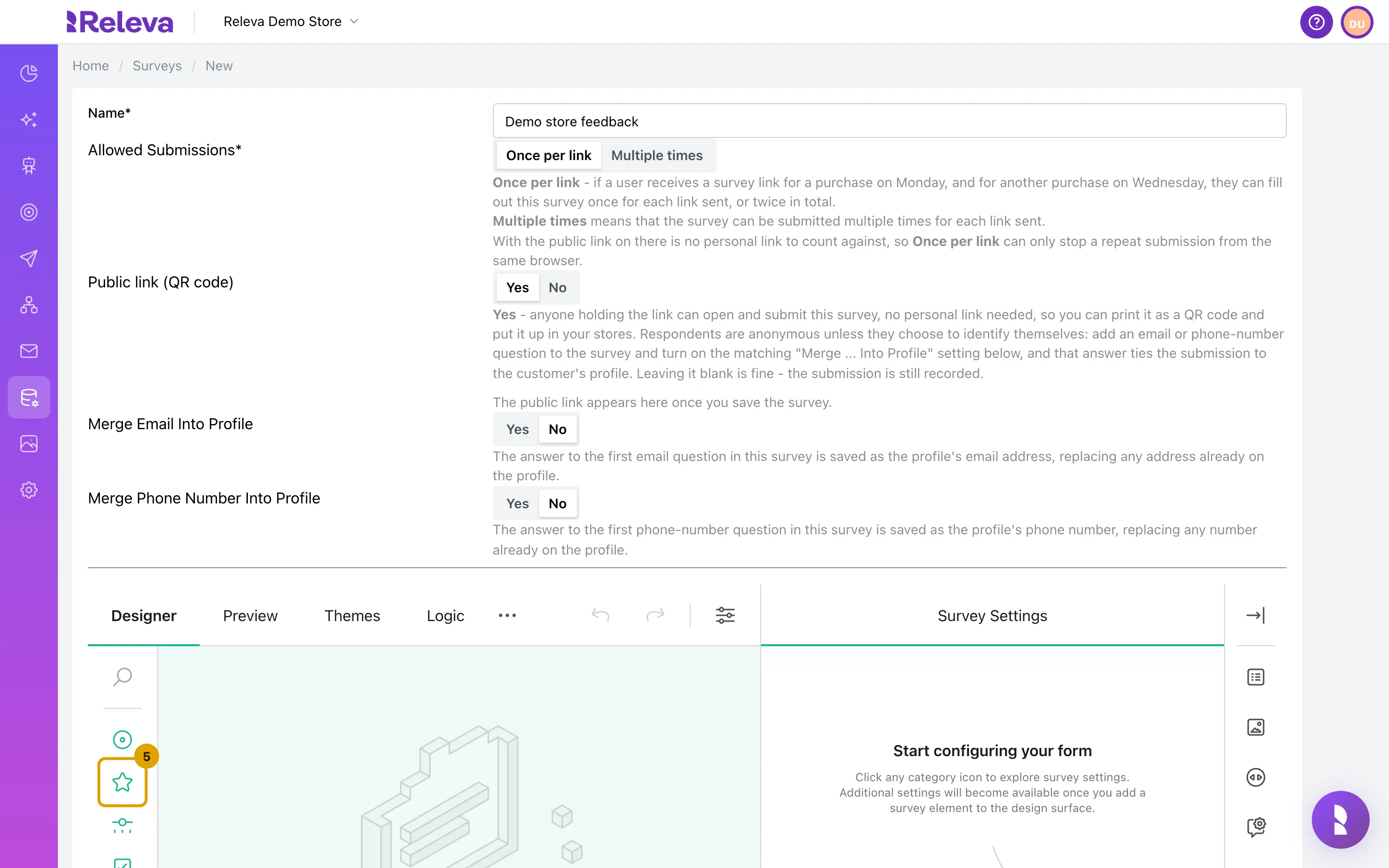
Replace “New survey” with a Name your team will recognise. Respondents do not see it.
Save stays disabled while the name is empty. Leave Allowed Submissions on Once per link unless the same customer may answer the survey more than once.
-
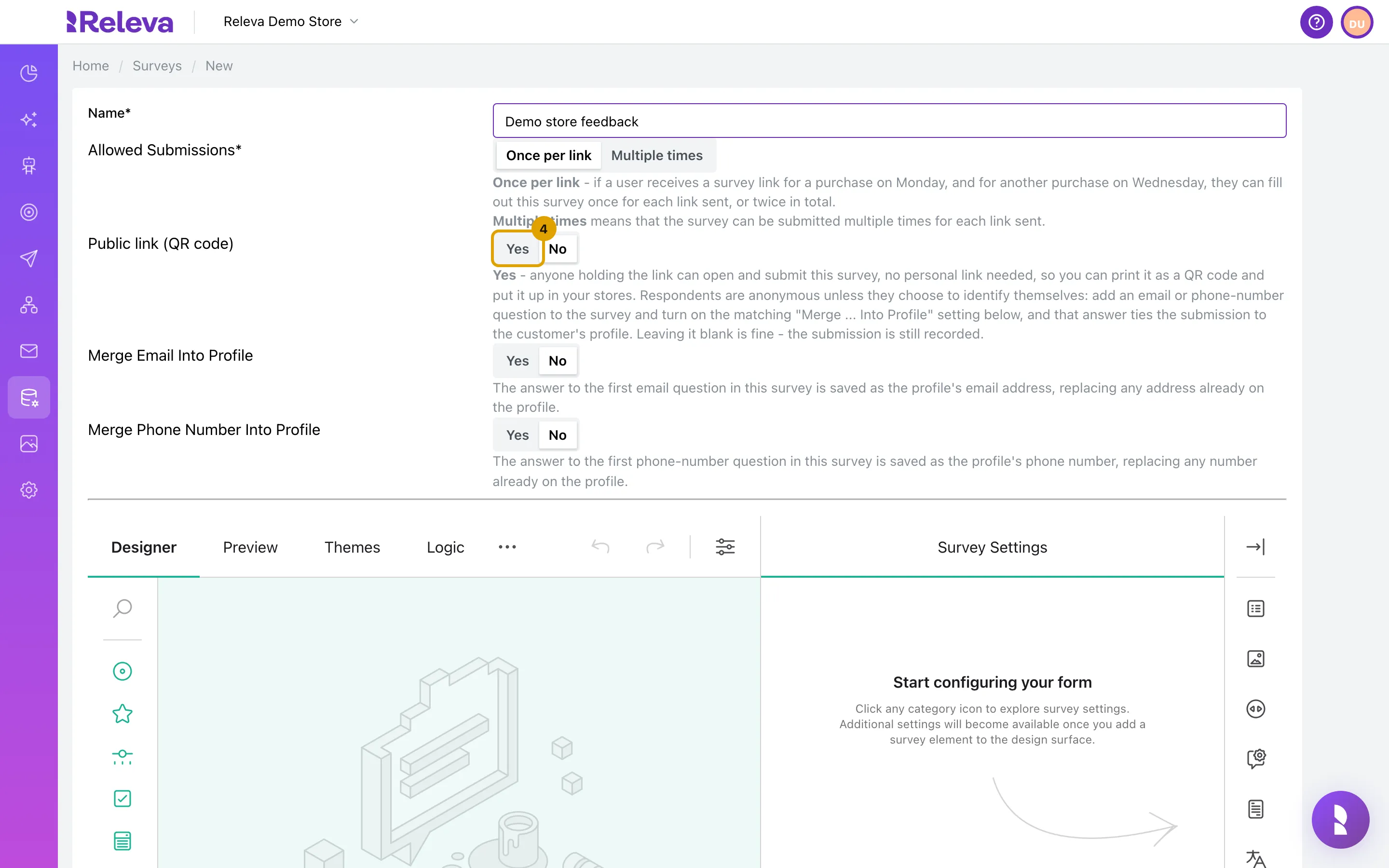
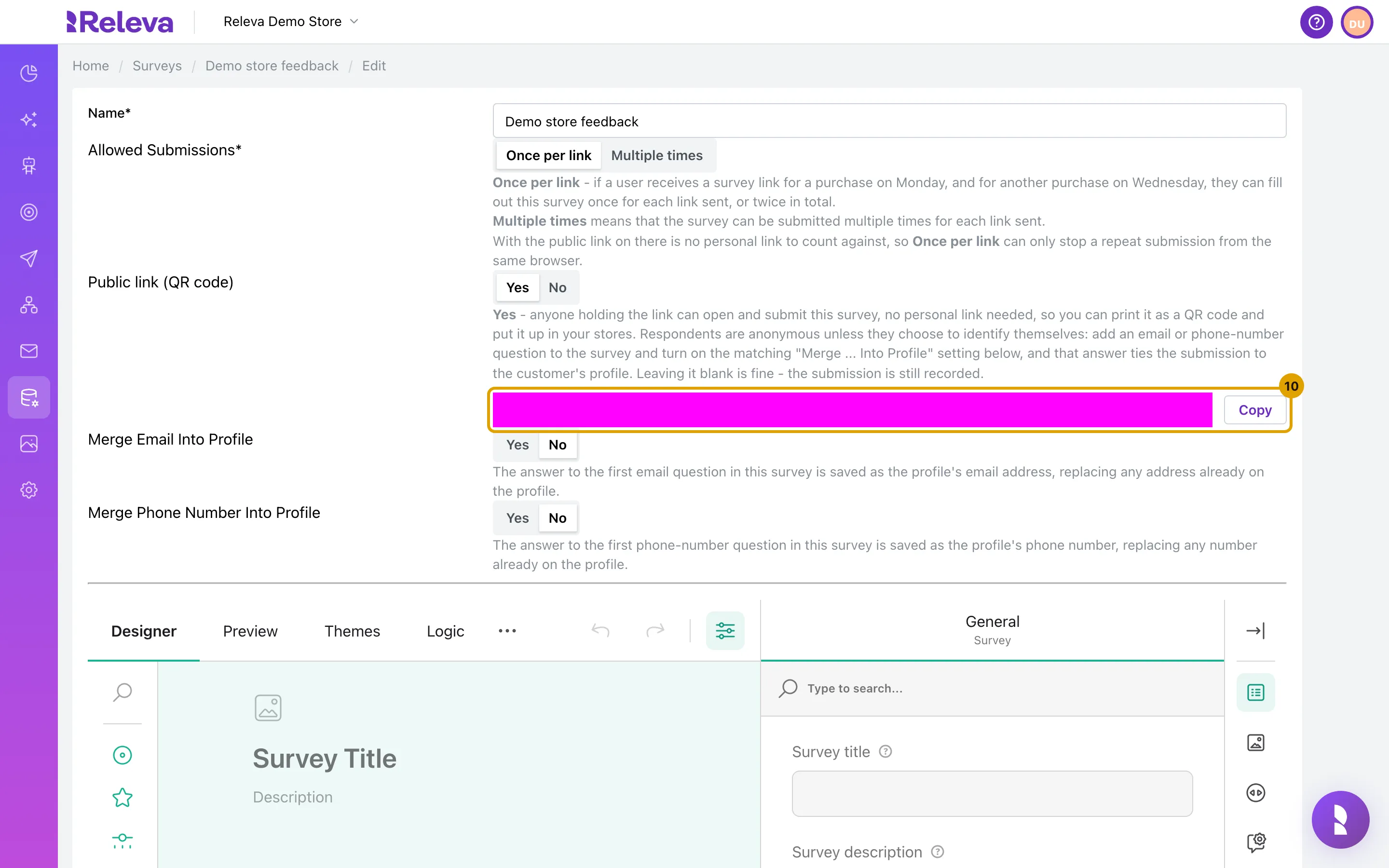
Under Public link (QR code), select Yes if anyone holding the link may answer, for example from a printed QR code in your store. Keep No for surveys you only send through personal links in messages.
With the public link on, respondents are anonymous unless the survey asks for an e-mail or phone number and the matching Merge Email Into Profile or Merge Phone Number Into Profile setting is Yes. The merged value replaces the address or number already on the profile. The form now also shows “The public link appears here once you save the survey.” The link itself appears after you save.
-
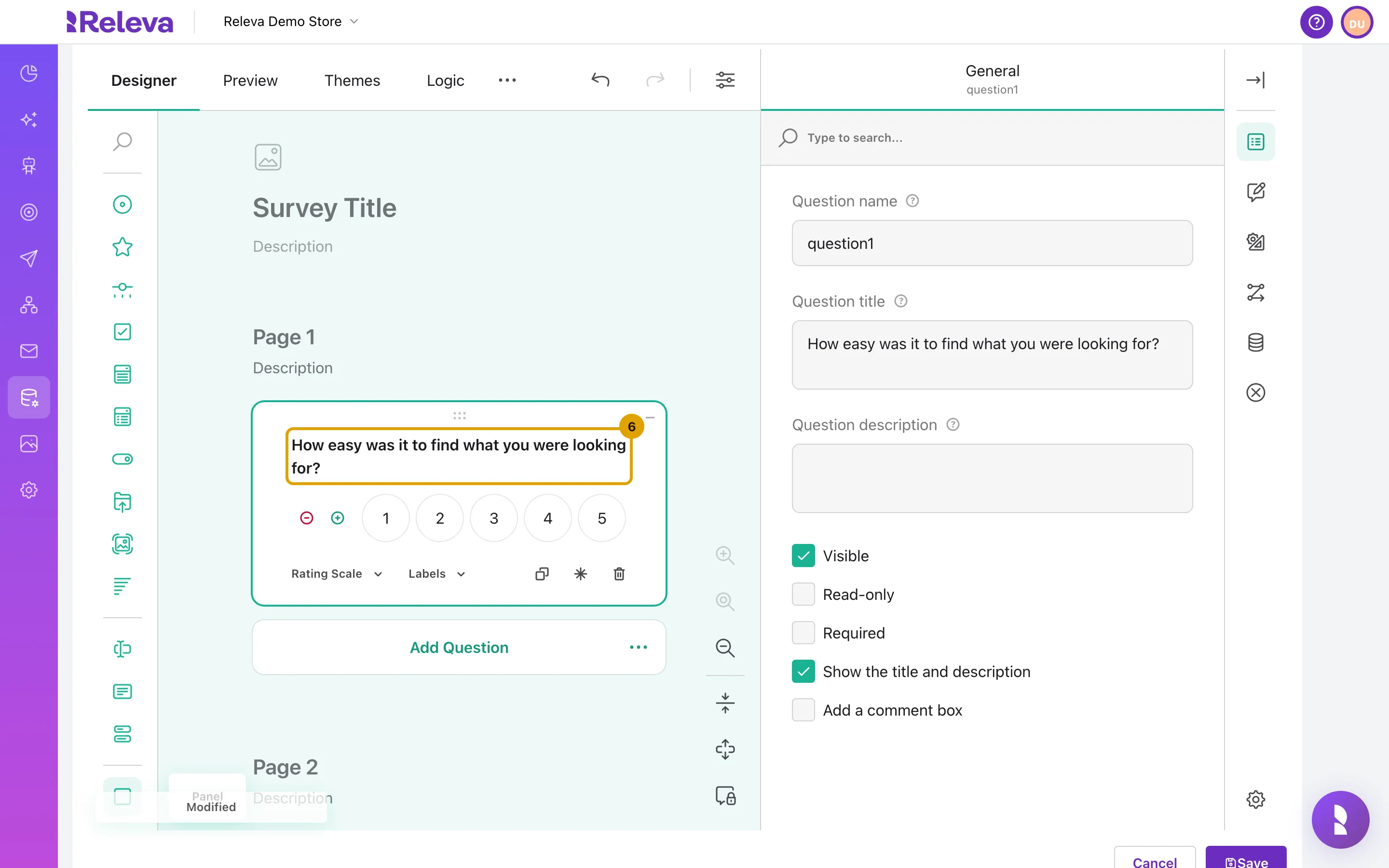
In the designer toolbox on the left, select a question type such as Rating Scale to add it to the survey. You can also drag it onto the page.
On a narrow screen the toolbox shows icons only: point at an icon to see its name. Rating Scale is the star. The toolbox offers choice questions (Radio Button Group, Checkboxes, Dropdown, Multi-Select Dropdown, Yes/No (Boolean), Image Picker, Ranking), text questions (Single-Line Input with sub-types such as Email and Phone Number, Long Text, Multiple Textboxes), Rating Scale with labels, stars or smileys, Slider, File Upload, Signature, matrices, panels, and presentation-only HTML and Image elements.
-
Select the question title on the page and type your question. The Preview tab shows the survey as respondents see it.
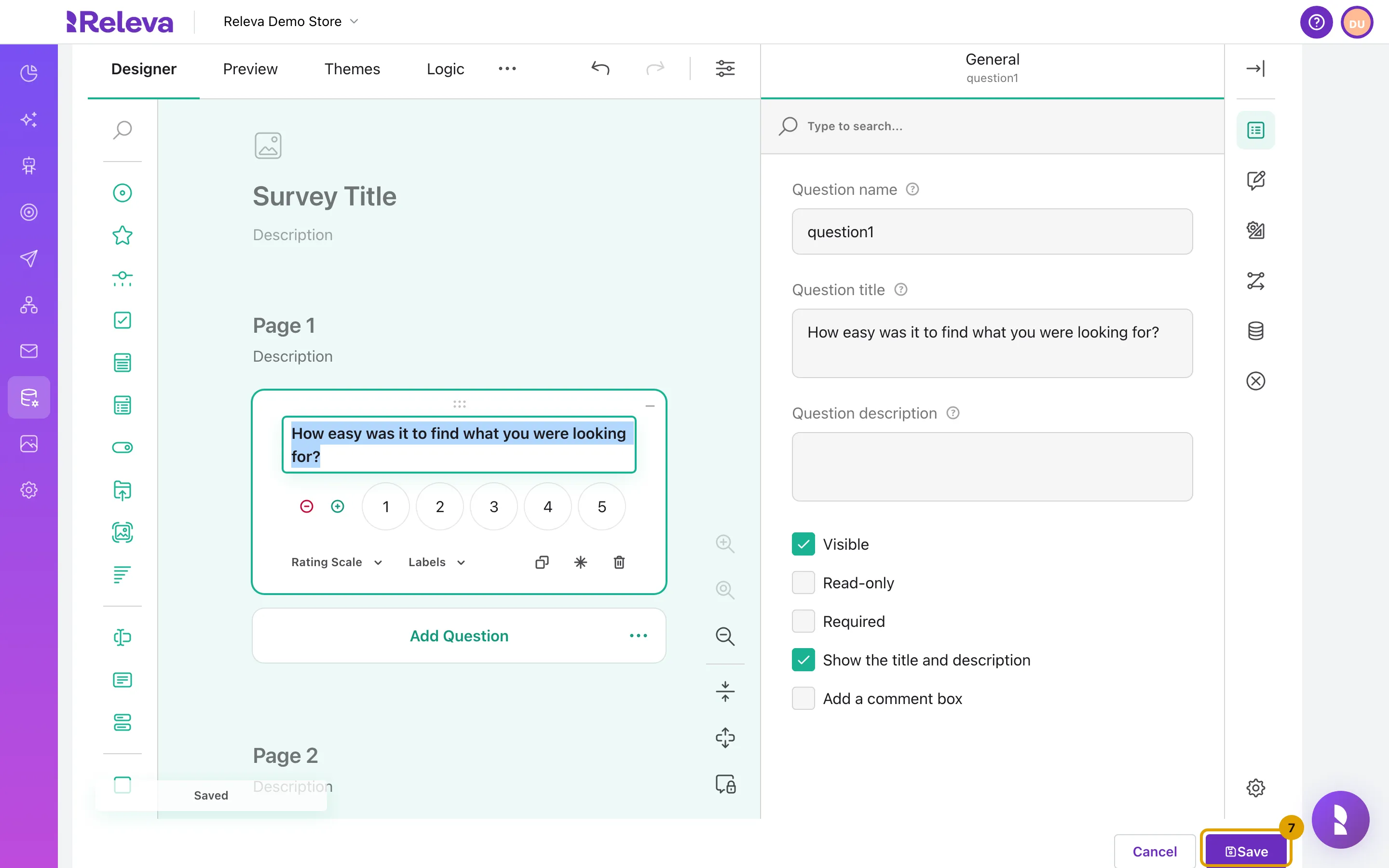
The panel on the right holds the question’s settings, for example Required. Themes changes colours and fonts, Logic adds conditions between questions. Wait for the small notice at the bottom left of the designer to change from Modified to Saved before you continue: it confirms that the designer handed your last edit to the form.
-
Select Save.
-
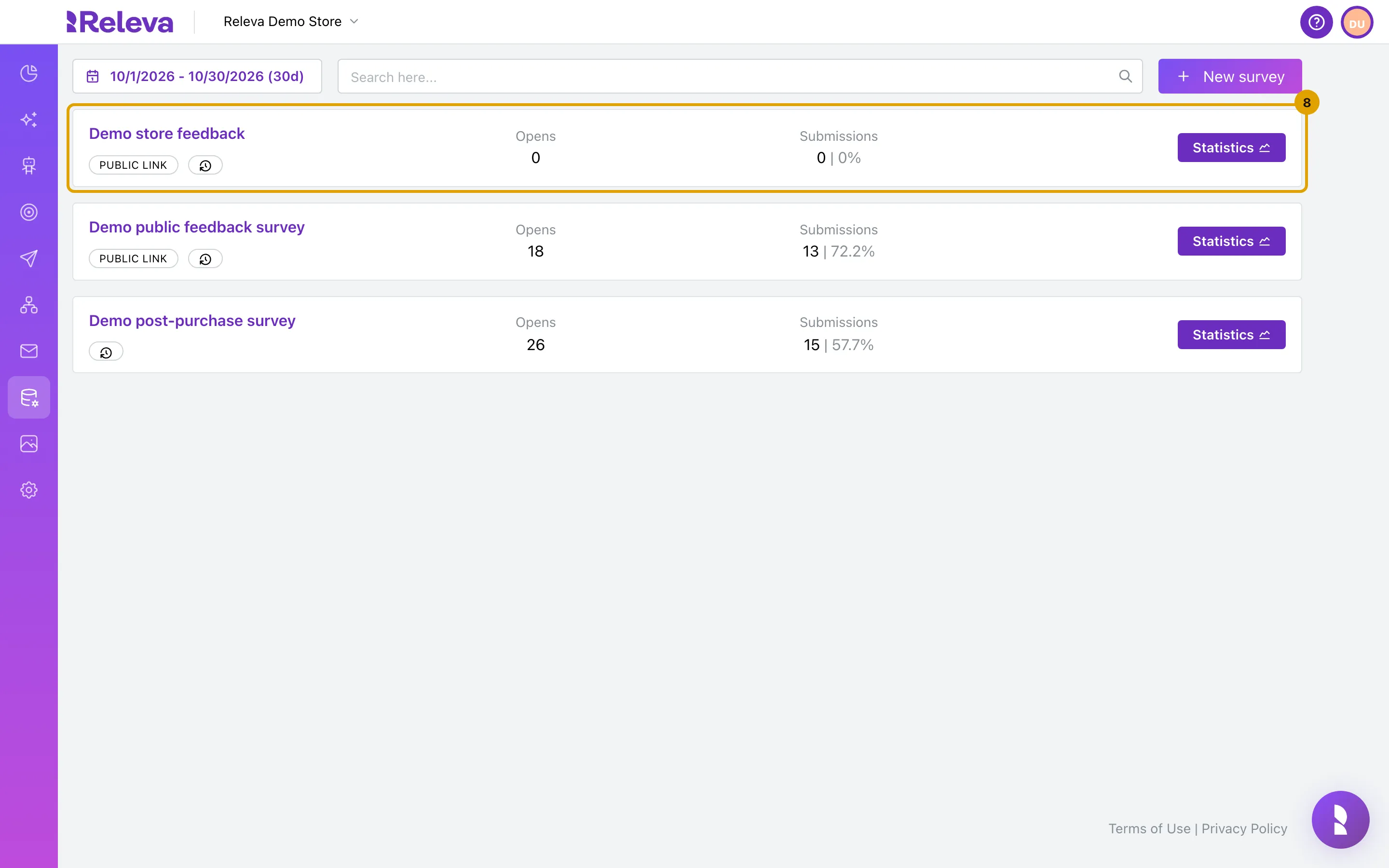
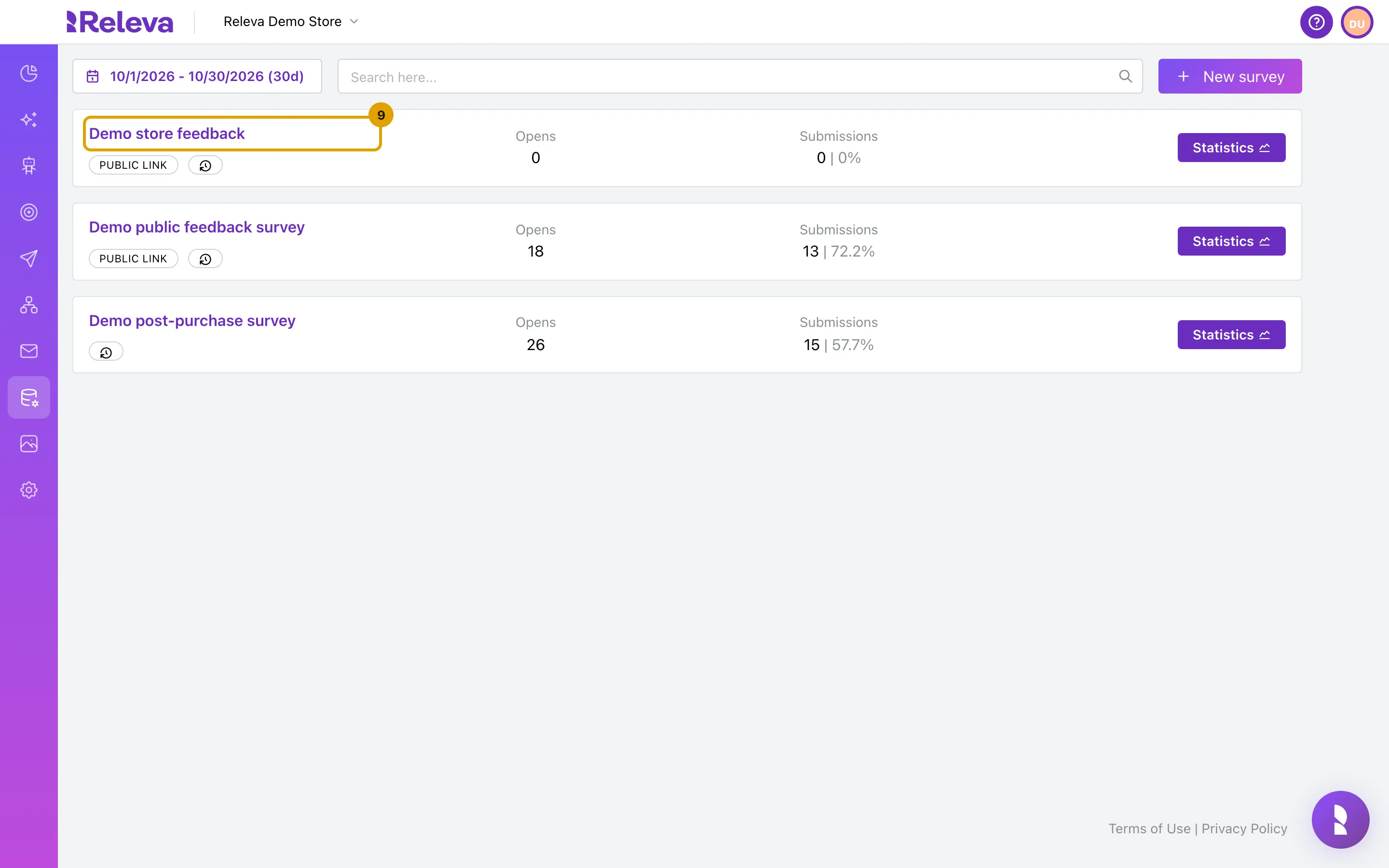
The survey appears in the list with its Opens and Submissions for the selected period, and a Public link badge when the public link is on.
-
Select the survey name to open it again.
-
Under Public link (QR code), select Copy to copy the survey’s public link. Share it or turn it into a QR code.
The link appears only after the survey is saved. A survey without a public link has no link to copy: send it with the Survey: <name> merge tag instead (see How surveys and NPS work).
Check it worked
Section titled “Check it worked”- The survey is the first card on the Surveys list, with a PUBLIC LINK badge, Opens 0 and Submissions 0 | 0%.
- Open the public link in a private browser window: the survey shows your question. Each open counts as an Open on the card; each Complete counts as a Submission.
- Select Statistics on the card to see one chart per question. Answers show there from the day after they were sent (see Troubleshooting); the Submissions number on the card updates within seconds.
Troubleshooting
Section titled “Troubleshooting”Save is disabled. The Name is empty.
“Survey Name must be unique!” Another survey in this store has the same name. Change the name and save again.
My last question is missing after Save. The designer hands its changes to the form about half a second after your last edit. If you select Save before the Saved notice appears at the bottom left of the designer, the survey is saved without that edit. Open the survey, make the change again, wait for Saved, then save.
“The public link appears here once you save the survey.” The link is created by Releva when the survey is saved with Public link (QR code) set to Yes. Save first, then reopen the survey and select Copy.
Today’s answers are not on the Statistics page. The Statistics page counts answers up to the start of the end day of its date range, so answers from today appear tomorrow. The Submissions number on the list card updates right away.
Someone answered the public link twice. Once per link works for personal links, where Releva knows the profile. On a public link respondents are anonymous and the survey page remembers nothing between opens, so anyone holding the link can answer again, also from the same browser, even though the hint under Allowed Submissions says a repeat from the same browser is stopped. Releva itself does not reject repeat answers.
“Survey does not exist!” The survey in the link was deleted, or the link belongs to another store. Go back to Data Platform › Surveys and open the survey from the list.