

Export results for a date range
An export is a CSV file that Releva prepares and e-mails to you. A One Time export covers a period you pick and runs once, right after you save it. This guide exports the results of one email for the current month. For the two export types, what each scope contains and how the e-mail looks, read How exports work.
Before you start
Section titled “Before you start”- You know which elements you need: an export has one Scope (Emails, Campaigns, Segments, Product Blocks and so on) and covers either all items of that scope or the ones you pick.
- You know the period. Dates and times are entered in your local time.
- Your plan includes creating exports. If New Export shows a lock, ask your account owner to unlock it.
- Each recipient can receive e-mail from Releva. The download link in the e-mail is the only way to get the file.
-
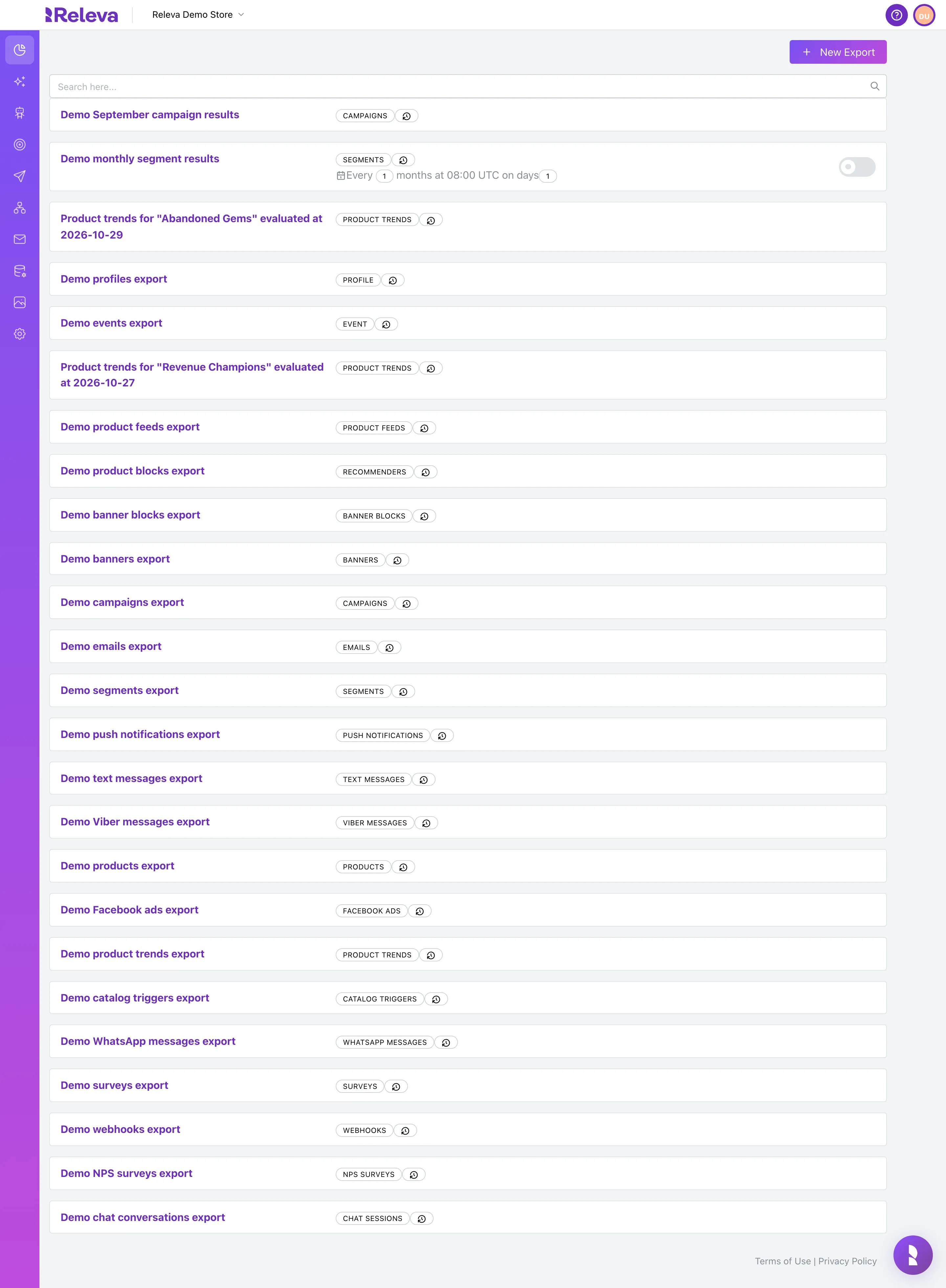
Go to Analytics › Exports.
The breadcrumb and the browser tab call this page Reports; the menu calls it Exports. They are the same page. Every export of your shop has a card with its scope badge; Periodic exports also show their schedule and a switch.
-
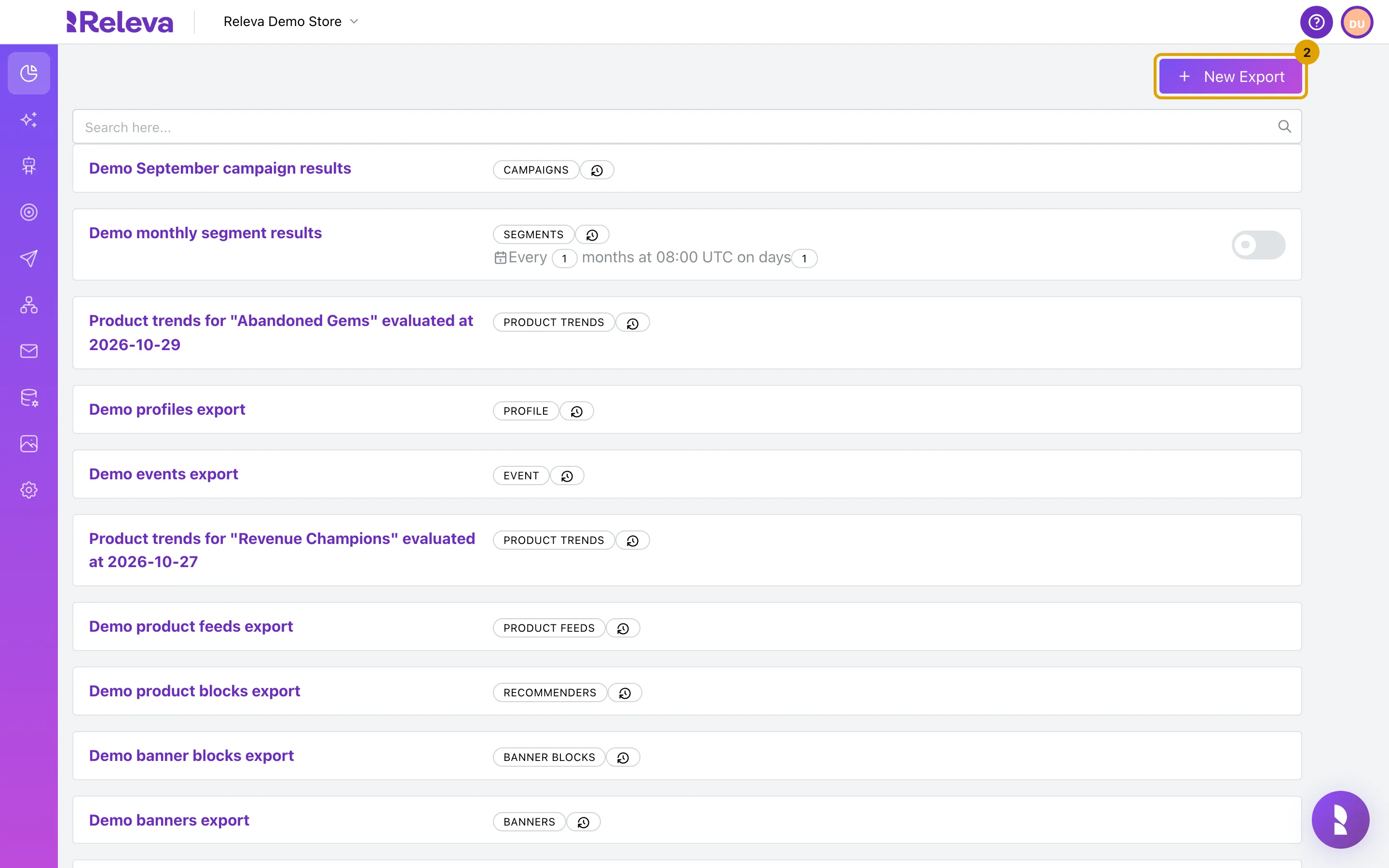
Select New Export.
-
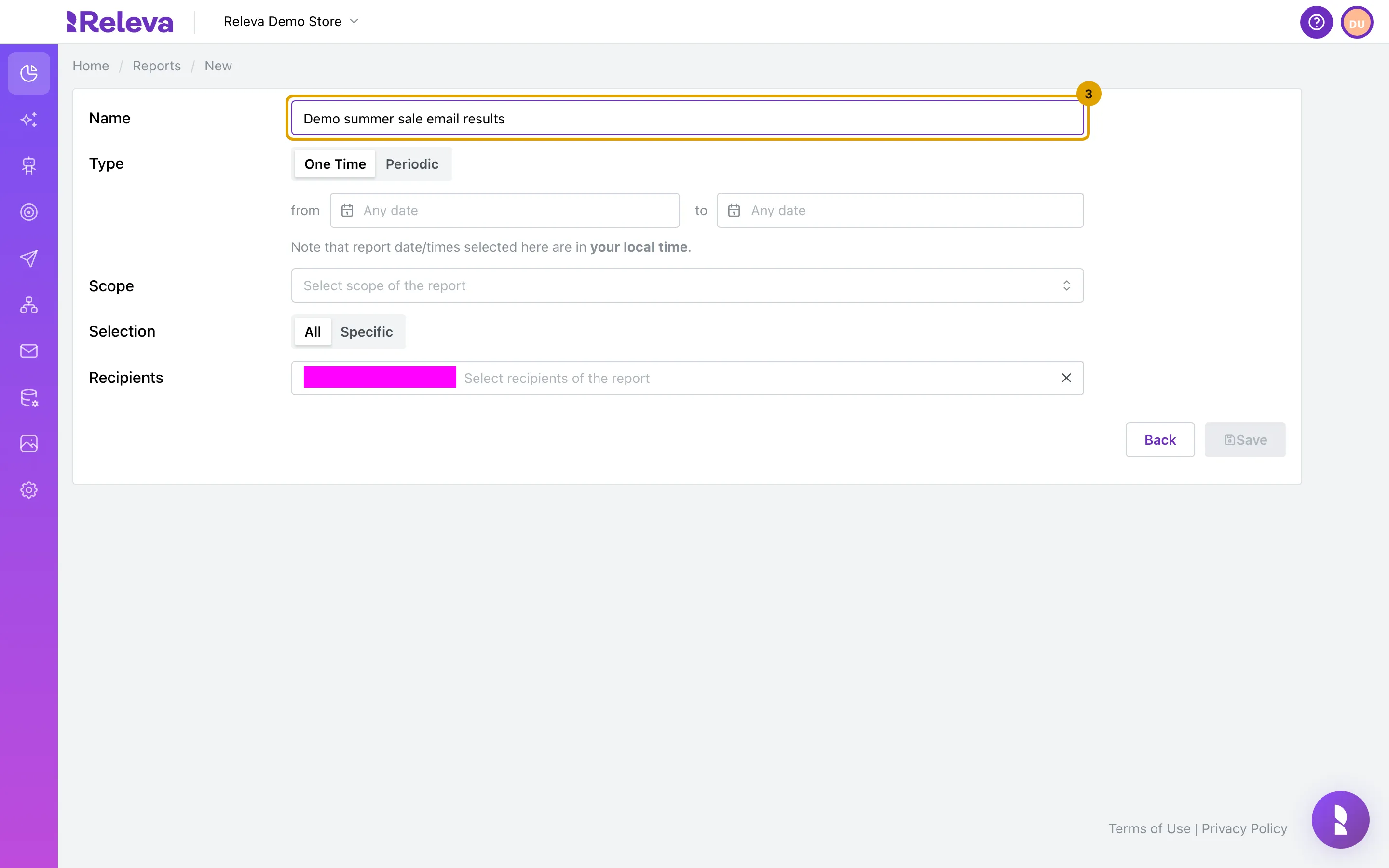
In Name, replace New report with a name you will recognise in the e-mail and the list.
The name must be unique among the exports of your shop. It becomes the file name, so keep it short.
-
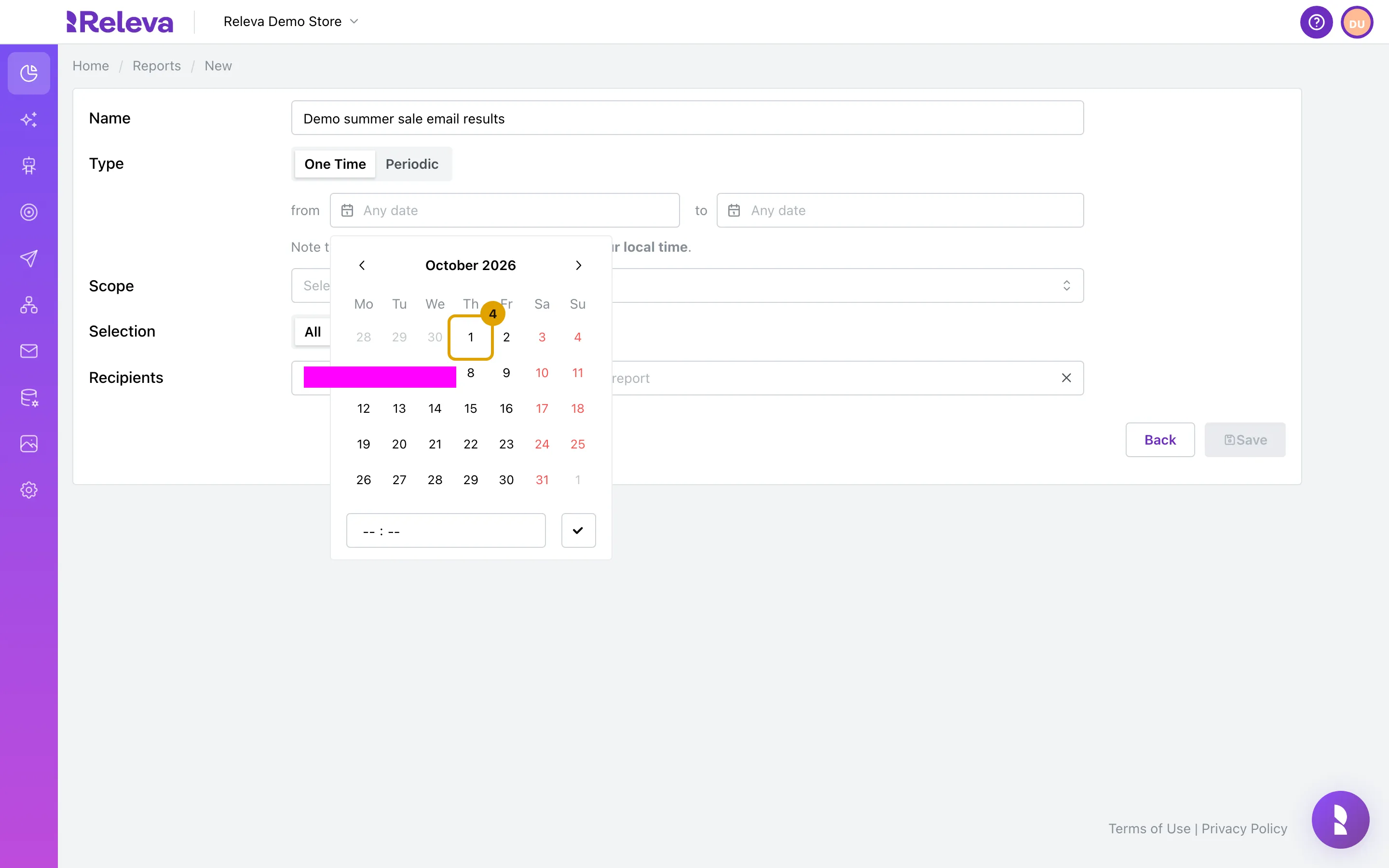
One Time is already selected in Type. Select the from field and pick the first day of the period.
Leave the time empty for 00:00, or type one in the box under the calendar, then confirm with the check mark.
-
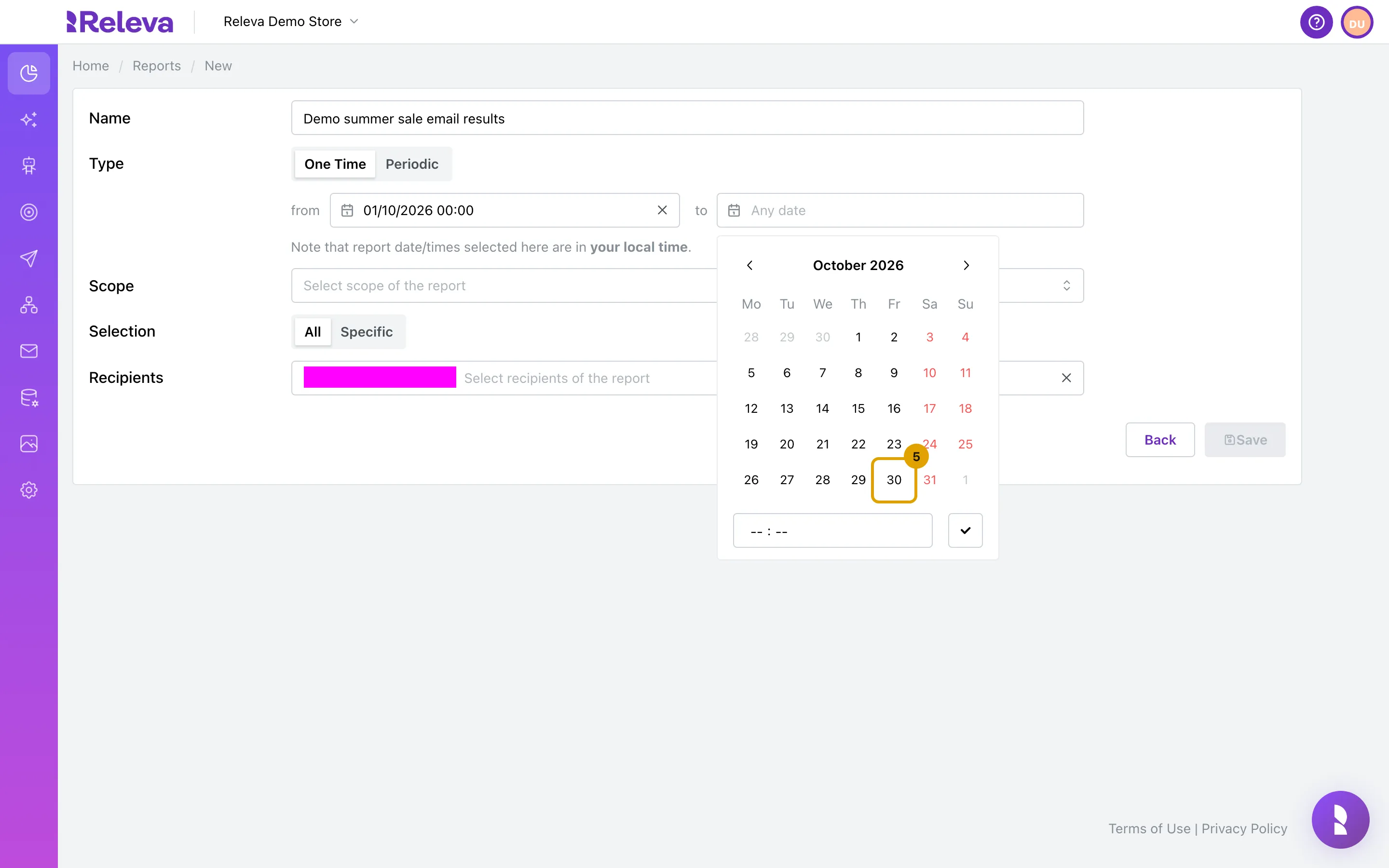
Select the to field and pick the last day. Type a time if you need one, then confirm with the check mark. Dates and times are in your local time.
Both dates are required. The export counts everything after from up to and including to, so set to to 23:59 to include the whole last day.
-
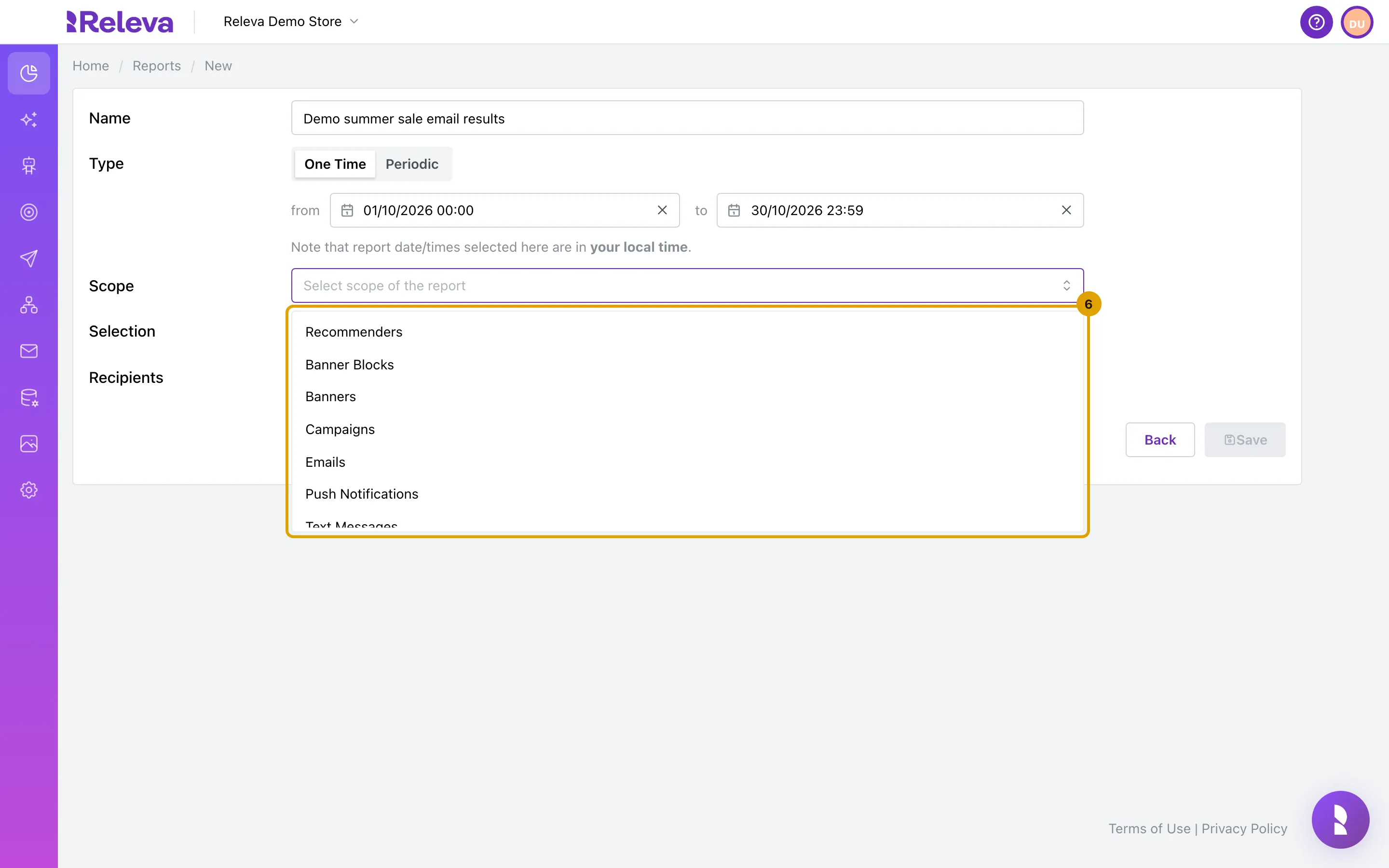
Select Scope to open the list of what you can export.
The list has one entry per kind of element: Recommenders, Banner Blocks, Banners, Campaigns, Emails, Push Notifications and more.
-
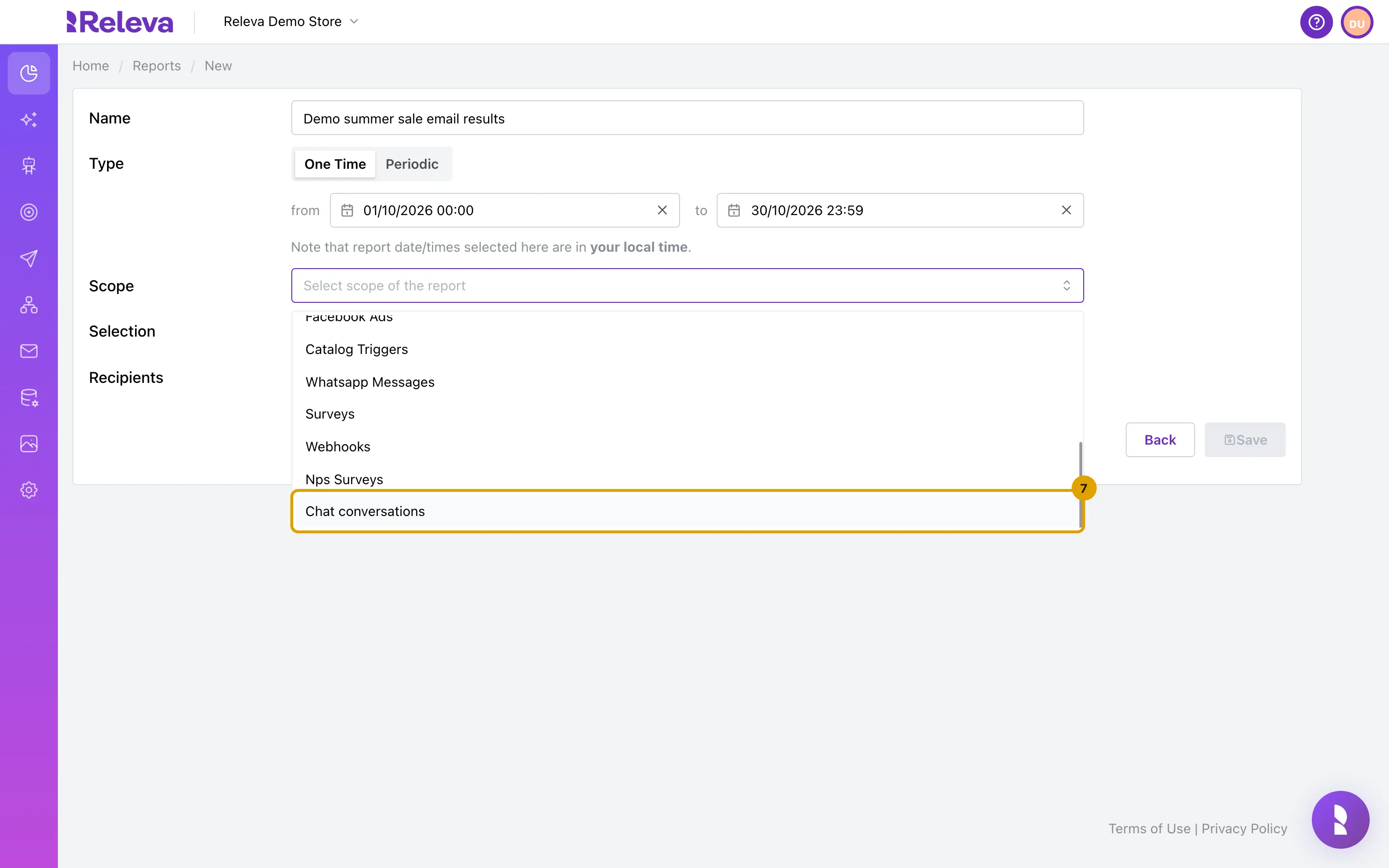
Scroll the list to see every scope, down to Chat conversations.
The list has 16 scopes. Profiles, events, products, product feeds and product trends are not in it: you export them from their own pages, and those exports then appear on the Exports list too.
-
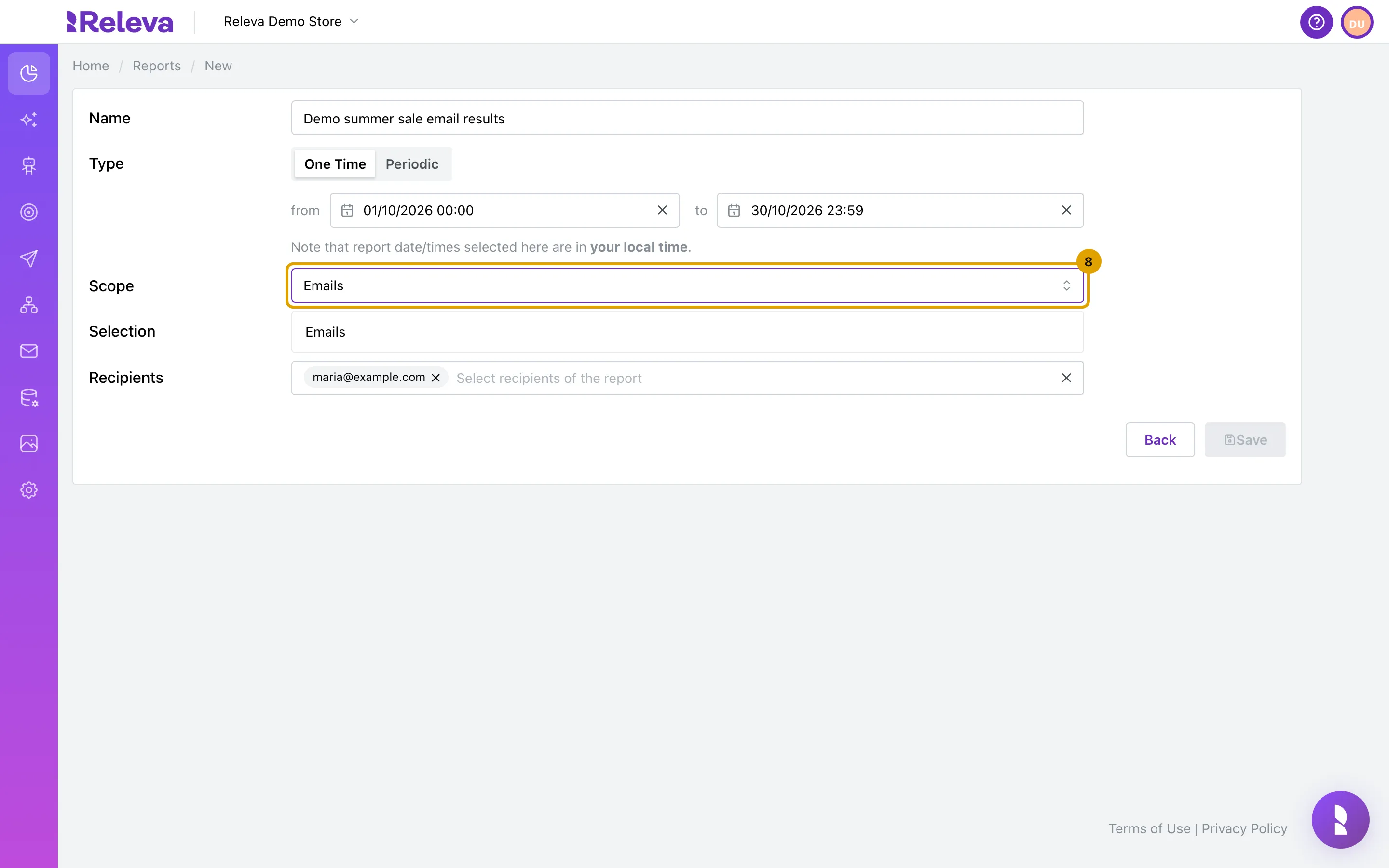
In Scope, choose what the export is about, for example Emails.
You can type to filter the list. Recommenders in this list is the scope for Personalization › Product Blocks. Changing the scope later clears the items you picked under Specific.
-
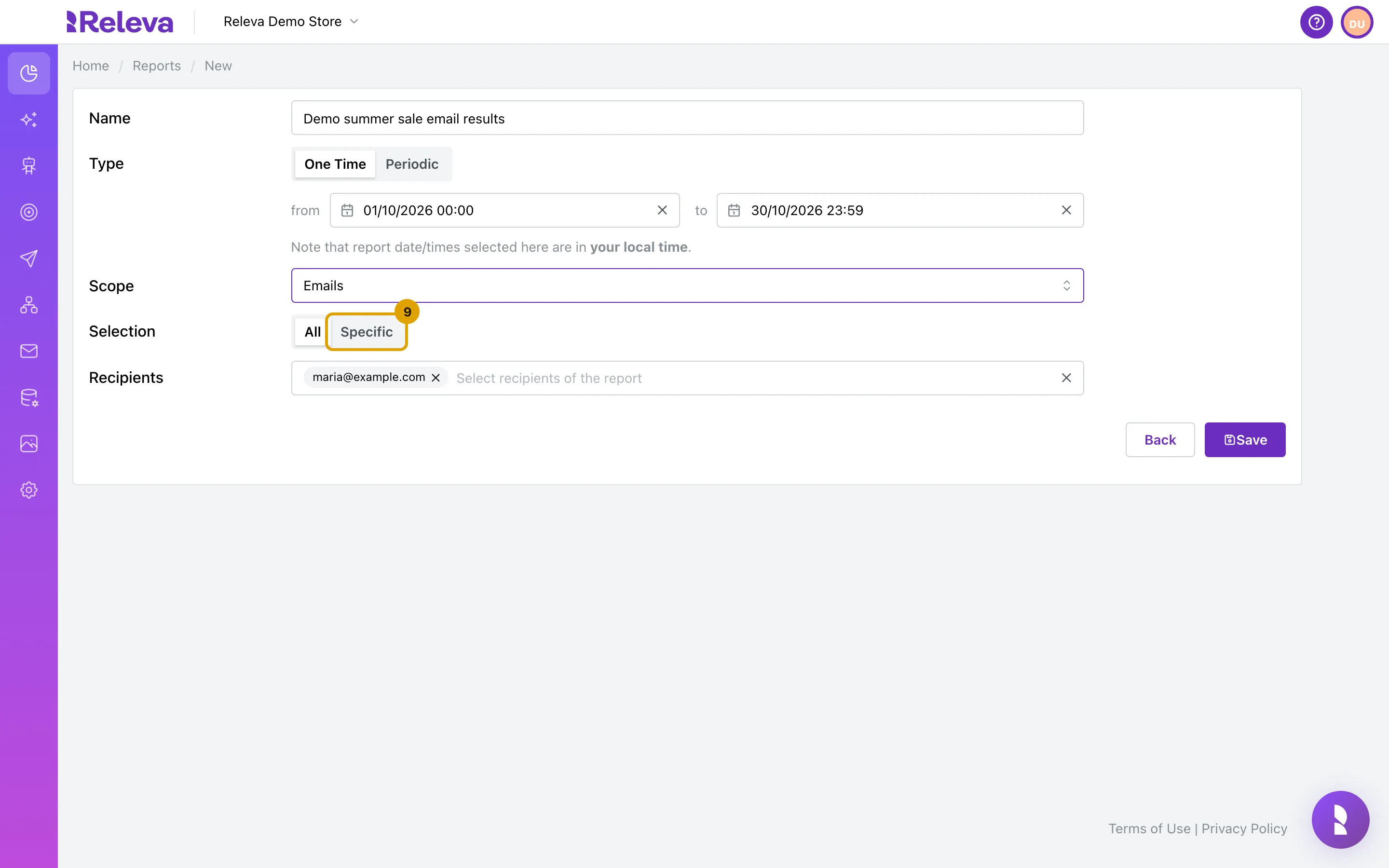
In Selection, keep All to export every item in the scope, or select Specific.
All gives one row per item of the scope. Chat conversations has no selection: it always exports every conversation in the period.
-
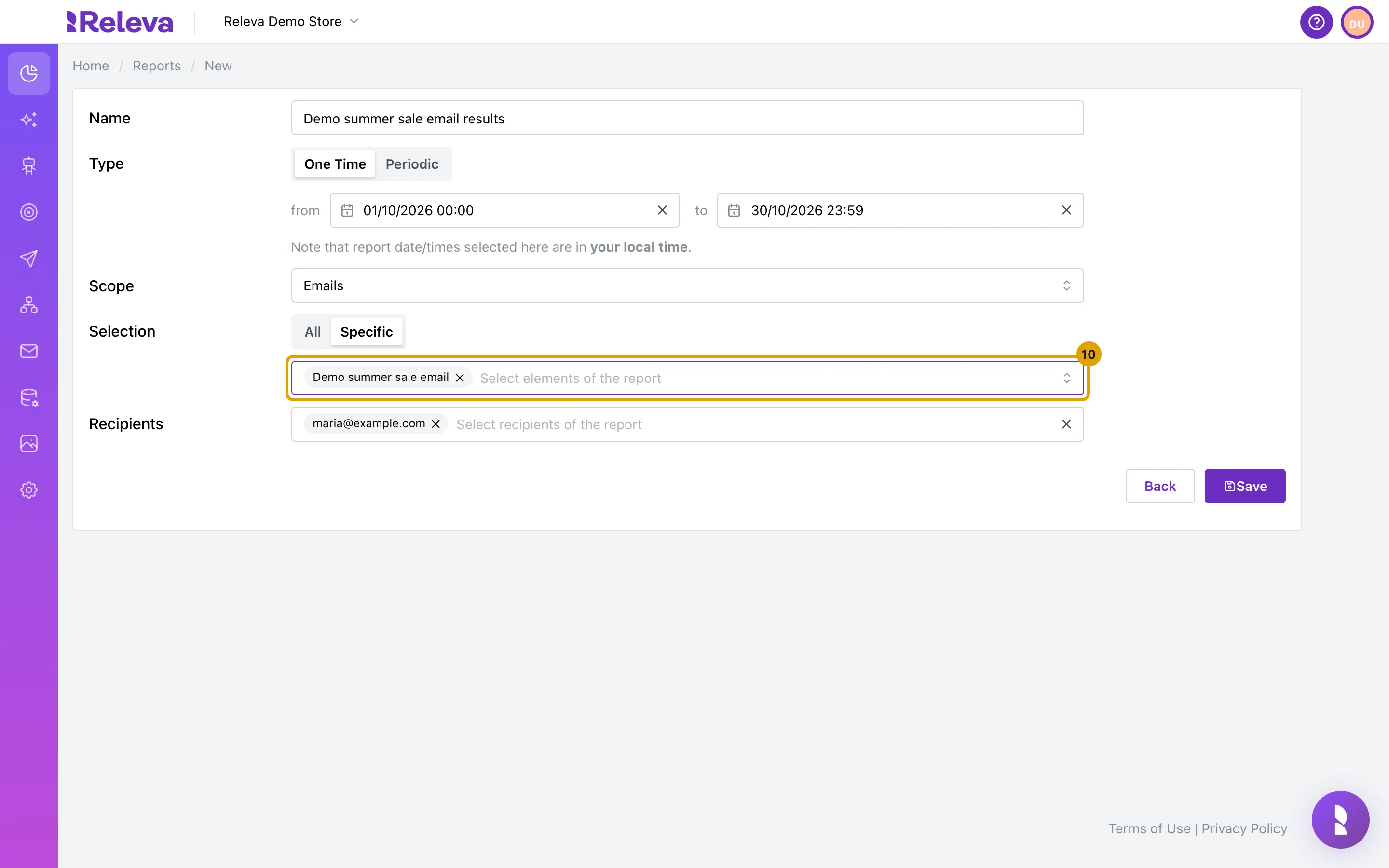
Choose the items you want in Select elements of the report.
The list shows the items of the chosen scope by name. Pick as many as you need; at least one is required for Specific.
-
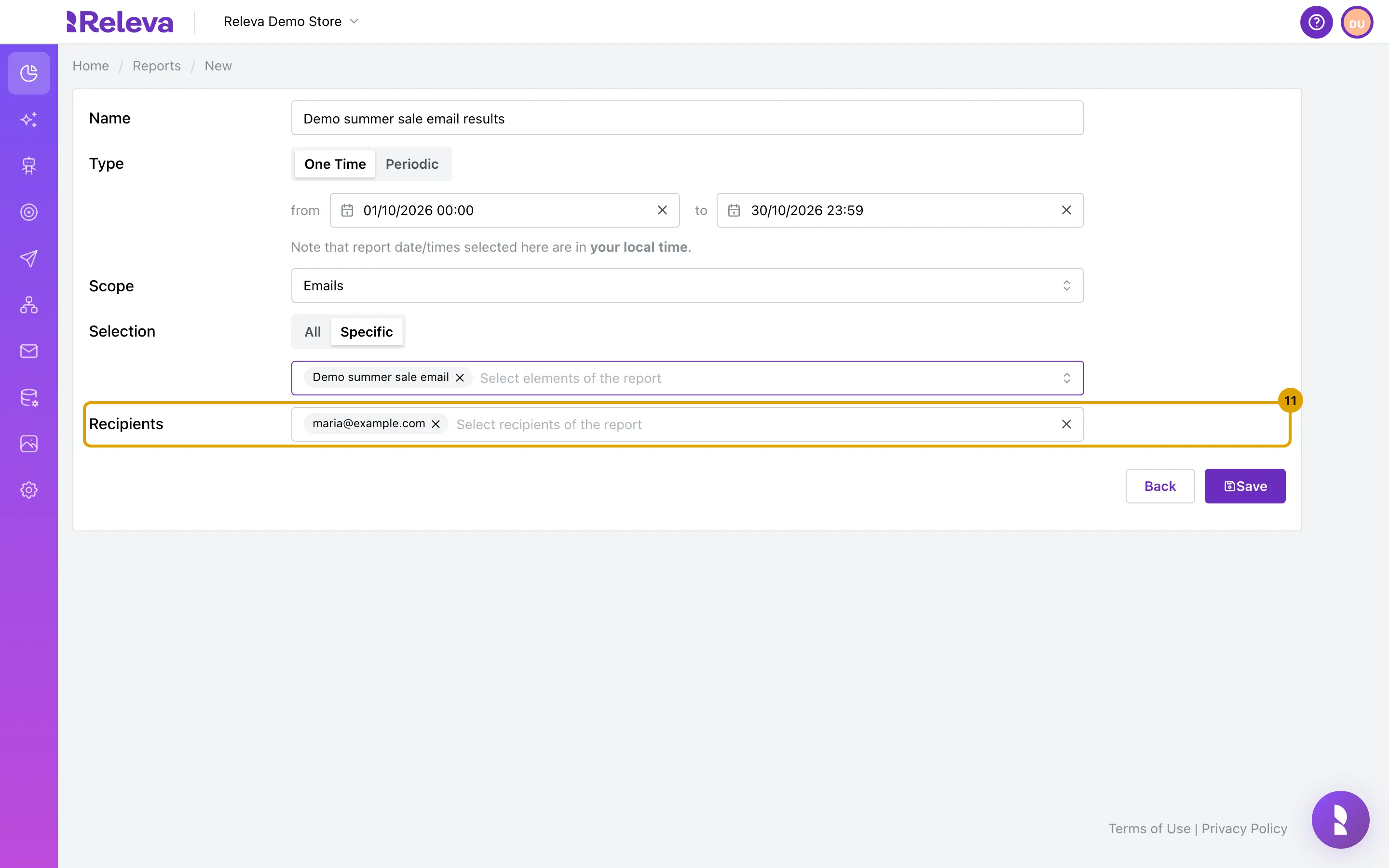
Recipients starts with your own e-mail. Pick other users of your account from the list or type any address and press Enter.
The list offers the users of your Releva account. Any other address works too; every recipient gets the same e-mail and link.
-
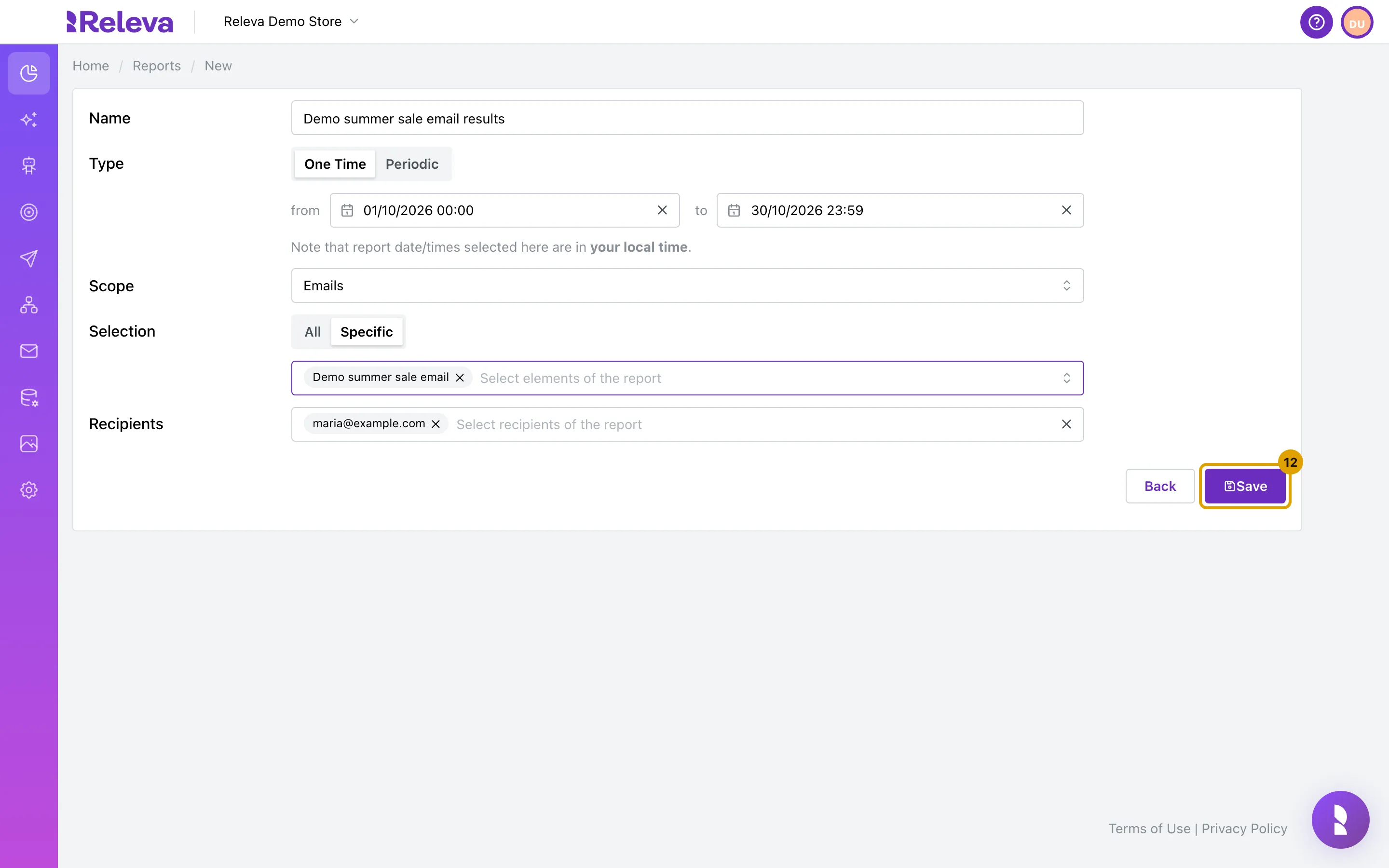
Check the settings and select Save. Releva prepares the file and e-mails each recipient a download link.
Save is disabled until the name, both dates, the scope, the items (for Specific) and at least one recipient are set. After saving you cannot change anything but the name, so check the period and the selection first.
Check it worked
Section titled “Check it worked”- A green notification Export Scheduled says “Your export has been scheduled for processing. You will receive an email with the export once it has been processed.” and you are back on the list.
- The export is the first card on the list with its scope badge, for example EMAILS. One Time cards have no schedule line and no switch.
- Each recipient receives an e-mail from Releva with the subject “Your emails export is ready!” (the scope name changes with the scope), a Download Export button and the period the file covers. The e-mail says the link is valid for 30 days, so download the file within that time.
Troubleshooting
Section titled “Troubleshooting”Save is disabled. Something is missing: the name, the from or to date, the scope, at least one item under Specific, or a recipient. Fill it in and the button becomes active.
“Export name must be unique!” appears under the form. Another export of your shop already has this name. Change the name and save again.
I picked a day and the calendar shows today instead. The day click did not register while the calendar was opening. Open the field again and pick the day once the calendar is fully visible.
I need to change the period or the scope after saving. You cannot. A saved One Time export keeps only its name editable. Open it, select Delete and Confirm, then create a new export with the right settings. Or keep the old one as a record and create a new one next to it.
The e-mail has not arrived. Large exports take longer. Check the spam folder of every recipient. If nothing arrives, contact support with the export name and your shop.