

Export a product trend
Each product trend card shows at most 12 products. To get up to 100 ranked products of one trend, with their current price, stock status and URL, export the trend as a CSV. Releva builds the file in the background and e-mails you a download link.
Before you start
Section titled “Before you start”- The trend you want to export has products for the period. Export is disabled on an empty card.
- The trend is a product trend. The two category cards, View-Boosting Categories and Top-Choice Categories, have no Export.
- You can receive e-mail at the address you log in with. The export is sent only to that address.
-
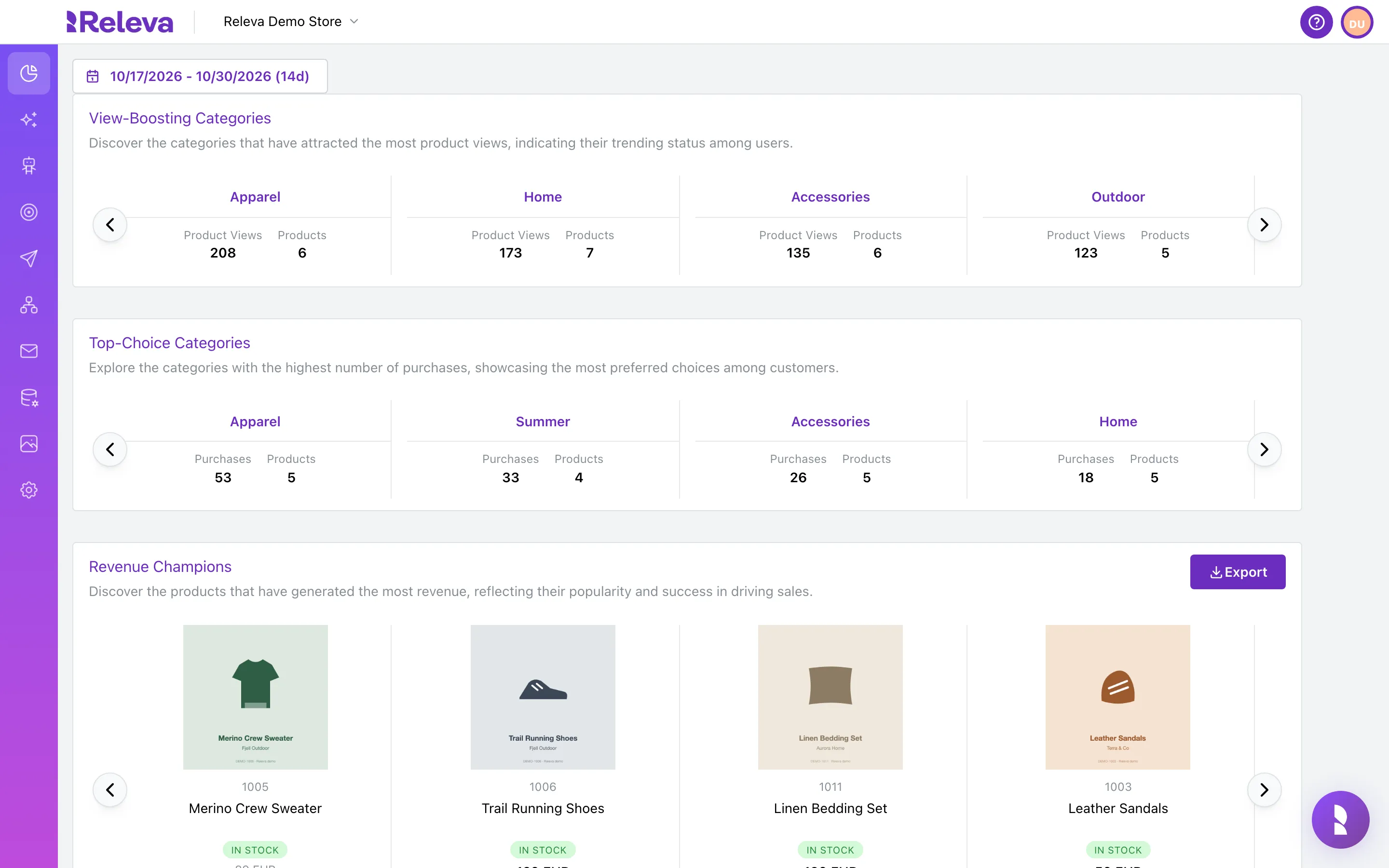
Go to Analytics › Product Trends.
-
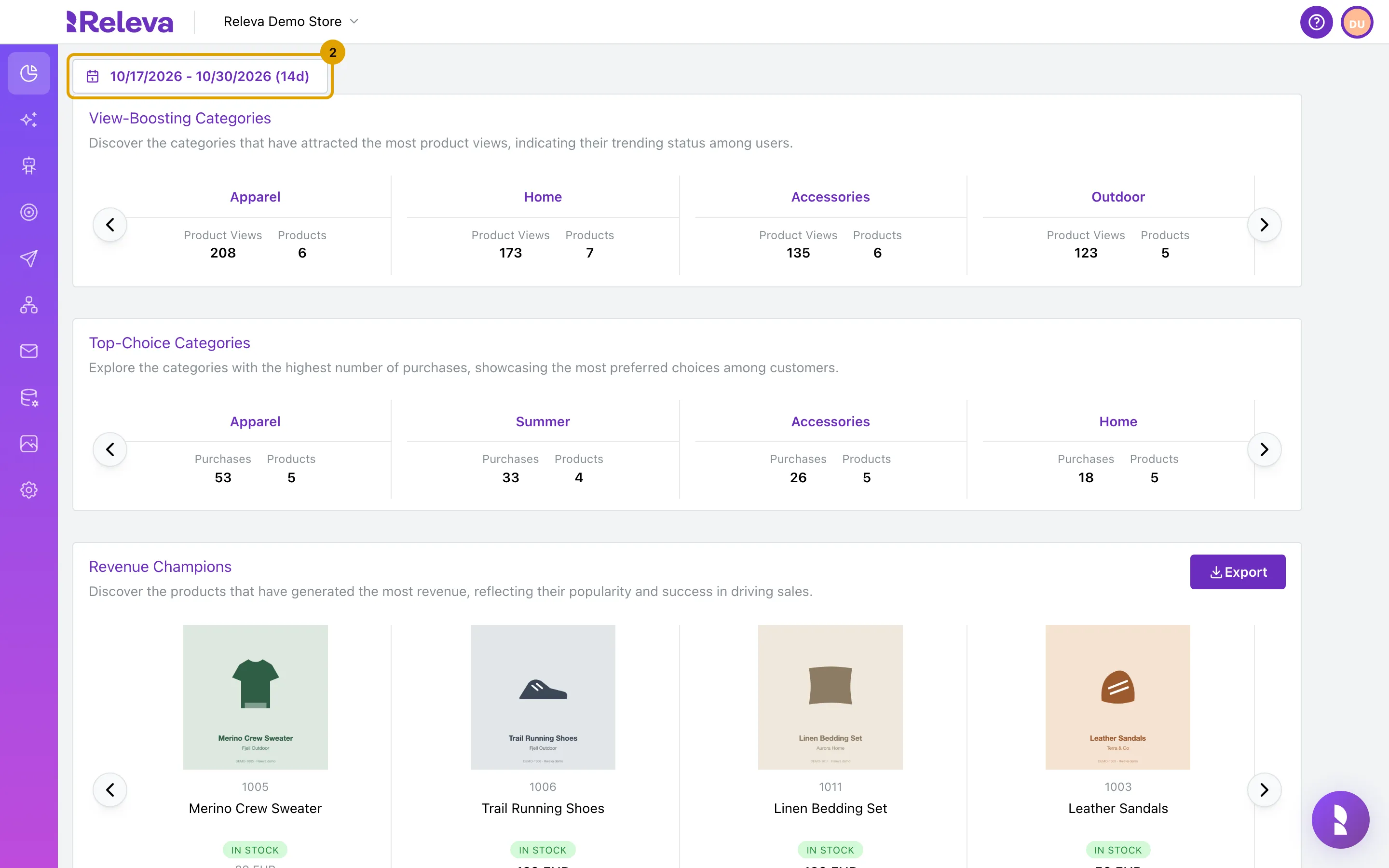
Select the date range and choose the period you want to export.
The export uses the same period as the page. The last day of the range is not included (see Troubleshooting).
-
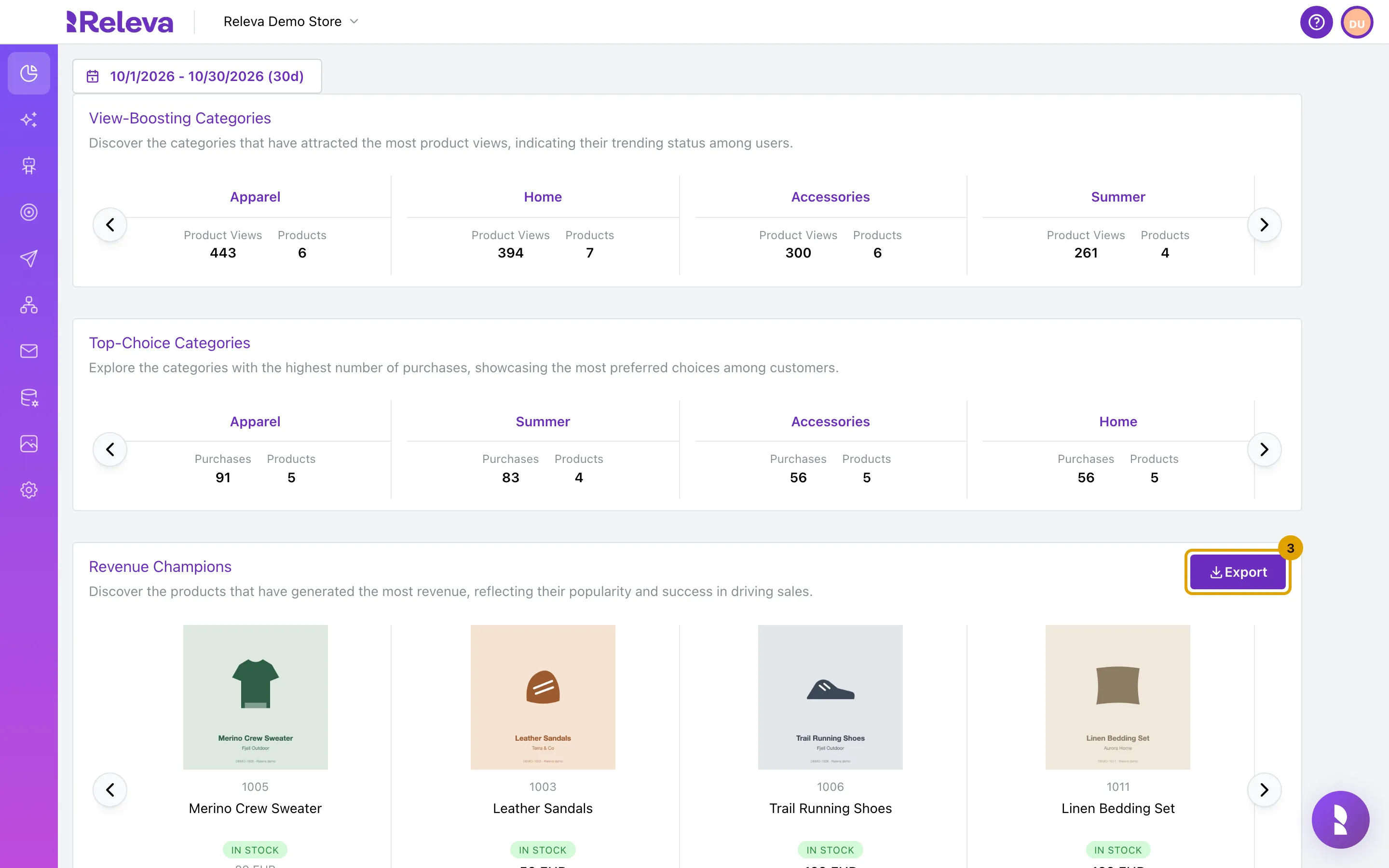
On the trend you want, select Export.
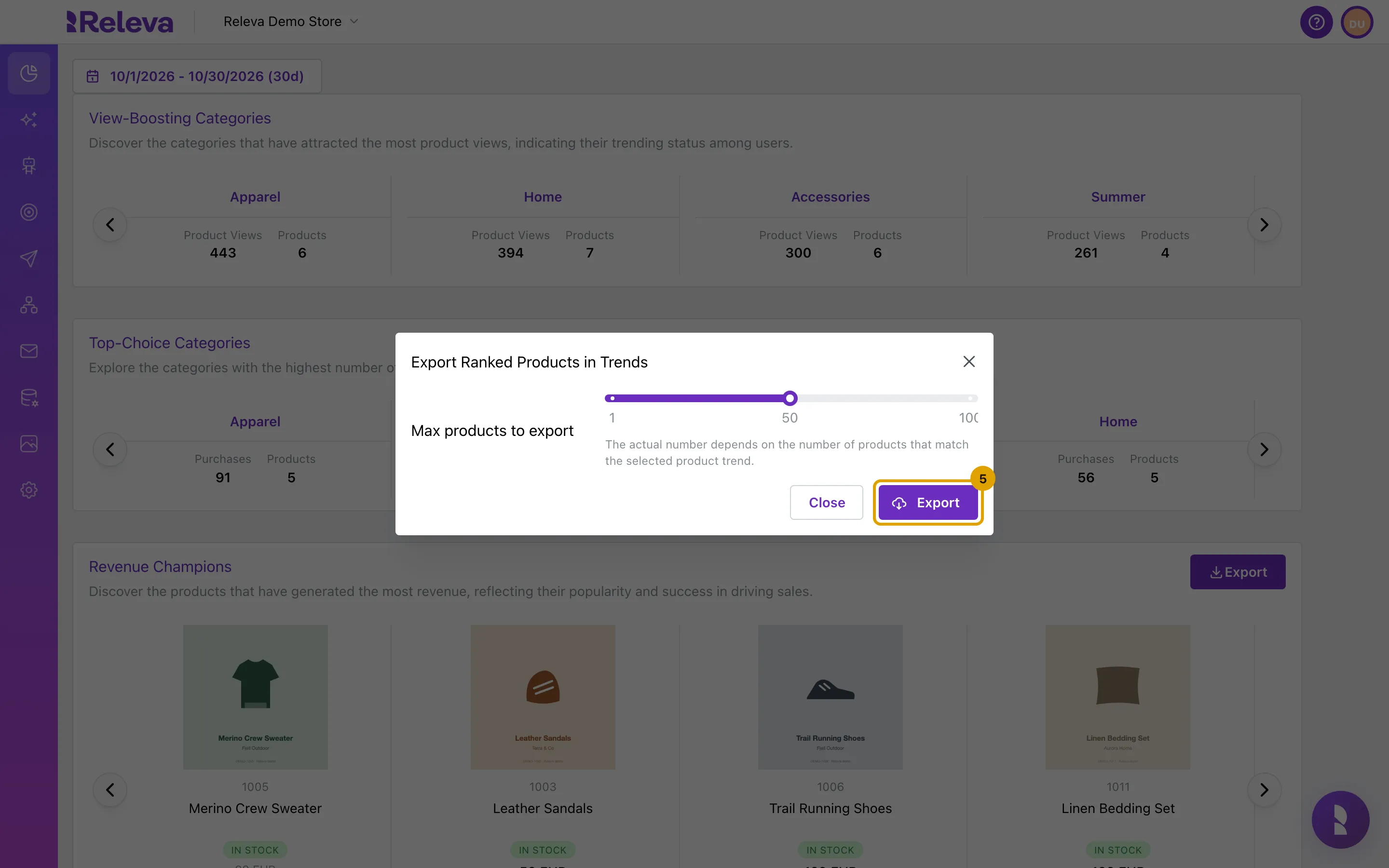
The Export Ranked Products in Trends window opens.
-
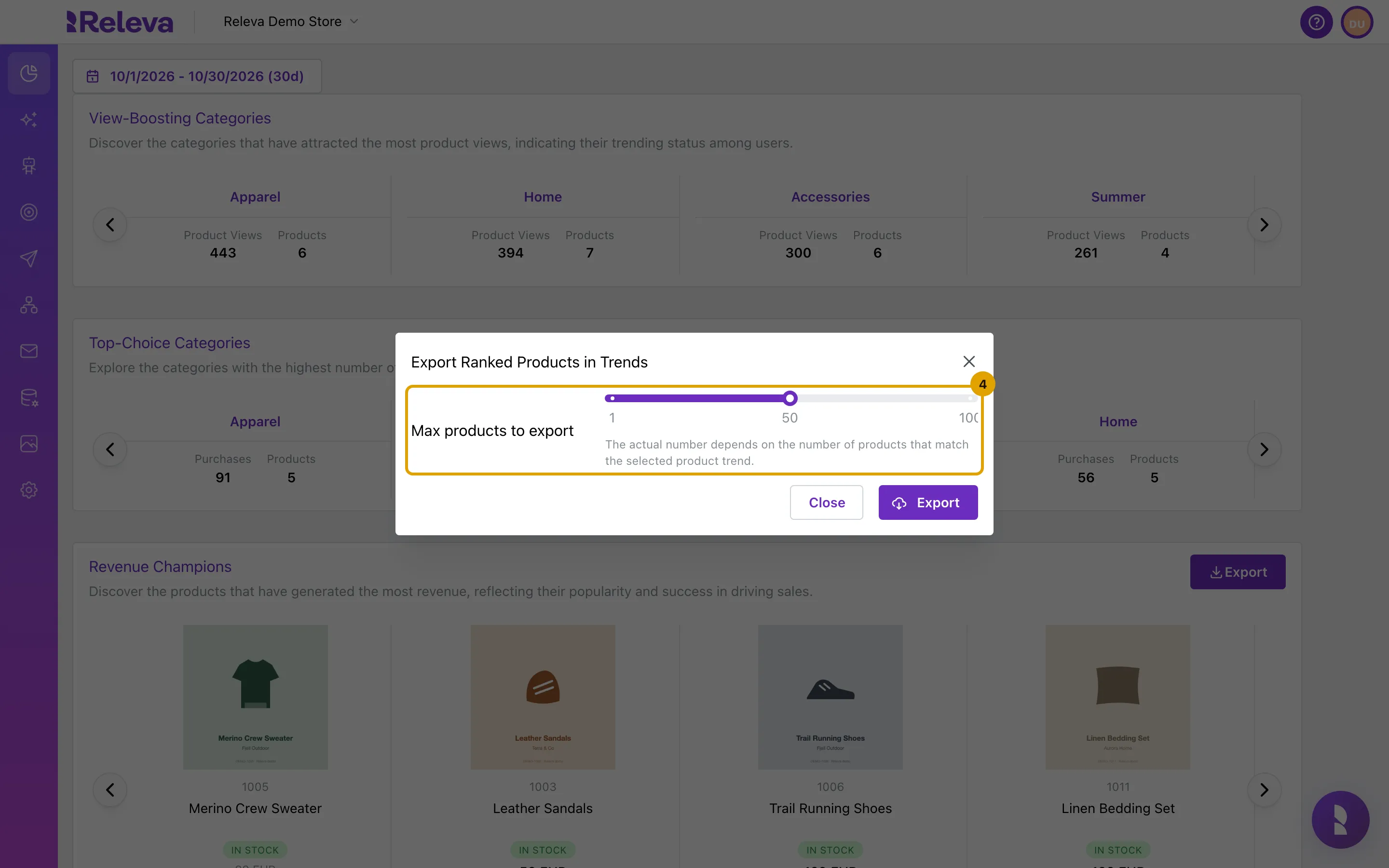
Move the Max products to export slider to the number of products you want, up to 100.
The window notes: The actual number depends on the number of products that match the selected product trend. A trend with 30 matching products gives 30 rows even if you choose 100. The slider has no value until you move it, even though it starts at 1; always move it before you select Export.
-
Select Export. Releva e-mails you a download link when the file is ready.
A notification titled Export Scheduled confirms the request: “Your export has been scheduled for processing. An email containing the export will be sent to you once it’s ready.”
-
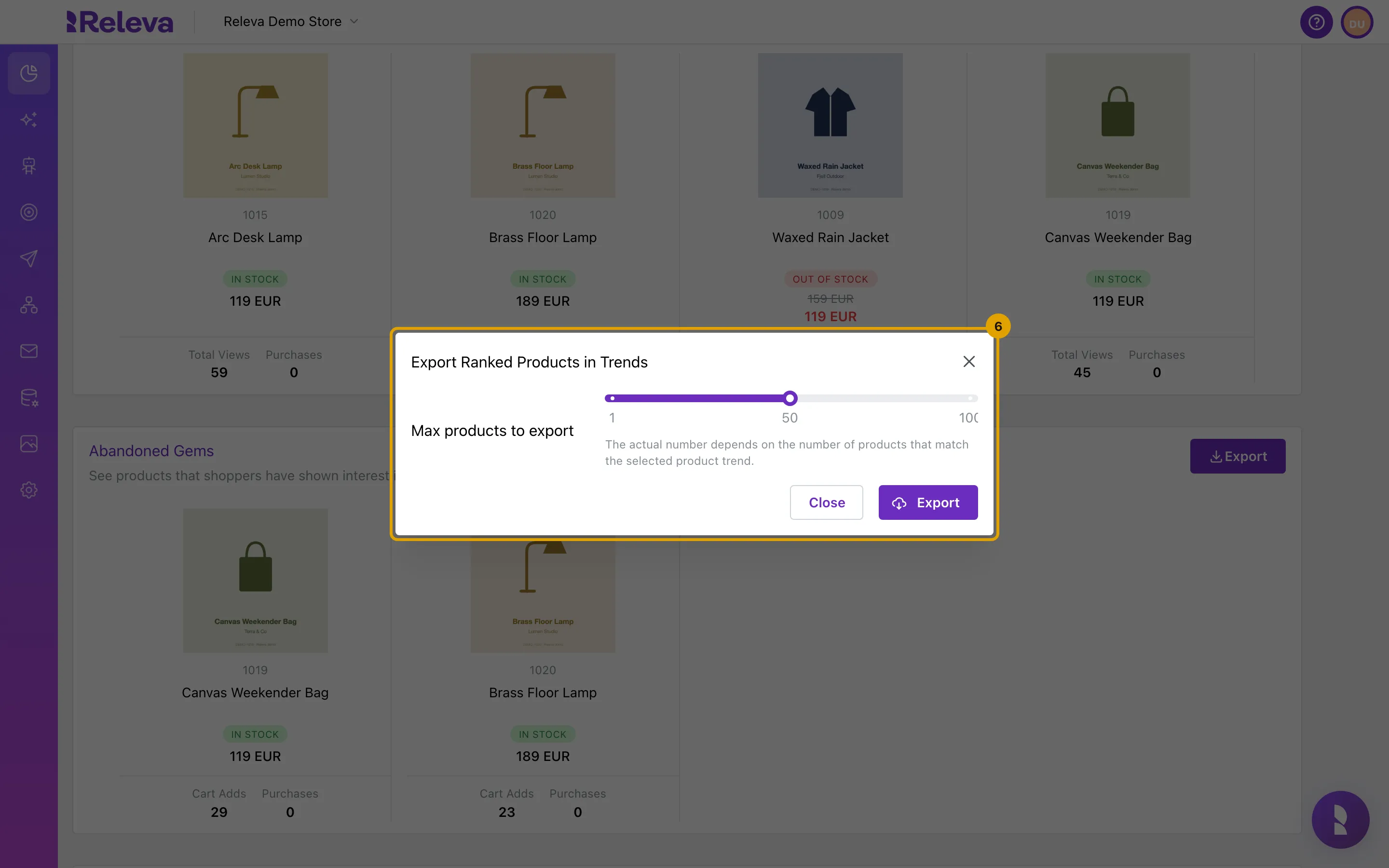
To export another trend, for example Abandoned Gems, select Export on its card and repeat the steps. Each trend is a separate file.
Select Close to leave the window without exporting.
-
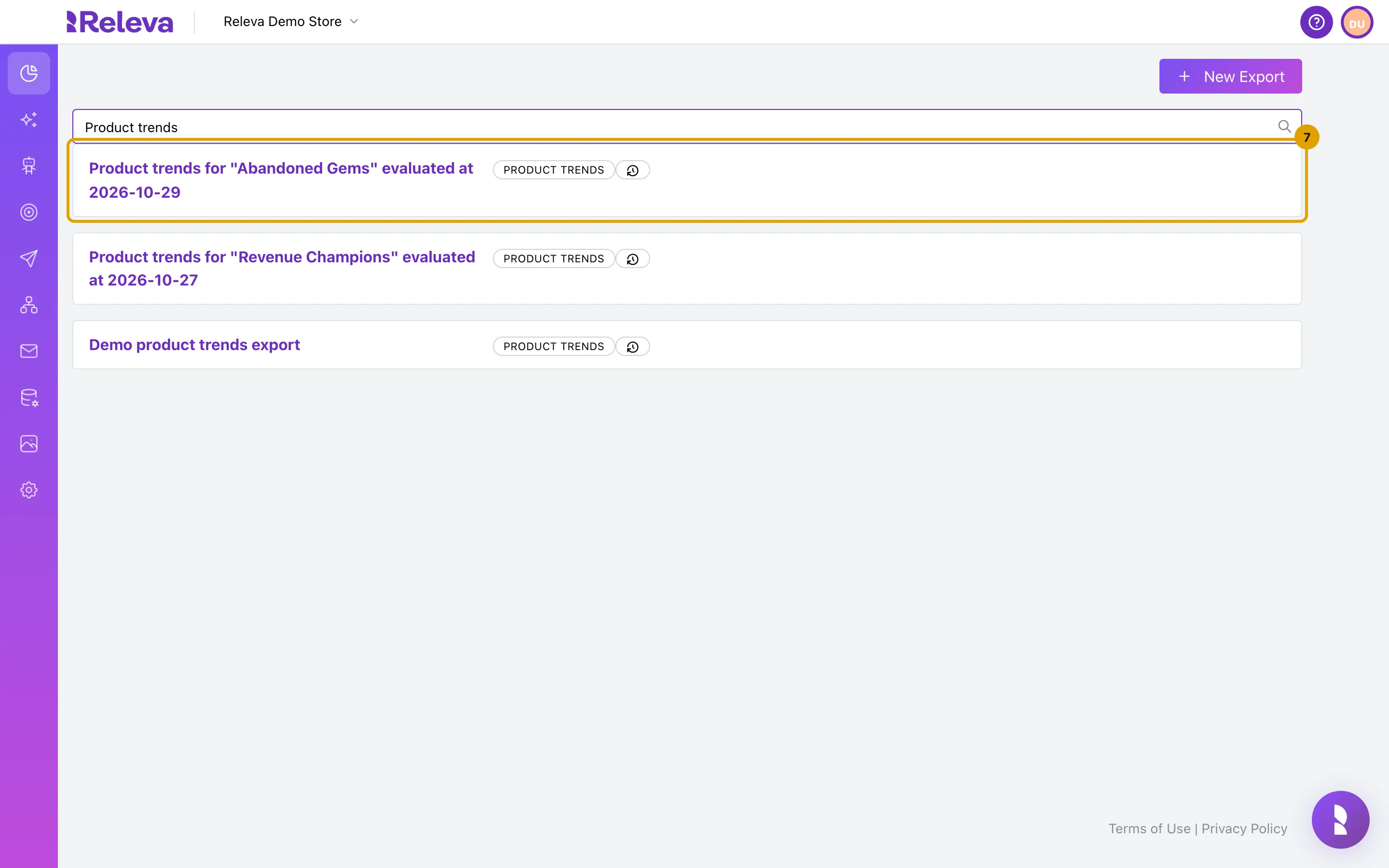
Go to Analytics › Exports and search for Product trends. Each trend export is listed by trend name and date.
Select an export’s name to see its details and run history.
Check it worked
Section titled “Check it worked”- The Export Scheduled notification appeared after you selected Export.
- Under Analytics › Exports, the export is listed with the Product Trends badge.
- You receive an e-mail with the subject Your product trends export is ready! and a Download Export button. The export is named
Product trends for "<trend>" evaluated at <date>, for exampleProduct trends for "Revenue Champions" evaluated at 2026-10-21. The exception is Window Shopper’s Standouts, whose export is namedProduct trends for "Window Shopper's" …. If you export the same trend twice on one day, the second one gets(2)appended. - The CSV has one row per product, highest first, with the columns
score,id,title,availability,price,list_price,discount_percent,created_at,updated_atandurl.scoreis the figure the trend ranks by (revenue, purchases or views).availabilityisin stockorout of stock;priceandlist_priceinclude the currency, for example19.2 EUR.
Troubleshooting
Section titled “Troubleshooting”Export is greyed out on the card. The trend has no products for the period. Pick a longer period or another trend.
The file has fewer rows than I chose. Only products that match the trend in the period are exported, and products that are no longer in the catalog are dropped. The slider is a maximum.
Today’s products are missing from the file. The end day of the period is excluded, so a period ending today covers up to midnight at the start of today.
I did not get the e-mail. The link is sent to the e-mail address of the Releva user who requested the export. Check your spam folder. The Export Scheduled notification only confirms that your browser sent the request and got an answer; it also appears when Releva rejects the request, so if no e-mail arrives, try the export again. The download link stops working 30 days after the e-mail is sent, so keep a copy of the file if you need it longer.
Prices in the file do not match the period. price, list_price, discount_percent and availability are the product’s values at the time of the export, not during the period. Only score is computed for the period.