

Start an A/B test
An A/B test holds back a share of your visitors from Releva so you can compare them with everyone else. While it runs, the control group gets no product blocks, banners, stories or personalised search and is left out of campaigns; the treatment group gets Releva as usual. This guide starts a test with a 20 % control group. For what the two settings mean and how the results are computed, read How A/B tests work.
Before you start
Section titled “Before you start”- No test is running. A shop can run one A/B test at a time, and Start A/ B Test is disabled while one runs. Stop the running test first: see Check and stop an A/B test.
- Your plan includes A/B tests. If A/B Tests is locked in the menu, or Start shows a lock, ask your account owner to unlock the feature.
- You accept the trade-off. Fewer visitors see product blocks and banners, and fewer enter your campaigns and receive your newsletters, for as long as the test runs.
- Plan for at least three days. The results leave out the first and the last day of the test, so a test started today shows nothing before its third day.
-
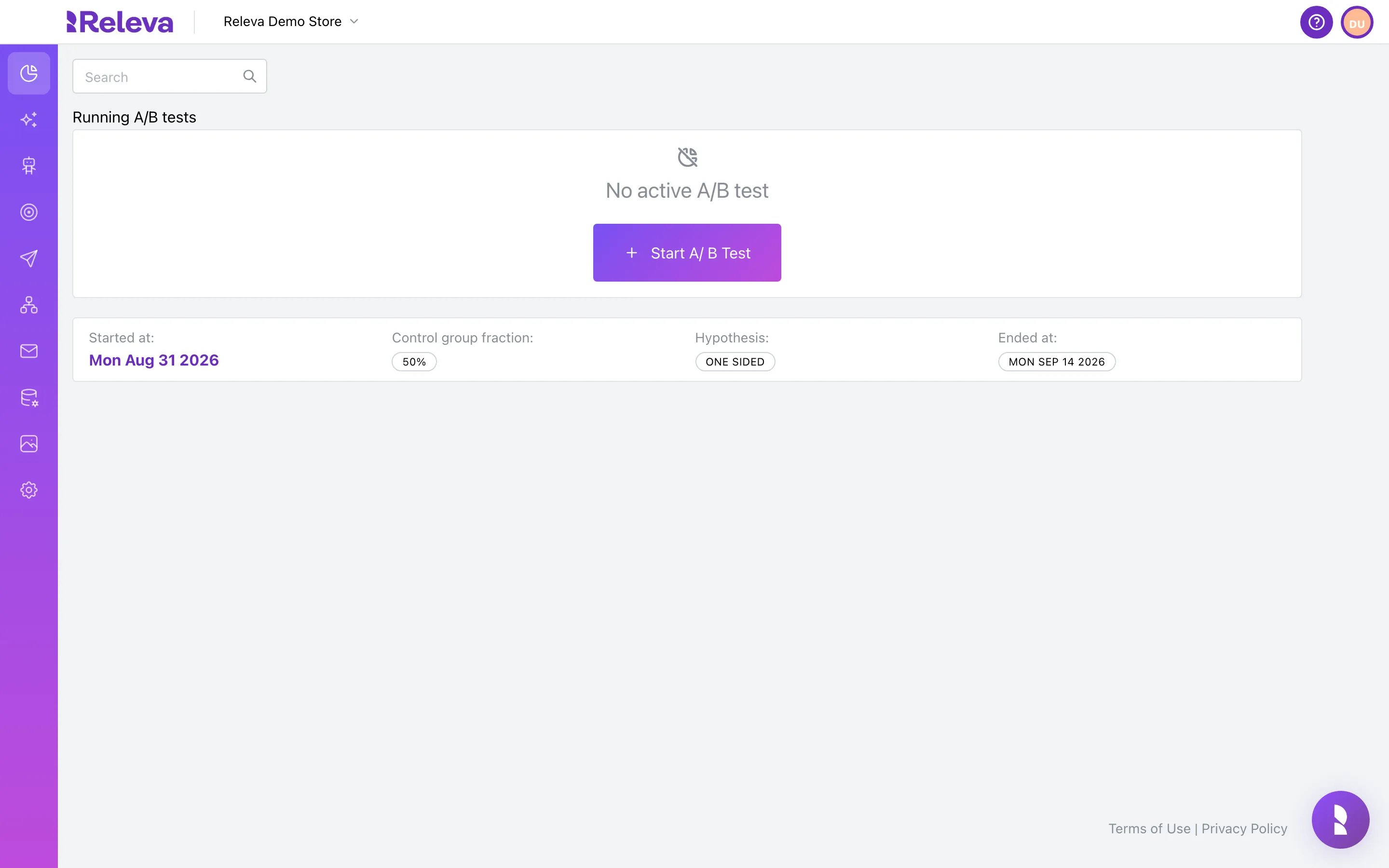
Go to Analytics › A/B Tests
Under Running A/B tests you see No active A/B test. Earlier tests are listed below, with the date they ended.
-
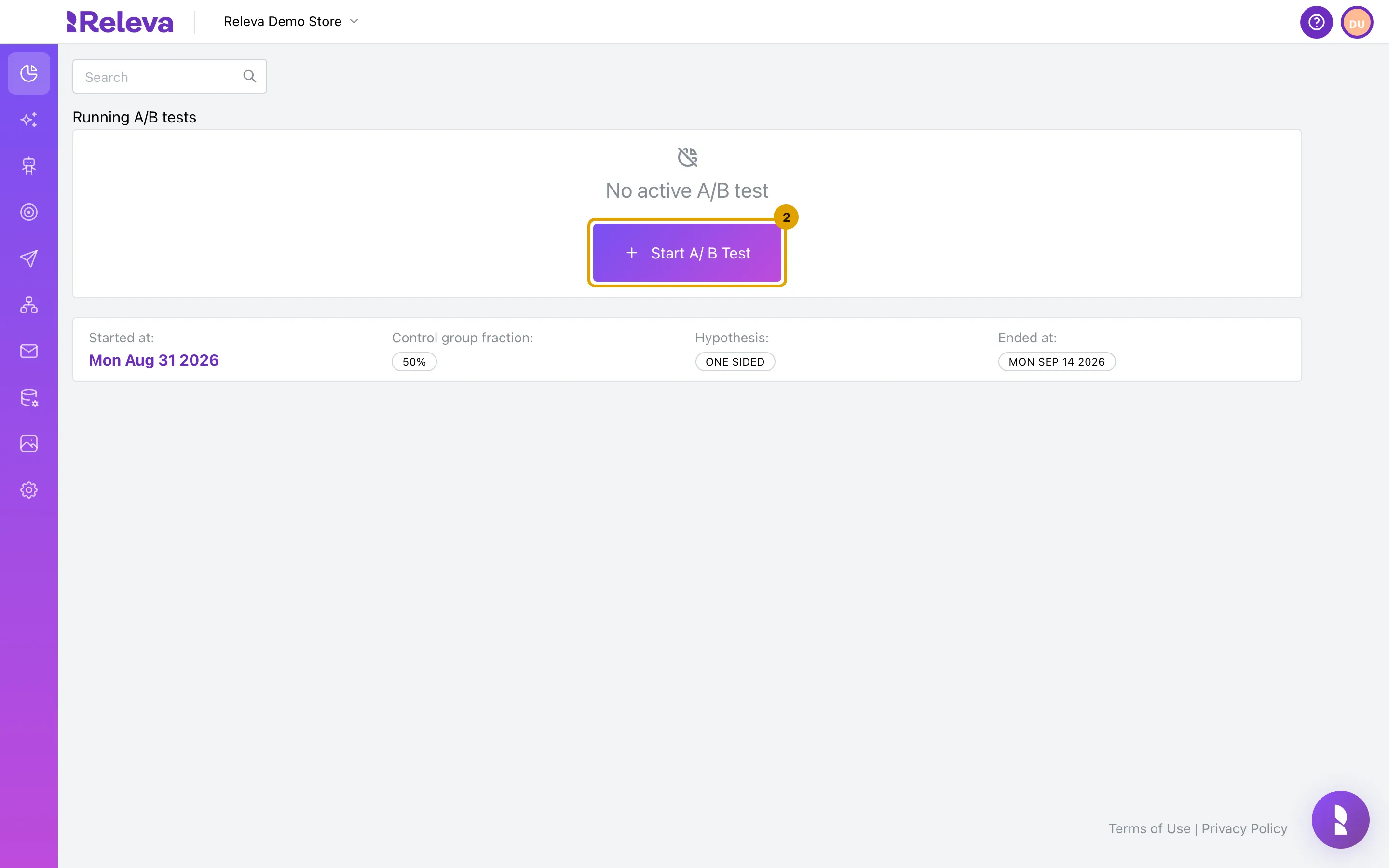
Under Running A/B tests, select Start A/ B Test
-
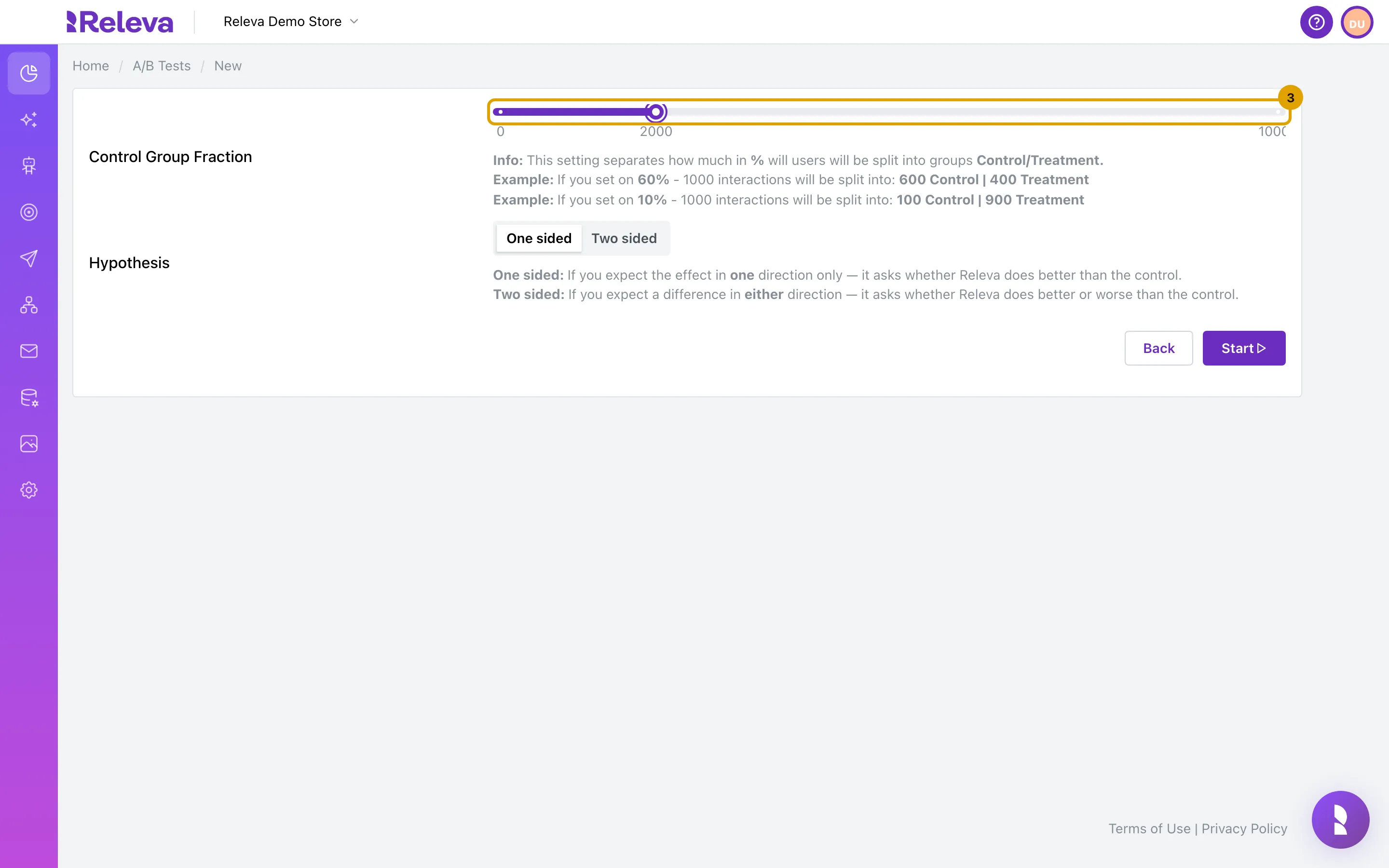
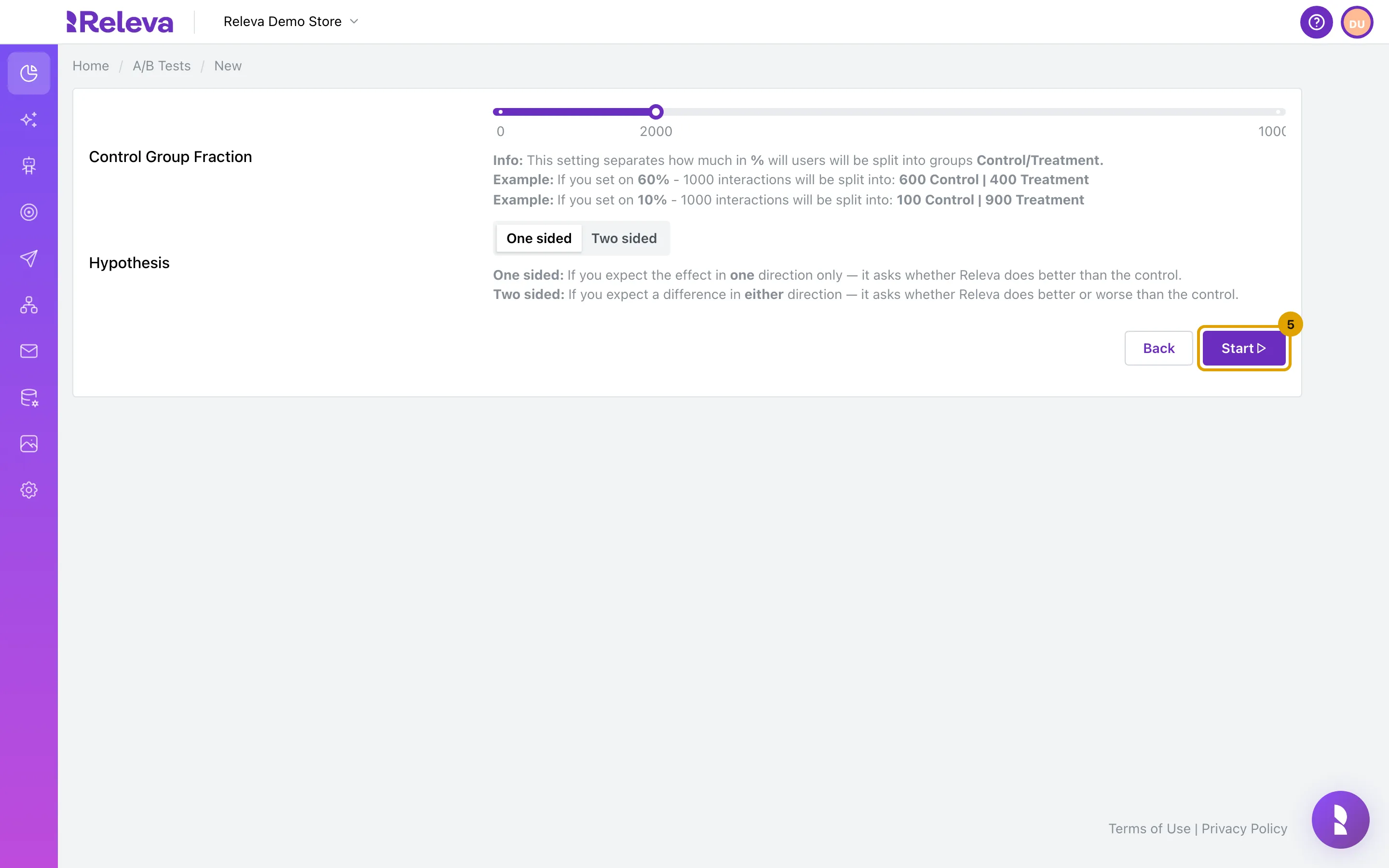
In Control Group Fraction, move the slider to the share of visitors who should not get Releva, for example 20% (the slider shows 2000)
The slider runs from 0 to 10000 (the right-hand label can look cut off) in steps of 1000, where 10000 is 100 %. The default is 5000, half of your visitors. The arrow keys move it one step at a time. The text below the slider shows how 1000 interactions split for a given value.
-
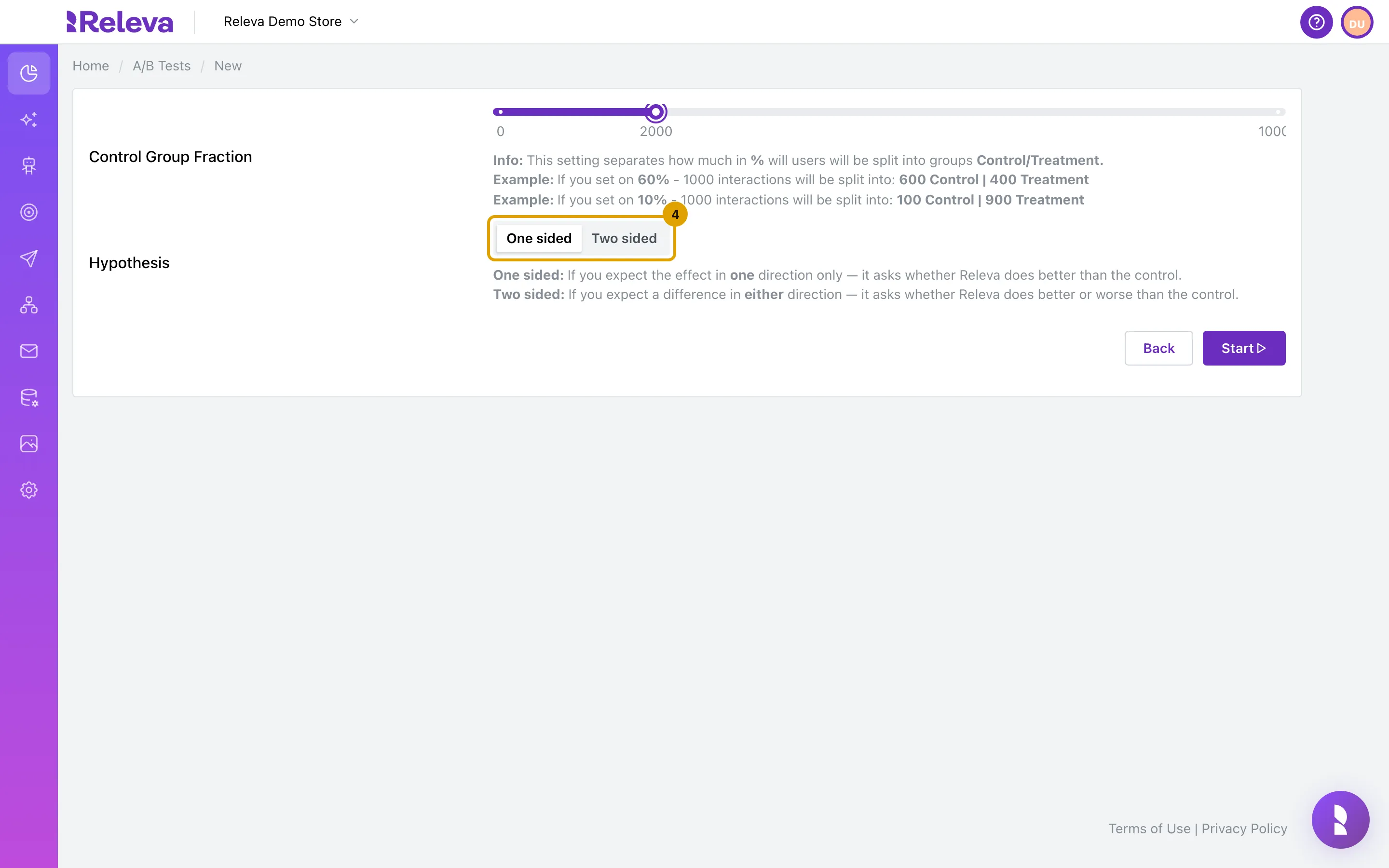
Under Hypothesis, keep One sided to test whether Releva does better than the control group
Choose Two sided if you want to know whether Releva does better or worse. A two-sided test needs a bigger difference to become significant.
-
Select Start
-
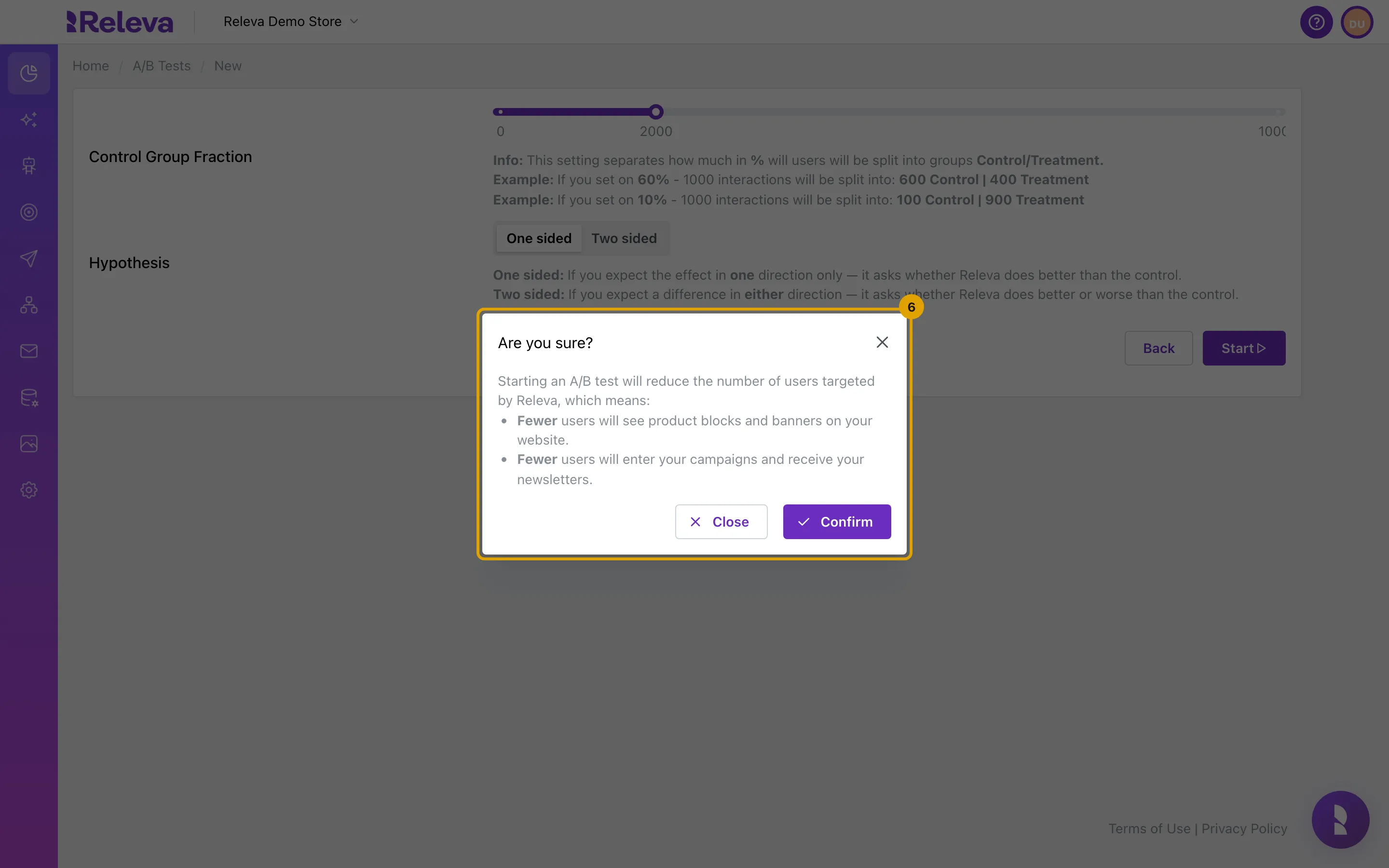
Read what the test changes and select Confirm
The dialog reminds you that fewer users will see product blocks and banners on your website, and fewer users will enter your campaigns and receive your newsletters. Close goes back without starting anything.
-
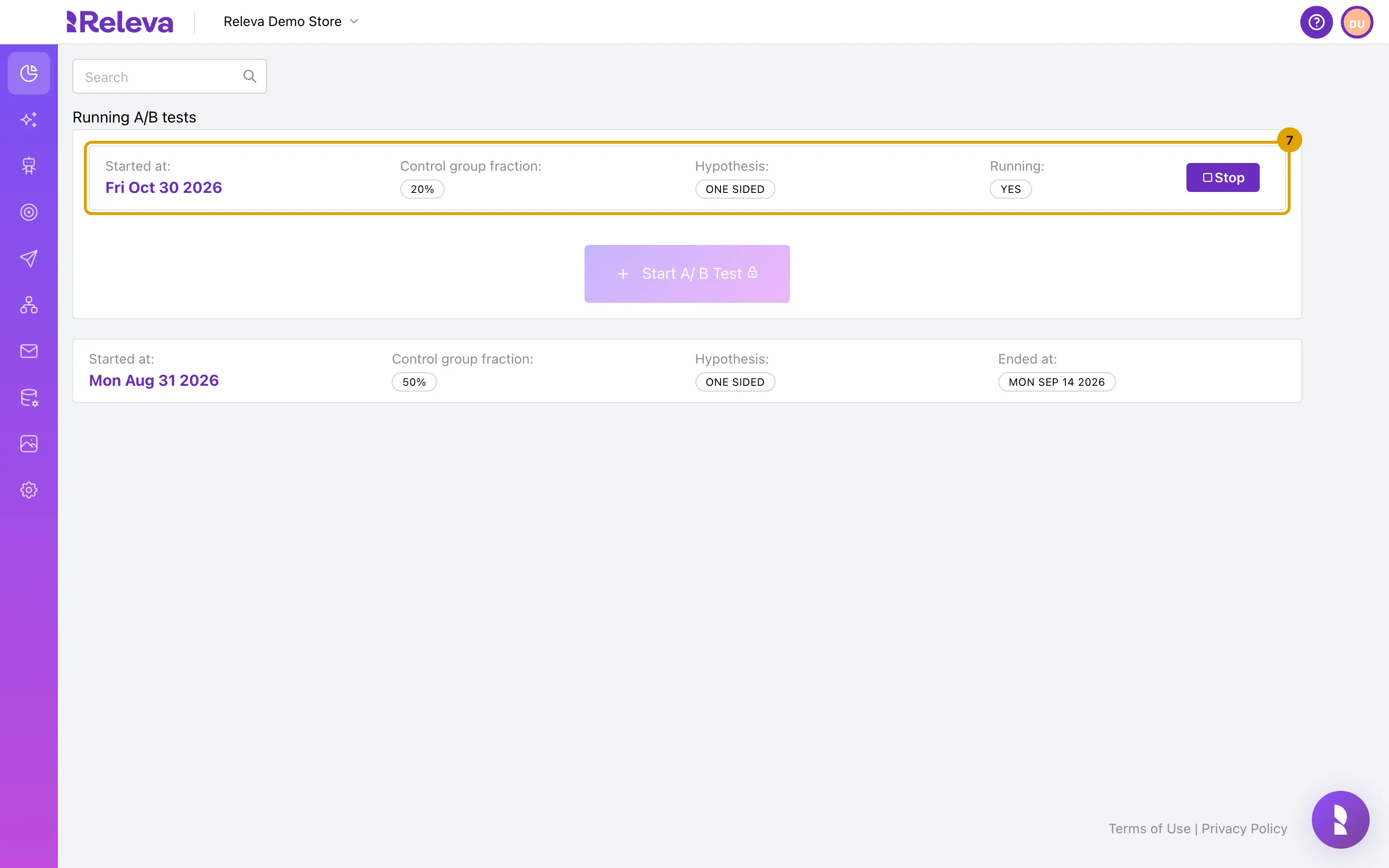
You are back on A/B Tests and the new test is listed under Running A/B tests with Running: YES
Start A/ B Test is now greyed out and shows a lock, because only one test can run at a time.
Check it worked
Section titled “Check it worked”- The card under Running A/B tests shows Started at: today’s date, Control group fraction: 20%, Hypothesis: ONE SIDED and Running: YES, with a Stop button on the right.
- Start A/ B Test is now greyed out. Only one test can run at a time.
- The start date is always the moment you confirm. You cannot backdate a test or schedule it.
Troubleshooting
Section titled “Troubleshooting”Start A/ B Test is greyed out and shows a lock. A test is already running. If you can manage the subscription, the page also says “Upgrade your subscription to access this feature.” This message appears whenever the button is disabled, even when your plan includes A/B tests. Stop the running test and the button comes back.
Start shows a lock with the tooltip “Unlock feature.”, or is disabled. Your plan does not include starting A/B tests. The lock is shown to users who can manage the subscription; select it to request the feature. Everyone else sees a disabled Start and should ask their account owner.
A red error line appears under the form after Confirm. The server refused the test. The usual cause is a test that started in another browser tab in the meantime; go back to A/B Tests and check Running A/B tests. The message shown is a generic “An internal error occurred.”
I want a different control group fraction. A running test cannot be edited. Stop it and start a new one with the new value.
The search box on the list does nothing. A/B tests have no name to search by. Running and previous tests are always listed in full, newest first.