

Create a funnel
A funnel counts the profiles that completed an ordered series of steps in a period, so you can see where they drop off. This guide creates a three-step funnel: viewed a product, added to cart, purchased. For how funnels are measured and how the starred funnel reaches At a Glance, read How analytics works.
Before you start
Section titled “Before you start”- Your shop tracks the events you want to follow. A step that starts from an event nobody sends counts zero profiles.
- The shop has fewer than 5 funnels. Create funnel is disabled at 5; delete one to make room.
- Optional: a Behavior segment, if you want to count only part of your audience. Only Behavior segments can filter a funnel. See Create a segment.
-
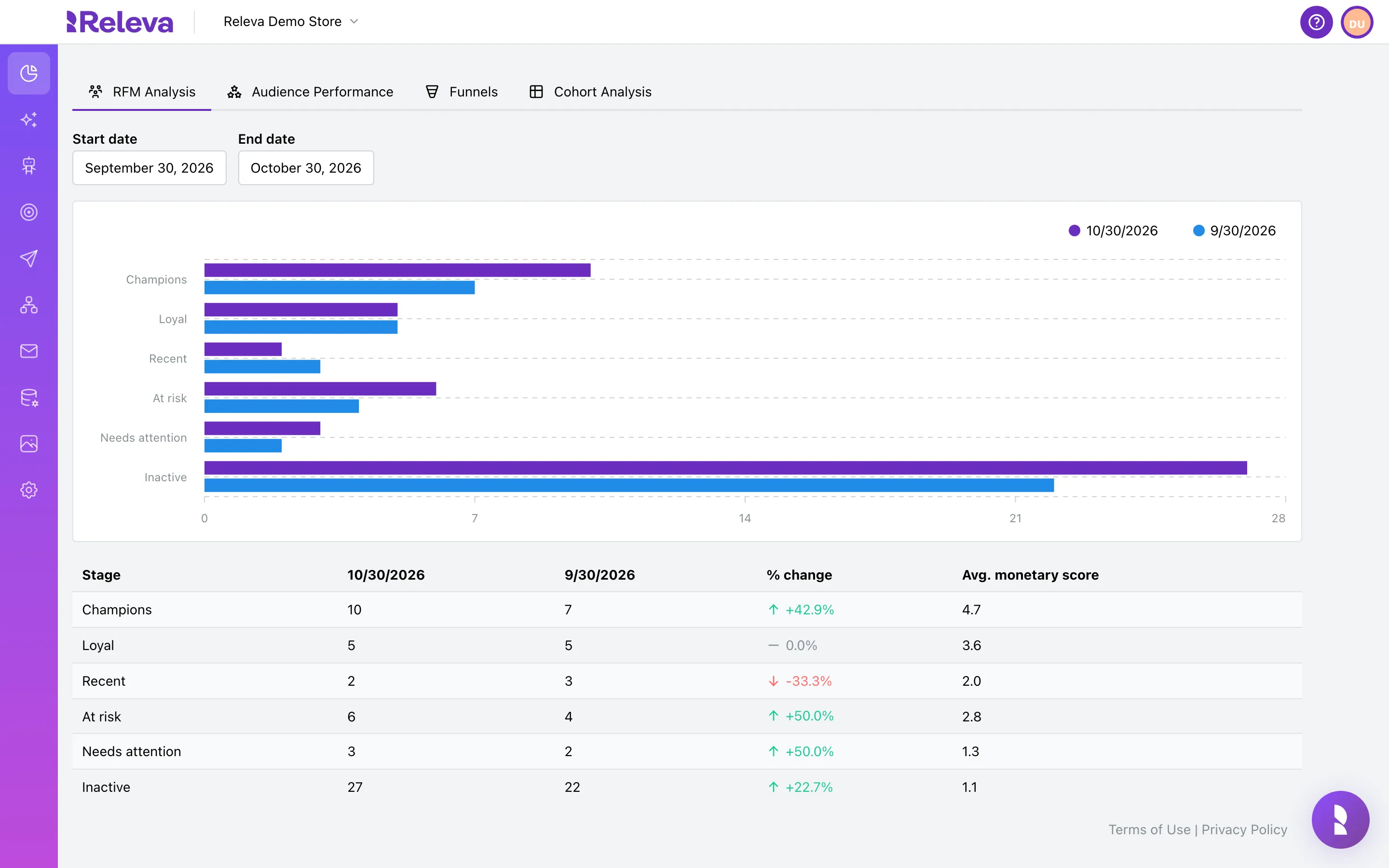
Go to Analytics › Customer Insights
The page opens on RFM Analysis.
-
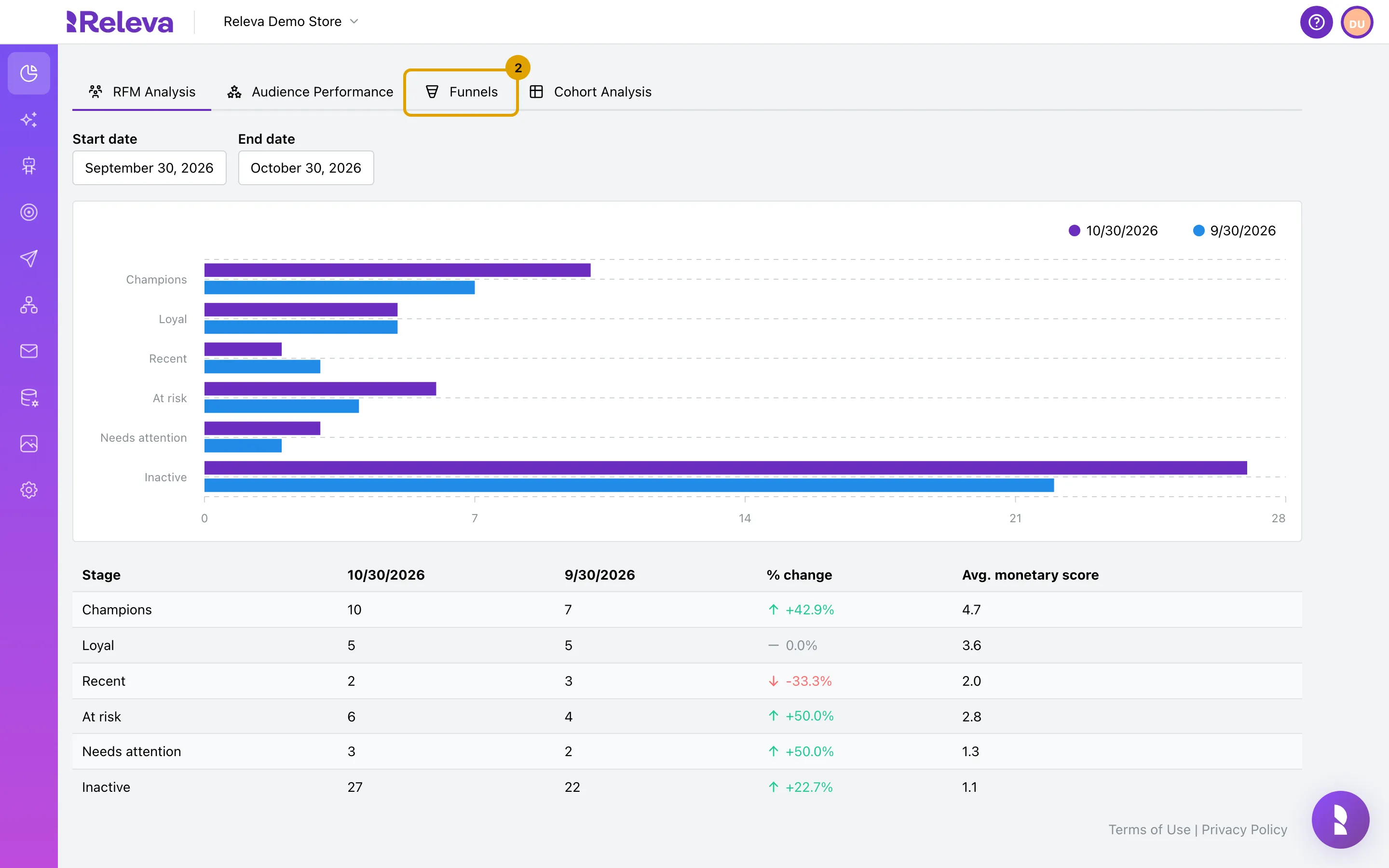
Select the Funnels tab
-
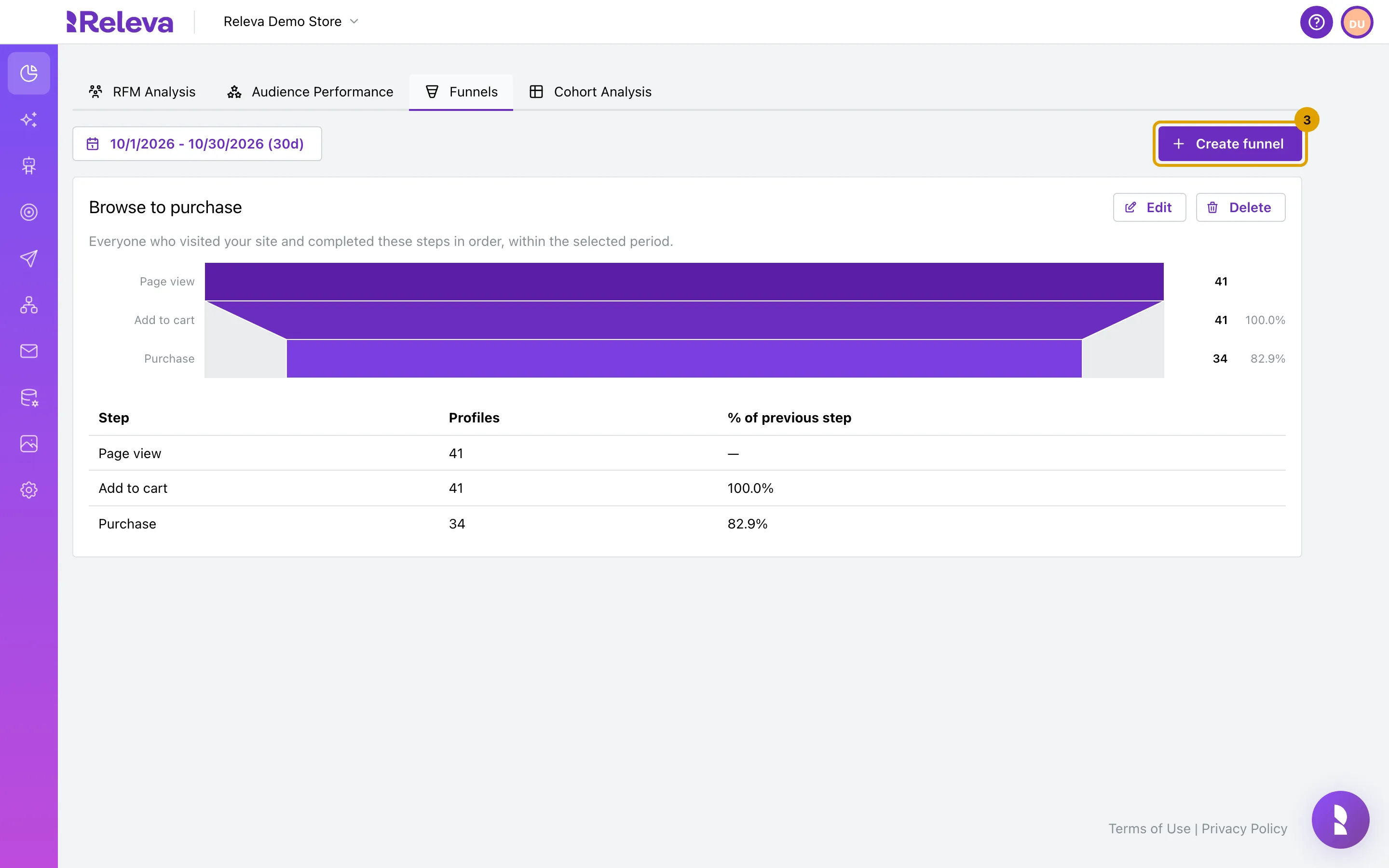
Select Create funnel
The tab lists the existing funnels, each measured over the period shown at the top left (the last 30 days by default).
-
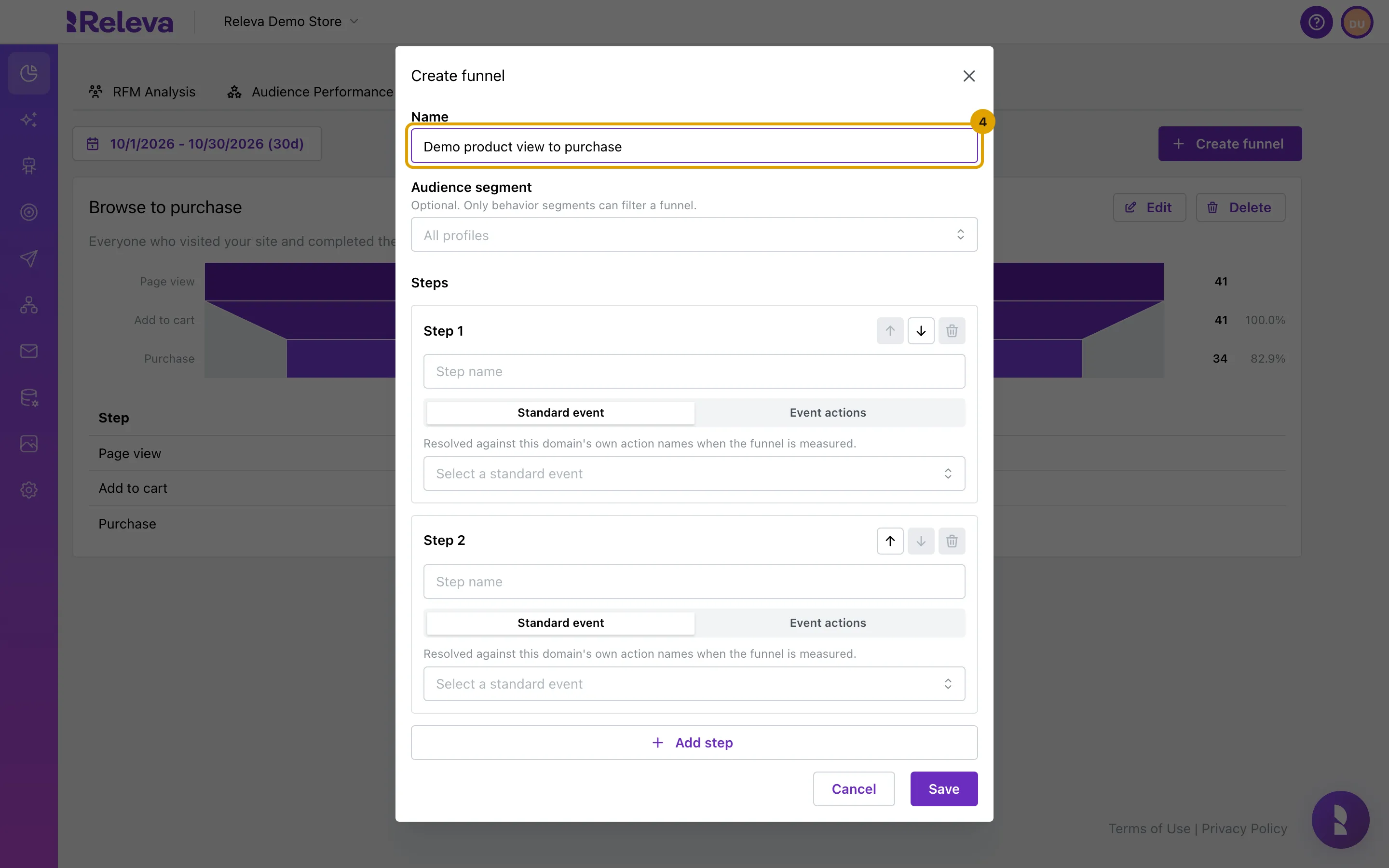
In Name, enter a name for the funnel. Leave Audience segment empty to count all profiles.
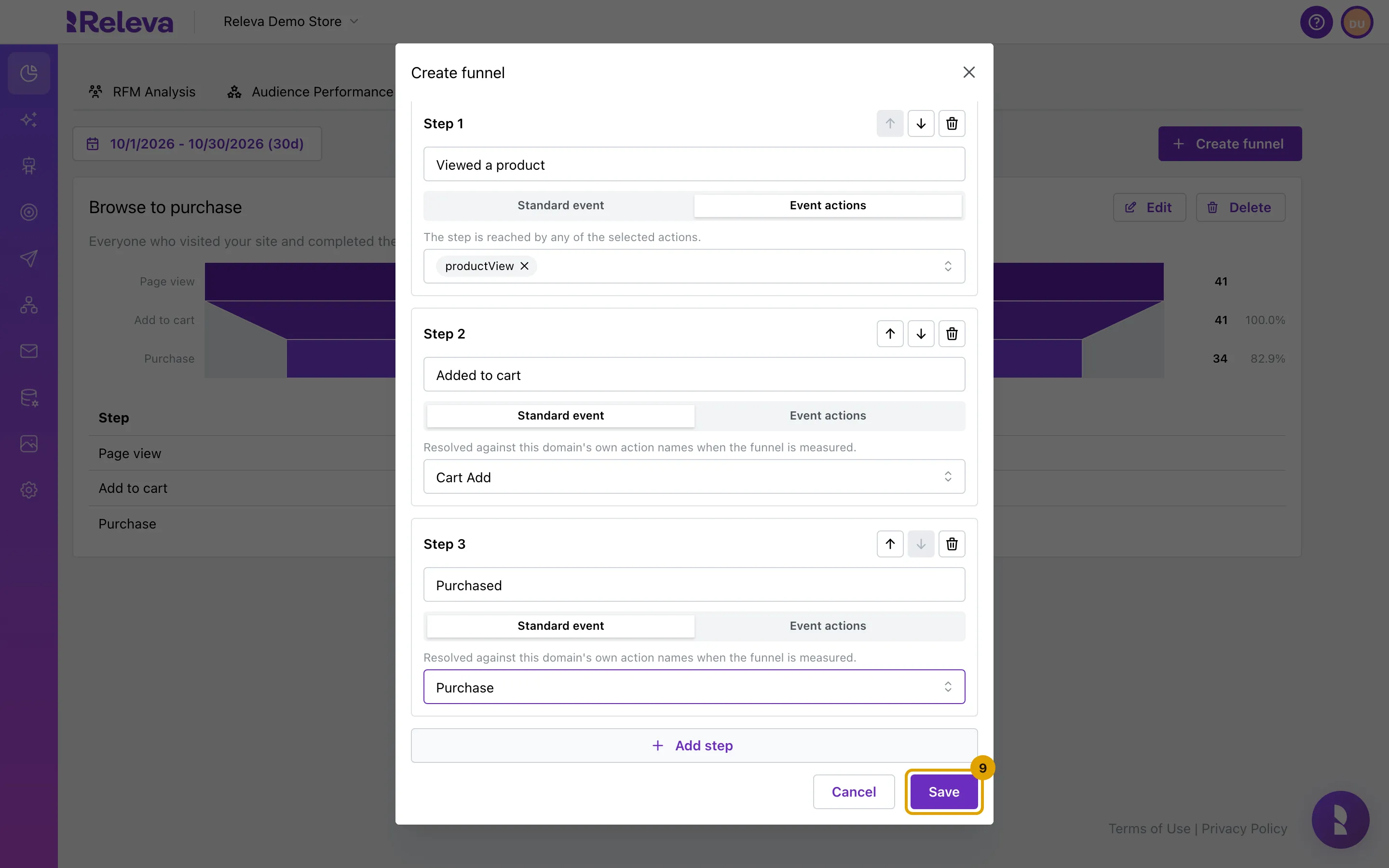
A new funnel starts with two steps. Each step has a name and is either a Standard event or one or more Event actions.
-
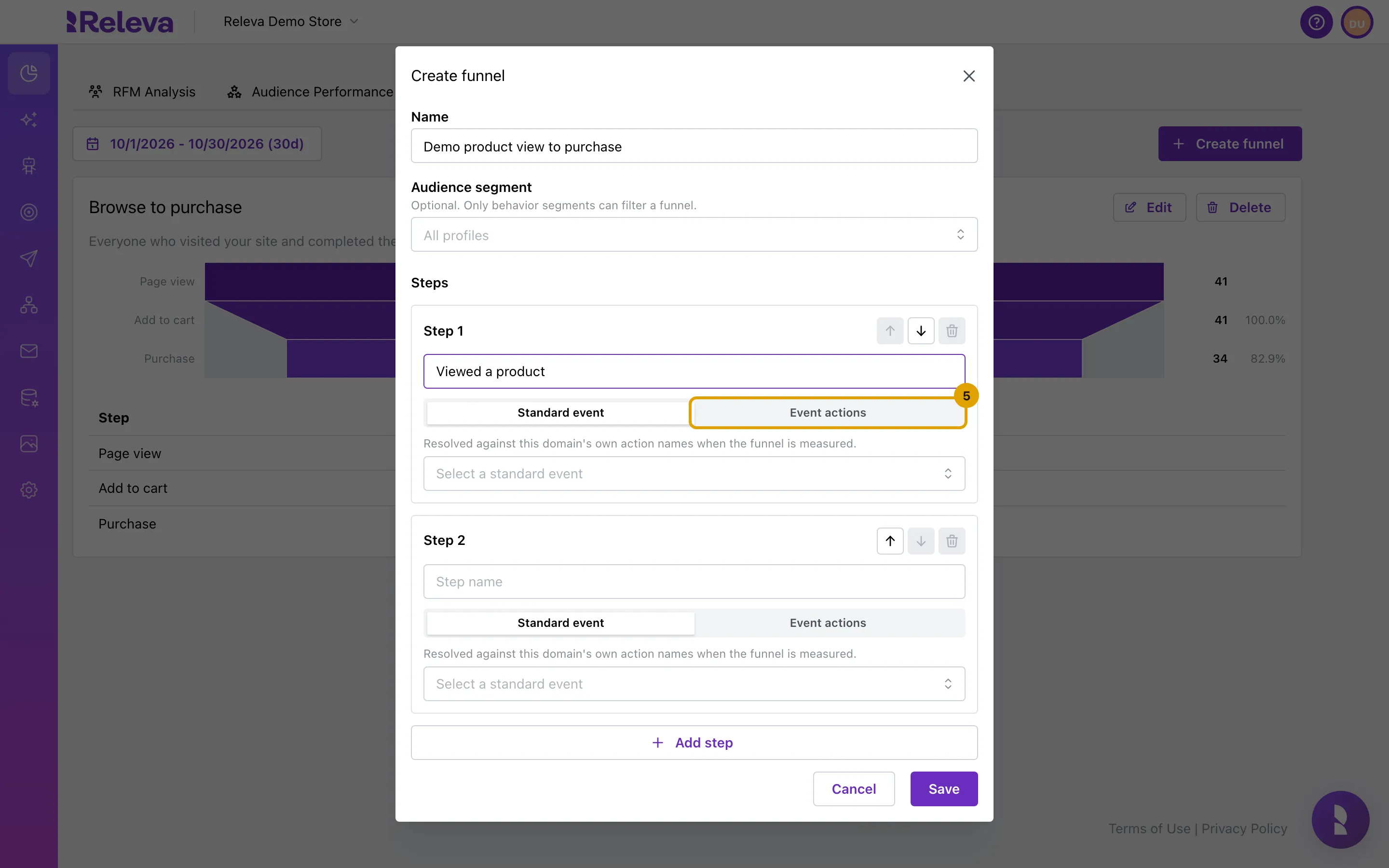
Name the first step, then select Event actions to start from an event of your own
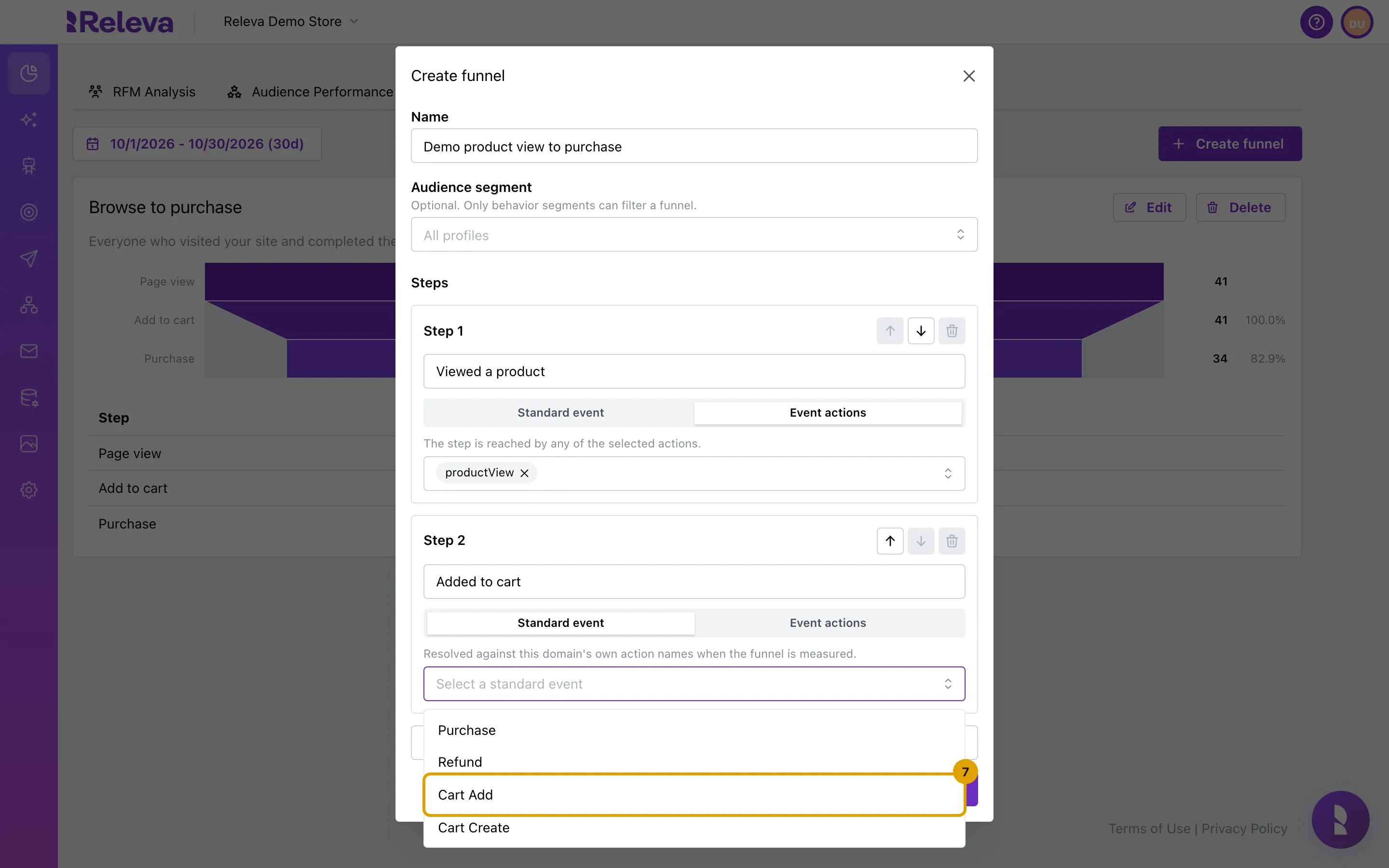
Standard event offers Purchase, Refund, Cart Add and Cart Create, resolved against your shop’s own action names when the funnel is measured. Event actions lists every action your shop has sent; the step is reached by any of the actions you select.
-
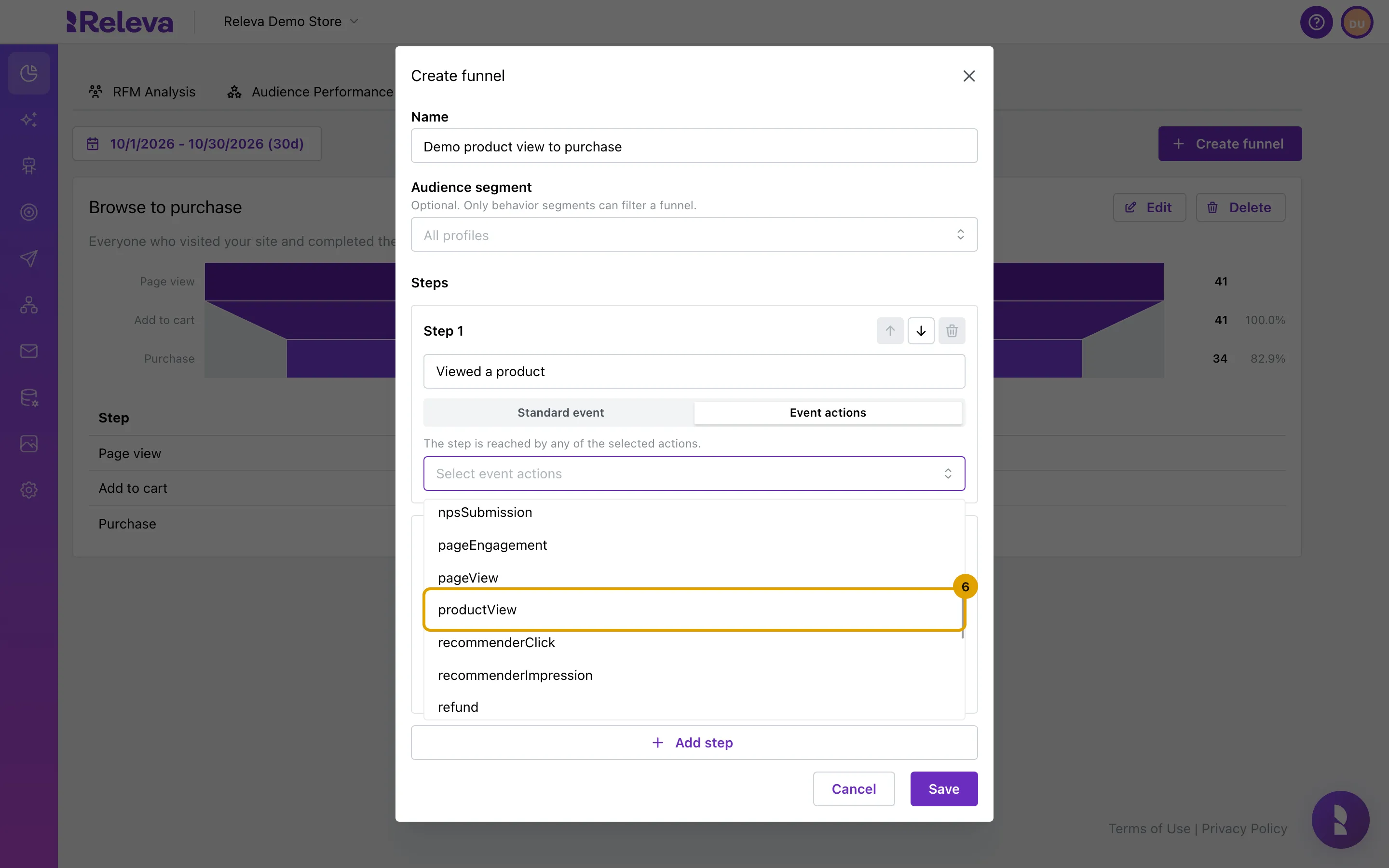
Choose the event action, for example productView (a product view)
-
Name the second step and choose a Standard event, for example Cart Add
-
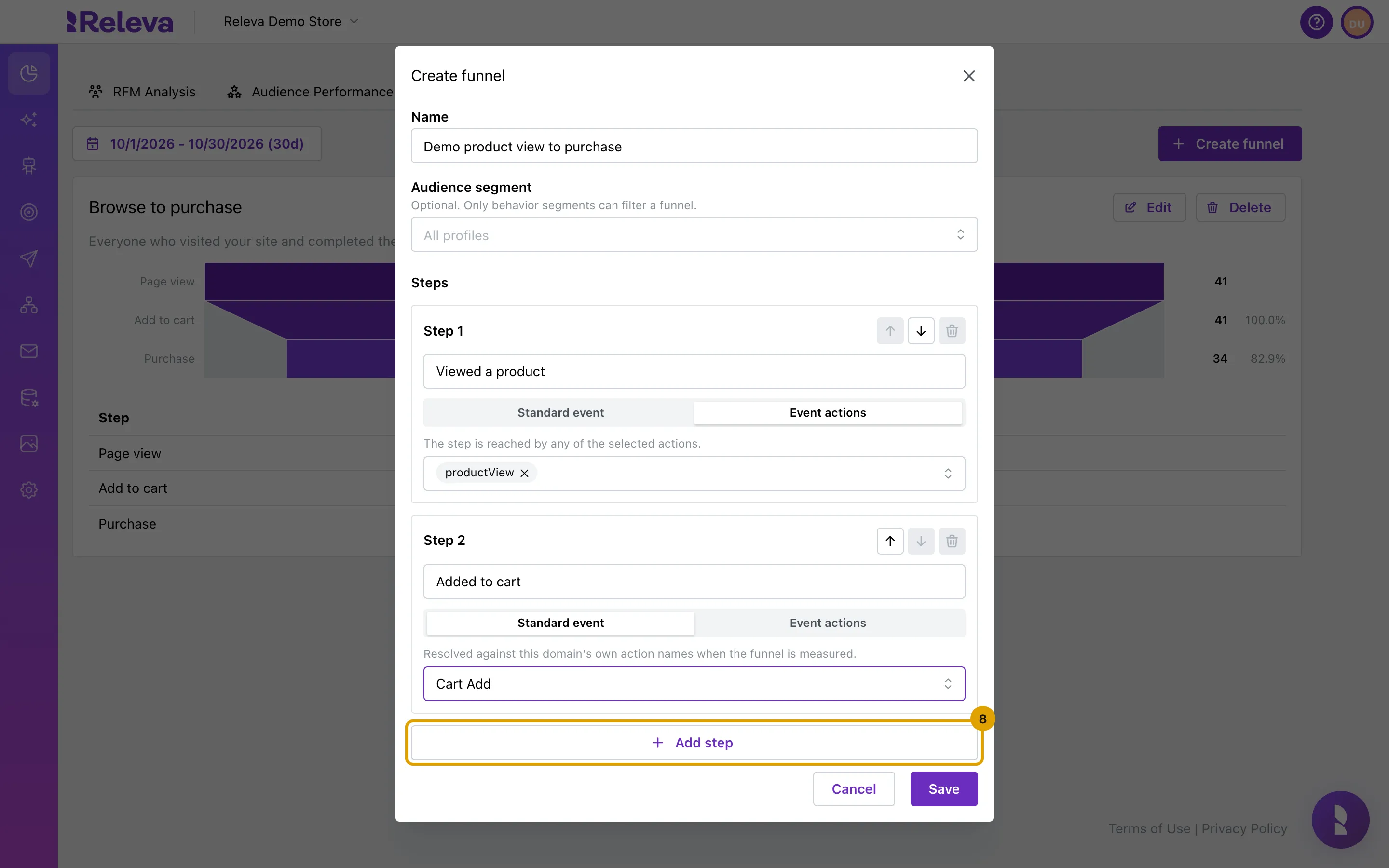
Select Add step to add another step (up to six)
Use the arrows on a step to move it up or down and the bin to remove it. A funnel needs at least two steps, so the bin is disabled while there are only two.
-
Name the last step, choose Purchase and select Save
-
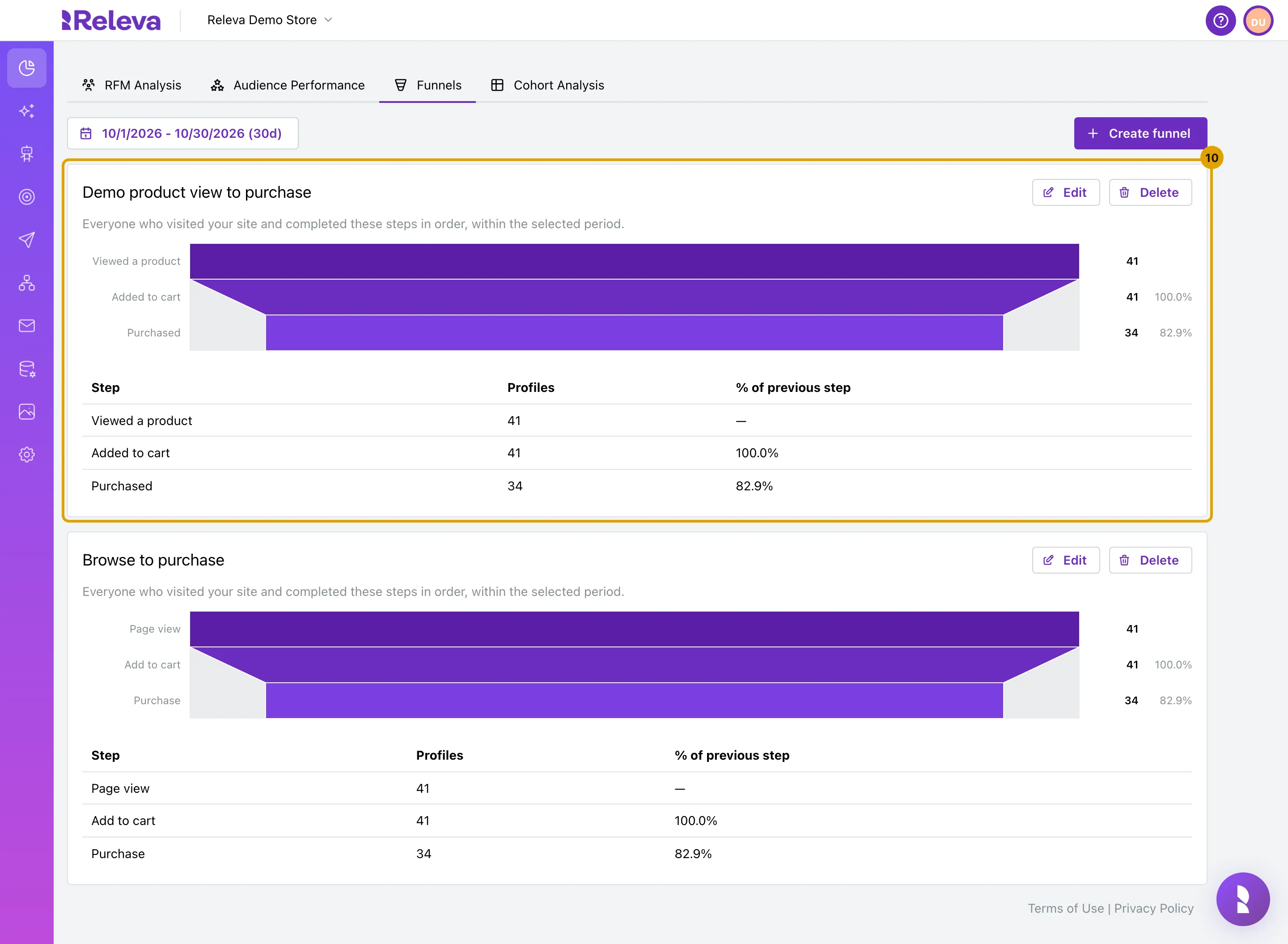
The new funnel shows how many profiles reached each step in the selected period, and the share of the step above
Check it worked
Section titled “Check it worked”- The new funnel has its own card at the top of the Funnels tab, with the caption
Everyone who visited your site and completed these steps in order, within the selected period.. When you picked a segment, the caption readsProfiles in this funnel’s segment who completed these steps in order, within the selected period.and a badge Filtered by segment: names it. - The table lists your steps in order with Profiles and % of previous step; the first row shows
—because it has nothing to compare with. - Open Edit on the card: the steps, their kind and their events are as you set them.
Troubleshooting
Section titled “Troubleshooting”Save does nothing and shows “A funnel needs a name”. The name is empty. The form also stops with Step 2 needs a name, Step 2 needs at least one event action or Step 2 needs a standard event when a step is incomplete.
Create funnel is disabled. The shop already has 5 funnels; the tooltip reads A domain can have at most 5 funnels. Delete one to make room. Delete on a card asks Delete the funnel "<name>"? Its history is not kept.
The card says “This funnel returned no data.” No profile completed even the first step in the period. Widen the period, or check that the first step’s event is being tracked: Check that an event reached Releva.
My segment is not in the Audience segment list. Only Behavior segments can filter a funnel. Segments with another scope are not listed.
The funnel does not appear on At a Glance. At a Glance shows one starred funnel per shop, and the form has no star control. The starred funnel is the shop’s default funnel; edit its steps instead of creating a new one if you want At a Glance to change.