

Schedule a recurring export
A Periodic export runs on a schedule and e-mails a CSV with the results of the period since the previous run. This guide schedules a weekly export of all campaigns, every Monday at 08:00. For what each scope contains and how the file is delivered, read How exports work.
Before you start
Section titled “Before you start”- You know the rhythm you need: every n weeks on one or more weekdays, every n months on a day of the month, or every n years on a day and month.
- Pick a time on the hour or on the half hour, for example 08:00 or 08:30. Releva checks schedules every 30 minutes, at :00 and :30, so an export set to 08:15 never runs.
- Your plan includes creating exports. If New Export shows a lock, ask your account owner to unlock it.
-
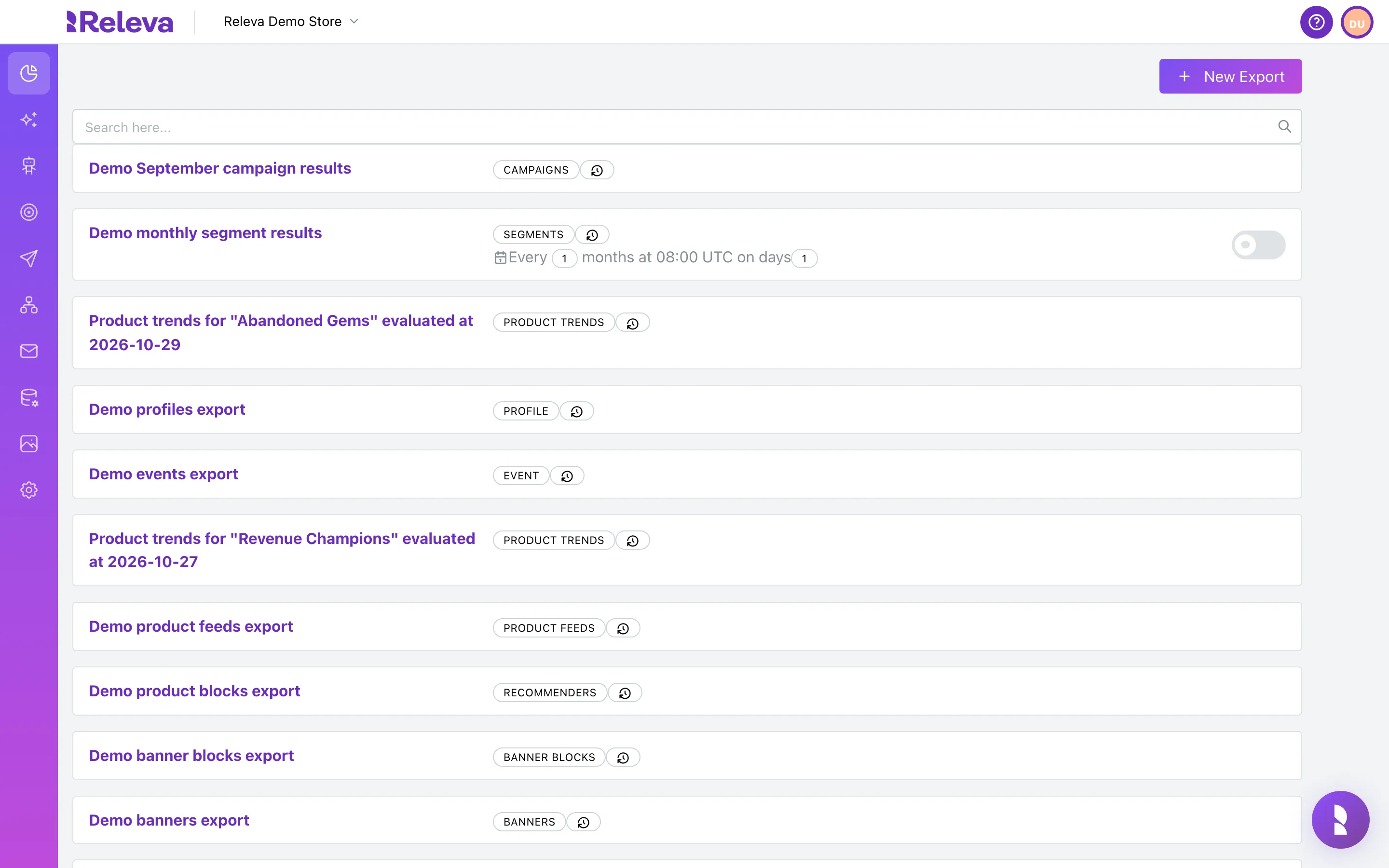
Go to Analytics › Exports.
-
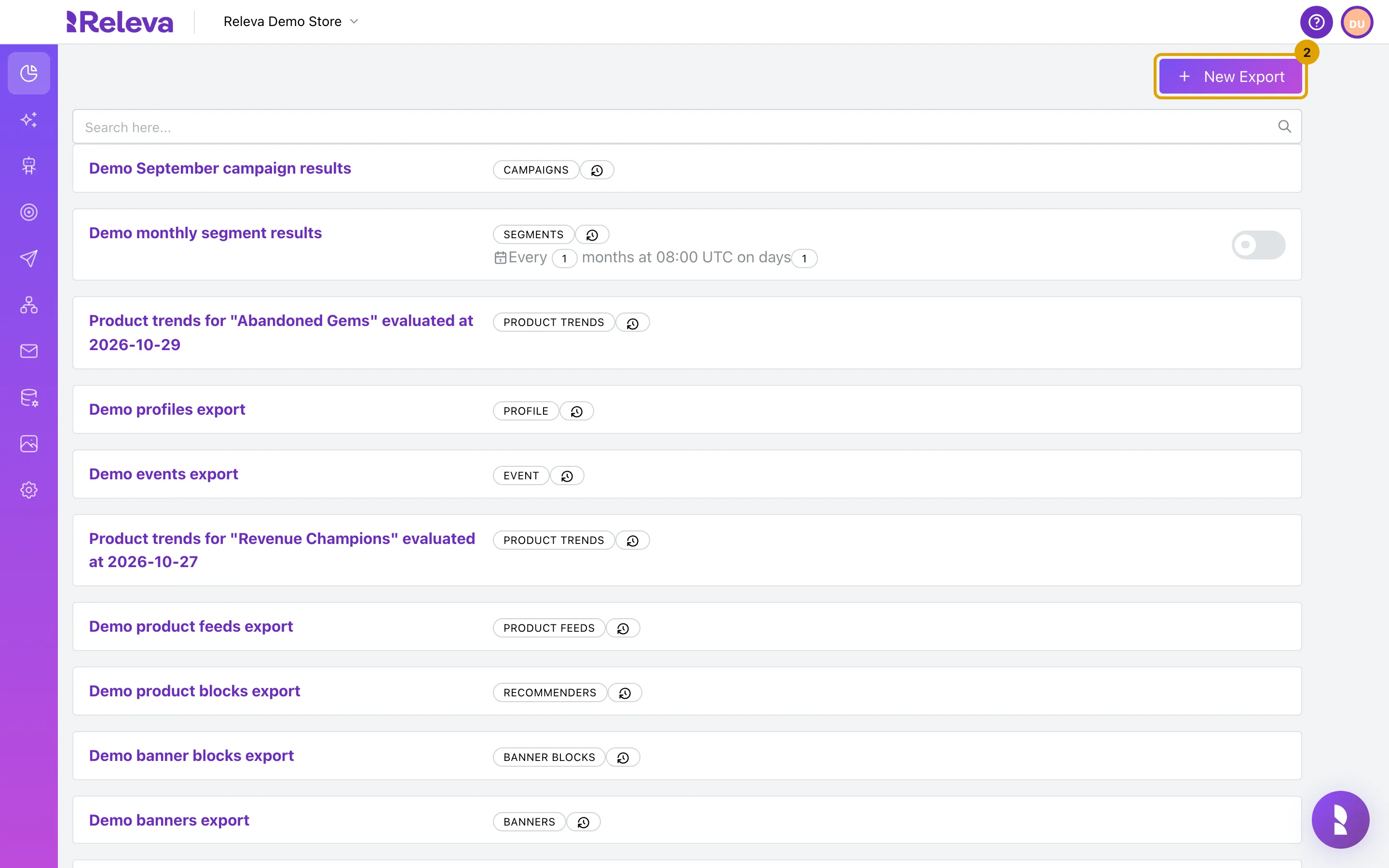
Select New Export.
-
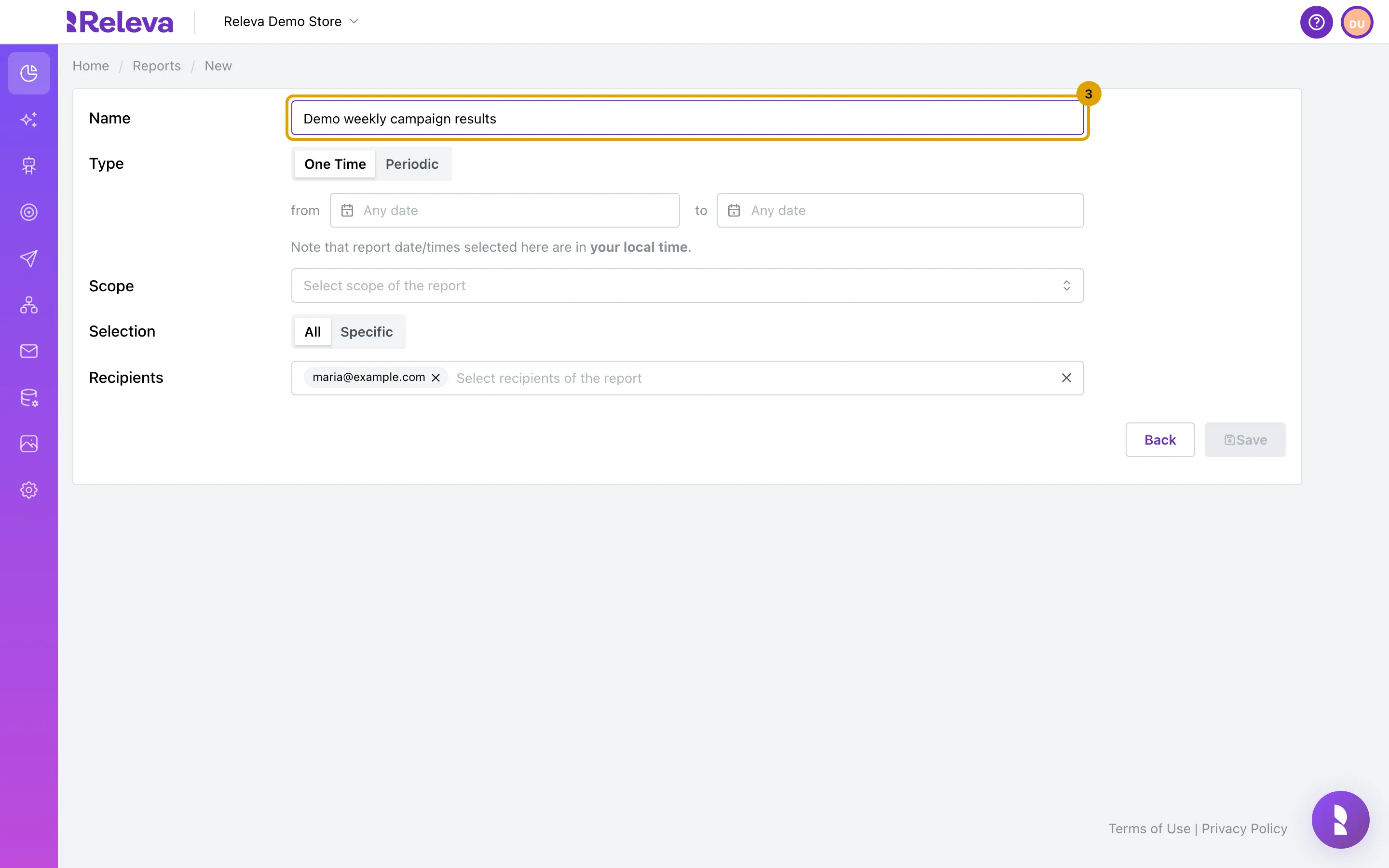
In Name, replace New report with a name for the recurring export.
The name must be unique among the exports of your shop and becomes the file name of every run.
-
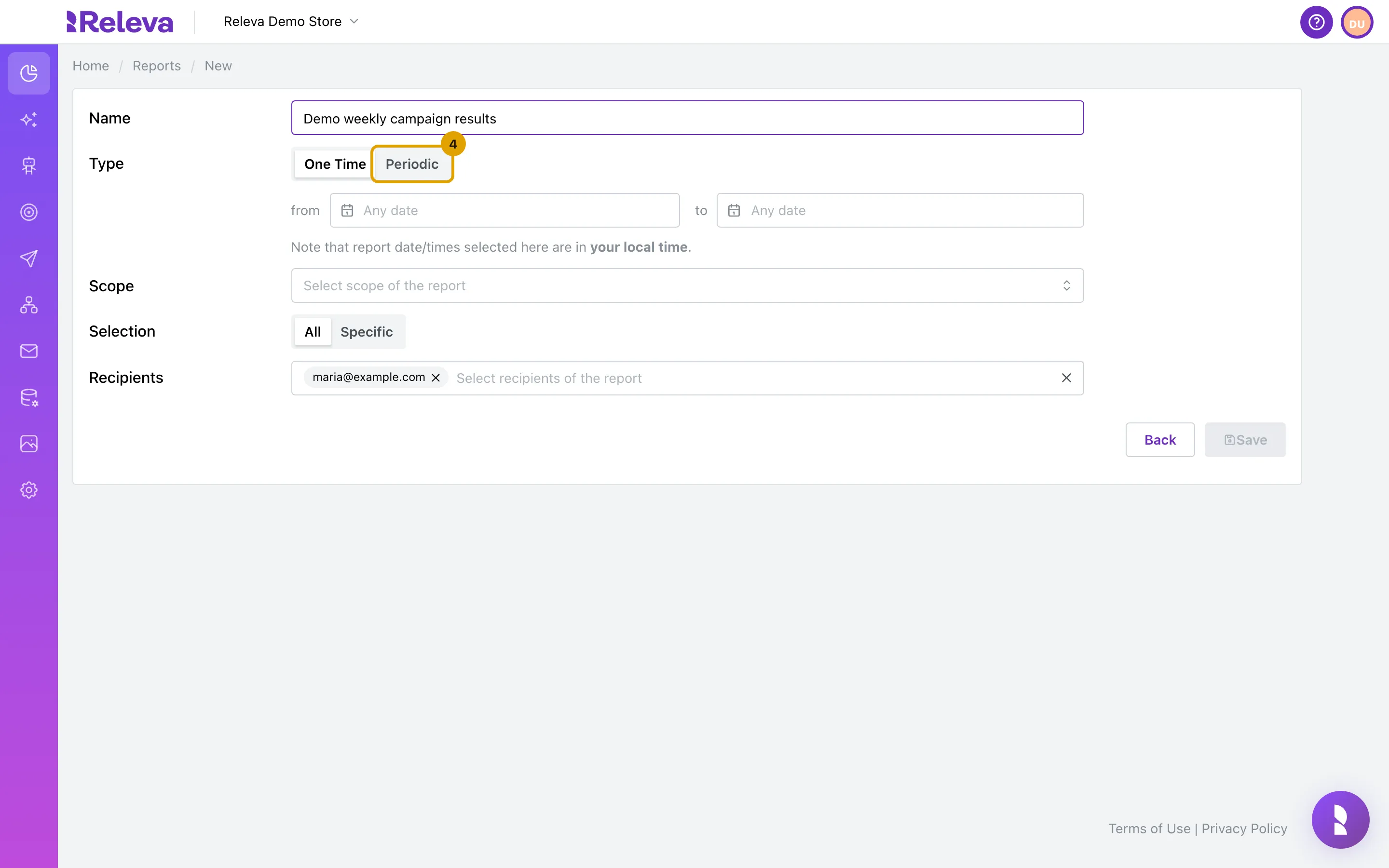
In Type, select Periodic.
The from and to fields are replaced by the Schedule row. You cannot change the type after saving.
-
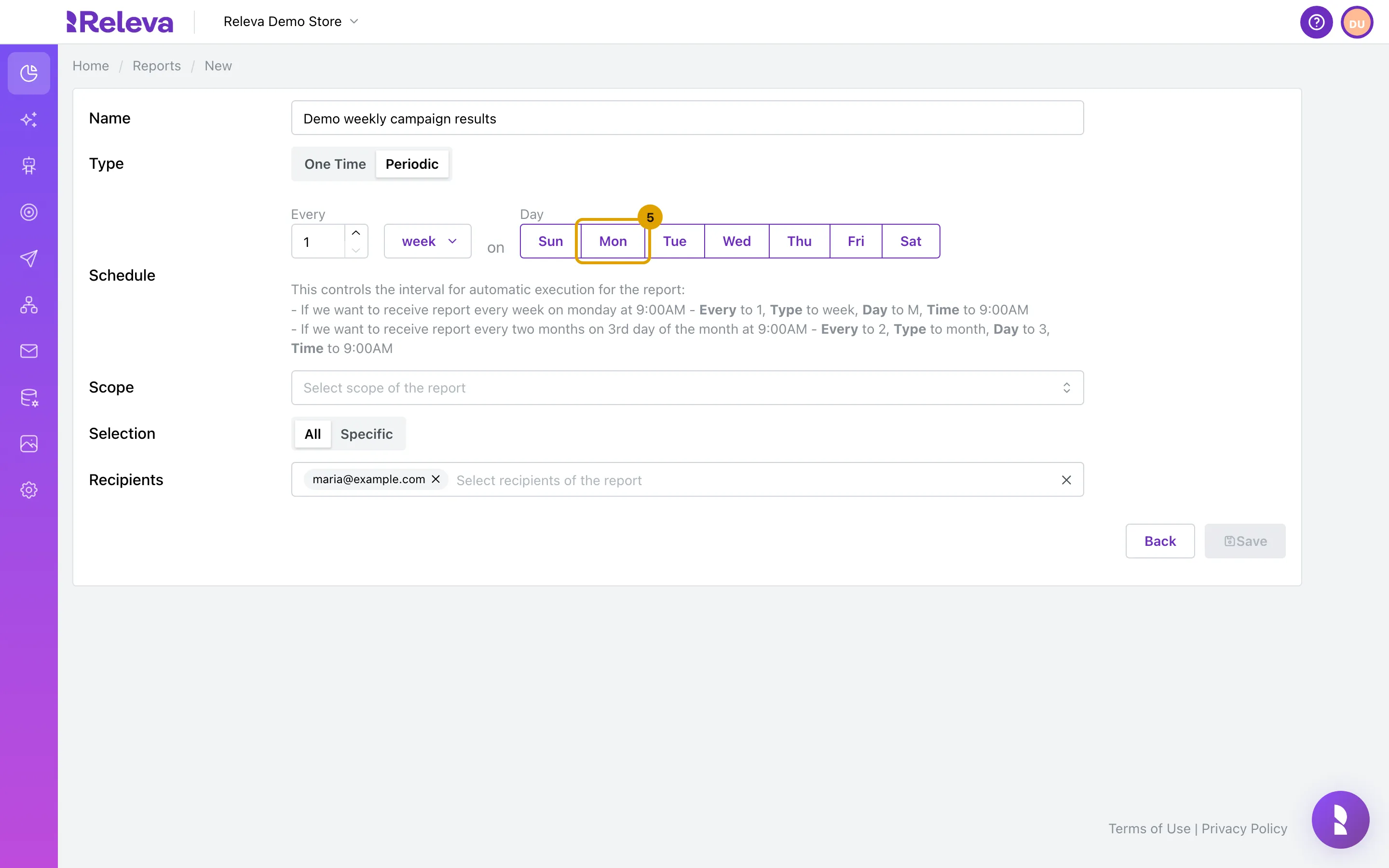
In Schedule, keep Every at 1, choose week, month or year, then pick the day. For a week you can select several days.
Every accepts 1 to 100. For month and year the Day menu lists 1 to 31; for year a Month menu appears as well. Choose the unit before the day: switching the unit clears the days.
-
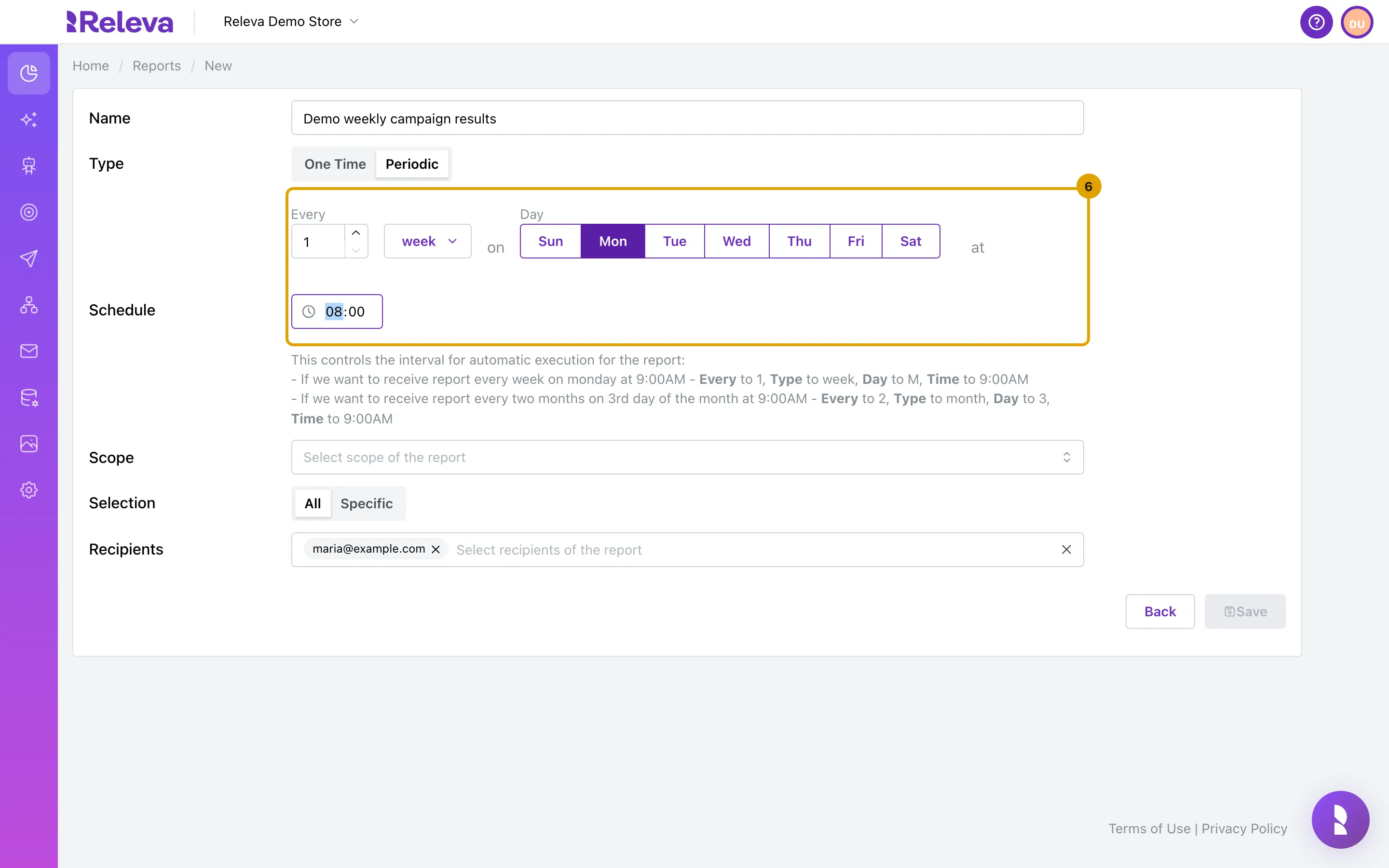
Set the time. It is your local time; the list shows it with your UTC offset.
The time box appears once a day is selected and starts at 09:00. Use :00 or :30.
-
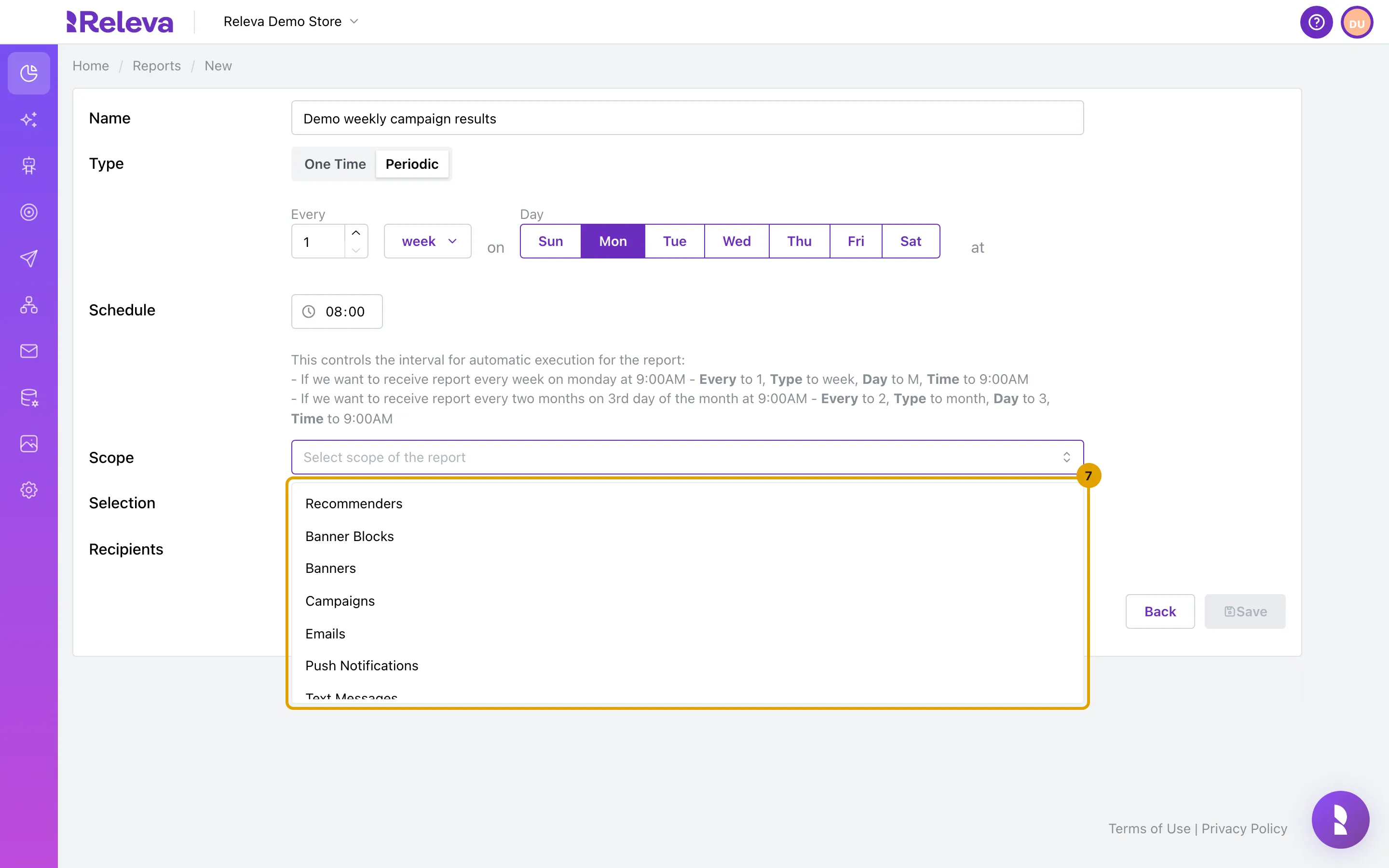
Select Scope to open the list of what you can export.
The list starts with Recommenders, Banner Blocks and Banners and shows about seven scopes at a time. You can also type in the box to filter it.
-
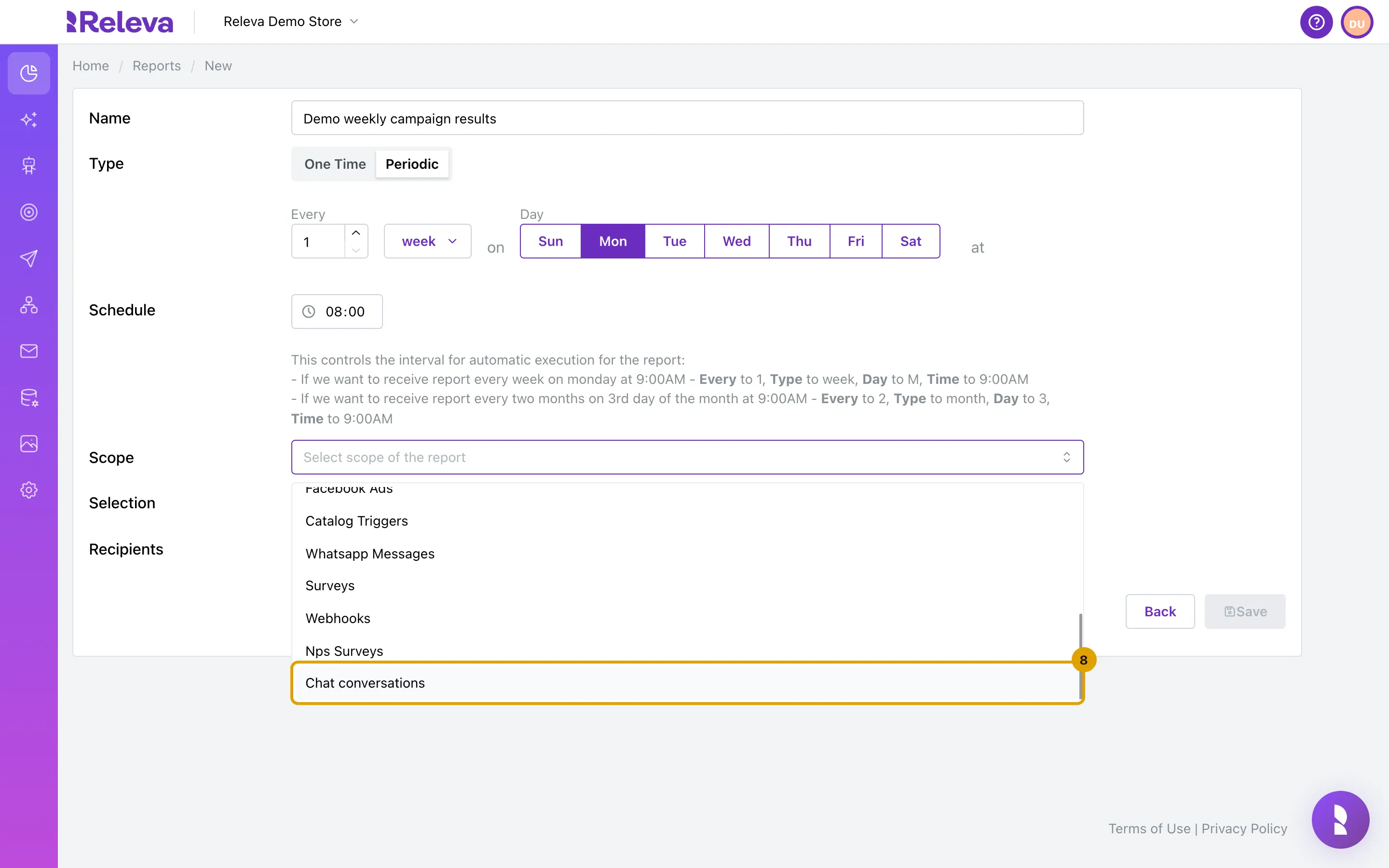
Scroll the list to see every scope, down to Chat conversations.
-
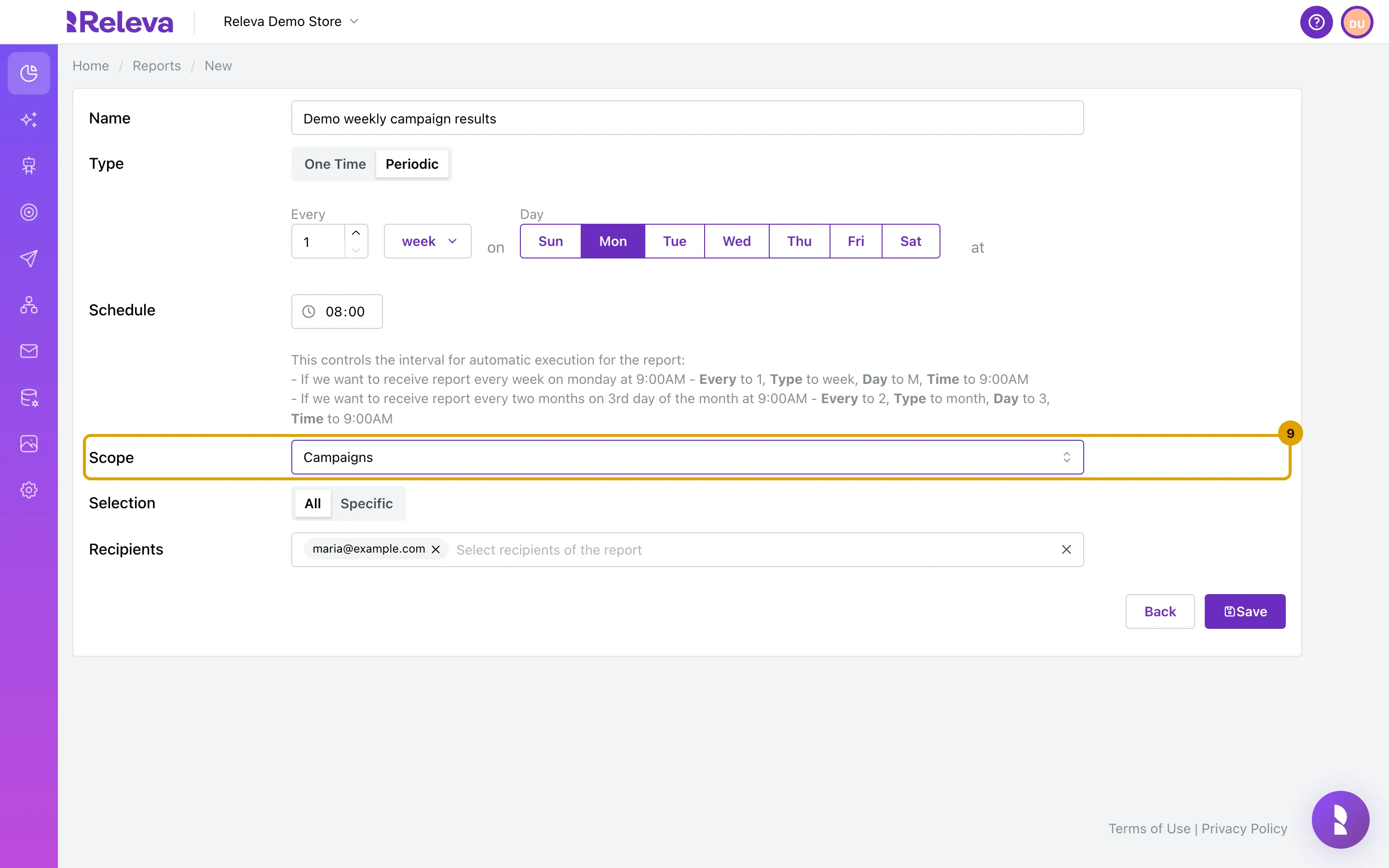
In Scope, choose what to export, for example Campaigns. Keep All in Selection to include every campaign.
Select Specific instead to pick single items in Select elements of the report. You can change the selection later; the scope is fixed after saving.
-
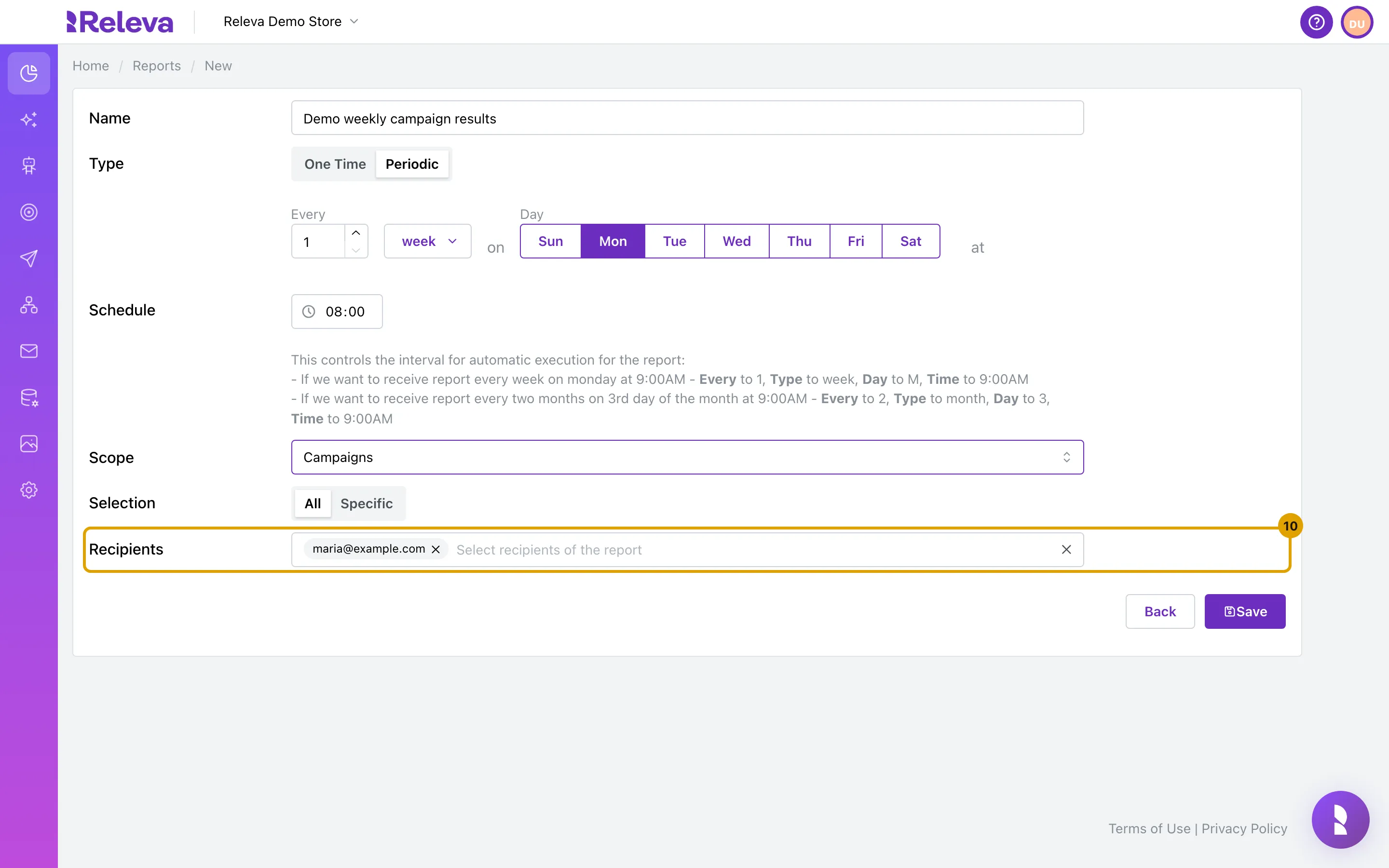
In Recipients, keep your own e-mail or replace it, and type any other address and press Enter.
-
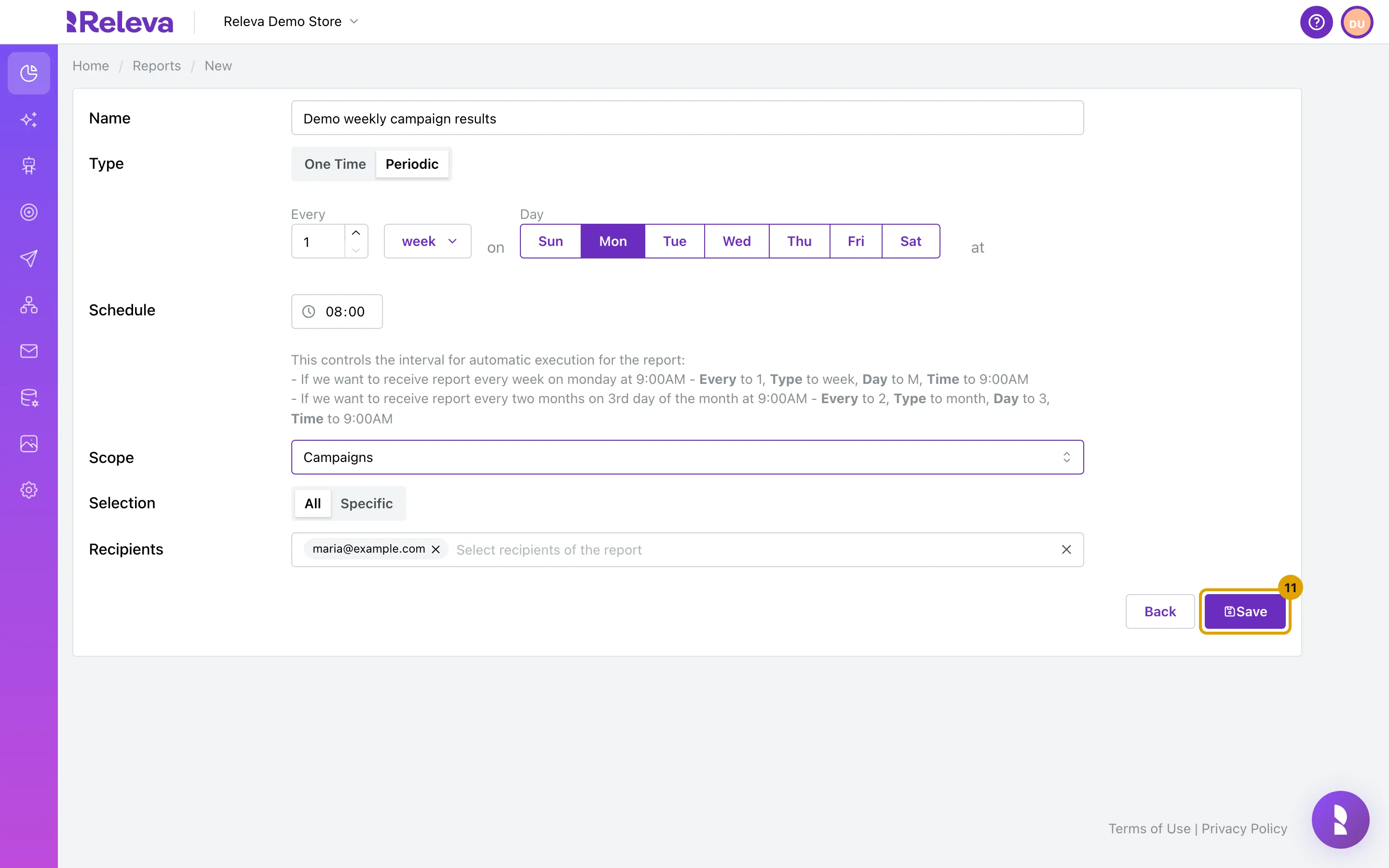
Select Save.
The notification says Export Scheduled. For a Periodic export this only means it is saved: nothing is sent until you switch it on.
-
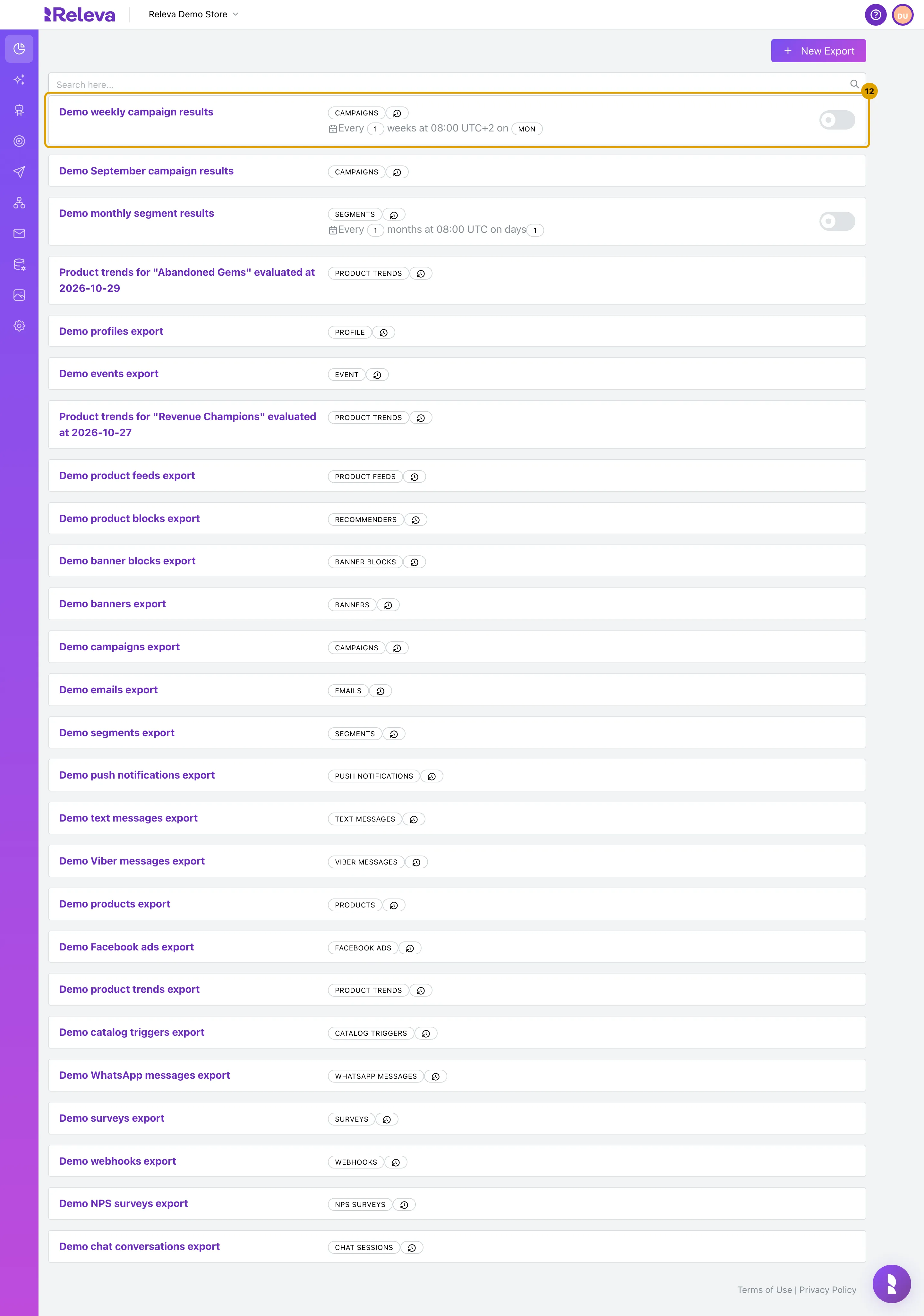
The export appears in the list with its schedule. It starts switched off. Turn on the switch to start receiving it.
The card reads, for example, Every 1 weeks at 08:00 UTC+2 on MON. The switch on the right is off for a new export. Turn it on when you are ready; there is no confirmation.
Check it worked
Section titled “Check it worked”- The new export is the first card on the Exports list with a CAMPAIGNS badge, a calendar line with the schedule and a switch.
- The switch is on (purple). Switching it saves immediately and keeps every other setting.
- At the first scheduled time each recipient receives an e-mail “Your campaigns export is ready!” with a Download Export button. The file covers the period from one schedule interval before the run up to the run time.
Troubleshooting
Section titled “Troubleshooting”Save is disabled. The schedule needs a unit and at least one day, and the form needs a name, a scope, items for Specific and a recipient.
Nothing arrives at the scheduled time. Check three things: the switch on the card is on; the time ends in :00 or :30; for a year schedule both a Day and a Month are chosen, because a year schedule without a month never runs. Also note that the time is compared in the time zone of the browser that saved the export.
I changed the unit and Save stayed enabled with no day shown. The form keeps the last complete schedule while the new one is incomplete. Pick a day for the new unit before you save, or the old schedule is saved.
I want to pause it. Turn the switch off on the card. The export stays in the list with its settings and you can switch it on again later. To remove it, open the export, select Delete and Confirm; this cannot be undone.
I want to change what it exports. Open the export from the list. You can change the name, the schedule, the selection and its items, and the recipients. The type and the scope are fixed; for a different scope create a new export.