

See a customer's orders
Releva has no separate orders screen. An order your shop reports with POST /api/v0/carts (or through your platform connector) is stored as a Cart Checkout Completed event on the customer’s profile. Use this page to check that an order reached Releva and what was stored for it.
The list is read-only. You cannot create, change or delete an order here. To correct an order, see How orders and refunds work.
Before you start
Section titled “Before you start”- You know the customer’s email address. You can also search by Profile Id, Name or Phone Number: see Find a customer profile.
- The order was sent at least a minute ago. Orders are held for about 30 seconds before they are recorded.
- Your plan includes the Profiles page. If the menu item is greyed out, ask your account owner to unlock it.
-
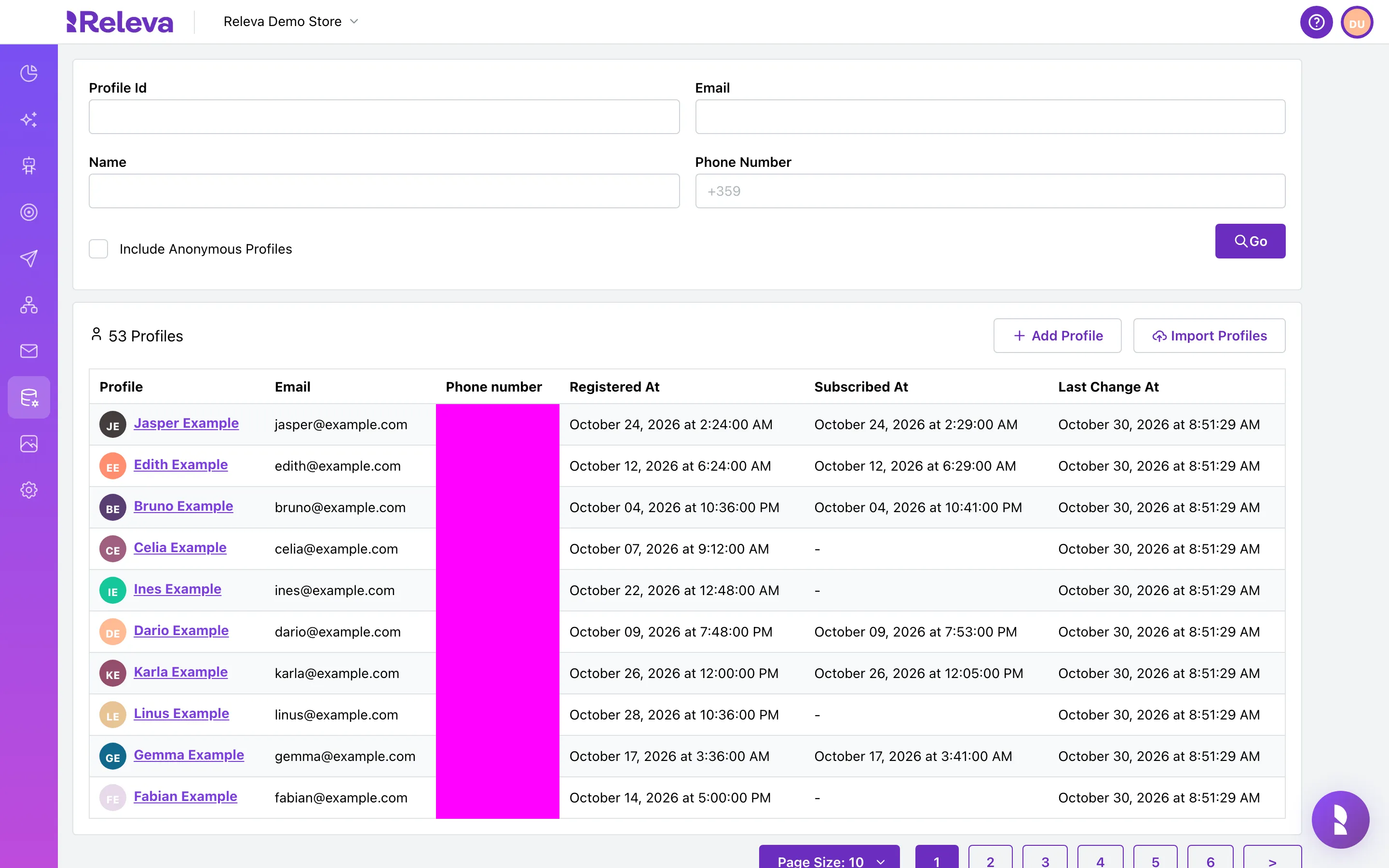
Go to Data Platform › Profiles.
-
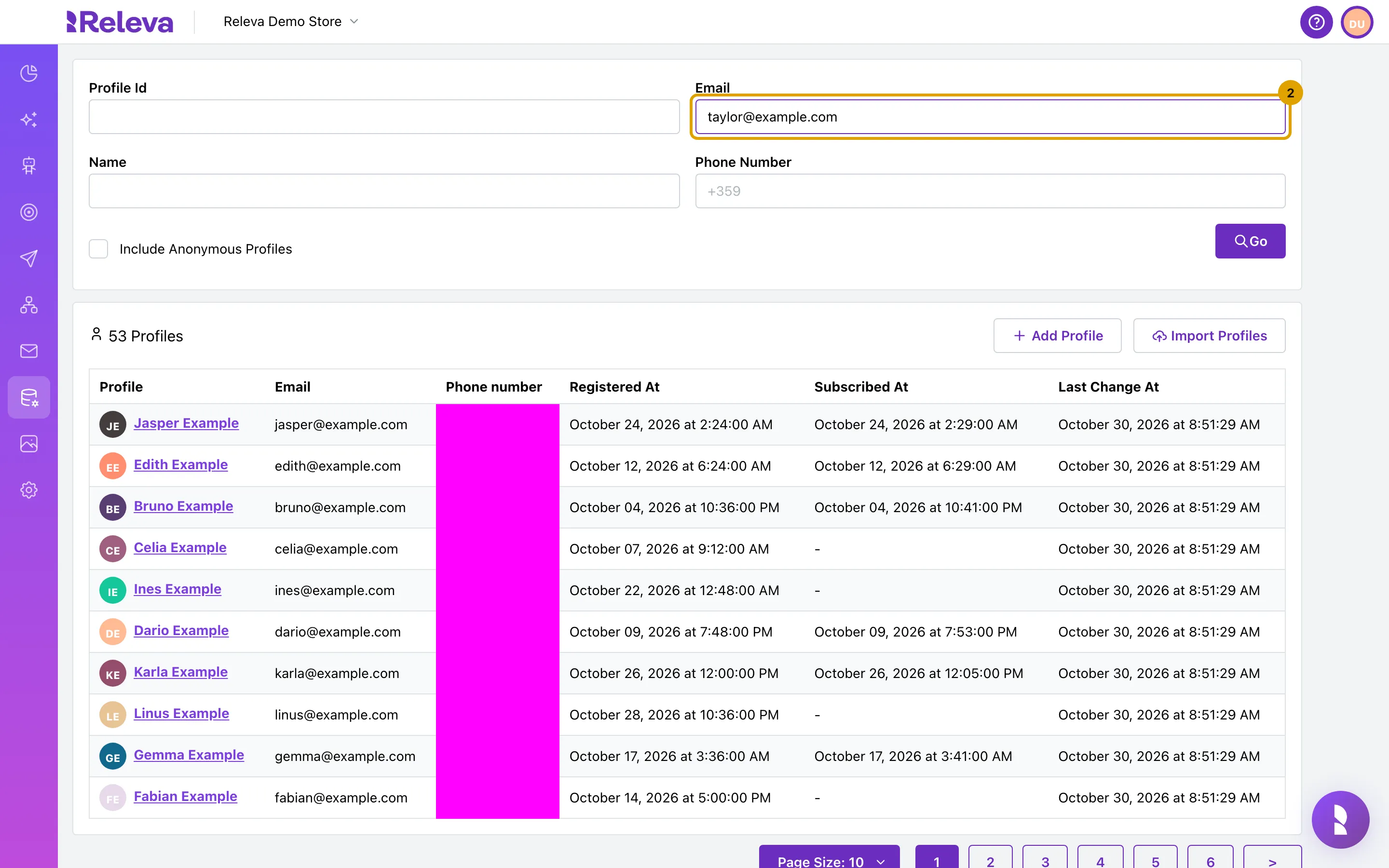
In Email, enter the customer’s email address.
-
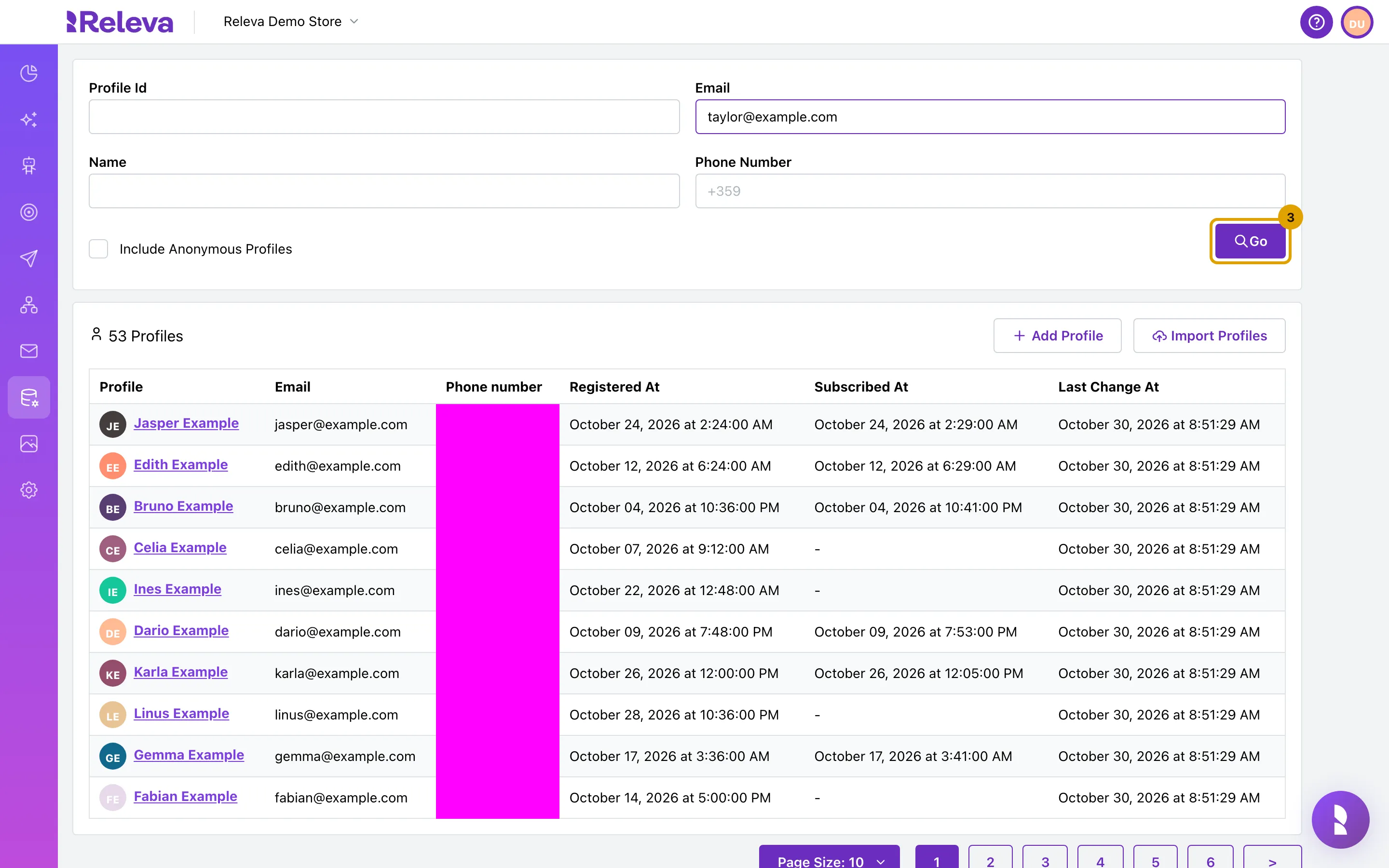
Select Go.
-
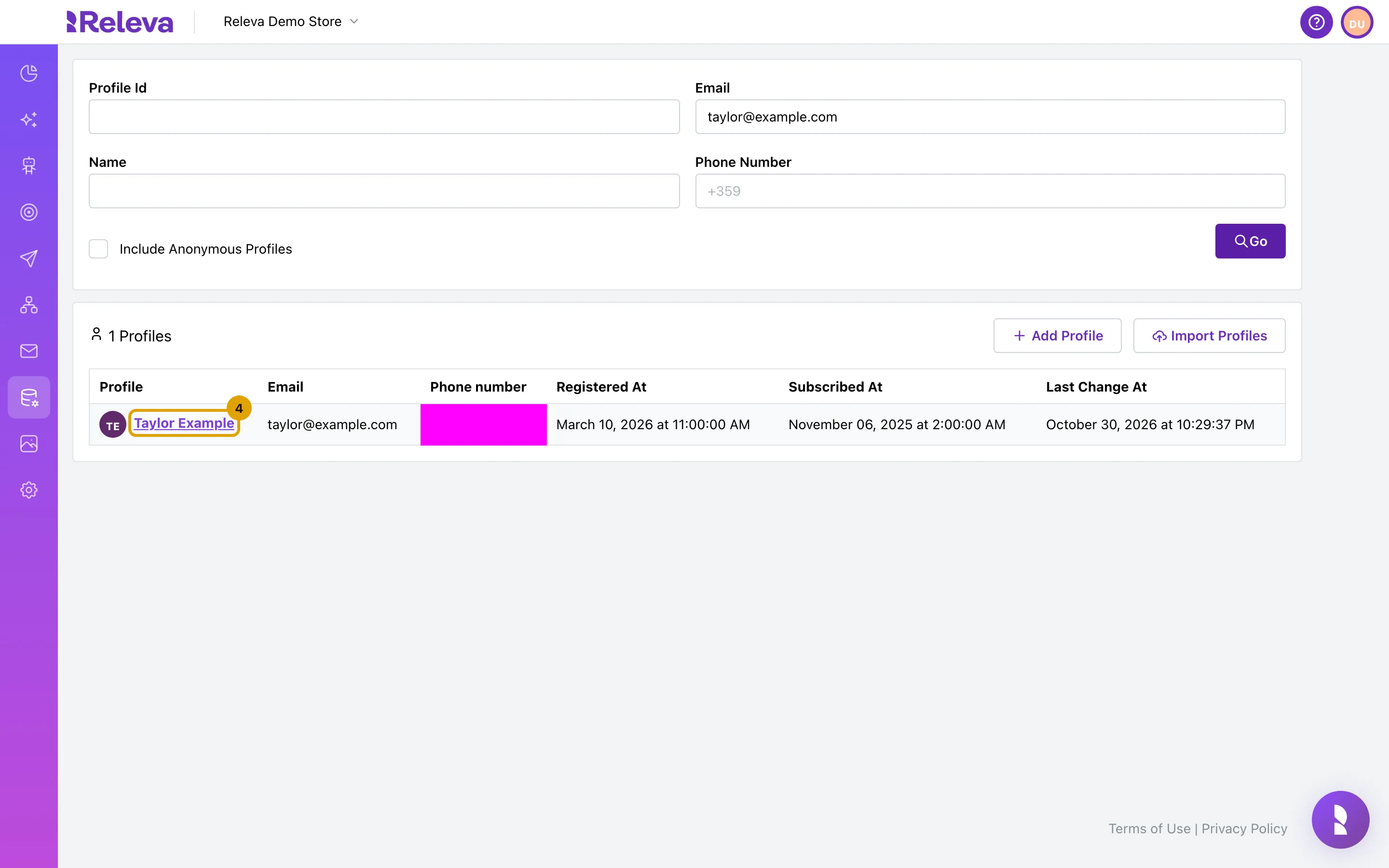
Select the customer’s name to open their profile.
-
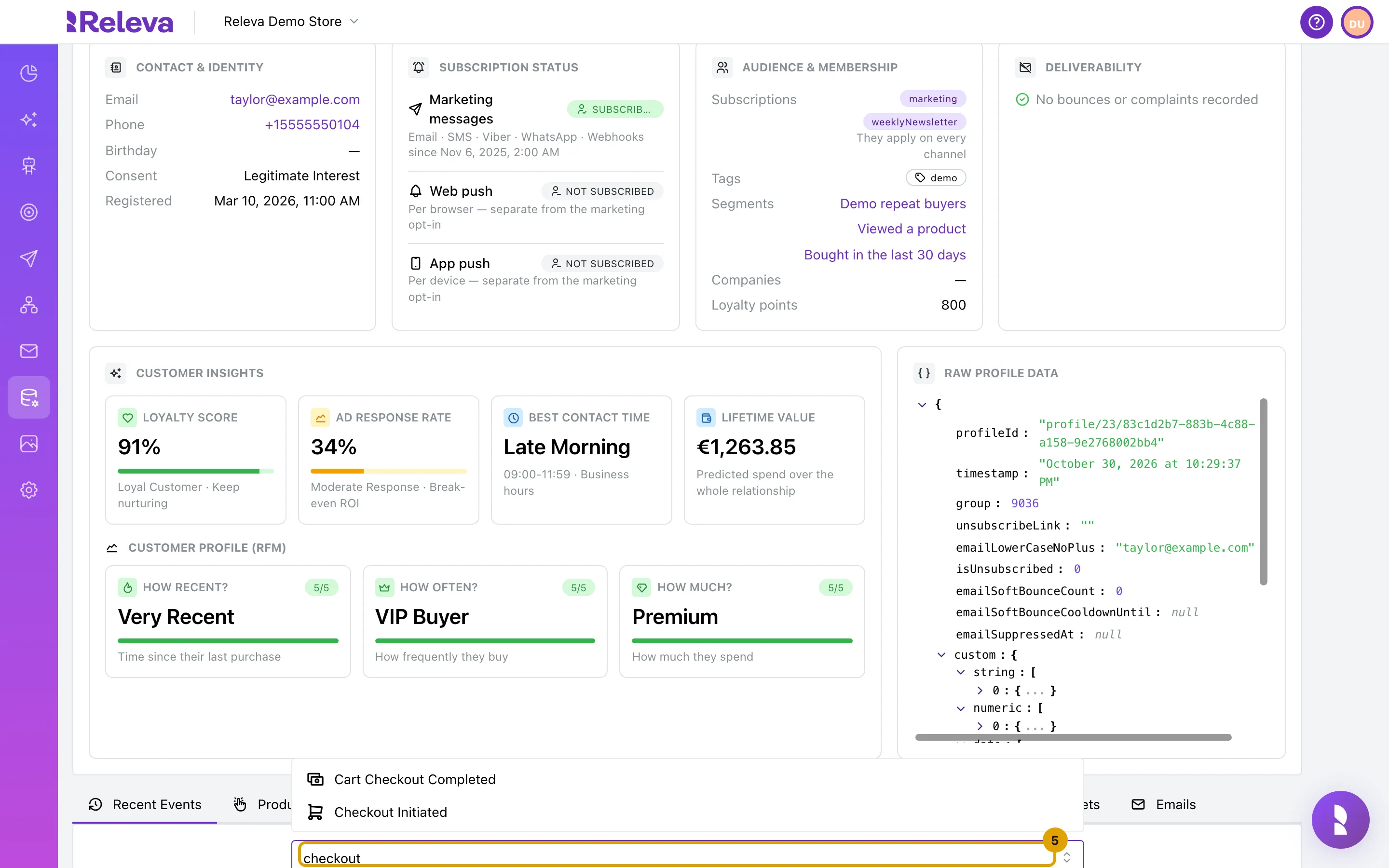
In the Recent Events tab, type checkout in the event filter.
The Recent Events tab is open by default. The filter lists every event type whose name contains what you type.
-
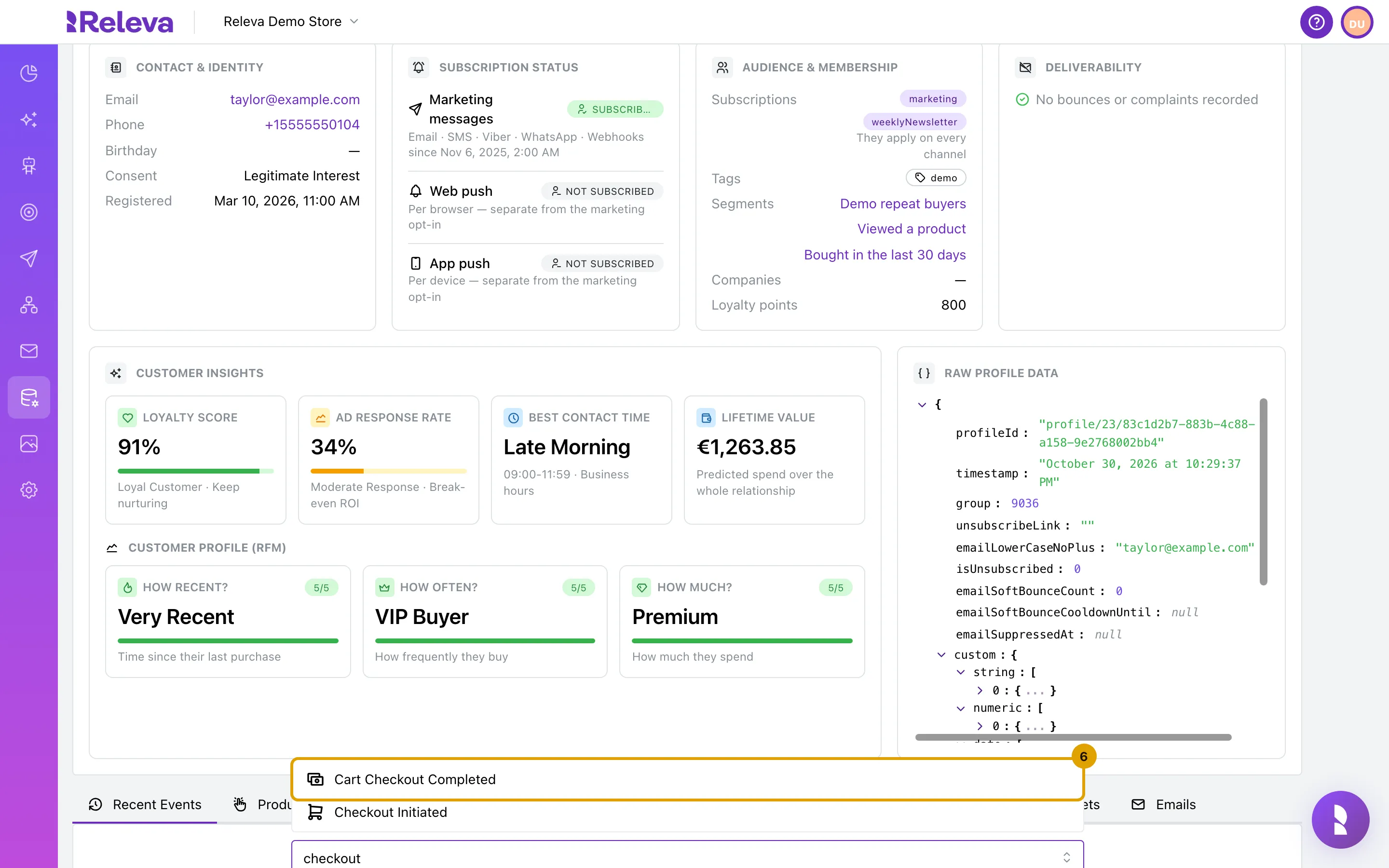
Select Cart Checkout Completed.
Press Escape to close the list.
-
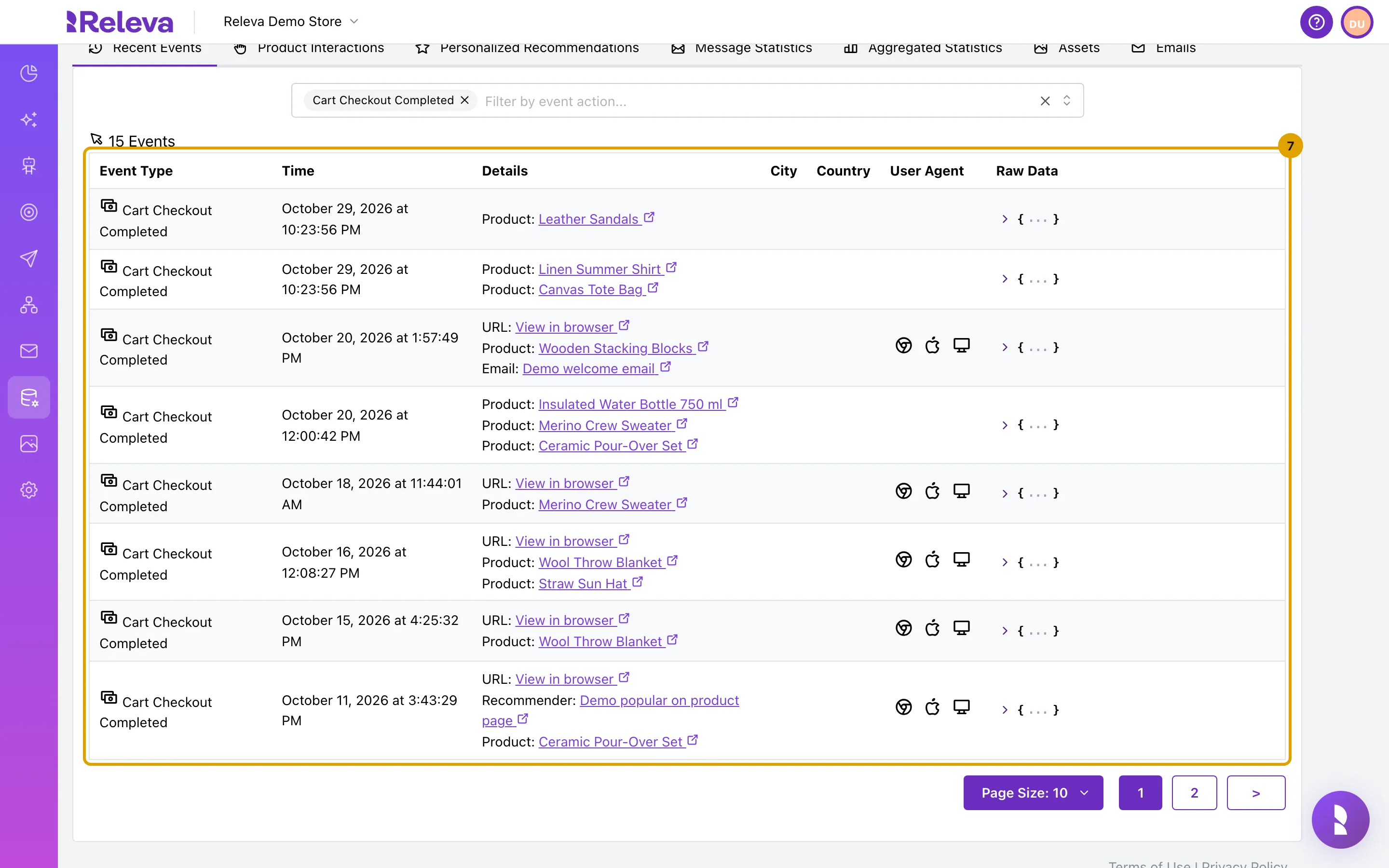
Each row is one order. Details lists the products in it.
The title above the table shows how many orders match. Time is the order’s timestamp in your browser’s time zone. Product names are the ones Releva matched in your catalog when it recorded the order. A product it could not match shows its product id instead of a name.
-
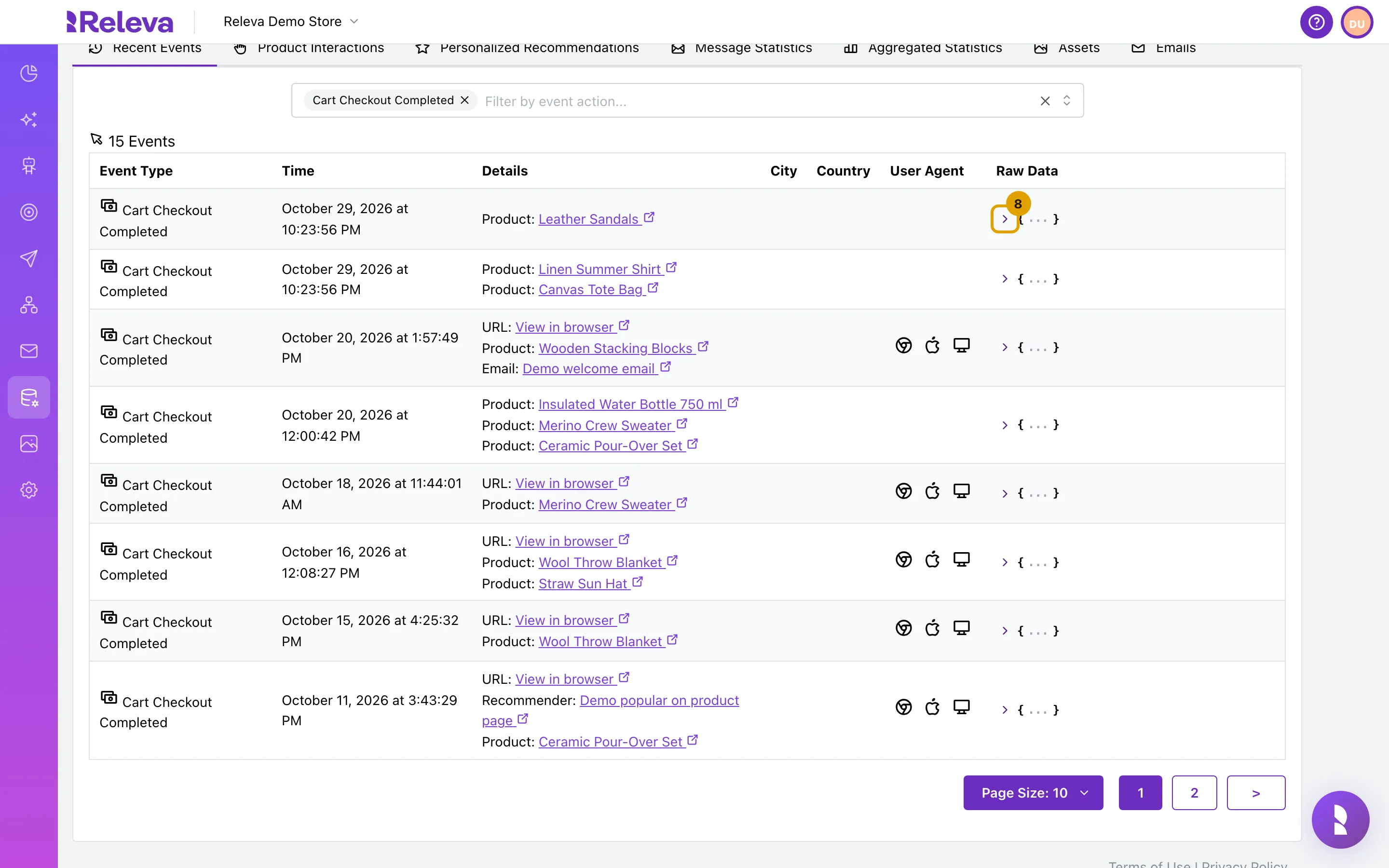
In Raw Data, select the arrow to see everything Releva stored for the order.
-
orderId is the order number you sent. cartTotalInDomainCurrency is the order total.
Expand products to see each line item with its
price,quantityandpriceTotal.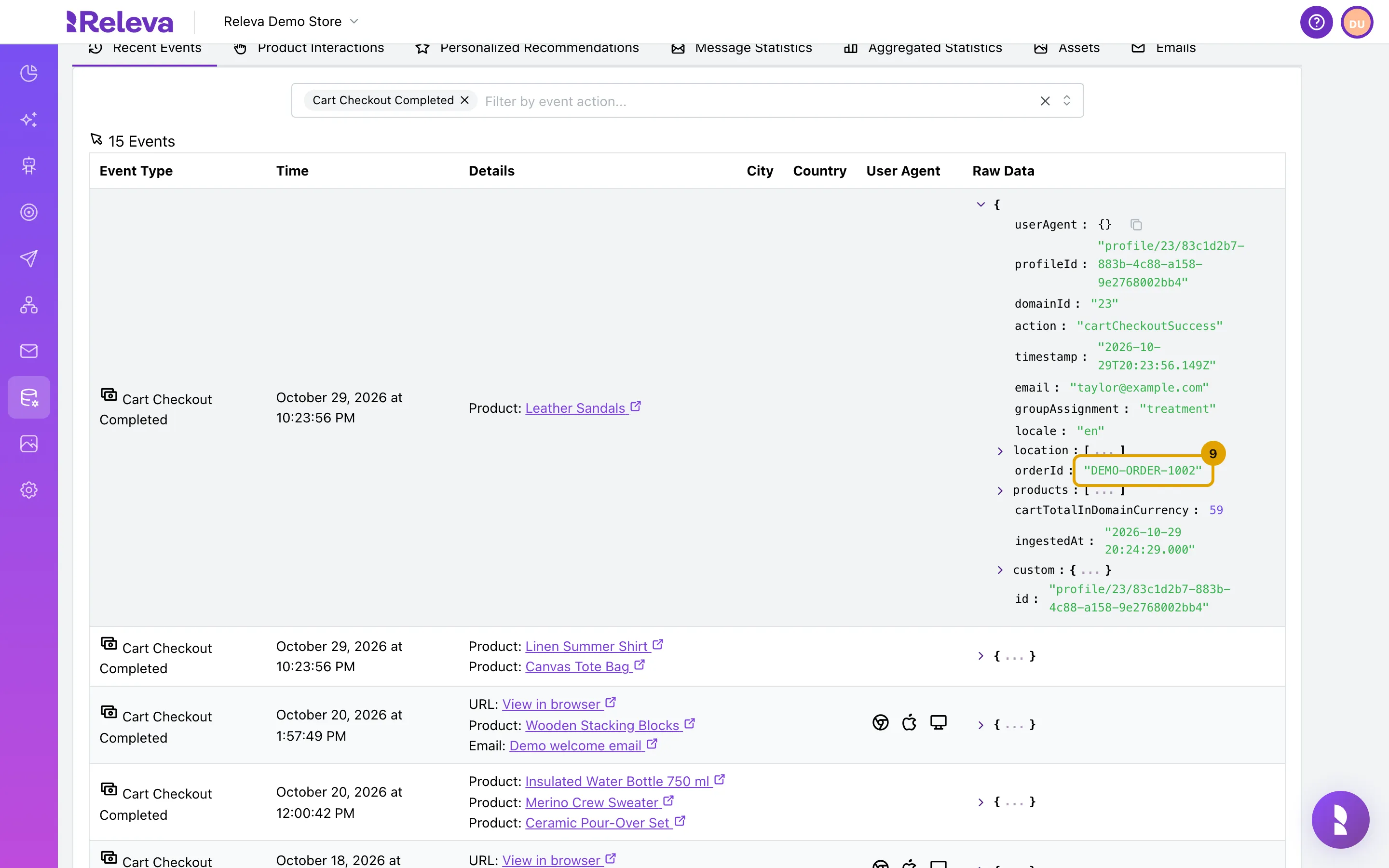
See the customer’s order statistics
Section titled “See the customer’s order statistics”The Aggregated Statistics tab on the same profile sums up the customer’s orders over a rolling period. Use it for a quick picture of how much and how often one customer buys.
-
On the profile, select the Aggregated Statistics tab.
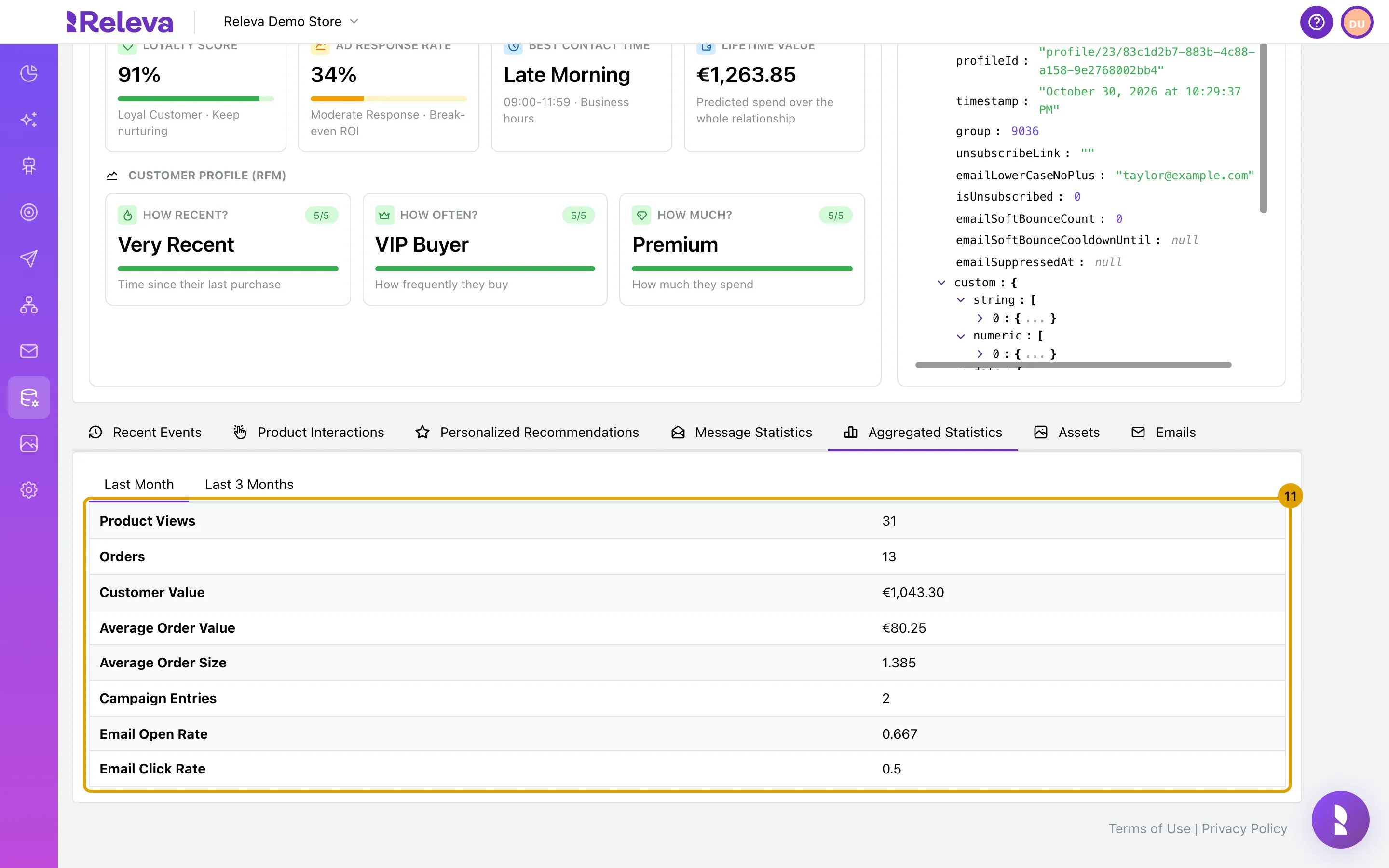
Last Month opens by default. It shows Orders, Customer Value, Average Order Value and Average Order Size, plus Product Views, Campaign Entries, Email Open Rate and Email Click Rate.
-
Select Last 3 Months to see the same figures for the last three months.
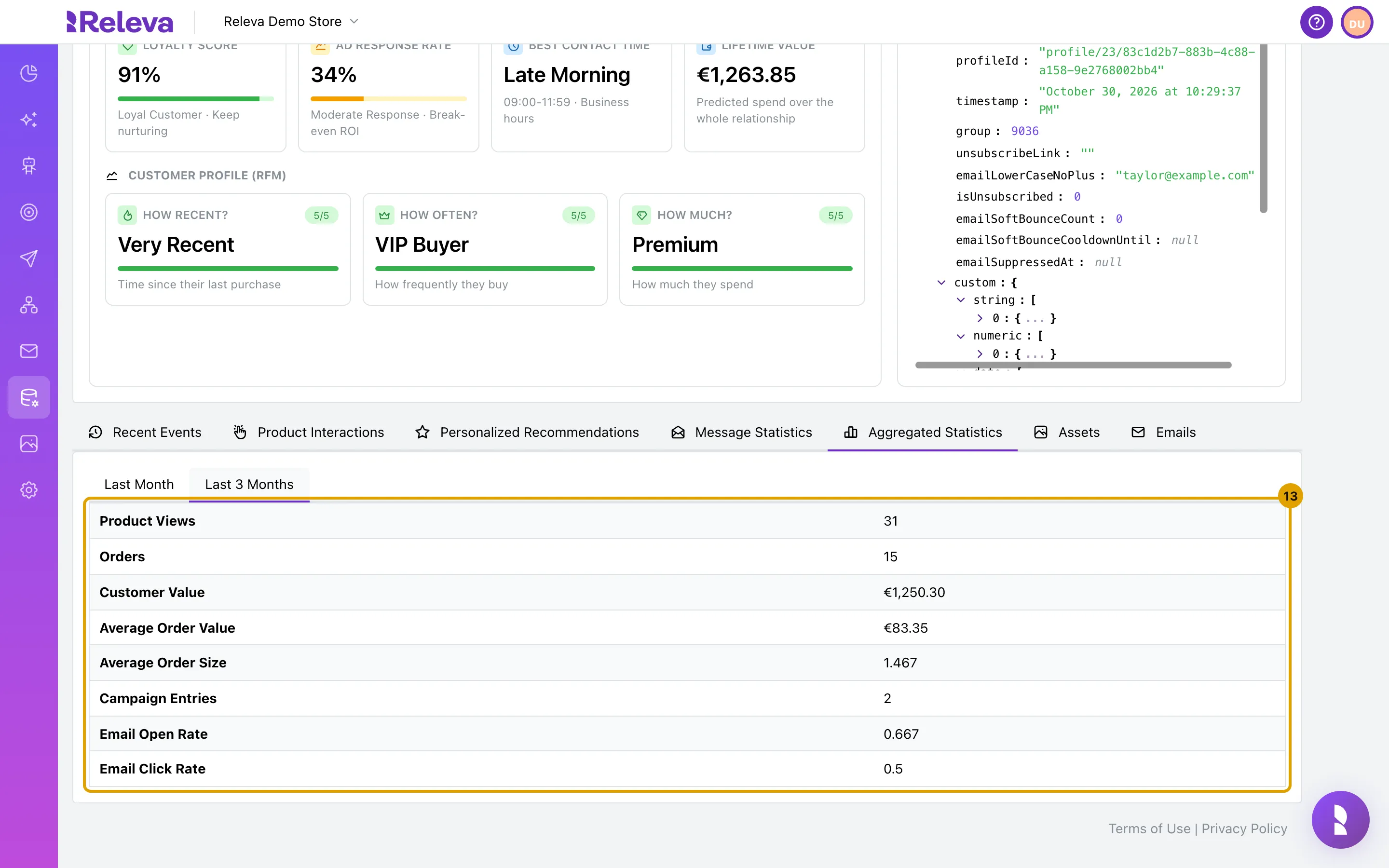
An order older than one month counts here but not under Last Month, so the two tabs differ for a customer who also bought earlier.
| Row | Meaning |
|---|---|
| Orders | Number of orders in the period. |
| Customer Value | Sum of the orders’ product totals, in your shop currency. |
| Average Order Value | Customer Value divided by Orders. |
| Average Order Size | Average number of line items per order. A product bought twice in one order counts once. |
The period is rolling: the last 1 or 3 months before now, in UTC. Orders older than 3 months are not counted here; use Recent Events for those. Refunds are not subtracted from these figures. They count purchase events only.
Lifetime value and the RFM scores are not on this tab. They are model predictions under Customer insights on the profile, computed by a separate job.
Check it worked
Section titled “Check it worked”- The title above the table reads 1 Events or more, and every row is a Cart Checkout Completed event.
- In Raw Data,
orderIdis the order number from your shop andcartTotalInDomainCurrencymatches the order’s product total in your shop currency. - The browser tab title reads Releva | Profiles | <first name> <last name> | Details. The name is left out when the profile has no first or last name.
- On Aggregated Statistics, Orders matches the number of Cart Checkout Completed rows for the same period, and Customer Value equals the sum of their
cartTotalInDomainCurrencyvalues.
Troubleshooting
Section titled “Troubleshooting”The title reads 0 Events. The order has not reached Releva, or it belongs to another profile. Wait a minute and reload: orders are recorded about 30 to 40 seconds after the API call. Then check that the order was sent with the same email address, phone number or profile id this profile has. An order sent with a different identifier lands on a different profile.
The order is missing but the API answered 202. A 202 means the request was valid, not that the order was stored. The most common causes: the cart was sent with cartPaid: false, or the same orderId had already been recorded. A repeated order id is ignored. See How orders and refunds work.
Details shows a product id instead of a name. The line item’s id matched no product in your catalog when the order was recorded. The order still counts towards revenue, but carries no product name or categories. Send the product through the catalog API or your connector.
The page shows “Profile with this id cannot be found!” The profile was deleted or merged into another profile. Search for the customer again from Data Platform › Profiles.
One order has two products but shows as one row. That is expected. Each order is one event, whatever the number of line items. Details lists every product in it.
Every row on Aggregated Statistics shows 0. The customer has no orders in the period. Select Last 3 Months, or check Recent Events for older orders.
Customer Value did not go down after a refund. That is expected. Aggregated Statistics does not net refunds. Refunds are netted in revenue reporting, not here. See Check that a refund was recorded.
Average Order Size looks too low. It counts distinct line items, not units. An order with one product in quantity 2 has a size of 1.
Lifetime value and the RFM scores show a dash. These are model predictions under Customer insights, computed by a separate job. They do not update right after an order.