

Add a custom rule to a product feed
The default rows on Boosts & Filters cover price, discount, category, availability, locale, currency, product ids, SKUs and distance. A custom rule adds a row for one of your own product fields (for example color, brand or size) so the feed can react to it. This guide boosts products in each customer’s favorite color.
Before you start
Section titled “Before you start”- Your products carry the field you want to use as a custom field. Open a product under Data Platform › Products and check the Custom block. See View a product’s details, interactions and recommendations.
- The feed exists. See Create a product feed.
- Changing a feed changes every Product Block and message that uses it.
- Your plan includes updating product feeds. If Save shows a lock icon, ask your account owner to unlock it.
-
In the left menu, select Data Platform › Product Feeds.
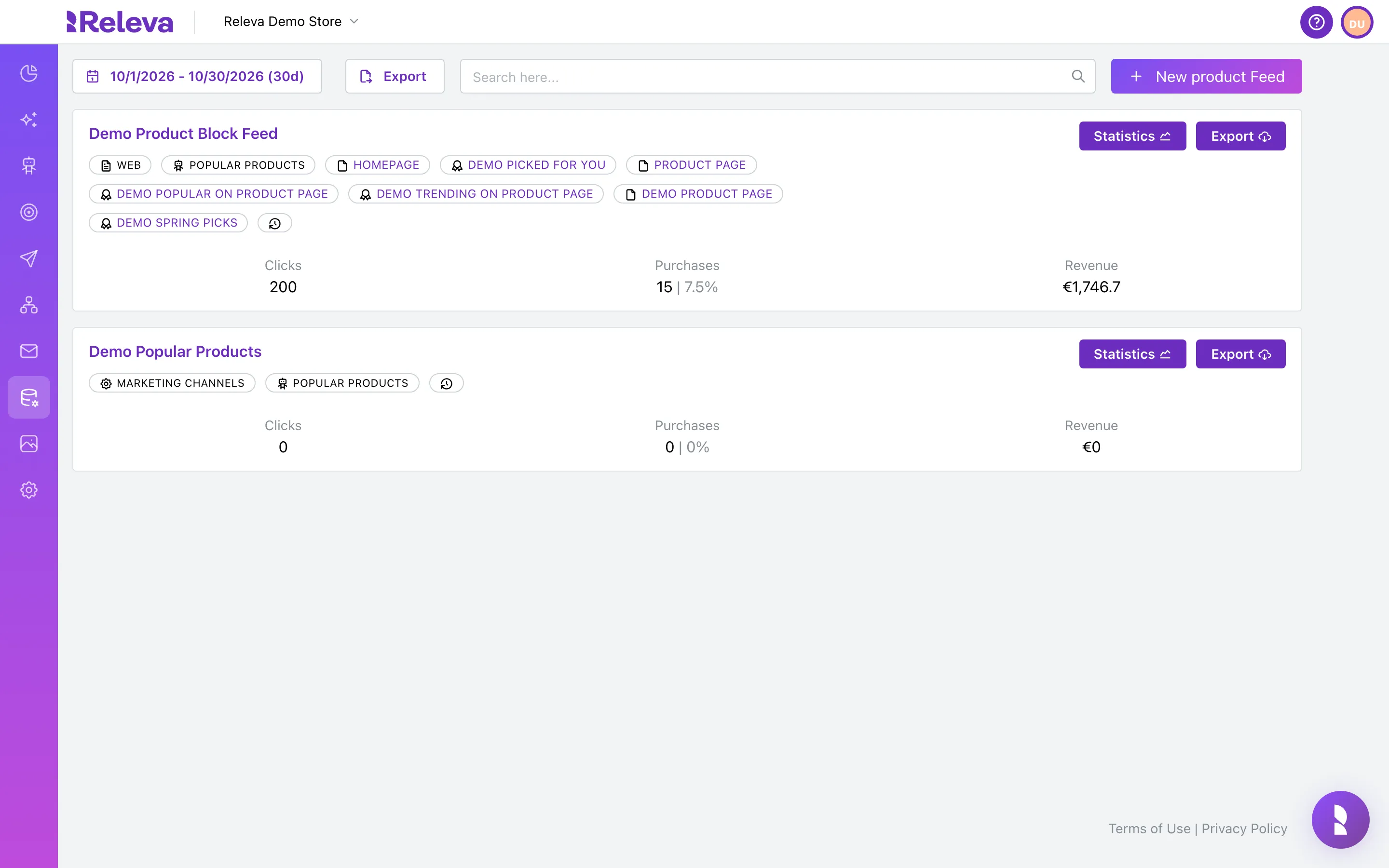
-
Select the name of the feed you want to change.
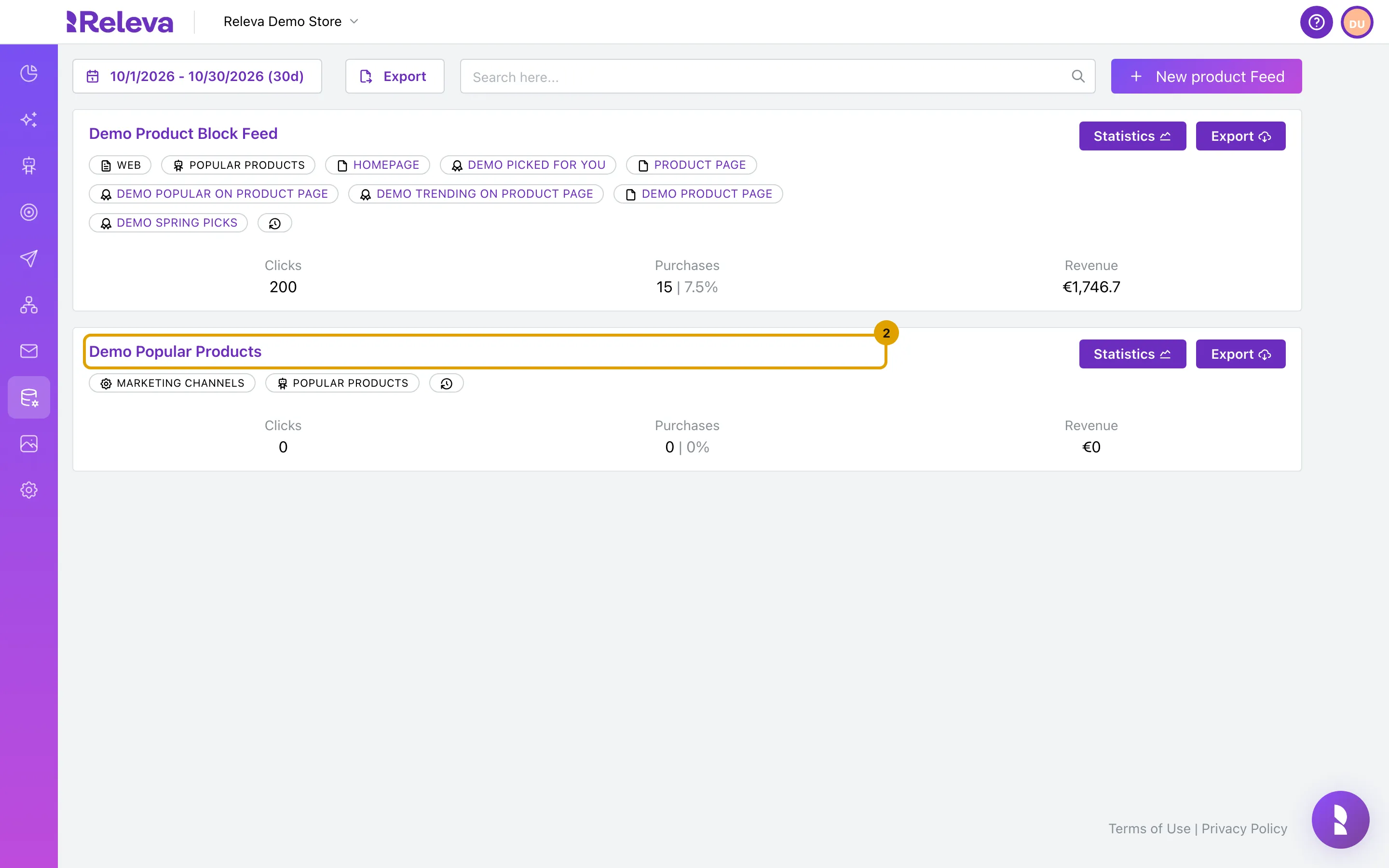
-
Select the Boosts & Filters tab.
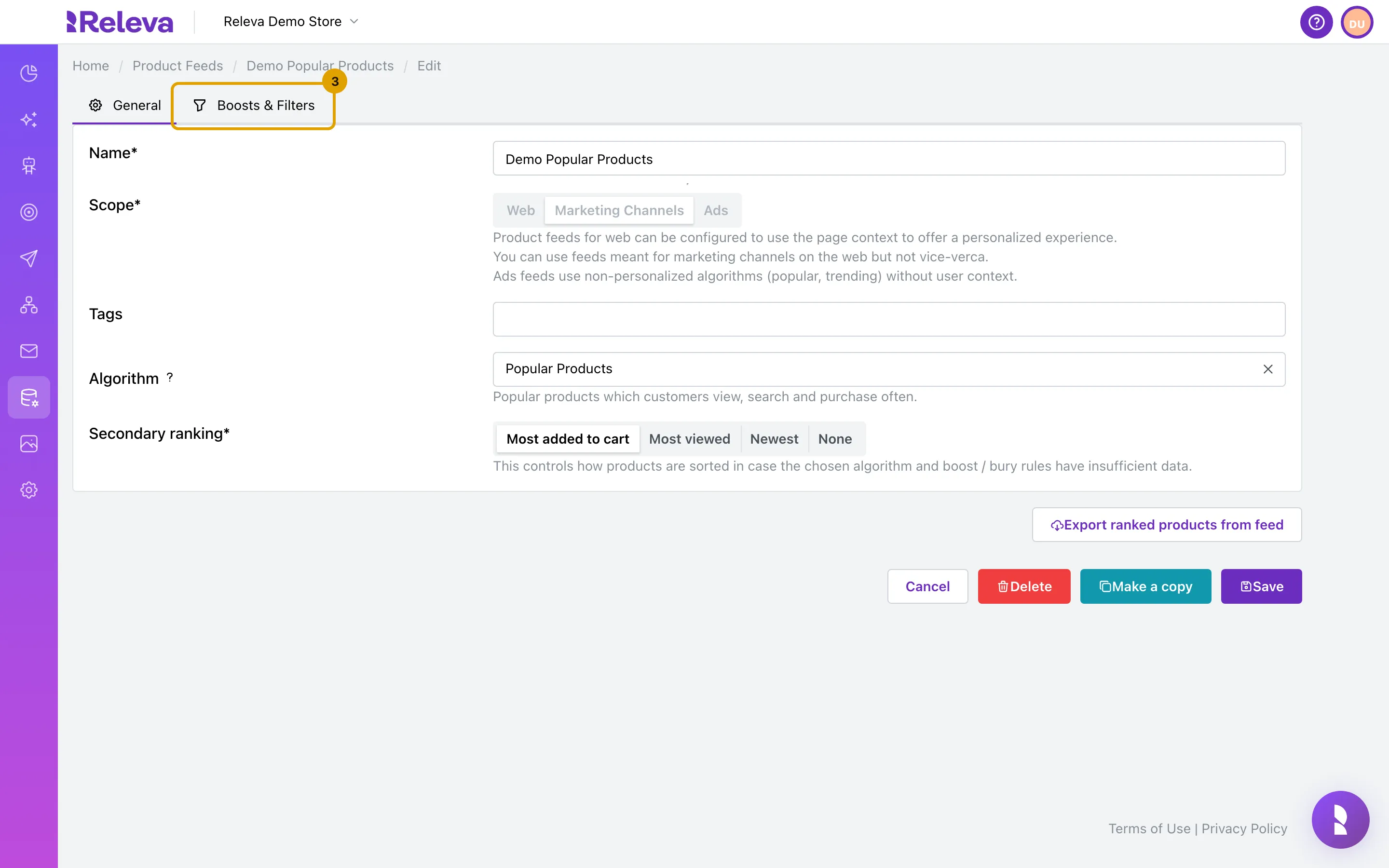
-
At the bottom of the list, select Custom Rule.
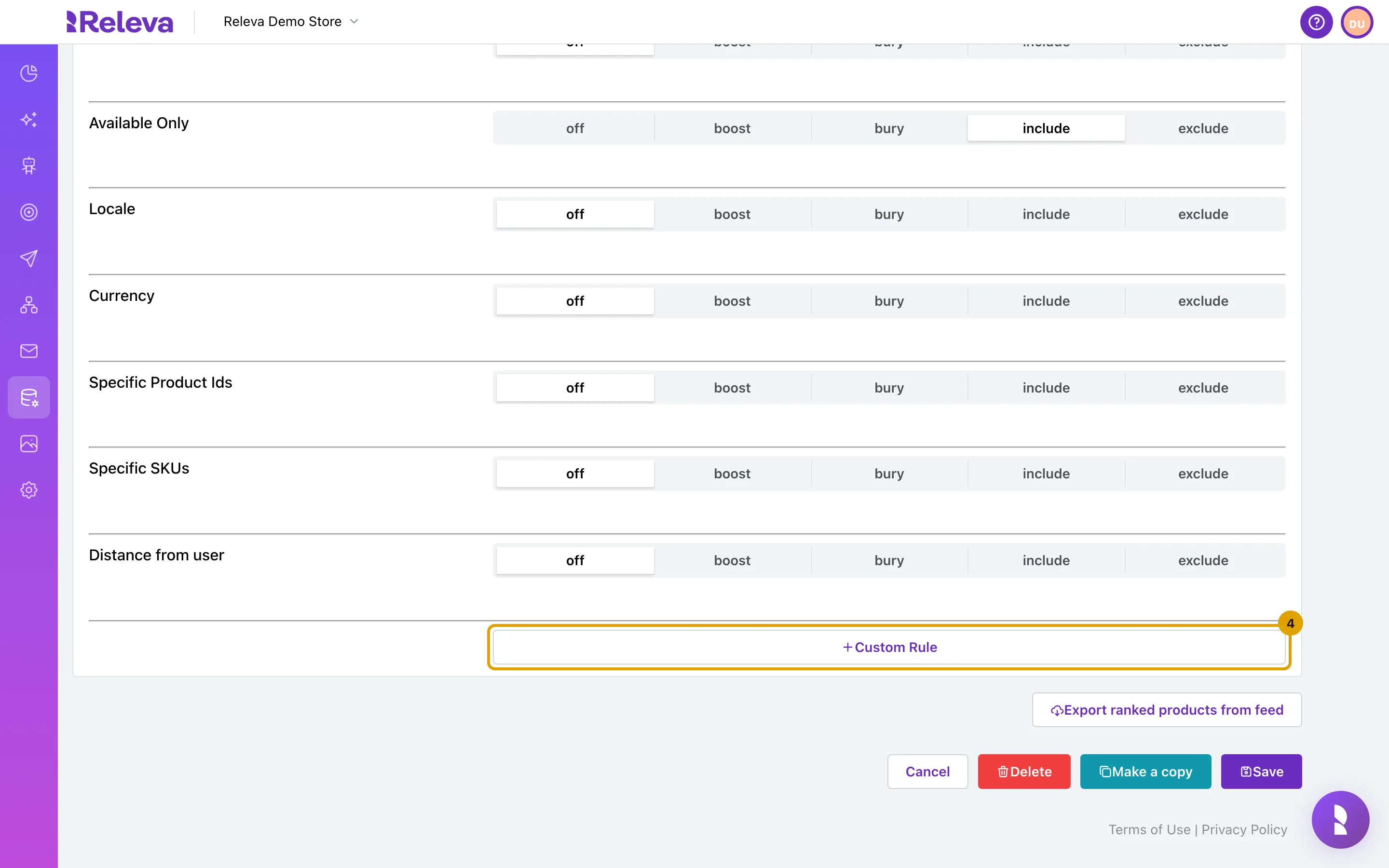
-
Under Field, open the list, type part of the field name in Search… and select the product field to use, for example color (string).
The list shows every custom field found in your products with its type:
string,numericordate, sorted by name. Releva addscategory_level_1,category_level_2and so on from your category paths. Shop platforms often send many internal fields too, so searching is the quickest way to find yours. The search matches part of the name and ignores case.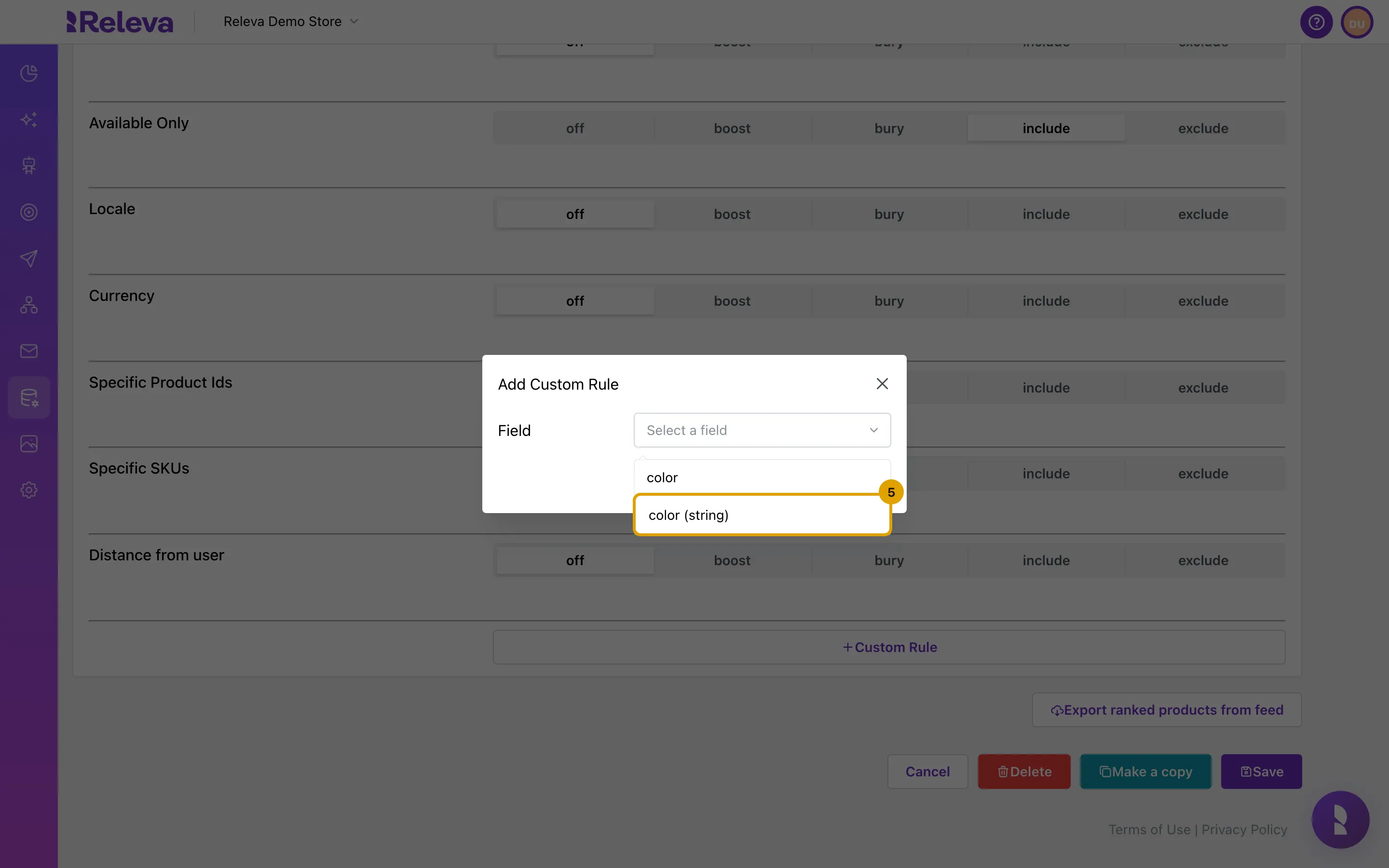
-
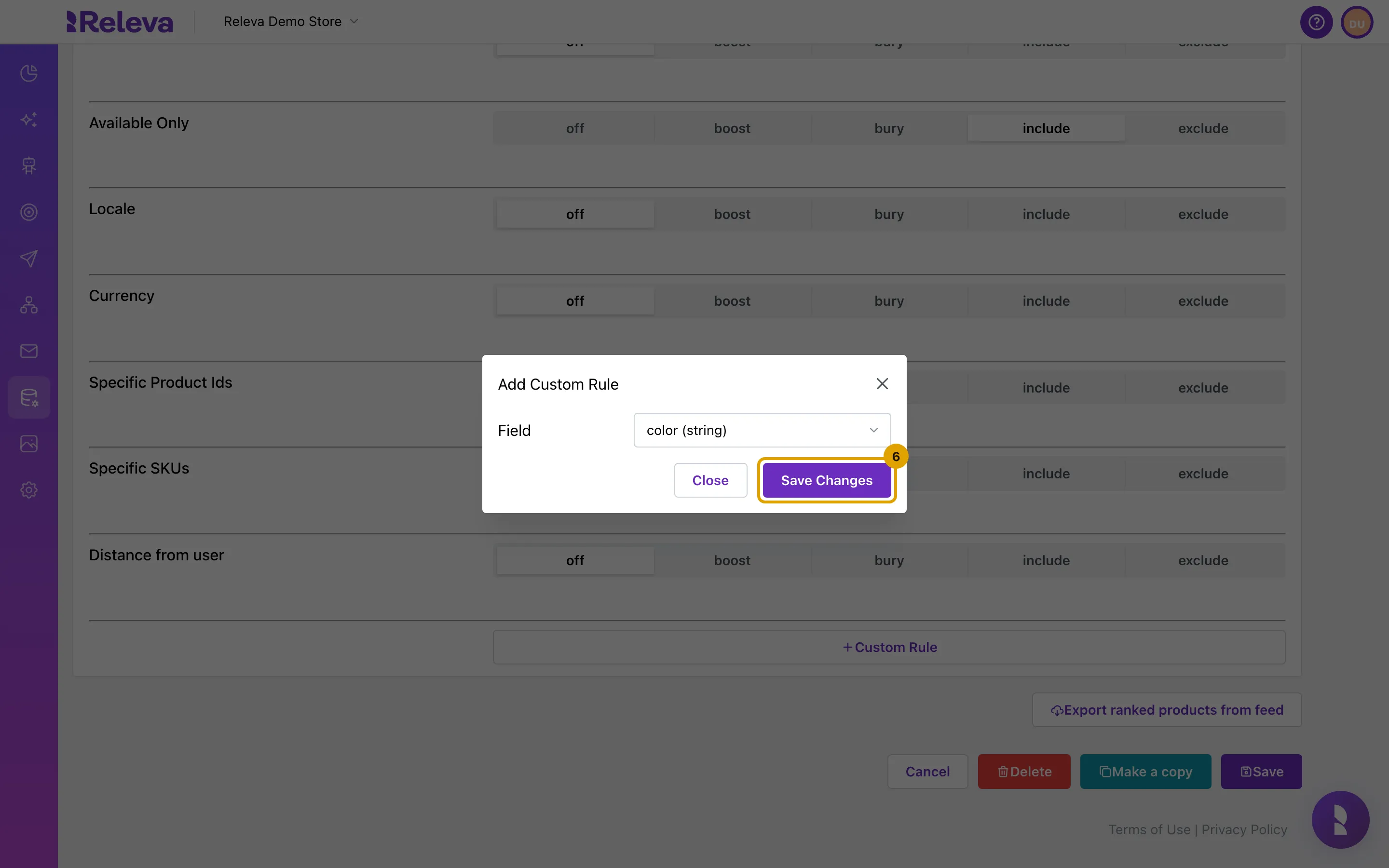
Select Save Changes.
-
In the new Custom field row, select boost and user’s favorite, then drag weight (1 to 10) to set how strongly the rule counts.
The row is named Custom field: string.color. With user’s favorite, Releva takes the value from the products the customer recently viewed or added to the cart. products considered limits how many of those products count (1 to 20, empty means all). To use a fixed value instead, select manual and type it, for example
red|blue. Values are case sensitive and must match the product data exactly.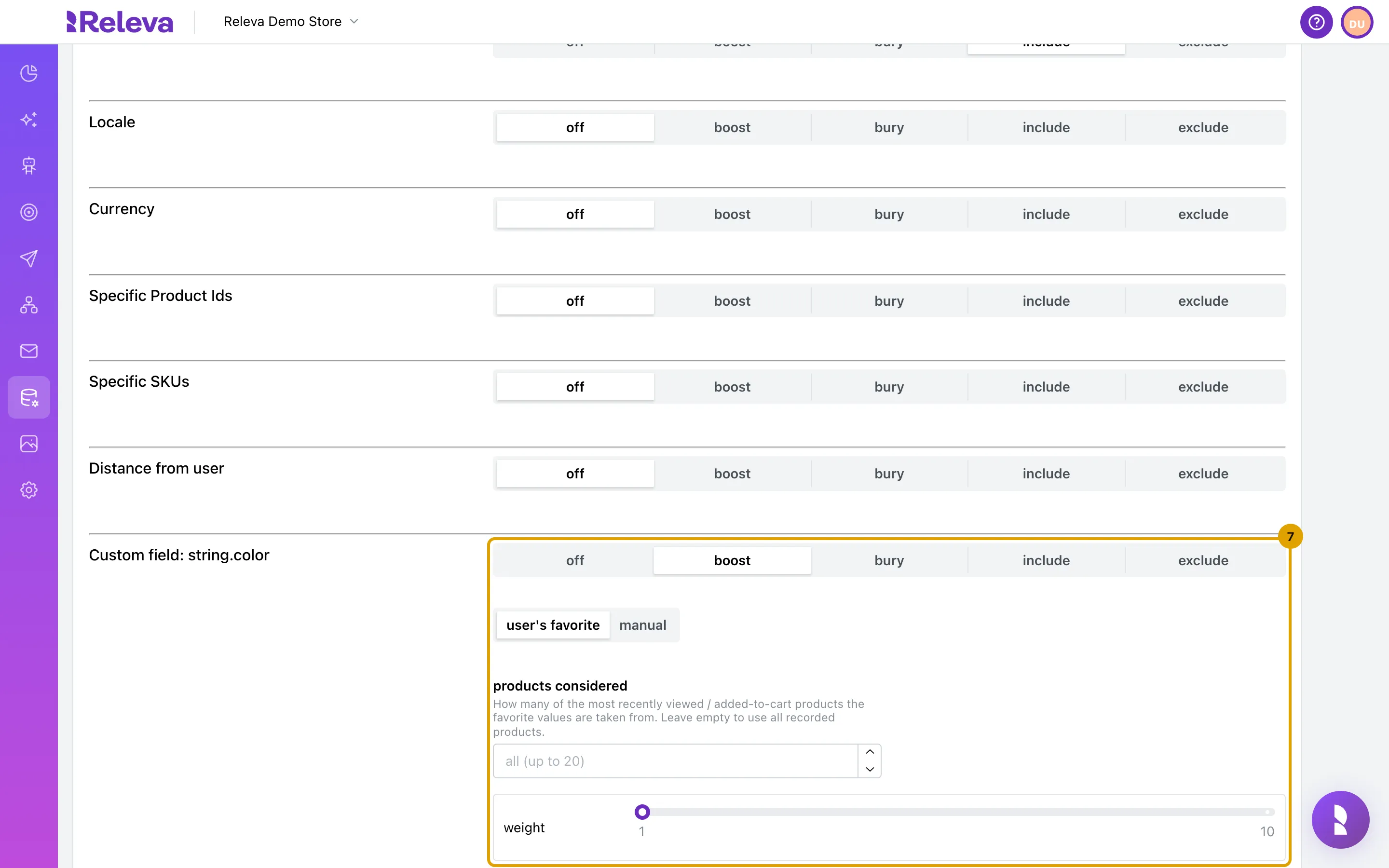
-
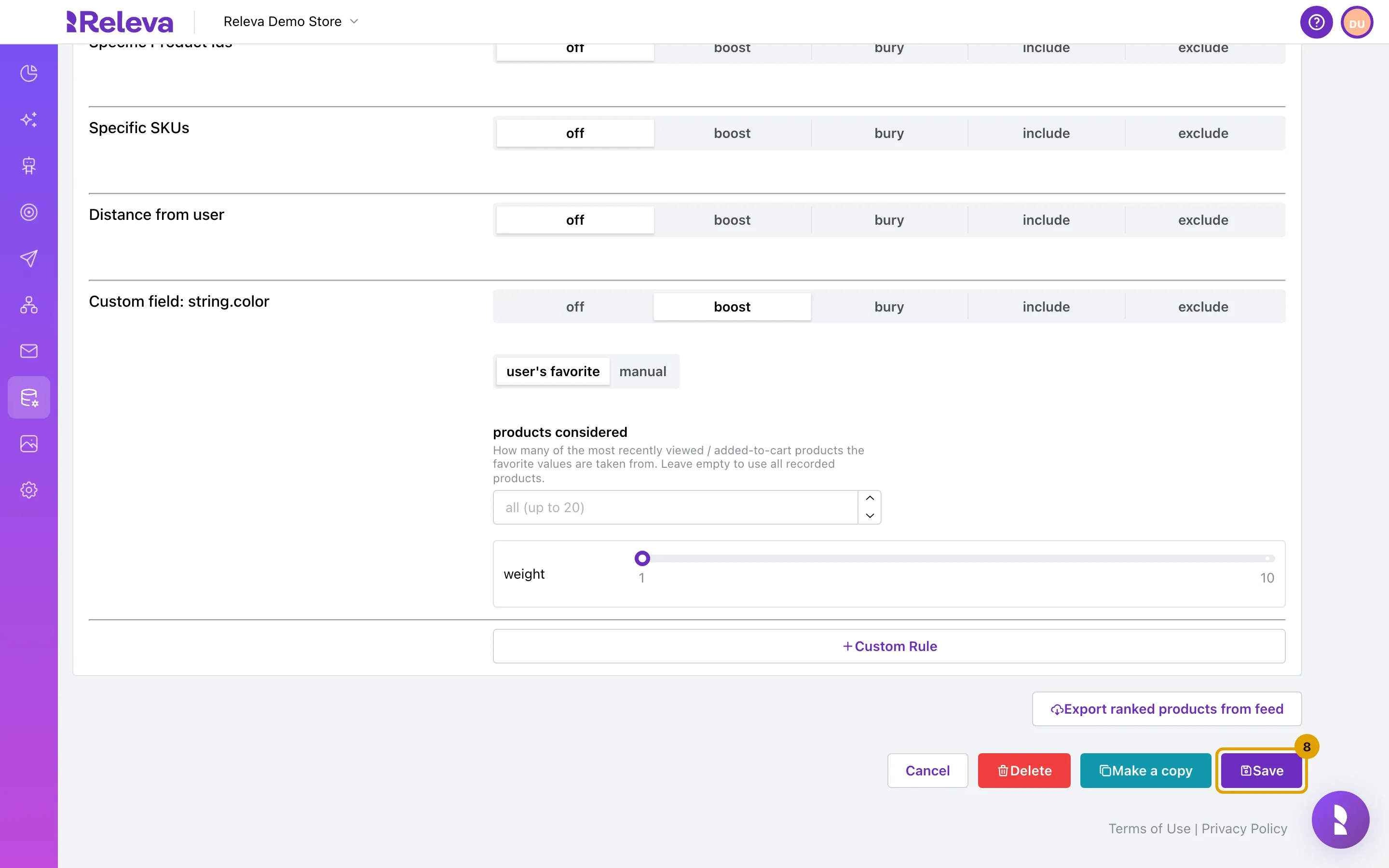
Select Save.
Check it worked
Section titled “Check it worked”- You are back on Product Feeds.
- Open the feed again and select Boosts & Filters: the Custom field: string.color row is still there with boost and user’s favorite selected.
- A Product Block that uses the feed now ranks products in the customer’s favorite color higher.
Troubleshooting
Section titled “Troubleshooting”Custom Rule is disabled and reads “There are no custom fields in your products and custom rules are disabled”. No product in your catalog has a custom block. Send custom fields with your products (see How your catalog gets into Releva) and reload the page.
Save Changes is disabled in the Add Custom Rule dialog. Pick a field first.
The field I need is not listed. Only fields that exist in synced products appear. Check the spelling of the key in your product data and that at least one product has it.
A manual value matches nothing. Values are compared exactly, including case. Copy the value from the product’s Custom block. Separate several values with | and no spaces.
I want to remove a custom rule. There is no remove button. Set the row’s mode to off; the rule then has no effect.