

Create a product feed
A product feed is a saved recipe for picking and ranking products. Product Blocks, emails, push notifications and other channels show the products a feed returns. Create one feed per idea (“trending products in English”, “popular products in the user’s favorite color”) and reuse it wherever you need it.
Before you start
Section titled “Before you start”- Your catalog has synced. A feed over an empty catalog returns nothing. See How your catalog gets into Releva.
- You know where the feed will be used. The Scope cannot be changed after you save: Web feeds work only on your site, Marketing Channels feeds work in messages and on the site, Ads feeds work in ad product sets.
- Your plan includes creating product feeds. If New product Feed shows a lock icon, ask your account owner to unlock it.
-
In the left menu, select Data Platform › Product Feeds.
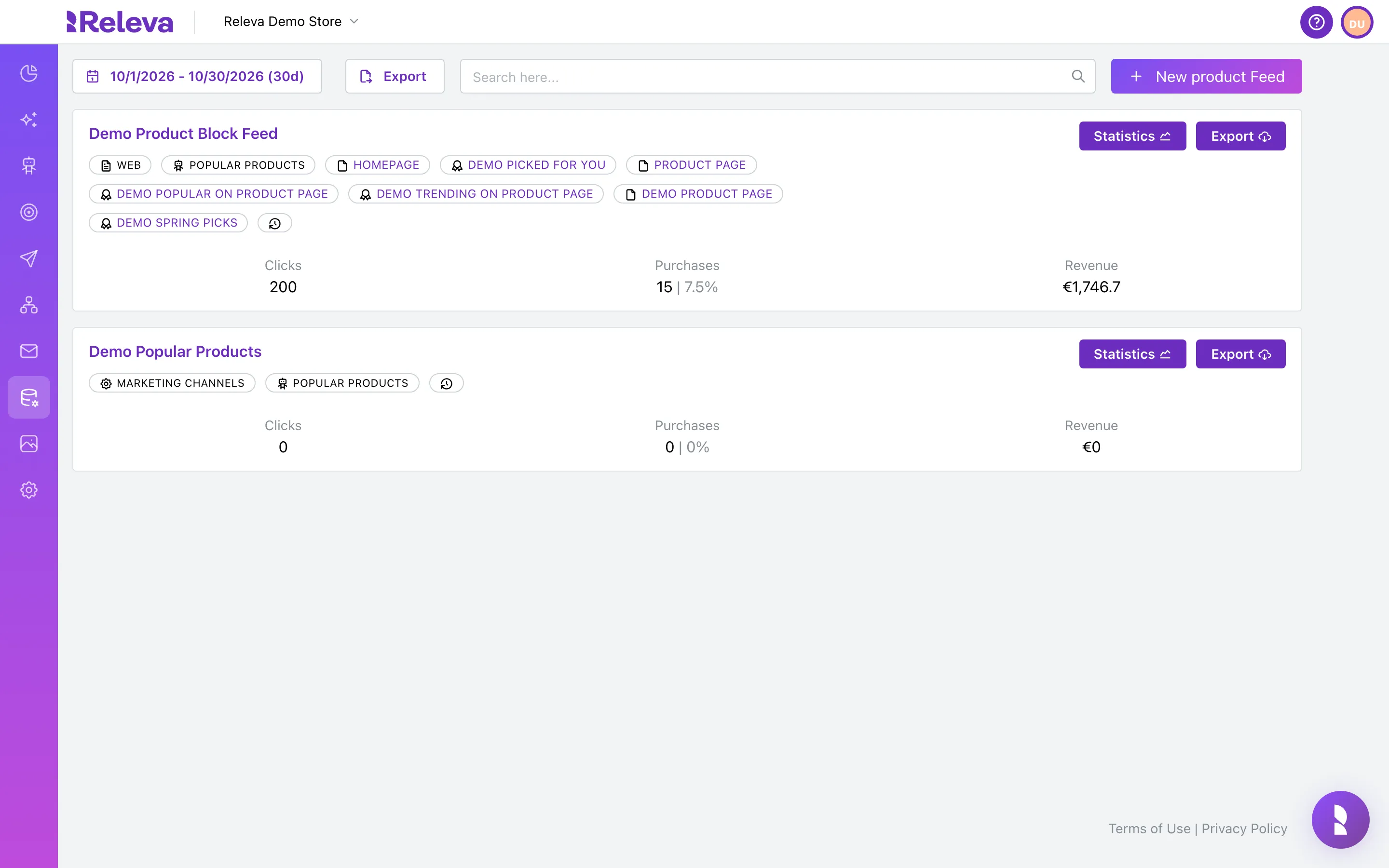
-
Select New product Feed.
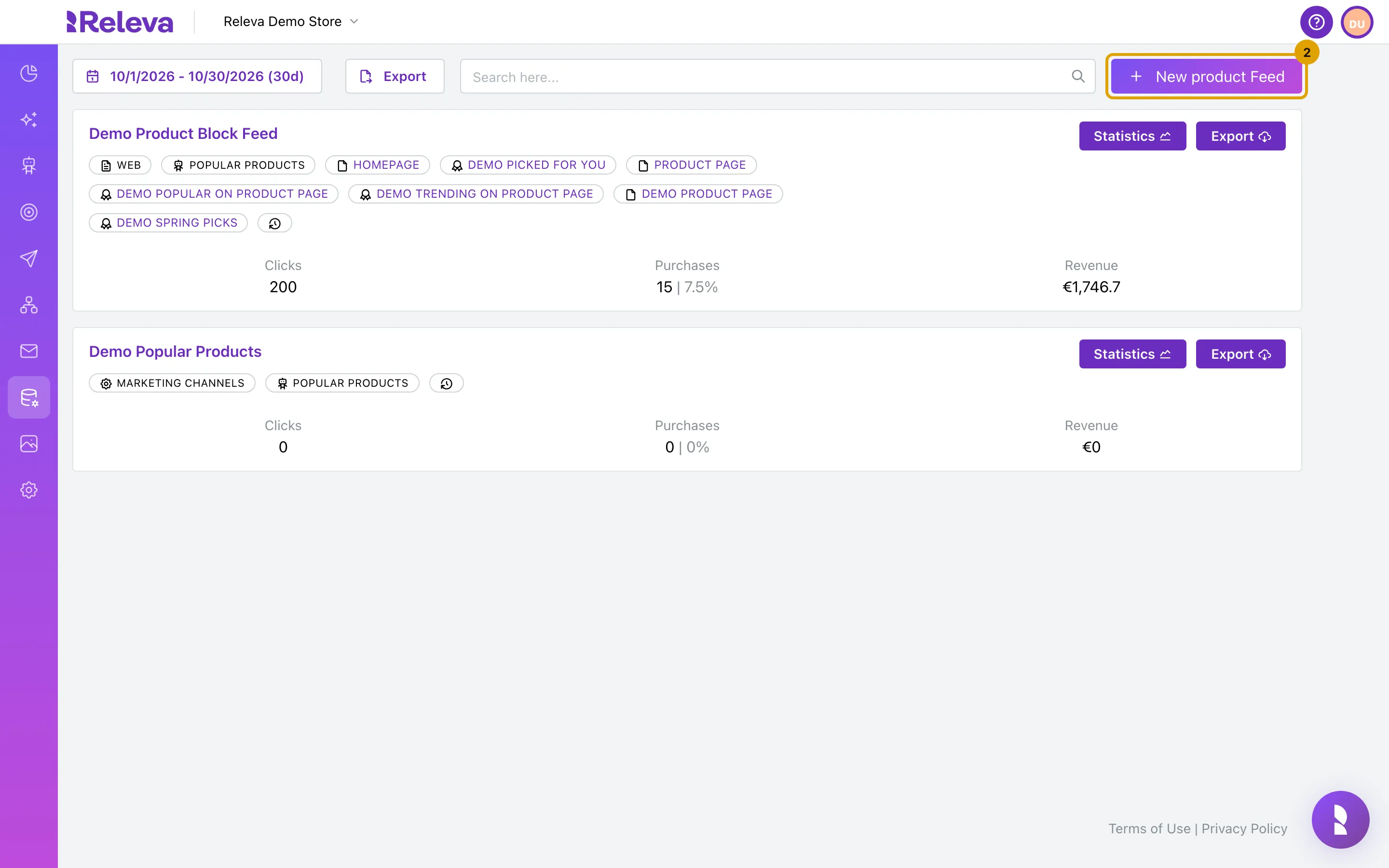
-
In Name, replace “New product feed” with a name you will recognize when you pick the feed later.
Names must be unique within your shop.
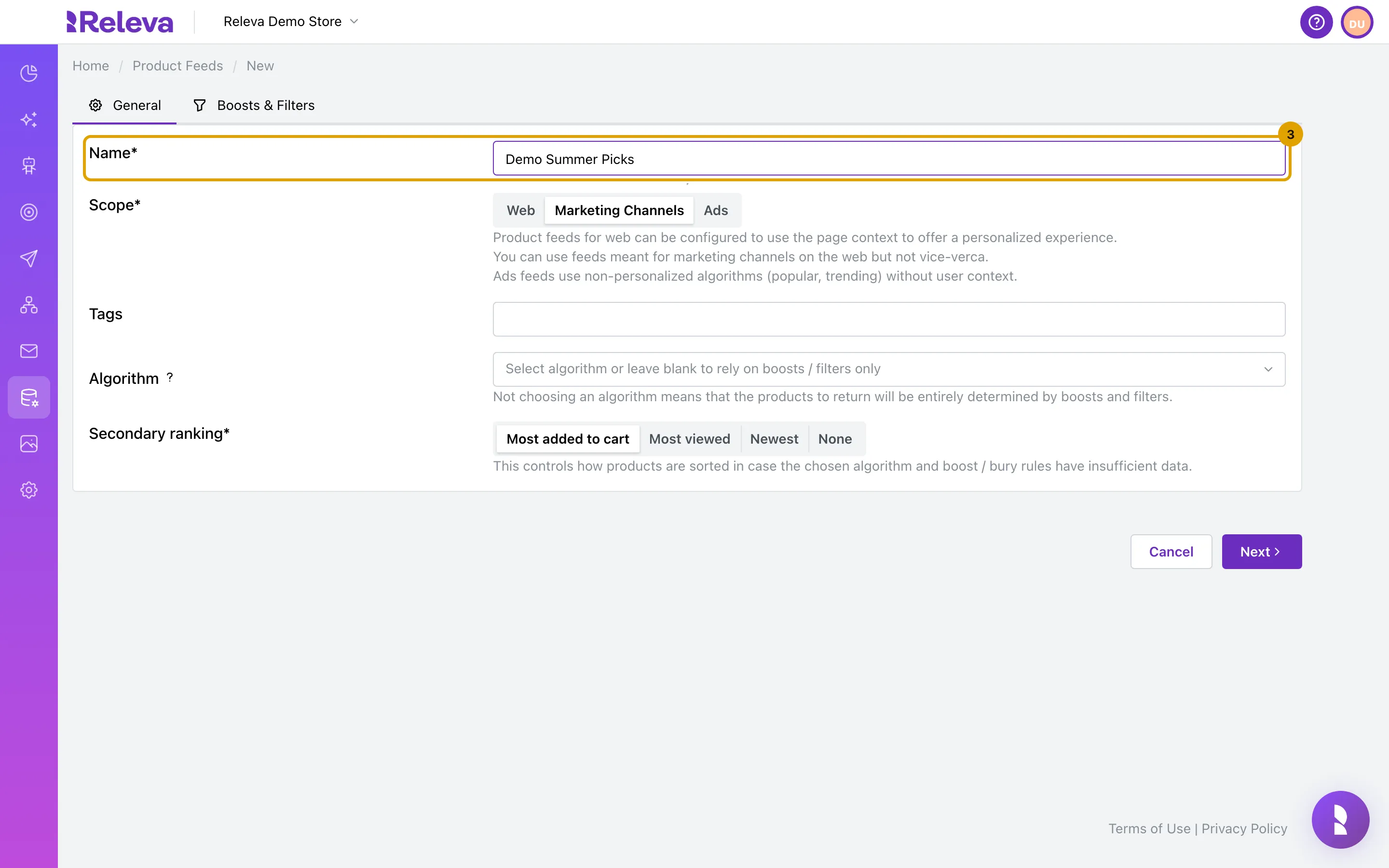
-
Under Scope, select Web, Marketing Channels or Ads. You cannot change the scope after you save.
The help text under the control reads: “You can use feeds meant for marketing channels on the web but not vice-verca.” A Web feed can also use the page context value source in its rules. Ads feeds offer only non-personalized algorithms.
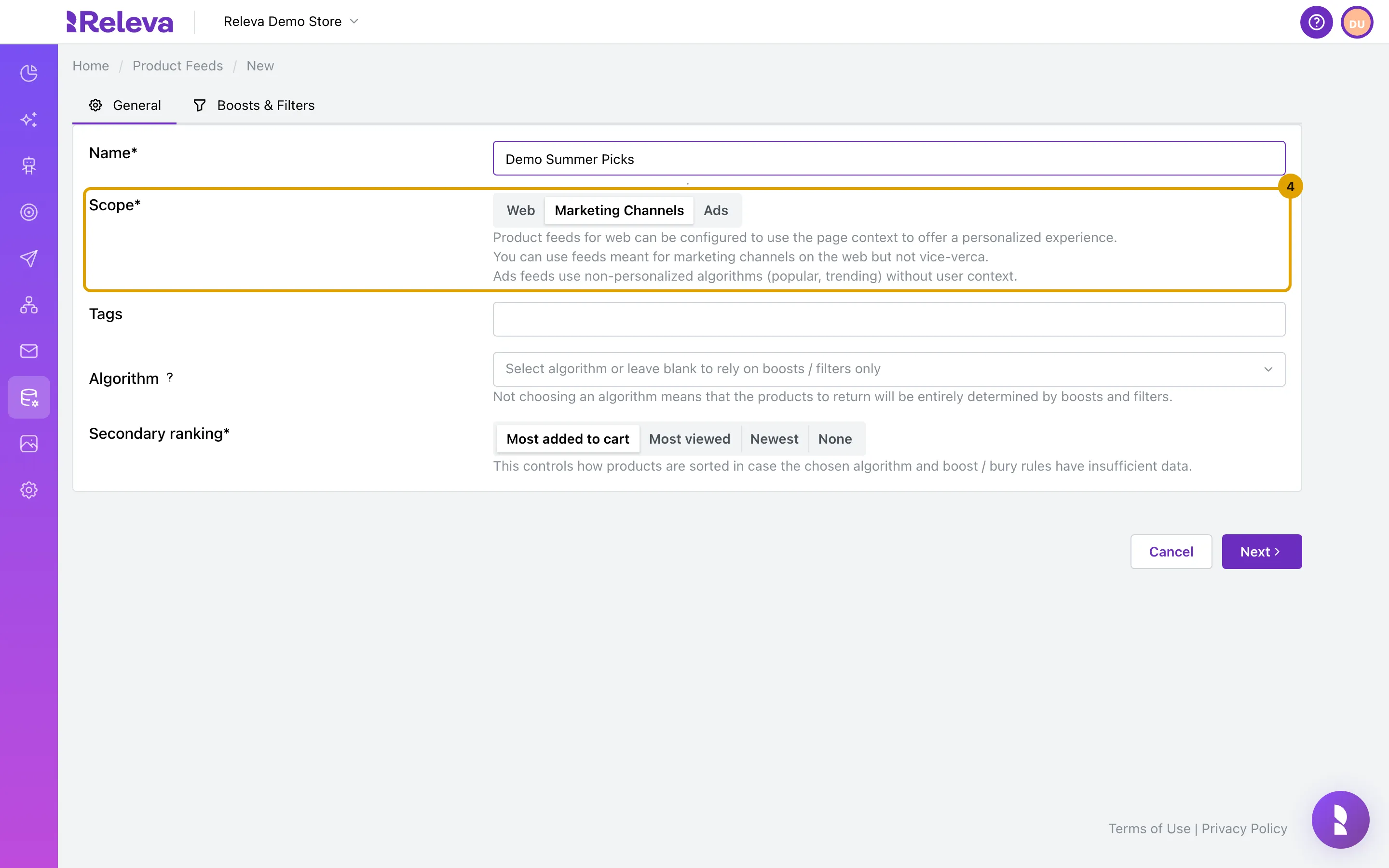
-
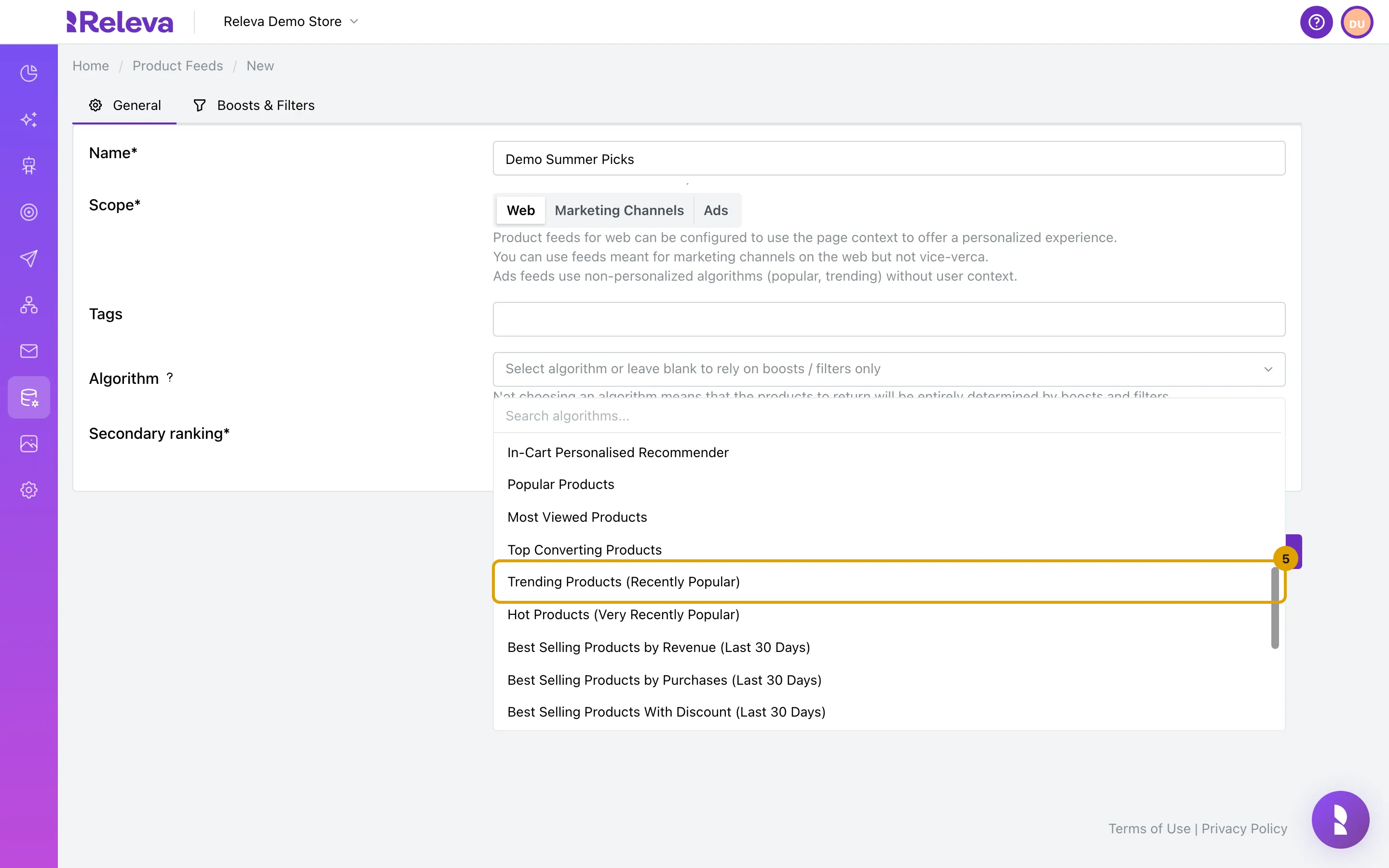
Under Algorithm, select how Releva ranks the products, for example Trending Products (Recently Popular). Select None to rank by boosts and filters only.
The list depends on the scope. Select the ? next to Algorithm for a description of each algorithm. If you pick New Products, a Freshness filter switch appears that limits how many days a product counts as new (1 to 30).
-
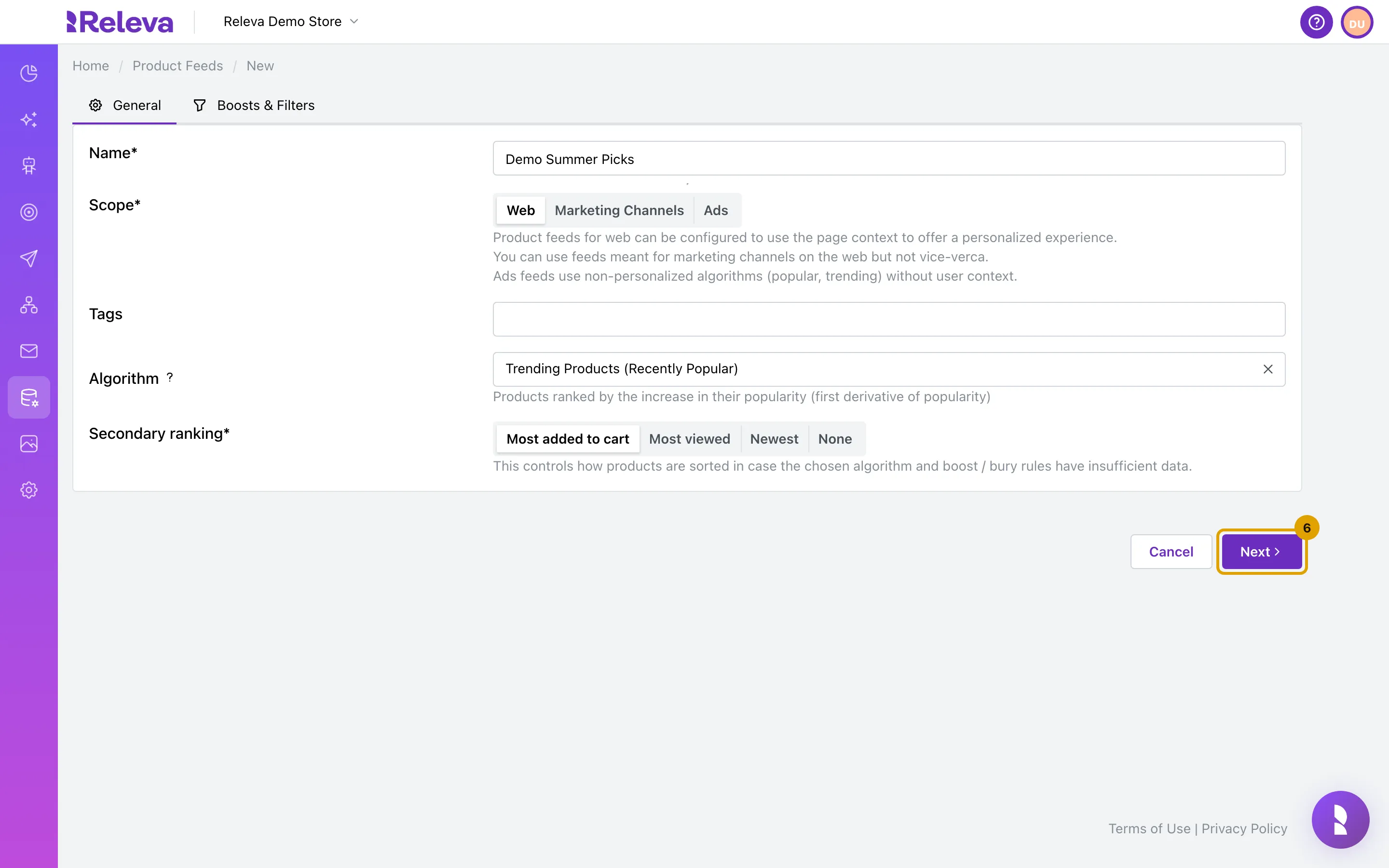
Leave Secondary ranking on Most added to cart or pick another order, then select Next.
Secondary ranking (Most added to cart, Most viewed, Newest or None) sorts products when the algorithm and the boost and bury rules do not have enough data.
-
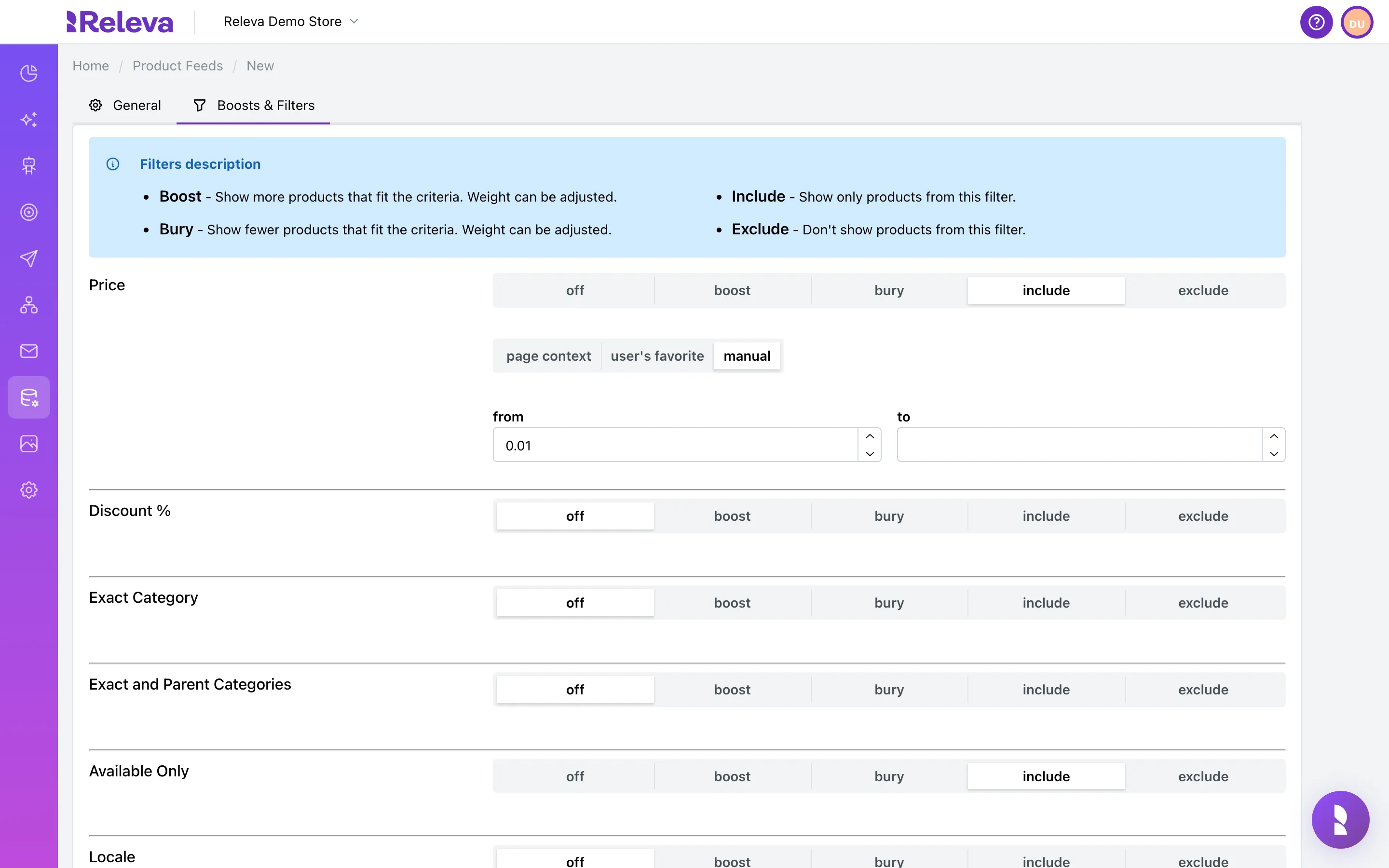
On Boosts & Filters, Price and Available Only are already set to include, so the feed only shows products that have a price and are available.
Every row has five modes: off, boost, bury, include and exclude. The Filters description box at the top explains them. See How product feeds work for the full list of rows.
-
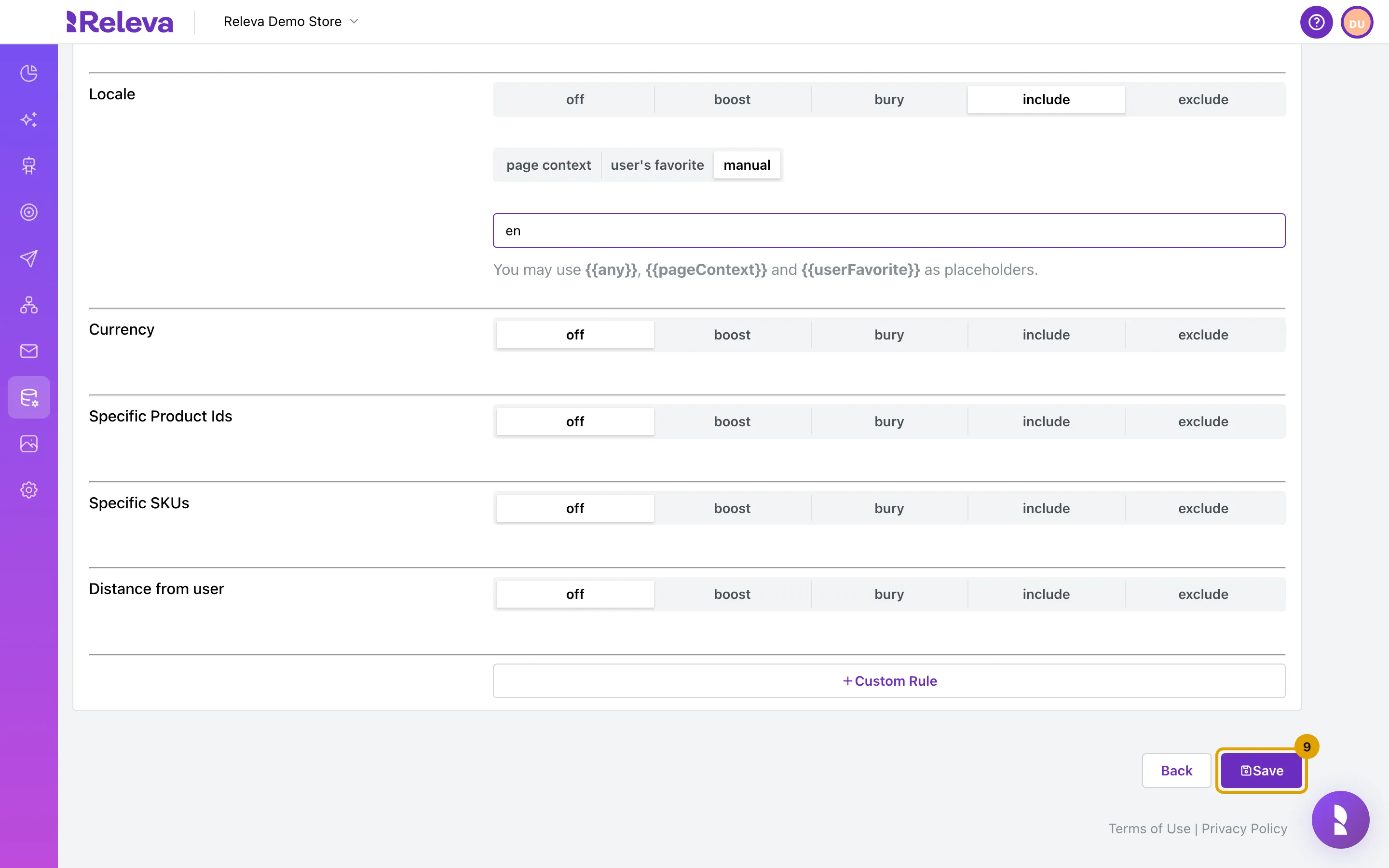
To show products in one language only, set Locale to include, select manual and enter the locale, for example
en.For text rows you can enter several values separated by
|, with no spaces, for exampleen|bg. The placeholders{{any}},{{pageContext}}and{{userFavorite}}are also accepted.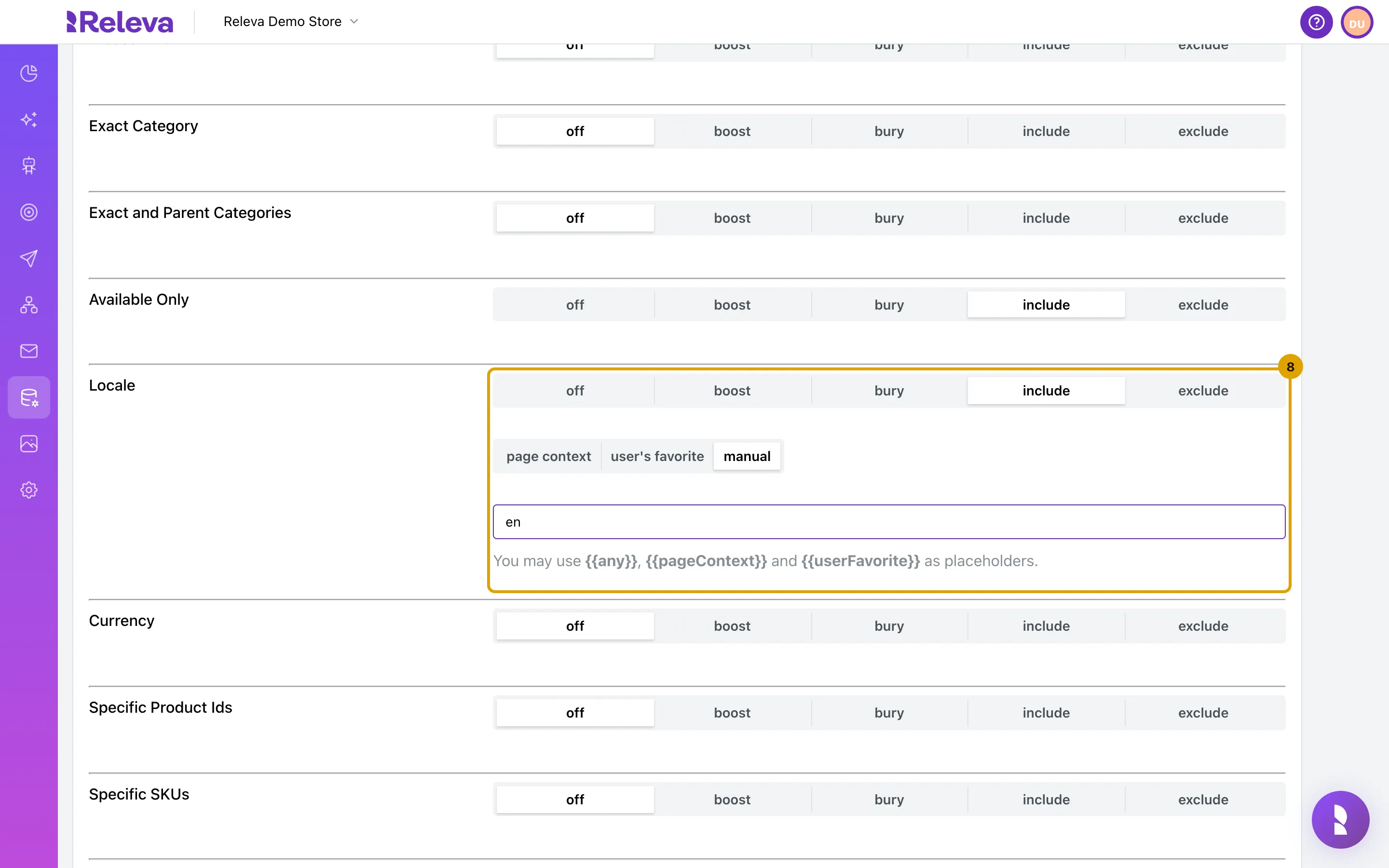
-
Select Save.
Save stays disabled until the feed has a name and an algorithm (or None). Products from latest event also needs an Event.
-
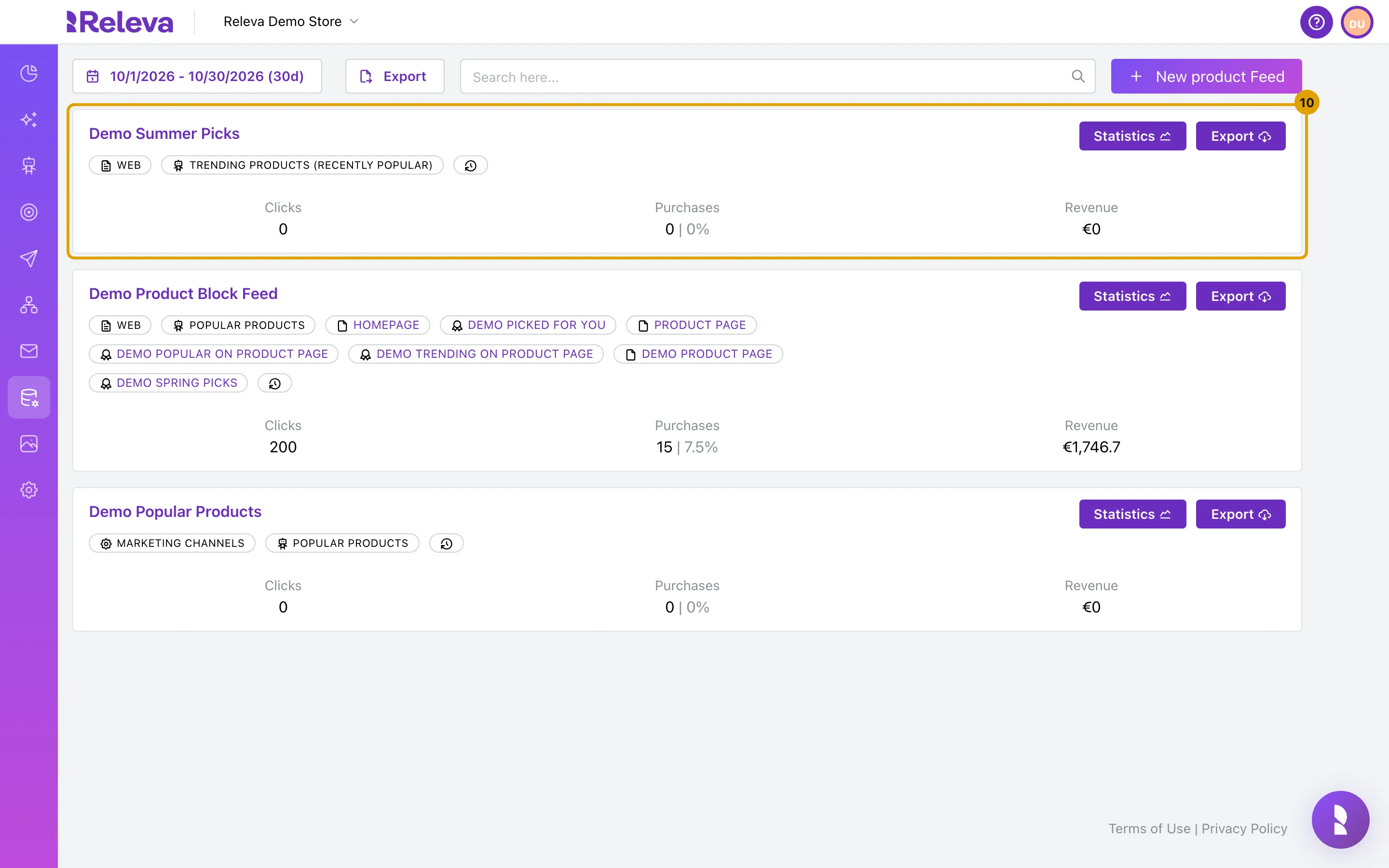
The new feed appears on Product Feeds with its scope and algorithm.
Check it worked
Section titled “Check it worked”- The feed is the first card on Product Feeds (the list shows newest first). Its badges show the scope (for example WEB) and the algorithm name.
- The card’s Clicks, Purchases and Revenue read 0 until a Product Block or message that uses the feed gets clicks.
- Select the feed name: the General tab shows your name and algorithm, and Scope is now disabled.
Troubleshooting
Section titled “Troubleshooting”“Product Feed Name must be unique!” appears under the form after Save. Another feed in this shop already has that name. Change Name and save again.
Save is disabled. The feed has no name, or Algorithm is still empty. Select an algorithm or None. For Products from latest event, also select an Event.
I cannot change the scope. Scope is locked once a feed is saved. Open the feed, select Make a copy, set the new scope on the copy and save it under a new name.
The algorithm I want is not in the list. The list depends on the scope: Ads offers only popularity algorithms, and context algorithms such as Viewed This Viewed That exist only for Web. Deep AI algorithms appear only when they are enabled for your shop.
Custom Rule is disabled with “There are no custom fields in your products and custom rules are disabled”. Your products have no custom fields yet. See Add a custom rule to a product feed.