

Filter your product catalog
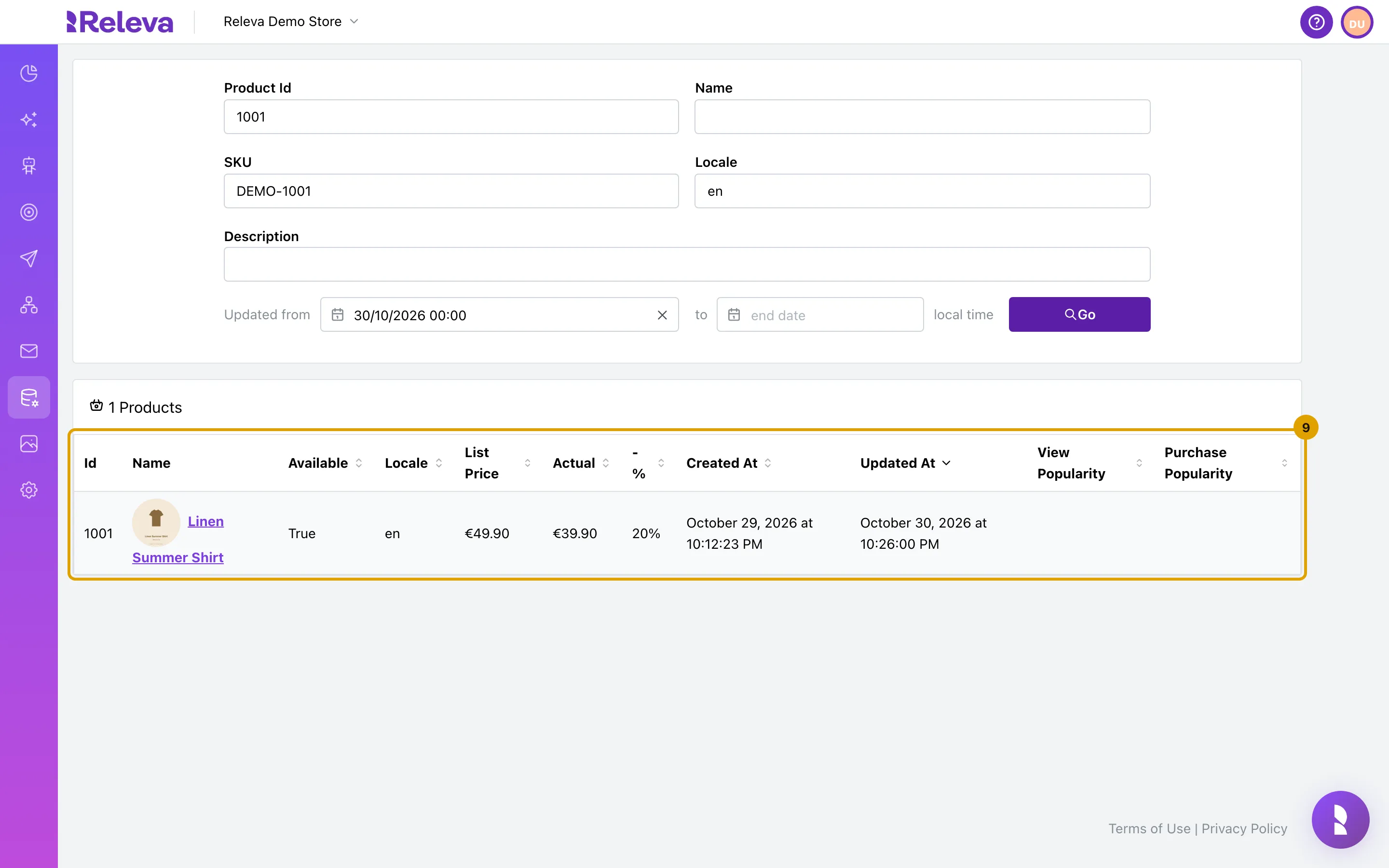
The search panel at the top of Data Platform › Products narrows the list. All filters combine: a product has to match every field you fill in. The filters are kept in the page URL, so you can bookmark a filtered list or send the link to a colleague.
Before you start
Section titled “Before you start”- Your catalog has synced at least once.
- You know the exact product id, SKU or locale code you want to filter by. Product Id and Locale are exact, case-sensitive matches.
-
Open Data Platform › Products.
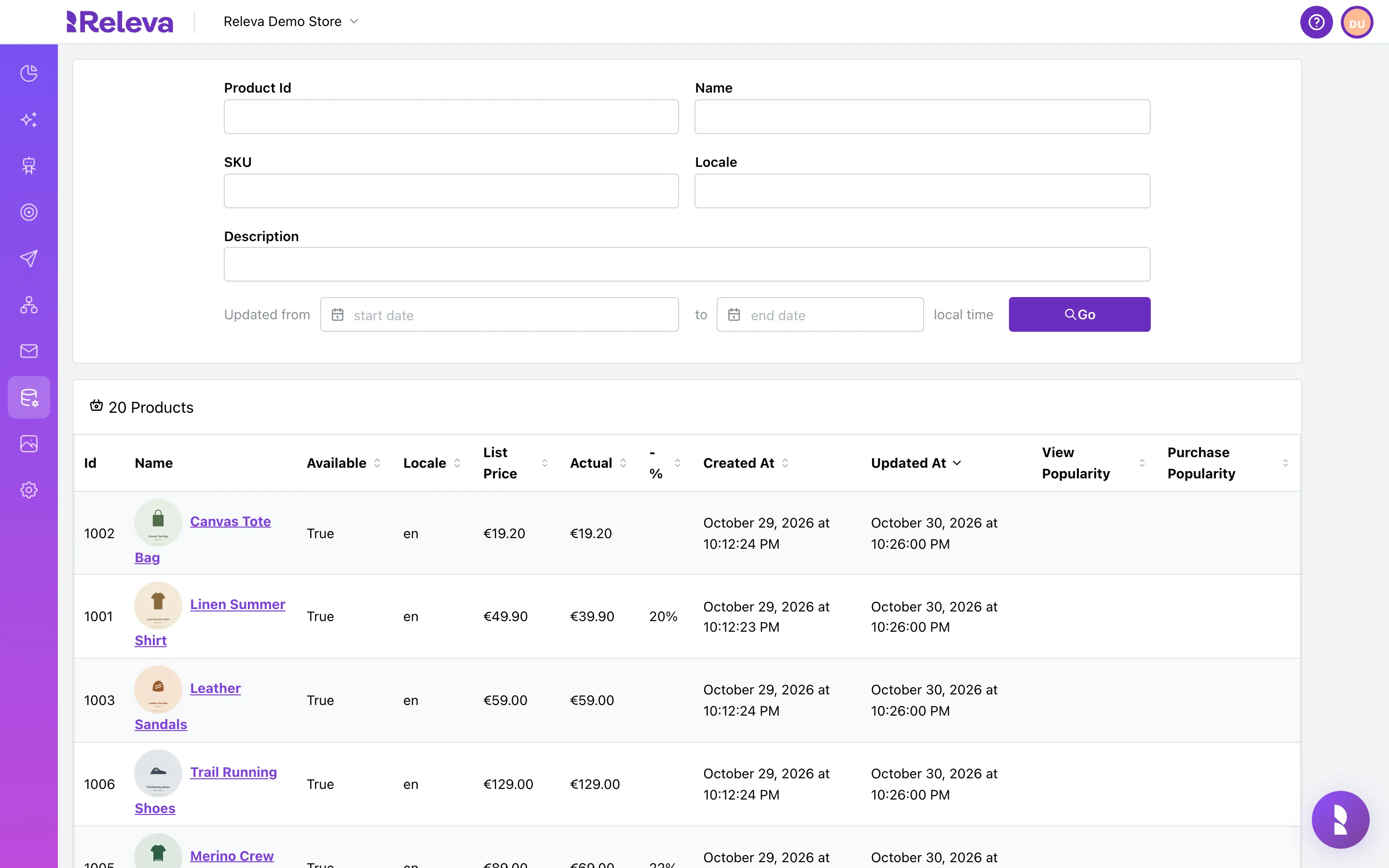
-
In Product Id, enter the exact product ID from your store (case-sensitive).
Enter the whole id.
1001matches product 1001;100matches nothing.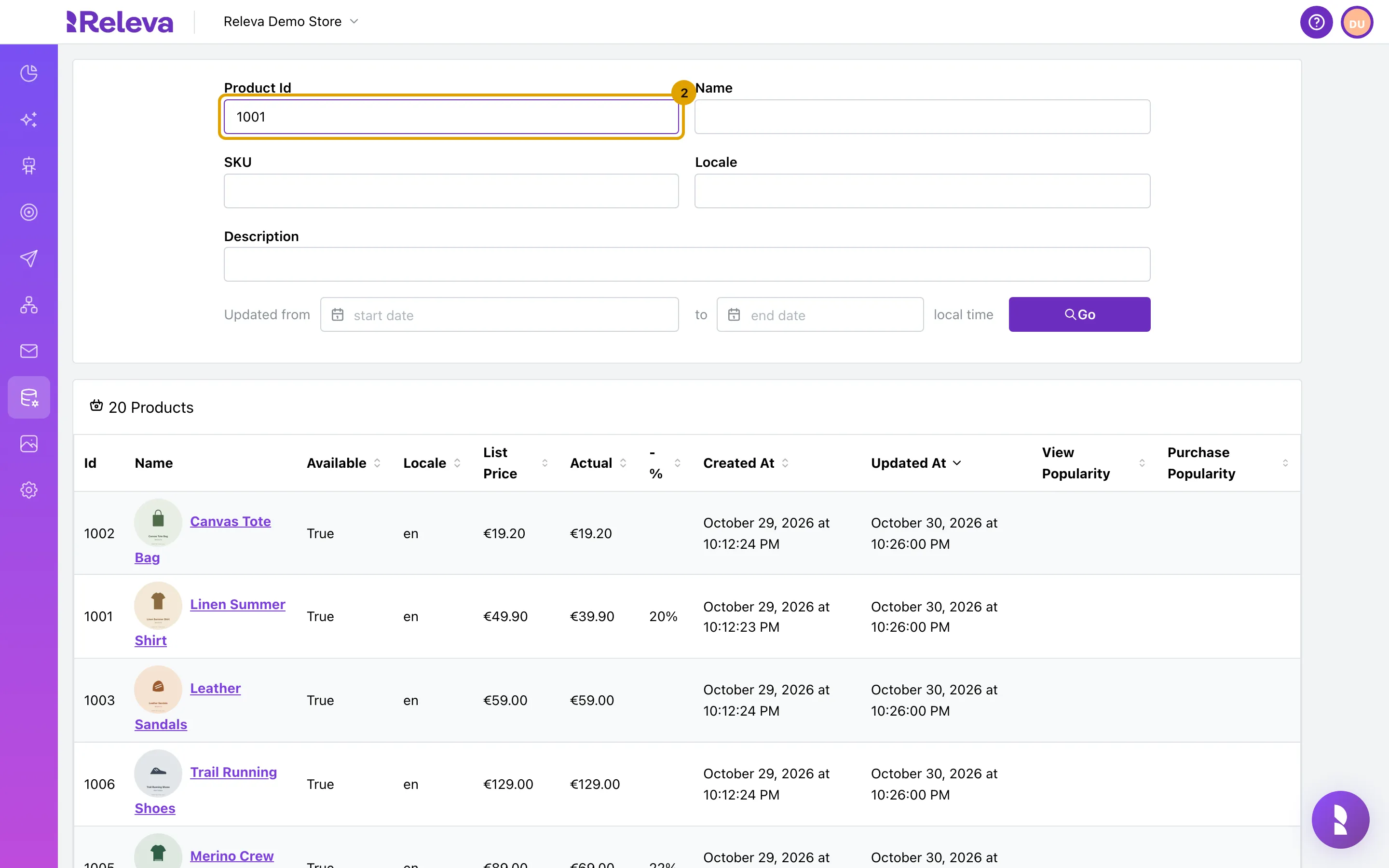
-
In SKU, enter the SKU or its first characters.
SKU ignores case and matches from the start.
demofinds every SKU that starts withDEMO.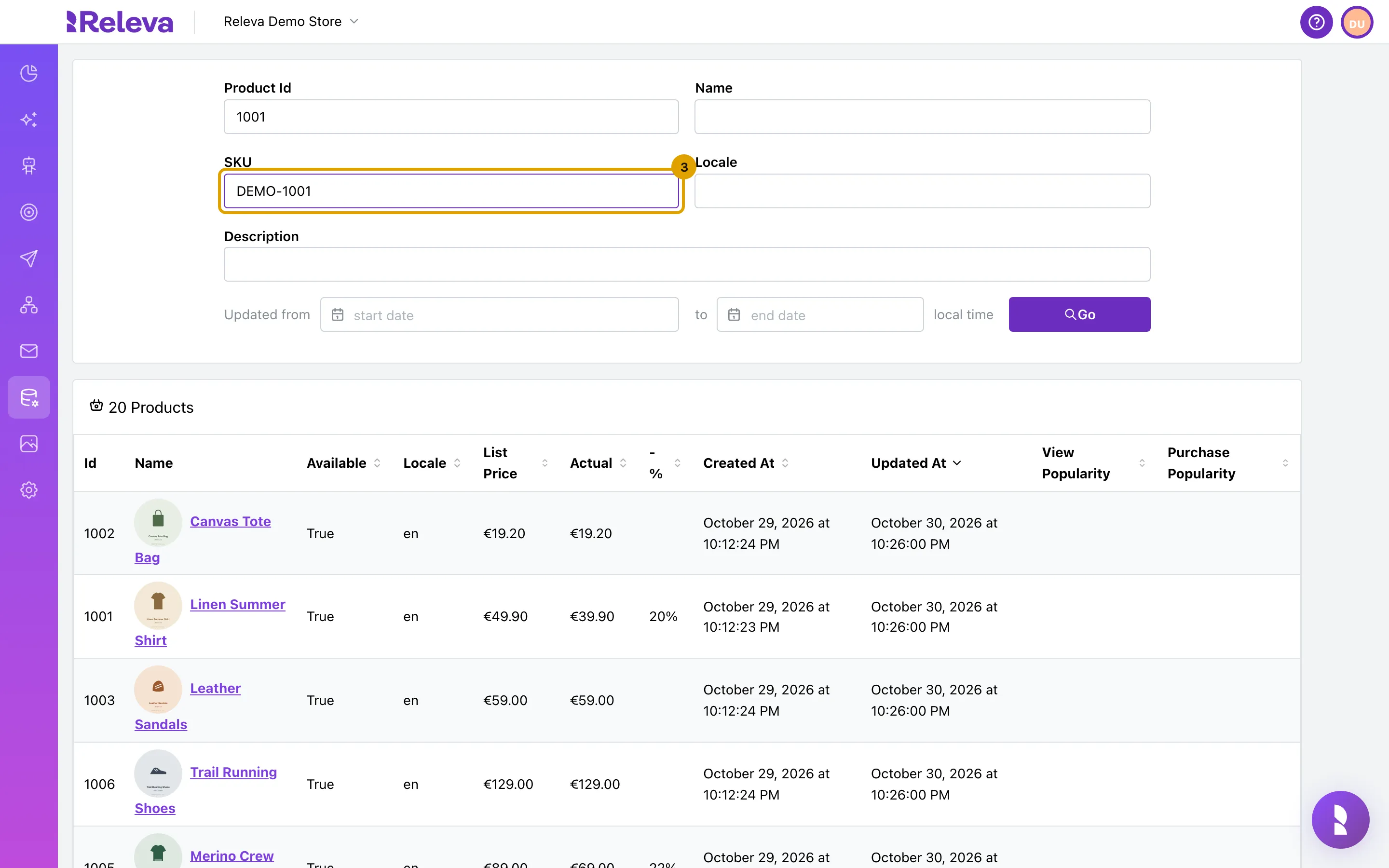
-
In Locale, enter the catalog language code, for example
en.Use the two-letter code exactly as your shop sends it.
ENdoes not matchen.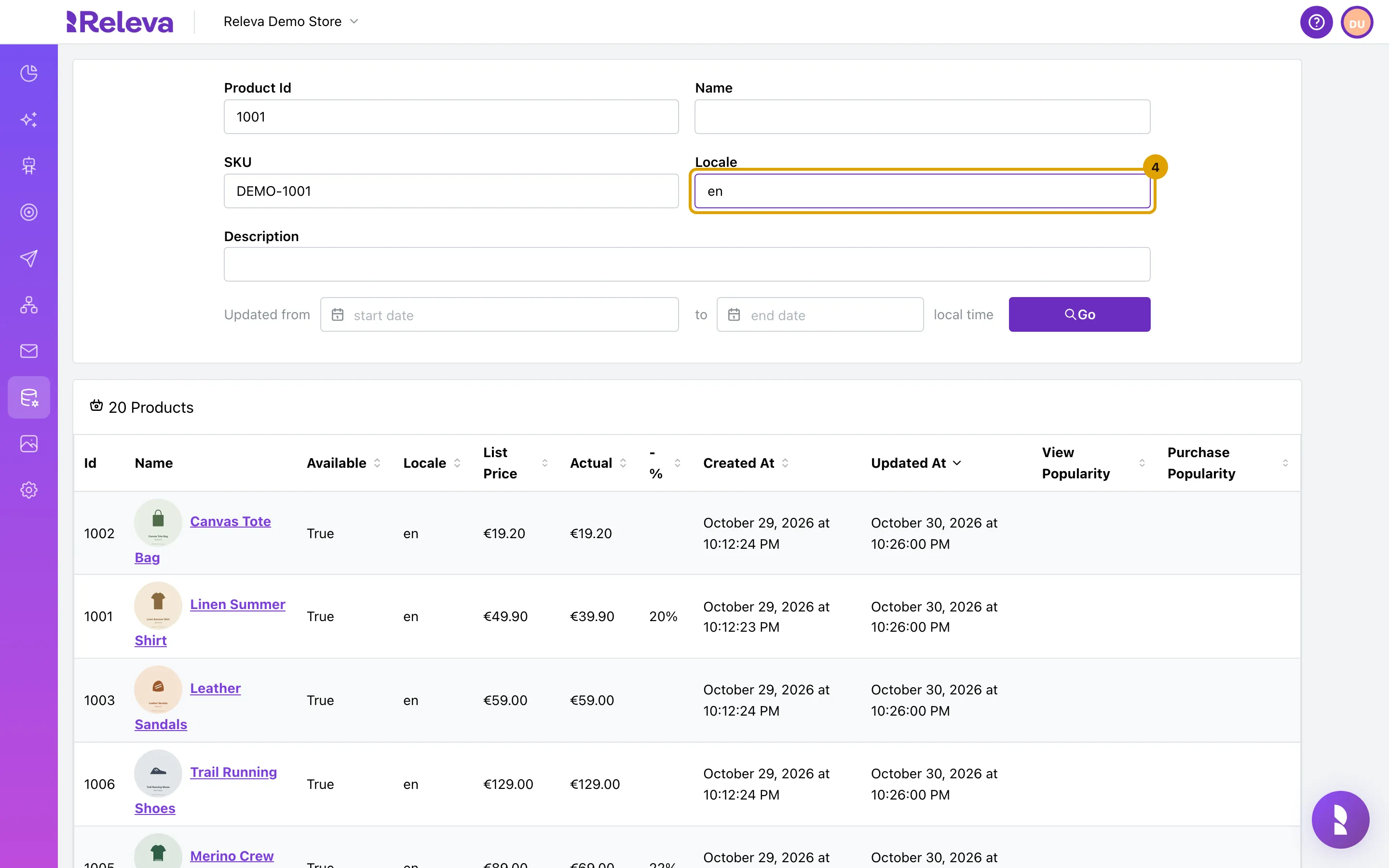
-
Select the Updated from field.
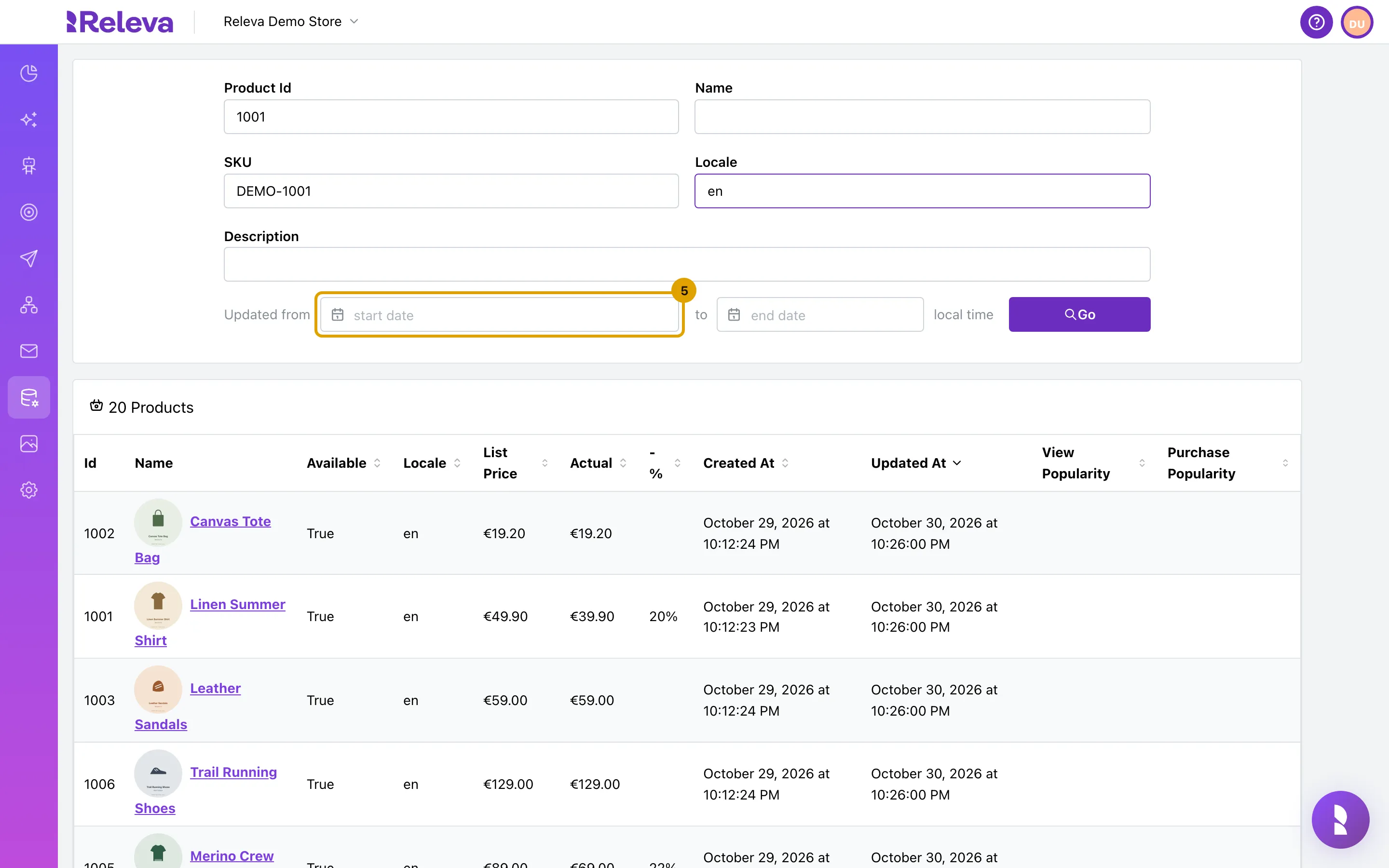
-
Pick the first day to include.
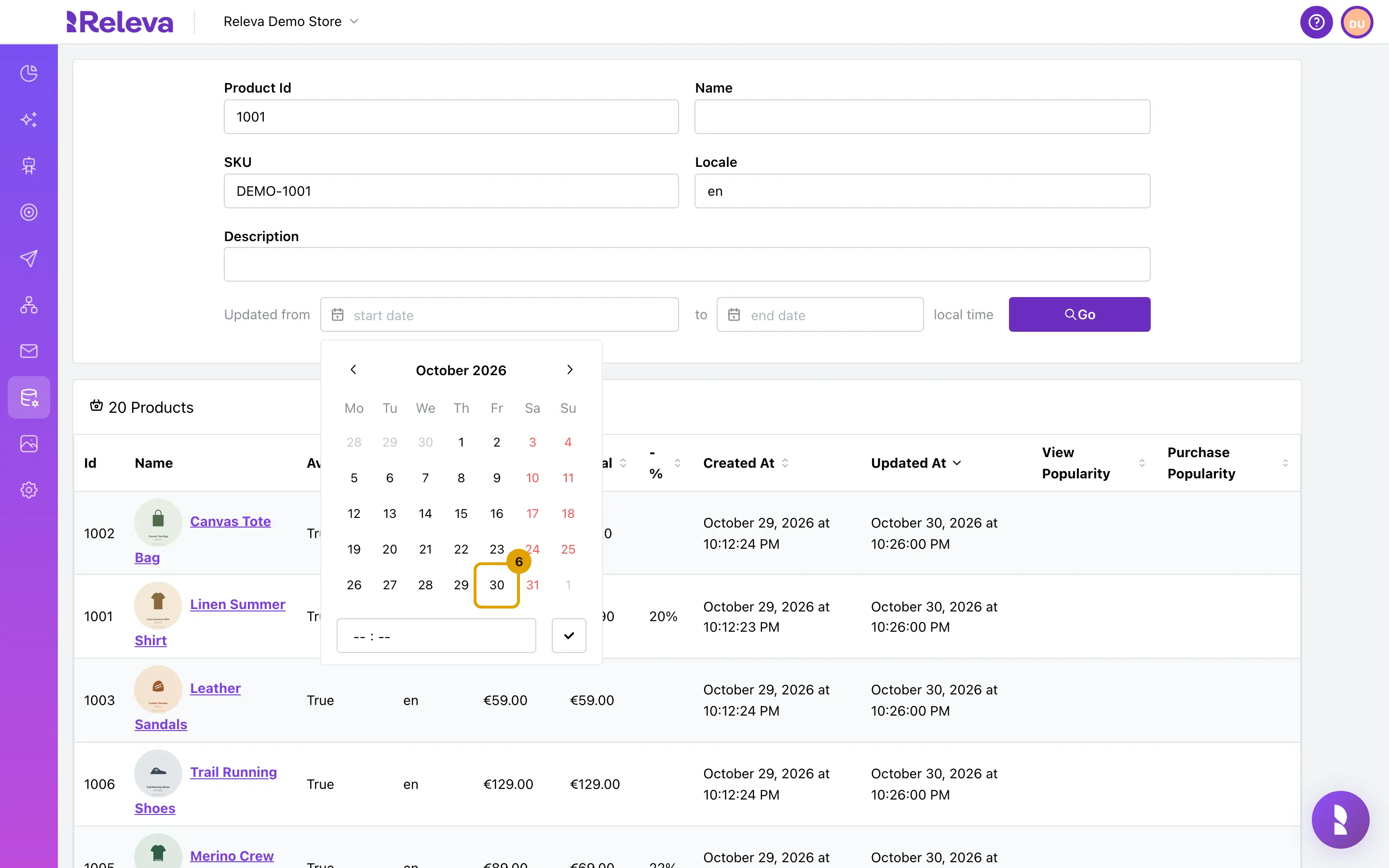
-
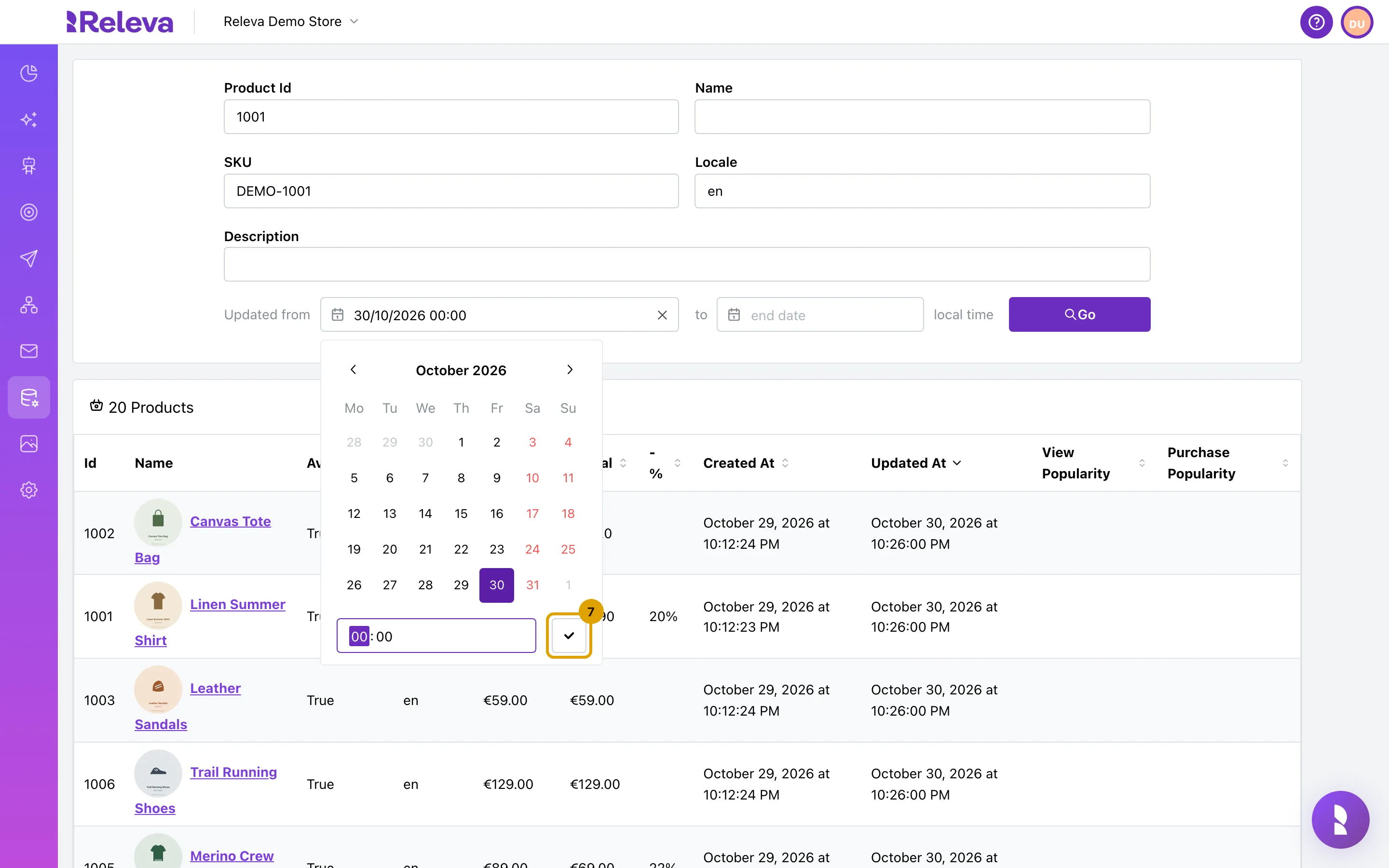
Select the check mark to confirm the date.
You can also set a time. Times are in your browser’s local time, as the local time label says. Set to the same way to close the range. Updated from cannot be later than to.
-
Select Go.
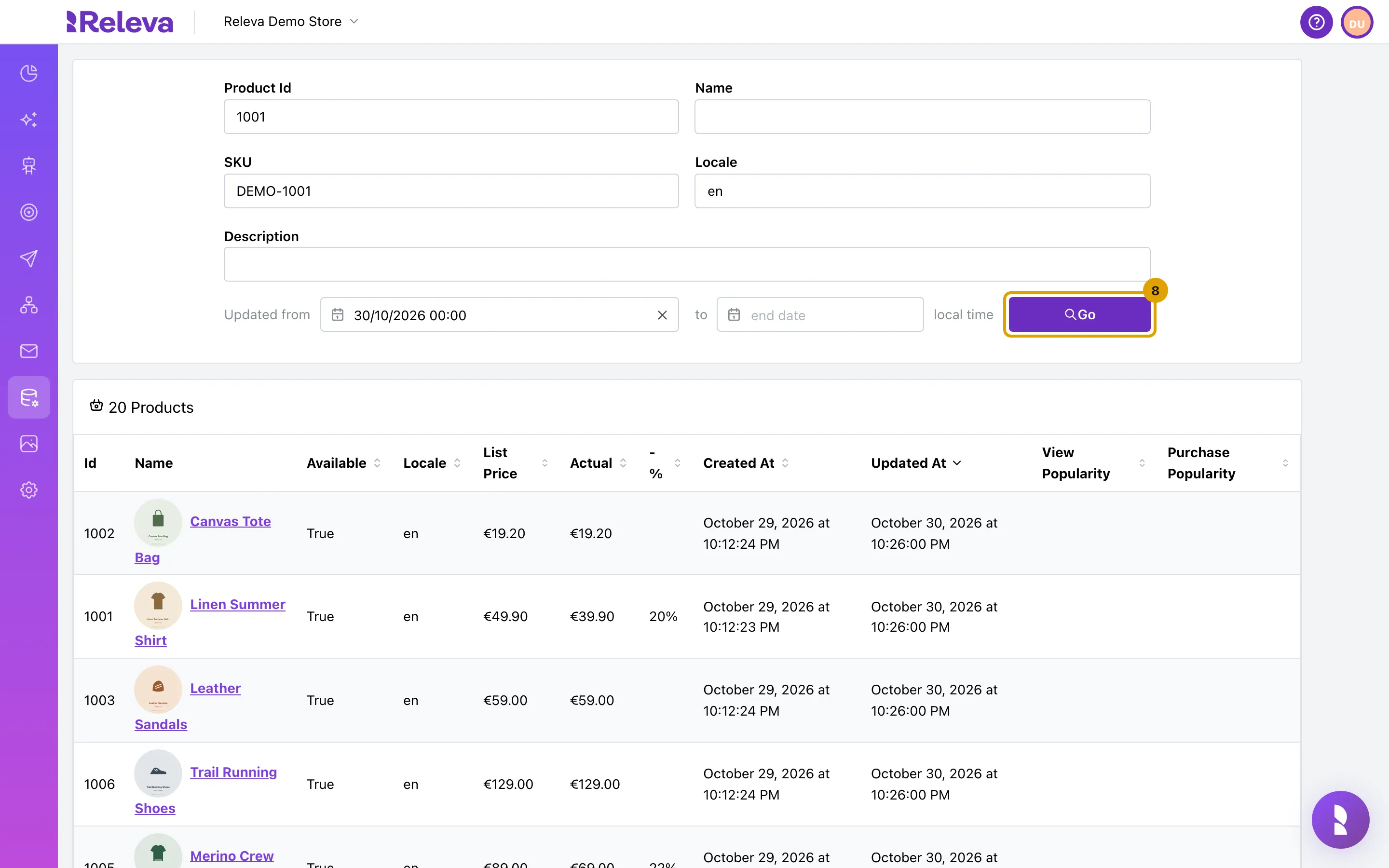
-
The list shows only the products that match every filter.
What each filter matches
Section titled “What each filter matches”| Field | Matches | Example |
|---|---|---|
| Product Id | The exact id, case-sensitive | 1001 |
| Name | Whole words anywhere in the name, in order; the last word can be partial | Summer Sh |
| SKU | The start of the SKU, ignoring case | demo-10 |
| Locale | The exact language code, case-sensitive | en |
| Description | One whole word in lower case | linen |
| Updated from / to | Products whose last update falls in the range, in your local time |
Sort and page through results
Section titled “Sort and page through results”- Select a column header to sort. Each select cycles ascending, descending, off. You can sort by more than one column.
- The list sorts by Updated At descending by default. Selecting that header once removes the default sort.
- When there is more than one page, use the pager below the table. Page Size offers 10, 20, 30, 50 and 100 rows.
- Sorting or changing the page size returns you to the first page.
Check it worked
Section titled “Check it worked”- The card title shows the number of matches, for example 1 Products.
- The page URL now contains your filters, for example
locale=en&productId=1001. Copy it to share the view.
Troubleshooting
Section titled “Troubleshooting”0 Products, but the product exists. Clear the fields one at a time and select Go after each. The most common causes are a partial or wrongly cased Product Id, an upper-case Locale, or the SKU entered in Product Id. Product id and SKU are often different: product 1001 has the SKU DEMO-1001.
Description finds nothing. The Description filter matches a single lower-case word only. linen works; Linen and linen shirt return nothing.
The date filter returns nothing. The range filters on the time Releva last updated the product, not the time you changed it in your shop. Products updated by a full sync all share the sync time.
I want only discounted products. There is no control for this in the panel. Sort by -% descending instead.