

Set up your Brand Identity
Brand Identity is how your emails, pop-ups and assistant look and sound. Releva reads your website and proposes a Brand kit (logos, colors, font and corners) and a Brand voice (archetype, description, voices, tones and audiences). You check what it found, change what you like, then confirm it. Nothing uses your brand until you confirm it.
For what each part is and where Releva uses it, read How Brand Identity is used.
How you get to Brand Identity
Section titled “How you get to Brand Identity”Confirming your brand is the first thing to do in a new shop. You reach the page in one of three ways:
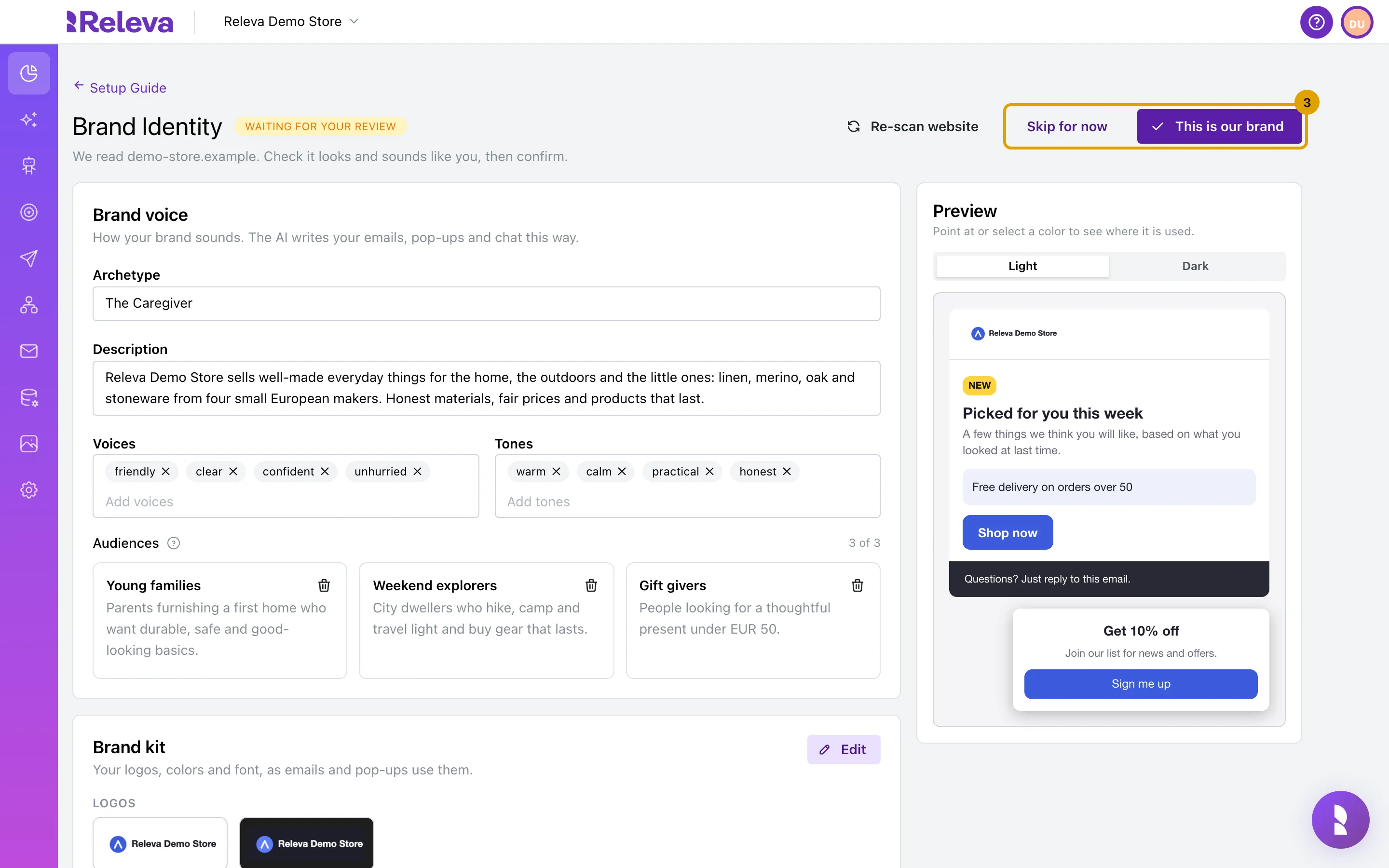
- From the How-To Guide. This is the usual way when Releva’s team set up your shop. Sign in, select the Get Help icon (the question mark) in the top bar, then How-to Guide. In the Brand Identity card, select Confirm your brand. The page offers Skip for now and This is our brand, and both take you back to the How-To Guide. So does the Setup Guide link above the title. There is no Save button here: This is our brand saves your changes and confirms them in one go. Once your brand is confirmed, Skip for now no longer appears.
- Right after you create a shop. Whoever selects Create for a new shop lands on the same page, and Releva starts reading the website by itself. To create a shop yourself, see Create your shop.
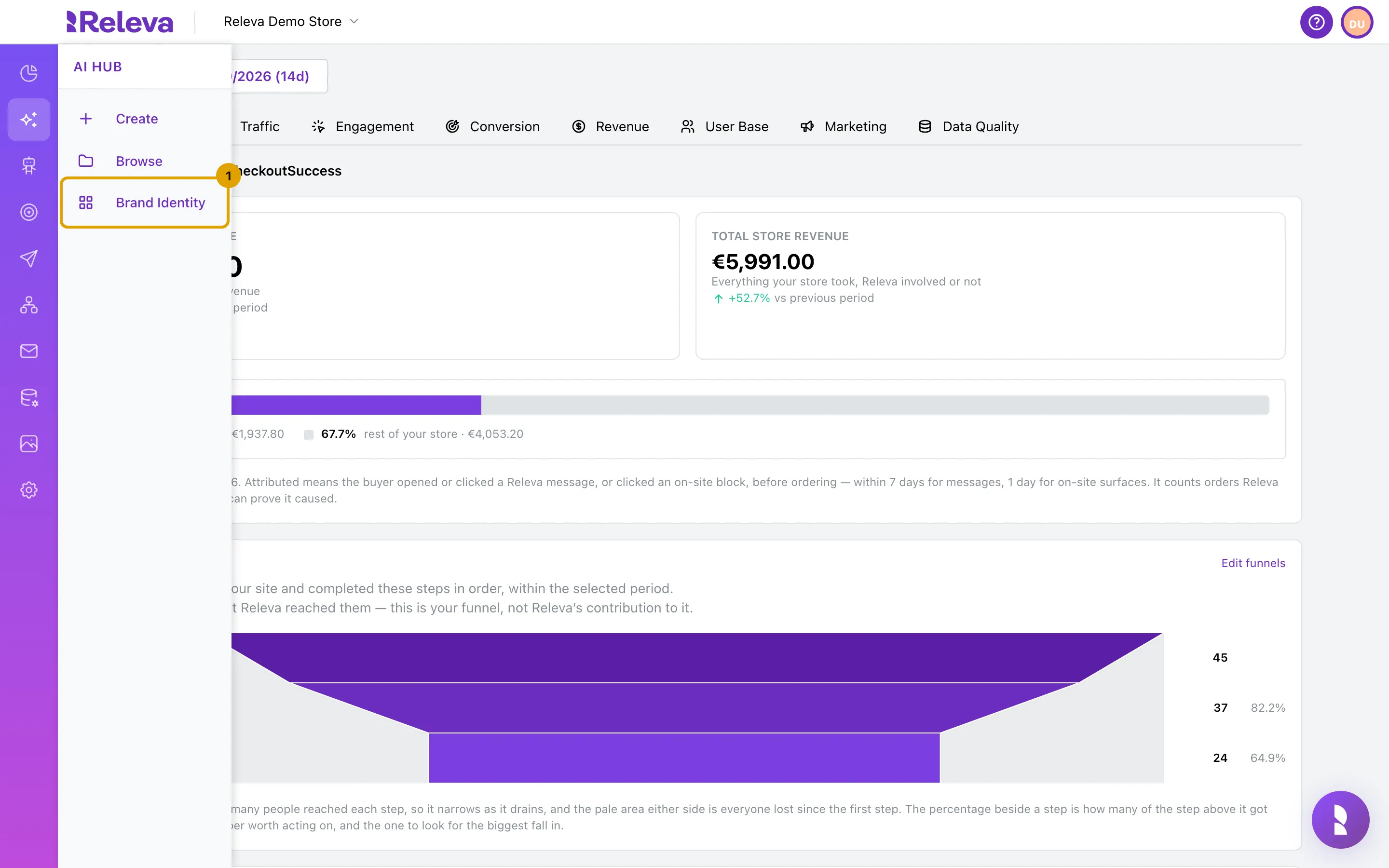
- Any time later. In the sidebar, open AI Hub and select Brand Identity. From the sidebar, the page has Save and stays where it is after you save or confirm.
The steps below use the sidebar page. Fields and checks are the same in both.
Before you start
Section titled “Before you start”- Your shop’s website address is set in Releva and the site is public. Releva cannot read a site that sits behind a login or blocks bots.
- Have a logo for dark backgrounds ready if you have one: a white or light version as a PNG, JPG or WebP file. SVG files are not accepted.
- Know your brand colors as hex values, such as
#3B5BDB, in case Releva guesses one wrong. - Releva needs about a minute or two to read your website. You can keep using the rest of Releva meanwhile.
Let Releva read your website
Section titled “Let Releva read your website”-
In the sidebar, open AI Hub and select Brand Identity
-
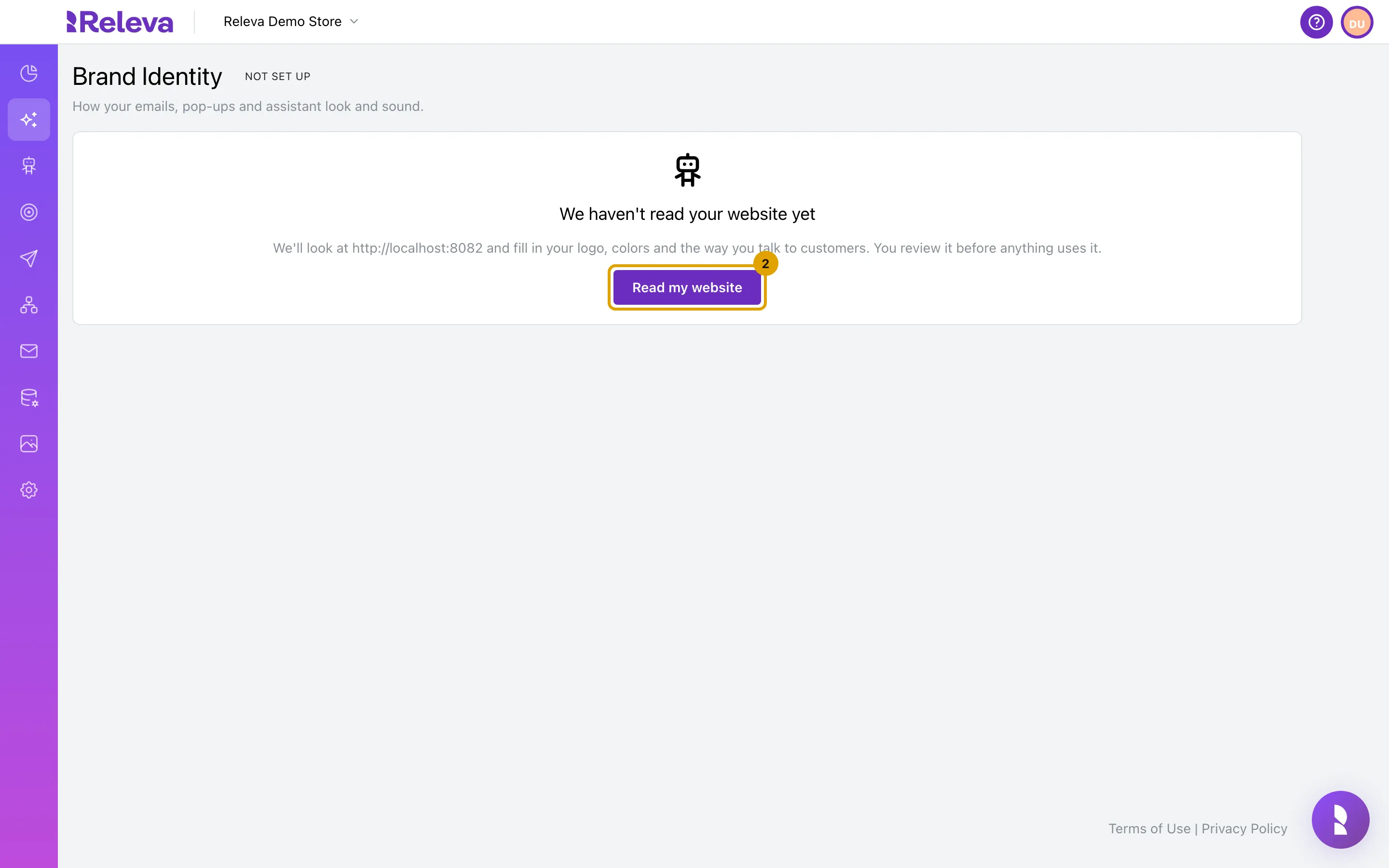
If the badge next to the title shows Not set up and the page offers Read my website, select it. If the page says You skipped this step, select Re-scan website instead. A shop created with New Shop usually shows Reading or Waiting for your review here, because the read starts when the shop is created.
-
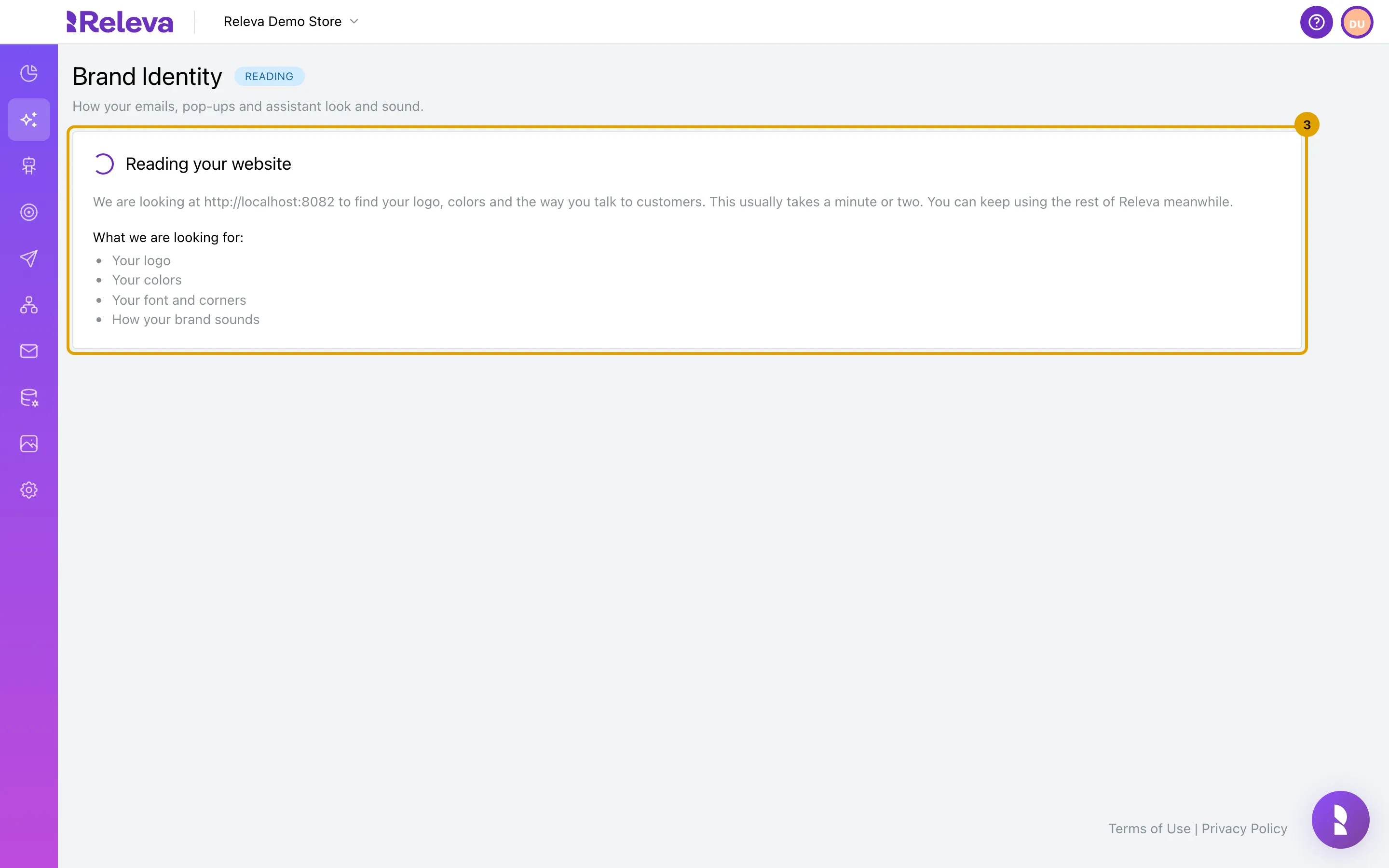
Wait while the Reading your website card is shown. Releva looks for your logo, your colors, your font and corners, and how your brand sounds. This usually takes a minute or two, and you can keep using the rest of Releva meanwhile
-
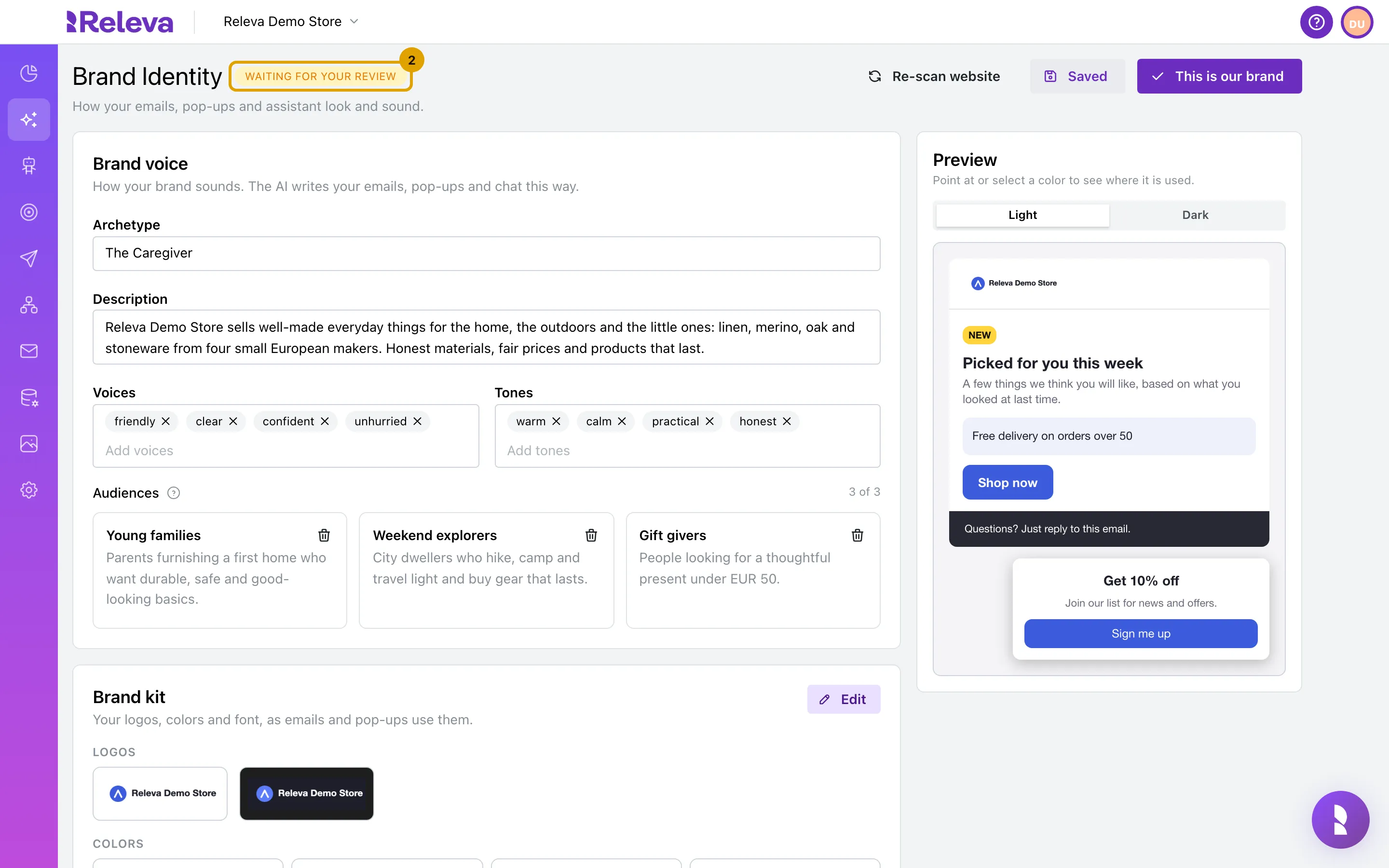
When the reading finishes, the page fills in and the badge changes to Waiting for your review. Nothing uses your brand yet
Check how your brand sounds
Section titled “Check how your brand sounds”-
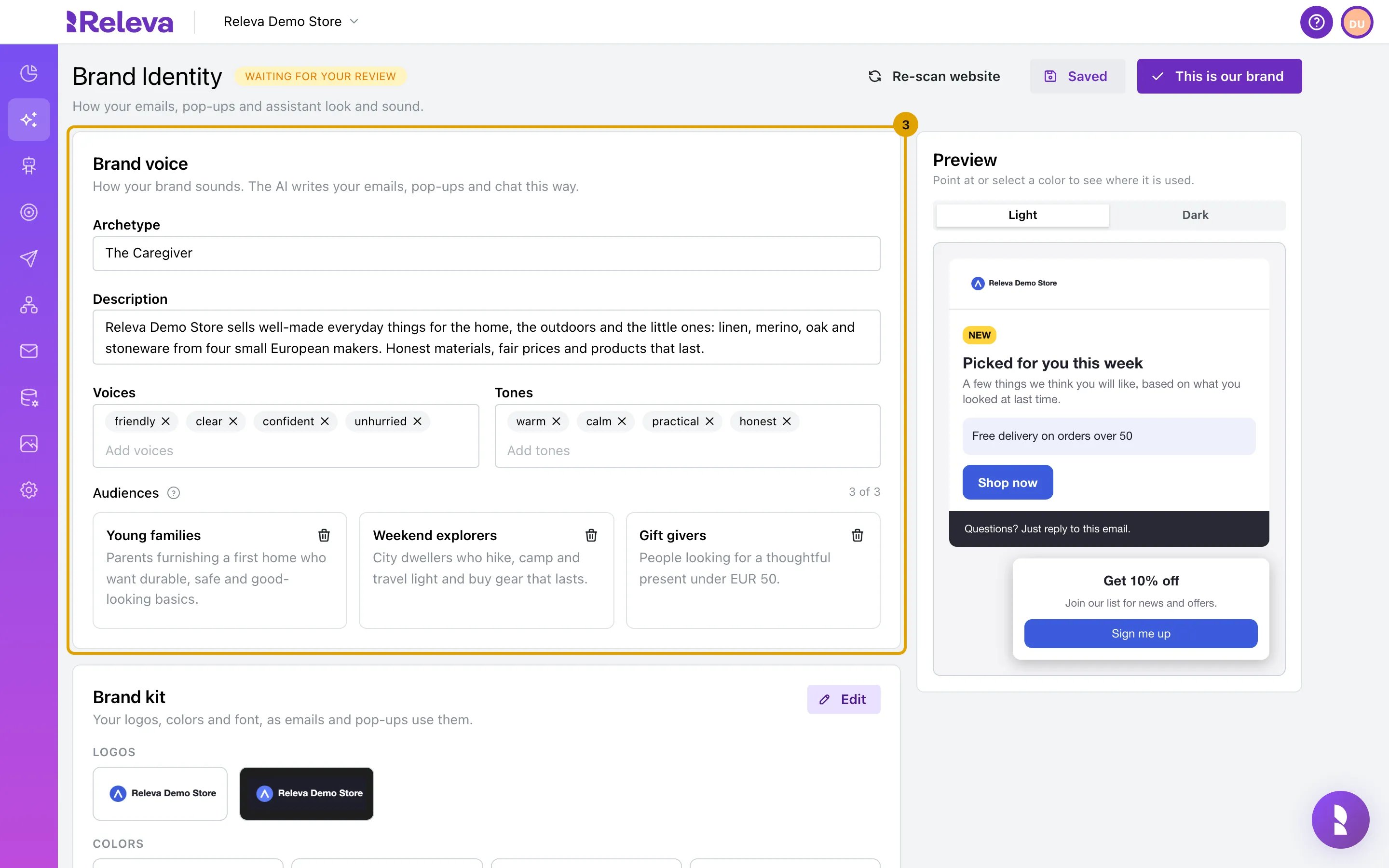
Under Brand voice, check the Archetype, Description, Voices and Tones. Click any field to change it. Remove a voice or tone with its ×, or type a new one in Add voices or Add tones
An amber Please check badge marks a value Releva was not sure about. Compare it with your website; editing the field clears the badge.
-
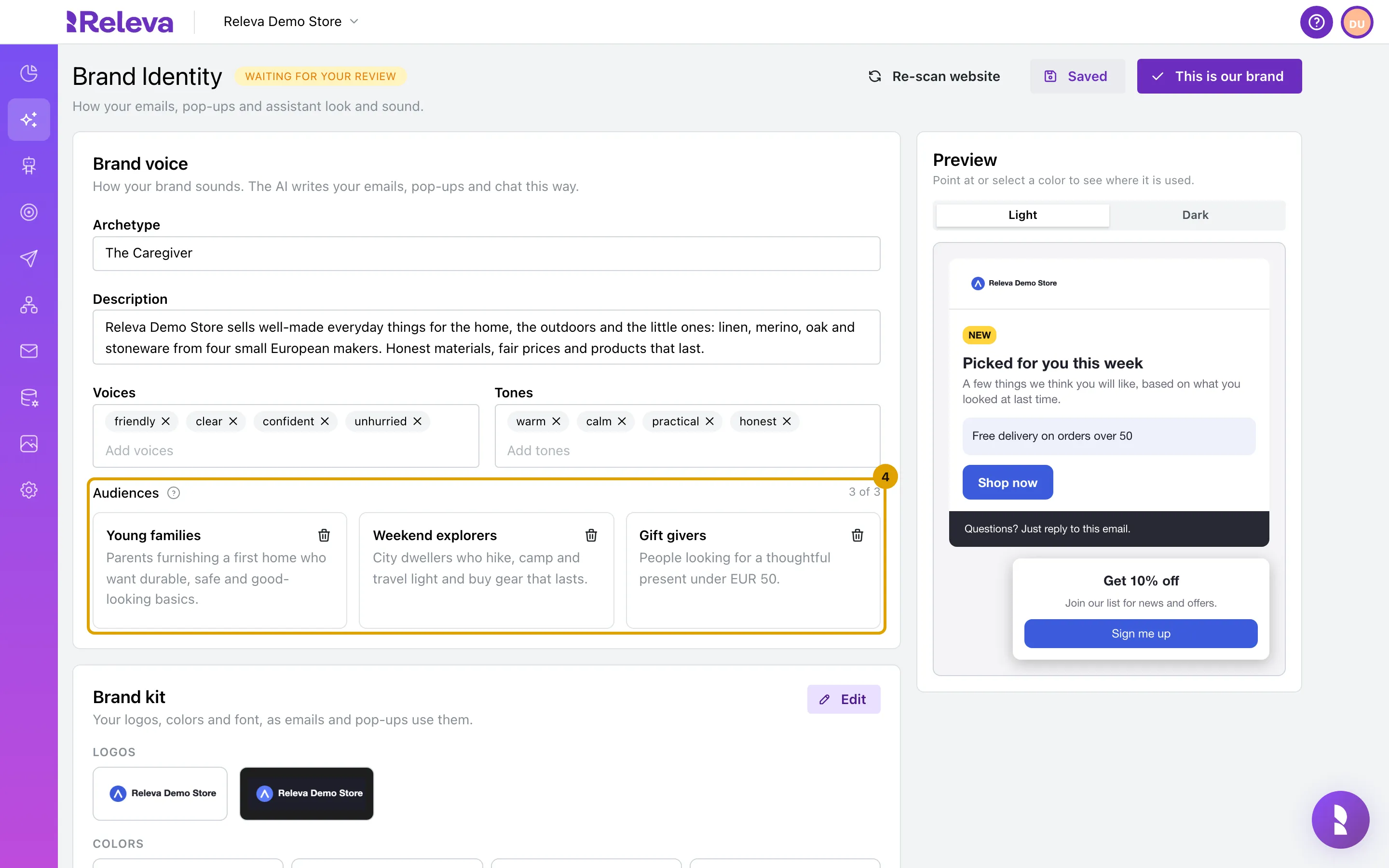
Check the Audiences: up to three groups of shoppers the AI writes for, each with a name and a short description. Select Add audience to add one, or the bin icon to remove one
Check how your brand looks
Section titled “Check how your brand looks”-
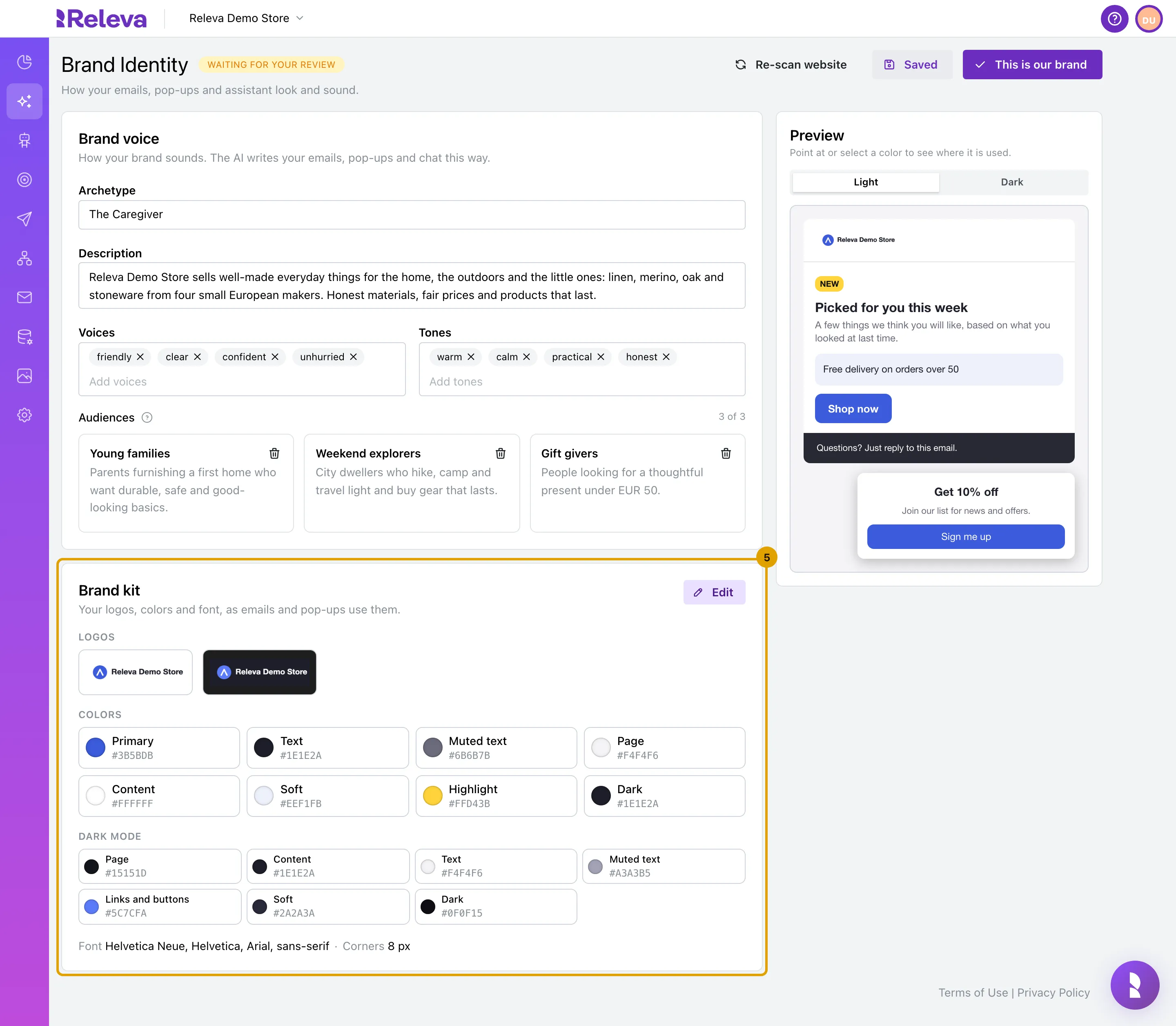
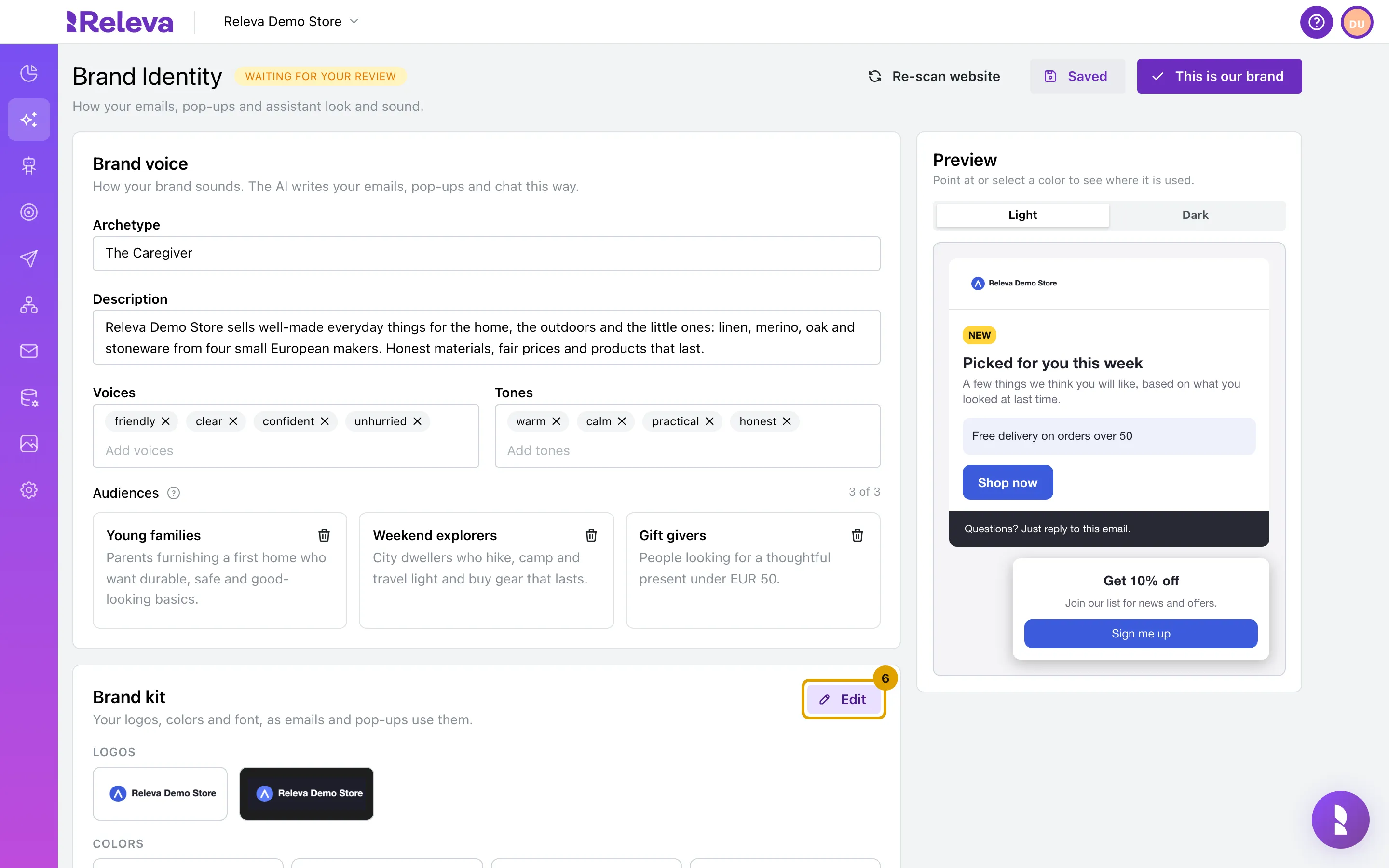
Under Brand kit, check the summary: your logos, colors, dark-mode colors, font and corners at a glance
-
To change anything, select Edit. Clicking a color chip in the summary also opens the editor on that color
-
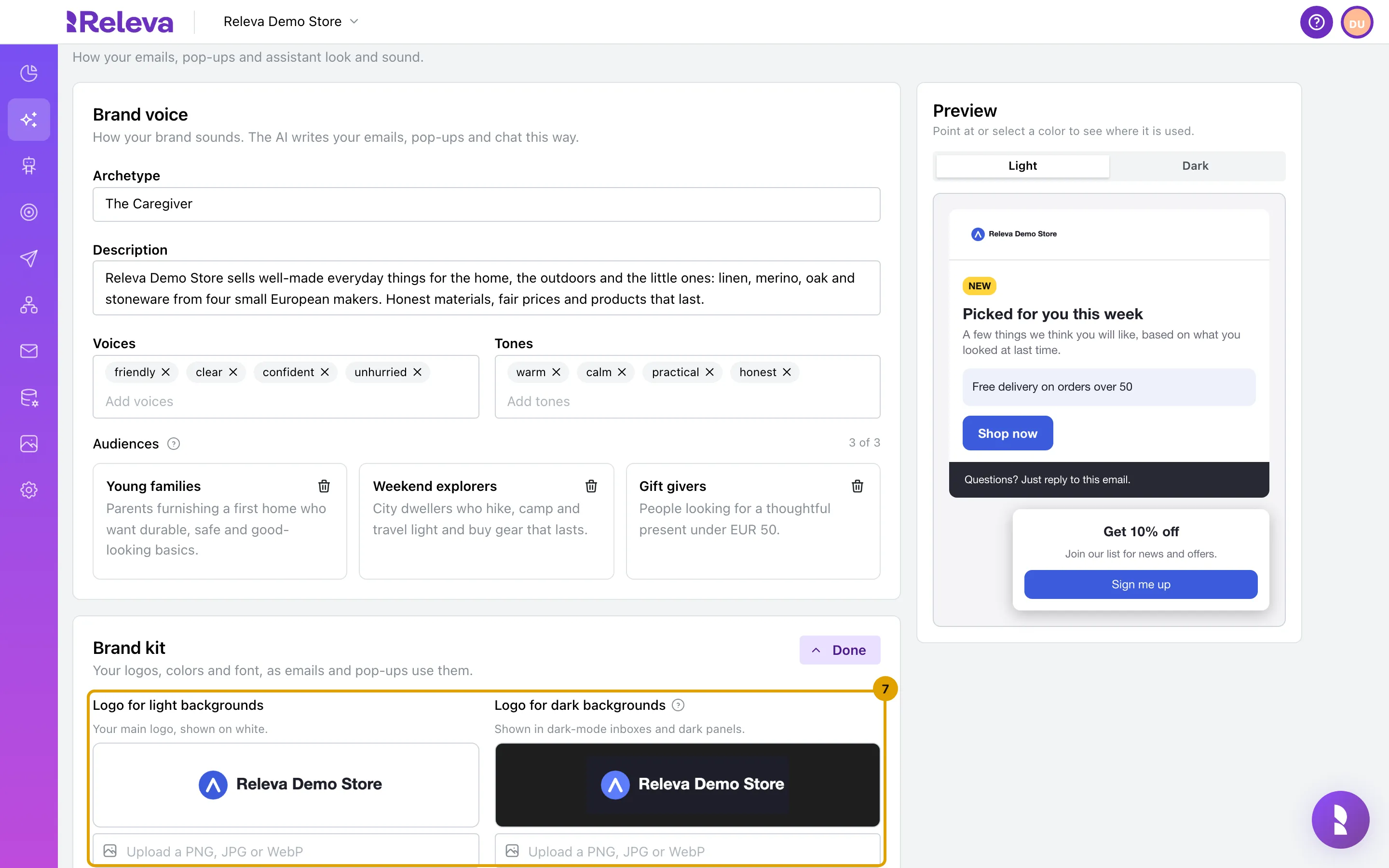
Check Logo for light backgrounds (your main logo, shown on white) and Logo for dark backgrounds (shown in dark-mode inboxes and dark panels). To replace one, select its Upload a PNG, JPG or WebP field and pick the file
-
Under Colors, check each color role. The hint under the role says where it is used: Primary for buttons, links and accents, Text for headings and body text, Muted text for small print, Page behind the email column, Content for the email column and cards, Soft for tinted panels, Highlight for the one loud accent and Dark for dark panels and heroes. Type a hex color such as
#3B5BDBor use the picker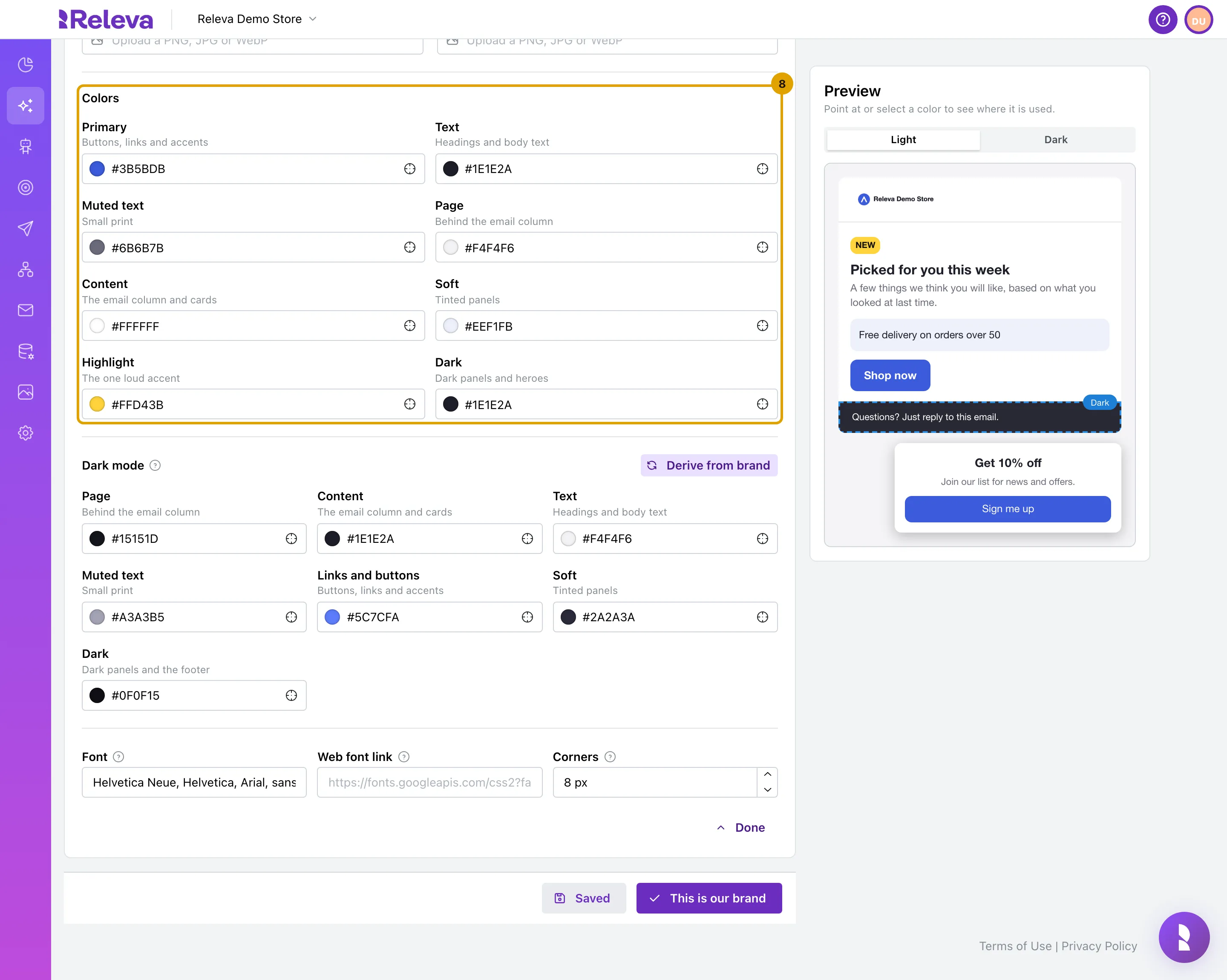
-
Under Dark mode, check the colors used in dark-mode inboxes, or select Derive from brand to work them out from your brand colors. Then check Font (a font list for headings and text, best first, ending with a safe fallback such as
Arial, sans-serif), Web font link (a stylesheet link that loads your font, for the inboxes that can show web fonts) and Corners (0 for square, 8 for slightly rounded, 24 for pill buttons). Select Done to close the editor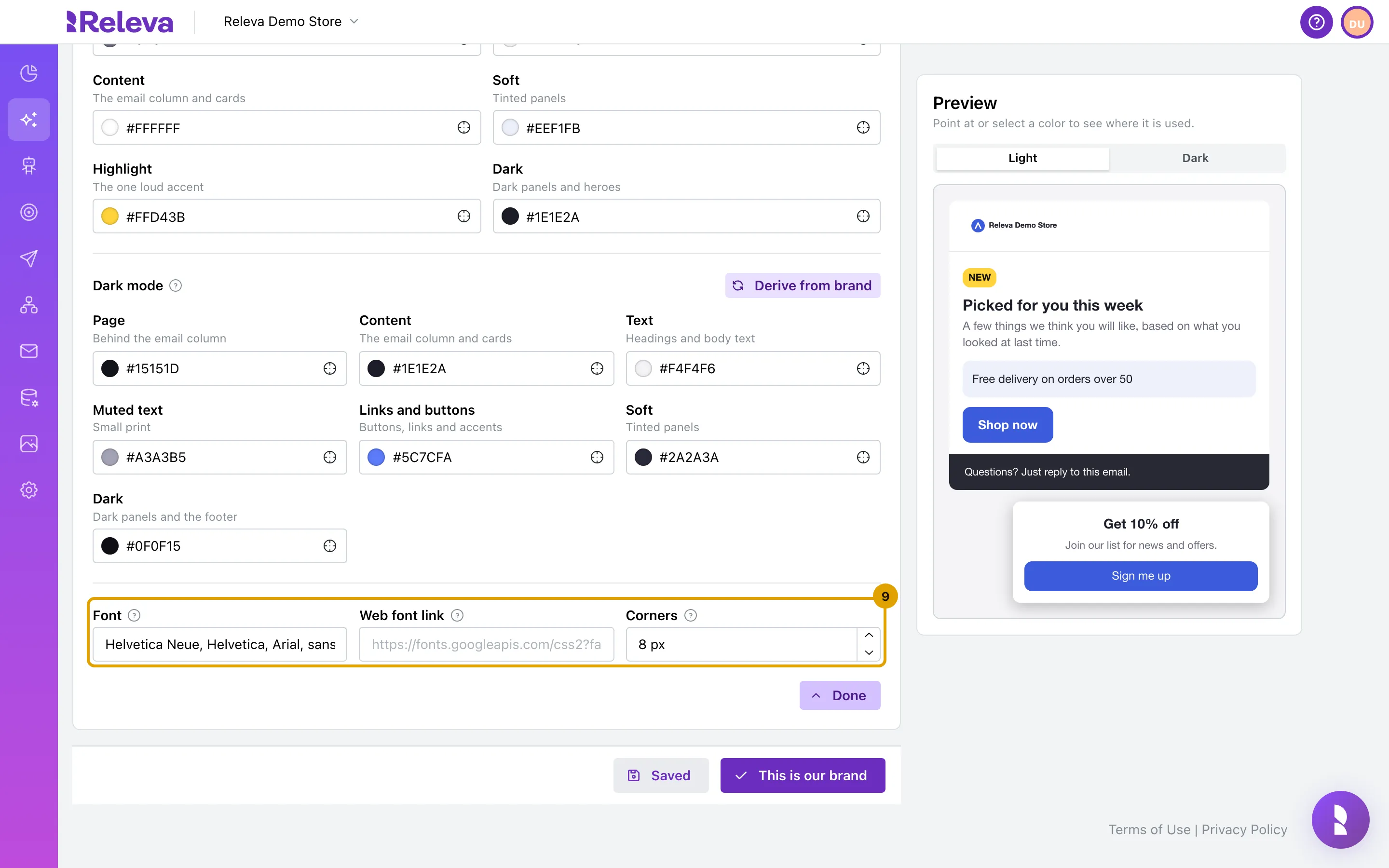
-
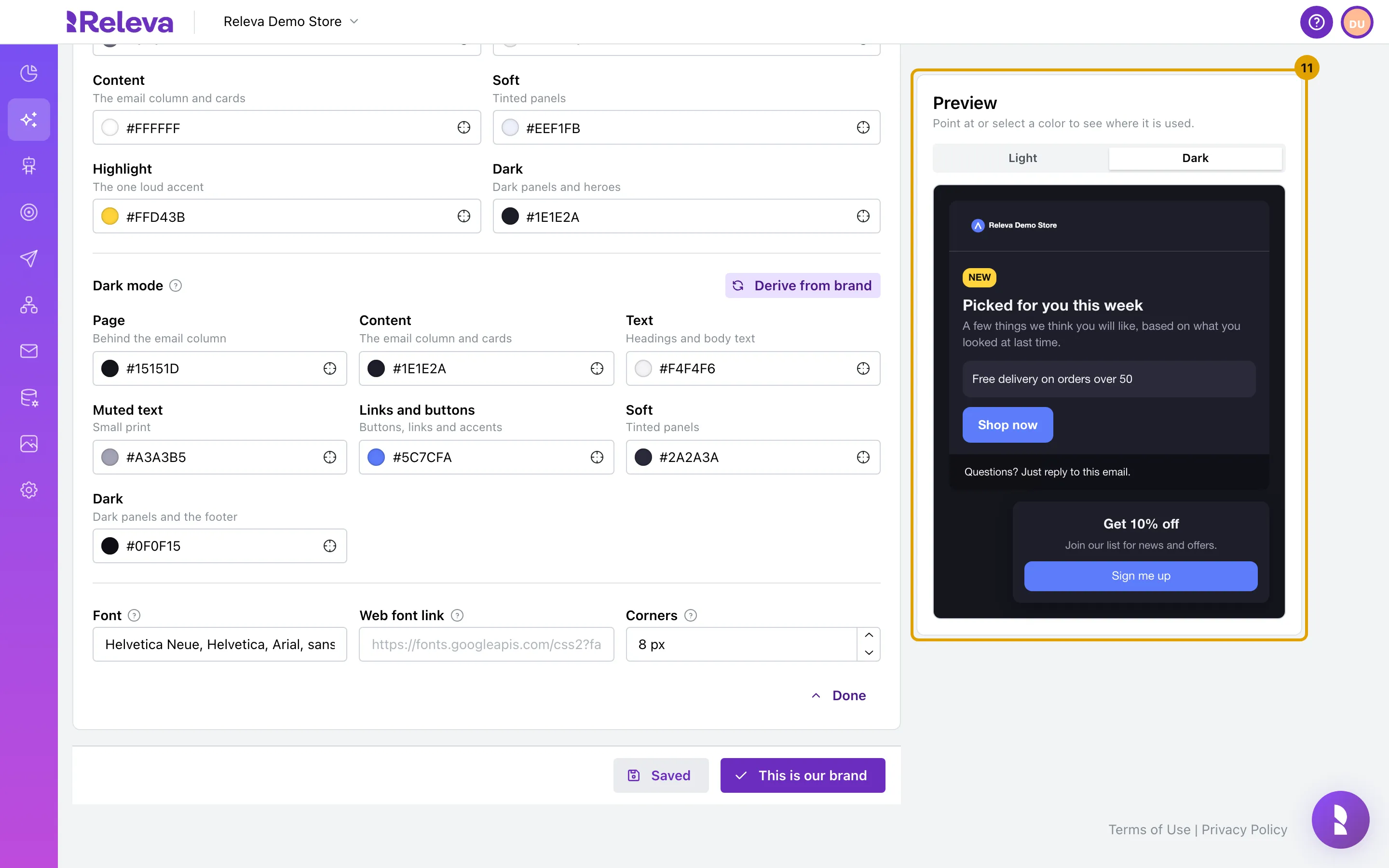
In Preview, select Dark to see your brand in a dark-mode inbox. Point at a color in the editor to see where the preview uses it
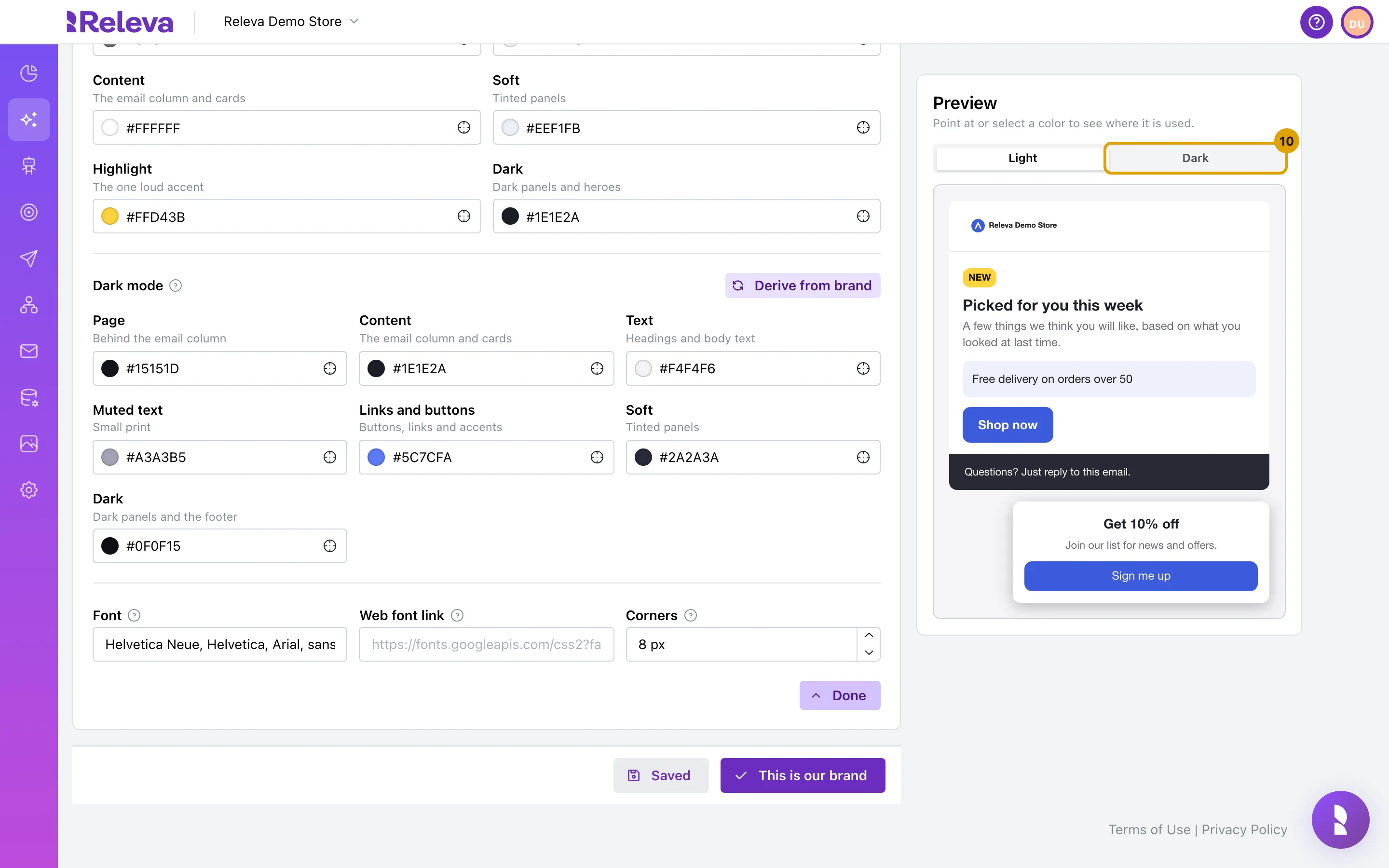
The preview shows a sample email and a sign-up pop-up with your logo and colors for dark backgrounds.
Confirm it
Section titled “Confirm it”-
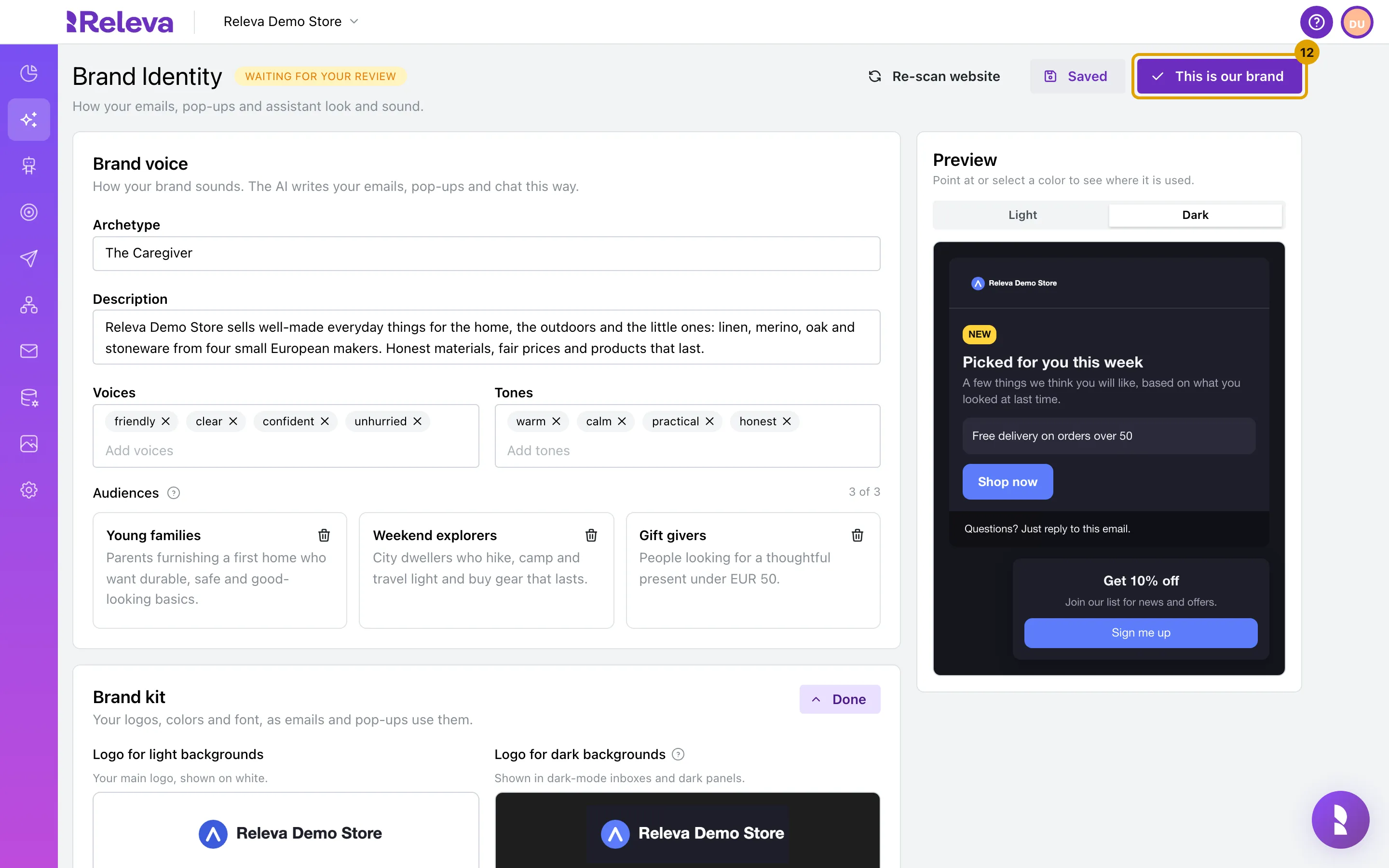
When everything looks right, select This is our brand
To keep your edits without confirming yet, select Save instead. The button reads Saved while there is nothing new to save.
Check it worked
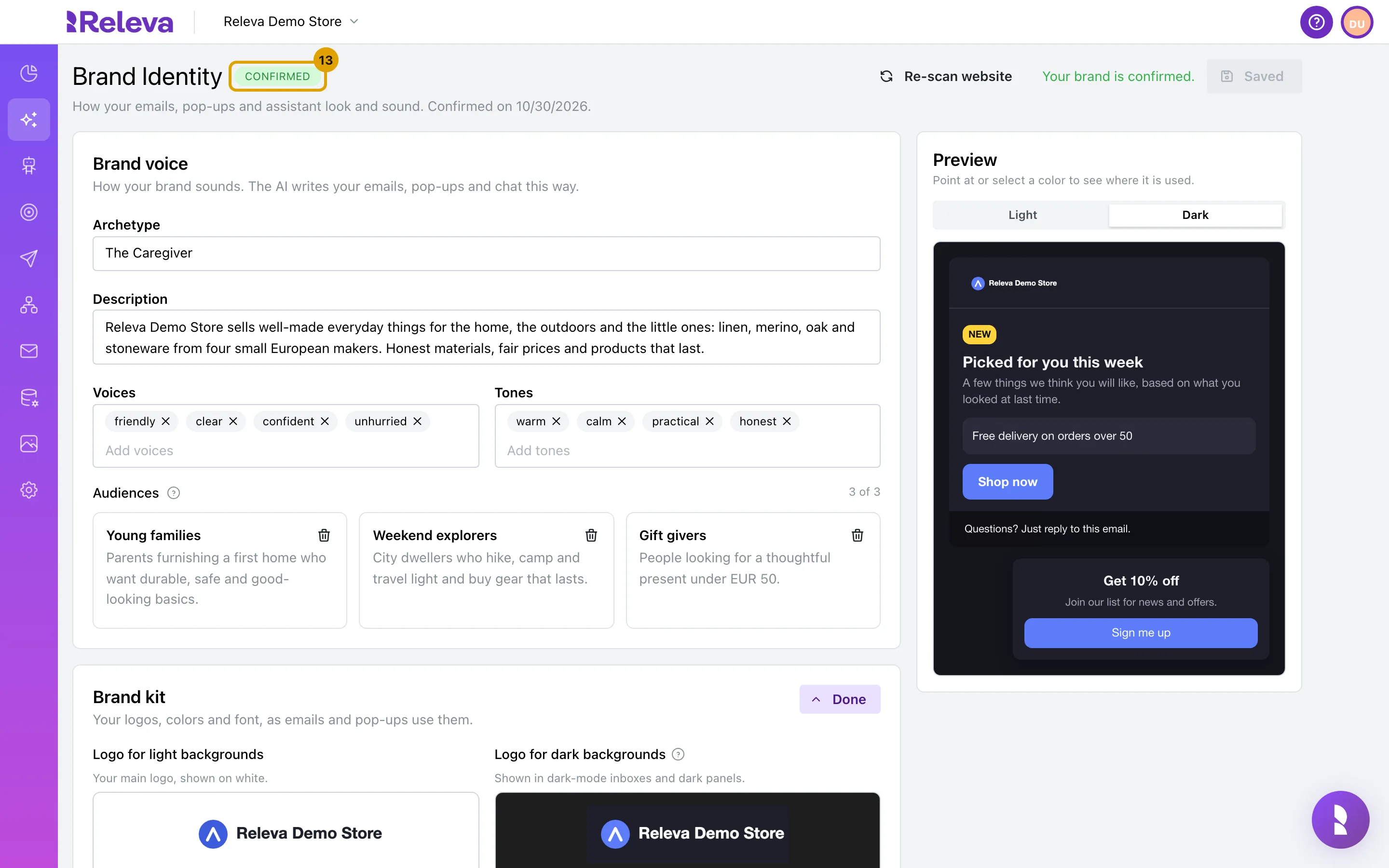
Section titled “Check it worked”- The badge next to the title shows Confirmed, and the header shows Your brand is confirmed.
- The subtitle ends with Confirmed on and today’s date.
- The This is our brand button is gone. A confirmed brand only has Save and Re-scan website.
- In the How-To Guide, Confirm your brand in the Brand Identity card is ticked and the card shows Done. If you confirmed without a logo for dark backgrounds, the step still counts as done and shows a reminder to add one.
Change it later
Section titled “Change it later”- Edit any field and select Save. Your emails, pop-ups and assistant use the saved brand.
- To have Releva look at your website again, select Re-scan website. On a confirmed brand this only reads the look (logos, colors, font and corners) again and never overwrites what you saved. While it runs, the page says Looking at your website again. Your saved brand stays as it is until you choose to use what we find. If the site looks different, a banner New version found on your website appears with Accept and Dismiss. Your saved brand stays until you select Accept.
- Changing Primary also updates the shop’s main color that older Releva features use.
Troubleshooting
Section titled “Troubleshooting”A red alert says “We couldn’t read your website: …” The reason tells you what went wrong: your website took too long to load, it blocked our bot, the page came back empty or we could not make sense of what we found. A site behind a login, a site that is not online yet or an address Releva cannot reach shows it blocked our bot. Fix the cause if you can (for example, make the site public or allow bots) and select Re-scan website, or fill in the Brand kit and Brand voice by hand and confirm. The badge shows Waiting for your review even though nothing was read.
A yellow alert says “This is taking longer than usual”. The page stops waiting after three minutes. Select Check again to look for the result; the reading may still be running.
Re-scan website is greyed out. It says Save or undo your changes first. Select Save, or undo your edits, then try again.
A color field says “Use a hex color like #1A2B3C”. Colors must be six-digit hex values with a leading #. Save also stops with Some colors are not valid hex colors. until every color is valid.
A warning says your text is hard to read. Your text color is hard to read on the page color. or White button text is hard to read on your primary color. means the two colors are too close. Pick a darker or lighter shade for one of them.
The logo upload says “Please use a PNG, JPG or WebP file.” SVG and other formats are refused. Export the logo as PNG, JPG or WebP and upload it again.
A warning says your logo may disappear in dark-mode inboxes. Your light logo is dark on a see-through background. Add a Logo for dark backgrounds, usually a white or light version of your logo.
After confirming, a blue note asks for a logo for dark backgrounds. Your brand is confirmed and in use. Add the dark logo when you have it, so your emails look right in dark-mode inboxes.
The page says “You skipped this step”. You selected Skip for now after creating the shop or from the How-To Guide. The badge shows Not set up. Fill in your brand on this page, or select Re-scan website to have Releva read it for you, then select This is our brand.
The badge is still “Waiting for your review” after you edited the brand. Editing and saving does not confirm. Select This is our brand.
I need help with my brand. In the top bar, select Book Onboarding Session to pick a time with Releva’s team, or write to support@releva.ai.