

Connect your Shopify store
On Shopify, Releva is an app from the Shopify App Store. The app creates your Releva shop, imports your catalog, customers and recent orders, keeps them current through Shopify webhooks, and tracks your storefront with a web pixel and one theme app embed called Releva.ai. You never copy an access token or secret key: the app stores them for you.
For how a shop and its keys fit together, read How Releva connects to your shop.
Before you start
Section titled “Before you start”- You are the store owner or a staff member who can install apps and edit the published theme in your Shopify admin.
- Your theme supports app embeds and app blocks. Shopify’s theme editor describes these as Online Store 2.0 themes; older themes may not show the App embeds panel.
- Have the e-mail address you want Releva to use for your account. The app signs you in with the Shopify user who installs it.
- If Releva already created a shop for this store (for example after an uninstall), reinstalling resumes it instead of creating a second one.
Install
Section titled “Install”-
Open the Releva app in the Shopify App Store and select Install. Shopify takes you to your store’s install screen.
-
Review the access the app asks for and select Install app. Releva needs read access to products, locales, customers, customer events, checkouts, orders, inventory, fulfilments, markets and publications, and write access to customers, discounts, themes, script tags and web pixels.
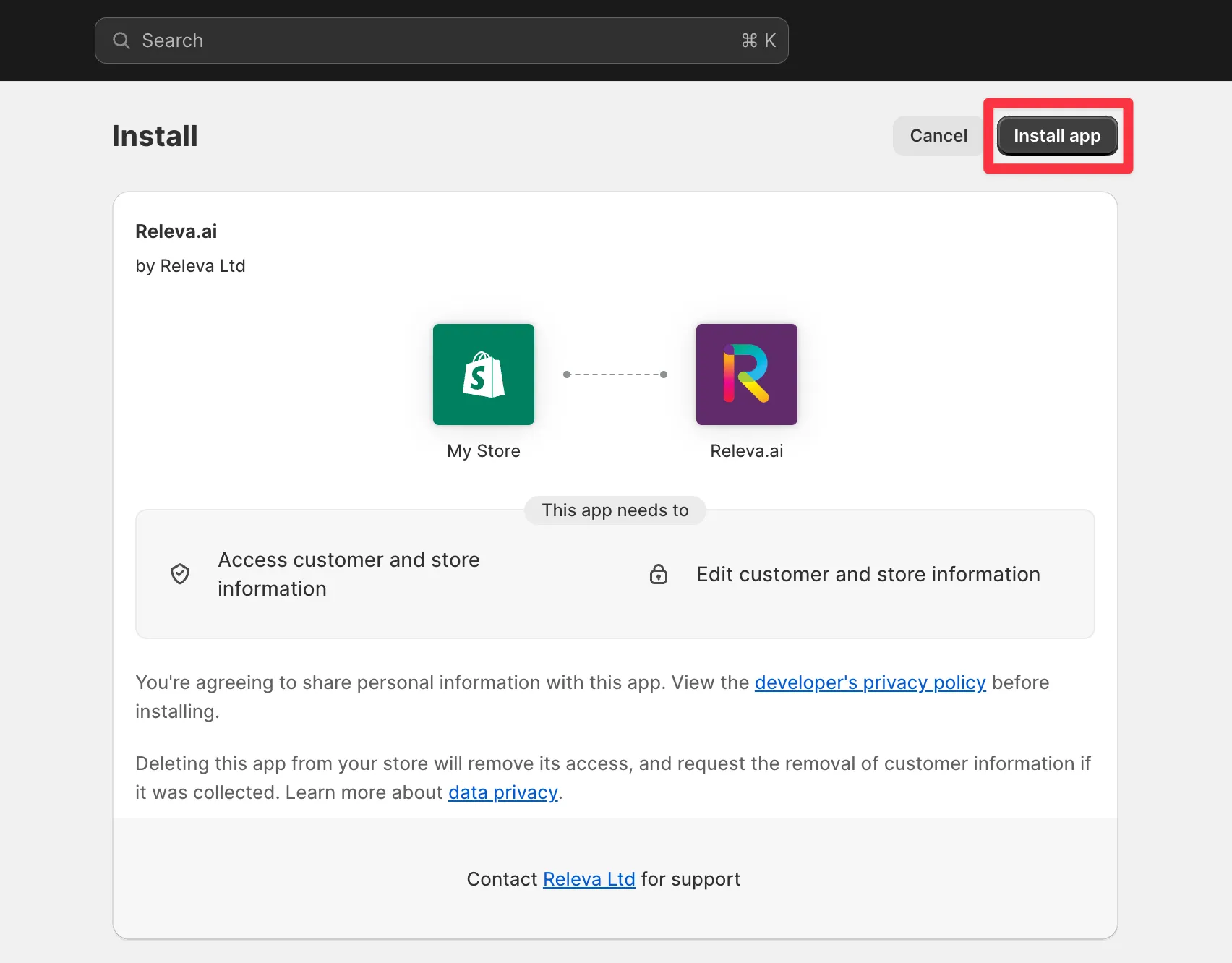
Shopify admin (your store, not Releva).
-
Wait for the redirect to the Releva admin. During it, the app creates your Releva shop with the platform Shopify, your store’s primary language and currency, and signs you in. The first import starts in the background a few seconds later.
-
The Releva admin opens on Get started with Releva, the onboarding wizard. Its steps are Welcome, Subscription, Activation and Finished. You move forward only; a step you completed can be revisited.
-
Welcome. Select your Shop category and Product velocity, tick I accept Releva’s Terms of Use and I accept Releva’s Pricing Policy, then select Next. Next stays disabled until all four are set.
-
Subscription. Releva proposes a plan. Keep it or select Explore Other Options, then select Next. Shopify opens its Approve subscription page for the Releva app. Review the plan, the trial length and the spending limit, choose a payment method and select Approve. Shopify then returns you to the wizard.
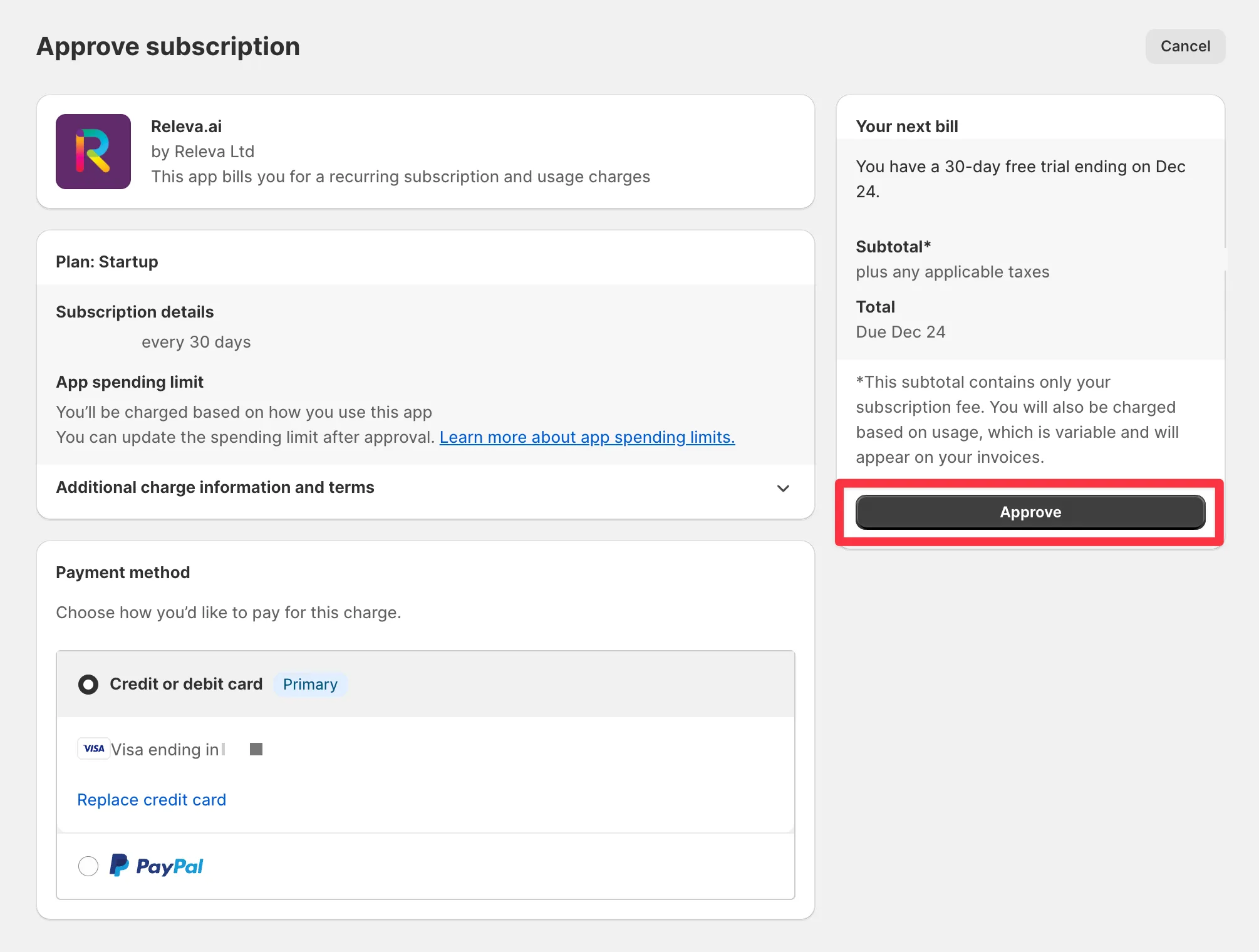
Shopify admin (your store, not Releva). The plan and trial shown are examples; yours come from the plan you picked.
-
Activation. Select Enable the Releva app embed. Your Shopify theme editor opens on the App embeds panel with Releva.ai selected. Switch Releva.ai on and select Save in the top-right corner. The embed is not active until you save. Guide: Turn on the Releva app embed in Shopify.
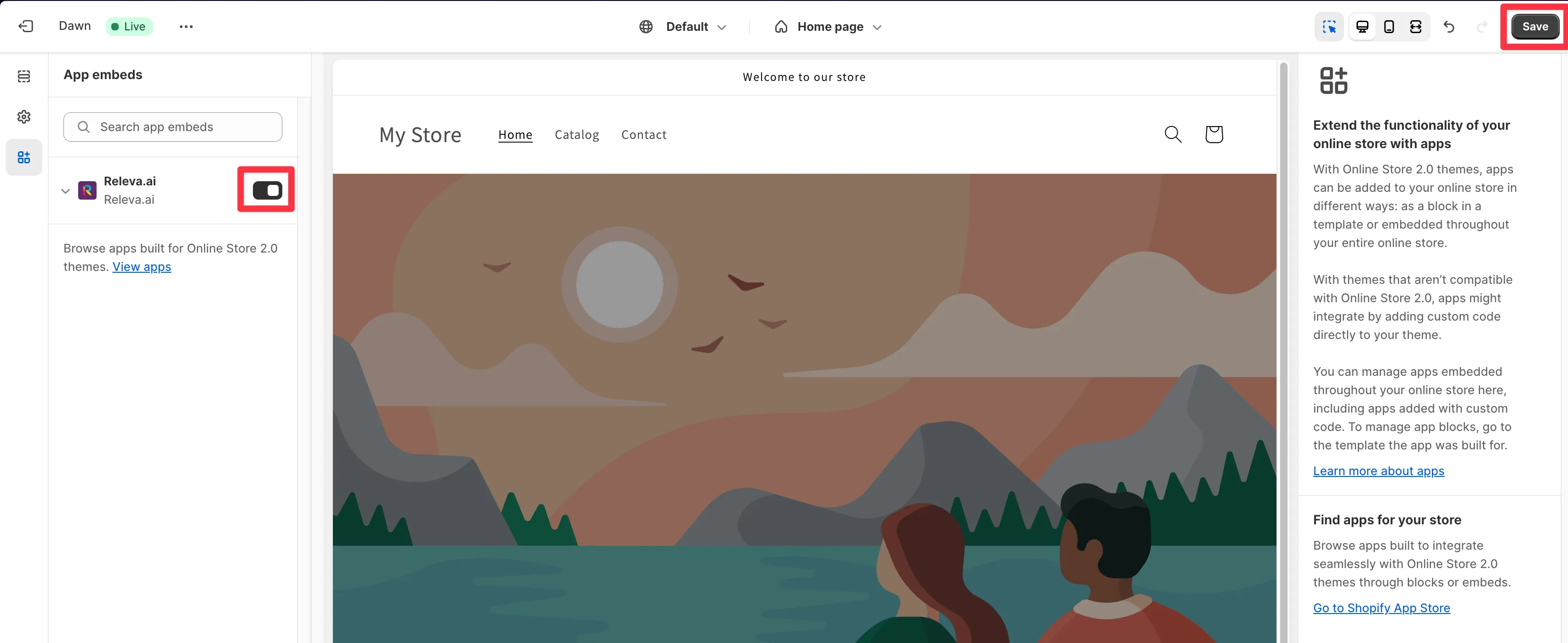
Shopify theme editor (your store, not Releva).
-
Back in the wizard, select I’ve activated it — check now. The wizard also re-checks on its own every 10 seconds for two minutes. When the banner turns green, “The Releva.ai app embed is enabled. Your shop is being tracked.”, select Next. If you cannot do this now, select I’ll do this later; the dashboard reminds you with a banner and the Show me how to turn it on button.
-
Finished. Select Go to dashboard. This starts your trial period and activates every shop in your Releva account.
If you uninstall the app later, the wizard is replaced by the card Releva is not installed in your store with the button Reinstall from the Shopify App Store.
Configure
Section titled “Configure”There is nothing to paste. The app:
- stores your shop’s Access Token and Secret Key itself and writes the access token into the web pixel. You only need the keys if you also call the Releva API or add custom code: Find your Access Token and Secret Key.
- sets Settings › Shop & Integration › Catalog Sync to Releva’s Shopify connector with a random nightly schedule between 00:00 and 04:59. You can change the schedule: Schedule a full catalog sync.
- creates the default pages of a Shopify shop in Personalization › Product Blocks: Homepage, Category page, Product page, Cart page, Search page and Account page. The web pixel sends the token of the matching page with every view, so Releva knows which page a visitor is on. Do not rename these pages (see Troubleshooting).
Optional, in your Shopify theme editor:
- Releva Product Block app block: add it to a section and paste a Product Block Token. Shopify shops show the token under each product block on Personalization › Product Blocks with a Copy token icon. The block renders with Releva’s default template unless you tick Use my theme’s product card: see Use your theme’s product card for Releva recommendations.
- Everything else that Releva renders on the storefront (product blocks placed by selector, banners, stories, search as you type) is configured in the Releva admin, not in Shopify: Create a product block, Show a banner on your site.
To switch Releva off on the storefront, switch the Releva.ai app embed off and save the theme: Turn on the Releva app embed in Shopify.
Verify
Section titled “Verify”Check that the storefront is tracked
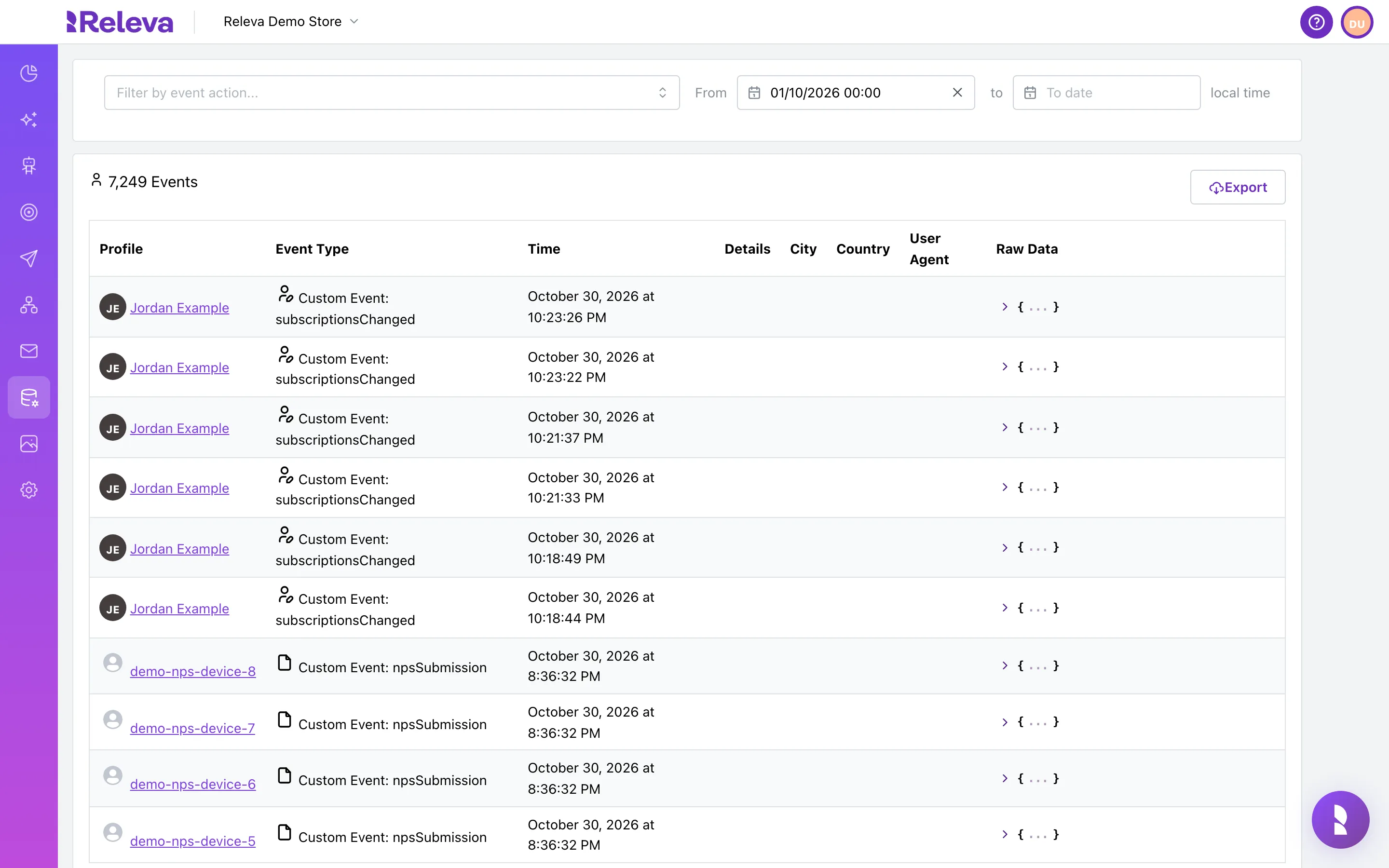
Section titled “Check that the storefront is tracked”Releva records a Viewed Page event only when a view is matched to one of your Releva pages, so the first thing to check after switching the app embed on is that these rows appear.
-
Go to Data Platform › Events.
-
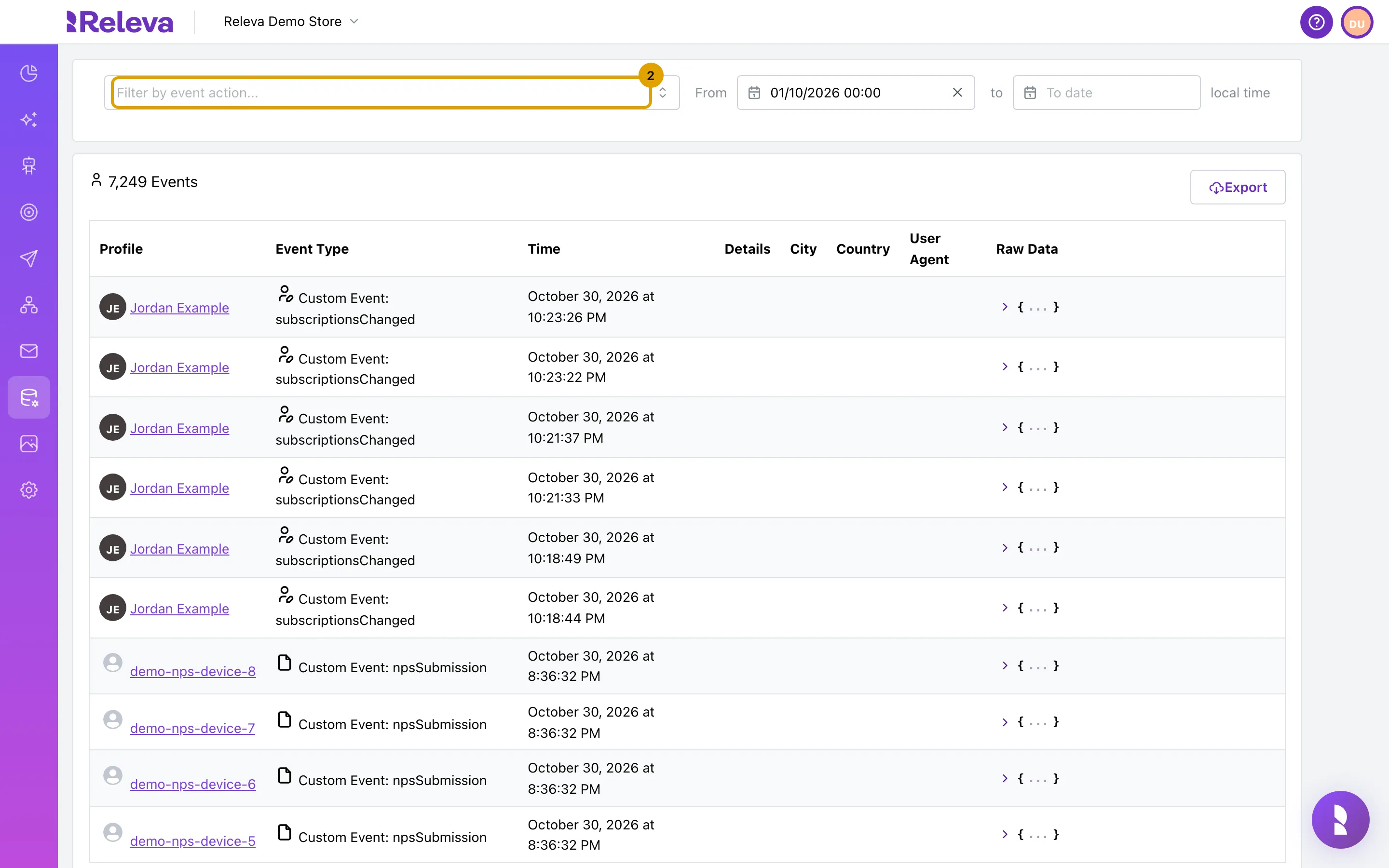
Select Filter by event action….
-
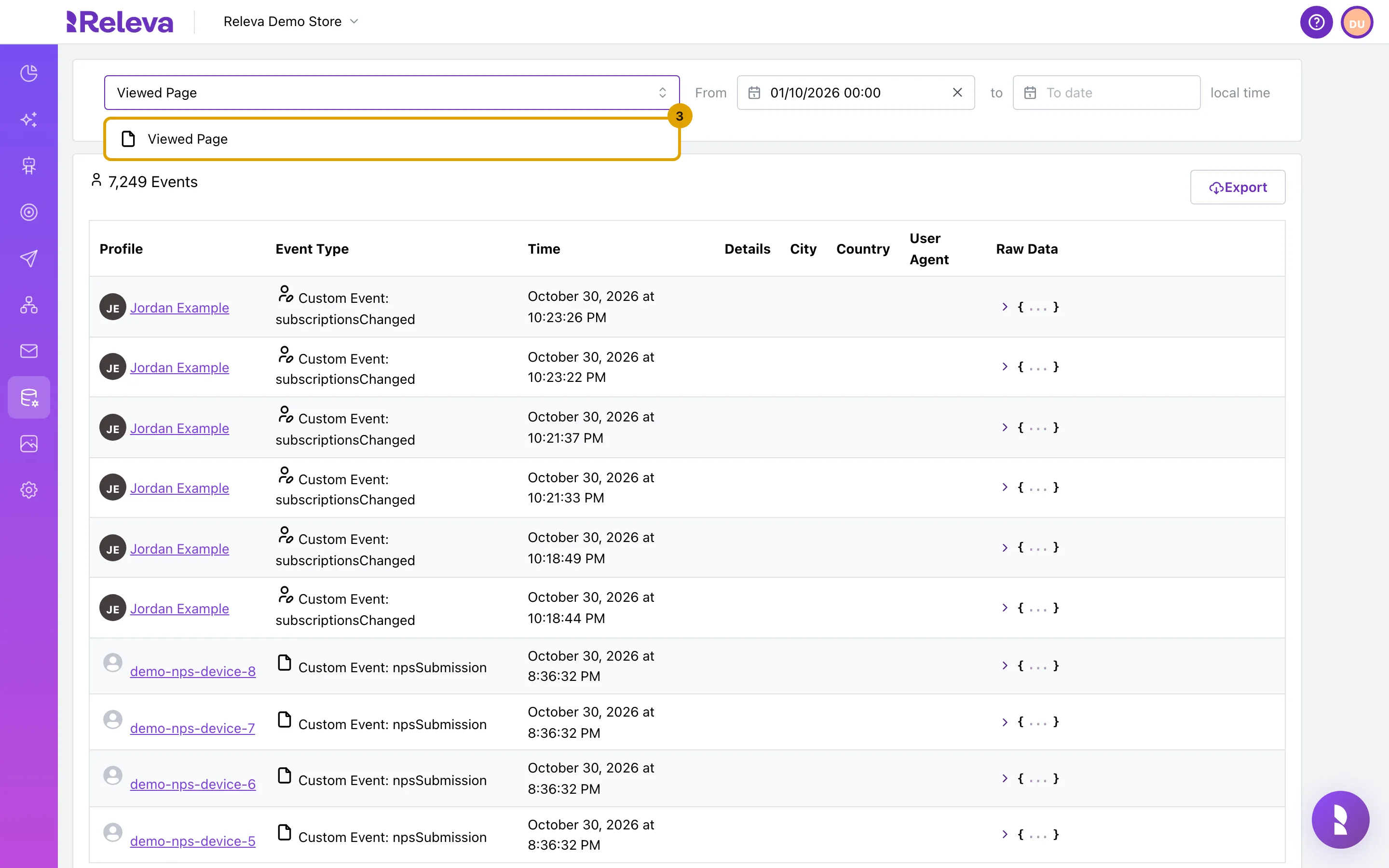
Select Viewed Page.
-
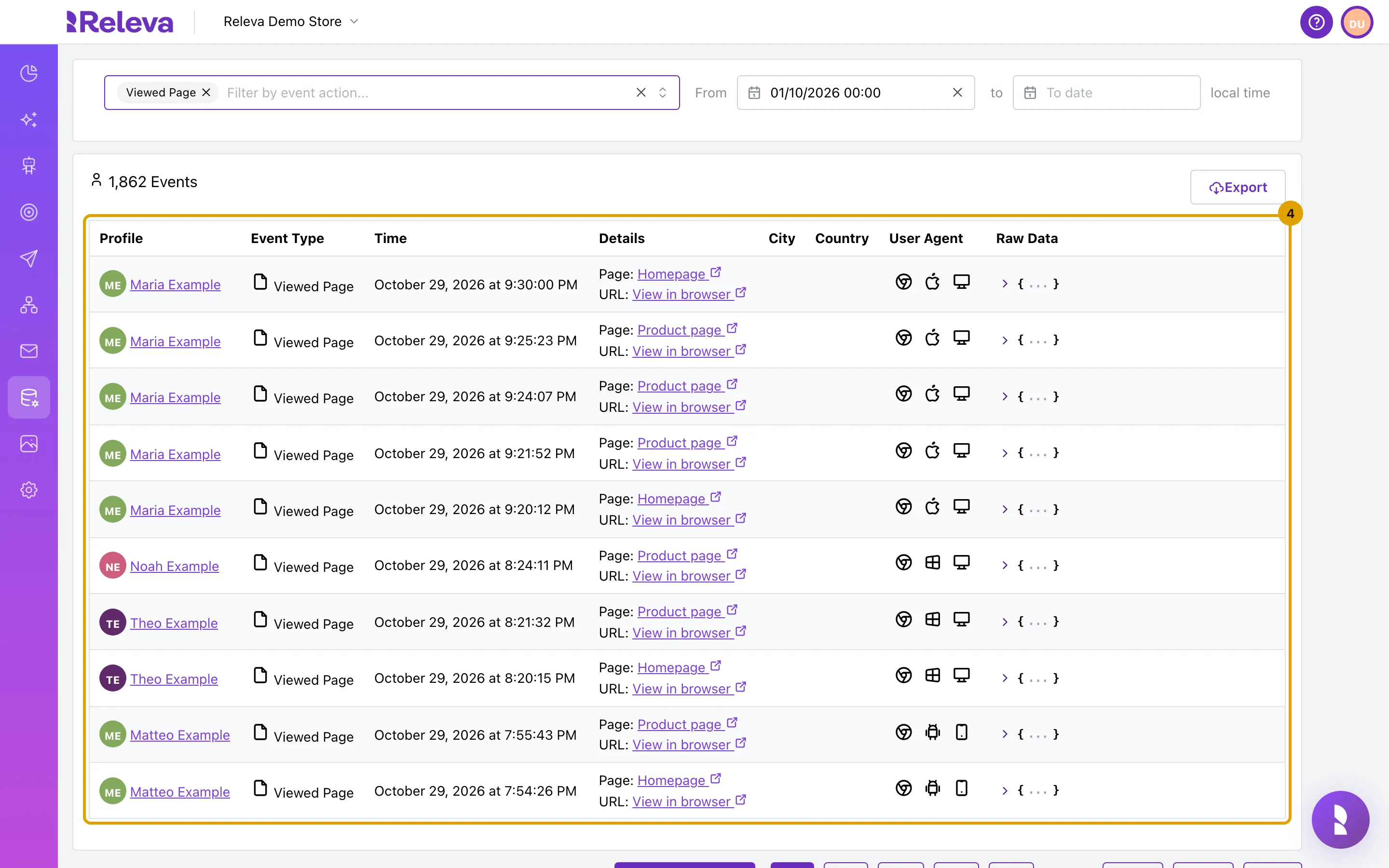
Each row is a page view from your store, newest first.
-
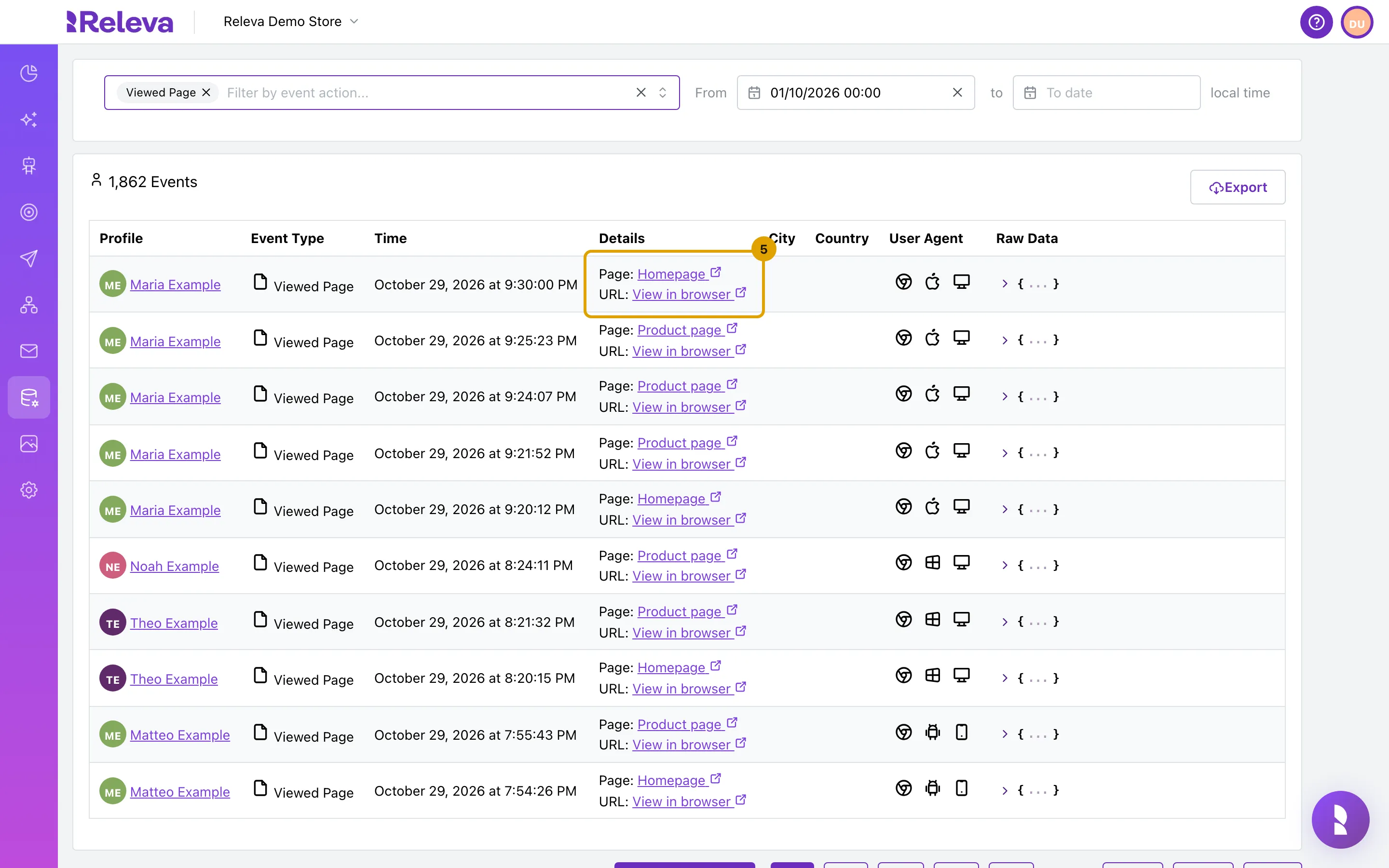
In Details, Page: names the Releva page the view was matched to, and URL: (View in browser) opens the page in your store.
-
Go to Personalization › Product Blocks and choose a page in the page selector, for example Homepage. Its Token is what the Releva app sends with every view of that page.
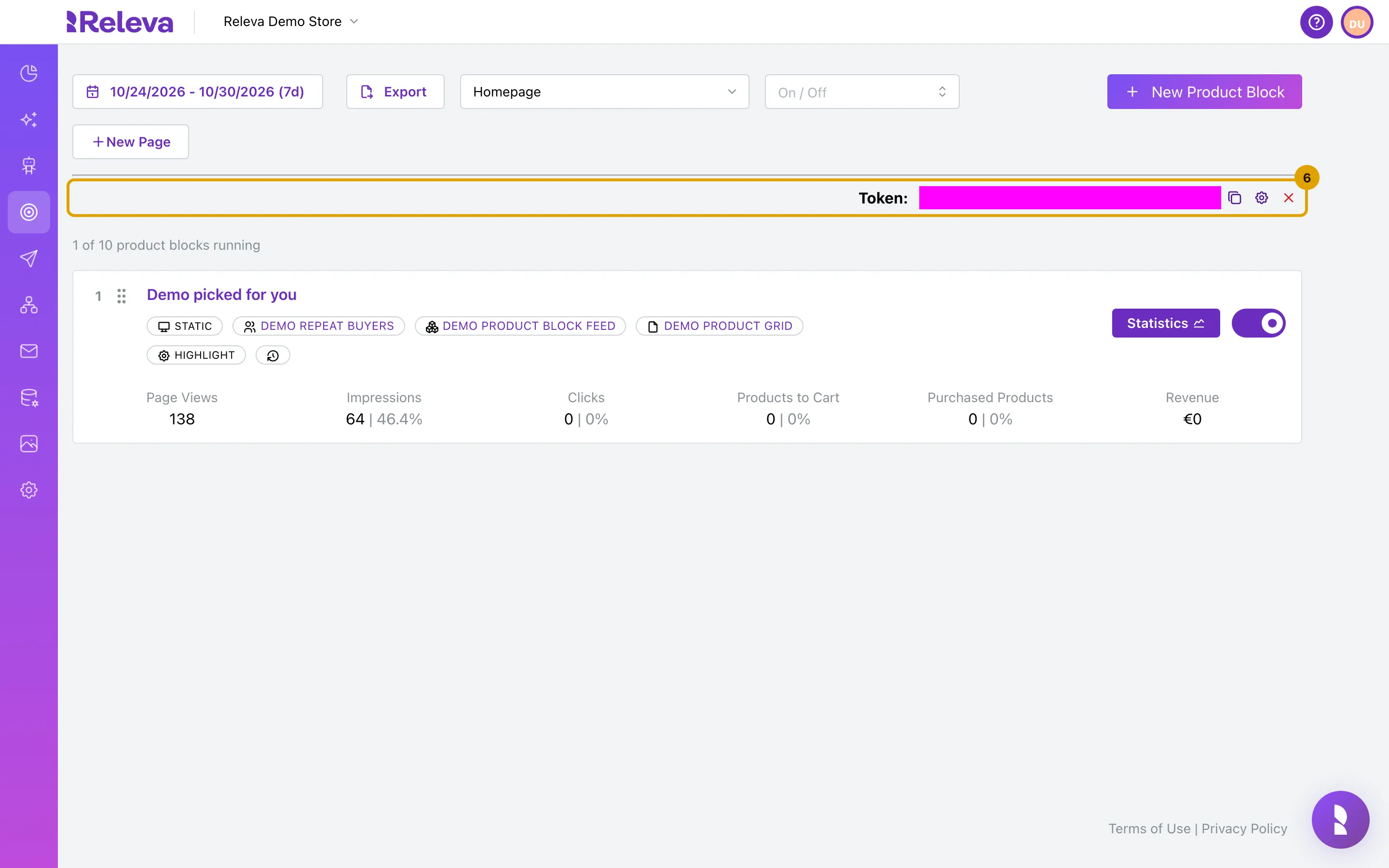
Views of a product page also produce a Viewed Product event. The screenshots were taken on a demo shop with seeded traffic; your rows show your visitors.
Check that your store data arrived
Section titled “Check that your store data arrived”The first import runs right after install. It sends every active product, every customer who has an e-mail address or phone number, and the orders of the last 12 months. How long it takes depends on the size of your store.
Your Shopify products appear on Data Platform › Products once the first import has finished, and your customers with an email address or phone number on Data Platform › Profiles. Both screens, and the storefront events, are checked in Check that your store data arrives. Then check the imported orders:
-
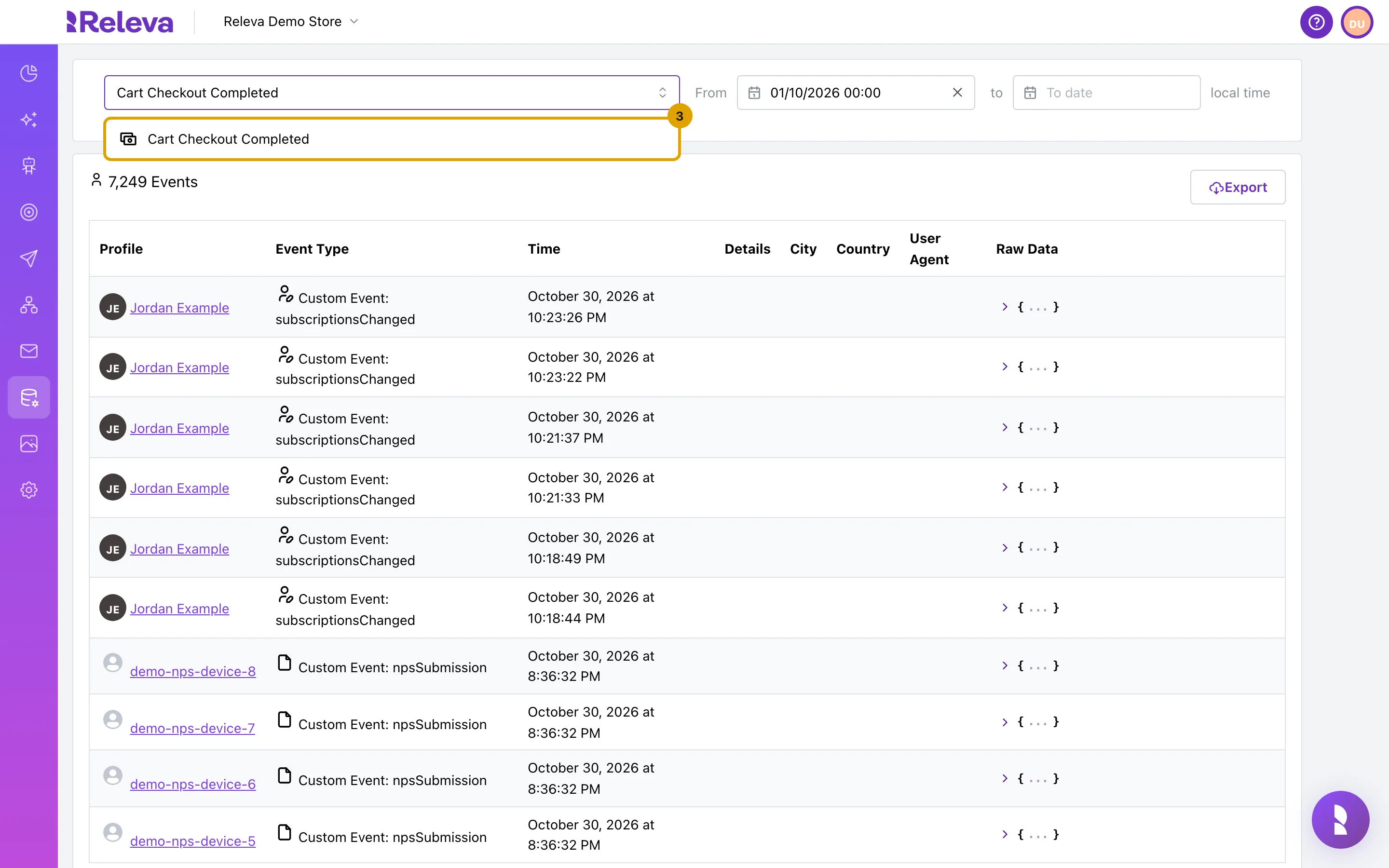
Go to Data Platform › Events, type Cart Checkout Completed in Filter by event action… and select it.
-
Each row is an order from your store. Details lists the products in it.
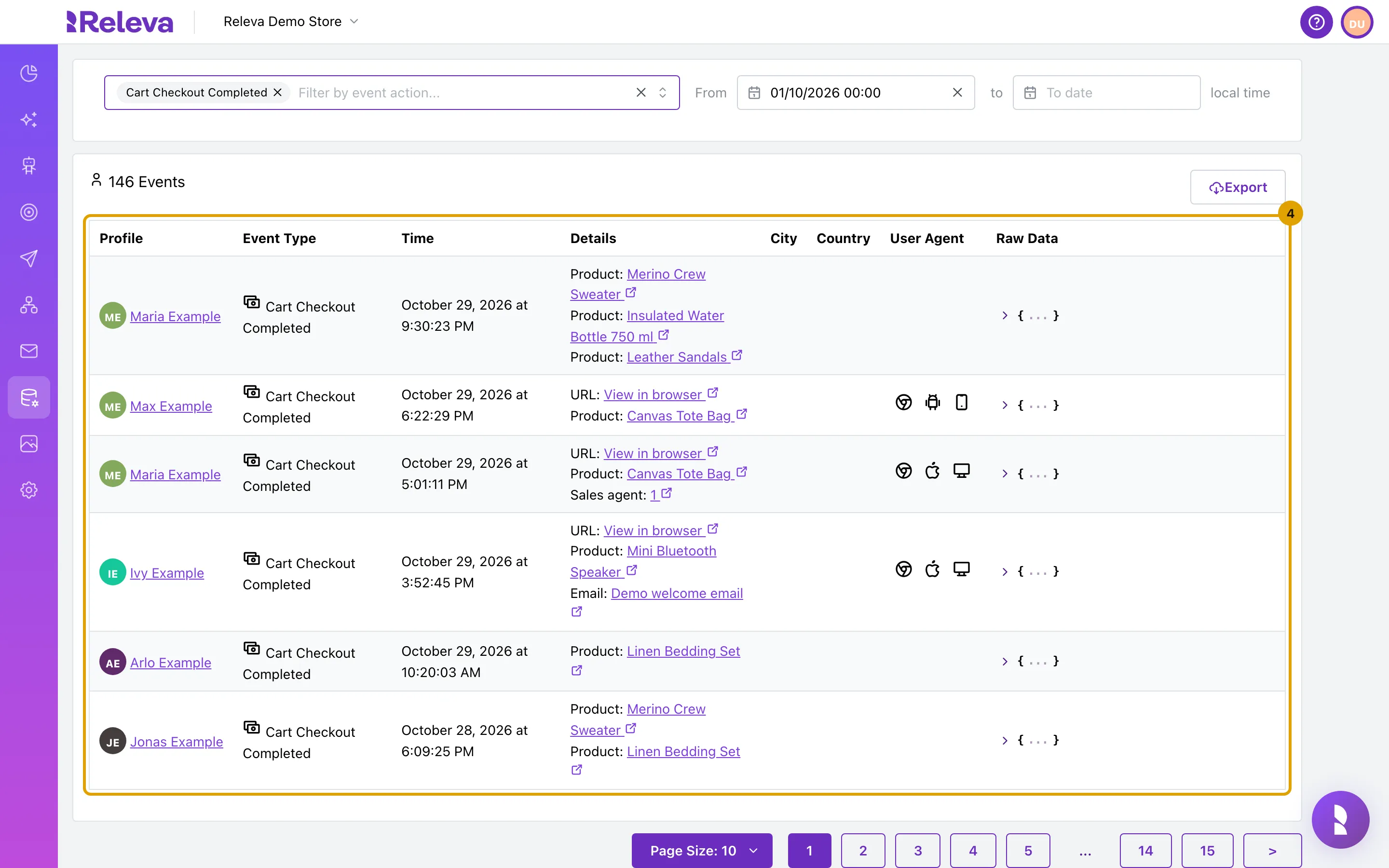
The screenshots were taken on a demo shop with seeded orders; your rows show your store’s orders, newest first.
Product ids in Releva are the Shopify product id followed by the locale, for example 1234567890_en, and on stores that use Shopify Markets also the market handle, for example 1234567890_en_eu. Profile ids are the Shopify customer id.
More ways to check: Check that an event reached Releva, Find a product in your catalog, Find a profile, See a customer’s orders.
Troubleshooting
Section titled “Troubleshooting”The dashboard shows a banner with “Show me how to turn it on”. The Releva.ai app embed is not on in your published theme, or you switched it on without saving. Open the Get started with Releva page from the banner and follow it: Turn on the Releva app embed in Shopify.
The wizard banner stays grey: “We cannot confirm whether the Releva.ai app embed is enabled right now.” Releva could not read your theme in time. Select I’ve activated it — check now again in a moment. Releva also re-checks 10 minutes and 2 hours after install, and every night.
You published a new theme and Releva stopped showing anything. App embeds are per theme. Open the new theme’s editor, switch Releva.ai on under App embeds and save. Releva re-checks the embed when a theme is published and e-mails the store owner if it is off.
No Viewed Page events, although the embed is on. The web pixel sends the token of the Releva page that matches the storefront page by name. If one of the default pages (Homepage, Category page, Product page, Cart page, Search page, Account page) was renamed or deleted in Personalization › Product Blocks, views of that page no longer match. Keep the default names. If you did rename one, contact support so the pixel settings can be refreshed.
A product block is empty on the storefront. Check that the block is On for the right page in Personalization › Product Blocks, and that a Releva Product Block app block has the right Product Block Token if you placed it in the theme editor. For custom cards, see the troubleshooting on Use your theme’s product card.
A customer is missing from Profiles. Customers without an e-mail address and without a phone number are not imported. Turn on Include Anonymous Profiles to see profiles that have neither.
An e-mail unsubscribe in Shopify did not reach Releva, or the other way round. Shopify notifies Releva when a customer’s e-mail marketing consent changes, and Releva writes a subscribe or unsubscribe back to Shopify. If the two disagree, use Sync Now under Subscription Management to pull the current state from Shopify: Choose how Releva manages subscriptions. SMS consent changes made in Shopify after the first import are only picked up by that pull.
You uninstalled the app. Your Releva subscription is cancelled and the shop is paused; data, campaigns and settings are kept. Reinstalling from the Shopify App Store resumes the shop.
What syncs
Section titled “What syncs”Every call from the app to Releva uses content-type: application/json and your shop’s secret key; retries on network errors are automatic. Storefront events go straight from the visitor’s browser to Releva.
| Data | When | How it reaches Releva |
|---|---|---|
| Products | First import after install; products/create, products/update and products/delete webhooks; a nightly pull on the Catalog Sync schedule |
POST /api/v0/products and DELETE /api/v0/products/{id}; for the pull, Releva calls the connector’s /api/releva/products page by page. Only active products are sent, one record per published locale (and per market on stores with Shopify Markets). When the compare-at price is higher than the price, it becomes the list price and the price becomes the discount price. |
| Customers | First import; customers/create, customers/update, customers/delete webhooks; GDPR customers/redact and customers/data_request |
Partner profile endpoints. Customers with neither e-mail nor phone are skipped. A data request makes Releva e-mail the customer’s data to them. |
| Orders | First import (last 12 months); orders/create webhook; the pixel’s checkout_completed event |
POST /api/v0/carts as paid carts, shown as Cart Checkout Completed. Releva deduplicates the webhook and the pixel by order id. |
| Cancellations, refunds, fulfilments | orders/cancelled, refunds/create, fulfillments/create, fulfillments/update webhooks |
POST /api/v0/events with the order status (cancelled, refunded, shipment status and tracking), and POST /api/v0/refunds for the refunded amount. See How orders and refunds work. |
| Storefront events | On every page view and interaction | The web pixel posts to POST /api/v0/push/{accessToken}: home, account, product, collection, search and cart views, add to cart, remove from cart, checkout started, contact and payment info submitted, checkout completed, plus the market and locale the visitor browses in. The Releva.ai app embed loads the Releva JavaScript SDK and renders the personalized elements from the response. |
| E-mail consent | First import; customers_email_marketing_consent/update webhook; the subscriber pull (Sync Now) |
Shopify → Releva: the subscription date becomes the profile’s subscribed-at date, an unsubscribe clears it. Releva → Shopify: a subscribe or unsubscribe in Releva sets the customer’s e-mail marketing state in Shopify (single opt-in) and creates the customer if needed. |
| Shop settings | shop/update webhook |
Currency and language changes in Shopify update the Releva shop. |
| App lifecycle | app/uninstalled, app_subscriptions/update, themes/publish webhooks |
Uninstall pauses the shop; subscription changes are confirmed to Releva; a theme publish triggers an app embed check. |
Not synced: SMS marketing consent changes made in Shopify after the first import (no webhook; only the pull), and product or customer metafields unless Releva enables them for your shop.