

Connect your WooCommerce store
The Releva.ai Integration plugin connects a WordPress site, with or without WooCommerce, to Releva. It loads the Releva JavaScript SDK on your storefront, serves the endpoint Releva pulls your product catalog from, and sends registrations, subscriptions and orders to Releva from your server. You install it from the WordPress plugin directory and configure it with keys you copy from the Releva admin.
This page covers the whole setup: Releva side, WordPress side and the check at the end. It describes plugin version 1.0.85. Facts marked “plugin listing” or listing come from the plugin’s public changelog.
Before you start
Section titled “Before you start”- Your shop exists in Releva with Platform set to WordPress / WooCommerce. The platform is chosen when the shop is created and cannot be changed afterwards: it is read-only on Settings › Shop & Integration › General. Choosing it fills in the catalog and subscriber sync URLs for you (see What syncs). If you have no shop yet, see Creating a shop or ask your account manager.
- You can log in to the WordPress admin of your store as an administrator.
- WordPress 5.0 or later and PHP 7.4 or later. WooCommerce 3.0 or later is optional: it enables the catalog sync and cart and order tracking; the plugin works without it (plugin listing).
- Your store runs on HTTPS. The Releva API accepts HTTPS requests only, and browsers allow web push only on HTTPS sites.
- You have a Releva page for each page type you want to personalize (home, category, product, cart, search). See How product blocks work.
Install
Section titled “Install”In the WordPress admin:
- Go to Plugins › Add New Plugin.
- Search for Releva.ai.
- On Releva.ai Integration (by relevaai), select Install Now, then Activate.
Updates arrive through the normal Dashboard › Updates screen. You can also upload the plugin folder to /wp-content/plugins/ and activate it on the Plugins screen.
The plugin sends nothing to Releva until you enter your keys. The SDK is only loaded on the storefront once an access token is saved, and no server request is made until a secret key is saved (plugin listing, versions 1.0.69 and 1.0.80).
Configure
Section titled “Configure”1. Copy your keys from Releva
Section titled “1. Copy your keys from Releva”Open Settings › Shop & Integration. On the General tab, copy Access Token and Secret Key with the copy icon next to each field. Guide: Find your Access Token and Secret Key.
Then collect one page token per page type from Personalization › Product Blocks. Guide: Copy your page tokens for the WooCommerce plugin.
2. Paste them into the plugin settings
Section titled “2. Paste them into the plugin settings”In the WordPress admin, open the top-level Releva.AI menu.
Authentication
| Plugin field | Value |
|---|---|
| Access token: | Access Token from Settings › Shop & Integration › General |
| Secret key: | Secret Key from the same tab |

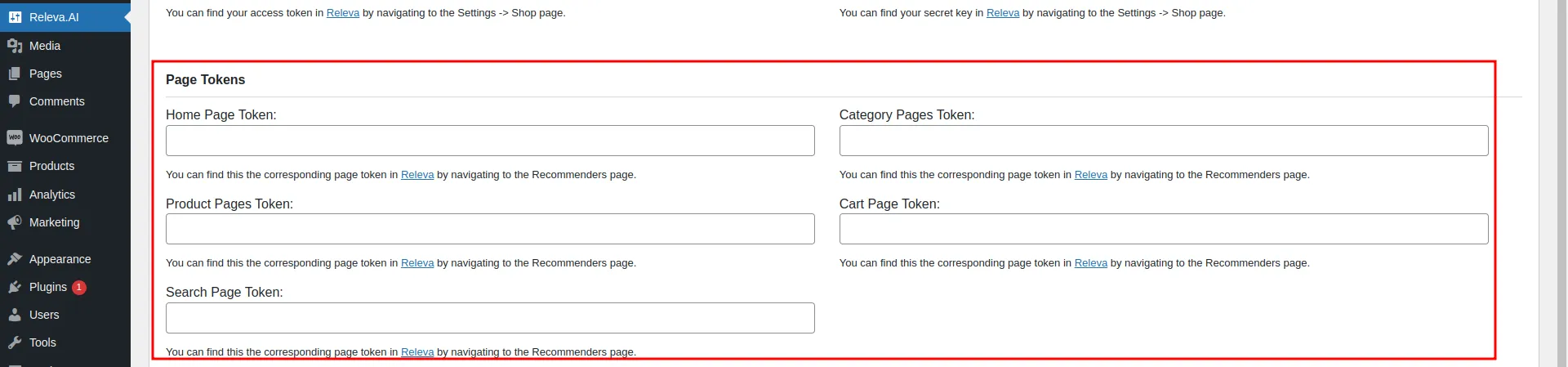
Page Tokens
| Plugin field | Releva page |
|---|---|
| Home Page Token: | your home page |
| Category Pages Token: | your category or listing page |
| Product Pages Token: | your product page |
| Cart Page Token: | your cart page |
| Search Page Token: | your search results page |
Newer plugin versions also have tokens for the blog category and blog post pages (plugin listing, version 1.0.35). Leave a field empty if you do not want personalization on that page type.
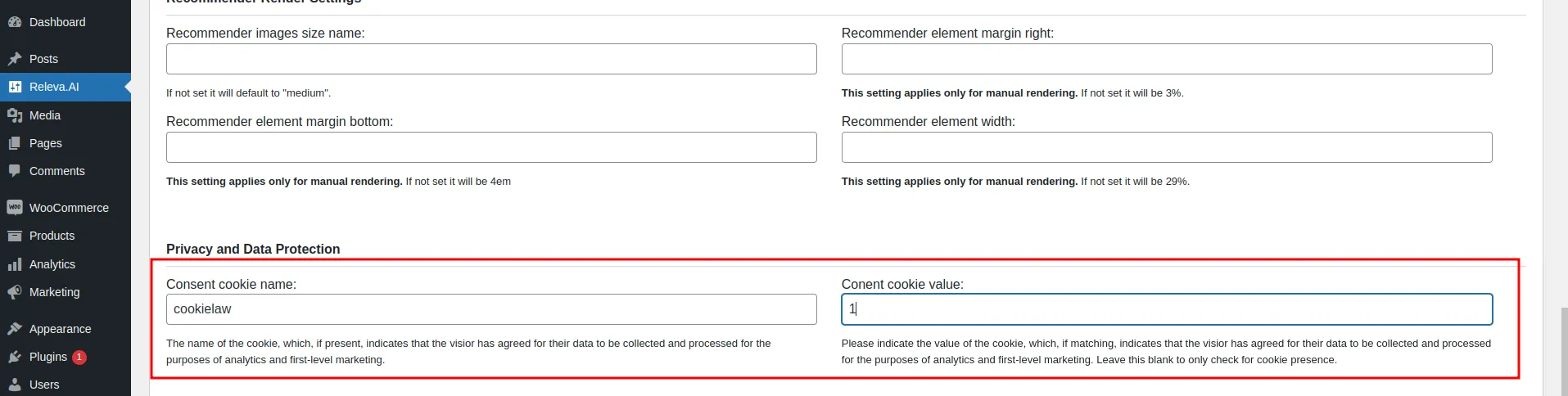
Privacy and Data Protection
Enter the name of the cookie your consent banner sets when a visitor accepts analytics and marketing cookies in Consent cookie name:, and its value in Consent cookie value:. Leave the value empty to check only that the cookie exists. For example, if accepting your cookie policy sets cookielaw=1, enter cookielaw and 1. If your consent banner exposes its state in JavaScript instead, enter a function in Custom Consent Function:, for example function(Releva){ return window.myBanner.marketingAllowed; }. It gets the Releva object and returns true when the visitor consented. When it returns a value, that value wins over the cookie check.
The plugin passes this check to the SDK as its hasConsent option. On every push the SDK evaluates that option and sends profile.consent as cookiesPolicy when it returns true and mandatoryCookies otherwise. How Releva treats each value is explained in How consent works in Releva.
If your store is subject to data protection laws such as GDPR or CCPA, configure this section before you save. A misconfigured consent check is your responsibility, not Releva’s.
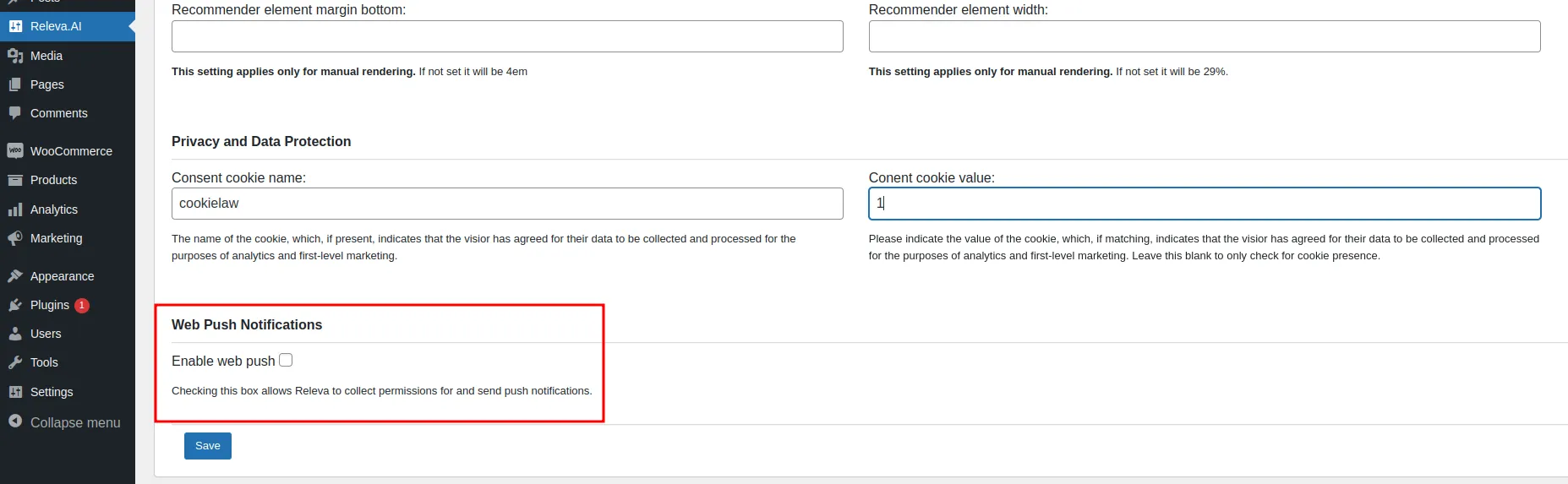
Web Push Notifications
Tick Enable web push if you want Releva to ask visitors for push permission and send them web push notifications. See Create a web push notification.
Select Save.
3. Link other WordPress pages (optional)
Section titled “3. Link other WordPress pages (optional)”Any other WordPress page can be linked to a Releva page. Open the page in the WordPress editor, scroll to the Releva Page Token box at the bottom and paste the token into Page Token:. Custom Event Tracking: in the same box is for custom events; ask your account manager for its format before you use it.
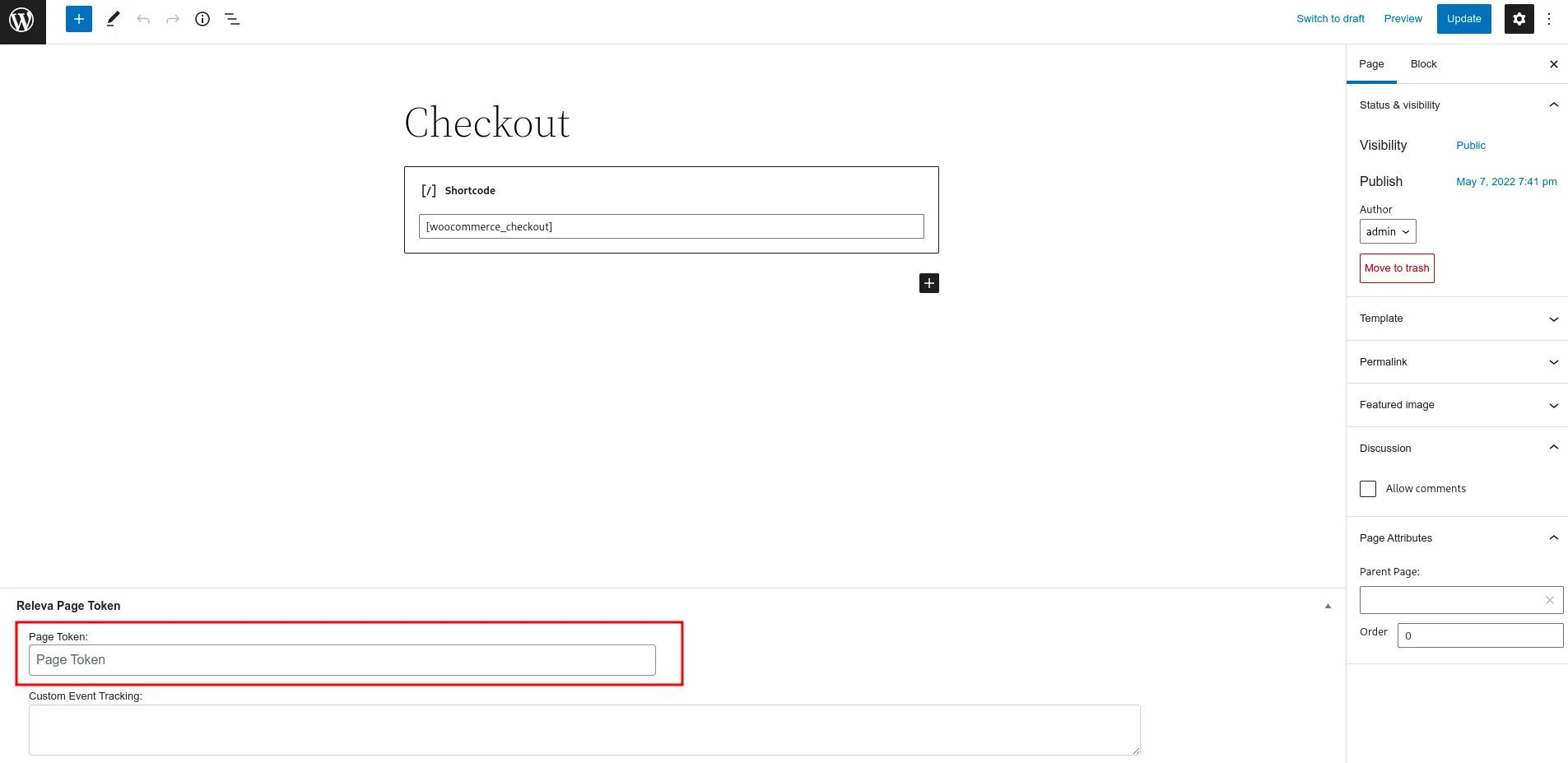
If a page type has no Releva page yet, create one with New Page on Personalization › Product Blocks, then copy its token.
4. Run the first catalog sync and set a schedule
Section titled “4. Run the first catalog sync and set a schedule”In Releva, open Settings › Shop & Integration › Catalog Sync. For a WooCommerce shop the URL is prefilled with https://<your store>/?rest_route=/releva/integration/products, the endpoint the plugin serves. Select Test to check that the plugin answers, then Sync Now to import the catalog.
A WooCommerce shop gets no sync schedule by default. Set Catalog Sync Schedule so Releva re-reads the full catalog regularly, for example 0 3 * * * for every night at 03:00 UTC. Guide: Schedule a full catalog sync.
Verify
Section titled “Verify”Open your storefront in a private browser window, view a product page and add it to the cart. Then check in the Releva admin that the events, your products and your customers arrived: Check that your store data arrives. The screens are the same for every platform.
Two things to look for on a WooCommerce shop:
- On Data Platform › Events, Page: in Details shows the Releva page that matched the token the plugin sent. A row with URL: View in browser but no Page: means the plugin sent no token for that page type and the page has no matching URL Path. Check the token field for that page type.
- On Data Platform › Products, you see one row per product and language. Each WPML or Polylang language is synced with its own Locale (plugin listing).
Also check Settings › Shop & Integration › Catalog Sync › Sync History: after Sync Now, the top line reads Last successful sync: with a time instead of Never.
Troubleshooting
Section titled “Troubleshooting”Nothing appears on Data Platform › Events. Check that Access token: in the plugin is saved and equals the Access Token in Releva (not the Secret Key; both are UUIDs). The plugin does not load the SDK until the access token is set. View the page source of your storefront and look for releva-sdk-js. If a caching or optimization plugin is active, clear its cache. The plugin excludes its script from NitroPack (plugin listing, version 1.0.20), but other optimizers may still defer or combine it.
Events arrive, but without Page: links. The plugin sends a page token per page type. Fill in the matching … Page Token: field, or set URL Path in Page Settings on Personalization › Product Blocks so Releva can match the page by path when no token is sent.
Test on the Catalog Sync tab fails. The URL must be exactly https://<your store>/?rest_route=/releva/integration/products. The plugin answers only when Secret key: is saved and matches the shop’s Secret Key: Releva sends it in the x-rlv-authorization: Bearer <secretKey> header. A security plugin that blocks the WordPress REST API also blocks this endpoint.
The sync succeeds but products are missing. Only published products are synced; drafts, pending and private products are left out, and a product that is unpublished is removed from the catalog (plugin listing, version 1.0.75). A product that fails Releva’s validation is dropped and counted in the Invalid column of Sync History.
Products show up only in one language. The plugin syncs one product per active WPML or Polylang language. Products without an assigned language are synced with the site’s default locale (plugin listing).
A customer registered, but there is no profile. Registrations are sent from the server with the Secret key:. A wrong key, a network error or a custom sign-up template that bypasses the WooCommerce registration form can stop them. Since version 1.0.80 a registration that fails to reach Releva is not marked as sent, and custom theme sign-up templates are supported (plugin listing). For custom forms, the plugin offers the relevaai_register_profile filter.
Orders are missing or duplicated. Orders are sent from the WooCommerce thank-you page. Make sure your checkout ends on that page. Version 1.0.83 stopped re-sending the order on every reload with High-Performance Order Storage and retries an order whose request failed (plugin listing).
A workflow condition on a coupon code never matches. WooCommerce stores coupon codes in lowercase and the plugin sends them as the order’s custom field coupon in lowercase. Use the lowercase code in your condition (plugin listing, version 1.0.83).
Subscriber Sync API Test or Sync Now fails with rest_no_route. Releva prefills a subscriber sync address for WooCommerce shops, but the plugin (up to version 1.0.85) does not serve it. You do not need it: the plugin already sends opt-ins and opt-outs to Releva from your server. Keep Subscription Management on Internal unless your shop is the record of who is subscribed. See Choose how Releva manages subscriptions.
What syncs
Section titled “What syncs”The table says what Releva offers for a WooCommerce shop and, where known, when the plugin uses it. Rows marked listing describe plugin behaviour taken from the plugin’s public changelog, not from its source code.
| Data | Direction | Endpoint | When |
|---|---|---|---|
| Products (full catalog) | Releva pulls from your store | GET https://<your store>/?rest_route=/releva/integration/products with page, cursor and x-rlv-authorization: Bearer <secretKey> |
On Sync Now and on the Catalog Sync Schedule. The plugin returns published products with prices including tax, images, categories, tags, custom taxonomies and meta fields as custom string fields, variable products as groupId plus variants, and one entry per WPML or Polylang language (listing). Contract: the pull-sync endpoint. |
| Product changes | Your store pushes | POST /api/v0/products, POST /api/v0/products/availability, DELETE /api/v0/products/{id} |
The plugin removes unpublished products and syncs scheduled products as soon as they are published (listing, 1.0.75). |
| Page views, product views, cart, search | Storefront (SDK) | POST /api/v0/push/{accessToken} |
On every page load, with the page token for the page type, the product id on product pages, the search query on search pages, and the cart (listing). The response carries the product blocks, banners and stories for the page. |
| Customers (registration) | Your server | POST /api/v0/register or POST /api/v0/profiles, secret key |
On registration, with email, first name, last name and phone (listing, 1.0.81). |
| Marketing consent | Your server | POST /api/v0/subscribe, POST /api/v0/unsubscribe, secret key |
Opt-in at registration and opt-in or opt-out on the WooCommerce account page. This is how subscriptions reach Releva from a WooCommerce shop. |
| Subscriber list | Not served by the plugin | https://<your store>/?rest_route=/releva/integration/subscribers |
Releva prefills this address as Subscriber Sync API on Settings › Messaging, but the plugin (up to 1.0.85) does not serve it and answers 404. Keep Subscription Management on Internal. |
| Orders | Your store, from the thank-you page | SDK push with a paid cart, or POST /api/v0/carts |
Once per paid order, with coupon codes as the custom field coupon (listing, 1.0.83). |
| Order status changes | Your store pushes | POST /api/v0/events with action: orderStatusChanged, secret key |
On every order status change, from plugin 1.0.84: the new status as state and in tags, the WooCommerce status name as statusLabel, the order number as orderName, the previous status as previousStatus, and the order lines. See Send order status updates. |
| Cookie consent | Storefront (SDK) | profile.consent in every push |
cookiesPolicy when your consent cookie or function says yes, mandatoryCookies otherwise. |
| Web push subscriptions | Storefront (SDK) | POST /api/v0/pushSubscriptions/{accessToken} |
When Enable web push is on and the visitor grants permission. |
| Personal data erasure | Your server | DELETE /api/v0/profiles, secret key |
Releva calls this the merchant-plugin erasure endpoint. |
Releva-side defaults for a WooCommerce shop are set once, when the shop is created: the catalog and subscriber sync URLs above and no catalog sync schedule. Pushing changes keeps Releva current between syncs; the full sync is the safety net, and about two minutes after a complete pass Releva deletes products that the pass did not return. See How Releva connects to your shop.